lights AUDI TT COUPE 2020 Owner's Manual
[x] Cancel search | Manufacturer: AUDI, Model Year: 2020, Model line: TT COUPE, Model: AUDI TT COUPE 2020Pages: 280, PDF Size: 98.79 MB
Page 92 of 280
Assist systems
— For safety reasons, active lane assist must
not be used when there are poor road and/or
weather conditions such as slippery roads,
fog, gravel, heavy rain, snow and the poten-
tial for hydroplaning. Using active lane as-
sist under these conditions may increase the
risk of a crash.
Switching on/off
Applies to: vehicles with Audi active lane assist
B8V-0692
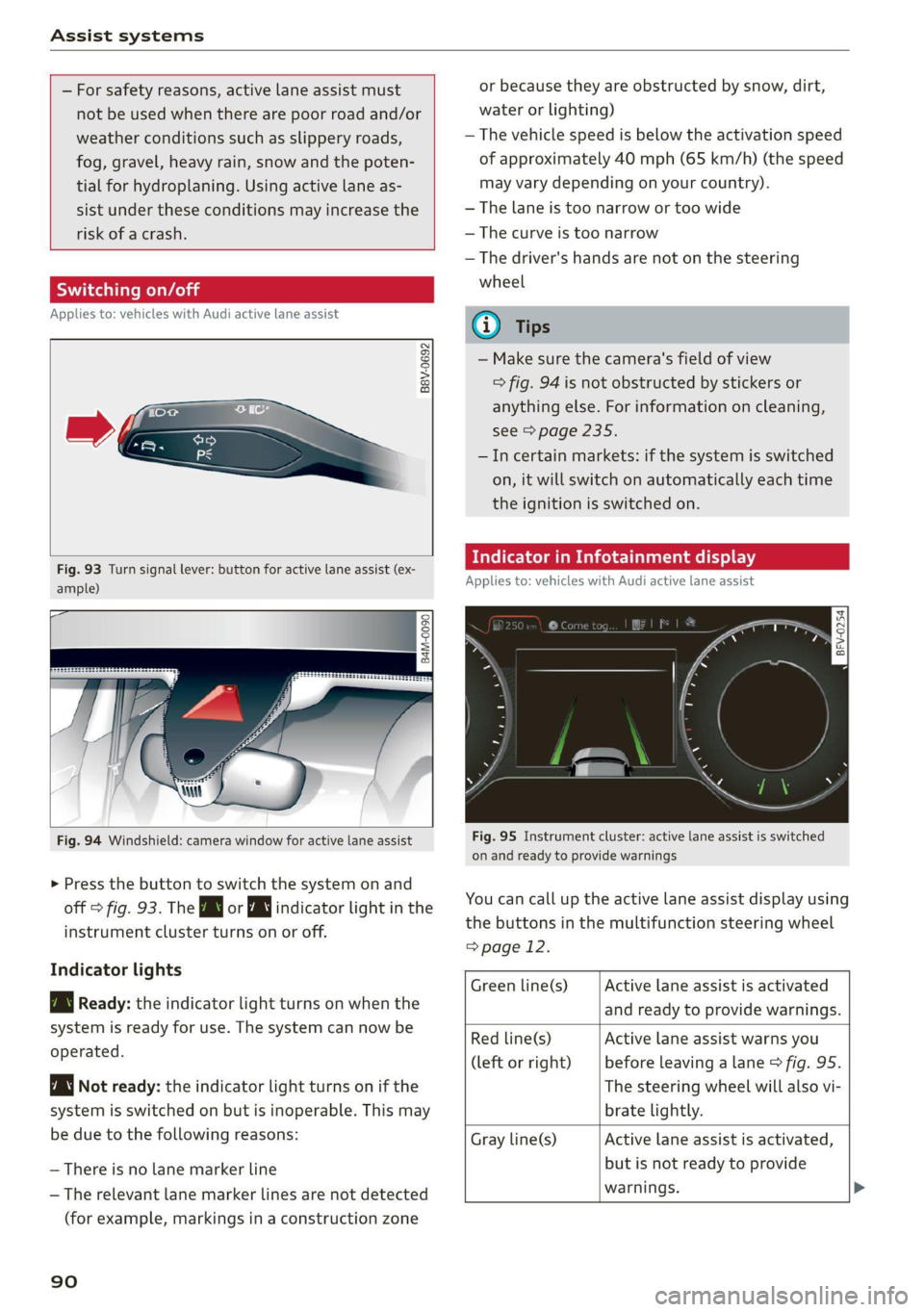
Fig. 93 Turn signal lever: button for active lane assist (ex-
ample)
ig
84M-0090
Fig. 94 Windshield: camera window for active lane assist
> Press the button to switch the system on and
off > fig. 93. The Bg or WJ indicator light in the
instrument cluster turns on or off.
Indicator lights
B Ready: the indicator light turns on when the
system is ready for use. The system can now be
operated.
Not ready: the indicator light turns on if the
system is switched on but is inoperable. This may
be due to the following reasons:
— There is no lane marker line
— The relevant lane marker lines are not detected
(for example, markings in a construction zone
90
or because they are obstructed by snow, dirt,
water or lighting)
— The vehicle speed is below the activation speed
of approximately 40 mph (65 km/h) (the speed
may vary depending on your country).
— The lane is too narrow or too wide
— The curve is too narrow
— The driver's hands are not on the steering
wheel
@) Tips
— Make sure the camera's field of view
=> fig. 94 is not obstructed by stickers or
anything else. For information on cleaning,
see > page 235.
—Incertain markets: if the system is switched
on, it will switch on automatically each time
the ignition is switched on.
dicator in Infotainment display
Applies to: vehicles with Audi active lane assist
Fig. 95 Instrument cluster: active lane assist is switched
on and ready to provide warnings
You can call up the active lane assist display using
the buttons in the multifunction steering wheel
=> page 12.
Active lane assist is activated
and ready to provide warnings.
Green line(s)
Red line(s)
(left or right)
Active lane assist warns you
before leaving a lane > fig. 95.
The steering wheel will also vi-
brate lightly.
Active lane assist is activated,
but is not ready to provide
warnings. >
Gray line(s)
Page 108 of 280
Intelligent Technology
can affect driving stability and increase the
risk of a collision.
@) Tips
— The ABS and ASR only function correctly
when all four wheels have a similar wear
condition. Different tire sizes can lead toa
reduction in engine power.
— You may hear noises when the systems de-
scribed are working.
Scale Rema
The ESC is automatically switched on when the ignition is switched on.
©
Sg s
> 6
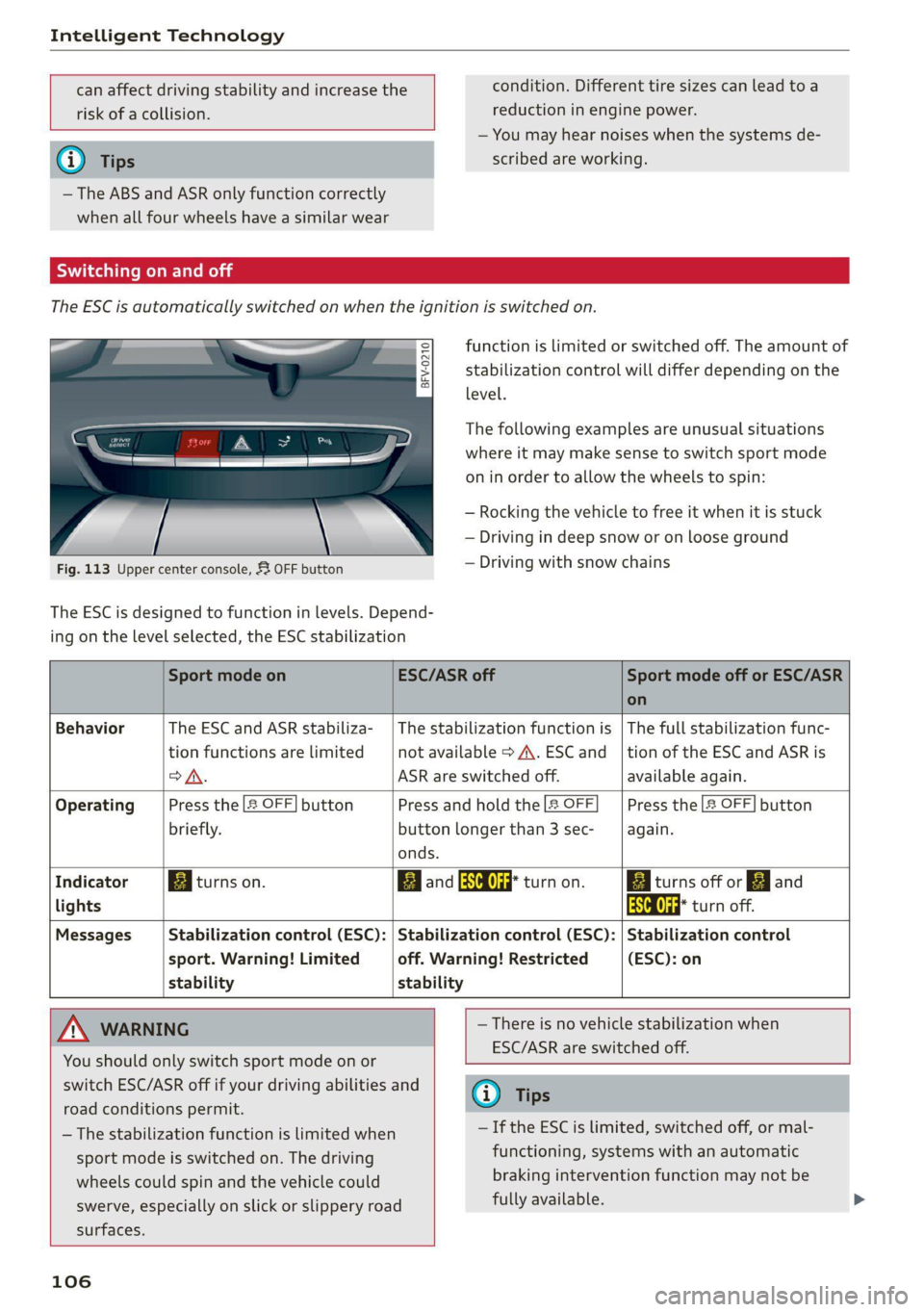
Fig. 113 Upper center console, & OFF button
The ESC is designed to function in levels. Depend-
ing on the level selected, the ESC stabilization
function is limited or switched off. The amount of
stabilization control will differ depending on the
level.
The following examples are unusual situations
where it may make sense to switch sport mode
on in order to allow the wheels to spin:
— Rocking the vehicle to free it when it is stuck
— Driving in deep snow or on loose ground
— Driving with snow chains
switch ESC/ASR off if your driving abilities and
road conditions permit.
— The stabilization function is limited when
sport mode is switched on. The driving
wheels could spin and the vehicle could
swerve, especially on slick or slippery road
surfaces.
Sport mode on ESC/ASR off Sport mode off or ESC/ASR
on
Behavior The ESC and ASR stabiliza- | The stabilization function is | The full stabilization func-
tion functions are limited not available > A\. ESC and _ |tion of the ESC and ASR is
oA. ASR are switched off. available again.
Operating Press the [2 OFF] button Press and hold the |& OFF Press the [2 OFF] button
briefly. button longer than 3 sec- | again.
onds.
Indicator Biturns on. Egan aa turn on. Baiturns off or [J and
lights aa turn off.
Messages Stabilization control (ESC): | Stabilization control (ESC): | Stabilization control
sport. Warning! Limited off. Warning! Restricted (ESC): on
stability stability
AN WARNING — There is no vehicle stabilization when
. ESC/ASR are switched off.
You should only switch sport mode on or
106
@ Tips
— If the ESC is limited, switched off, or mal-
functioning, systems with an automatic
braking intervention function may not be
fully available.
Page 120 of 280
Multi Media Interface
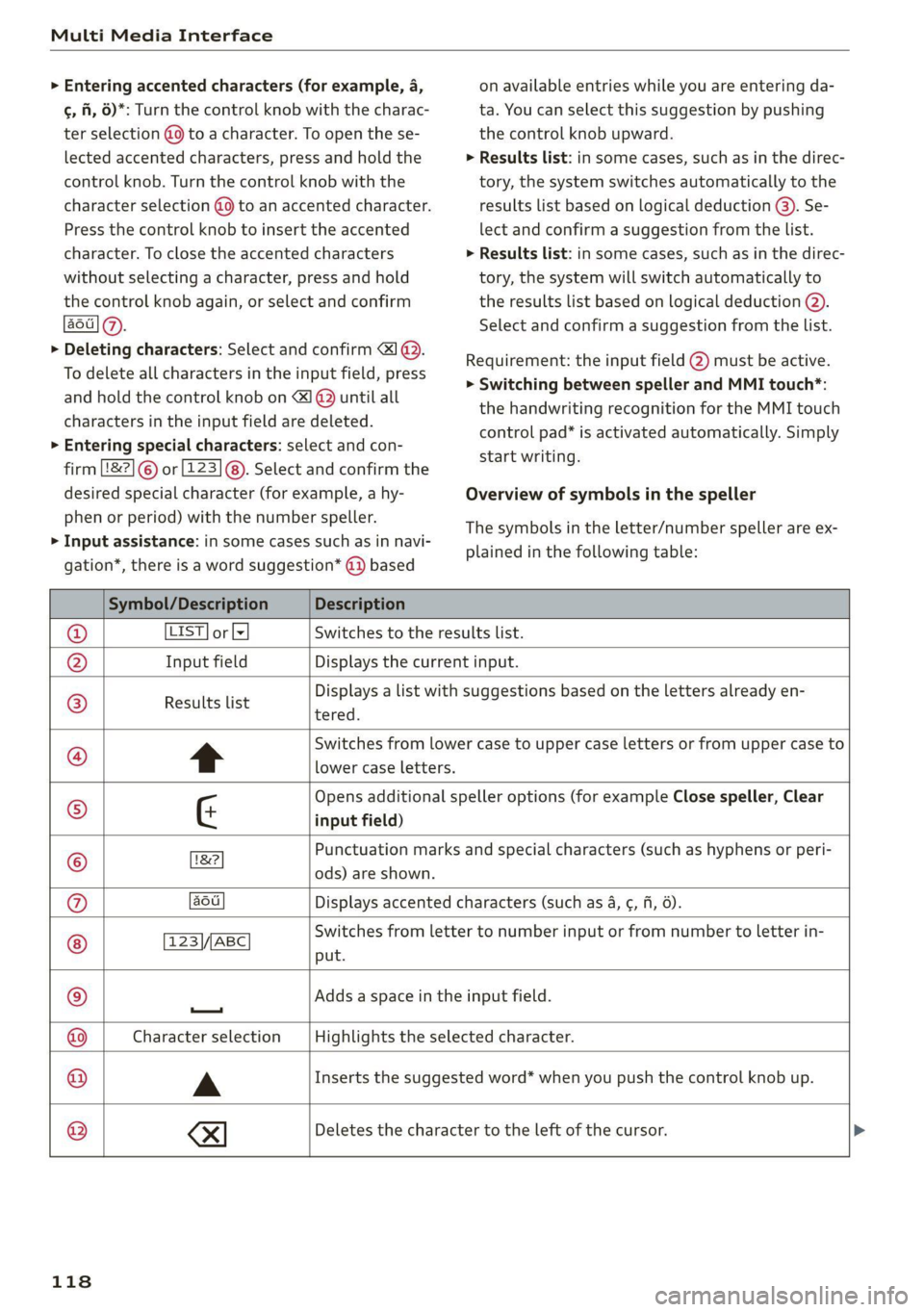
> Entering accented characters (for example, a,
¢, fi, 6)*: Turn the control knob with the charac-
ter selection (9 to a character. To open the se-
lected accented characters, press and hold the
control knob. Turn the control knob with the
character selection @0) to an accented character.
Press the control knob to insert the accented
character. To close the accented characters
without selecting a character, press and hold
the control knob again, or select and confirm
aot].
> Deleting characters: Select and confirm &1@.
To delete all characters in the input field, press
and hold the control knob on 1 @ until all
characters in the input field are deleted.
> Entering special characters: select and con-
firm 8&2] © or [123]@). Select and confirm the
desired special character (for example, a hy-
phen or period) with the number speller.
> Input assistance: in some cases such as in navi-
gation*, there is a word suggestion* @) based
on available entries while you are entering da-
ta. You can select this suggestion by pushing
the control knob upward.
> Results list: in some cases, such as in the direc-
tory, the system switches automatically to the
results list based on logical deduction (3). Se-
lect and confirm a suggestion from the list.
> Results list: in some cases, such as in the direc-
tory, the system will switch automatically to
the results list based on logical deduction @).
Select and confirm a suggestion from the list.
Requirement: the input field @) must be active.
> Switching between speller and MMI touch*:
the handwriting recognition for the MMI touch
control pad* is activated automatically. Simply
start writing.
Overview of symbols in the speller
The symbols in the letter/number speller are ex-
plained in the following table:
Symbol/Description Description
LIST] or [= Switches to the results list.
Input field Displays the current input.
Results list
tered.
Displays a list with suggestions based on the letters already en-
Switches from lower case to upper case letters or from upper case to
lower case letters.
input field)
Opens additional speller options (for example Close speller, Clear
ods) are shown.
Punctuation marks and special characters (such as hyphens or peri-
aou Displays accented characters (such as 4, ¢, fi, 6).
©
|C}
©
|
@/|O)]
©
E|O
FN
123\/,ABC
put.
Switches from letter to number input or from number to letter in-
—
Adds a space in the input field.
Character selection Highlights the selected character.
A Inserts the suggested word* when you push the control knob up.
®
|
©
|O|
©
I
Deletes the character to the left of the cursor.
118
Page 125 of 280

8S1012721BB
Voice recognition system
Voice recognition system
General information
Applies to: vehicles with voice recognition system
You can operate many functions in the vehicle
easily using voice commands.
Using the voice recognition system optimally
> Speak clearly and distinctly at a normal volume.
Speak louder when driving faster.
» Emphasize the words in the commands evenly
and do not leave long pauses.
>» Close the doors, the windows, and the sunroof*
to reduce background noise. Make sure that
passengers are not speaking when you are giv-
ing a voice command.
> Do not direct the vents toward the hands-free
microphone, which is in the roof headliner/on
the driver’s safety belt* near the front interior
lights. For additional information on the safety
belt microphone’, see > page 141.
> Only the driver should speak to the system, be-
cause the handsfree microphone is aimed to-
ward this seating position.
Z\ WARNING
— Direct your full attention to driving. As the
driver, you have complete responsibility for
safety in traffic. Only use the functions in
such a way that you always maintain com-
plete control over your vehicle in all traffic
situations.
— Do not use the voice recognition system in
emergencies because your voice may change
in stressful situations. The system may take
longer to dial the number or may not be
able to dial it at all. Dial the emergency
number manually.
G) Tips
There are no voice guidance* prompts when a
dialog is active.
Operating
Applies to: vehicles with voice recognition system
Requirement: the ignition and the MMI must be
switched on. A system language supported by
the voice recognition system must be set. There
must be no phone calls in progress and the park-
ing aid must not be active.
> Switching on: briefly press the [2] button @)
=> page 14, fig. 10 on the multifunction steer-
ing wheel and say the desired command after
the Beep.
> Switching off: press and hold the |] button,
or:
» Say the command Cancel.
> Pausing: say the command Pause. To resume,
press the |] button.
> Correcting: press the [5] button one time ©)
=> page 12, fig. 6, or:
> Say the command Correction.
Input assistance
The system guides you through the input with
visual and audio feedback.
— Visual input assistance: after switching on
voice recognition, a display with a selection of
possible commands appears. This command
display can be switched on or off. Select:
MENU] > Settings > left control button > MMI
settings > Speech dialog system.
— Audio input assistance: to have the possible
commands read, press the [2] button on the
multifunction steering wheel briefly and say
Help.
Additional settings
See > page 194, Voice recognition system.
@) Tips
— The dialog pauses when there is an incom-
ing phone call and will continue if you ig-
nore the call. The dialog ends if you answer
the call.
— You can select an item in the list using ei-
ther the voice recognition system or the
control knob.
123
Page 162 of 280

Navigation
Parking along the route: parking options along
the route will be displayed.
Save current position: you can save your current
vehicle position as a favorite > page 155 or save
it as a contact in the directory > page 155.
Audi connect at this location*: allows you to
search for travel information at the entered loca-
tion (events, weather at the destination, etc.).
Country information: you can display the appli-
cable urban and rural speed limits for any coun-
try/state. This information will be automatically
shown to you in the route information (5)
=> page 158, fig. 142 when the speed limit is ex-
ceeded, if this function is activated > page 160.
Avoid route*: when route guidance is active, the
calculated route will avoid the area you have
specified (maximum: 12 mi (20 km)), if possible.
The navigation system calculates an alternative
route. The route to be avoided that you have en-
tered applies only to the current route and must
be set again, if needed. The areas you have se-
lected to avoid will appear with red and white
shading on the map.
Map settings
Applies
to: vehicles with navigation system
> Press the [NAV/MAP] button repeatedly until
the map is displayed > page 158, fig. 142.
> Select: right control button > Map settings.
Depending on the selected function, the follow-
ing settings can be selected:
Map colors
Day/Night: the map is displayed with a light/
dark background.
Automatic: when the lights switch on, the map
colors switch from day to night.
Map display
Standard > page 158, fig. 141.
Satellite map*)) > page 161, fig. 143.
2) AUDI AG provides access to services from third party pro-
viders. Permanent availability cannot be guaranteed, be-
cause that depends on the third party provider.
160
Traffic > page 162.
Map orientation
Destination map: the map indicates the destina-
tion and is oriented to the north.
2D heading up map/2D north up map: the cur-
rent vehicle position is displayed. The map is ori-
ented in the direction of travel or to the north.
3D heading-up map: when this function is
switched on, the current vehicle position is
shown on a three-dimensional map and oriented
in the direction of travel. At a scale of 62 mi
(100 km) and larger, the map orientation is to
the north.
Overview map: the entire route from the vehicle
position to the destination or the next stopover is
displayed on the map. The map scale depends on
the length of the route and adapts automatically.
The map is oriented to the north.
Route information
The display of route information such as the cur-
rent road being driven on, upcoming maneuvers,
traffic information or points of interest along the
route can be switched on/off.
Automatic zoom
On: the map scale is adapted automatically de-
pending on the type of road being traveled (ex-
pressway, highway, other roads) so that you al-
ways have an optimal overview of the road ahead.
The scale will also be automatically adapted
when there are upcoming maneuvers to provide a
better detailed view.
Off: the map scale you have chosen is main-
tained.
Map content
Map content, such as traffic information, favor-
ites or restaurants, can be displayed or hidden
(™).
Page 233 of 280

8S1012721BB
Wheels
If the tire pressure monitoring indicator
appears
Applies to: vehicles with Tire Pressure Monitoring System in-
dicator
The tire pressure indicator in the instrument
cluster informs you if the tire pressure is too low
or if there is a system malfunction.
Using the ABS sensors, the tire pressure monitor-
ing system compares the tire tread circumference
and vibration characteristics of the individual
tires. If the pressure changes in one or more
tires, this is indicated in the Infotainment system
display with an indicator light (J and a message.
If only one tire is affected, the location of that
tire will be indicated.
The tire pressures must be stored in the Infotain-
ment system again each time the pressures
change (switching between partial and full load
pressure) or after changing or replacing a tire on
your vehicle > page 231. The tire pressure moni-
toring system only monitors the tire pressure you
have stored. Refer to the tire pressure label for
the recommended tire pressure for your vehicle
=> page 223, fig. 180.
Tire tread circumference and vibration character-
istics can change and cause a tire pressure warn-
ing if:
— The tire pressure in one or more tires is too low
— The tire has structural damage
— The tire was replaced or the tire pressure was
changed and it was not stored > page 231
— The spare tire* is installed
Indicator lights
@ - Loss of tire pressure in at least one tire
=> AX. Check the tires and replace or repair if nec-
essary. Check/correct the pressures of all four
tires and store the pressure again in the Infotain-
ment system > page 231.
ia (Tire Pressure Monitoring System) Tire pres-
sure: malfunction! See owner's manual - if io
appears after switching on the ignition or while
driving and then the @ indicator light in the in-
strument cluster also starts to blink for about
one minute and then stays on permanently, there
is a system malfunction. Try to store the correct
tire pressures > page 231. If the indicator light
does turn off or turns on again after a short peri-
od of time, drive to an authorized Audi dealer or
authorized Audi Service Facility immediately to
have the malfunction corrected.
ZA\ WARNING
—If the tire pressure indicator appears in the
display, reduce your speed immediately and
avoid any hard steering or braking maneu-
vers. Stop as soon as possible and check the
tires and their pressure.
— The driver is responsible for maintaining the
correct tire pressure. You must check the
tire pressure regularly.
— Under certain conditions (such as a sporty
driving style, winter conditions, or unpaved
roads), the tire pressure monitoring system
indicator may be delayed.
— Do not use run-flat tires on your vehicle. Us-
ing them when not permitted can lead to ve-
hicle damage or accidents.
@) Tips
—The tire pressure monitoring system can al-
so stop working when there is an ESC mal-
function.
— Using snow chains may result in a system
malfunction.
— The tire pressure monitoring system in your
Audi was calibrated with “Audi Original
Tires” > page 220. Using these tires is rec-
ommended.
Storing tire pressures
Applies to: vehicles with Tire Pressure Monitoring System in-
dicator
If the tire pressure changes or a tire is replaced,
it must be confirmed in the Infotainment sys-
tem.
> Before storing the tire pressures, make sure the
tire pressures in all four tires meet the speci-
fied values and are adapted to the load
= page 222.
> Switch the ignition on.
231
Page 235 of 280

8S1012721BB
Wheels
driver is responsible for having the tires in-
flated to the correct pressure.
— Do not change the tire pressure when the
temperature of the tire is extremely high.
This could result in serious damage to the
tire and even cause the tire to burst, increas-
ing the risk of an accident.
— A tire with low pressure flexes more. This
heats the tire up too much. This could cause
the tread to separate and even cause the tire
to
burst, increasing the risk of an accident.
— The tire pressure monitoring system does
not warn about damage or defects in the
tire construction that could cause the tire to
burst, for example. Inspect your tires regu-
larly.
@) Tips
—If tires are replaced, the sensors and valves
do not need to be removed or replaced. Only
replace the valve stem and, if necessary, the
valve and the wheel electronics. If you have
questions, see an authorized Audi dealer or
authorized Audi Service Facility.
— An incorrect display or a malfunction in the
tire pressure monitoring system can occur
after using the tire mobility kit. Have the
sensors replaced by an authorized Audi
dealer or authorized Audi Service Facility.
— For an explanation on conformity with the
FCC regulations in the United States and the
Industry Canada regulations, see
=> page 260.
Displaying tire pressures and temperatures
Applies to: vehicles with tire pressure monitoring system
Requirement: you must be driving the vehicle.
> Select in the Infotainment system: [MENU] but-
ton > Service & checks > Tire pressure monitor-
ing > Display tire pressure.
The current tire pressures are shown in green,
yellow or red numbers in the Infotainment sys-
tem:
— Green: the current tire pressure and the speci-
fied tire pressure are approximately the same.
— Yellow: the current tire pressure is lower than
the specified tire pressure.
— Red: the current tire pressure is much lower
than the specified tire pressure.
The specified tire pressure is the last tire pressure
that was stored > page 234.
Note
that the tire pressure also depends on the
temperature of the tire. The tire pressure increas-
es as the engine becomes warmer while driving.
ZA WARNING
Read and follow the important information
and notes > page 232.
G) Tips
The tire pressure or temperature is not dis-
played while the vehicle is stationary and in
adaptation mode. Dashes --.-- are shown in
place of the pressure and temperature.
COW ice este ory
Applies to: vehicles with tire pressure monitoring system
If the @ indicator light turns on, the pressure in
at least one tire is too low or new sensors were
not adapted:
@ indicator lights turns on after turning the
ignition on
The tire pressure is too low compared to the
specified pressure.
> Check and store the tire pressure(s) the next
time it is possible > page 234.
@ indicator light turns on while driving
Wheels with new sensors were not adapted or
the tire pressure has reached a critical level com-
pared to the specified pressure.
> Avoid unnecessary steering and braking maneu-
vers.
> Adapt your driving style to the situation.
> Stop as soon as possible and check the tire(s).
> If it is possible to continue driving, see an au-
thorized Audi dealer or authorized Audi Service
Facility immediately and have your tire(s) re-
paired or replaced.
233
Page 238 of 280

Care and cleaning
follow the instructions from the car wash
operator.
—To reduce the risk of cuts, protect yourself
from sharp metal components when wash-
ing the underbody or the inside of the wheel
housings.
— After washing the vehicle, the braking effect
may be delayed due to moisture on the
brake rotors or ice in the winter. This in-
creases the risk of an accident. The brakes
must be dried with a few careful brake appli-
cations.
@) Note
— If you wash the vehicle in an automatic car
wash, you must retract the extendable rear
spoiler* if necessary, and fold the exterior
mirrors in to reduce the risk of damage.
Power folding exterior mirrors* must only
be folded in and out using the power folding
function.
—To reduce the risk of paint damage, do not
wash the vehicle in direct sunlight.
—To reduce the risk of damage, do not wash
decorative decals* with a pressure washer.
—To reduce the risk of damage, do not wash
the power top with a pressure washer.
—To reduce the risk of damage to the surface,
do not use insect removing sponges, kitchen
sponges, or similar items.
— When washing matte finish painted vehicle
components:
— To reduce the risk of damage to the sur-
face, do not use polishing agents or hard
wax.
— Never use protective wax. It can destroy
the matte finish effect.
— Do not place any stickers or magnetic
signs on vehicle components painted with
matte finish paint. The paint could be
damaged when the stickers or magnets
are removed.
@) For the sake of the environment
Only wash the vehicle in facilities specially de-
signed for that purpose. This will reduce the
risk of dirty water contaminated with oil from
entering the sewer system.
Cleaning and care information
When cleaning and caring for individual vehicle
components, refer to the following tables. The
information contained there is simply recommen-
dations. For questions or for components that
Exterior cleaning
are not listed, consult an authorized Audi dealer
or authorized Audi Service Facility. Also follow
the information found in > A.
Component Situation Solution
Windshield wiper | Deposits Soft cloth with glass cleaner > page 42
blades
Headlights/ Deposits Soft sponge with a mild soap solution®
Tail lights
Sensors/ Deposits Sensors: soft cloth with solvent-free cleaning solution
Camera lenses Camera lenses: soft cloth with alcohol-free cleaning solu-
tion
Snow/ice Hand brush/solvent-free de-icing spray
Wheels Road salt Water
Brake dust Acid-free special cleaning solution
Exhaust tail pipes | Road salt Water, cleaning solution suitable for stainless steel, if nec-
essary
236
Page 240 of 280
Care and cleaning
Component Situation Solution
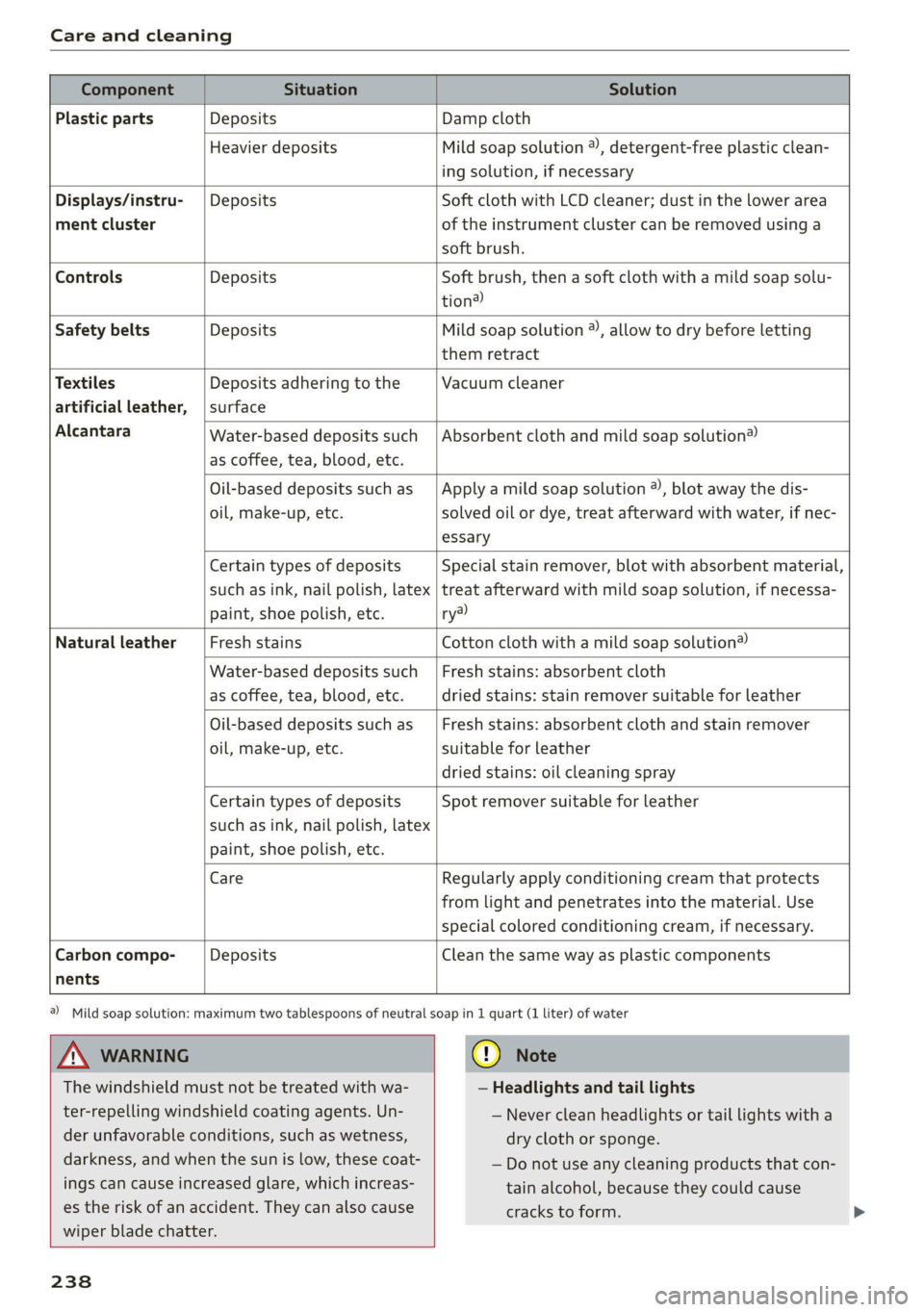
Plastic parts Deposits Damp cloth
Heavier deposits Mild soap solution ®, detergent-free plastic clean-
ing solution, if necessary
Water-based deposits such
as coffee, tea, blood, etc.
Displays/instru- | Deposits Soft cloth with LCD cleaner; dust in the lower area
ment cluster of the instrument cluster can be removed using a
soft brush.
Controls Deposits Soft brush, then a soft cloth with a mild soap solu-
tion®
Safety belts Deposits Mild soap solution ®, allow to dry before letting
them retract
Textiles Deposits adhering to the Vacuum cleaner
artificial leather, | surface
Alcantara Absorbent cloth and mild soap solution®
Oil-based deposits such as
oil, make-up, etc.
Apply a mild soap solution ®), blot away the dis-
solved oil or dye, treat afterward with water, if nec-
essary
Certain types of deposits
such as ink, nail polish, latex
paint, shoe polish, etc.
Special stain remover, blot with absorbent material,
treat afterward with mild soap solution, if necessa-
ry?)
Natural leather Fresh stains Cotton cloth with a mild soap solution®
Water-based deposits such
as coffee, tea, blood, etc.
Fresh stains: absorbent cloth
dried
stains: stain remover suitable for leather
Oil-based deposits such as
oil, make-up, etc.
Fresh stains: absorbent cloth and stain remover
suitable for leather
dried stains: oil cleaning spray
Certain types of deposits
such as ink, nail polish, latex
paint, shoe polish, etc.
Spot remover suitable for leather
nents
Care Regularly apply conditioning cream that protects
from light and penetrates into the material. Use
special
colored conditioning cream, if necessary.
Carbon compo- Deposits Clean the same way as plastic components
A WARNING
The windshield must not be treated with wa-
ter-repelling windshield coating agents. Un-
der
unfavorable conditions, such as wetness,
darkness, and when the sun is low, these coat-
ings can cause increased glare, which increas-
es the risk of an accident. They can also cause
wiper blade chatter.
238
@) Mild soap solution: maximum two tablespoons of neutral soap in 1 quart (1 liter) of water
@) Note
— Headlights and tail lights
— Never clean headlights or tail lights with a
dry cloth or sponge.
— Do not use any cleaning products that con-
tain alcohol, because they could cause
cracks to form.
Page 251 of 280

8S1012721BB
Emergency assistance
4. Attach the other end of the negative cable
(black) to the jump start connection @) on
the vehicle.
Starting the engine
> Start the engine in the vehicle giving the charge
and let it run at idle.
> Now start the engine in your vehicle, which has
the
drained battery.
> If the engine does not start: Stop the starting
procedure after 10 seconds and then repeat it
after approximately 30 seconds.
> Turn on the rear window defogger in your vehi-
cle in order to reduce any voltage peaks that
may occur when disconnecting the jump start
cables. The headlights must be switched off.
> With the engines running, remove the cables in
reverse order of the way they were installed.
> Close the red cover on the positive terminal.
Z\ WARNING
— Never connect the jump start cable directly
to your vehicle battery. Only use the connec-
tions in the engine compartment.
— Do not touch the non-insulated parts of the
terminal clamps. The cable must also not
come into contact with vehicle components
that conduct electricity when it is connected
to the positive vehicle battery terminal. This
can cause a short circuit.
— The locking bolts on the battery cells must
be tightened securely.
— Keep ignition sources (open flames, burning
cigarettes, etc.) away from the vehicle bat-
teries to reduce the risk of an explosion.
— Route the jump start cables so they cannot
get caught in the moving parts in the other
vehicle's engine compartment.
@) Note
Please note that the connecting process previ-
ously described for the jump start cables is in-
tended for when your vehicle is being jump
started.
@) Tips
Make sure that the connected jump start ca-
bles have sufficient contact with metal.
Towing
General information
You should only perform the steps that follow if
you have the necessary tools and technical ex-
pertise.
Towing requires a certain amount of practice.
Audi recommends contacting a towing company
to have the vehicle transported.
You should only have your vehicle towed by an-
other vehicle when disabled in exceptional cir-
cumstances. Inexperienced drivers should not
tow.
Notes on towing
When the engine is stopped, the transmission
will not be sufficiently lubricated if traveling at
high speeds and long distances:
— The maximum permitted towing speed is 30
mph (50 km/h).
— The maximum permitted towing distance is 30
miles (50 km).
Additional information on towing with a tow
truck
The vehicle may only be towed with the front axle
raised. Do not wrap any chains or cables around
the brake lines.
If the vehicle should be towed with the axle
raised, then the ignition must be switched off to
reduce the risk of damage to the drivetrain.
Tow bar and towing cable
The vehicle can be towed with a tow bar or tow-
ing cable. Both drivers should be familiar with
the special considerations when towing, especial-
ly when using a towing cable.
Always make sure the traction force does not ex-
ceed the permitted level and there are no shock
loading conditions. There is always the risk of the >
249