sat nav AUDI TT ROADSTER 2017 Owners Manual
[x] Cancel search | Manufacturer: AUDI, Model Year: 2017, Model line: TT ROADSTER, Model: AUDI TT ROADSTER 2017Pages: 314, PDF Size: 76.54 MB
Page 139 of 314
co
co
.... N
" N .... 0
" "' c:o
@ Tips
-Information on importing map updates us
ing an
SD card in your MMI can be found in
the
Aud i connect (myAud i) ope rating ma n
u al
under m y. audiusa .com .
-Snow and obstructions on the GPS antenna
or interference caused by trees and large
buildings can impair satellite reception and
affect the system's ab ility to determine the
vehicle position . Several deactivated or mal
funct ion ing sate llites can also inte rr u pt GPS
r eception and affect the sys tem's ability to
determine the ve hicl e posi tion.
- Because st reet names sometimes cha nge,
the n ames stored in the MMI m ay in ra re
cases differ from the ac tual street name.
Entering a destination
Free text search for destinations
App lies to: vehicles with navigation system
Using the MMI touch contro l pad, yo u can enter
the data for a navigation dest ination in any orde r
a ll at once (fo r example, monument Wash ing
ton). Likew ise , you can sea rch for poin ts of in ter
est, contac ts, previous desti nations o r favor ites
to naviga te to the des ired add ress.
"P ress th e
I NAV/MAPI button repeated ly un til
t h e
Ent er de stination menu is displayed
¢ page 136, fig . 123.
" Keep turning the contro l knob to t he left until
t h e input fie ld appears.
- Wr ite one o r more searc h terms in the inp ut
field @¢
page 136, fig. 1 23. A list of a ll re
s ul ts fo u nd will a ppear in the Infota inment sys
tem display.
- Se lect and confirm a destination from the re -
s ul ts list.
- Se lect and co nfirm
Start route guidance .
The route is displayed as an ove rview in the map
and the route guidance is al ready active .
Narrowing the sea rch area
- Se lect : rig ht contro l button > Country /state se
lection . Na
vigation
All co untries/states are selected at the factory
for th e free text search. Using the
Countr y/state
s election ,
you can deselect the irrelevant coun
tries/states to increase the search speed and nar row the results list.
(D Tips
- T he MMI input suggestions depend on the
last nav igated dest inat ions.
- Up to 50 entries can be stored in the last
destinations list .
- Additiona l information on free text sea rches
can be fo und under ¢
page 104.
- For add itiona l information about entering
information on the M MI touch, see
¢page 98.
Load last destination
Applies to : vehicles with navigat ion syste m
Your last destinations are automatically stored
and can be loaded directly as a destination .
Requirement: a dest inat io n was already navigat
ed to.
" Press the
!NAV /MAPI button repeatedly u nti l
t he
Enter destination men u is displayed
¢page 136, fig . 123.
Yo ur l ast des tinations will be listed directly in the
Enter destination me nu and a re mar ked wi th the
symbol @¢page
136, fig.123.
-Select and confirm one of your last destina-
tions.
- Select and confirm
Start route guidance .
Delete last destinat ions
- Select and confirm one of the last destinations
from the list.
- Select: r ight cont rol b utton
> Delete .
-Select and confirm Delete this last destination
or Delete all last de stinations.
T he sele cted dest inat ion or all las t dest inat io ns
is/are deleted and no longer d isplayed in the
en
ter destination
¢ page 136, fig . 123 menu .
137
Page 149 of 314
CD
CD
.... N
" N ...... 0
" V, co
Route information
The display of route information such a s the cur
rent road being dr iven on, upcom ing maneuvers,
traffic informat ion or points of interest along the
route can be switched on/off .
Automatic zoom
On: the ma p scale is ad apted automat ically de
pending on the type o f road being trave le d (ex
p ressway, hig hway, other roads) so that you al
ways have an optima l overview of the road ahead.
The sca le is also automat ica lly adapted when
there are upcoming maneuvers to provide a bet
ter detai led view.
Off : the map sca le yo u have chosen is kept .
Map content
Map content, such a s traffic informa tion, favo r
ites o r res taur ants, can be dis played o r hidde n
(~).
Online map display
Applies to: vehicles with navigation system and Audi connect
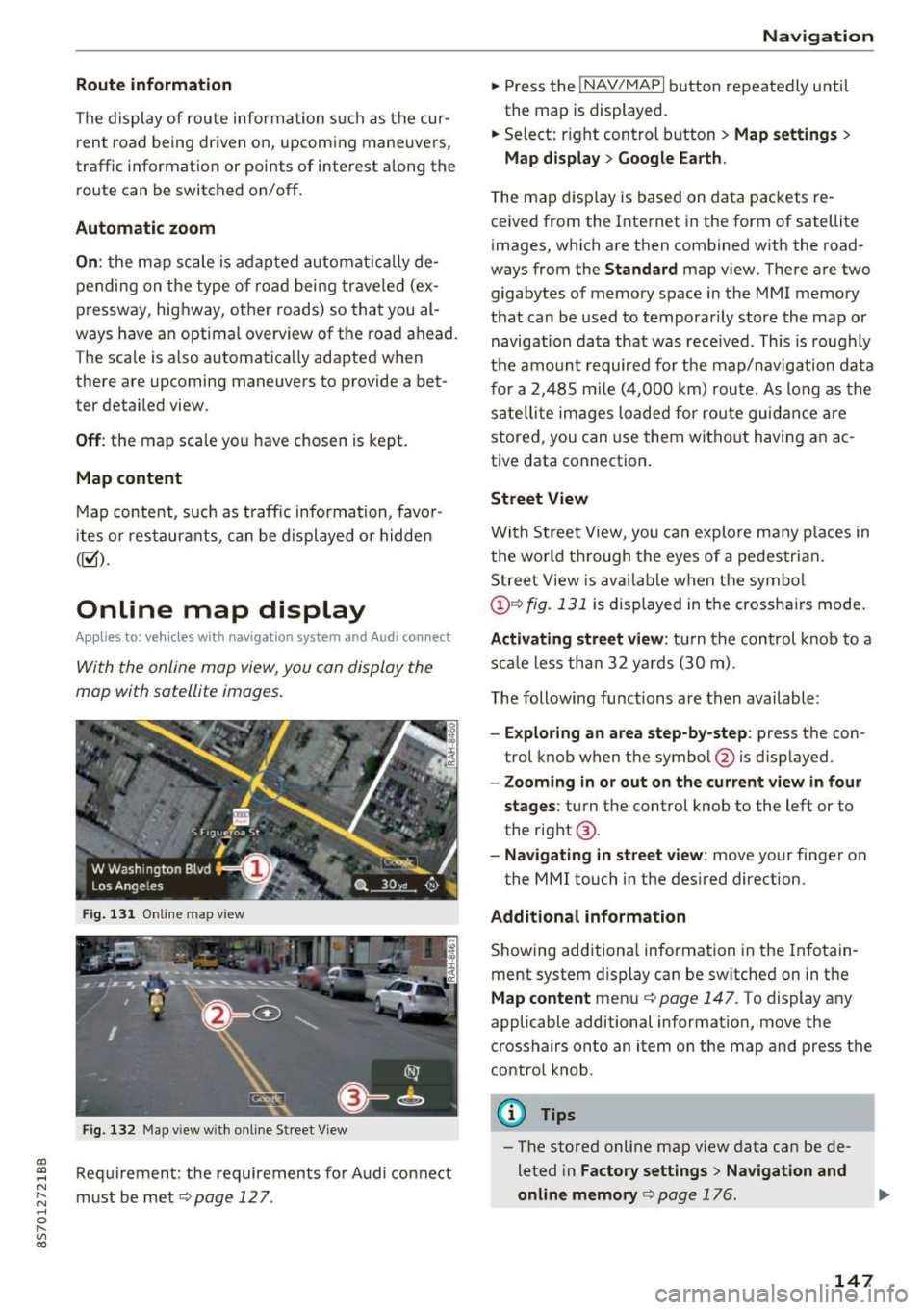
With the online map view, you can display the
map with satellite images .
Fig. 1 31 Onlin e m ap v iew
Fi g. 13 2 Map v iew w ith on li ne Stree t View
Re quirement: the requirements fo r Audi connect
must be met ¢
page 12 7.
Navigation
.. Press the !NAV/MAPI b utton repeatedly until
the map is displayed.
.. Select : right control b utton
> Map settings >
Map display > Google Earth .
The map d is p lay is based on data packets re
ce ived from the Inte rnet in the form of satellite
images, which are t hen combined w ith the road
ways from the
S tandard map v iew . There are two
gigabytes of memory space in the MMI memory
that can be used to temporarily store the map or
navigation data that was rece ived . This is roughly
the amo unt required fo r th e map/navigation da ta
f or a 2,485 m ile ( 4,00 0 km) rou te. As long as the
sate llite image s loade d for route guid ance are
stored, you can use them witho ut havi ng an a c
tive data connect io n.
Street View
W it h St reet View, you can explo re many places in
t h e world t hrough the eyes of a pedestria n.
S tree t View is ava ilab le w hen t he sym bol
@ ¢fig . 131 is displayed in t he crossha irs mode.
Activating street view : tur n the co ntrol knob to a
s c al e less tha n 32 yar ds ( 30 m).
T he following fu nctions are then available :
-Exploring an area step-by-step : press the con
trol knob w hen the symbol @is d isplayed.
- Zooming in or out on the current view in four
stages :
turn the control knob to the left or to
the rig ht @ .
-Na vigating in street v iew : move yo ur finger on
the MMI touch in the des ired direction.
Additional information
Showing add itiona l information in the In fotain
ment system display can be sw itched on in t he
Map content me nu¢ page 147. To display any
applicable additional information, move the
crosshairs onto an item on the map and press the
contro l knob.
@ Tips
- The store d online map view data can be de
leted in
Factory settings > Navigation and
online memory
c> pag e 176.
147
Page 181 of 314
CD
CD
.... N
" N ...... 0
" V, co
Sound settings
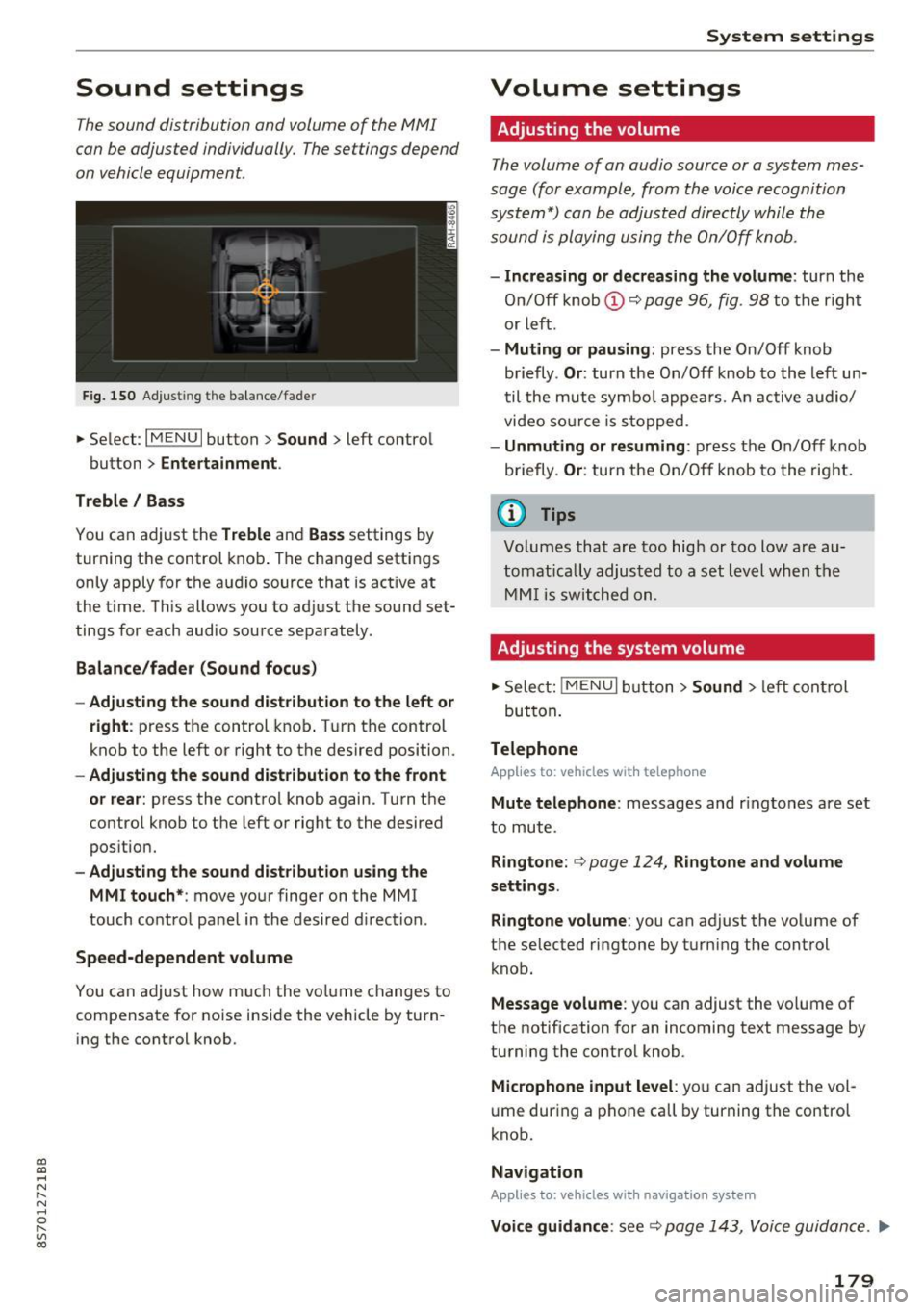
The sound distribution and volume of the MMI
can be adjusted individually. The settings depend
on vehicle equipment.
Fig. 150 Adjusting the balance/fader
~ Select: IM ENU I button > Sound > left contro l
button
> Entertainment .
Treble/ Bass
You can adjust the Treble and Bass settings by
turning the control knob. The changed settings
only apply for the audio source that is active at
the time. This allows you to adjust the sound set
tings for each audio source separately .
Balance/fader (Sound focus)
- Adjusting the sound distribution to the left or
right :
press the control knob. Turn the control
knob to the left or right to the desired position.
-Adjusting the sound distribution to the front
or rear:
press the control knob again. Turn the
control knob to the left or right to the desired
position.
- Adjusting the sound distribution using the
MMI touch* :
move your finger on the MMI
touch control panel in the desired direction .
Speed-dependent volume
You can adjust how much the volume changes to
compensate for noise inside the vehicle by turn
ing the control knob.
System settings
Volume settings
Adjusting the volume
The volume of an audio source or a system mes
sage (for example, from the voice recognition
system*) can be adjusted directly while the
sound is playing using the On/Off knob.
- Increasing or decreasing the volume : turn the
On/Off knob@Q
page 96, fig . 98 to the right
or left.
- Muting or pausing : press the On/Off knob
briefly .
Or: turn the On/Off knob to the left un
til the mute symbo l appears. An active audio/
video source is stopped.
-Unmuting or resuming : press the On/Off knob
briefly .
Or: turn the On/Off knob to the right.
(D Tips
Volumes that are too high or too low are au
tomatically adjusted to a set level when the
MMI is switched on.
Adjusting the system volume
~ Select: jMENUI button> Sound > left control
but ton .
Telephone
Applies to: vehicles with telephone
Mute telephone : messages and ringtones are set
to mute.
Ringtone: Q page 124, Ringtone and volume
settings.
Ringtone volume:
you can adjust the volume of
t he selected ringtone by turning the control
knob.
Message volume : you can adjust the volume of
the notification for an incoming text message by
turning the contro l knob.
Microphone input level : you can adjust the vol
ume during a phone call by turning the control
knob.
Navigation
Applies to: vehicles with navigation system
Voice guidance : see Q page 143, Voice guidance . ..,.
179