change time AUDI TT ROADSTER 2019 User Guide
[x] Cancel search | Manufacturer: AUDI, Model Year: 2019, Model line: TT ROADSTER, Model: AUDI TT ROADSTER 2019Pages: 304, PDF Size: 80.77 MB
Page 110 of 304
Voice recognition system
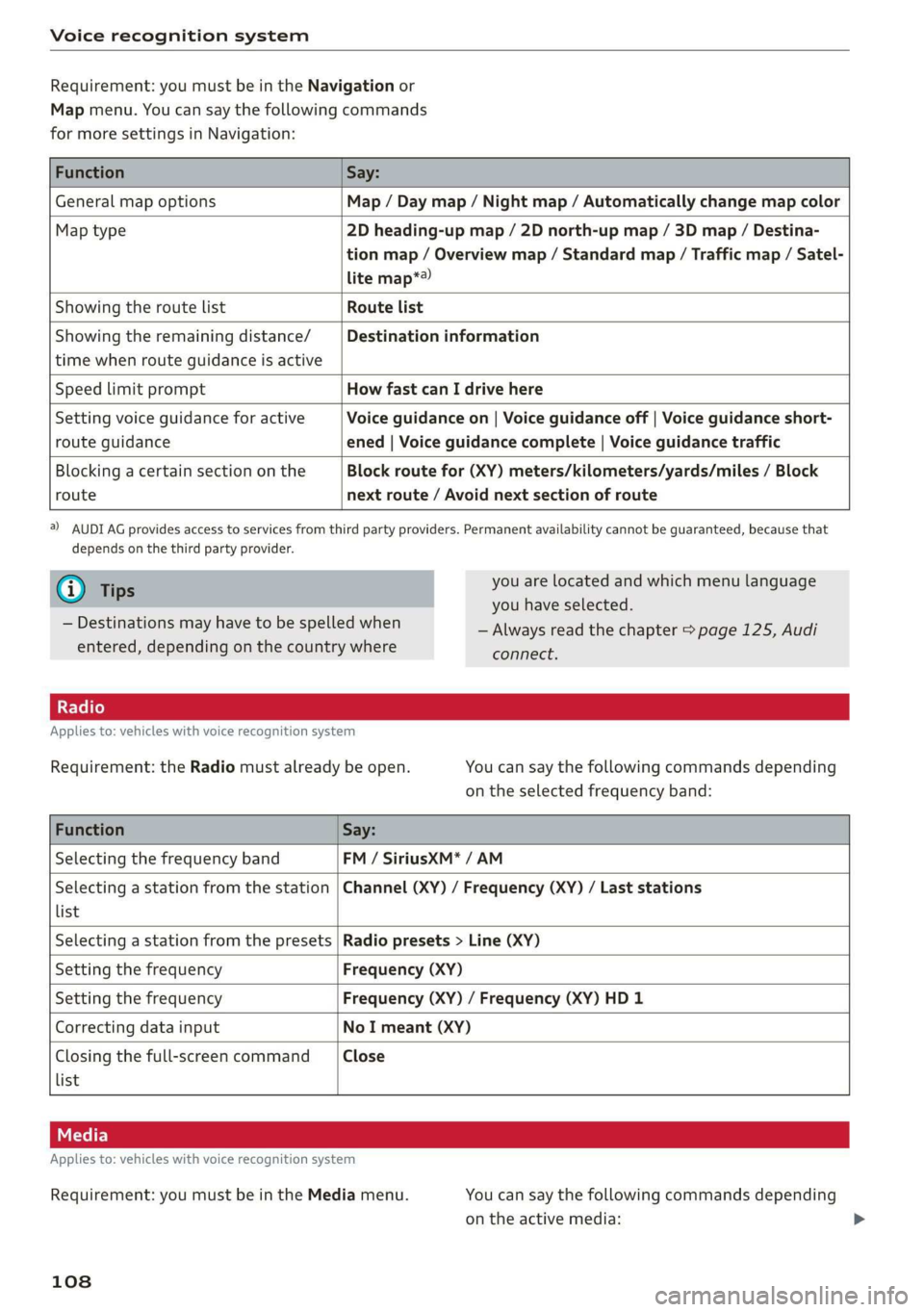
Requirement: you must be in the Navigation or
Map menu. You can say the following commands
for more settings in Navigation:
Function Say:
General map options Map / Day map / Night map / Automatically change map color
Map type 2D heading-up map / 2D north-up map / 3D map / Destina-
tion map / Overview map / Standard map / Traffic map / Satel-
lite map*?
Showing the route list Route list
Showing the remaining distance/ Destination information
time when route guidance is active
Speed limit prompt How fast can I drive here
Setting voice guidance for active Voice guidance on | Voice guidance off | Voice guidance short-
route guidance ened | Voice guidance complete | Voice guidance traffic
Blocking a certain section on the Block route for (XY) meters/kilometers/yards/miles / Block
route next route / Avoid next section of route
a) AUDI AG provides access to services from third party providers. Permanent availability cannot be guaranteed, because that
depends on the third party provider.
@) Tips you are located and which menu language
= you have selected.
— Always read the chapter > page 125, Audi
connect.
— Destinations may have to be spelled when
entered, depending on the country where
Applies to: vehicles with voice recognition system
Requirement: the Radio must already be open. You can say the following commands depending
on the selected frequency band:
Function Say:
Selecting the frequency band FM / SiriusXM* / AM
Selecting a station from the station | Channel (XY) / Frequency (XY) / Last stations
list
Selecting a station from the presets | Radio presets > Line (XY)
Setting the frequency Frequency (XY)
Setting the frequency Frequency (XY) / Frequency (XY) HD 1
Correcting data input No I meant (XY)
Closing the full-screen command Close
list
Applies to: vehicles with voice recognition system
Requirement: you must be in the Media menu. You can say the following commands depending
on the active media:
108
Page 113 of 304
8S8012721BA
Telephone
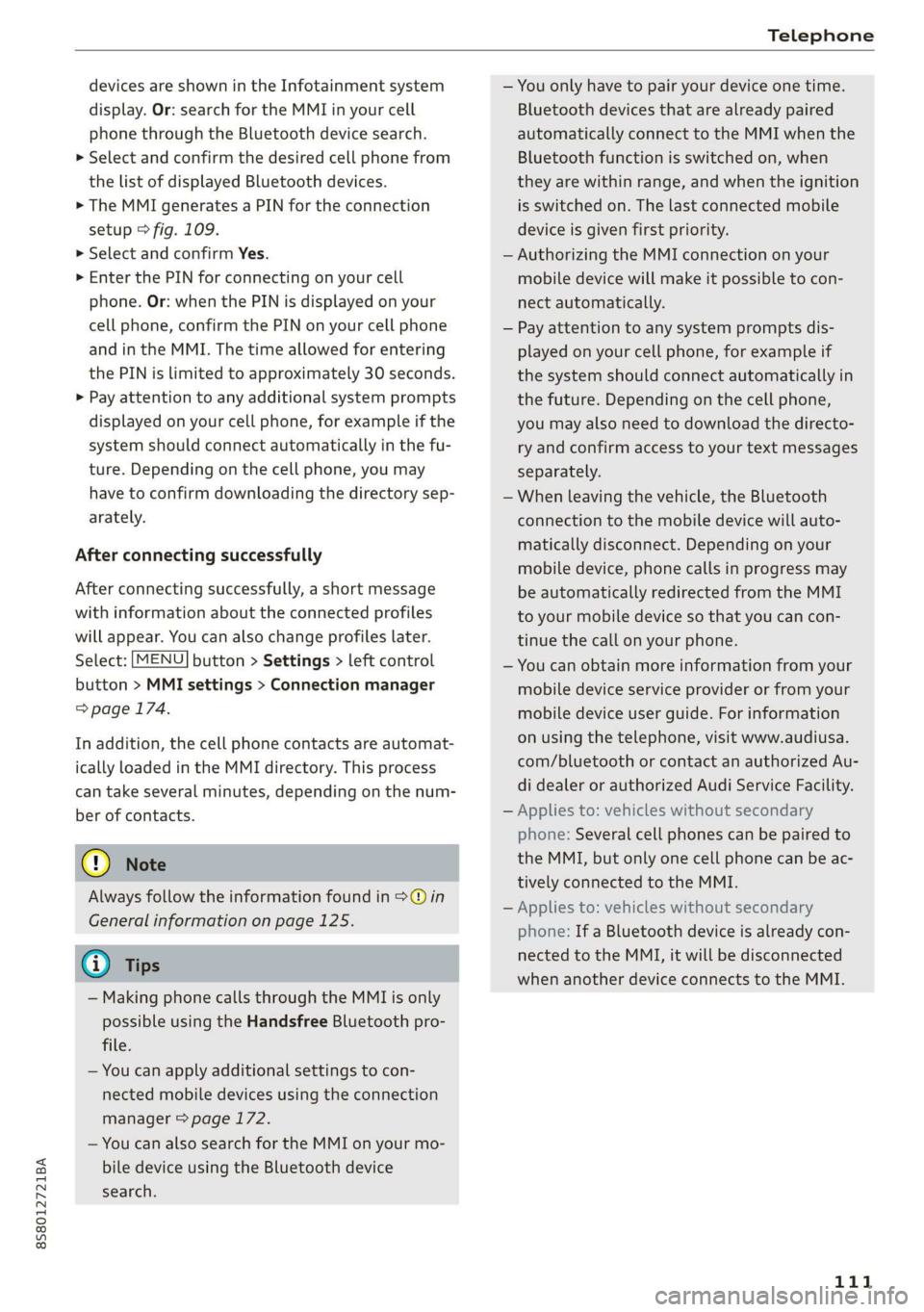
devices are shown in the Infotainment system
display. Or: search for the MMI in your cell
phone through the Bluetooth device search.
> Select and confirm the desired cell phone from
the list of displayed Bluetooth devices.
> The MMI generates a PIN for the connection
setup > fig. 109.
> Select and confirm Yes.
>» Enter the PIN for connecting on your cell
phone. Or: when the PIN is displayed on your
cell phone, confirm the PIN on your cell phone
and in the MMI. The time allowed for entering
the PIN is limited to approximately 30 seconds.
> Pay attention to any additional system prompts
displayed on your cell phone, for example if the
system should connect automatically in the fu-
ture. Depending on the cell phone, you may
have to confirm downloading the directory sep-
arately.
After connecting successfully
After connecting successfully, a short message
with information about the connected profiles
will appear. You can also change profiles later.
Select: [MENU] button > Settings > left control
button > MMI settings > Connection manager
=> page 174.
In addition, the cell phone contacts are automat-
ically loaded in the MMI directory. This process
can take several minutes, depending on the num-
ber of contacts.
@) Note
Always follow the information found in >@ in
General information on page 125.
@) Tips
— Making phone calls through the MMI is only
possible using the Handsfree Bluetooth pro-
file.
— You can apply additional settings to con-
nected mobile devices using the connection
manager = page 172.
— You can also search for the MMI on your mo-
bile device using the Bluetooth device
search.
— You only have to pair your device one time.
Bluetooth devices that are already paired
automatically connect to the MMI when the
Bluetooth function is switched on, when
they are within range, and when the ignition
is switched on. The last connected mobile
device is given first priority.
— Authorizing the MMI connection on your
mobile device will make it possible to con-
nect automatically.
— Pay attention to any system prompts dis-
played on your cell phone, for example if
the system should connect automatically in
the future. Depending on the cell phone,
you may also need to download the directo-
ry and confirm access to your text messages
separately.
— When leaving the vehicle, the Bluetooth
connection to the mobile device will auto-
matically disconnect. Depending on your
mobile device, phone calls in progress may
be automatically redirected from the MMI
to your mobile device so that you can con-
tinue the call on your phone.
— You can obtain more information from your
mobile device service provider or from your
mobile device user guide. For information
on using the telephone, visit www.audiusa.
com/bluetooth or contact an authorized Au-
di dealer or authorized Audi Service Facility.
— Applies to: vehicles without secondary
phone: Several cell phones can be paired to
the MMI, but only one cell phone can be ac-
tively connected to the MMI.
— Applies to: vehicles without secondary
phone: If a Bluetooth device is already con-
nected to the MMI, it will be disconnected
when another device connects to the MMI.
111
Page 130 of 304
Audi connect
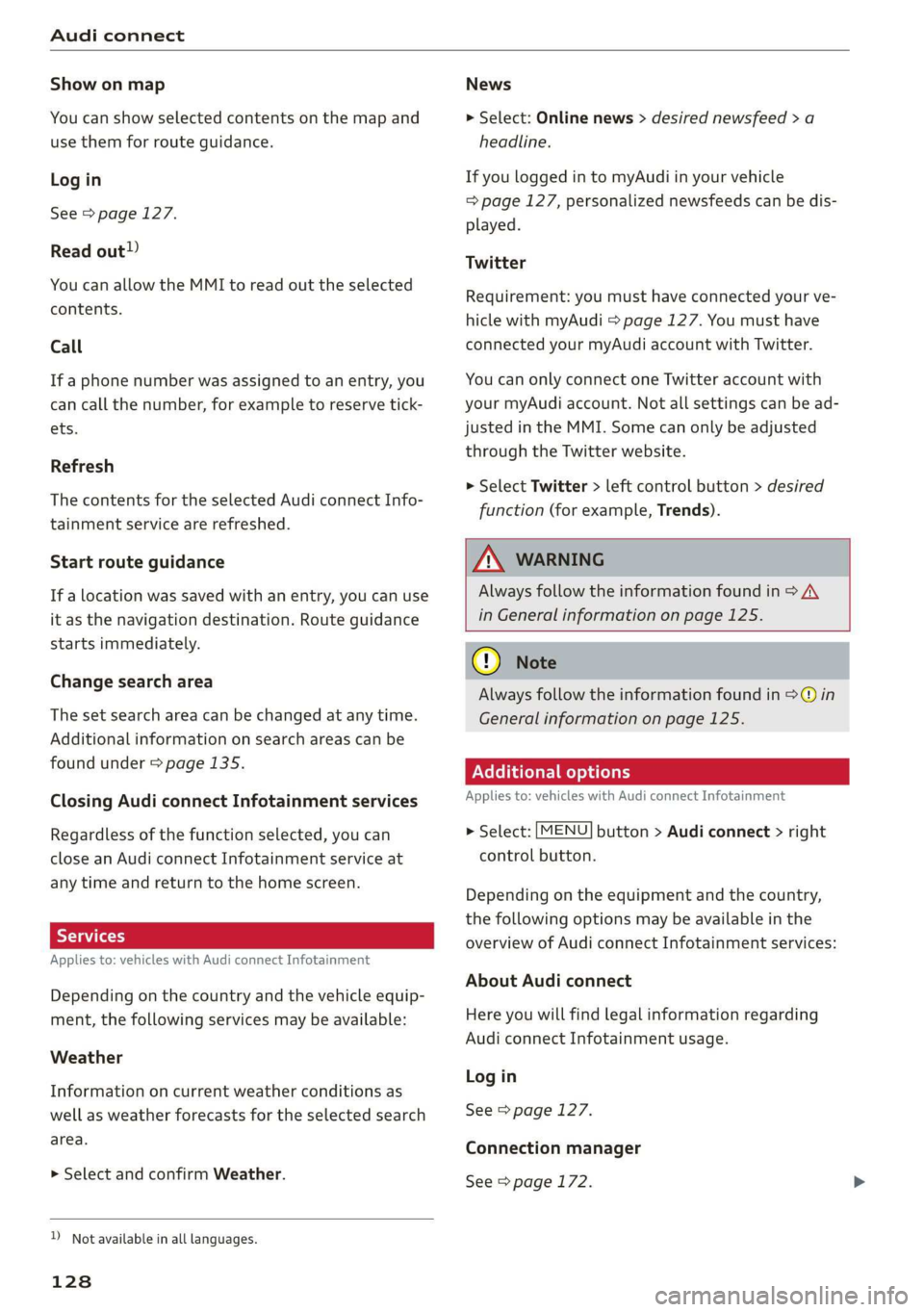
Show on map
You can show selected contents on the map and
use them for route guidance.
Log in
See > page 127.
Read out)
You can allow the MMI to read out the selected
contents.
Call
If a phone number was assigned to an entry, you
can call the number, for example to reserve tick-
ets.
Refresh
The contents for the selected Audi connect Info-
tainment service are refreshed.
Start route guidance
If a location was saved with an entry, you can use
it as the navigation destination. Route guidance
starts immediately.
Change search area
The set search area can be changed at any time.
Additional information on search areas can be
found under > page 135.
Closing Audi connect Infotainment services
Regardless of the function selected, you can
close an Audi connect Infotainment service at
any time and return to the home screen.
Services
Applies to: vehicles with Audi connect Infotainment
Depending on the country and the vehicle equip-
ment, the following services may be available:
Weather
Information on current weather conditions as
well as weather forecasts for the selected search
area.
> Select and confirm Weather.
D_ Not available in all languages.
128
News
> Select: Online news > desired newsfeed > a
headline.
If you logged in to myAudi in your vehicle
= page 127, personalized newsfeeds can be dis-
played.
Twitter
Requirement: you must have connected your ve-
hicle with myAudi > page 127. You must have
connected your myAudi account with Twitter.
You can only connect one Twitter account with
your myAudi account. Not all settings can be ad-
justed in the MMI. Some can only be adjusted
through the Twitter website.
> Select Twitter > left control button > desired
function (for example, Trends).
ZA WARNING
Always follow the information found in > A\
in General information on page 125.
@) Note
Always follow the information found in @ in
General information on page 125.
Additional options
Applies to: vehicles with Audi connect Infotainment
> Select: [MENU] button > Audi connect > right
control button.
Depending on the equipment and the country,
the following options may be available in the
overview of Audi connect Infotainment services:
About Audi connect
Here you will find legal information regarding
Audi connect Infotainment usage.
Log in
See > page 127.
Connection manager
See > page 172.
Page 134 of 304
Navigation
Navigation
Opening navigation
Applies to: vehicles with navigation system
The navigation system directs you to your destination, around traffic incidents, and on alternative
routes, if desired.
ae 2
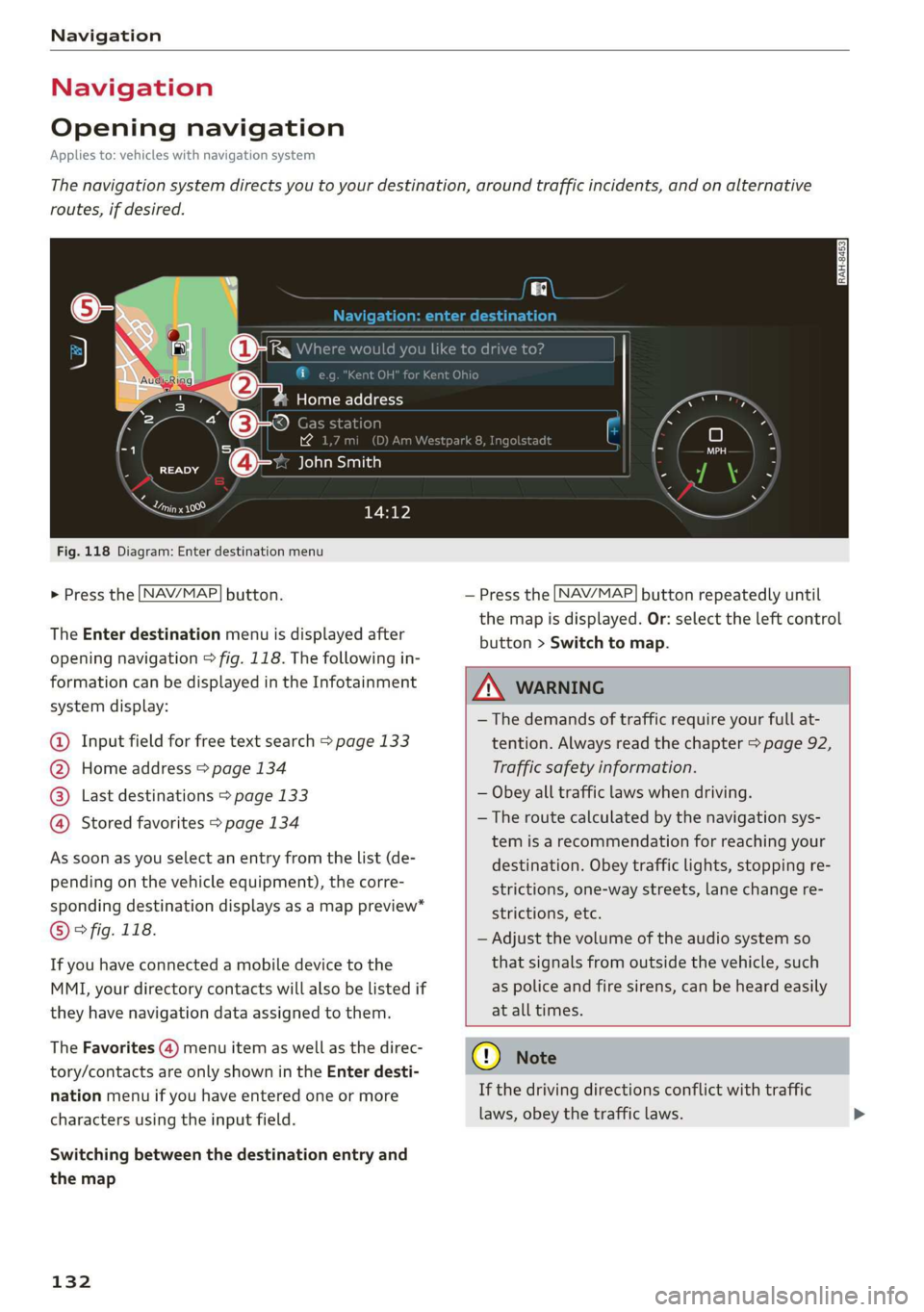
Fig. 118 Diagram: Enter destination menu
> Press the [NAV/MAP] button.
The Enter destination menu is displayed after
opening navigation > fig. 118. The following in-
formation can be displayed in the Infotainment
system display:
@ Input field for free text search > page 133
@ Home address > page 134
Last destinations > page 133 pag
Stored favorites > page 134 pag
As soon as you select an entry from the list (de-
pending on the vehicle equipment), the corre-
sponding destination displays as a map preview*
© ° fig. 118.
If you have connected a mobile device to the
MMI, your directory contacts will also be listed if
they have navigation data assigned to them.
The Favorites (4) menu item as well as the direc-
tory/contacts are only shown in the Enter desti-
nation menu if you have entered one or more
characters using the input field.
Switching between the destination entry and
the map
132
— Press the [NAV/MAP] button repeatedly until
the map is displayed. Or: select the left control
button > Switch to map.
ZA\ WARNING
— The demands of traffic require your full at-
tention. Always read the chapter > page 92,
Traffic safety information.
— Obey all traffic laws when driving.
— The route calculated by the navigation sys-
tem is a recommendation for reaching your
destination. Obey traffic lights, stopping re-
strictions, one-way streets, lane change re-
strictions, etc.
— Adjust the volume of the audio system so
that signals from outside the vehicle, such
as police and fire sirens, can be heard easily
at all times.
) Note
If the driving directions conflict with traffic
laws, obey the traffic laws.
Page 135 of 304
8S8012721BA
Navigation
@) Tips
— You can find information about importing a
map update to your MMI using an SD card
at www.audiusa.com/myaudi.
— Snow and obstructions on the GPS antenna
or interference caused by trees and large
buildings can impair satellite reception and
affect the system's ability to determine the
vehicle position. Several deactivated or mal-
functioning satellites can also interrupt GPS
reception and affect the system's ability to
determine the vehicle position.
— Because street names sometimes change,
the names stored in the MMI may in rare
cases differ from the actual street name.
Entering a destination
aaa ae Tm (dle acy
Applies to: vehicles with navigation system
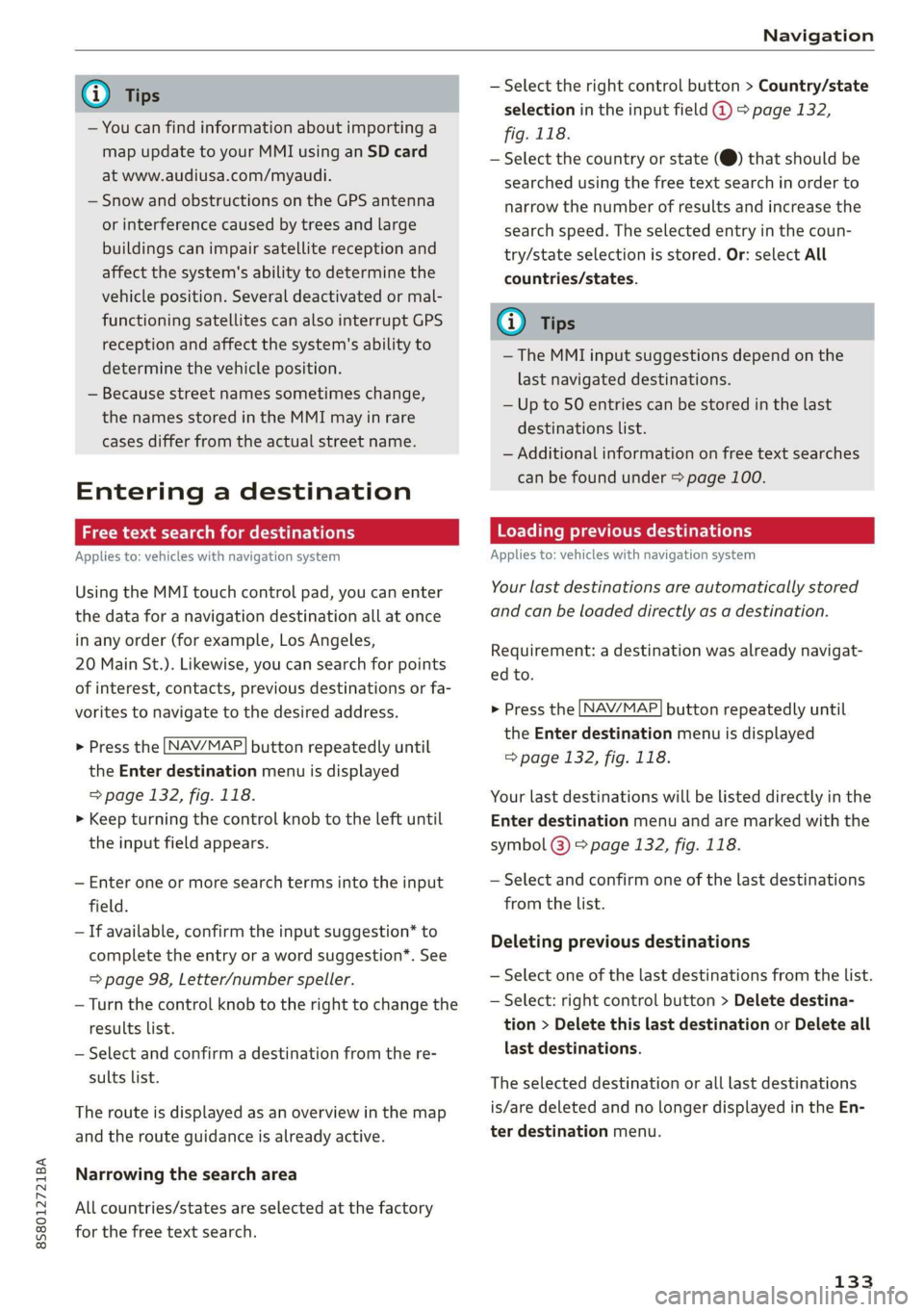
Using the MMI touch control pad, you can enter
the data for a navigation destination all at once
in any order (for example, Los Angeles,
20 Main St.). Likewise, you can search for points
of interest, contacts, previous destinations or fa-
vorites to navigate to the desired address.
> Press the [NAV/MAP] button repeatedly until
the Enter destination menu is displayed
=> page 132, fig. 118.
> Keep turning the control knob to the left until
the input field appears.
— Enter one or more search terms into the input
field.
— If available, confirm the input suggestion* to
complete the entry or a word suggestion”. See
=> page 98, Letter/number speller.
— Turn the control knob to the right to change the
results list.
— Select and confirm a destination from the re-
sults list.
The route is displayed as an overview in the map
and the route guidance is already active.
Narrowing the search area
All countries/states are selected at the factory
for the free text search.
— Select the right control button > Country/state
selection in the input field @ > page 132,
fig. 118.
— Select the country or state (@) that should be
searched using the free text search in order to
narrow the number of results and increase the
search speed. The selected entry in the coun-
try/state selection is stored. Or: select All
countries/states.
@ Tips
—The MMI input suggestions depend on the
last navigated destinations.
— Up to 50 entries can be stored in the last
destinations list.
— Additional information on free text searches
can be found under > page 100.
Loading previous destinations
Applies to: vehicles with navigation system
Your last destinations are automatically stored
and can be loaded directly as a destination.
Requirement: a destination was already navigat-
ed to.
> Press the [NAV/MAP] button repeatedly until
the Enter destination menu is displayed
=> page 132, fig. 118.
Your last destinations will be listed directly in the
Enter destination menu and are marked with the
symbol @) > page 132, fig. 118.
— Select and confirm one of the last destinations
from the list.
Deleting previous destinations
— Select one of the last destinations from the list.
— Select: right control button > Delete destina-
tion > Delete this last destination or Delete all
last destinations.
The selected destination or all last destinations
is/are deleted and no longer displayed in the En-
ter destination menu.
133
Page 138 of 304
Navigation
that were found is not resorted when this
happens.
— There may be entries in the list that cannot
be displayed completely due to their length.
If you select these list entries using the con-
trol knob, detailed information about the
selected list entry will be shown automati-
cally after several seconds.
Online point of interest sear
search)
Applies to: vehicles with navigation system and Audi connect
(online
You can search for points of interest on the Inter-
net.
Requirement: the requirements for Audi connect
services must be met > page 125.
> Press the LNAV/MAP] button repeatedly until
the Enter destination menu is displayed
=> page 132, fig. 118.
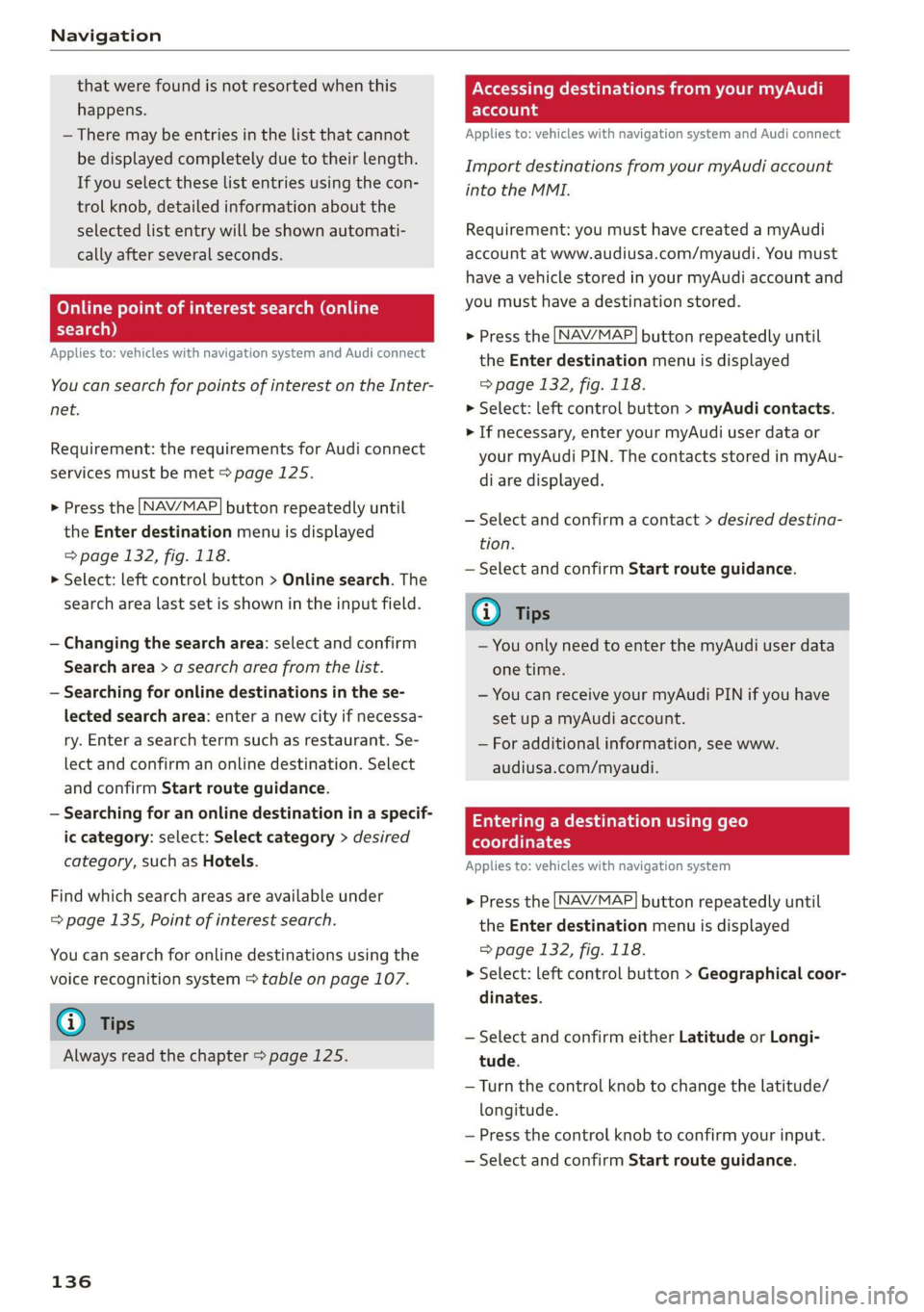
> Select: left control button > Online search. The
search area last set is shown in the input field.
— Changing the search area: select and confirm
Search area > a search area from the list.
— Searching for online destinations in the se-
lected search area: enter a new city if necessa-
ry. Enter a search term such as restaurant. Se-
lect and confirm an online destination. Select
and confirm Start route guidance.
— Searching for an online destination in a specif-
ic category: select: Select category > desired
category, such as Hotels.
Find which search areas are available under
=> page 135, Point of interest search.
You can search for online destinations using the
voice recognition system = table on page 107.
G) Tips
Always read the chapter > page 125.
136
OXee Te Melee el mA e |
account
Applies to: vehicles with navigation system and Audi connect
Import destinations from your myAudi account
into the MMI.
Requirement: you must have created a myAudi
account at www.audiusa.com/myaudi. You must
have a vehicle stored in your myAudi account and
you must have a destination stored.
> Press the [NAV/MAP] button repeatedly until
the Enter destination menu is displayed
=> page 132, fig. 118.
> Select: left control button > myAudi contacts.
> If necessary, enter your myAudi user data or
your myAudi PIN. The contacts stored in myAu-
di are displayed.
— Select and confirm a contact > desired destina-
tion.
— Select and confirm Start route guidance.
(i) Tips
— You only need to enter the myAudi user data
one time.
— You can receive your myAudi PIN if you have
set up a myAudi account.
— For additional information, see www.
audiusa.com/myaudi.
Entering a destination using geo
coordinates
Applies to: vehicles with navigation system
> Press the [NAV/MAP] button repeatedly until
the Enter destination menu is displayed
=> page 132, fig. 118.
> Select: left control button > Geographical coor-
dinates.
— Select and confirm either Latitude or Longi-
tude.
— Turn the control knob to change the latitude/
longitude.
— Press the control knob to confirm your input.
— Select and confirm Start route guidance.
Page 163 of 304
8S8012721BA
Media
— Selecting the previous or next track/chapter
:
press the On/Off knob on the MMI control
panel briefly to the left Kd or right DDI.
— Fast-forwarding and rewinding audio/video
files: press and hold the On/Off knob on the
MMI control panel to the left Kd or right Pel for
a longer time.
— Pausing or resuming playback: press the
On/Off knob on the MMI control panel briefly.
@) Tips
— You can scroll through long lists quickly by
turning the control knob quickly. The scroll-
ing speed depends on the number of list en-
tries.
— For safety reasons, the video image is only
displayed when the vehicle is stationary. On-
ly the sound from the video plays while driv-
ing.
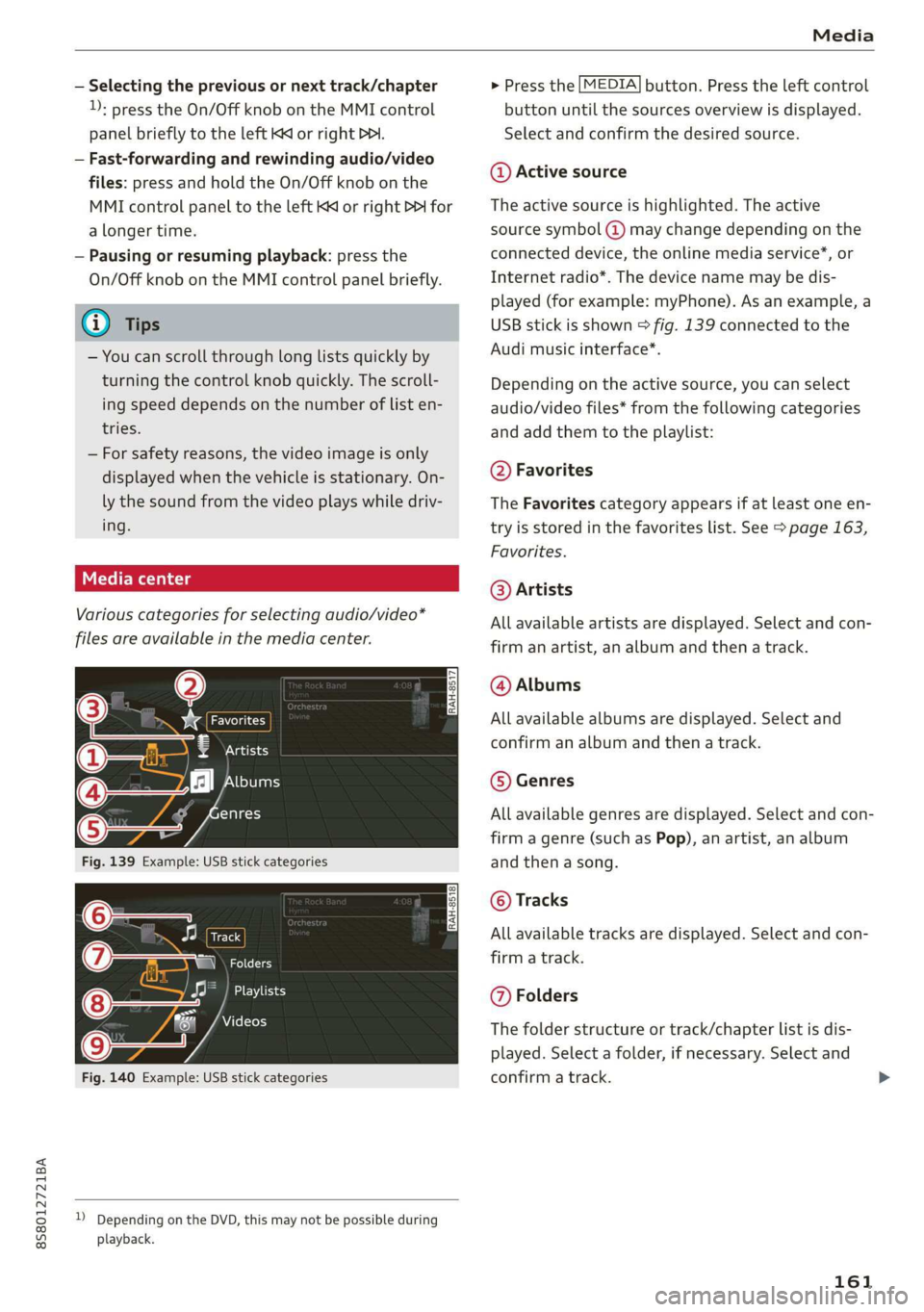
Various categories for selecting audio/video*
files are available in the media center.
Obs Le
7 Artists
A het T aa
enres
Track
(7) ja RZ
EME}
Videos
Fig. 140 Example: USB stick categories
)) Depending on the DVD, this may not be possible during
playback.
> Press the [MEDIA] button. Press the left control
button until the sources overview is displayed.
Select and confirm the desired source.
@ Active source
The active source is highlighted. The active
source symbol (@) may change depending on the
connected device, the online media service*, or
Internet radio*. The device name may be dis-
played (for example: myPhone). As an example, a
USB stick is shown > fig. 139 connected to the
Audi music interface*.
Depending on the active source, you can select
audio/video files* from the following categories
and add them to the playlist:
@ Favorites
The Favorites category appears if at least one en-
try is stored in the favorites list. See > page 163,
Favorites.
@ Artists
All available artists are displayed. Select and con-
firm an artist, an album and then a track.
@ Albums
All available albums are displayed. Select and
confirm an album and then a track.
© Genres
All available genres are displayed. Select and con-
firm
a genre (such as Pop), an artist, an album
and then a song.
© Tracks
All available tracks are displayed. Select and con-
firm
a track.
@ Folders
The folder structure or track/chapter list is dis-
played. Select a folder, if necessary. Select and
confirm a track.
161
Page 170 of 304
Media
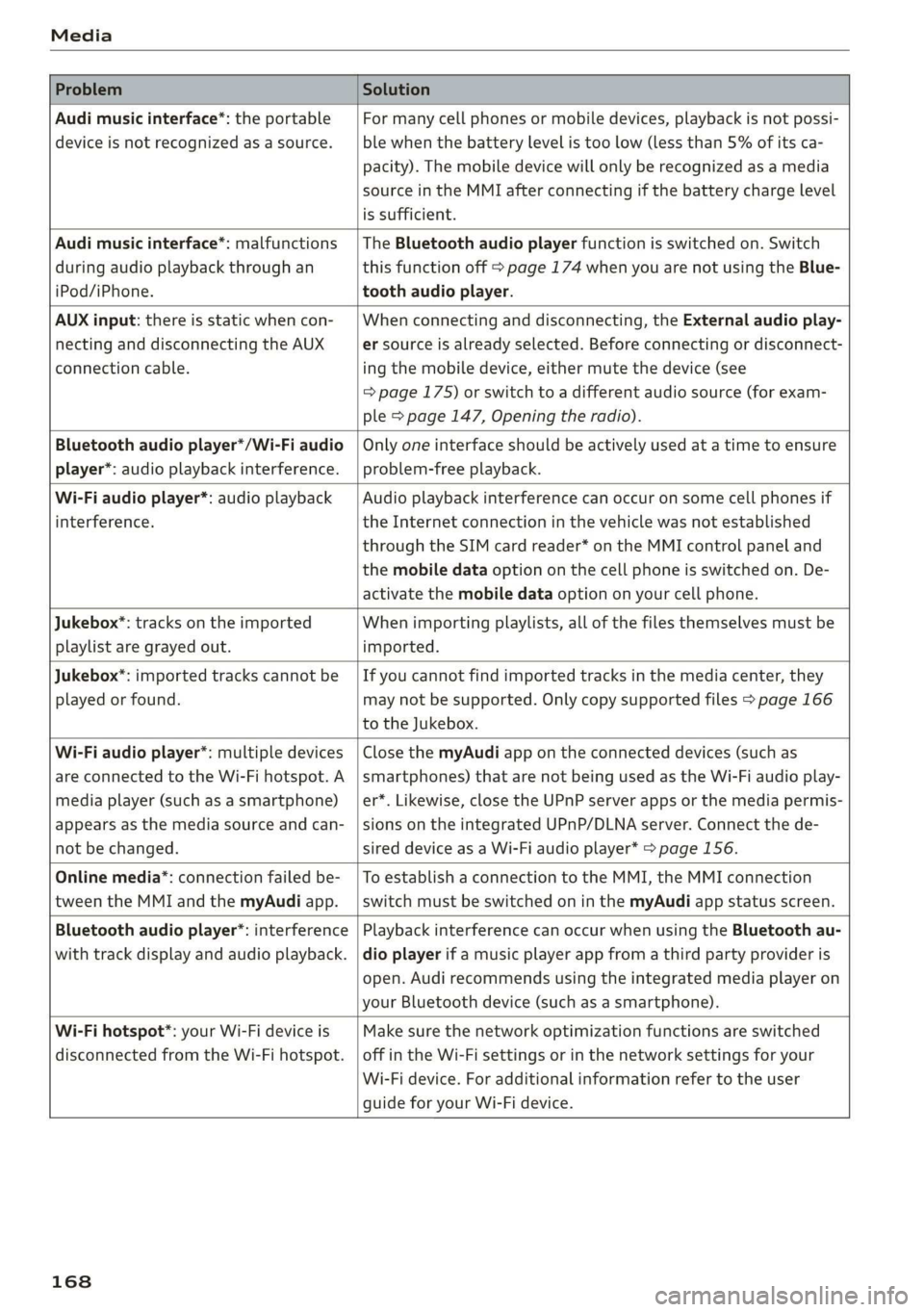
Problem Solution
Audi music interface*: the portable
device is not recognized as a source.
For many cell phones or mobile devices, playback is not possi-
ble when the battery level is too low (less than 5% of its ca-
pacity). The mobile device will only be recognized as a media
source in the MMI after connecting if the battery charge level
is sufficient.
Audi music interface*: malfunctions
during audio playback through an
iPod/iPhone.
The Bluetooth audio player function is switched on. Switch
this function off > page 174 when you are not using the Blue-
tooth audio player.
AUX input: there is static when con-
necting and disconnecting the AUX
connection cable.
When connecting and disconnecting, the External audio play-
er source is already selected. Before connecting or disconnect-
ing the mobile device, either mute the device (see
=> page 175) or switch to a different audio source (for exam-
ple > page 147, Opening the radio).
Bluetooth audio player*/Wi-Fi audio
player*: audio playback interference.
Only one interface should be actively used at a time to ensure
problem-free playback.
Wi-Fi audio player*: audio playback
interference.
Audio playback interference can occur on some cell phones if
the Internet connection in the vehicle was not established
through the SIM card reader* on the MMI control panel and
the mobile data option on the cell phone is switched on. De-
activate the mobile data option on your cell phone.
Jukebox®*: tracks on the imported
playlist are grayed out.
When importing playlists, all of the files themselves must be
imported.
Jukebox*: imported tracks cannot be
played or found.
If you cannot find imported tracks in the media center, they
may not be supported. Only copy supported files > page 166
to the Jukebox.
Wi-Fi audio player*: multiple devices
are connected to the Wi-Fi hotspot. A
media player (such as a smartphone)
appears as the media source and can-
not be changed.
Close the myAudi app on the connected devices (such as
smartphones) that are not being used as the Wi-Fi audio play-
er*. Likewise, close the UPnP server apps or the media permis-
sions on the integrated UPnP/DLNA server. Connect the de-
sired device as a Wi-Fi audio player* > page 156.
Online media*: connection failed be-
tween the MMI and the myAudi app.
To establish a connection to the MMI, the MMI connection
switch must be switched on in the myAudi app status screen.
Bluetooth audio player": interference
with track display and audio playback.
Playback interference can occur when using the Bluetooth au-
dio player if a music player app from a third party provider is
open. Audi recommends using the integrated media player on
your Bluetooth device (such as a smartphone).
Wi-Fi hotspot*: your Wi-Fi device is
disconnected from the Wi-Fi hotspot.
Make sure the network optimization functions are switched
off in the Wi-Fi settings or in the network settings for your
Wi-Fi device. For additional information refer to the user
guide for your Wi-Fi device.
168
Page 171 of 304
8S8012721BA
Audi smartphone interface
Audi smartphone
interface
Setup
Applies to: vehicles with Audi smartphone interface
You can connect your smartphone to the MMI us-
ing the Audi smartphone interface. Certain con-
tent on your smartphone is adapted to the Info-
tainment system display while driving and can
be operated through the MMI control panel.
Requirement:
The vehicle must be stationary and the ignition
must be switched on.
iPhone generation 5 or higher with Lightning
connector and iOS 7.1.2 operating system or
higher. Or:
A smartphone with the Android Auto app and An-
droid 5.0 Lollipop operating system or higher is
required.
> Connect your smartphone to the Audi music in-
terface > page 159 using the applicable USB
adapter > page 158, fig. 135.
> Select and confirm Activate Apple CarPlay or
Activate Android Auto now.
> Follow the system instructions.
> Pay attention to any additional system prompts
on your smartphone, if applicable.
If you chose not to use Apple CarPlay or Android
Auto when connecting your smartphone for the
first time, you can start the Audi smartphone in-
terface later on using the Connection manager.
> Select: [MENU] button > Audi smartphone in-
terface > Change to connection manager.
> Connect your smartphone to the Audi music in-
terface > page 159 using the applicable USB
adapter > page 158, fig. 135.
>» Select and confirm Audi smartphone interface
in the Connection manager > page 172. You
can select your smartphone in the list of devi-
ces that are already paired > page 173.
> Follow the system instructions.
) In preparation at the time of printing.
ZA WARNING
Driving requires your complete and undivided
attention. As the driver, you have complete re-
sponsibility for safety in traffic. Never operate
mobile devices while driving, because this in-
creases the risk of an accident.
@) Note
Always follow the information found in >@ in
General information on page 125.
@ Tips
— The functions that can be used depend on
the following factors, among others:
—The brand of your smartphone
~The version of the operating system in
your smartphone
— The software version of the app used
— The USB adapter cable and correct connec-
tion
— Your cell phone service provider
— The customized settings on your smart-
phone
— One of the factors above or a combination
of any of them could cause your smart-
phone to be incompatible with the Audi
smartphone interface. Compatibility cannot
be guaranteed for all types of smartphones.
For more information and assistance, refer
to the user guide and the manufacturer of
your smartphone.
— If the connected smartphone has voice con-
trol, you can operate your smartphone using
the external voice recognition system*
=> page 109.
— The menu language shown in the MMI is
based on the settings in your smartphone.
— The time displayed in the MMI is based on
the settings in your smartphone.
— Some MMI functions are not available when
Apple CarPlay or Android Auto is active.
— You cannot connect any mobile devices via
Bluetooth when an Apple CarPlay connec-
tion is active.
169
Page 173 of 304
![AUDI TT ROADSTER 2019 User Guide 8S8012721BA
System settings
System settings
Setting the date and
time
You can set the clock time manually or using the
GPS.
> Select: [MENU] button > Settings > left control
button](/img/6/57667/w960_57667-172.png "AUDI TT ROADSTER 2019 User Guide 8S8012721BA
System settings
System settings
Setting the date and
time
You can set the clock time manually or using the
GPS.
> Select: [MENU] button > Settings > left control
button")
8S8012721BA
System settings
System settings
Setting the date and
time
You can set the clock time manually or using the
GPS.
> Select: [MENU] button > Settings > left control
button > MMI settings > Date & time.
> Or: select: [MENU] button > Vehicle > left con-
trol button > Vehicle settings > Date & time.
Automatic setting
When this function is switched on ¥, the time
and date are automatically set.
Time
Requirement: the Automatic setting must be
switched off.
Press the control knob. You can set the Time
manually by turning and pressing the control
knob.
Date
Requirement: the Automatic setting must be
switched off.
Press the control knob. You can set the Date
manually by turning and pressing the control
knob.
Time zone
When selecting the appropriate time zone, a
sampling of countries in this zone will be listed.
Automatic time zone*
When this function is switched on @, the time
will automatically adjust to the corresponding
time zone.
Time format
If you select 24h, the clock will display, for exam-
ple, 13:00. If you select AM/PM, the clock will
display, for example, 1:00 PM.
D_ The Qi standard makes it possible to charge your mobile
device wirelessly.
Date format
If you select DD.MM.YYYY, the date display will
show, for example, 31.08.2017. If you select
MM/DD/YYVY, the date display will show, for ex-
ample, 08/31/2017. If you select YYYY-MM-DD,
the date display will show, for example,
2017-08-31.
MMI settings
> Select: [MENU] button > Settings > left control
button > MMI settings.
Language
You can change the display language as well as
the language for the voice guidance* and voice
recognition system*.
The number of languages available depends on
the market.
Measurement units
The following measurement units can be set de-
pending on availability: Speed, Distance, Tem-
perature, Fuel consumption, Volume, Pressure.
Mobile device reminder signal
Applies to: vehicles with Audi phone box
Requirement: your cell phone must be Qi-capa-
ble ) or connected to the Audi music interface @
with a USB adapter cable > page 113, fig. 110.
When the device reminder signal is switched on,
you will be notified that your mobile device is still
in the Audi phone box* when you leave the vehi-
cle. You can select between Spoken cue, Signal
tone
and Off.
Mobile device reminder signal volume: you can
adjust the reminder signal volume by turning the
control knob.
Switch off pop-up: when the function is switched
on [M, the messages in the Infotainment system
display regarding the charging status of your cell
phone in the Audi phone box* are hidden. The re-
minder not to forget your cell phone when leav-
ing the vehicle is likewise switched off.
171