warning AUDI TT ROADSTER 2019 Repair Manual
[x] Cancel search | Manufacturer: AUDI, Model Year: 2019, Model line: TT ROADSTER, Model: AUDI TT ROADSTER 2019Pages: 304, PDF Size: 80.77 MB
Page 90 of 304
Intelligent Technology
— There is no vehicle stabilization when
ESC/ASR are switched off.
@) Tips
— When the cruise control system* is switched
on, ESC/ASR cannot be switched off or sport
mode cannot be switched on.
— Malfunctions in the rear spoiler or the Audi
magnetic ride may make it impossible to
switch the ESC/ASR off or to switch sport
mode on.
Brakes
You can apply the vehicle's brakes using the brake
pedal.
Operating noise
Noises may occur when braking depending on the
speed, braking force, and outside conditions such
as temperature and humidity.
Braking effect
The response time from the brakes depends on
the weather and environmental conditions. To
ensure the optimum braking effect, the brake
system is cleaned at regular intervals. This is
done by applying the brake pads to the brake ro-
tors for a short period of time when driving at
high speeds when the windshield wipers are
switched on.
If the brake system becomes damp, for example
after driving in heavy rain, the braking effect may
be delayed. Other factors that could temporarily
increase the response time of the brakes include:
— Wet conditions
— Low temperatures, ice, and snow
— Roads covered in salt
— Dirty brake pads
Corrosion
Corrosion may form on the brake rotors if there is
no heavy braking, if the vehicle is not driven for
long periods of time, or if the vehicle is not driv-
en
frequently or for long distances. In this case,
braking heavily several times while driving at
high speeds can clean the brake rotors > A\.
838
Brake pads
New brake pads do not achieve their full braking
effect during the first 250 miles (400 km). They
must be “broken in” first. However, you can com-
pensate for the slightly reduced braking force by
pressing firmly on the brake pedal. Avoid heavy
braking during the break-in period.
Brake pad wear depends largely on the way the
vehicle is driven and on operating conditions.
Brake pad wear increases when driving frequently
in the city or short distances or when using a very
sporty driving style.
Ceramic brakes
Applies to: vehicles with ceramic brakes
Ceramic brakes provide excellent deceleration
rates.
The break-in period for new ceramic brakes may
be significantly longer than for standard brake
rotors. Due to the properties of the material,
they may cause noises at lower speeds. Ceramic
brakes also absorb more moisture in wet condi-
tions. Therefore, there will temporarily be less
braking force than when the brakes are dry. You
can compensate for this by pressing the brake
pedal harder.
A WARNING
— Only apply the brakes for the purpose of
cleaning the brake system when road and
traffic conditions permit. You must not en-
danger other road users and increase the
risk of an accident.
— Due to the risk of injury, only have an au-
thorized Audi dealer or authorized Audi
Service Facility work on the brake system.
Incorrect repairs could impair the function.
— Never let the vehicle roll while the engine is
stopped because this increases the risk of an
accident.
— Depending on vehicle equipment, the brake
pedal may move downward automatically
during autonomous braking maneuvers. To
reduce the risk of injury, do not place your
foot under the brake pedal.
Page 92 of 304
Intelligent Technology
Is this an offroad vehicle?
Your Audi is not an offroad vehicle - there is not
enough ground clearance. For this reason, avoid
difficult terrain.
ZA\ WARNING
— Also, in vehicles with all wheel drive, adapt
your driving style to the current road and
traffic conditions. Do not let the increased
safety provided tempt you into taking risks,
because this increases the risk of an acci-
dent.
— The braking ability of your vehicle is limited
to the traction of the wheels. In this way, it
is not different from a two wheel drive vehi-
cle. Do not be tempted to accelerate to a
high speed when the road is slippery, be-
cause this increases the risk of an accident.
— Note that on wet streets, the front wheels
can “hydroplane’” if driving at speeds that
are too high. Unlike front wheel drive vehi-
cles, the engine RPM does not increase sud-
denly when the vehicle begins hydroplaning.
For this reason, adapt your speed to the
road conditions to reduce the risk of an acci-
dent.
Rear spoiler
Applies to: vehicles with retractable rear spoiler
The extendable rear spoiler increases driving sta-
bility.
a
g| = z
a.
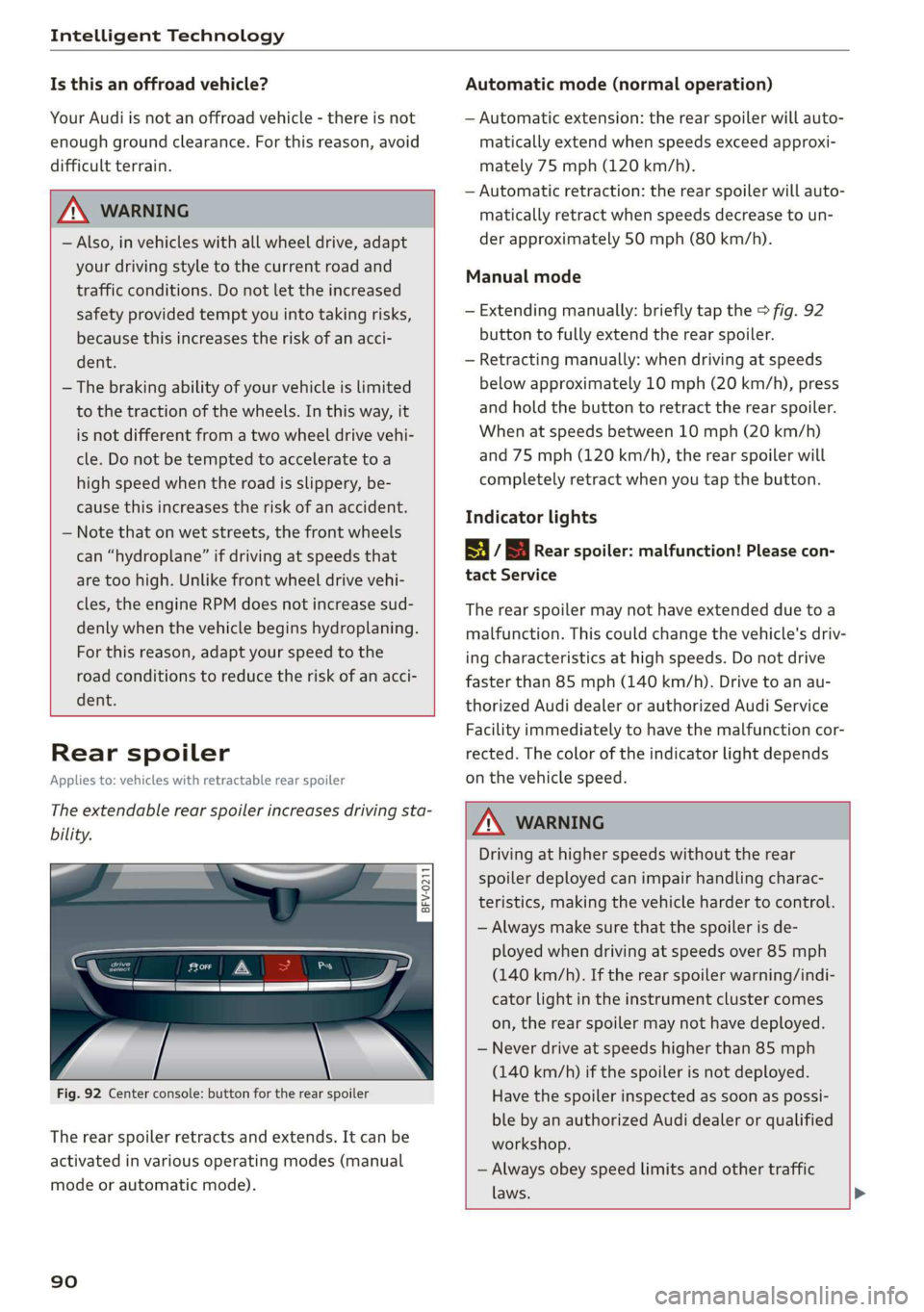
Fig. 92 Center console: button for the rear spoiler
The rear spoiler retracts and extends. It can be
activated in various operating modes (manual
mode or automatic mode).
90
Automatic mode (normal operation)
— Automatic extension: the rear spoiler will auto-
matically extend when speeds exceed approxi-
mately 75 mph (120 km/h).
— Automatic retraction: the rear spoiler will auto-
matically retract when speeds decrease to un-
der approximately 50 mph (80 km/h).
Manual mode
— Extending manually: briefly tap the > fig. 92
button to fully extend the rear spoiler.
— Retracting manually: when driving at speeds
below approximately 10 mph (20 km/h), press
and hold the button to retract the rear spoiler.
When at speeds between 10 mph (20 km/h)
and 75 mph (120 km/h), the rear spoiler will
completely retract when you tap the button.
Indicator lights
8 / | Rear spoiler: malfunction! Please con-
tact Service
The rear spoiler may not have extended due toa
malfunction. This could change the vehicle's driv-
ing characteristics at high speeds. Do not drive
faster than 85 mph (140 km/h). Drive to an au-
thorized Audi dealer or authorized Audi Service
Facility immediately to have the malfunction cor-
rected. The color of the indicator light depends
on the vehicle speed.
ZA WARNING
Driving at higher speeds without the rear
spoiler deployed can impair handling charac-
teristics, making the vehicle harder to control.
— Always make sure that the spoiler is de-
ployed when driving at speeds over 85 mph
(140 km/h). If the rear spoiler warning/indi-
cator light in the instrument cluster comes
on, the rear spoiler may not have deployed.
— Never drive at speeds higher than 85 mph
(140 km/h) if the spoiler is not deployed.
Have the spoiler inspected as soon as possi-
ble by an authorized Audi dealer or qualified
workshop.
— Always obey speed limits and other traffic
laws.
Page 93 of 304
8S8012721BA
Intelligent Technology
ZA\ WARNING
Improper operation of the rear spoiler can
cause crushing injuries.
— Always make sure that nobody, especially
children, is in the way when the rear spoiler
is deployed or retracted.
() Note
— Never push on the vehicle on the rear spoil-
er. This could cause damage.
— To prevent damage to the rear spoiler do
not lean or place anything on it.
— Only operate the rear spoiler manually when
the luggage compartment lid is close and
the rear spoiler moving parts are not
blocked. Otherwise, damage could occur.
@ Tips
Clean the rear spoiler compartment every 2 to
3 months. To function correctly, the rear
spoiler must be free of ice, snow and leaves.
Energy management
Your vehicle is equipped with an intelligent ener-
gy management system for distributing electrici-
ty. This significantly improves the starting ability
and increases the vehicle battery life.
@ Tips
— If you drive short distances frequently, the
vehicle battery may not charge enough
while driving. As a result, convenience func-
tions for electrical equipment may be tem-
porarily unavailable.
— The vehicle battery will gradually drain if
the vehicle is not driven for long periods of
time, or if electrical equipment is used
when the engine is not running. To ensure
that the vehicle can still be started, the
electrical equipment will be limited or
switched off.
Information about data
recorded by vehicle
control modules
Your vehicle is not equipped with a crash data re-
corder. This device is installed by some vehicle
manufacturers to record data about crashes so
that it can be analyzed later. Crash data recorders
are also called “Event Data Recorders (EDR)”.
In some legal jurisdictions, it is not permitted to
access or download data recorded by pre-instal-
led crash data recorders in order to evaluate a
crash without clear consent of the vehicle owner.
Your vehicle is not equipped with a crash data re-
corder. However it does contain a variety of elec-
tronic control modules for various vehicle sys-
tems such as engine function, exhaust treatment
or airbags and safety belts.
These electronic control modules record vehicle
data during normal driving for diagnosis and re-
pair purposes. The recording capability of the
electronic control modules is limited to data only
- no sound is recorded. If the control module de-
tects a system malfunction or other change in
status, a very limited amount of data is recorded
for an extremely small period of time. Data that
is recorded in such a case may include vehicle
speed, driving direction, the load on the brakes
and head restraints and performance in the event
of an accident or other change in status. The stor-
ed data can only be read or downloaded with spe-
cial devices.
91
Page 94 of 304
Multi Media Interface
Multi Media Interface
Traffic safety
information
Audi recommends performing certain Infotain-
ment system functions, such as entering a desti-
nation, only when the vehicle is stationary. Al-
ways be prepared to stop operating the Infotain-
ment system in the interest of your safety and
the safety of other road users.
Z\ WARNING
Only use the Infotainment system when road,
traffic, weather, and visibility conditions per-
mit and always in a way that allows you to
maintain complete control over your vehicle.
@ Tips
Certain functions are not available while driv-
ing.
Introduction
The Multi Media Interface, or MMI for short,
combines various systems for communication,
navigation* and entertainment in your Audi. You
can operate the MMI using the MMI control pan-
el, the multifunction steering wheel or the voice
recognition system*.
@
‘eo
OTe I @
Se2
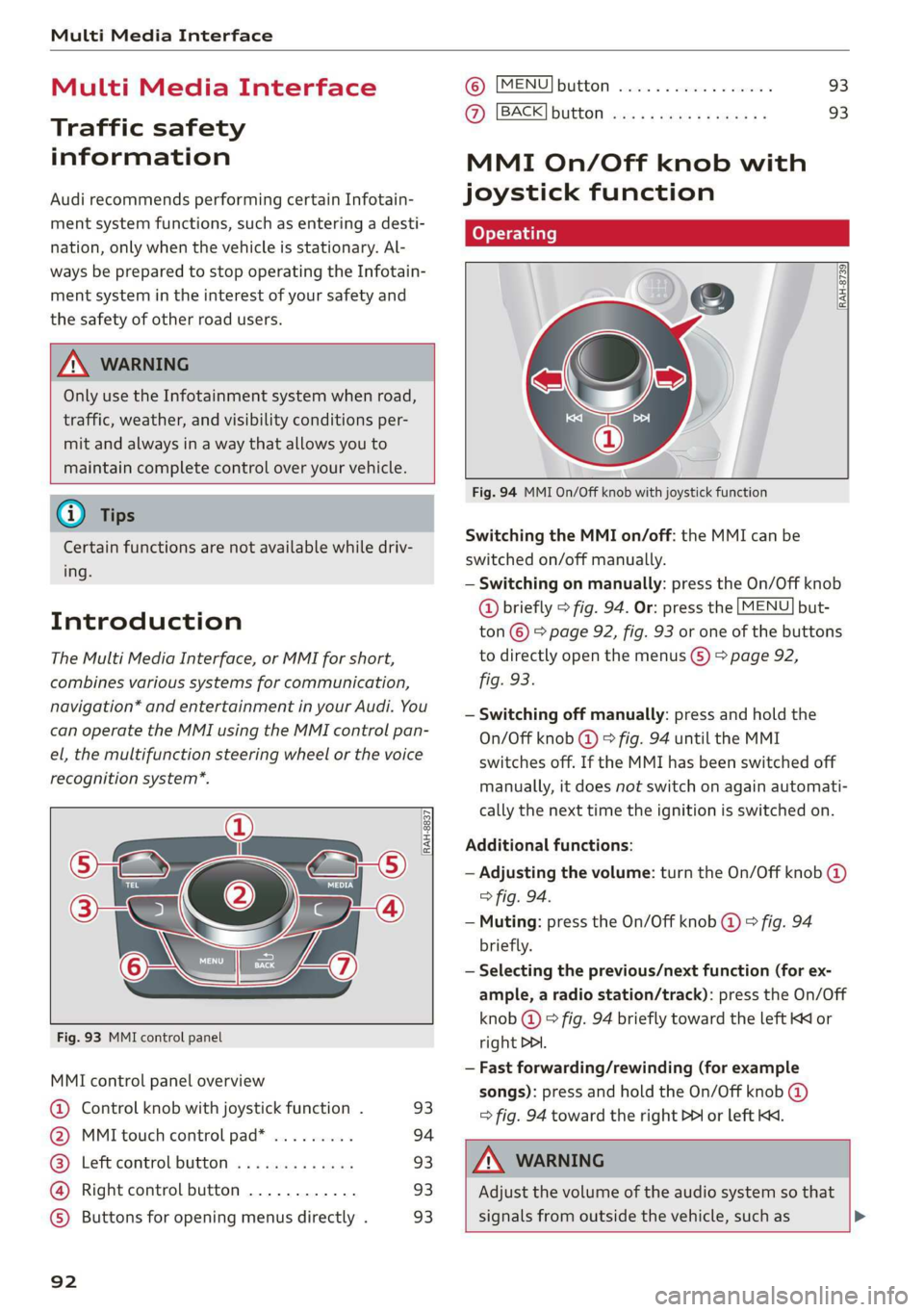
Fig. 93 MMI control panel
[RAH-8837|
:
MMI control panel overview
@ Control knob with joystick function . 93
@ MMI touch control pad* ......... 94
@® Left control button ............. 93
@ Right control button ............ 93
©) Buttons for opening menus directly . 93
92
(GB) [MENU] button sess ss cosencs vs soteane » 93
@ [BACK] button ............0.08. 93
MMI On/Off knob with
joystick function
Operating
[RAH-8739
Fig. 94 MMI On/Off knob with joystick function
Switching the MMI on/off: the MMI can be
switched on/off manually.
— Switching on manually: press the On/Off knob
@ briefly > fig. 94. Or: press the [MENU] but-
ton © & page 92, fig. 93 or one of the buttons
to directly open the menus () > page 92,
fig. 93.
— Switching off manually: press and hold the
On/Off knob @ © fig. 94 until the MMI
switches off. If the MMI has been switched off
manually, it does not switch on again automati-
cally the next time the ignition is switched on.
Additional functions:
— Adjusting the volume: turn the On/Off knob @)
> fig. 94.
— Muting: press the On/Off knob @ © fig. 94
briefly.
— Selecting the previous/next function (for ex-
ample, a radio station/track): press the On/Off
knob @ ° fig. 94 briefly toward the left KK or
right DDI.
— Fast forwarding/rewinding (for example
songs): press and hold the On/Off knob @)
=> fig. 94 toward the right PPI or left Kd.
Z\ WARNING
Adjust the volume of the audio system so that
signals from outside the vehicle, such as >
Page 106 of 304
Voice recognition system
Voice recognition system
Operating
Applies to: vehicles with voice recognition system
You can operate many Infotainment functions
conveniently by speaking.
Requirement: the ignition and the MMI must be
switched on. A system language supported by
the voice recognition system must be set. There
must be no phone calls in progress and the park-
ing aid must not be active.
> Switching on: briefly press the [2] button @)
=> page 14, fig. 10 on the multifunction steer-
ing wheel and say the desired command after
the Beep.
> Switching off: press and hold the |™] button.
Or: say the command Cancel.
> Pausing: say the command Pause. To resume,
press the |] button.
> Correcting: press the [>] button one time ©
=> page 12, fig. 6. Or: say the command Correc-
tion.
Input assistance
The system guides you through the input with
visual and audio feedback.
— Visual input assistance: after switching on
voice recognition, a display with a selection of
possible commands appears. The command
display can be switched on/off under [MENU] >
Settings > left control button > MMI settings >
Speech dialog system.
— Audio input assistance: to have the possible
commands read, press the [2] button on the
multifunction steering wheel briefly and say
Help.
For the system to understand you:
Speak clearly and distinctly at a normal volume.
Speak louder when driving faster.
Emphasize the words in the commands evenly
and do not leave long pauses.
Do not speak a command when the voice recogni-
tion system is making an announcement.
104
Close the doors, the windows, and the sunroof*
to reduce background noise. Make sure that pas-
sengers are not speaking when you are giving a
voice command.
Do not direct the vents toward the handsfree mi-
crophone, which is near the front interior lights
on the roof headliner or on the driver's safety
belt*. For additional information on the safety
belt microphone, see > page 123.
Only
use the system from the driver's seat be-
cause the hands-free microphone is directed to-
ward that seat.
Additional settings
See > page 176, Voice recognition system.
ZA\ WARNING
— Direct your full attention to driving. As the
driver, you have complete responsibility for
safety in traffic. Only use the functions in
such a way that you always maintain com-
plete control over your vehicle in all traffic
situations.
— Do not use the voice recognition system in
emergencies because your voice may change
in stressful situations. The system may take
longer to dial the number or may not be
able to dial it at all. Dial the emergency
number manually.
G) Tips
—The dialog pauses when there is an incom-
ing phone call and will continue if you ig-
nore the call. The dialog ends if you answer
the call.
— There are no voice guidance* prompts when
a dialog is active.
— You can select an item in the list using ei-
ther the voice recognition system or the
control knob.
Page 112 of 304
Telephone
Telephone
Introduction
Applies to: vehicles with telephone
To make phone calls in your vehicle using the
MMI, connect your cell phone to the MMI via
Bluetooth.
Handsfree
After you have connected your mobile device to
the MMI via Bluetooth, you can use the handsfree
system and operate telephone functions through
your MMI. You can make calls using the antenna
on your mobile device.
Z\ WARNING
— Medical experts warn that mobile devices
can interfere with the function of pacemak-
ers. Always maintain a minimum distance of
about 8 inches (20 cm) between the cell
phone antenna and the pacemaker.
— Do not carry the mobile device in a pocket
directly over the pacemaker when the
phone is switched on.
— Switch the mobile device off immediately
if you suspect it may be interfering with
the pacemaker.
— Do not use the voice recognition system*
= page 104 in emergencies because your
voice may change in stressful situations. The
system may take longer to dial the number
or may not be able to dial it at all. Dial the
emergency number manually.
— Switch your mobile device off in areas where
there is a risk of an explosion. These loca-
tions are not always clearly marked. This
may include gas stations, fuel and chemical
storage facilities or transport vehicles, or lo-
cations where fuel vapors (such as propane
or gasoline vapor in vehicles or buildings),
chemicals or large quantities of dust parti-
cles (such as flour, sawdust or metal) may
be present in the air. This also applies to all
other locations where you would normally
turn your vehicle engine off.
— The demands of traffic require your full at-
tention. Always read the chapter > page 92,
Traffic safety information.
110
@) Note
Always follow the information found in >@ in
General information on page 125.
G) Tips
—To learn which Bluetooth connections and
which of the functions in your mobile device
are supported, check with your mobile de-
vice service provider or the database for mo-
bile devices at www.audiusa.com/
bluetooth.
— The Bluetooth connection range is limited
to inside the vehicle. It can also be affected
by local conditions and interference with
other devices.
Setup
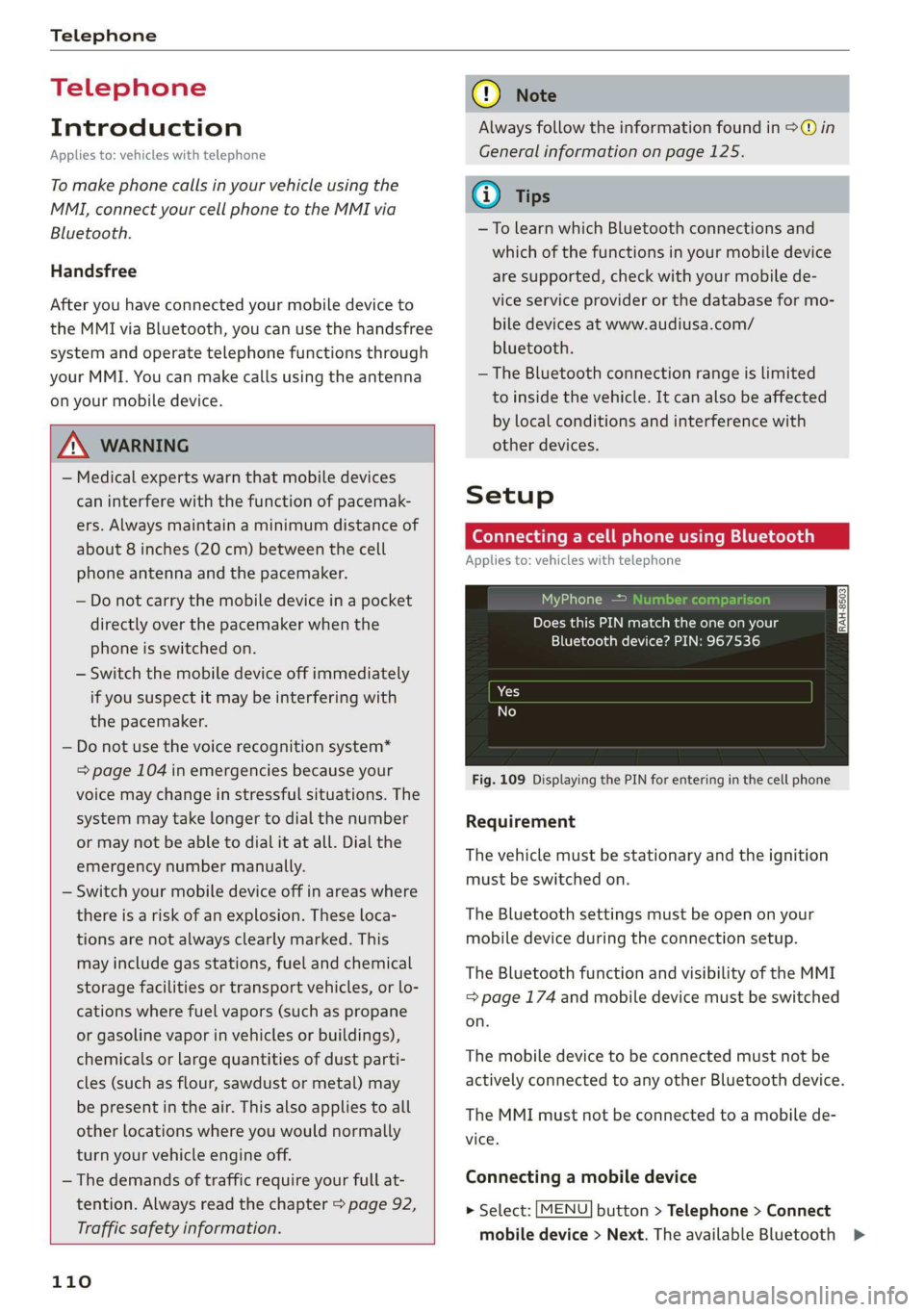
Connecting a cell phone using Bluetooth
Applies to: vehicles with telephone
MyPhone
Does this PIN match the one on your
Bluetooth device? PIN: 967536
Fig. 109 Displaying the PIN for entering in the cell phone
Requirement
The vehicle must be stationary and the ignition
must be switched on.
The Bluetooth settings must be open on your
mobile device during the connection setup.
The Bluetooth function and visibility of the MMI
= page 174 and mobile device must be switched
on.
The mobile device to be connected must not be
actively connected to any other Bluetooth device.
The MMI must not be connected to a mobile de-
vice.
Connecting a mobile device
> Select: [MENU] button > Telephone > Connect
mobile device > Next. The available Bluetooth >
Page 115 of 304
8S58012721BA
Telephone
Using the Audi phone
box
Applies to: vehicles with Audi phone box
You can charge your mobile device battery using
the Audi phone box. You can make calls through
the exterior antenna* on the vehicle. Using the
external antenna* helps when there is a low sig-
nal and also provides better reception quality.
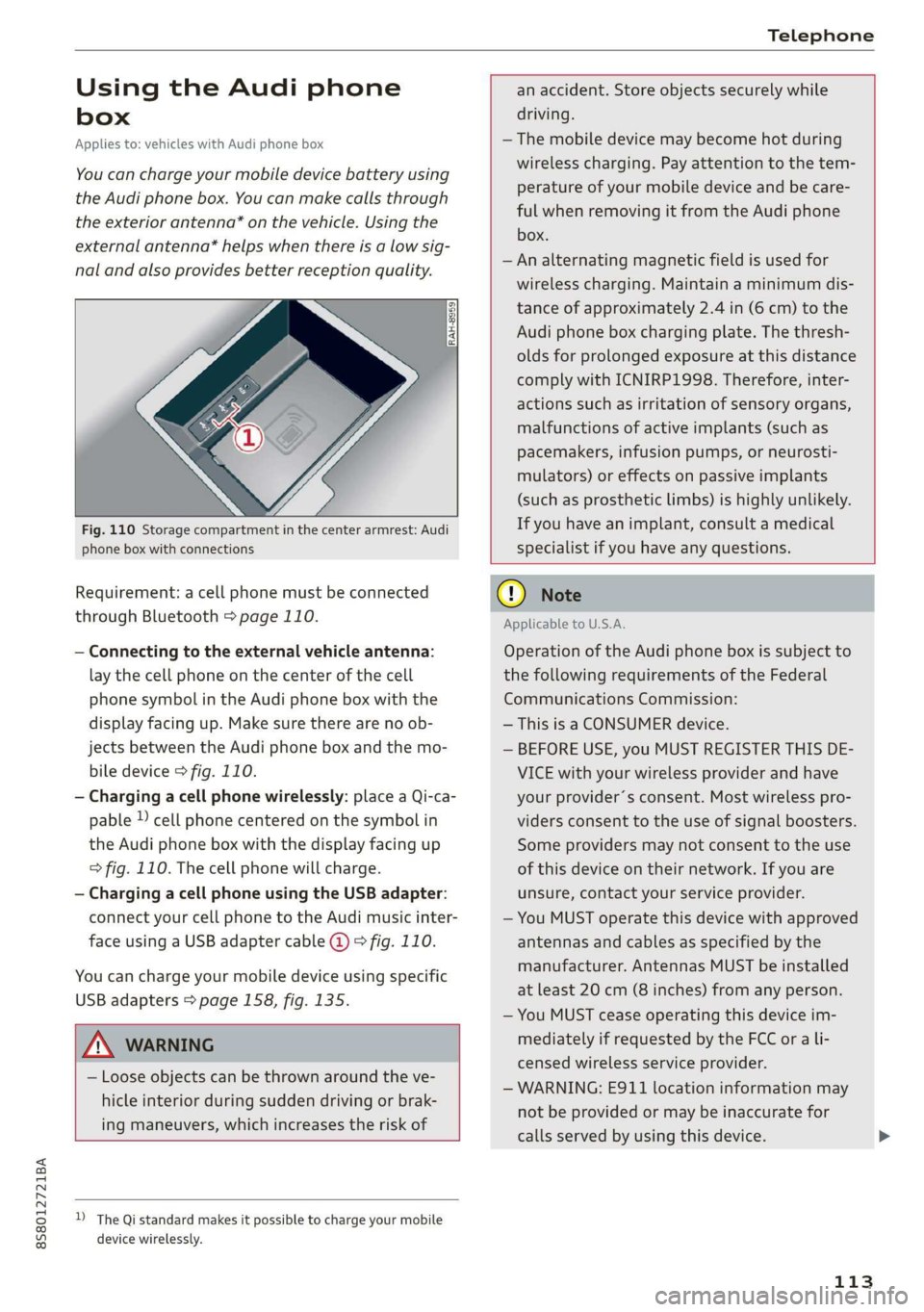
Fig. 110 Storage compartment in the center armrest: Audi
phone box with connections
Requirement: a cell phone must be connected
through Bluetooth > page 110.
— Connecting to the external vehicle antenna:
lay the cell phone on the center of the cell
phone symbol in the Audi phone box with the
display facing up. Make sure there are no ob-
jects between the Audi phone box and the mo-
bile device > fig. 110.
— Charging a cell phone wirelessly: place a Qi-ca-
pable ) cell phone centered on the symbol in
the Audi phone box with the display facing up
> fig. 110. The cell phone will charge.
— Charging a cell phone using the USB adapter:
connect your cell phone to the Audi music inter-
face using a USB adapter cable @) © fig. 110.
You can charge your mobile device using specific
USB adapters > page 158, fig. 135.
an accident. Store objects securely while
driving.
—The mobile device may become hot during
wireless charging. Pay attention to the tem-
perature of your mobile device and be care-
ful when removing it from the Audi phone
box.
— An alternating magnetic field is used for
wireless charging. Maintain a minimum dis-
tance of approximately 2.4 in (6 cm) to the
Audi phone box charging plate. The thresh-
olds for prolonged exposure at this distance
comply with ICNIRP1998. Therefore, inter-
actions such as irritation of sensory organs,
malfunctions of active implants (such as
pacemakers, infusion pumps, or neurosti-
mulators) or effects on passive implants
(such as prosthetic limbs) is highly unlikely.
If you have an implant, consult a medical
specialist if you have any questions.
ZA WARNING
— Loose objects can be thrown around the ve-
hicle interior during sudden driving or brak-
ing maneuvers, which increases the risk of
D_ The Qi standard makes it possible to charge your mobile
device wirelessly.
oO Note
Applicable to U.S.A.
Operation of the Audi phone box is subject to
the following requirements of the Federal
Communications Commission:
— This is a CONSUMER device.
— BEFORE USE, you MUST REGISTER THIS DE-
VICE with your wireless provider and have
your
provider’s consent. Most wireless pro-
viders consent to the use of signal boosters.
Some providers may not consent to the use
of this device on their network. If you are
unsure, contact your service provider.
— You MUST operate this device with approved
antennas
and cables as specified by the
manufacturer. Antennas MUST be installed
at least 20 cm (8 inches) from any person.
— You MUST cease operating this device im-
mediately if requested by the FCC or a li-
censed wireless service provider.
— WARNING: E911 location information may
not be provided or may be inaccurate for
calls served by using this device.
113
Page 116 of 304
Telephone
@) Note
Applicable to Canada
In Canada, operation of a Zone Enhancer,
such as an Audi Phone Box, is subject to the
following requirements of the Innovation,
Science and Economic Development Canada
(ISED):
— This is a CONSUMER device.
— BEFORE USE, you MUST meet all require-
ments set out in CPC-2-1-05.
— You MUST operate this device with approved
antennas
and cables as specified by the
manufacturer. Antennas MUST NOT be in-
stalled within 20 cm of any person.
— You MUST cease operating this device im-
mediately if requested by ISED or a licensed
wireless service provider.
— WARNING: £911 location information may
not be provided or may be inaccurate for
calls served by using this device.
G) Tips
— The Audi phone box is not available in all
countries. For additional information, con-
tact an authorized Audi dealership.
— Placing the mobile device in a bag or protec-
tive sleeve inside the Audi phone box can in-
terfere with the connection to the external
antenna.
— Metal objects cannot be located in the Audi
phone box when using the exterior antenna*
and the Audi phone box charging function.
— The charging time and temperature will vary
depending on the mobile device being used.
— When the ignition is switched on, you can
charge your mobile device in the Audi phone
box.
—To reduce the risk of malfunctions, make
sure the mobile device is positioned correct-
ly in the Audi phone box.
— The maximum charging output is 5 watts.
— Strong transmission quality cannot be guar-
anteed if more than one mobile device is in
the box.
— Audi recommends using Audi Genuine Ac-
cessories. Audi has verified their reliability,
safety, and suitability.
114
— You can purchase a USB adapter from an au-
thorized Audi dealer or authorized Audi
Service Facility, or at specialty stores.
— If you place your remote control key togeth-
er with your mobile device in the Audi phone
box, it may cause your mobile device to stop
charging if wireless charging is active.
Using the telephone
Opening the telephone
Applies to: vehicles with telephone
Call list
(2 Sa
©— Directory
(4)o 4) Es yor Llane
(=) Tekt message (mobile device)
Sy
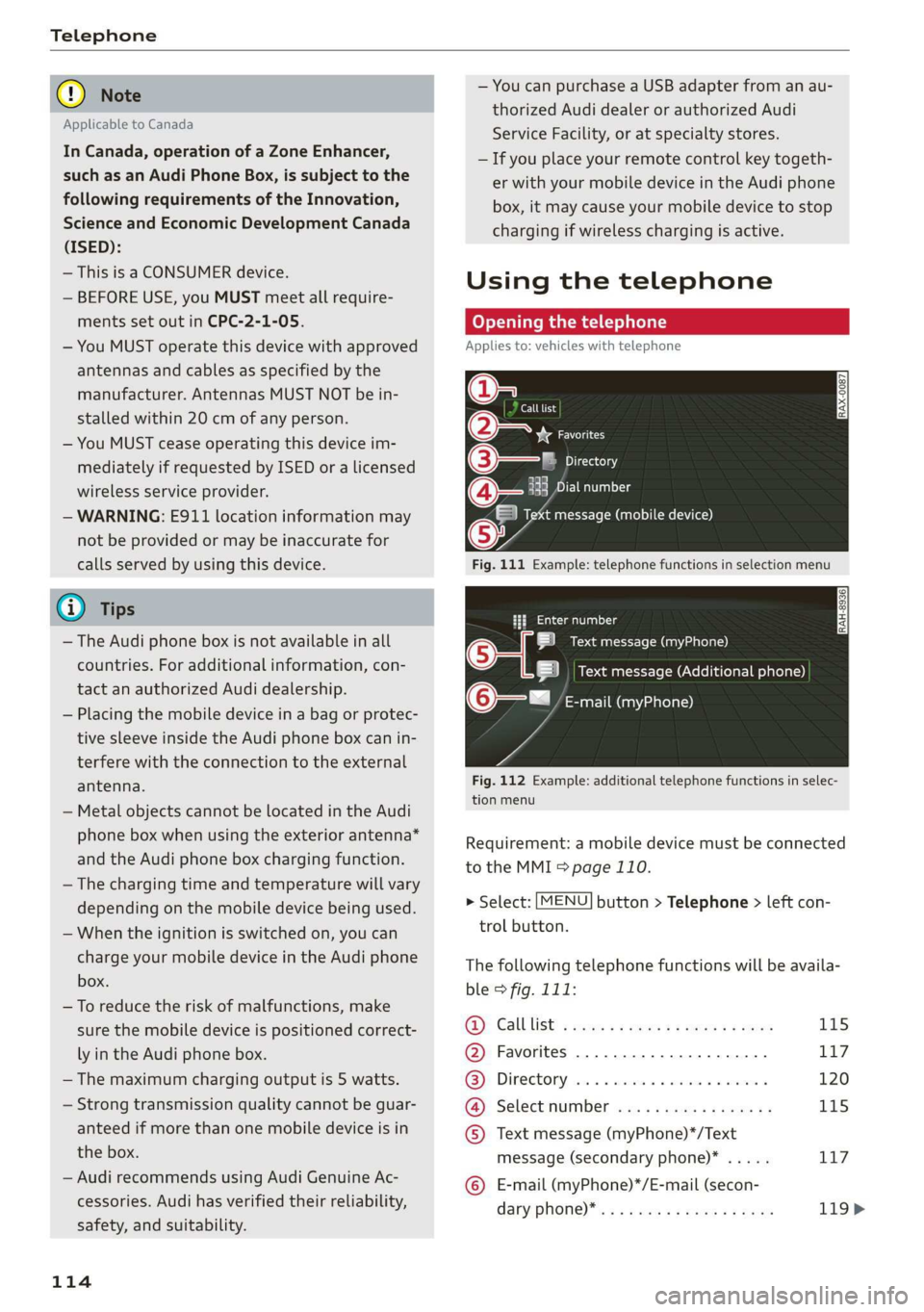
Fig. 111 Example: telephone functions in selection menu
Hy ee al dg
5 Text message (myPhone)
|i] Text message (Additional phone)
@—= E-mail (myPhone)
Fig. 112 Example: additional telephone functions in selec-
tion menu
Requirement: a mobile device must be connected
to the MMI > page 110.
> Select: [MENU] button > Telephone > left con-
trol button.
The following telephone functions will be availa-
ble > fig. 111:
@): Calllist: : soy. sc cease 4: ews yo ewe 115
@ Favorites ................20.0, 117
@® Directory ....... 0. cece eee eee 120
@ Select number ...............0. 115
© Text message (myPhone)*/Text
message (secondary phone)* ..... 117
© E-mail (myPhone)*/E-mail (secon-
dary: phone) * ws « een ss wawn se eee 119>
Page 122 of 304
Telephone
E-mail settings*
To display when a new e-mail is received, activate
the E-mail notifications. New e-mails are indicat-
ed with an envelope & in the Infotainment sys-
tem display status line.
Connection manager
See > page 172.
Bluetooth settings
See > page 174.
Online settings
See > page 174.
Wi-Fi settings
See > page 130, Wi-Fi settings.
Telephone settings
See > page 122.
G) Tips
Messages that are deleted in the MMI are also
automatically deleted in the connected cell
phone.
Listening to voicemail
Applies to: vehicles with telephone
MENU > Select: button > Telephone > left con-
trol button. Select and confirm Call list/Direc-
tory/Favorites > Voicemail.
— Entering the voicemail number: enter the de-
sired number. Select and confirm OK.
— Dialing the voicemail number: select and con-
firm
Voicemail.
@ Tips
— This service must be set up and activated in
advance by the cell phone service provider.
You can obtain more information from your
cell phone service provider.
— The voicemail number depends on the cell
phone service provider.
120
Emergency call functions
Applies to: vehicles with telephone
MENU > Select: button > Telephone > left con-
trol button > Dial number > Enter emergency
call number (for example, 911) > OK.
ZA WARNING
— Because your phone works with radio sig-
nals, a connection cannot be guaranteed un-
der all circumstances. Do not rely on only
your phone when it comes to essential com-
munication (such as a medical emergency).
— Always follow the instructions given by the
emergency personnel during an emergency
call and only end the call when they instruct
you to do so.
@) Tips
Emergency numbers are not
the same every-
where. Find out which emergency number is
used in your current location.
Directory
Opening the directory
Applies to: vehicles with telephone
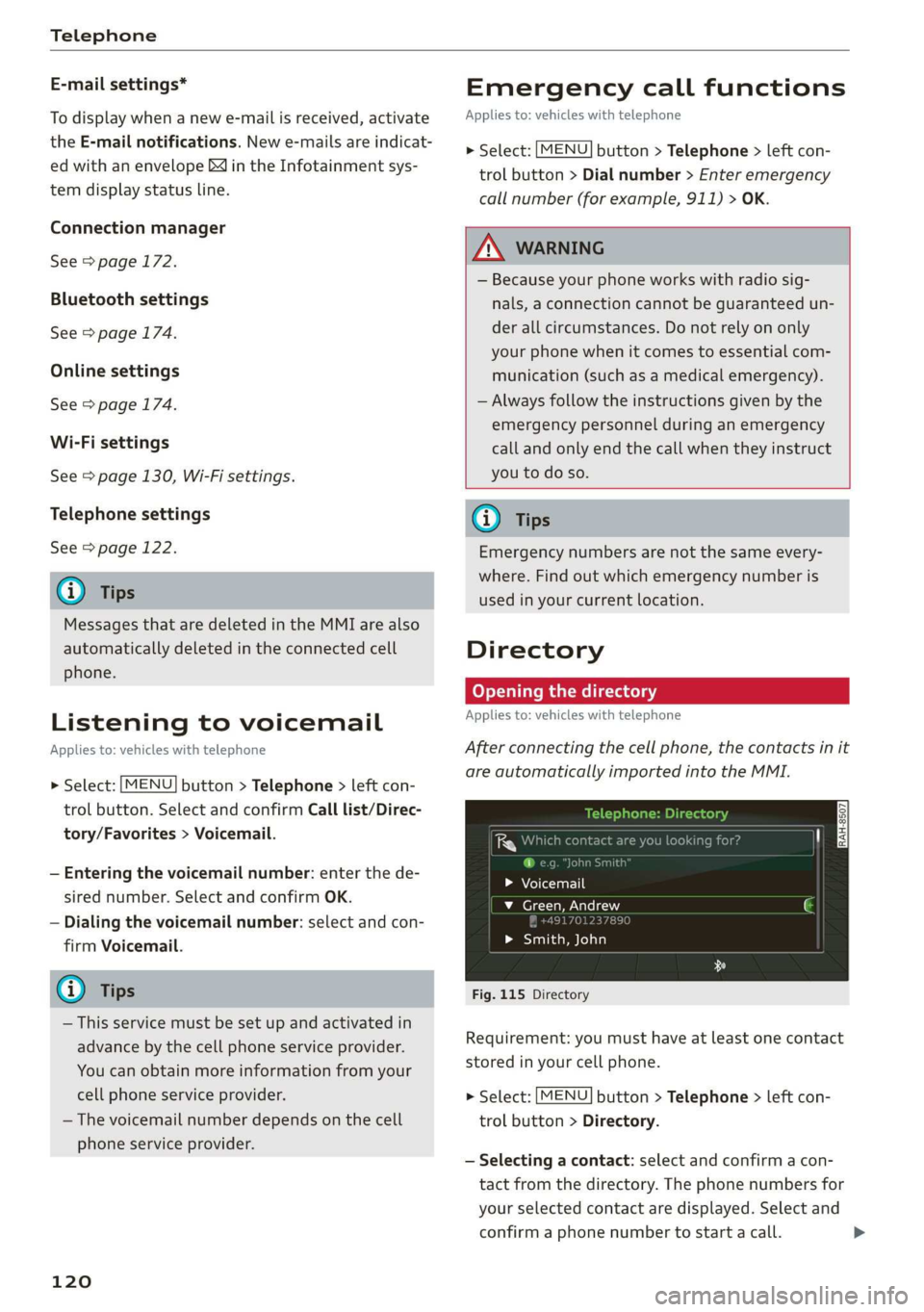
After connecting the cell phone, the contacts in it
are automatically imported into the MMI.
uno
i ce h
> Voicemail
v_ Green, Andrew
> Smith, John
Fig. 115 Directory
Requirement: you must have at least one contact
stored in your cell phone.
> Select: [MENU] button > Telephone > left con-
trol button > Directory.
— Selecting a contact: select and confirm a con-
tact from the directory. The phone numbers for
your selected contact are displayed. Select and
confirm a phone number to start a call. >
Page 127 of 304
8S8012721BA
Audi connect
Audi connect
General information
Depending on the country and the vehicle equip-
ment, the following functions may be available:
— Audi connect Infotainment
You can also find more information on Audi con-
nect online at www.audiusa.com.
Z\ WARNING
—To reduce the risk of an accident, only use
Audi connect services when road and traffic
conditions permit. Always read and follow
the notes in > page 92, Traffic safety infor-
mation.
— It is only safe to use tablets, laptops, mobile
devices and other similar devices when the
vehicle is stationary because, like all loose
objects, they could be thrown around the in-
side of the vehicle in a crash and cause seri-
ous injuries. Store these types of devices se-
curely while driving.
— As the driver, do not allow usage of the Wi-
Fi hotspot to distract you from driving, as
this could increase the risk of an accident.
— Do not use any Wi-Fi devices within range of
the airbags while driving. Also read the
warnings in the chapter > page 189.
—To reduce the risk of an accident, only use
Audi connect Infotainment services using a
Wi-Fi hotspot when the vehicle is stationary.
@) Note
— Applies to: use of separate SIM card in the
SIM card reader or SIM card in the Wi-Fi de-
vice via personal hotspot: If you use your
own SIM card, all data connections for all
Audi connect Infotainment services will run
through your SIM card. This could result in
additional costs, depending on your cell
phone service provider and especially when
using in other countries. A flat rate data
plan is strongly recommended. You can ob-
tain more information from your cell phone
service provider.
—Incertain situations, the Wi-Fi hotspot data
connection may be established as a replace-
ment for the SIM card on your Wi-Fi device.
This feature depends on the configuration
of your Wi-Fi device and operating system.
This could result in fees depending on your
cell phone service provider, especially if you
are using this feature while abroad. A flat
rate data plan is strongly recommended. For
more information, contact your cell phone
service provider or refer to the owner's man-
ual for your Wi-Fi device.
— You are responsible for all precautions taken
for data protection, anti-virus protection,
and protection against loss of data on mo-
bile devices that are used, for example, to
access the Internet through the Wi-Fi hot-
spot.
@) Tips
— The availability of services depends on the
subscription.
— AUDI AG provides access to services from
third party providers. Permanent availability
cannot be guaranteed, because that de-
pends on the third party provider.
— Use of the most up-to-date mobile network
standard is not available in every country.
Contact an authorized Audi dealer or au-
thorized Audi Service Facility or your cell
phone service provider for additional infor-
mation.
— Audi connect Infotainment services are only
available within the cell phone network cov-
erage from your cell phone service provider.
— Availability, scope, providers, screen display,
and costs of services may vary depending on
the country, model, model year, end device
and rates.
Audi connect
Infotainment
Applies to: vehicles with Audi connect Infotainment
With Audi connect Infotainment services, online
information is transmitted directly to the vehicle. >
125