phone BMW 1 SERIES 2013 E82 Owner's Guide
[x] Cancel search | Manufacturer: BMW, Model Year: 2013, Model line: 1 SERIES, Model: BMW 1 SERIES 2013 E82Pages: 288, PDF Size: 6.73 MB
Page 166 of 288
161
Satellite radio
Entertainment
Satellite radio
Vehicle equipment
In this chapter, all production, country, and
optional equipment that is offered in the model
range is described. Equipment is also described
that is not available because of, for example,
selected options or coun
try version. This also
applies to safety related functions and systems.
General information
The channels are offered in fixed packages.
Packages must be ac tivated by telephone.
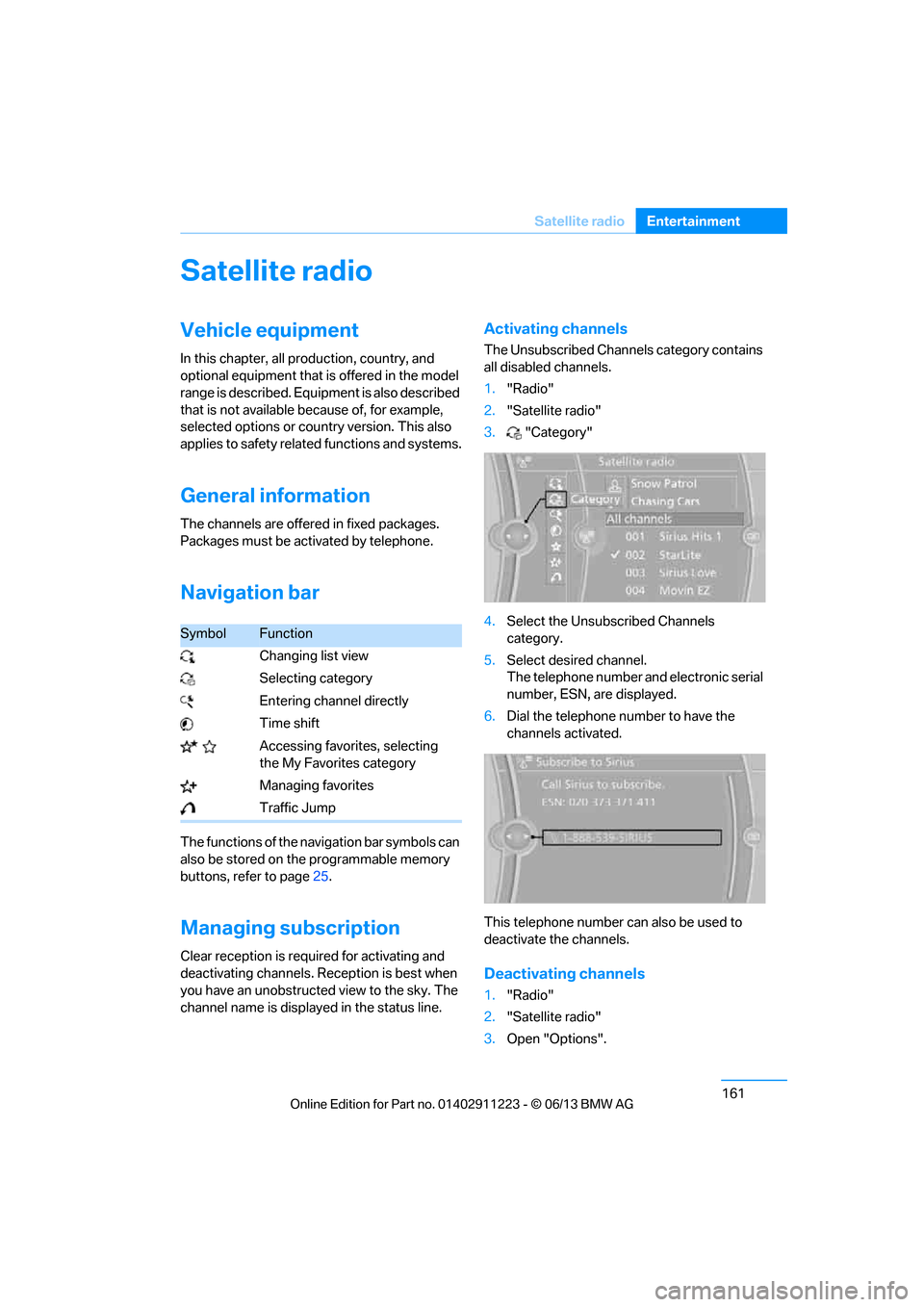
Navigation bar
The functions of the navigation bar symbols can
also be stored on the programmable memory
buttons, refer to page 25.
Managing subscription
Clear reception is required for activating and
deactivating channels. Re ception is best when
you have an unobstructed view to the sky. The
channel name is displayed in the status line.
Activating channels
The Unsubscribed Channels category contains
all disabled channels.
1. "Radio"
2. "Satellite radio"
3. "Category"
4. Select the Unsubscribed Channels
category.
5. Select desired channel.
The telephone number and electronic serial
number, ESN, are displayed.
6. Dial the telephone number to have the
channels activated.
This telephone number can also be used to
deactivate the channels.
Deactivating channels
1. "Radio"
2. "Satellite radio"
3. Open "Options".
SymbolFunction
Changing list view
Selecting category
Entering channel directly
Time shift
Accessing favorites, selecting the My Favorites category
Managing favorites
Traffic Jump
00320051004F004C00510048000300280047004C0057004C005200510003
Page 167 of 288
162
EntertainmentSatellite radio
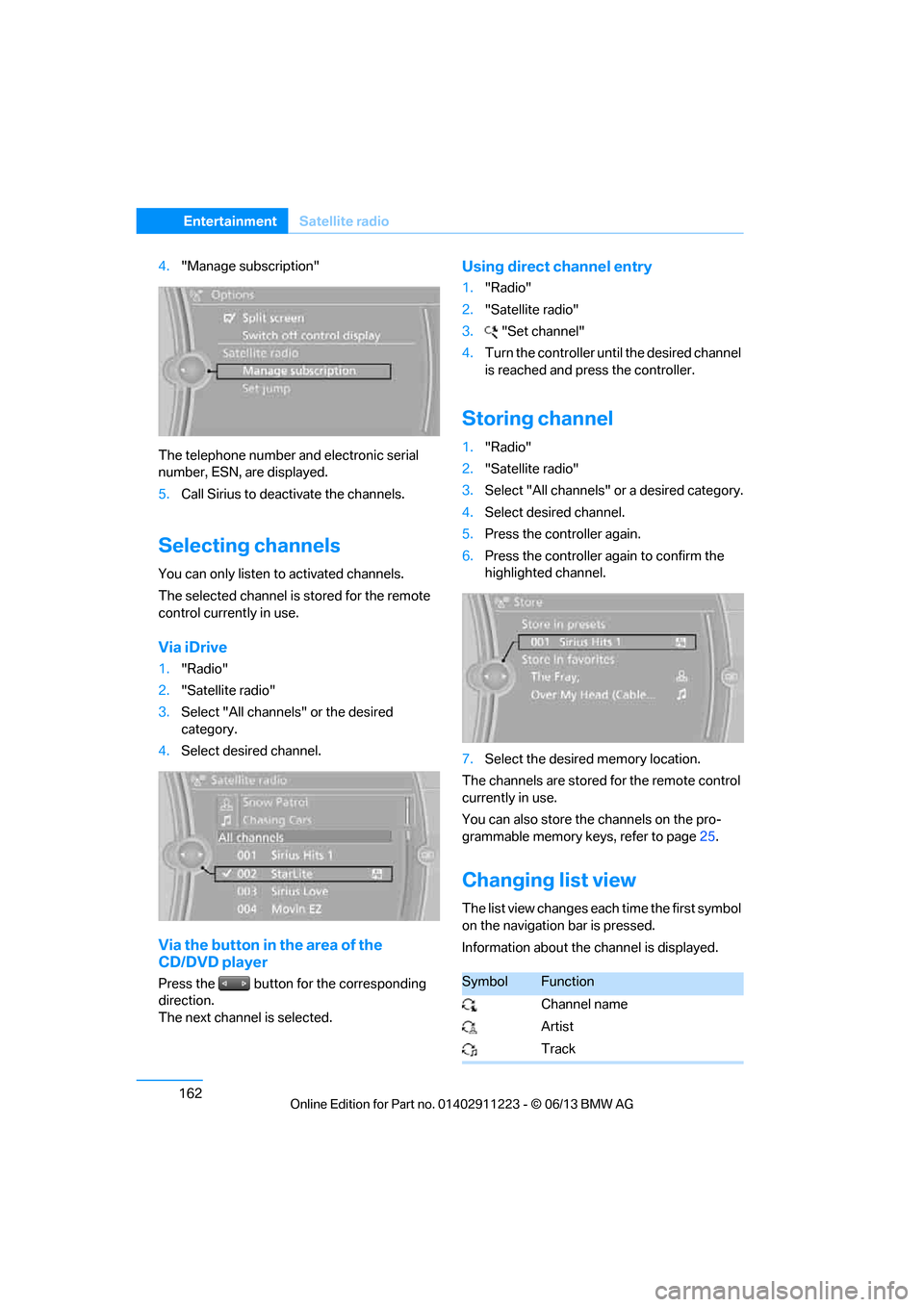
4."Manage subscription"
The telephone number and electronic serial
number, ESN, are displayed.
5. Call Sirius to deacti vate the channels.
Selecting channels
You can only listen to activated channels.
The selected channel is stored for the remote
control currently in use.
Via iDrive
1. "Radio"
2. "Satellite radio"
3. Select "All channels" or the desired
category.
4. Select desired channel.
Via the button in the area of the
CD/DVD player
Press the button for the corresponding
direction.
The next channel is selected.
Using direct channel entry
1."Radio"
2. "Satellite radio"
3. "Set channel"
4. Turn the controller unt il the desired channel
is reached and pr ess the controller.
Storing channel
1."Radio"
2. "Satellite radio"
3. Select "All channels" or a desired category.
4. Select desired channel.
5. Press the controller again.
6. Press the controller again to confirm the
highlighted channel.
7. Select the desired memory location.
The channels are stored for the remote control
currently in use.
You can also store the channels on the pro-
grammable memory ke ys, refer to page25.
Changing list view
The list view changes each time the first symbol
on the navigation bar is pressed.
Information about the channel is displayed.
SymbolFunction
Channel name
Artist
Track
00320051004F004C00510048000300280047004C0057004C005200510003
Page 168 of 288
163
Satellite radio
Entertainment
Selecting category
1.
"Radio"
2. "Satellite radio"
3. "Category"
4. Select the desired category.
Time shift
Approximately one hour of the channel cur-
rently being listened to is temporarily stored in a
cache memory. Prerequisite: the signal must be
available.
The stored audio track can be played back at a
different time from the live broadcast. If the
cache memory is full, then the older tracks are
recorded over. The cache memory is deleted if
a new channel is selected.
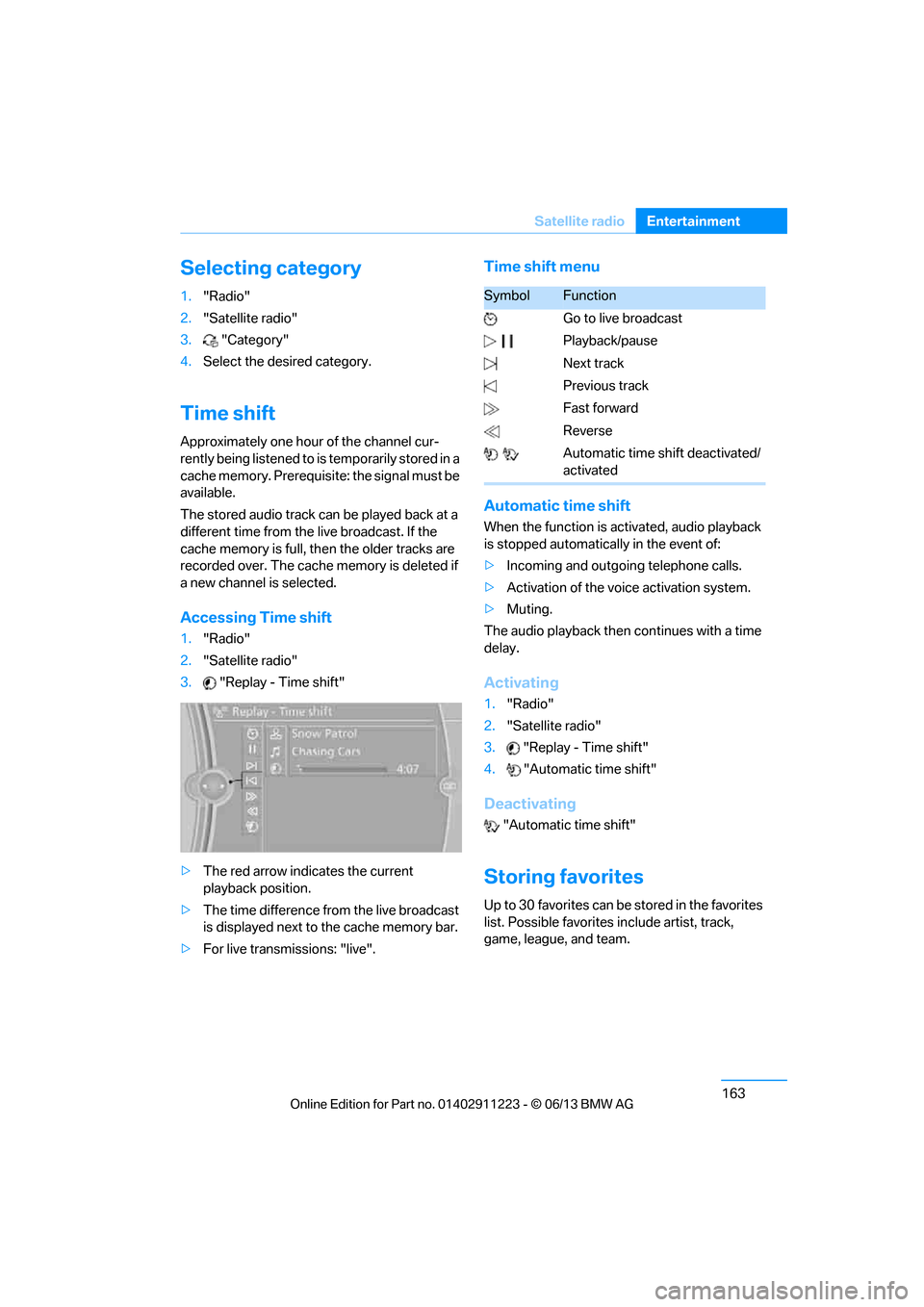
Accessing Time shift
1. "Radio"
2. "Satellite radio"
3. "Replay - Time shift"
> The red arrow indicates the current
playback position.
> The time difference from the live broadcast
is displayed next to the cache memory bar.
> For live transmissions: "live".
Time shift menu
Automatic time shift
When the function is ac tivated, audio playback
is stopped automatica lly in the event of:
> Incoming and outgoing telephone calls.
> Activation of the voic e activation system.
> Muting.
The audio playback then continues with a time
delay.
Activating
1. "Radio"
2. "Satellite radio"
3. "Replay - Time shift"
4. "Automatic time shift"
Deactivating
"Automatic time shift"
Storing favorites
Up to 30 favorites can be stored in the favorites
list. Possible favorites include artist, track,
game, league, and team.
SymbolFunction
Go to live broadcast
Playback/pause
Next track
Previous track
Fast forward
Reverse
Automatic time shift deactivated/
activated
00320051004F004C00510048000300280047004C0057004C005200510003
Page 178 of 288
173
Music collection
Entertainment
You can switch to the ot
her audio sources with-
out interrupting the st orage process. Tracks
from the current CD/DVD can also be called up,
if they have been stored already.
Interrupting storage
1. "CD/Multimedia"
2. "CD/DVD"
3. "Storing..."
4. "Cancel storing"
The storage process is interrupted and can be
continued at any time.
Continuing the storage process
1. "CD/Multimedia"
2. "CD/DVD"
3. Select the symbol for the CD/DVD
player.
4. "Continue storing"
The storing of the CD/DVD continues at the
beginning of the track at which storing was
interrupted.
Album information
During storage, information such as the name
of the artist is stored with the track, if this infor-
mation is available in th e vehicle database or on
the CD.
To update the database, contact your service
center.
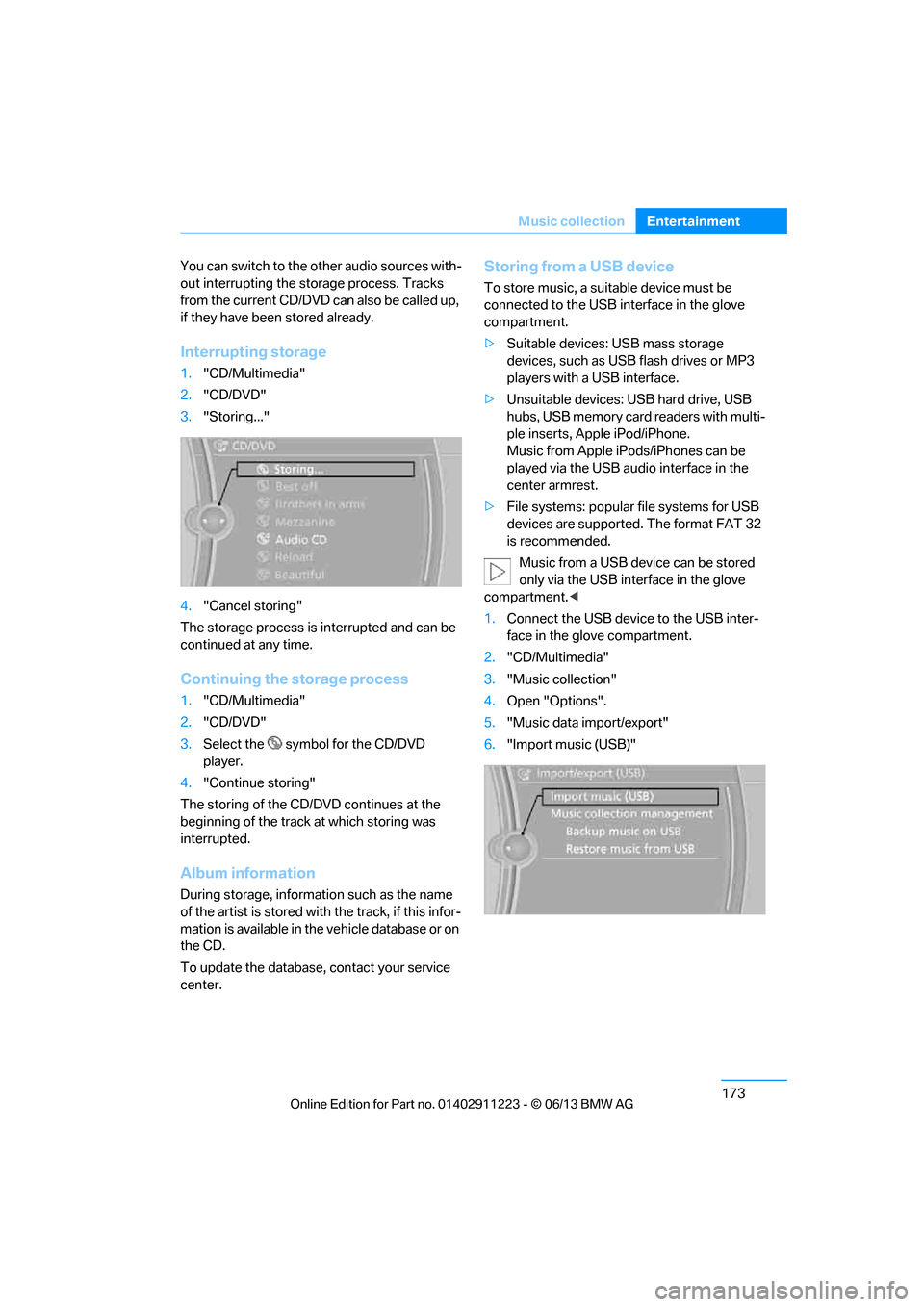
Storing from a USB device
To store music, a suitable device must be
connected to the USB interface in the glove
compartment.
> Suitable devices: USB mass storage
devices, such as USB flash drives or MP3
players with a USB interface.
> Unsuitable devices: USB hard drive, USB
hubs, USB memory card readers with multi-
ple inserts, Apple iPod/iPhone.
Music from Apple iPods/iPhones can be
played via the USB audio interface in the
center armrest.
> File systems: popular file systems for USB
devices are supported. The format FAT 32
is recommended.
Music from a USB device can be stored
only via the USB interface in the glove
compartment. <
1. Connect the USB device to the USB inter-
face in the glove compartment.
2. "CD/Multimedia"
3. "Music collection"
4. Open "Options".
5. "Music data import/export"
6. "Import music (USB)"
00320051004F004C00510048000300280047004C0057004C005200510003
Page 182 of 288
177
External devices
Entertainment
External devices
Vehicle equipment
In this chapter, all production, country, and
optional equipment that is offered in the model
range is described. Equipment is also described
that is not available because of, for example,
selected options or coun
try version. This also
applies to safety related functions and systems.
Overview
AUX-IN port
Overview
> It is possible to connect audio devices, e.g.
MP3 players. Sound is output over the
vehicle speakers.
> Recommended settings: mid-level tone and
volume settings on th e audio device. Tone
may depend on the quality of the audio files.
Connecting
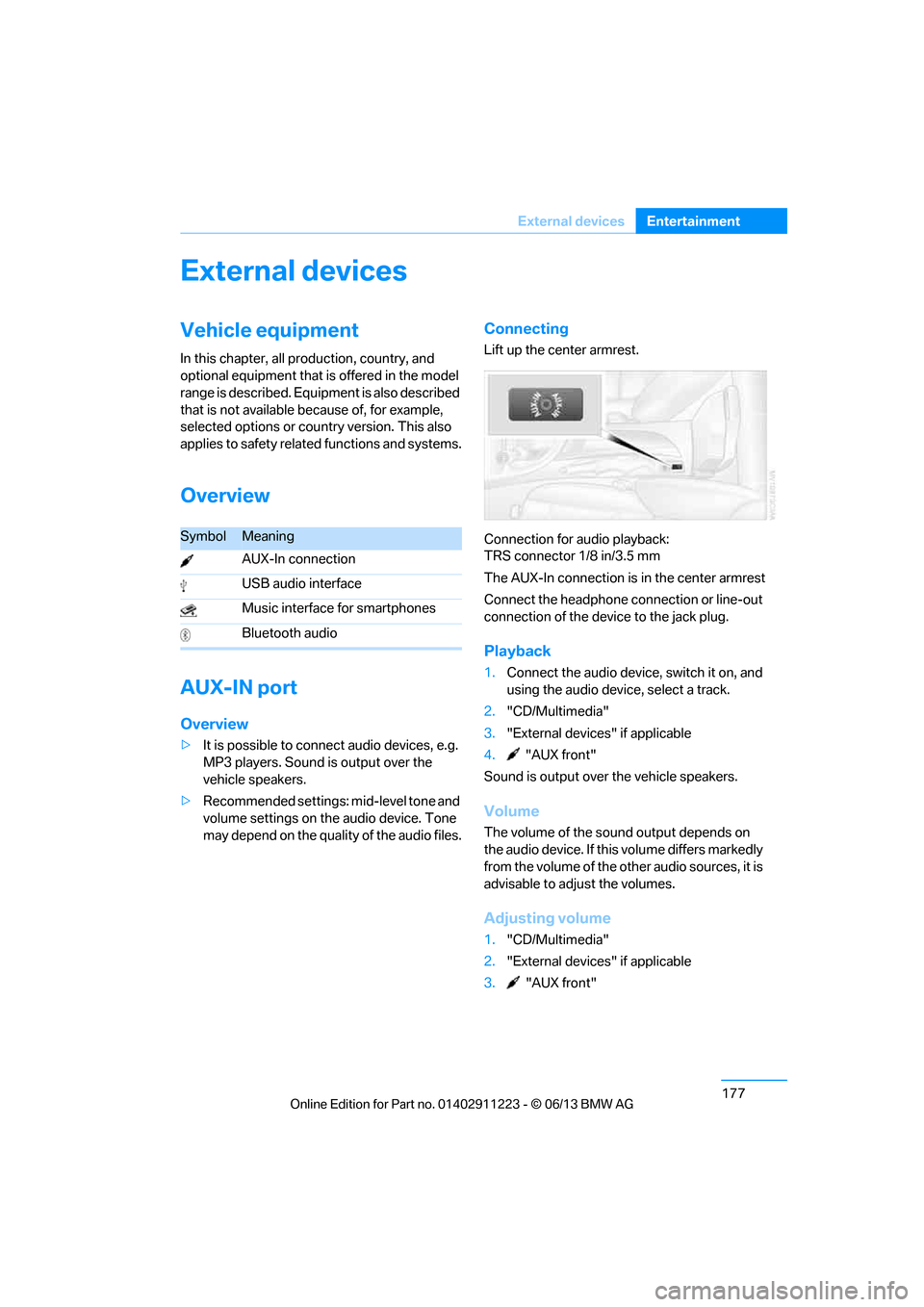
Lift up the center armrest.
Connection for audio playback:
TRS connector 1/8 in/3.5 mm
The AUX-In connection is in the center armrest
Connect the headphone connection or line-out
connection of the device to the jack plug.
Playback
1. Connect the audio device, switch it on, and
using the audio device, select a track.
2. "CD/Multimedia"
3. "External devices" if applicable
4. "AUX front"
Sound is output over the vehicle speakers.
Volume
The volume of the sound output depends on
the audio device. If this volume differs markedly
from the volume of the ot her audio sources, it is
advisable to adjust the volumes.
Adjusting volume
1. "CD/Multimedia"
2. "External devices" if applicable
3. "AUX front"
SymbolMeaning
AUX-In connection
USB audio interface
Music interface for smartphones
Bluetooth audio
00320051004F004C00510048000300280047004C0057004C005200510003
Page 183 of 288
178
EntertainmentExternal devices
4."Volume"
5. Turn the controller until the desired volume
is set and then press the controller.
USB audio interface/Music
interface for smartphones
Overview
It is possible to connect external audio devices.
They can be operated via iDrive. Sound is out-
put over the vehicle speakers.
Options for connecting external
devices
> Connection via USB audio interface: Apple
iPod/iPhone, USB devices, e. g. MP3 player,
USB flash drive, or mobile phones that are
supported by the USB audio interface.
> Connection via snap-in adapter if the vehi-
cle is equipped with a music interface for
smartphones: Apple iPhone or mobile
phones. Playback ma y only be possible
when no device is connected to the AUX-IN
port.
Because of the large number of audio devices
available on the market, an operation via the
vehicle cannot be guaranteed for every audio
device/mobile phone.
Ask your BMW center for suitable audio
devices/mobile phones.
File systems
Popular file systems for USB devices are sup-
ported. The format FAT 32 is recommended.
Audio files
Playback of standard audio files is possible:
> MP3
> WMA
> WAV (PCM)
> AAC, M4A
> Playback lists: M3U, WPL, PLS
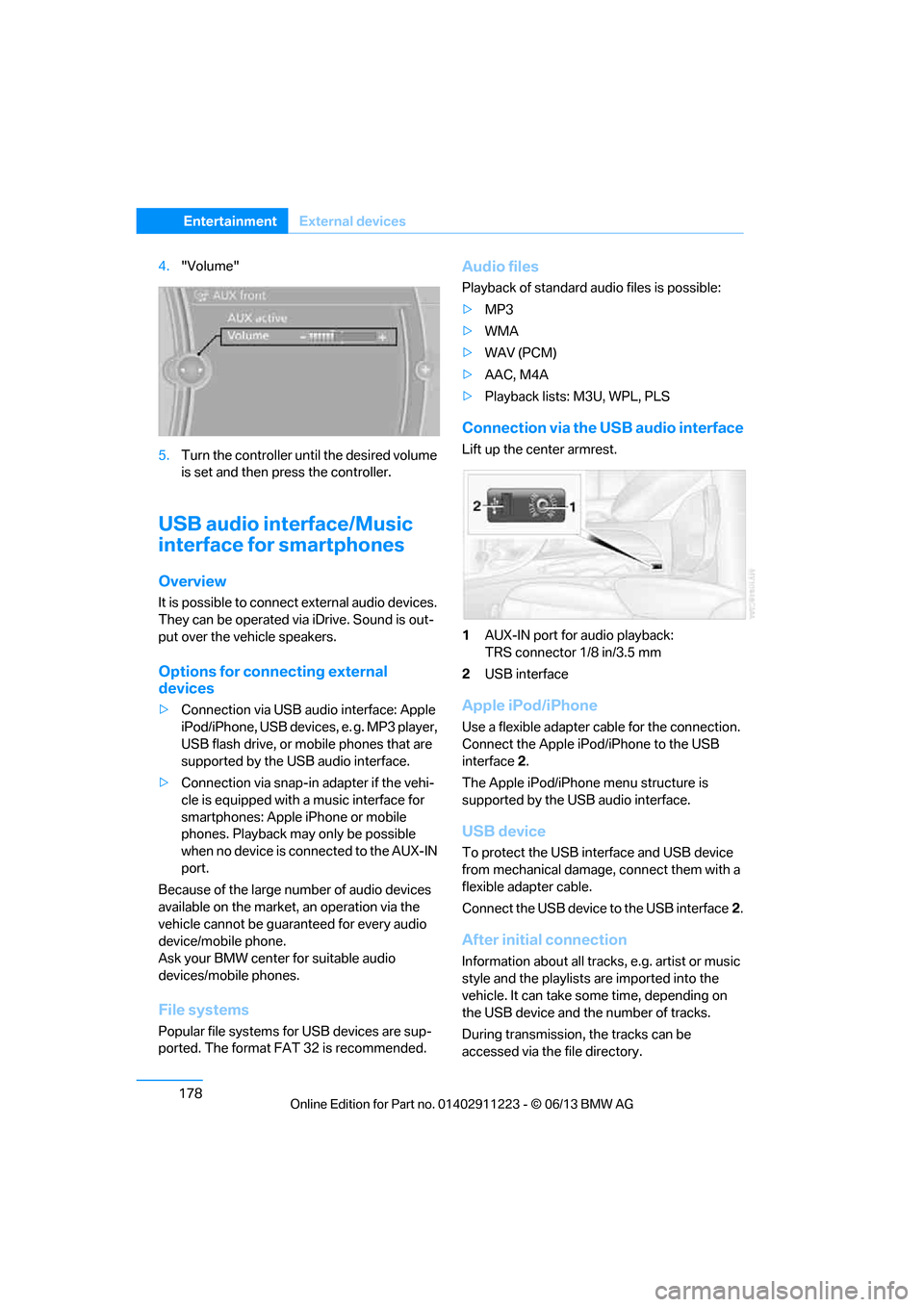
Connection via the USB audio interface
Lift up the center armrest.
1AUX-IN port for audio playback:
TRS connector 1/8 in/3.5 mm
2 USB interface
Apple iPod/iPhone
Use a flexible adapter cable for the connection.
Connect the Apple iPod /iPhone to the USB
interface 2.
The Apple iPod/iPhone menu structure is
supported by the USB audio interface.
USB device
To protect the USB interface and USB device
from mechanical damage, connect them with a
flexible adapter cable.
Connect the USB device to the USB interface 2.
After initial connection
Information about all tracks, e.g. artist or music
style and the playlists are imported into the
vehicle. It can take some time, depending on
the USB device and the number of tracks.
During transmission, the tracks can be
accessed via the file directory.
00320051004F004C00510048000300280047004C0057004C005200510003
Page 185 of 288
180
EntertainmentExternal devices
Current playback
List of tracks currently being played.
1."CD/Multimedia"
2. "External devices"
3. Select the or symbol.
4. "Current playback"
Random play sequence
The current list of tracks is played in random
sequence.
1. "CD/Multimedia"
2. "External devices"
3. Open "Options".
4. "Random"
Fast forward/reverse
Press and hold the button.
Video playback
Overview
Video playback possible via snap-in adapter.
They can be operated via iDrive. Sound is
output over the vehicle speakers.
Playback
For your own safety, the video image is only dis-
played up to approx. 2 mph/3 km/h and in some
market-specific versions, only with the parking
brake engaged or the selector lever of the auto-
matic transmission is in the park position.
1. "CD/Multimedia"
2. "External devices"
3. Select the symbol.
4. "Video"
5. Select the directory, if necessary.
To change to a higher level directory: move
the controller to the left.
6. Select the desired video file to begin
playback.
Video menu
Notes
Do not expose the audio device to extreme
environmental conditions, e.g. very high tem-
peratures, refer to the operating instructions of
the audio device.
Depending on the configuration of the audio
files, e.g. bit rates greater than 256 Kbit/s,
proper playback cannot always be ensured.
Information on connection
>The connected audio device is supplied
with a max. power of 500 mA if supported
by the device. For this reason, do not con-
nect the device to a charging socket in the
vehicle; otherwise, it may not be possible to
ensure proper playback.
> Do not use force when plugging the con-
nector into the USB interface.
> Do not connect devices such as fans or
lamps to the USB audio interface.
> Do not connect USB hard drives.
> Do not use the USB audio interface to
recharge external devices.
Bluetooth audio
Overview
>It is possible to use Bluetooth to play music
files from external devices, e.g. audio
devices or mobile phones.
Using a mobile phone as an audio source,
refer to page 178.
> Bluetooth® is a registered trademark of
Bluetooth® SIG, Inc.
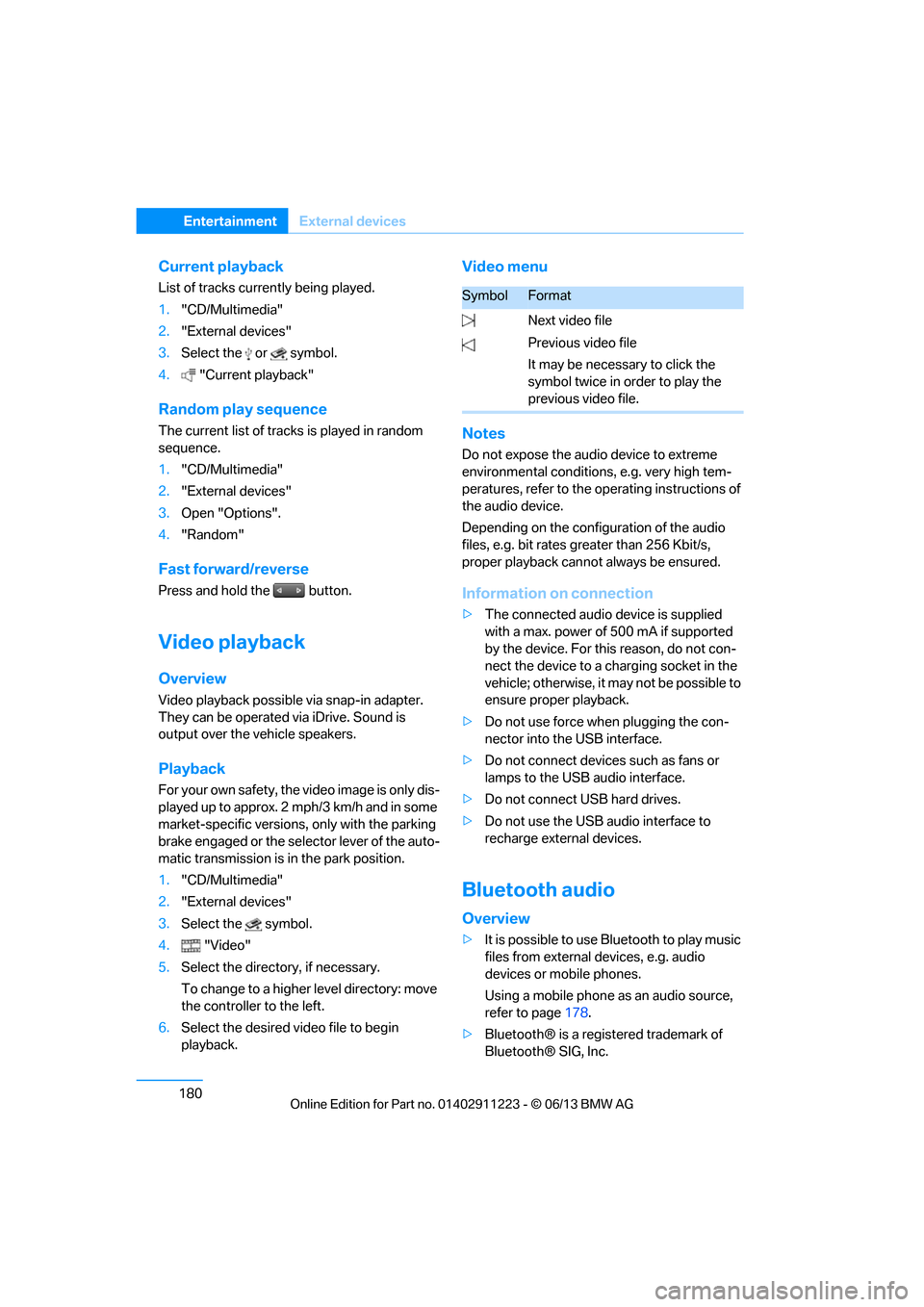
SymbolFormat
Next video file
Previous video file
It may be necessary to click the
symbol twice in order to play the
previous video file.
00320051004F004C00510048000300280047004C0057004C005200510003
Page 186 of 288
181
External devices
Entertainment
>
Sound is output over the vehicle speakers.
> The volume of the sound output depends
on the device. If necessary, change the
volume setting on the device.
> Up to four external devices can be paired
with the vehicle.
Requirements
>Suitable device. For information, go to
www.bmwusa.com/bluetooth.
> Device operational.
> Ignition switched on.
> Bluetooth activated in vehicle, refer to
page 189, and in the device.
> Activating Bluetooth audio, refer to
page 189.
> Bluetooth presets in the device are
required, e.g. connection not confirmed or
visible, refer to Owner's Manual for the
device.
> A number with at least 4 and at most
16 digits has been established as the
Bluetooth passkey. Only required once for
pairing.
Pairing and connecting
Only pair the device when the vehicle is
stopped; otherwise, inattention may lead
to endangerment of passengers or other road
users. <
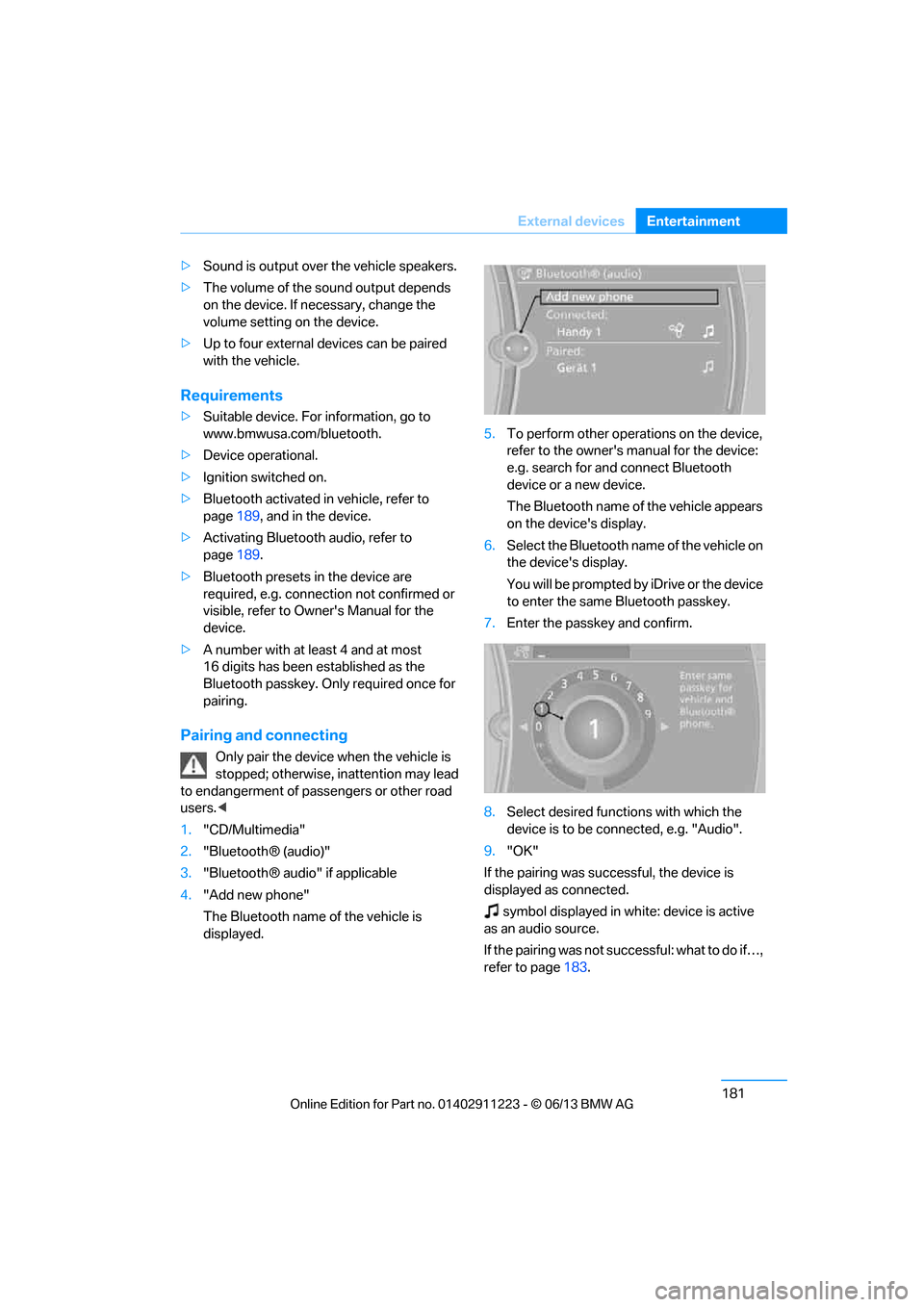
1. "CD/Multimedia"
2. "Bluetooth® (audio)"
3. "Bluetooth® audio" if applicable
4. "Add new phone"
The Bluetooth name of the vehicle is
displayed. 5.
To perform other operations on the device,
refer to the owner's ma nual for the device:
e.g. search for and connect Bluetooth
device or a new device.
The Bluetooth name of the vehicle appears
on the device's display.
6. Select the Bluetooth na me of the vehicle on
the device's display.
You will be prompted by iDrive or the device
to enter the same Bluetooth passkey.
7. Enter the passkey and confirm.
8. Select desired functions with which the
device is to be connected, e.g. "Audio".
9. "OK"
If the pairing was successful, the device is
displayed as connected.
symbol displayed in white: device is active
as an audio source.
If the pairing was not succ e s s f u l : w h a t t o d o i f … ,
refer to page 183.
00320051004F004C00510048000300280047004C0057004C005200510003
Page 187 of 288
182
EntertainmentExternal devices
Connecting a particular device
A device that has already been paired can be
connected as an active audio source.
Connection is not possible if a data exchange is
currently taking place via a mobile phone that is
connected via Bluetooth.
Prerequisite
If necessary, activate the audio connection of
the desired device from the list of paired
devices.
1."CD/Multimedia"
2. "Bluetooth® (audio)"
3. "Bluetooth® audio" if applicable
4. Select the desired device from the list of
paired devices.
5. Open "Options".
6. "Configure phone"
7. Activate "Audio".
8. "OK"
Connecting a device
1."CD/Multimedia"
2. "Bluetooth® (audio)"
3. "Bluetooth® audio" if applicable
4. Select the desired device from the list of
paired devices.
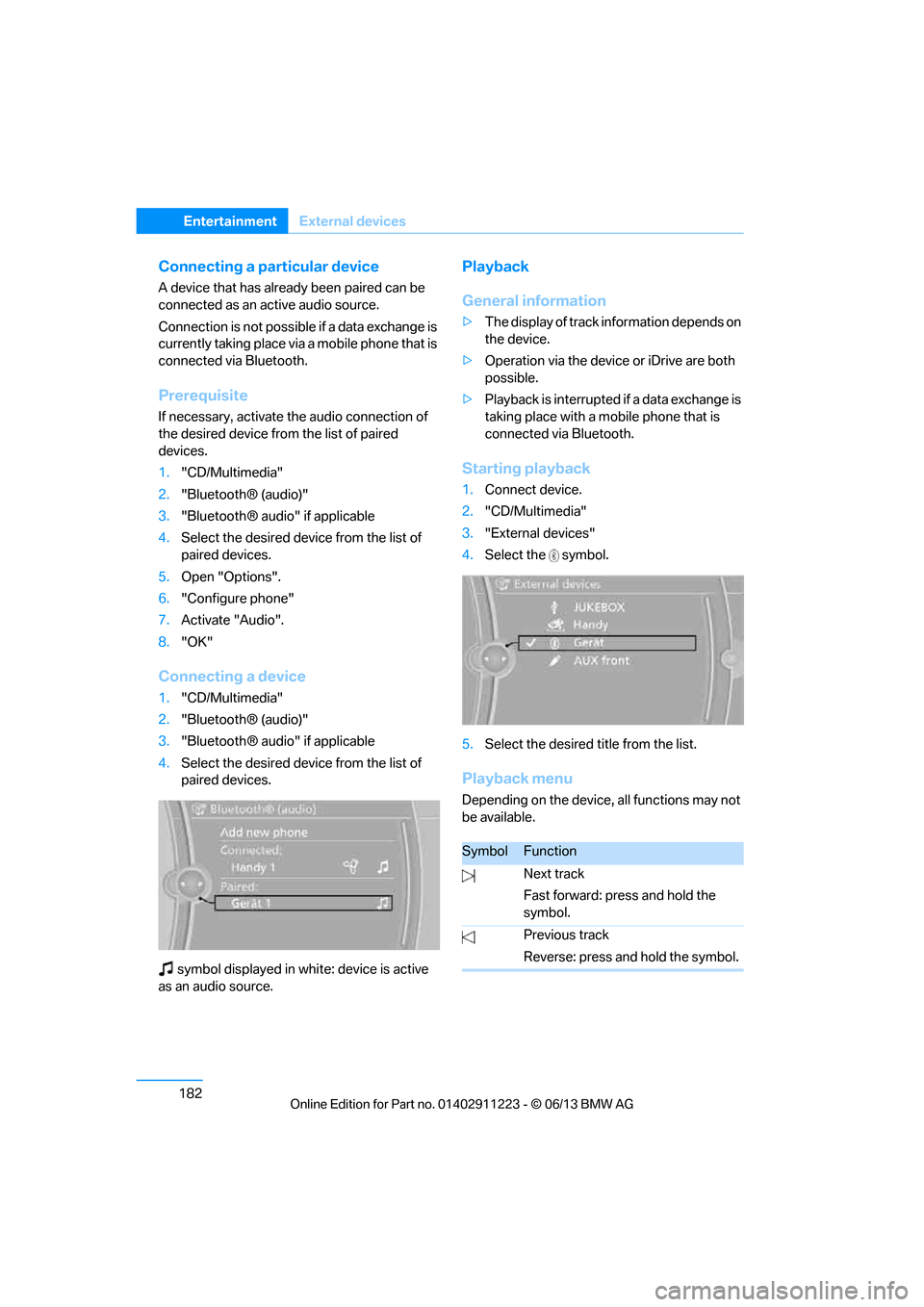
symbol displayed in whit e: device is active
as an audio source.
Playback
General information
> The display of track information depends on
the device.
> Operation via the device or iDrive are both
possible.
> Playback is interrupted if a data exchange is
taking place with a mobile phone that is
connected via Bluetooth.
Starting playback
1. Connect device.
2. "CD/Multimedia"
3. "External devices"
4. Select the symbol.
5. Select the desired title from the list.
Playback menu
Depending on the device, all functions may not
be available.
SymbolFunction
Next track
Fast forward: press and hold the
symbol.
Previous track
Reverse: press and hold the symbol.
00320051004F004C00510048000300280047004C0057004C005200510003
Page 188 of 288
183
External devices
Entertainment
Disconnecting an audio connection
1.
"CD/Multimedia"
2. "Bluetooth® (audio)"
3. Select the desired device from the list of
connected devices.
4. Open "Options".
5. "Configure phone"
6. "Audio"
7. "OK"
With a mobile phone, on ly the audio connection
is disconnected. All ot her connections remain
active.
Unpairing device
1. "CD/Multimedia"
2. "Bluetooth® (audio)"
3. "Bluetooth® audio" if applicable
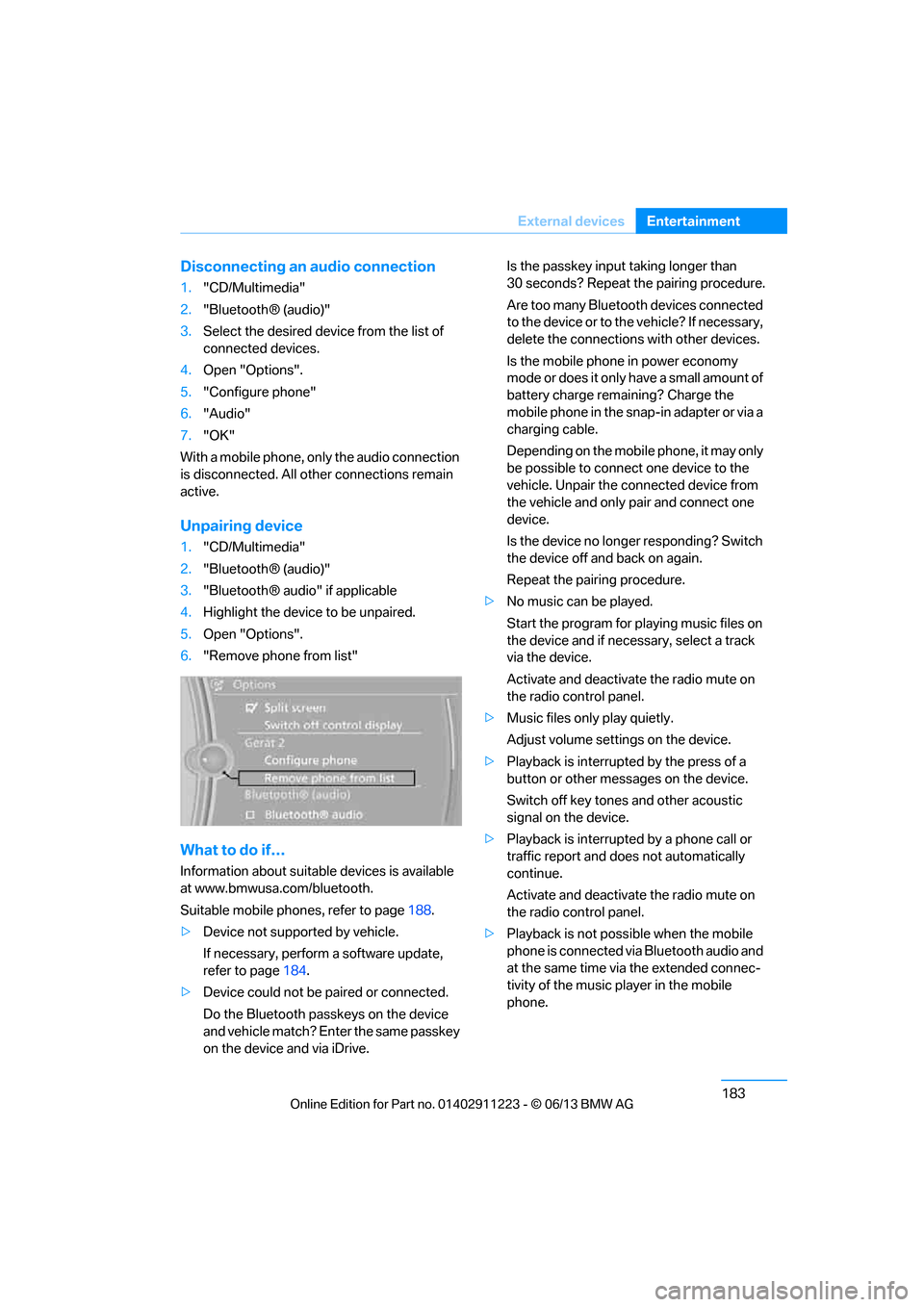
4. Highlight the device to be unpaired.
5. Open "Options".
6. "Remove phone from list"
What to do if…
Information about suitable devices is available
at www.bmwusa.com/bluetooth.
Suitable mobile phones, refer to page 188.
> Device not supported by vehicle.
If necessary, perform a software update,
refer to page 184.
> Device could not be paired or connected.
Do the Bluetooth passk eys on the device
and vehicle match? Enter the same passkey
on the device and via iDrive. Is the passkey input taking longer than
30 seconds? Repeat the pairing procedure.
Are too many Bluetooth devices connected
to the device or to th
e vehicle? If necessary,
delete the connections with other devices.
Is the mobile phone in power economy
mode or does it only have a small amount of
battery charge remaining? Charge the
mobile phone in the snap-in adapter or via a
charging cable.
Depending on the mobile phone, it may only
be possible to connect one device to the
vehicle. Unpair the connected device from
the vehicle and only pair and connect one
device.
Is the device no longer responding? Switch
the device off and back on again.
Repeat the pairing procedure.
> No music can be played.
Start the program for pl aying music files on
the device and if necessary, select a track
via the device.
Activate and deactivate the radio mute on
the radio control panel.
> Music files only play quietly.
Adjust volume settings on the device.
> Playback is interrupted by the press of a
button or other messages on the device.
Switch off key tones and other acoustic
signal on the device.
> Playback is interrupted by a phone call or
traffic report and does not automatically
continue.
Activate and deactivate the radio mute on
the radio control panel.
> Playback is not possible when the mobile
phone is connected via Bluetooth audio and
at the same time via the extended connec-
tivity of the music player in the mobile
phone.
00320051004F004C00510048000300280047004C0057004C005200510003