Bluetooth BMW 135I 2012 E88 User Guide
[x] Cancel search | Manufacturer: BMW, Model Year: 2012, Model line: 135I, Model: BMW 135I 2012 E88Pages: 272, PDF Size: 8.49 MB
Page 182 of 272
Telephone
180 >Is the mobile phone paired as an auxiliary
phone and is the auxiliary phone function
deactivated? Activate the function.
>Outgoing call not possible? Connect the
mobile phone as a telephone.
Phone book entries are not displayed, not all of
them are displayed, or they are displayed
incompletely.
>The transfer of phone book entries has not
yet completed.
>It is possible that only the phone book
entries of the mobile phone or the SIM
card
* are transferred.
>Phone book entries with special characters
may not be displayed.
>The number of phone book entries to be
stored is too high.
>The data volume of the phone book entry is
too great, e.g. due to additionally stored
information such as notes? Reduce the data
volume.
>Is the mobile phone connected as an audio
source or auxiliary phone? The mobile
phone must be connected as a telephone.
The telephone connection quality is low.
>Depending on the mobile phone, it is possi-
ble to adjust the strength of the Bluetooth
signal.
>Insert the mobile phone into the snap-in
adapter
* or place it in the vicinity of the cen-
ter console.
>Adjust the volume of the microphone and
speaker separately.
If you have gone through all items in the list and
still cannot activate the desired function, please
check the website www.bmw.com/bluetooth
for further notes or contact Customer Relations
or a BMW center.
Operation
Adjusting the volume
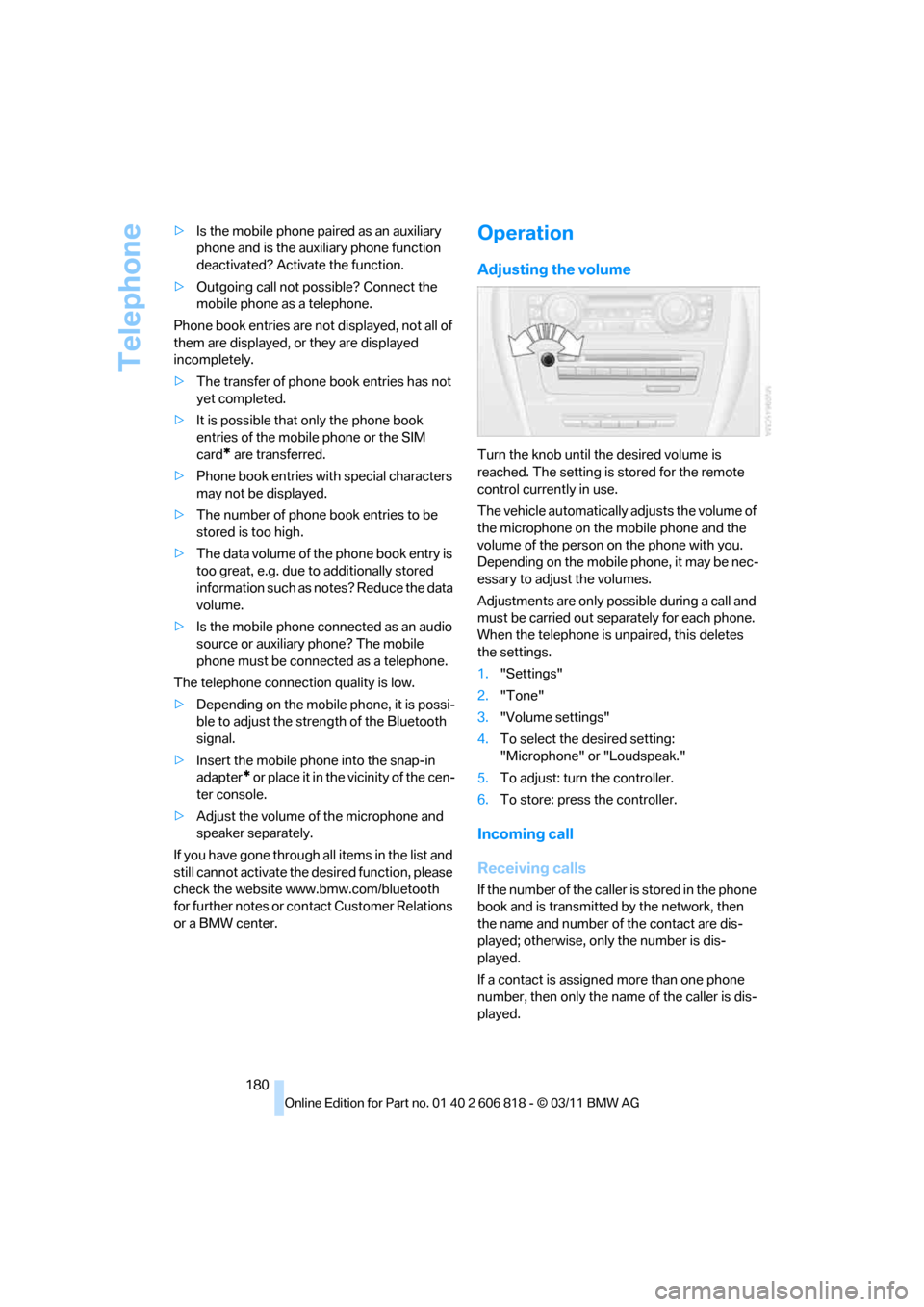
Turn the knob until the desired volume is
reached. The setting is stored for the remote
control currently in use.
The vehicle automatically adjusts the volume of
the microphone on the mobile phone and the
volume of the person on the phone with you.
Depending on the mobile phone, it may be nec-
essary to adjust the volumes.
Adjustments are only possible during a call and
must be carried out separately for each phone.
When the telephone is unpaired, this deletes
the settings.
1."Settings"
2."Tone"
3."Volume settings"
4.To select the desired setting:
"Microphone" or "Loudspeak."
5.To adjust: turn the controller.
6.To store: press the controller.
Incoming call
Receiving calls
If the number of the caller is stored in the phone
book and is transmitted by the network, then
the name and number of the contact are dis-
played; otherwise, only the number is dis-
played.
If a contact is assigned more than one phone
number, then only the name of the caller is dis-
played.
Page 186 of 272
Telephone
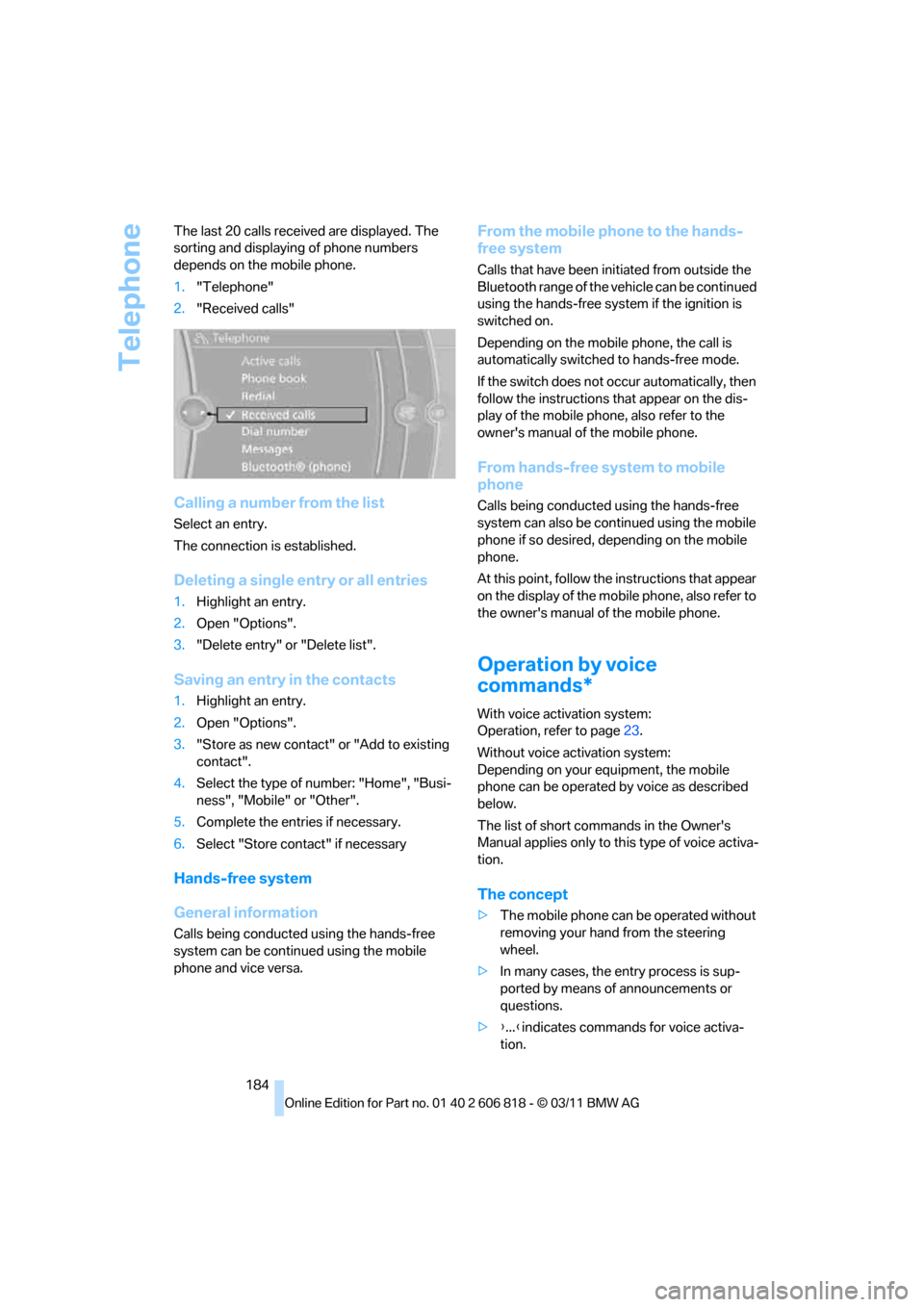
184 The last 20 calls received are displayed. The
sorting and displaying of phone numbers
depends on the mobile phone.
1."Telephone"
2."Received calls"
Calling a number from the list
Select an entry.
The connection is established.
Deleting a single entry or all entries
1.Highlight an entry.
2.Open "Options".
3."Delete entry" or "Delete list".
Saving an entry in the contacts
1.Highlight an entry.
2.Open "Options".
3."Store as new contact" or "Add to existing
contact".
4.Select the type of number: "Home", "Busi-
ness", "Mobile" or "Other".
5.Complete the entries if necessary.
6.Select "Store contact" if necessary
Hands-free system
General information
Calls being conducted using the hands-free
system can be continued using the mobile
phone and vice versa.
From the mobile phone to the hands-
free system
Calls that have been initiated from outside the
Bluetooth range of the vehicle can be continued
using the hands-free system if the ignition is
switched on.
Depending on the mobile phone, the call is
automatically switched to hands-free mode.
If the switch does not occur automatically, then
follow the instructions that appear on the dis-
play of the mobile phone, also refer to the
owner's manual of the mobile phone.
From hands-free system to mobile
phone
Calls being conducted using the hands-free
system can also be continued using the mobile
phone if so desired, depending on the mobile
phone.
At this point, follow the instructions that appear
on the display of the mobile phone, also refer to
the owner's manual of the mobile phone.
Operation by voice
commands*
With voice activation system:
Operation, refer to page23.
Without voice activation system:
Depending on your equipment, the mobile
phone can be operated by voice as described
below.
The list of short commands in the Owner's
Manual applies only to this type of voice activa-
tion.
The concept
>The mobile phone can be operated without
removing your hand from the steering
wheel.
>In many cases, the entry process is sup-
ported by means of announcements or
questions.
>{...}indicates commands for voice activa-
tion.
Page 190 of 272
Office
188
Office
At a glance
General information
Contacts, appointments, tasks, notes, text
messages, and emails
* can be displayed using
the Control Display if the mobile phone compat-
ibly supports these functions and the required
Bluetooth radio standards.
For information about which mobile phones and
functions support the functions of Office, go to
www.bmwusa.com/bluetooth.
A limited number of compatible mobile phones
are available for Office.
Contents are only displayed completely when
the vehicle is stopped.
Only read access to the mobile phone is possi-
ble.
Do not use Office while driving. Make
entries only when traffic and road condi-
tions permit; otherwise, you may endanger
vehicle occupants and other road users by
being distracted.<
Requirements
>A suitable mobile phone is paired with the
vehicle and connected. In some mobile
phones, the data access to the mobile
phone must be confirmed.
>Time zone, time, and date, refer to page76,
are correctly set on the Control Display and
on the mobile phone in order, for example,
to correctly display appointments.
>Office is activated, refer to page177.
Updating
Data are updated each time the mobile phone is
connected to the vehicle. Appointments, tasks,
notes, and reminders can be updated sepa-
rately.
1."Office"
2."Current office", "Calendar", "Tasks",
"Notes" or "Reminders"3.Open "Options".
4."Update data"
Data from the portable phone are transmit-
ted to the vehicle again.
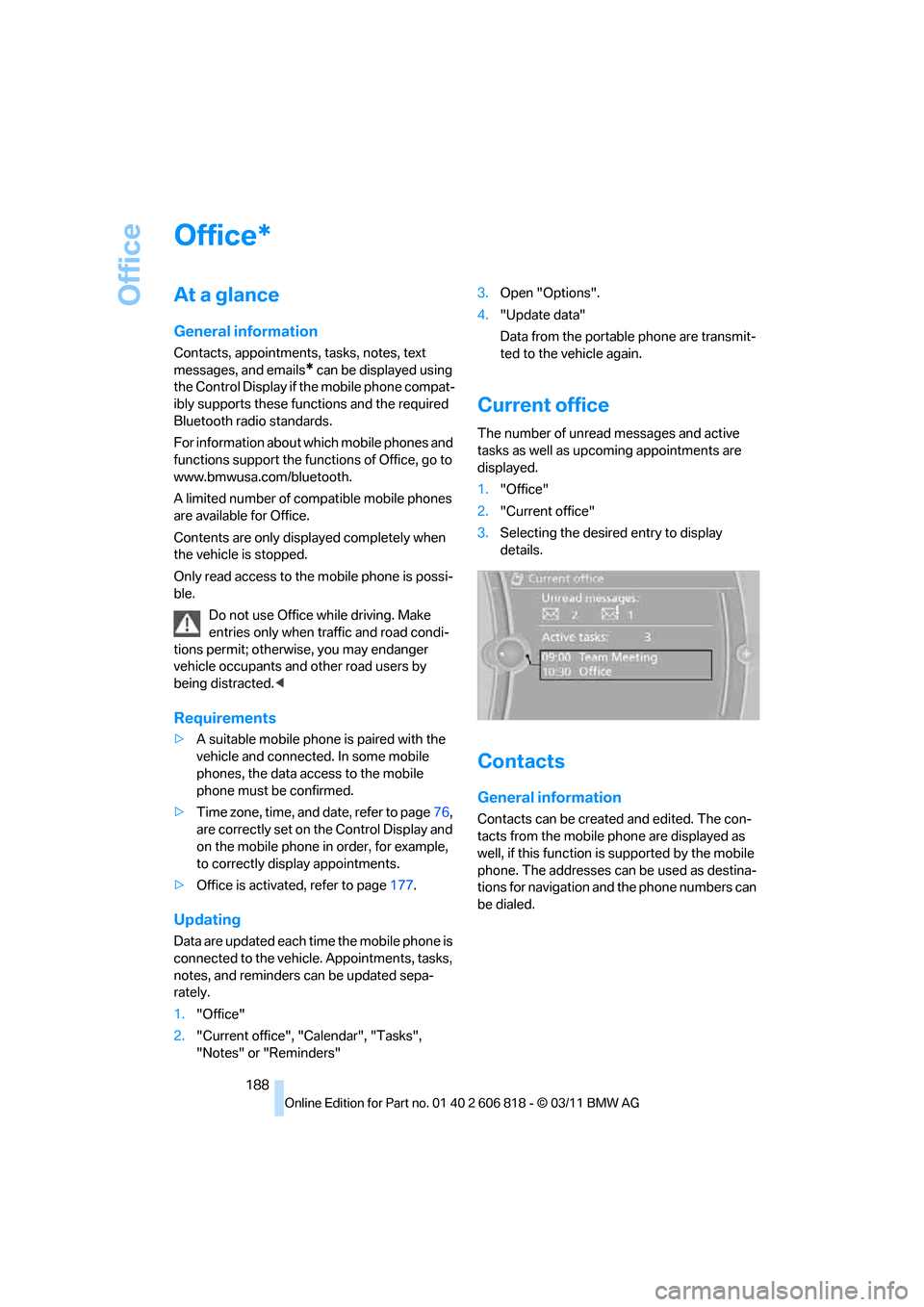
Current office
The number of unread messages and active
tasks as well as upcoming appointments are
displayed.
1."Office"
2."Current office"
3.Selecting the desired entry to display
details.
Contacts
General information
Contacts can be created and edited. The con-
tacts from the mobile phone are displayed as
well, if this function is supported by the mobile
phone. The addresses can be used as destina-
tions for navigation and the phone numbers can
be dialed.
*
Page 205 of 272
203
Entertainment
Reference
At a glance
Controls
Driving tips Communications
Navigation
Mobility
Information about suitable mobile phones,
available software applications, and their instal-
lation can be found at www.bmw.com/connec-
tivity or at your BMW center.
Only make entries when traffic conditions
permit. Otherwise, you may endanger
vehicle occupants and other road users by
being distracted.
For safety reasons, some software applications
can only be used when the vehicle is stopped.<
To avoid malfunctions, only use software
applications approved by BMW.<
Using apps
1.Connect the mobile phone using the snap-
in adapter or the USB audio interface.
2."ConnectedDrive"
3.Select the desired software application.
Displaying status
You can display information about the currently
available software applications.
1."ConnectedDrive"
2."BMW apps"
Plugin*
Selected functions of the mobile phone are dis-
played on the Control Display. They can be
operated via iDrive.
1.Connect the mobile phone using the snap-
in adapter.
2."ConnectedDrive"
3."PlugIn"
4."Activate PlugIn"
5.Use the controller to navigate in the dis-
played functions and select the desired cat-
egory or track, for example.
Press the button to move one level up or
back within the functions of the mobile
phone.
Press the button twice to switch back to
the main menu.
Notes
>The range of apps that are displayed in the
Control Display depends on the range of
software applications installed on the
mobile phone.
>The data transfer of the software applica-
tions from the mobile phone to the vehicle
may take some time. Some software appli-
cations are dependent on the speed of the
available Internet connection of the mobile
phone.
>Certain versions of the mobile phone used
and the software they use may not permit
apps to be used at the same time as the
Bluetooth hands-free system.
If necessary, restart the software applica-
tion on the mobile phone after completing a
call.
Page 250 of 272
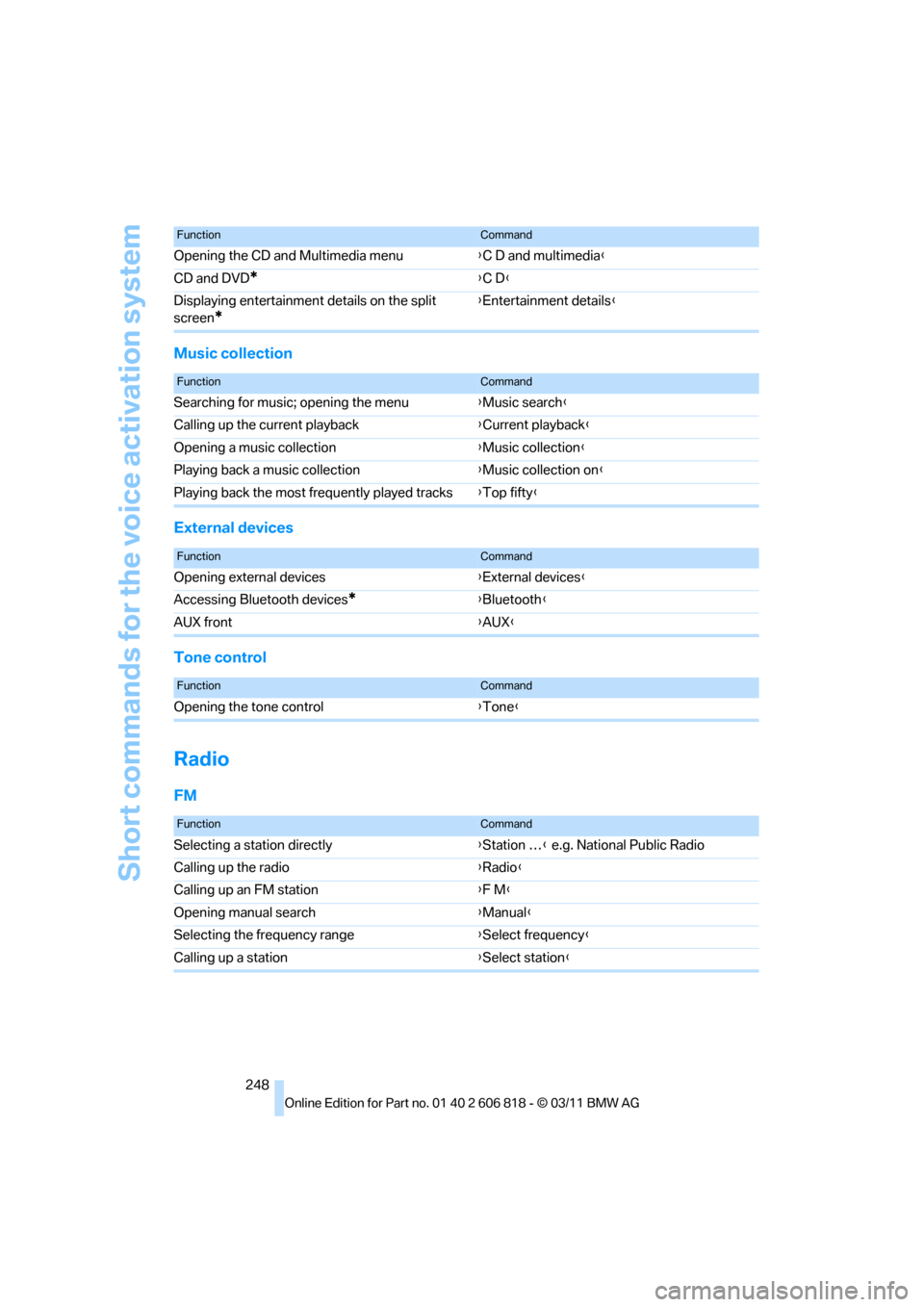
Short commands for the voice activation system
248
Music collection
External devices
Tone control
Radio
FM
Opening the CD and Multimedia menu{C D and multimedia}
CD and DVD
*{C D}
Displaying entertainment details on the split
screen
*
{Entertainment details}
FunctionCommand
FunctionCommand
Searching for music; opening the menu{Music search}
Calling up the current playback{Current playback}
Opening a music collection{Music collection}
Playing back a music collection{Music collection on}
Playing back the most frequently played tracks{Top fifty}
FunctionCommand
Opening external devices{External devices}
Accessing Bluetooth devices
*{Bluetooth}
AUX front{AUX}
FunctionCommand
Opening the tone control{Tone}
FunctionCommand
Selecting a station directly{Station …} e.g. National Public Radio
Calling up the radio{Radio}
Calling up an FM station{F M}
Opening manual search{Manual}
Selecting the frequency range{Select frequency}
Calling up a station{Select station}
Page 251 of 272
Reference 249
At a glance
Controls
Driving tips
Communications
Navigation
Entertainment
Mobility
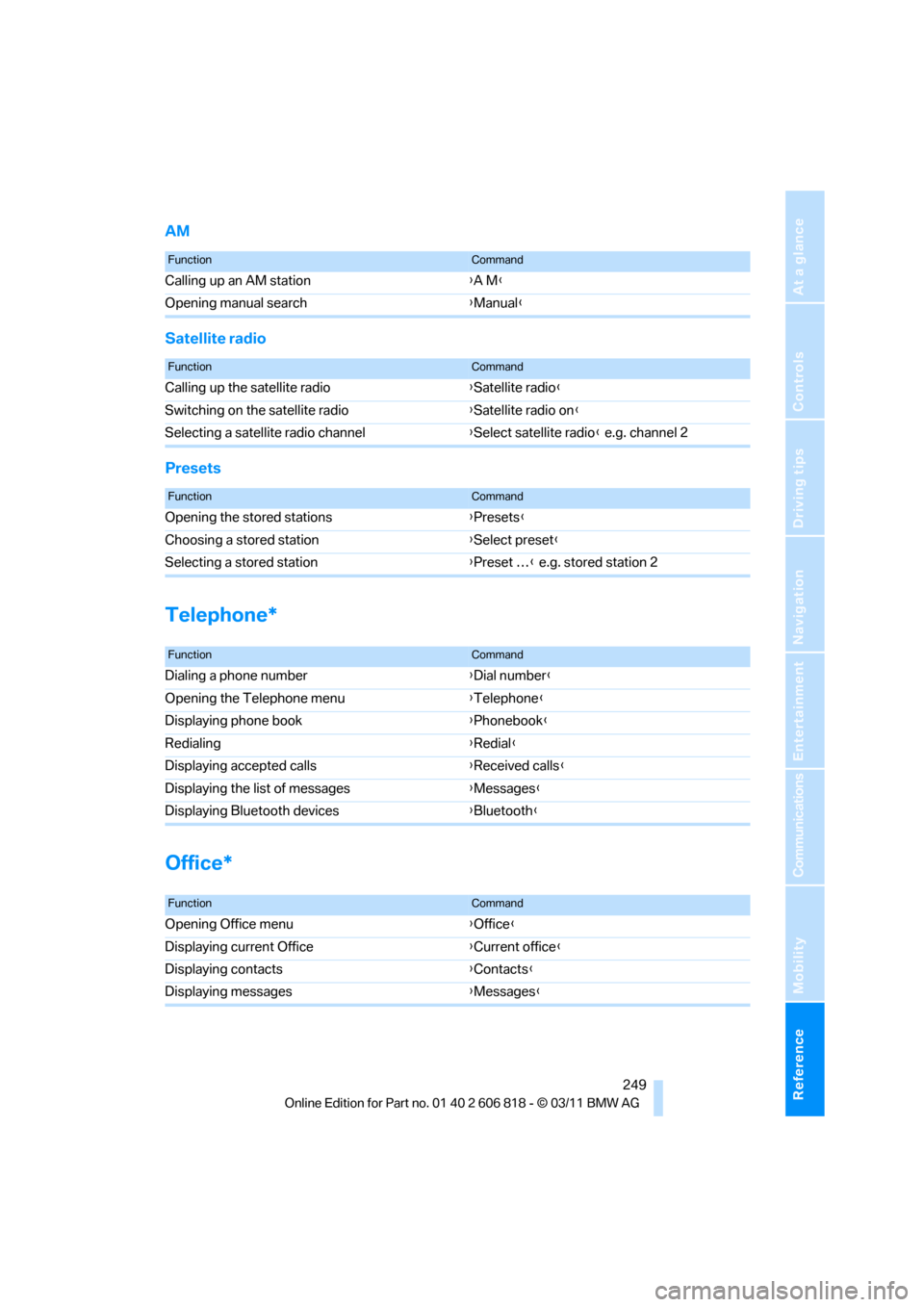
AM
Satellite radio
Presets
Telephone*
Office*
FunctionCommand
Calling up an AM station{A M}
Opening manual search{Manual}
FunctionCommand
Calling up the satellite radio{Satellite radio}
Switching on the satellite radio{Satellite radio on}
Selecting a satellite radio channel{Select satellite radio} e.g. channel 2
FunctionCommand
Opening the stored stations{Presets}
Choosing a stored station{Select preset}
Selecting a stored station{Preset …} e.g. stored station 2
FunctionCommand
Dialing a phone number{Dial number}
Opening the Telephone menu{Telephone}
Displaying phone book{Phonebook}
Redialing{Redial}
Displaying accepted calls{Received calls}
Displaying the list of messages{Messages}
Displaying Bluetooth devices{Bluetooth}
FunctionCommand
Opening Office menu{Office}
Displaying current Office{Current office}
Displaying contacts{Contacts}
Displaying messages{Messages}
Page 257 of 272
Reference 255
At a glance
Controls
Driving tips
Communications
Navigation
Entertainment
Mobility
Backup lamp, replacing
bulb231
Bag for skis, refer to Ski
bag110
Band-aids, refer to First aid
pouch235
Bar, refer to Tow-starting,
towing away237
Base plate for telephone or
mobile phone
– refer to Snap-in adapter186
Bass, tone setting144
Battery232
– charging232
– disposal37,232
– jump-starting235
– replacing232
– temporary power failure232
Battery renewal
– remote control for vehicle37
Being towed237
Belts, refer to Safety belts50
Belt tensioner, refer to Safety
belts50
Beverage holders, refer to
Cupholders108
Blower, refer to Air
volume101
Bluetooth, activating/
deactivating177
Bluetooth audio169
– disconnecting an audio
connection171
– pairing a device169
– playback170
– unpairing device171
– What to do if...171
BMW
– car shampoo224
BMW Assist198
– updating202
BMW Maintenance
System221
BMW Online*200
BMW TeleServices199
Bottle holders, refer to
Cupholders108
Brake Assist, refer to Dynamic
Brake Control83Brake fluid
– service requirements74
Brake Force Display90
Brake lamps
– Brake Force Display90
– replacing bulb231
Brake pads, breaking in116
Brake pedal, refer to Braking
safely118
Brake rotors118
– brakes116
– breaking in116
Brakes
– ABS83
– BMW Maintenance
System221
– braking safely118
– breaking in116
– parking brake59
– service requirements74
Brake system116
– BMW Maintenance
System221
– breaking in116
– disc brakes118
Breakdown services, refer to
Roadside Assistance234
Breaking in the clutch116
Break-in period116
Bulb changing, refer to Lamps
and bulbs227
Button for starting the
engine57
Buttons on the steering
wheel11
C
Calendar193
– displaying appointment193
– selecting calendar day193
California Proposition 65
warning6
Call
– accepting181
– ending181
– muting the microphone182
– rejecting181Calling, refer to Phone
numbers, dialing181
Calling, refer to Telephone
owner's manual
Calls
– with multiple parties181
Can holders, refer to
Cupholders108
Capacities246
Capacity of the cargo area245
Car battery, refer to Vehicle
battery232
Car care, refer to Care223
Care223
– automatic car washes223
– care products223
– carpets226
– CD/DVD drives226
– chrome parts225
– convertible top224
– displays226
– exterior223
– fine wood parts226
– headlamps224
– high-pressure washer224
– interior225
– leather225
– light-alloy wheels225
– paintwork225
– plastic parts226
– rubber seals225
– safety belts226
– sensors and cameras226
– upholstery and cloth
trim225
– washing the car
manually224
– windows224
Cargo, securing120
Cargo area
– capacity245
– Comfort Access36
– enlarging, refer to Through-
loading system109
– lamp, refer to Interior
lamps98
– lid, refer to Trunk lid
33
– opening from outside33