change time BMW 135I 2012 E88 User Guide
[x] Cancel search | Manufacturer: BMW, Model Year: 2012, Model line: 135I, Model: BMW 135I 2012 E88Pages: 272, PDF Size: 8.49 MB
Page 128 of 272
Destination entry
126 To delete letters:
>To delete individual letters:
Turn the controller to select , and
then press the controller.
>To delete all letters:
Turn the controller to select , and
then press the controller for an extended
period.
To enter spaces:
>Select the symbol.
The list gradually grows smaller each time
you enter a new letter.
3.Move the controller to the right.
4.Select the name of the town/city from the
list.
If there are several towns/cities with the same
name:
1.Change to the list of town/city names.
2.Highlight the town/city.
3.Select the town/city.
Entering the postal code*
1.Select "Town/City/Postal Code" or dis-
played city.
2.Select the symbol.
3.Select the digits.
4.Change to the list of postal codes and
towns/cities.
5.Highlight the entry.
6.Select an entry.
Entering street and intersection
1.Select "Street" or displayed street.
2.Enter the street and cross-street the same
way you entered the town/city.
After you enter the street, you can also enter
the cross street or the house number.
If there are several streets with the same name:
1.Change to the list of street names.
2.Highlight street.
3.Select the street.
Alternative: entering street and house
number
1.Select "Street" or displayed street.
2.Enter the street the same way you entered
the town/city.
3."House number"
4.Select the digits.
5.Change to the list of house numbers.
6.Select a house number or range of house
numbers.
No such street at the destination
The desired street is not in the entered town/
city because it belongs to another district of the
town/city.
1."Navigation"
2."Enter address"
3.Select "Street" or displayed street.
4.Change to the list of street names.
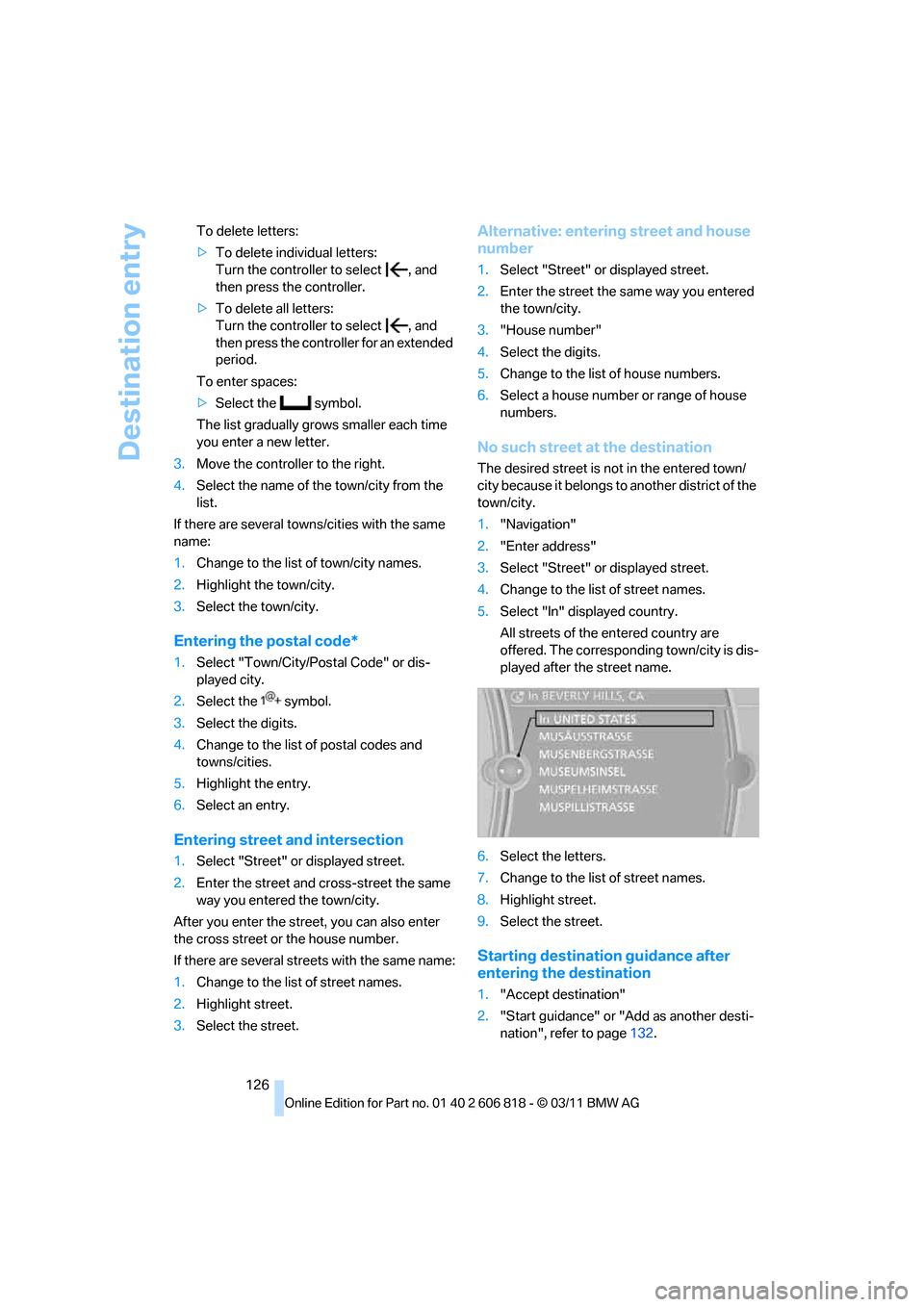
5.Select "In" displayed country.
All streets of the entered country are
offered. The corresponding town/city is dis-
played after the street name.
6.Select the letters.
7.Change to the list of street names.
8.Highlight street.
9.Select the street.
Starting destination guidance after
entering the destination
1."Accept destination"
2."Start guidance" or "Add as another desti-
nation", refer to page132.
Page 136 of 272
Destination guidance
134
Destination guidance
Starting destination
guidance
1."Navigation"
2.Entering a destination, refer to page125.
3."Accept destination"
4."Start guidance"
The route is displayed on the Control Display
after it is calculated.
In the map view, the distance to the destination/
intermediate destination and the estimated
time of arrival are displayed.
The arrow display appears on the Control Dis-
play, if so desired.
Terminating destination
guidance
1."Navigation"
2."Map"
3."Guidance"
4."Stop guidance"
Continuing destination
guidance
If the destination was not reached during the
last trip, destination guidance can be resumed.
"Resume guidance"
Route criteria
General information
>You can influence the calculated route by
selecting certain trip criteria.
>Route criteria can be changed during desti-
nation entry and during route guidance.>Street types are part of the navigation data
and are taken into account in route plan-
ning, e.g. avoiding highways.
>The proposed route can differ from per-
sonal experience.
>The settings are stored for the remote con-
trol currently in use.
>Route guidance with traffic bulletins, refer
to page140.
Changing route criteria
1."Navigation"
2."Map"
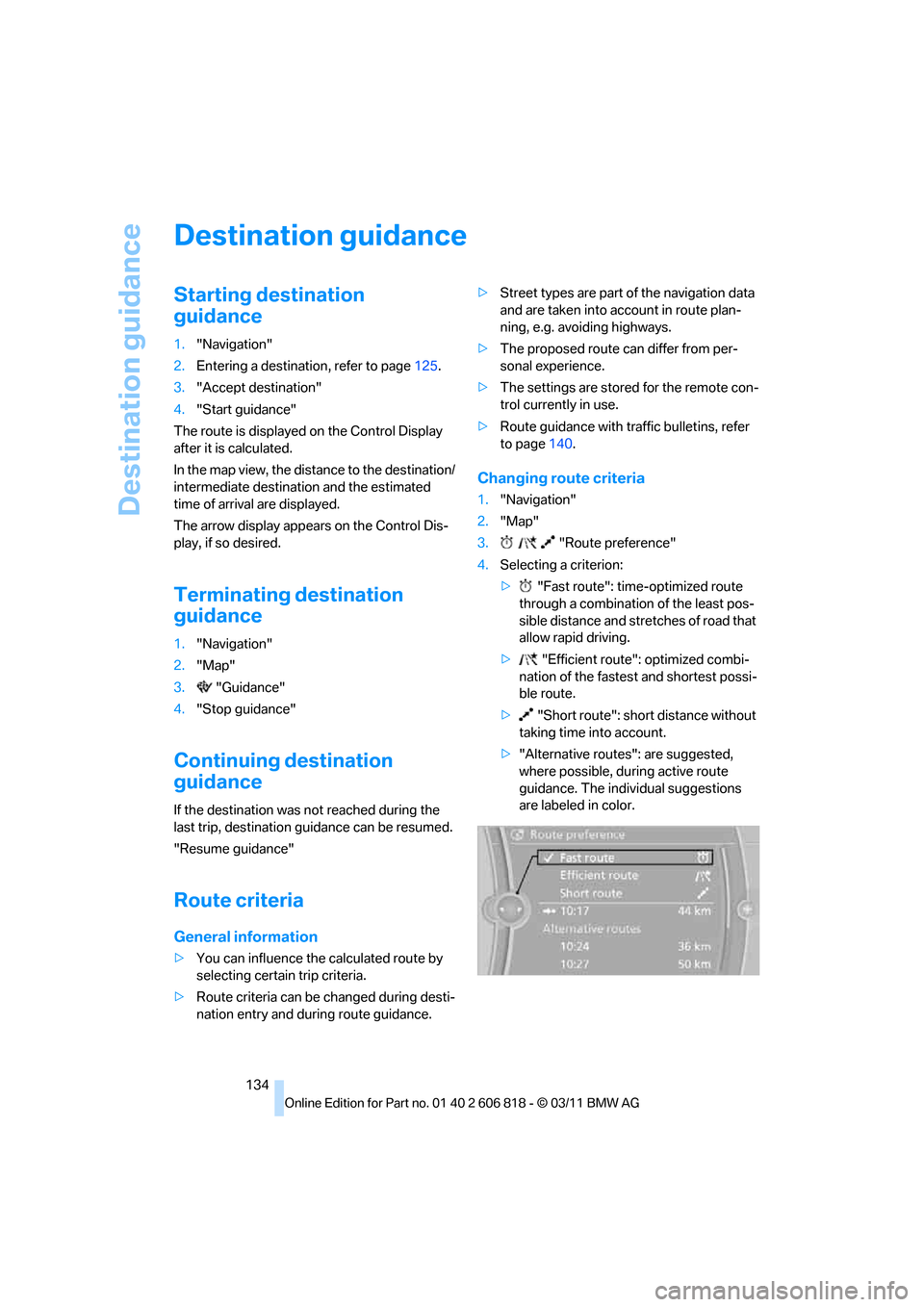
3."Route preference"
4.Selecting a criterion:
>"Fast route": time-optimized route
through a combination of the least pos-
sible distance and stretches of road that
allow rapid driving.
>"Efficient route": optimized combi-
nation of the fastest and shortest possi-
ble route.
>"Short route": short distance without
taking time into account.
>"Alternative routes": are suggested,
where possible, during active route
guidance. The individual suggestions
are labeled in color.
Page 140 of 272
Destination guidance
138
Map view for the split screen display
The map view for the split screen can be
selected separately from the main screen.
1.Open "Options".
2."Split screen"
3.Move the controller to the right repeatedly
until the split screen content is selected.
4.Select "Split screen content" or scale.
5.Select the map view:
>"Arrow display"
>"Map facing north"
>"Map direction of travel"
>"Map view with perspective"
>"Position"
>"Exit ramp view"
>"Traffic conditions/gray map"
6.To change the scale: switch to the split
screen and turn the controller.
Traffic bulletins*
Overview
>You can display the traffic bulletins from
radio stations that broadcast the TMC
(Traffic Message Channel) of a traffic infor-
mation service. Bulletins about traffic
obstructions and hazards are continuously
updated.
>Traffic bulletins are indicated by symbols on
the map.
>Traffic bulletins for the surrounding area are
stored in a list.
The symbol in the toolbar of the map view
turns red if a traffic bulletin relates to the calcu-
lated route.
Real Time Traffic Information End-User
Provisions
Certain BMW models equipped with navigation
have the capability to display real-time traffic
information. If your system has this capability the following additional terms and conditions
apply:
An End-User shall no longer have the right to
use the Traffic Data in the event that the End-
User is in material breach of the terms and con-
ditions contained herein.
A. Total Traffic Network, a division of Clear
Channel Broadcasting, Inc. ("Total Traffic Net-
work") holds the rights to the traffic incident
data and RDS-TMC network through which it is
delivered. You may not modify, copy, scan or
use any other method to reproduce, duplicate,
republish, transmit or distribute in any way any
portion of traffic incident data. You agree to
indemnify, defend and hold harmless BMW of
North America, LLC. ("BMW NA") and Total
Traffic Network, Inrix, Inc (and their affiliates)
against any and all claims, damages, costs or
other expenses that arise directly or indirectly
out of (a) your unauthorized use of the traffic
incident data or the RDS-TMC network, (b) your
violation of this directive and/or (c) any unautho-
rized or unlawful activities by you in connection
herewith.
B. Total Traffic Network traffic data is informa-
tional only. User assumes all risk of use. Total
Traffic Network, BMW NA, and their suppliers
make no representations about content, traffic
and road conditions, route usability, or speed.
C. The licensed material is provided to license
"as is," and "where is". Total Traffic Network,
including, but not limited to, any and all third
party providers of any of the licensed material,
expressly disclaims, to the fullest extent permit-
ted by law, all warranties or representations
with respect to the licensed material (including,
without limitation, that the licensed material will
be error-free, will operate without interruption
or that the traffic data will be accurate), express,
implied or statutory, including, without limita-
tion, the implied warranties of merchantability,
non-infringement fitness for a particular pur-
pose, or those arising from a course of dealing
or usage of trade.
D. Neither Total Traffic Network, Inrix, Inc. nor
BMW NA will be liable to you for any indirect,
special, consequential, exemplary, or incidental
Page 142 of 272
Destination guidance
140 >Traffic bulletins that lie on the route are
always shown.
>For your personal safety, it is not possible to
hide traffic bulletins that announce a poten-
tial hazard.
Route guidance with traffic bulletins
Semi-dynamic route guidance
With traffic bulletin reception switched on,
semi-dynamic route guidance is active.
The system takes into account the existing traf-
fic bulletins during route guidance. A message
is displayed as a function of the route, the traffic
bulletins, and the possible alternate routes. The
message displays the traffic bulletin and in the
event of a traffic obstruction, suggests an alter-
nate route. The difference in distance and time
between the original route and the alternate
route are also displayed.
Taking an alternate route:
"Detour"
With particular hazards, e.g. objects on the
roadway, a message is displayed without a pos-
sible alternate route.
It is also possible to take alternate routes can
also be taken if the traffic reports are accessed
via the list:
1."Navigation"
2."Map"
3."Traffic Info"
4."Detour information"
5."Detour"
Dynamic destination guidance
The route is automatically changed in the event
of traffic obstructions.
>The system does not point out traffic
obstructions along the original route.
>Traffic bulletins will continue to be dis-
played on the map.
>Depending on the type of road and the
nature and length of the traffic obstruction, the route can also be calculated so that you
travel through the traffic obstruction.
>Certain hazards are displayed regardless of
the setting.
To activate dynamic route guidance:
1."Navigation"
2.Open "Options".
3."Dynamic guidance"
Page 146 of 272
On/off and tone
144
On/off and tone
The following audio and video sources share
the same control elements and adjustments:
>Radio
>CD/DVD player
>CD changer
*
>Video*
>External devices, e.g. MP3 player
Controls
The audio and video sources can be controlled
using the:
>Buttons near the CD/DVD player
>iDrive
>Buttons on the steering wheel, refer to
page10
>Programmable memory keys, refer to
page21
>Voice activation system
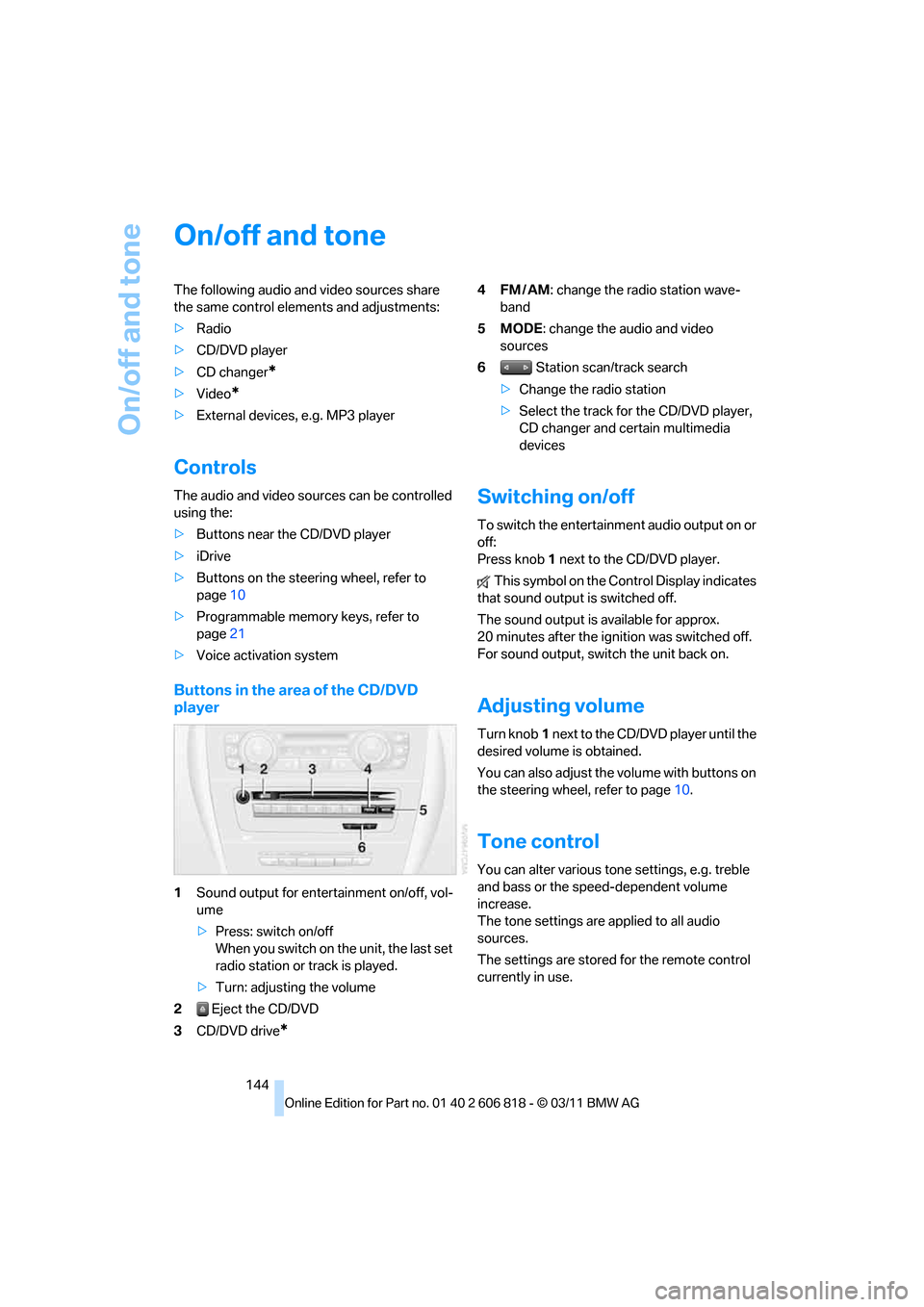
Buttons in the area of the CD/DVD
player
1Sound output for entertainment on/off, vol-
ume
>Press: switch on/off
When you switch on the unit, the last set
radio station or track is played.
>Turn: adjusting the volume
2Eject the CD/DVD
3CD/DVD drive
*
4FM/AM: change the radio station wave-
band
5MODE: change the audio and video
sources
6Station scan/track search
>Change the radio station
>Select the track for the CD/DVD player,
CD changer and certain multimedia
devices
Switching on/off
To switch the entertainment audio output on or
off:
Press knob1 next to the CD/DVD player.
This symbol on the Control Display indicates
that sound output is switched off.
The sound output is available for approx.
20 minutes after the ignition was switched off.
For sound output, switch the unit back on.
Adjusting volume
Turn knob1 next to the CD/DVD player until the
desired volume is obtained.
You can also adjust the volume with buttons on
the steering wheel, refer to page10.
Tone control
You can alter various tone settings, e.g. treble
and bass or the speed-dependent volume
increase.
The tone settings are applied to all audio
sources.
The settings are stored for the remote control
currently in use.
Page 153 of 272
Navigation
Entertainment
Driving tips
151Reference
At a glance
Controls
Communications
Mobility
4."Manage subscription"
The phone number and an electronic serial
number, ESN, are displayed.
5.Call Sirius to unsubscribe from the chan-
nels.
Selecting a channel
You can only listen to enabled channels.
The selected channel is stored for the remote
control currently in use.
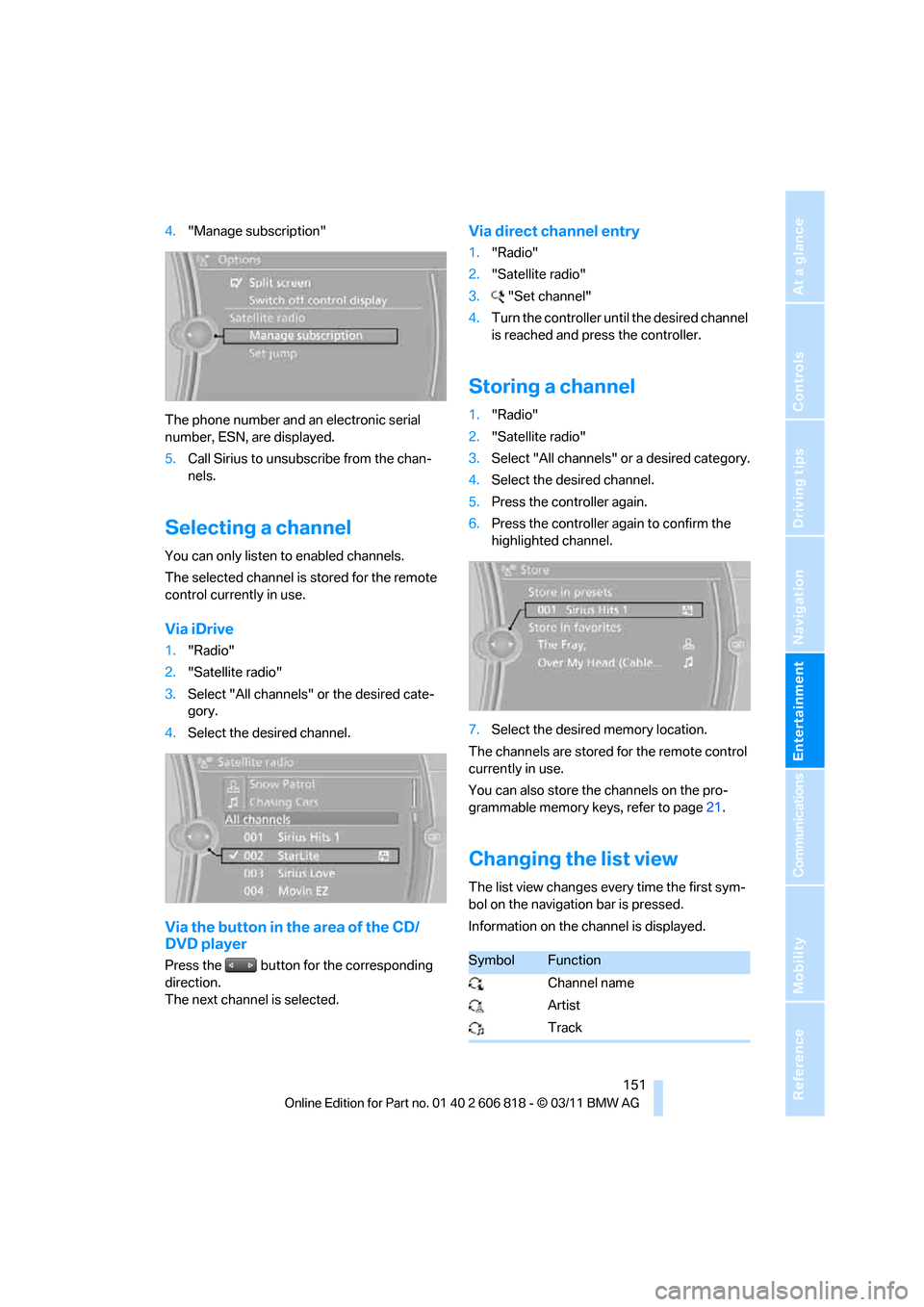
Via iDrive
1."Radio"
2."Satellite radio"
3.Select "All channels" or the desired cate-
gory.
4.Select the desired channel.
Via the button in the area of the CD/
DVD player
Press the button for the corresponding
direction.
The next channel is selected.
Via direct channel entry
1."Radio"
2."Satellite radio"
3."Set channel"
4.Turn the controller until the desired channel
is reached and press the controller.
Storing a channel
1."Radio"
2."Satellite radio"
3.Select "All channels" or a desired category.
4.Select the desired channel.
5.Press the controller again.
6.Press the controller again to confirm the
highlighted channel.
7.Select the desired memory location.
The channels are stored for the remote control
currently in use.
You can also store the channels on the pro-
grammable memory keys, refer to page21.
Changing the list view
The list view changes every time the first sym-
bol on the navigation bar is pressed.
Information on the channel is displayed.
SymbolFunction
Channel name
Artist
Track
Page 157 of 272
Navigation
Entertainment
Driving tips
155Reference
At a glance
Controls
Communications
Mobility
CD/DVD player and CD changer
CD/DVD playback
Inserting a CD/DVD
Insert the CD/DVD into the drive with the
labeled side facing up. The CD/DVD is drawn in
automatically.
Playback starts automatically if the sound out-
put is on. For CDs/DVDs with compressed
audio files, it can take several minutes to read in
the data, depending on the directory structure.
Playable formats
CD/DVD player
>DVD: DVD-ROM, DVD-R, DVD+R, DVD-
RW, DVD+RW, DVD-R DL, DVD+R DL, DVD
audio (video part only), DVD video
>CD: CD-ROM, CD-R, CD-RW, CD-DA,
VCD
*, SVCD*
>Compressed audio files: MP3, WMA, AAC*,
M4A
*
CD changer*
>CD: CD-ROM, CD-R, CD-RW, CD-DA
Starting playback
Via iDrive
Fill the CD/DVD magazine and insert it, refer to
page159.
To start playback when a CD/DVD is already in
the player or changer:
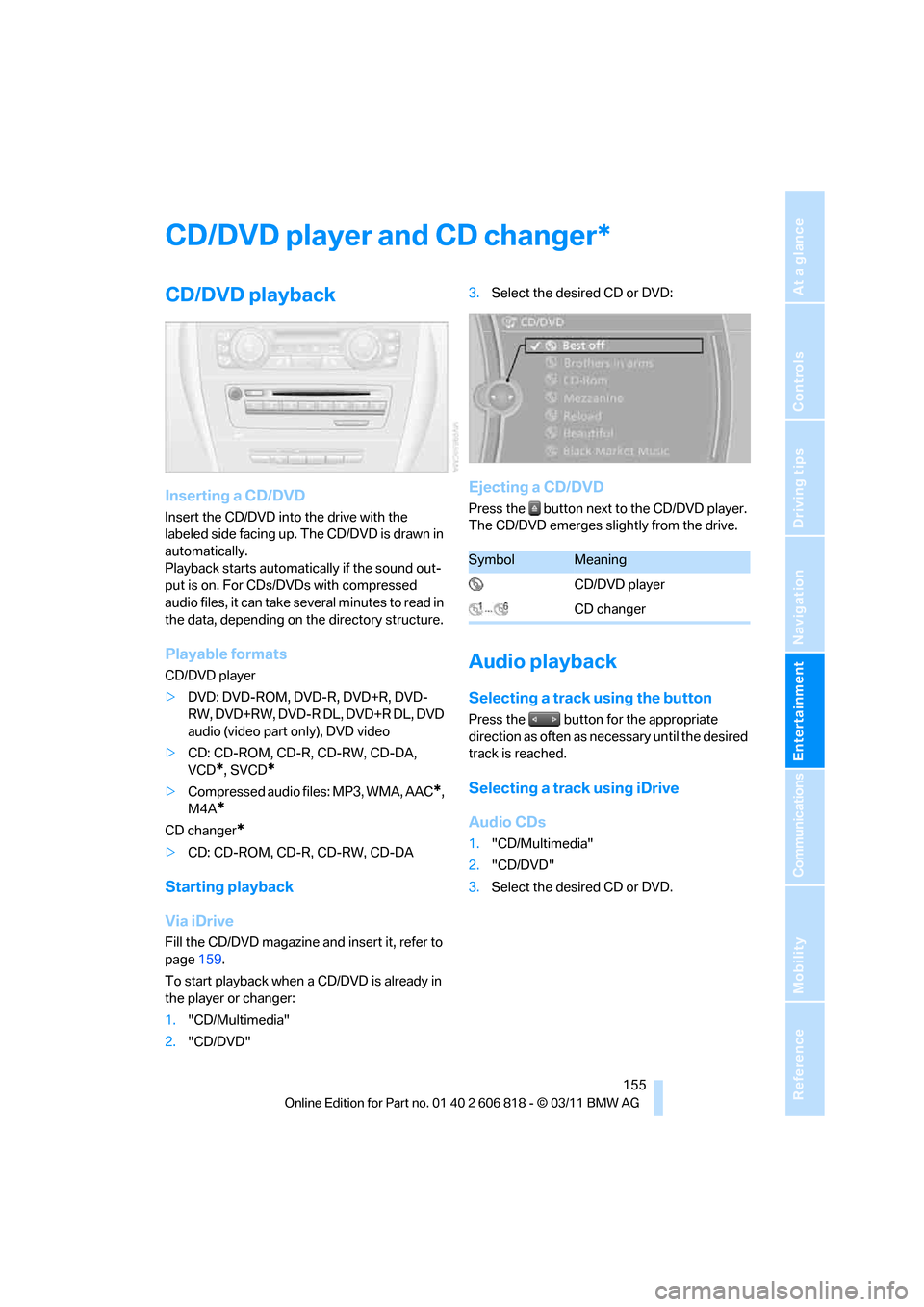
1."CD/Multimedia"
2."CD/DVD"3.Select the desired CD or DVD:
Ejecting a CD/DVD
Press the button next to the CD/DVD player.
The CD/DVD emerges slightly from the drive.
Audio playback
Selecting a track using the button
Press the button for the appropriate
direction as often as necessary until the desired
track is reached.
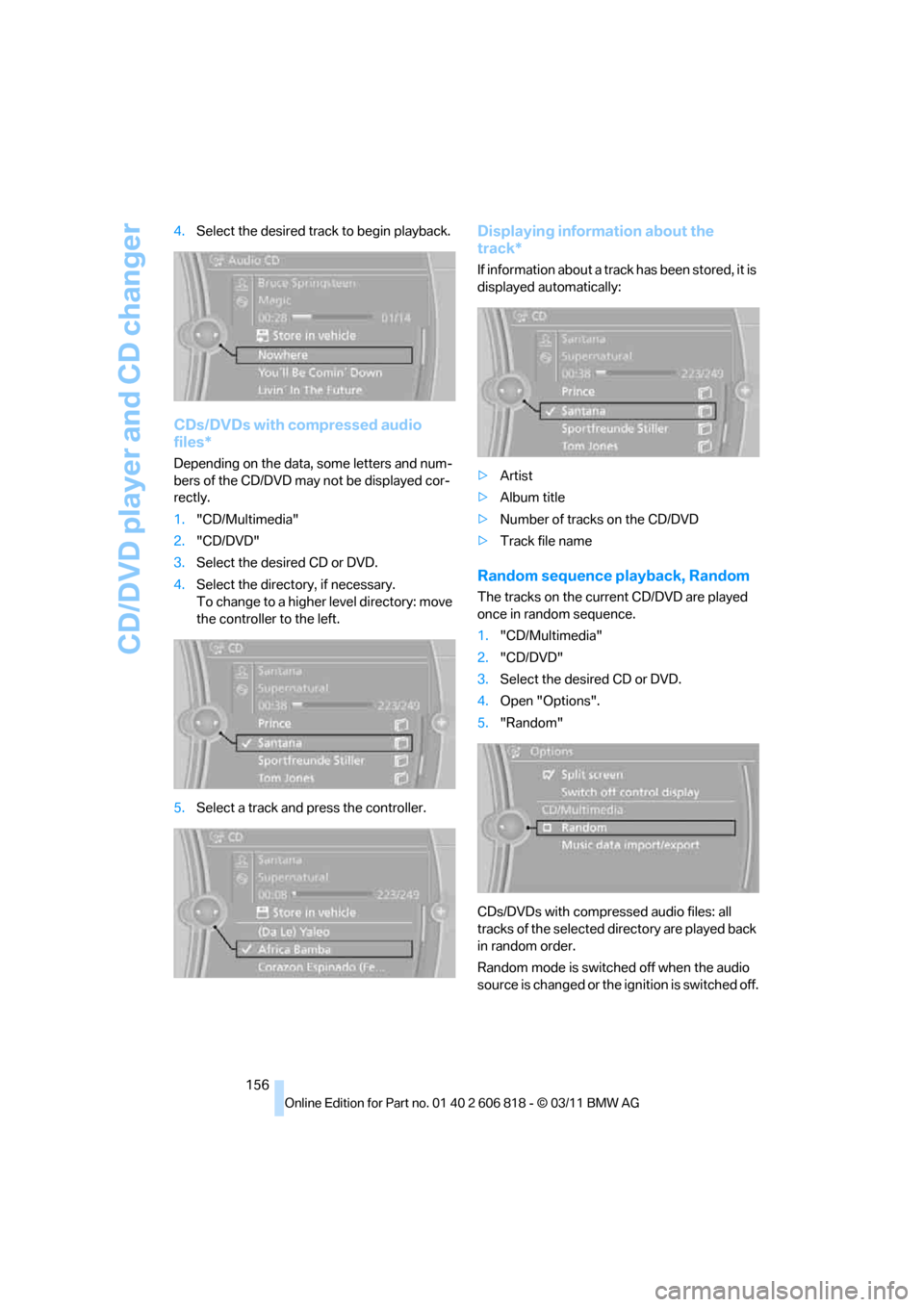
Selecting a track using iDrive
Audio CDs
1."CD/Multimedia"
2."CD/DVD"
3.Select the desired CD or DVD.
*
SymbolMeaning
CD/DVD player
CD changer
Page 158 of 272
CD/DVD player and CD changer
156 4.Select the desired track to begin playback.
CDs/DVDs with compressed audio
files*
Depending on the data, some letters and num-
bers of the CD/DVD may not be displayed cor-
rectly.
1."CD/Multimedia"
2."CD/DVD"
3.Select the desired CD or DVD.
4.Select the directory, if necessary.
To change to a higher level directory: move
the controller to the left.
5.Select a track and press the controller.
Displaying information about the
track*
If information about a track has been stored, it is
displayed automatically:
>Artist
>Album title
>Number of tracks on the CD/DVD
>Track file name
Random sequence playback, Random
The tracks on the current CD/DVD are played
once in random sequence.
1."CD/Multimedia"
2."CD/DVD"
3.Select the desired CD or DVD.
4.Open "Options".
5."Random"
CDs/DVDs with compressed audio files: all
tracks of the selected directory are played back
in random order.
Random mode is switched off when the audio
source is changed or the ignition is switched off.
Page 166 of 272
Music collection
164 3.Select the desired album.
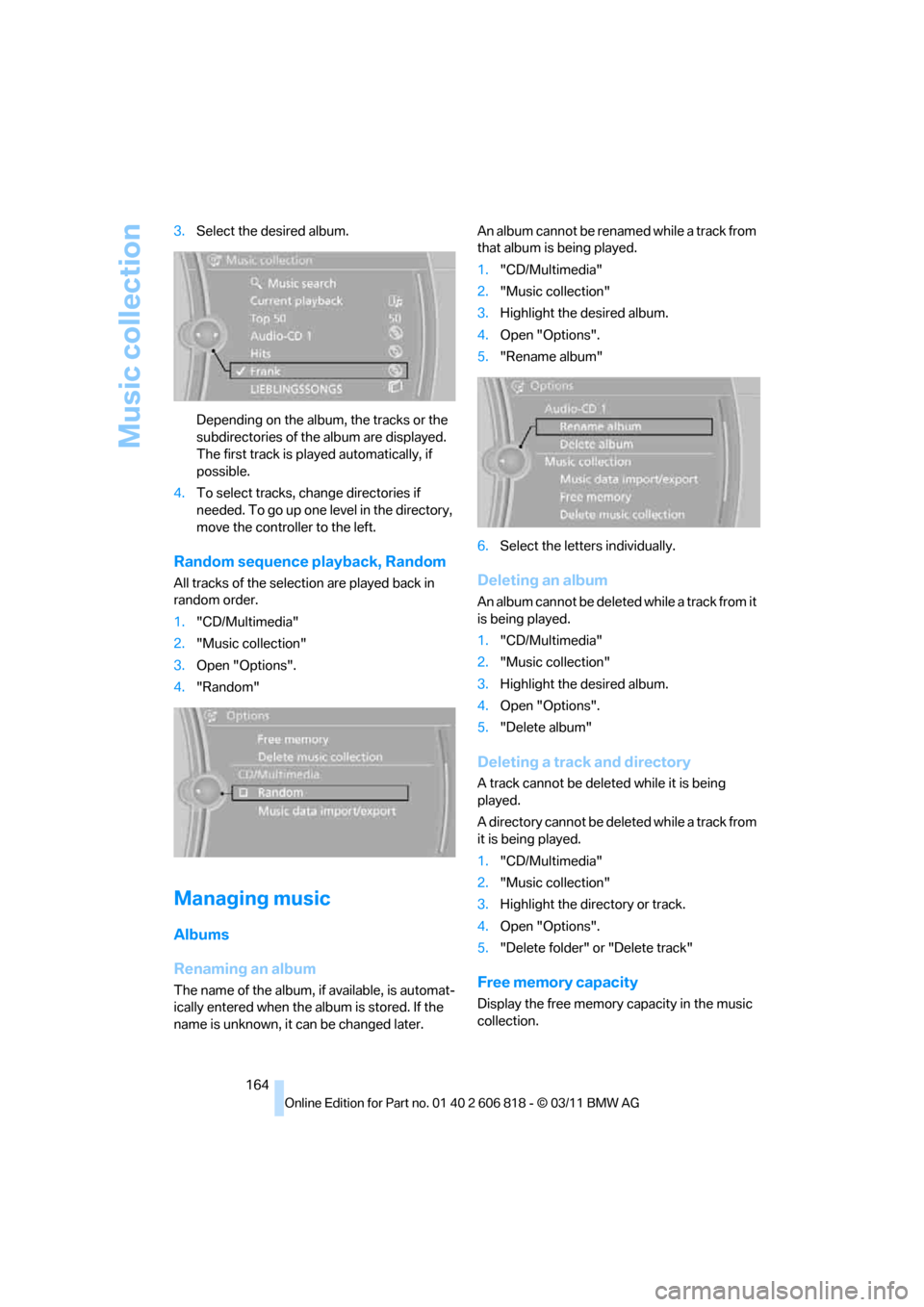
Depending on the album, the tracks or the
subdirectories of the album are displayed.
The first track is played automatically, if
possible.
4.To select tracks, change directories if
needed. To go up one level in the directory,
move the controller to the left.
Random sequence playback, Random
All tracks of the selection are played back in
random order.
1."CD/Multimedia"
2."Music collection"
3.Open "Options".
4."Random"
Managing music
Albums
Renaming an album
The name of the album, if available, is automat-
ically entered when the album is stored. If the
name is unknown, it can be changed later.An album cannot be renamed while a track from
that album is being played.
1."CD/Multimedia"
2."Music collection"
3.Highlight the desired album.
4.Open "Options".
5."Rename album"
6.Select the letters individually.
Deleting an album
An album cannot be deleted while a track from it
is being played.
1."CD/Multimedia"
2."Music collection"
3.Highlight the desired album.
4.Open "Options".
5."Delete album"
Deleting a track and directory
A track cannot be deleted while it is being
played.
A directory cannot be deleted while a track from
it is being played.
1."CD/Multimedia"
2."Music collection"
3.Highlight the directory or track.
4.Open "Options".
5."Delete folder" or "Delete track"
Free memory capacity
Display the free memory capacity in the music
collection.
Page 171 of 272
Navigation
Entertainment
Driving tips
169Reference
At a glance
Controls
Communications
Mobility
1."CD/Multimedia"
2."External devices"
3.Select the symbol.
4."Video"
5.Select the directory, if necessary.
To change to a higher level directory: move
the controller to the left.
6.Select the desired video file to begin play-
back.
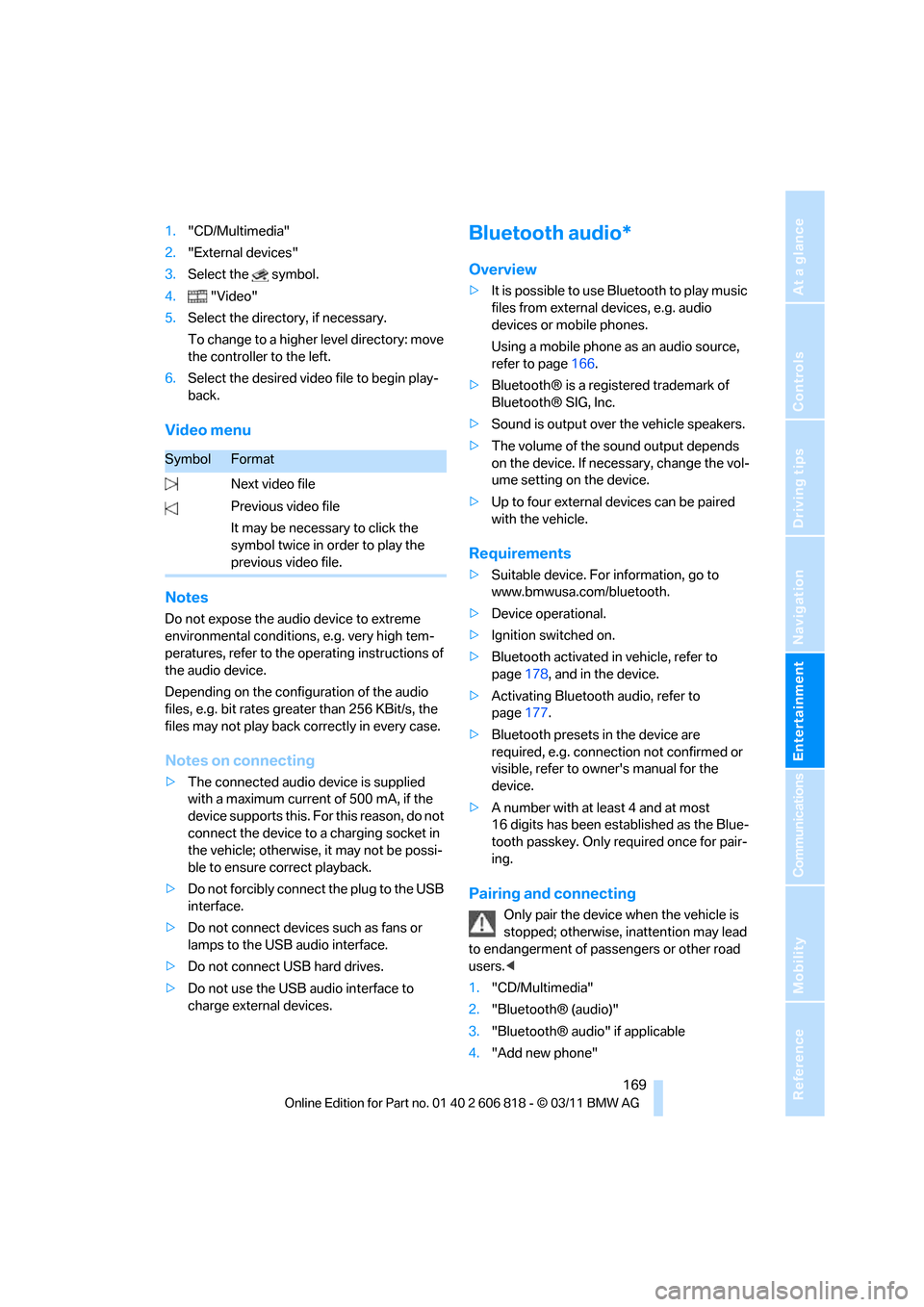
Video menu
Notes
Do not expose the audio device to extreme
environmental conditions, e.g. very high tem-
peratures, refer to the operating instructions of
the audio device.
Depending on the configuration of the audio
files, e.g. bit rates greater than 256 KBit/s, the
files may not play back correctly in every case.
Notes on connecting
>The connected audio device is supplied
with a maximum current of 500 mA, if the
device supports this. For this reason, do not
connect the device to a charging socket in
the vehicle; otherwise, it may not be possi-
ble to ensure correct playback.
>Do not forcibly connect the plug to the USB
interface.
>Do not connect devices such as fans or
lamps to the USB audio interface.
>Do not connect USB hard drives.
>Do not use the USB audio interface to
charge external devices.
Bluetooth audio*
Overview
>It is possible to use Bluetooth to play music
files from external devices, e.g. audio
devices or mobile phones.
Using a mobile phone as an audio source,
refer to page166.
>Bluetooth® is a registered trademark of
Bluetooth® SIG, Inc.
>Sound is output over the vehicle speakers.
>The volume of the sound output depends
on the device. If necessary, change the vol-
ume setting on the device.
>Up to four external devices can be paired
with the vehicle.
Requirements
>Suitable device. For information, go to
www.bmwusa.com/bluetooth.
>Device operational.
>Ignition switched on.
>Bluetooth activated in vehicle, refer to
page178, and in the device.
>Activating Bluetooth audio, refer to
page177.
>Bluetooth presets in the device are
required, e.g. connection not confirmed or
visible, refer to owner's manual for the
device.
>A number with at least 4 and at most
16 digits has been established as the Blue-
tooth passkey. Only required once for pair-
ing.
Pairing and connecting
Only pair the device when the vehicle is
stopped; otherwise, inattention may lead
to endangerment of passengers or other road
users.<
1."CD/Multimedia"
2."Bluetooth® (audio)"
3."Bluetooth® audio" if applicable
4."Add new phone"
SymbolFormat
Next video file
Previous video file
It may be necessary to click the
symbol twice in order to play the
previous video file.