radio controls BMW 135I 2012 E88 User Guide
[x] Cancel search | Manufacturer: BMW, Model Year: 2012, Model line: 135I, Model: BMW 135I 2012 E88Pages: 272, PDF Size: 8.49 MB
Page 106 of 272
Practical interior accessories
104
Practical interior accessories
Integrated universal remote
control*
The concept
The integrated universal remote control can
replace as many as three hand-held transmit-
ters for various remote-controlled devices,
such as garage doors and gates or lighting sys-
tems. The integrated universal remote control
registers and stores signals from the original
hand-held transmitters.
The signal of an original hand-held transmitter
can be programmed on one of the three mem-
ory buttons1. After this, the programmed
memory button1 will operate the system in
question. The LED2 flashes to confirm trans-
mission of the signal.
Should you sell your vehicle one day, be sure to
delete the stored programs beforehand for your
safety, refer to page105.
To prevent possible damage or injury,
before programming or using the inte-
grated universal remote control, always inspect
the immediate area to make certain that no peo-
ple, animals or objects are within the pivoting or
travel range of the device being operated. Com-
ply also with the safety instructions supplied
with the original hand-held transmitter.<
Checking compatibility
If this symbol appears on the package
or in the instructions supplied with the
original hand-held transmitter, you can
assume that the radio remote control device is
compatible with the integrated universal
remote control.
For additional information, please contact your
BMW center or call: 1-800-355-3515.
You can also obtain information on the Internet
at:
www.homelink.com.
HomeLink is a registered trademark of Johnson
Controls, Inc.
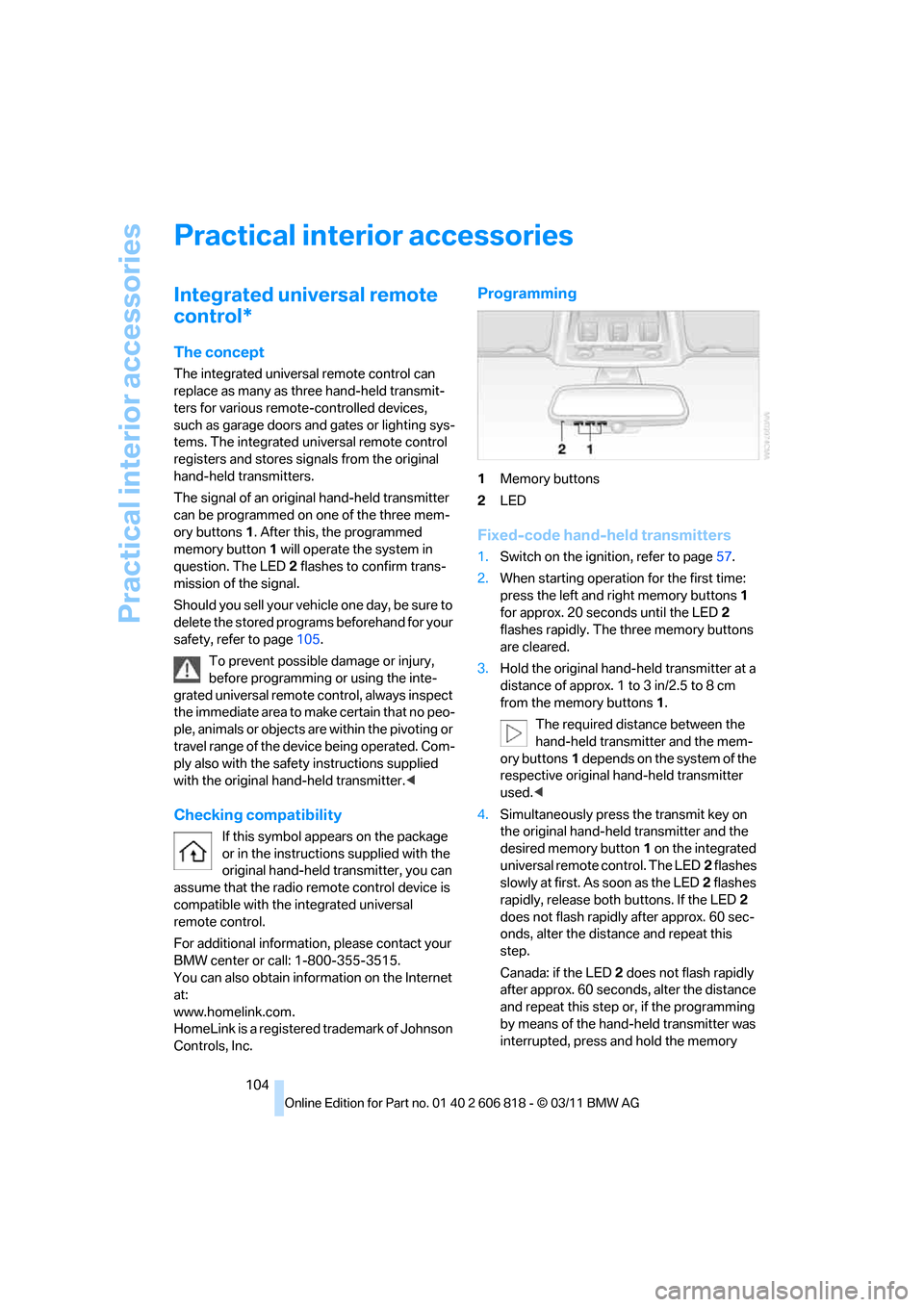
Programming
1Memory buttons
2LED
Fixed-code hand-held transmitters
1.Switch on the ignition, refer to page57.
2.When starting operation for the first time:
press the left and right memory buttons1
for approx. 20 seconds until the LED2
flashes rapidly. The three memory buttons
are cleared.
3.Hold the original hand-held transmitter at a
distance of approx. 1 to 3 in/2.5 to 8 cm
from the memory buttons1.
The required distance between the
hand-held transmitter and the mem-
ory buttons1 depends on the system of the
respective original hand-held transmitter
used.<
4.Simultaneously press the transmit key on
the original hand-held transmitter and the
desired memory button1 on the integrated
universal remote control. The LED2 flashes
slowly at first. As soon as the LED2 flashes
rapidly, release both buttons. If the LED2
does not flash rapidly after approx. 60 sec-
onds, alter the distance and repeat this
step.
Canada: if the LED2 does not flash rapidly
after approx. 60 seconds, alter the distance
and repeat this step or, if the programming
by means of the hand-held transmitter was
interrupted, press and hold the memory
Page 146 of 272
On/off and tone
144
On/off and tone
The following audio and video sources share
the same control elements and adjustments:
>Radio
>CD/DVD player
>CD changer
*
>Video*
>External devices, e.g. MP3 player
Controls
The audio and video sources can be controlled
using the:
>Buttons near the CD/DVD player
>iDrive
>Buttons on the steering wheel, refer to
page10
>Programmable memory keys, refer to
page21
>Voice activation system
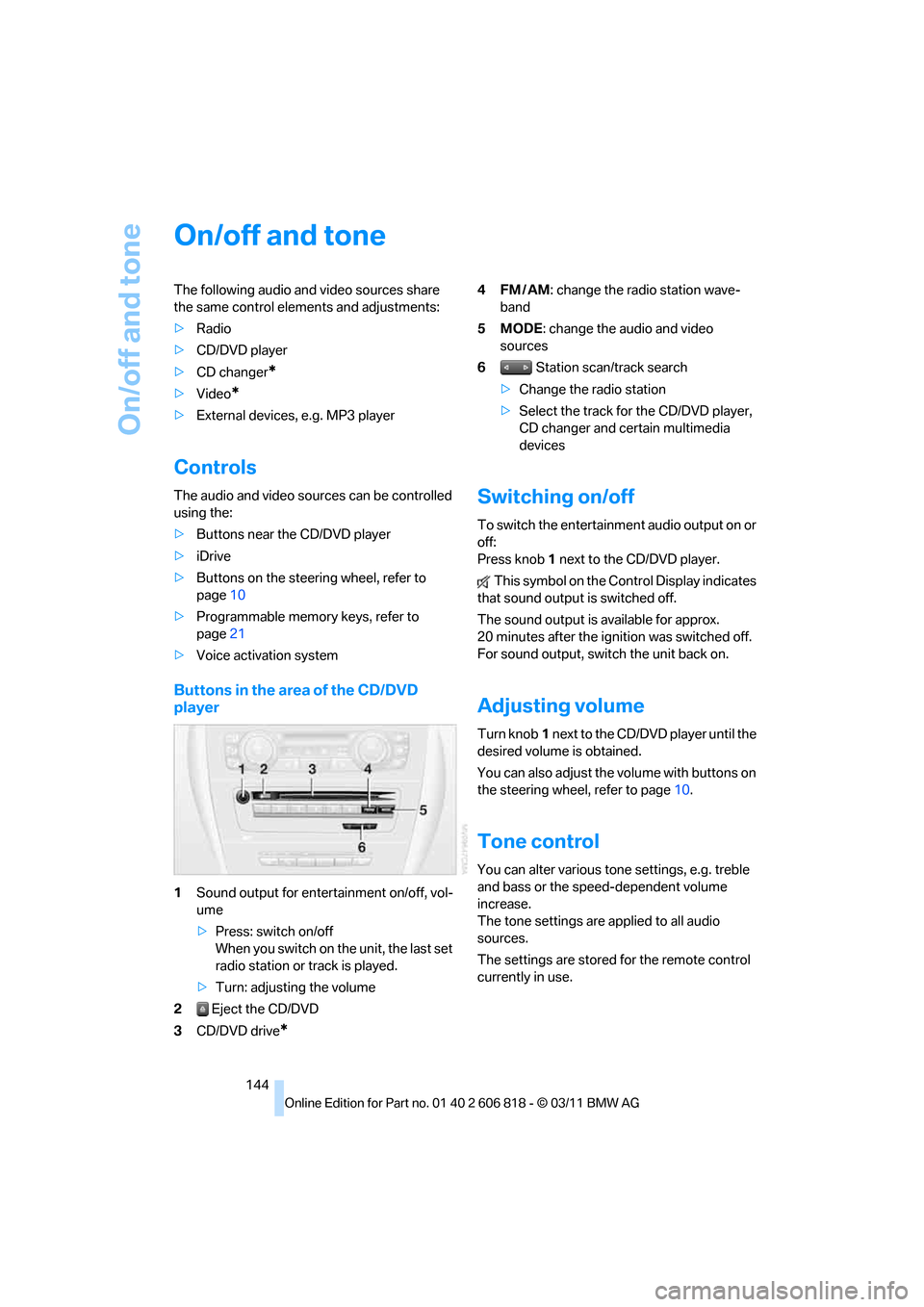
Buttons in the area of the CD/DVD
player
1Sound output for entertainment on/off, vol-
ume
>Press: switch on/off
When you switch on the unit, the last set
radio station or track is played.
>Turn: adjusting the volume
2Eject the CD/DVD
3CD/DVD drive
*
4FM/AM: change the radio station wave-
band
5MODE: change the audio and video
sources
6Station scan/track search
>Change the radio station
>Select the track for the CD/DVD player,
CD changer and certain multimedia
devices
Switching on/off
To switch the entertainment audio output on or
off:
Press knob1 next to the CD/DVD player.
This symbol on the Control Display indicates
that sound output is switched off.
The sound output is available for approx.
20 minutes after the ignition was switched off.
For sound output, switch the unit back on.
Adjusting volume
Turn knob1 next to the CD/DVD player until the
desired volume is obtained.
You can also adjust the volume with buttons on
the steering wheel, refer to page10.
Tone control
You can alter various tone settings, e.g. treble
and bass or the speed-dependent volume
increase.
The tone settings are applied to all audio
sources.
The settings are stored for the remote control
currently in use.
Page 147 of 272
Navigation
Entertainment
Driving tips
145Reference
At a glance
Controls
Communications
Mobility
Treble, bass, balance, fader
>"Treble": height adjustment.
>"Bass": depth adjustment.
>"Balance": left/right volume distribution
>"Fader": front/rear volume distribution
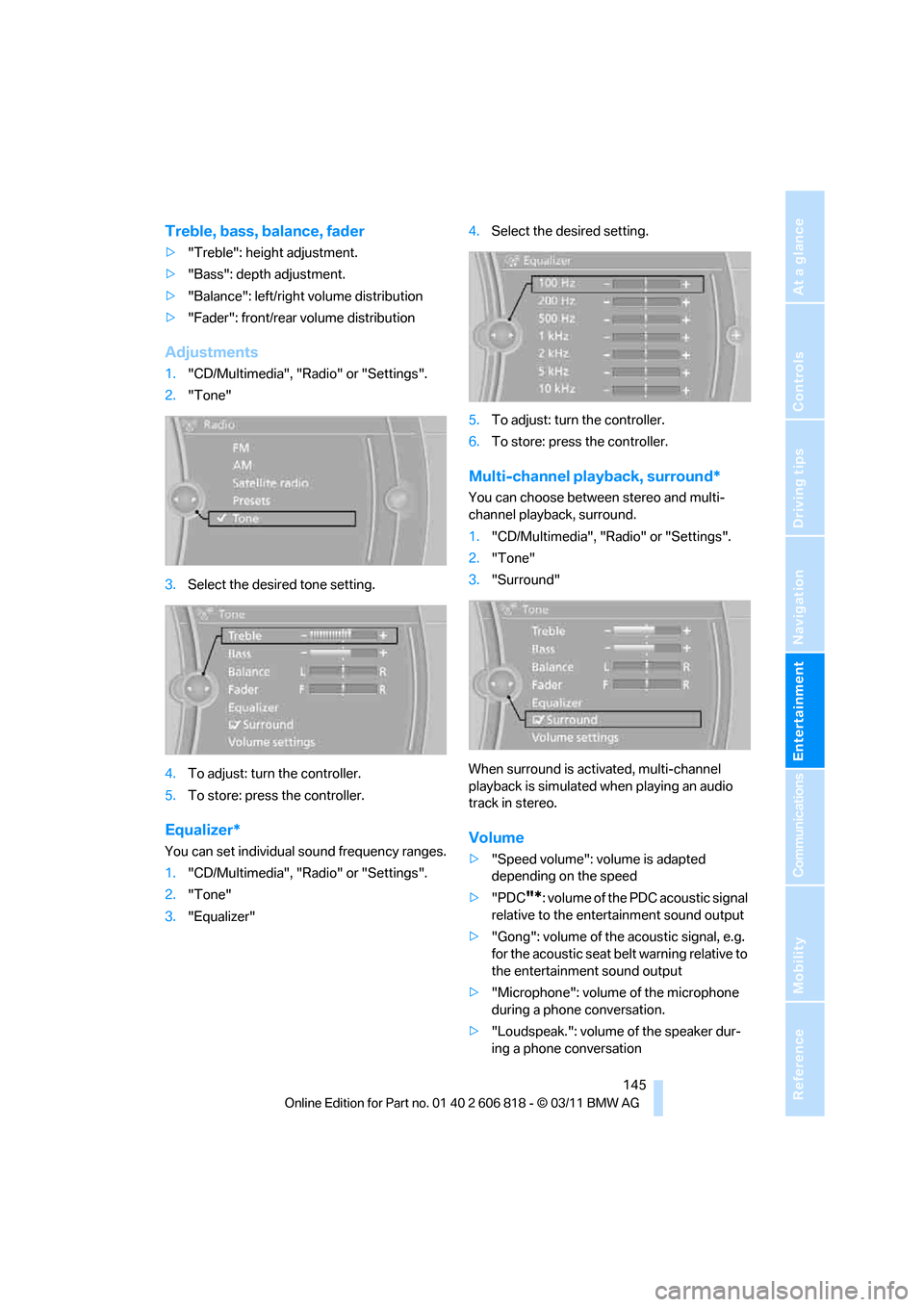
Adjustments
1."CD/Multimedia", "Radio" or "Settings".
2."Tone"
3.Select the desired tone setting.
4.To adjust: turn the controller.
5.To store: press the controller.
Equalizer*
You can set individual sound frequency ranges.
1."CD/Multimedia", "Radio" or "Settings".
2."Tone"
3."Equalizer"4.Select the desired setting.
5.To adjust: turn the controller.
6.To store: press the controller.
Multi-channel playback, surround*
You can choose between stereo and multi-
channel playback, surround.
1."CD/Multimedia", "Radio" or "Settings".
2."Tone"
3."Surround"
When surround is activated, multi-channel
playback is simulated when playing an audio
track in stereo.
Volume
>"Speed volume": volume is adapted
depending on the speed
>"PDC
"*: volume of the PDC acoustic signal
relative to the entertainment sound output
>"Gong": volume of the acoustic signal, e.g.
for the acoustic seat belt warning relative to
the entertainment sound output
>"Microphone": volume of the microphone
during a phone conversation.
>"Loudspeak.": volume of the speaker dur-
ing a phone conversation
Page 149 of 272
Navigation
Entertainment
Driving tips
147Reference
At a glance
Controls
Communications
Mobility
Radio
Your radio is designed for reception of the fol-
lowing stations:
>FM and AM
>HD Radio
*
>Satellite radio*
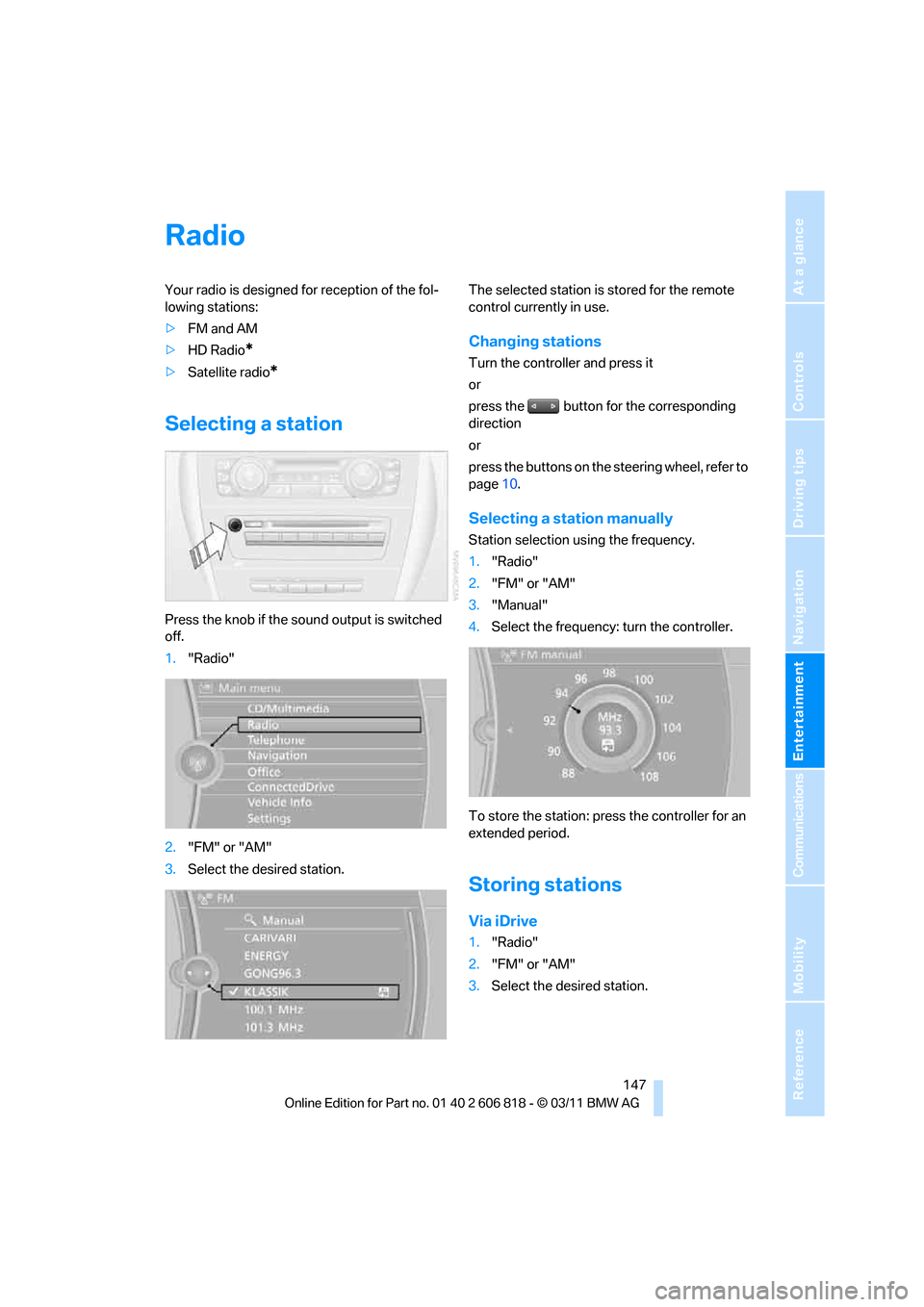
Selecting a station
Press the knob if the sound output is switched
off.
1."Radio"
2."FM" or "AM"
3.Select the desired station.The selected station is stored for the remote
control currently in use.
Changing stations
Turn the controller and press it
or
press the button for the corresponding
direction
or
press the buttons on the steering wheel, refer to
page10.
Selecting a station manually
Station selection using the frequency.
1."Radio"
2."FM" or "AM"
3."Manual"
4.Select the frequency: turn the controller.
To store the station: press the controller for an
extended period.
Storing stations
Via iDrive
1."Radio"
2."FM" or "AM"
3.Select the desired station.
Page 151 of 272
Navigation
Entertainment
Driving tips
149Reference
At a glance
Controls
Communications
Mobility
station names of the subchannels end with
HD2, HD3, etc.
1.Select the desired station.
2.Press the controller.
3.Select the substation.
In the event of poor reception, the substation is
muted for several seconds. If reception is inter-
rupted for a longer period of time, then the sys-
tem switches back to the main station.
Presets
It is possible to store up to 40 stations.
Calling up a station
1."Radio"
2."Presets"
3.Select the desired station.
Storing a station
The station currently selected is stored.
1."Radio"
2."Presets"
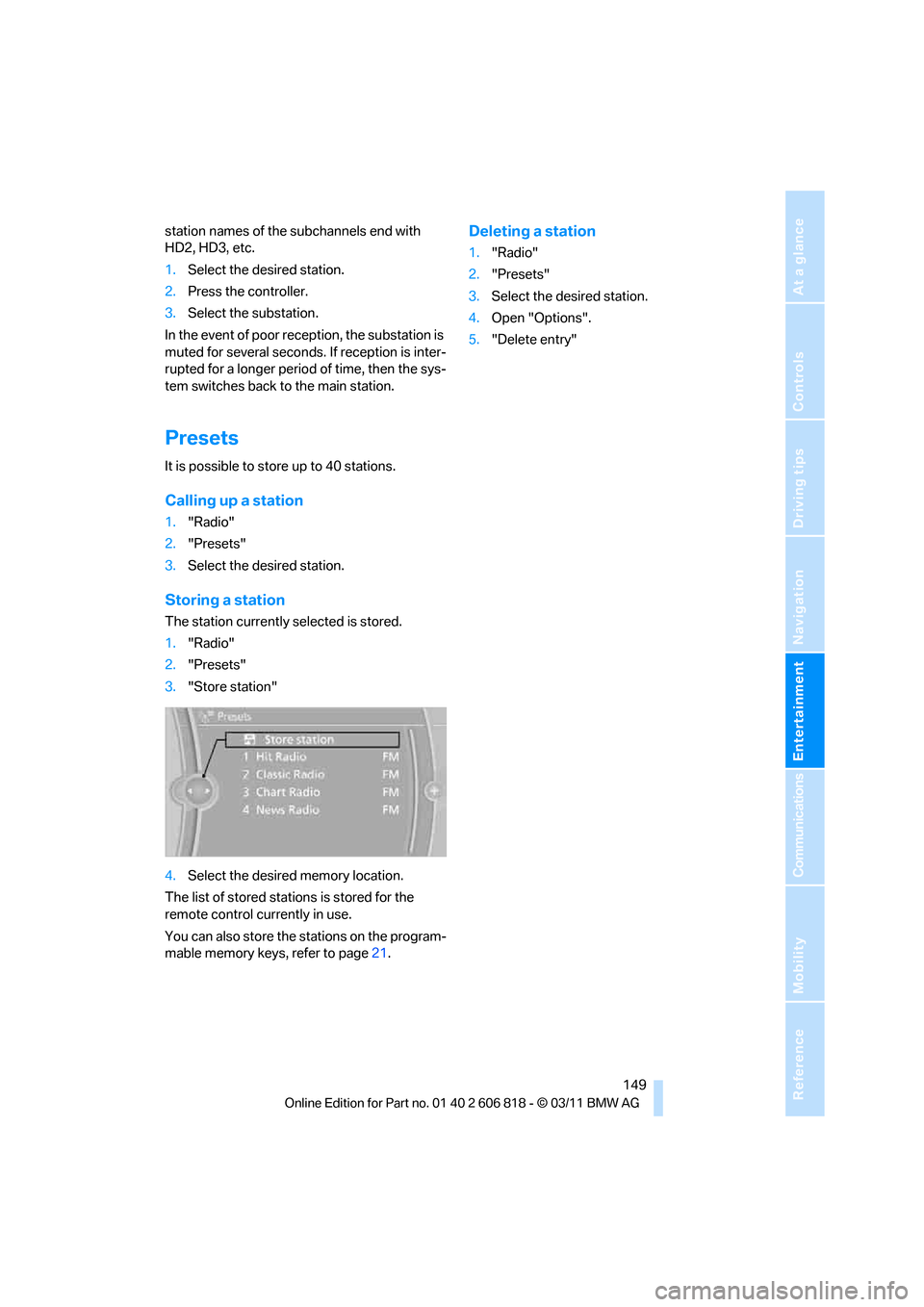
3."Store station"
4.Select the desired memory location.
The list of stored stations is stored for the
remote control currently in use.
You can also store the stations on the program-
mable memory keys, refer to page21.
Deleting a station
1."Radio"
2."Presets"
3.Select the desired station.
4.Open "Options".
5."Delete entry"
Page 153 of 272
Navigation
Entertainment
Driving tips
151Reference
At a glance
Controls
Communications
Mobility
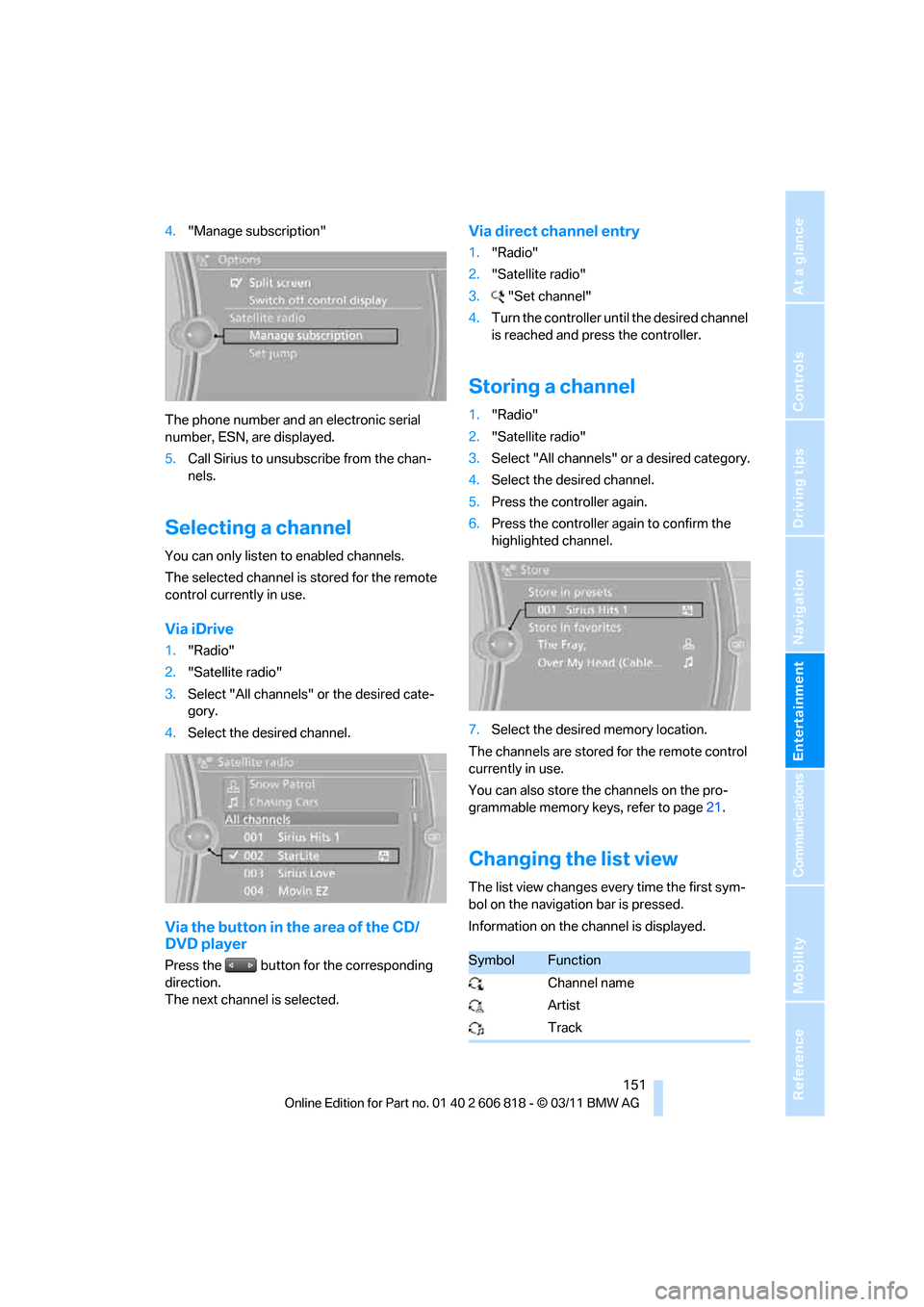
4."Manage subscription"
The phone number and an electronic serial
number, ESN, are displayed.
5.Call Sirius to unsubscribe from the chan-
nels.
Selecting a channel
You can only listen to enabled channels.
The selected channel is stored for the remote
control currently in use.
Via iDrive
1."Radio"
2."Satellite radio"
3.Select "All channels" or the desired cate-
gory.
4.Select the desired channel.
Via the button in the area of the CD/
DVD player
Press the button for the corresponding
direction.
The next channel is selected.
Via direct channel entry
1."Radio"
2."Satellite radio"
3."Set channel"
4.Turn the controller until the desired channel
is reached and press the controller.
Storing a channel
1."Radio"
2."Satellite radio"
3.Select "All channels" or a desired category.
4.Select the desired channel.
5.Press the controller again.
6.Press the controller again to confirm the
highlighted channel.
7.Select the desired memory location.
The channels are stored for the remote control
currently in use.
You can also store the channels on the pro-
grammable memory keys, refer to page21.
Changing the list view
The list view changes every time the first sym-
bol on the navigation bar is pressed.
Information on the channel is displayed.
SymbolFunction
Channel name
Artist
Track
Page 155 of 272
Navigation
Entertainment
Driving tips
153Reference
At a glance
Controls
Communications
Mobility
6.Select the artist, track or game.
Storing the league or team
Leagues or teams can be added to the favorites
from a selection list.
1."Radio"
2."Satellite radio"
3."Manage favorites"
4."Add sports information"
5.Select the desired league.
6.Select "Add all teams" or a desired team.
Opening the favorites
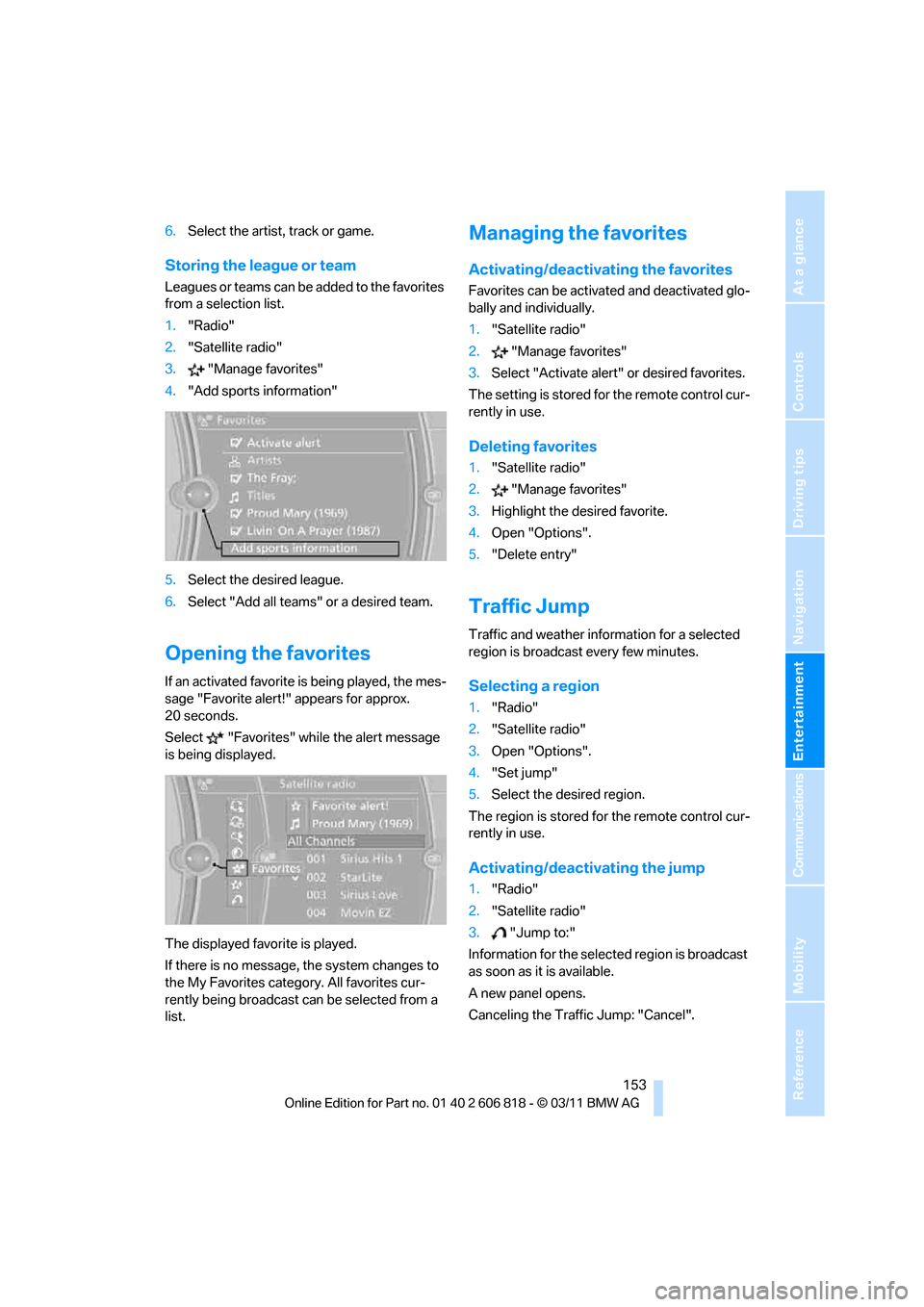
If an activated favorite is being played, the mes-
sage "Favorite alert!" appears for approx.
20 seconds.
Select "Favorites" while the alert message
is being displayed.
The displayed favorite is played.
If there is no message, the system changes to
the My Favorites category. All favorites cur-
rently being broadcast can be selected from a
list.
Managing the favorites
Activating/deactivating the favorites
Favorites can be activated and deactivated glo-
bally and individually.
1."Satellite radio"
2."Manage favorites"
3.Select "Activate alert" or desired favorites.
The setting is stored for the remote control cur-
rently in use.
Deleting favorites
1."Satellite radio"
2."Manage favorites"
3.Highlight the desired favorite.
4.Open "Options".
5."Delete entry"
Traffic Jump
Traffic and weather information for a selected
region is broadcast every few minutes.
Selecting a region
1."Radio"
2."Satellite radio"
3.Open "Options".
4."Set jump"
5.Select the desired region.
The region is stored for the remote control cur-
rently in use.
Activating/deactivating the jump
1."Radio"
2."Satellite radio"
3."Jump to:"
Information for the selected region is broadcast
as soon as it is available.
A new panel opens.
Canceling the Traffic Jump: "Cancel".
Page 251 of 272
Reference 249
At a glance
Controls
Driving tips
Communications
Navigation
Entertainment
Mobility
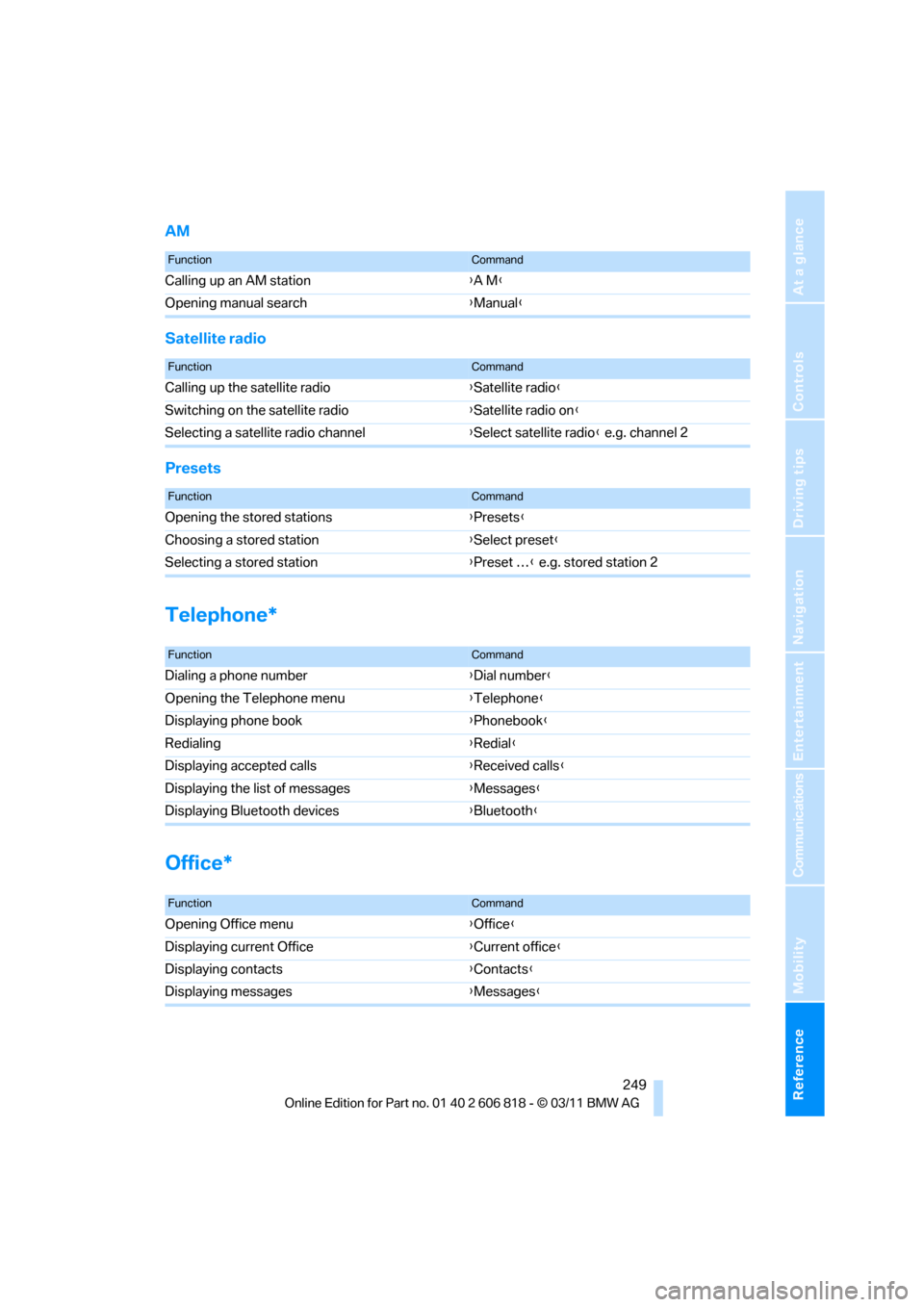
AM
Satellite radio
Presets
Telephone*
Office*
FunctionCommand
Calling up an AM station{A M}
Opening manual search{Manual}
FunctionCommand
Calling up the satellite radio{Satellite radio}
Switching on the satellite radio{Satellite radio on}
Selecting a satellite radio channel{Select satellite radio} e.g. channel 2
FunctionCommand
Opening the stored stations{Presets}
Choosing a stored station{Select preset}
Selecting a stored station{Preset …} e.g. stored station 2
FunctionCommand
Dialing a phone number{Dial number}
Opening the Telephone menu{Telephone}
Displaying phone book{Phonebook}
Redialing{Redial}
Displaying accepted calls{Received calls}
Displaying the list of messages{Messages}
Displaying Bluetooth devices{Bluetooth}
FunctionCommand
Opening Office menu{Office}
Displaying current Office{Current office}
Displaying contacts{Contacts}
Displaying messages{Messages}
Page 258 of 272
Everything from A to Z
256 Cargo area lid, refer to Trunk
lid33
Cargo area net, refer to
Securing cargo120
Cargo loading119
– securing cargo120
– stowing cargo120
– vehicle119
Car jack
– jacking points232
Car key, refer to Integrated
key/remote control28
Car phone
– installation location, refer to
Center armrest108
– refer to separate Owner's
Manual
Car phone, refer to
Telephone176
Car radio, refer to Radio147
Car shampoo224
Car wash223
Catalytic converter, refer to
Hot exhaust system117
CD, audio playback155
CD changer155,159
– controls144
– fast forward/reverse157
– filling or emptying the
magazine159
– random play sequence156
– selecting a track155
– switching on/off144
– tone control144
– volume144
CD player155
– controls144
– fast forward/reverse157
– random order156
– selecting a track155
– switching on/off144
– tone control144
– volume144
Center armrest108
Center brake lamp, replacing
bulb231
Center console, refer to
Around the center
console14Central key, refer to Integrated
key/remote control28
Central locking
– from inside32
– from outside29
Central locking system29
– Comfort Access35
Changes, technical, refer to
For your own safety5
Changing bulbs227
Changing gears64
Changing the language on the
Control Display81
Changing wheels231
Chassis number, refer to
Engine compartment217
Check Control78
Child restraint fixing system
LATCH55
Child restraint systems54
Child seats54
Chrome parts225
Chrome polish225
Cigarette lighter109
Cleaning headlamps67
– washer fluid68
Cleaning your BMW, refer to
Care223
Climate control
– automatic air
distribution100
Clock70
– 12h/24h mode77
– setting the time and date77
– setting time76
Closing
– from inside32
– from outside29
Clothes hooks108
Cold start, refer to Starting the
engine58
Comfort Access35
– replacing the battery37
Comfort access, refer to
Comfort Access35
Comfort area, refer to Around
the center console14Compartment for remote
control, refer to Ignition
lock57
Compass106
Computer71
– displays on Control
Display72
Computer, refer to iDrive16
Concierge service199
Condensation, refer to When
the vehicle is parked119
Condition Based Service
CBS221
Configuring settings, refer to
Personal Profile28
Confirmation signals for
locking/unlocking the
vehicle30
ConnectedDrive198
Connecting vacuum cleaner,
refer to Connecting
electrical appliances109
Consumption, refer to
Average fuel
consumption72
Contacts188
– deleting190,197
– exporting/importing197
– new contact189
Control Center, refer to
iDrive16
Control Display16,17
Control Display, refer to iDrive
– switching on/off17
Controller, refer to iDrive16
Controls and displays10
Convenient opening and
closing
– windows30
– windows with Comfort
Access36
– with Comfort Access36
Convenient start, refer to
Starting the engine58
Convertible
– rollover protection
system92
– top40
– wind deflector43
Page 259 of 272
Reference 257
At a glance
Controls
Driving tips
Communications
Navigation
Entertainment
Mobility
Convertible top
– convenient opening30
Convertible top care224
Coolant219
– checking level220
– filling220
Coolant temperature219
Cooling, maximum100
Cooling fluid, refer to
Coolant219
Copyright2
Corner-illuminating lamps95
Cornering light, refer to
Adaptive Light Control95
Country codes DVD157
Courtesy lamps98
Criteria for route134
Cross-hairs in navigation130
Cruise control68
Cruising range72
Cupholders108
Curb weight, refer to
Weights245
Current fuel consumption72
Current playback
– external devices168
– of music collection163
Customer Relations201
D
Dashboard, refer to
Cockpit10
Dashboard lighting, refer to
Instrument lighting98
Data, technical242
– capacities246
– dimensions243
– engine242
– weights245
Data memory222
Data transfer202
Date
– setting78
– setting format78
Daytime running lights, switch
positions95
DBC Dynamic Brake
Control83Deactivating front passenger
airbags91
Deadlocking, refer to
Locking30
Defect
– door lock32
– fuel filler flap206
– glass roof40
Defining a home address190
Defogging windows101
Defrosting windows101
Defrosting windows and
removing condensation101
Defrosting windshield, refer to
Defrosting windows101
Defrost position, refer to
Defrosting windows101
Destination, entering by town/
city name125
Destination address
– entering125,131
Destination entry via BMW
Assist129
Destination for navigation
– entering by voice131
– entering via map130
– entry125
– home address128
– manual entry125
Destination guidance134
– bypassing a route
section135
– changing specified
route134
– continuing134
– starting134
– voice instructions136
– volume of voice
instructions136
Differential, breaking in116
Digital clock70
,76
Digital compass106
Digital radio, refer to HD
Radio148
Dimensions243
Directional indicators, refer to
Turn signals66
Direction instructions, refer to
Voice instructions136Directory for navigation, refer
to Address book127
Displacement, refer to Engine
data242
Display, refer to Control
Display16
Displaying contact
pictures190
Display lighting, refer to
Instrument lighting98
Displays, refer to Instrument
cluster12
Displays and controls10
Disposal
– of coolant219
– remote control battery37
– vehicle battery232
Distance, refer to
Computer72
Distance remaining to service,
refer to Service
requirements74
Distance to destination, refer
to Computer72
Distance warning, refer to
Park Distance Control
PDC82
Door key, refer to Integrated
key/remote control28
Door lock32
Door lock, confirmation
signals30
Doors, manual operation32
DOT Quality Grades212
Draft-free ventilation102
Drinks holders, refer to
Cupholders108
Drive mode63
Drive-off assistance, refer to
DSC83
Drive-off assistant84
Driving dynamics control64
Driving lamps, refer to Parking
lamps/low beams94
Driving notes116
Driving off on hills, refer to
Drive-off assistant84
Driving stability control
systems83