light BMW 135I 2012 E88 Workshop Manual
[x] Cancel search | Manufacturer: BMW, Model Year: 2012, Model line: 135I, Model: BMW 135I 2012 E88Pages: 272, PDF Size: 8.49 MB
Page 126 of 272
Navigation system
124
Navigation system
General information
The navigation system can determine the pre-
cise position of the vehicle, with the aid of satel-
lites and vehicle sensors, and can reliably guide
you to every entered destination.
Enter data only with the vehicle station-
ary, and always give priority to the appli-
cable traffic regulations in the event of any con-
tradiction between traffic and road conditions
and the instructions issued by the navigation
system. Failure to take to this precaution can
place you in violation of the law and put vehicle
occupants and other road users in danger.<
Navigation data
General information
Navigation data and authorization codes are
available from your BMW center. Navigation
data are stored in the vehicle and can be
updated.
>Depending on the data volume, a data
update may take several hours.
>Update data while driving to reduce the
drain on the battery.
>Only the main functions of the navigation
system are available during updating.
The update is resumed automatically when a
trip is continued after an interruption.
>You can inquire as to the status of the
update.
>The data are stored in the vehicle.
>After the update, the system restarts.
>The medium that holds the navigation data
can be removed after the update is com-
pleted.
Information about navigation data
1."Navigation"
2.Open "Options".
3."Navigation system version":
Information about the data version is dis-
played.
Updating the navigation data
Inserting navigation DVD
1.Insert the navigation DVD into the DVD
player with the labeled side facing up.
2.Follow the instructions on the Control Dis-
play.
3.Enter the authorization code of the naviga-
tion DVD and change the DVD if needed.
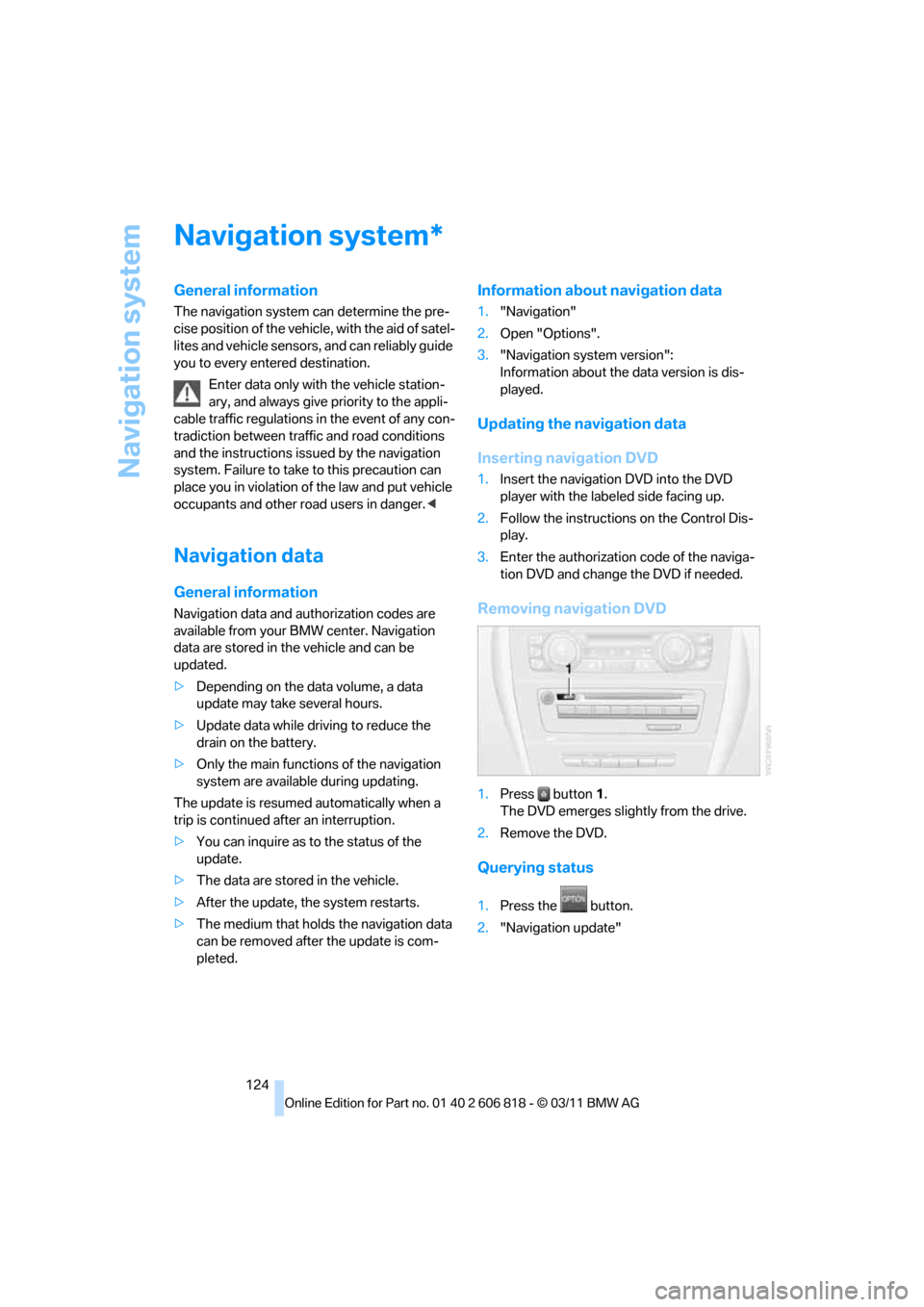
Removing navigation DVD
1.Press button1.
The DVD emerges slightly from the drive.
2.Remove the DVD.
Querying status
1.Press the button.
2."Navigation update"
*
Page 128 of 272
Destination entry
126 To delete letters:
>To delete individual letters:
Turn the controller to select , and
then press the controller.
>To delete all letters:
Turn the controller to select , and
then press the controller for an extended
period.
To enter spaces:
>Select the symbol.
The list gradually grows smaller each time
you enter a new letter.
3.Move the controller to the right.
4.Select the name of the town/city from the
list.
If there are several towns/cities with the same
name:
1.Change to the list of town/city names.
2.Highlight the town/city.
3.Select the town/city.
Entering the postal code*
1.Select "Town/City/Postal Code" or dis-
played city.
2.Select the symbol.
3.Select the digits.
4.Change to the list of postal codes and
towns/cities.
5.Highlight the entry.
6.Select an entry.
Entering street and intersection
1.Select "Street" or displayed street.
2.Enter the street and cross-street the same
way you entered the town/city.
After you enter the street, you can also enter
the cross street or the house number.
If there are several streets with the same name:
1.Change to the list of street names.
2.Highlight street.
3.Select the street.
Alternative: entering street and house
number
1.Select "Street" or displayed street.
2.Enter the street the same way you entered
the town/city.
3."House number"
4.Select the digits.
5.Change to the list of house numbers.
6.Select a house number or range of house
numbers.
No such street at the destination
The desired street is not in the entered town/
city because it belongs to another district of the
town/city.
1."Navigation"
2."Enter address"
3.Select "Street" or displayed street.
4.Change to the list of street names.
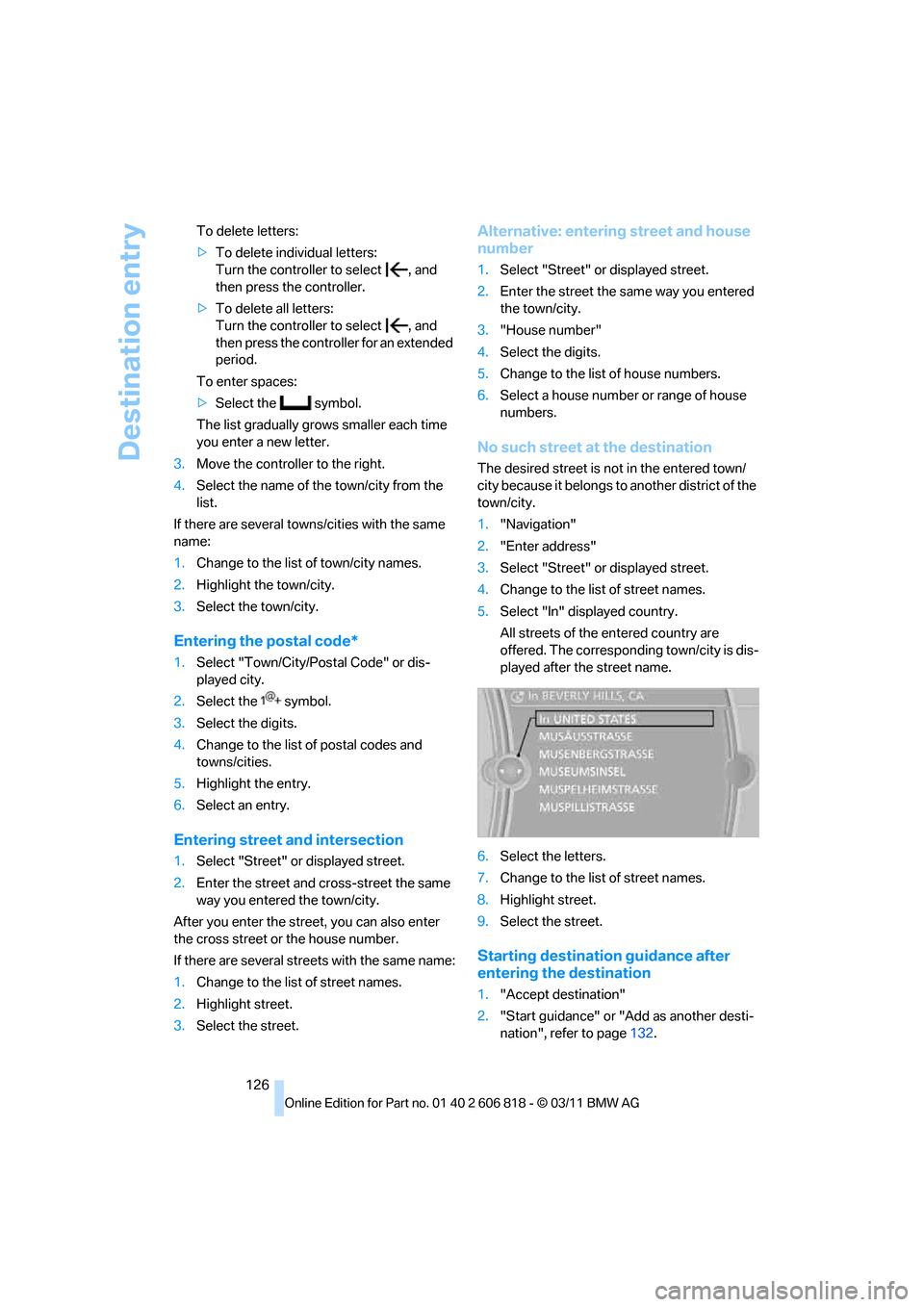
5.Select "In" displayed country.
All streets of the entered country are
offered. The corresponding town/city is dis-
played after the street name.
6.Select the letters.
7.Change to the list of street names.
8.Highlight street.
9.Select the street.
Starting destination guidance after
entering the destination
1."Accept destination"
2."Start guidance" or "Add as another desti-
nation", refer to page132.
Page 129 of 272
Navigation
Driving tips
127Reference
At a glance
Controls
Communications
Entertainment
Mobility
>Setting "Route preference", refer to
page134.
>Search for "Points of Interest at loc.", refer
to page128.
Address book
To create contacts, refer to page198.
Selecting a destination from the
address book
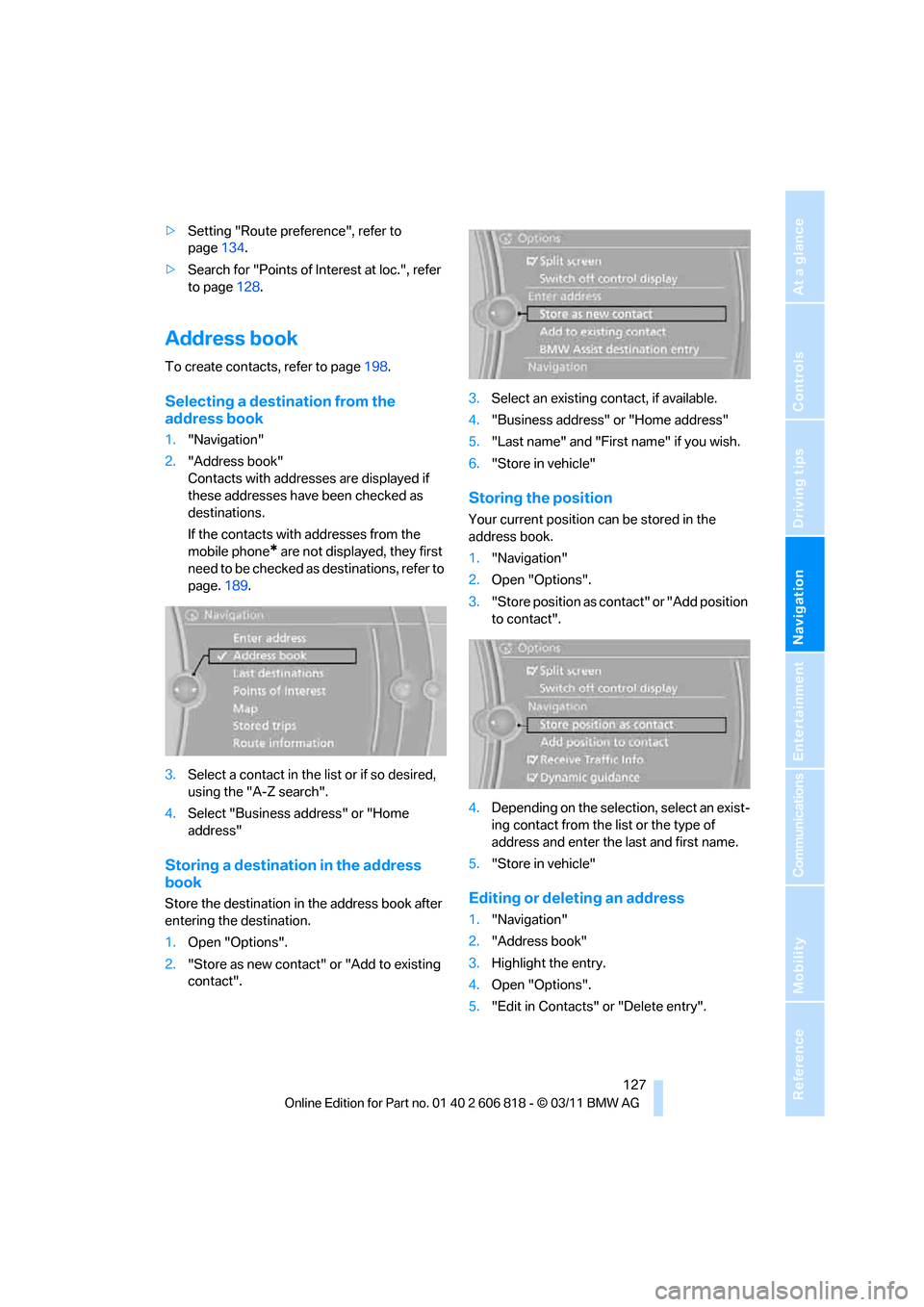
1."Navigation"
2."Address book"
Contacts with addresses are displayed if
these addresses have been checked as
destinations.
If the contacts with addresses from the
mobile phone
* are not displayed, they first
need to be checked as destinations, refer to
page.189.
3.Select a contact in the list or if so desired,
using the "A-Z search".
4.Select "Business address" or "Home
address"
Storing a destination in the address
book
Store the destination in the address book after
entering the destination.
1.Open "Options".
2."Store as new contact" or "Add to existing
contact".3.Select an existing contact, if available.
4."Business address" or "Home address"
5."Last name" and "First name" if you wish.
6."Store in vehicle"
Storing the position
Your current position can be stored in the
address book.
1."Navigation"
2.Open "Options".
3."Store position as contact" or "Add position
to contact".
4.Depending on the selection, select an exist-
ing contact from the list or the type of
address and enter the last and first name.
5."Store in vehicle"
Editing or deleting an address
1."Navigation"
2."Address book"
3.Highlight the entry.
4.Open "Options".
5."Edit in Contacts" or "Delete entry".
Page 130 of 272
Destination entry
128
Using the home address as a
destination
The home address must be created. Specifying
a home address, refer to page198.
1."Navigation"
2."Address book"
3."Home"
4."Start guidance"
Last destinations
The last destinations are stored automatically.
These destinations can be called up and used
as a destination for destination guidance.
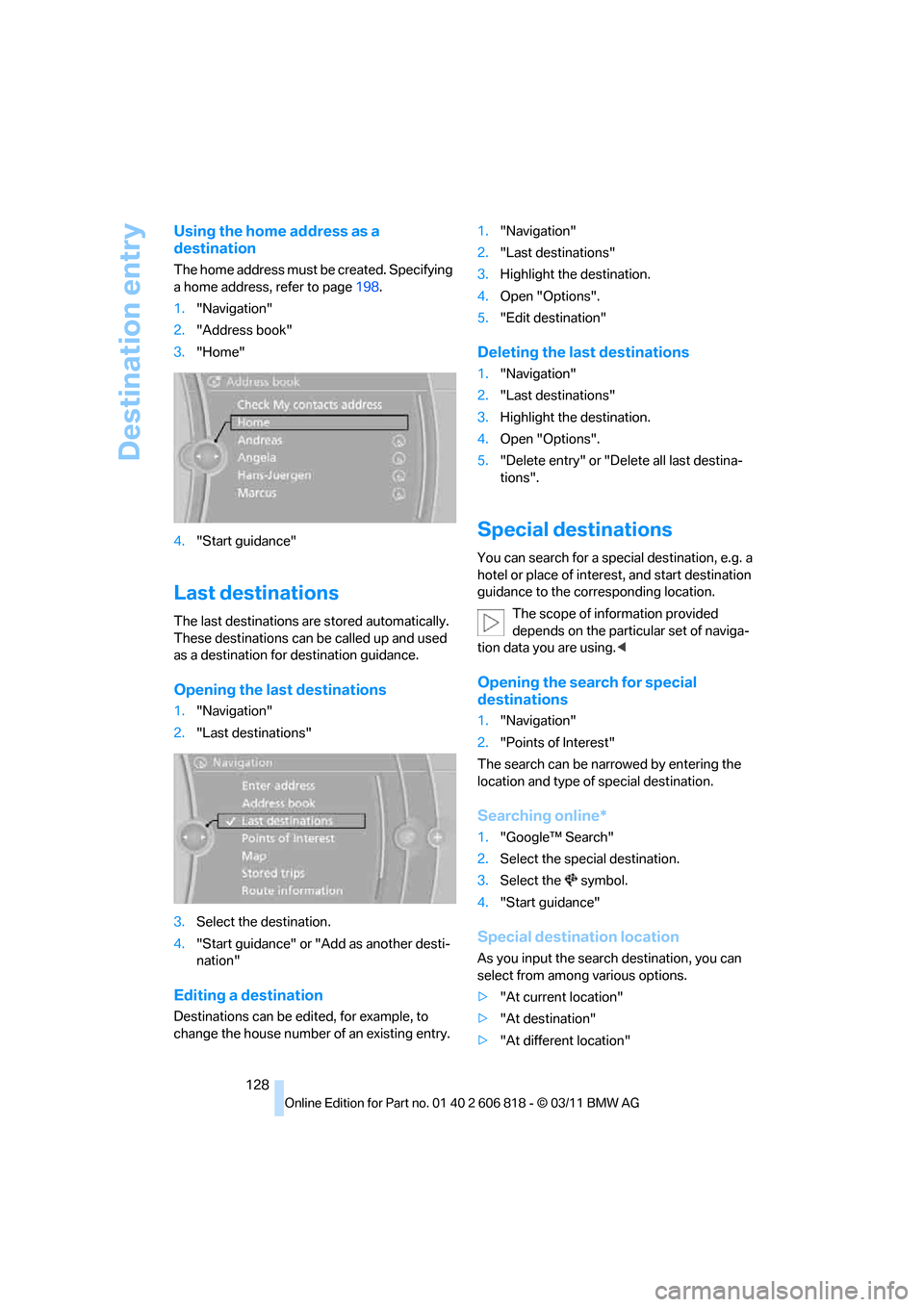
Opening the last destinations
1."Navigation"
2."Last destinations"
3.Select the destination.
4."Start guidance" or "Add as another desti-
nation"
Editing a destination
Destinations can be edited, for example, to
change the house number of an existing entry.1."Navigation"
2."Last destinations"
3.Highlight the destination.
4.Open "Options".
5."Edit destination"
Deleting the last destinations
1."Navigation"
2."Last destinations"
3.Highlight the destination.
4.Open "Options".
5."Delete entry" or "Delete all last destina-
tions".
Special destinations
You can search for a special destination, e.g. a
hotel or place of interest, and start destination
guidance to the corresponding location.
The scope of information provided
depends on the particular set of naviga-
tion data you are using.<
Opening the search for special
destinations
1."Navigation"
2."Points of Interest"
The search can be narrowed by entering the
location and type of special destination.
Searching online*
1."Google™ Search"
2.Select the special destination.
3.Select the symbol.
4."Start guidance"
Special destination location
As you input the search destination, you can
select from among various options.
>"At current location"
>"At destination"
>"At different location"
Page 134 of 272
Destination entry
132
Entering a house number
Depending on the data in the navigation sys-
tem, house numbers up to the number 2,000
can be entered:
Starting destination guidance
Destination guidance starts immediately.
Planning a trip with
intermediate destinations
New trip
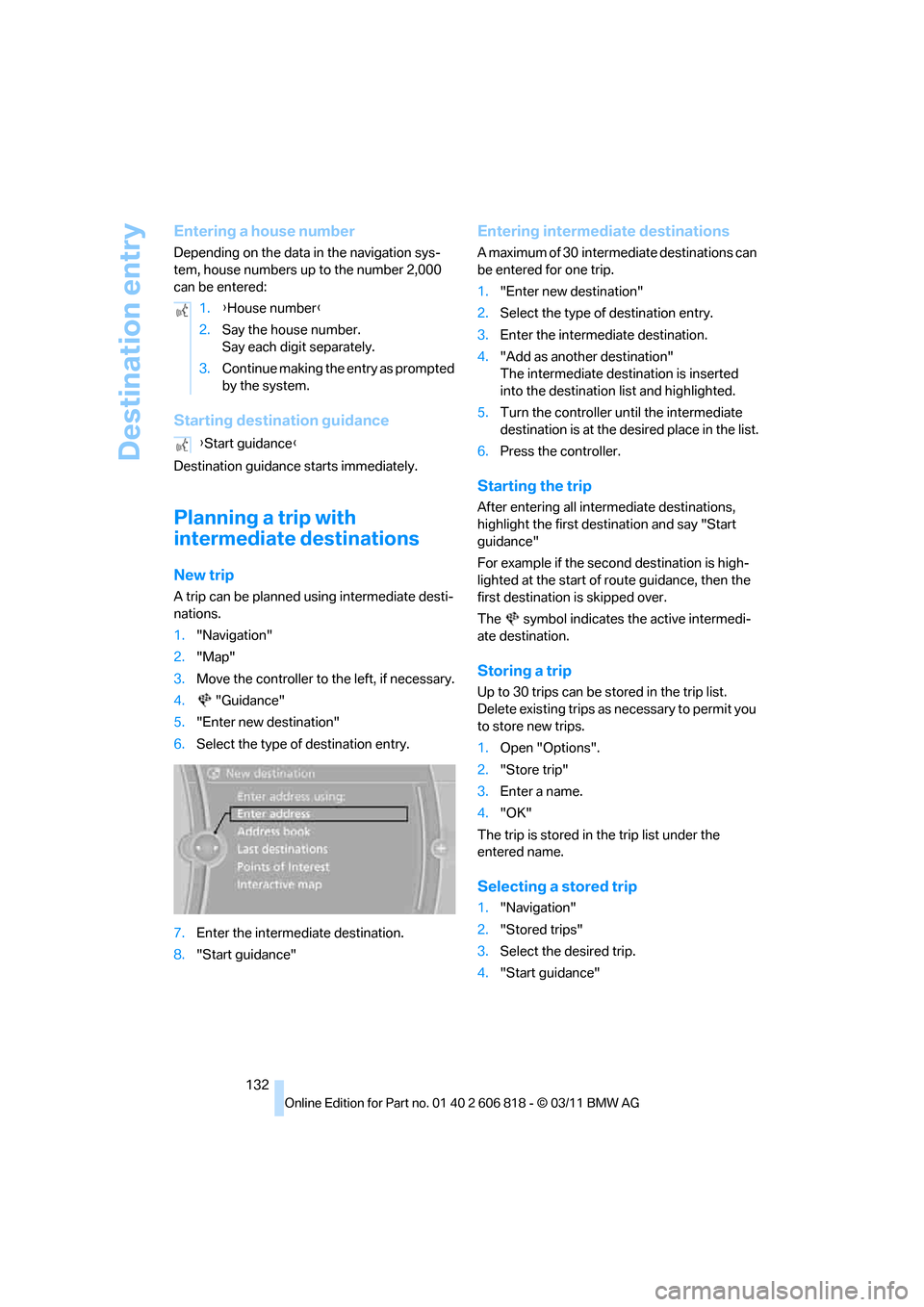
A trip can be planned using intermediate desti-
nations.
1."Navigation"
2."Map"
3.Move the controller to the left, if necessary.
4."Guidance"
5."Enter new destination"
6.Select the type of destination entry.
7.Enter the intermediate destination.
8."Start guidance"
Entering intermediate destinations
A maximum of 30 intermediate destinations can
be entered for one trip.
1."Enter new destination"
2.Select the type of destination entry.
3.Enter the intermediate destination.
4."Add as another destination"
The intermediate destination is inserted
into the destination list and highlighted.
5.Turn the controller until the intermediate
destination is at the desired place in the list.
6.Press the controller.
Starting the trip
After entering all intermediate destinations,
highlight the first destination and say "Start
guidance"
For example if the second destination is high-
lighted at the start of route guidance, then the
first destination is skipped over.
The symbol indicates the active intermedi-
ate destination.
Storing a trip
Up to 30 trips can be stored in the trip list.
Delete existing trips as necessary to permit you
to store new trips.
1.Open "Options".
2."Store trip"
3.Enter a name.
4."OK"
The trip is stored in the trip list under the
entered name.
Selecting a stored trip
1."Navigation"
2."Stored trips"
3.Select the desired trip.
4."Start guidance" 1.{House number}
2.Say the house number.
Say each digit separately.
3.Continue making the entry as prompted
by the system.
{Start guidance}
Page 137 of 272
Navigation
Driving tips
135Reference
At a glance
Controls
Communications
Entertainment
Mobility
5.Select additional route criteria, if desired.
Where possible, the selected criteria will be
avoided on the route.
>"Avoid highways": highways are avoided
where possible.
>"Avoid toll roads": toll roads are avoided
where possible.
>"Avoid ferries": ferries are avoided
where possible.
The setting applies to the current route and to
the planning of future routes.
Route
General information
Depending on your vehicle's equipment, vari-
ous views of the route are available during route
guidance:
>Arrow display on the Control Display.
>List of route segments.
>Map view, refer to page136.
Arrow display
The following information is displayed during
route guidance:
>Large arrow: current direction of travel.
>Small arrow: indicates the next change of
direction.
>Intersection view.
>Lane information.
>Traffic bulletins.
>Distance to the next change of direction.
>Street name of the next change of direction.
Lane information
In the arrow display, the recommended lanes of
multi-lane roads are each marked with a trian-
gle.
>Filled triangle: optimum lane.
>Empty triangle: likewise possible lane. It
can, however, also be possible to briefly
make additional lane changes.
Displaying the list of route segments
If the route guidance has been started, then you
can display a list of route segments. The dis-
tance to be traveled and traffic bulletins are dis-
played for each segment of the route.
1."Navigation"
2."Route information"
3.Highlight the route segment.
The route segment is displayed in the preview
map.
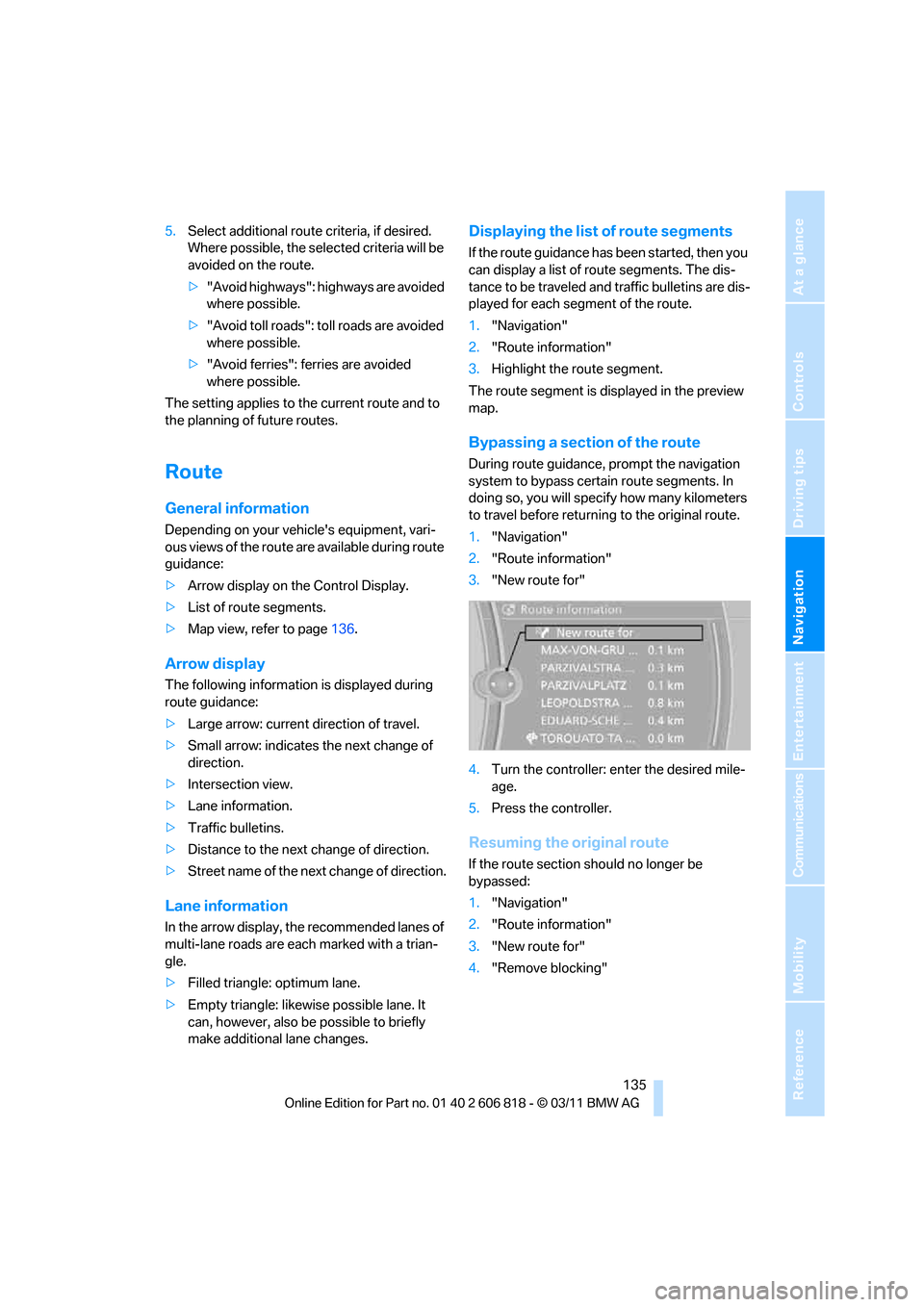
Bypassing a section of the route
During route guidance, prompt the navigation
system to bypass certain route segments. In
doing so, you will specify how many kilometers
to travel before returning to the original route.
1."Navigation"
2."Route information"
3."New route for"
4.Turn the controller: enter the desired mile-
age.
5.Press the controller.
Resuming the original route
If the route section should no longer be
bypassed:
1."Navigation"
2."Route information"
3."New route for"
4."Remove blocking"
Page 138 of 272
Destination guidance
136
Gas station recommendations
The remaining range is calculated and filling
stations along the route are displayed.
1."Navigation"
2."Route information"
3."Recommended refuel"
A list of filling stations is displayed.
4.Select a gas station.
5.Select the symbol.
6."Start guidance": route guidance to the
selected filling station is started.
"Add as another destination": the filling sta-
tion is incorporated into the route.
Destination guidance
through voice instructions
Switching voice instructions on/off
Voice instructions can be switched on or off
during destination guidance.
1."Navigation"
2."Map"
3."Voice instructions"
For rapid access, the feature can be stored on a
programmable memory key, refer to page21.
Repeating a voice instruction
1."Navigation"
2."Map"
3.Highlight the symbol.
4.Press the controller twice.
Adjusting volume for voice instructions
The volume can be adjusted only while a voice
instruction is being issued.
1.Have the last voice instruction repeated, if
necessary.
2.Turn the button during the voice instruction
to select the desired volume.The setting is stored for the remote control cur-
rently in use.
Map view
Displaying the map view
1."Navigation"
2."Map"
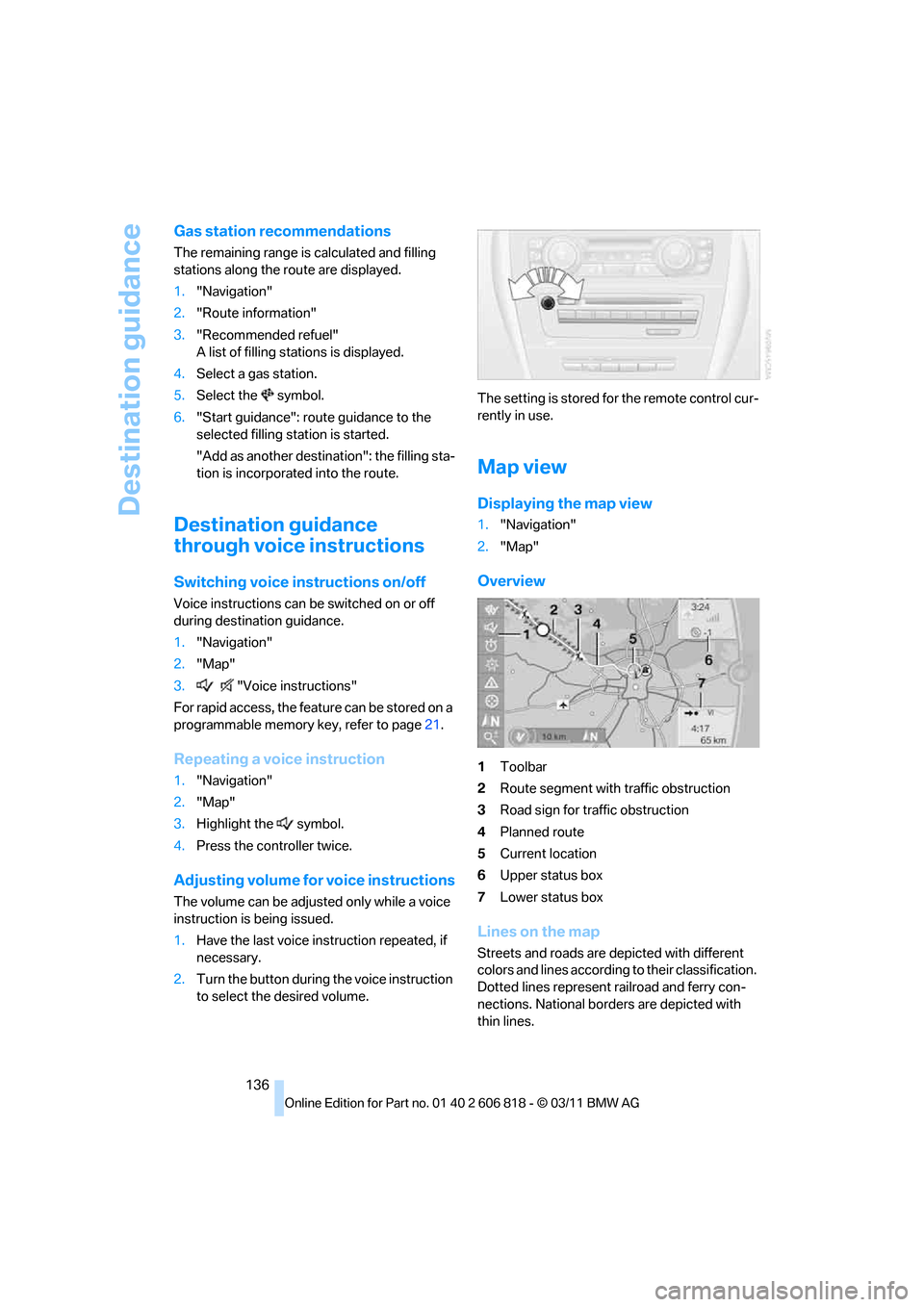
Overview
1Toolbar
2Route segment with traffic obstruction
3Road sign for traffic obstruction
4Planned route
5Current location
6Upper status box
7Lower status box
Lines on the map
Streets and roads are depicted with different
colors and lines according to their classification.
Dotted lines represent railroad and ferry con-
nections. National borders are depicted with
thin lines.
Page 139 of 272
Navigation
Driving tips
137Reference
At a glance
Controls
Communications
Entertainment
Mobility
Traffic obstructions
Small triangles along the planned route identify
route segments with traffic obstructions,
depending on map scale. The direction of the
triangles indicates the direction of the obstruc-
tion.
Road signs classify the obstructions.
>Red road sign: the obstruction relates to the
planned route or direction of travel.
>Gray road sign: the obstruction does not
relate to the planned route or direction of
travel.
Traffic bulletins, refer to page138.
Planned route
After route guidance is started, the planned
route is displayed on the map.
Status boxes
Show/hide: press the controller.
>Upper status box: time, phone details, and
entertainment details.
>Lower status box: symbol for active route
guidance, traffic bulletin status, arrival time,
and distance from destination.
Toolbar
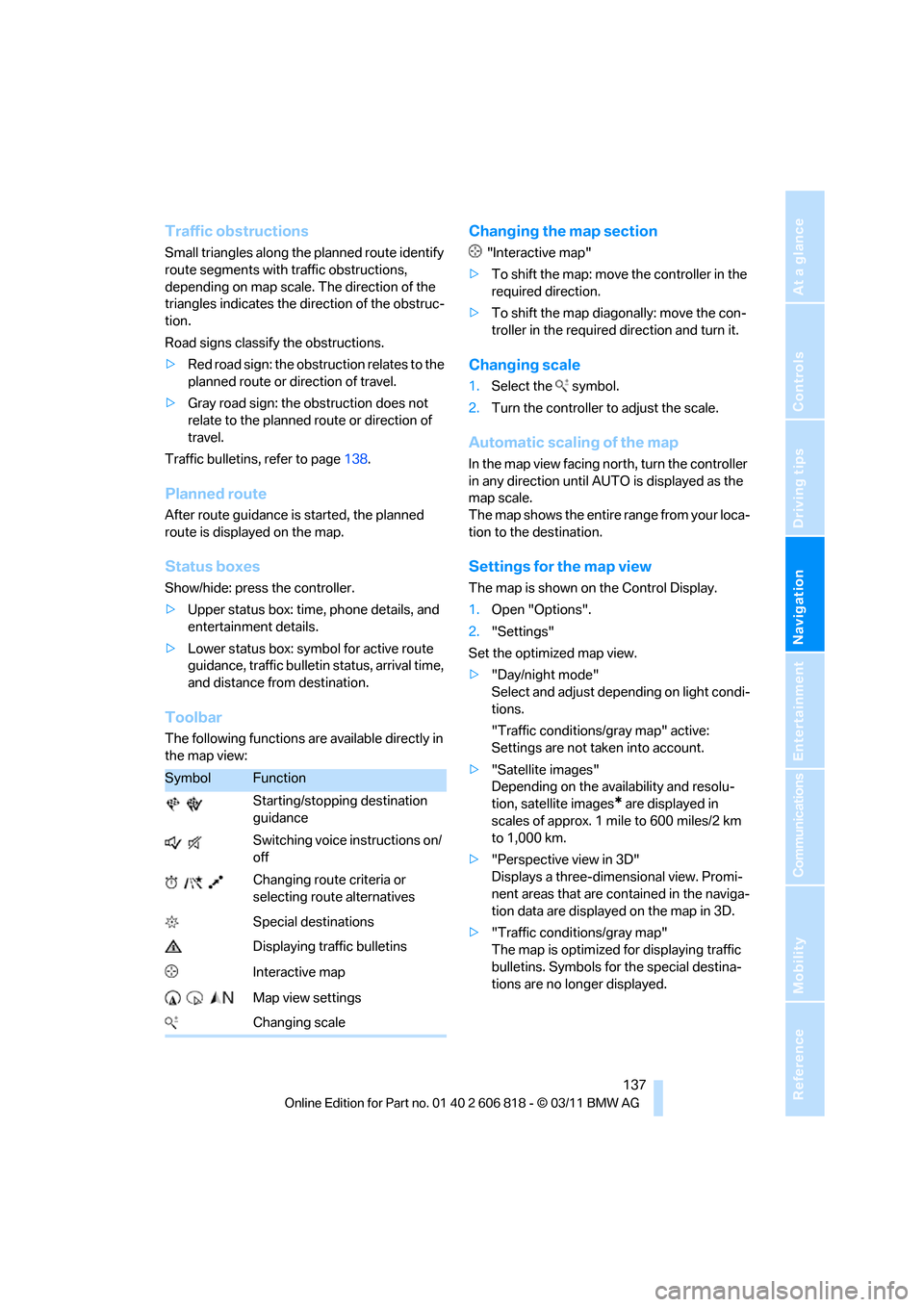
The following functions are available directly in
the map view:
Changing the map section
"Interactive map"
>To shift the map: move the controller in the
required direction.
>To shift the map diagonally: move the con-
troller in the required direction and turn it.
Changing scale
1.Select the symbol.
2.Turn the controller to adjust the scale.
Automatic scaling of the map
In the map view facing north, turn the controller
in any direction until AUTO is displayed as the
map scale.
The map shows the entire range from your loca-
tion to the destination.
Settings for the map view
The map is shown on the Control Display.
1.Open "Options".
2."Settings"
Set the optimized map view.
>"Day/night mode"
Select and adjust depending on light condi-
tions.
"Traffic conditions/gray map" active:
Settings are not taken into account.
>"Satellite images"
Depending on the availability and resolu-
tion, satellite images
* are displayed in
scales of approx. 1 mile to 600 miles/2 km
to 1,000 km.
>"Perspective view in 3D"
Displays a three-dimensional view. Promi-
nent areas that are contained in the naviga-
tion data are displayed on the map in 3D.
>"Traffic conditions/gray map"
The map is optimized for displaying traffic
bulletins. Symbols for the special destina-
tions are no longer displayed.
SymbolFunction
Starting/stopping destination
guidance
Switching voice instructions on/
off
Changing route criteria or
selecting route alternatives
Special destinations
Displaying traffic bulletins
Interactive map
Map view settings
Changing scale
Page 153 of 272
Navigation
Entertainment
Driving tips
151Reference
At a glance
Controls
Communications
Mobility
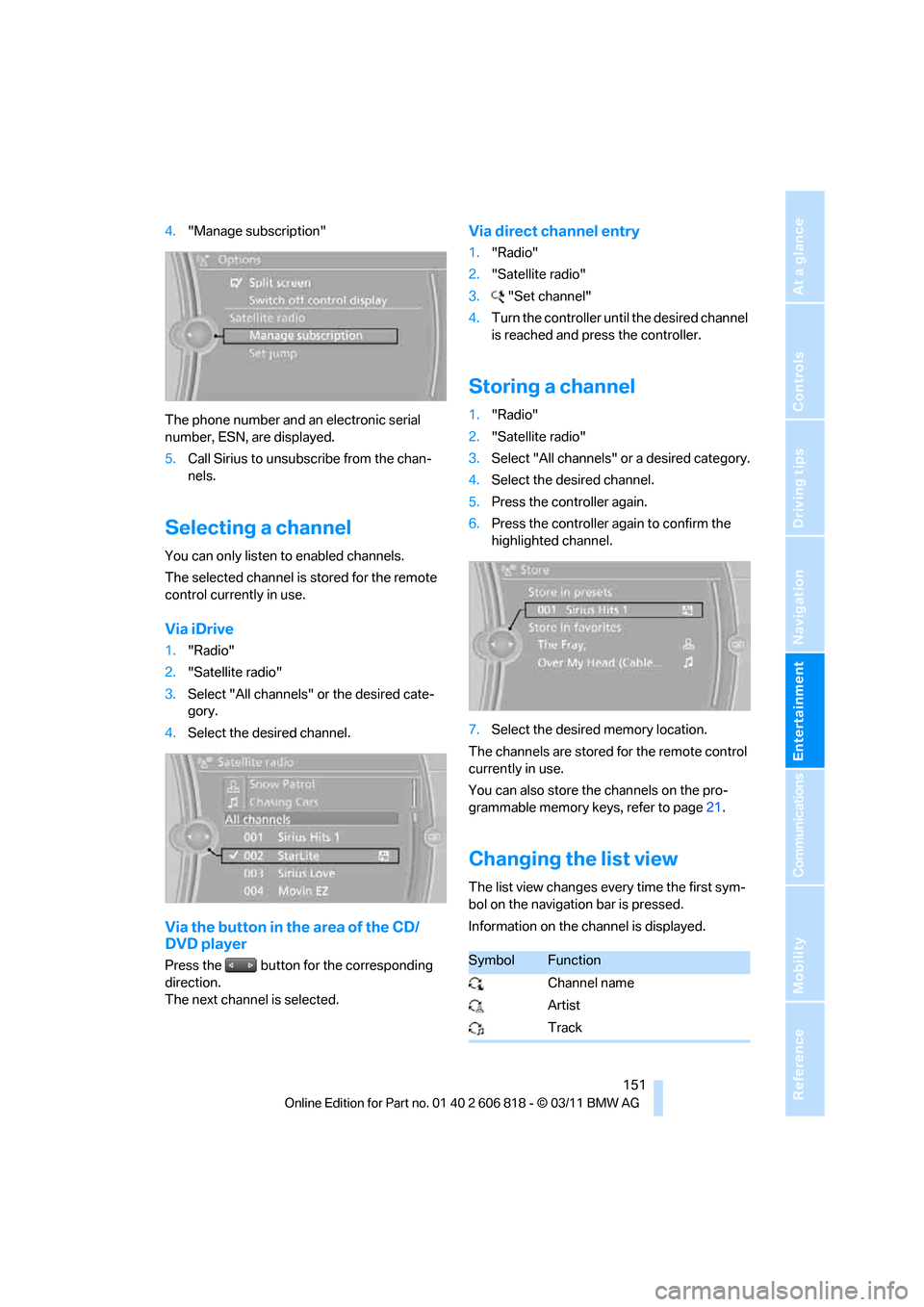
4."Manage subscription"
The phone number and an electronic serial
number, ESN, are displayed.
5.Call Sirius to unsubscribe from the chan-
nels.
Selecting a channel
You can only listen to enabled channels.
The selected channel is stored for the remote
control currently in use.
Via iDrive
1."Radio"
2."Satellite radio"
3.Select "All channels" or the desired cate-
gory.
4.Select the desired channel.
Via the button in the area of the CD/
DVD player
Press the button for the corresponding
direction.
The next channel is selected.
Via direct channel entry
1."Radio"
2."Satellite radio"
3."Set channel"
4.Turn the controller until the desired channel
is reached and press the controller.
Storing a channel
1."Radio"
2."Satellite radio"
3.Select "All channels" or a desired category.
4.Select the desired channel.
5.Press the controller again.
6.Press the controller again to confirm the
highlighted channel.
7.Select the desired memory location.
The channels are stored for the remote control
currently in use.
You can also store the channels on the pro-
grammable memory keys, refer to page21.
Changing the list view
The list view changes every time the first sym-
bol on the navigation bar is pressed.
Information on the channel is displayed.
SymbolFunction
Channel name
Artist
Track
Page 155 of 272
Navigation
Entertainment
Driving tips
153Reference
At a glance
Controls
Communications
Mobility
6.Select the artist, track or game.
Storing the league or team
Leagues or teams can be added to the favorites
from a selection list.
1."Radio"
2."Satellite radio"
3."Manage favorites"
4."Add sports information"
5.Select the desired league.
6.Select "Add all teams" or a desired team.
Opening the favorites
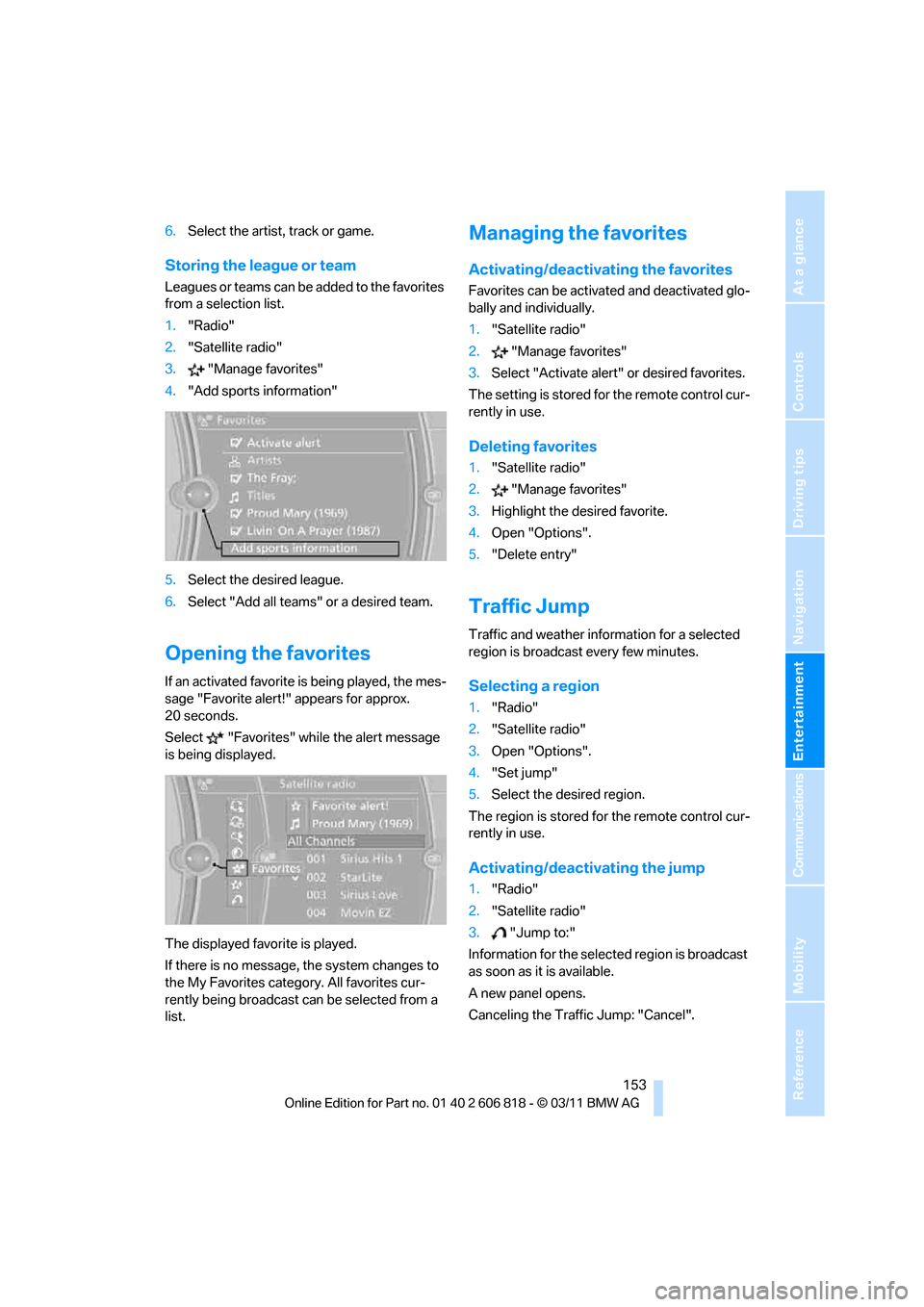
If an activated favorite is being played, the mes-
sage "Favorite alert!" appears for approx.
20 seconds.
Select "Favorites" while the alert message
is being displayed.
The displayed favorite is played.
If there is no message, the system changes to
the My Favorites category. All favorites cur-
rently being broadcast can be selected from a
list.
Managing the favorites
Activating/deactivating the favorites
Favorites can be activated and deactivated glo-
bally and individually.
1."Satellite radio"
2."Manage favorites"
3.Select "Activate alert" or desired favorites.
The setting is stored for the remote control cur-
rently in use.
Deleting favorites
1."Satellite radio"
2."Manage favorites"
3.Highlight the desired favorite.
4.Open "Options".
5."Delete entry"
Traffic Jump
Traffic and weather information for a selected
region is broadcast every few minutes.
Selecting a region
1."Radio"
2."Satellite radio"
3.Open "Options".
4."Set jump"
5.Select the desired region.
The region is stored for the remote control cur-
rently in use.
Activating/deactivating the jump
1."Radio"
2."Satellite radio"
3."Jump to:"
Information for the selected region is broadcast
as soon as it is available.
A new panel opens.
Canceling the Traffic Jump: "Cancel".