audio BMW 135I CONVERTIBLE 2008 E88 Owner's Guide
[x] Cancel search | Manufacturer: BMW, Model Year: 2008, Model line: 135I CONVERTIBLE, Model: BMW 135I CONVERTIBLE 2008 E88Pages: 264, PDF Size: 8.68 MB
Page 168 of 264
CD player and CD changer
166
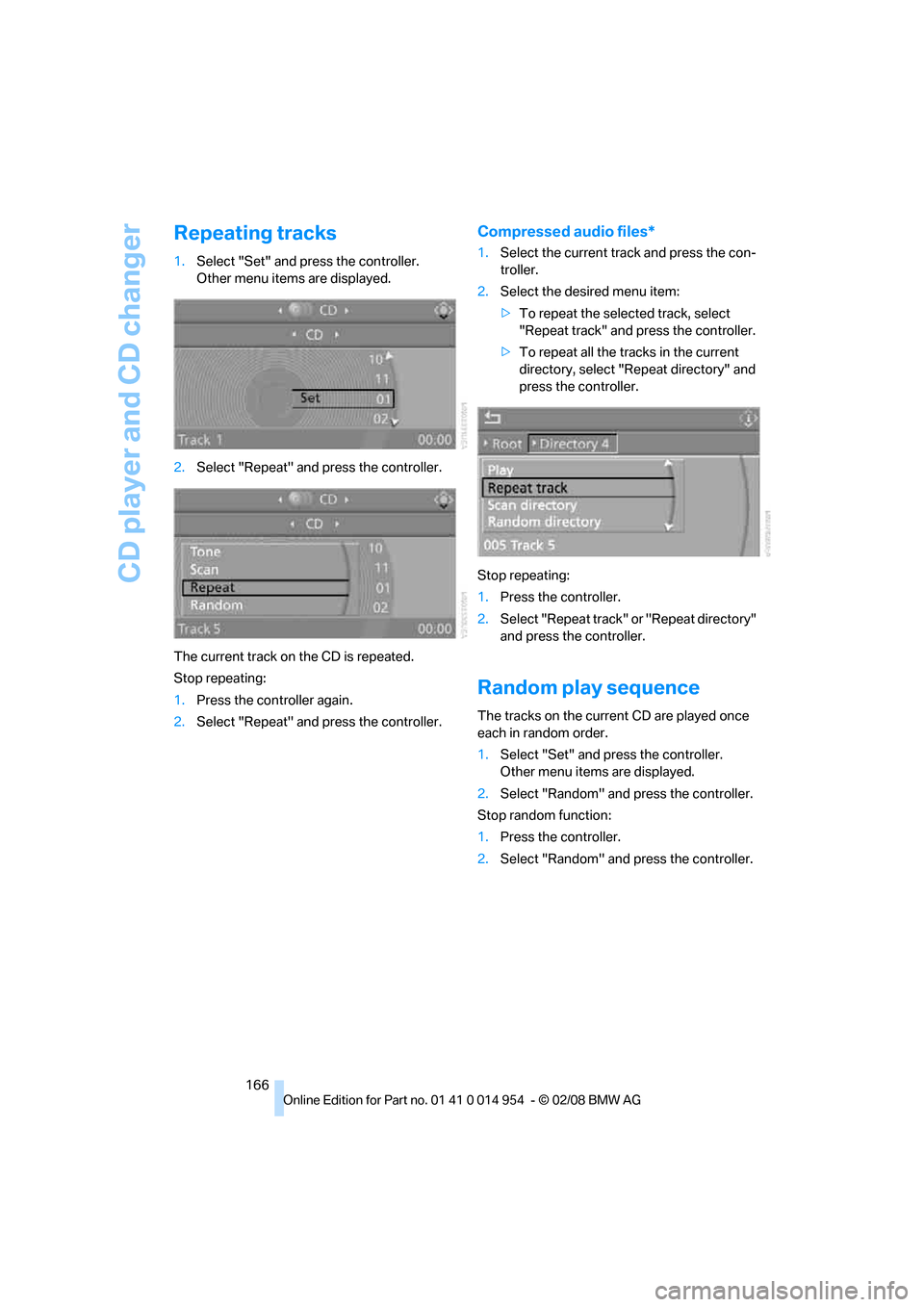
Repeating tracks
1.Select "Set" and press the controller.
Other menu items are displayed.
2.Select "Repeat" and press the controller.
The current track on the CD is repeated.
Stop repeating:
1.Press the controller again.
2.Select "Repeat" and press the controller.
Compressed audio files*
1.Select the current track and press the con-
troller.
2.Select the desired menu item:
>To repeat the selected track, select
"Repeat track" and press the controller.
>To repeat all the tracks in the current
directory, select "Repeat directory" and
press the controller.
Stop repeating:
1.Press the controller.
2.Select "Repeat track" or "Repeat directory"
and press the controller.
Random play sequence
The tracks on the current CD are played once
each in random order.
1.Select "Set" and press the controller.
Other menu items are displayed.
2.Select "Random" and press the controller.
Stop random function:
1.Press the controller.
2.Select "Random" and press the controller.
Page 169 of 264
Navigation
Entertainment
Driving tips
167Reference
At a glance
Controls
Communications
Mobility
Compressed audio files*
1.Select the current track and press the con-
troller.
2.Select the desired menu item:
>To play all the tracks in the current direc-
tory in random order, select "Random
directory" and press the controller.
>To play all the tracks on the CD in ran-
dom order, select "Random all" and
press the controller.
Stop random function:
1.Press the controller.
2.Select "Random directory" or "Random all"
and press the controller.
Fast forward/reverse
Buttons on the CD player:
Press and hold the button for the
corresponding direction.
The tracks can be heard, but reproduction is
distorted.
CD magazine
The BMW CD changer for six CDs is behind the
left side panel in the cargo bay.
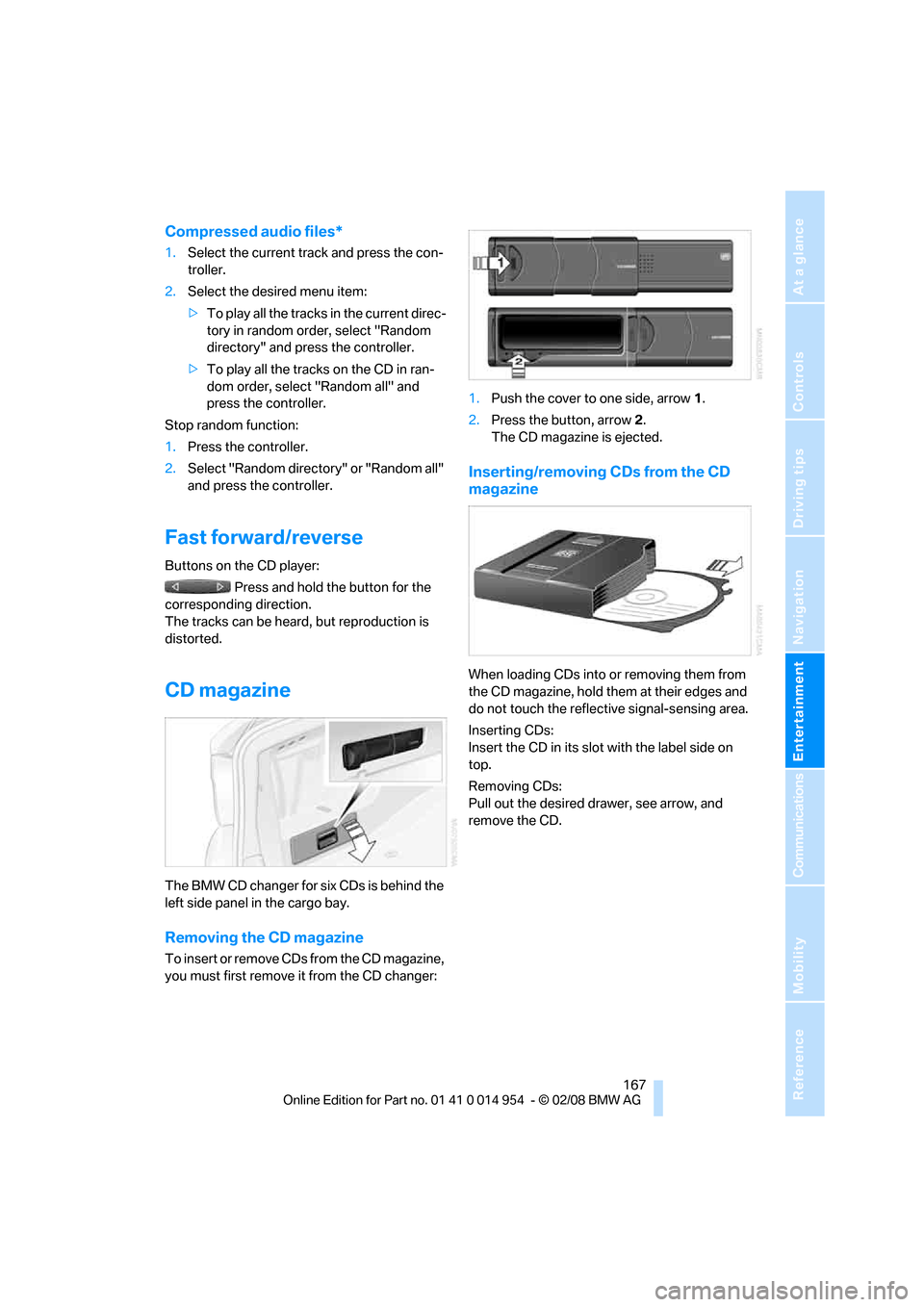
Removing the CD magazine
T o i n s e r t o r r e m o v e C D s f r o m t h e C D m a g a z i n e ,
you must first remove it from the CD changer:1.Push the cover to one side, arrow 1.
2.Press the button, arrow 2.
The CD magazine is ejected.
Inserting/removing CDs from the CD
magazine
When loading CDs into or removing them from
the CD magazine, hold them at their edges and
do not touch the reflective signal-sensing area.
Inserting CDs:
Insert the CD in its slot with the label side on
top.
Removing CDs:
Pull out the desired drawer, see arrow, and
remove the CD.
Page 171 of 264
Navigation
Entertainment
Driving tips
169Reference
At a glance
Controls
Communications
Mobility
AUX-In port
You can connect an external audio device, for
instance an MP3 player, and play audio tracks
over the car's loudspeaker system. You can
adjust the tone using iDrive.
Connecting
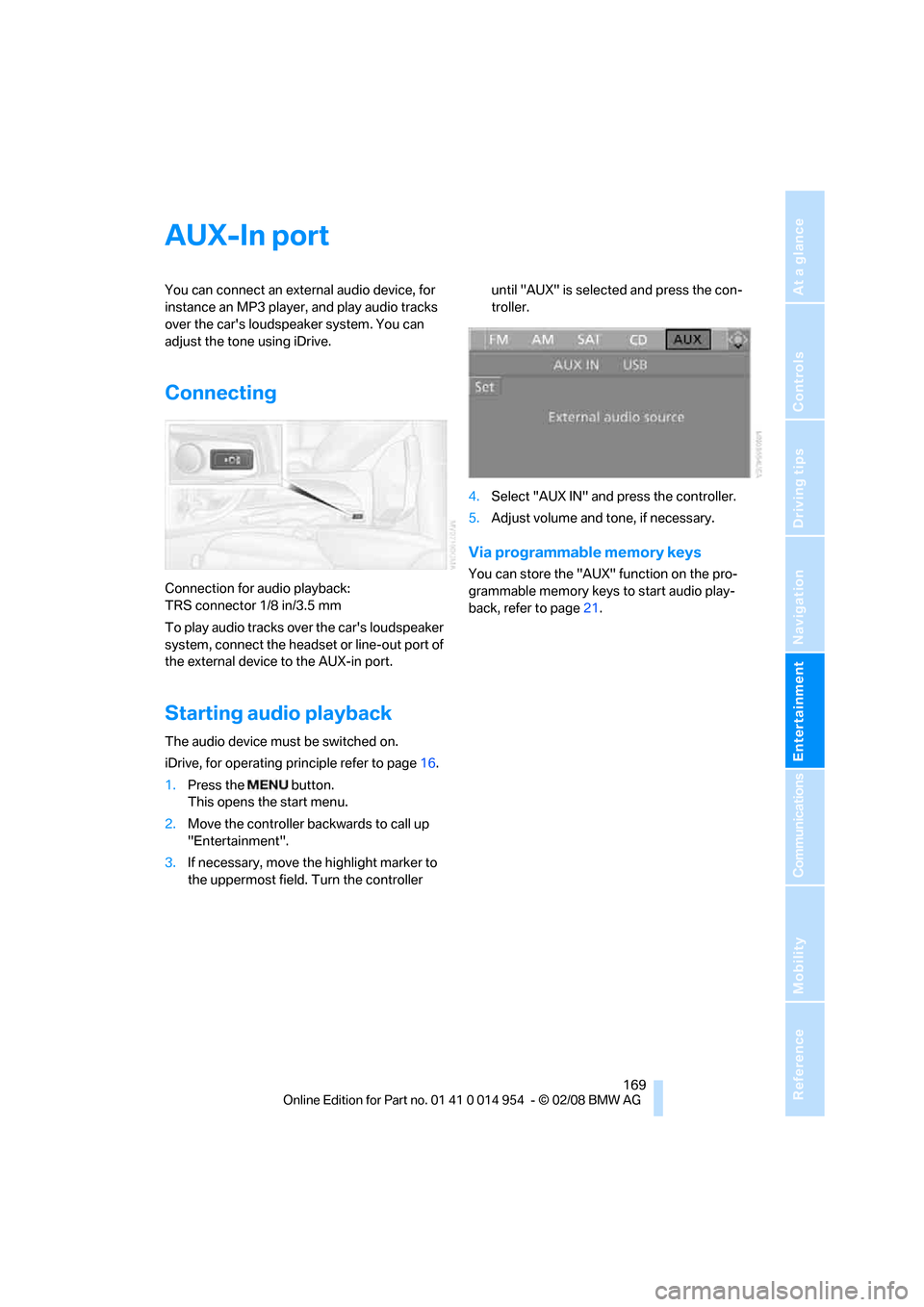
Connection for audio playback:
TRS connector 1/8 in/3.5 mm
To play audio tracks over the car's loudspeaker
system, connect the headset or line-out port of
the external device to the AUX-in port.
Starting audio playback
The audio device must be switched on.
iDrive, for operating principle refer to page16.
1.Press the button.
This opens the start menu.
2.Move the controller backwards to call up
"Entertainment".
3.If necessary, move the highlight marker to
the uppermost field. Turn the controller until "AUX" is selected and press the con-
troller.
4.Select "AUX IN" and press the controller.
5.Adjust volume and tone, if necessary.
Via programmable memory keys
You can store the "AUX" function on the pro-
grammable memory keys to start audio play-
back, refer to page21.
Page 172 of 264
USB-audio interface
170
USB-audio interface
You can connect audio devices, e. g. an iPod or
a USB device (MP3 player, USB stick), to the
USB-audio interface. They can be operated via
iDrive.
Standard audio formats, e.g. MP3, WMA, WAV
(PCM) and AAC, and playlists in the M3U format
can be played.
Due the variety of audio devices on the market,
it cannot be guaranteed that every device will
be operable on the vehicle.
Ask your BMW center about what audio devices
are suitable.
Connecting
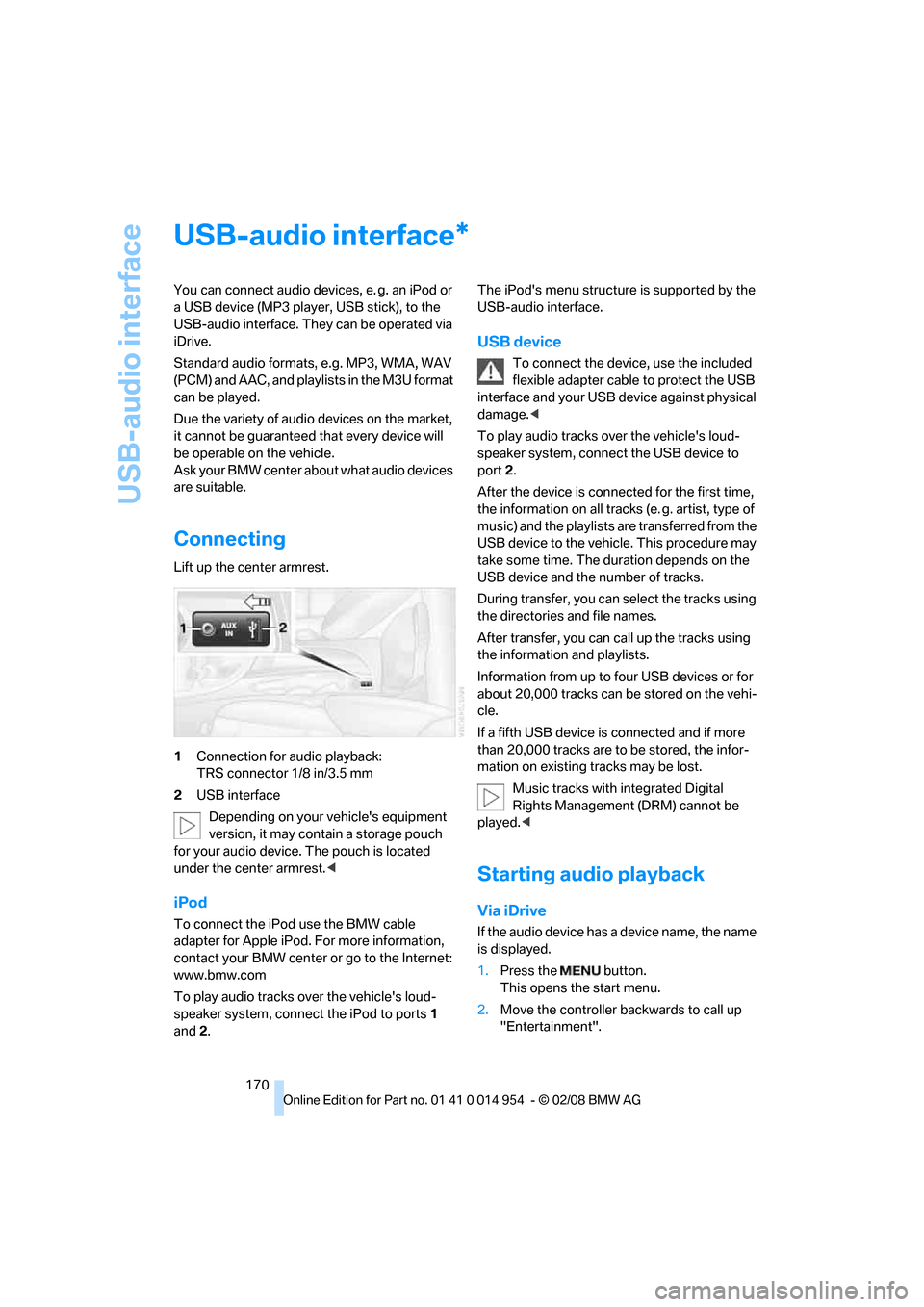
Lift up the center armrest.
1Connection for audio playback:
TRS connector 1/8 in/3.5 mm
2USB interface
Depending on your vehicle's equipment
version, it may contain a storage pouch
for your audio device. The pouch is located
under the center armrest.<
iPod
To connect the iPod use the BMW cable
adapter for Apple iPod. For more information,
contact your BMW center or go to the Internet:
www.bmw.com
To play audio tracks over the vehicle's loud-
speaker system, connect the iPod to ports 1
and 2.The iPod's menu structure is supported by the
USB-audio interface.
USB device
To connect the device, use the included
flexible adapter cable to protect the USB
interface and your USB device against physical
damage.<
To play audio tracks over the vehicle's loud-
speaker system, connect the USB device to
port2.
After the device is connected for the first time,
the information on all tracks (e. g. artist, type of
music) and the playlists are transferred from the
USB device to the vehicle. This procedure may
take some time. The duration depends on the
USB device and the number of tracks.
During transfer, you can select the tracks using
the directories and file names.
After transfer, you can call up the tracks using
the information and playlists.
Information from up to four USB devices or for
about 20,000 tracks can be stored on the vehi-
cle.
If a fifth USB device is connected and if more
than 20,000 tracks are to be stored, the infor-
mation on existing tracks may be lost.
Music tracks with integrated Digital
Rights Management (DRM) cannot be
played.<
Starting audio playback
Via iDrive
If the audio device has a device name, the name
is displayed.
1.Press the button.
This opens the start menu.
2.Move the controller backwards to call up
"Entertainment".
*
Page 173 of 264
Navigation
Entertainment
Driving tips
171Reference
At a glance
Controls
Communications
Mobility
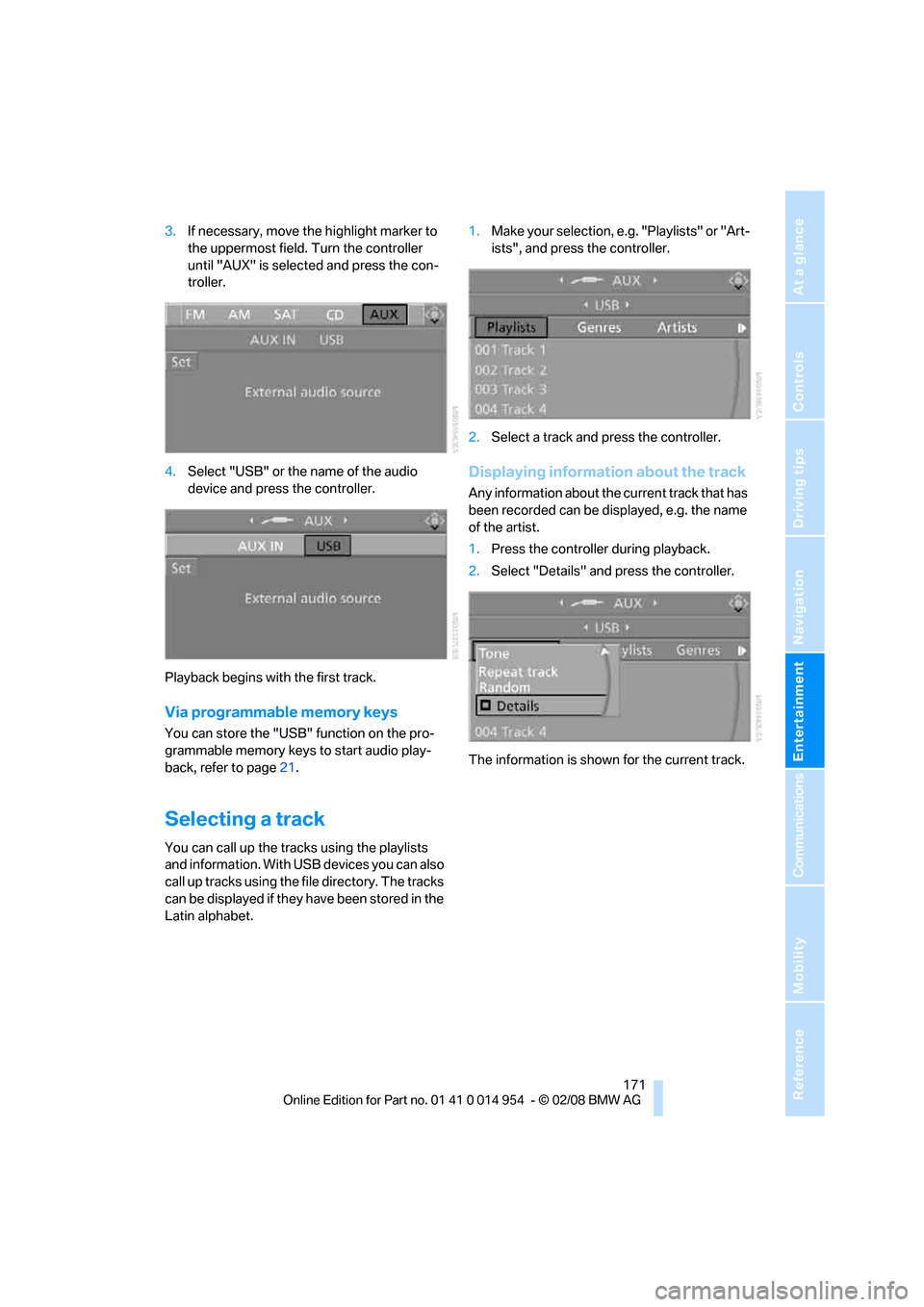
3.If necessary, move the highlight marker to
the uppermost field. Turn the controller
until "AUX" is selected and press the con-
troller.
4.Select "USB" or the name of the audio
device and press the controller.
Playback begins with the first track.
Via programmable memory keys
You can store the "USB" function on the pro-
grammable memory keys to start audio play-
back, refer to page21.
Selecting a track
You can call up the tracks using the playlists
and information. With USB devices you can also
call up tracks using the file directory. The tracks
can be displayed if they have been stored in the
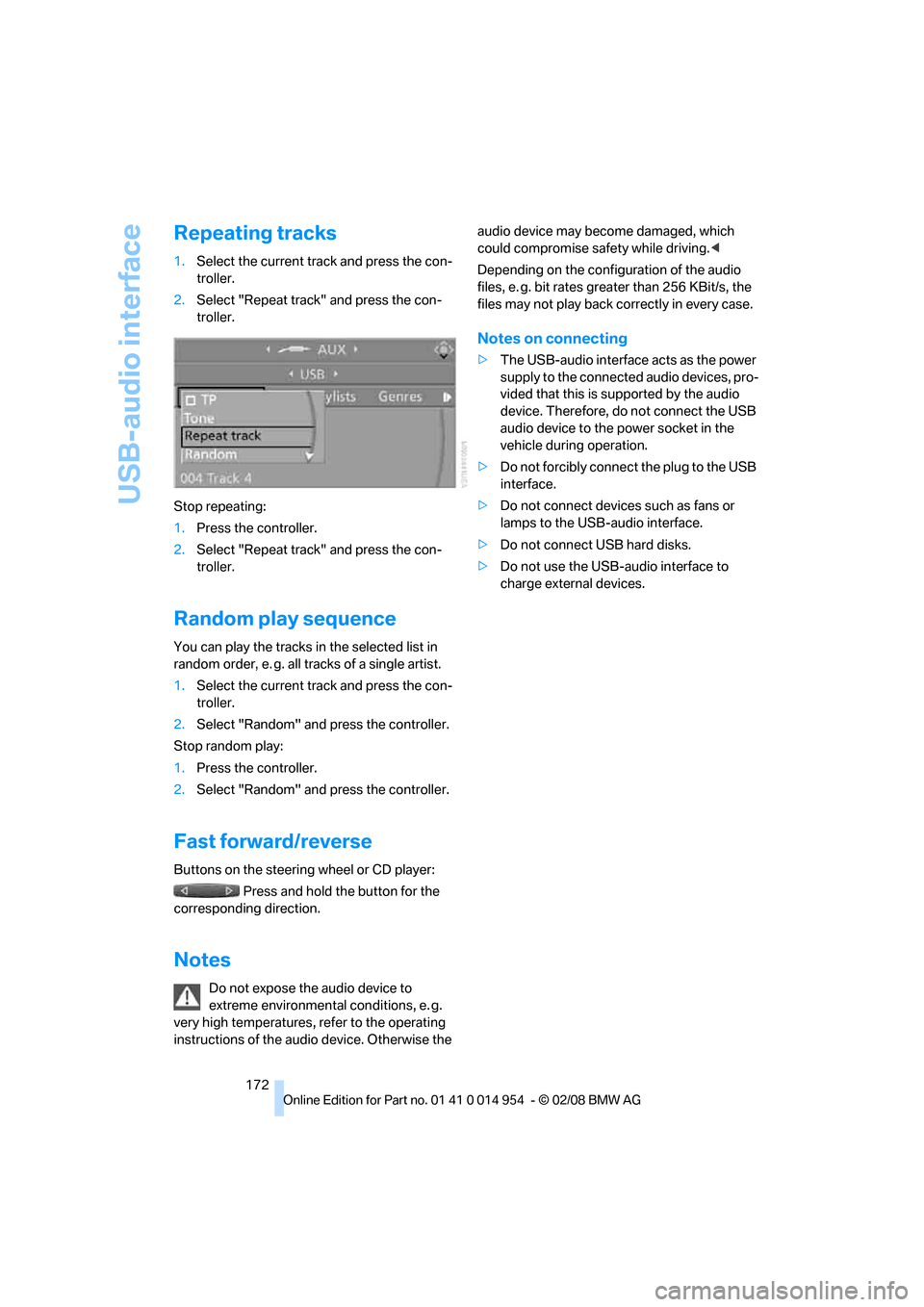
Latin alphabet.1.Make your selection, e.g. "Playlists" or "Art-
ists", and press the controller.
2.Select a track and press the controller.
Displaying information about the track
Any information about the current track that has
been recorded can be displayed, e.g. the name
of the artist.
1.Press the controller during playback.
2.Select "Details" and press the controller.
The information is shown for the current track.
Page 174 of 264
USB-audio interface
172
Repeating tracks
1.Select the current track and press the con-
troller.
2.Select "Repeat track" and press the con-
troller.
Stop repeating:
1.Press the controller.
2.Select "Repeat track" and press the con-
troller.
Random play sequence
You can play the tracks in the selected list in
random order, e. g. all tracks of a single artist.
1.Select the current track and press the con-
troller.
2.Select "Random" and press the controller.
Stop random play:
1.Press the controller.
2.Select "Random" and press the controller.
Fast forward/reverse
Buttons on the steering wheel or CD player:
Press and hold the button for the
corresponding direction.
Notes
Do not expose the audio device to
extreme environmental conditions, e. g.
very high temperatures, refer to the operating
instructions of the audio device. Otherwise the audio device may become damaged, which
could compromise safety while driving.<
Depending on the configuration of the audio
files, e. g. bit rates greater than 256 KBit/s, the
files may not play back correctly in every case.
Notes on connecting
>The USB-audio interface acts as the power
supply to the connected audio devices, pro-
vided that this is supported by the audio
device. Therefore, do not connect the USB
audio device to the power socket in the
vehicle during operation.
>Do not forcibly connect the plug to the USB
interface.
>Do not connect devices such as fans or
lamps to the USB-audio interface.
>Do not connect USB hard disks.
>Do not use the USB-audio interface to
charge external devices.
Page 189 of 264
Telephoning
188
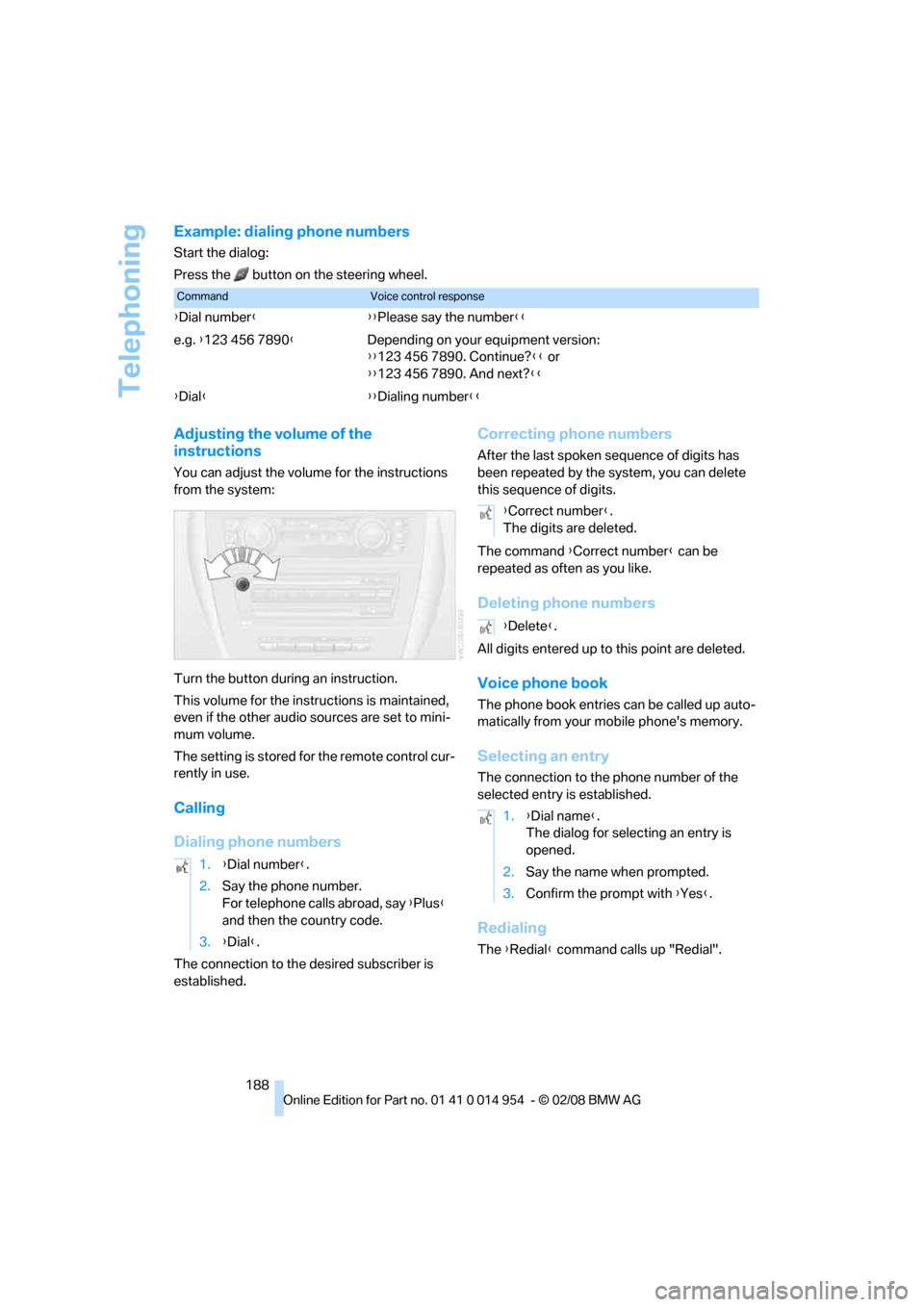
Example: dialing phone numbers
Start the dialog:
Press the button on the steering wheel.
Adjusting the volume of the
instructions
You can adjust the volume for the instructions
from the system:
Turn the button during an instruction.
This volume for the instructions is maintained,
even if the other audio sources are set to mini-
mum volume.
The setting is stored for the remote control cur-
rently in use.
Calling
Dialing phone numbers
The connection to the desired subscriber is
established.
Correcting phone numbers
After the last spoken sequence of digits has
been repeated by the system, you can delete
this sequence of digits.
The command {Correct number} can be
repeated as often as you like.
Deleting phone numbers
All digits entered up to this point are deleted.
Voice phone book
The phone book entries can be called up auto-
matically from your mobile phone's memory.
Selecting an entry
The connection to the phone number of the
selected entry is established.
Redialing
The {Redial} command calls up "Redial".
CommandVoice control response
{Dial number}{{Please say the number}}
e.g. {123 456 7890}Depending on your equipment version:
{{123 456 7890. Continue?}} or
{{123 456 7890. And next?}}
{Dial}{{Dialing number}}
1.{Dial number}.
2.Say the phone number.
For telephone calls abroad, say {Plus}
and then the country code.
3.{Dial}.
{Correct number}.
The digits are deleted.
{Delete}.
1.{Dial name}.
The dialog for selecting an entry is
opened.
2.Say the name when prompted.
3.Confirm the prompt with {Yes}.
Page 201 of 264
181
Entertainment
Reference
At a glance
Controls
Driving tips Communications
Navigation
Mobility
Activating/deactivating the Bluetooth
link
The use of Bluetooth technology is not
permitted in all countries. Observe all
applicable local regulations. Temporarily deac-
tivate the Bluetooth link between the vehicle
and the mobile phone, if necessary.
If the Bluetooth link is deactivated, you can no
longer operate the mobile phone via the vehicle,
and other devices with a Bluetooth interface
can be used in combination with the mobile
phone, e.g. a laptop.<
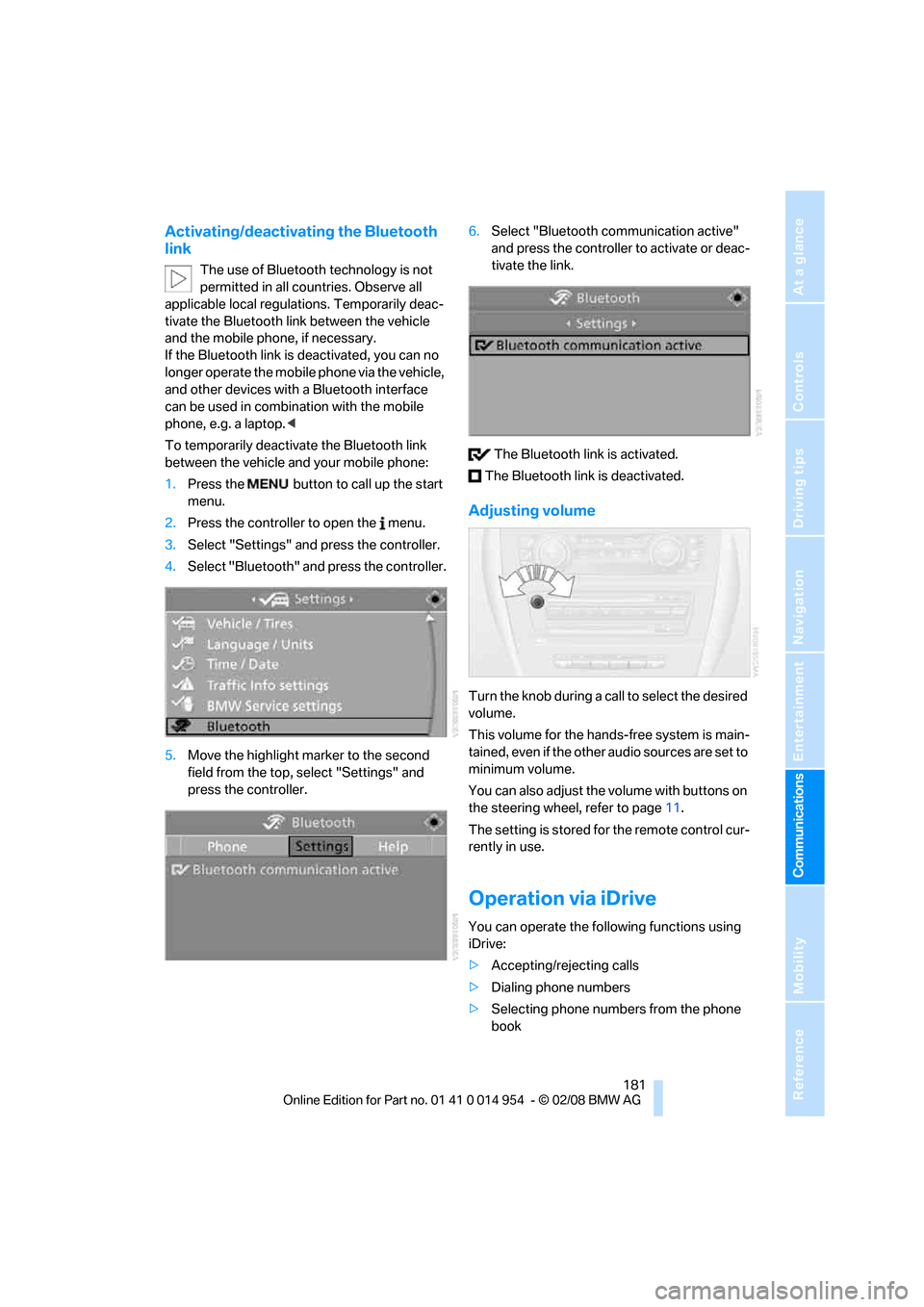
To temporarily deactivate the Bluetooth link
between the vehicle and your mobile phone:
1.Press the button to call up the start
menu.
2.Press the controller to open the menu.
3.Select "Settings" and press the controller.
4.Select "Bluetooth" and press the controller.
5.Move the highlight marker to the second
field from the top, select "Settings" and
press the controller.6.Select "Bluetooth communication active"
and press the controller to activate or deac-
tivate the link.
The Bluetooth link is activated.
The Bluetooth link is deactivated.
Adjusting volume
Turn the knob during a call to select the desired
volume.
This volume for the hands-free system is main-
tained, even if the other audio sources are set to
minimum volume.
You can also adjust the volume with buttons on
the steering wheel, refer to page11.
The setting is stored for the remote control cur-
rently in use.
Operation via iDrive
You can operate the following functions using
iDrive:
>Accepting/rejecting calls
>Dialing phone numbers
>Selecting phone numbers from the phone
book
Page 243 of 264
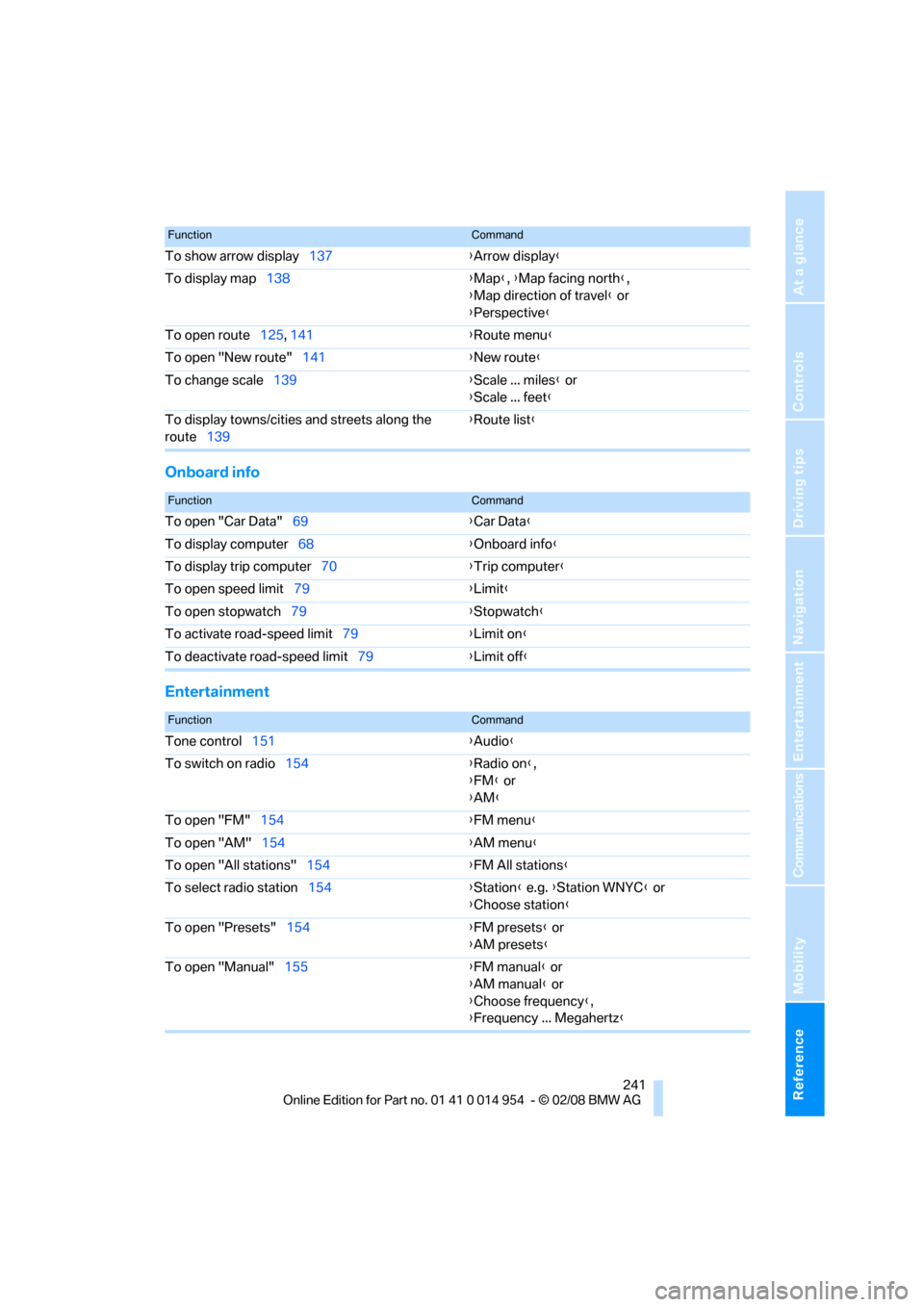
Reference 241
At a glance
Controls
Driving tips
Communications
Navigation
Entertainment
Mobility
Onboard info
Entertainment
To show arrow display137{Arrow display}
To display map138{Map}, {Map facing north},
{Map direction of travel} or
{Perspective}
To open route125, 141 {Route menu}
To open "New route"141{New route}
To change scale139{Scale ... miles} or
{Scale ... feet}
To display towns/cities and streets along the
route139{Route list}
FunctionCommand
FunctionCommand
To open "Car Data"69{Car Data}
To display computer68{Onboard info}
To display trip computer70{Trip computer}
To open speed limit79{Limit}
To open stopwatch79{Stopwatch}
To activate road-speed limit79{Limit on}
To deactivate road-speed limit79{Limit off}
FunctionCommand
Tone control151{Audio}
To switch on radio154{Radio on},
{FM} or
{AM}
To open "FM"154{FM menu}
To open "AM"154{AM menu}
To open "All stations"154{FM All stations}
To select radio station154{Station} e.g. {Station WNYC} or
{Choose station}
To open "Presets"154{FM presets} or
{AM presets}
To open "Manual"155{FM manual} or
{AM manual} or
{Choose frequency},
{Frequency ... Megahertz}
Page 244 of 264
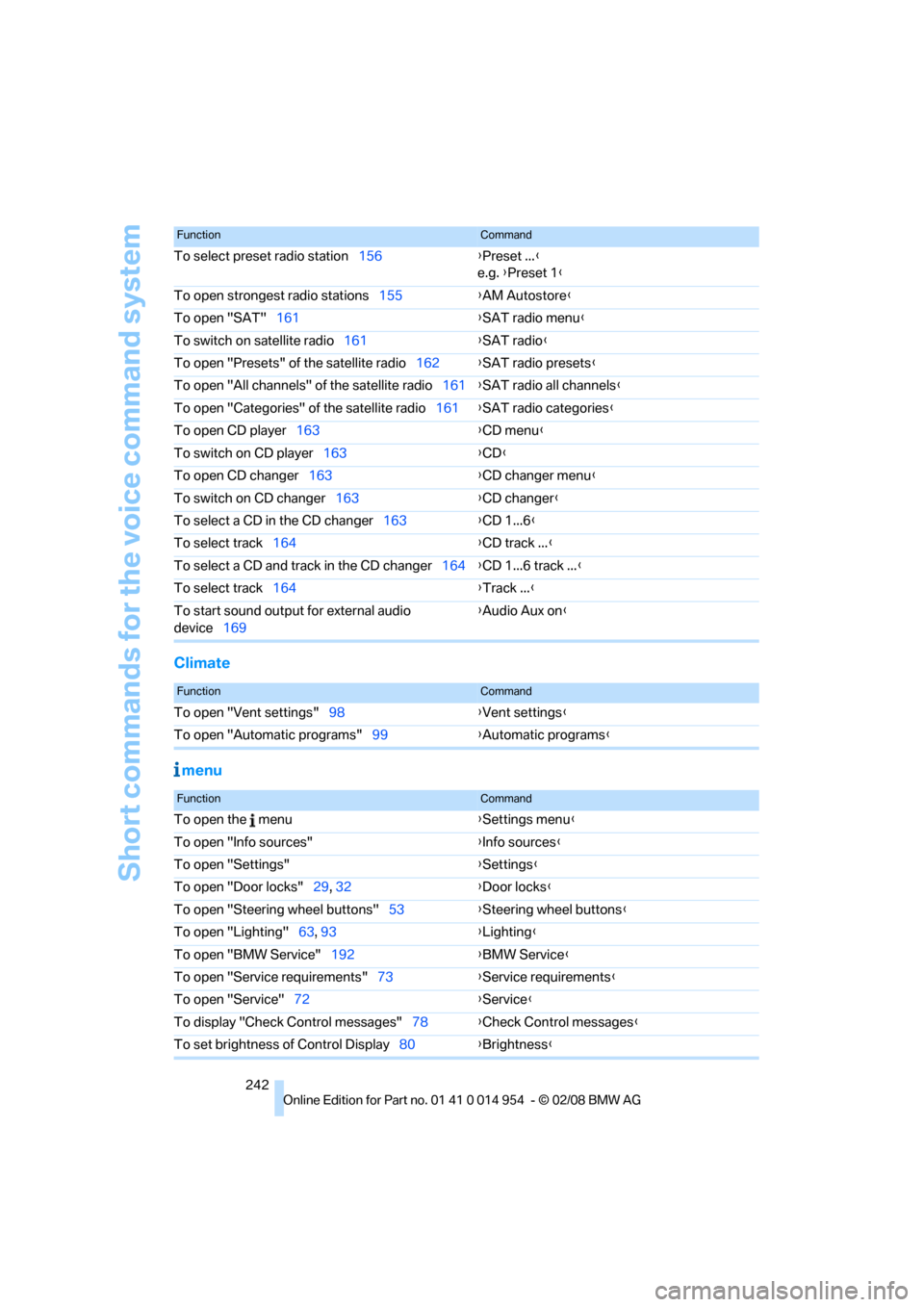
Short commands for the voice command system
242
Climate
menu
To select preset radio station156{Preset ...}
e.g. {Preset 1}
To open strongest radio stations155{AM Autostore}
To open "SAT"161{SAT radio menu}
To switch on satellite radio161{SAT radio}
To open "Presets" of the satellite radio162{SAT radio presets}
To open "All channels" of the satellite radio161{SAT radio all channels}
To open "Categories" of the satellite radio161{SAT radio categories}
To open CD player163{CD menu}
To switch on CD player163{CD}
To open CD changer163{CD changer menu}
To switch on CD changer163{CD changer}
To select a CD in the CD changer163{CD 1...6}
To select track164{CD track ...}
To select a CD and track in the CD changer164{CD 1...6 track ...}
To select track164{Track ...}
To start sound output for external audio
device169{Audio Aux on}
FunctionCommand
FunctionCommand
To open "Vent settings"98{Vent settings}
To open "Automatic programs"99{Automatic programs}
FunctionCommand
To open the menu{Settings menu}
To open "Info sources"{Info sources}
To open "Settings"{Settings}
To open "Door locks"29, 32{Door locks}
To open "Steering wheel buttons"53{Steering wheel buttons}
To open "Lighting"63, 93{Lighting}
To open "BMW Service"192{BMW Service}
To open "Service requirements"73{Service requirements}
To open "Service"72{Service}
To display "Check Control messages"78{Check Control messages}
To set brightness of Control Display80{Brightness}