key BMW 135I CONVERTIBLE 2008 E88 Owner's Guide
[x] Cancel search | Manufacturer: BMW, Model Year: 2008, Model line: 135I CONVERTIBLE, Model: BMW 135I CONVERTIBLE 2008 E88Pages: 264, PDF Size: 8.68 MB
Page 171 of 264
Navigation
Entertainment
Driving tips
169Reference
At a glance
Controls
Communications
Mobility
AUX-In port
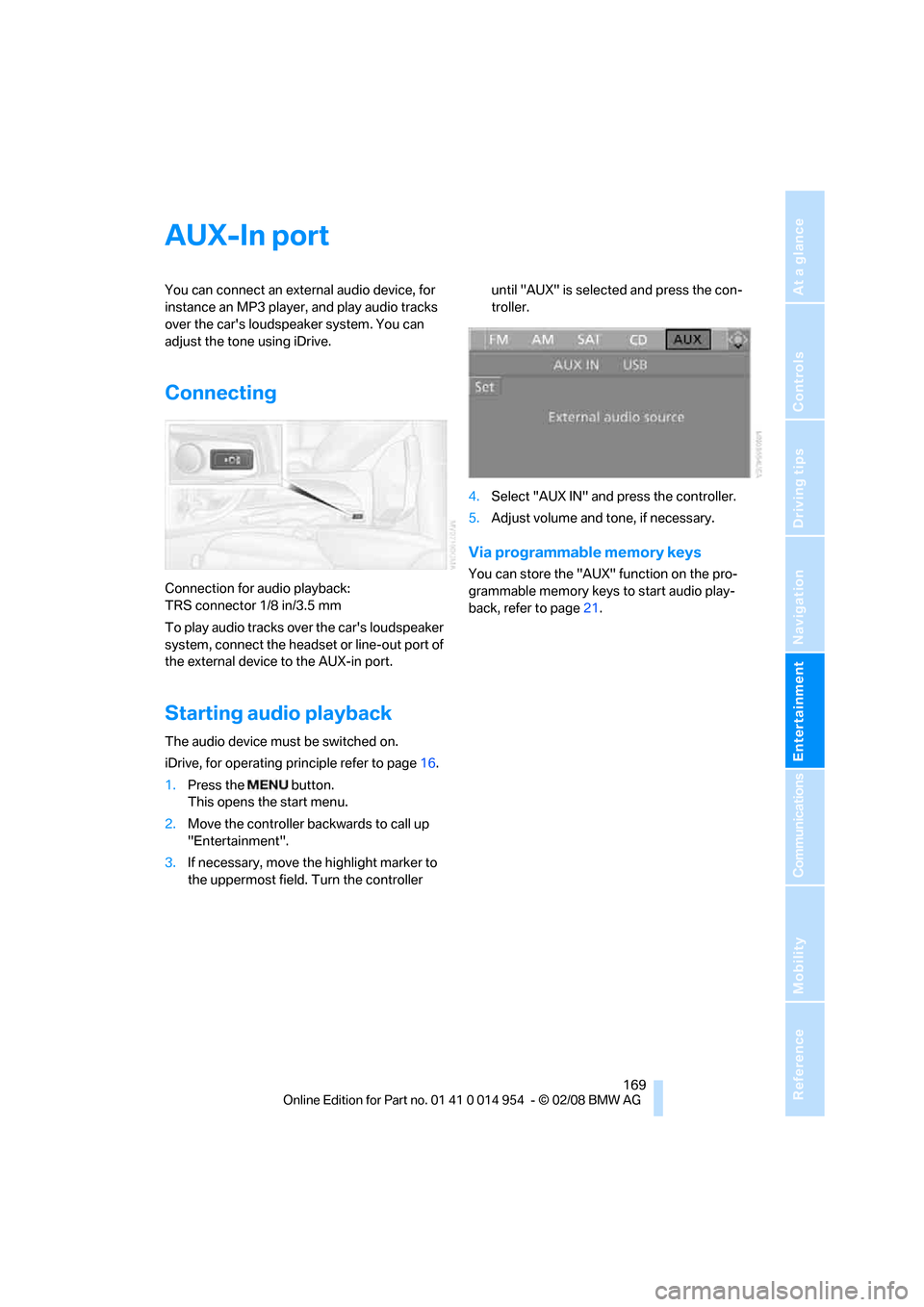
You can connect an external audio device, for
instance an MP3 player, and play audio tracks
over the car's loudspeaker system. You can
adjust the tone using iDrive.
Connecting
Connection for audio playback:
TRS connector 1/8 in/3.5 mm
To play audio tracks over the car's loudspeaker
system, connect the headset or line-out port of
the external device to the AUX-in port.
Starting audio playback
The audio device must be switched on.
iDrive, for operating principle refer to page16.
1.Press the button.
This opens the start menu.
2.Move the controller backwards to call up
"Entertainment".
3.If necessary, move the highlight marker to
the uppermost field. Turn the controller until "AUX" is selected and press the con-
troller.
4.Select "AUX IN" and press the controller.
5.Adjust volume and tone, if necessary.
Via programmable memory keys
You can store the "AUX" function on the pro-
grammable memory keys to start audio play-
back, refer to page21.
Page 173 of 264
Navigation
Entertainment
Driving tips
171Reference
At a glance
Controls
Communications
Mobility
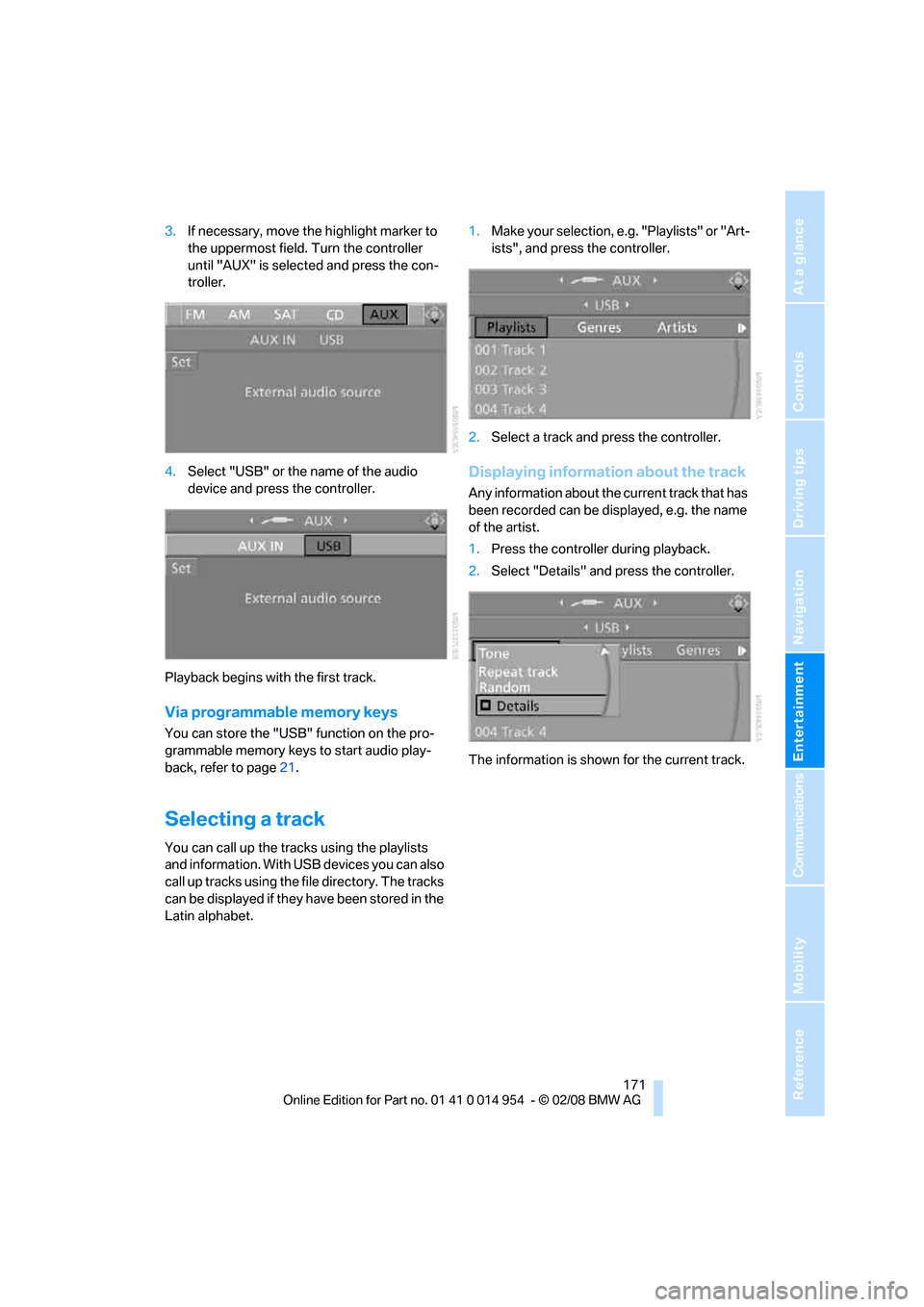
3.If necessary, move the highlight marker to
the uppermost field. Turn the controller
until "AUX" is selected and press the con-
troller.
4.Select "USB" or the name of the audio
device and press the controller.
Playback begins with the first track.
Via programmable memory keys
You can store the "USB" function on the pro-
grammable memory keys to start audio play-
back, refer to page21.
Selecting a track
You can call up the tracks using the playlists
and information. With USB devices you can also
call up tracks using the file directory. The tracks
can be displayed if they have been stored in the
Latin alphabet.1.Make your selection, e.g. "Playlists" or "Art-
ists", and press the controller.
2.Select a track and press the controller.
Displaying information about the track
Any information about the current track that has
been recorded can be displayed, e.g. the name
of the artist.
1.Press the controller during playback.
2.Select "Details" and press the controller.
The information is shown for the current track.
Page 178 of 264
Telephoning
176
Telephoning
The concept
Your BMW is equipped with a full mobile phone
preparation package. After pairing a suitable
mobile phone with the vehicle once, you can
operate the mobile phone via iDrive, the buttons
on the steering wheel or via voice commands.
Once a mobile phone has been paired with your
vehicle, it is automatically recognized as soon
as it is inside the vehicle while the engine is run-
ning or the ignition is switched on. You can
store the pairing data for up to four mobile
phones simultaneously. If several mobile
phones are detected at the same time, the
mobile phone last paired can be operated via
the vehicle.
Using the telephone inside
the vehicle
Using the snap-in adapter*
The so-called snap-in adapter, a holder for
mobile phones, allows you to charge the mobile
phone's battery and connect the mobile phone
to your vehicle's outside antenna. This ensures
better network reception and consistent repro-
duction quality. Please contact your
BMW center to find out for which mobile
phones there are snap-in adapters available.
For your safety
A car phone makes life more convenient in
many ways, and can even save lives in an emer-
gency. While you should consult your mobile
phone's separate Owner's Manual for a detailed
description of safety precautions and informa-
tion, we request that you direct your particular
attention to the following:
Only make entries when the traffic situa-
tion allows you to do so. Do not hold the
mobile phone in your hand while you are driving;
use the hands-free system instead. If you do
not observe this precaution, your being dis-tracted can endanger vehicle occupants and
other road users.<
Suitable mobile phones
Please ask your BMW center which mobile
phones with Bluetooth interface are supported
by the mobile phone preparation package and
which mobile phones are compatible with the
snap-in adapter. By virtue of their particular
software versions, these mobile phones sup-
port the functions described in this Owner's
Manual. Malfunctions may occur with other
mobile phones.
Care instructions
Important information on this subject can be
found in the separate mobile phone Owner's
Manual.
Operating options
You can operate the mobile phone* using:
>Buttons on the steering wheel, refer to
page11
>iDrive, refer to page181
>Voice commands, refer to page187
>Programmable memory keys, refer to
page21
Avoid operating a mobile phone recognized by
the vehicle via the mobile phone's keypad, oth-
erwise malfunctions may result.
Making phone calls with the
BMW Assist system*: BMW Assist
calls
You can use the BMW Assist System via the
hands-free unit for BMW Assist calls.
*
Page 179 of 264
177
Entertainment
Reference
At a glance
Controls
Driving tips Communications
Navigation
Mobility
When the status information "BMW Assist" or
"BMW Service" is displayed in "Communica-
tion", only BMW Assist calls are possible.
It may not be possible to establish a telephone
connection using the mobile phone while a con-
nection is being established to BMW Assist or
while a call to BMW Assist is already in
progress. If this happens, you must unpair the
mobile phone and the vehicle if you wish to
place a call with the mobile phone.
Start-up
Pairing the mobile phone with the
vehicle
The following prerequisites must be met:
>Compatible mobile phone: the mobile
phone is supported by the full preparation
package mobile phone. You can obtain
information on the Internet at:
www.bmw.com
>The mobile phone is ready to operate.
>The Bluetooth link is activated in the vehi-
cle, refer to page181, and in the mobile
phone.
>Depending on the mobile phone, some
default settings may be necessary for the
mobile phone: e. g. using the following
menu items:
>Bluetooth switched on
>Connection without confirmation
>Reconnection
>Depending on the mobile phone type, the
power-saving mode setting, for example,
may result in a paired mobile phone not
being detected by the vehicle.
>For pairing purposes, define any number as
the Bluetooth passkey, e.g. 1. This Blue-
tooth passkey is no longer required after
pairing has been successful.
>The ignition is switched on.
Pair the mobile phone with the vehicle
only when the car is stationary, to avoid endangering the car's occupants and other
road users by being distracted.<
Switch on ignition
1.Insert remote control all the way into the
ignition lock.
2.Switch on ignition without operating the
brake or clutch or pressing the start/stop
button.
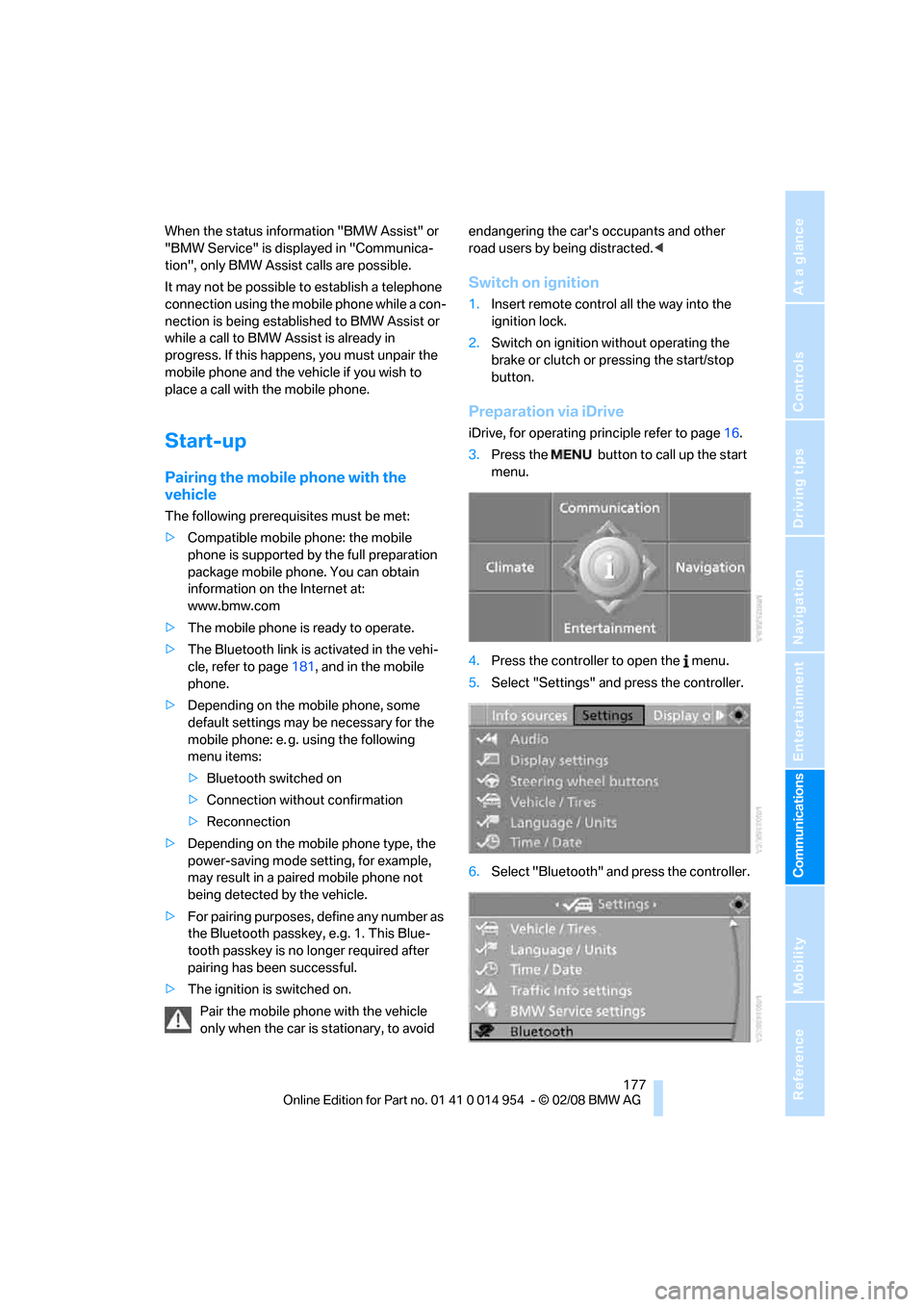
Preparation via iDrive
iDrive, for operating principle refer to page16.
3.Press the button to call up the start
menu.
4.Press the controller to open the menu.
5.Select "Settings" and press the controller.
6.Select "Bluetooth" and press the controller.
Page 180 of 264
Telephoning
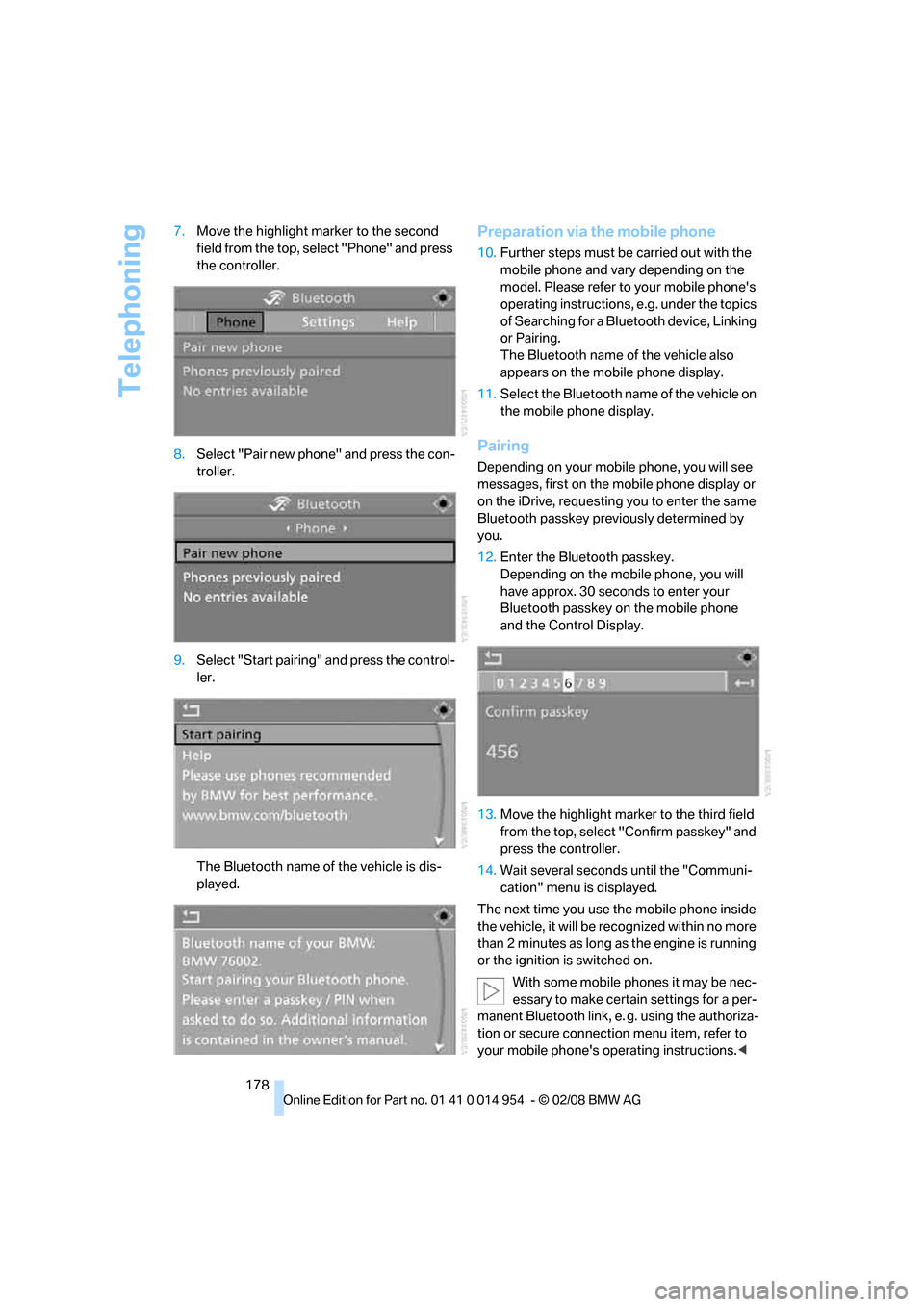
178 7.Move the highlight marker to the second
field from the top, select "Phone" and press
the controller.
8.Select "Pair new phone" and press the con-
troller.
9.Select "Start pairing" and press the control-
ler.
The Bluetooth name of the vehicle is dis-
played.
Preparation via the mobile phone
10.Further steps must be carried out with the
mobile phone and vary depending on the
model. Please refer to your mobile phone's
operating instructions, e.g. under the topics
of Searching for a Bluetooth device, Linking
or Pairing.
The Bluetooth name of the vehicle also
appears on the mobile phone display.
11.Select the Bluetooth name of the vehicle on
the mobile phone display.
Pairing
Depending on your mobile phone, you will see
messages, first on the mobile phone display or
on the iDrive, requesting you to enter the same
Bluetooth passkey previously determined by
you.
12.Enter the Bluetooth passkey.
Depending on the mobile phone, you will
have approx. 30 seconds to enter your
Bluetooth passkey on the mobile phone
and the Control Display.
13.Move the highlight marker to the third field
from the top, select "Confirm passkey" and
press the controller.
14.Wait several seconds until the "Communi-
cation" menu is displayed.
The next time you use the mobile phone inside
the vehicle, it will be recognized within no more
than 2 minutes as long as the engine is running
or the ignition is switched on.
With some mobile phones it may be nec-
essary to make certain settings for a per-
manent Bluetooth link, e. g. using the authoriza-
tion or secure connection menu item, refer to
your mobile phone's operating instructions.<
Page 181 of 264
179
Entertainment
Reference
At a glance
Controls
Driving tips Communications
Navigation
Mobility
As soon as a mobile phone is detected by the
vehicle, the phone book entries stored on the
SIM card or on your mobile phone are transmit-
ted to the vehicle. This data transfer depends
on your mobile phone and can take several min-
utes; please refer to your mobile phone's oper-
ating instructions, if necessary.
If not all phone book entries are displayed:
>Transfer all phone book entries from the
SIM card to the mobile phone, if necessary.
>Phone book entries with special characters
may not be displayed.
Up to four mobile phones can be paired, one
after the other. If a fifth mobile phone is paired,
the pairing data for the mobile phone whose
pairing data was first stored on the vehicle is
deleted.
Checks to perform if pairing is
unsuccessful
>Is the mobile phone supported by the
mobile phone preparation package? You
can obtain information on the Internet at:
www.bmw.com.
>Do the Bluetooth passkeys on the mobile
phone and vehicle match? The same Blue-
tooth passkey must be entered on the
mobile phone's display and via iDrive.
>Did it take you more than 30 seconds to
enter the Bluetooth passkey?
>Only a limited number of devices can be
connected with the mobile phone. If neces-
sary, delete connections with other devices.
>Is the mobile phone no longer responding?
Switch the mobile phone off and on or
briefly disconnect the power supply.
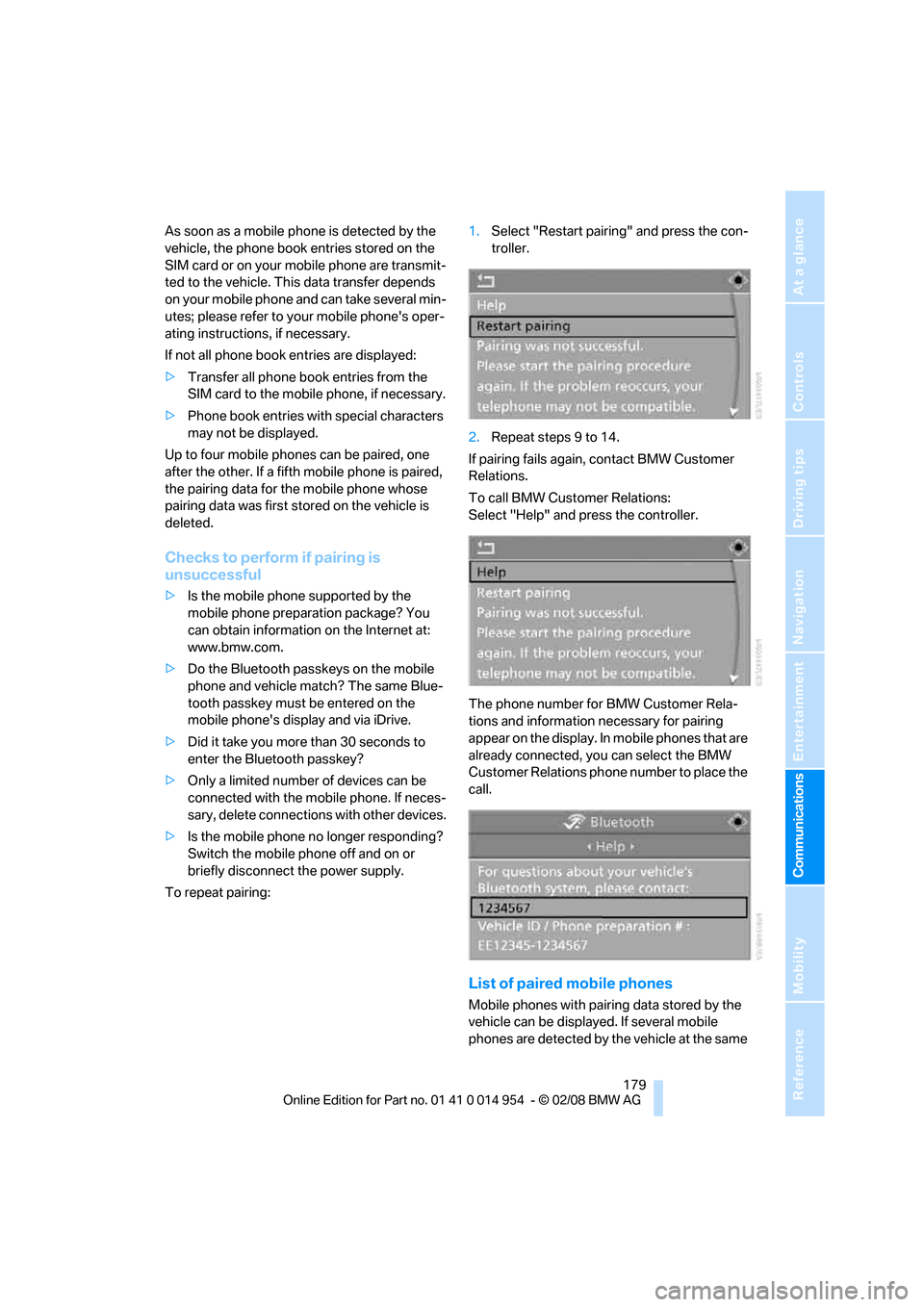
To repeat pairing:1.Select "Restart pairing" and press the con-
troller.
2.Repeat steps 9 to 14.
If pairing fails again, contact BMW Customer
Relations.
To call BMW Customer Relations:
Select "Help" and press the controller.
The phone number for BMW Customer Rela-
tions and information necessary for pairing
appear on the display. In mobile phones that are
already connected, you can select the BMW
Customer Relations phone number to place the
call.
List of paired mobile phones
Mobile phones with pairing data stored by the
vehicle can be displayed. If several mobile
phones are detected by the vehicle at the same
Page 184 of 264
183
Entertainment
Reference
At a glance
Controls
Driving tips Communications
Navigation
Mobility
Calling
Dialing phone numbers
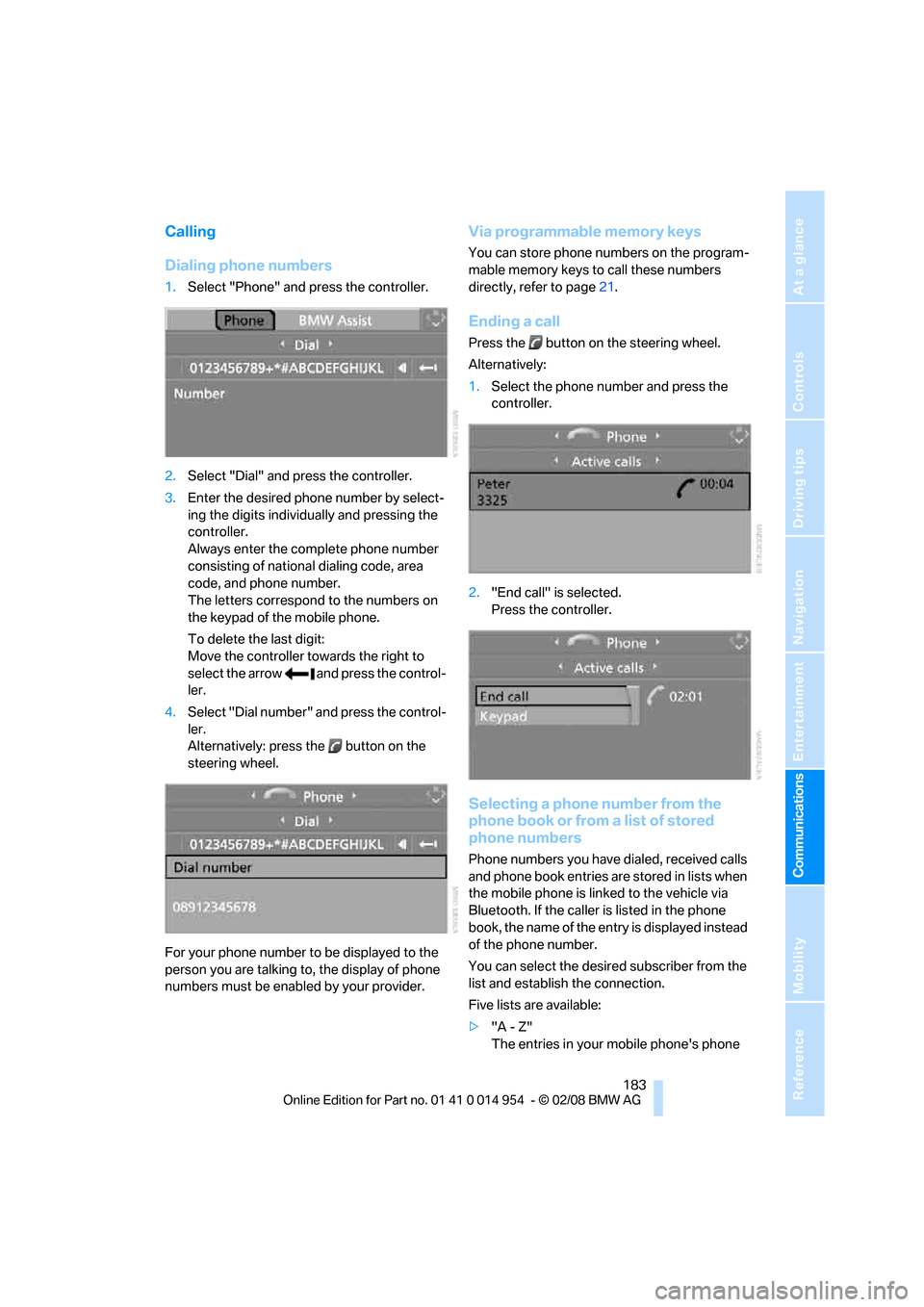
1.Select "Phone" and press the controller.
2.Select "Dial" and press the controller.
3.Enter the desired phone number by select-
ing the digits individually and pressing the
controller.
Always enter the complete phone number
consisting of national dialing code, area
code, and phone number.
The letters correspond to the numbers on
the keypad of the mobile phone.
To delete the last digit:
Move the controller towards the right to
select the arrow and press the control-
ler.
4.Select "Dial number" and press the control-
ler.
Alternatively: press the button on the
steering wheel.
For your phone number to be displayed to the
person you are talking to, the display of phone
numbers must be enabled by your provider.
Via programmable memory keys
You can store phone numbers on the program-
mable memory keys to call these numbers
directly, refer to page21.
Ending a call
Press the button on the steering wheel.
Alternatively:
1.Select the phone number and press the
controller.
2."End call" is selected.
Press the controller.
Selecting a phone number from the
phone book or from a list of stored
phone numbers
Phone numbers you have dialed, received calls
and phone book entries are stored in lists when
the mobile phone is linked to the vehicle via
Bluetooth. If the caller is listed in the phone
book, the name of the entry is displayed instead
of the phone number.
You can select the desired subscriber from the
list and establish the connection.
Five lists are available:
>"A - Z"
The entries in your mobile phone's phone
Page 192 of 264
191
Entertainment
Reference
At a glance
Controls
Driving tips Communications
Navigation
Mobility
BMW Assist
BMW Assist provides you with various services.
For example, the position data of your vehicle
can be transmitted to the BMW Assist
Response Center if an Emergency Request
*
has been sent.
Many BMW Assist services depend on the indi-
vidually agreed contract.
After your contract has expired, the
BMW Assist system will be deactivated by the
BMW Assist Response Center without you hav-
ing to visit a BMW center. After the BMW Assist
system has been deactivated, no BMW Assist
service will be available. The BMW Assist sys-
tem can be reactivated by a BMW center after a
new contract has been signed.
Requirements
You can use BMW Assist when the following
requirements are met:
>The installed BMW Assist system is logged
on to a mobile phone network. This network
must be capable of transmitting the ser-
vices.
>To transmit position data, the vehicle must
be able to determine the current position.
>To activate and update BMW Assist, a GPS
signal must be available.
>You have subscribed to BMW Assist with
your BMW center or with the BMW Assist
Response Center. Enabling must have
been completed.
>BMW Assist is activated, refer to page196.
Offered services
The following services are available via
BMW Assist:
>Emergency Request, refer to page229:
When you press the SOS button, a connec-
tion is established to the BMW Assist
Response Center. The BMW Assist Response Center contacts you and takes
further steps to help you.
>Automatic Collision Notification:
Under certain conditions, a connection is
established to the BMW Assist Response
Center after a serious accident. If possible,
the BMW Assist Response Center contacts
you and takes further steps to help you.
>Enhanced Roadside Assistance:
You can call BMW Roadside Assistance
*
should you require help in the event of a
breakdown. If possible, the vehicle data and
position data are transmitted during this
call.
>Customer Relations:
For all information related to your vehicle
you can be connected with BMW Customer
Relations.
>BMW TeleServices
*:
Data on your vehicle's service status or
required inspections are transmitted to your
BMW center either automatically before a
service due date or when you request a
BMW service appointment.
>Remote Door Unlock:
Contact the BMW Assist Response Center
if your remote control or key is not available
and you would like to have the vehicle
unlocked.
>Stolen Vehicle Recovery:
After you report your vehicle stolen with the
police, call the BMW Assist Response Cen-
ter to determine its position.
In addition, optional services can be provided to
you, such as the Concierge service or informa-
tion on directions, traffic or the weather. You
can use Critical Calling to activate a limited
number of calls via the BMW Assist Response
Center, e.g. when you do not have your mobile
phone with you.
Press the SOS button in order to contact the
BMW Assist Response Center, see below.
*
Page 248 of 264
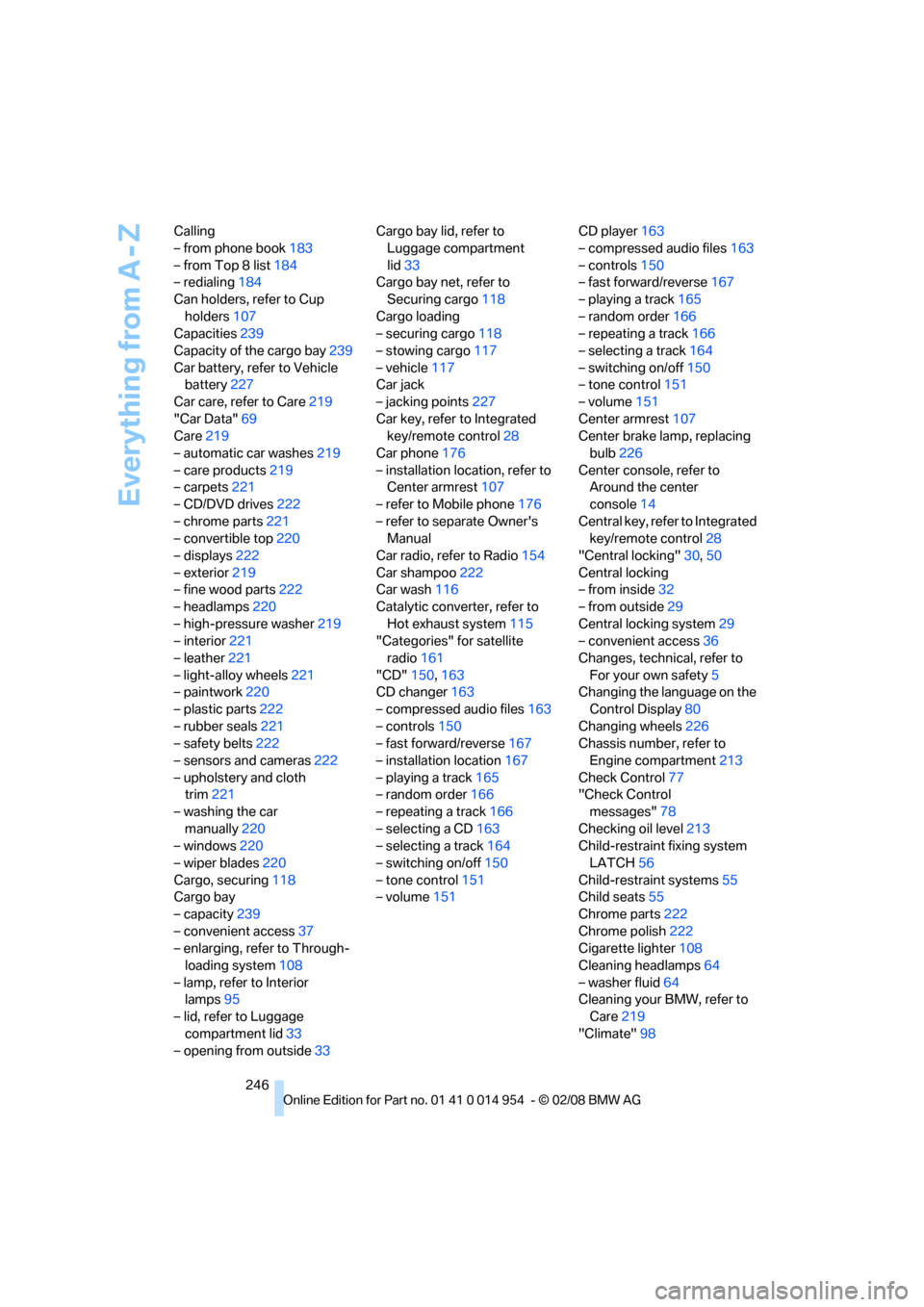
Everything from A - Z
246 Calling
– from phone book183
– from Top 8 list184
– redialing184
Can holders, refer to Cup
holders107
Capacities239
Capacity of the cargo bay239
Car battery, refer to Vehicle
battery227
Car care, refer to Care219
"Car Data"69
Care219
– automatic car washes219
– care products219
– carpets221
– CD/DVD drives222
– chrome parts221
– convertible top220
– displays222
– exterior219
– fine wood parts222
– headlamps220
– high-pressure washer219
– interior221
– leather221
– light-alloy wheels221
– paintwork220
– plastic parts222
– rubber seals221
– safety belts222
– sensors and cameras222
– upholstery and cloth
trim221
– washing the car
manually220
– windows220
– wiper blades220
Cargo, securing118
Cargo bay
– capacity239
– convenient access37
– enlarging, refer to Through-
loading system108
– lamp, refer to Interior
lamps95
– lid, refer to Luggage
compartment lid33
– opening from outside33Cargo bay lid, refer to
Luggage compartment
lid33
Cargo bay net, refer to
Securing cargo118
Cargo loading
– securing cargo118
– stowing cargo117
– vehicle117
Car jack
– jacking points227
Car key, refer to Integrated
key/remote control28
Car phone176
– installation location, refer to
Center armrest107
– refer to Mobile phone176
– refer to separate Owner's
Manual
Car radio, refer to Radio154
Car shampoo222
Car wash116
Catalytic converter, refer to
Hot exhaust system115
"Categories" for satellite
radio161
"CD"150,163
CD changer163
– compressed audio files163
– controls150
– fast forward/reverse167
– installation location167
– playing a track165
– random order166
– repeating a track166
– selecting a CD163
– selecting a track164
– switching on/off150
– tone control151
– volume151CD player163
– compressed audio files163
– controls150
– fast forward/reverse167
– playing a track165
– random order166
– repeating a track166
– selecting a track164
– switching on/off150
– tone control151
– volume151
Center armrest107
Center brake lamp, replacing
bulb226
Center console, refer to
Around the center
console14
Central key, refer to Integrated
key/remote control28
"Central locking"30,50
Central locking
– from inside32
– from outside
29
Central locking system29
– convenient access36
Changes, technical, refer to
For your own safety5
Changing the language on the
Control Display80
Changing wheels226
Chassis number, refer to
Engine compartment213
Check Control77
"Check Control
messages"78
Checking oil level213
Child-restraint fixing system
LATCH56
Child-restraint systems55
Child seats55
Chrome parts222
Chrome polish222
Cigarette lighter108
Cleaning headlamps64
– washer fluid64
Cleaning your BMW, refer to
Care219
"Climate"98
Page 250 of 264
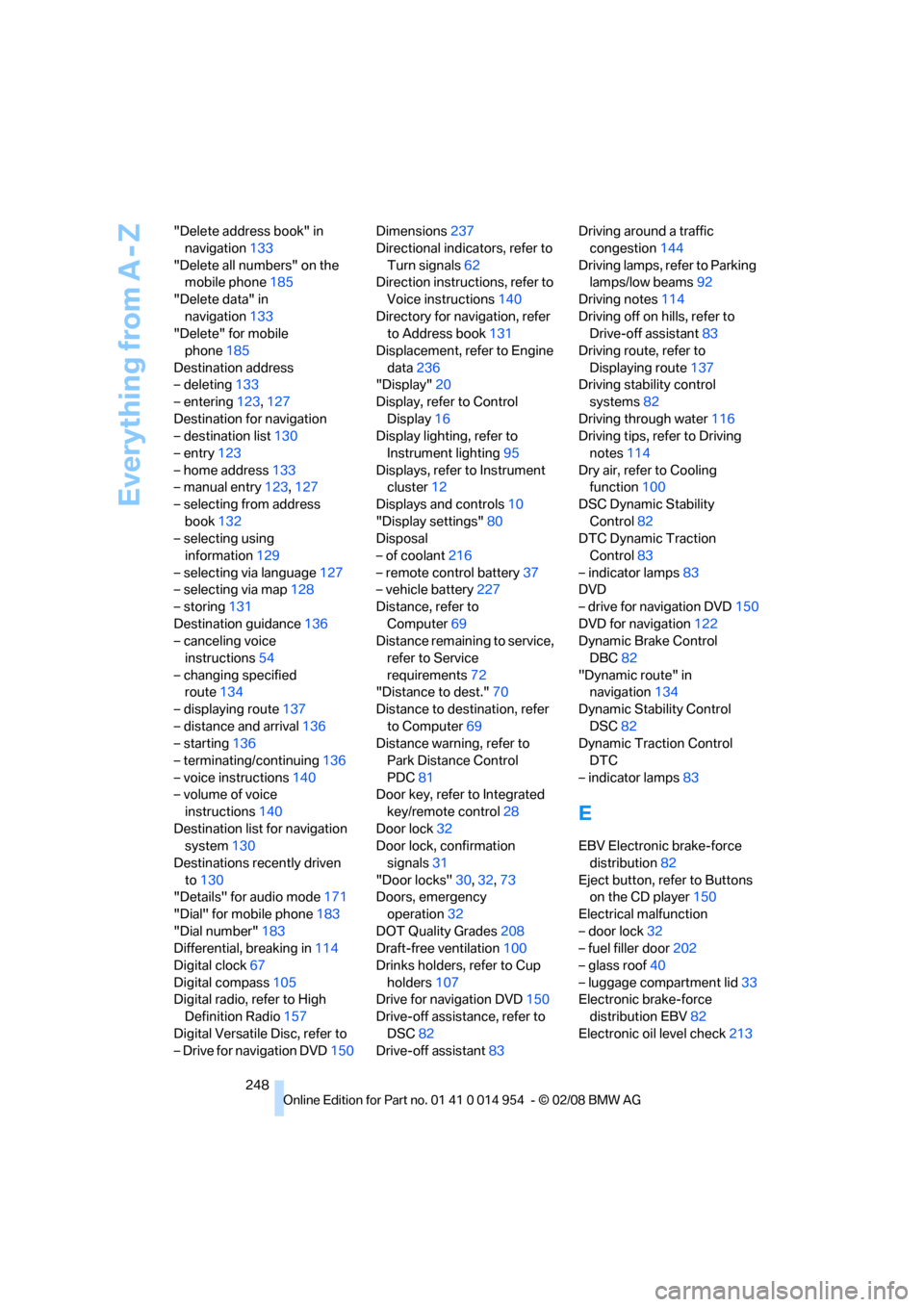
Everything from A - Z
248 "Delete address book" in
navigation133
"Delete all numbers" on the
mobile phone185
"Delete data" in
navigation133
"Delete" for mobile
phone185
Destination address
– deleting133
– entering123,127
Destination for navigation
– destination list130
– entry123
– home address133
– manual entry123,127
– selecting from address
book132
– selecting using
information129
– selecting via language127
– selecting via map128
– storing131
Destination guidance136
– canceling voice
instructions54
– changing specified
route134
– displaying route137
– distance and arrival136
– starting136
– terminating/continuing136
– voice instructions140
– volume of voice
instructions140
Destination list for navigation
system130
Destinations recently driven
to130
"Details" for audio mode171
"Dial" for mobile phone183
"Dial number"183
Differential, breaking in114
Digital clock67
Digital compass105
Digital radio, refer to High
Definition Radio157
Digital Versatile Disc, refer to
– Drive for navigation DVD150Dimensions237
Directional indicators, refer to
Turn signals62
Direction instructions, refer to
Voice instructions140
Directory for navigation, refer
to Address book131
Displacement, refer to Engine
data
236
"Display"20
Display, refer to Control
Display16
Display lighting, refer to
Instrument lighting95
Displays, refer to Instrument
cluster12
Displays and controls10
"Display settings"80
Disposal
– of coolant216
– remote control battery37
– vehicle battery227
Distance, refer to
Computer69
Distance remaining to service,
refer to Service
requirements72
"Distance to dest."70
Distance to destination, refer
to Computer69
Distance warning, refer to
Park Distance Control
PDC81
Door key, refer to Integrated
key/remote control28
Door lock32
Door lock, confirmation
signals31
"Door locks"30,32,73
Doors, emergency
operation32
DOT Quality Grades208
Draft-free ventilation100
Drinks holders, refer to Cup
holders107
Drive for navigation DVD150
Drive-off assistance, refer to
DSC82
Drive-off assistant83Driving around a traffic
congestion144
Driving lamps, refer to Parking
lamps/low beams92
Driving notes114
Driving off on hills, refer to
Drive-off assistant83
Driving route, refer to
Displaying route137
Driving stability control
systems82
Driving through water116
Driving tips, refer to Driving
notes114
Dry air, refer to Cooling
function100
DSC Dynamic Stability
Control82
DTC Dynamic Traction
Control83
– indicator lamps83
DVD
– drive for navigation DVD150
DVD for navigation122
Dynamic Brake Control
DBC82
"Dynamic route" in
navigation134
Dynamic Stability Control
DSC82
Dynamic Traction Control
DTC
– indicator lamps83
E
EBV Electronic brake-force
distribution82
Eject button, refer to Buttons
on the CD player150
Electrical malfunction
– door lock32
– fuel filler door202
– glass roof40
– luggage compartment lid33
Electronic brake-force
distribution EBV82
Electronic oil level check213