remote start BMW 135I CONVERTIBLE 2008 E88 Owner's Guide
[x] Cancel search | Manufacturer: BMW, Model Year: 2008, Model line: 135I CONVERTIBLE, Model: BMW 135I CONVERTIBLE 2008 E88Pages: 264, PDF Size: 8.68 MB
Page 152 of 264
On/off and settings
150
On/off and settings
The following audio sources have shared con-
trols and setting options:
>Radio
>CD player
>CD changer
*
Controls
The audio sources can be operated using:
>Buttons near the CD player
>iDrive
>Buttons
on the steering wheel, refer to
page11
>Programmable memory keys, refer to
page21
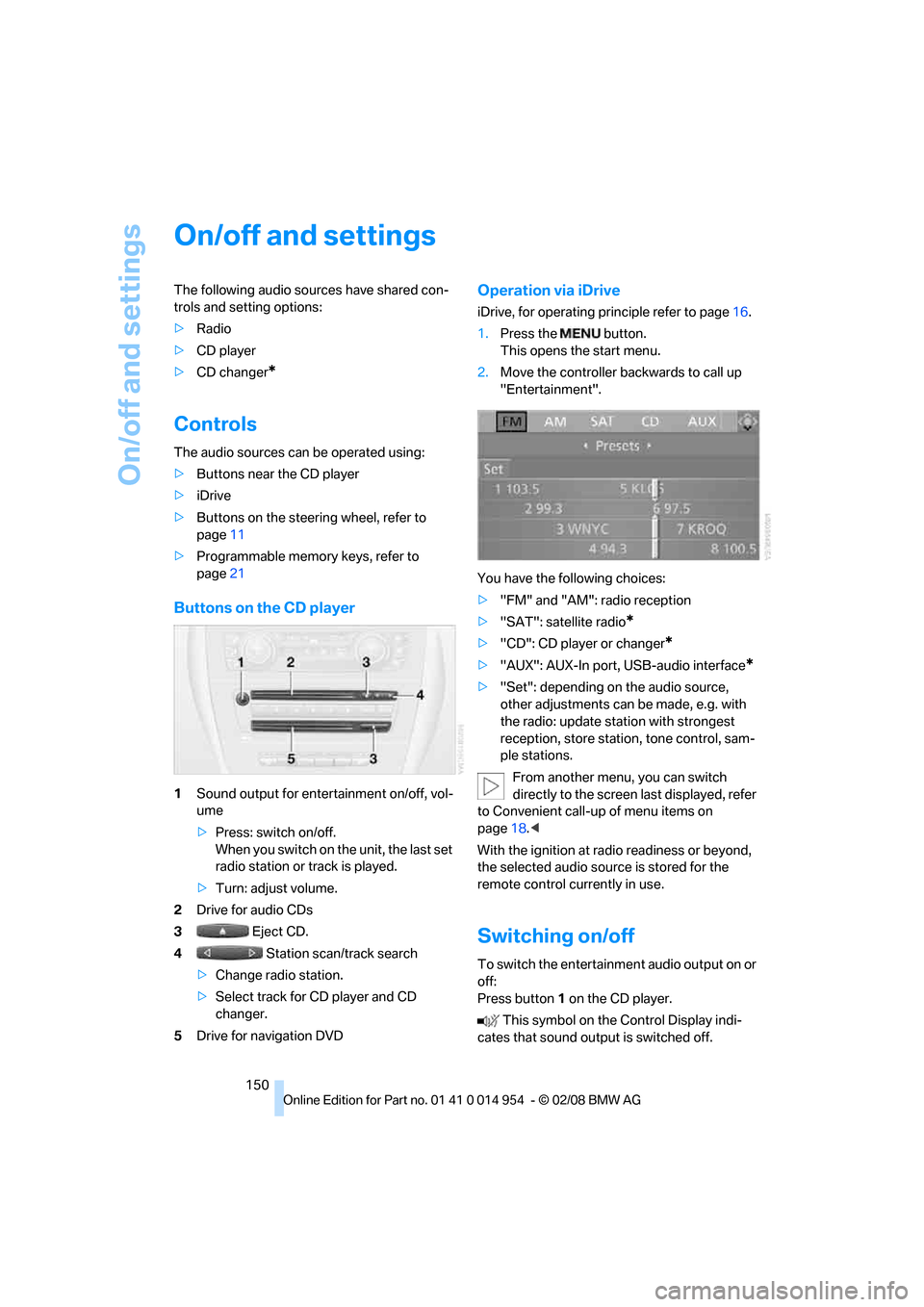
Buttons on the CD player
1Sound output for entertainment on/off, vol-
ume
>Press: switch on/off.
When you switch on the unit, the last set
radio station or track is played.
>Turn: adjust volume.
2Drive for audio CDs
3 Eject CD.
4 Station scan/track search
>Change radio station.
>Select track for CD player and CD
changer.
5Drive for navigation DVD
Operation via iDrive
iDrive, for operating principle refer to page16.
1.Press the button.
This opens the start menu.
2.Move the controller backwards to call up
"Entertainment".
You have the following choices:
>"FM" and "AM": radio reception
>"SAT": satellite radio
*
>"CD": CD player or changer*
>"AUX": AUX-In port, USB-audio interface*
>"Set": depending on the audio source,
other adjustments can be made, e.g. with
the radio: update station with strongest
reception, store station, tone control, sam-
ple stations.
From another menu, you can switch
directly to the screen last displayed, refer
to Convenient call-up of menu items on
page18.<
With the ignition at radio readiness or beyond,
the selected audio source is stored for the
remote control currently in use.
Switching on/off
To switch the entertainment audio output on or
off:
Press button1 on the CD player.
This symbol on the Control Display indi-
cates that sound output is switched off.
Page 153 of 264
Navigation
Entertainment
Driving tips
151Reference
At a glance
Controls
Communications
Mobility
Adjusting volume
Turn knob1 on the CD player until the desired
volume is obtained.
You can also adjust the volume with buttons on
the steering wheel, refer to page11.
With the ignition at radio readiness or beyond,
the setting is stored for the remote control cur-
rently in use.
Tone control
You can alter various tone settings, e.g. treble
and bass or the speed-dependent volume
increase.
The tone settings are applied to all audio
sources.
With the ignition at radio readiness or beyond,
the settings are stored for the remote control
currently in use.
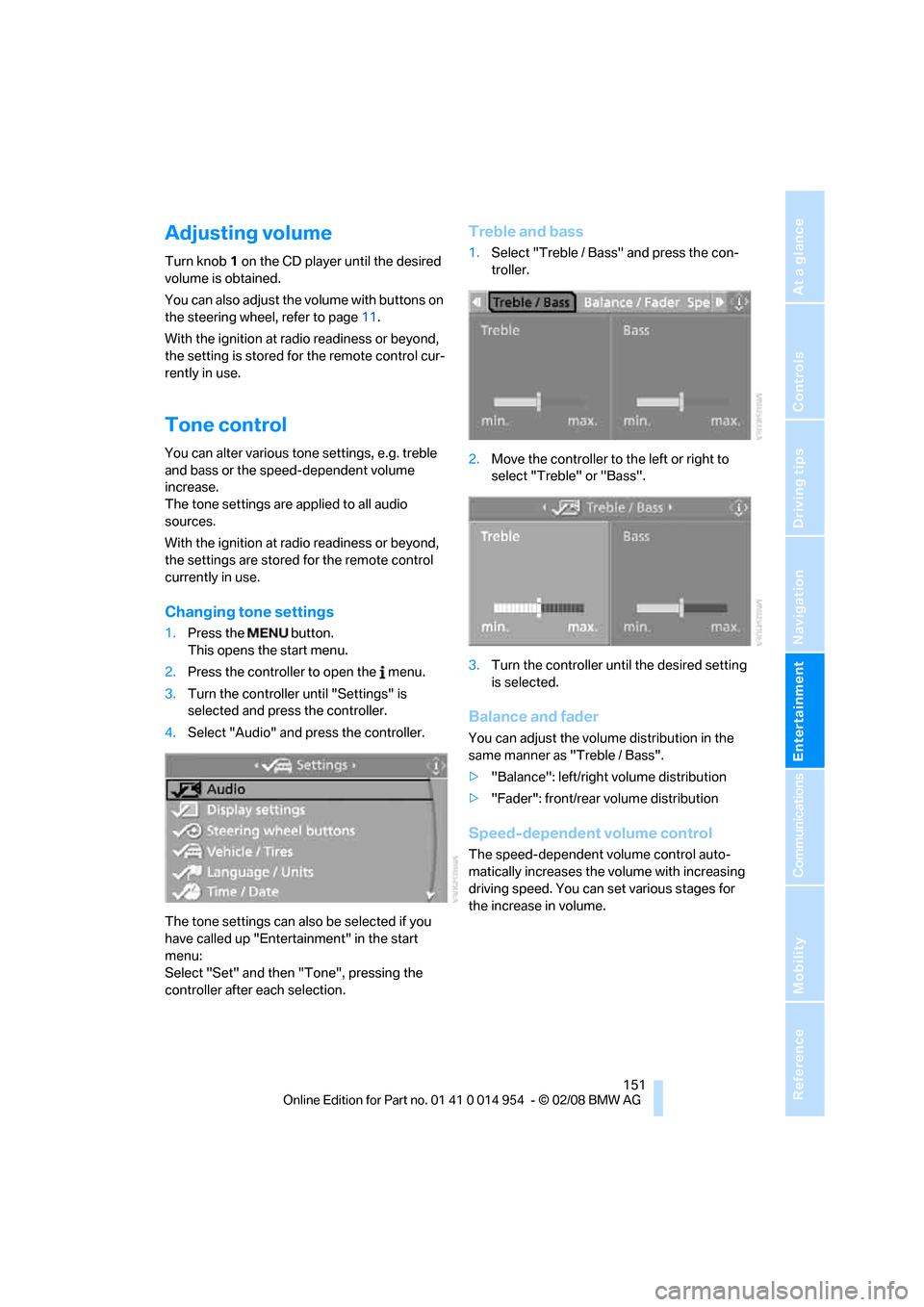
Changing tone settings
1.Press the button.
This opens the start menu.
2.Press the controller to open the menu.
3.Turn the controller until "Settings" is
selected and press the controller.
4.Select "Audio" and press the controller.
The tone settings can also be selected if you
have called up "Entertainment" in the start
menu:
Select "Set" and then "Tone", pressing the
controller after each selection.
Treble and bass
1.Select "Treble / Bass" and press the con-
troller.
2.Move the controller to the left or right to
select "Treble" or "Bass".
3.Turn the controller until the desired setting
is selected.
Balance and fader
You can adjust the volume distribution in the
same manner as "Treble / Bass".
>"Balance": left/right volume distribution
>"Fader": front/rear volume distribution
Speed-dependent volume control
The speed-dependent volume control auto-
matically increases the volume with increasing
driving speed. You can set various stages for
the increase in volume.
Page 159 of 264
Navigation
Entertainment
Driving tips
157Reference
At a glance
Controls
Communications
Mobility
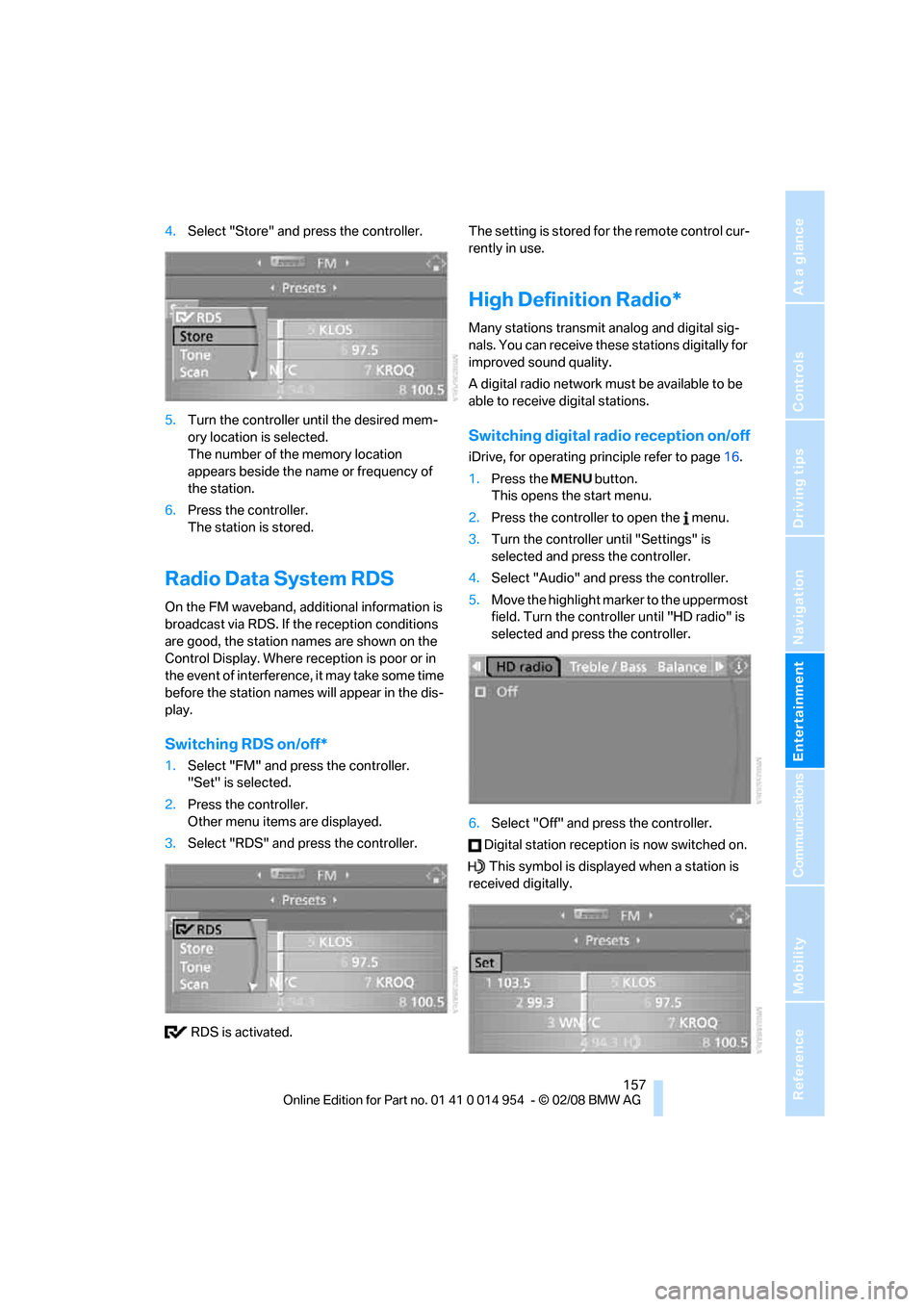
4.Select "Store" and press the controller.
5.Turn the controller until the desired mem-
ory location is selected.
The number of the memory location
appears beside the name or frequency of
the station.
6.Press the controller.
The station is stored.
Radio Data System RDS
On the FM waveband, additional information is
broadcast via RDS. If the reception conditions
are good, the station names are shown on the
Control Display. Where reception is poor or in
the event of interference, it may take some time
before the station names will appear in the dis-
play.
Switching RDS on/off*
1.Select "FM" and press the controller.
"Set" is selected.
2.Press the controller.
Other menu items are displayed.
3.Select "RDS" and press the controller.
RDS is activated.The setting is stored for the remote control cur-
rently in use.
High Definition Radio*
Many stations transmit analog and digital sig-
nals. You can receive these stations digitally for
improved sound quality.
A digital radio network must be available to be
able to receive digital stations.
Switching digital radio reception on/off
iDrive, for operating principle refer to page16.
1.Press the button.
This opens the start menu.
2.Press the controller to open the menu.
3.Turn the controller until "Settings" is
selected and press the controller.
4.Select "Audio" and press the controller.
5.Move the highlight marker to the uppermost
field. Turn the controller until "HD radio" is
selected and press the controller.
6.Select "Off" and press the controller.
Digital station reception is now switched on.
This symbol is displayed when a station is
received digitally.
Page 179 of 264
177
Entertainment
Reference
At a glance
Controls
Driving tips Communications
Navigation
Mobility
When the status information "BMW Assist" or
"BMW Service" is displayed in "Communica-
tion", only BMW Assist calls are possible.
It may not be possible to establish a telephone
connection using the mobile phone while a con-
nection is being established to BMW Assist or
while a call to BMW Assist is already in
progress. If this happens, you must unpair the
mobile phone and the vehicle if you wish to
place a call with the mobile phone.
Start-up
Pairing the mobile phone with the
vehicle
The following prerequisites must be met:
>Compatible mobile phone: the mobile
phone is supported by the full preparation
package mobile phone. You can obtain
information on the Internet at:
www.bmw.com
>The mobile phone is ready to operate.
>The Bluetooth link is activated in the vehi-
cle, refer to page181, and in the mobile
phone.
>Depending on the mobile phone, some
default settings may be necessary for the
mobile phone: e. g. using the following
menu items:
>Bluetooth switched on
>Connection without confirmation
>Reconnection
>Depending on the mobile phone type, the
power-saving mode setting, for example,
may result in a paired mobile phone not
being detected by the vehicle.
>For pairing purposes, define any number as
the Bluetooth passkey, e.g. 1. This Blue-
tooth passkey is no longer required after
pairing has been successful.
>The ignition is switched on.
Pair the mobile phone with the vehicle
only when the car is stationary, to avoid endangering the car's occupants and other
road users by being distracted.<
Switch on ignition
1.Insert remote control all the way into the
ignition lock.
2.Switch on ignition without operating the
brake or clutch or pressing the start/stop
button.
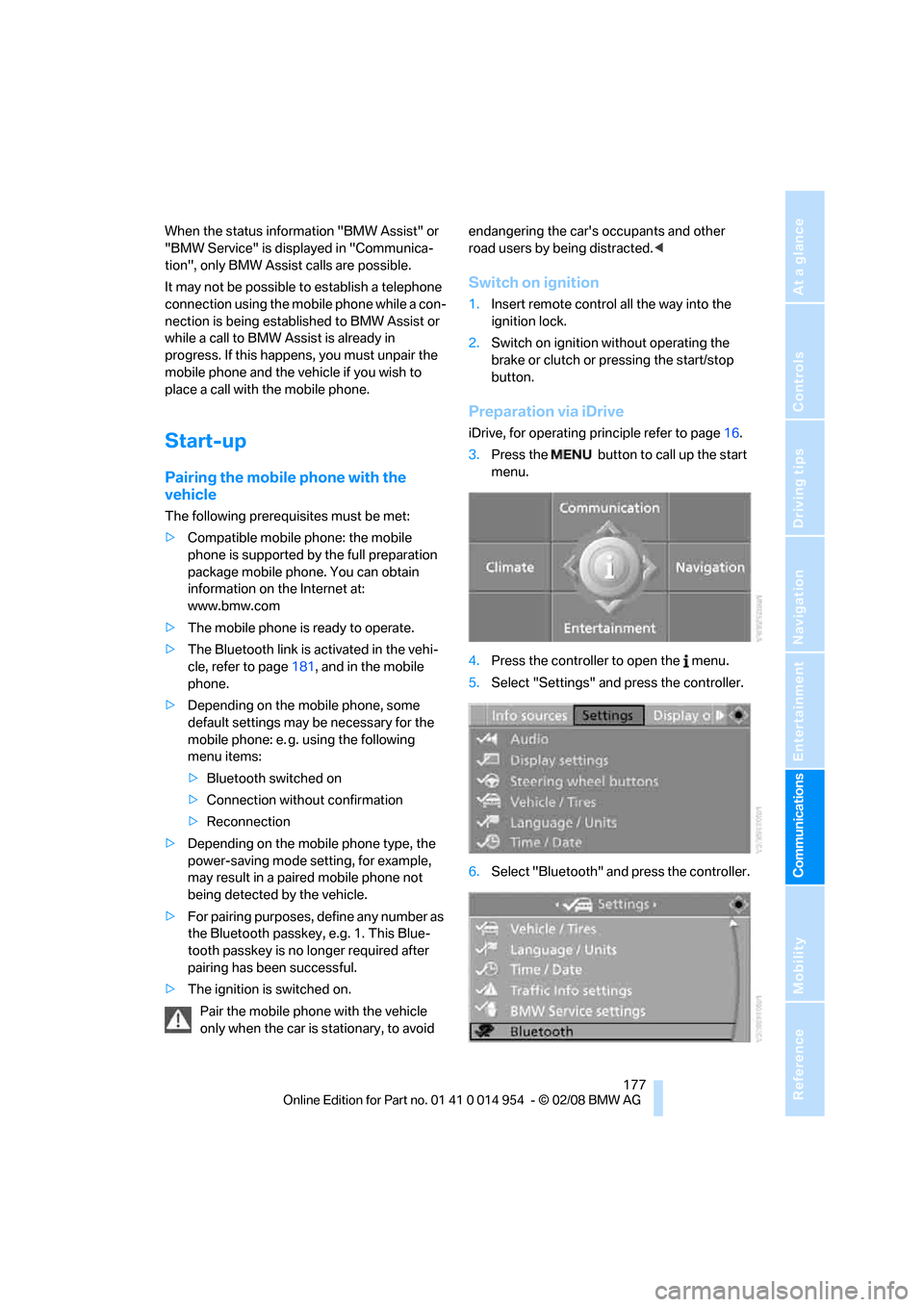
Preparation via iDrive
iDrive, for operating principle refer to page16.
3.Press the button to call up the start
menu.
4.Press the controller to open the menu.
5.Select "Settings" and press the controller.
6.Select "Bluetooth" and press the controller.
Page 183 of 264
Telephoning
182 >Selecting stored phone numbers, e.g. from
the list of accepted calls
>Ending a call
When the ignition and radio readiness are
switched off, e.g. after taking the remote control
out of the ignition switch, you can continue an
ongoing call via the hands-free system for no
more than 25 minutes.
Voice quality
If the person you are talking to is having difficul-
ties understanding you, this may be due to
excessive background noise. The full mobile
phone preparation package can compensate
for these noises to a certain extent. To optimize
voice quality during a call, we recommend that
you:
>Reduce background noise, e.g. by closing
the windows, reducing air flow from the
automatic climate control or by pointing the
open front air vents downward
>Reduce the volume of the hands-free sys-
tem
Requirements
>The mobile phone's pairing data are stored
by the vehicle and the mobile phone is oper-
ational.
>The engine is running or the ignition is
switched on.
>The mobile phone is recognized by the
vehicle.
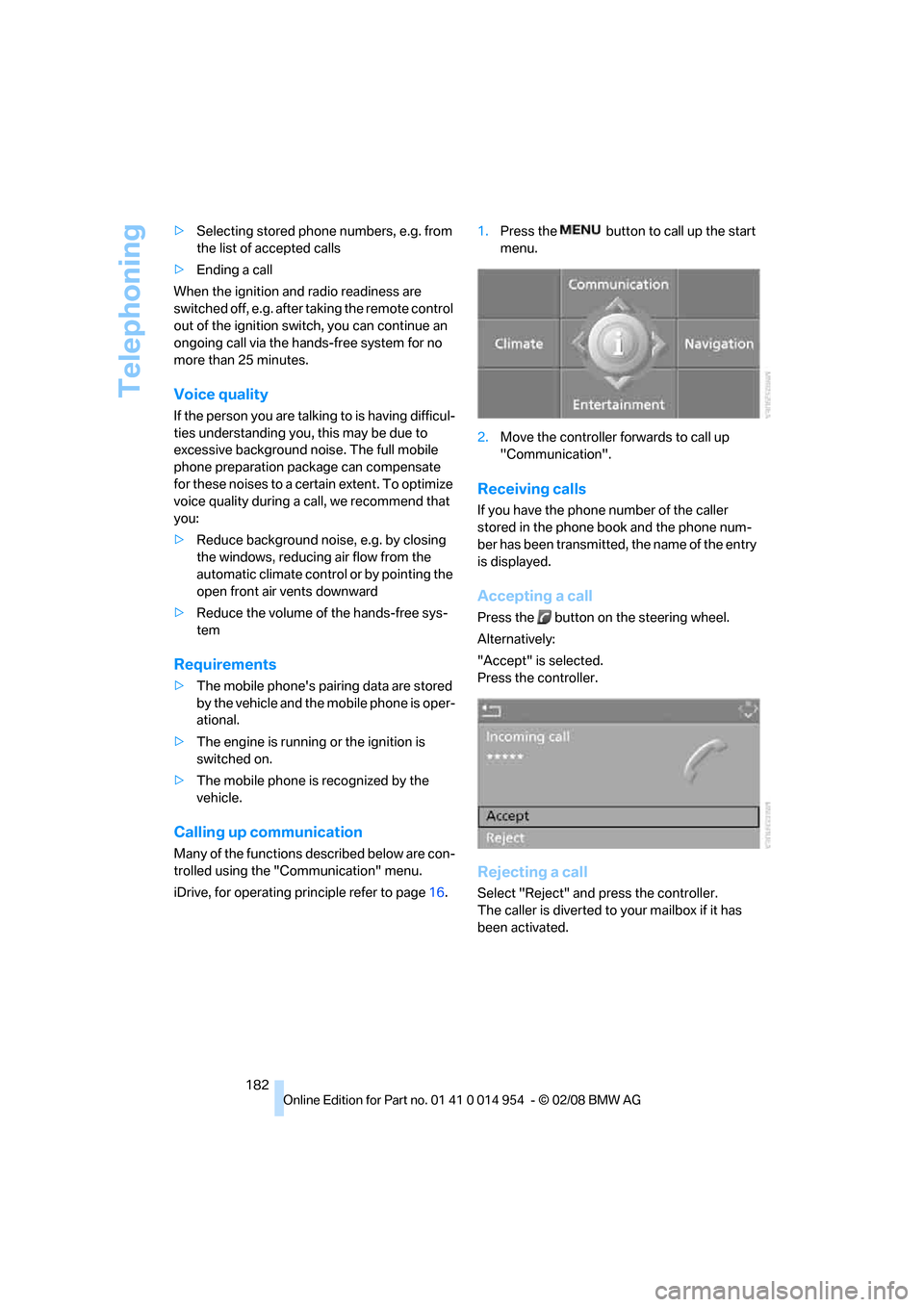
Calling up communication
Many of the functions described below are con-
trolled using the "Communication" menu.
iDrive, for operating principle refer to page16.1.Press the button to call up the start
menu.
2.Move the controller forwards to call up
"Communication".
Receiving calls
If you have the phone number of the caller
stored in the phone book and the phone num-
ber has been transmitted, the name of the entry
is displayed.
Accepting a call
Press the button on the steering wheel.
Alternatively:
"Accept" is selected.
Press the controller.
Rejecting a call
Select "Reject" and press the controller.
The caller is diverted to your mailbox if it has
been activated.
Page 189 of 264
Telephoning
188
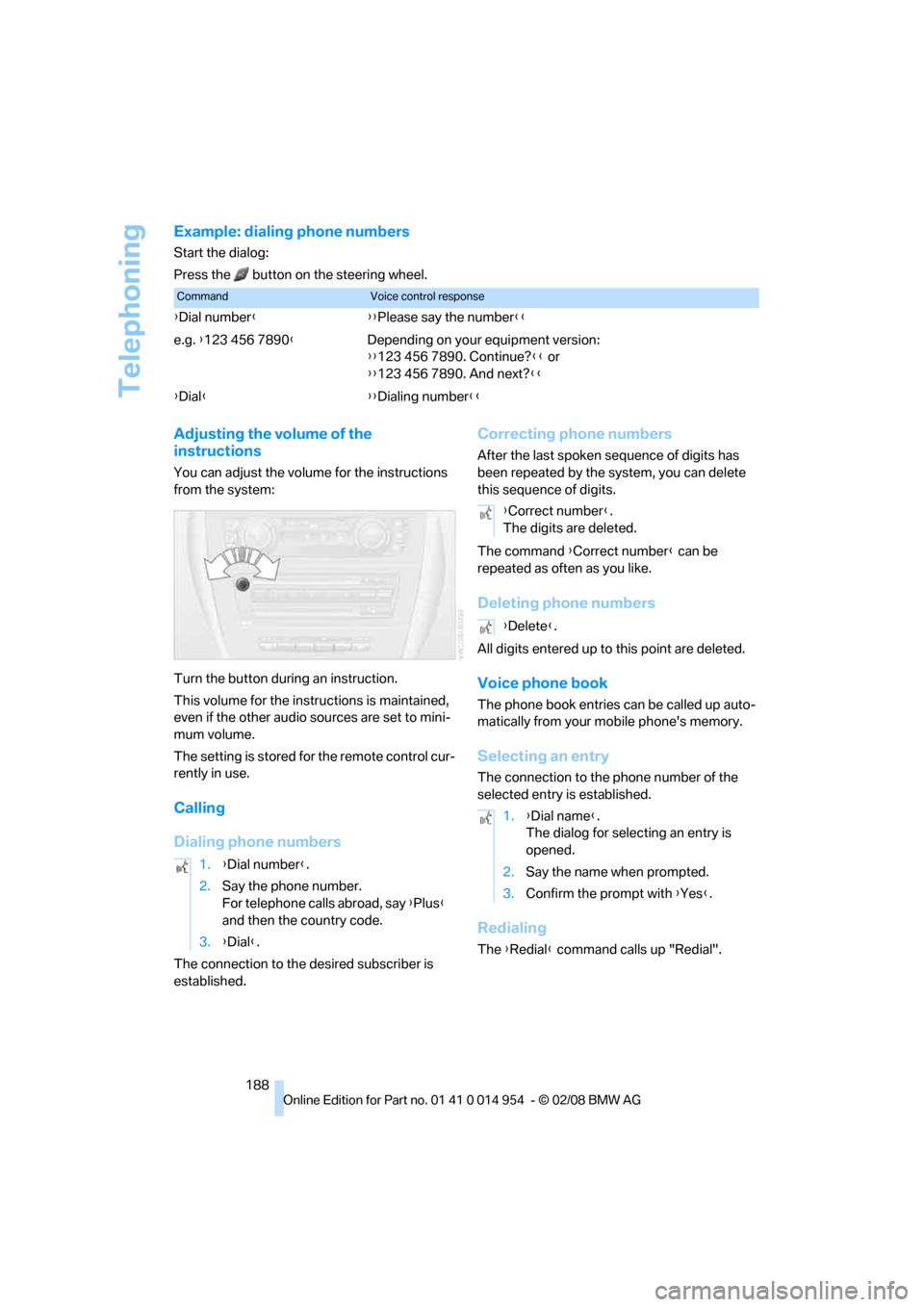
Example: dialing phone numbers
Start the dialog:
Press the button on the steering wheel.
Adjusting the volume of the
instructions
You can adjust the volume for the instructions
from the system:
Turn the button during an instruction.
This volume for the instructions is maintained,
even if the other audio sources are set to mini-
mum volume.
The setting is stored for the remote control cur-
rently in use.
Calling
Dialing phone numbers
The connection to the desired subscriber is
established.
Correcting phone numbers
After the last spoken sequence of digits has
been repeated by the system, you can delete
this sequence of digits.
The command {Correct number} can be
repeated as often as you like.
Deleting phone numbers
All digits entered up to this point are deleted.
Voice phone book
The phone book entries can be called up auto-
matically from your mobile phone's memory.
Selecting an entry
The connection to the phone number of the
selected entry is established.
Redialing
The {Redial} command calls up "Redial".
CommandVoice control response
{Dial number}{{Please say the number}}
e.g. {123 456 7890}Depending on your equipment version:
{{123 456 7890. Continue?}} or
{{123 456 7890. And next?}}
{Dial}{{Dialing number}}
1.{Dial number}.
2.Say the phone number.
For telephone calls abroad, say {Plus}
and then the country code.
3.{Dial}.
{Correct number}.
The digits are deleted.
{Delete}.
1.{Dial name}.
The dialog for selecting an entry is
opened.
2.Say the name when prompted.
3.Confirm the prompt with {Yes}.
Page 201 of 264
181
Entertainment
Reference
At a glance
Controls
Driving tips Communications
Navigation
Mobility
Activating/deactivating the Bluetooth
link
The use of Bluetooth technology is not
permitted in all countries. Observe all
applicable local regulations. Temporarily deac-
tivate the Bluetooth link between the vehicle
and the mobile phone, if necessary.
If the Bluetooth link is deactivated, you can no
longer operate the mobile phone via the vehicle,
and other devices with a Bluetooth interface
can be used in combination with the mobile
phone, e.g. a laptop.<
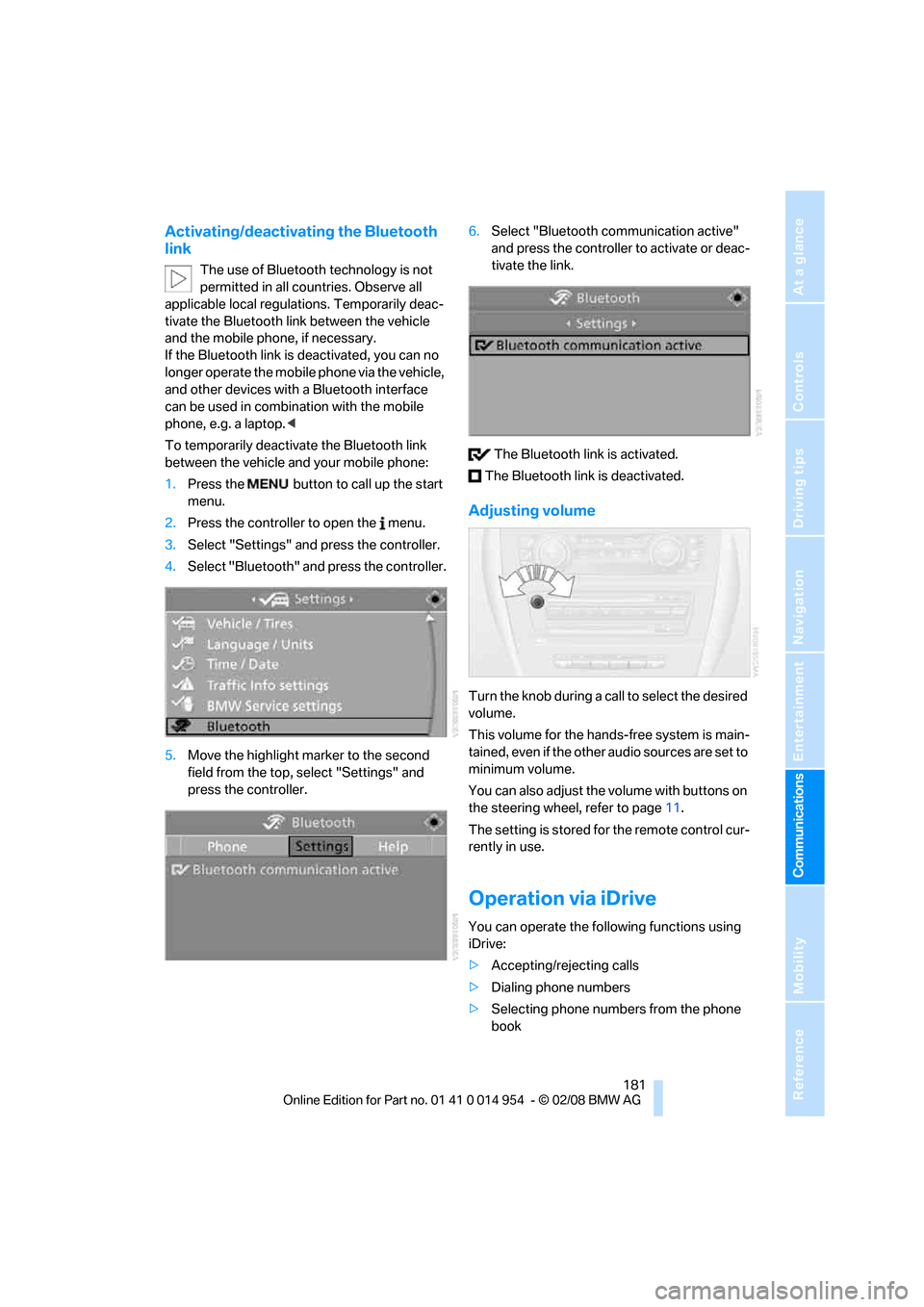
To temporarily deactivate the Bluetooth link
between the vehicle and your mobile phone:
1.Press the button to call up the start
menu.
2.Press the controller to open the menu.
3.Select "Settings" and press the controller.
4.Select "Bluetooth" and press the controller.
5.Move the highlight marker to the second
field from the top, select "Settings" and
press the controller.6.Select "Bluetooth communication active"
and press the controller to activate or deac-
tivate the link.
The Bluetooth link is activated.
The Bluetooth link is deactivated.
Adjusting volume
Turn the knob during a call to select the desired
volume.
This volume for the hands-free system is main-
tained, even if the other audio sources are set to
minimum volume.
You can also adjust the volume with buttons on
the steering wheel, refer to page11.
The setting is stored for the remote control cur-
rently in use.
Operation via iDrive
You can operate the following functions using
iDrive:
>Accepting/rejecting calls
>Dialing phone numbers
>Selecting phone numbers from the phone
book
Page 247 of 264
Reference 245
At a glance
Controls
Driving tips
Communications
Navigation
Entertainment
Mobility
Automatic transmission with
Steptronic60
– interlock61
– selector lever lock61
– shiftlock61
– towing231
– tow-starting231
"Automatic ventilation" for
parked car ventilation101
AUTO program for automatic
climate control99
"Auto Request"193
"Autostore"
– on the radio156
"AUX"150,169,171
– AUX-In port169
– USB-audio interface170
AUX-In port169
Average fuel consumption69
– setting the units71
Average speed69
"Avoid ferries" in
navigation134
"Avoid highways" in
navigation134
Avoid highways in
navigation134
Avoiding unintentional
alarms35
"Avoid tollroads" in
navigation134
Axle loads, refer to
Weights239
"A - Z"183,184
B
Backrests, refer to Seats46
Backrest width adjustment47
Back seats, refer to Rear seats
– adjusting head restraints48
Backup lamp, replacing
bulb226
Bag for skis, refer to Ski
bag109
Balance, tone control151
Band-aids, refer to First-aid
pouch230Bar, refer to Tow-starting,
towing away232
Bass, tone control151
Bass sounds, refer to Treble
and bass151
Battery227
– charging227
– disposal37,227
– jump starting230
– temporary power failure227
Battery renewal
– remote control for vehicle37
Being towed231
Belts, refer to Safety belts51
Belt tensioner, refer to Safety
belts51
Beverage holders, refer to
Cup holders107
Blower, refer to Air flow
rate99
BMW
– car shampoo222
"BMW
Assist"192,193,194,195
BMW Assist
– activating196
– concierge service195
– contacting BMW Customer
Relations194
– Roadside Assistance192
– services offered191
– TeleServices193
"BMW Contact"186
"BMW Contact
Numbers"186
BMW Maintenance
System217
"BMW Service settings"197
BMW Teleservice Call
– automatic193
– manual193
BMW TeleServices193
– displaying194
– updating194
Bottle holders, refer to Cup
holders107
Brake assist, refer to Dynamic
Brake Control82Brake fluid
– service requirements72
Brake Force Display88
Brake lamps
– Brake Force Display88
– replacing bulb226
Brake pads, breaking in114
Brake rotors116
– brakes114
– breaking in114
Brakes
– ABS82
– BMW Maintenance
System217
– braking safely116
– breaking in114
– parking brake59
– service requirements72
Brake system114
– BMW Maintenance
System217
– breaking in114
– disc brakes116
Breakdown services, refer to
Roadside Assistance229
Breaking in the clutch114
Break-in period114
"Brightness"80
Bulb changing, refer to Lamps
and bulbs223
Bulbs, changing223
Button for starting the
engine58
Buttons on the steering
wheel11
C
California Proposition 65
warning6
"Call"184,195
Call
– accepting182
– displaying accepted184
– ending183
– missed184
– starting183
Page 249 of 264
Reference 247
At a glance
Controls
Driving tips
Communications
Navigation
Entertainment
Mobility
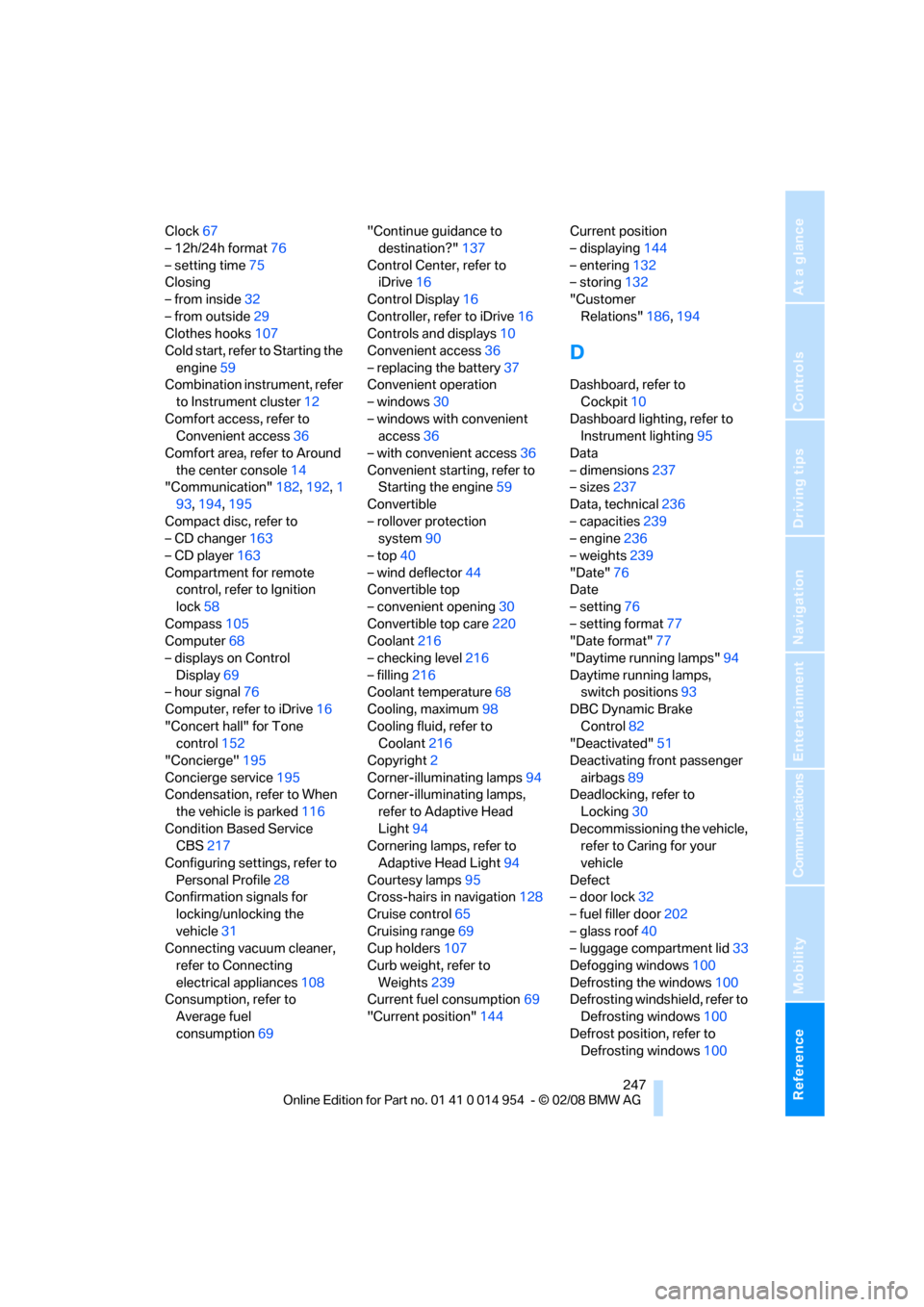
Clock67
– 12h/24h format76
– setting time75
Closing
– from inside32
– from outside29
Clothes hooks107
Cold start, refer to Starting the
engine59
Combination instrument, refer
to Instrument cluster12
Comfort access, refer to
Convenient access36
Comfort area, refer to Around
the center console14
"Communication"182,192,1
93,194,195
Compact disc, refer to
– CD changer163
– CD player163
Compartment for remote
control, refer to Ignition
lock58
Compass105
Computer68
– displays on Control
Display69
– hour signal76
Computer, refer to iDrive16
"Concert hall" for Tone
control152
"Concierge"195
Concierge service195
Condensation, refer to When
the vehicle is parked116
Condition Based Service
CBS217
Configuring settings, refer to
Personal Profile28
Confirmation signals for
locking/unlocking the
vehicle31
Connecting vacuum cleaner,
refer to Connecting
electrical appliances108
Consumption, refer to
Average fuel
consumption69"Continue guidance to
destination?"137
Control Center, refer to
iDrive16
Control Display16
Controller, refer to iDrive16
Controls and displays10
Convenient access36
– replacing the battery37
Convenient operation
– windows30
– windows with convenient
access36
– with convenient access36
Convenient starting, refer to
Starting the engine59
Convertible
– rollover protection
system90
– top40
– wind deflector44
Convertible top
– convenient opening30
Convertible top care220
Coolant216
– checking level216
– filling216
Coolant temperature68
Cooling, maximum98
Cooling fluid, refer to
Coolant216
Copyright2
Corner-illuminating lamps94
Corner-illuminating lamps,
refer to Adaptive Head
Light94
Cornering lamps, refer to
Adaptive Head Light94
Courtesy lamps95
Cross-hairs in navigation128
Cruise control65
Cruising range69
Cup holders107
Curb weight, refer to
Weights239
Current fuel consumption69
"Current position"144Current position
– displaying144
– entering132
– storing132
"Customer
Relations"186,194
D
Dashboard, refer to
Cockpit10
Dashboard lighting, refer to
Instrument lighting95
Data
– dimensions237
– sizes237
Data, technical236
– capacities239
– engine236
– weights239
"Date"76
Date
– setting76
– setting format77
"Date format"77
"Daytime running lamps"94
Daytime running lamps,
switch positions93
DBC Dynamic Brake
Control82
"Deactivated"51
Deactivating front passenger
airbags89
Deadlocking, refer to
Locking30
Decommissioning the vehicle,
refer to Caring for your
vehicle
Defect
– door lock32
– fuel filler door202
– glass roof40
– luggage compartment lid33
Defogging windows100
Defrosting the windows100
Defrosting windshield, refer to
Defrosting windows100
Defrost position, refer to
Defrosting windows100
Page 250 of 264
Everything from A - Z
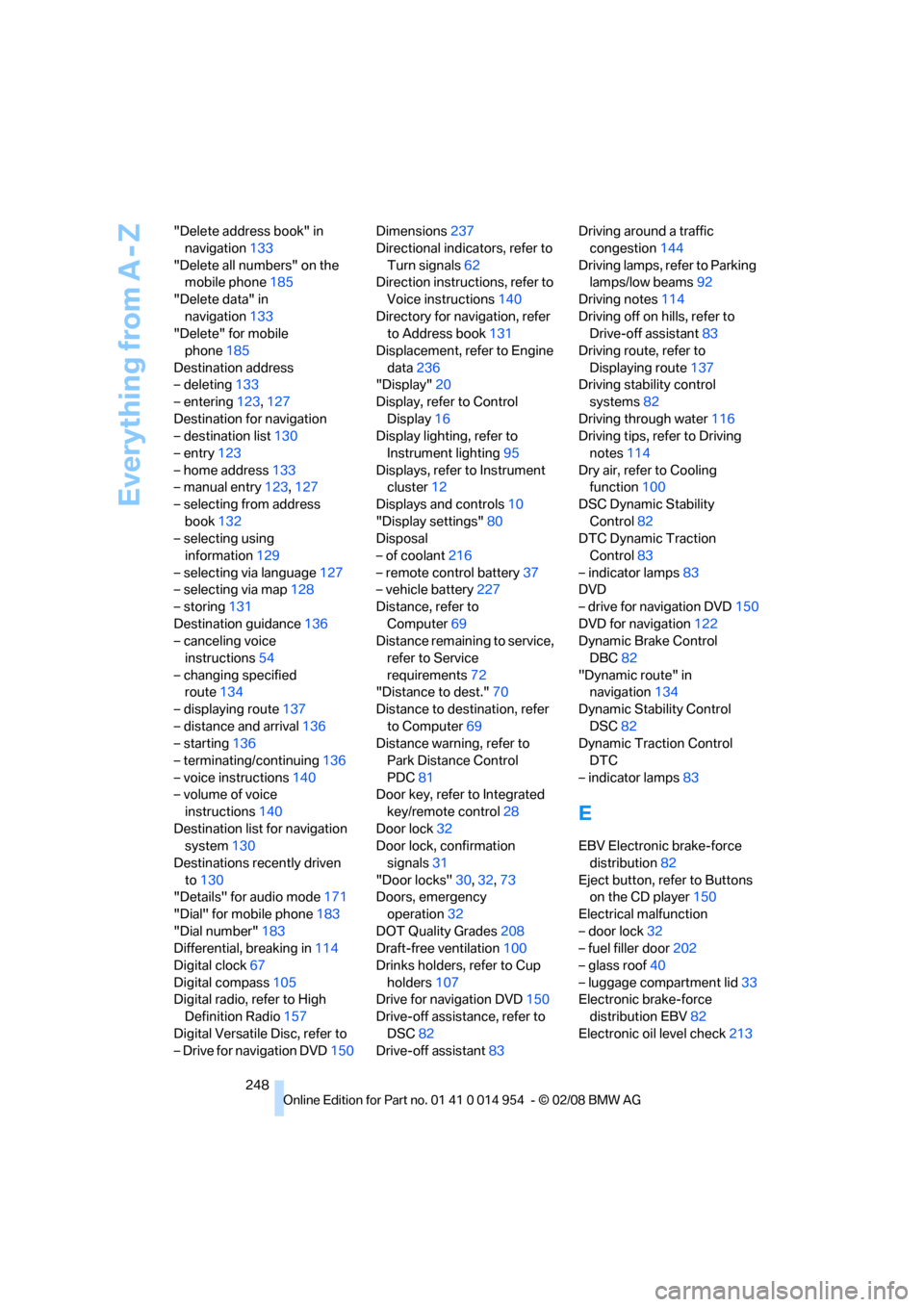
248 "Delete address book" in
navigation133
"Delete all numbers" on the
mobile phone185
"Delete data" in
navigation133
"Delete" for mobile
phone185
Destination address
– deleting133
– entering123,127
Destination for navigation
– destination list130
– entry123
– home address133
– manual entry123,127
– selecting from address
book132
– selecting using
information129
– selecting via language127
– selecting via map128
– storing131
Destination guidance136
– canceling voice
instructions54
– changing specified
route134
– displaying route137
– distance and arrival136
– starting136
– terminating/continuing136
– voice instructions140
– volume of voice
instructions140
Destination list for navigation
system130
Destinations recently driven
to130
"Details" for audio mode171
"Dial" for mobile phone183
"Dial number"183
Differential, breaking in114
Digital clock67
Digital compass105
Digital radio, refer to High
Definition Radio157
Digital Versatile Disc, refer to
– Drive for navigation DVD150Dimensions237
Directional indicators, refer to
Turn signals62
Direction instructions, refer to
Voice instructions140
Directory for navigation, refer
to Address book131
Displacement, refer to Engine
data
236
"Display"20
Display, refer to Control
Display16
Display lighting, refer to
Instrument lighting95
Displays, refer to Instrument
cluster12
Displays and controls10
"Display settings"80
Disposal
– of coolant216
– remote control battery37
– vehicle battery227
Distance, refer to
Computer69
Distance remaining to service,
refer to Service
requirements72
"Distance to dest."70
Distance to destination, refer
to Computer69
Distance warning, refer to
Park Distance Control
PDC81
Door key, refer to Integrated
key/remote control28
Door lock32
Door lock, confirmation
signals31
"Door locks"30,32,73
Doors, emergency
operation32
DOT Quality Grades208
Draft-free ventilation100
Drinks holders, refer to Cup
holders107
Drive for navigation DVD150
Drive-off assistance, refer to
DSC82
Drive-off assistant83Driving around a traffic
congestion144
Driving lamps, refer to Parking
lamps/low beams92
Driving notes114
Driving off on hills, refer to
Drive-off assistant83
Driving route, refer to
Displaying route137
Driving stability control
systems82
Driving through water116
Driving tips, refer to Driving
notes114
Dry air, refer to Cooling
function100
DSC Dynamic Stability
Control82
DTC Dynamic Traction
Control83
– indicator lamps83
DVD
– drive for navigation DVD150
DVD for navigation122
Dynamic Brake Control
DBC82
"Dynamic route" in
navigation134
Dynamic Stability Control
DSC82
Dynamic Traction Control
DTC
– indicator lamps83
E
EBV Electronic brake-force
distribution82
Eject button, refer to Buttons
on the CD player150
Electrical malfunction
– door lock32
– fuel filler door202
– glass roof40
– luggage compartment lid33
Electronic brake-force
distribution EBV82
Electronic oil level check213