light BMW 135I COUPE 2008 E82 Manual Online
[x] Cancel search | Manufacturer: BMW, Model Year: 2008, Model line: 135I COUPE, Model: BMW 135I COUPE 2008 E82Pages: 260, PDF Size: 8.61 MB
Page 180 of 260
Telephoning
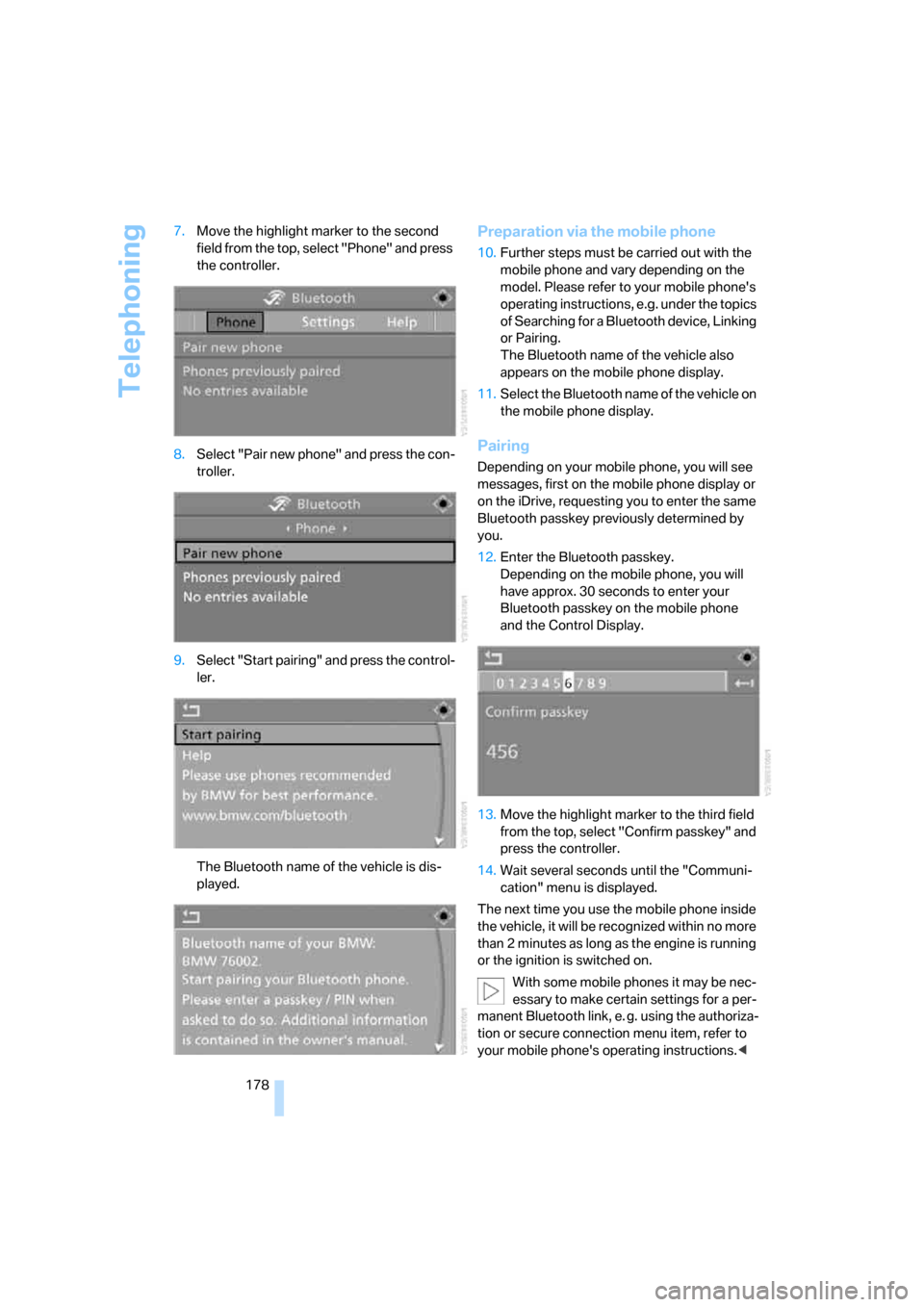
178 7.Move the highlight marker to the second
field from the top, select "Phone" and press
the controller.
8.Select "Pair new phone" and press the con-
troller.
9.Select "Start pairing" and press the control-
ler.
The Bluetooth name of the vehicle is dis-
played.
Preparation via the mobile phone
10.Further steps must be carried out with the
mobile phone and vary depending on the
model. Please refer to your mobile phone's
operating instructions, e.g. under the topics
of Searching for a Bluetooth device, Linking
or Pairing.
The Bluetooth name of the vehicle also
appears on the mobile phone display.
11.Select the Bluetooth name of the vehicle on
the mobile phone display.
Pairing
Depending on your mobile phone, you will see
messages, first on the mobile phone display or
on the iDrive, requesting you to enter the same
Bluetooth passkey previously determined by
you.
12.Enter the Bluetooth passkey.
Depending on the mobile phone, you will
have approx. 30 seconds to enter your
Bluetooth passkey on the mobile phone
and the Control Display.
13.Move the highlight marker to the third field
from the top, select "Confirm passkey" and
press the controller.
14.Wait several seconds until the "Communi-
cation" menu is displayed.
The next time you use the mobile phone inside
the vehicle, it will be recognized within no more
than 2 minutes as long as the engine is running
or the ignition is switched on.
With some mobile phones it may be nec-
essary to make certain settings for a per-
manent Bluetooth link, e. g. using the authoriza-
tion or secure connection menu item, refer to
your mobile phone's operating instructions.<
Page 182 of 260
Telephoning
180 time, the mobile phone at the top of the list can
be operated via the vehicle.
You can change the order of the mobile phones
on the list. As long as a mobile phone from this
list is selected, you cannot operate the mobile
phones via the vehicle.
iDrive, for operating principle refer to page16.
1.Press the button to call up the start
menu.
2.Press the controller to open the menu.
3.Select "Settings" and press the controller.
4.Select "Bluetooth" and press the controller.
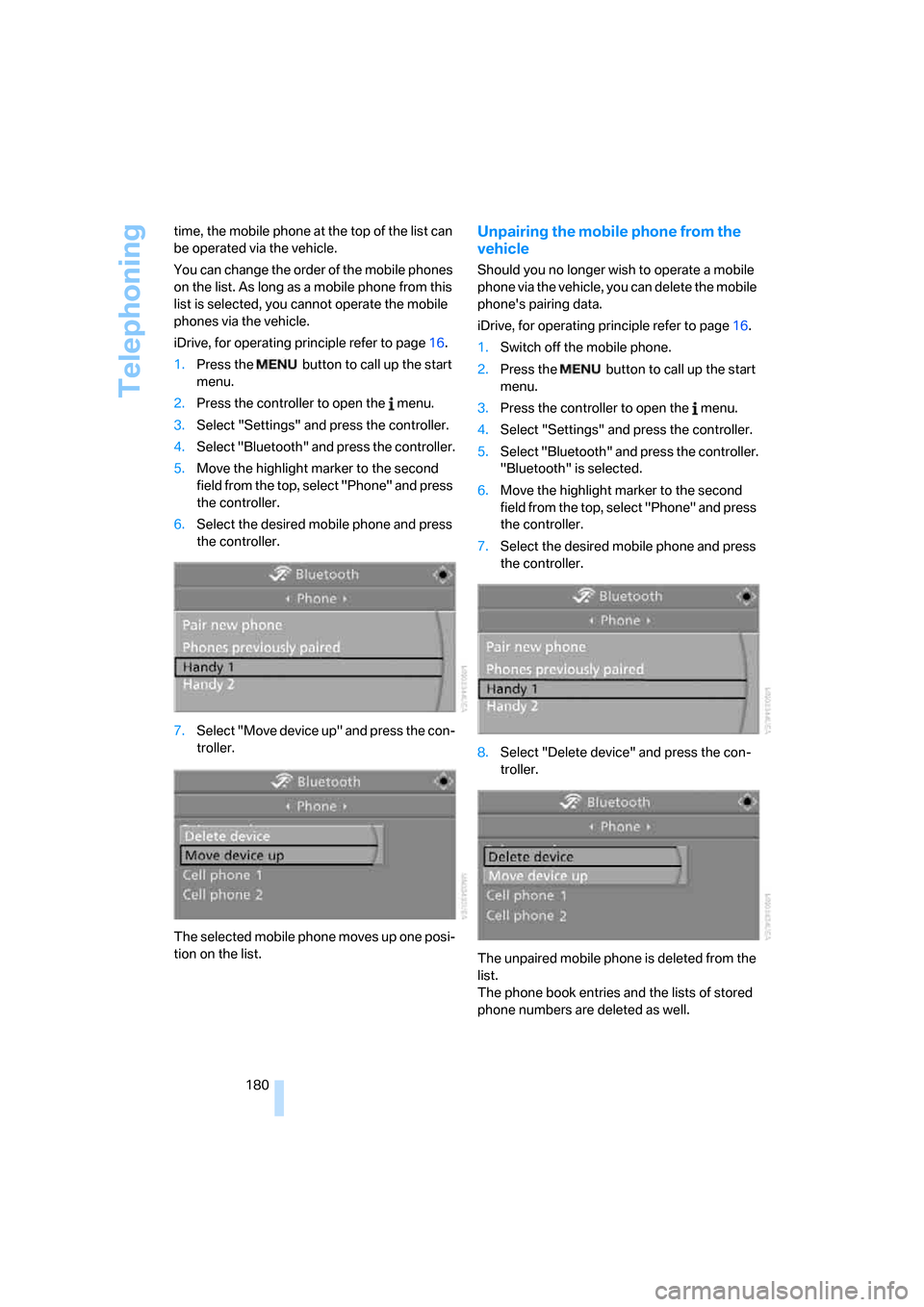
5.Move the highlight marker to the second
field from the top, select "Phone" and press
the controller.
6.Select the desired mobile phone and press
the controller.
7.Select "Move device up" and press the con-
troller.
The selected mobile phone moves up one posi-
tion on the list.
Unpairing the mobile phone from the
vehicle
Should you no longer wish to operate a mobile
phone via the vehicle, you can delete the mobile
phone's pairing data.
iDrive, for operating principle refer to page16.
1.Switch off the mobile phone.
2.Press the button to call up the start
menu.
3.Press the controller to open the menu.
4.Select "Settings" and press the controller.
5.Select "Bluetooth" and press the controller.
"Bluetooth" is selected.
6.Move the highlight marker to the second
field from the top, select "Phone" and press
the controller.
7.Select the desired mobile phone and press
the controller.
8.Select "Delete device" and press the con-
troller.
The unpaired mobile phone is deleted from the
list.
The phone book entries and the lists of stored
phone numbers are deleted as well.
Page 183 of 260
181
Entertainment
Reference
At a glance
Controls
Driving tips Communications
Navigation
Mobility
Activating/deactivating the Bluetooth
link
The use of Bluetooth technology is not
permitted in all countries. Observe all
applicable local regulations. Temporarily deac-
tivate the Bluetooth link between the vehicle
and the mobile phone, if necessary.
If the Bluetooth link is deactivated, you can no
longer operate the mobile phone via the vehicle,
and other devices with a Bluetooth interface
can be used in combination with the mobile
phone, e.g. a laptop.<
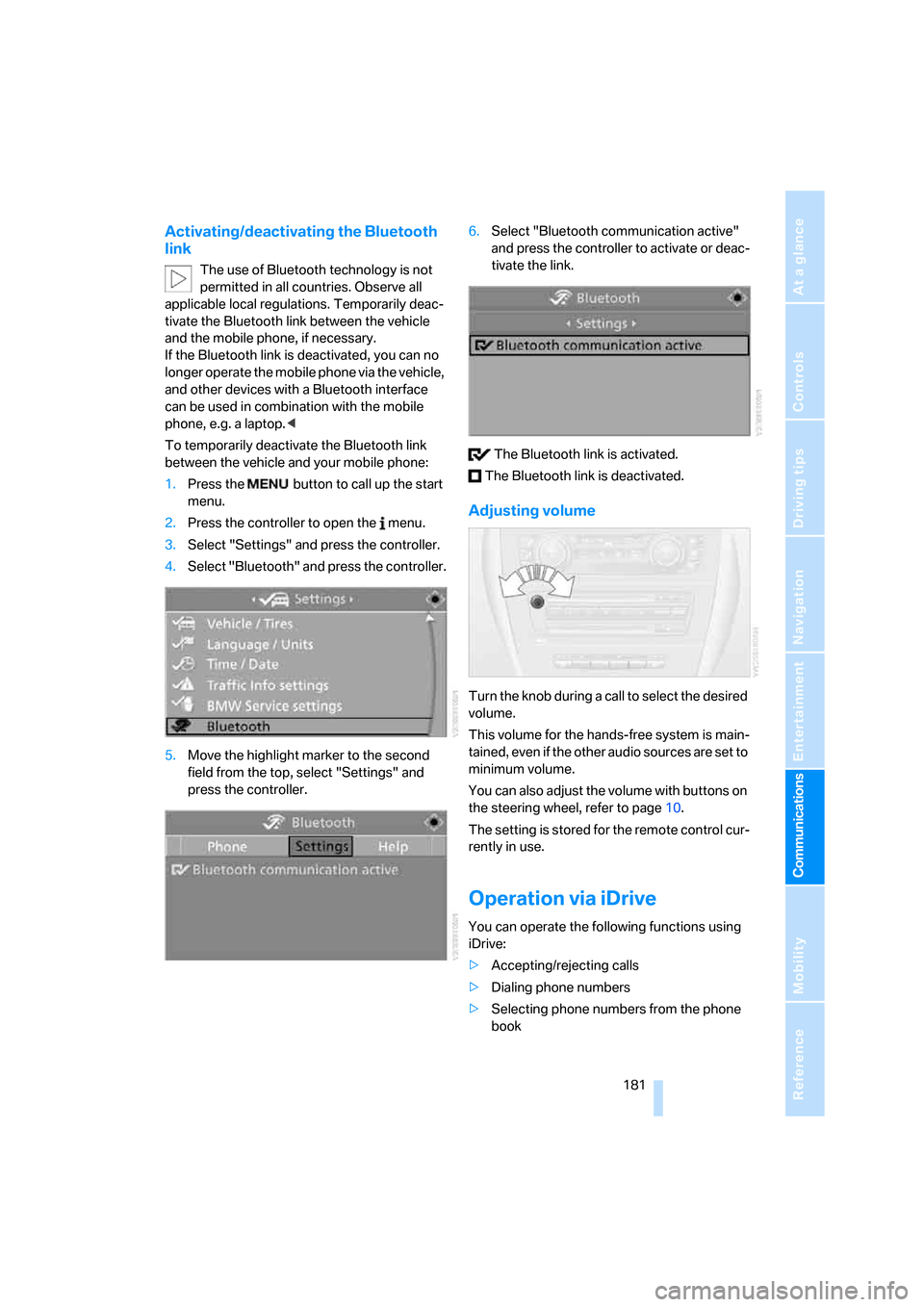
To temporarily deactivate the Bluetooth link
between the vehicle and your mobile phone:
1.Press the button to call up the start
menu.
2.Press the controller to open the menu.
3.Select "Settings" and press the controller.
4.Select "Bluetooth" and press the controller.
5.Move the highlight marker to the second
field from the top, select "Settings" and
press the controller.6.Select "Bluetooth communication active"
and press the controller to activate or deac-
tivate the link.
The Bluetooth link is activated.
The Bluetooth link is deactivated.
Adjusting volume
Turn the knob during a call to select the desired
volume.
This volume for the hands-free system is main-
tained, even if the other audio sources are set to
minimum volume.
You can also adjust the volume with buttons on
the steering wheel, refer to page10.
The setting is stored for the remote control cur-
rently in use.
Operation via iDrive
You can operate the following functions using
iDrive:
>Accepting/rejecting calls
>Dialing phone numbers
>Selecting phone numbers from the phone
book
Page 194 of 260
BMW Assist
192 You can also access the BMW Assist Concierge
service via the Internet.
Characteristics of the offered services
The following characteristics apply to the ser-
vices:
>The services offered are country-specific.
>Voice contact is established or data are
transferred, depending on the equipment
and the country. In some countries, it is
possible to do both.
>The data transmitted can be vehicle data,
for example, your current position or the
Condition Based Service CBS data.
Using services
Contacting the BMW Assist Response
Center
You can contact the BMW Assist Response
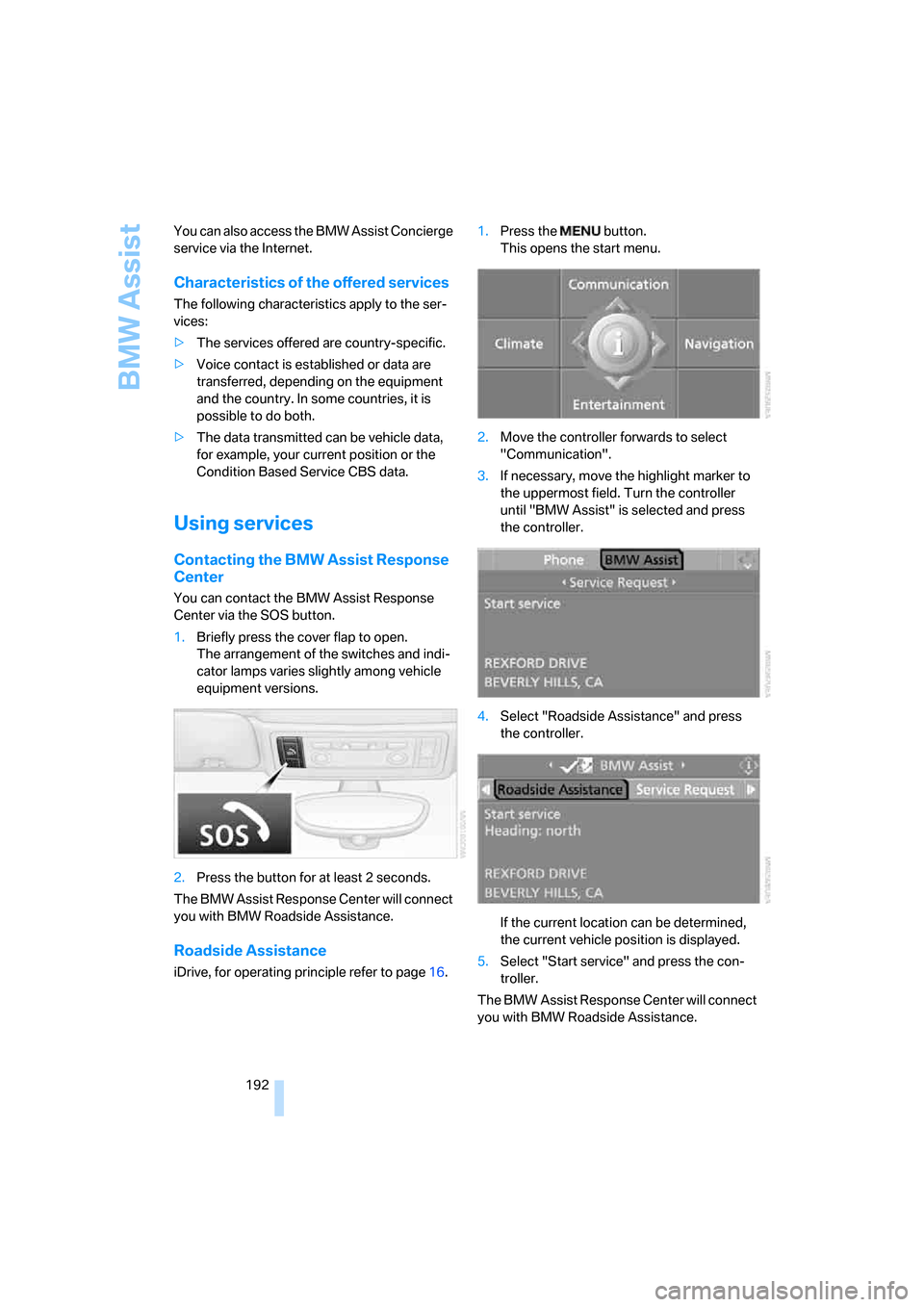
Center via the SOS button.
1.Briefly press the cover flap to open.
The arrangement of the switches and indi-
cator lamps varies slightly among vehicle
equipment versions.
2.Press the button for at least 2 seconds.
The BMW Assist Response Center will connect
you with BMW Roadside Assistance.
Roadside Assistance
iDrive, for operating principle refer to page16.1.Press the button.
This opens the start menu.
2.Move the controller forwards to select
"Communication".
3.If necessary, move the highlight marker to
the uppermost field. Turn the controller
until "BMW Assist" is selected and press
the controller.
4.Select "Roadside Assistance" and press
the controller.
If the current location can be determined,
the current vehicle position is displayed.
5.Select "Start service" and press the con-
troller.
The BMW Assist Response Center will connect
you with BMW Roadside Assistance.
Page 195 of 260
193
Entertainment
Reference
At a glance
Controls
Driving tips Communications
Navigation
Mobility
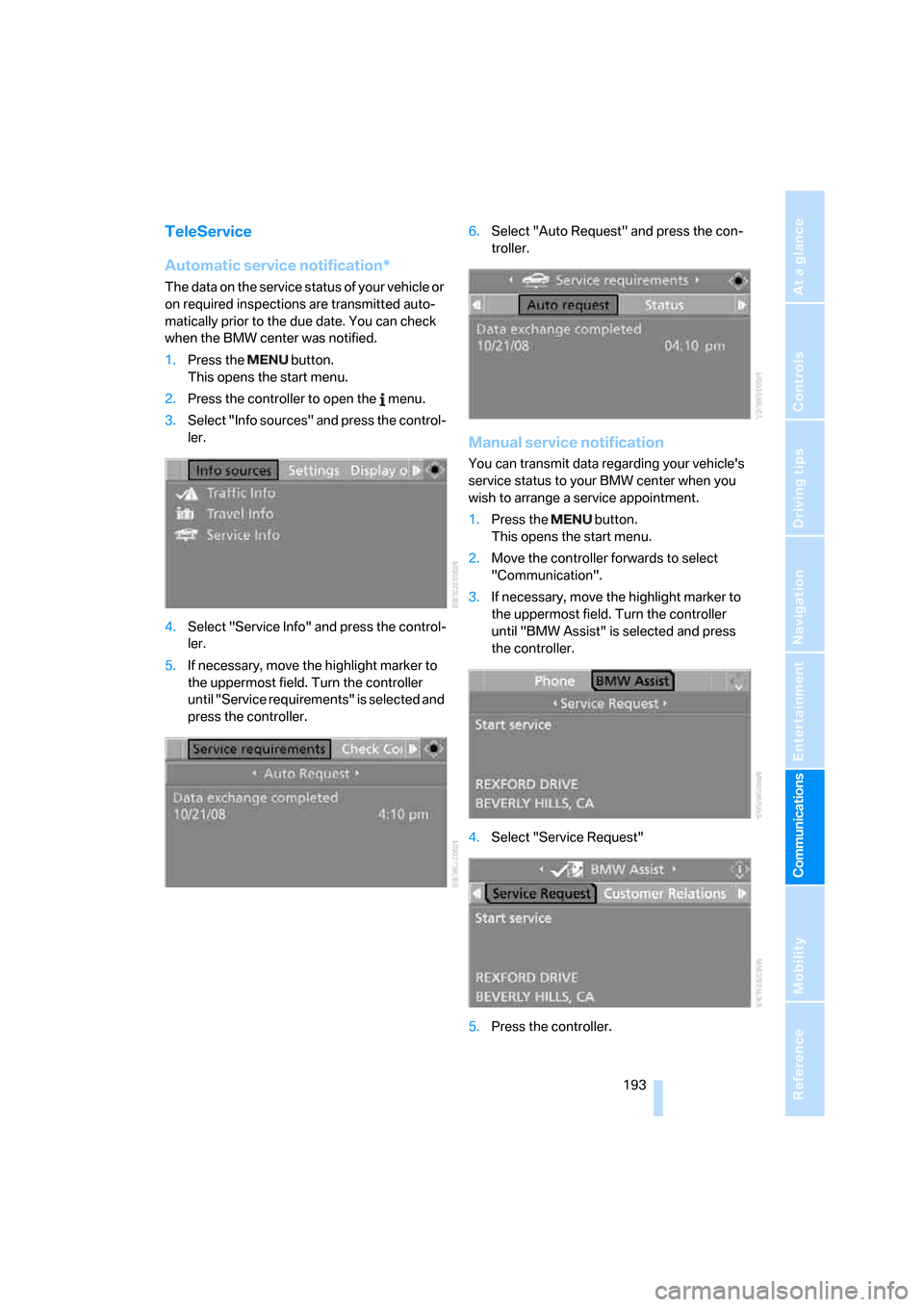
TeleService
Automatic service notification*
The data on the service status of your vehicle or
on required inspections are transmitted auto-
matically prior to the due date. You can check
when the BMW center was notified.
1.Press the button.
This opens the start menu.
2.Press the controller to open the menu.
3.Select "Info sources" and press the control-
ler.
4.Select "Service Info" and press the control-
ler.
5.If necessary, move the highlight marker to
the uppermost field. Turn the controller
until "Service requirements" is selected and
press the controller.6.Select "Auto Request" and press the con-
troller.
Manual service notification
You can transmit data regarding your vehicle's
service status to your BMW center when you
wish to arrange a service appointment.
1.Press the button.
This opens the start menu.
2.Move the controller forwards to select
"Communication".
3.If necessary, move the highlight marker to
the uppermost field. Turn the controller
until "BMW Assist" is selected and press
the controller.
4.Select "Service Request"
5.Press the controller.
Page 196 of 260
BMW Assist
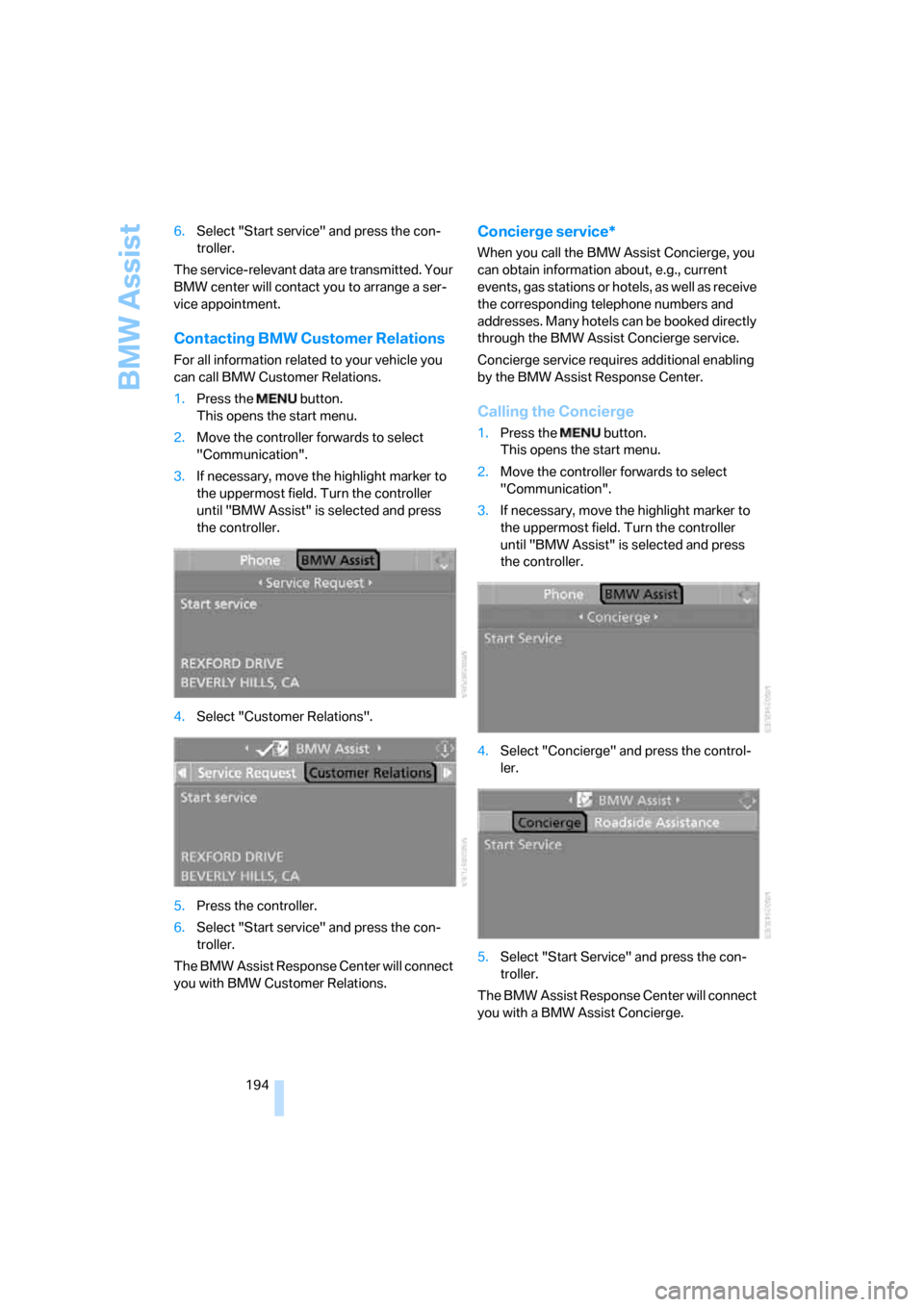
194 6.Select "Start service" and press the con-
troller.
The service-relevant data are transmitted. Your
BMW center will contact you to arrange a ser-
vice appointment.
Contacting BMW Customer Relations
For all information related to your vehicle you
can call BMW Customer Relations.
1.Press the button.
This opens the start menu.
2.Move the controller forwards to select
"Communication".
3.If necessary, move the highlight marker to
the uppermost field. Turn the controller
until "BMW Assist" is selected and press
the controller.
4.Select "Customer Relations".
5.Press the controller.
6.Select "Start service" and press the con-
troller.
The BMW Assist Response Center will connect
you with BMW Customer Relations.
Concierge service*
When you call the BMW Assist Concierge, you
can obtain information about, e.g., current
e v e n t s , g a s s t a t i o n s o r h o t e ls , a s w e ll a s r ec e i v e
the corresponding telephone numbers and
addresses. Many hotels can be booked directly
through the BMW Assist Concierge service.
Concierge service requires additional enabling
by the BMW Assist Response Center.
Calling the Concierge
1.Press the button.
This opens the start menu.
2.Move the controller forwards to select
"Communication".
3.If necessary, move the highlight marker to
the uppermost field. Turn the controller
until "BMW Assist" is selected and press
the controller.
4.Select "Concierge" and press the control-
ler.
5.Select "Start Service" and press the con-
troller.
The BMW Assist Response Center will connect
you with a BMW Assist Concierge.
Page 197 of 260
195
Entertainment
Reference
At a glance
Controls
Driving tips Communications
Navigation
Mobility
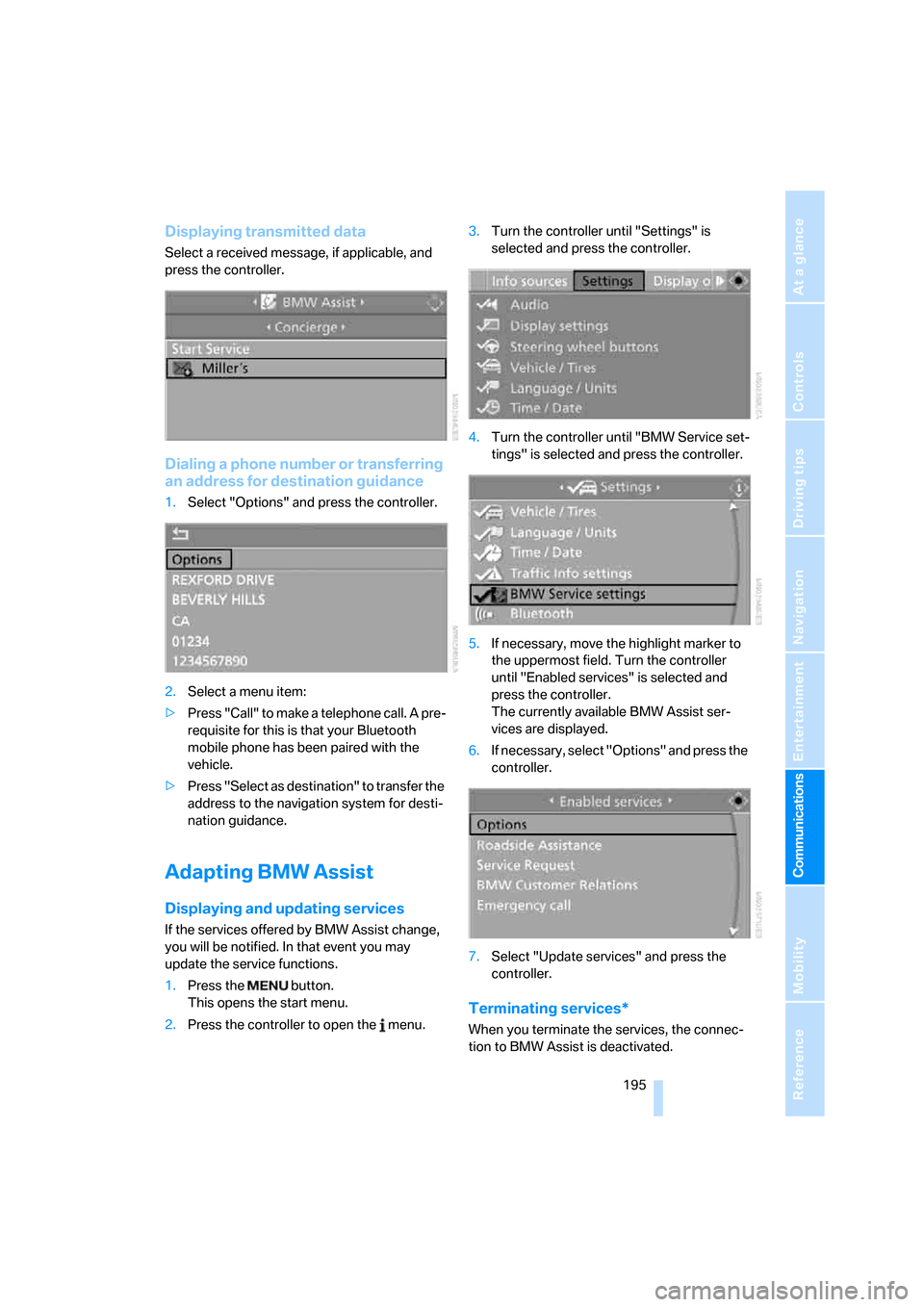
Displaying transmitted data
Select a received message, if applicable, and
press the controller.
Dialing a phone number or transferring
an address for destination guidance
1.Select "Options" and press the controller.
2.Select a menu item:
>Press "Call" to make a telephone call. A pre-
requisite for this is that your Bluetooth
mobile phone has been paired with the
vehicle.
>Press "Select as destination" to transfer the
address to the navigation system for desti-
nation guidance.
Adapting BMW Assist
Displaying and updating services
If the services offered by BMW Assist change,
you will be notified. In that event you may
update the service functions.
1.Press the button.
This opens the start menu.
2.Press the controller to open the menu.3.Turn the controller until "Settings" is
selected and press the controller.
4.Turn the controller until "BMW Service set-
tings" is selected and press the controller.
5.If necessary, move the highlight marker to
the uppermost field. Turn the controller
until "Enabled services" is selected and
press the controller.
The currently available BMW Assist ser-
vices are displayed.
6.If necessary, select "Options" and press the
controller.
7.Select "Update services" and press the
controller.
Terminating services*
When you terminate the services, the connec-
tion to BMW Assist is deactivated.
Page 198 of 260
BMW Assist
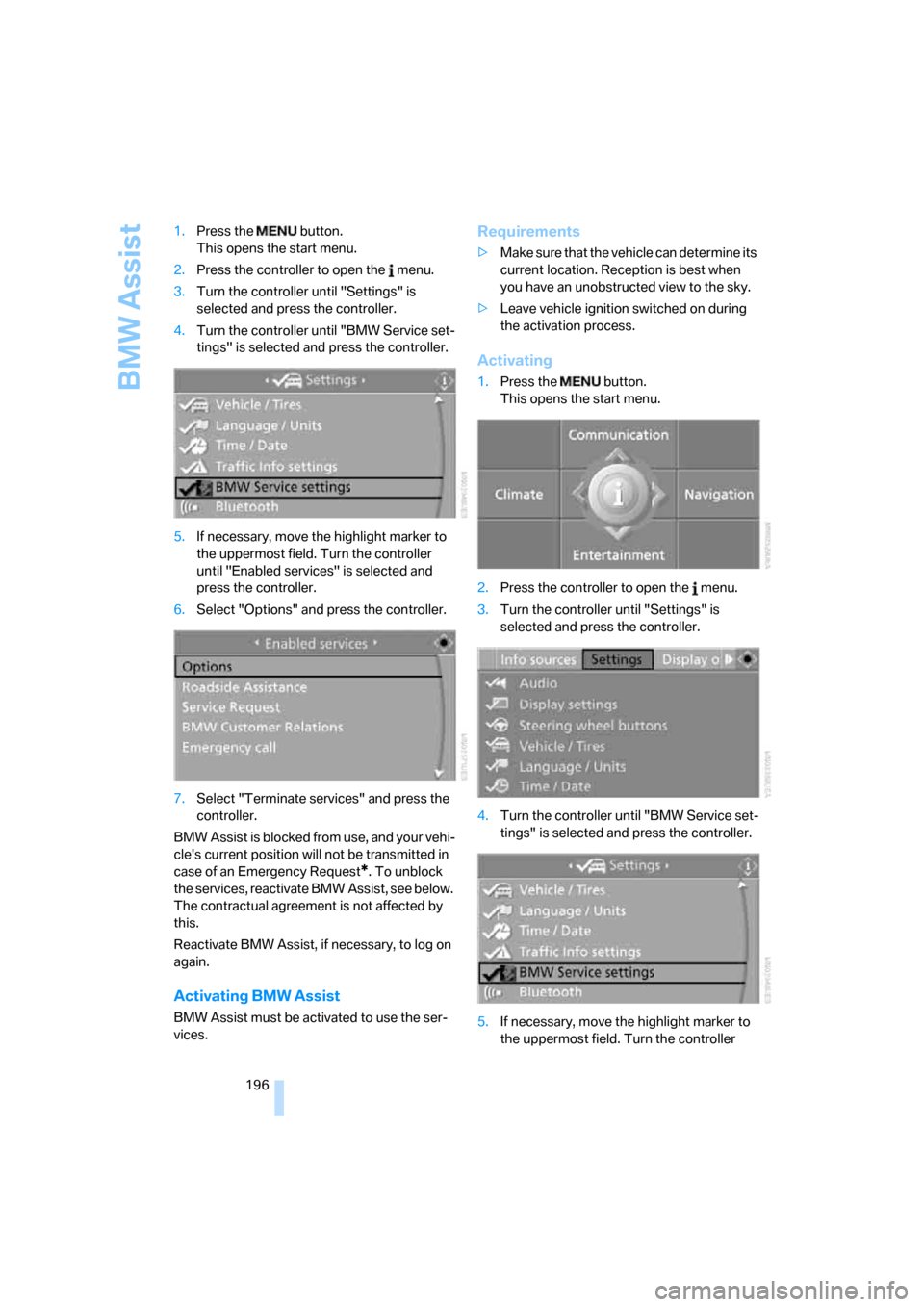
196 1.Press the button.
This opens the start menu.
2.Press the controller to open the menu.
3.Turn the controller until "Settings" is
selected and press the controller.
4.Turn the controller until "BMW Service set-
tings" is selected and press the controller.
5.If necessary, move the highlight marker to
the uppermost field. Turn the controller
until "Enabled services" is selected and
press the controller.
6.Select "Options" and press the controller.
7.Select "Terminate services" and press the
controller.
BMW Assist is blocked from use, and your vehi-
cle's current position will not be transmitted in
case of an Emergency Request
*. To unblock
the services, reactivate BMW Assist, see below.
The contractual agreement is not affected by
this.
Reactivate BMW Assist, if necessary, to log on
again.
Activating BMW Assist
BMW Assist must be activated to use the ser-
vices.
Requirements
>Make sure that the vehicle can determine its
current location. Reception is best when
you have an unobstructed view to the sky.
>Leave vehicle ignition switched on during
the activation process.
Activating
1.Press the button.
This opens the start menu.
2.Press the controller to open the menu.
3.Turn the controller until "Settings" is
selected and press the controller.
4.Turn the controller until "BMW Service set-
tings" is selected and press the controller.
5.If necessary, move the highlight marker to
the uppermost field. Turn the controller
Page 199 of 260
197
Entertainment
Reference
At a glance
Controls
Driving tips Communications
Navigation
Mobility
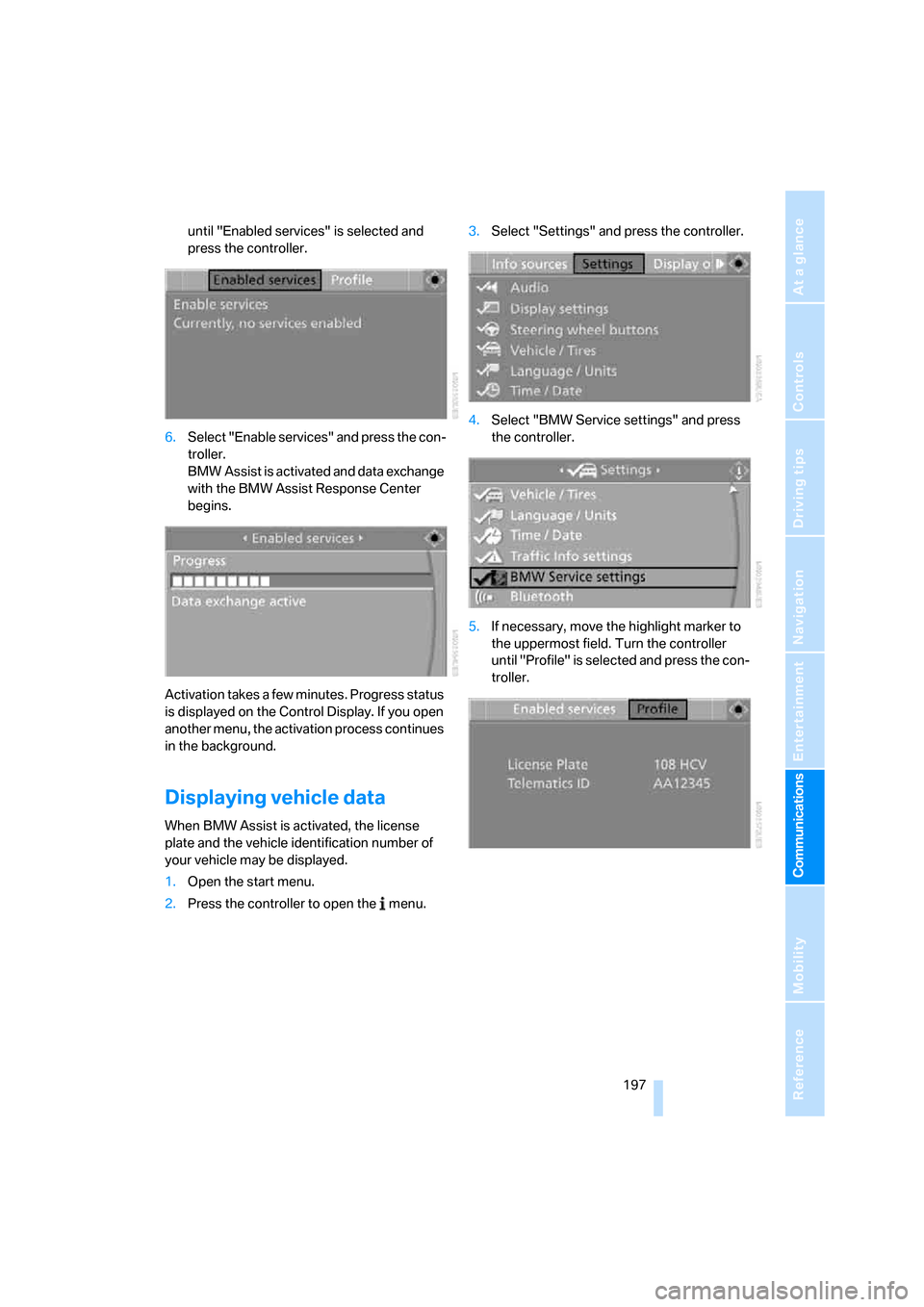
until "Enabled services" is selected and
press the controller.
6.Select "Enable services" and press the con-
troller.
BMW Assist is activated and data exchange
with the BMW Assist Response Center
begins.
Activation takes a few minutes. Progress status
is displayed on the Control Display. If you open
another menu, the activation process continues
in the background.
Displaying vehicle data
When BMW Assist is activated, the license
plate and the vehicle identification number of
your vehicle may be displayed.
1.Open the start menu.
2.Press the controller to open the menu.3.Select "Settings" and press the controller.
4.Select "BMW Service settings" and press
the controller.
5.If necessary, move the highlight marker to
the uppermost field. Turn the controller
until "Profile" is selected and press the con-
troller.
Page 202 of 260
Refueling
200
Refueling
Always switch off the engine before refu-
eling, otherwise, fuel cannot be added to
the tank and a message will be displayed.<
Take all precautionary measures and
observe all applicable regulations when
handling fuel. Do not carry any spare fuel con-
tainers in your vehicle. They can develop a leak
and cause an explosion or cause a fire in the
event of an accident.<
Fuel filler door
Opening
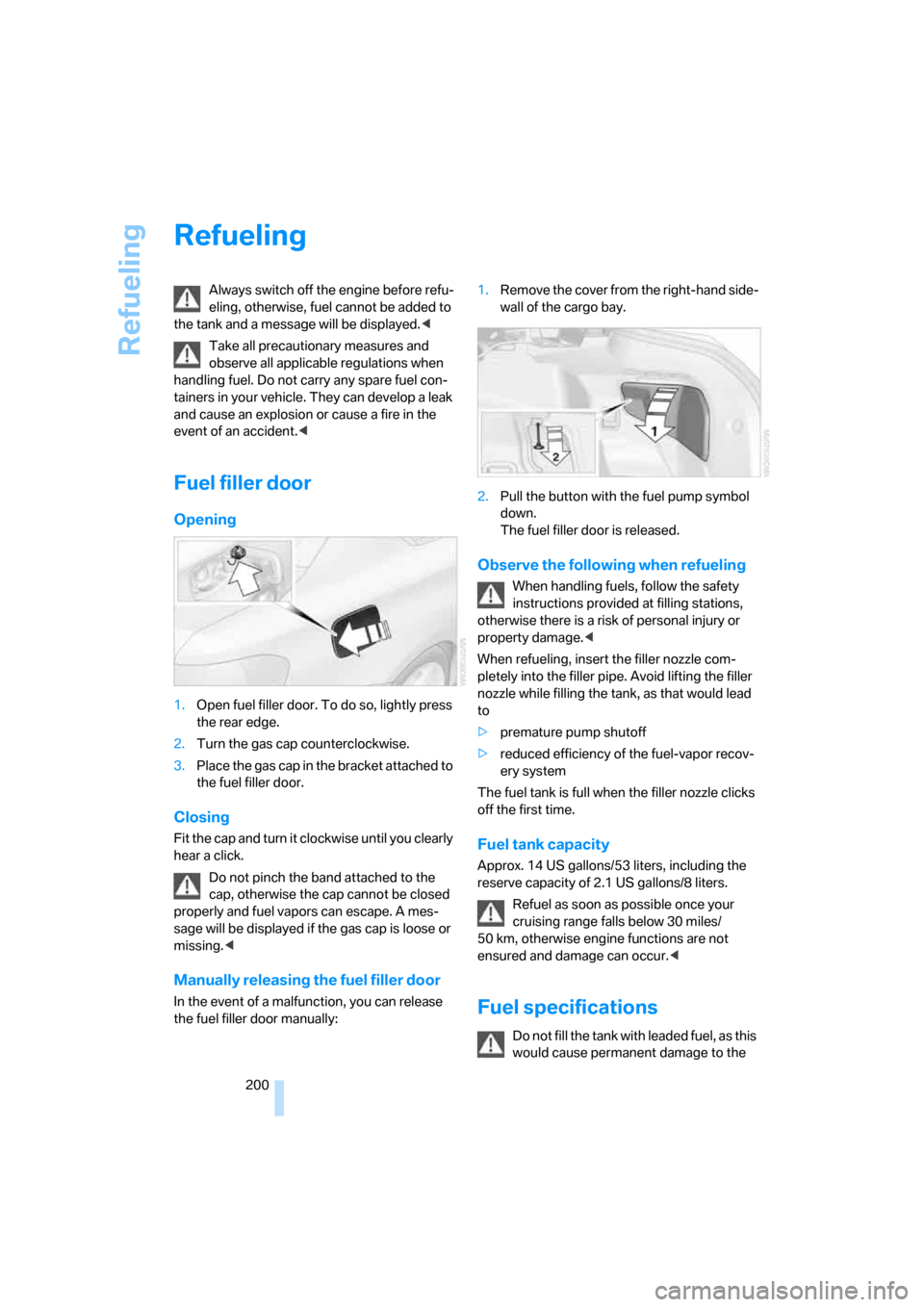
1.Open fuel filler door. To do so, lightly press
the rear edge.
2.Turn the gas cap counterclockwise.
3.Place the gas cap in the bracket attached to
the fuel filler door.
Closing
Fit the cap and turn it clockwise until you clearly
hear a click.
Do not pinch the band attached to the
cap, otherwise the cap cannot be closed
properly and fuel vapors can escape. A mes-
sage will be displayed if the gas cap is loose or
missing.<
Manually releasing the fuel filler door
In the event of a malfunction, you can release
the fuel filler door manually:1.Remove the cover from the right-hand side-
wall of the cargo bay.
2.Pull the button with the fuel pump symbol
down.
The fuel filler door is released.
Observe the following when refueling
When handling fuels, follow the safety
instructions provided at filling stations,
otherwise there is a risk of personal injury or
property damage.<
When refueling, insert the filler nozzle com-
pletely into the filler pipe. Avoid lifting the filler
nozzle while filling the tank, as that would lead
to
>premature pump shutoff
>reduced efficiency of the fuel-vapor recov-
ery system
The fuel tank is full when the filler nozzle clicks
off the first time.
Fuel tank capacity
Approx. 14 US gallons/53 liters, including the
reserve capacity of 2.1 US gallons/8 liters.
Refuel as soon as possible once your
cruising range falls below 30 miles/
50 km, otherwise engine functions are not
ensured and damage can occur.<
Fuel specifications
Do not fill the tank with leaded fuel, as this
would cause permanent damage to the