audio BMW 135I COUPE 2012 Owner's Manual
[x] Cancel search | Manufacturer: BMW, Model Year: 2012, Model line: 135I COUPE, Model: BMW 135I COUPE 2012Pages: 272, PDF Size: 8.49 MB
Page 178 of 272
Telephone
176
Telephone
At a glance
The concept
Mobile phones or other external devices, e.g.
audio players, can be connected to the vehicle
via Bluetooth.
Bluetooth® is a registered trademark of Blue-
tooth® SIG, Inc.
After being paired once, when the ignition is
switched on, these devices are automatically
detected as soon as they are present in the
vehicle and can be controlled via iDrive, the but-
tons on the steering wheel, and by voice
*.
Depending on whether they are functioning as a
telephone and/or as an audio source, external
devices can be used via the vehicle. The tele-
phone functions will be described below. Oper-
ation of audio functions, refer to page169.
Up to four external devices can be paired.
It may be necessary for some functions to be
activated by the mobile phone provider or ser-
vice provider.
Only make entries when traffic conditions
permit. Do not hold the mobile phone in
your hand while you are driving; use the hands-
free system instead. Otherwise, you may
endanger vehicle occupants and other road
users.<
Snap-in adapter*
The snap-in adapter makes it possible:
>Accommodate the mobile phone.
>Recharge its battery.
>Connect it to an external antenna of the
vehicle.
This assures a better network connection
and constant sound quality.
Suitable mobile phones
For precise information about which mobile
phones and external devices with a Bluetooth interface are supported by the mobile phone
preparation, go to www.bmwusa.com/blue-
tooth.
Displaying vehicle identification
number and software part number
Checking which mobile phones are supported
by the mobile phone preparation requires the
vehicle identification number and software part
number. The software version of the mobile
phone may also be required.
1."Telephone"
2.Open "Options".
3."Bluetooth® info"
4."Display system information"
With a certain software version, these suitable
mobile phones support the vehicle functions
described below.
With other mobile phones or software versions,
malfunctions may occur.
A mobile phone that is connected to the vehicle
should not be operated via the mobile phone
keypad; otherwise, malfunctions may occur.
It is possible to perform a software update, refer
to page172.
Pairing/unpairing mobile
phone
General information
The following functions are available:
>Using the mobile phone as a telephone.
>Using the mobile phone as an auxiliary
phone
*.
>Using the mobile phone as an audio source.
>Using an audio device as an audio source,
refer to page169.
*
Page 179 of 272
177
Entertainment
Reference
At a glance
Controls
Driving tips Communications
Navigation
Mobility
Requirements
>Suitable mobile phone, refer to page176.
>Mobile phone operational.
>Bluetooth activated in vehicle, refer to
page178, and in the mobile phone.
>Bluetooth presets in the mobile phone are
required, e.g. connection not confirmed or
visible, refer to owner's manual for the
mobile phone.
>Deactivating Bluetooth audio, refer to
page177.
>A number with at least 4 and at most
16 digits has been established as the Blue-
tooth passkey. Only required once for pair-
ing.
>Ignition switched on.
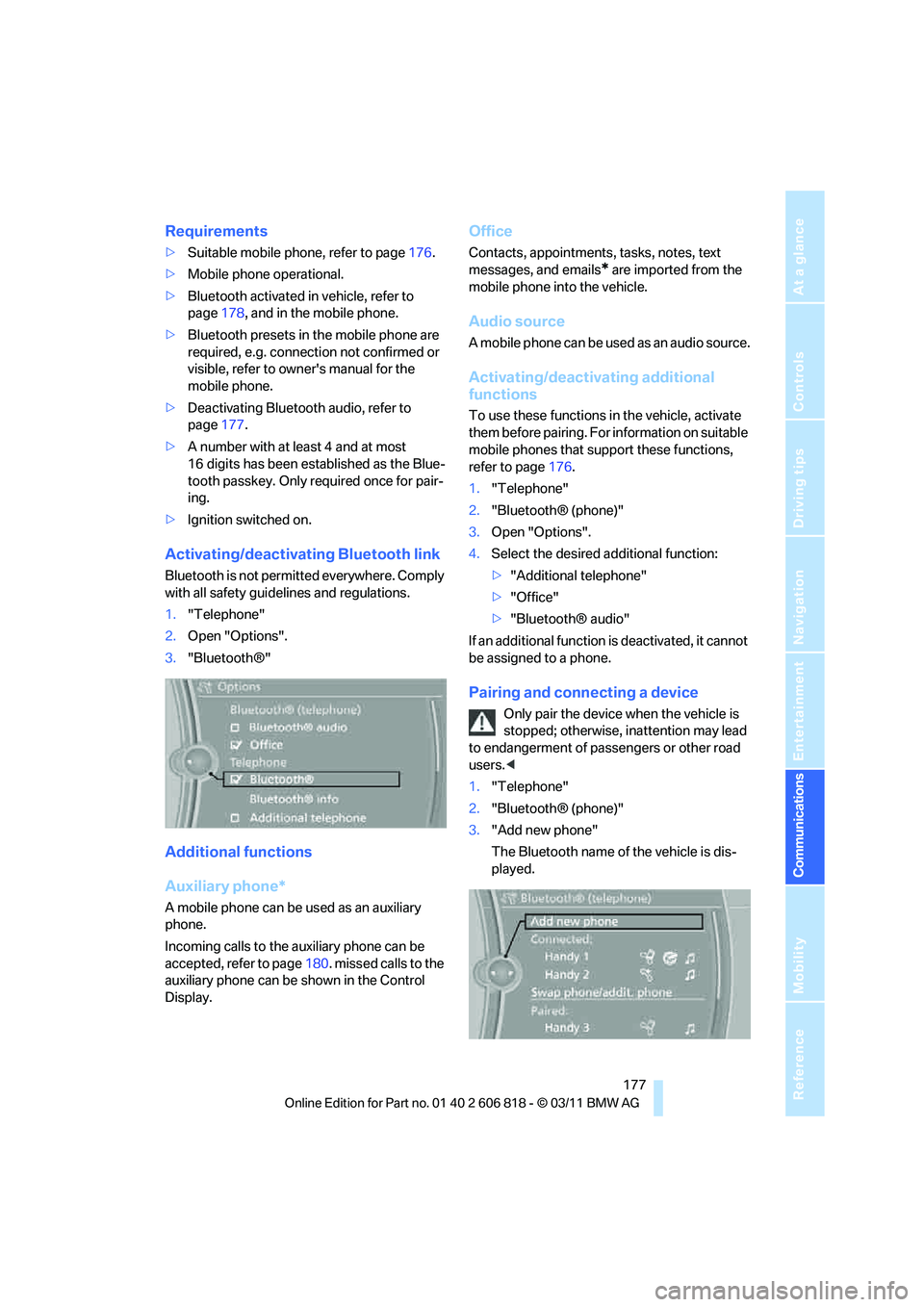
Activating/deactivating Bluetooth link
Bluetooth is not permitted everywhere. Comply
with all safety guidelines and regulations.
1."Telephone"
2.Open "Options".
3."Bluetooth®"
Additional functions
Auxiliary phone*
A mobile phone can be used as an auxiliary
phone.
Incoming calls to the auxiliary phone can be
accepted, refer to page180. missed calls to the
auxiliary phone can be shown in the Control
Display.
Office
Contacts, appointments, tasks, notes, text
messages, and emails
* are imported from the
mobile phone into the vehicle.
Audio source
A mobile phone can be used as an audio source.
Activating/deactivating additional
functions
To use these functions in the vehicle, activate
them before pairing. For information on suitable
mobile phones that support these functions,
refer to page176.
1."Telephone"
2."Bluetooth® (phone)"
3.Open "Options".
4.Select the desired additional function:
>"Additional telephone"
>"Office"
>"Bluetooth® audio"
If an additional function is deactivated, it cannot
be assigned to a phone.
Pairing and connecting a device
Only pair the device when the vehicle is
stopped; otherwise, inattention may lead
to endangerment of passengers or other road
users.<
1."Telephone"
2."Bluetooth® (phone)"
3."Add new phone"
The Bluetooth name of the vehicle is dis-
played.
Page 180 of 272
Telephone
178 4.To perform other operations on the mobile
phone, refer to the owner's manual for the
device: e.g. search for and connect Blue-
tooth device or a new device.
The Bluetooth name of the vehicle appears
on the mobile phone display.
5.Select the Bluetooth name of the vehicle on
the mobile phone display.
You will be prompted by iDrive or the mobile
phone to enter the same Bluetooth pass-
key.
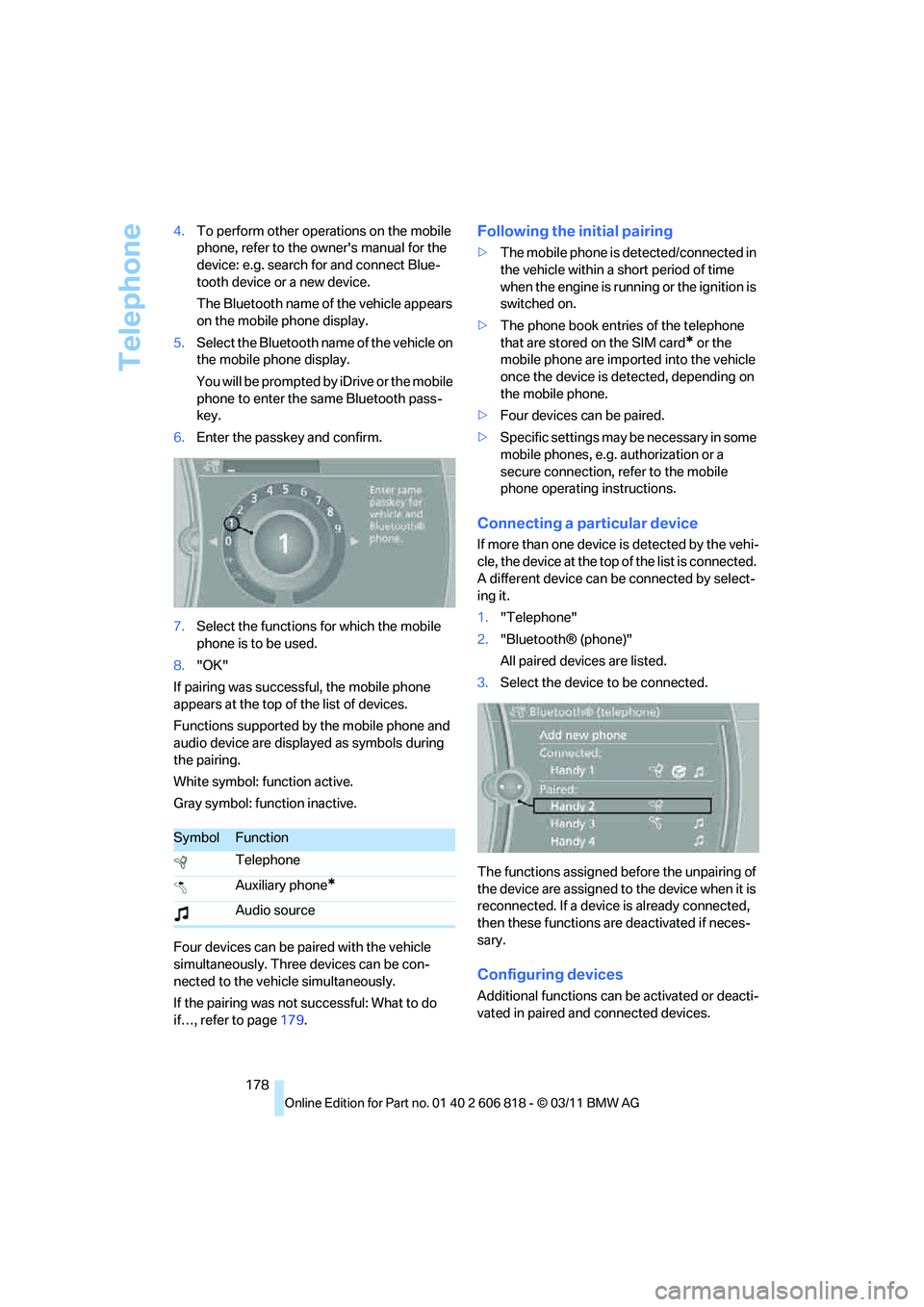
6.Enter the passkey and confirm.
7.Select the functions for which the mobile
phone is to be used.
8."OK"
If pairing was successful, the mobile phone
appears at the top of the list of devices.
Functions supported by the mobile phone and
audio device are displayed as symbols during
the pairing.
White symbol: function active.
Gray symbol: function inactive.
Four devices can be paired with the vehicle
simultaneously. Three devices can be con-
nected to the vehicle simultaneously.
If the pairing was not successful: What to do
if…, refer to page179.
Following the initial pairing
>The mobile phone is detected/connected in
the vehicle within a short period of time
when the engine is running or the ignition is
switched on.
>The phone book entries of the telephone
that are stored on the SIM card
* or the
mobile phone are imported into the vehicle
once the device is detected, depending on
the mobile phone.
>Four devices can be paired.
>Specific settings may be necessary in some
mobile phones, e.g. authorization or a
secure connection, refer to the mobile
phone operating instructions.
Connecting a particular device
If more than one device is detected by the vehi-
cle, the device at the top of the list is connected.
A different device can be connected by select-
ing it.
1."Telephone"
2."Bluetooth® (phone)"
All paired devices are listed.
3.Select the device to be connected.
The functions assigned before the unpairing of
the device are assigned to the device when it is
reconnected. If a device is already connected,
then these functions are deactivated if neces-
sary.
Configuring devices
Additional functions can be activated or deacti-
vated in paired and connected devices.
SymbolFunction
Telephone
Auxiliary phone
*
Audio source
Page 181 of 272
179
Entertainment
Reference
At a glance
Controls
Driving tips Communications
Navigation
Mobility
1."Telephone"
2."Bluetooth® (phone)"
3.Highlight the device to be configured.
4.Open "Options".
5."Configure phone"
6.Select the desired functions. At least one
function must be selected.
>"Telephone"
>"Additional telephone"
>"Audio"
7."OK"
If a device is assigned a function, this may deac-
tivate the function in an already connected
device and cause the other device to be
unpaired.
Exchanging the telephone and auxiliary
phone*
If the telephone and auxiliary phone are con-
nected to the vehicle, the function can be
swapped between the two devices.
1."Telephone"
2."Bluetooth® (phone)"
3."Swap phone/addit. phone"
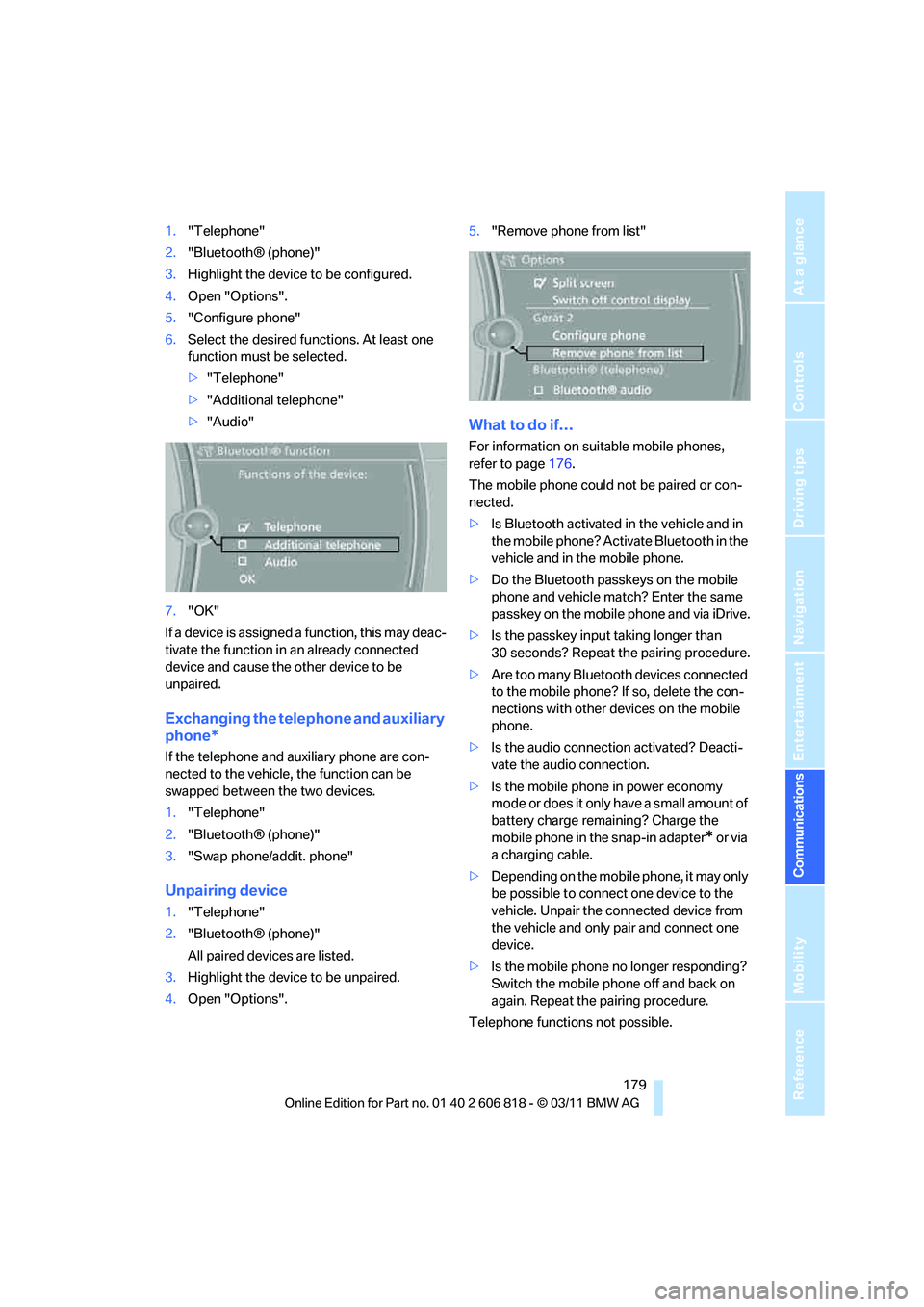
Unpairing device
1."Telephone"
2."Bluetooth® (phone)"
All paired devices are listed.
3.Highlight the device to be unpaired.
4.Open "Options".5."Remove phone from list"
What to do if…
For information on suitable mobile phones,
refer to page176.
The mobile phone could not be paired or con-
nected.
>Is Bluetooth activated in the vehicle and in
the mobile phone? Activate Bluetooth in the
vehicle and in the mobile phone.
>Do the Bluetooth passkeys on the mobile
phone and vehicle match? Enter the same
passkey on the mobile phone and via iDrive.
>Is the passkey input taking longer than
30 seconds? Repeat the pairing procedure.
>Are too many Bluetooth devices connected
to the mobile phone? If so, delete the con-
nections with other devices on the mobile
phone.
>Is the audio connection activated? Deacti-
vate the audio connection.
>Is the mobile phone in power economy
mode or does it only have a small amount of
battery charge remaining? Charge the
mobile phone in the snap-in adapter
* or via
a charging cable.
>Depending on the mobile phone, it may only
be possible to connect one device to the
vehicle. Unpair the connected device from
the vehicle and only pair and connect one
device.
>Is the mobile phone no longer responding?
Switch the mobile phone off and back on
again. Repeat the pairing procedure.
Telephone functions not possible.
Page 182 of 272
Telephone
180 >Is the mobile phone paired as an auxiliary
phone and is the auxiliary phone function
deactivated? Activate the function.
>Outgoing call not possible? Connect the
mobile phone as a telephone.
Phone book entries are not displayed, not all of
them are displayed, or they are displayed
incompletely.
>The transfer of phone book entries has not
yet completed.
>It is possible that only the phone book
entries of the mobile phone or the SIM
card
* are transferred.
>Phone book entries with special characters
may not be displayed.
>The number of phone book entries to be
stored is too high.
>The data volume of the phone book entry is
too great, e.g. due to additionally stored
information such as notes? Reduce the data
volume.
>Is the mobile phone connected as an audio
source or auxiliary phone? The mobile
phone must be connected as a telephone.
The telephone connection quality is low.
>Depending on the mobile phone, it is possi-
ble to adjust the strength of the Bluetooth
signal.
>Insert the mobile phone into the snap-in
adapter
* or place it in the vicinity of the cen-
ter console.
>Adjust the volume of the microphone and
speaker separately.
If you have gone through all items in the list and
still cannot activate the desired function, please
check the website www.bmw.com/bluetooth
for further notes or contact Customer Relations
or a BMW center.
Operation
Adjusting the volume
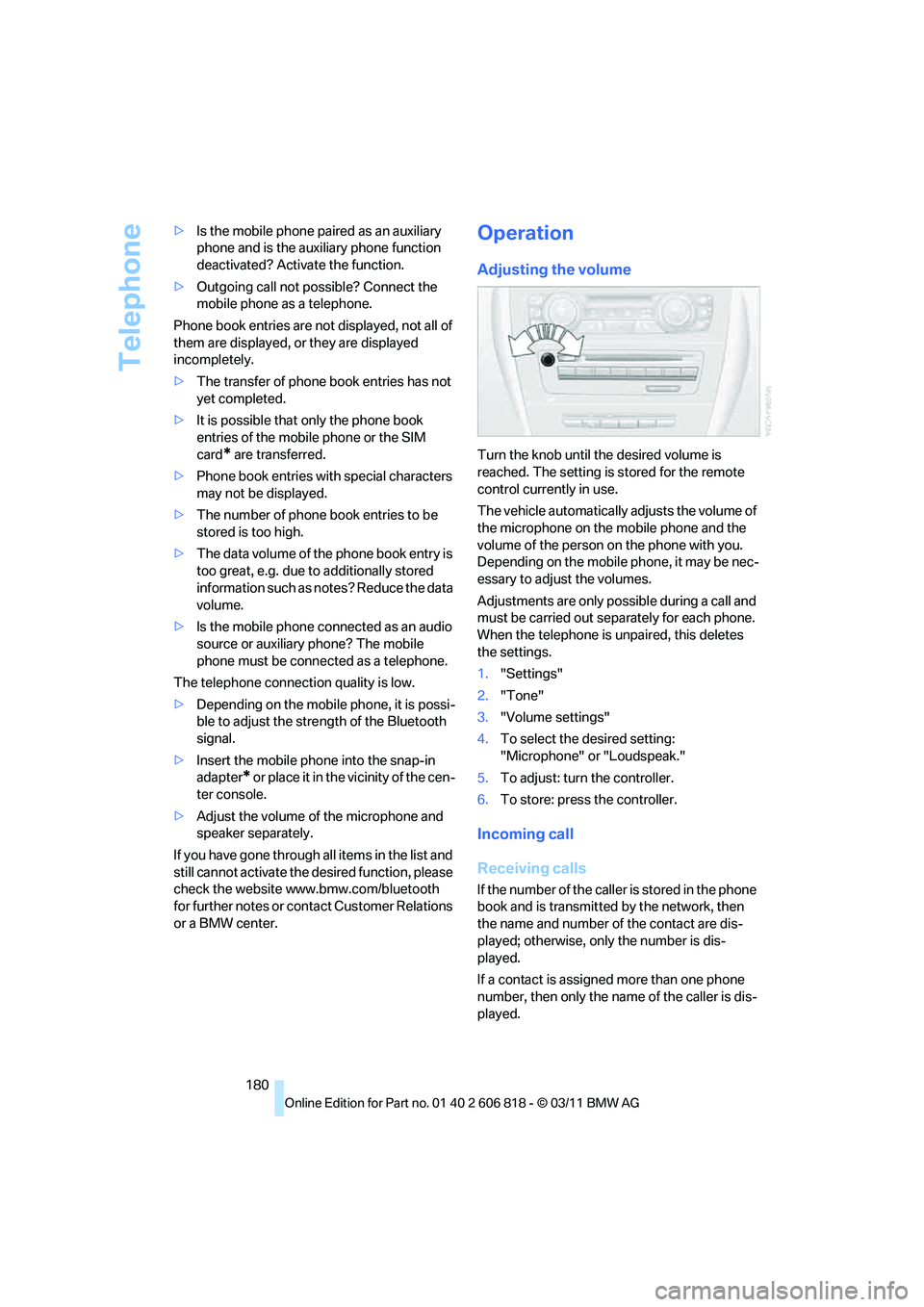
Turn the knob until the desired volume is
reached. The setting is stored for the remote
control currently in use.
The vehicle automatically adjusts the volume of
the microphone on the mobile phone and the
volume of the person on the phone with you.
Depending on the mobile phone, it may be nec-
essary to adjust the volumes.
Adjustments are only possible during a call and
must be carried out separately for each phone.
When the telephone is unpaired, this deletes
the settings.
1."Settings"
2."Tone"
3."Volume settings"
4.To select the desired setting:
"Microphone" or "Loudspeak."
5.To adjust: turn the controller.
6.To store: press the controller.
Incoming call
Receiving calls
If the number of the caller is stored in the phone
book and is transmitted by the network, then
the name and number of the contact are dis-
played; otherwise, only the number is dis-
played.
If a contact is assigned more than one phone
number, then only the name of the caller is dis-
played.
Page 188 of 272
Telephone
186
Storing the entry
Deleting the entry
Deleting all entries
Listening to and selecting entries
Selecting an entry
Adjusting volume
Turn knob during announcement.
>The volume remains the same, even if the
volume of other audio sources is changed.
>The volume is stored for the remote control
currently in use.
Notes
Notes on Emergency Requests
Do not use the voice activation system to ini-
tiate an Emergency Request. In stressful situa-
tions, the voice and vocal pitch can change.
This can unnecessarily delay the establishment
of a telephone connection.
Instead, use the SOS button
*, refer to
page234, in the vicinity of the interior rearview
mirror.
Ambient conditions
>Say the commands, numbers and letters
smoothly and with normal volume, empha-
sis and speed.
>Always say commands in the language of
the system. The language of the voice acti-
vation of the mobile phone is preset and
cannot be changed via the Control Display.
>Keep the doors, windows, glass sunroof
*,
and convertible top
* closed to prevent
interference from ambient noise.
>Avoid ambient noise in the vehicle while
speaking.
Snap-in adapter*
Installation location
In the center armrest.
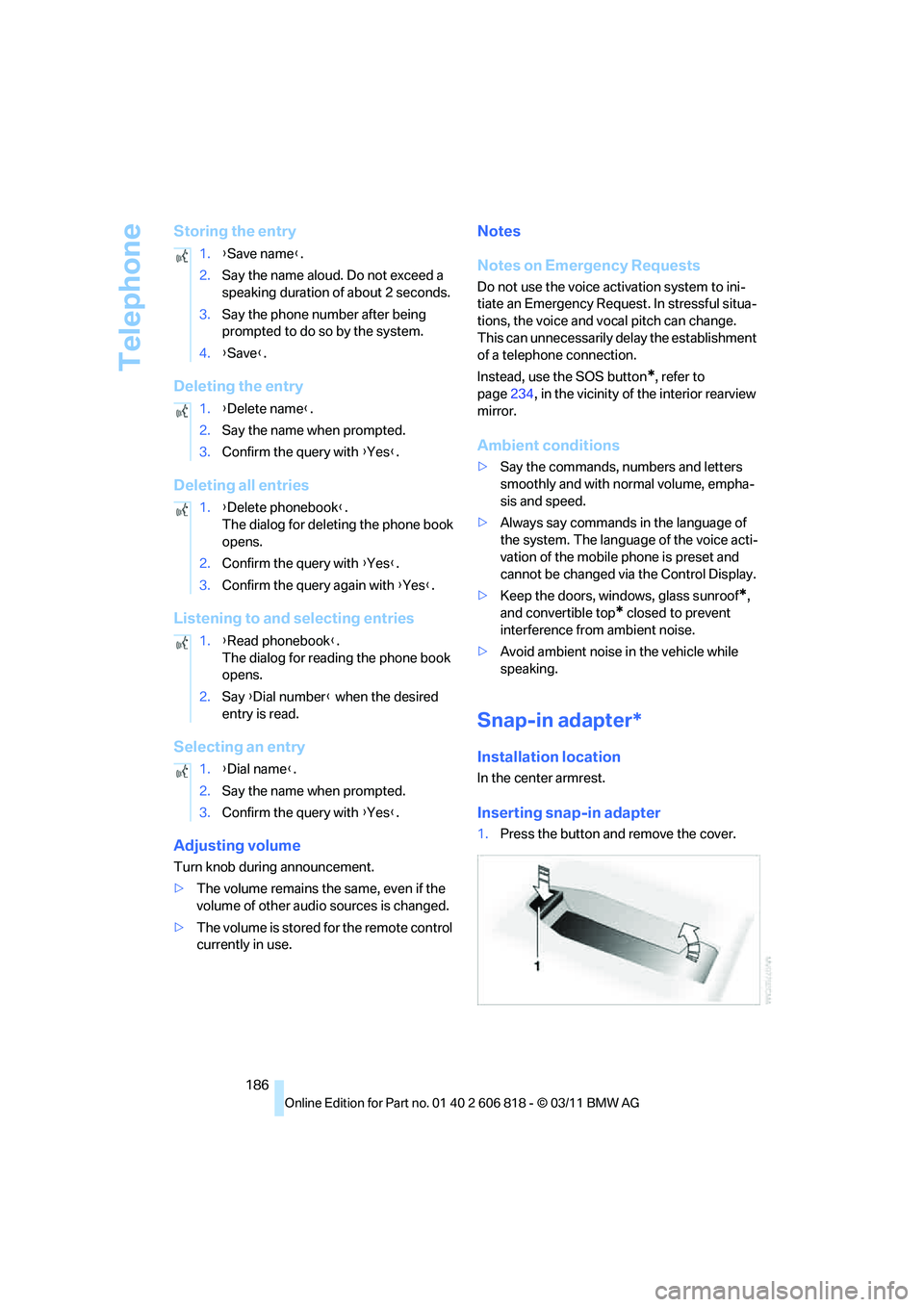
Inserting snap-in adapter
1.Press the button and remove the cover. 1.{Save name}.
2.Say the name aloud. Do not exceed a
speaking duration of about 2 seconds.
3.Say the phone number after being
prompted to do so by the system.
4.{Save}.
1.{Delete name}.
2.Say the name when prompted.
3.Confirm the query with {Yes}.
1.{Delete phonebook}.
The dialog for deleting the phone book
opens.
2.Confirm the query with {Yes}.
3.Confirm the query again with {Yes}.
1.{Read phonebook}.
The dialog for reading the phone book
opens.
2.Say {Dial number} when the desired
entry is read.
1.{Dial name}.
2.Say the name when prompted.
3.Confirm the query with {Yes}.
Page 205 of 272
203
Entertainment
Reference
At a glance
Controls
Driving tips Communications
Navigation
Mobility
Information about suitable mobile phones,
available software applications, and their instal-
lation can be found at www.bmw.com/connec-
tivity or at your BMW center.
Only make entries when traffic conditions
permit. Otherwise, you may endanger
vehicle occupants and other road users by
being distracted.
For safety reasons, some software applications
can only be used when the vehicle is stopped.<
To avoid malfunctions, only use software
applications approved by BMW.<
Using apps
1.Connect the mobile phone using the snap-
in adapter or the USB audio interface.
2."ConnectedDrive"
3.Select the desired software application.
Displaying status
You can display information about the currently
available software applications.
1."ConnectedDrive"
2."BMW apps"
Plugin*
Selected functions of the mobile phone are dis-
played on the Control Display. They can be
operated via iDrive.
1.Connect the mobile phone using the snap-
in adapter.
2."ConnectedDrive"
3."PlugIn"
4."Activate PlugIn"
5.Use the controller to navigate in the dis-
played functions and select the desired cat-
egory or track, for example.
Press the button to move one level up or
back within the functions of the mobile
phone.
Press the button twice to switch back to
the main menu.
Notes
>The range of apps that are displayed in the
Control Display depends on the range of
software applications installed on the
mobile phone.
>The data transfer of the software applica-
tions from the mobile phone to the vehicle
may take some time. Some software appli-
cations are dependent on the speed of the
available Internet connection of the mobile
phone.
>Certain versions of the mobile phone used
and the software they use may not permit
apps to be used at the same time as the
Bluetooth hands-free system.
If necessary, restart the software applica-
tion on the mobile phone after completing a
call.
Page 256 of 272
Everything from A to Z
254
Everything from A to Z
Index
A
ABS Antilock Brake
System83
Acceleration assistant, refer to
Launch Control66
Accessories, refer to Your
individual vehicle5
Accident, reporting, refer to
Emergency Request234
Activated-charcoal filter102
Active steering89
Adaptive Light Control95
Additives
– coolant219
– engine oil219
Address, entering125,131
Address for navigation
– entering125
Adjusting temperature100
Airbags90
– sitting safely45
– warning lamp92
Air conditioner99
Air distribution
– automatic100
Airing, refer to Ventilation102
Air outlets, refer to Air
vents99
Air pressure, checking, refer
to Tire inflation
pressure208
Air recirculation, refer to
Recirculated air mode101
Air vents99
Air volume101
AKI, refer to Fuel grade207
Alarm system34
– avoiding unintentional
alarms35
– interior motion sensor35
– switching off an alarm34
– tilt alarm sensor35Albums of music
collection163
ALL program101
All-season tires, refer to
Winter tires215
AM, waveband147
Ambient air, refer to
Recirculated air mode101
Antifreeze
– coolant219
– washer fluid68
Antilock Brake System
ABS83
Anti-theft alarm system, refer
to Alarm system34
Anti-theft system29
Appointments, refer to
Calendar193
Approved axle loads, refer to
Weights245
Approved engine oils219
Approved gross vehicle
weight, refer to Weights245
Apps202
Armrest, refer to Center
armrest108
Arrival time
– computer72
Ashtray109
Assistance systems, refer to
Dynamic Stability Control
DSC83
AUC Automatic recirculated
air control101
Audible instructions, refer to
Voice instructions136
Audio144
– controls144
– switching on/off144
– tone control144
– volume144Automatic
– air distribution100
– air volume100
– cruise control68
– headlamp control94
Automatic car washes223
Automatic climate control99
Automatic curb monitor52
Automatic high beams and
low beams, refer to High-
beam Assistant96
Automatic lamps
– refer to Welcome lamps94
Automatic recirculated air
control AUC101
Automatic Service
Request202
Automatic transmission with
Steptronic59
– selector lever lock60
– shiftlock60
– towing236
– tow-starting236
AUTO program for automatic
climate control100
AUX-IN port166
Available services202
Average fuel consumption72
– setting the units74
Average speed72
Avoid highways in
navigation134
Avoiding unintentional
alarms35
Axle loads, refer to
Weights245
B
Backrests, refer to Seats46
Backrest width adjustment47
Back seats, refer to Rear seats
– adjusting head restraints48
Page 257 of 272
Reference 255
At a glance
Controls
Driving tips
Communications
Navigation
Entertainment
Mobility
Backup lamp, replacing
bulb231
Bag for skis, refer to Ski
bag110
Band-aids, refer to First aid
pouch235
Bar, refer to Tow-starting,
towing away237
Base plate for telephone or
mobile phone
– refer to Snap-in adapter186
Bass, tone setting144
Battery232
– charging232
– disposal37,232
– jump-starting235
– replacing232
– temporary power failure232
Battery renewal
– remote control for vehicle37
Being towed237
Belts, refer to Safety belts50
Belt tensioner, refer to Safety
belts50
Beverage holders, refer to
Cupholders108
Blower, refer to Air
volume101
Bluetooth, activating/
deactivating177
Bluetooth audio169
– disconnecting an audio
connection171
– pairing a device169
– playback170
– unpairing device171
– What to do if...171
BMW
– car shampoo224
BMW Assist198
– updating202
BMW Maintenance
System221
BMW Online*200
BMW TeleServices199
Bottle holders, refer to
Cupholders108
Brake Assist, refer to Dynamic
Brake Control83Brake fluid
– service requirements74
Brake Force Display90
Brake lamps
– Brake Force Display90
– replacing bulb231
Brake pads, breaking in116
Brake pedal, refer to Braking
safely118
Brake rotors118
– brakes116
– breaking in116
Brakes
– ABS83
– BMW Maintenance
System221
– braking safely118
– breaking in116
– parking brake59
– service requirements74
Brake system116
– BMW Maintenance
System221
– breaking in116
– disc brakes118
Breakdown services, refer to
Roadside Assistance234
Breaking in the clutch116
Break-in period116
Bulb changing, refer to Lamps
and bulbs227
Button for starting the
engine57
Buttons on the steering
wheel11
C
Calendar193
– displaying appointment193
– selecting calendar day193
California Proposition 65
warning6
Call
– accepting181
– ending181
– muting the microphone182
– rejecting181Calling, refer to Phone
numbers, dialing181
Calling, refer to Telephone
owner's manual
Calls
– with multiple parties181
Can holders, refer to
Cupholders108
Capacities246
Capacity of the cargo area245
Car battery, refer to Vehicle
battery232
Car care, refer to Care223
Care223
– automatic car washes223
– care products223
– carpets226
– CD/DVD drives226
– chrome parts225
– convertible top224
– displays226
– exterior223
– fine wood parts226
– headlamps224
– high-pressure washer224
– interior225
– leather225
– light-alloy wheels225
– paintwork225
– plastic parts226
– rubber seals225
– safety belts226
– sensors and cameras226
– upholstery and cloth
trim225
– washing the car
manually224
– windows224
Cargo, securing120
Cargo area
– capacity245
– Comfort Access36
– enlarging, refer to Through-
loading system109
– lamp, refer to Interior
lamps98
– lid, refer to Trunk lid
33
– opening from outside33
Page 258 of 272
Everything from A to Z
256 Cargo area lid, refer to Trunk
lid33
Cargo area net, refer to
Securing cargo120
Cargo loading119
– securing cargo120
– stowing cargo120
– vehicle119
Car jack
– jacking points232
Car key, refer to Integrated
key/remote control28
Car phone
– installation location, refer to
Center armrest108
– refer to separate Owner's
Manual
Car phone, refer to
Telephone176
Car radio, refer to Radio147
Car shampoo224
Car wash223
Catalytic converter, refer to
Hot exhaust system117
CD, audio playback155
CD changer155,159
– controls144
– fast forward/reverse157
– filling or emptying the
magazine159
– random play sequence156
– selecting a track155
– switching on/off144
– tone control144
– volume144
CD player155
– controls144
– fast forward/reverse157
– random order156
– selecting a track155
– switching on/off144
– tone control144
– volume144
Center armrest108
Center brake lamp, replacing
bulb231
Center console, refer to
Around the center
console14Central key, refer to Integrated
key/remote control28
Central locking
– from inside32
– from outside29
Central locking system29
– Comfort Access35
Changes, technical, refer to
For your own safety5
Changing bulbs227
Changing gears64
Changing the language on the
Control Display81
Changing wheels231
Chassis number, refer to
Engine compartment217
Check Control78
Child restraint fixing system
LATCH55
Child restraint systems54
Child seats54
Chrome parts225
Chrome polish225
Cigarette lighter109
Cleaning headlamps67
– washer fluid68
Cleaning your BMW, refer to
Care223
Climate control
– automatic air
distribution100
Clock70
– 12h/24h mode77
– setting the time and date77
– setting time76
Closing
– from inside32
– from outside29
Clothes hooks108
Cold start, refer to Starting the
engine58
Comfort Access35
– replacing the battery37
Comfort access, refer to
Comfort Access35
Comfort area, refer to Around
the center console14Compartment for remote
control, refer to Ignition
lock57
Compass106
Computer71
– displays on Control
Display72
Computer, refer to iDrive16
Concierge service199
Condensation, refer to When
the vehicle is parked119
Condition Based Service
CBS221
Configuring settings, refer to
Personal Profile28
Confirmation signals for
locking/unlocking the
vehicle30
ConnectedDrive198
Connecting vacuum cleaner,
refer to Connecting
electrical appliances109
Consumption, refer to
Average fuel
consumption72
Contacts188
– deleting190,197
– exporting/importing197
– new contact189
Control Center, refer to
iDrive16
Control Display16,17
Control Display, refer to iDrive
– switching on/off17
Controller, refer to iDrive16
Controls and displays10
Convenient opening and
closing
– windows30
– windows with Comfort
Access36
– with Comfort Access36
Convenient start, refer to
Starting the engine58
Convertible
– rollover protection
system92
– top40
– wind deflector43