navigation system BMW 135I COUPE 2012 Service Manual
[x] Cancel search | Manufacturer: BMW, Model Year: 2012, Model line: 135I COUPE, Model: BMW 135I COUPE 2012Pages: 272, PDF Size: 8.49 MB
Page 140 of 272
Destination guidance
138
Map view for the split screen display
The map view for the split screen can be
selected separately from the main screen.
1.Open "Options".
2."Split screen"
3.Move the controller to the right repeatedly
until the split screen content is selected.
4.Select "Split screen content" or scale.
5.Select the map view:
>"Arrow display"
>"Map facing north"
>"Map direction of travel"
>"Map view with perspective"
>"Position"
>"Exit ramp view"
>"Traffic conditions/gray map"
6.To change the scale: switch to the split
screen and turn the controller.
Traffic bulletins*
Overview
>You can display the traffic bulletins from
radio stations that broadcast the TMC
(Traffic Message Channel) of a traffic infor-
mation service. Bulletins about traffic
obstructions and hazards are continuously
updated.
>Traffic bulletins are indicated by symbols on
the map.
>Traffic bulletins for the surrounding area are
stored in a list.
The symbol in the toolbar of the map view
turns red if a traffic bulletin relates to the calcu-
lated route.
Real Time Traffic Information End-User
Provisions
Certain BMW models equipped with navigation
have the capability to display real-time traffic
information. If your system has this capability the following additional terms and conditions
apply:
An End-User shall no longer have the right to
use the Traffic Data in the event that the End-
User is in material breach of the terms and con-
ditions contained herein.
A. Total Traffic Network, a division of Clear
Channel Broadcasting, Inc. ("Total Traffic Net-
work") holds the rights to the traffic incident
data and RDS-TMC network through which it is
delivered. You may not modify, copy, scan or
use any other method to reproduce, duplicate,
republish, transmit or distribute in any way any
portion of traffic incident data. You agree to
indemnify, defend and hold harmless BMW of
North America, LLC. ("BMW NA") and Total
Traffic Network, Inrix, Inc (and their affiliates)
against any and all claims, damages, costs or
other expenses that arise directly or indirectly
out of (a) your unauthorized use of the traffic
incident data or the RDS-TMC network, (b) your
violation of this directive and/or (c) any unautho-
rized or unlawful activities by you in connection
herewith.
B. Total Traffic Network traffic data is informa-
tional only. User assumes all risk of use. Total
Traffic Network, BMW NA, and their suppliers
make no representations about content, traffic
and road conditions, route usability, or speed.
C. The licensed material is provided to license
"as is," and "where is". Total Traffic Network,
including, but not limited to, any and all third
party providers of any of the licensed material,
expressly disclaims, to the fullest extent permit-
ted by law, all warranties or representations
with respect to the licensed material (including,
without limitation, that the licensed material will
be error-free, will operate without interruption
or that the traffic data will be accurate), express,
implied or statutory, including, without limita-
tion, the implied warranties of merchantability,
non-infringement fitness for a particular pur-
pose, or those arising from a course of dealing
or usage of trade.
D. Neither Total Traffic Network, Inrix, Inc. nor
BMW NA will be liable to you for any indirect,
special, consequential, exemplary, or incidental
Page 142 of 272
Destination guidance
140 >Traffic bulletins that lie on the route are
always shown.
>For your personal safety, it is not possible to
hide traffic bulletins that announce a poten-
tial hazard.
Route guidance with traffic bulletins
Semi-dynamic route guidance
With traffic bulletin reception switched on,
semi-dynamic route guidance is active.
The system takes into account the existing traf-
fic bulletins during route guidance. A message
is displayed as a function of the route, the traffic
bulletins, and the possible alternate routes. The
message displays the traffic bulletin and in the
event of a traffic obstruction, suggests an alter-
nate route. The difference in distance and time
between the original route and the alternate
route are also displayed.
Taking an alternate route:
"Detour"
With particular hazards, e.g. objects on the
roadway, a message is displayed without a pos-
sible alternate route.
It is also possible to take alternate routes can
also be taken if the traffic reports are accessed
via the list:
1."Navigation"
2."Map"
3."Traffic Info"
4."Detour information"
5."Detour"
Dynamic destination guidance
The route is automatically changed in the event
of traffic obstructions.
>The system does not point out traffic
obstructions along the original route.
>Traffic bulletins will continue to be dis-
played on the map.
>Depending on the type of road and the
nature and length of the traffic obstruction, the route can also be calculated so that you
travel through the traffic obstruction.
>Certain hazards are displayed regardless of
the setting.
To activate dynamic route guidance:
1."Navigation"
2.Open "Options".
3."Dynamic guidance"
Page 143 of 272
Navigation
Driving tips
141Reference
At a glance
Controls
Communications
Entertainment
Mobility
What to do if …
What to do if…
>The current position cannot be displayed?
The position is in an unrecognized region, in
a poor reception area, or the system is in the
process of determining the position.
Reception is generally available when you
are in the open.
>The destination guidance does not accept a
destination without a street name?
A downtown area cannot be determined for
the town or city that has been entered. Input
any street in the selected town/city and
start destination guidance.
>The destination guidance does not accept a
destination?
The destination data is not contained in the
navigation data. Choose a destination as
close as possible to the original one.
>The letters for a destination cannot be
selected during destination entry?
The stored data do not contain the data of
the destination. Select a destination that is
as close as possible to the original.
>The map view is displayed in grayscale?
"Traffic conditions/gray map" active: the
Control Display changes to a grayscale dis-
play. This enables a better view of the traffic
bulletins.
>Voice instructions are no longer issued
before intersections during destination
guidance?
The area has not been fully recorded yet, or
you have left the recommended route and
the system requires a few seconds to calcu-
late a new route suggestion.
Page 155 of 272
Navigation
Entertainment
Driving tips
153Reference
At a glance
Controls
Communications
Mobility
6.Select the artist, track or game.
Storing the league or team
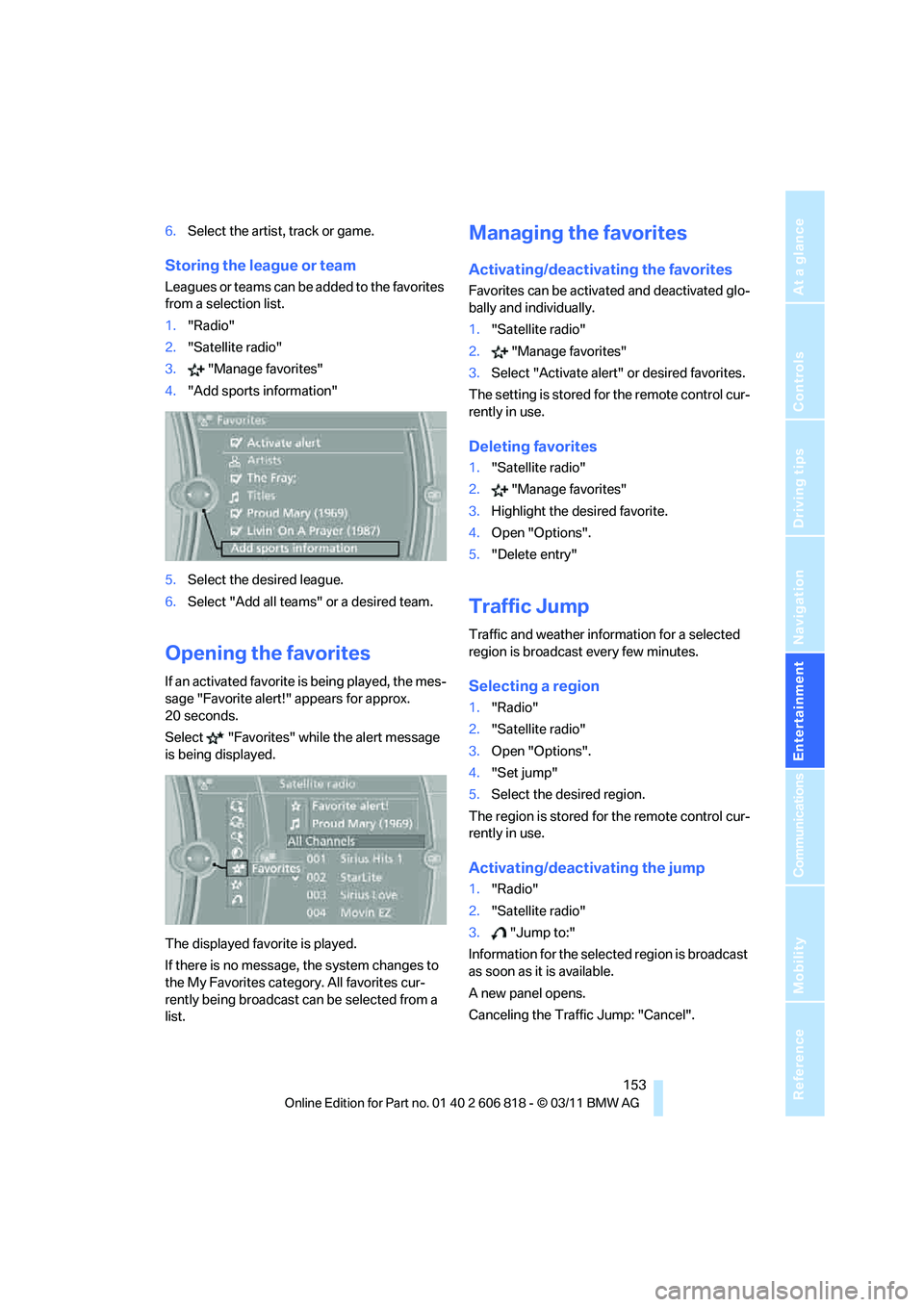
Leagues or teams can be added to the favorites
from a selection list.
1."Radio"
2."Satellite radio"
3."Manage favorites"
4."Add sports information"
5.Select the desired league.
6.Select "Add all teams" or a desired team.
Opening the favorites
If an activated favorite is being played, the mes-
sage "Favorite alert!" appears for approx.
20 seconds.
Select "Favorites" while the alert message
is being displayed.
The displayed favorite is played.
If there is no message, the system changes to
the My Favorites category. All favorites cur-
rently being broadcast can be selected from a
list.
Managing the favorites
Activating/deactivating the favorites
Favorites can be activated and deactivated glo-
bally and individually.
1."Satellite radio"
2."Manage favorites"
3.Select "Activate alert" or desired favorites.
The setting is stored for the remote control cur-
rently in use.
Deleting favorites
1."Satellite radio"
2."Manage favorites"
3.Highlight the desired favorite.
4.Open "Options".
5."Delete entry"
Traffic Jump
Traffic and weather information for a selected
region is broadcast every few minutes.
Selecting a region
1."Radio"
2."Satellite radio"
3.Open "Options".
4."Set jump"
5.Select the desired region.
The region is stored for the remote control cur-
rently in use.
Activating/deactivating the jump
1."Radio"
2."Satellite radio"
3."Jump to:"
Information for the selected region is broadcast
as soon as it is available.
A new panel opens.
Canceling the Traffic Jump: "Cancel".
Page 165 of 272
Navigation
Entertainment
Driving tips
163Reference
At a glance
Controls
Communications
Mobility
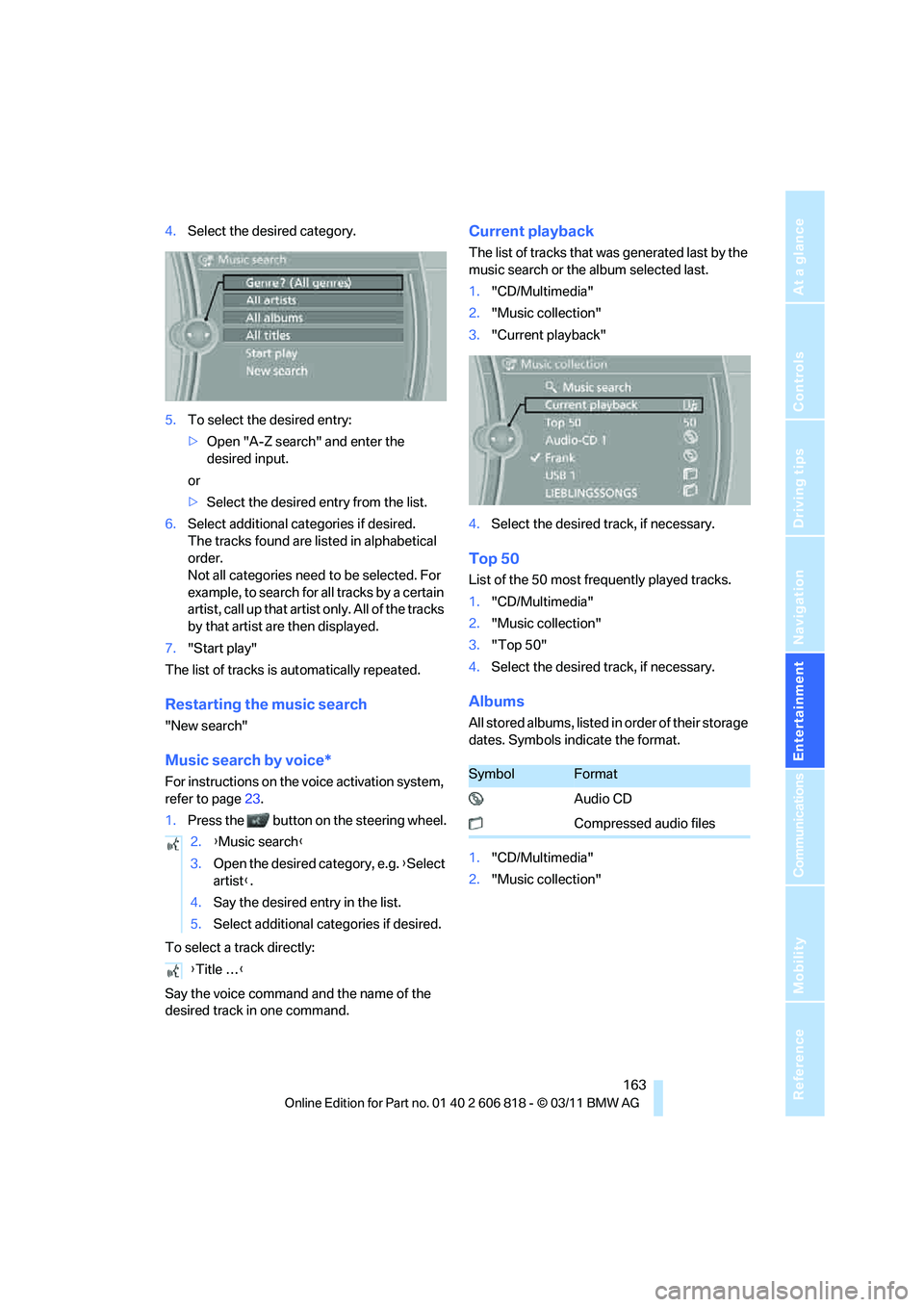
4.Select the desired category.
5.To select the desired entry:
>Open "A-Z search" and enter the
desired input.
or
>Select the desired entry from the list.
6.Select additional categories if desired.
The tracks found are listed in alphabetical
order.
Not all categories need to be selected. For
example, to search for all tracks by a certain
artist, call up that artist only. All of the tracks
by that artist are then displayed.
7."Start play"
The list of tracks is automatically repeated.
Restarting the music search
"New search"
Music search by voice*
For instructions on the voice activation system,
refer to page23.
1.Press the button on the steering wheel.
To select a track directly:
Say the voice command and the name of the
desired track in one command.
Current playback
The list of tracks that was generated last by the
music search or the album selected last.
1."CD/Multimedia"
2."Music collection"
3."Current playback"
4.Select the desired track, if necessary.
Top 50
List of the 50 most frequently played tracks.
1."CD/Multimedia"
2."Music collection"
3."Top 50"
4.Select the desired track, if necessary.
Albums
All stored albums, listed in order of their storage
dates. Symbols indicate the format.
1."CD/Multimedia"
2."Music collection" 2.{Music search}
3.Open the desired category, e.g. {Select
artist}.
4.Say the desired entry in the list.
5.Select additional categories if desired.
{Title …}
SymbolFormat
Audio CD
Compressed audio files
Page 187 of 272
185
Entertainment
Reference
At a glance
Controls
Driving tips Communications
Navigation
Mobility
Saying commands
Activating voice activation system
1.Briefly press the button on the steering
wheel.
2.Say the command.
Finishing voice input
Press the button on the steering wheel
briefly
or
Possible commands
Having the possible commands read
aloud
The system understands default commands
that must be spoken word for word.
Possible commands are read aloud.
Digits from zero to nine are recognized.
Each digit can be spoken individually or com-
bined into a sequence to accelerate the entry
process.
Using alternative commands
Often there is more than a single command to
run a function, e.g.:
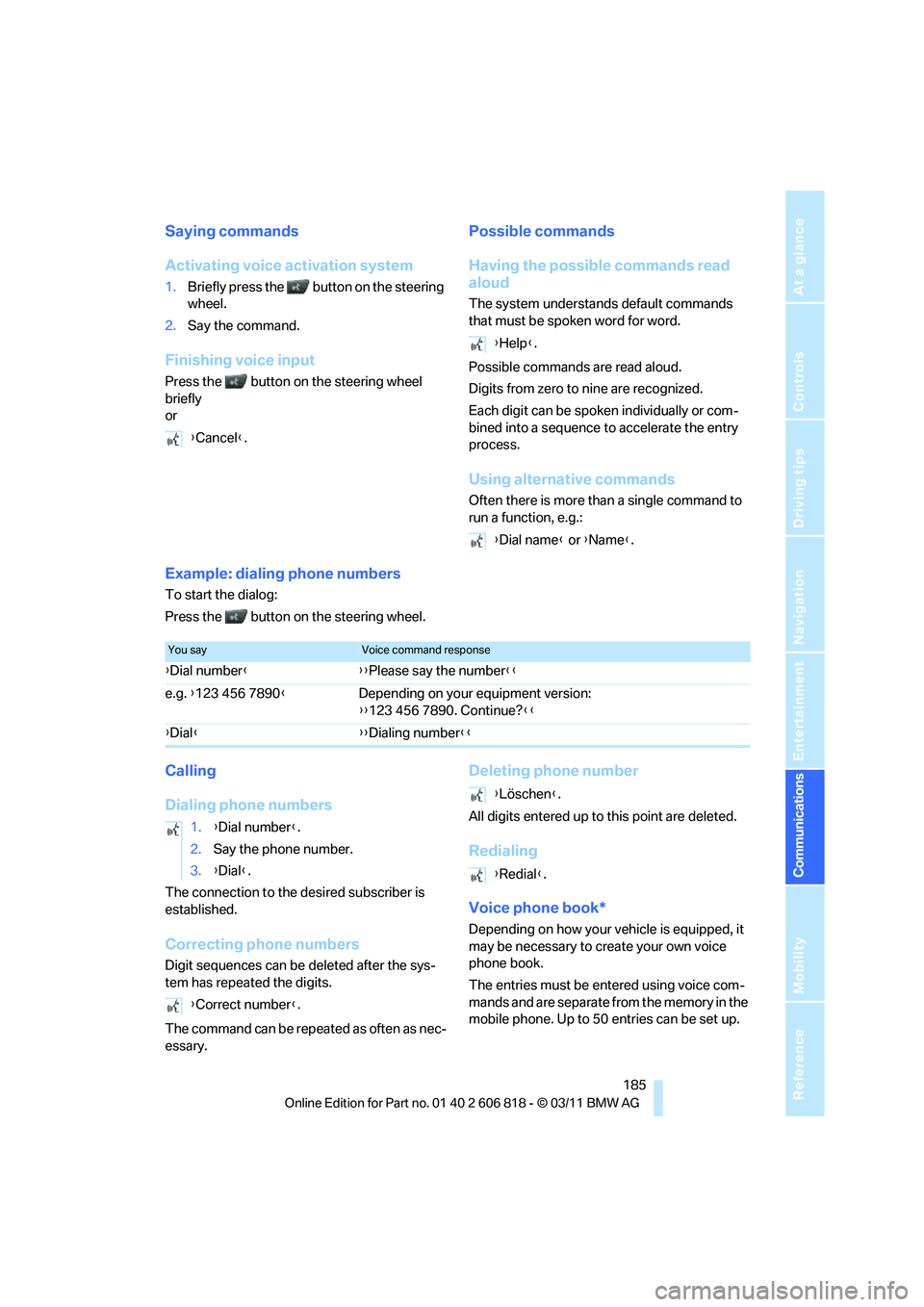
Example: dialing phone numbers
To start the dialog:
Press the button on the steering wheel.
Calling
Dialing phone numbers
The connection to the desired subscriber is
established.
Correcting phone numbers
Digit sequences can be deleted after the sys-
tem has repeated the digits.
The command can be repeated as often as nec-
essary.
Deleting phone number
All digits entered up to this point are deleted.
Redialing
Voice phone book*
Depending on how your vehicle is equipped, it
may be necessary to create your own voice
phone book.
The entries must be entered using voice com-
mands and are separate from the memory in the
mobile phone. Up to 50 entries can be set up. {Cancel}.
{Help}.
{Dial name} or {Name}.
You sayVoice command response
{Dial number}{{Please say the number}}
e.g. {123 456 7890}Depending on your equipment version:
{{123 456 7890. Continue?}}
{Dial}{{Dialing number}}
1.{Dial number}.
2.Say the phone number.
3.{Dial}.
{Correct number}.
{Löschen}.
{Redial}.
Page 192 of 272
Office
190 4."New contact"
5.If input boxes are already filled with previous
entries: "Delete input fields"
6.To fill in the entry fields: select the symbol
next to the entry field.
7.Enter text and assign a contact type.
8.When equipped with a navigation system:
enter address. It is only possible to enter
addresses that are contained in the naviga-
tion data stored in the vehicle. This ensures
that destination guidance is possible for all
addresses.
9."Accept address" if necessary
10."Store contact in vehicle"
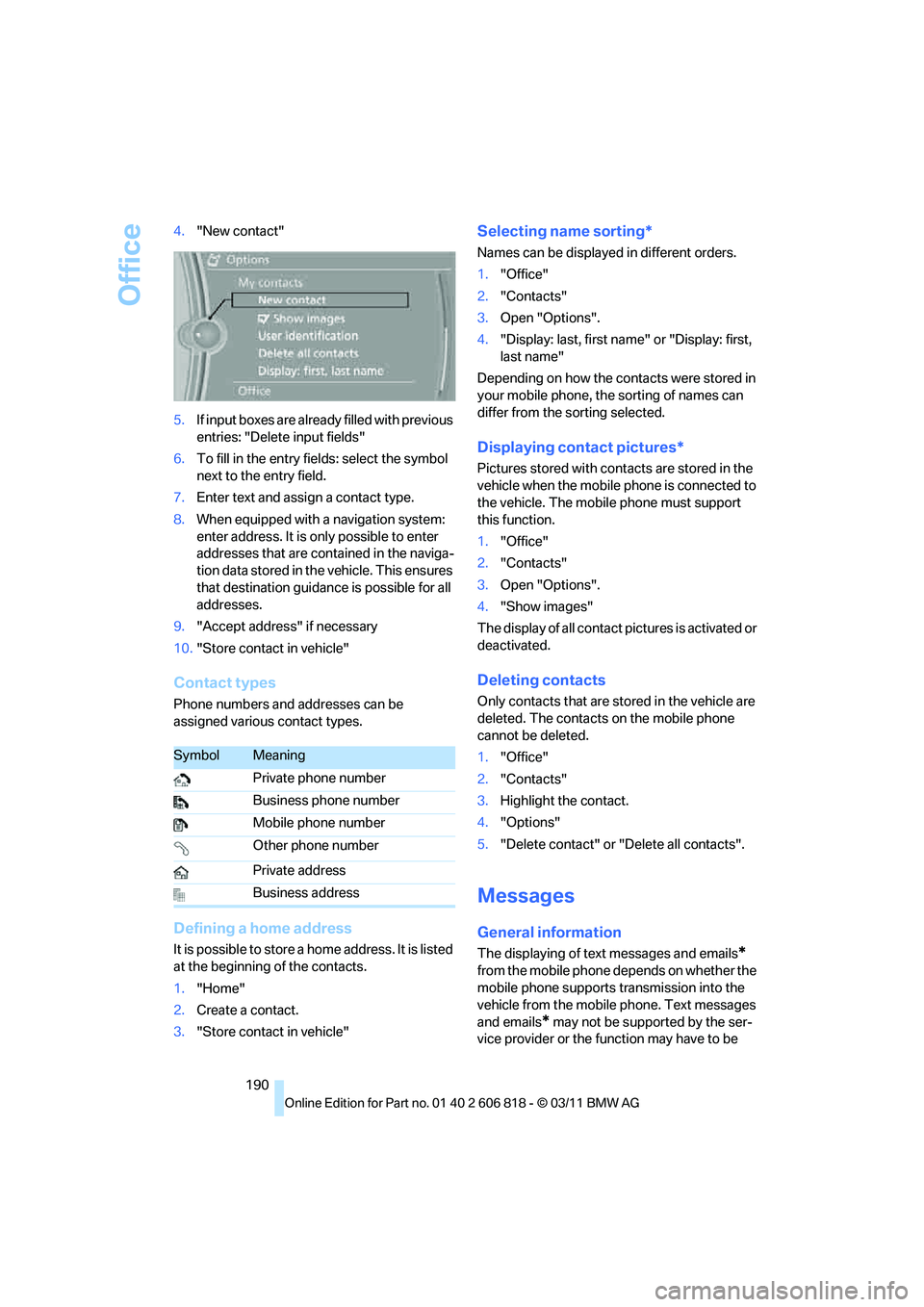
Contact types
Phone numbers and addresses can be
assigned various contact types.
Defining a home address
It is possible to store a home address. It is listed
at the beginning of the contacts.
1."Home"
2.Create a contact.
3."Store contact in vehicle"
Selecting name sorting*
Names can be displayed in different orders.
1."Office"
2."Contacts"
3.Open "Options".
4."Display: last, first name" or "Display: first,
last name"
Depending on how the contacts were stored in
your mobile phone, the sorting of names can
differ from the sorting selected.
Displaying contact pictures*
Pictures stored with contacts are stored in the
vehicle when the mobile phone is connected to
the vehicle. The mobile phone must support
this function.
1."Office"
2."Contacts"
3.Open "Options".
4."Show images"
The display of all contact pictures is activated or
deactivated.
Deleting contacts
Only contacts that are stored in the vehicle are
deleted. The contacts on the mobile phone
cannot be deleted.
1."Office"
2."Contacts"
3.Highlight the contact.
4."Options"
5."Delete contact" or "Delete all contacts".
Messages
General information
The displaying of text messages and emails*
from the mobile phone depends on whether the
mobile phone supports transmission into the
vehicle from the mobile phone. Text messages
and emails
* may not be supported by the ser-
vice provider or the function may have to be
SymbolMeaning
Private phone number
Business phone number
Mobile phone number
Other phone number
Private address
Business address
Page 198 of 272
Contacts
196
Contacts
General information
Contacts can be created and edited. The
addresses can be used as destinations for nav-
igation.
New contact
1."Contacts"
2."New contact"
3.If input boxes are already filled with previous
entries: "Delete input fields"
4.To fill in the entry fields: select the symbol
next to the entry field.
5.Entering text, refer to page21.
When equipped with a navigation system:
enter address. It is only possible to enter
addresses that are contained in the naviga-
tion data stored in the vehicle. This ensures
that destination guidance is possible for all
addresses.
6."Store" if necessary
7."Store contact in vehicle"
Defining a home address
It is possible to store a home address. It is listed
at the beginning of the contacts.
1."Home"
2.Create a contact.
3."Store contact in vehicle"
My contacts
General information
List of all contacts from the vehicle.
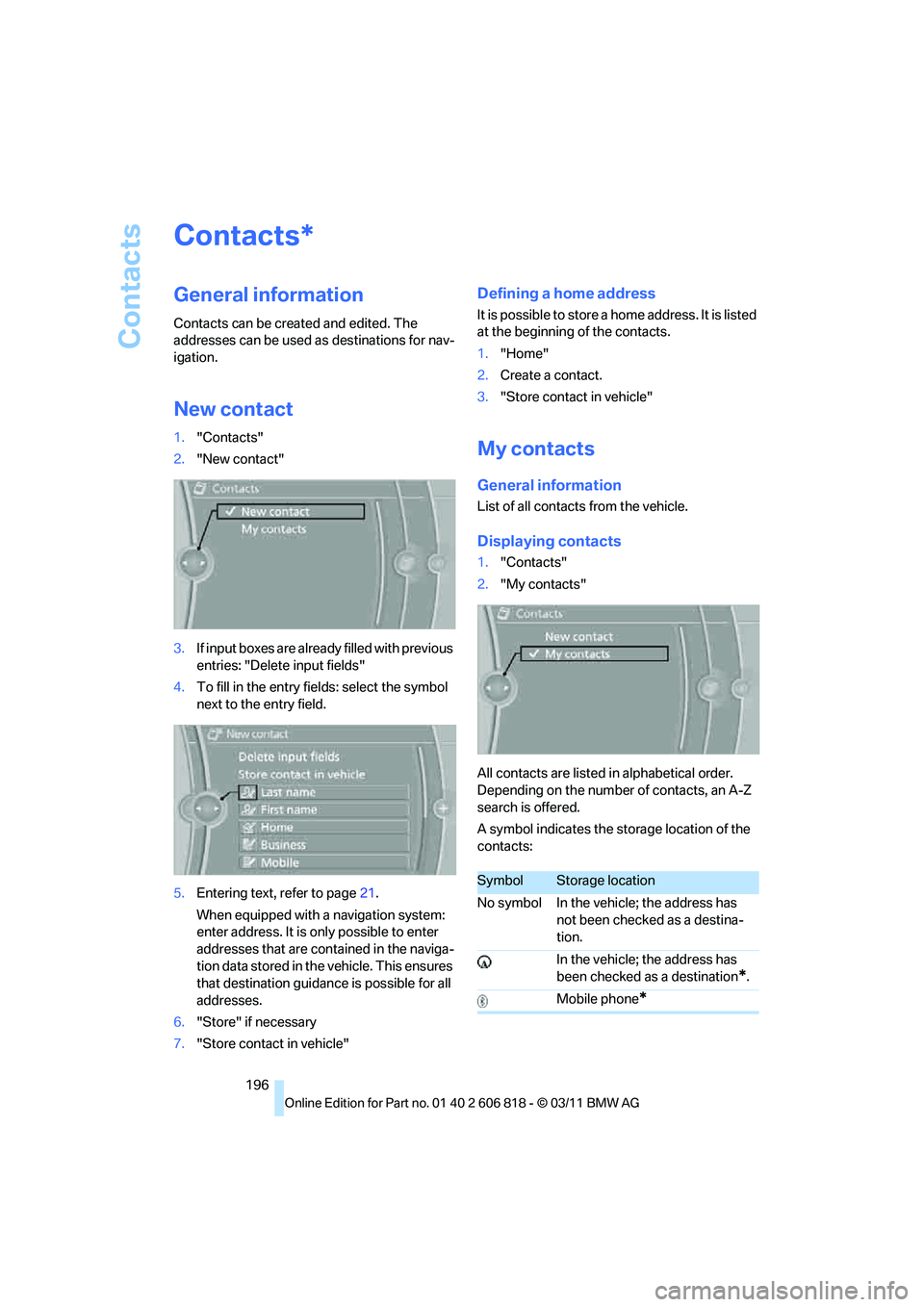
Displaying contacts
1."Contacts"
2."My contacts"
All contacts are listed in alphabetical order.
Depending on the number of contacts, an A-Z
search is offered.
A symbol indicates the storage location of the
contacts:
*
SymbolStorage location
No symbol In the vehicle; the address has
not been checked as a destina-
tion.
In the vehicle; the address has
been checked as a destination
*.
Mobile phone
*
Page 205 of 272
203
Entertainment
Reference
At a glance
Controls
Driving tips Communications
Navigation
Mobility
Information about suitable mobile phones,
available software applications, and their instal-
lation can be found at www.bmw.com/connec-
tivity or at your BMW center.
Only make entries when traffic conditions
permit. Otherwise, you may endanger
vehicle occupants and other road users by
being distracted.
For safety reasons, some software applications
can only be used when the vehicle is stopped.<
To avoid malfunctions, only use software
applications approved by BMW.<
Using apps
1.Connect the mobile phone using the snap-
in adapter or the USB audio interface.
2."ConnectedDrive"
3.Select the desired software application.
Displaying status
You can display information about the currently
available software applications.
1."ConnectedDrive"
2."BMW apps"
Plugin*
Selected functions of the mobile phone are dis-
played on the Control Display. They can be
operated via iDrive.
1.Connect the mobile phone using the snap-
in adapter.
2."ConnectedDrive"
3."PlugIn"
4."Activate PlugIn"
5.Use the controller to navigate in the dis-
played functions and select the desired cat-
egory or track, for example.
Press the button to move one level up or
back within the functions of the mobile
phone.
Press the button twice to switch back to
the main menu.
Notes
>The range of apps that are displayed in the
Control Display depends on the range of
software applications installed on the
mobile phone.
>The data transfer of the software applica-
tions from the mobile phone to the vehicle
may take some time. Some software appli-
cations are dependent on the speed of the
available Internet connection of the mobile
phone.
>Certain versions of the mobile phone used
and the software they use may not permit
apps to be used at the same time as the
Bluetooth hands-free system.
If necessary, restart the software applica-
tion on the mobile phone after completing a
call.
Page 209 of 272
Mobility
207Reference
At a glance
Controls
Driving tips
Communications
Navigation
Entertainment
Fuel specifications
Never use fuels labeled at the fuel pump as
metal-containing.
Do not use leaded gasoline or gasoline
with metal-containing additives such as
manganese or iron; doing so can cause perma-
nent damage to the catalytic converter or other
components.<
Do not fill the tank with E85, i.e. fuel con-
taining 85Ξ ethanol, nor with FlexFuel.
Otherwise, the engine and fuel supply system
will be damaged.<
Required fuel
Super Premium Gasoline/AKI 91
This gasoline is highly recommended.
However, you may also use gasoline with less
AKI. The minimum AKI Rating is:
>128i: 87
>135i: 89
If you use gasoline with this minimum AKI Rat-
ing, the engine may produce knocking sounds
when starting at high outside temperatures.
This has no effect on the engine life.
Do not use any gasoline below the speci-
fied minimum fuel grade. Otherwise, the
engine could be damaged.<
Use high-quality brands
Field experience has indicated significant dif-
ferences in fuel quality: volatility, composition,
additives, etc., among gasolines offered for sale
in the United States and Canada.
Fuels containing up to and including 10Ξ eth-
anol or other oxygenates with up to 2.8Ξ oxy-
gen by weight, that is, 15Ξ MTB E or 3Ξ meth-
anol plus an equivalent amount of cosolvent,
will not void the applicable warranties with
respect to defects in materials or workmanship.
The use of poor-quality fuels may result in
drivability, starting and stalling problems
especially under certain environmental condi-
tions such as high ambient temperature and
high altitude. Should you encounter drivability problems
which you suspect could be related to the fuel
y o u a r e u s i n g , w e r e c o m m e n d t h a t y o u r e s p o n d
by switching to a recognized high-quality brand
such as gasoline that is advertised as Top Tier
Detergent Gasoline.
Failure to comply with these recommendations
may also result in unscheduled maintenance.<