Vin location BMW 135I COUPE 2012 Owners Manual
[x] Cancel search | Manufacturer: BMW, Model Year: 2012, Model line: 135I COUPE, Model: BMW 135I COUPE 2012Pages: 272, PDF Size: 8.49 MB
Page 47 of 272
Controls
45Reference
At a glance
Driving tips
Communications
Navigation
Entertainment
Mobility
Adjustments
Sitting safely
The ideal sitting position can make a vital con-
tribution to relaxed, fatigue-free driving. In con-
junction with the safety belts, the head
restraints and the airbags, the seated position
has a major influence on your safety in the event
of an accident. To ensure that the safety sys-
tems operate with optimal efficiency, we
strongly urge you to observe the instructions
contained in the following section.
For additional information on transporting chil-
dren safely, refer to page54.
Airbags
Always maintain an adequate distance
between yourself and the airbags. Always
grip the steering wheel on the rim, with your
hands in the 3 o'clock and 9 o'clock positions,
to minimize the risk of injury to the hands or
arms in the event of the airbag being triggered
off.
No one and nothing should come between the
airbags and the seat occupant.
Do not use the cover of the front airbag on the
front passenger side as a storage area. Make
sure that the front passenger is sitting correctly,
i.e. not resting feet or legs on the dashboard;
otherwise, leg injuries can occur if the front air-
bag deploys.
Make sure that passengers keep their heads
away from the side airbag and do not lean
against the cover of the head airbag; otherwise,
serious injuries can result if the airbag
deploys.<
Even if you follow all the instructions, injuries
resulting from contact with airbags cannot be
fully excluded, depending on the circum-
stances. The ignition and inflation noise may
provoke a mild hearing loss in extremely sensi-
tive individuals. This effect is usually only tem-
porary.
For airbag locations and additional information
on airbags, refer to page90.
Head restraint
A correctly adjusted head restraint reduces the
risk of neck injury in the event of an accident.
Adjust the head restraint in such a way
that its center is at approx. ear level. Oth-
erwise, there is an increased risk of injury in the
event of an accident.<
Head restraints, refer to page48.
Safety belt
Before every drive, make sure that all occupants
wear their safety belts. Airbags complement the
safety belt as an additional safety device, but
they do not represent a substitute.
Your vehicle has four seats, each of which is
equipped with a safety belt.
Never allow more than one person to
wear a single safety belt. Never allow
infants or small children to ride in a passenger's
lap. Make sure that the belt in the lap area sits
low across the hips and does not press against
the abdomen.
The safety belt must not rest against the throat,
run across sharp edges, pass over hard or frag-
ile objects or be pinched. Fasten the safety belt
so that it sits as snugly as possible against the
lap and shoulder without being twisted. Other-
wise, the belt could slide over your hips and
injure your abdomen in the event of a frontal
collision. Avoid wearing bulky clothing and reg-
ularly pull the belt in the upper-body area taut;
otherwise, its restraining effect could be
impaired.<
Safety belts, refer to page50.
Page 108 of 272
Practical interior accessories
106
Digital compass*
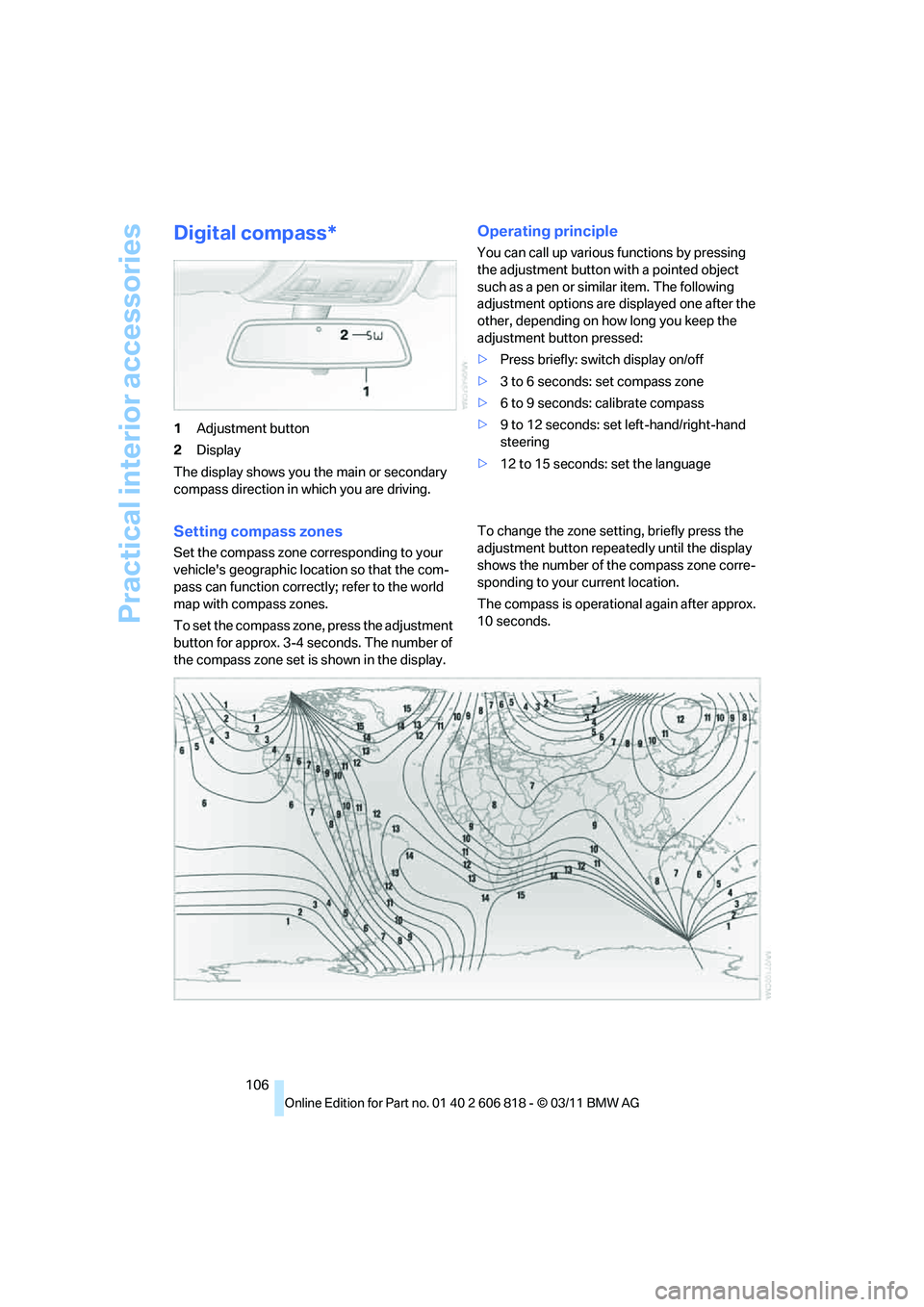
1Adjustment button
2Display
The display shows you the main or secondary
compass direction in which you are driving.
Operating principle
You can call up various functions by pressing
the adjustment button with a pointed object
such as a pen or similar item. The following
adjustment options are displayed one after the
other, depending on how long you keep the
adjustment button pressed:
>Press briefly: switch display on/off
>3 to 6 seconds: set compass zone
>6 to 9 seconds: calibrate compass
>9 to 12 seconds: set left-hand/right-hand
steering
>12 to 15 seconds: set the language
Setting compass zones
Set the compass zone corresponding to your
vehicle's geographic location so that the com-
pass can function correctly; refer to the world
map with compass zones.
To set the compass zone, press the adjustment
button for approx. 3-4 seconds. The number of
the compass zone set is shown in the display.To change the zone setting, briefly press the
adjustment button repeatedly until the display
shows the number of the compass zone corre-
sponding to your current location.
The compass is operational again after approx.
10 seconds.
Page 132 of 272

Destination entry
130 4."Display Points of Interest"
5.Select the settings.
Destination entry via map
If you only know the location of a destination or
street, then you can enter the destination with
the aid of the map.
Selecting the destination
1."Navigation"
2."Map"
The current position of the vehicle is displayed
on the map.
3."Interactive map"
4.Select the destination with the cross-hairs.
>To change the scale: turn the controller.
>To shift the map: move the controller in
the required direction.
>To shift the map diagonally: move the
controller in the required direction and
turn it.5.Press the controller to display additional
menu items.
>Select the symbol: "Start guidance"
or "Add as another destination".
>"Find points of interest": the search for
special destinations is started.
Specifying the street
If the system cannot recognize a street, it dis-
plays one of the following pieces of information:
>A street name in the vicinity.
>The district.
>The coordinates of the destination.
Interactive map
In the interactive map, the scale can be adjusted
and the visible map section can be shifted. In
addition, pressing the controller makes further
functions available:
>Select the symbol.
"Start guidance" or "Add as another
destination".
>"Exit interactive map":
Go back to the map view.
>"View in northern direction" or "View in
driving direction".
>"Display destination": the section of the
map around the destination is displayed.
>"Display current location":
The section of the map around the cur-
rent position is displayed.
>"Find points of interest", refer to
page128.
Page 133 of 272
Navigation
Driving tips
131Reference
At a glance
Controls
Communications
Entertainment
Mobility
Destination entry via voice*
General information
For instructions on the voice activation system,
refer to page23.
>During the destination entry by voice, you
can switch between voice entry and entry
via iDrive at any time. To do so, reactivate
the voice activation system if necessary.
>Having the possible spoken commands
read aloud: {Voice commands}
Saying the entries
>With the Professional navigation system:
City/town, street, and house number can be
entered with a single command
*.
>Countries, towns and cities, streets and
intersections can be spoken as whole
words
* in the system language, refer to
page81, or can be spelled.
Example: to enter a destination in a US state
as a complete word, the system language
must be English.
>Spell the entry if the language spoken in the
area is different from the system language.
>Say the letters smoothly, and avoid exag-
gerating the pronunciation and inserting
lengthy pauses between the letters.
>The methods of entry depend on the navi-
gation data in use and on the country and
language settings.
Entering an address in a command*
1.Press the button on the steering wheel.
3.Wait for a request from the system.
4.Say the address aloud in the suggested
order.
5.Continue making the entry as prompted by
the system.
If necessary, individually name the separate
components of the address, e.g. the town/city.
Entering a town/city
The town/city name can be spoken as a com-
plete word
* or spelled.
With the destination entry menu displayed:
1.Press the button on the steering wheel.
3.Wait for the system to prompt you for the
town/city.
4.Say the name of the town/city or say at least
the first three letters.
Depending on the entry, up to 20 towns/cit-
ies may be suggested.
6.Continue making the entry as prompted by
the system.
If there are several towns/cities with the same
name:
Towns/cities that sound the same are compiled
in a separate list and are displayed as one town/
city followed by three dots.
1.Select an entry:
2.Select the desired town/city.
The town/city can also be selected from the list
via iDrive: turn the controller until the town/city
is selected and press the controller.
Entering a street or intersection
The street or intersection is entered in the same
manner as the town/city. 2.{Enter address}
2.{City} or {Spell city}.
5.Select a location:
>To select a recommended town/city:
{Yes}
>To select other town/city: {New
entry}
>To select an entry, e. g. {Entry …}
>To spell an entry: {Spell city}
{Yes} or {Entry …} e.g. entry 2.
Page 141 of 272
Navigation
Driving tips
139Reference
At a glance
Controls
Communications
Entertainment
Mobility
damages (including, without limitation, lost rev-
enues, anticipated revenues, or profits relating
to the same) arising from any claim relating
directly or indirectly to use of the traffic data,
and even if Total Traffic Network, Inrix, Inc., or
BMW NA are aware of the possibility of such
damages. These limitations apply to all claims,
including, without limitation, claims in contract
and tort (such as negligence, product liability
and strict liability). Some states do not allow the
exclusion or limitation of incidental or conse-
quential damages, so those particular limita-
tions may not apply to you.
Activating/deactivating reception
1."Navigation"
2.Open "Options".
3."Receive Traffic Info"
Accessing traffic bulletins
1."Navigation"
2."Map"
3."Traffic Info"
First, the traffic bulletins for the calculated
route are displayed.
The traffic bulletins are sorted in the order
of their distance from the current vehicle
position.
4.Select a traffic bulletin.
"More information":
Display additional information.
5.Scroll to the next or previous traffic bulletin
if desired.
Traffic bulletins on the map
"Traffic conditions/gray map" active: the Con-
trol Display changes to a grayscale display. This
enables a better view of the traffic bulletins. The
day/night mode is disregarded in this setting.
Symbols or special destinations are no longer
displayed.
1."Navigation"
2."Map"
3.Open "Options".4."Settings"
5."Traffic conditions/gray map"
Symbols in the map view
Depending on the scale of the map and the
location of the traffic obstruction along the
route, the symbols for the traffic obstructions
are displayed.
Additional information in the map view
Depending on the map scale, a traffic obstruc-
tion's length, direction and impact are displayed
on the map using triangles or gray bars along
the calculated route.
>Red: traffic congestion
>Orange: stop-and-go traffic
>Yellow: heavy traffic
>Green: clear roads
>Gray: general traffic information, e.g. con-
struction zone
The bulletins displayed depend in the respec-
tive traffic information service.
Filtering traffic bulletins
Set which traffic bulletins are displayed on the
map.
1."Navigation"
2."Map"
3.Open "Options".
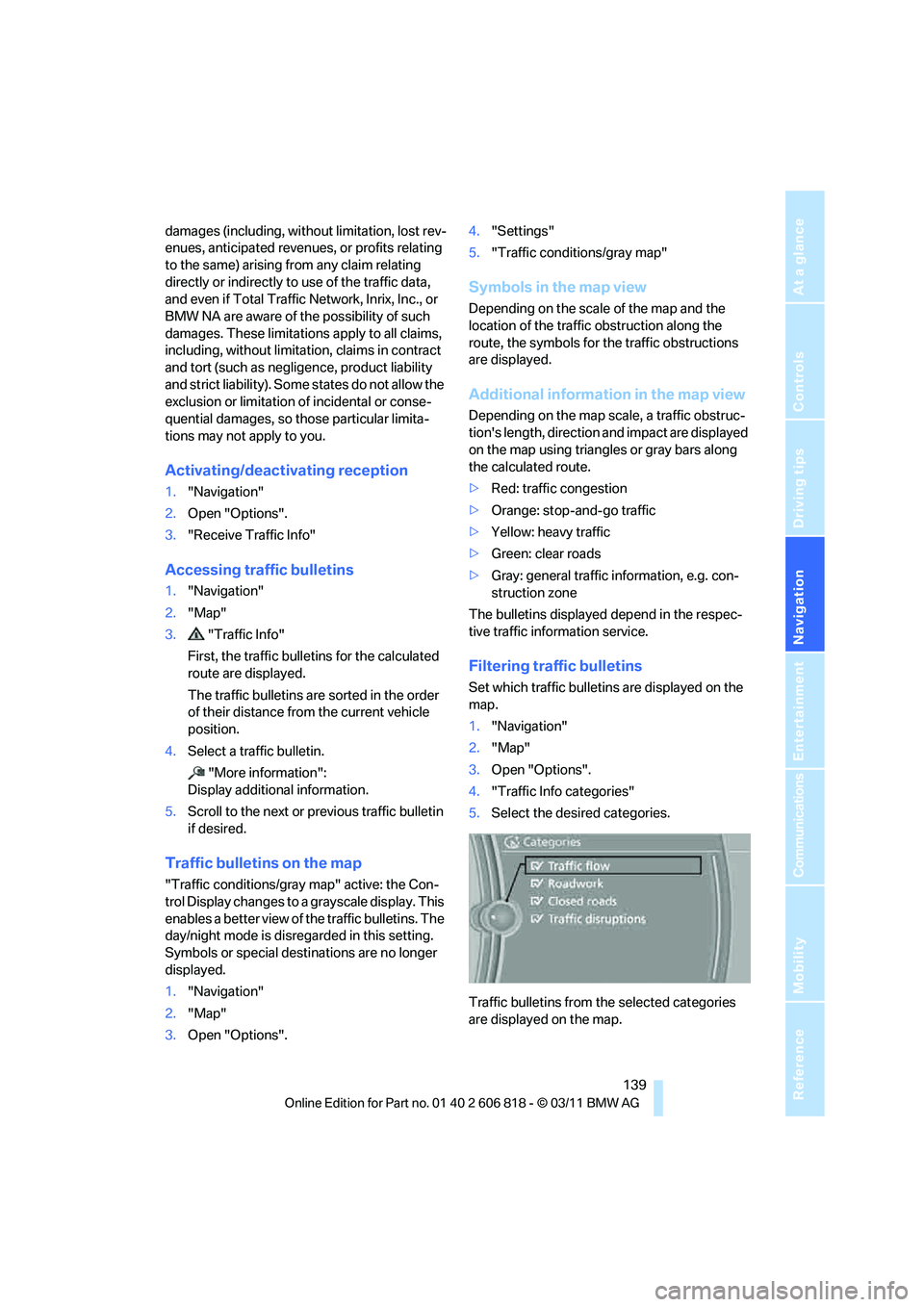
4."Traffic Info categories"
5.Select the desired categories.
Traffic bulletins from the selected categories
are displayed on the map.
Page 151 of 272
Navigation
Entertainment
Driving tips
149Reference
At a glance
Controls
Communications
Mobility
station names of the subchannels end with
HD2, HD3, etc.
1.Select the desired station.
2.Press the controller.
3.Select the substation.
In the event of poor reception, the substation is
muted for several seconds. If reception is inter-
rupted for a longer period of time, then the sys-
tem switches back to the main station.
Presets
It is possible to store up to 40 stations.
Calling up a station
1."Radio"
2."Presets"
3.Select the desired station.
Storing a station
The station currently selected is stored.
1."Radio"
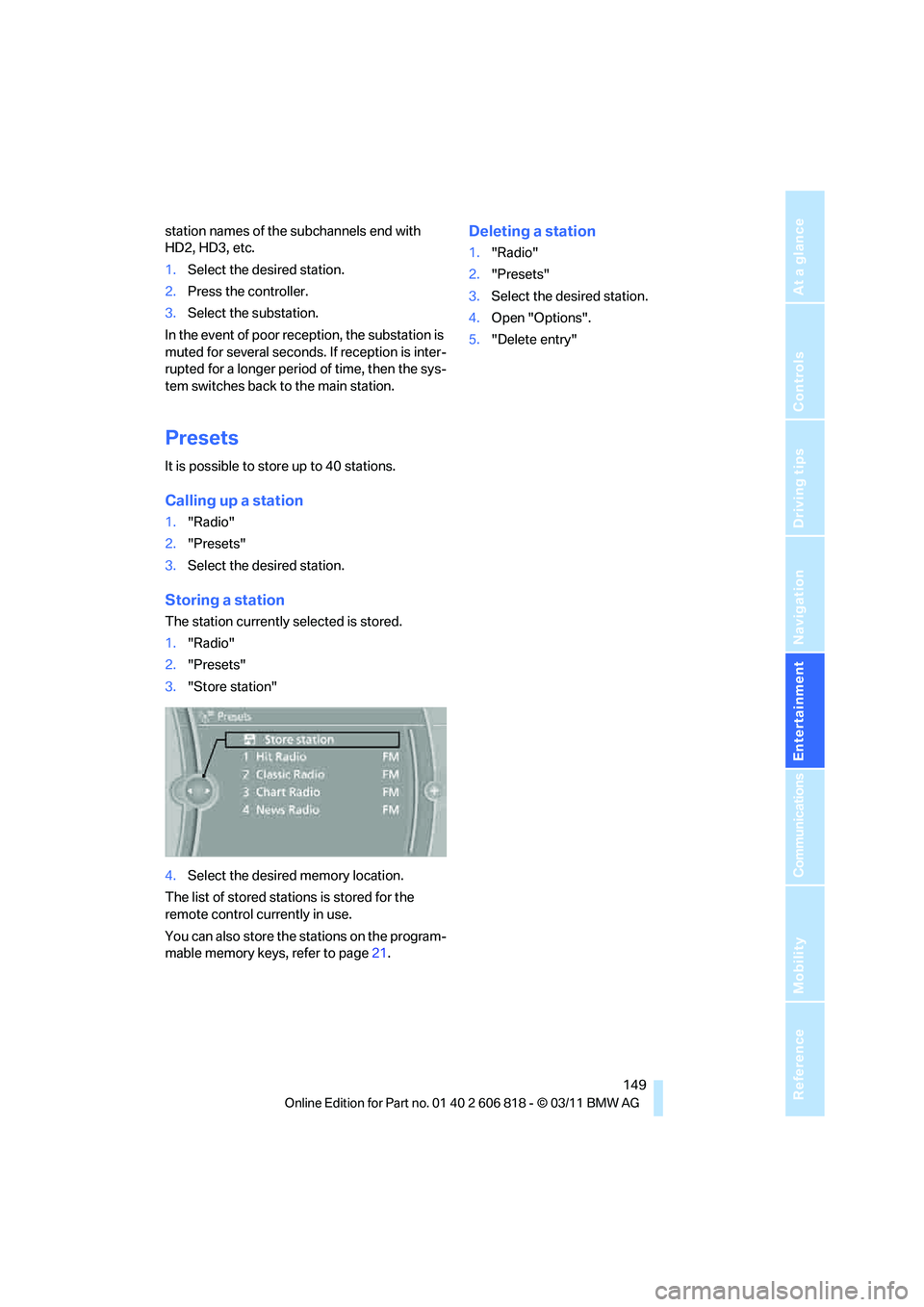
2."Presets"
3."Store station"
4.Select the desired memory location.
The list of stored stations is stored for the
remote control currently in use.
You can also store the stations on the program-
mable memory keys, refer to page21.
Deleting a station
1."Radio"
2."Presets"
3.Select the desired station.
4.Open "Options".
5."Delete entry"
Page 153 of 272
Navigation
Entertainment
Driving tips
151Reference
At a glance
Controls
Communications
Mobility
4."Manage subscription"
The phone number and an electronic serial
number, ESN, are displayed.
5.Call Sirius to unsubscribe from the chan-
nels.
Selecting a channel
You can only listen to enabled channels.
The selected channel is stored for the remote
control currently in use.
Via iDrive
1."Radio"
2."Satellite radio"
3.Select "All channels" or the desired cate-
gory.
4.Select the desired channel.
Via the button in the area of the CD/
DVD player
Press the button for the corresponding
direction.
The next channel is selected.
Via direct channel entry
1."Radio"
2."Satellite radio"
3."Set channel"
4.Turn the controller until the desired channel
is reached and press the controller.
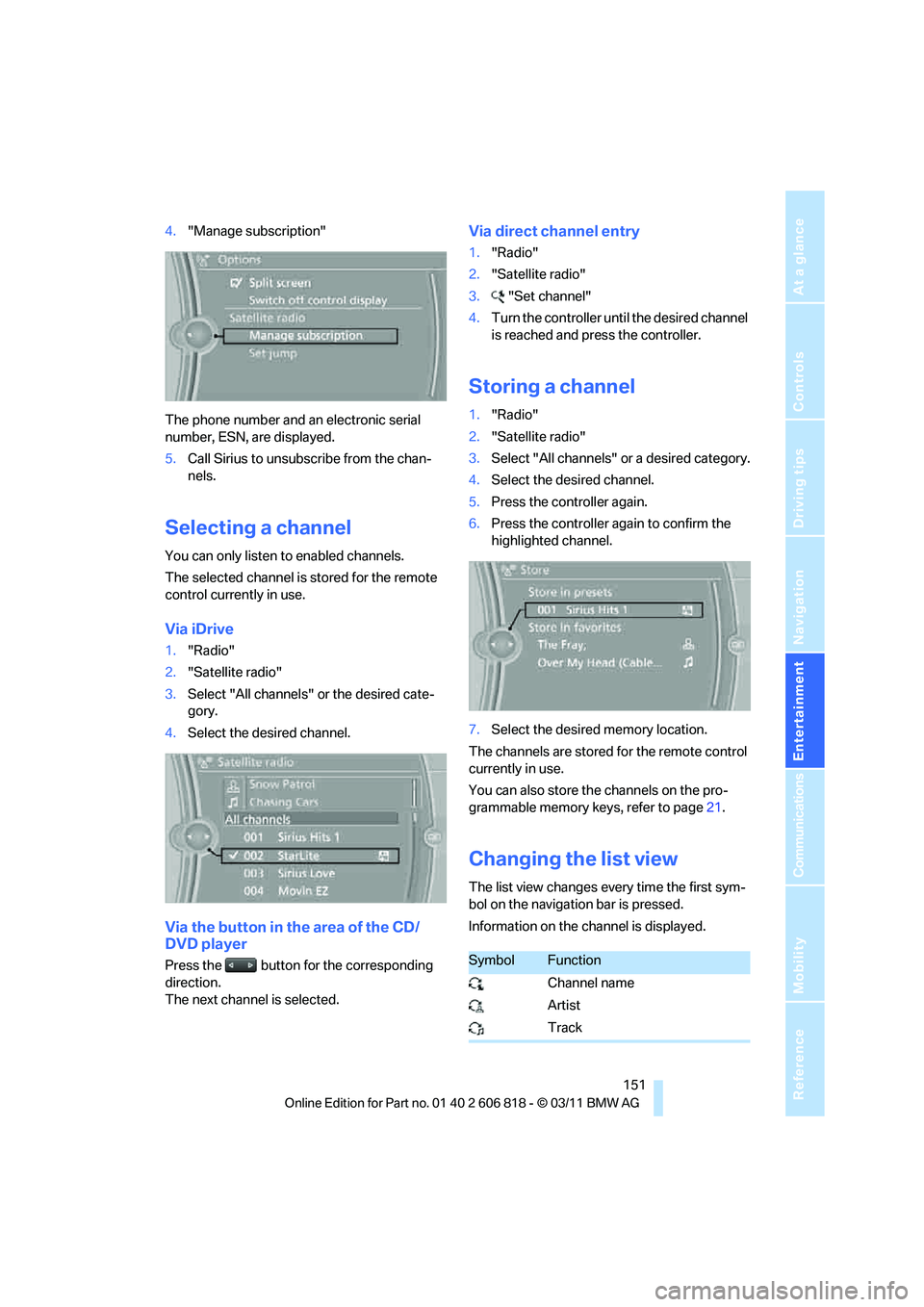
Storing a channel
1."Radio"
2."Satellite radio"
3.Select "All channels" or a desired category.
4.Select the desired channel.
5.Press the controller again.
6.Press the controller again to confirm the
highlighted channel.
7.Select the desired memory location.
The channels are stored for the remote control
currently in use.
You can also store the channels on the pro-
grammable memory keys, refer to page21.
Changing the list view
The list view changes every time the first sym-
bol on the navigation bar is pressed.
Information on the channel is displayed.
SymbolFunction
Channel name
Artist
Track
Page 185 of 272
183
Entertainment
Reference
At a glance
Controls
Driving tips Communications
Navigation
Mobility
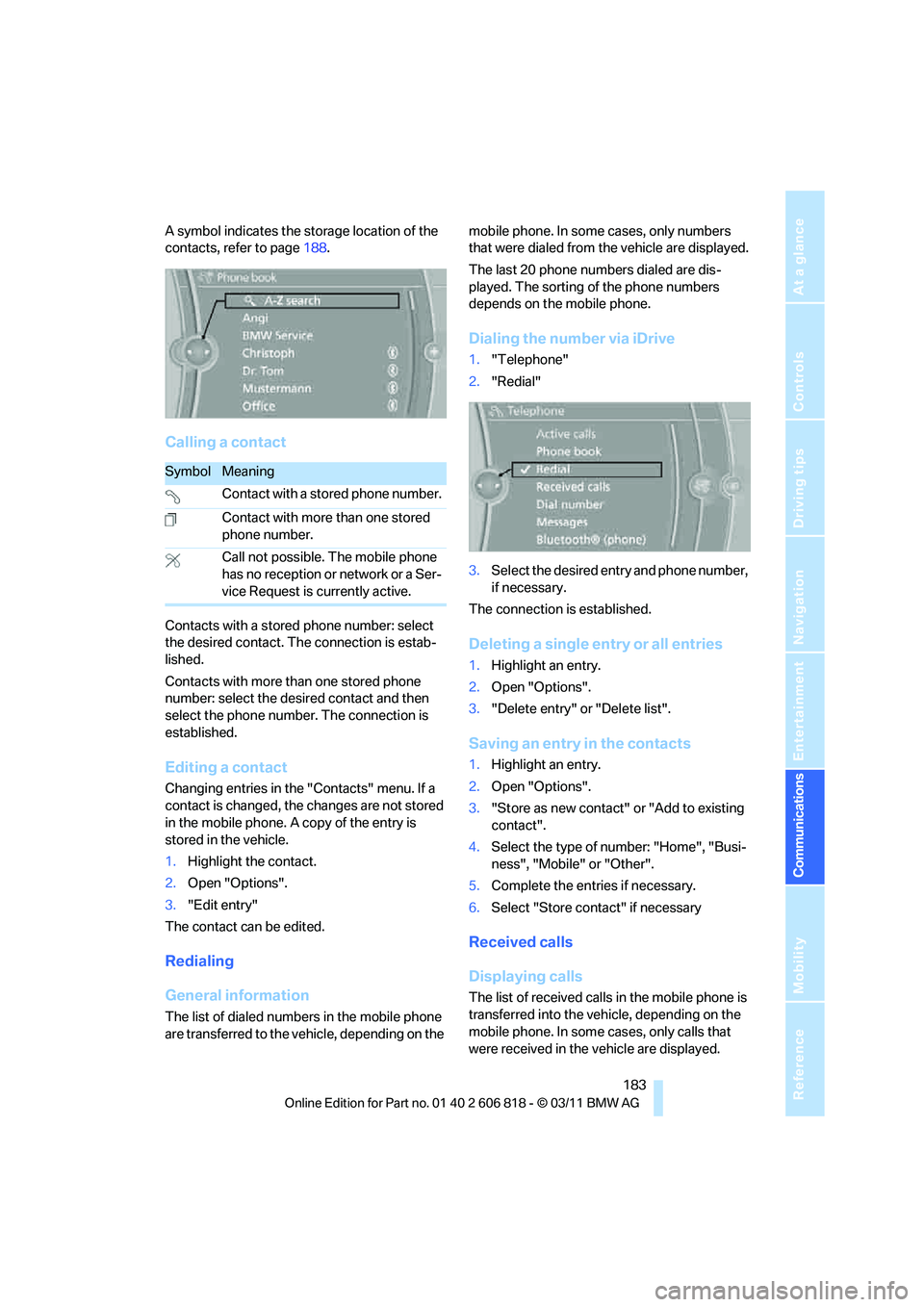
A symbol indicates the storage location of the
contacts, refer to page188.
Calling a contact
Contacts with a stored phone number: select
the desired contact. The connection is estab-
lished.
Contacts with more than one stored phone
number: select the desired contact and then
select the phone number. The connection is
established.
Editing a contact
Changing entries in the "Contacts" menu. If a
contact is changed, the changes are not stored
in the mobile phone. A copy of the entry is
stored in the vehicle.
1.Highlight the contact.
2.Open "Options".
3."Edit entry"
The contact can be edited.
Redialing
General information
The list of dialed numbers in the mobile phone
are transferred to the vehicle, depending on the mobile phone. In some cases, only numbers
that were dialed from the vehicle are displayed.
The last 20 phone numbers dialed are dis-
played. The sorting of the phone numbers
depends on the mobile phone.
Dialing the number via iDrive
1."Telephone"
2."Redial"
3.Select the desired entry and phone number,
if necessary.
The connection is established.
Deleting a single entry or all entries
1.Highlight an entry.
2.Open "Options".
3."Delete entry" or "Delete list".
Saving an entry in the contacts
1.Highlight an entry.
2.Open "Options".
3."Store as new contact" or "Add to existing
contact".
4.Select the type of number: "Home", "Busi-
ness", "Mobile" or "Other".
5.Complete the entries if necessary.
6.Select "Store contact" if necessary
Received calls
Displaying calls
The list of received calls in the mobile phone is
transferred into the vehicle, depending on the
mobile phone. In some cases, only calls that
were received in the vehicle are displayed.
SymbolMeaning
Contact with a stored phone number.
Contact with more than one stored
phone number.
Call not possible. The mobile phone
has no reception or network or a Ser-
vice Request is currently active.
Page 191 of 272
189
Entertainment
Reference
At a glance
Controls
Driving tips Communications
Navigation
Mobility
Displaying contacts
1."Office"
2."Contacts"
All contacts are listed in alphabetical order.
Depending on the number of contacts, an A-Z
search is offered.
A symbol indicates the storage location of the
contacts:
Dialing a phone number*
1.Select the desired contact.
2.Select phone number.
The connection is established.
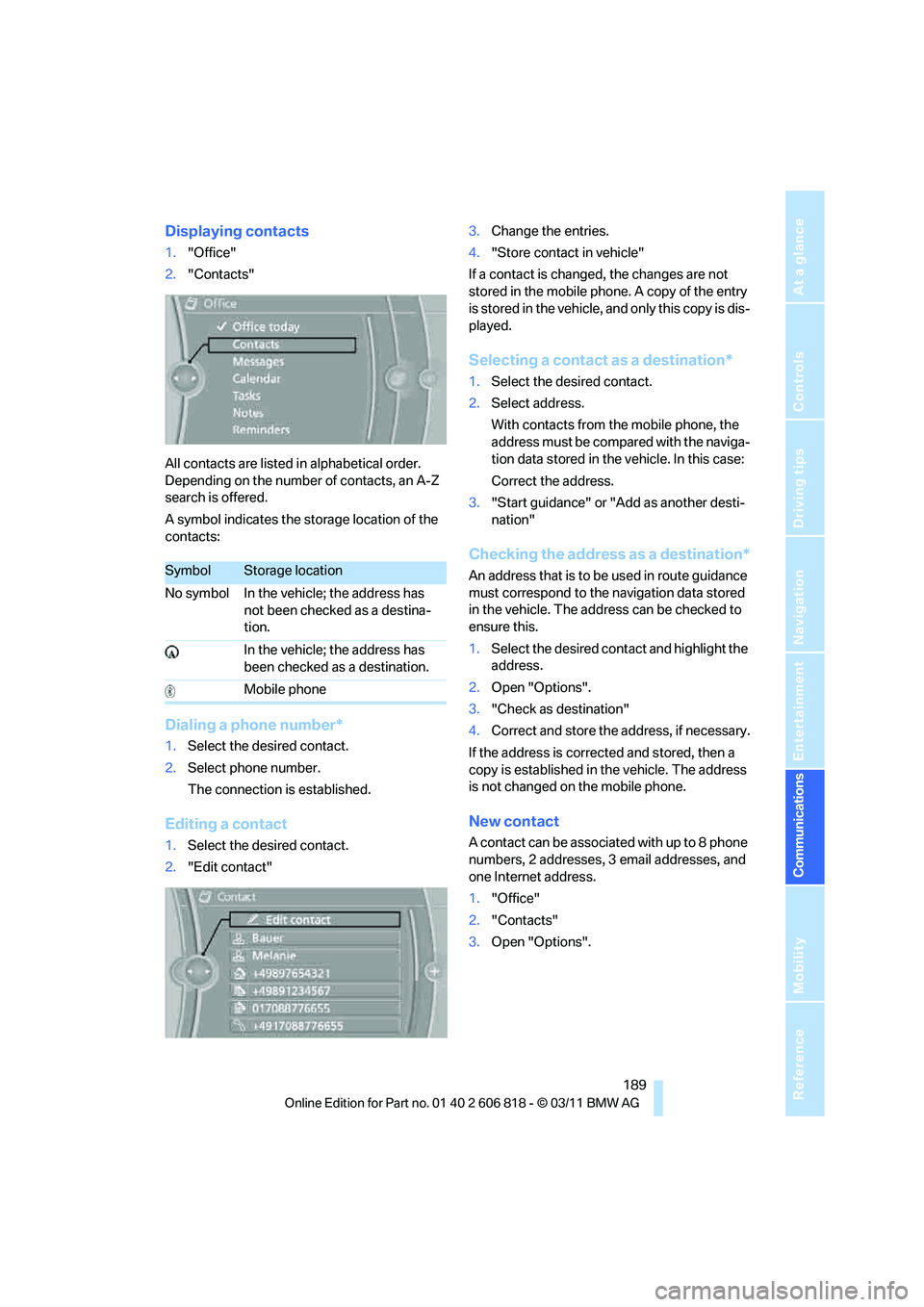
Editing a contact
1.Select the desired contact.
2."Edit contact"3.Change the entries.
4."Store contact in vehicle"
If a contact is changed, the changes are not
stored in the mobile phone. A copy of the entry
is stored in the vehicle, and only this copy is dis-
played.
Selecting a contact as a destination*
1.Select the desired contact.
2.Select address.
With contacts from the mobile phone, the
address must be compared with the naviga-
tion data stored in the vehicle. In this case:
Correct the address.
3."Start guidance" or "Add as another desti-
nation"
Checking the address as a destination*
An address that is to be used in route guidance
must correspond to the navigation data stored
in the vehicle. The address can be checked to
ensure this.
1.Select the desired contact and highlight the
address.
2.Open "Options".
3."Check as destination"
4.Correct and store the address, if necessary.
If the address is corrected and stored, then a
copy is established in the vehicle. The address
is not changed on the mobile phone.
New contact
A contact can be associated with up to 8 phone
numbers, 2 addresses, 3 email addresses, and
one Internet address.
1."Office"
2."Contacts"
3.Open "Options".
SymbolStorage location
No symbol In the vehicle; the address has
not been checked as a destina-
tion.
In the vehicle; the address has
been checked as a destination.
Mobile phone
Page 240 of 272
Giving and receiving assistance
238
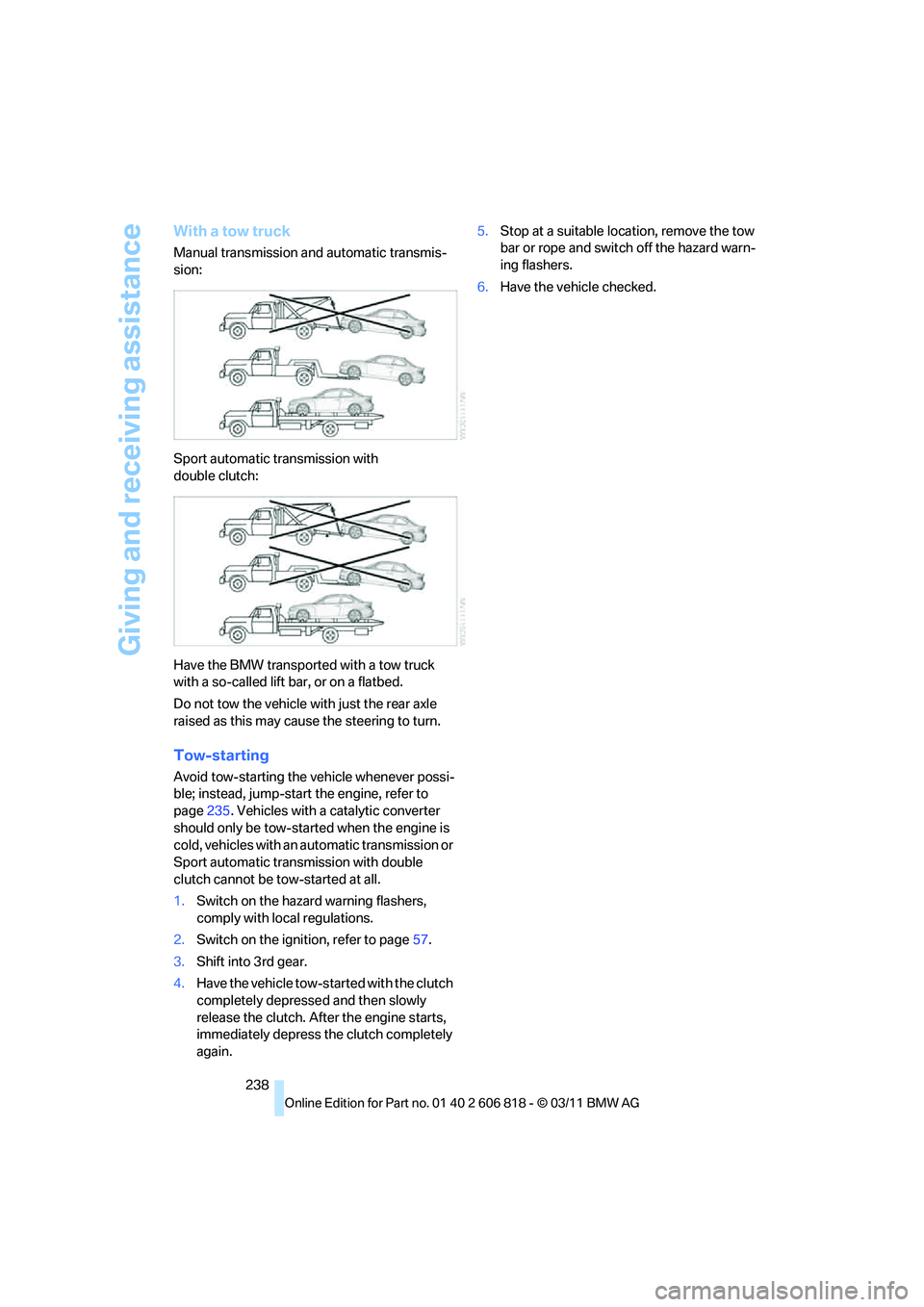
With a tow truck
Manual transmission and automatic transmis-
sion:
Sport automatic transmission with
double clutch:
Have the BMW transported with a tow truck
with a so-called lift bar, or on a flatbed.
Do not tow the vehicle with just the rear axle
raised as this may cause the steering to turn.
Tow-starting
Avoid tow-starting the vehicle whenever possi-
ble; instead, jump-start the engine, refer to
page235. Vehicles with a catalytic converter
should only be tow-started when the engine is
cold, vehicles with an automatic transmission or
Sport automatic transmission with double
clutch cannot be tow-started at all.
1.Switch on the hazard warning flashers,
comply with local regulations.
2.Switch on the ignition, refer to page57.
3.Shift into 3rd gear.
4.Have the vehicle tow-started with the clutch
completely depressed and then slowly
release the clutch. After the engine starts,
immediately depress the clutch completely
again.5.Stop at a suitable location, remove the tow
bar or rope and switch off the hazard warn-
ing flashers.
6.Have the vehicle checked.