bc button BMW 323I 2011 E90 Manual PDF
[x] Cancel search | Manufacturer: BMW, Model Year: 2011, Model line: 323I, Model: BMW 323I 2011 E90Pages: 286, PDF Size: 8.25 MB
Page 178 of 286
External devices
176
Restarting a track search
"New search"
Playback lists
To open playback lists.
1."CD/Multimedia"
2."External devices"
3.Select the symbol.
4."Playlists"
Current playback
List of tracks currently being played.
1."CD/Multimedia"
2."External devices"
3.Select the symbol.
4."Current playback"
Random play sequence
You can play the tracks in the selected list in
random order, e.g. all tracks of a single artist.
1."CD/Multimedia"
2."External devices"
3.Open "Options".
4."Random"
Fast forward/reverse
Press and hold the button for the corre-
sponding direction.
Notes
Do not expose the audio device to
extreme environmental conditions, e.g.
very high temperatures, refer to the operating
instructions of the audio device. Otherwise, the
audio device may become damaged, which
could compromise safety while driving.<
Depending on the configuration of the audio
files, e.g. bit rates greater than 256 KBit/s, the
files may not play back correctly in every case.
Notes on connecting
>The connected audio device is supplied
with a maximum current of 500 mA, if the
device supports this. Therefore, do not con-
nect the device to the power socket in the
vehicle.
>Do not forcibly connect the plug to the
USB interface.
>Do not connect devices such as fans or
lamps to the USB audio interface.
>Do not connect USB hard drives.
>Do not use the USB audio interface to
charge external devices.
Page 182 of 286
Telephone
180
Telephone
The concept
Your BMW is equipped with a full preparation
package mobile phone. After pairing a suitable
mobile phone with the vehicle once, you can
operate the mobile phone via the iDrive, the
buttons on the steering wheel or using voice
commands
*.
Once a mobile phone has been paired with your
vehicle, it is automatically recognized as soon
as it is inside the vehicle while the engine is run-
ning or the ignition is switched on. You can
store the pairing data for up to four mobile
phones simultaneously. If several mobile
phones are detected at the same time, the
mobile phone last paired can be operated via
the vehicle.
Using the telephone inside
the vehicle
Using the snap-in adapter*
The so-called snap-in adapter, a holder for
mobile phones, allows you to charge the mobile
phone's battery and connect the mobile phone
to your vehicle's outside antenna. This ensures
better network reception and consistent repro-
duction quality. Please contact your
BMW center to find out for which mobile
phones there are snap-in adapters available.
For your safety
A car phone makes life more convenient in
many ways, and can even save lives in an emer-
gency. While you should consult your mobile
phone's separate operating instructions for a
detailed description of safety precautions and
information, we request that you direct your
particular attention to the following:
Only make entries when the traffic situa-
tion allows you to do so. Do not hold the
mobile phone in your hand while you are driving;
use the hands-free system instead. If you do
not observe this precaution, your being dis-
tracted can endanger vehicle occupants and
other road users.<
Suitable mobile phones
Please ask your BMW center which mobile
phones with Bluetooth interface are supported
by the mobile phone preparation package and
which mobile phones are compatible with the
snap-in adapter. By virtue of their particular
software versions, these mobile phones sup-
port the functions described in this Owner's
Manual. Malfunctions may occur with other
mobile phones.
Operating options
You can operate the mobile phone using:
>Buttons on the steering wheel, refer to
page10
>iDrive, refer to page16
>Voice commands
*, refer to page189
>Programmable memory keys, refer to
page20
Avoid operating a mobile phone recognized
by the vehicle via the mobile phone's keypad;
otherwise, malfunctions may result.
*
Page 183 of 286
181
Entertainment
Reference
At a glance
Controls
Driving tips Communications
Navigation
Mobility
Start-up
Pairing the mobile phone with the
vehicle
The following prerequisites must be met:
>Compatible mobile phone: the mobile
phone is supported by the full preparation
package mobile phone. You can obtain
information on the Internet at:
www.bmw.com/bluetooth
>The mobile phone is ready to operate.
>Bluetooth has been activated in the vehicle,
refer to page183, and on the mobile phone.
>Depending on the mobile phone, certain
settings may be necessary on the mobile
phone, e.g. via the following menu items:
>Bluetooth switched on
>Connection must be allowed without
requiring further confirmation
>Reconnection
>Depending on the mobile phone type, the
power-saving mode setting, for example,
may result in a paired mobile phone not
being detected by the vehicle.
>For pairing purposes, define any 4 to 16-
digit number as a Bluetooth passkey,
e.g. 25081107. A long and complex number
offers the best protection against unautho-
rized access. This Bluetooth passkey is no
longer required after pairing is successful.
>The ignition is switched on.
Pair the mobile phone with the vehicle
only when the car is stationary, to avoid
endangering the car's occupants and other
road users by being distracted.<
Switch on ignition
1.Insert remote control all the way into the
ignition lock.
2.Switch on ignition without operating the
brake or clutch or pressing the start/stop
button.
Preparation via iDrive
3."Telephone"
4."Bluetooth (telephone)"
5."Add new phone"
The Bluetooth name of the vehicle is dis-
played.
Preparation via the mobile phone
6.Further steps must be carried out with the
mobile phone and vary depending on the
model. Please refer to your mobile phone's
operating instructions, e.g. under the topics
of Searching for a Bluetooth device, Linking
or Pairing.
The Bluetooth name of the vehicle appears
on the mobile phone display.
7.Select the Bluetooth name of the vehicle
on the mobile phone display.
Page 186 of 286
Telephone
184
Operation via iDrive
You can operate the following functions using
iDrive:
>Accepting/rejecting calls
>dialing phone numbers
>Selecting phone numbers from the phone
book
>Selecting stored phone numbers, e.g. from
the list of received calls
>Ending a call
When the ignition is switched off or in radio
readiness, e.g. after taking the remote control
out of the ignition lock, you can continue an
ongoing call via the hands-free system for sev-
eral minutes.
Voice quality
If the person you are talking to is having difficul-
ties understanding you, this may be due to
excessive background noise. The full prepara-
tion package mobile phone can compensate for
these noises to a certain extent. To optimize
voice quality during a call, we recommend that
you:
>Reduce background noise, e.g. by closing
the windows, reducing air flow from the
automatic climate control or pointing the
open front air vents downward.
>Reduce the volume of the hands-free sys-
tem.
Requirements
>The mobile phone's pairing data are stored
by the vehicle and the mobile phone is oper-
ational.
>The engine is running or the ignition is
switched on.
>The mobile phone is recognized by the
vehicle.
Receiving calls
If you have the phone number of the caller
stored in the phone book and the phone num-
ber has been transmitted, the name of the entry
is displayed.
Accepting a call
Press the button on the steering wheel
or
"Accept"
Rejecting a call
"Reject"
The caller is diverted to your mailbox if the mail-
box was activated.
Ending a call
Press the button on the steering wheel
or
1."Telephone"
2."Active calls"
3.Select an active call.
Page 187 of 286
185
Entertainment
Reference
At a glance
Controls
Driving tips Communications
Navigation
Mobility
Dialing phone numbers
1."Telephone"
2."Dial number"
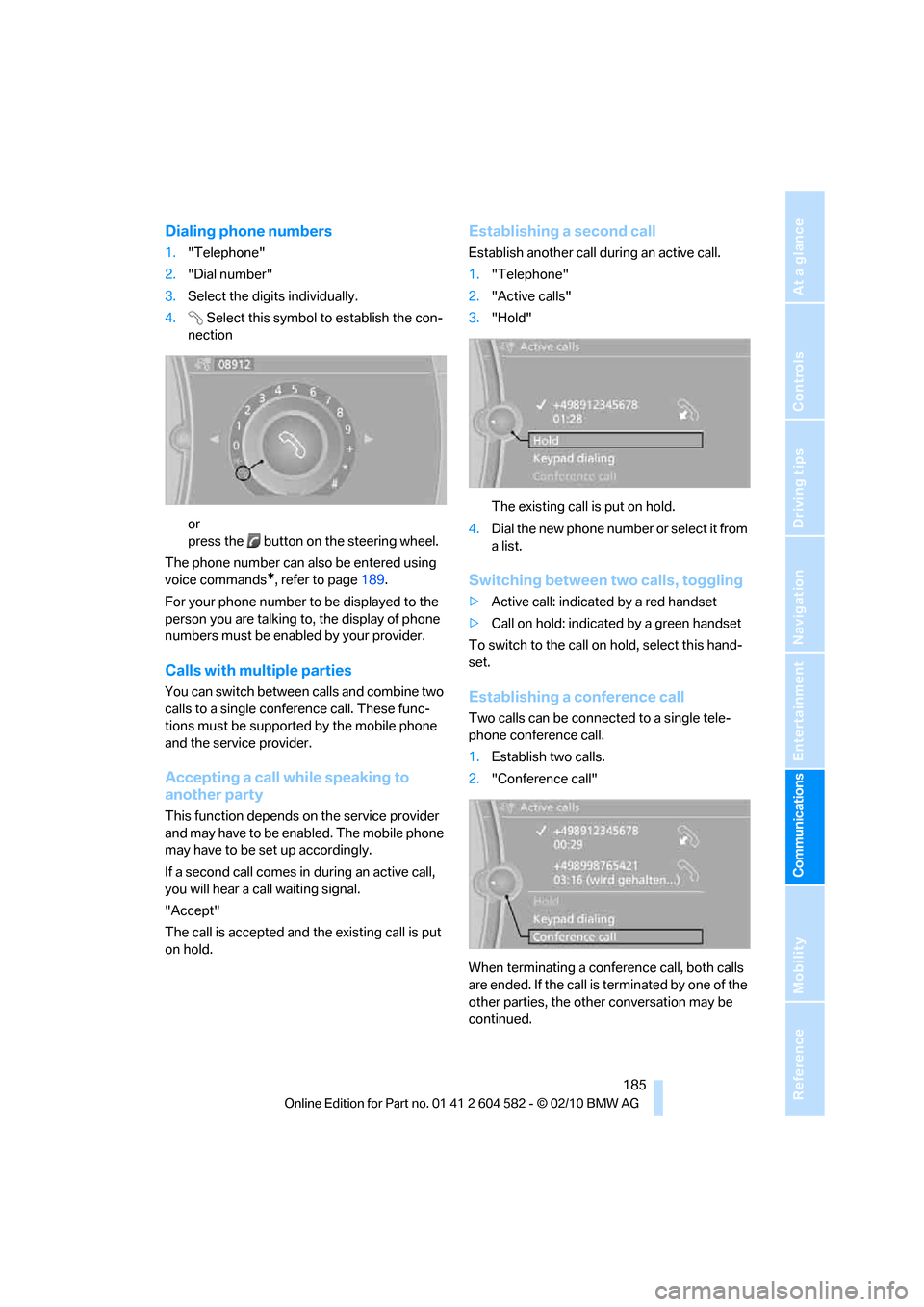
3.Select the digits individually.
4.Select this symbol to establish the con-
nection
or
press the button on the steering wheel.
The phone number can also be entered using
voice commands
*, refer to page189.
For your phone number to be displayed to the
person you are talking to, the display of phone
numbers must be enabled by your provider.
Calls with multiple parties
You can switch between calls and combine two
calls to a single conference call. These func-
tions must be supported by the mobile phone
and the service provider.
Accepting a call while speaking to
another party
This function depends on the service provider
and may have to be enabled. The mobile phone
may have to be set up accordingly.
If a second call comes in during an active call,
you will hear a call waiting signal.
"Accept"
The call is accepted and the existing call is put
on hold.
Establishing a second call
Establish another call during an active call.
1."Telephone"
2."Active calls"
3."Hold"
The existing call is put on hold.
4.D ial the new phone number or se lec t it fro m
a list.
Switching between two calls, toggling
>Active call: indicated by a red handset
>Call on hold: indicated by a green handset
To switch to the call on hold, select this hand-
set.
Establishing a conference call
Two calls can be connected to a single tele-
phone conference call.
1.Establish two calls.
2."Conference call"
When terminating a conference call, both calls
are ended. If the call is terminated by one of the
other parties, the other conversation may be
continued.
Page 191 of 286
189
Entertainment
Reference
At a glance
Controls
Driving tips Communications
Navigation
Mobility
Operation by voice
commands*
The concept
>You can operate your mobile phone without
having to take a hand off the steering wheel.
>{...} Verbal instructions to use with the voice
activation system.
Requirements
The same prerequisites apply as for operation
via iDrive, refer to page184.
Saying commands
Activating voice activation system
1.Briefly press the button on the steering
wheel.
A sound signal indicates that you can say
commands.
2.Say the command.
Ending/canceling operation by voice
commands
Briefly press the button on the steering
wheel or
In dialogs not involving voice commands, i.e.
when you are speaking only text, e.g. a name,
canceling is possible only via the button on the
steering wheel.
Having the possible commands read
aloud
The system recognizes specific commands
that must be pronounced exactly word for word.
You can have the possible commands for any
function read aloud to you:
Digits from zero to nine are recognized.
You can say each digit individually or group
them into a sequence to accelerate the input.
Using alternative commands
Often there is more than a single command to
run a function, e.g.:
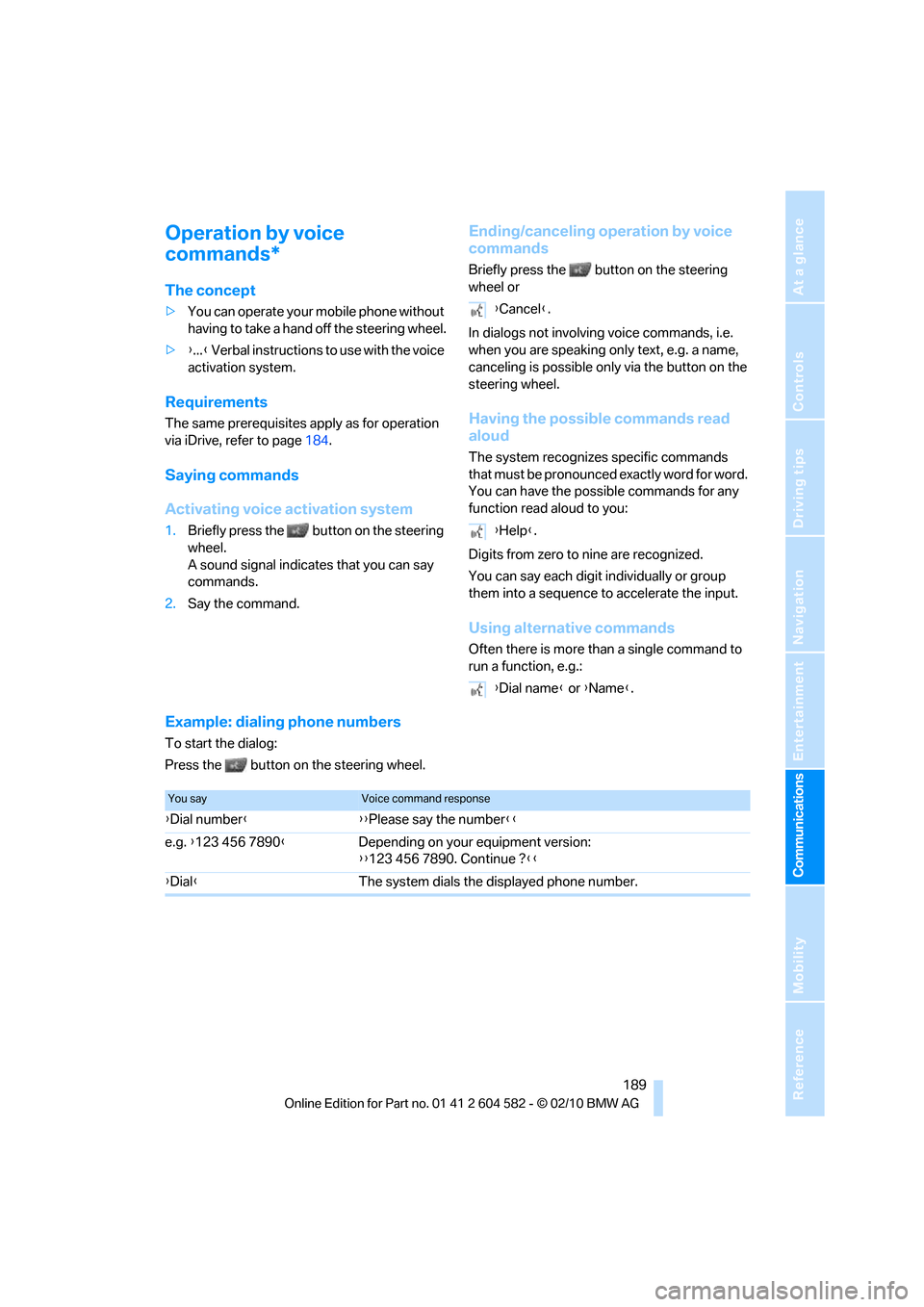
Example: dialing phone numbers
To start the dialog:
Press the button on the steering wheel.
{Cancel}.
{Help}.
{Dial name} or {Name}.
You sayVoice command response
{Dial number}{{Please say the number}}
e.g. {123 456 7890}Depending on your equipment version:
{{123 456 7890. Continue ?}}
{Dial}The system dials the displayed phone number.
Page 192 of 286
Telephone
190
Adjusting the volume of the
instructions
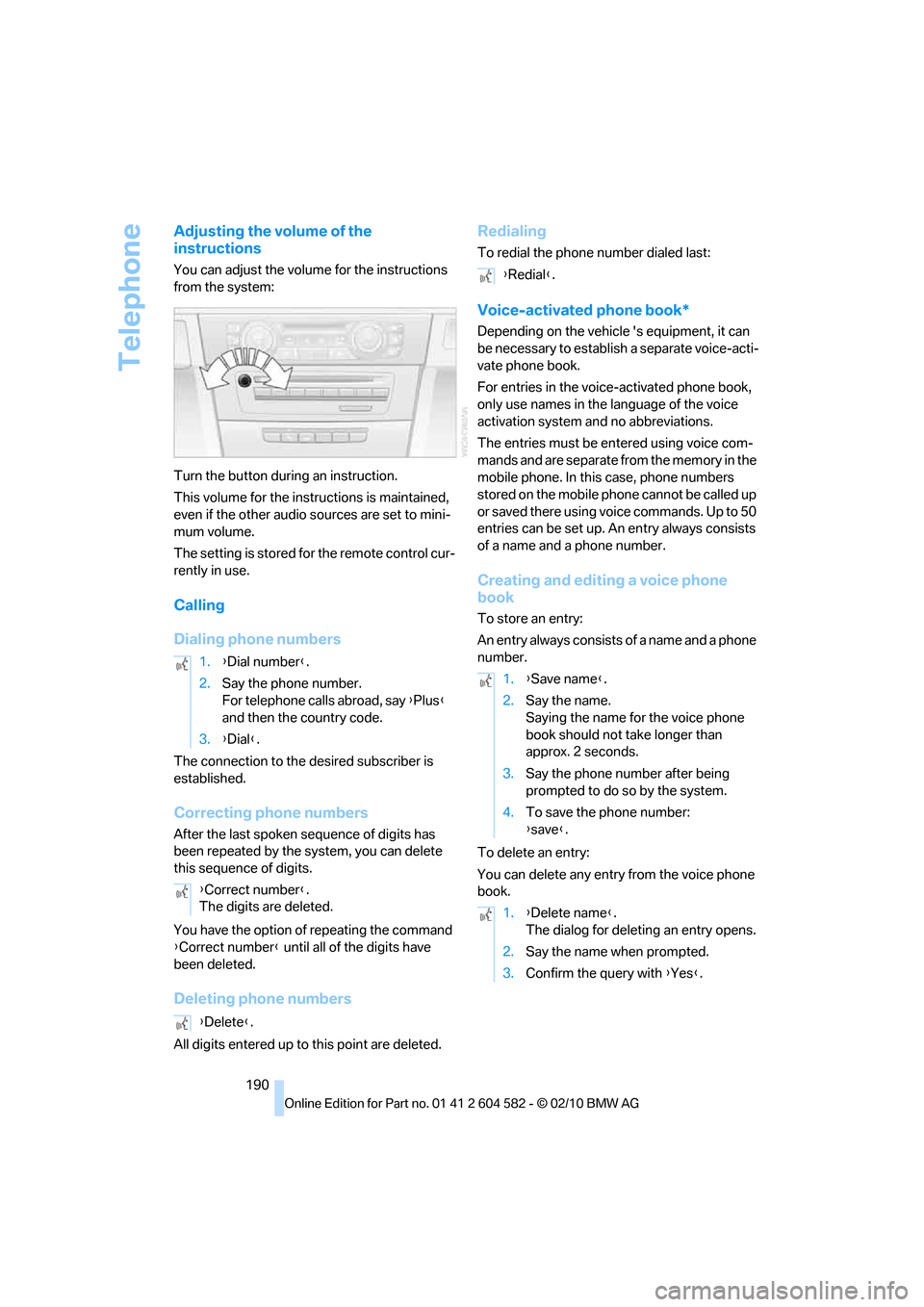
You can adjust the volume for the instructions
from the system:
Turn the button during an instruction.
This volume for the instructions is maintained,
even if the other audio sources are set to mini-
mum volume.
The setting is stored for the remote control cur-
rently in use.
Calling
Dialing phone numbers
The connection to the desired subscriber is
established.
Correcting phone numbers
After the last spoken sequence of digits has
been repeated by the system, you can delete
this sequence of digits.
You have the option of repeating the command
{Correct number} until all of the digits have
been deleted.
Deleting phone numbers
All digits entered up to this point are deleted.
Redialing
To redial the phone number dialed last:
Voice-activated phone book*
Depending on the vehicle 's equipment, it can
be necessary to establish a separate voice-acti-
vate phone book.
For entries in the voice-activated phone book,
only use names in the language of the voice
activation system and no abbreviations.
The entries must be entered using voice com-
mands and are separate from the memory in the
mobile phone. In this case, phone numbers
stored on the mobile phone cannot be called up
or saved there using voice commands. Up to 50
entries can be set up. An entry always consists
of a name and a phone number.
Creating and editing a voice phone
book
To store an entry:
An entry always consists of a name and a phone
number.
To delete an entry:
You can delete any entry from the voice phone
book. 1.{Dial number}.
2.Say the phone number.
For telephone calls abroad, say {Plus}
and then the country code.
3.{Dial}.
{Correct number}.
The digits are deleted.
{Delete}.
{Redial}.
1.{Save name}.
2.Say the name.
Saying the name for the voice phone
book should not take longer than
approx. 2 seconds.
3.Say the phone number after being
prompted to do so by the system.
4.To save the phone number:
{save}.
1.{Delete name}.
The dialog for deleting an entry opens.
2.Say the name when prompted.
3.Confirm the query with {Yes}.
Page 194 of 286
Telephone
192
Inserting/removing the
snap-in adapter*
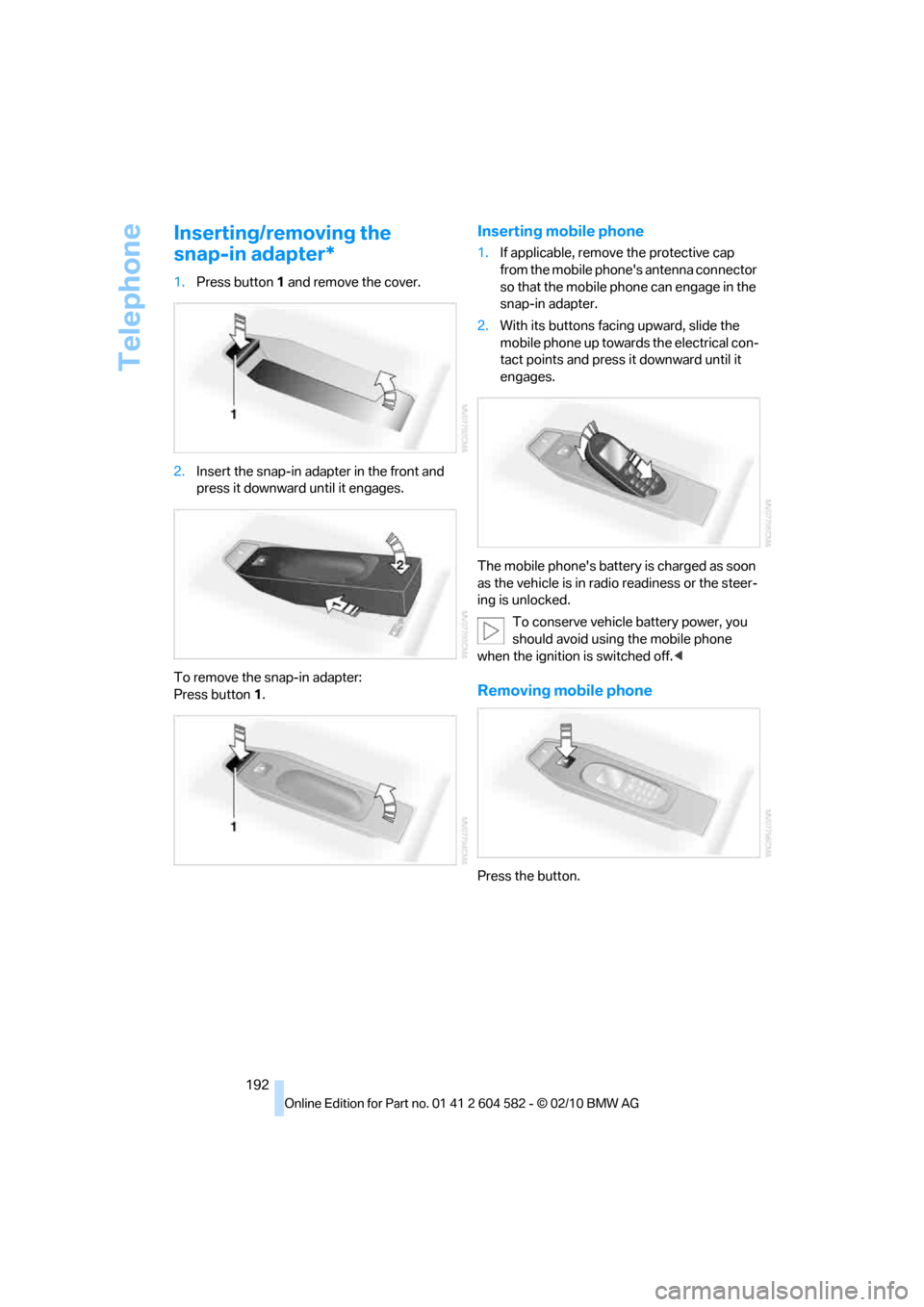
1.Press button1 and remove the cover.
2.Insert the snap-in adapter in the front and
press it downward until it engages.
To remove the snap-in adapter:
Press button 1.
Inserting mobile phone
1.If applicable, remove the protective cap
from the mobile phone's antenna connector
so that the mobile phone can engage in the
snap-in adapter.
2.With its buttons facing upward, slide the
mobile phone up towards the electrical con-
tact points and press it downward until it
engages.
The mobile phone's battery is charged as soon
as the vehicle is in radio readiness or the steer-
ing is unlocked.
To conserve vehicle battery power, you
should avoid using the mobile phone
when the ignition is switched off.<
Removing mobile phone
Press the button.
Page 197 of 286
195
Entertainment
Reference
At a glance
Controls
Driving tips Communications
Navigation
Mobility
BMW Assist
BMW Assist*
BMW Assist provides a number of different ser-
vices. For example, the position data of the
vehicle can be transmitted to the BMW Assist
Response Center when an Emergency
Request
* is sent.
Many BMW Assist services depend on the con-
tract individually agreed upon.
After your contract has expired, the BMW
Assist system will be deactivated by the BMW
Assist Response Center without you having to
visit a BMW center. After the BMW Assist sys-
tem has been deactivated, no BMW Assist ser-
vices will be available. The BMW Assist system
can be reactivated by a BMW center after a new
contract has been signed.
Requirements
>The installed BMW Assist system is logged
in to a wireless communications network.
This network must be capable of transmit-
ting the services.
>To transmit position data, the vehicle must
be able to determine its current position.
>To activate and update BMW Assist, a GPS
signal must be available.
>The BMW Assist service contract was
signed with your BMW center or with the
BMW Assist Response Center. The service
must have been fully enabled.
>BMW Assist is activated.
Services offered
>Emergency Request: when you press the
SOS button, a connection to the BMW
Assist Response Center is established. The
BMW Assist Response Center then speaks
with you and takes further steps to help you.
>Automatic Collision Notification: under cer-
tain conditions, a connection to the BMW
Assist Response Center is established after
a serious accident. If possible, the BMW Assist Response Center then speaks with
you and takes further steps to help you.
>Enhanced Roadside Assistance: BMW
Roadside Assistance
* can be contacted if
assistance is needed in the event of a
breakdown. If possible, the vehicle data and
position data are transmitted during this
call.
>Customer Relations: connection to
Customer Relations for information on all
aspects of your vehicle.
>TeleService: data on your vehicle's service
status or required inspections are transmit-
ted to your BMW center, either automati-
cally before a service due date or when you
request a BMW service appointment.
>Remote Door Unlock: the BMW Assist
Response Center provides assistance if, for
example, the remote control is not available
and the vehicle needs to be opened.
>Stolen Vehicle Recovery: after you report to
the police that your vehicle was stolen, the
BMW Assist Response Center can deter-
mine its position.
>In addition, the optional Convenience Plan
offers a concierge service and information
on route planning, the traffic situation and
weather. Using Critical Calling, a limited
number of calls can be made via the BMW
Assist Response Center, for example if the
mobile phone is not available or discharged.
Press the SOS button to contact the BMW
Assist Response Center.
*
Page 229 of 286
Mobility
227Reference
At a glance
Controls
Driving tips
Communications
Navigation
Entertainment
Engine oil
The engine oil consumption is dependent on
driving style and driving conditions.
Checking the engine oil level with the
dipstick*
1.Park the vehicle on a level surface with the
engine at operating temperature, i.e. after
an uninterrupted drive of at least 6.2 miles/
10 km.
2.Switch off the engine.
3.After approx. 5 minutes, pull out the
dipstick5 and wipe it off with a lint-free
cloth, paper towel or similar material.
4.Carefully push the dipstick all the way back
into the measuring tube and pull it out
again.
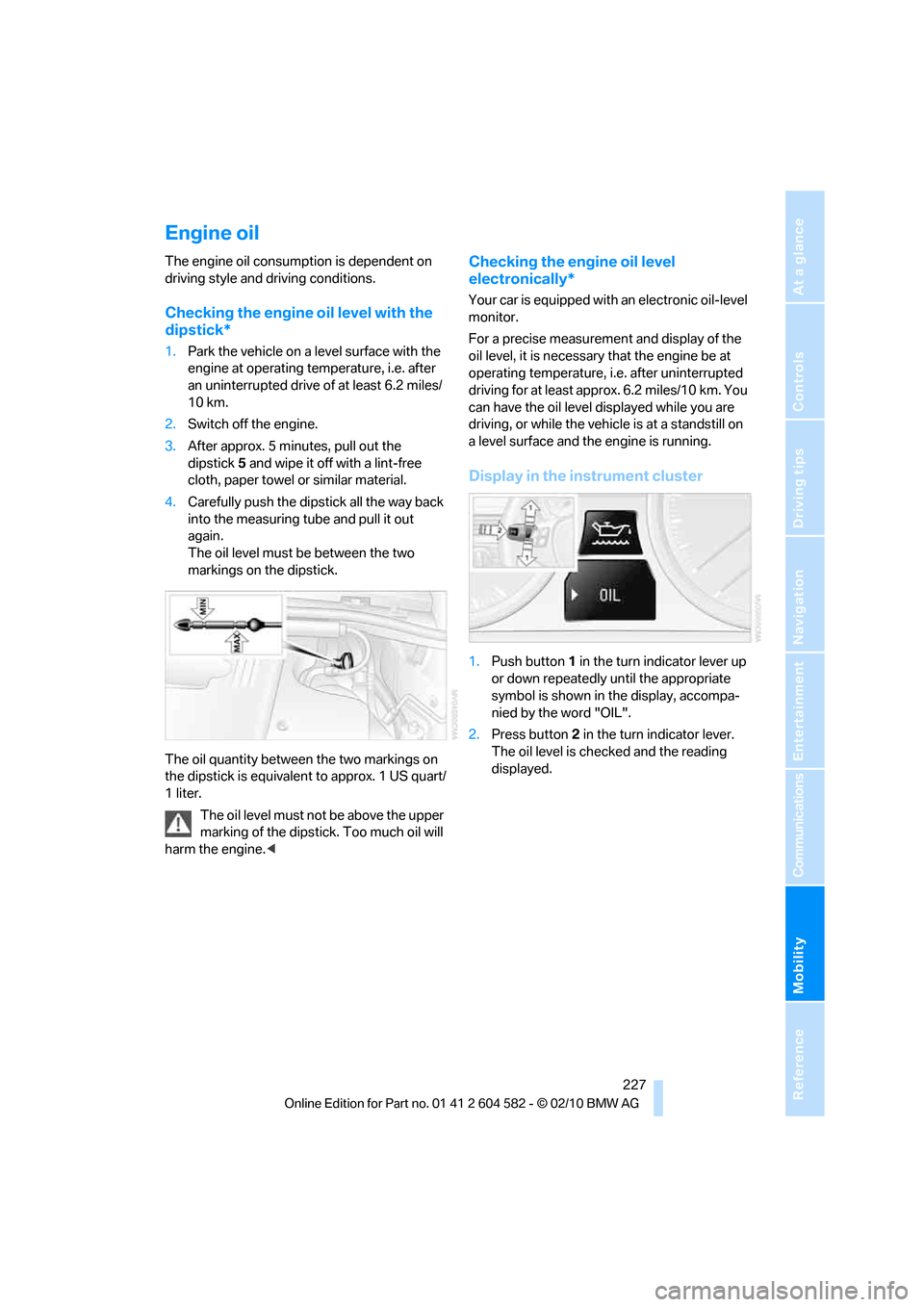
The oil level must be between the two
markings on the dipstick.
The oil quantity between the two markings on
the dipstick is equivalent to approx. 1 US quart/
1 liter.
The oil level must not be above the upper
marking of the dipstick. Too much oil will
harm the engine.<
Checking the engine oil level
electronically*
Your car is equipped with an electronic oil-level
monitor.
For a precise measurement and display of the
oil level, it is necessary that the engine be at
operating temperature, i.e. after uninterrupted
driving for at least approx. 6.2 miles/10 km. You
can have the oil level displayed while you are
driving, or while the vehicle is at a standstill on
a level surface and the engine is running.
Display in the instrument cluster
1.Push button 1 in the turn indicator lever up
or down repeatedly until the appropriate
symbol is shown in the display, accompa-
nied by the word "OIL".
2.Press button 2 in the turn indicator lever.
The oil level is checked and the reading
displayed.