music BMW 323I 2011 E90 Owner's Manual
[x] Cancel search | Manufacturer: BMW, Model Year: 2011, Model line: 323I, Model: BMW 323I 2011 E90Pages: 286, PDF Size: 8.25 MB
Page 5 of 286
Reference
At a glance
Controls
Driving tips
Communications
Navigation
Entertainment
Mobility
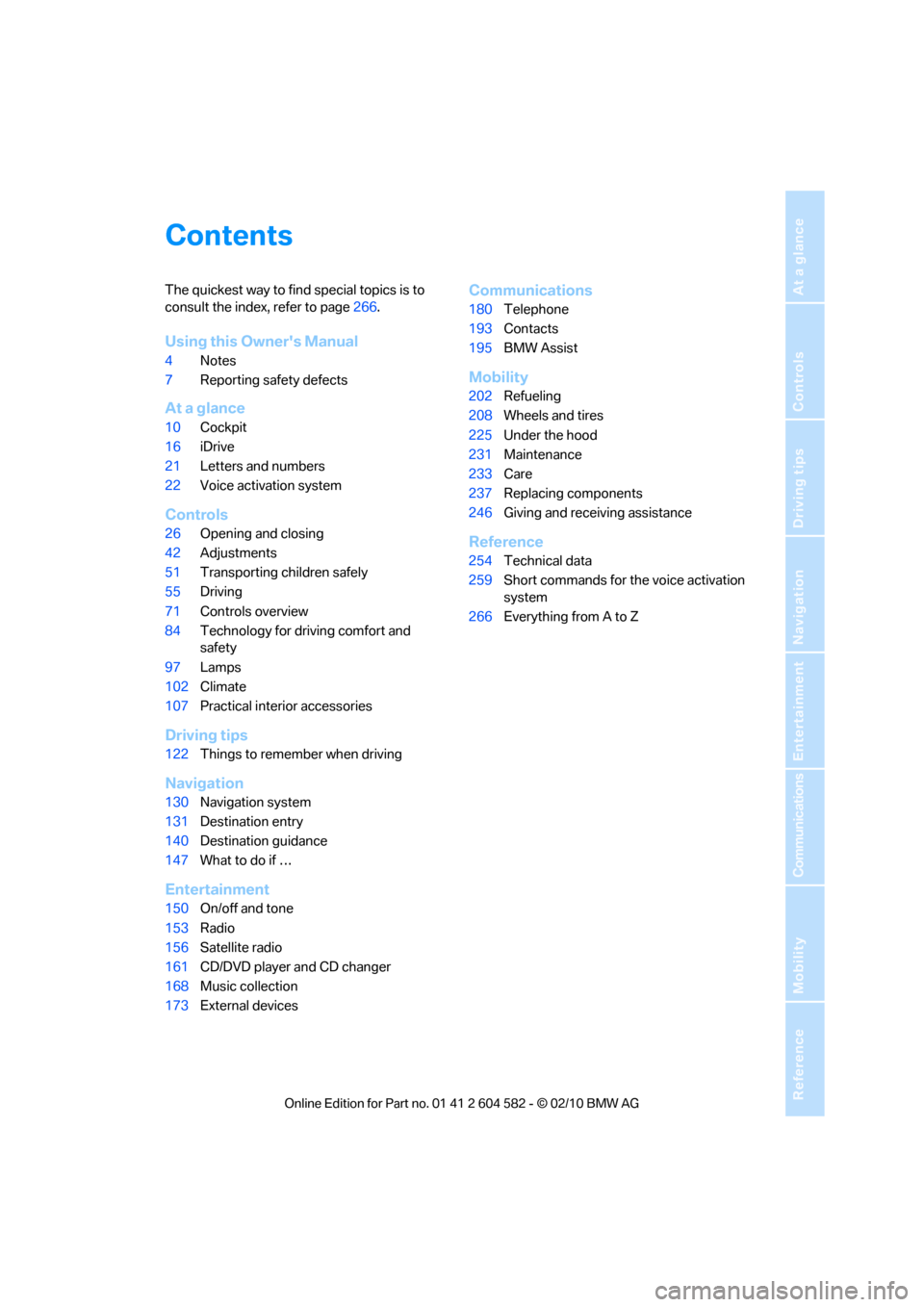
Contents
The quickest way to find special topics is to
consult the index, refer to page266.
Using this Owner's Manual
4Notes
7Reporting safety defects
At a glance
10Cockpit
16iDrive
21Letters and numbers
22Voice activation system
Controls
26Opening and closing
42Adjustments
51Transporting children safely
55Driving
71Controls overview
84Technology for driving comfort and
safety
97Lamps
102Climate
107Practical interior accessories
Driving tips
122Things to remember when driving
Navigation
130Navigation system
131Destination entry
140Destination guidance
147What to do if …
Entertainment
150On/off and tone
153Radio
156Satellite radio
161CD/DVD player and CD changer
168Music collection
173External devices
Communications
180Telephone
193Contacts
195BMW Assist
Mobility
202Refueling
208Wheels and tires
225Under the hood
231Maintenance
233Care
237Replacing components
246Giving and receiving assistance
Reference
254Technical data
259Short commands for the voice activation
system
266Everything from A to Z
Page 13 of 286
At a glance
11Reference
Controls
Driving tips
Communications
Navigation
Entertainment
Mobility
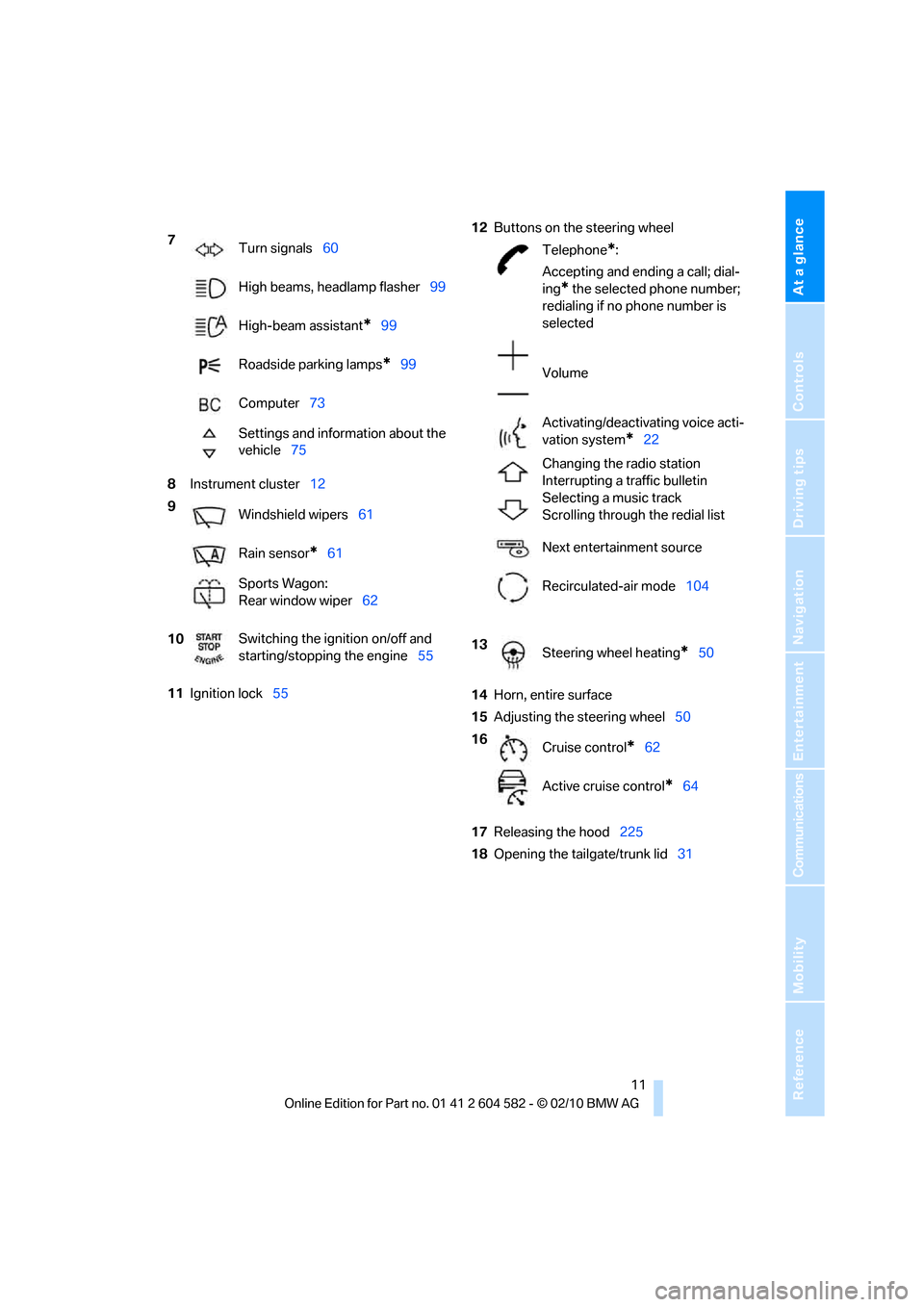
8Instrument cluster12
11Ignition lock5512Buttons on the steering wheel
14Horn, entire surface
15Adjusting the steering wheel50
17Releasing the hood225
18Opening the tailgate/trunk lid31 7
Turn signals60
High beams, headlamp flasher99
High-beam assistant
*99
Roadside parking lamps
*99
Computer73
Settings and information about the
vehicle75
9
Windshield wipers61
Rain sensor
*61
Sports Wagon:
Rear window wiper62
10Switching the ignition on/off and
starting/stopping the engine55
Telephone*:
Accepting and ending a call; dial-
ing
* the selected phone number;
redialing if no phone number is
selected
Volume
Activating/deactivating voice acti-
vation system
*22
Changing the radio station
Interrupting a traffic bulletin
Selecting a music track
Scrolling through the redial list
Next entertainment source
Recirculated-air mode104
13
Steering wheel heating
*50
16
Cruise control
*62
Active cruise control
*64
Page 25 of 286
At a glance
23Reference
Controls
Driving tips
Communications
Navigation
Entertainment
Mobility
Calling up functions immediately via
short commands
Short commands enable you to perform certain
functions immediately, irrespective of which
menu item is selected, refer to page259.
Example: selecting the track of a CD
1.If necessary, switch on entertainment audio
output.
2.Press the button on the steering wheel.
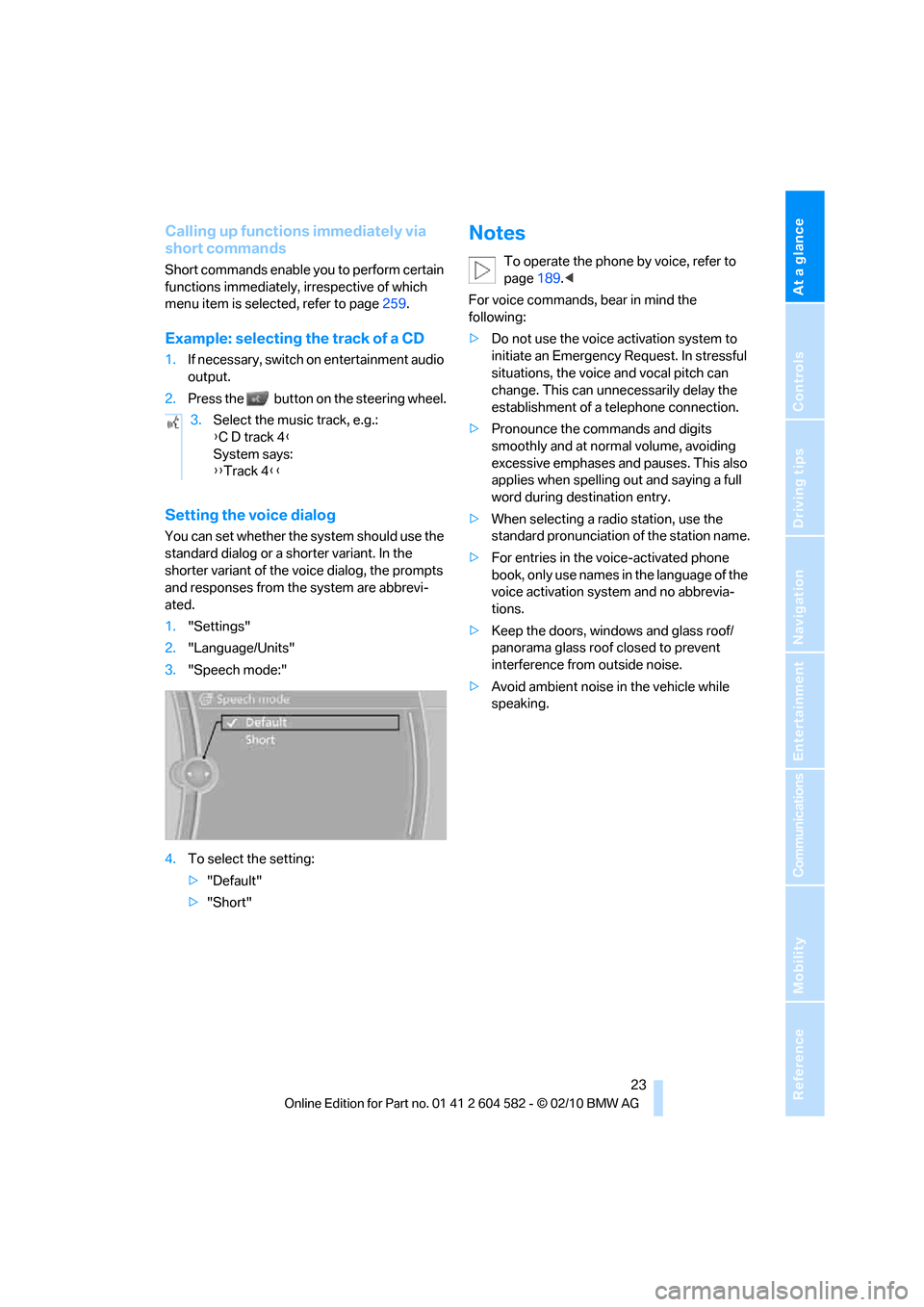
Setting the voice dialog
You can set whether the system should use the
standard dialog or a shorter variant. In the
shorter variant of the voice dialog, the prompts
and responses from the system are abbrevi-
ated.
1."Settings"
2."Language/Units"
3."Speech mode:"
4.To select the setting:
>"Default"
>"Short"
Notes
To operate the phone by voice, refer to
page189.<
For voice commands, bear in mind the
following:
>Do not use the voice activation system to
initiate an Emergency Request. In stressful
situations, the voice and vocal pitch can
change. This can unnecessarily delay the
establishment of a telephone connection.
>Pronounce the commands and digits
smoothly and at normal volume, avoiding
excessive emphases and pauses. This also
applies when spelling out and saying a full
word during destination entry.
>When selecting a radio station, use the
standard pronunciation of the station name.
>For entries in the voice-activated phone
book, only use names in the language of the
voice activation system and no abbrevia-
tions.
>Keep the doors, windows and glass roof/
panorama glass roof closed to prevent
interference from outside noise.
>Avoid ambient noise in the vehicle while
speaking. 3.Select the music track, e.g.:
{C D track 4}
System says:
{{Track 4}}
Page 113 of 286
Controls
111Reference
At a glance
Driving tips
Communications
Navigation
Entertainment
Mobility
Locking
To lock the glove compartment, use the inte-
grated key of the remote control, refer to
page26.
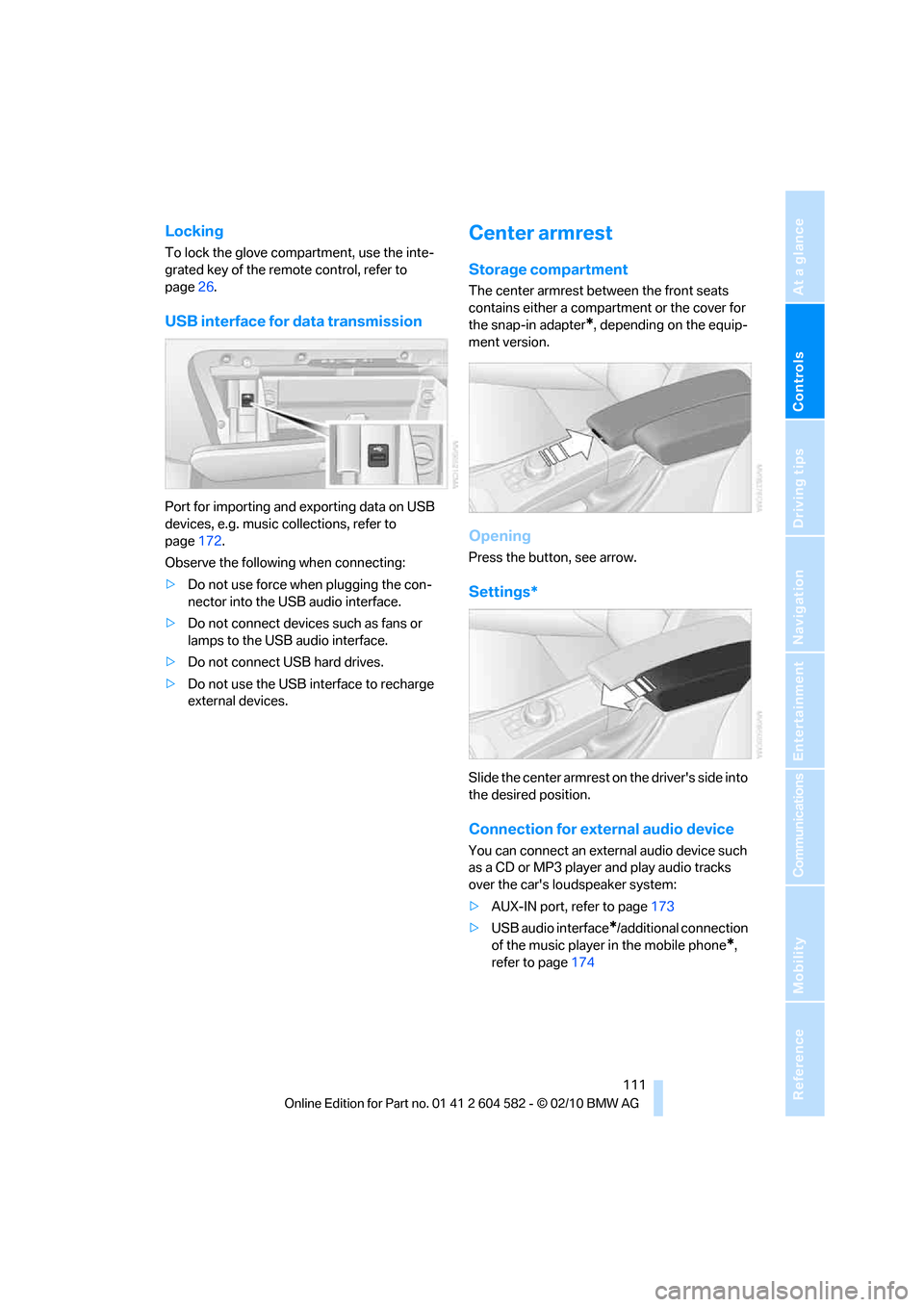
USB interface for data transmission
Port for importing and exporting data on USB
devices, e.g. music collections, refer to
page172.
Observe the following when connecting:
>Do not use force when plugging the con-
nector into the USB audio interface.
>Do not connect devices such as fans or
lamps to the USB audio interface.
>Do not connect USB hard drives.
>Do not use the USB interface to recharge
external devices.
Center armrest
Storage compartment
The center armrest between the front seats
contains either a compartment or the cover for
the snap-in adapter
*, depending on the equip-
ment version.
Opening
Press the button, see arrow.
Settings*
Slide the center armrest on the driver's side into
the desired position.
Connection for external audio device
You can connect an external audio device such
as a CD or MP3 player and play audio tracks
over the car's loudspeaker system:
>AUX-IN port, refer to page173
>USB audio interface
*/additional connection
of the music player in the mobile phone
*,
refer to page174
Page 170 of 286
Music collection
168
Music collection
Storing music
The music tracks from CDs, DVDs and USB
devices can be stored in the music collection in
the vehicle and played from there.
>Audio CD: tracks are converted into a com-
pressed audio format when they are stored.
If available, information on the album, such
as the artist, is stored as well.
>CD/DVD or USB device with compressed
audio files: the entire content of the CD/
DVD or the USB device is stored in the vehi-
cle as an album. After storing, the tracks and
directories can be deleted individually. Files
are only stored in the WMA, MP3, and AAC
formats.
Tracks with DRM copy protection can be
stored in the vehicle but cannot be played
back.
Regularly back up the music data; other-
wise, it could be lost if there is a fault on
the hard drive.<
Music recognition technology and
related data are provided by
Gracenote®. Gracenote® is the industry stan-
dard in music recognition technology and
related content delivery. For more information,
please visit www.gracenote.com.
CD and music-related data from Gracenote,
Inc., copyright © 2000-2009 Gracenote.
Gracenote Software, copyright © 2000-2009
Gracenote. This product and service may prac-
tice one or more of the following U.S. Patents:
#5,987,525; #6,061,680; #6,154,773;
#6,161,132; #6,230,192; #6,230,207;
#6,240,459; #6,330,593; and other patents
issued or pending. Some services supplied
under license from Open Globe, Inc. for U.S.
Patent: #6,304,523.
Gracenote and CDDB are registered trade-
marks of Gracenote. The Gracenote logo and
logotype, and the "Powered by Gracenote"
logo are trademarks of Gracenote.
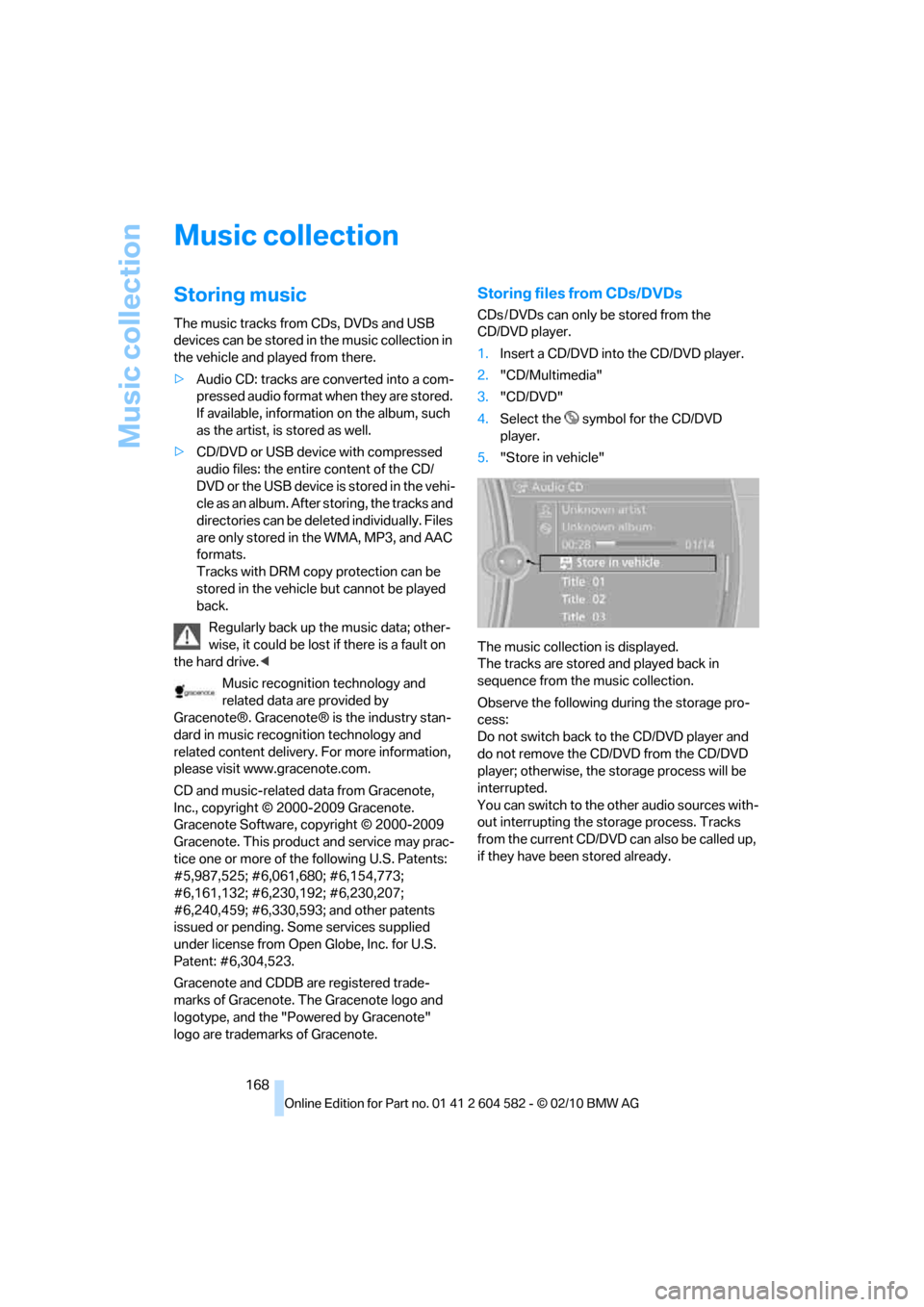
Storing files from CDs/DVDs
CDs / DVDs can only be stored from the
CD/DVD player.
1.Insert a CD/DVD into the CD/DVD player.
2."CD/Multimedia"
3."CD/DVD"
4.Select the symbol for the CD/DVD
player.
5."Store in vehicle"
The music collection is displayed.
The tracks are stored and played back in
sequence from the music collection.
Observe the following during the storage pro-
cess:
Do not switch back to the CD/DVD player and
do not remove the CD/DVD from the CD/DVD
player; otherwise, the storage process will be
interrupted.
You can switch to the other audio sources with-
out interrupting the storage process. Tracks
from the current CD/DVD can also be called up,
if they have been stored already.
Page 171 of 286
Navigation
Entertainment
Driving tips
169Reference
At a glance
Controls
Communications
Mobility
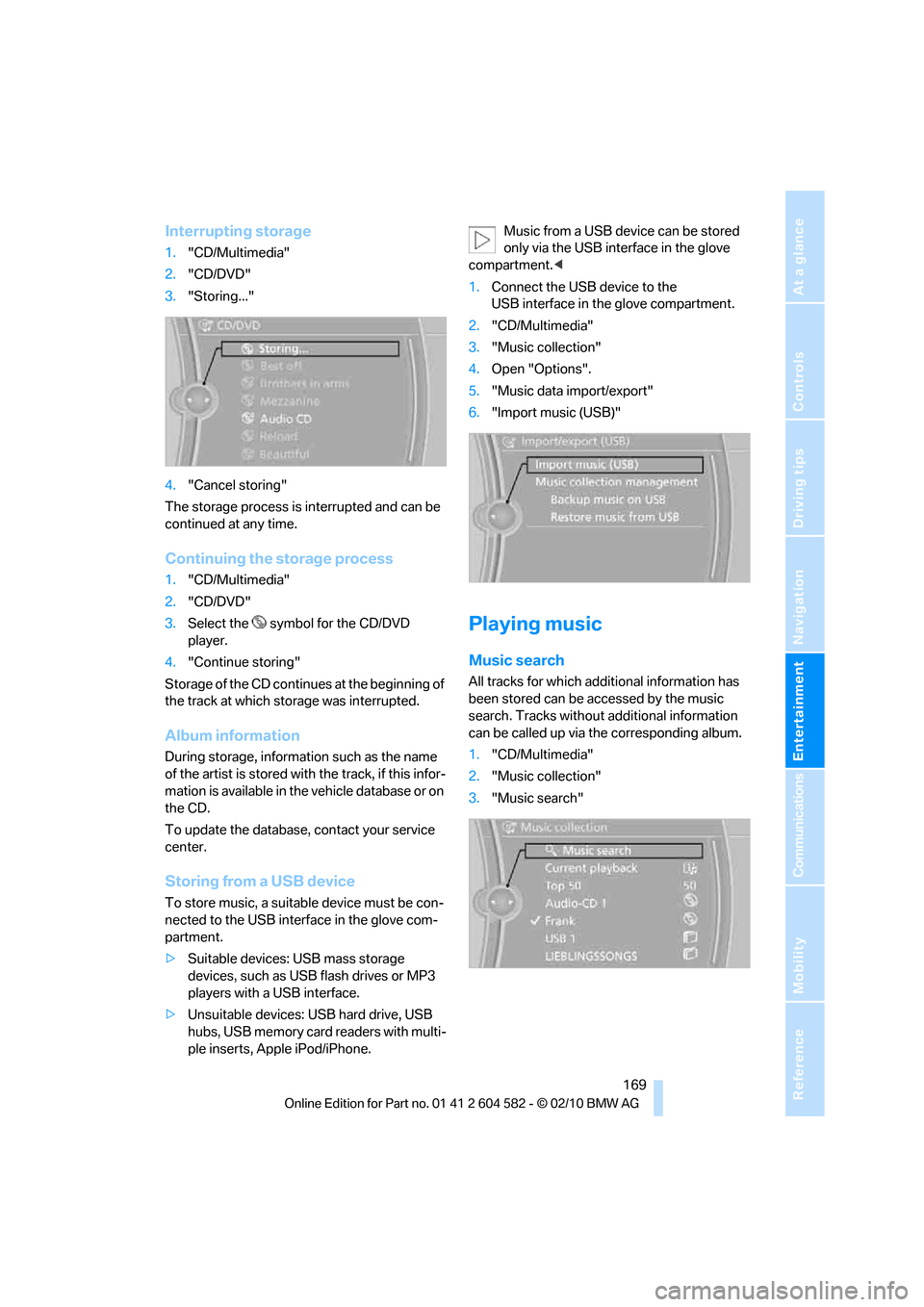
Interrupting storage
1."CD/Multimedia"
2."CD/DVD"
3."Storing..."
4."Cancel storing"
The storage process is interrupted and can be
continued at any time.
Continuing the storage process
1."CD/Multimedia"
2."CD/DVD"
3.Select the symbol for the CD/DVD
player.
4."Continue storing"
Storage of the CD continues at the beginning of
the track at which storage was interrupted.
Album information
During storage, information such as the name
of the artist is stored with the track, if this infor-
mation is available in the vehicle database or on
the CD.
To update the database, contact your service
center.
Storing from a USB device
To store music, a suitable device must be con-
nected to the USB interface in the glove com-
partment.
>Suitable devices: USB mass storage
devices, such as USB flash drives or MP3
players with a USB interface.
>Unsuitable devices: USB hard drive, USB
hubs, USB memory card readers with multi-
ple inserts, Apple iPod/iPhone.Music from a USB device can be stored
only via the USB interface in the glove
compartment.<
1.Connect the USB device to the
USB interface in the glove compartment.
2."CD/Multimedia"
3."Music collection"
4.Open "Options".
5."Music data import/export"
6."Import music (USB)"
Playing music
Music search
All tracks for which additional information has
been stored can be accessed by the music
search. Tracks without additional information
can be called up via the corresponding album.
1."CD/Multimedia"
2."Music collection"
3."Music search"
Page 172 of 286
Music collection
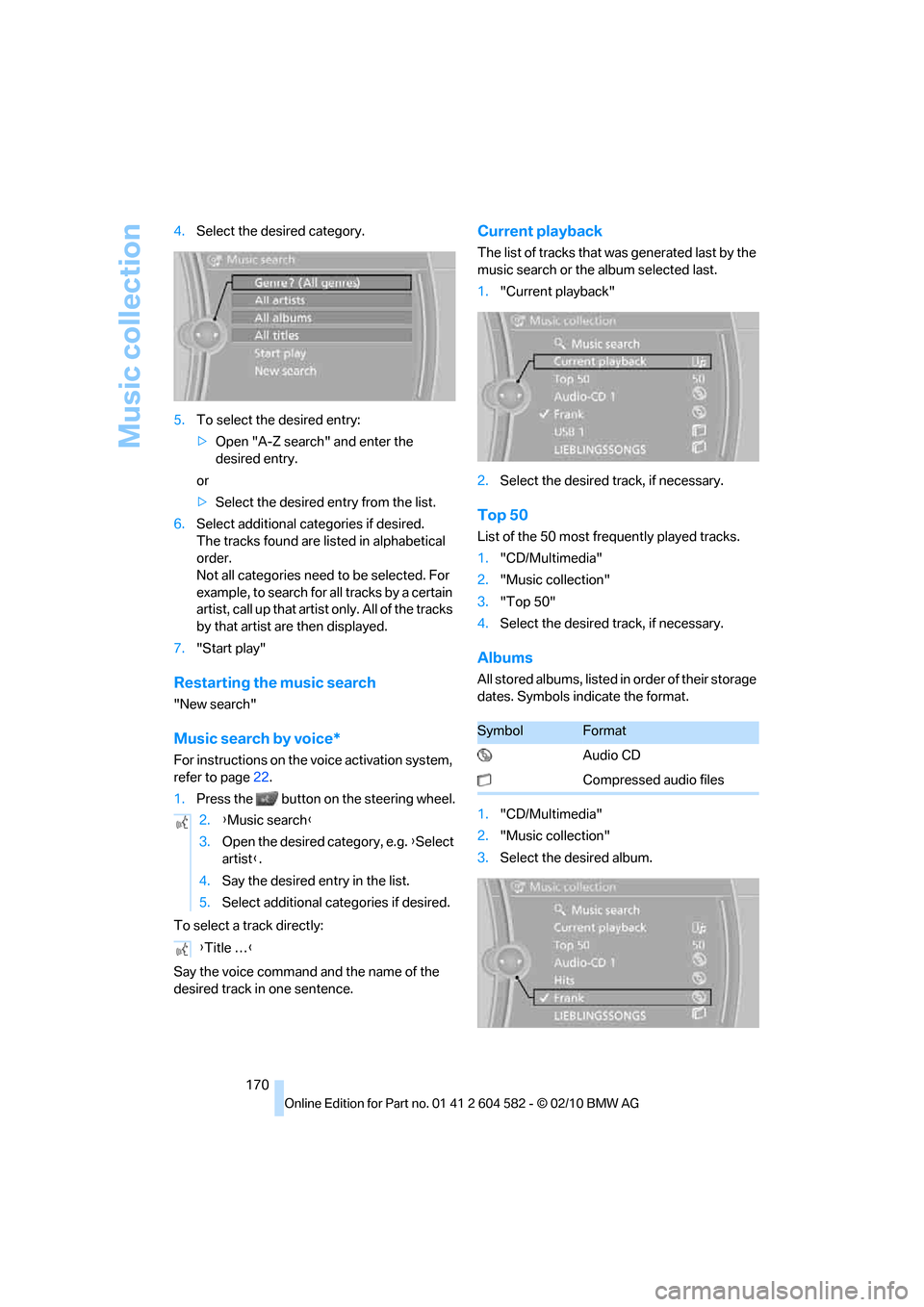
170 4.Select the desired category.
5.To select the desired entry:
>Open "A-Z search" and enter the
desired entry.
or
>Select the desired entry from the list.
6.Select additional categories if desired.
The tracks found are listed in alphabetical
order.
Not all categories need to be selected. For
example, to search for all tracks by a certain
artist, call up that artist only. All of the tracks
by that artist are then displayed.
7."Start play"
Restarting the music search
"New search"
Music search by voice*
For instructions on the voice activation system,
refer to page22.
1.Press the button on the steering wheel.
To select a track directly:
Say the voice command and the name of the
desired track in one sentence.
Current playback
The list of tracks that was generated last by the
music search or the album selected last.
1."Current playback"
2.Select the desired track, if necessary.
Top 50
List of the 50 most frequently played tracks.
1."CD/Multimedia"
2."Music collection"
3."Top 50"
4.Select the desired track, if necessary.
Albums
All stored albums, listed in order of their storage
dates. Symbols indicate the format.
1."CD/Multimedia"
2."Music collection"
3.Select the desired album. 2.{Music search}
3.Open the desired category, e.g. {Select
artist}.
4.Say the desired entry in the list.
5.Select additional categories if desired.
{Title …}
SymbolFormat
Audio CD
Compressed audio files
Page 173 of 286
Navigation
Entertainment
Driving tips
171Reference
At a glance
Controls
Communications
Mobility
Depending on the album, the tracks or the
subdirectories of the album are displayed.
The first track is played automatically, if
possible.
4.To select tracks, change directories if
needed. To go up one level in the directory,
move the controller to the left.
Random play sequence
All tracks of the selection are played back in
random order.
1."CD/Multimedia"
2."Music collection"
3.Open "Options".
4."Random"
Managing music
Albums
Renaming an album
The name of the album, if available, is automat-
ically entered when the album is stored. If the
name is unknown, it can be changed later.
An album cannot be renamed while a track from
that album is being played.
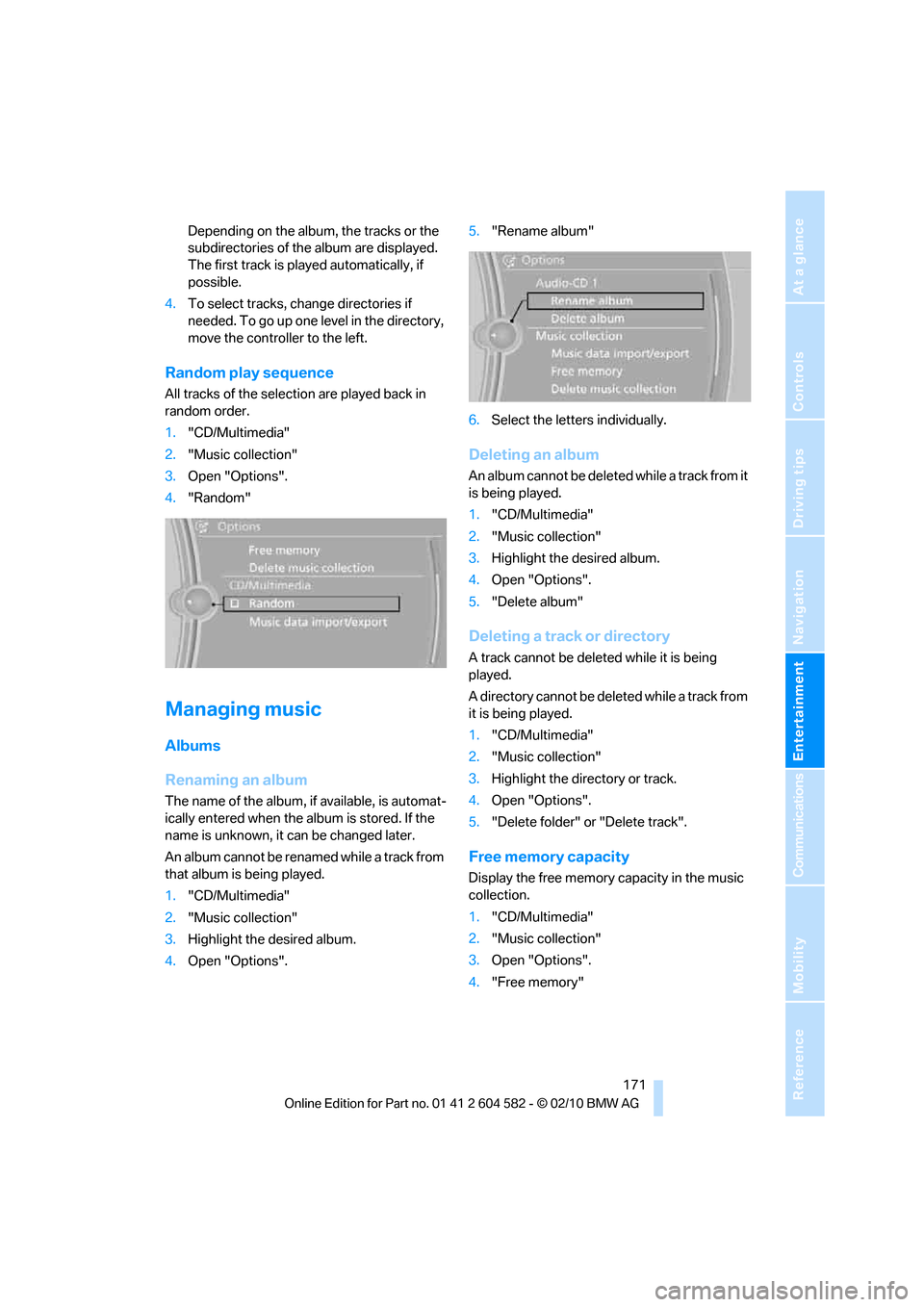
1."CD/Multimedia"
2."Music collection"
3.Highlight the desired album.
4.Open "Options".5."Rename album"
6.Select the letters individually.
Deleting an album
An album cannot be deleted while a track from it
is being played.
1."CD/Multimedia"
2."Music collection"
3.Highlight the desired album.
4.Open "Options".
5."Delete album"
Deleting a track or directory
A track cannot be deleted while it is being
played.
A directory cannot be deleted while a track from
it is being played.
1."CD/Multimedia"
2."Music collection"
3.Highlight the directory or track.
4.Open "Options".
5."Delete folder" or "Delete track".
Free memory capacity
Display the free memory capacity in the music
collection.
1."CD/Multimedia"
2."Music collection"
3.Open "Options".
4."Free memory"
Page 174 of 286
Music collection
172
Music collection
Backing up the music collection
The entire music collection can be stored on a
USB medium. Make sure there is enough free
memory capacity on the USB device.
Depending on the number of tracks, backing up
the music collection may take several hours.
Therefore, it is best to perform the backup dur-
ing a long trip.
1.Start the engine.
2.Connect the USB medium to the USB inter-
face in the glove compartment, refer to
page111.
3."CD/Multimedia"
4."Music collection"
5.Open "Options".
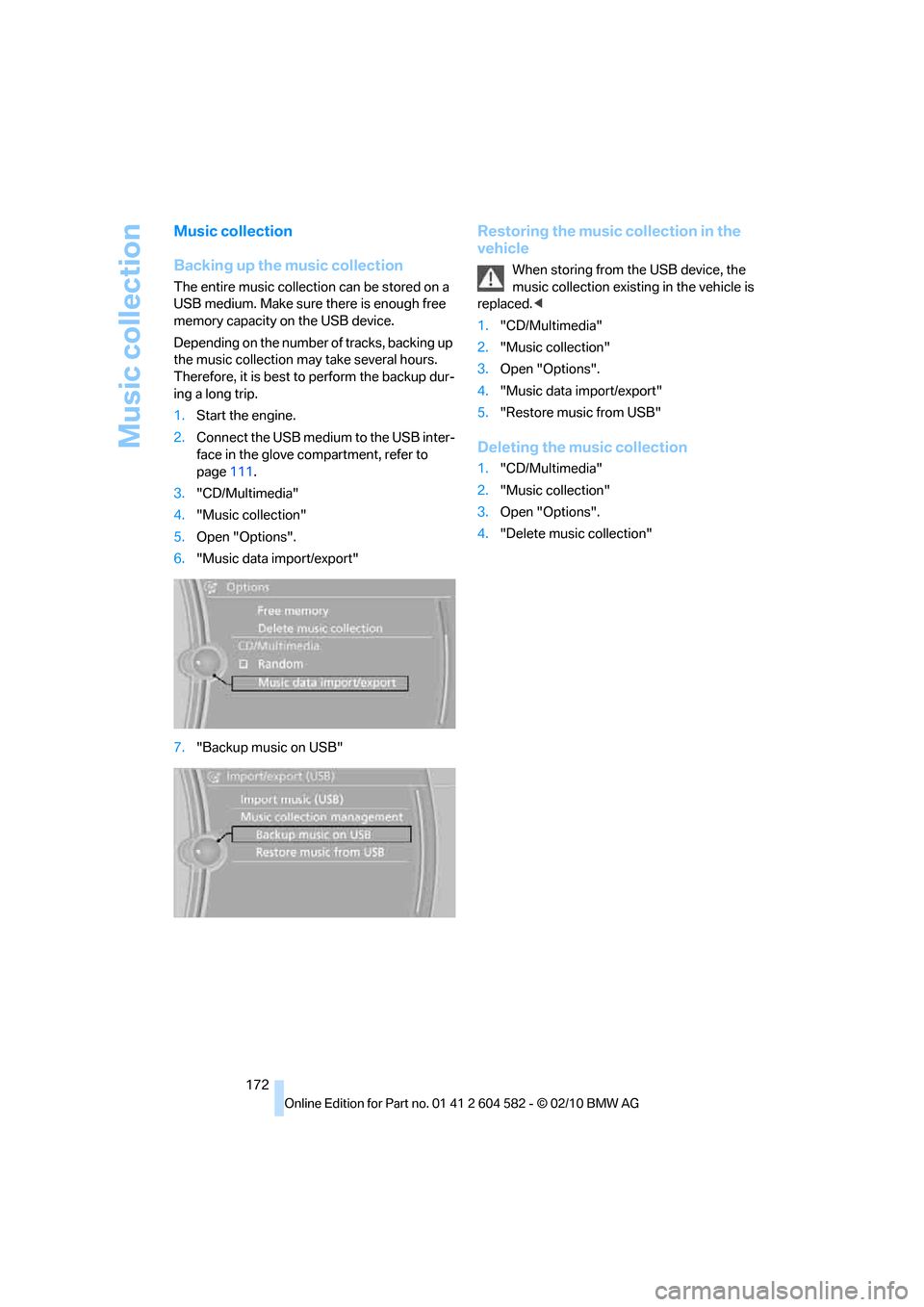
6."Music data import/export"
7."Backup music on USB"
Restoring the music collection in the
vehicle
When storing from the USB device, the
music collection existing in the vehicle is
replaced.<
1."CD/Multimedia"
2."Music collection"
3.Open "Options".
4."Music data import/export"
5."Restore music from USB"
Deleting the music collection
1."CD/Multimedia"
2."Music collection"
3.Open "Options".
4."Delete music collection"
Page 176 of 286
External devices
174
USB audio interface*/
extended connectivity of
the music player in the
mobile phone*
It is possible to connect external audio devices/
mobile phones. They can be operated via iDrive.
Sound is output on the vehicle loudspeakers.
Options for connecting external
devices
>Connection via USB audio interface: Apple
iPod / iPhone, USB devices, e. g. MP3
player, USB flash drive, or mobile phones
that are supported by the USB audio inter-
face.
>Connection via snap-in adapter
*, refer to
page180, when equipped with additional
connection of music player in the mobile
phone: Apple iPhone / mobile phones. Play-
back is possible only if no audio device/
mobile phone is connected to the USB
audio interface.
Due to the large number of different audio
devices/mobile phones available on the market,
it cannot be ensured that every audio device/
mobile phone is operable on the vehicle.
Ask about suitable audio devices/mobile
phones at your BMW center.
Audio files
The system can play standard audio formats,
e.g. MP3, WMA, WAV (PCM), and AAC, as well
as playlists in the M3U format.
Connecting via USB audio interface
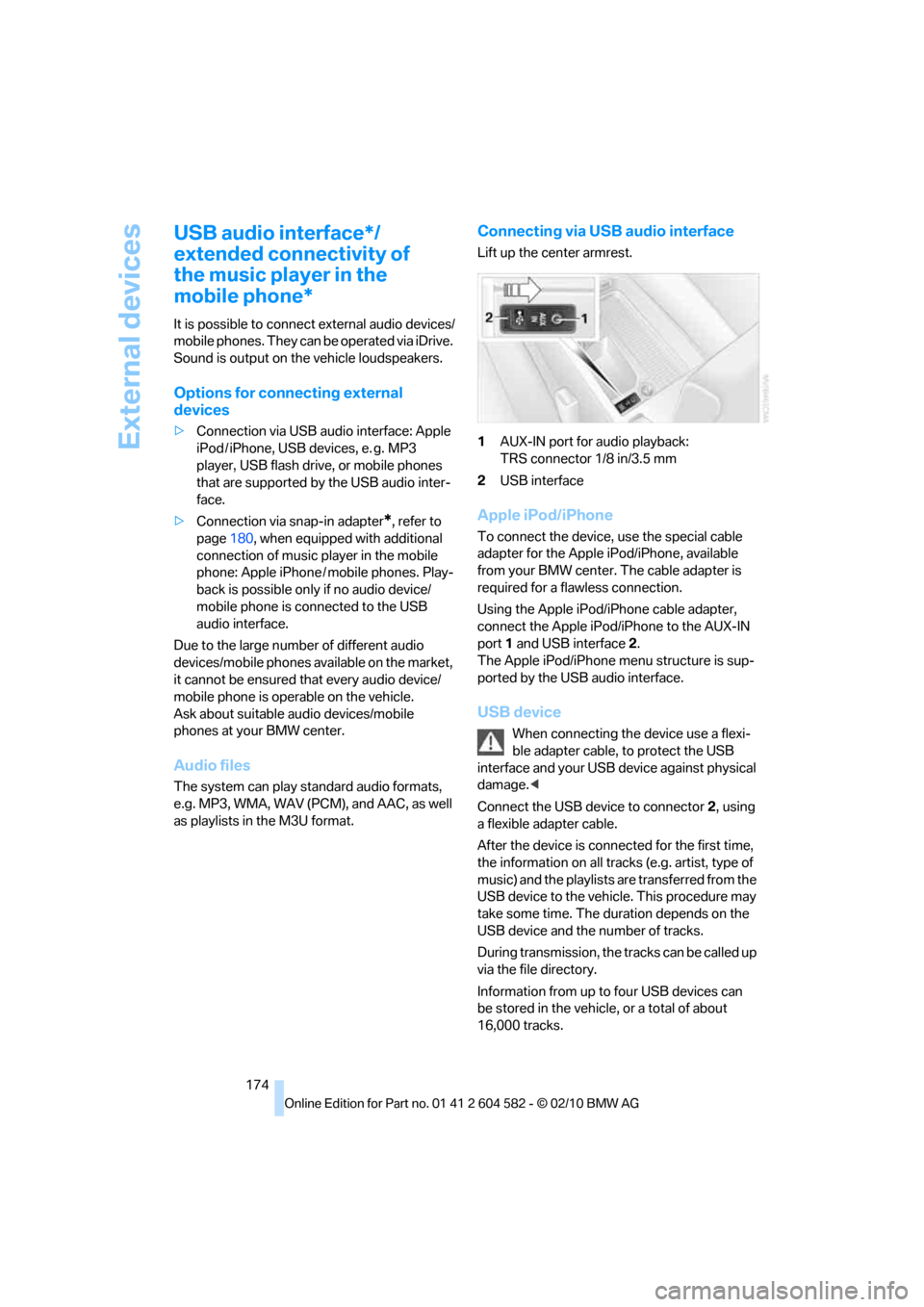
Lift up the center armrest.
1AUX-IN port for audio playback:
TRS connector 1/8 in/3.5 mm
2USB interface
Apple iPod/iPhone
To connect the device, use the special cable
adapter for the Apple iPod/iPhone, available
from your BMW center. The cable adapter is
required for a flawless connection.
Using the Apple iPod/iPhone cable adapter,
connect the Apple iPod/iPhone to the AUX-IN
port1 and USB interface2.
The Apple iPod/iPhone menu structure is sup-
ported by the USB audio interface.
USB device
When connecting the device use a flexi-
ble adapter cable, to protect the USB
interface and your USB device against physical
damage.<
Connect the USB device to connector 2, using
a flexible adapter cable.
After the device is connected for the first time,
the information on all tracks (e.g. artist, type of
music) and the playlists are transferred from the
USB device to the vehicle. This procedure may
take some time. The duration depends on the
USB device and the number of tracks.
During transmission, the tracks can be called up
via the file directory.
Information from up to four USB devices can
be stored in the vehicle, or a total of about
16,000 tracks.