open BMW 323I 2011 E90 Owner's Manual
[x] Cancel search | Manufacturer: BMW, Model Year: 2011, Model line: 323I, Model: BMW 323I 2011 E90Pages: 286, PDF Size: 8.25 MB
Page 5 of 286
Reference
At a glance
Controls
Driving tips
Communications
Navigation
Entertainment
Mobility
Contents
The quickest way to find special topics is to
consult the index, refer to page266.
Using this Owner's Manual
4Notes
7Reporting safety defects
At a glance
10Cockpit
16iDrive
21Letters and numbers
22Voice activation system
Controls
26Opening and closing
42Adjustments
51Transporting children safely
55Driving
71Controls overview
84Technology for driving comfort and
safety
97Lamps
102Climate
107Practical interior accessories
Driving tips
122Things to remember when driving
Navigation
130Navigation system
131Destination entry
140Destination guidance
147What to do if …
Entertainment
150On/off and tone
153Radio
156Satellite radio
161CD/DVD player and CD changer
168Music collection
173External devices
Communications
180Telephone
193Contacts
195BMW Assist
Mobility
202Refueling
208Wheels and tires
225Under the hood
231Maintenance
233Care
237Replacing components
246Giving and receiving assistance
Reference
254Technical data
259Short commands for the voice activation
system
266Everything from A to Z
Page 9 of 286
7Reference
At a glance
Controls
Driving tips
Communications
Navigation
Entertainment
Mobility
Reporting safety defects
For US customers
The following only applies to vehicles owned
and operated in the US.
If you believe that your vehicle has a defect
which could cause a crash or could cause injury
or death, you should immediately inform the
National Highway Traffic Safety Administration,
NHTSA, in addition to notifying BMW of
North America, LLC, P.O. Box 1227, West-
wood, New Jersey 07675-1227,
Telephone 1-800-831-1117.
If NHTSA receives similar complaints, it may
open an investigation, and if it finds that a safety
defect exists in a group of vehicles, it may order
a recall and remedy campaign. However,
NHTSA cannot become involved in individual
problems between you, your center, or BMW of
North America, LLC.
To contact NHTSA, you may call the Vehicle
Safety Hotline toll-free at 1-888-327-4236
(TTY: 1-800-424-9153); go to
http://www.safercar.gov; or write to: Adminis-
trator, NHTSA, 400 Seventh Street, SW.,
Washington, DC 20590. You can also obtain
other information about motor vehicle safety
from http://www.safercar.gov
For Canadian customers
Canadian customers who wish to report a
safety-related defect to Transport Canada,
Defect Investigations and Recalls, may call 1-
800-333-0510 toll-free from anywhere in Can-
ada or 1-613-993-9851 from the Ottawa region
and from other countries, or contact Transport
Canada by mail at: Transport Canada, ASFAD,
Place de Ville, Tower C, 330 Sparks Street,
Ottawa, ON, K1A 0N5.
You can also obtain other information about
motor vehicle safety from http://www.tc.gc.ca
Page 12 of 286
Cockpit
10
Cockpit
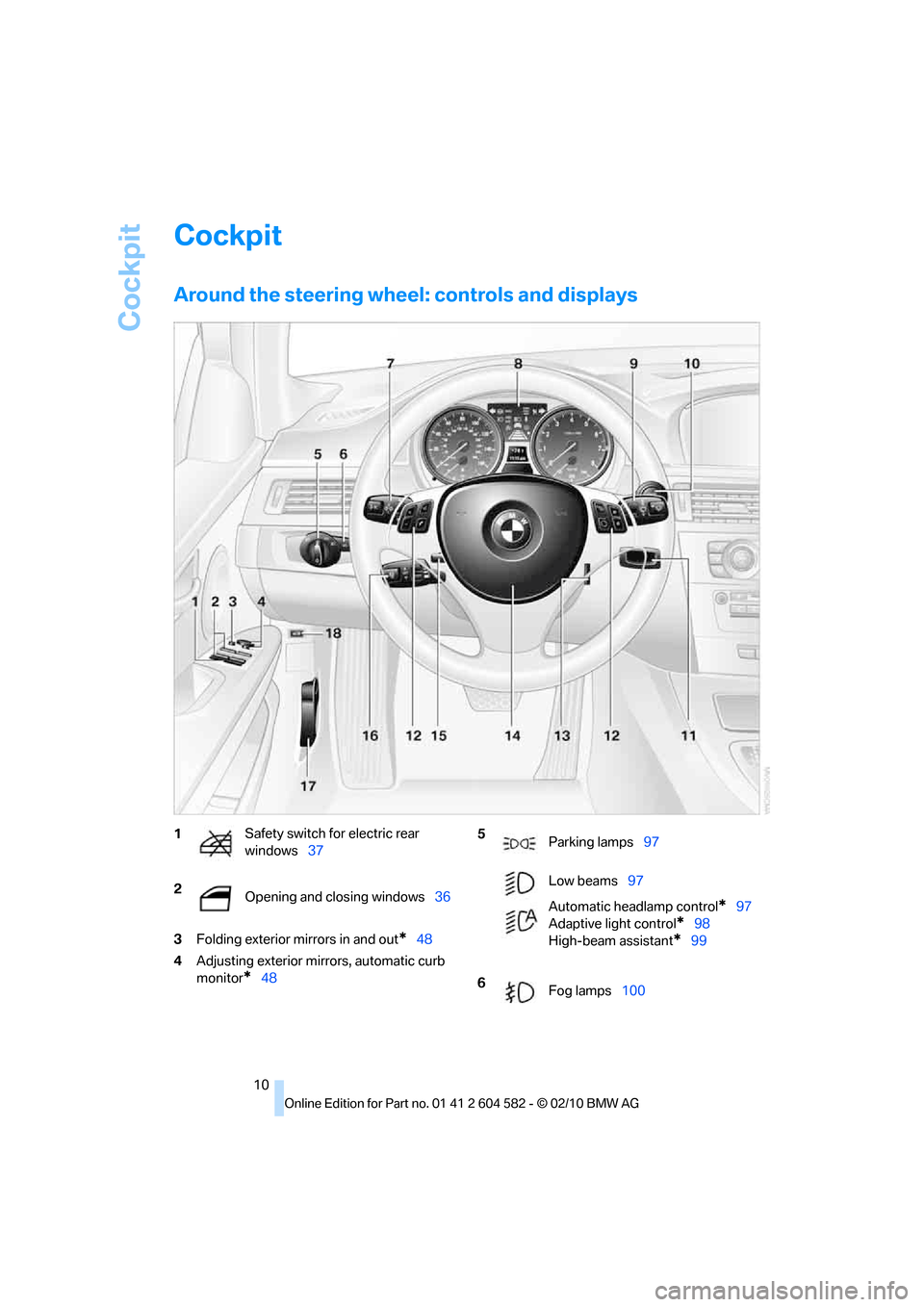
Around the steering wheel: controls and displays
3Folding exterior mirrors in and out*48
4Adjusting exterior mirrors, automatic curb
monitor
*48
1Safety switch for electric rear
windows37
2
Opening and closing windows36 5
Parking lamps97
Low beams97
Automatic headlamp control
*97
Adaptive light control
*98
High-beam assistant
*99
6
Fog lamps100
Page 13 of 286
At a glance
11Reference
Controls
Driving tips
Communications
Navigation
Entertainment
Mobility
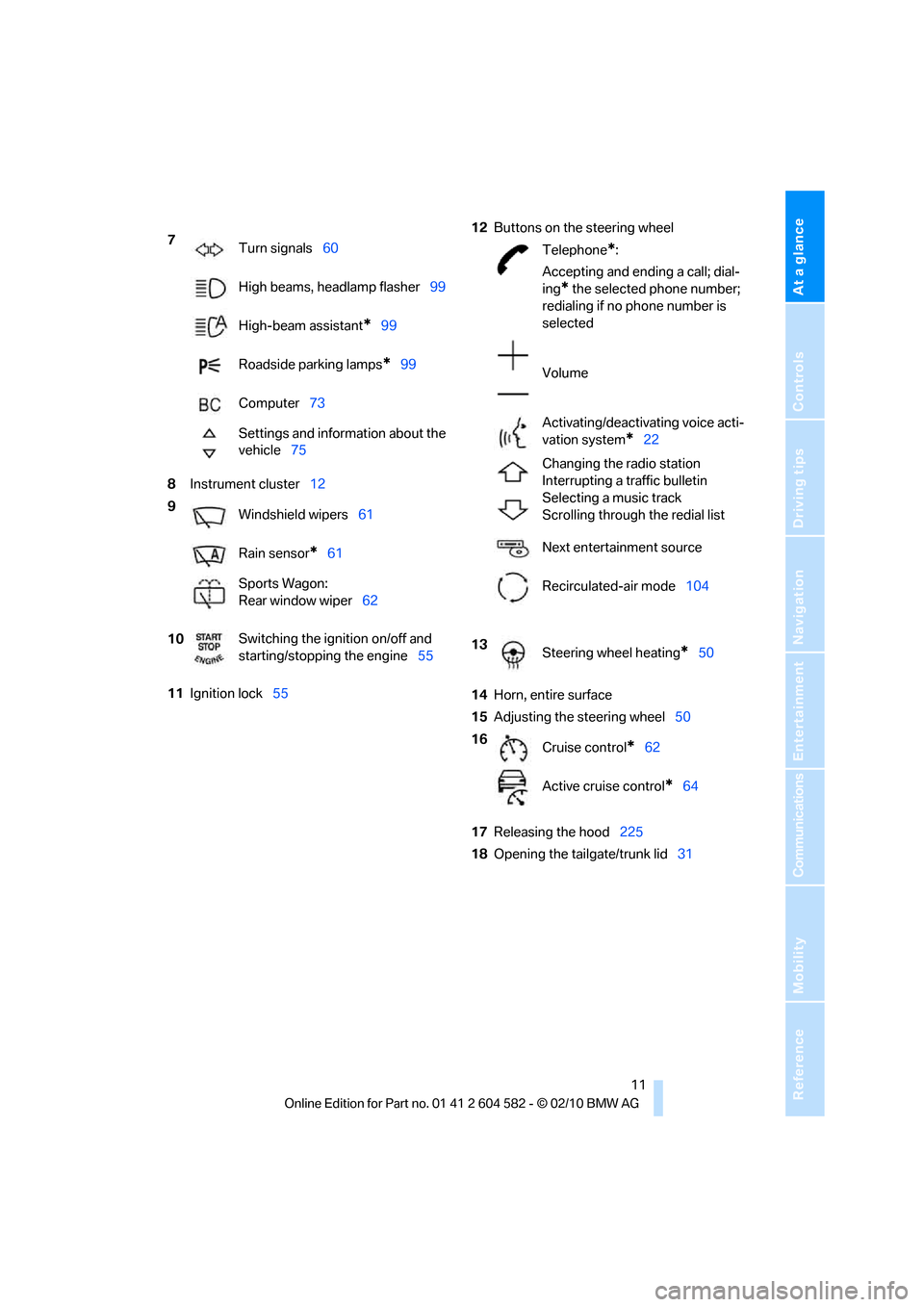
8Instrument cluster12
11Ignition lock5512Buttons on the steering wheel
14Horn, entire surface
15Adjusting the steering wheel50
17Releasing the hood225
18Opening the tailgate/trunk lid31 7
Turn signals60
High beams, headlamp flasher99
High-beam assistant
*99
Roadside parking lamps
*99
Computer73
Settings and information about the
vehicle75
9
Windshield wipers61
Rain sensor
*61
Sports Wagon:
Rear window wiper62
10Switching the ignition on/off and
starting/stopping the engine55
Telephone*:
Accepting and ending a call; dial-
ing
* the selected phone number;
redialing if no phone number is
selected
Volume
Activating/deactivating voice acti-
vation system
*22
Changing the radio station
Interrupting a traffic bulletin
Selecting a music track
Scrolling through the redial list
Next entertainment source
Recirculated-air mode104
13
Steering wheel heating
*50
16
Cruise control
*62
Active cruise control
*64
Page 18 of 286
iDrive
16
iDrive
iDrive integrates the functions of a large num-
ber of switches. This allows these functions to
be operated from a single central position. The
following section provides an introduction to basic menu navigation. The control of the indi-
vidual functions is described in connection with
the relevant equipment.
Controls
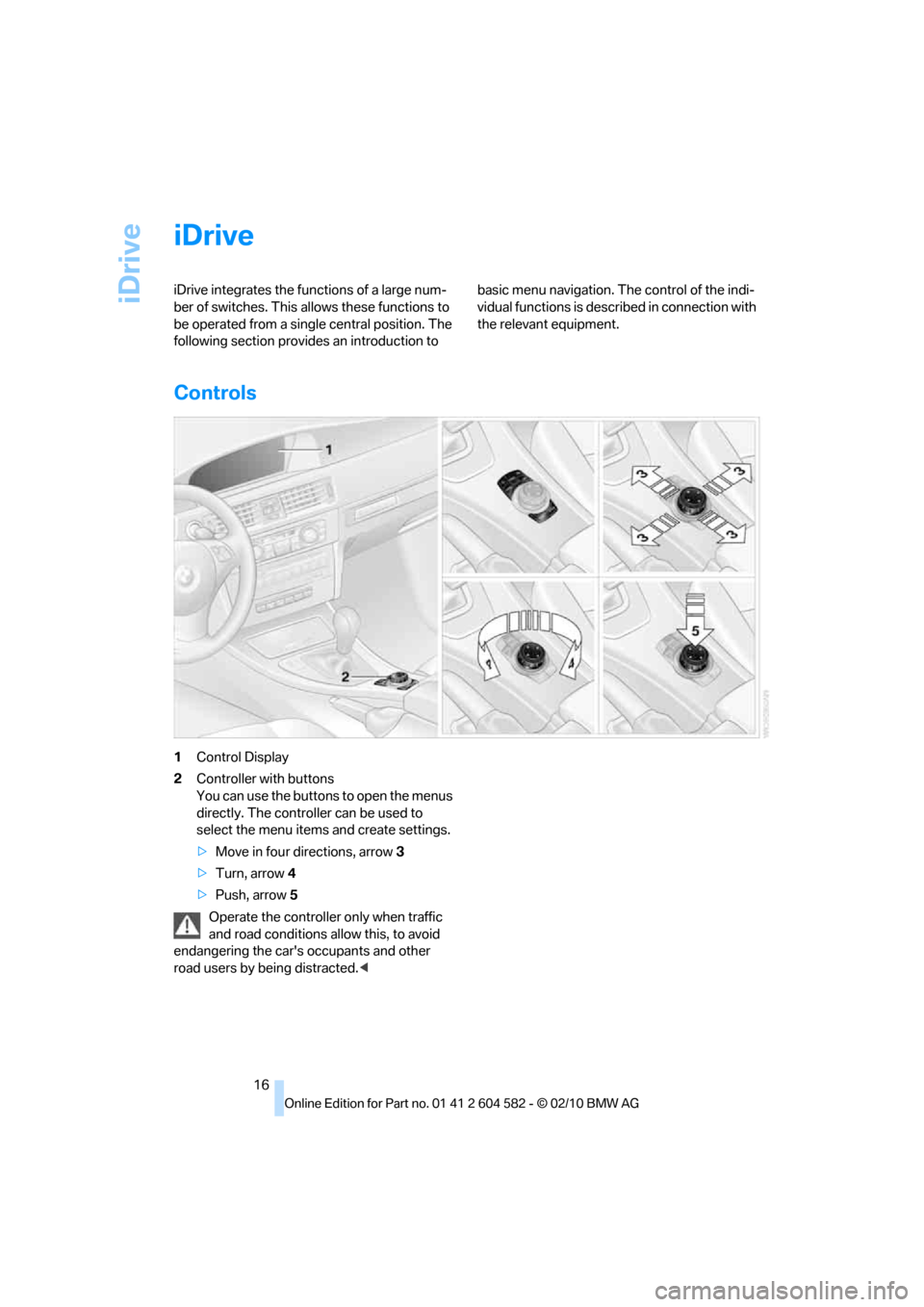
1Control Display
2Controller with buttons
You can use the buttons to open the menus
directly. The controller can be used to
select the menu items and create settings.
>Move in four directions, arrow3
>Turn, arrow 4
>Push, arrow 5
Operate the controller only when traffic
and road conditions allow this, to avoid
endangering the car's occupants and other
road users by being distracted.<
Page 19 of 286
At a glance
17Reference
Controls
Driving tips
Communications
Navigation
Entertainment
Mobility
Buttons on the controller
Operating principle
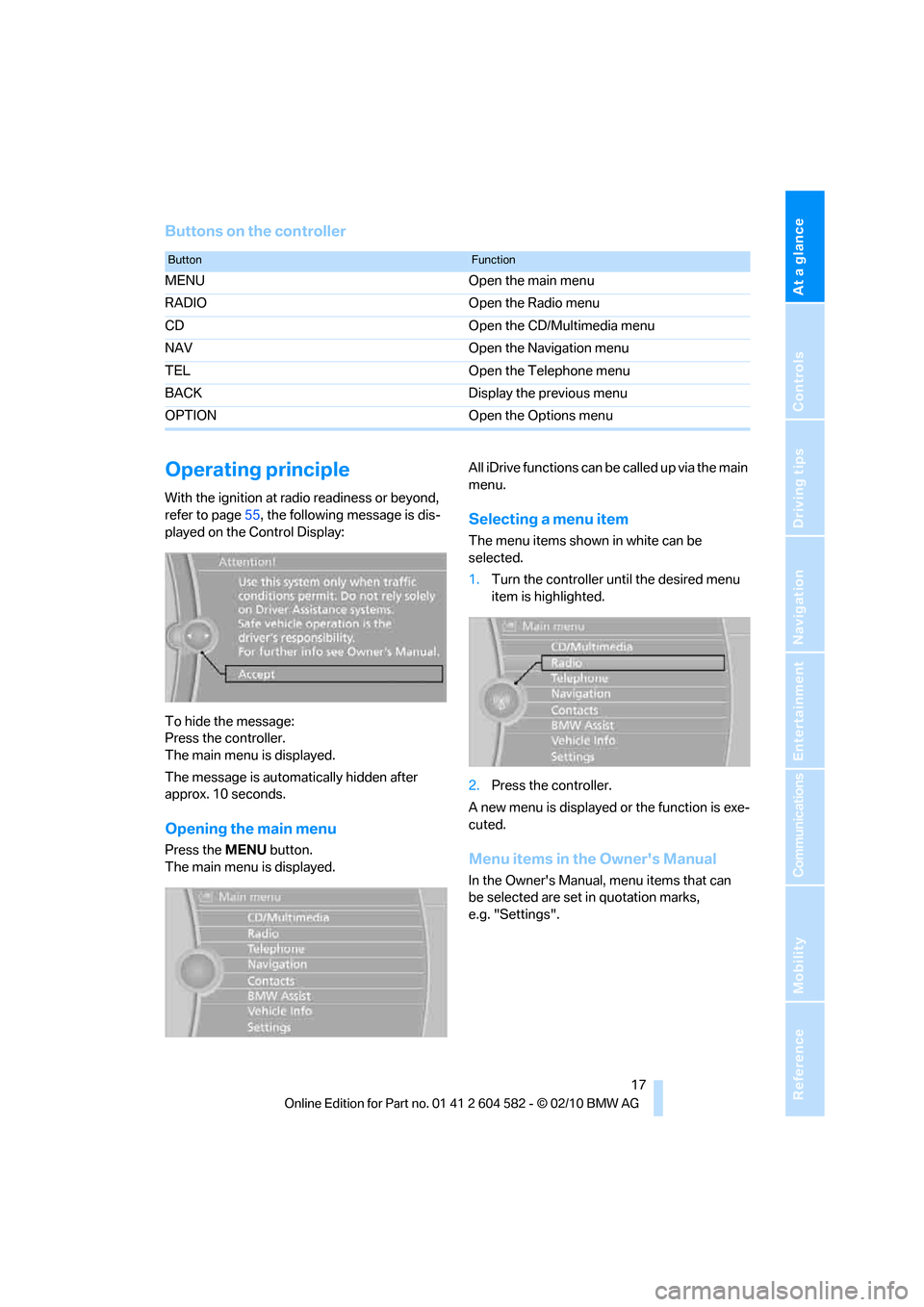
With the ignition at radio readiness or beyond,
refer to page55, the following message is dis-
played on the Control Display:
To hide the message:
Press the controller.
The main menu is displayed.
The message is automatically hidden after
approx. 10 seconds.
Opening the main menu
Press the MENUbutton.
The main menu is displayed.All iDrive functions can be called up via the main
menu.
Selecting a menu item
The menu items shown in white can be
selected.
1.Turn the controller until the desired menu
item is highlighted.
2.Press the controller.
A new menu is displayed or the function is exe-
cuted.
Menu items in the Owner's Manual
In the Owner's Manual, menu items that can
be selected are set in quotation marks,
e.g. "Settings".
ButtonFunction
MENU Open the main menu
RADIO Open the Radio menu
CD Open the CD/Multimedia menu
NAV Open the Navigation menu
TEL Open the Telephone menu
BACK Display the previous menu
OPTION Open the Options menu
Page 20 of 286
iDrive
18
Changing between panels
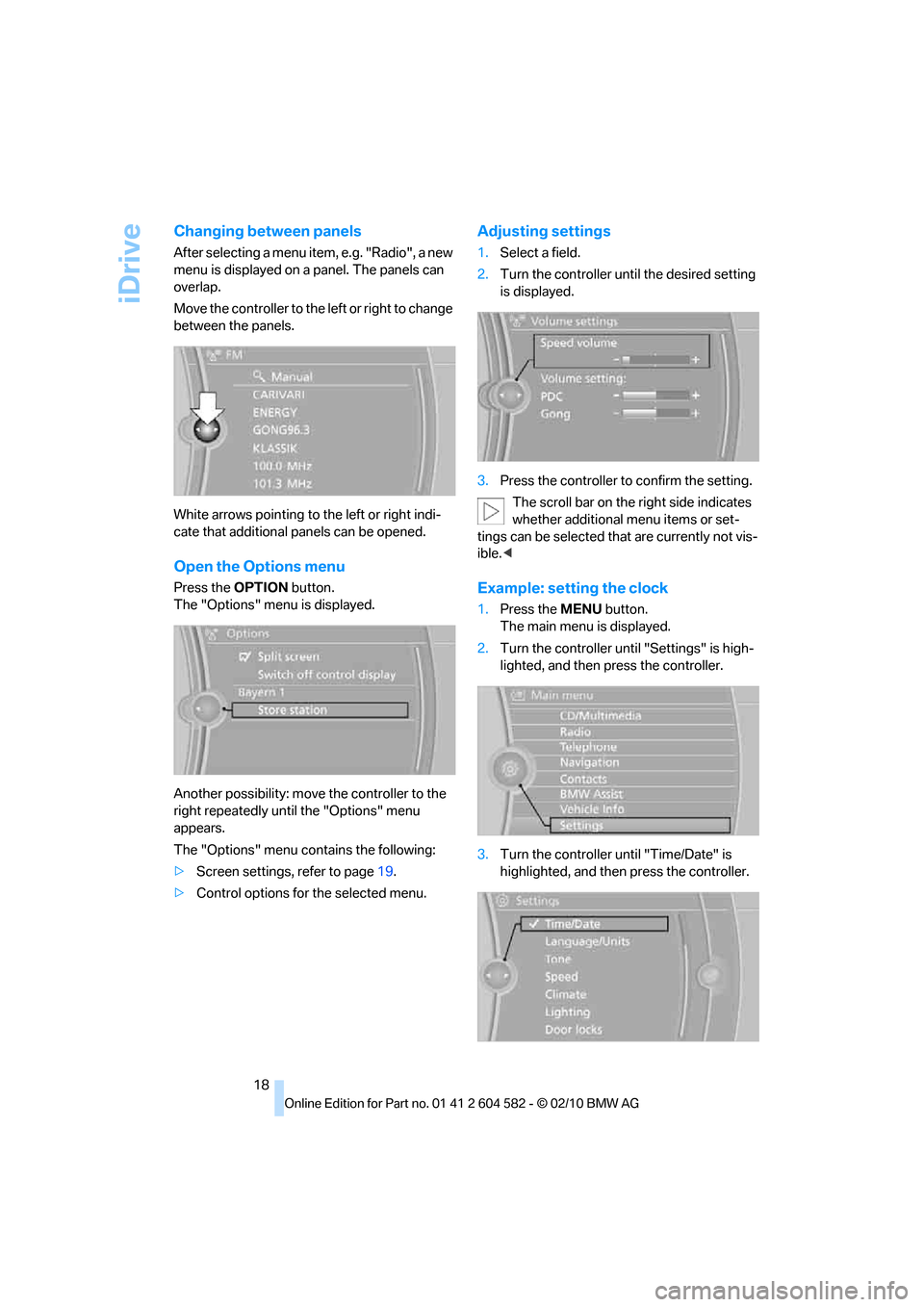
After selecting a menu item, e.g. "Radio", a new
menu is displayed on a panel. The panels can
overlap.
Move the controller to the left or right to change
between the panels.
White arrows pointing to the left or right indi-
cate that additional panels can be opened.
Open the Options menu
Press the OPTIONbutton.
The "Options" menu is displayed.
Another possibility: move the controller to the
right repeatedly until the "Options" menu
appears.
The "Options" menu contains the following:
>Screen settings, refer to page19.
>Control options for the selected menu.
Adjusting settings
1.Select a field.
2.Turn the controller until the desired setting
is displayed.
3.Press the controller to confirm the setting.
The scroll bar on the right side indicates
whether additional menu items or set-
tings can be selected that are currently not vis-
ible.<
Example: setting the clock
1.Press the MENUbutton.
The main menu is displayed.
2.Turn the controller until "Settings" is high-
lighted, and then press the controller.
3.Turn the controller until "Time/Date" is
highlighted, and then press the controller.
Page 28 of 286
Opening and closing
26
Opening and closing
Remote control
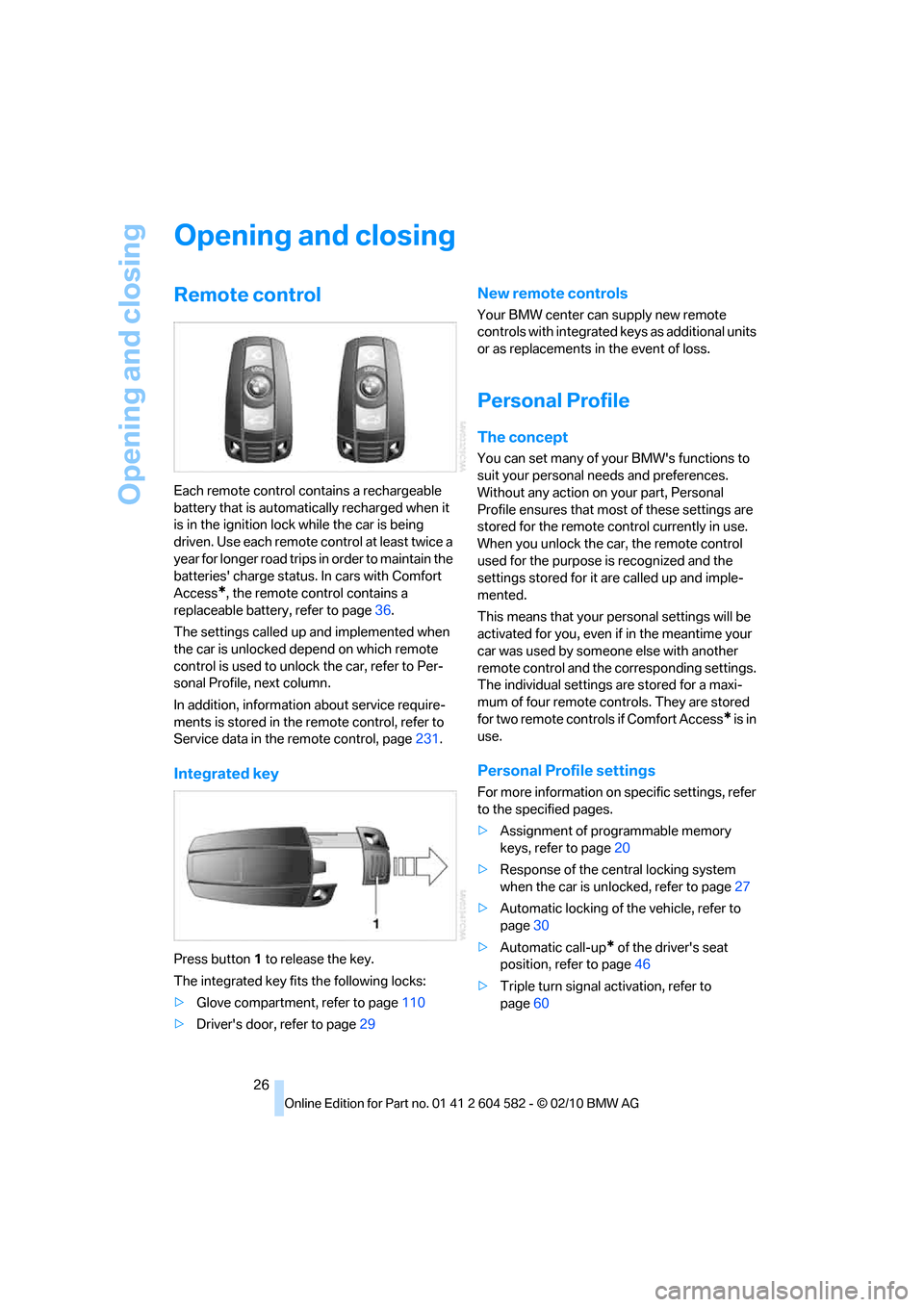
Each remote control contains a rechargeable
battery that is automatically recharged when it
is in the ignition lock while the car is being
driven. Use each remote control at least twice a
year for longer road trips in order to maintain the
batteries' charge status. In cars with Comfort
Access
*, the remote control contains a
replaceable battery, refer to page36.
The settings called up and implemented when
the car is unlocked depend on which remote
control is used to unlock the car, refer to Per-
sonal Profile, next column.
In addition, information about service require-
ments is stored in the remote control, refer to
Service data in the remote control, page231.
Integrated key
Press button1 to release the key.
The integrated key fits the following locks:
>Glove compartment, refer to page110
>Driver's door, refer to page29
New remote controls
Your BMW center can supply new remote
controls with integrated keys as additional units
or as replacements in the event of loss.
Personal Profile
The concept
You can set many of your BMW's functions to
suit your personal needs and preferences.
Without any action on your part, Personal
Profile ensures that most of these settings are
stored for the remote control currently in use.
When you unlock the car, the remote control
used for the purpose is recognized and the
settings stored for it are called up and imple-
mented.
This means that your personal settings will be
activated for you, even if in the meantime your
car was used by someone else with another
remote control and the corresponding settings.
The individual settings are stored for a maxi-
mum of four remote controls. They are stored
for two remote controls if Comfort Access
* is in
use.
Personal Profile settings
For more information on specific settings, refer
to the specified pages.
>Assignment of programmable memory
keys, refer to page20
>Response of the central locking system
when the car is unlocked, refer to page27
>Automatic locking of the vehicle, refer to
page30
>Automatic call-up
* of the driver's seat
position, refer to page46
>Triple turn signal activation, refer to
page60
Page 29 of 286
Controls
27Reference
At a glance
Driving tips
Communications
Navigation
Entertainment
Mobility
>Settings for the display on the Control Dis-
play and in the instrument cluster:
>12h/24h format of the clock, refer to
page79
>Date format, refer to page80
>Brightness of the Control Display, refer
to page83
>Language on the Control Display, refer
to page83
>Units of measure, refer to page76
>Show visual warning for Park Distance Con-
trol PDC
*, refer to page84
>Light settings:
>Welcome lamps, refer to page97
>Pathway lighting, refer to page98
>Daytime running lights, refer to page98
>High-beam assistant, refer to page99
>Automatic climate control: activating/deac-
tivating AUTO program, cooling function
and automatic recirculated-air control, set-
ting temperature, air volume and distribu-
tion, refer to page103 ff
>Entertainment:
>Tone control, refer to page150
>Speed-dependent volume control, refer
to page152
Central locking system
The concept
The central locking system functions when the
driver's door is closed.
The system simultaneously engages and
releases the locks on the following:
>Doors
>Trunk lid/tailgate
>Fuel filler flap
Operating from outside
>Via the remote control
>Via the door lock
*
>In cars with Comfort Access*, via the
handles on the driver's and front passenger
doors
In addition, if the remote control is used, the
interior lamps and the door's courtesy lamps
*
are also switched on or off. The alarm system*
is also armed or disarmed.
For further details of the alarm system,
refer to
page33.
Operating from inside
By means of the button for central locking,
refer to page30.
In the event of a sufficiently severe accident,
the central locking system unlocks automati-
cally. In addition, the hazard warning flashers
and interior lamps come on.
Opening and closing:
Using the remote control
Persons or animals in a parked vehicle
could lock the doors from the inside. You
should therefore take the remote control with
you when you leave the vehicle so that the latter
can be opened from outside.<
Unlocking
Press the button.
The interior lamps, the courtesy lamps
* and the
welcome lamps come on.
Page 30 of 286
Opening and closing
28
Setting unlocking characteristics
You can set whether only the driver's door or
the entire vehicle is to be unlocked when the
button is pressed for the first time.
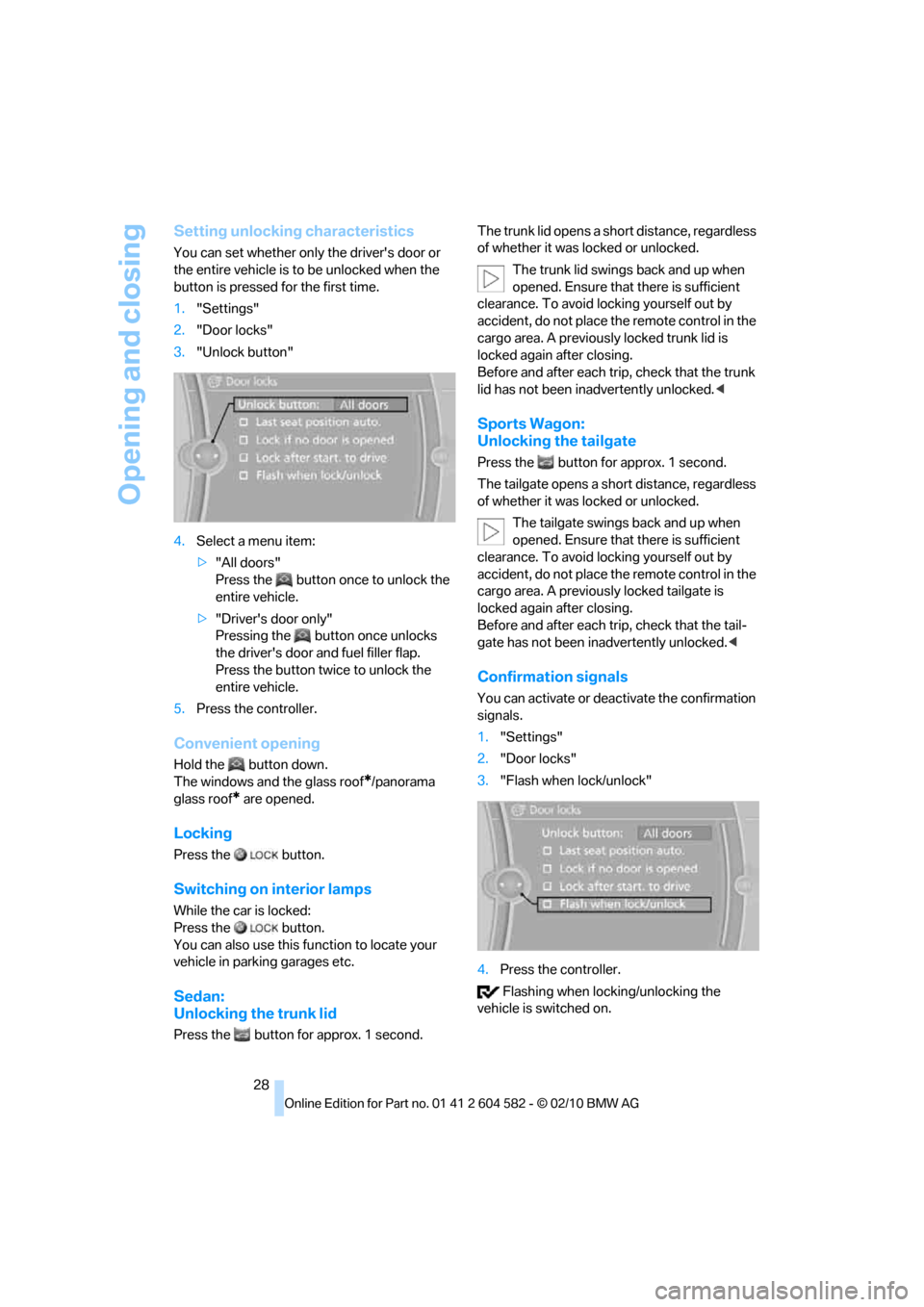
1."Settings"
2."Door locks"
3."Unlock button"
4.Select a menu item:
>"All doors"
Press the button once to unlock the
entire vehicle.
>"Driver's door only"
Pressing the button once unlocks
the driver's door and fuel filler flap.
Press the button twice to unlock the
entire vehicle.
5.Press the controller.
Convenient opening
Hold the button down.
The windows and the glass roof
*/panorama
glass roof
* are opened.
Locking
Press the button.
Switching on interior lamps
While the car is locked:
Press the button.
You can also use this function to locate your
vehicle in parking garages etc.
Sedan:
Unlocking the trunk lid
Press the button for approx. 1 second.The trunk lid opens a short distance, regardless
of whether it was locked or unlocked.
The trunk lid swings back and up when
opened. Ensure that there is sufficient
clearance. To avoid locking yourself out by
accident, do not place the remote control in the
cargo area. A previously locked trunk lid is
locked again after closing.
Before and after each trip, check that the trunk
lid has not been inadvertently unlocked.<
Sports Wagon:
Unlocking the tailgate
Press the button for approx. 1 second.
The tailgate opens a short distance, regardless
of whether it was locked or unlocked.
The tailgate swings back and up when
opened. Ensure that there is sufficient
clearance. To avoid locking yourself out by
accident, do not place the remote control in the
cargo area. A previously locked tailgate is
locked again after closing.
Before and after each trip, check that the tail-
gate has not been inadvertently unlocked.<
Confirmation signals
You can activate or deactivate the confirmation
signals.
1."Settings"
2."Door locks"
3."Flash when lock/unlock"
4.Press the controller.
Flashing when locking/unlocking the
vehicle is switched on.