language BMW 325XI SPORTS WAGON 2006 Owners Manual
[x] Cancel search | Manufacturer: BMW, Model Year: 2006, Model line: 325XI SPORTS WAGON, Model: BMW 325XI SPORTS WAGON 2006Pages: 236, PDF Size: 8.56 MB
Page 23 of 236
Voice command system
22
Voice command system
The concept
The voice command system allows you to con-
trol operation of various vehicle systems with-
out removing your hands from the steering
wheel.
Individual menu items on the Control Display
can be spoken as commands. It is not neces-
sary to use the controller.
The voice command system transforms your
oral commands into control signals for the
selected systems and provides support in the
form of instructions or questions.
The voice command system uses a special
microphone located in the area of the interior
rearview mirror, refer to page15.
Precondition
Via iDrive, select the language in which the
voice command system is operating, so that the
spoken commands can be identified. Selecting
the language for iDrive, refer to page80.
Symbols in the Owner's Manual
Saying commands
Activating voice command system
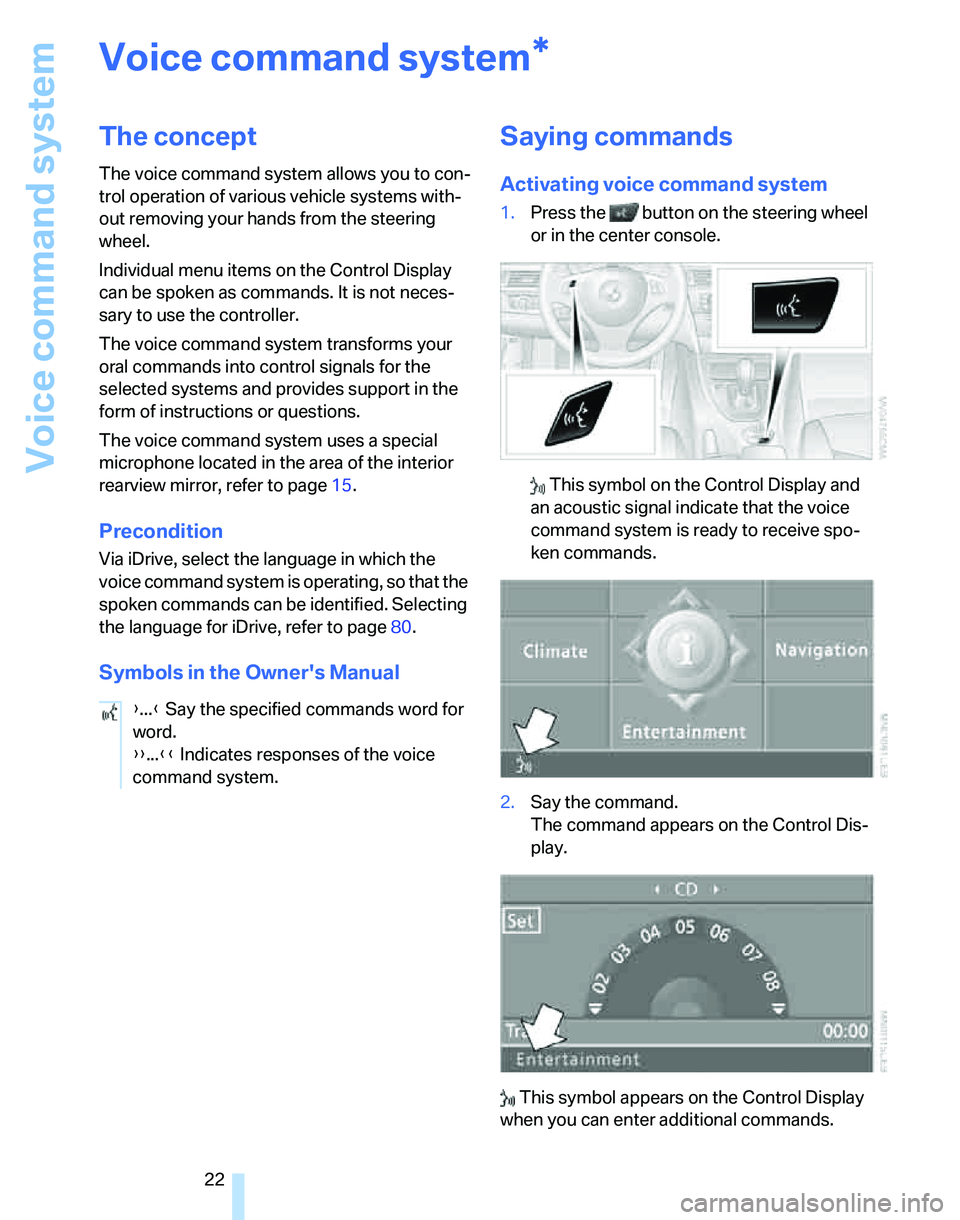
1.Press the button on the steering wheel
or in the center console.
This symbol on the Control Display and
an acoustic signal indicate that the voice
command system is ready to receive spo-
ken commands.
2.Say the command.
The command appears on the Control Dis-
play.
This symbol appears on the Control Display
when you can enter additional commands.
*
{...} Say the specified commands word for
word.
{{...}} Indicates responses of the voice
command system.
Page 25 of 236
Voice command system
24 5.Press the button on the steering wheel
or in the center console.
Notes
For information on voice control of the
telephone, refer also to the separate
Owner's Manual.<
For voice commands, bear in mind the follow-
ing:
>Pronounce the commands and digits
smoothly and at normal volume, avoiding
excessive emphases and pauses. The same
applies to spelling when entering a destina-
tion for navigation.
>Always speak the commands in the lan-
guage of the voice command system.
>When selecting a radio station, use the
standard pronunciation of the station name.
>For entries in the voice-activated phone
book, only use names in the language of the
voice command system and no abbrevia-
tions
>Keep the doors, windows and panorama
glass roof closed to prevent interference
from outside noise.
>Avoid ambient noise in the vehicle while
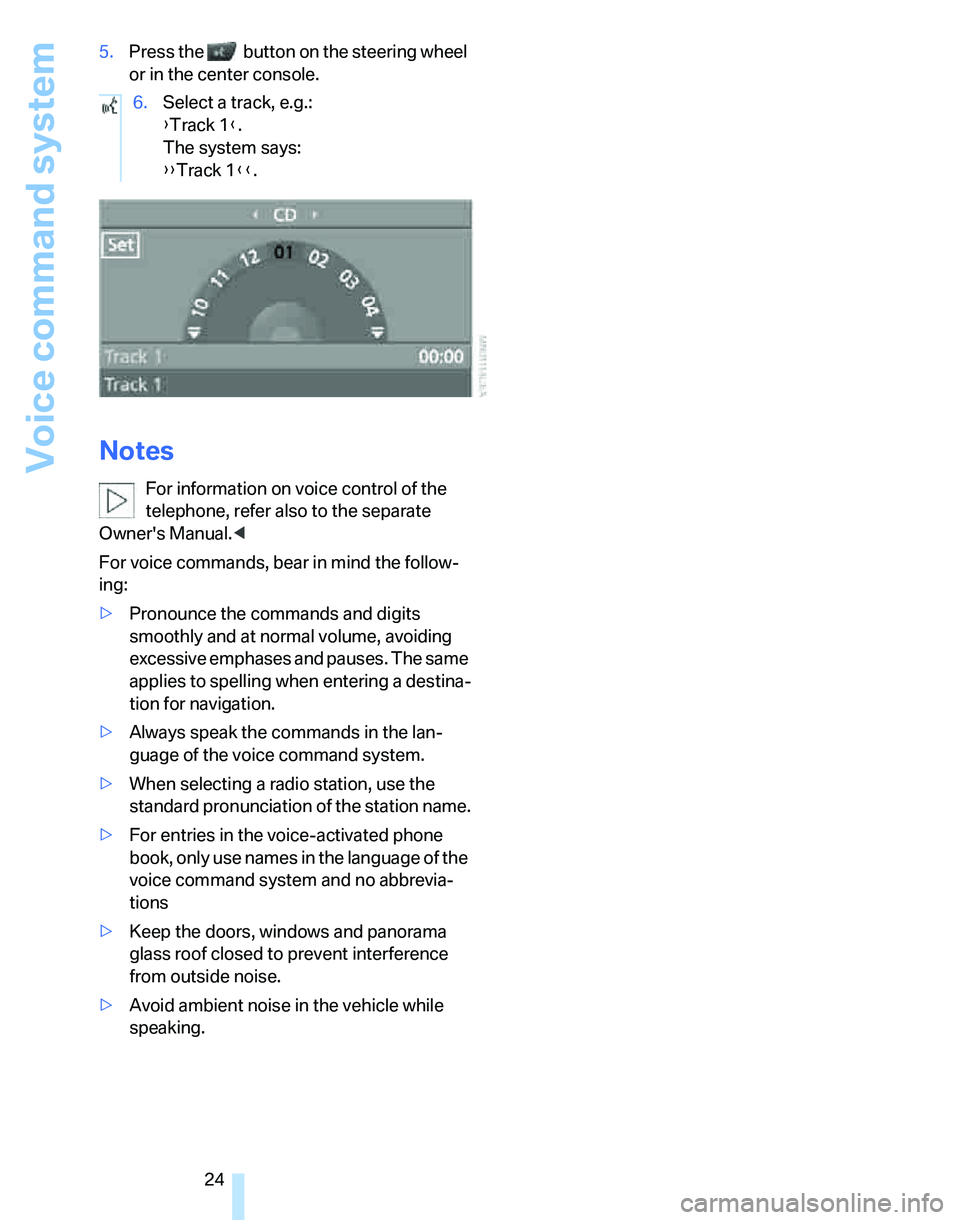
speaking.6.Select a track, e.g.:
{Track 1}.
The system says:
{{Track 1}}.
Page 30 of 236
Controls
29Reference
At a glance
Driving tips
Communications
Navigation
Entertainment
Mobility
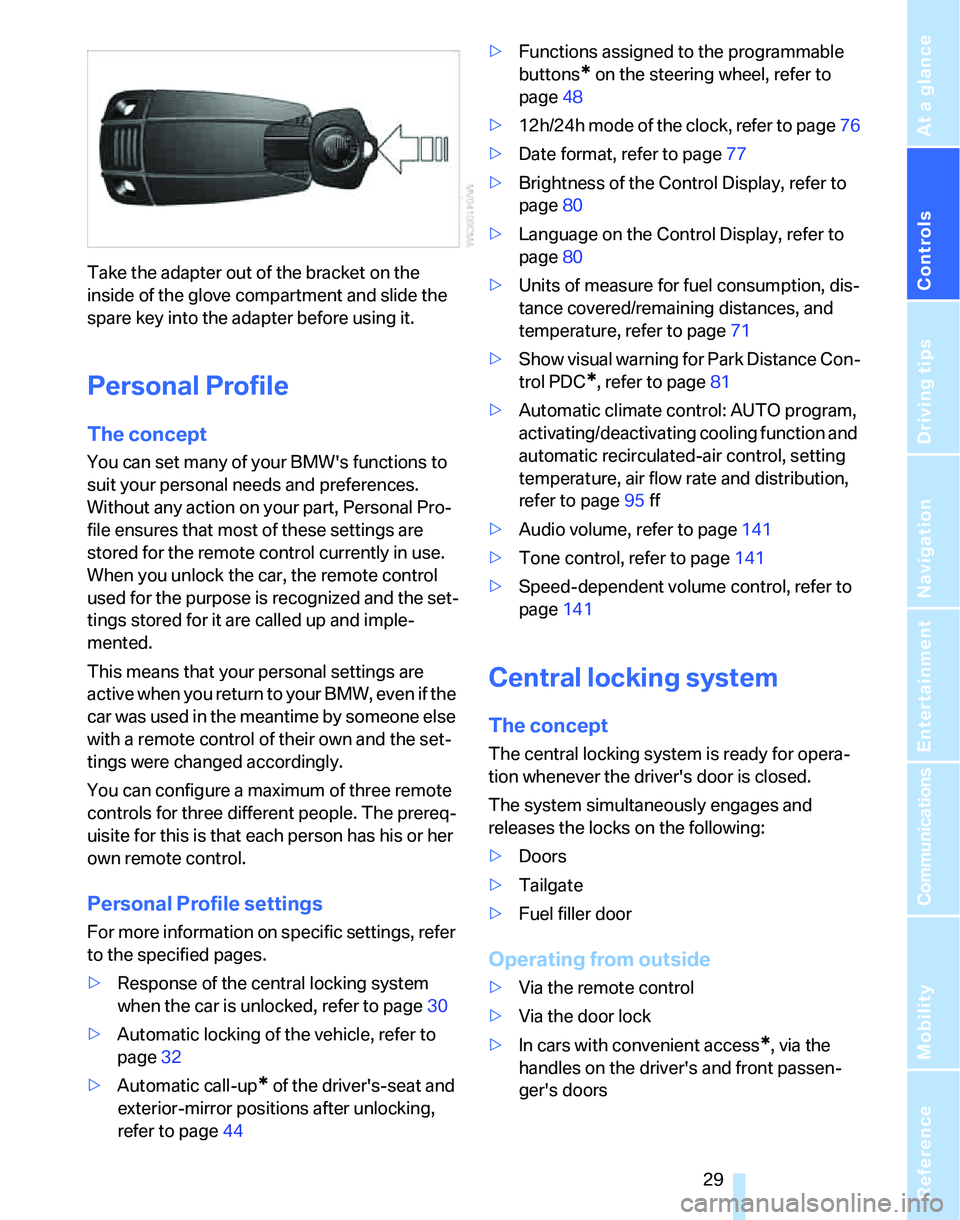
Take the adapter out of the bracket on the
inside of the glove compartment and slide the
spare key into the adapter before using it.
Personal Profile
The concept
You can set many of your BMW's functions to
suit your personal needs and preferences.
Without any action on your part, Personal Pro-
file ensures that most of these settings are
stored for the remote control currently in use.
When you unlock the car, the remote control
used for the purpose is recognized and the set-
tings stored for it are called up and imple-
mented.
This means that your personal settings are
active when you return to your BMW, even if the
car was used in the meantime by someone else
with a remote control of their own and the set-
tings were changed accordingly.
You can configure a maximum of three remote
controls for three different people. The prereq-
uisite for this is that each person has his or her
own remote control.
Personal Profile settings
For more information on specific settings, refer
to the specified pages.
>Response of the central locking system
when the car is unlocked, refer to page30
>Automatic locking of the vehicle, refer to
page32
>Automatic call-up
* of the driver's-seat and
exterior-mirror positions after unlocking,
refer to page44>Functions assigned to the programmable
buttons
* on the steering wheel, refer to
page48
>12h/24h mode of the clock, refer to page76
>Date format, refer to page77
>Brightness of the Control Display, refer to
page80
>Language on the Control Display, refer to
page80
>Units of measure for fuel consumption, dis-
tance covered/remaining distances, and
temperature, refer to page71
>Show visual warning for Park Distance Con-
trol PDC
*, refer to page81
>Automatic climate control: AUTO program,
activating/deactivating cooling function and
automatic recirculated-air control, setting
temperature, air flow rate and distribution,
refer to page95 ff
>Audio volume, refer to page141
>Tone control, refer to page141
>Speed-dependent volume control, refer to
page141
Central locking system
The concept
The central locking system is ready for opera-
tion whenever the driver's door is closed.
The system simultaneously engages and
releases the locks on the following:
>Doors
>Tailgate
>Fuel filler door
Operating from outside
>Via the remote control
>Via the door lock
>In cars with convenient access
*, via the
handles on the driver's and front passen-
ger's doors
Page 81 of 236
Everything under control
80
Starting, stopping or resetting
>Select "Start" and press the controller.
The stopwatch starts at the displayed time.
>Select "Reset" and press the controller.
The stopwatch is reset and restarts if it was
running beforehand.
>Select "Stop" and press the controller.
This stops the timer.
Taking an interim time reading
Select "Interim time" and press the controller.
The interim time appears below the ongoing
primary stopwatch count.
All of the remaining functions remain
available at all times while the stopwatch
is running. The stopwatch continues operation
in the background.<
Altering settings
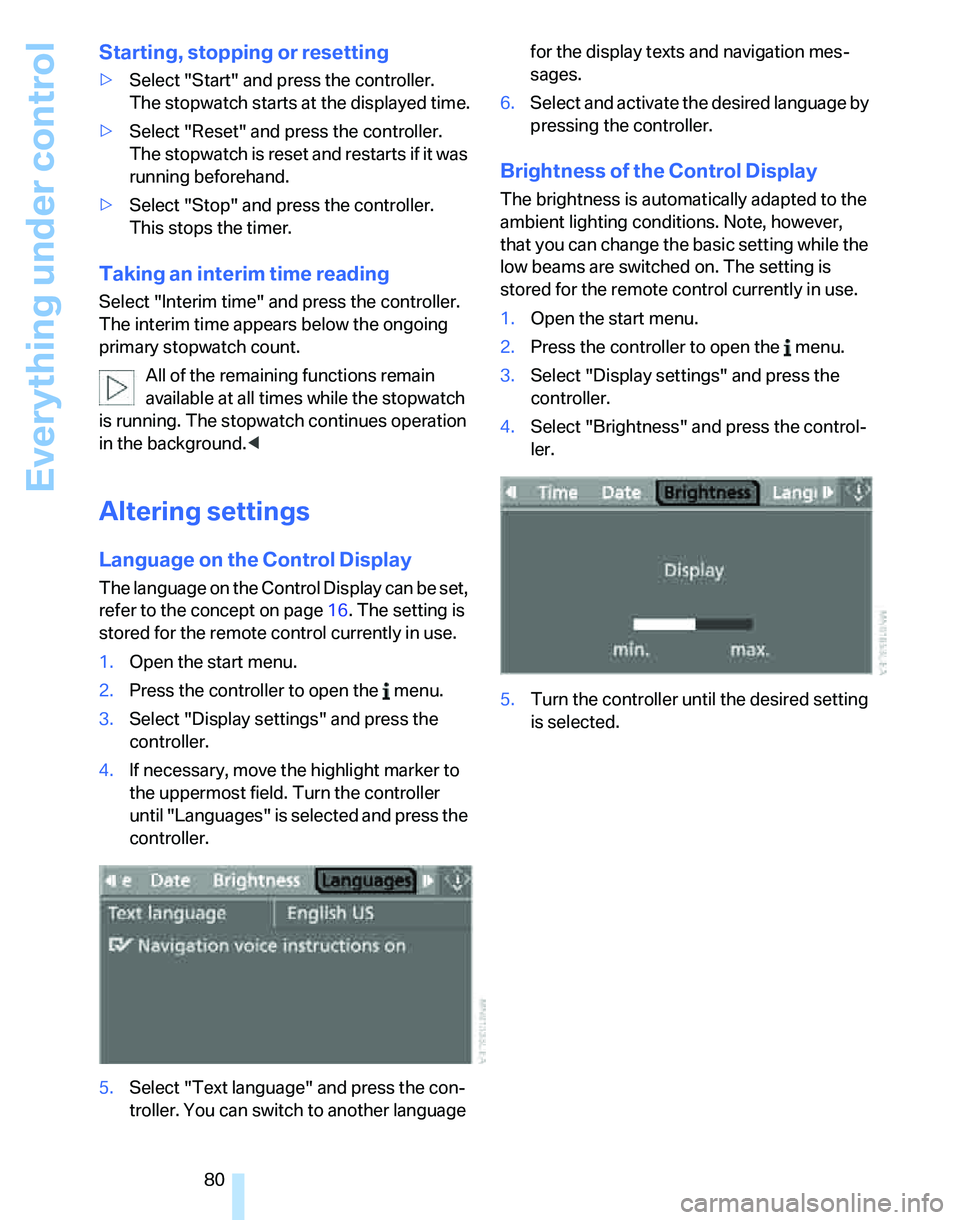
Language on the Control Display
The language on the Control Display can be set,
refer to the concept on page16. The setting is
stored for the remote control currently in use.
1.Open the start menu.
2.Press the controller to open the menu.
3.Select "Display settings" and press the
controller.
4.If necessary, move the highlight marker to
the uppermost field. Turn the controller
until "Languages" is selected and press the
controller.
5.Select "Text language" and press the con-
troller. You can switch to another language for the display texts and navigation mes-
sages.
6.Select and activate the desired language by
pressing the controller.
Brightness of the Control Display
The brightness is automatically adapted to the
ambient lighting conditions. Note, however,
that you can change the basic setting while the
low beams are switched on. The setting is
stored for the remote control currently in use.
1.Open the start menu.
2.Press the controller to open the menu.
3.Select "Display settings" and press the
controller.
4.Select "Brightness" and press the control-
ler.
5.Turn the controller until the desired setting
is selected.
Page 126 of 236
Navigation
Driving tips
125Reference
At a glance
Controls
Communications
Entertainment
Mobility
Selecting country
Say the destination country in the language of
the voice command system.
Entering destination
To enter a destination, spell it in the way it is
commonly spelled in the destination country.
Pronounce the letters smoothly and at normal
volume, avoiding excessive emphases and
pauses.
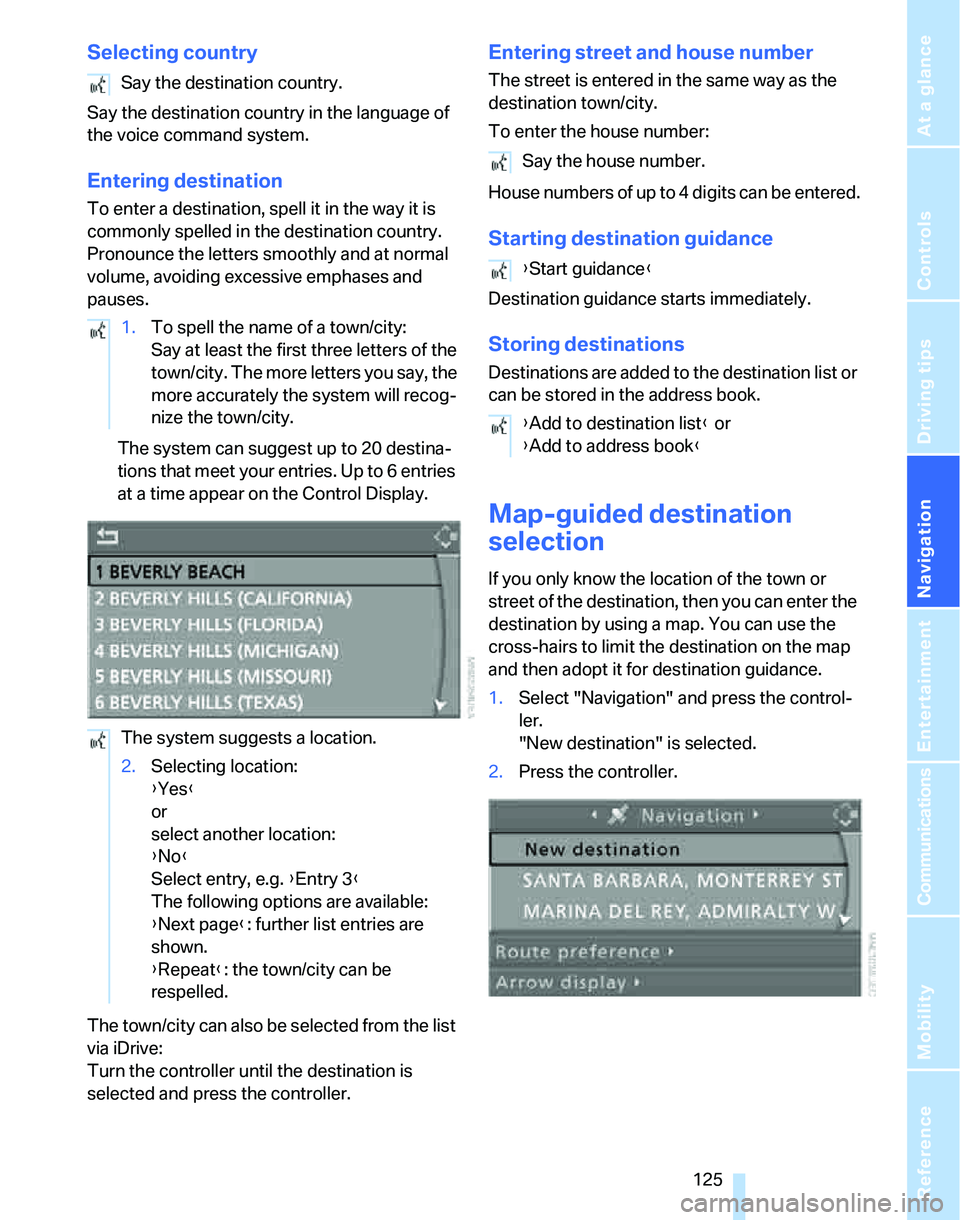
The system can suggest up to 20 destina-
tions that meet your entries. Up to 6 entries
at a time appear on the Control Display.
The town/city can also be selected from the list
via iDrive:
Turn the controller until the destination is
selected and press the controller.
Entering street and house number
The street is entered in the same way as the
destination town/city.
To enter the house number:
House numbers of up to 4 digits can be entered.
Starting destination guidance
Destination guidance starts immediately.
Storing destinations
Destinations are added to the destination list or
can be stored in the address book.
Map-guided destination
selection
If you only know the location of the town or
street of the destination, then you can enter the
destination by using a map. You can use the
cross-hairs to limit the destination on the map
and then adopt it for destination guidance.
1.Select "Navigation" and press the control-
ler.
"New destination" is selected.
2.Press the controller. Say the destination country.
1.To spell the name of a town/city:
Say at least the first three letters of the
town/city. The more letters you say, the
more accurately the system will recog-
nize the town/city.
The system suggests a location.
2.Selecting location:
{Yes}
or
select another location:
{No}
Select entry, e.g. {Entry 3}
The following options are available:
{Next page}: further list entries are
shown.
{Repeat}: the town/city can be
respelled.
Say the house number.
{Start guidance}
{Add to destination list} or
{Add to address book}
Page 136 of 236
Navigation
Driving tips
135Reference
At a glance
Controls
Communications
Entertainment
Mobility
Displaying towns/cities and streets
along the route
You can have the roads and towns along the
route displayed during destination guidance.
The distances remaining to be traveled within
each section of the route are also displayed.
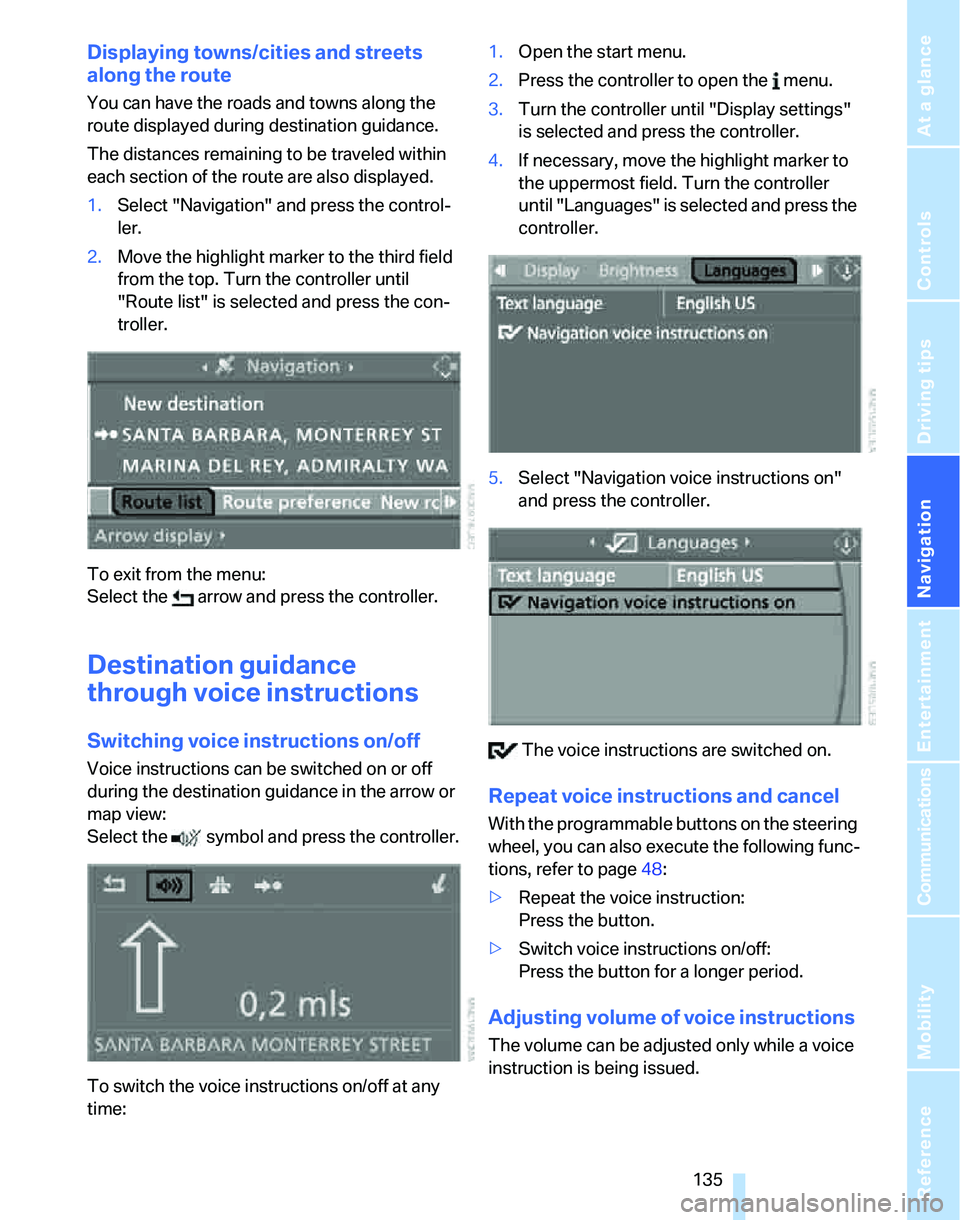
1.Select "Navigation" and press the control-
ler.
2.Move the highlight marker to the third field
from the top. Turn the controller until
"Route list" is selected and press the con-
troller.
To exit from the menu:
Select the arrow and press the controller.
Destination guidance
through voice instructions
Switching voice instructions on/off
Voice instructions can be switched on or off
during the destination guidance in the arrow or
map view:
Select the symbol and press the controller.
To switch the voice instructions on/off at any
time:1.Open the start menu.
2.Press the controller to open the menu.
3.Turn the controller until "Display settings"
is selected and press the controller.
4.If necessary, move the highlight marker to
the uppermost field. Turn the controller
until "Languages" is selected and press the
controller.
5.Select "Navigation voice instructions on"
and press the controller.
The voice instructions are switched on.
Repeat voice instructions and cancel
With the programmable buttons on the steering
wheel, you can also execute the following func-
tions, refer to page48:
>Repeat the voice instruction:
Press the button.
>Switch voice instructions on/off:
Press the button for a longer period.
Adjusting volume of voice instructions
The volume can be adjusted only while a voice
instruction is being issued.
Page 173 of 236
Telephoning
172
Selecting an entry
The connection to the phone number of the
selected entry is established.
Redialing
The {Redial} command calls up "Redial".
Notes
The commands in English were available
as of this printing. Other languages are
currently in preparation. To operate the mobile
phone via the voice command system, refer to
page22.<
Important for voice commands
For voice commands, bear in mind the follow-
ing:
>Pronounce the commands smoothly and at
normal volume, avoiding excessive empha-
ses and pauses.
>Keep the doors, windows and glass sunroof
closed to prevent interference from outside
noise.
>Avoid ambient noise in the vehicle while
speaking.
Inserting/removing snap-in
adapter
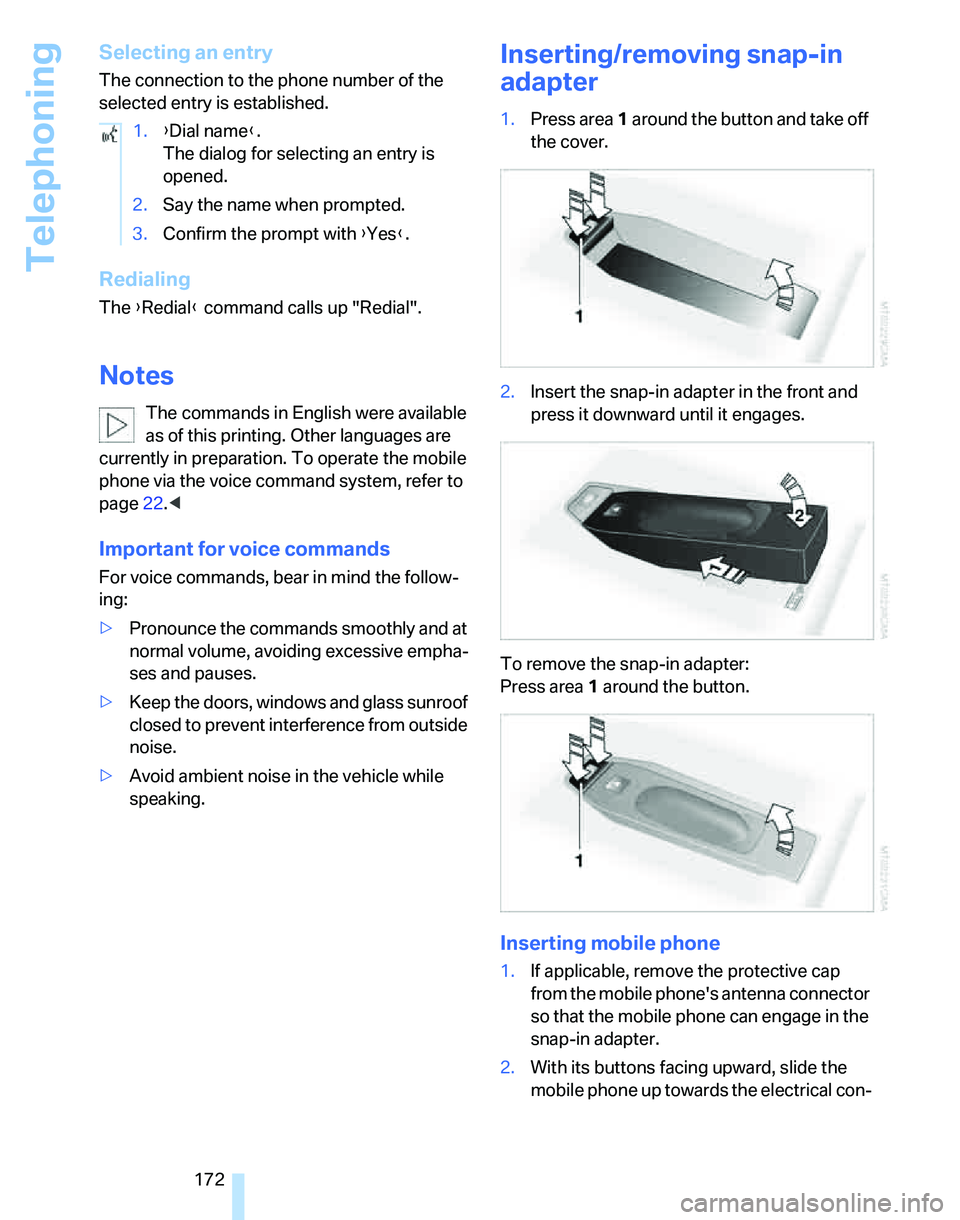
1.Press area1 around the button and take off
the cover.
2.Insert the snap-in adapter in the front and
press it downward until it engages.
To remove the snap-in adapter:
Press area 1 around the button.
Inserting mobile phone
1.If applicable, remove the protective cap
from the mobile phone's antenna connector
so that the mobile phone can engage in the
snap-in adapter.
2.With its buttons facing upward, slide the
mobile phone up towards the electrical con- 1.{Dial name}.
The dialog for selecting an entry is
opened.
2.Say the name when prompted.
3.Confirm the prompt with {Yes}.
Page 218 of 236
Reference 217
At a glance
Controls
Driving tips
Communications
Navigation
Entertainment
Mobility
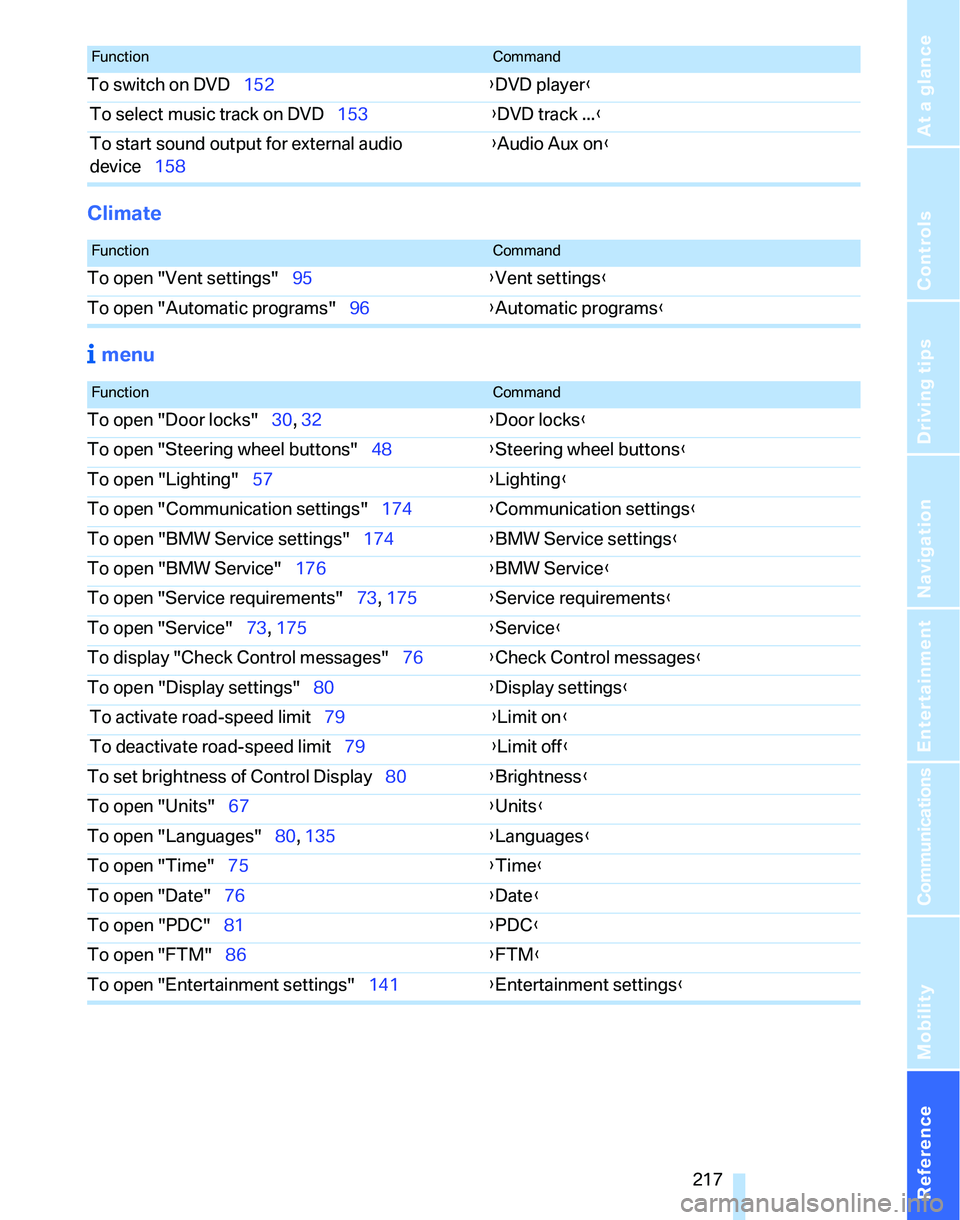
Climate
menu
To switch on DVD152{DVD player}
To select music track on DVD153{DVD track ...}
To start sound output for external audio
device158{Audio Aux on}
FunctionCommand
FunctionCommand
To open "Vent settings"95{Vent settings}
To open "Automatic programs"96{Automatic programs}
FunctionCommand
To open "Door locks"30, 32{Door locks}
To open "Steering wheel buttons"48{Steering wheel buttons}
To open "Lighting"57{Lighting}
To open "Communication settings"174{Communication settings}
To open "BMW Service settings"174{BMW Service settings}
To open "BMW Service"176{BMW Service}
To open "Service requirements"73, 175{Service requirements}
To open "Service"73, 175{Service}
To display "Check Control messages"76{Check Control messages}
To open "Display settings"80{Display settings}
To activate road-speed limit79{Limit on}
To deactivate road-speed limit79{Limit off}
To set brightness of Control Display80{Brightness}
To open "Units"67{Units}
To open "Languages"80, 135{Languages}
To open "Time"75{Time}
To open "Date"76{Date}
To open "PDC"81{PDC}
To open "FTM"86{
FTM}
To open "Entertainment settings"141{Entertainment settings}
Page 221 of 236
Everything from A - Z
220 Burned fuel
– refer to Average
consumption69
Button for starting engine53
Buttons on steering wheel11
C
California Proposition 65
warning6
"Call"168
Call
– accepting166
– displaying accepted168
– ending167
– in absence168
– starting167
Calling
– from phone book167
– from Top 8 list168
– redialing168
Can holders, refer to Cup
holders104
Capacities213
Capacity of cargo area212
Car battery, refer to Vehicle
battery201
Car care, refer to Caring for
your vehicle brochure
Car-care products, refer to
Caring for your vehicle
brochure
"Car Data"69
Care, refer to Caring for your
vehicle brochure
Cargo, securing115
Cargo area105
– capacity212
– convenient access36
– cover105
– folding up the floor
panel107
– lamp93
– lid, refer to Tailgate33
– net106
– opening from outside33
Cargo area net106Cargo loading
– stowing cargo115
– vehicle114
Caring for artificial leather,
refer to Caring for your
vehicle brochure
Caring for leather, refer to
Caring for your vehicle
brochure
Caring for light-alloy wheels,
refer to Caring for your
vehicle brochure
Caring for plastic, refer to
Caring for your vehicle
brochure
Caring for the carpet, refer to
Caring for your vehicle
brochure
Caring for the vehicle finish,
refer to Caring for your
vehicle brochure
Car jack
– jacking points201
Car key, refer to Integrated
key/remote control28
Car phone162
– installation location, refer to
Center armrest103
– refer to Mobile phone162
– refer to separate Owner's
Manual
Car radio, refer to Radio144
Car wash114
– also refer to Caring for your
vehicle brochure
Catalytic converter, refer to
Hot exhaust system112
"Categories"150
CBS Condition Based
Service195
"CD"140,152CD changer152
– controls140
– fast forward/reverse156
– installation location156
– playing a track154
– random order155
– repeating a track155
– selecting a CD152
– selecting a track153
– switching on/off140
– tone control141
– volume141
CD player152
– controls140
– fast forward/reverse156
– playing a track154
– random order155
– repeating a track155
– selecting a track153
– switching on/off140
– tone control141
– volume141
Center armrest103
Center brake lamp
– replacing bulbs201
Center console, refer to
Around the center
console14
"Central locking"30
Central locking
– from inside32
– from outside29
Central locking system29
– convenient access35
Changing bulbs197
Changing the language on the
Control Display80
Changing the measurement
units on the Control
Display71
Changing wheels201
Chassis number, refer to
Engine compartment191
Check Control77
"Check Control
messages"78
Check Gas Cap182
Page 226 of 236
Reference 225
At a glance
Controls
Driving tips
Communications
Navigation
Entertainment
Mobility
iDrive16
– adjusting brightness80
– assistance window20
– automatic climate control95
– changing language80
– date and time, setting75
– displays, menus17
– menu guidance17
– operating principle16
– overview16
– selecting a menu item19
– status information20
– switching menu pages19
– symbols18
Ignition53
– switched off53
– switched on53
Ignition key, refer to
Integrated key/remote
control28
Ignition key position 1, refer to
Radio readiness53
Ignition key position 2, refer to
Ignition on53
Ignition lock53
Indicator and warning
lamps13
Individual air distribution95
Individually programmable
buttons on steering
wheel48
Individual settings, refer to
Personal Profile29
Information
– on another location126
– on country126
– on current position126
– on destination location126
"Information" in
navigation127
"Information on
destination"128
Initializing
– compass, refer to
Calibrating102
– Flat Tire Monitor FTM86
– panorama glass roof39
"Input map"126Installation location
– CD changer156
Instructions for navigation
system, refer to Voice
instructions135
Instrument cluster12
Instrument lighting93
Instrument panel, refer to
Cockpit10
Integrated key28
Integrated universal remote
control
100
Interesting destination for
navigation126
"Interim time"80
Interior lamps93
– remote control30
Interior motion sensor35
Interior rearview mirror47
– automatic dimming
feature113
Interior rearview mirror with
digital compass101
Interlock56
Intermittent mode of the
wipers58
J
Jacking points201
Joystick, refer to iDrive16
Jumpering, refer to Jump
starting204
Jump starting204
K
Key, refer to Integrated key/
remote control28
Keyless Go, refer to
Convenient access35
Keyless opening and closing,
refer to Convenient
access35
Key Memory, refer to Personal
Profile29
"Keypad"169Kick-down56
– automatic transmission with
Steptronic56
Knock control183
L
Lamps, refer to Parking lamps/
low beams90
Lamps and bulbs, replacing
bulbs197
"Languages" in
navigation135
"Languages"on the control
display80
Lap-and-shoulder safety
belt46
Lashing eyes, refer to
Securing cargo115
Last destinations, refer to
Destination list127
"Last seat pos."45
LATCH child-restraint fixing
system51
LEDs light-emitting
diodes198
Length, refer to
Dimensions211
License plate lamp, replacing
bulbs201
Light-emitting diodes
LEDs198
Lighter104
"Lighting"91
Lighting
– instruments93
– lamps and bulbs197
– of the vehicle, refer to
Lamps90
Light switch90
"Limit"79
Limit, refer to Speed limit79
Loading
– securing cargo115
Load securing equipment,
refer to Securing cargo115
Location
– drive for navigation DVD and
audio CD120