light BMW 328I 2009 Workshop Manual
[x] Cancel search | Manufacturer: BMW, Model Year: 2009, Model line: 328I, Model: BMW 328I 2009Pages: 268, PDF Size: 11.52 MB
Page 124 of 268
Navigation system
122
Navigation system
General information
With the help of satellites, the navigation sys-
tem is able to ascertain the precise position of
the vehicle and guide you reliably to any desti-
nation you enter.
The navigation data is st ored in the vehicle and
can be updated using navigation DVDs.
Make all entries while the vehicle is sta-
tionary
Enter data only when th e vehicle is stationary,
and always give priority to the applicable traffic
regulations in the event of any contradiction
between traffic and road conditions and the
instructions issued by the navigation system.
Failure to take to this precaution can place you
in violation of the law and put vehicle occupants
and other road users in danger. <
Updating the navigation data
The navigation data is stored in the vehicle and
can be updated using a na vigation DVD. Please
contact the BMW center if you have any ques-
tions.
Inserting navigation DVD
1. Insert the navigation DVD into the DVD
player with the labe led side facing up.
2. Follow the instructio ns on the display.
3. Enter the authorization code of the naviga-
tion DVD and change the DVD if needed.
Displaying information on the version
1. "Navigation"
2. Open "Options".
3. "Navigation system version". Information
on the data vers ion is displayed.
Removing navigation DVD
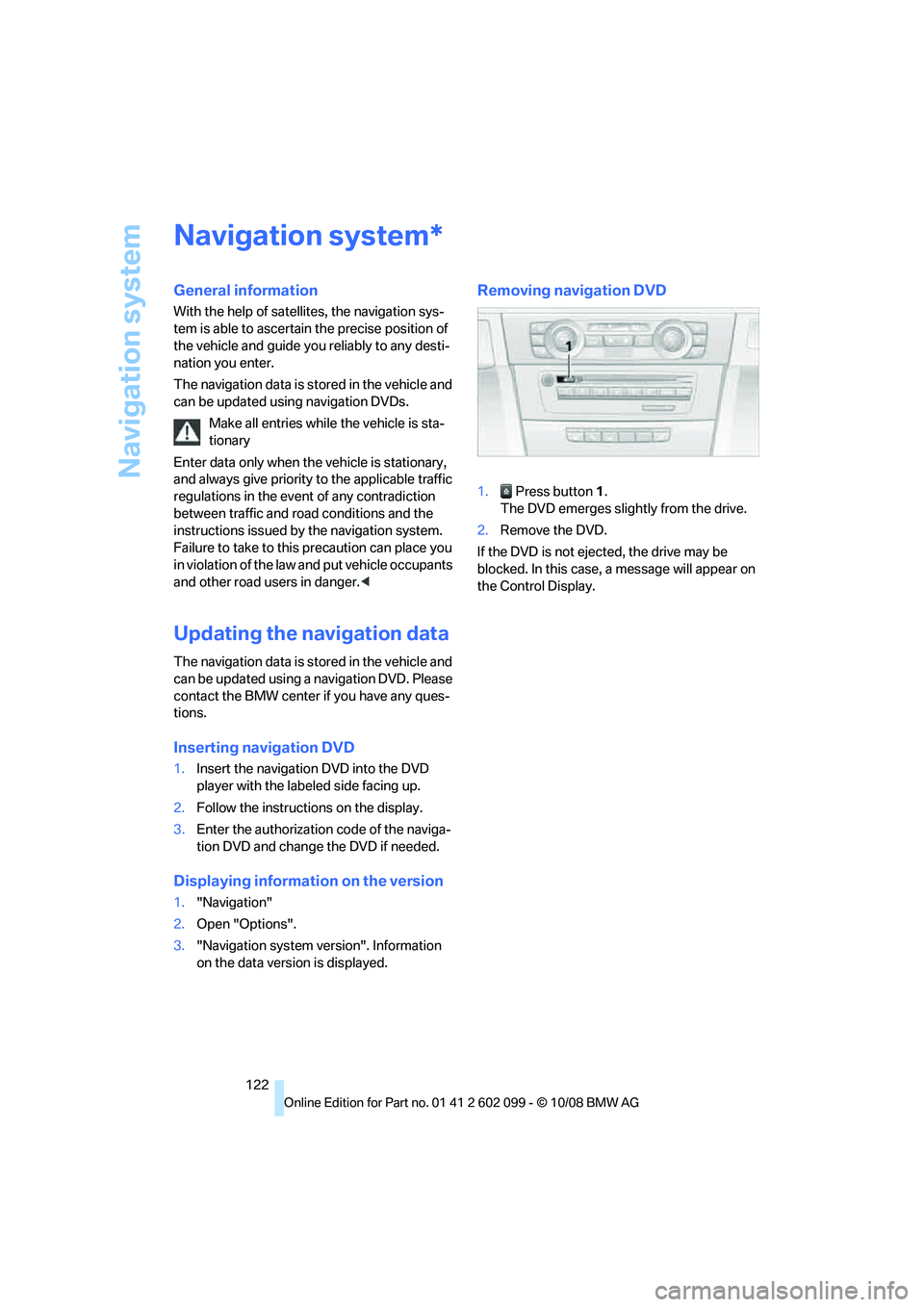
1. Press button 1.
The DVD emerges slightly from the drive.
2. Remove the DVD.
If the DVD is not ejected, the drive may be
blocked. In this case, a message will appear on
the Control Display.
*
ba8_E9091_cic.book Seite 122 Mittwoch, 29. Oktober 2008 2:59 14
Page 126 of 268
Destination entry
124
Delete letters,
if necessary:
> To delete individual letters:
Turn the controller to select , and
then press the controller.
> To delete all letters:
Turn the controller to select , and
then press the controller for an extended
period.
> To enter spaces:
Select the symbol.
The list gradually grow s smaller each time
you enter a new letter.
2. Move the controller to the right.
3. Select the name of th e town/city from the
list. The three destinations stored last are
displayed.
If there are several towns/cities with the same
name:
1. Change to the list of town/city names.
2. Highlight the town/city: a preview map is
displayed.
3. Select the town/city.
Entering the postal code
1.Select "Town/City/Zip Code" or the dis-
played town/city.
2. Select the symbol.
3. Select the digits.
4. Change to the list of postal codes and
towns/cities.
5. Highlight the postal code. A preview map is
displayed in the assistance window.
6. Select the postal code.
Entering street and intersection
1.Select "Street" or the displayed street.
2. Enter a street and intersection as you would
the town/city.
After the street you can also enter the intersec-
tion or the house number.
If there are several streets with the same name: 1.
Change to the list of street names.
2. Highlight the street: a preview map is dis-
played.
3. Select the street.
Entering a street without a destination
town/city
You can also enter a street without specifying a
town/city. In this case, all streets of the same
name in the designated state/province are
offered. The correspond ing town/city is dis-
played after the street name.
If a town/city has already been entered, you can
negate this entry. This could be helpful in
instances where the desired street does not
exist in the entered town/city because it
belongs to another suburb, for example.
1. "Navigation"
2. "Enter address"
3. Select "Street" or the displayed street.
4. Change to the list of street names.
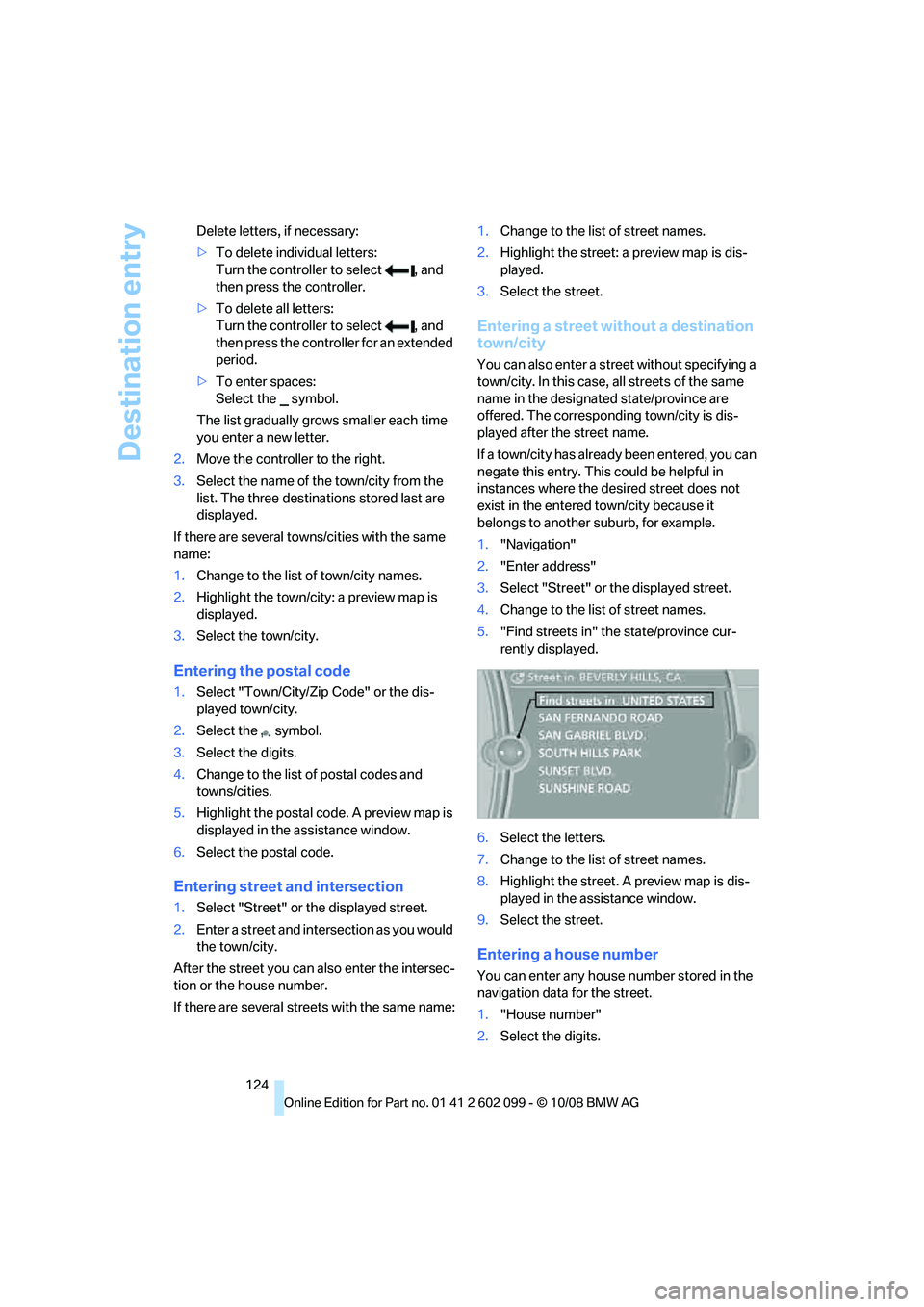
5. "Find streets in" the state/province cur-
rently displayed.
6. Select the letters.
7. Change to the list of street names.
8. Highlight the street. A preview map is dis-
played in the assistance window.
9. Select the street.
Entering a house number
You can enter any house number stored in the
navigation data for the street.
1."House number"
2. Select the digits.
ba8_E9091_cic.book Seite 124 Mittwoch, 29. Oktober 2008 2:59 14
Page 128 of 268
Destination entry
126
3.
Highlight the entry.
4. Open "Options".
5. "Edit in Contacts" or "Delete entry".
Using home address as destination
The home address must be stored as a destina-
tion. Refer to Specifying a contact as the home
address, page 179.
1. "Navigation"
2. "Address book"
3. "Home address"
4. "Start guidance"
Last destinations
The last destinations are stored automatically.
These destinations can be called up and used
as a destination for destination guidance.
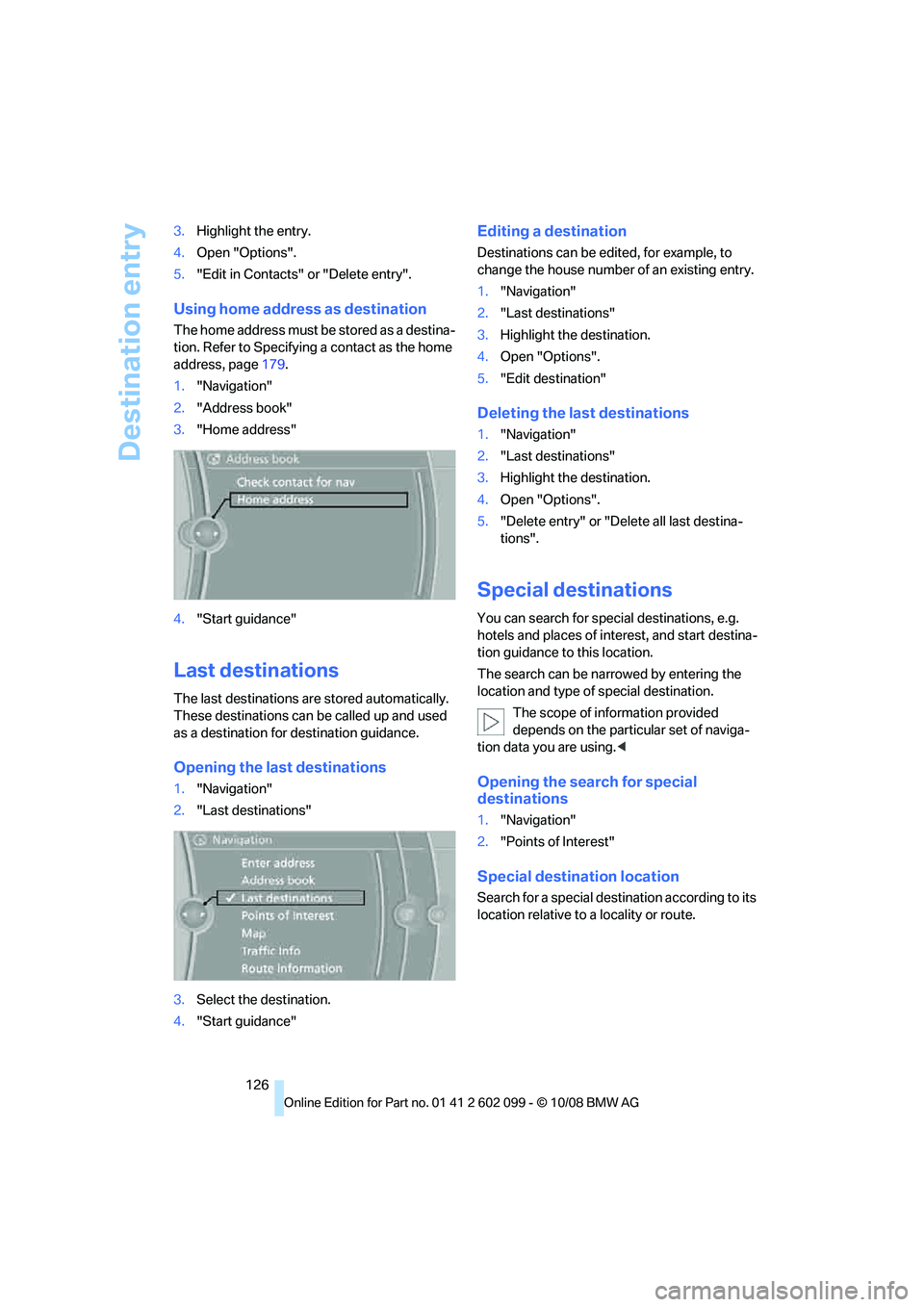
Opening the last destinations
1."Navigation"
2. "Last destinations"
3. Select the destination.
4. "Start guidance"
Editing a destination
Destinations can be edited, for example, to
change the house number of an existing entry.
1."Navigation"
2. "Last destinations"
3. Highlight the destination.
4. Open "Options".
5. "Edit destination"
Deleting the last destinations
1."Navigation"
2. "Last destinations"
3. Highlight the destination.
4. Open "Options".
5. "Delete entry" or "Delete all last destina-
tions".
Special destinations
You can search for spec ial destinations, e.g.
hotels and places of interest, and start destina-
tion guidance to this location.
The search can be narrowed by entering the
location and type of special destination. The scope of information provided
depends on the partic ular set of naviga-
tion data you are using. <
Opening the search for special
destinations
1."Navigation"
2. "Points of Interest"
Special destination location
Search for a special destination according to its
location relative to a locality or route.
ba8_E9091_cic.book Seite 126 Mittwoch, 29. Oktober 2008 2:59 14
Page 129 of 268
Navigation
Driving tips
127Reference
At a glance
Controls
Communications
Entertainment
Mobility
1."Search destination"
2. Select the location where the system is to
search for the special destination:
>"At current location"
> "At destination"
> "At a different destination"
> "Along route"
Special destination category
1. "Category"
2. Select "All" or a spec ific category, e.g.
hotels or restaurants.
3. "Route Points of Interest"
*
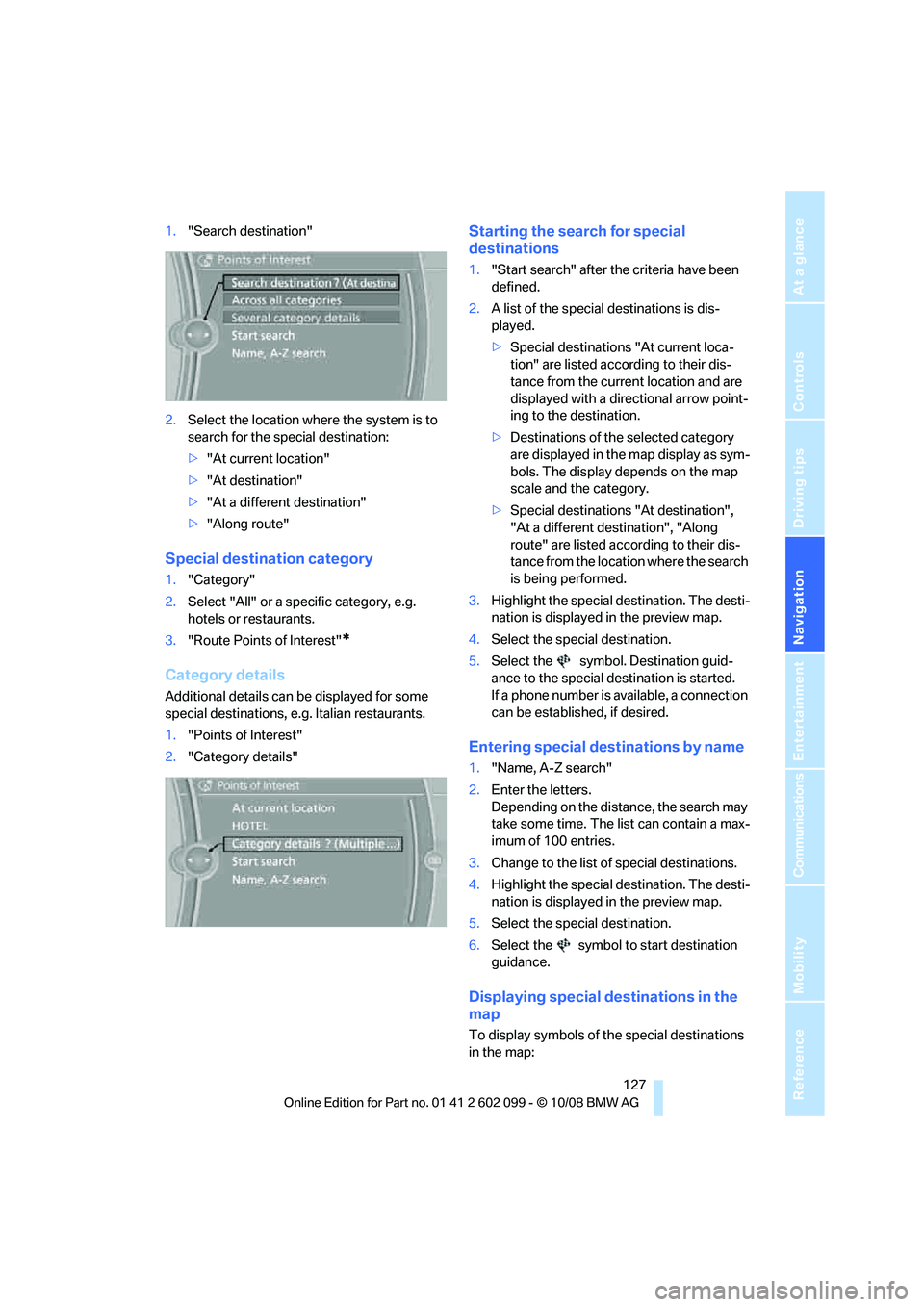
Category details
Additional details can be displayed for some
special destinations, e. g. Italian restaurants.
1. "Points of Interest"
2. "Category details"
Starting the search for special
destinations
1."Start search" after the criteria have been
defined.
2. A list of the special destinations is dis-
played.
>Special destinations "At current loca-
tion" are listed according to their dis-
tance from the current location and are
displayed with a directional arrow point-
ing to the destination.
> Destinations of the selected category
are displayed in the map display as sym-
bols. The display depends on the map
scale and the category.
> Special destinations "At destination",
"At a different destination", "Along
route" are listed acco rding to their dis-
tance from the locati on where the search
is being performed.
3. Highlight the special destination. The desti-
nation is displayed in the preview map.
4. Select the special destination.
5. Select the symbol. Destination guid-
ance to the special destination is started.
If a phone number is available, a connection
can be established, if desired.
Entering special destinations by name
1."Name, A-Z search"
2. Enter the letters.
Depending on the distance, the search may
take some time. The list can contain a max-
imum of 100 entries.
3. Change to the list of special destinations.
4. Highlight the special destination. The desti-
nation is displayed in the preview map.
5. Select the special destination.
6. Select the symbol to start destination
guidance.
Displaying special destinations in the
map
To display symbols of the special destinations
in the map:
ba8_E9091_cic.book Seite 127 Mittwoch, 29. Oktober 2008 2:59 14
Page 131 of 268
Navigation
Driving tips
129Reference
At a glance
Controls
Communications
Entertainment
Mobility
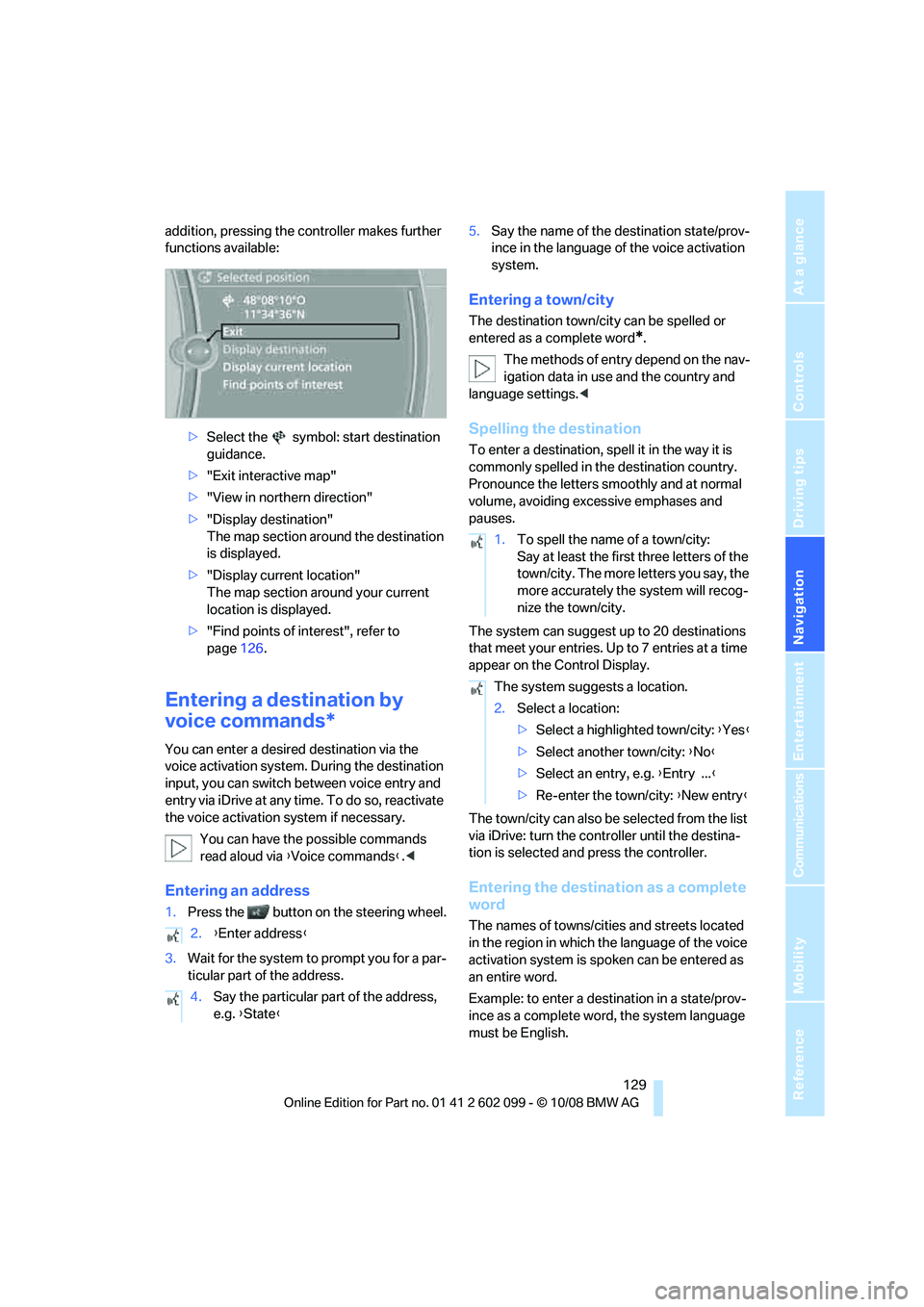
addition, pressing the controller makes further
functions available:>Select the symbol: start destination
guidance.
> "Exit interactive map"
> "View in northern direction"
> "Display destination"
The map section around the destination
is displayed.
> "Display current location"
The map section around your current
location is displayed.
> "Find points of interest", refer to
page 126.
Entering a destination by
voice commands*
You can enter a desired destination via the
voice activation system. During the destination
input, you can switch between voice entry and
entry via iDrive at any ti me. To do so, reactivate
the voice activation system if necessary.
You can have the possible commands
read aloud via {Voice commands }.<
Entering an address
1. Press the button on the steering wheel.
3. Wait for the system to prompt you for a par-
ticular part of the address. 5.
Say the name of the destination state/prov-
ince in the language of the voice activation
system.
Entering a town/city
The destination town/cit y can be spelled or
entered as a complete word
*.
The methods of entry depend on the nav-
igation data in use and the country and
language settings. <
Spelling the destination
To enter a destination, spell it in the way it is
commonly spelled in th e destination country.
Pronounce the letters smoothly and at normal
volume, avoiding excessive emphases and
pauses.
The system can suggest up to 20 destinations
that meet your entries. Up to 7 entries at a time
appear on the Control Display.
The town/city can also be selected from the list
via iDrive: turn the controller until the destina-
tion is selected and press the controller.
Entering the destination as a complete
word
The names of towns/cities and streets located
in the region in which th e language of the voice
activation system is spoken can be entered as
an entire word.
Example: to enter a destination in a state/prov-
ince as a complete word , the system language
must be English.
2.
{Enter address }
4. Say the particular part of the address,
e.g. {State }
1.To spell the name of a town/city:
Say at least the first three letters of the
town/city. The more letters you say, the
more accurately th e system will recog-
nize the town/city.
The system suggests a location.
2. Select a location:
>Select a highlighted town/city: {Yes }
> Select another town/city: {No }
> Select an entry, e.g. {Entry ... }
> Re-enter the town/city: {New entry }
ba8_E9091_cic.book Seite 129 Mittwoch, 29. Oktober 2008 2:59 14
Page 132 of 268
Destination entry
130
Speak smoothly and at normal volume, and
avoid excessive emphases and pauses.
1.
Wait for the system to ask for the town/city
of destination.
The system may suggest multiple destina-
tions that meet your entries.
Identical-sounding towns/cities that can-
not be distinguished by the system are
compiled in a separate list and shown as a des-
tination followed by three dots.
If necessary, select this entry with {Yes }. Then
select the desired town/city from that list. <
Entering street and house number
The street is entered in the same way as the
destination town/city.
To enter the house number:
Starting destination guidance
Destination guidance starts immediately.
Storing destinations
The destination is added to the destination list
and is displayed in the list of last destinations.
Trip planner
The trip planner can be us ed to plan a trip with
several legs to diffe rent destinations.
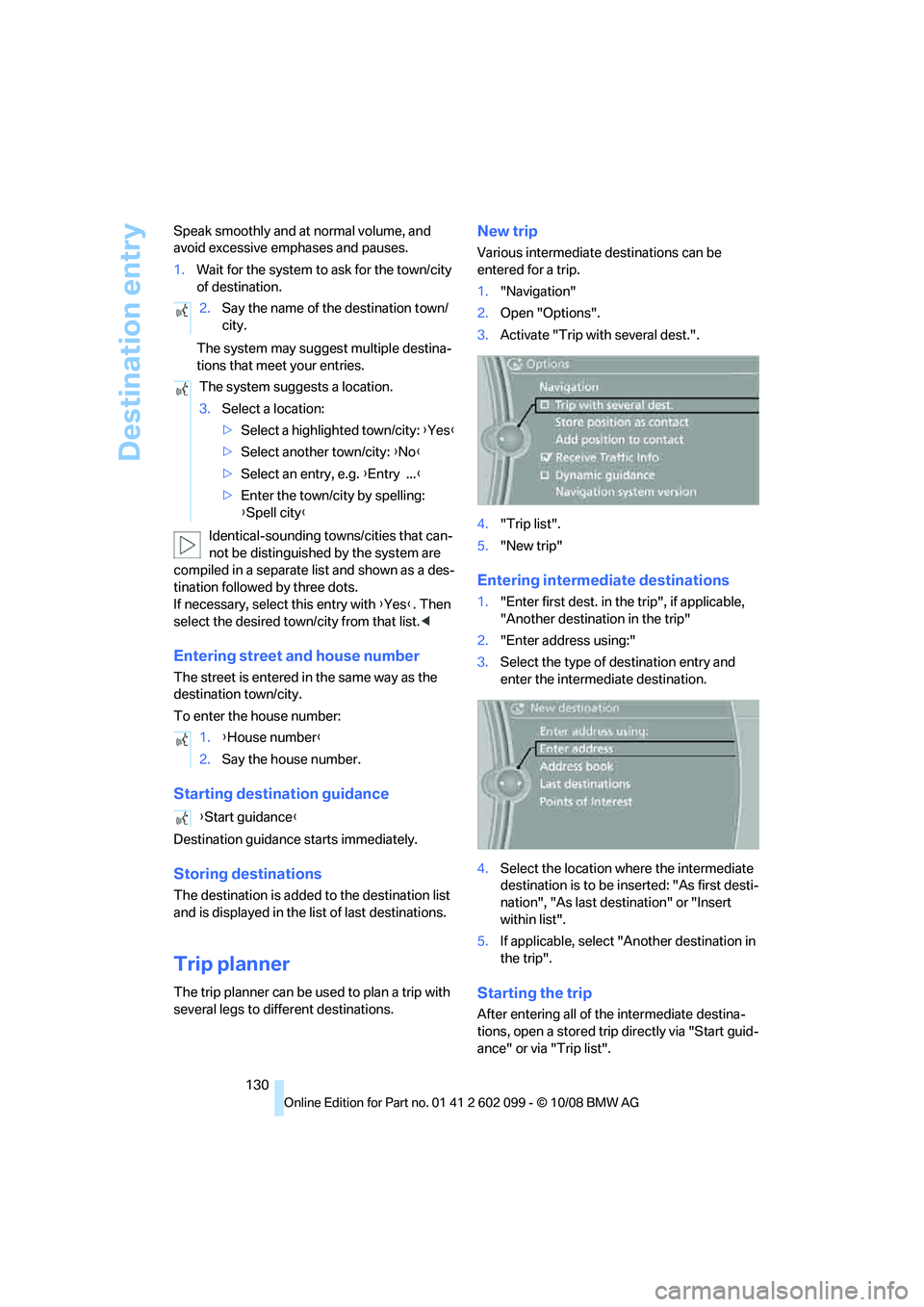
New trip
Various intermediate destinations can be
entered for a trip.
1. "Navigation"
2. Open "Options".
3. Activate "Trip with several dest.".
4. "Trip list".
5. "New trip"
Entering intermediate destinations
1."Enter first dest. in the trip", if applicable,
"Another destination in the trip"
2. "Enter address using:"
3. Select the type of destination entry and
enter the intermed iate destination.
4. Select the location where the intermediate
destination is to be inserted: "As first desti-
nation", "As last destination" or "Insert
within list".
5. If applicable, select "A nother destination in
the trip".
Starting the trip
After entering all of th e intermediate destina-
tions, open a stored trip directly via "Start guid-
ance" or via "Trip list".
2.
Say the name of the destination town/
city.
The system suggests a location.
3. Select a location:
>Select a highlighted town/city: {Yes }
> Select another town/city: {No }
> Select an entry, e.g. {Entry ... }
> Enter the town/city by spelling:
{Spell city }
1. {House number }
2. Say the house number.
{ Start guidance }
ba8_E9091_cic.book Seite 130 Mittwoch, 29. Oktober 2008 2:59 14
Page 133 of 268
Navigation
Driving tips
131Reference
At a glance
Controls
Communications
Entertainment
Mobility
Storing a trip
In the trip planner, created trips can be stored in
the trip list.
1. Open "Options".
2. "Store trip"
3. Enter the letters.
The trip is stored in the trip list under the
entered name.
Changing the trip direction
Intermediate destinatio ns are displayed in
reverse order in the list. This function is not
available for imported trips.
1. "Trip list"
2. Open "Options".
3. "Reverse order of trip dest."
Arranging the order of intermediate
destinations
This function is not available for imported trips.
1."Trip entry"
2. Select an intermediate destination.
3. "Reposition dest. in the trip"
4. Move the intermediate destination to
another position in the list.
Deleting an intermediate destination
This function is not available for imported trips.
1."Trip entry"
2. Select an intermediate destination.
3. Open "Options".
4. "Delete dest. in the trip"
Deleting a trip
1."Trip list"
2. Select the desired trip.
3. Open "Options".
4. "Delete all trips" or "Delete trip".
Opening the trip list
The stored trips are listed in alphabetical order
in the trip list. 1.
"Trip planner"
2. "Yes"
3. "Trip list"
4. Select a trip.
Importing trips
A maximum of 30 trips with at most
50 intermediate destinations per trip can be
stored.
Connect the USB device to the USB interface in
the glove compartment.
1."Navigation"
2. "Trip planner"
3. "Yes"
4. "Trip list"
5. Highlight the trip.
6. Open "Options".
7. Select "Import trip".
8. "USB device" or "BMW Search"
*
9."OK"
Terminating trip planning
To return to the direct entry of destinations:
1."Navigation"
2. Open "Options".
3. Deactivate "Trip with several dest.".
Word-matching principle
The system's word-matching principle makes it
easier for you to enter the names of towns or
streets. The system runs ongoing checks, com-
paring your destination entries with the data
stored in the vehicle as the basis for instant
response. The benefits for you include:
> Names of towns entered may differ from the
official versions if you are using a spelling
that is customary in another country.
Example:
Instead of the German spelling "München"
you can also enter the English spelling
"Munich" or the Italian spelling "Monaco".
ba8_E9091_cic.book Seite 131 Mittwoch, 29. Oktober 2008 2:59 14
Page 136 of 268
Destination guidance
134
of traffic obstructions. The system does not
point out traffic obstructions along the original
route.
Depending on the type of
road and the nature
and length of the traffic obstruction, the route
can also be calculated so that you travel
through the traffic obstruction.
1. "Navigation"
2. Open "Options".
3. "Dynamic guidance"
If the "Avoid highways", "Avoid toll roads"
or "Avoid ferries" route criteria are
selected, route calculat ion may take consider-
ably longer.<
Route
General information
Depending on the equipment in your vehicle,
different views of the route are available during
destination guidance.
> Map display
> Arrow display
> Display of the streets and towns/cities on
the route.
Displaying a list of the streets or towns/
cities on the route
When destination guidance is started, a list of
the streets and towns/cities on the route is dis-
played. The driving distances and traffic bulle-
tins are displayed for each route section.
> Display a list of the streets and towns/cities
on the route.
> Display the traffic bulle tins and the driving
distance for each route section.
1. "Navigation"
2. "Route information"
3. Highlight a section.
The section is displayed in the preview map.
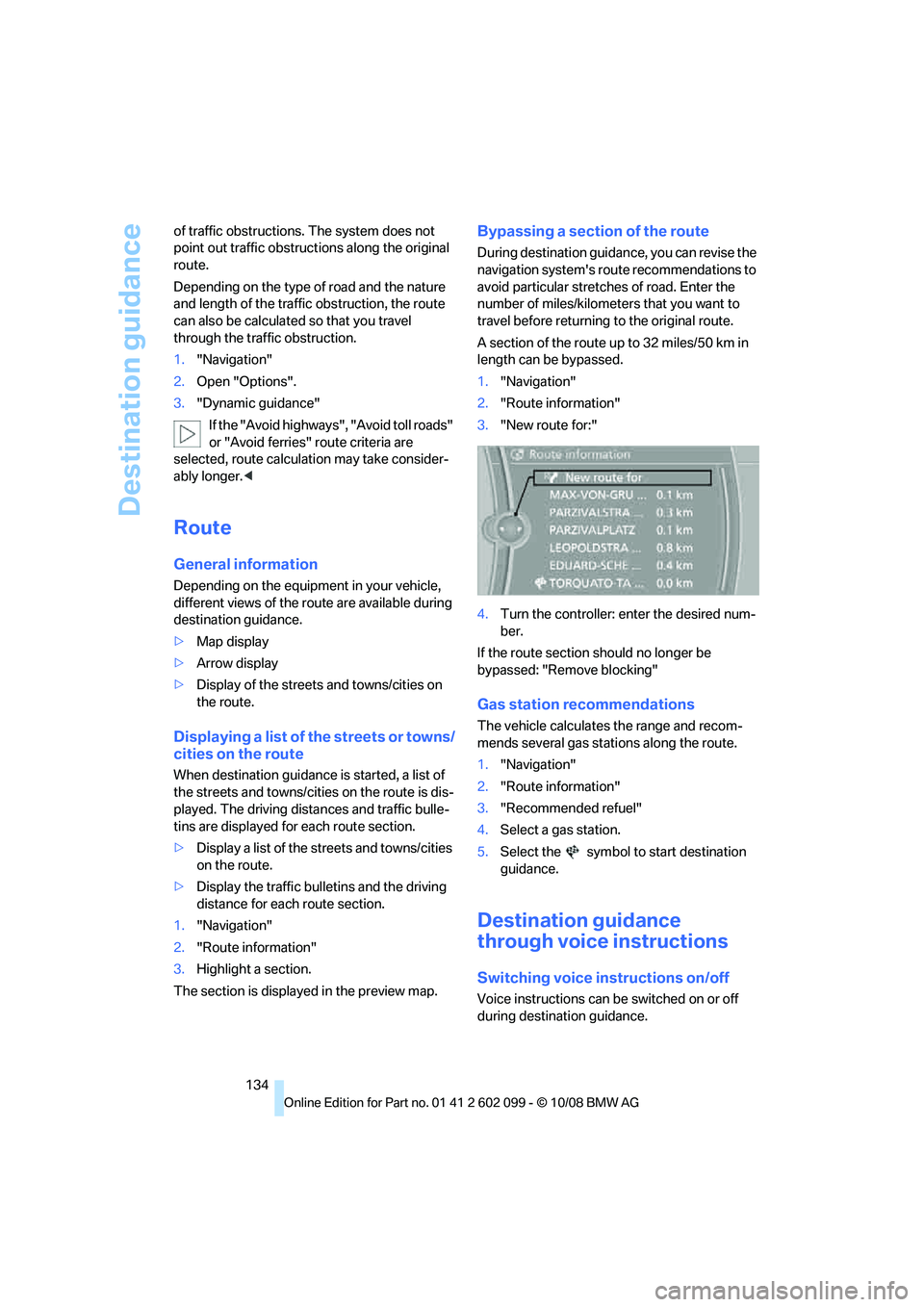
Bypassing a section of the route
During destination guidan ce, you can revise the
navigation system's route recommendations to
avoid particular stretches of road. Enter the
number of miles/kilomete rs that you want to
travel before returning to the original route.
A section of the route up to 32 miles/50 km in
length can be bypassed.
1. "Navigation"
2. "Route information"
3. "New route for:"
4. Turn the controller: enter the desired num-
ber.
If the route section should no longer be
bypassed: "Remove blocking"
Gas station recommendations
The vehicle calculates the range and recom-
mends several gas stations along the route.
1. "Navigation"
2. "Route information"
3. "Recommended refuel"
4. Select a gas station.
5. Select the symbol to start destination
guidance.
Destination guidance
through voice instructions
Switching voice instructions on/off
Voice instructions can be switched on or off
during destination guidance.
ba8_E9091_cic.book Seite 134 Mittwoch, 29. Oktober 2008 2:59 14
Page 137 of 268
Navigation
Driving tips
135Reference
At a glance
Controls
Communications
Entertainment
Mobility
1."Navigation"
2. "Map"
3. Select the symbol
The voice instructions are switched on.
For rapid access, the feature can be stored on a
programmable memory key, refer to page20.
Repeating a voice instruction
1."Navigation"
2. "Map"
3. Select the symbol twice.
Adjusting volume fo r voice instructions
The volume can be adjust ed only while a voice
instruction is being issued.
1. Have the last voice in struction repeated, if
necessary.
2. Turn the button during the voice instruction
to select the desired volume.
The setting is stored for the remote control cur-
rently in use.
Map display
Map display
You can have your current position displayed on
a map. After starting th e destination guidance,
the planned route is shown on the map. 1.
"Navigation"
2. "Map"
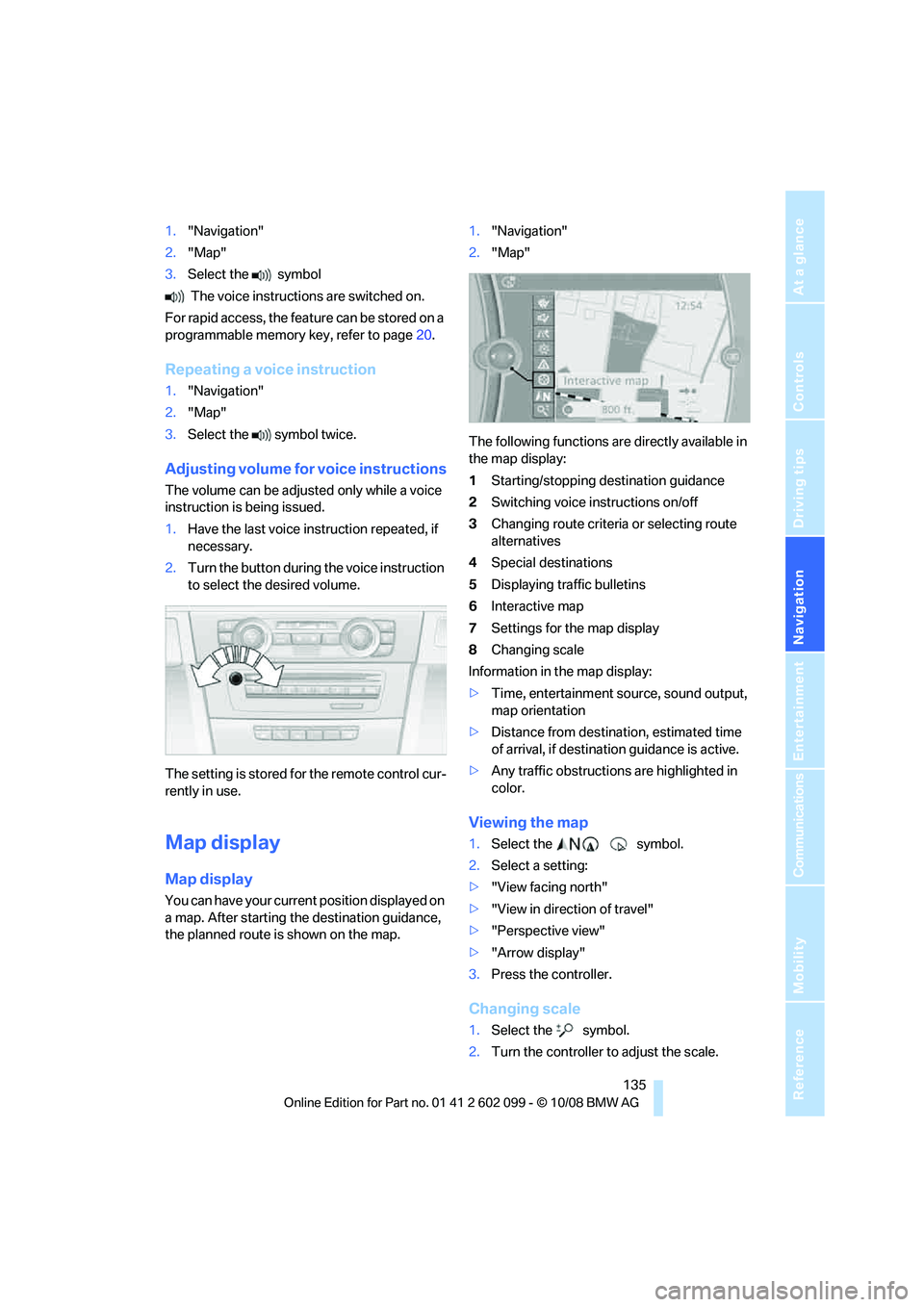
The following functions are directly available in
the map display:
1 Starting/stopping destination guidance
2 Switching voice instructions on/off
3 Changing route criteria or selecting route
alternatives
4 Special destinations
5 Displaying traffic bulletins
6 Interactive map
7 Settings for the map display
8 Changing scale
Information in the map display:
> Time, entertainment source, sound output,
map orientation
> Distance from destination, estimated time
of arrival, if destinat ion guidance is active.
> Any traffic obstructions are highlighted in
color.
Viewing the map
1.Select the symbol.
2. Select a setting:
> "View facing north"
> "View in direction of travel"
> "Perspective view"
> "Arrow display"
3. Press the controller.
Changing scale
1.Select the symbol.
2. Turn the controller to adjust the scale.
ba8_E9091_cic.book Seite 135 Mittwoch, 29. Oktober 2008 2:59 14
Page 139 of 268
Navigation
Driving tips
137Reference
At a glance
Controls
Communications
Entertainment
Mobility
3.To exit from the menu:
Move the controlle r to the left.
Highlighting traffic bulletins
1."Navigation"
2. "Map"
3. Open "Options".
4. "Settings"
The map is optimized for displaying the traffic
bulletins. Symbols for th e special destinations
are no longer displayed.
Symbols in the map display
The appearance of the symbols indicating a
traffic obstruction depends on the scale and the
position of the traffic ob struction relative to the
route.
> Smaller map scale, e.g. 1 mile/2 km: white
sign with the traffic obstruction symbol
> Larger map scale, e.g. 50 miles/100 km:
white sign with an arrow in the relevant
direction
Additional information in the map
display
When using a smaller map scale, the traffic
obstructions are displayed as gray bars at the
edge of the calculated route.
Filtering of traffic bulletins
You can filter which traffic bulletins are to be
displayed by the system:
1."Navigation"
2. "Traffic Info"
3. Open "Options". The map is optimized for displaying the traffic
bulletins. Symbols for th
e special destinations
are no longer displayed.
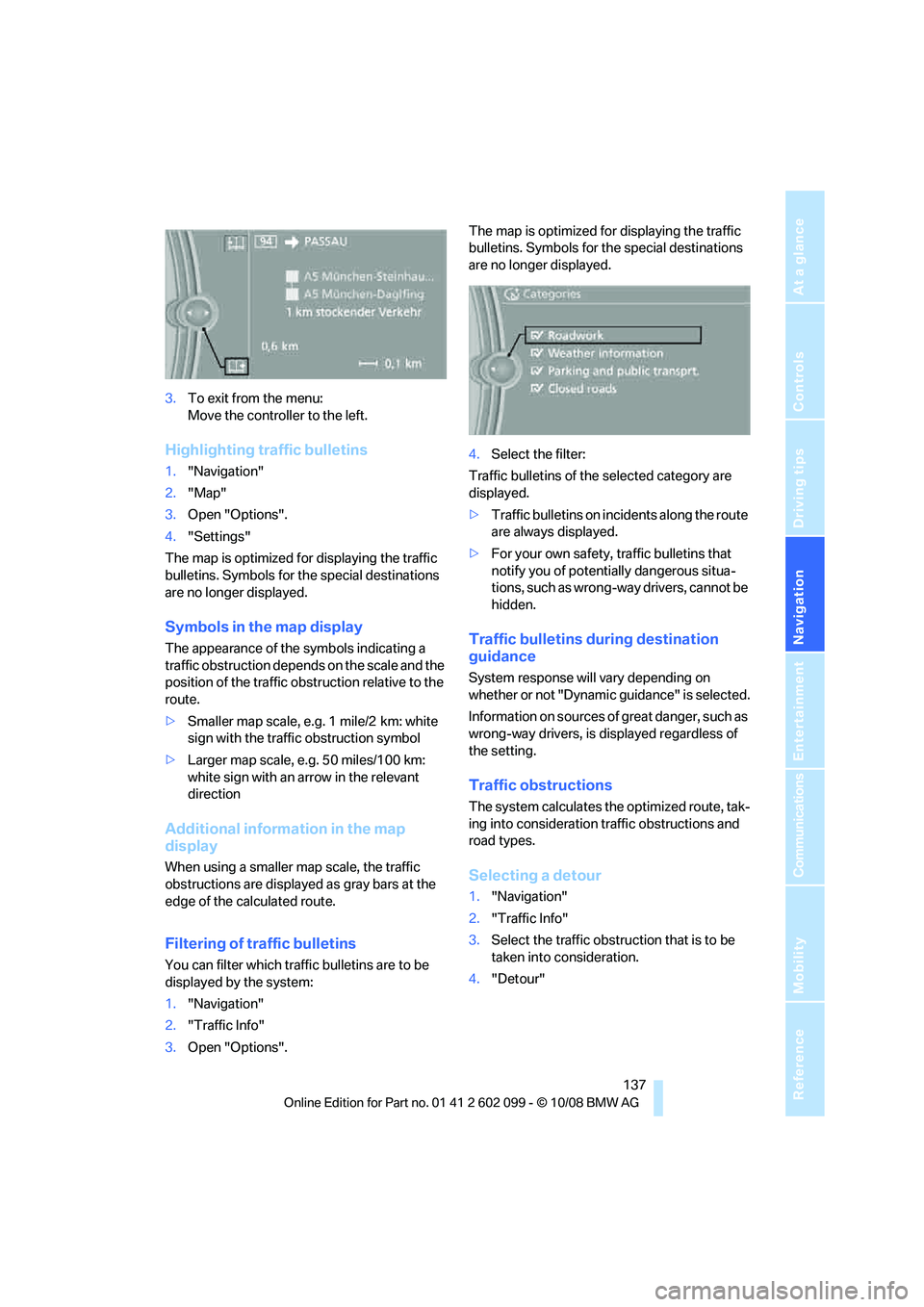
4. Select the filter:
Traffic bulletins of the selected category are
displayed.
> Traffic bulletins on incidents along the route
are always displayed.
> For your own safety, traffic bulletins that
notify you of potentially dangerous situa-
tions, such as wrong- way drivers, cannot be
hidden.
Traffic bulletins during destination
guidance
System response will vary depending on
whether or not "Dynamic guidance" is selected.
Information on sources of great danger, such as
wrong-way drivers, is displayed regardless of
the setting.
Traffic obstructions
The system calculates the optimized route, tak-
ing into consideration traffic obstructions and
road types.
Selecting a detour
1. "Navigation"
2. "Traffic Info"
3. Select the traffic obstruction that is to be
taken into consideration.
4. "Detour"
ba8_E9091_cic.book Seite 137 Mittwoch, 29. Oktober 2008 2:59 14