I drive BMW 328I 2011 E90 Owner's Manual
[x] Cancel search | Manufacturer: BMW, Model Year: 2011, Model line: 328I, Model: BMW 328I 2011 E90Pages: 286, PDF Size: 8.25 MB
Page 3 of 286
323i
328i
328i xDrive
335i
335i xDrive
M3
335dOwner's Manual for Vehicle
Congratulations, and thank you for choosing a BMW.
Thorough familiarity with your vehicle will provide you with
enhanced control and security when you drive it. We therefore
have this request:
Please take the time to read this Owner's Manual and familiarize
yourself with the information that we have compiled for you
before starting off in your new vehicle. It contains important data
and instructions intended to assist you in gaining maximum use
and satisfaction from your BMW's unique range of technical
features. The manual also contains information on maintenance
designed to enhance operating safety and contribute to main-
taining the value of your BMW throughout an extended service
life.
This manual is supplemented by a Service and Warranty
Information Booklet for US models or a Warranty and Service
Guide Booklet for Canadian models.
We wish you an enjoyable driving experience.
BMW Group
Page 5 of 286
Reference
At a glance
Controls
Driving tips
Communications
Navigation
Entertainment
Mobility
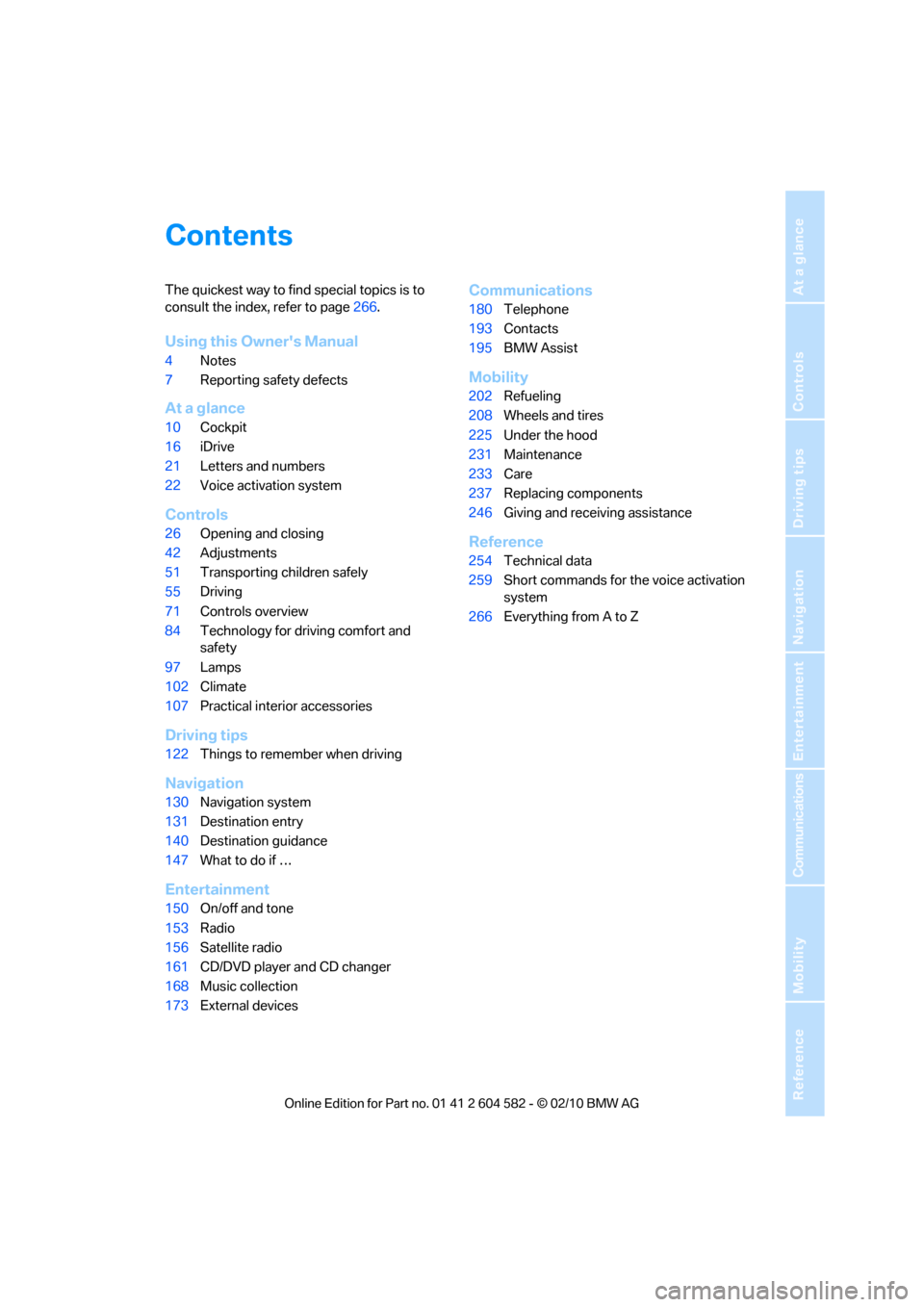
Contents
The quickest way to find special topics is to
consult the index, refer to page266.
Using this Owner's Manual
4Notes
7Reporting safety defects
At a glance
10Cockpit
16iDrive
21Letters and numbers
22Voice activation system
Controls
26Opening and closing
42Adjustments
51Transporting children safely
55Driving
71Controls overview
84Technology for driving comfort and
safety
97Lamps
102Climate
107Practical interior accessories
Driving tips
122Things to remember when driving
Navigation
130Navigation system
131Destination entry
140Destination guidance
147What to do if …
Entertainment
150On/off and tone
153Radio
156Satellite radio
161CD/DVD player and CD changer
168Music collection
173External devices
Communications
180Telephone
193Contacts
195BMW Assist
Mobility
202Refueling
208Wheels and tires
225Under the hood
231Maintenance
233Care
237Replacing components
246Giving and receiving assistance
Reference
254Technical data
259Short commands for the voice activation
system
266Everything from A to Z
Page 14 of 286
Cockpit
12
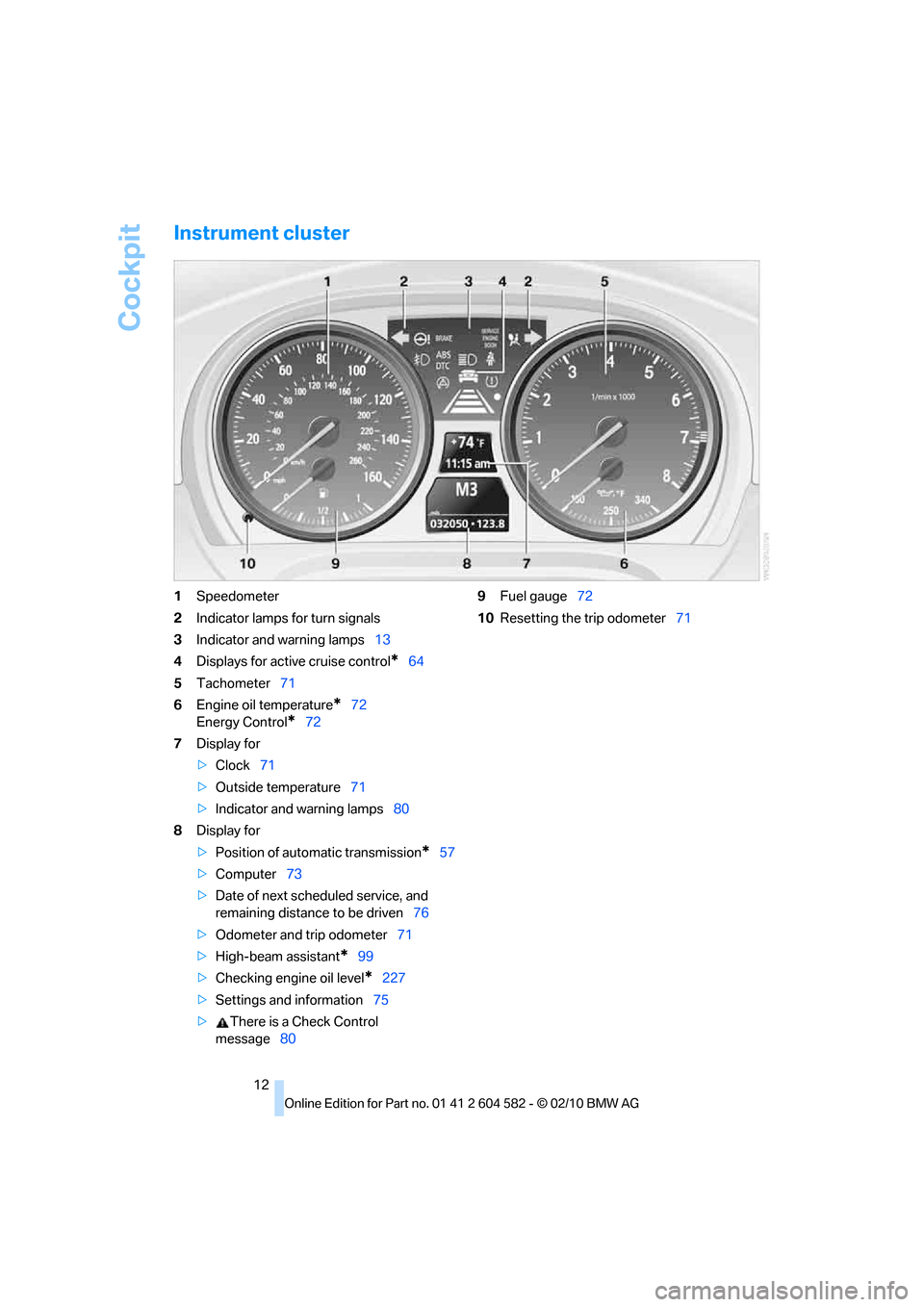
Instrument cluster
1Speedometer
2Indicator lamps for turn signals
3Indicator and warning lamps13
4Displays for active cruise control
*64
5Tachometer71
6Engine oil temperature
*72
Energy Control
*72
7Display for
>Clock71
>Outside temperature71
>Indicator and warning lamps80
8Display for
>Position of automatic transmission
*57
>Computer73
>Date of next scheduled service, and
remaining distance to be driven76
>Odometer and trip odometer71
>High-beam assistant
*99
>Checking engine oil level
*227
>Settings and information75
>There is a Check Control
message809Fuel gauge72
10Resetting the trip odometer71
Page 17 of 286
At a glance
15Reference
Controls
Driving tips
Communications
Navigation
Entertainment
Mobility
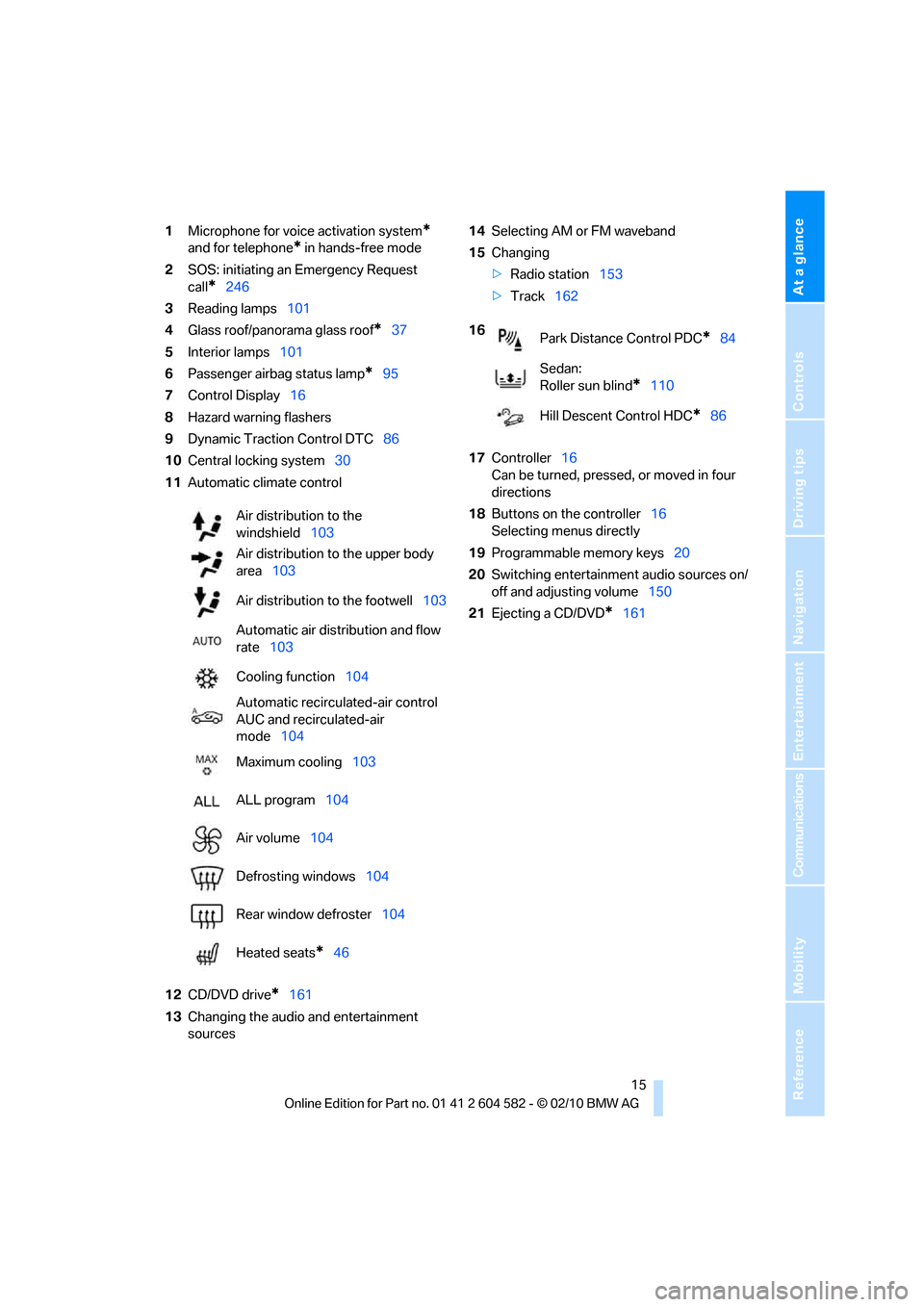
1Microphone for voice activation system*
and for telephone* in hands-free mode
2SOS: initiating an Emergency Request
call
*246
3Reading lamps101
4Glass roof/panorama glass roof
*37
5Interior lamps101
6Passenger airbag status lamp
*95
7Control Display16
8Hazard warning flashers
9Dynamic Traction Control DTC86
10Central locking system30
11Automatic climate control
12CD/DVD drive
*161
13Changing the audio and entertainment
sources14Selecting AM or FM waveband
15Changing
>Radio station153
>Track162
17Controller16
Can be turned, pressed, or moved in four
directions
18Buttons on the controller16
Selecting menus directly
19Programmable memory keys20
20Switching entertainment audio sources on/
off and adjusting volume150
21Ejecting a CD/DVD
*161 Air distribution to the
windshield103
Air distribution to the upper body
area103
Air distribution to the footwell103
Automatic air distribution and flow
rate103
Cooling function104
Automatic recirculated-air control
AUC and recirculated-air
mode104
Maximum cooling103
ALL program104
Air volume104
Defrosting windows104
Rear window defroster104
Heated seats
*46
16
Park Distance Control PDC*84
Sedan:
Roller sun blind
*110
Hill Descent Control HDC
*86
Page 18 of 286
iDrive
16
iDrive
iDrive integrates the functions of a large num-
ber of switches. This allows these functions to
be operated from a single central position. The
following section provides an introduction to basic menu navigation. The control of the indi-
vidual functions is described in connection with
the relevant equipment.
Controls
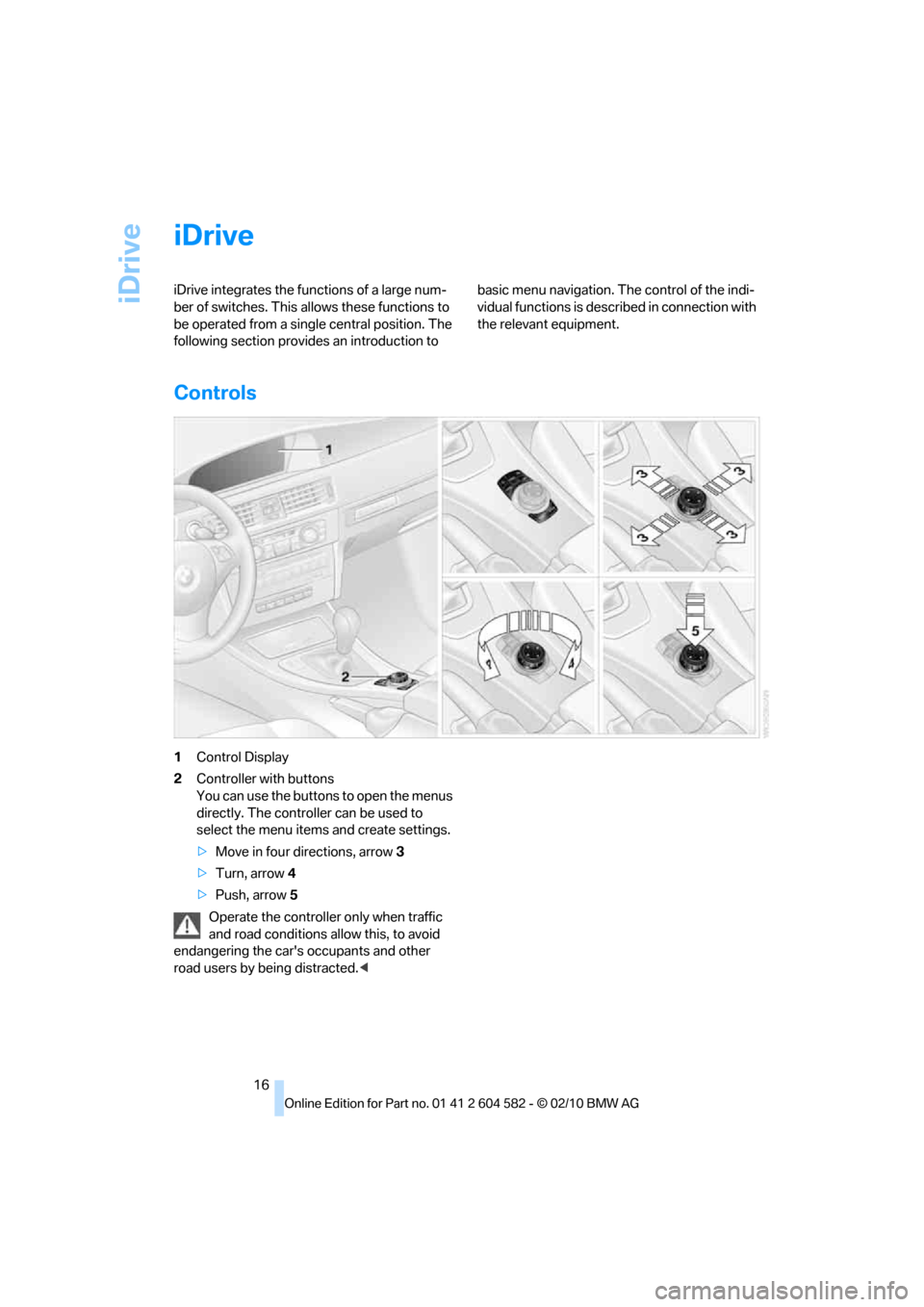
1Control Display
2Controller with buttons
You can use the buttons to open the menus
directly. The controller can be used to
select the menu items and create settings.
>Move in four directions, arrow3
>Turn, arrow 4
>Push, arrow 5
Operate the controller only when traffic
and road conditions allow this, to avoid
endangering the car's occupants and other
road users by being distracted.<
Page 19 of 286
At a glance
17Reference
Controls
Driving tips
Communications
Navigation
Entertainment
Mobility
Buttons on the controller
Operating principle
With the ignition at radio readiness or beyond,
refer to page55, the following message is dis-
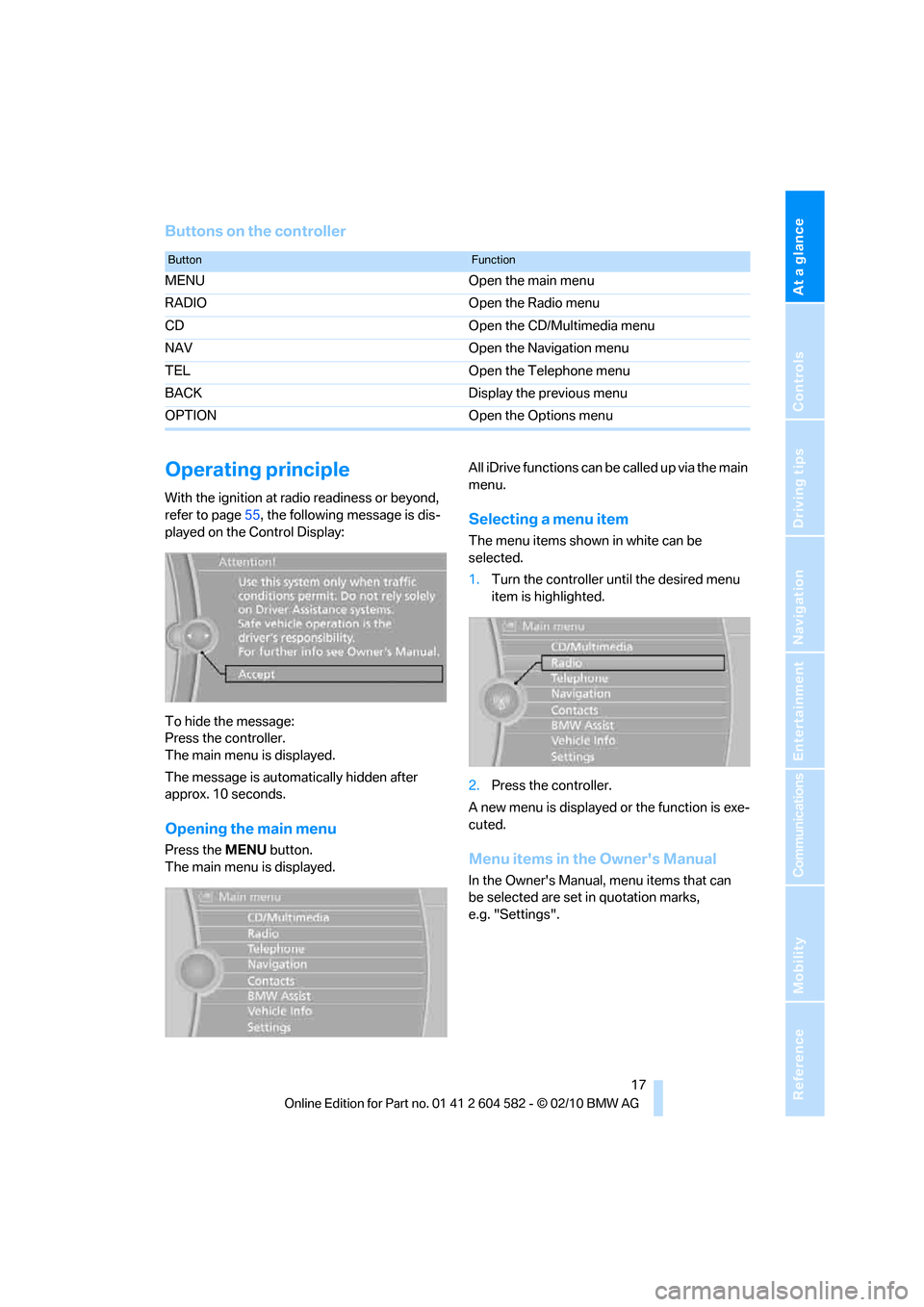
played on the Control Display:
To hide the message:
Press the controller.
The main menu is displayed.
The message is automatically hidden after
approx. 10 seconds.
Opening the main menu
Press the MENUbutton.
The main menu is displayed.All iDrive functions can be called up via the main
menu.
Selecting a menu item
The menu items shown in white can be
selected.
1.Turn the controller until the desired menu
item is highlighted.
2.Press the controller.
A new menu is displayed or the function is exe-
cuted.
Menu items in the Owner's Manual
In the Owner's Manual, menu items that can
be selected are set in quotation marks,
e.g. "Settings".
ButtonFunction
MENU Open the main menu
RADIO Open the Radio menu
CD Open the CD/Multimedia menu
NAV Open the Navigation menu
TEL Open the Telephone menu
BACK Display the previous menu
OPTION Open the Options menu
Page 20 of 286
iDrive
18
Changing between panels
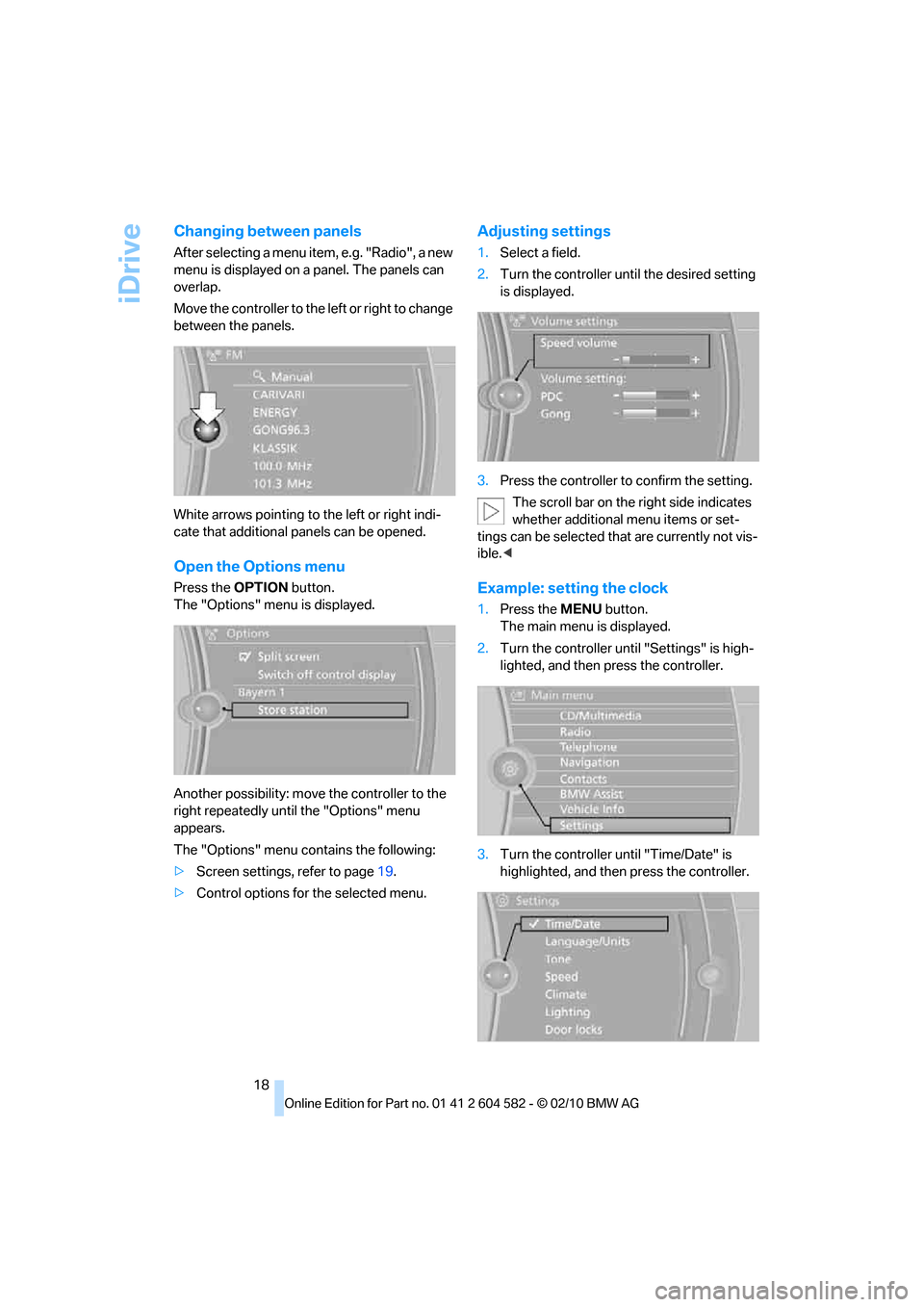
After selecting a menu item, e.g. "Radio", a new
menu is displayed on a panel. The panels can
overlap.
Move the controller to the left or right to change
between the panels.
White arrows pointing to the left or right indi-
cate that additional panels can be opened.
Open the Options menu
Press the OPTIONbutton.
The "Options" menu is displayed.
Another possibility: move the controller to the
right repeatedly until the "Options" menu
appears.
The "Options" menu contains the following:
>Screen settings, refer to page19.
>Control options for the selected menu.
Adjusting settings
1.Select a field.
2.Turn the controller until the desired setting
is displayed.
3.Press the controller to confirm the setting.
The scroll bar on the right side indicates
whether additional menu items or set-
tings can be selected that are currently not vis-
ible.<
Example: setting the clock
1.Press the MENUbutton.
The main menu is displayed.
2.Turn the controller until "Settings" is high-
lighted, and then press the controller.
3.Turn the controller until "Time/Date" is
highlighted, and then press the controller.
Page 22 of 286
iDrive
20
Selecting the display for the split
screen content
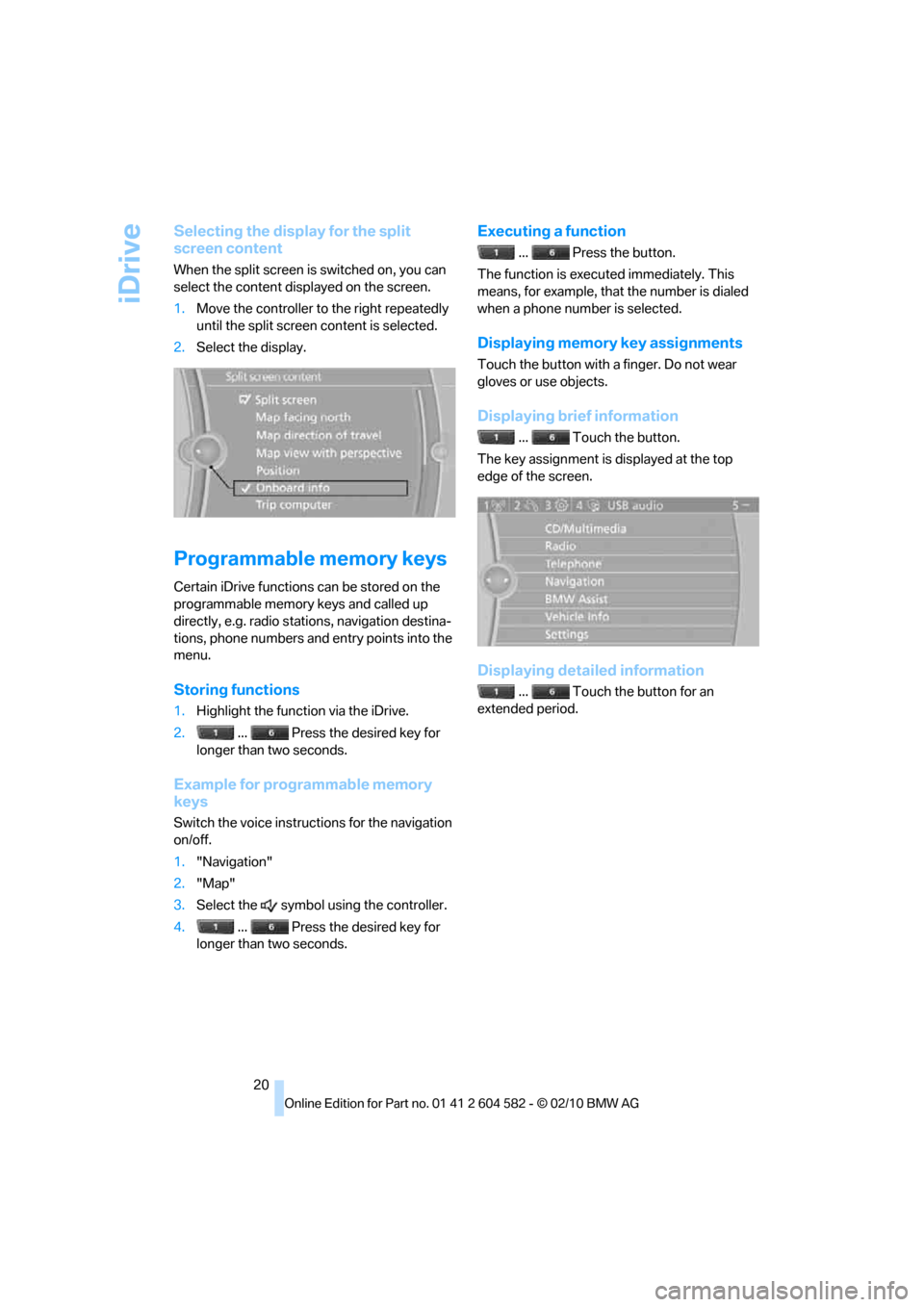
When the split screen is switched on, you can
select the content displayed on the screen.
1.Move the controller to the right repeatedly
until the split screen content is selected.
2.Select the display.
Programmable memory keys
Certain iDrive functions can be stored on the
programmable memory keys and called up
directly, e.g. radio stations, navigation destina-
tions, phone numbers and entry points into the
menu.
Storing functions
1.Highlight the function via the iDrive.
2. ... Press the desired key for
longer than two seconds.
Example for programmable memory
keys
Switch the voice instructions for the navigation
on/off.
1."Navigation"
2."Map"
3.Select the symbol using the controller.
4. ... Press the desired key for
longer than two seconds.
Executing a function
... Press the button.
The function is executed immediately. This
means, for example, that the number is dialed
when a phone number is selected.
Displaying memory key assignments
Touch the button with a finger. Do not wear
gloves or use objects.
Displaying brief information
... Touch the button.
The key assignment is displayed at the top
edge of the screen.
Displaying detailed information
... Touch the button for an
extended period.
Page 24 of 286
Voice activation system
22
Voice activation system
The concept
The voice activation system allows you to con-
trol operation of various vehicle systems with-
out removing your hands from the steering
wheel.
Most menu items on the Control Display can be
voiced as commands. It is not necessary to use
the controller.
The voice activation system transforms your
oral commands into control signals for the
selected systems and provides support in the
form of instructions or questions.
The voice activation system uses a special
microphone located in the area of the interior
rearview mirror, refer to page14.
Precondition
Via iDrive, select the language in which the
voice activation system is operating, so that the
spoken commands can be identified. Selecting
the language for iDrive, refer to page83.
Symbols in the Owner's Manual
Saying commands
Activating voice activation system
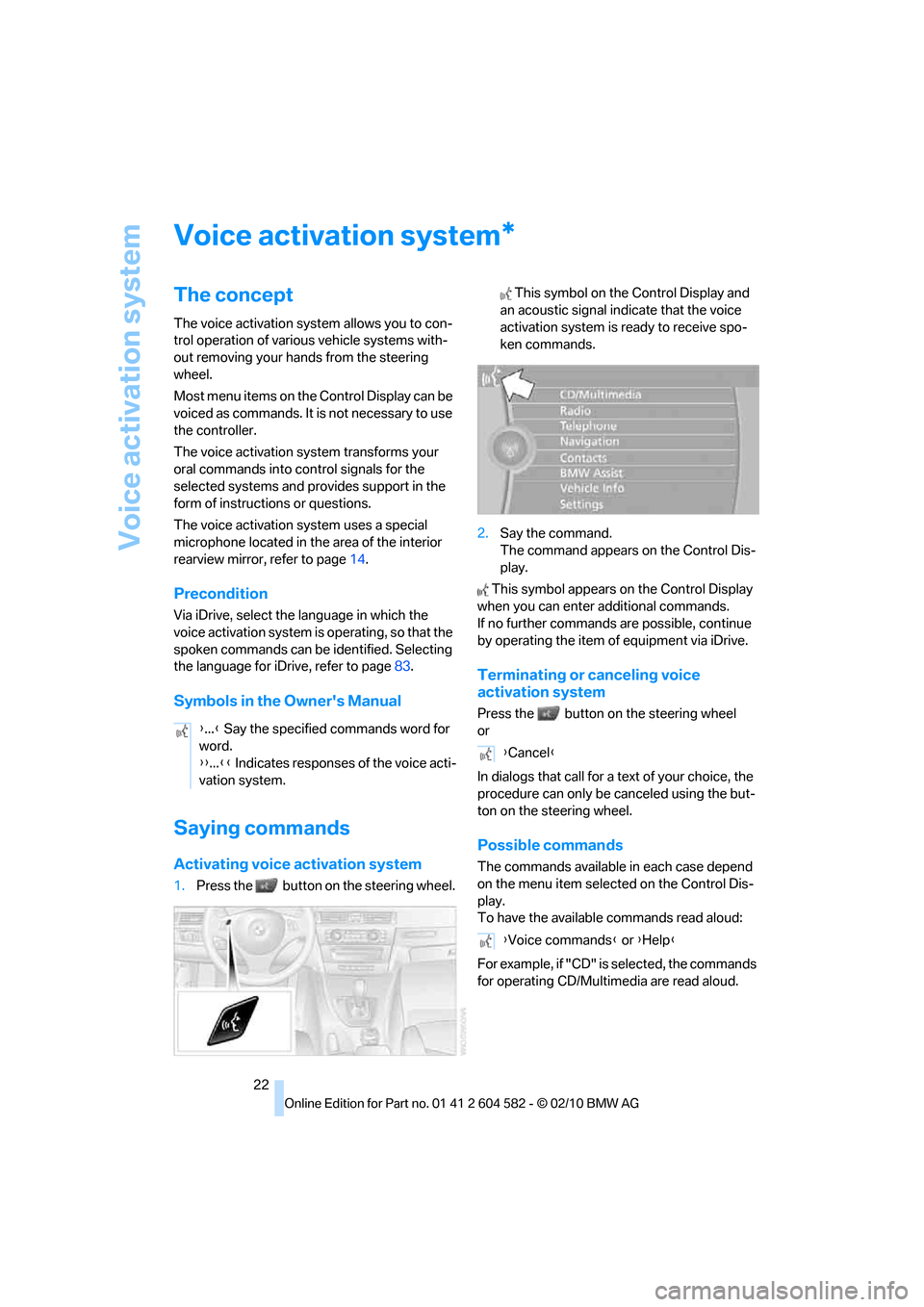
1.Press the button on the steering wheel. This symbol on the Control Display and
an acoustic signal indicate that the voice
activation system is ready to receive spo-
ken commands.
2.Say the command.
The command appears on the Control Dis-
play.
This symbol appears on the Control Display
when you can enter additional commands.
If no further commands are possible, continue
by operating the item of equipment via iDrive.
Terminating or canceling voice
activation system
Press the button on the steering wheel
or
In dialogs that call for a text of your choice, the
procedure can only be canceled using the but-
ton on the steering wheel.
Possible commands
The commands available in each case depend
on the menu item selected on the Control Dis-
play.
To have the available commands read aloud:
For example, if "CD" is selected, the commands
for operating CD/Multimedia are read aloud.
*
{...} Say the specified commands word for
word.
{{...}} Indicates responses of the voice acti-
vation system.
{Cancel}
{Voice commands} or {Help}
Page 28 of 286
Opening and closing
26
Opening and closing
Remote control
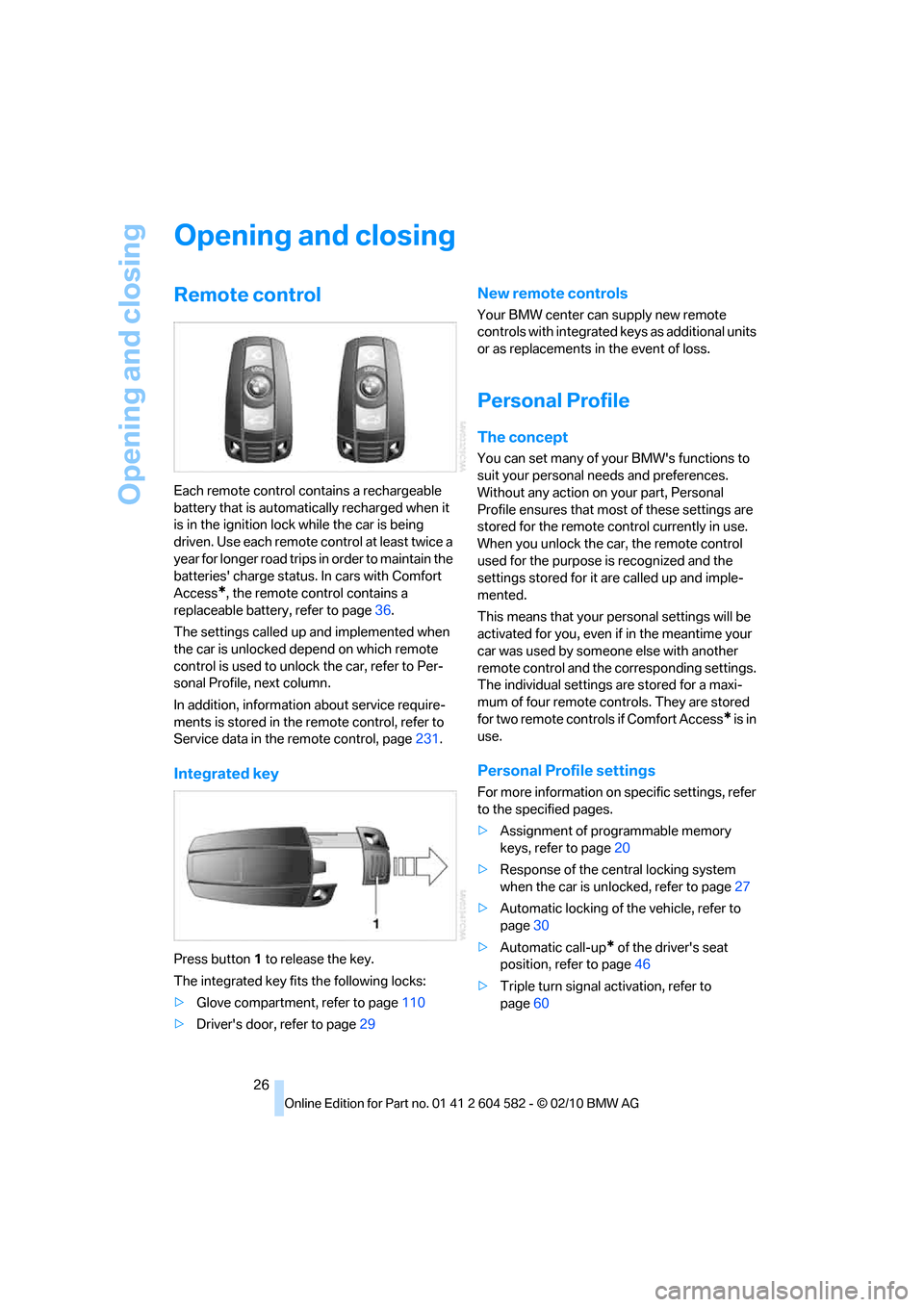
Each remote control contains a rechargeable
battery that is automatically recharged when it
is in the ignition lock while the car is being
driven. Use each remote control at least twice a
year for longer road trips in order to maintain the
batteries' charge status. In cars with Comfort
Access
*, the remote control contains a
replaceable battery, refer to page36.
The settings called up and implemented when
the car is unlocked depend on which remote
control is used to unlock the car, refer to Per-
sonal Profile, next column.
In addition, information about service require-
ments is stored in the remote control, refer to
Service data in the remote control, page231.
Integrated key
Press button1 to release the key.
The integrated key fits the following locks:
>Glove compartment, refer to page110
>Driver's door, refer to page29
New remote controls
Your BMW center can supply new remote
controls with integrated keys as additional units
or as replacements in the event of loss.
Personal Profile
The concept
You can set many of your BMW's functions to
suit your personal needs and preferences.
Without any action on your part, Personal
Profile ensures that most of these settings are
stored for the remote control currently in use.
When you unlock the car, the remote control
used for the purpose is recognized and the
settings stored for it are called up and imple-
mented.
This means that your personal settings will be
activated for you, even if in the meantime your
car was used by someone else with another
remote control and the corresponding settings.
The individual settings are stored for a maxi-
mum of four remote controls. They are stored
for two remote controls if Comfort Access
* is in
use.
Personal Profile settings
For more information on specific settings, refer
to the specified pages.
>Assignment of programmable memory
keys, refer to page20
>Response of the central locking system
when the car is unlocked, refer to page27
>Automatic locking of the vehicle, refer to
page30
>Automatic call-up
* of the driver's seat
position, refer to page46
>Triple turn signal activation, refer to
page60