change time BMW 328I 2012 User Guide
[x] Cancel search | Manufacturer: BMW, Model Year: 2012, Model line: 328I, Model: BMW 328I 2012Pages: 268, PDF Size: 8.8 MB
Page 106 of 268
Climate
104
Via the button* on the steering wheel
You can switch quickly between the recircu-
lated-air mode and the previous mode using an
individually programmable button
on the steer-
ing wheel, refer to page11.
Residual heat
The heat stored in the engine is
used to heat the passenger com-
partment, e.g. while stopped at a
school to pick up a child.
The function can be switched on when the fol-
lowing conditions are met:
>Up to 15 minutes after the engine has been
switched off
>While the engine is at operating tempera-
ture
>As long as battery voltage is sufficient
>At an outside temperature below 777/
256
The LED is lit when the function is on.
As of radio readiness, you can set the interior
temperature, the air flow rate and the air distri-
bution.
Defrosting windows and removing
condensation
Quickly removes ice and conden-
sation from the windshield and
front side windows.
Switching cooling function on/off
The cooling function cools and
dehumidifies the incoming air
before also reheating it as
required, according to the temperature setting.
Depending on the weather, the windshield may
fog over briefly when the engine is started.
The cooling function is automatically switched
on along with the AUTO program. The passen-
ger compartment can only be cooled while the
engine is running.
Rear window defroster
The defroster switches off auto-
matically after a certain time.
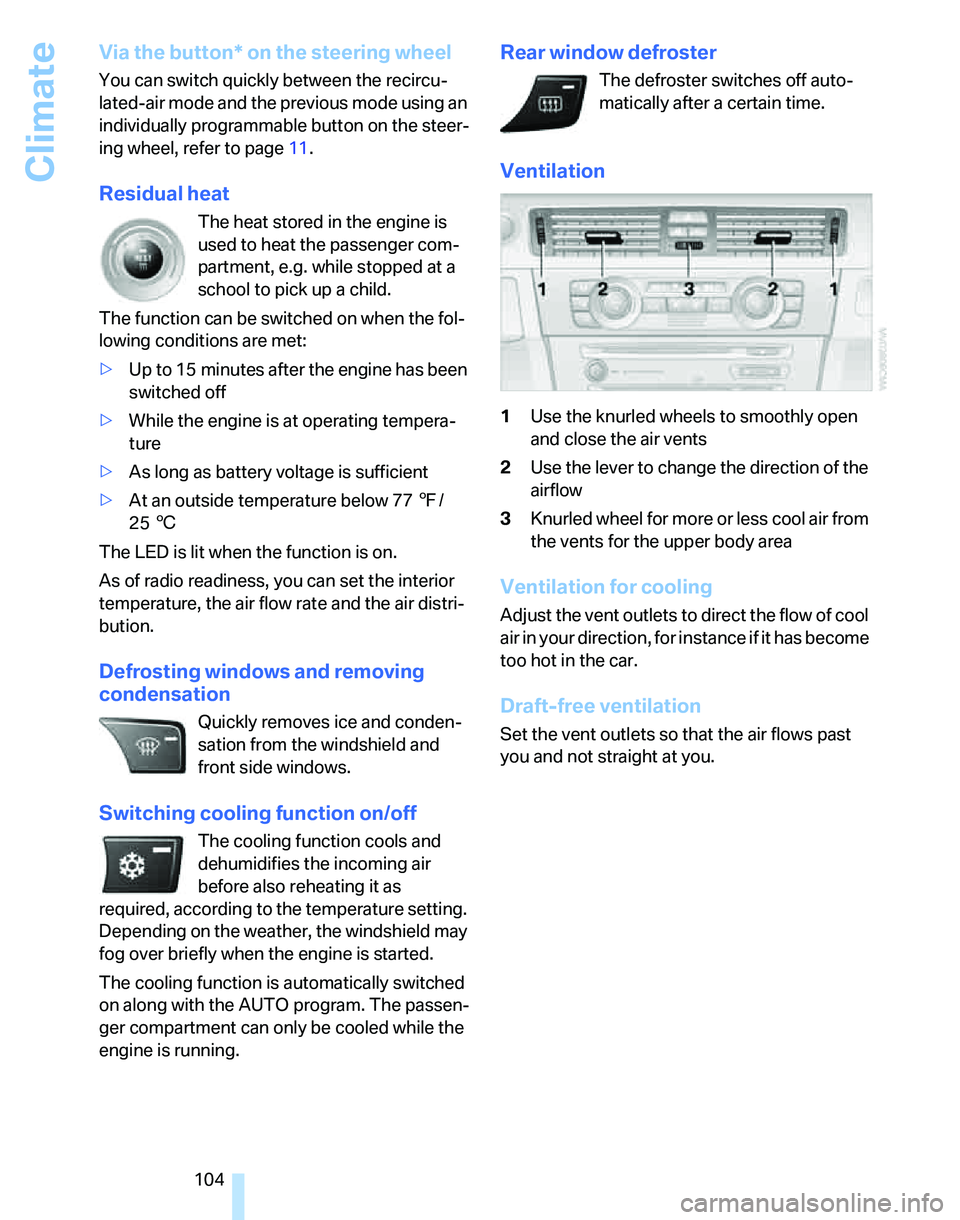
Ventilation
1Use the knurled wheels to smoothly open
and close the air vents
2Use the lever to change the direction of the
airflow
3Knurled wheel for more or less cool air from
the vents for the upper body area
Ventilation for cooling
Adjust the vent outlets to direct the flow of cool
air in your direction, for instance if it has become
too hot in the car.
Draft-free ventilation
Set the vent outlets so that the air flows past
you and not straight at you.
Page 107 of 268
Controls
105Reference
At a glance
Driving tips
Communications
Navigation
Entertainment
Mobility
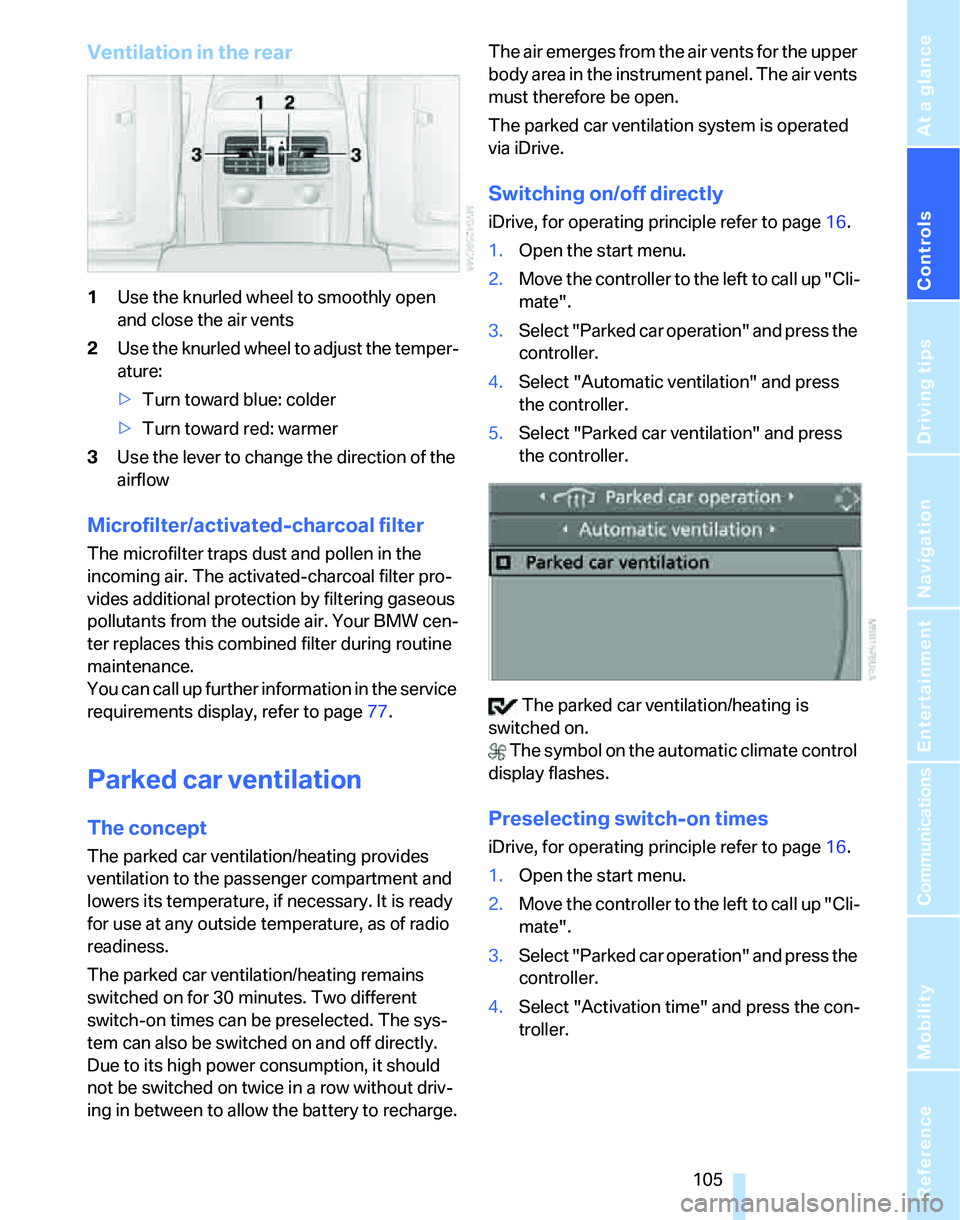
Ventilation in the rear
1Use the knurled wheel to smoothly open
and close the air vents
2Use the knurled wheel to adjust the temper-
ature:
>Turn toward blue: colder
>Turn toward red: warmer
3Use the lever to change the direction of the
airflow
Microfilter/activated-charcoal filter
The microfilter traps dust and pollen in the
incoming air. The activated-charcoal filter pro-
vides additional protection by filtering gaseous
pollutants from the outside air. Your BMW cen-
ter replaces this combined filter during routine
maintenance.
You can call up further information in the service
requirements display, refer to page77.
Parked car ventilation
The concept
The parked car ventilation/heating provides
ventilation to the passenger compartment and
lowers its temperature, if necessary. It is ready
for use at any outside temperature, as of radio
readiness.
The parked car ventilation/heating remains
switched on for 30 minutes. Two different
switch-on times can be preselected. The sys-
tem can also be switched on and off directly.
Due to its high power consumption, it should
not be switched on twice in a row without driv-
ing in between to allow the battery to recharge.The air emerges from the air vents for the upper
body area in the instrument panel. The air vents
must therefore be open.
The parked car ventilation system is operated
via iDrive.
Switching on/off directly
iDrive, for operating principle refer to page16.
1.Open the start menu.
2.Move the controller to the left to call up "Cli-
mate".
3.Select "Parked car operation" and press the
controller.
4.Select "Automatic ventilation" and press
the controller.
5.Select "Parked car ventilation" and press
the controller.
The parked car ventilation/heating is
switched on.
The symbol on the automatic climate control
display flashes.
Preselecting switch-on times
iDrive, for operating principle refer to page16.
1.Open the start menu.
2.Move the controller to the left to call up "Cli-
mate".
3.Select "Parked car operation" and press the
controller.
4.Select "Activation time" and press the con-
troller.
Page 145 of 268
Navigation
Driving tips
143Reference
At a glance
Controls
Communications
Entertainment
Mobility
Destination guidance
Starting destination
guidance
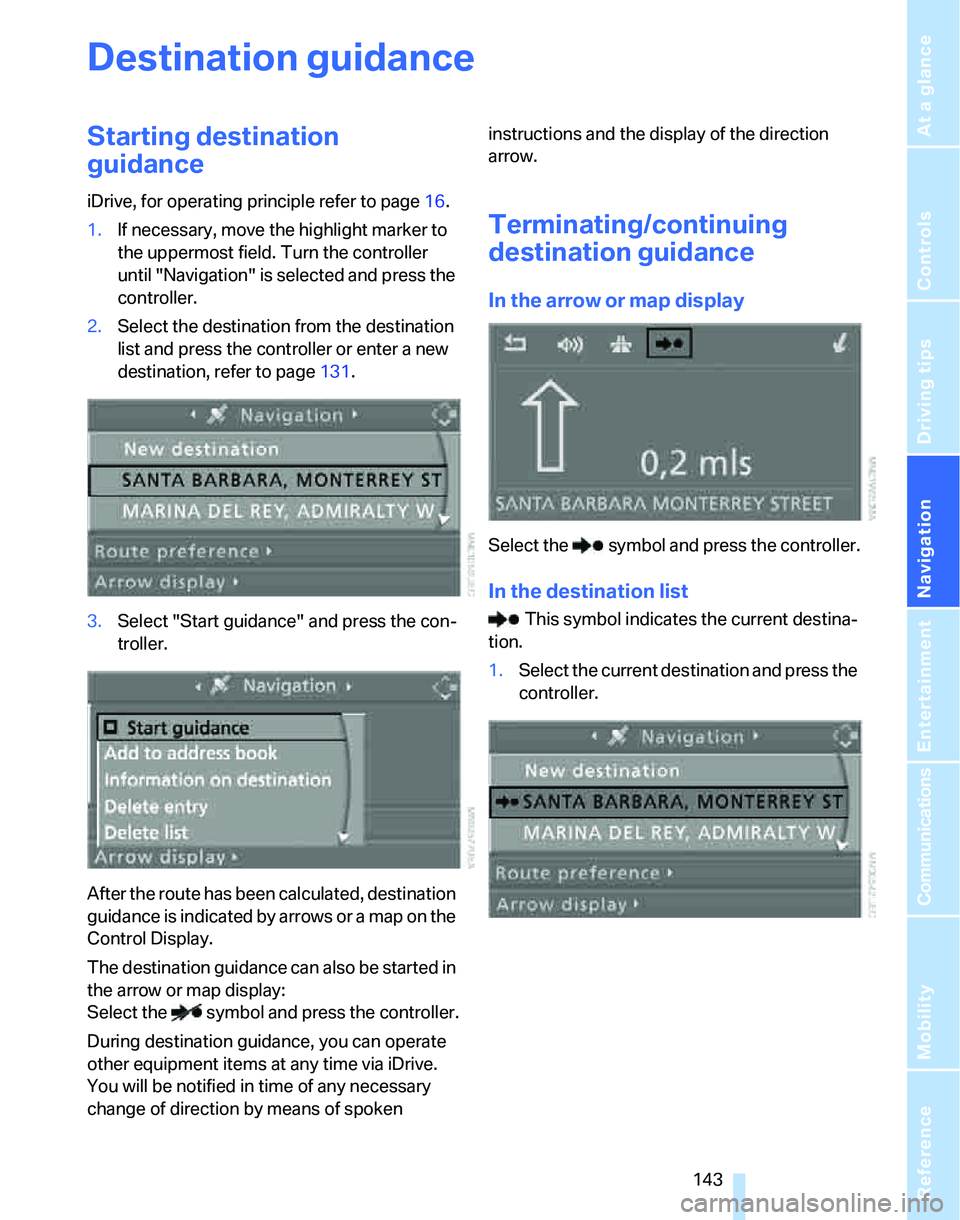
iDrive, for operating principle refer to page16.
1.If necessary, move the highlight marker to
the uppermost field. Turn the controller
until "Navigation" is selected and press the
controller.
2.Select the destination from the destination
list and press the controller or enter a new
destination, refer to page131.
3.Select "Start guidance" and press the con-
troller.
After the route has been calculated, destination
guidance is indicated by arrows or a map on the
Control Display.
The destination guidance can also be started in
the arrow or map display:
Select the symbol and press the controller.
During destination guidance, you can operate
other equipment items at any time via iDrive.
You will be notified in time of any necessary
change of direction by means of spoken instructions and the display of the direction
arrow.
Terminating/continuing
destination guidance
In the arrow or map display
Select the symbol and press the controller.
In the destination list
This symbol indicates the current destina-
tion.
1.Select the current destination and press the
controller.
Page 146 of 268
Destination guidance
144 2.Select "Start guidance" and press the con-
troller.
If you did not reach the destination before the
end of the last journey, the following question
will appear in the display at the start of the next
journey:
"Continue guidance to destination?".
The destination guidance starts automatically
after a short time.
To start destination guidance immediately:
Select "Yes" and press the controller.
Route display
You have the option of displaying various views
of the route during destination guidance.
From another menu, you can switch
directly to the screen last displayed, refer
to Convenient call-up of menu items on
page18.<
Displaying arrow view
1.Select "Navigation" and press the control-
ler.
2.Move the highlight marker to the fourth field
from the top. Turn the controller until "Arrow display" is selected and press the
controller.
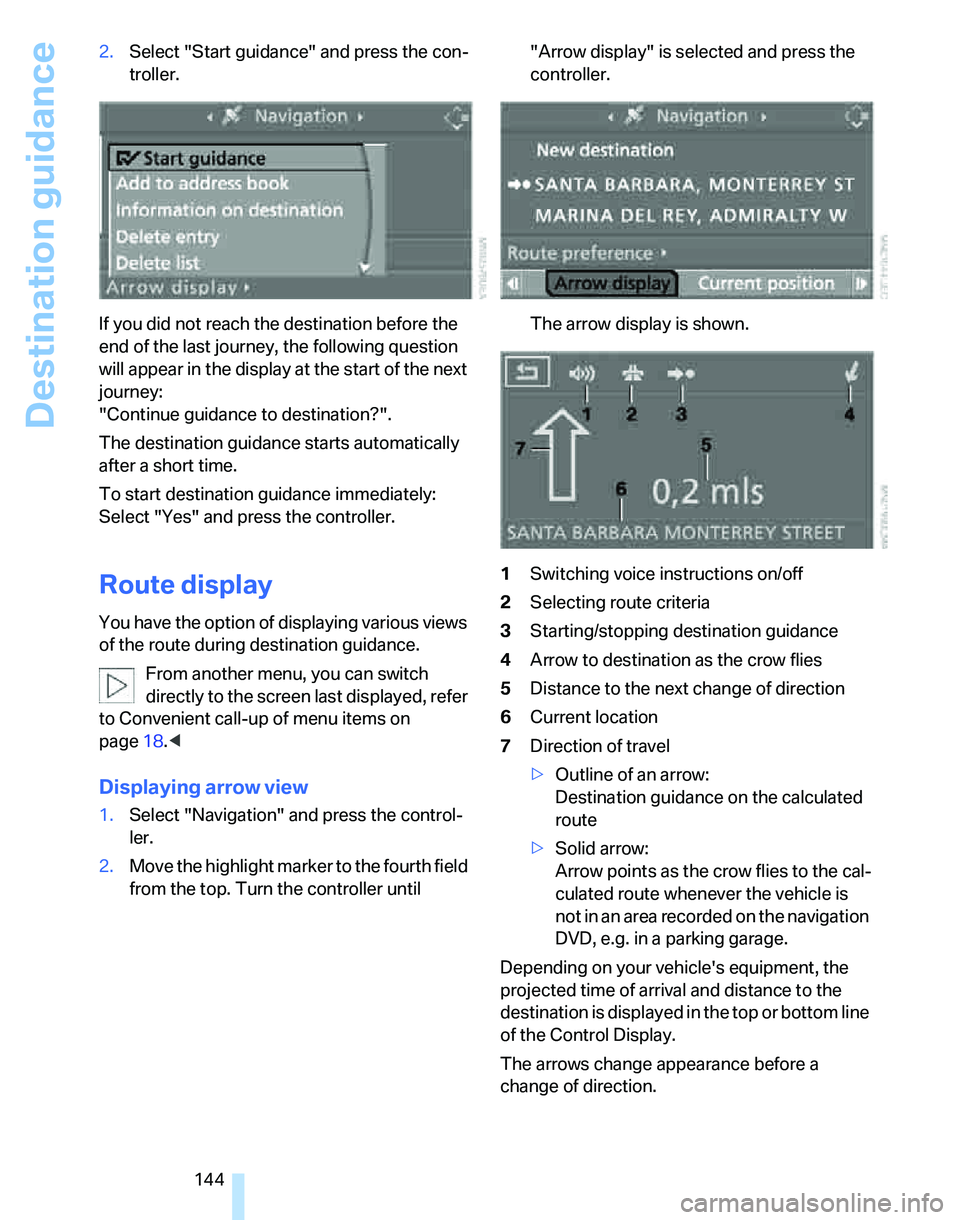
The arrow display is shown.
1Switching voice instructions on/off
2Selecting route criteria
3Starting/stopping destination guidance
4Arrow to destination as the crow flies
5Distance to the next change of direction
6Current location
7Direction of travel
>Outline of an arrow:
Destination guidance on the calculated
route
>Solid arrow:
Arrow points as the crow flies to the cal-
culated route whenever the vehicle is
not in an area recorded on the navigation
DVD, e.g. in a parking garage.
Depending on your vehicle's equipment, the
projected time of arrival and distance to the
destination is displayed in the top or bottom line
of the Control Display.
The arrows change appearance before a
change of direction.
Page 147 of 268
Navigation
Driving tips
145Reference
At a glance
Controls
Communications
Entertainment
Mobility
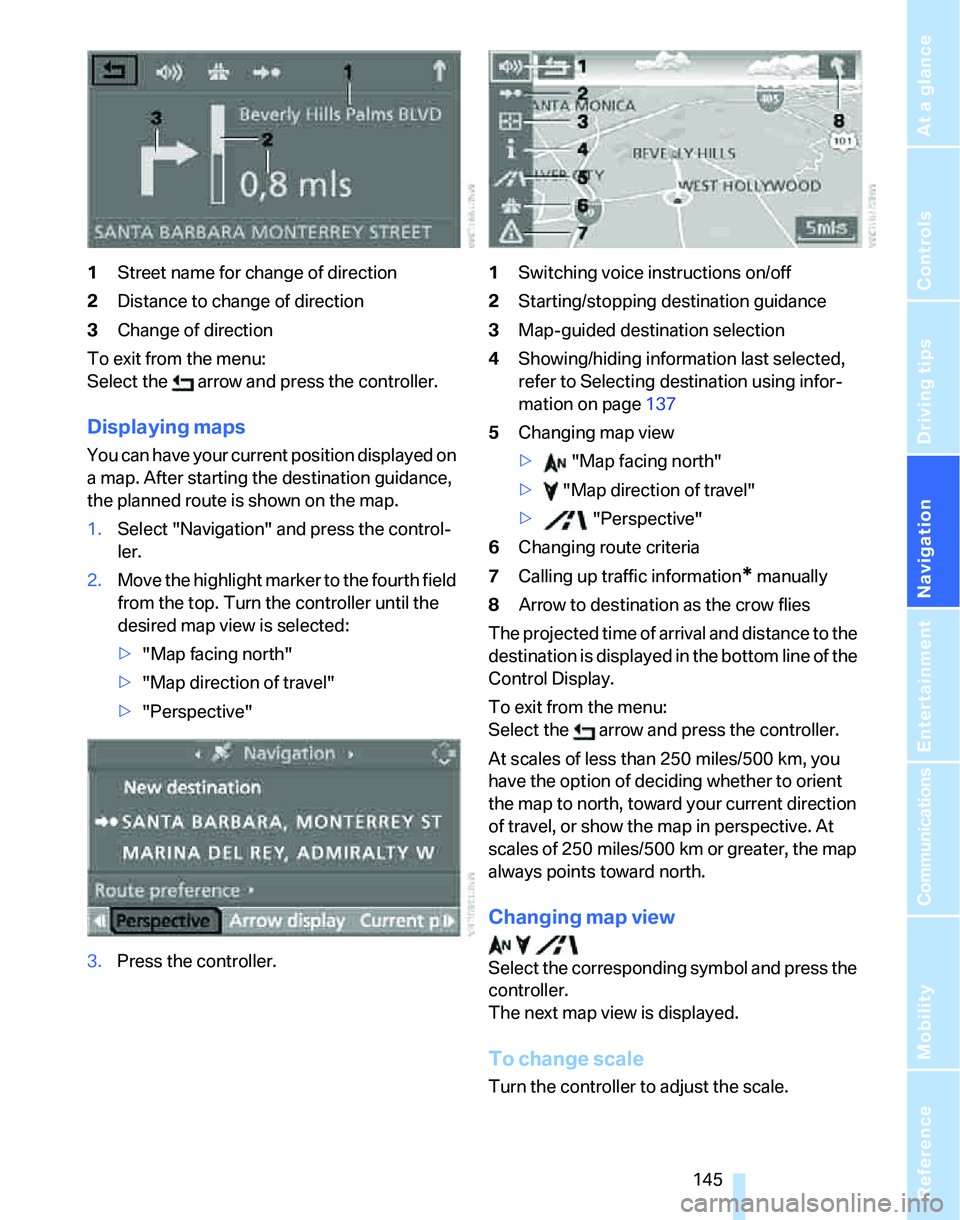
1Street name for change of direction
2Distance to change of direction
3Change of direction
To exit from the menu:
Select the arrow and press the controller.
Displaying maps
You can have your current position displayed on
a map. After starting the destination guidance,
the planned route is shown on the map.
1.Select "Navigation" and press the control-
ler.
2.Move the highlight marker to the fourth field
from the top. Turn the controller until the
desired map view is selected:
>"Map facing north"
>"Map direction of travel"
>"Perspective"
3.Press the controller.1Switching voice instructions on/off
2Starting/stopping destination guidance
3Map-guided destination selection
4Showing/hiding information last selected,
refer to Selecting destination using infor-
mation on page137
5Changing map view
> "Map facing north"
> "Map direction of travel"
> "Perspective"
6Changing route criteria
7Calling up traffic information
* manually
8Arrow to destination as the crow flies
The projected time of arrival and distance to the
destination is displayed in the bottom line of the
Control Display.
To exit from the menu:
Select the arrow and press the controller.
At scales of less than 250 miles/500 km, you
have the option of deciding whether to orient
the map to north, toward your current direction
of travel, or show the map in perspective. At
scales of 250 miles/500 km or greater, the map
always points toward north.
Changing map view
Select the corresponding symbol and press the
controller.
The next map view is displayed.
To change scale
Turn the controller to adjust the scale.
Page 181 of 268
179
Entertainment
Reference
At a glance
Controls
Driving tips Communications
Navigation
Mobility
refer to your mobile phone's operating instruc-
tions, if necessary.
Up to four mobile phones can be paired, one
after the other. If a fifth mobile phone is paired,
the pairing data for the last mobile phone on the
list is deleted, refer also to the information
below.
List of paired mobile phones
All mobile phones with pairing data stored by
the vehicle can be displayed. If several mobile
phones are detected by the vehicle at the same
time, the mobile phone at the top of the list can
be operated via the vehicle.
You can change the order of the mobile phones
on the list. As long as a mobile phone from this
list is selected, you cannot operate the mobile
phones via the vehicle.
iDrive, for operating principle refer to page16.
1.Press the
button to call up the start
menu.
2.Call up the menu by pressing the control-
ler.
3.Select "Settings" and press the controller.
4.Select "Bluetooth" and press the controller.
5.If necessary, move the highlight marker to
the uppermost field. Turn the controller
until "Bluetooth" is selected and press the
controller.
6.Select "Phone" and press the controller.
7.Select the desired mobile phone and press
the controller.
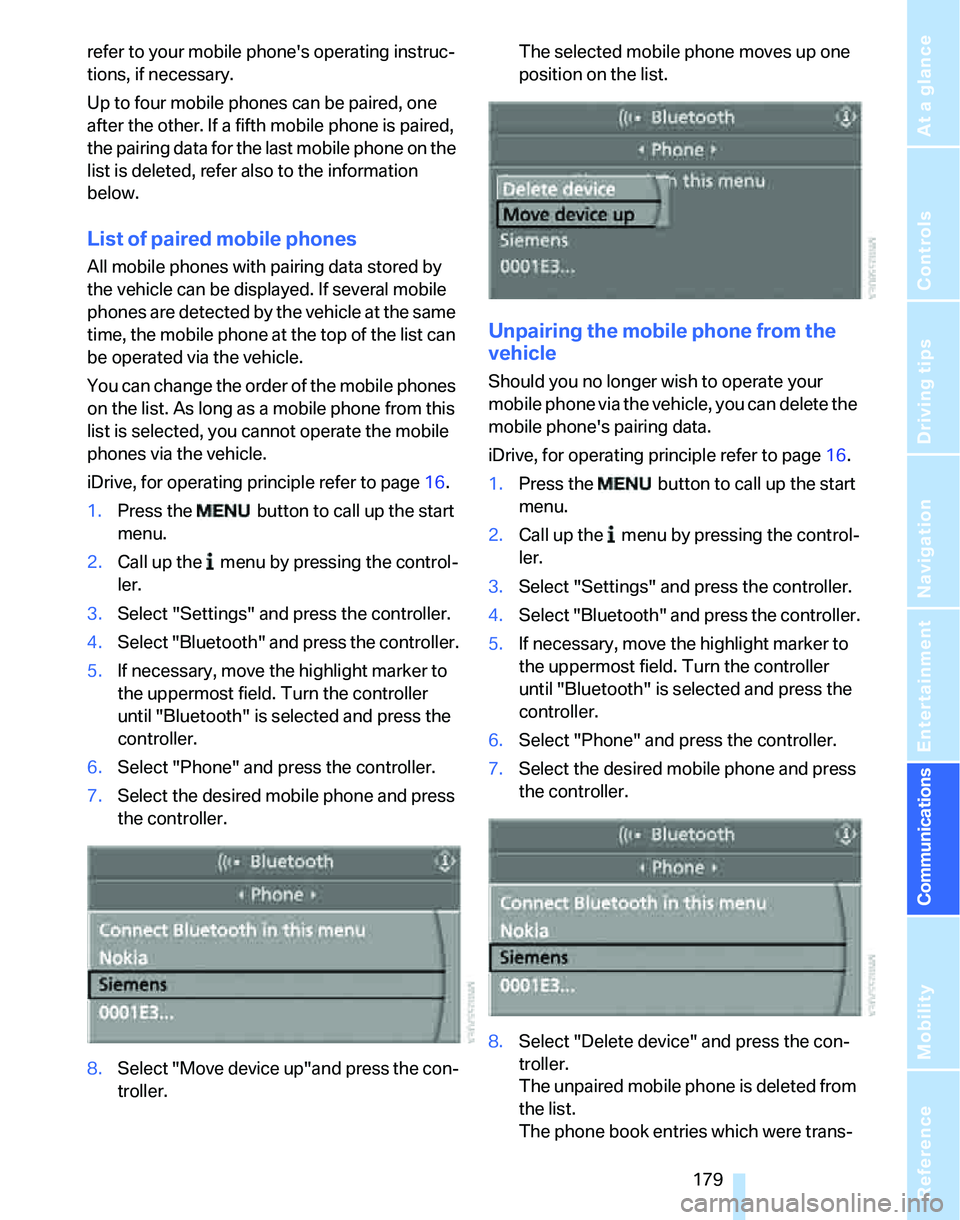
8.Select "Move device up"and press the con-
troller.The selected mobile phone moves up one
position on the list.
Unpairing the mobile phone from the
vehicle
Should you no longer wish to operate your
mobile phone via the vehicle, you can delete the
mobile phone's pairing data.
iDrive, for operating principle refer to page16.
1.Press the button to call up the start
menu.
2.Call up the menu by pressing the control-
ler.
3.Select "Settings" and press the controller.
4.Select "Bluetooth" and press the controller.
5.If necessary, move the highlight marker to
the uppermost field. Turn the controller
until "Bluetooth" is selected and press the
controller.
6.Select "Phone" and press the controller.
7.Select the desired mobile phone and press
the controller.
8.Select "Delete device" and press the con-
troller.
The unpaired mobile phone is deleted from
the list.
The phone book entries which were trans-
Page 224 of 268
Replacing components
222
Sports Wagon: changing rear wiper
blade
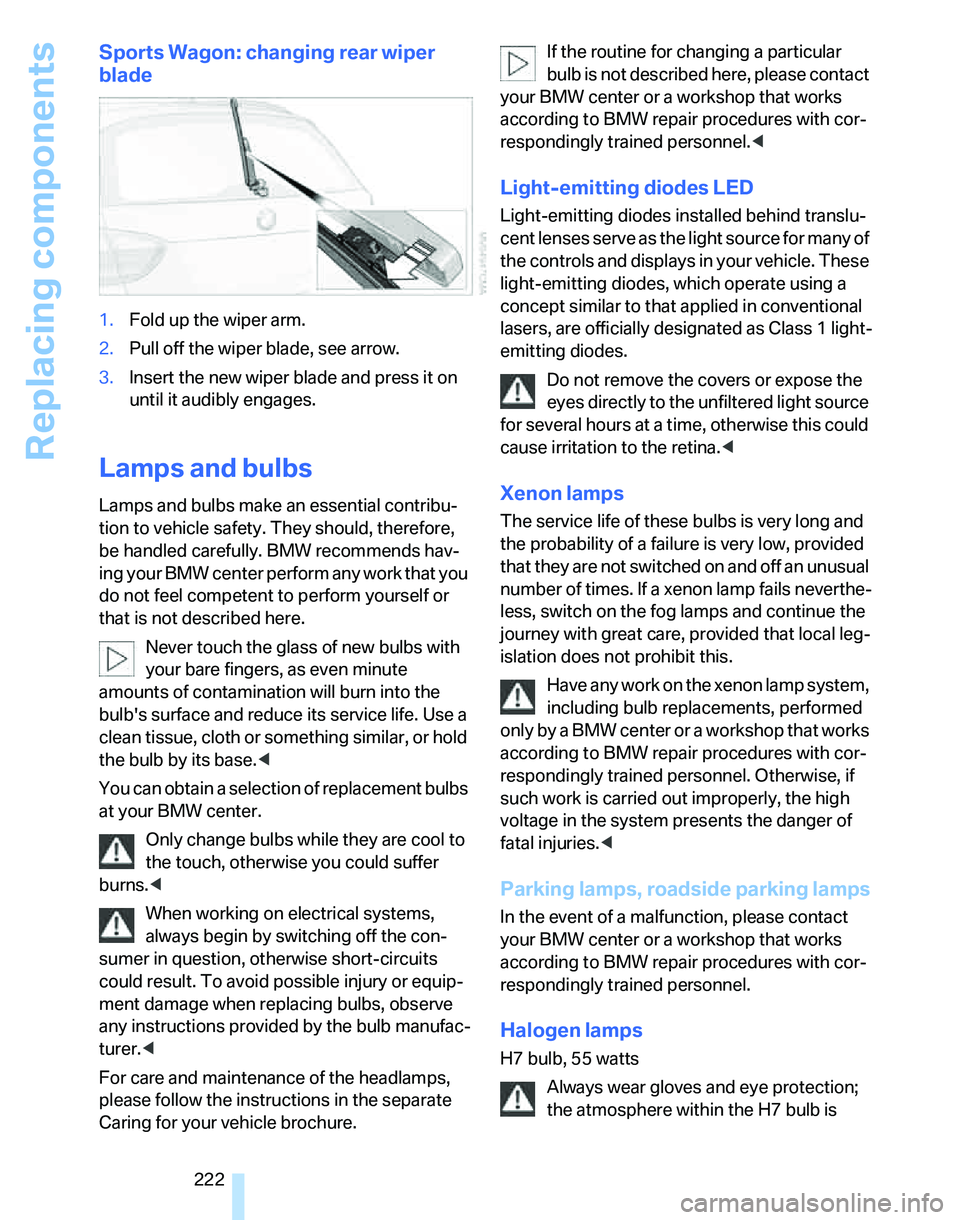
1.Fold up the wiper arm.
2.Pull off the wiper blade, see arrow.
3.Insert the new wiper blade and press it on
until it audibly engages.
Lamps and bulbs
Lamps and bulbs make an essential contribu-
tion to vehicle safety. They should, therefore,
be handled carefully. BMW recommends hav-
ing your BMW center perform any work that you
do not feel competent to perform yourself or
that is not described here.
Never touch the glass of new bulbs with
your bare fingers, as even minute
amounts of contamination will burn into the
bulb's surface and reduce its service life. Use a
clean tissue, cloth or something similar, or hold
the bulb by its base.<
You can obtain a selection of replacement bulbs
at your BMW center.
Only change bulbs while they are cool to
the touch, otherwise you could suffer
burns.<
When working on electrical systems,
always begin by switching off the con-
sumer in question, otherwise short-circuits
could result. To avoid possible injury or equip-
ment damage when replacing bulbs, observe
any instructions provided by the bulb manufac-
turer.<
For care and maintenance of the headlamps,
please follow the instructions in the separate
Caring for your vehicle brochure.If the routine for changing a particular
bulb is not described here, please contact
your BMW center or a workshop that works
according to BMW repair procedures with cor-
respondingly trained personnel.<
Light-emitting diodes LED
Light-emitting diodes installed behind translu-
cent lenses serve as the light source for many of
the controls and displays in your vehicle. These
light-emitting diodes, which operate using a
concept similar to that applied in conventional
lasers, are officially designated as Class 1 light-
emitting diodes.
Do not remove the covers or expose the
eyes directly to the unfiltered light source
for several hours at a time, otherwise this could
cause irritation to the retina.<
Xenon lamps
The service life of these bulbs is very long and
the probability of a failure is very low, provided
that they are not switched on and off an unusual
number of times. If a xenon lamp fails neverthe-
less, switch on the fog lamps and continue the
journey with great care, provided that local leg-
islation does not prohibit this.
Have any work on the xenon lamp system,
including bulb replacements, performed
o nl y b y a BM W c e n t er o r a w o r k s h o p t h a t w o rk s
according to BMW repair procedures with cor-
respondingly trained personnel. Otherwise, if
such work is carried out improperly, the high
voltage in the system presents the danger of
fatal injuries.<
Parking lamps, roadside parking lamps
In the event of a malfunction, please contact
your BMW center or a workshop that works
according to BMW repair procedures with cor-
respondingly trained personnel.
Halogen lamps
H7 bulb, 55 watts
Always wear gloves and eye protection;
the atmosphere within the H7 bulb is
Page 229 of 268
Mobility
227Reference
At a glance
Controls
Driving tips
Communications
Navigation
Entertainment
Changing wheels
Your BMW is equipped with Run-Flat Tires as
standard. This removes the need to change a
wheel immediately in the event of a puncture.
For information on continuing to drive with a
damaged tire, refer to Indication of a flat tire on
page91.
The symbol identifying Run-Flat Tires is a circle
with the letters RSC on the sidewall, refer to
Run-Flat Tires, page212.
When mounting new tires or changing over
from summer to winter tires and vice versa,
mount Run-Flat Tires for your own safety. In the
event of a flat, no spare wheel is available. Your
BMW center will be glad to advise you. Refer
also to New wheels and tires, page212.
The tools for changing wheels are avail-
able as optional accessories from your
BMW center.<
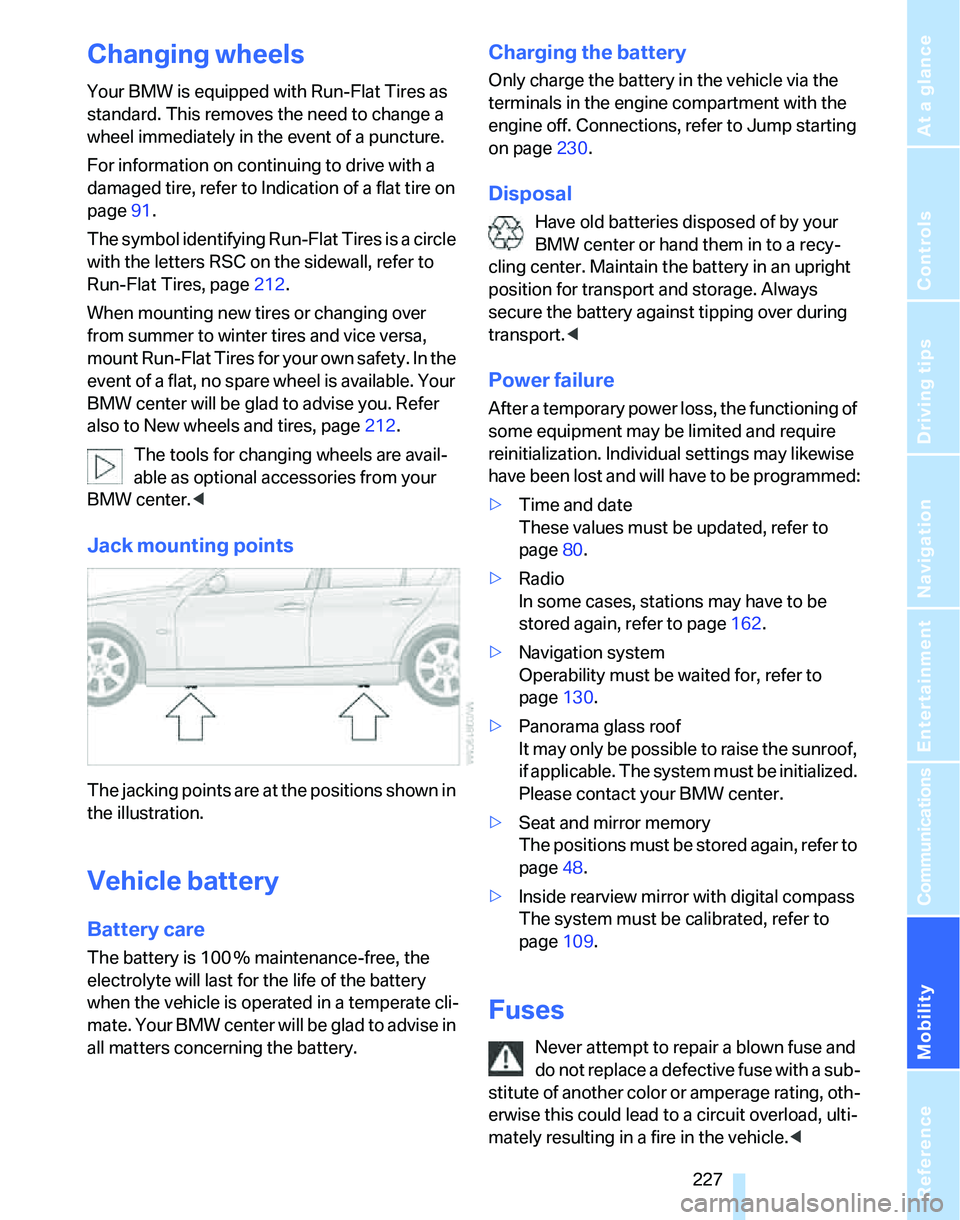
Jack mounting points
The jacking points are at the positions shown in
the illustration.
Vehicle battery
Battery care
The battery is 100 % maintenance-free, the
electrolyte will last for the life of the battery
when the vehicle is operated in a temperate cli-
mate. Your BMW center will be glad to advise in
all matters concerning the battery.
Charging the battery
Only charge the battery in the vehicle via the
terminals in the engine compartment with the
engine off. Connections, refer to Jump starting
on page230.
Disposal
Have old batteries disposed of by your
BMW center or hand them in to a recy-
cling center. Maintain the battery in an upright
position for transport and storage. Always
secure the battery against tipping over during
transport.<
Power failure
After a temporary power loss, the functioning of
some equipment may be limited and require
reinitialization. Individual settings may likewise
have been lost and will have to be programmed:
>Time and date
These values must be updated, refer to
page80.
>Radio
In some cases, stations may have to be
stored again, refer to page162.
>Navigation system
Operability must be waited for, refer to
page130.
>Panorama glass roof
It may only be possible to raise the sunroof,
if applicable. The system must be initialized.
Please contact your BMW center.
>Seat and mirror memory
The positions must be stored again, refer to
page48.
>Inside rearview mirror with digital compass
The system must be calibrated, refer to
page109.
Fuses
Never attempt to repair a blown fuse and
do not replace a defective fuse with a sub-
stitute of another color or amperage rating, oth-
erwise this could lead to a circuit overload, ulti-
mately resulting in a fire in the vehicle.<
Page 251 of 268
Reference 249
At a glance
Controls
Driving tips
Communications
Navigation
Entertainment
Mobility
CD player166
– compressed audio files166
– controls156
– fast forward/reverse170
– playing a track168
– random order169
– repeating a track169
– selecting a track167
– switching on/off156
– tone control157
– volume157
Center armrest110
Center brake lamp
– replacing bulbs226
Center console, refer to
Around the center
console14
"Central locking"30
Central locking
– from inside32
– from outside29
Central locking system29
– convenient access36
– hotel function34
Changes, technical, refer to
For your own safety5
Changing bulbs, refer to
Lamps and bulbs222
Changing the language on the
Control Display85
Changing the measurement
units on the Control
Display77
Changing wheels227
Chassis number, refer to
Engine compartment215
Check Control82
"Check Control
messages"84
Check Gas Cap200
Child-restraint fixing system
LATCH55
Child-restraint systems53
Child-safety lock56
Child seats, refer to
Transporting children
safely53Chrome parts, care, refer to
Caring for your vehicle
brochure
Cigarette lighter, refer to
Lighter112
Cleaning, refer to Caring for
your vehicle brochure
Cleaning headlamps63
– washer fluid64
"Climate"102
Clock72
– 12h/24h mode81
– setting time80
Closing
– from inside32
– from outside
29
Clothes hooks111
Cockpit10
Cold start, refer to Starting the
engine58
Combined instrument, refer to
Instrument cluster12
Comfort access, refer to
Convenient access36
Comfort area, refer to Around
the center console14
"Communication"181,191,
192,193
Compact disc, refer to
– CD changer166
– CD player166
Compartment for remote
control, refer to Ignition
lock57
Compass108
Computer74
– displays on Control
Display74
– hour signal81
Computer, refer to iDrive16
"Concert hall" for Tone
control158
"Concierge"193
Concierge service193
Condensation, refer to When
the vehicle is parked124
Condition Based Service
CBS219Configuring settings, refer to
Personal Profile28
Confirmation signals for
locking/unlocking the
vehicle30
Connecting vacuum cleaner,
refer to Connecting
electrical appliances112
Consumption, refer to
Average consumption74
Consumption display
– average consumption74
Consumption indicator
– Energy Control73
"Continue guidance to
destination?"144
Control Center, refer to
iDrive16
Control Display
– brightness85
– changing the language85
– switching off/on21
Control Display, refer to
iDrive16
Controller, refer to iDrive16
Controls and displays10
Control unit, refer to iDrive16
Convenient access36
– replacing the battery
38
– what to observe before
entering a car wash38
Convenient operation
– glass sunroof30
– glass sunroof with
convenient access37
– windows30
– windows with convenient
access37
Coolant217
– checking level218
Coolant temperature73
Cooling, maximum103
Cooling fluid, refer to
Coolant217
Cooling system, refer to
Coolant217
Cornering lamps, refer to
Adaptive Head Light99
Correct tires212
Page 256 of 268
Everything from A - Z
254 Individually programmable
buttons on steering
wheel51
Inflation pressure, refer to Tire
inflation pressure202
Inflation pressure monitoring,
refer to Tire Pressure
Monitor TPM91
Information
– on another location137
– on country137
– on current position137
– on destination location137
Information menu, refer to
i menu18
"Information on
destination"138
"Info sources"78
Initializing
– active steering94
– after power failure227
– compass, refer to
Calibrating109
– Flat Tire Monitor FTM90
– glass sunroof40
– panorama glass roof42
"Input map"136
Installation location
– CD changer170
– drive for navigation DVD and
audio CD130
– telephone110
Instructions for navigation
system, refer to Voice
instructions146
Instrument cluster12
Instrument lighting100
Instrument panel, refer to
Cockpit10
Integrated key28
Integrated universal remote
control107
Interesting destination for
navigation137
"Interim time"85
Interior lamps100
– remote control30
Interior motion sensor36Interior rearview mirror51
– automatic dimming
feature51
– compass108
Interlock, refer to Disengaging
the remote control59
Intermittent mode of the
wipers62
J
Jacking points227
Joystick, refer to iDrive16
Jumpering, refer to Jump
starting230
Jump starting230
K
Key, refer to Integrated key/
remote control28
Keyless go, refer to
Convenient access36
Keyless opening and closing,
refer to Convenient
access36
Key Memory, refer to Personal
Profile28
Kick-down60
– automatic transmission with
Steptronic60
Knock control201
L
Lamps
– automatic headlamp
control97
– parking lamps/low beams97
Lamps and bulbs, replacing
bulbs222
"Language / Units"77
"Language / Units" in
navigation146
"Languages" in
navigation146
"Languages"on the control
display85Lap-and-shoulder belt, refer
to Safety belts49
Lashing eyes, refer to
Securing cargo125
Last destinations, refer to
Destination list138
"Last seat pos."49
LATCH child-restraint fixing
system55
LED Light-emitting
diodes222
Length, refer to
Dimensions237
License plate lamp, replacing
bulbs226
Light-emitting diodes
LED222
Lighter112
– connecting electrical
appliances112
"Lighting"62,98
Lighting
– instruments100
– lamps and bulbs222
– vehicle, refer to Lamps97
Light-metal alloy wheels, care,
refer to Caring for your
vehicle brochure
Light switch97
"Limit"84
Limit, refer to Speed limit84
Load securing equipment,
refer to Securing cargo125
Lock buttons, doors, refer to
Locking32
Locking
– adjusting confirmation
signal30
– from inside32
– from outside30
– without remote control, refer
to Convenient access36
Locking and unlocking doors
– confirmation signals30
– from inside32
– from outside29
Low beams97
– automatic97
– replacing bulbs222