messages BMW 328I CONVERTIBLE 2007 E93 Owner's Manual
[x] Cancel search | Manufacturer: BMW, Model Year: 2007, Model line: 328I CONVERTIBLE, Model: BMW 328I CONVERTIBLE 2007 E93Pages: 272, PDF Size: 8.97 MB
Page 15 of 272
At a glance
13Reference
Controls
Driving tips
Communications
Navigation
Entertainment
Mobility
Indicator and warning lamps
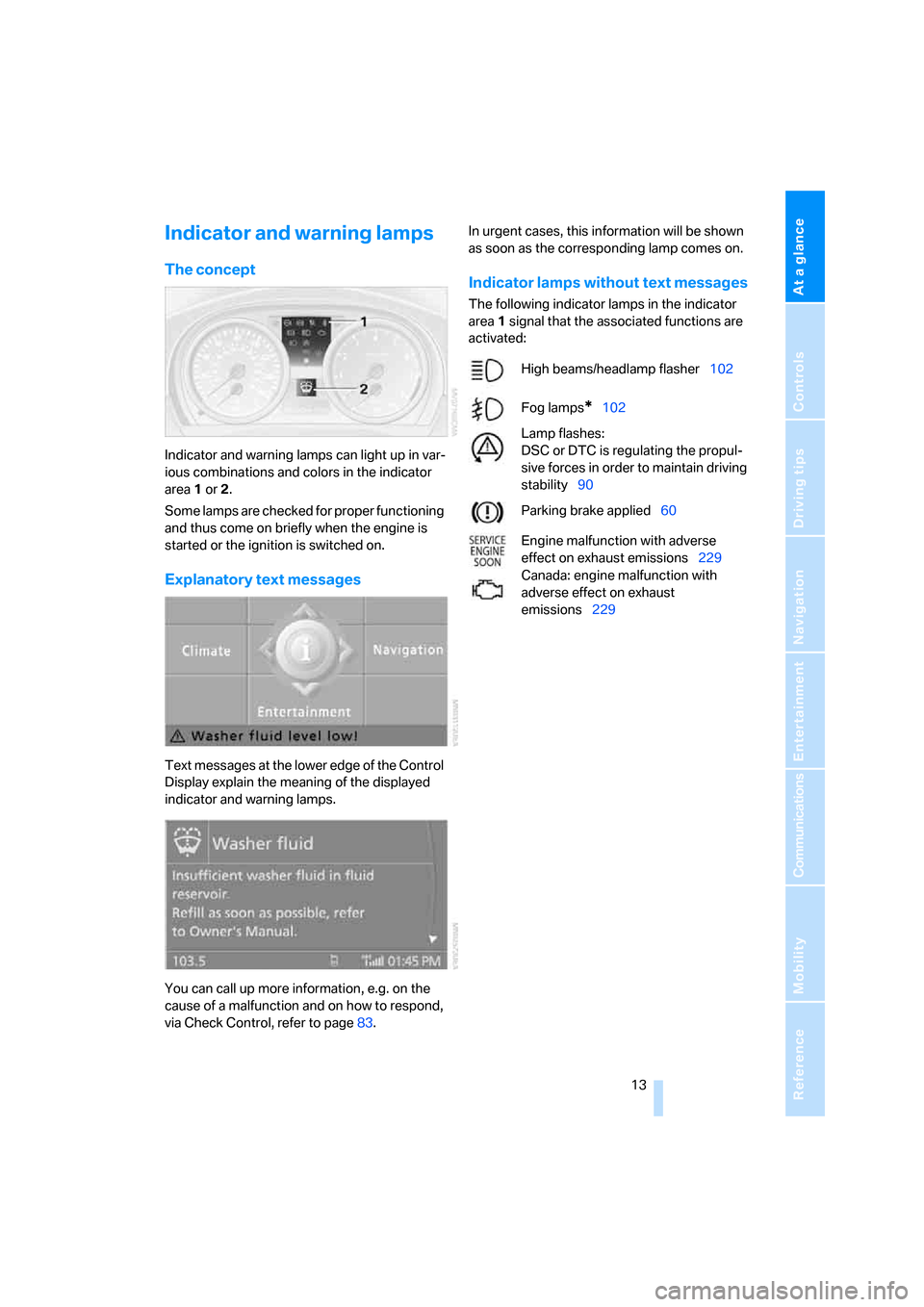
The concept
Indicator and warning lamps can light up in var-
ious combinations and colors in the indicator
area 1 or2.
Some lamps are checked for proper functioning
and thus come on briefly when the engine is
started or the ignition is switched on.
Explanatory text messages
Text messages at the lower edge of the Control
Display explain the meaning of the displayed
indicator and warning lamps.
You can call up more information, e.g. on the
cause of a malfunction and on how to respond,
via Check Control, refer to page83.In urgent cases, this information will be shown
as soon as the corresponding lamp comes on.
Indicator lamps without text messages
The following indicator lamps in the indicator
area1 signal that the associated functions are
activated:
High beams/headlamp flasher102
Fog lamps
*102
Lamp flashes:
DSC or DTC is regulating the propul-
sive forces in order to maintain driving
stability90
Parking brake applied60
Engine malfunction with adverse
effect on exhaust emissions229
Canada: engine malfunction with
adverse effect on exhaust
emissions229
Page 56 of 272
Adjustments
54 Do not use force to swing the lever
back up, otherwise the mechanism
will be damaged.<
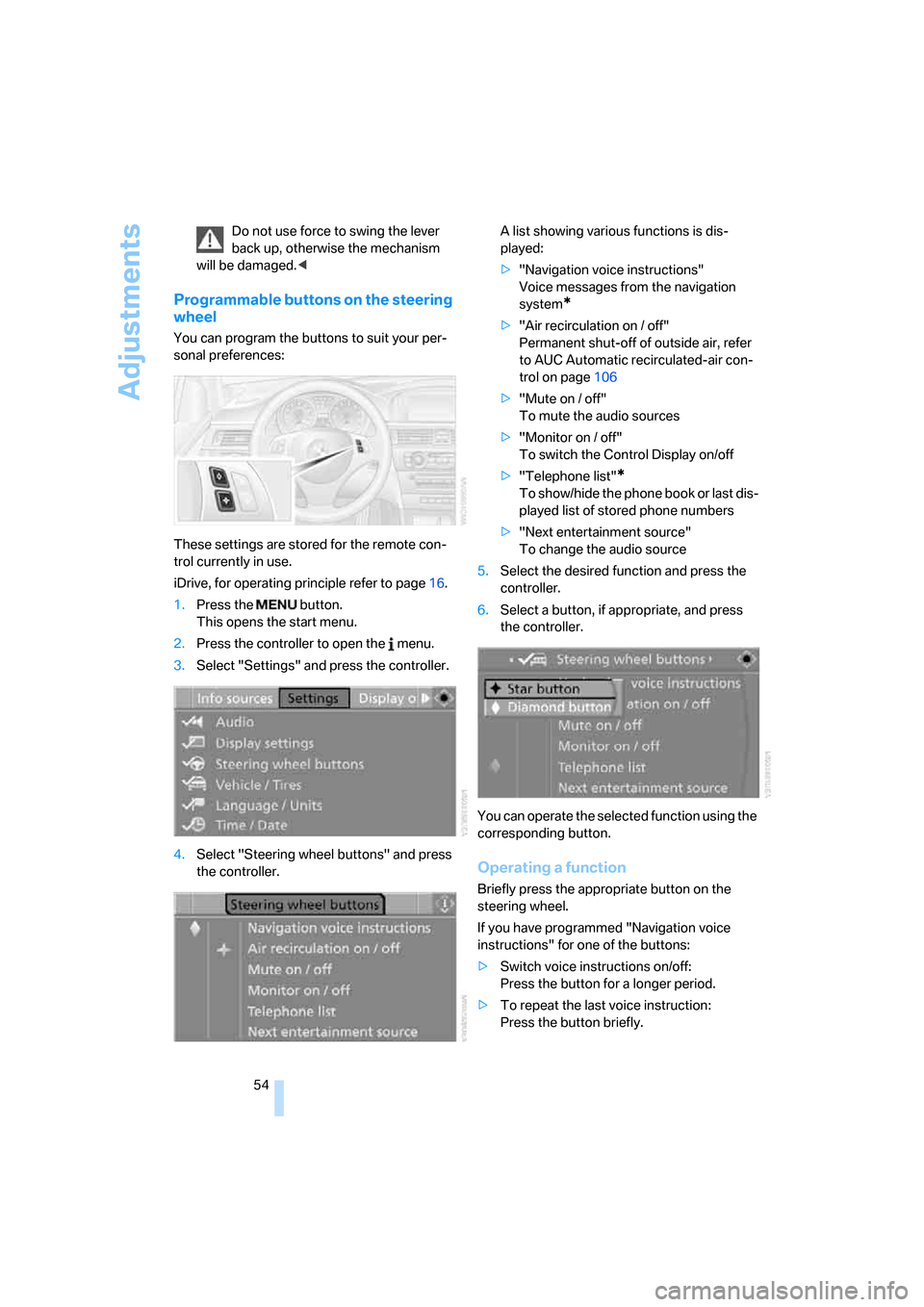
Programmable buttons on the steering
wheel
You can program the buttons to suit your per-
sonal preferences:
These settings are stored for the remote con-
trol currently in use.
iDrive, for operating principle refer to page16.
1.Press the button.
This opens the start menu.
2.Press the controller to open the menu.
3.Select "Settings" and press the controller.
4.Select "Steering wheel buttons" and press
the controller.A list showing various functions is dis-
played:
>"Navigation voice instructions"
Voice messages from the navigation
system
*
>"Air recirculation on / off"
Permanent shut-off of outside air, refer
to AUC Automatic recirculated-air con-
trol on page106
>"Mute on / off"
To mute the audio sources
>"Monitor on / off"
To switch the Control Display on/off
>"Telephone list"
*
To show/hide the phone book or last dis-
played list of stored phone numbers
>"Next entertainment source"
To change the audio source
5.Select the desired function and press the
controller.
6.Select a button, if appropriate, and press
the controller.
You can operate the selected function using the
corresponding button.
Operating a function
Briefly press the appropriate button on the
steering wheel.
If you have programmed "Navigation voice
instructions" for one of the buttons:
>Switch voice instructions on/off:
Press the button for a longer period.
>To repeat the last voice instruction:
Press the button briefly.
Page 69 of 272
Controls
67Reference
At a glance
Driving tips
Communications
Navigation
Entertainment
Mobility
Deactivating cruise control
Tap the lever upwards or downwards, arrow3.
The displays on the speedometer disappear.
In addition, the system is automatically deacti-
vated:
>When you brake the vehicle
>When you switch gears very slowly or shift
to idle in cars with manual transmission
>When you select the automatic transmis-
sion's neutral position N
>When you activate DTC or deactivate DSC
>When DSC or ABS is intervening
Cruise control is not deactivated by depressing
the accelerator pedal. Once the accelerator
pedal is released, the stored speed is achieved
again and maintained.
Warning lamp
The warning lamp comes on when
cruise control has been deactivated
by applying the parking brake or as a
result of DSC intervention. A message appears
on the Control Display.
Resuming a speed stored beforehand
Briefly press the button, arrow 4. the stored
speed is resumed and maintained.
In the following instances, the stored speed is
deleted and can no longer be resumed:
>When driving stability control systems are
intervening
>In ca rs with manua l transmiss ion: when you
shift gears very slowly or shift to idle posi-
tion
>In cars with automatic transmission: when
you engage selector lever position N
>When the ignition is switched off
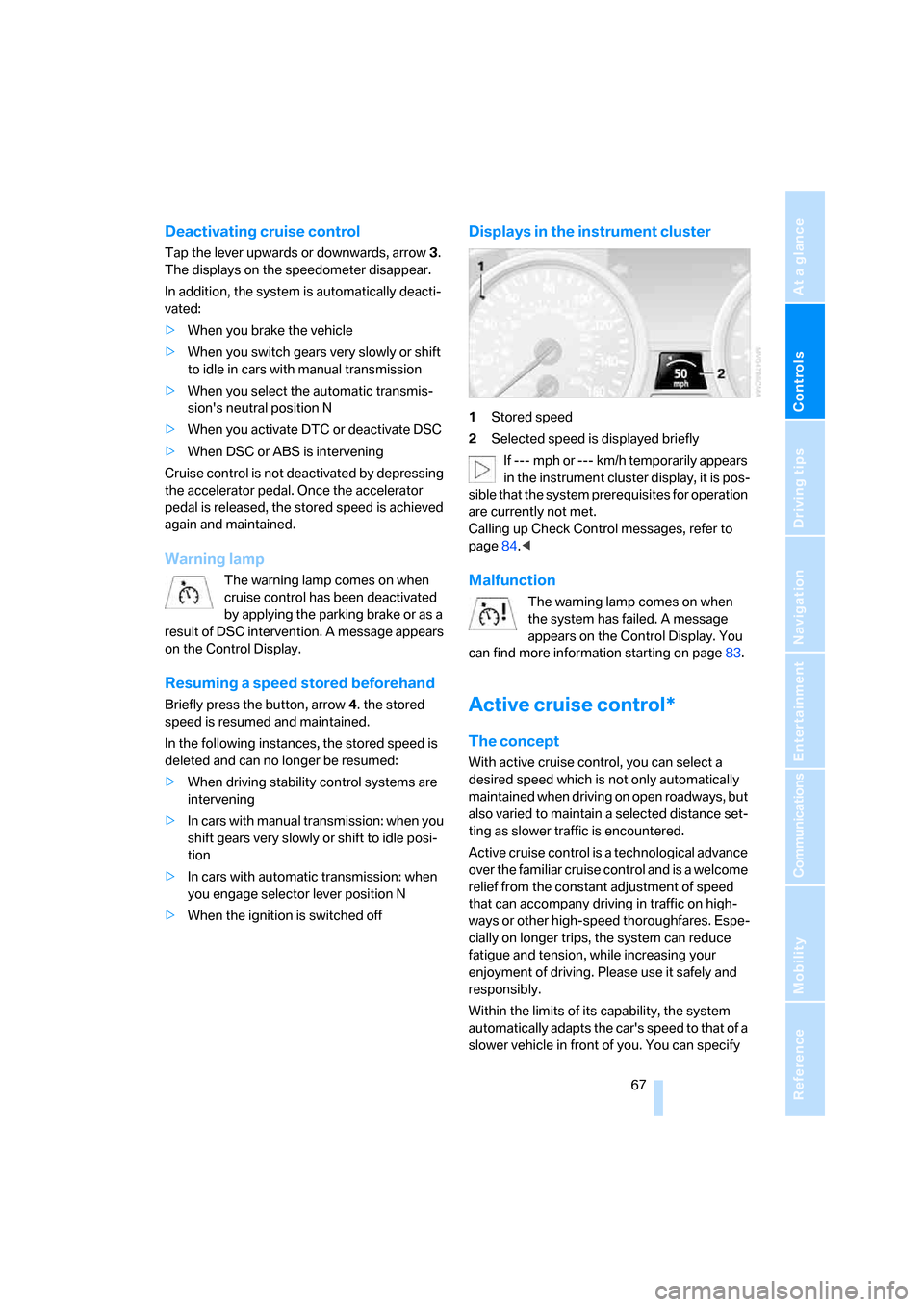
Displays in the instrument cluster
1Stored speed
2Selected speed is displayed briefly
If --- mph or --- km/h temporarily appears
in the instrument cluster display, it is pos-
sible that the system prerequisites for operation
are currently not met.
Calling up Check Control messages, refer to
page84.<
Malfunction
The warning lamp comes on when
the system has failed. A message
appears on the Control Display. You
can find more information starting on page83.
Active cruise control*
The concept
With active cruise control, you can select a
desired speed which is not only automatically
maintained when driving on open roadways, but
also varied to maintain a selected distance set-
ting as slower traffic is encountered.
Active cruise control is a technological advance
over the familiar cruise control and is a welcome
relief from the constant adjustment of speed
that can accompany driving in traffic on high-
ways or other high-speed thoroughfares. Espe-
cially on longer trips, the system can reduce
fatigue and tension, while increasing your
enjoyment of driving. Please use it safely and
responsibly.
Within the limits of its capability, the system
automatically adapts the car's speed to that of a
slower vehicle in front of you. You can specify
Page 73 of 272
Controls
71Reference
At a glance
Driving tips
Communications
Navigation
Entertainment
Mobility
are currently not met. Calling up Check Control
messages, refer to page84.<
Warning lamps
The indicator2 flashes in red; a
signal sounds.
The system indicates that you
must brake and/or maneuver the
vehicle yourself. Active cruise con-
trol cannot automatically restore the distance to
the vehicle ahead.
This indicator does not release you from your
responsibility to adapt your desired speed and
driving style to prevailing driving conditions.
The indicator 2 flashes in yellow.
The prerequisites for operating
active cruise control are not met,
e.g. as a result of ABS or DSC
interventions. Active cruise control
is deactivated. You can reactivate the system, if
desired, by tapping or pulling the lever when
road and traffic conditions permit. It is not pos-
sible to resume a stored speed.
Radar sensor
The sensor's ability to detect vehicles ahead
may be restricted as a result of heavy rain, dirt,
snow or ice. If necessary, clean the radar sensor
located in the front bumper, see arrow. Be sure
to use particular care when removing any layers
of snow or ice from the sensor.
When the radar sensor is not properly posi-
tioned, active cruise control cannot be activated
at all.
Malfunction
The warning lamp comes on when
the system has failed. A message
appears on the Control Display. You
can find more information starting on page83.
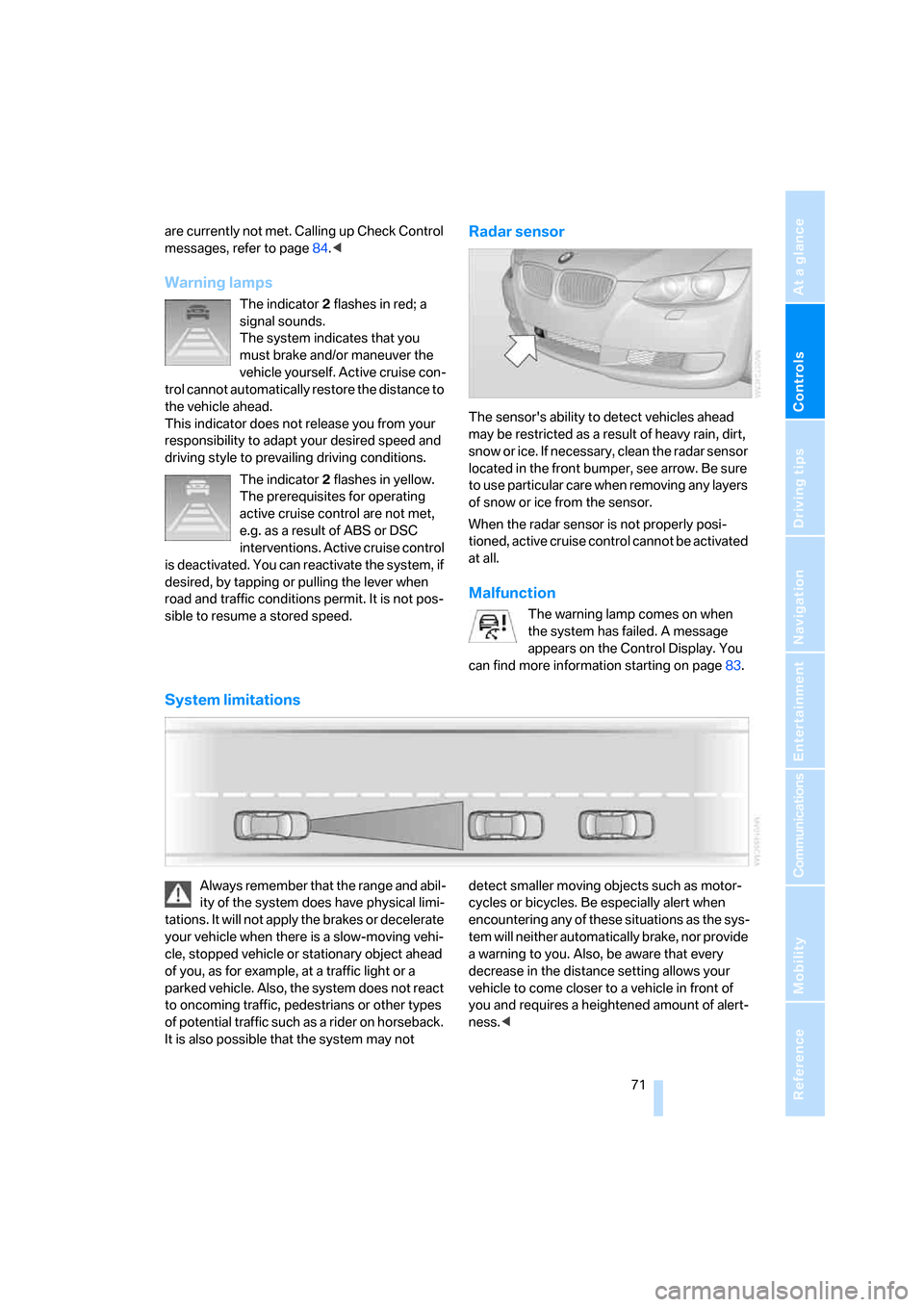
System limitations
Always remember that the range and abil-
ity of the system does have physical limi-
tations. It will not apply the brakes or decelerate
your vehicle when there is a slow-moving vehi-
cle, stopped vehicle or stationary object ahead
of you, as for example, at a traffic light or a
parked vehicle. Also, the system does not react
to oncoming traffic, pedestrians or other types
of potential traffic such as a rider on horseback.
It is also possible that the system may not detect smaller moving objects such as motor-
cycles or bicycles. Be especially alert when
encountering any of these situations as the sys-
tem will neither automatically brake, nor provide
a warning to you. Also, be aware that every
decrease in the distance setting allows your
vehicle to come closer to a vehicle in front of
you and requires a heightened amount of alert-
ness.<
Page 86 of 272
Everything under control
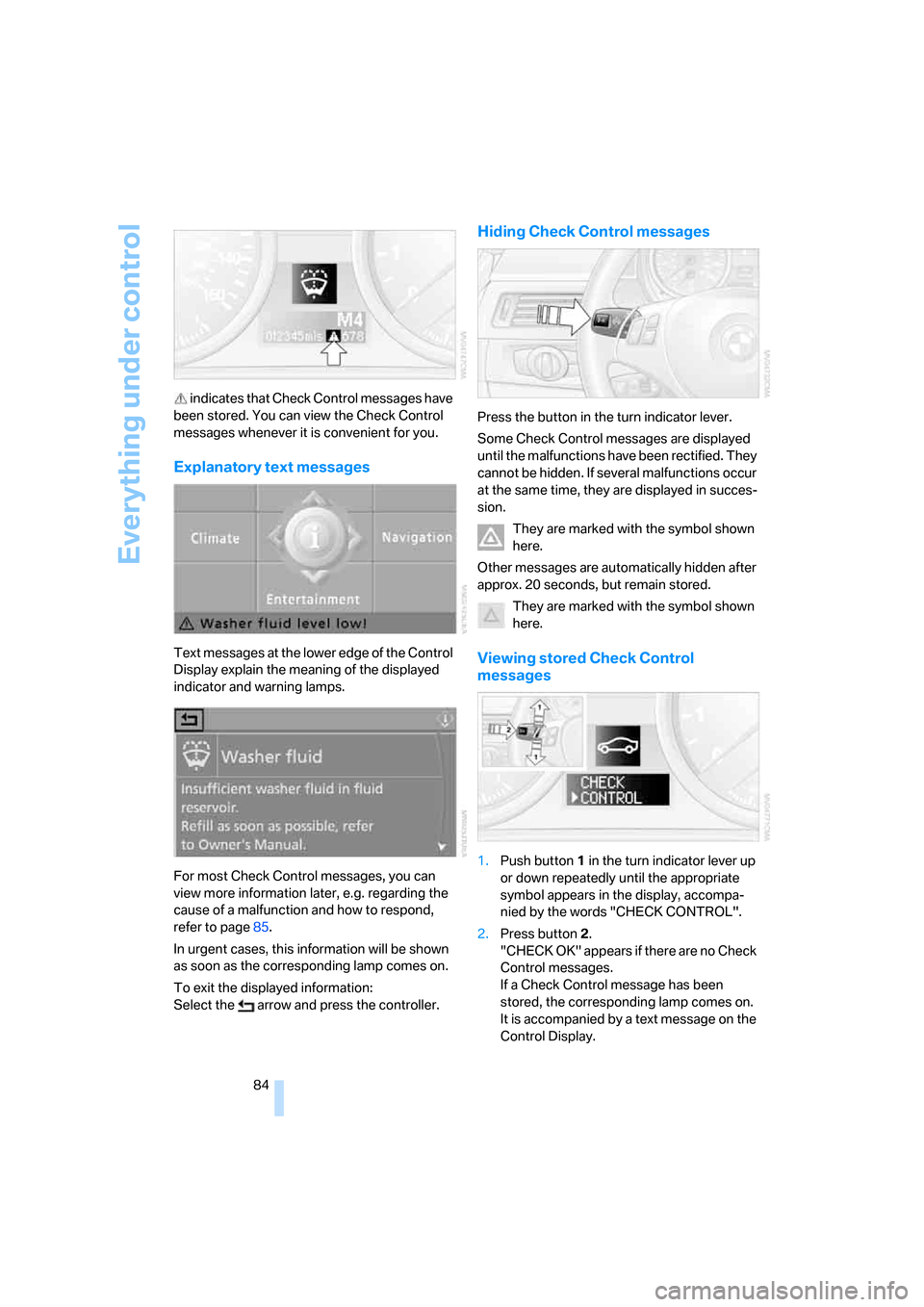
84 indicates that Check Control messages have
been stored. You can view the Check Control
messages whenever it is convenient for you.
Explanatory text messages
Text messages at the lower edge of the Control
Display explain the meaning of the displayed
indicator and warning lamps.
For most Check Control messages, you can
view more information later, e.g. regarding the
cause of a malfunction and how to respond,
refer to page85.
In urgent cases, this information will be shown
as soon as the corresponding lamp comes on.
To exit the displayed information:
Select the arrow and press the controller.
Hiding Check Control messages
Press the button in the turn indicator lever.
Some Check Control messages are displayed
until the malfunctions have been rectified. They
cannot be hidden. If several malfunctions occur
at the same time, they are displayed in succes-
sion.
They are marked with the symbol shown
here.
Other messages are automatically hidden after
approx. 20 seconds, but remain stored.
They are marked with the symbol shown
here.
Viewing stored Check Control
messages
1.Push button 1 in the turn indicator lever up
or down repeatedly until the appropriate
symbol appears in the display, accompa-
nied by the words "CHECK CONTROL".
2.Press button 2.
"CHECK OK" appears if there are no Check
Control messages.
If a Check Control message has been
stored, the corresponding lamp comes on.
It is accompanied by a text message on the
Control Display.
Page 87 of 272
Controls
85Reference
At a glance
Driving tips
Communications
Navigation
Entertainment
Mobility
3.Push button 1 to check for other messages.
4.Press button 2.
The display again shows the outside tem-
perature and the time.
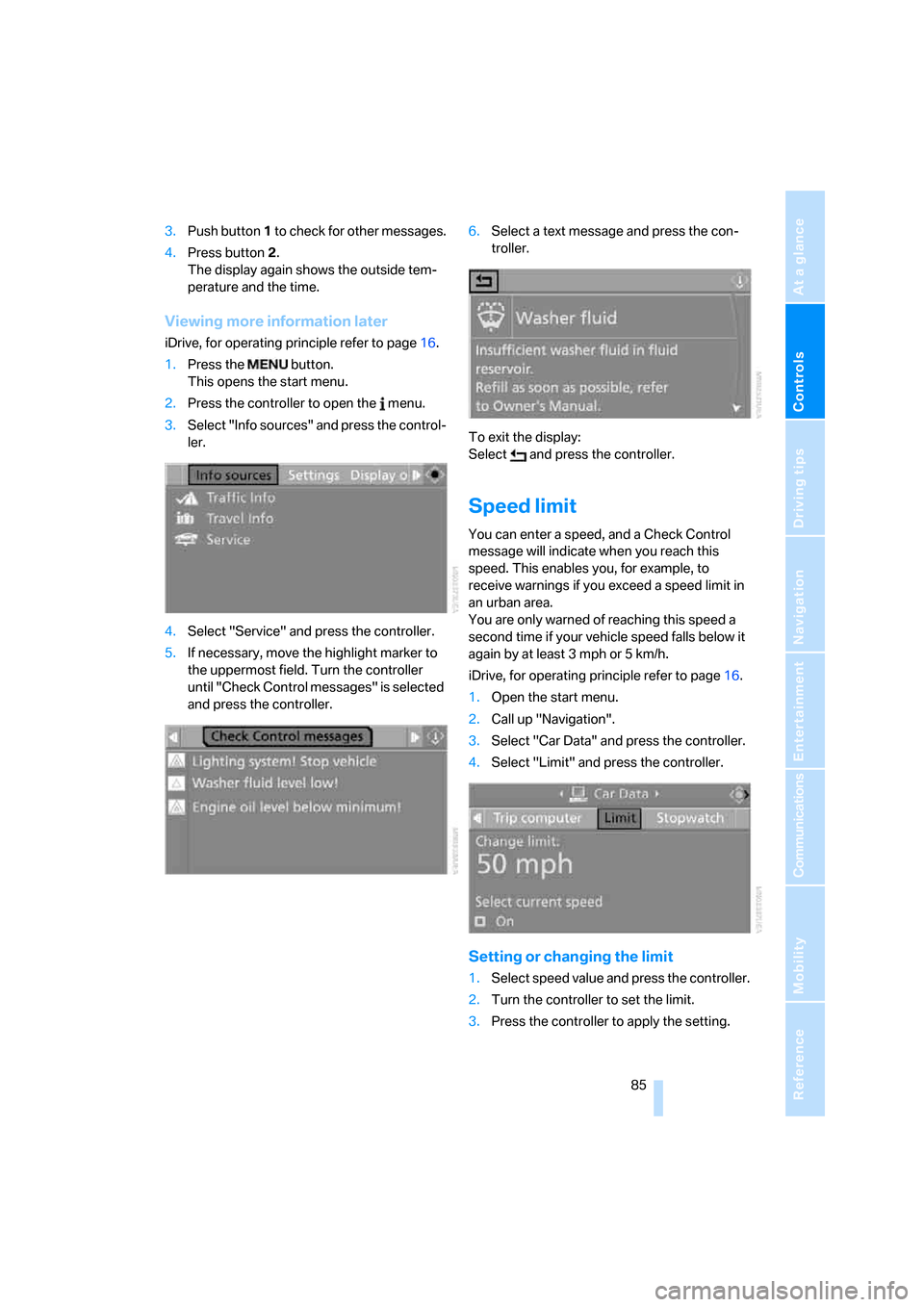
Viewing more information later
iDrive, for operating principle refer to page16.
1.Press the button.
This opens the start menu.
2.Press the controller to open the menu.
3.Select "Info sources" and press the control-
ler.
4.Select "Service" and press the controller.
5.If necessary, move the highlight marker to
the uppermost field. Turn the controller
until "Check Control messages" is selected
and press the controller.6.Select a text message and press the con-
troller.
To exit the display:
Select and press the controller.
Speed limit
You can enter a speed, and a Check Control
message will indicate when you reach this
speed. This enables you, for example, to
receive warnings if you exceed a speed limit in
an urban area.
You are only warned of reaching this speed a
second time if your vehicle speed falls below it
again by at least 3 mph or 5 km/h.
iDrive, for operating principle refer to page16.
1.Open the start menu.
2.Call up "Navigation".
3.Select "Car Data" and press the controller.
4.Select "Limit" and press the controller.
Setting or changing the limit
1.Select speed value and press the controller.
2.Turn the controller to set the limit.
3.Press the controller to apply the setting.
Page 190 of 272
Telephoning
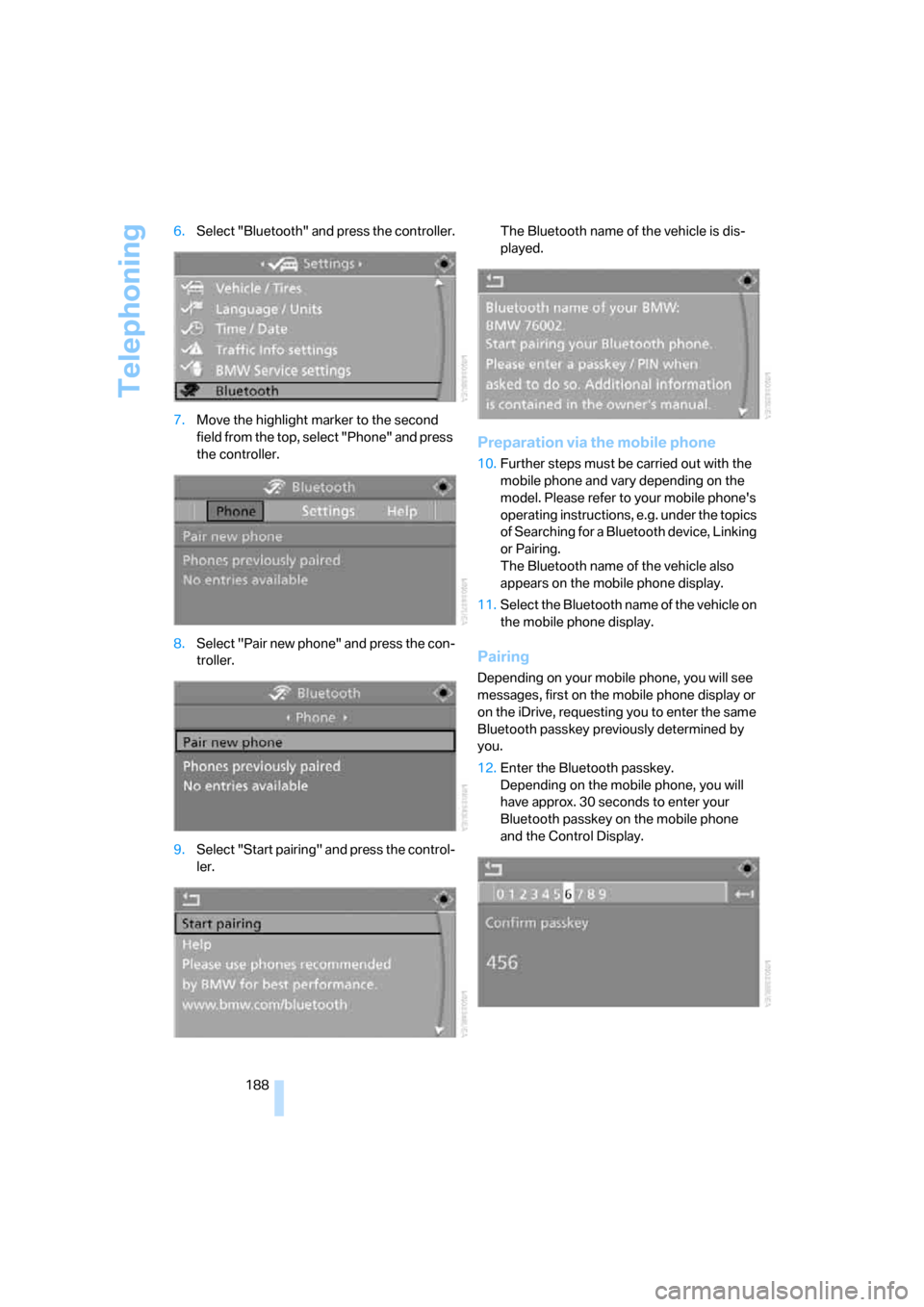
188 6.Select "Bluetooth" and press the controller.
7.Move the highlight marker to the second
field from the top, select "Phone" and press
the controller.
8.Select "Pair new phone" and press the con-
troller.
9.Select "Start pairing" and press the control-
ler.The Bluetooth name of the vehicle is dis-
played.
Preparation via the mobile phone
10.Further steps must be carried out with the
mobile phone and vary depending on the
model. Please refer to your mobile phone's
operating instructions, e.g. under the topics
of Searching for a Bluetooth device, Linking
or Pairing.
The Bluetooth name of the vehicle also
appears on the mobile phone display.
11.Select the Bluetooth name of the vehicle on
the mobile phone display.
Pairing
Depending on your mobile phone, you will see
messages, first on the mobile phone display or
on the iDrive, requesting you to enter the same
Bluetooth passkey previously determined by
you.
12.Enter the Bluetooth passkey.
Depending on the mobile phone, you will
have approx. 30 seconds to enter your
Bluetooth passkey on the mobile phone
and the Control Display.
Page 227 of 272
Mobility
225Reference
At a glance
Controls
Driving tips
Communications
Navigation
Entertainment
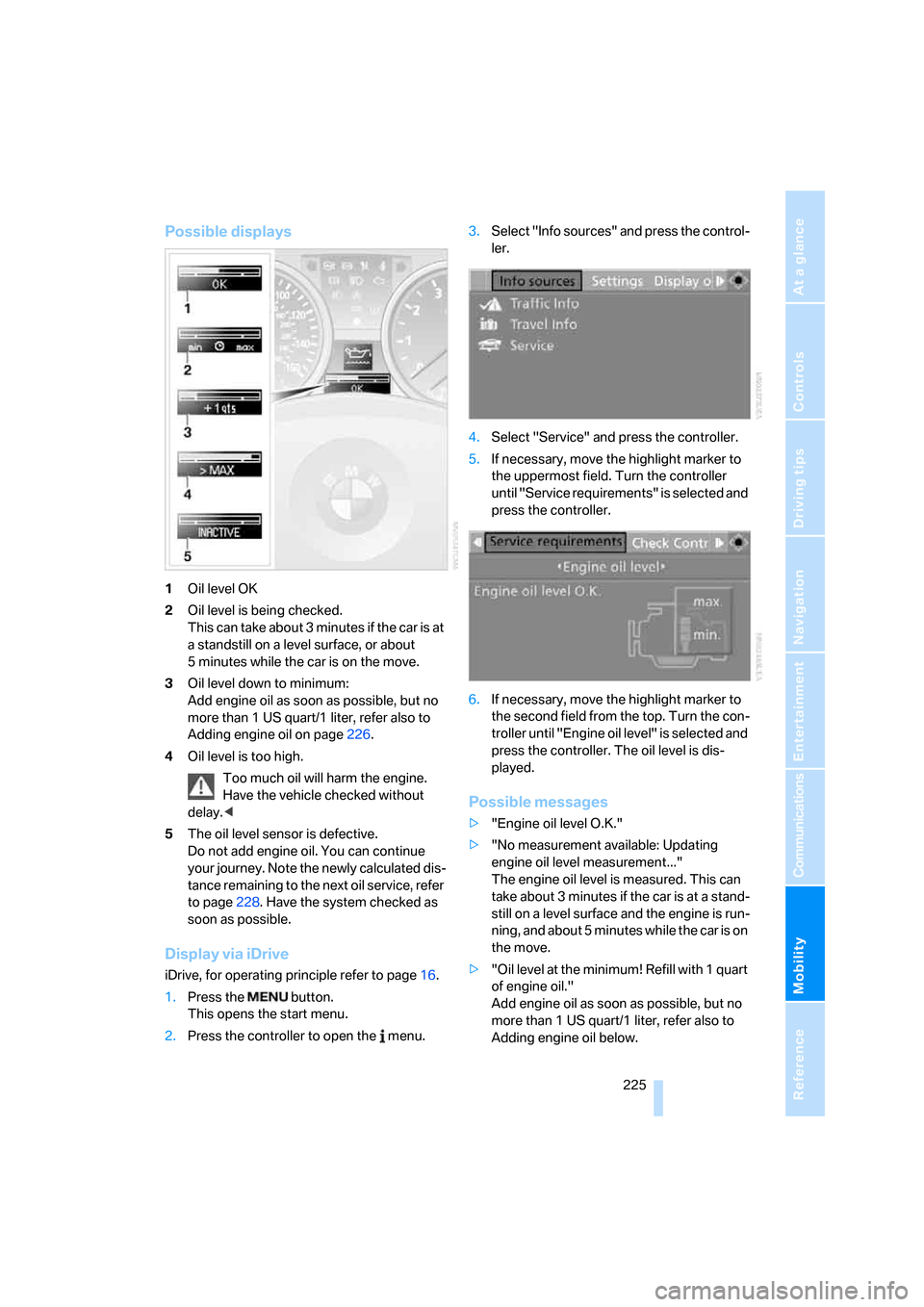
Possible displays
1Oil level OK
2Oil level is being checked.
This can take about 3 minutes if the car is at
a standstill on a level surface, or about
5 minutes while the car is on the move.
3Oil level down to minimum:
Add engine oil as soon as possible, but no
more than 1 US quart/1 liter, refer also to
Adding engine oil on page226.
4Oil level is too high.
Too much oil will harm the engine.
Have the vehicle checked without
delay.<
5The oil level sensor is defective.
Do not add engine oil. You can continue
your journey. Note the newly calculated dis-
tance remaining to the next oil service, refer
to page228. Have the system checked as
soon as possible.
Display via iDrive
iDrive, for operating principle refer to page16.
1.Press the button.
This opens the start menu.
2.Press the controller to open the menu.3.Select "Info sources" and press the control-
ler.
4.Select "Service" and press the controller.
5.If necessary, move the highlight marker to
the uppermost field. Turn the controller
until "Service requirements" is selected and
press the controller.
6.If necessary, move the highlight marker to
the second field from the top. Turn the con-
troller until "Engine oil level" is selected and
press the controller. The oil level is dis-
played.
Possible messages
>"Engine oil level O.K."
>"No measurement available: Updating
engine oil level measurement..."
The engine oil level is measured. This can
take about 3 minutes if the car is at a stand-
still on a level surface and the engine is run-
ning, and about 5 minutes while the car is on
the move.
>"Oil level at the minimum! Refill with 1 quart
of engine oil."
Add engine oil as soon as possible, but no
more than 1 US quart/1 liter, refer also to
Adding engine oil below.
Page 253 of 272
Reference 251
At a glance
Controls
Driving tips
Communications
Navigation
Entertainment
Mobility
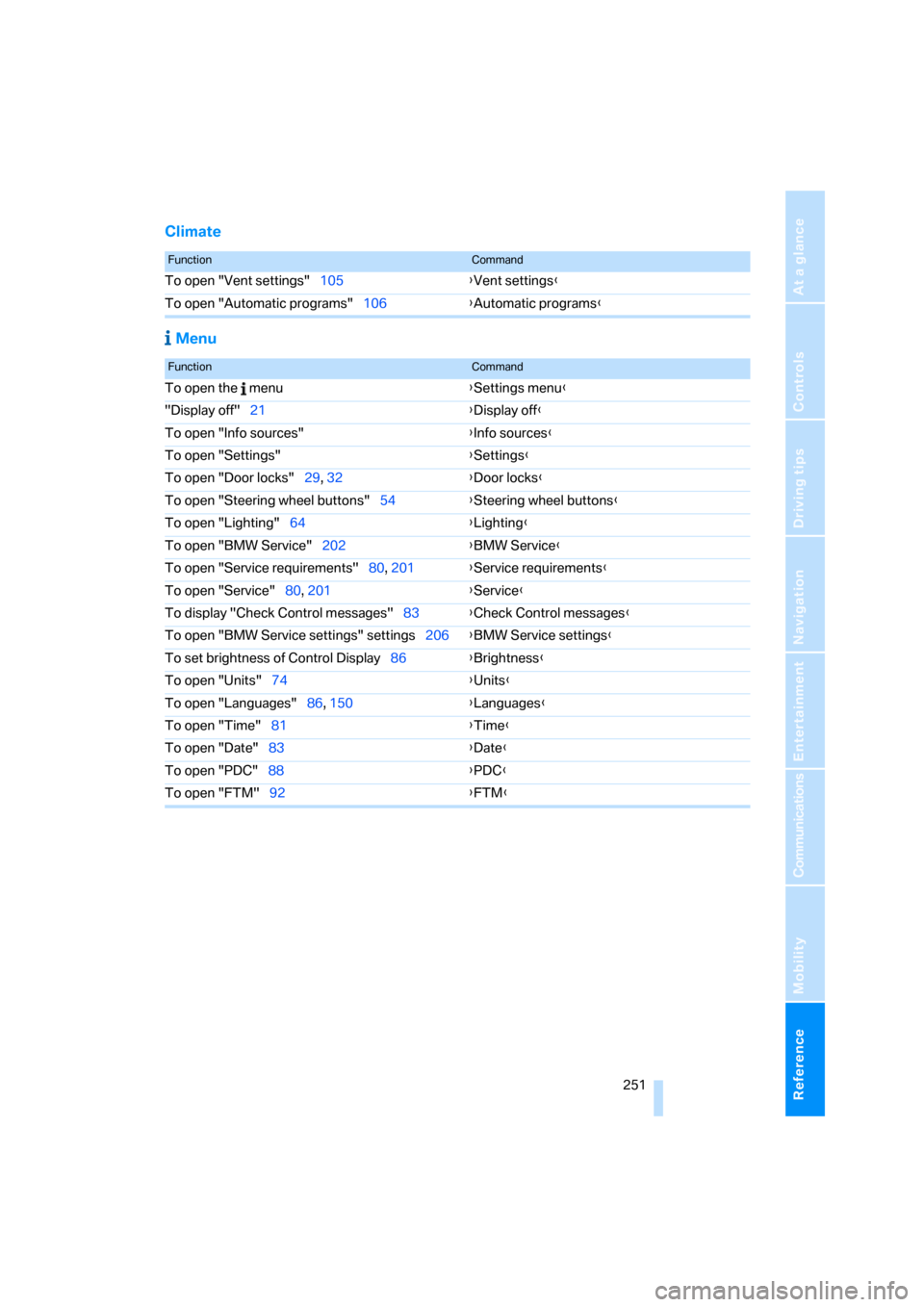
Climate
Menu
FunctionCommand
To open "Vent settings"105{Vent settings}
To open "Automatic programs"106{Automatic programs}
FunctionCommand
To open the menu{Settings menu}
"Display off"21{Display off}
To open "Info sources"{Info sources}
To open "Settings"{Settings}
To open "Door locks"29, 32{Door locks}
To open "Steering wheel buttons"54{Steering wheel buttons}
To open "Lighting"64{Lighting}
To open "BMW Service"202{BMW Service}
To open "Service requirements"80, 201{Service requirements}
To open "Service"80, 201{Service}
To display "Check Control messages"83{Check Control messages}
To open "BMW Service settings" settings206{BMW Service settings}
To set brightness of Control Display86{Brightness}
To open "Units"74{Units}
To open "Languages"86, 150{Languages}
To open "Time"81{Time}
To open "Date"83{Date}
To open "PDC"88{PDC}
To open "FTM"92{FTM}
Page 257 of 272
Reference 255
At a glance
Controls
Driving tips
Communications
Navigation
Entertainment
Mobility
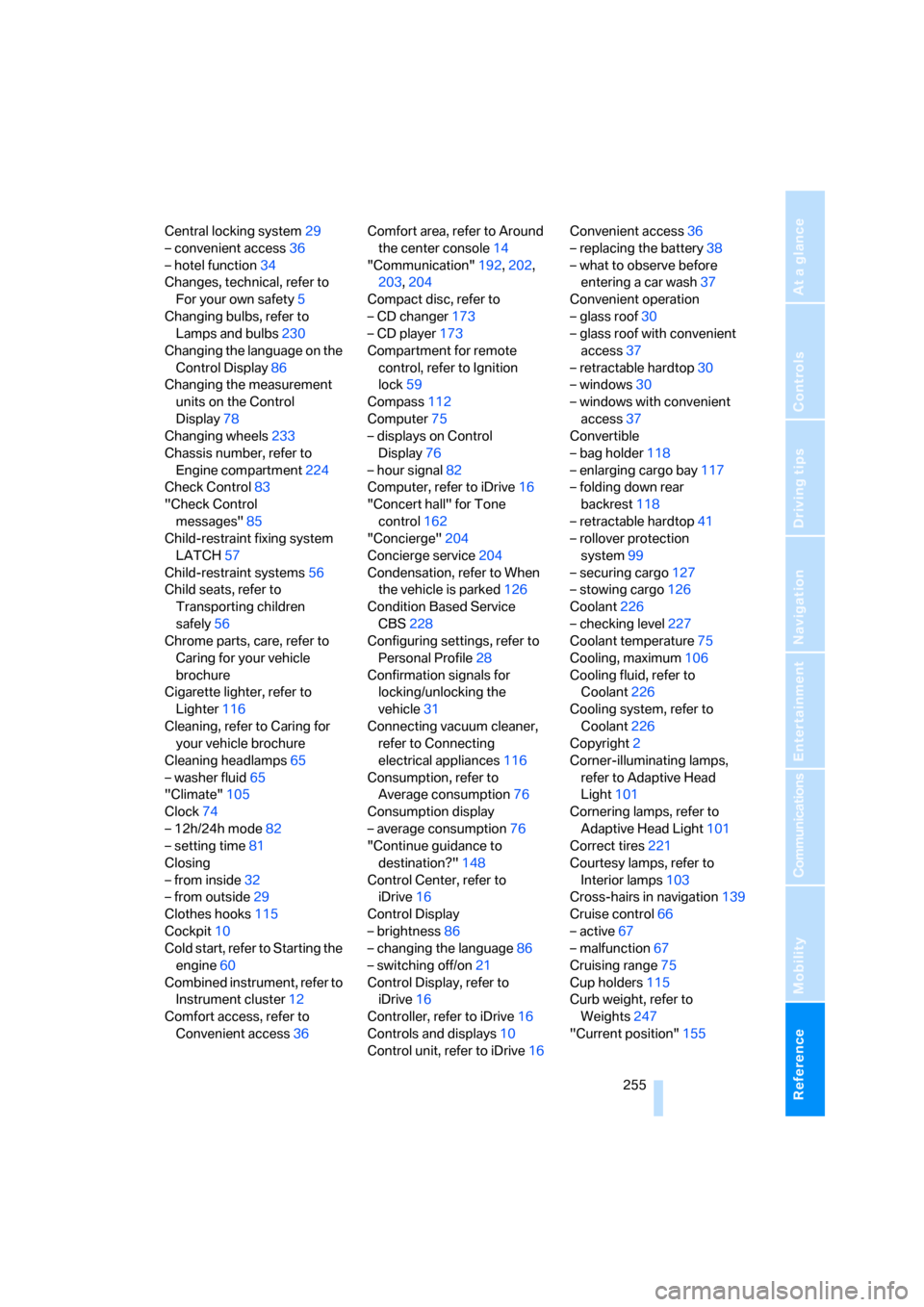
Central locking system29
– convenient access36
– hotel function34
Changes, technical, refer to
For your own safety5
Changing bulbs, refer to
Lamps and bulbs230
Changing the language on the
Control Display86
Changing the measurement
units on the Control
Display78
Changing wheels233
Chassis number, refer to
Engine compartment224
Check Control83
"Check Control
messages"85
Child-restraint fixing system
LATCH57
Child-restraint systems56
Child seats, refer to
Transporting children
safely56
Chrome parts, care, refer to
Caring for your vehicle
brochure
Cigarette lighter, refer to
Lighter116
Cleaning, refer to Caring for
your vehicle brochure
Cleaning headlamps65
– washer fluid65
"Climate"105
Clock74
– 12h/24h mode82
– setting time81
Closing
– from inside32
– from outside29
Clothes hooks115
Cockpit10
Cold start, refer to Starting the
engine60
Combined instrument, refer to
Instrument cluster12
Comfort access, refer to
Convenient access36Comfort area, refer to Around
the center console14
"Communication"192,202,
203,204
Compact disc, refer to
– CD changer173
– CD player173
Compartment for remote
control, refer to Ignition
lock59
Compass112
Computer75
– displays on Control
Display76
– hour signal82
Computer, refer to iDrive
16
"Concert hall" for Tone
control162
"Concierge"204
Concierge service204
Condensation, refer to When
the vehicle is parked126
Condition Based Service
CBS228
Configuring settings, refer to
Personal Profile28
Confirmation signals for
locking/unlocking the
vehicle31
Connecting vacuum cleaner,
refer to Connecting
electrical appliances116
Consumption, refer to
Average consumption76
Consumption display
– average consumption76
"Continue guidance to
destination?"148
Control Center, refer to
iDrive16
Control Display
– brightness86
– changing the language86
– switching off/on21
Control Display, refer to
iDrive16
Controller, refer to iDrive16
Controls and displays10
Control unit, refer to iDrive16Convenient access36
– replacing the battery38
– what to observe before
entering a car wash37
Convenient operation
– glass roof30
– glass roof with convenient
access37
– retractable hardtop30
– windows30
– windows with convenient
access37
Convertible
– bag holder118
– enlarging cargo bay117
– folding down rear
backrest118
– retractable hardtop41
– rollover protection
system99
– securing cargo127
– stowing cargo126
Coolant226
– checking level227
Coolant temperature75
Cooling, maximum106
Cooling fluid, refer to
Coolant226
Cooling system, refer to
Coolant226
Copyright2
Corner-illuminating lamps,
refer to Adaptive Head
Light101
Cornering lamps, refer to
Adaptive Head Light101
Correct tires221
Courtesy lamps, refer to
Interior lamps103
Cross-hairs in navigation139
Cruise control66
– active67
– malfunction67
Cruising range75
Cup holders115
Curb weight, refer to
Weights247
"Current position"155