Idrive BMW 328I CONVERTIBLE 2010 E93 Owner's Guide
[x] Cancel search | Manufacturer: BMW, Model Year: 2010, Model line: 328I CONVERTIBLE, Model: BMW 328I CONVERTIBLE 2010 E93Pages: 266, PDF Size: 8.6 MB
Page 171 of 266
Navigation
Entertainment
Driving tips
169Reference
At a glance
Controls
Communications
Mobility
External devices
AUX-IN port
You can connect an external audio device, for
instance an MP3 player, and play audio tracks
over the car's loudspeaker system. You can
adjust the tone using iDrive.
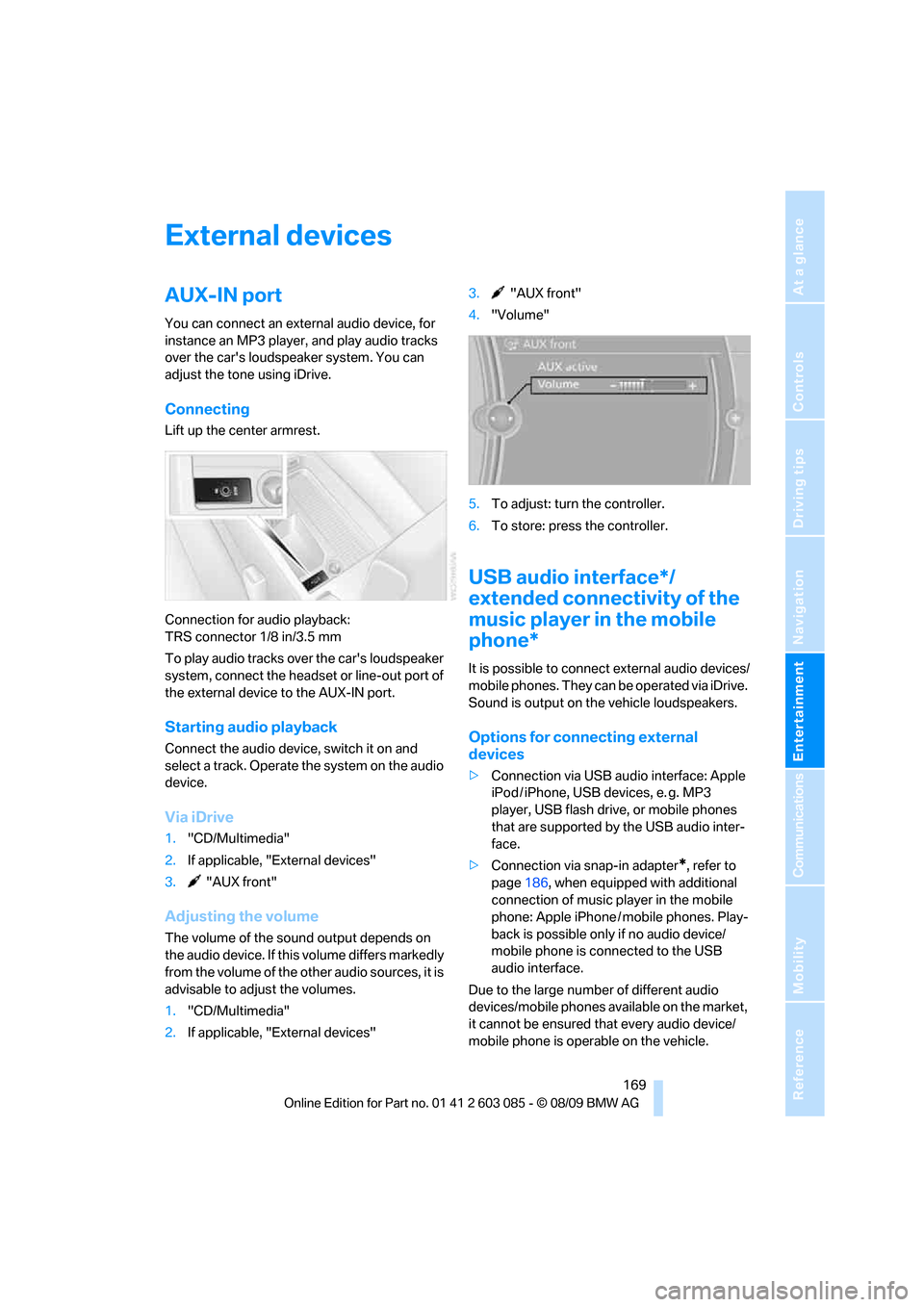
Connecting
Lift up the center armrest.
Connection for audio playback:
TRS connector 1/8 in/3.5 mm
To play audio tracks over the car's loudspeaker
system, connect the headset or line-out port of
the external device to the AUX-IN port.
Starting audio playback
Connect the audio device, switch it on and
select a track. Operate the system on the audio
device.
Via iDrive
1."CD/Multimedia"
2.If applicable, "External devices"
3. "AUX front"
Adjusting the volume
The volume of the sound output depends on
the audio device. If this volume differs markedly
from the volume of the other audio sources, it is
advisable to adjust the volumes.
1."CD/Multimedia"
2.If applicable, "External devices"3. "AUX front"
4."Volume"
5.To adjust: turn the controller.
6.To store: press the controller.
USB audio interface*/
extended connectivity of the
music player in the mobile
phone*
It is possible to connect external audio devices/
mobile phones. They can be operated via iDrive.
Sound is output on the vehicle loudspeakers.
Options for connecting external
devices
>Connection via USB audio interface: Apple
iPod / iPhone, USB devices, e. g. MP3
player, USB flash drive, or mobile phones
that are supported by the USB audio inter-
face.
>Connection via snap-in adapter
*, refer to
page186, when equipped with additional
connection of music player in the mobile
phone: Apple iPhone / mobile phones. Play-
back is possible only if no audio device/
mobile phone is connected to the USB
audio interface.
Due to the large number of different audio
devices/mobile phones available on the market,
it cannot be ensured that every audio device/
mobile phone is operable on the vehicle.
Page 178 of 266
Telephone
176
Telephone
The concept
Your BMW is equipped with a full preparation
package mobile phone. After pairing a suitable
mobile phone with the vehicle once, you can
operate the mobile phone via the iDrive, the
buttons on the steering wheel or using voice
commands
*.
Once a mobile phone has been paired with your
vehicle, it is automatically recognized as soon
as it is inside the vehicle while the engine is run-
ning or the ignition is switched on. You can
store the pairing data for up to four mobile
phones simultaneously. If several mobile
phones are detected at the same time, the
mobile phone last paired can be operated via
the vehicle.
Using the telephone inside
the vehicle
Using the snap-in adapter*
The so-called snap-in adapter, a holder for
mobile phones, allows you to charge the mobile
phone's battery and connect the mobile phone
to your vehicle's outside antenna. This ensures
better network reception and consistent repro-
duction quality. Please contact your
BMW center to find out for which mobile
phones there are snap-in adapters available.
For your safety
A car phone makes life more convenient in
many ways, and can even save lives in an emer-
gency. While you should consult your mobile
phone's separate operating instructions for a
detailed description of safety precautions and
information, we request that you direct your
particular attention to the following:
Only make entries when the traffic situa-
tion allows you to do so. Do not hold the
mobile phone in your hand while you are driving;
use the hands-free system instead. If you do not observe this precaution, your being dis-
tracted can endanger vehicle occupants and
other road users.<
Suitable mobile phones
Please ask your BMW center which mobile
phones with Bluetooth interface are supported
by the mobile phone preparation package and
which mobile phones are compatible with the
snap-in adapter. By virtue of their particular
software versions, these mobile phones sup-
port the functions described in this Owner's
Manual. Malfunctions may occur with other
mobile phones.
Operating options
You can operate the mobile phone using:
>Buttons on the steering wheel, refer to
page10
>iDrive, refer to page16
>Voice commands
*, refer to page183
>Programmable memory keys, refer to
page20
Avoid operating a mobile phone recognized by
the vehicle via the mobile phone's keypad; oth-
erwise, malfunctions may result.
Start-up
Pairing the mobile phone with the
vehicle
The following prerequisites must be met:
>Compatible mobile phone: the mobile
phone is supported by the full preparation
package mobile phone. You can obtain
information on the Internet at:
www.bmw.com/bluetooth
>The mobile phone is ready to operate.
*
Page 179 of 266
177
Entertainment
Reference
At a glance
Controls
Driving tips Communications
Navigation
Mobility
>Bluetooth has been activated in the vehicle,
refer to page178, and on the mobile phone.
>Depending on the mobile phone, certain
settings may be necessary on the mobile
phone, e.g. via the following menu items:
>Bluetooth switched on
>Connection must be allowed without
requiring further confirmation
>Reconnection
>Depending on the mobile phone type, the
power-saving mode setting, for example,
may result in a paired mobile phone not
being detected by the vehicle.
>For pairing purposes, define any 4 to 16-
digit number as a Bluetooth passkey,
e.g. 25081107. A long and complex number
offers the best protection against unautho-
rized access. This Bluetooth passkey is no
longer required after pairing is successful.
>The ignition is switched on.
Pair the mobile phone with the vehicle
only when the car is stationary, to avoid
endangering the car's occupants and other
road users by being distracted.<
Switch on ignition
1.Insert remote control all the way into the
ignition lock.
2.Switch on ignition without operating the
brake or clutch or pressing the start/stop
button.
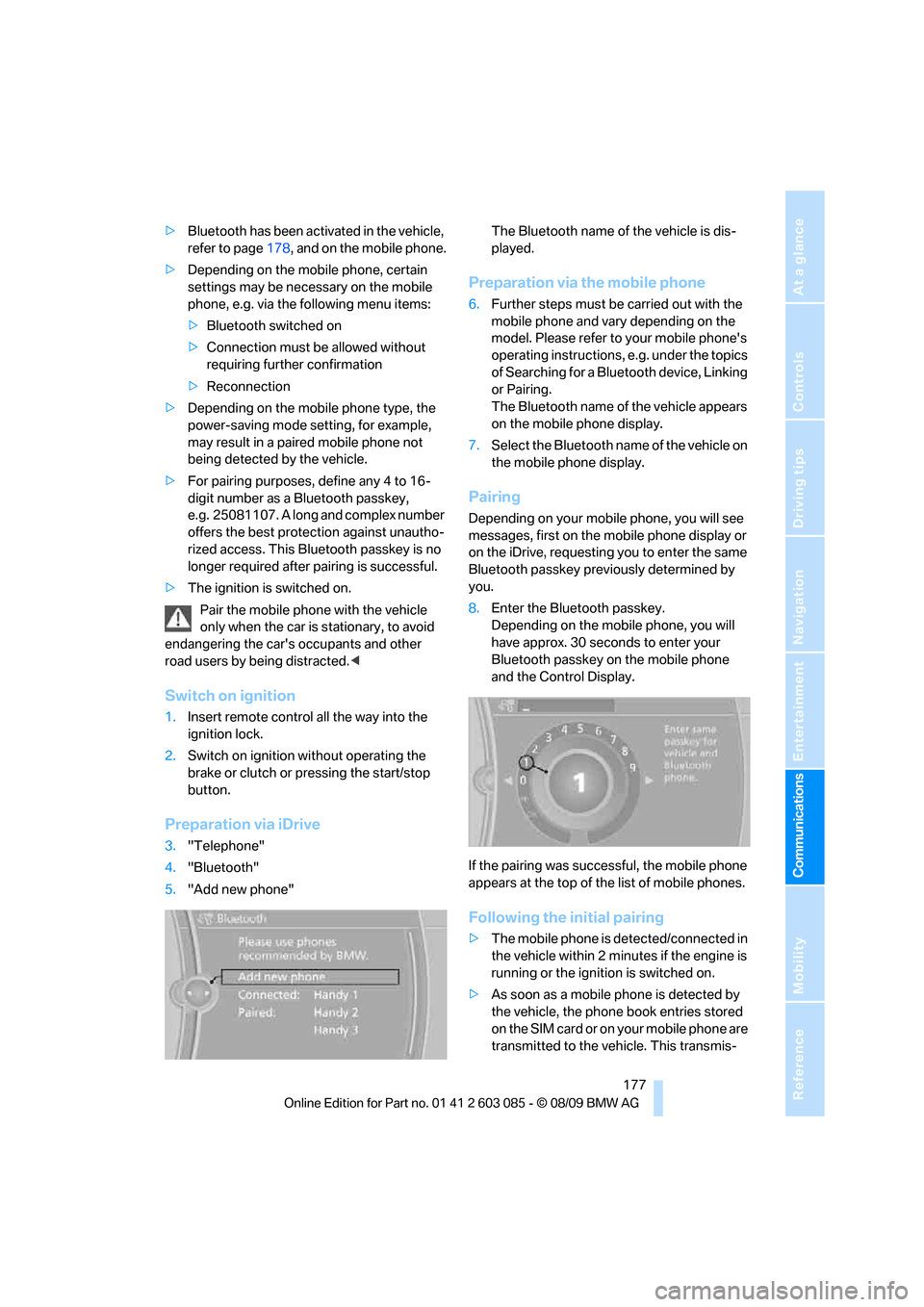
Preparation via iDrive
3."Telephone"
4."Bluetooth"
5."Add new phone"The Bluetooth name of the vehicle is dis-
played.
Preparation via the mobile phone
6.Further steps must be carried out with the
mobile phone and vary depending on the
model. Please refer to your mobile phone's
operating instructions, e.g. under the topics
of Searching for a Bluetooth device, Linking
or Pairing.
The Bluetooth name of the vehicle appears
on the mobile phone display.
7.Select the Bluetooth name of the vehicle on
the mobile phone display.
Pairing
Depending on your mobile phone, you will see
messages, first on the mobile phone display or
on the iDrive, requesting you to enter the same
Bluetooth passkey previously determined by
you.
8.Enter the Bluetooth passkey.
Depending on the mobile phone, you will
have approx. 30 seconds to enter your
Bluetooth passkey on the mobile phone
and the Control Display.
If the pairing was successful, the mobile phone
appears at the top of the list of mobile phones.
Following the initial pairing
>The mobile phone is detected/connected in
the vehicle within 2 minutes if the engine is
running or the ignition is switched on.
>As soon as a mobile phone is detected by
the vehicle, the phone book entries stored
on the SIM card or on your mobile phone are
transmitted to the vehicle. This transmis-
Page 180 of 266
Telephone
178 sion is dependent on your mobile phone,
refer to the operating instructions of the
mobile phone if necessary, and can take
several minutes.
>Four mobile phones can be paired.
>Specific settings may be necessary in some
mobile phones, e.g. authorization or a
secure connection, refer to the mobile
phone operating instructions.
If not all phone book entries are displayed:
>Transfer all phone book entries from the
SIM card to the mobile phone, if necessary.
>Phone book entries with special characters
may not be displayed.
Checks to perform if pairing is
unsuccessful
>Is the mobile phone supported by the
mobile phone preparation package? You
can obtain information on the Internet at:
www.bmw.com/bluetooth
>Do the Bluetooth passkeys on the mobile
phone and vehicle match? The same Blue-
tooth passkey must be entered on the
mobile phone's display and via iDrive.
>Did it take you more than 30 seconds to
enter the Bluetooth passkey? Then repeat
the pairing procedure.
>Are too many Bluetooth devices connected
to the mobile phone? If so, delete the con-
nections with other devices on the mobile
phone.
>Is the mobile phone no longer responding?
Switch the mobile phone off and on or
briefly disconnect the power supply.
>Repeat the pairing procedure.
>If all items on the list have been checked
and the mobile phone still cannot be paired,
please contact Customer Relations.
Connecting a particular mobile phone
If more than one mobile phone is detected by
the vehicle, the mobile phone at the top of the
list is connected. A different mobile phone can
be connected by selecting it.1."Telephone"
2."Bluetooth"
3.Select the desired mobile phone.
Unpairing the mobile phone from the
vehicle
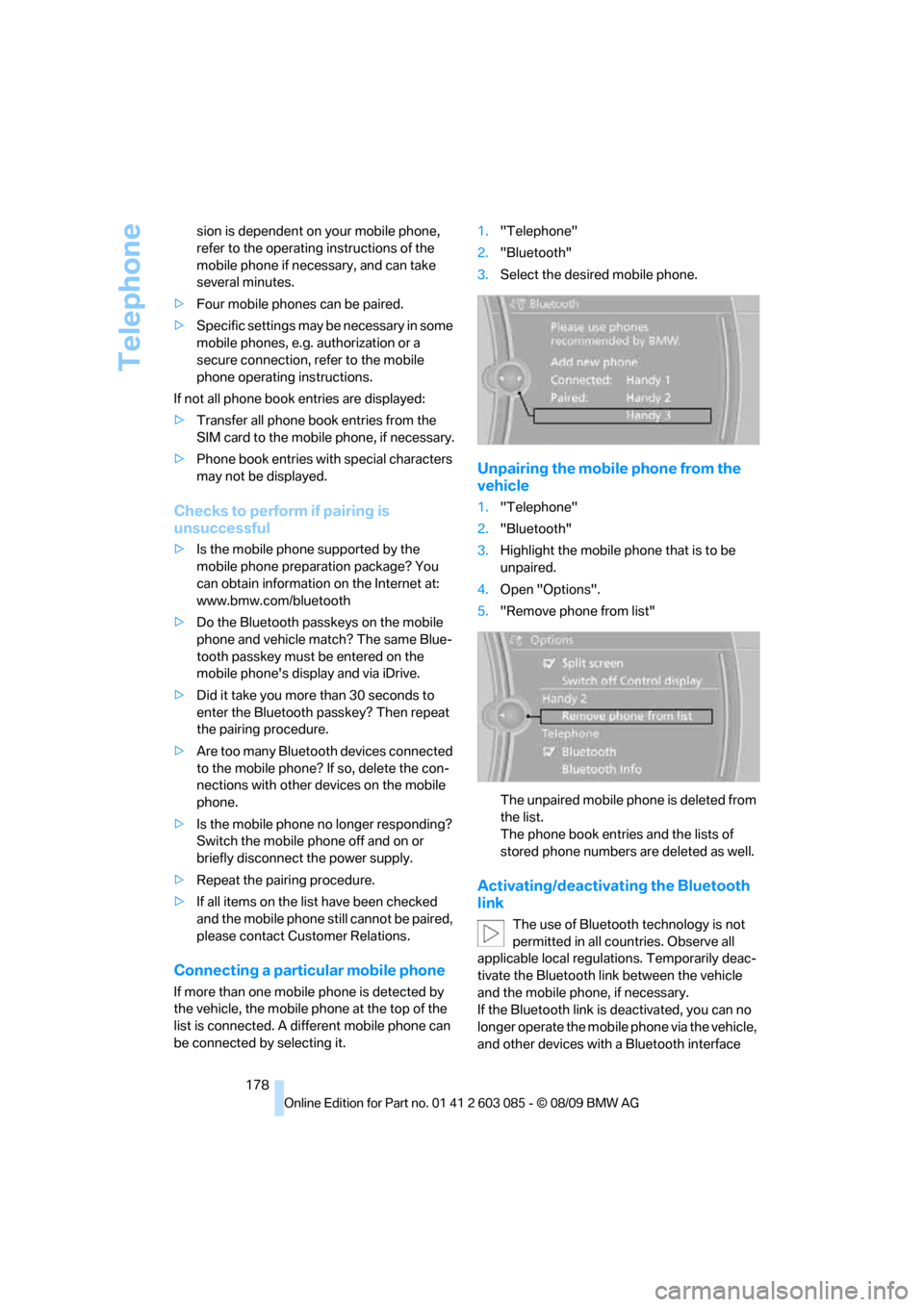
1."Telephone"
2."Bluetooth"
3.Highlight the mobile phone that is to be
unpaired.
4.Open "Options".
5."Remove phone from list"
The unpaired mobile phone is deleted from
the list.
The phone book entries and the lists of
stored phone numbers are deleted as well.
Activating/deactivating the Bluetooth
link
The use of Bluetooth technology is not
permitted in all countries. Observe all
applicable local regulations. Temporarily deac-
tivate the Bluetooth link between the vehicle
and the mobile phone, if necessary.
If the Bluetooth link is deactivated, you can no
longer operate the mobile phone via the vehicle,
and other devices with a Bluetooth interface
Page 181 of 266
179
Entertainment
Reference
At a glance
Controls
Driving tips Communications
Navigation
Mobility
can be used in combination with the mobile
phone, e.g. a laptop.<
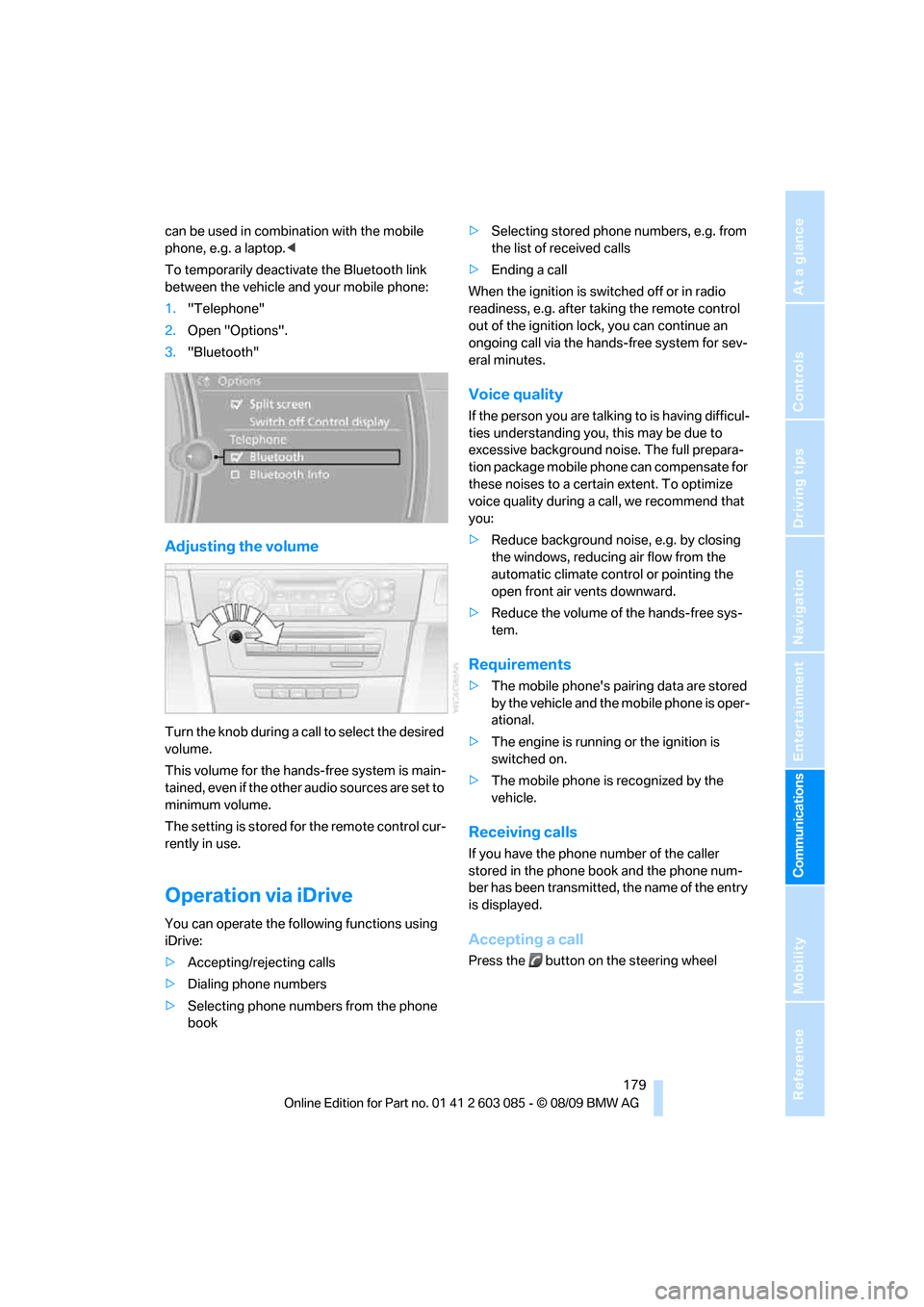
To temporarily deactivate the Bluetooth link
between the vehicle and your mobile phone:
1."Telephone"
2.Open "Options".
3."Bluetooth"
Adjusting the volume
Turn the knob during a call to select the desired
volume.
This volume for the hands-free system is main-
tained, even if the other audio sources are set to
minimum volume.
The setting is stored for the remote control cur-
rently in use.
Operation via iDrive
You can operate the following functions using
iDrive:
>Accepting/rejecting calls
>Dialing phone numbers
>Selecting phone numbers from the phone
book>Selecting stored phone numbers, e.g. from
the list of received calls
>Ending a call
When the ignition is switched off or in radio
readiness, e.g. after taking the remote control
out of the ignition lock, you can continue an
ongoing call via the hands-free system for sev-
eral minutes.
Voice quality
If the person you are talking to is having difficul-
ties understanding you, this may be due to
excessive background noise. The full prepara-
tion package mobile phone can compensate for
these noises to a certain extent. To optimize
voice quality during a call, we recommend that
you:
>Reduce background noise, e.g. by closing
the windows, reducing air flow from the
automatic climate control or pointing the
open front air vents downward.
>Reduce the volume of the hands-free sys-
tem.
Requirements
>The mobile phone's pairing data are stored
by the vehicle and the mobile phone is oper-
ational.
>The engine is running or the ignition is
switched on.
>The mobile phone is recognized by the
vehicle.
Receiving calls
If you have the phone number of the caller
stored in the phone book and the phone num-
ber has been transmitted, the name of the entry
is displayed.
Accepting a call
Press the button on the steering wheel
Page 184 of 266
Telephone
182
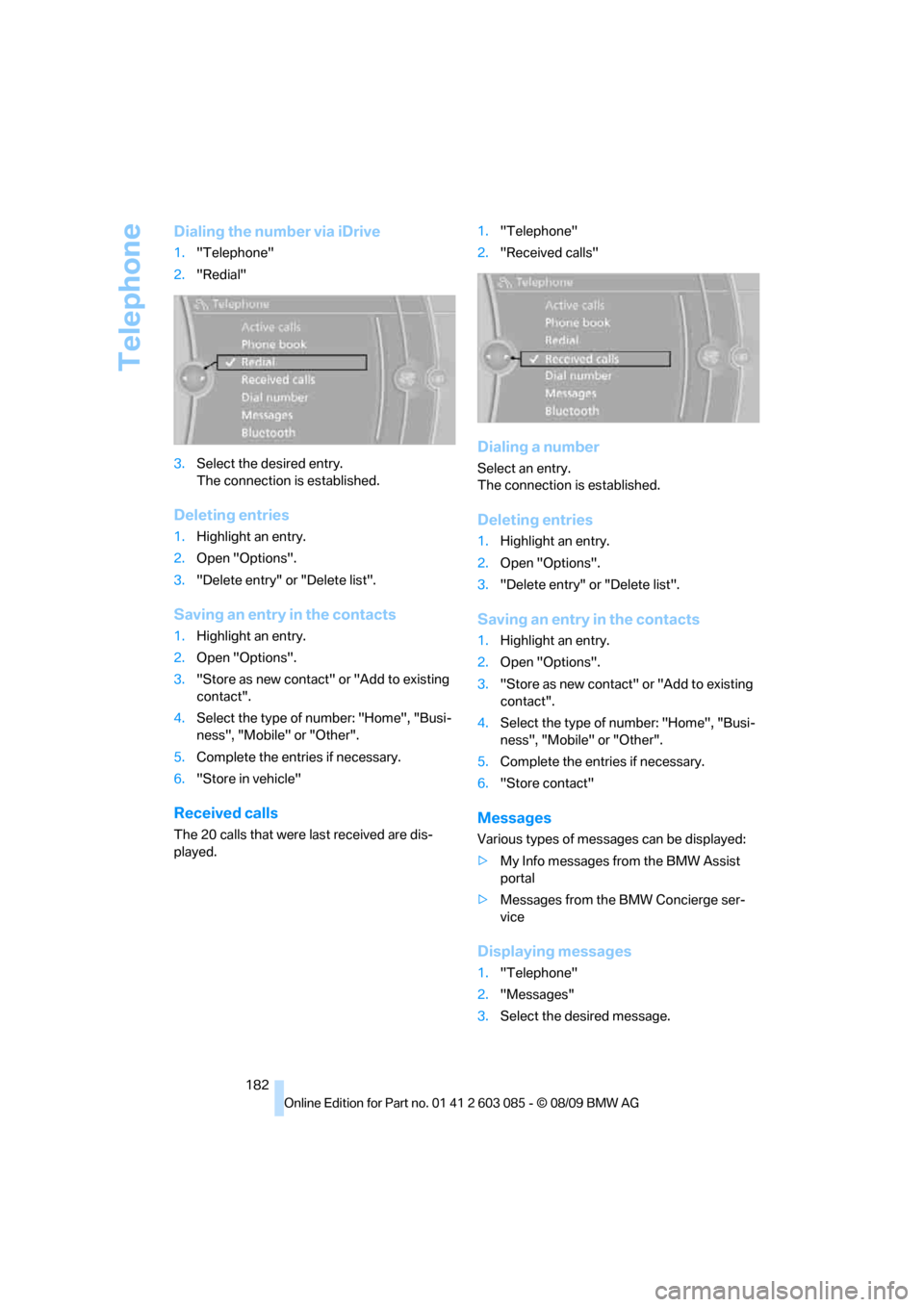
Dialing the number via iDrive
1."Telephone"
2."Redial"
3.Select the desired entry.
The connection is established.
Deleting entries
1.Highlight an entry.
2.Open "Options".
3."Delete entry" or "Delete list".
Saving an entry in the contacts
1.Highlight an entry.
2.Open "Options".
3."Store as new contact" or "Add to existing
contact".
4.Select the type of number: "Home", "Busi-
ness", "Mobile" or "Other".
5.Complete the entries if necessary.
6."Store in vehicle"
Received calls
The 20 calls that were last received are dis-
played.1."Telephone"
2."Received calls"
Dialing a number
Select an entry.
The connection is established.
Deleting entries
1.Highlight an entry.
2.Open "Options".
3."Delete entry" or "Delete list".
Saving an entry in the contacts
1.Highlight an entry.
2.Open "Options".
3."Store as new contact" or "Add to existing
contact".
4.Select the type of number: "Home", "Busi-
ness", "Mobile" or "Other".
5.Complete the entries if necessary.
6."Store contact"
Messages
Various types of messages can be displayed:
>My Info messages from the BMW Assist
portal
>Messages from the BMW Concierge ser-
vice
Displaying messages
1."Telephone"
2."Messages"
3.Select the desired message.
Page 186 of 266
Telephone
184 >{...} Verbal instructions to use with the voice
activation system.
Requirements
The same prerequisites apply as for operation
via iDrive, refer to page179.
Saying commands
Activating voice activation system
1.Briefly press the button on the steering
wheel.
A sound signal indicates that you can say
commands.
2.Say the command.
Ending/canceling operation by voice
commands
Briefly press the button on the steering
wheel orIn dialogs not involving voice commands, i.e.
when you are speaking only text, e.g. a name,
canceling is possible only via the button on the
steering wheel.
Having the possible commands read
aloud
The system recognizes specific commands
that must be pronounced exactly word for word.
You can have the possible commands for any
function read aloud to you:
Digits from zero to nine are recognized.
You can say each digit individually or group
them into a sequence to accelerate the input.
Using alternative commands
Often there is more than a single command to
run a function, e.g.:
Example: dialing phone numbers
To start the dialog:
Press the button on the steering wheel.
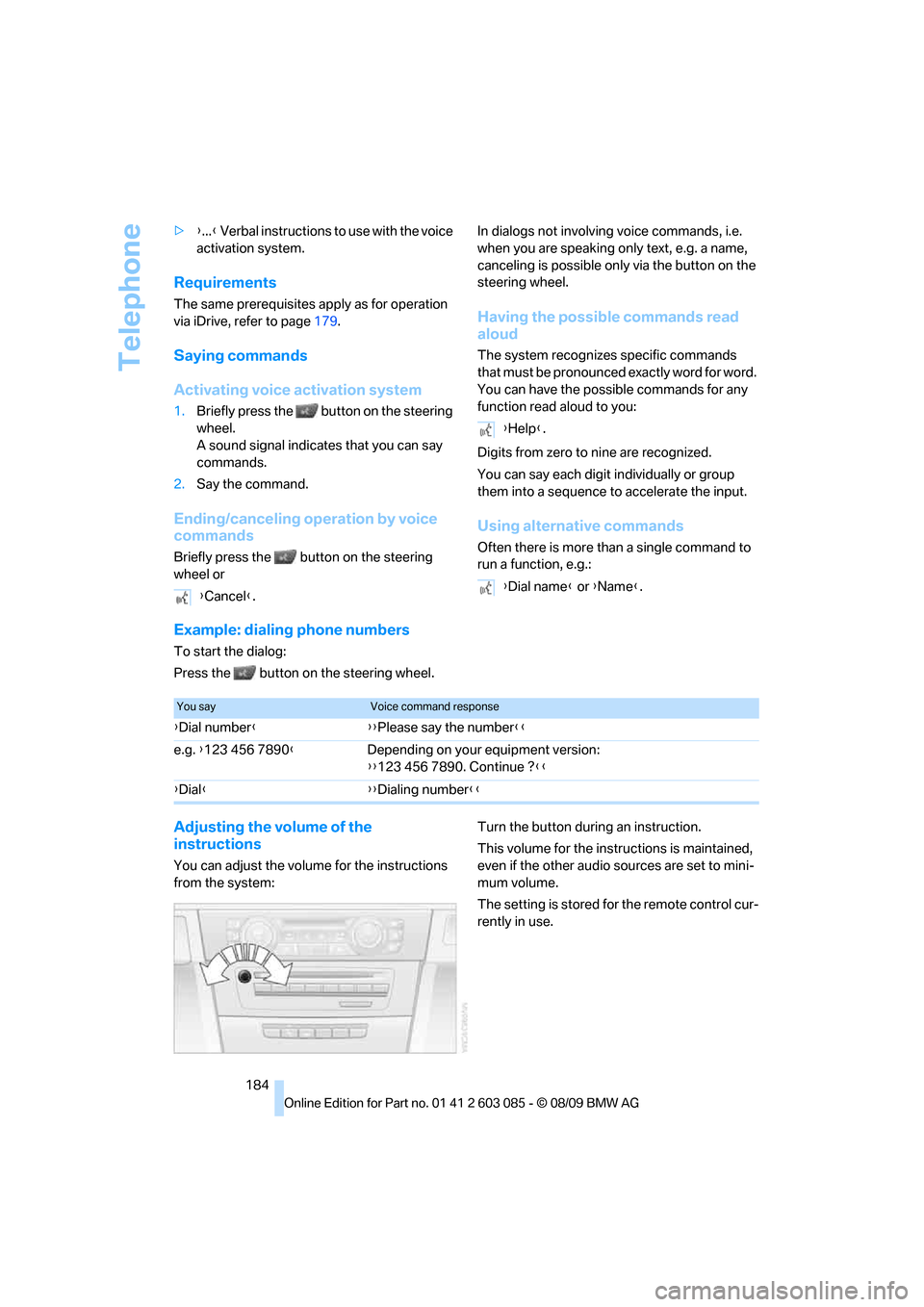
Adjusting the volume of the
instructions
You can adjust the volume for the instructions
from the system:Turn the button during an instruction.
This volume for the instructions is maintained,
even if the other audio sources are set to mini-
mum volume.
The setting is stored for the remote control cur-
rently in use. {Cancel}.
{Help}.
{Dial name} or {Name}.
You sayVoice command response
{Dial number}{{Please say the number}}
e.g. {123 456 7890}Depending on your equipment version:
{{123 456 7890. Continue ?}}
{Dial}{{Dialing number}}
Page 216 of 266
Under the hood
214
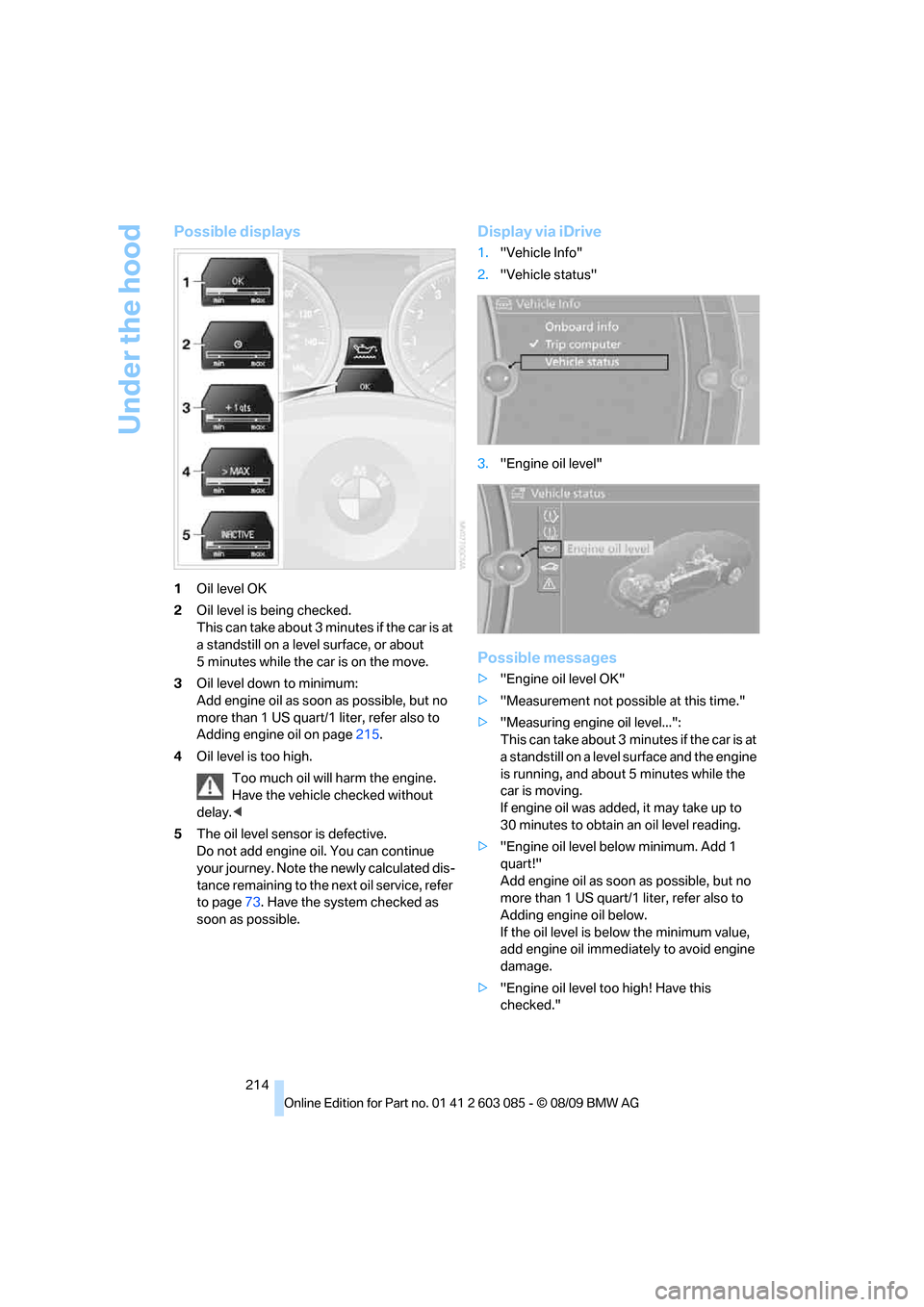
Possible displays
1Oil level OK
2Oil level is being checked.
This can take about 3 minutes if the car is at
a standstill on a level surface, or about
5 minutes while the car is on the move.
3Oil level down to minimum:
Add engine oil as soon as possible, but no
more than 1 US quart/1 liter, refer also to
Adding engine oil on page215.
4Oil level is too high.
Too much oil will harm the engine.
Have the vehicle checked without
delay.<
5The oil level sensor is defective.
Do not add engine oil. You can continue
your journey. Note the newly calculated dis-
tance remaining to the next oil service, refer
to page73. Have the system checked as
soon as possible.
Display via iDrive
1."Vehicle Info"
2."Vehicle status"
3."Engine oil level"
Possible messages
>"Engine oil level OK"
>"Measurement not possible at this time."
>"Measuring engine oil level...":
This can take about 3 minutes if the car is at
a standstill on a level surface and the engine
is running, and about 5 minutes while the
car is moving.
If engine oil was added, it may take up to
30 minutes to obtain an oil level reading.
>"Engine oil level below minimum. Add 1
quart!"
Add engine oil as soon as possible, but no
more than 1 US quart/1 liter, refer also to
Adding engine oil below.
If the oil level is below the minimum value,
add engine oil immediately to avoid engine
damage.
>"Engine oil level too high! Have this
checked."
Page 252 of 266
Everything from A - Z
250 Care219
– automatic car washes219
– care products219
– carpets221
– CD/DVD drives222
– chrome parts220
– displays221
– exterior219
– fine wood parts221
– headlamps220
– high-pressure washer219
– interior221
– leather221
– light-alloy wheels221
– paintwork220
– plastic parts221
– retractable hardtop220
– rubber seals220
– safety belts221
– sensors and cameras221
– upholstery and cloth
trim221
– washing the car
manually220
– windows220
Cargo, securing122
Cargo area
– capacity241
– Comfort Access34
– folding up the floor
panel112
– lamp, refer to Interior
lamps97
– opening from inside31
– opening from outside31
Cargo loading120
– securing cargo122
– stowing cargo121
– vehicle120
Car jack
– jacking points228
Car key, refer to Integrated
key/remote control26
Car phone
– installation location, refer to
Center armrest107
– refer to separate Owner's
ManualCar phone, refer to
Telephone176
Car radio, refer to Radio149
Car shampoo221
Catalytic converter, refer to
Hot exhaust system119
CD, audio playback157
CD changer157,161
– controls146
– fast forward/reverse159
– filling or emptying the
magazine162
– random play sequence158
– selecting a track157
– switching on/off146
– tone control146
– volume146
CD player157
– controls146
– fast forward/reverse159
– random play sequence158
– selecting a track157
– switching on/off146
– tone control146
– volume146
Center armrest107
Center brake lamp
– replacing bulb227
Center console, refer to
Around the center
console14
Central locking
– from inside30
– from outside27
Central locking system27
– Comfort Access33
– hotel function31
– setting unlocking
characteristics27
Changes, technical, refer to
For your own safety5
Changing bulbs, refer to
Lamps and bulbs223
Changing the language on the
Control Display79
Changing the measurement
units on the Control
Display72
Changing wheels227Chassis number, refer to
Engine compartment213
Check Control77
Child restraint fixing system
LATCH53
Child restraint systems52
Child seats, refer to
Transporting children
safely52
Chrome parts221
Chrome polish221
Cigarette lighter, refer to
Lighter109
Cleaning headlamps61
– washer fluid61
Cleaning your BMW, refer to
Care219
Clock69
– 12h/24h mode76
– setting the time and date
76
– setting time75
Closing
– from inside30
– from outside27
Clothes hooks108
Cockpit10
Cold start, refer to Starting the
engine56
Combined instrument, refer to
Instrument cluster12
Comfort Access33
– replacing the battery35
Comfort access, refer to
Comfort Access33
Comfort area, refer to Around
the center console14
Compartment for remote
control, refer to Ignition
lock55
Compass105
Computer70
– displays on Control
Display71
Computer, refer to iDrive16
Concierge service191
Condensation, refer to When
the vehicle is parked120
Condition Based Service
CBS217
Page 253 of 266
Reference 251
At a glance
Controls
Driving tips
Communications
Navigation
Entertainment
Mobility
Configuring settings, refer to
Personal Profile26
Confirmation signals for
locking/unlocking the
vehicle29
Congestion
– refer to Route, bypassing
sections137
Connecting vacuum cleaner,
refer to Connecting
electrical appliances109
Consumption, refer to
Average consumption71
Consumption display
– average consumption71
Contacts
– creating188
Control Center, refer to
iDrive16
Control Display, refer to
iDrive16
– adjusting brightness80
– switching on/off19
Controller, refer to iDrive16
Controls and displays10
Control unit, refer to iDrive16
Convenient loading in
Convertible28
Convenient operation
– glass roof28
– glass roof with Comfort
Access34
– retractable hardtop28
– windows28
– windows with Comfort
Access34
Convertible
– bag holder111
– Convenient loading28
– enlarging cargo area110
– folding down rear
backrest110
– retractable hardtop38
– rollover protection
system92
– securing cargo122
– stowing cargo121
Coolant215
– checking level215Coolant temperature70
Cooling, maximum99
Cooling fluid, refer to
Coolant215
Cooling system, refer to
Coolant215
Copyright2
Corner-illuminating lamps
– replacing bulbs224
Corner-illuminating lamps,
refer to Adaptive light
control94
Cornering lamps, refer to
Adaptive light control94
Correct tires210
Country codes DVD159
Courtesy lamps, refer to
Interior lamps97
Criteria for route136
Cross-hairs in navigation132
Cruise control61
– active63
– malfunction63
Cruising range70
Cupholders108
Curb weight, refer to
Weights241
Current playback
– external devices171
– of music collection166
Customer Relations193
D
Dashboard, refer to
Cockpit10
Dashboard, refer to
Instrument cluster12
Dashboard lighting, refer to
Instrument lighting96
Data, technical238
– capacities241
– dimensions239
– engine238
– weights241
Data transfer194
Date
– date format77
– setting76Daytime running lights94
– replacing bulbs224
DBC Dynamic Brake
Control82
Deactivating front passenger
airbags90
Deadlocking, refer to
Locking28
Defect
– door lock30
– fuel filler flap198
– glass roof37
Destination, entering by town/
city name127
Destination address
– entering127,133
Destination entry via BMW
Assist131
Destination for navigation
– entering by voice133
– entering via map132
– entry127
– home address130
– manual entry127
Destination guidance136
– bypassing a route
section137
– changing specified
route136
– continuing136
– starting136
– voice instructions137
– volume of voice
instructions138
Digital clock69
Digital compass105
Digital radio, refer to HD
Radio150
Dimensions239
Directional indicators, refer to
Turn signals59
Direction instructions, refer to
Voice instructions137
Directory for navigation, refer
to Address book
129
Displacement, refer to Engine
data238
Display, refer to iDrive
controls16