USB BMW 328I COUPE 2012 User Guide
[x] Cancel search | Manufacturer: BMW, Model Year: 2012, Model line: 328I COUPE, Model: BMW 328I COUPE 2012Pages: 314, PDF Size: 7.72 MB
Page 202 of 314
201
External devices
Entertainment
If you have gone through all items in the list and
still cannot activate the de
sired function, please
contact Customer Relations or your BMW cen-
ter.
Software update
The vehicle supports various external devices,
depending on the software it is currently using.
A software update can enable the vehicle to
support, for example, new mobile phones or
new external devices.
Software updates and associated, up-to-date
instructions are availa ble on the web page
www.bmwusa.com/update.
Displaying current version
The currently installed software is displayed.
1. "Settings"
2. "Software update"
3. "Show current version"
Select the desired version to display additional
information.
Updating software by USB
The software update ca n only be performed
when stopped.
1. Save the file for the so ftware update in the
main directory of a USB data storage
device.
2. Connect the USB data storage device to the
USB interface of the USB audio interface in
the center armrest. It is not possible to per-
form the update using the USB interface in
the glove compartment.
3. "Settings"
4. "Software update" 5.
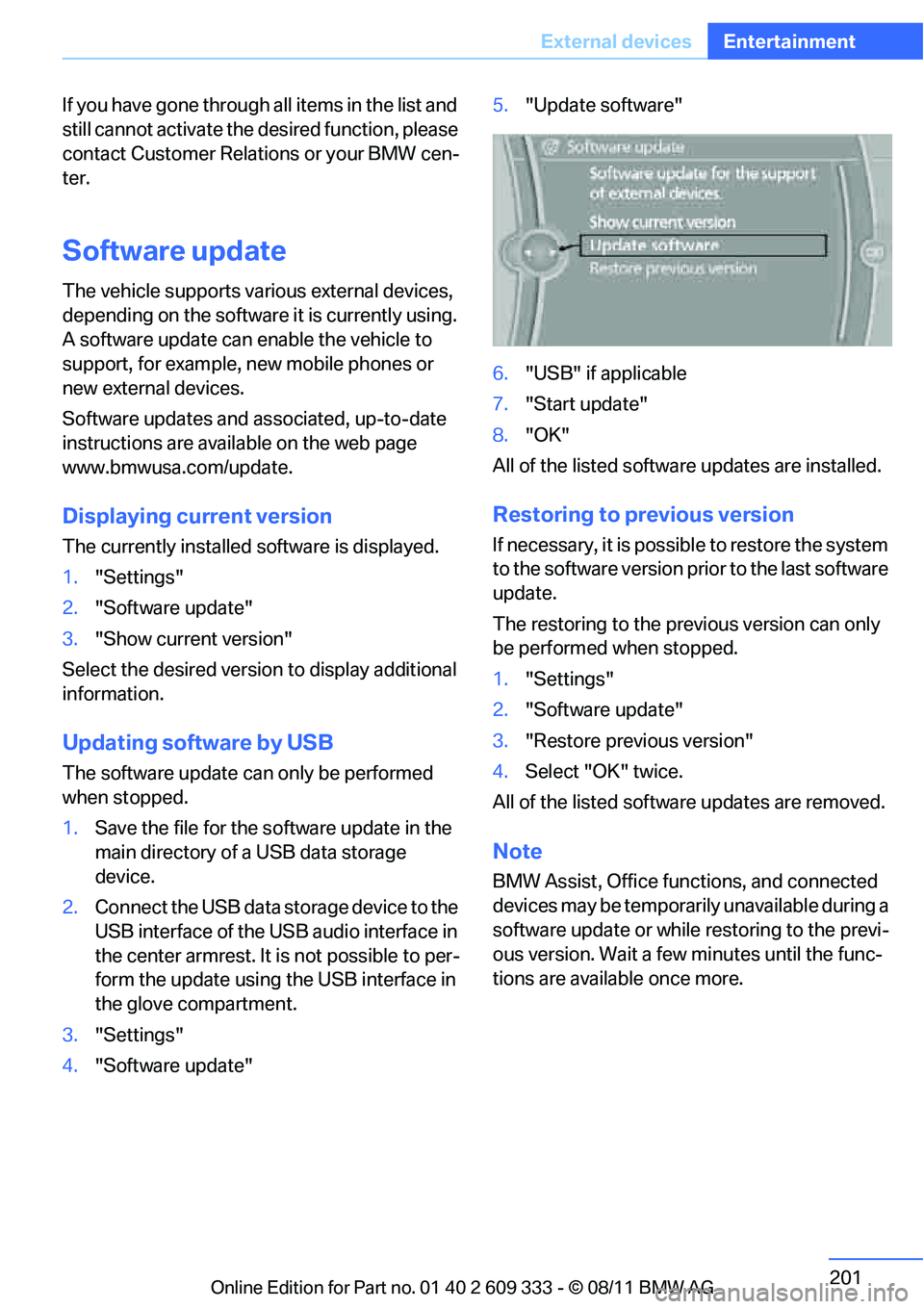
"Update software"
6. "USB" if applicable
7. "Start update"
8. "OK"
All of the listed software updates are installed.
Restoring to previous version
If necessary, it is possible to restore the system
to the software version pr ior to the last software
update.
The restoring to the previous version can only
be performed when stopped.
1. "Settings"
2. "Software update"
3. "Restore previous version"
4. Select "OK" twice.
All of the listed softwa re updates are removed.
Note
BMW Assist, Office functions, and connected
devices may be temporarily unavailable during a
software update or while restoring to the previ-
ous version. Wait a few minutes until the func-
tions are available once more.
Online Edition for Part no. 01 40 2 609 333 - \251 08/11 BMW AG
Page 217 of 314
216
CommunicationsTe l e p h o n e
Snap-in adapter
General information
Detailed information on snap-in adapters that
compatibly support mobile phone functions can
be found at your BMW center.
Notes
At high temperatures, the charging function of
the mobile phone may be limited and some
functions may no longer be carried out.
When using the mobile phone via the vehicle,
follow the operating instructions of the mobile
phone.
Installation location
In the center armrest.
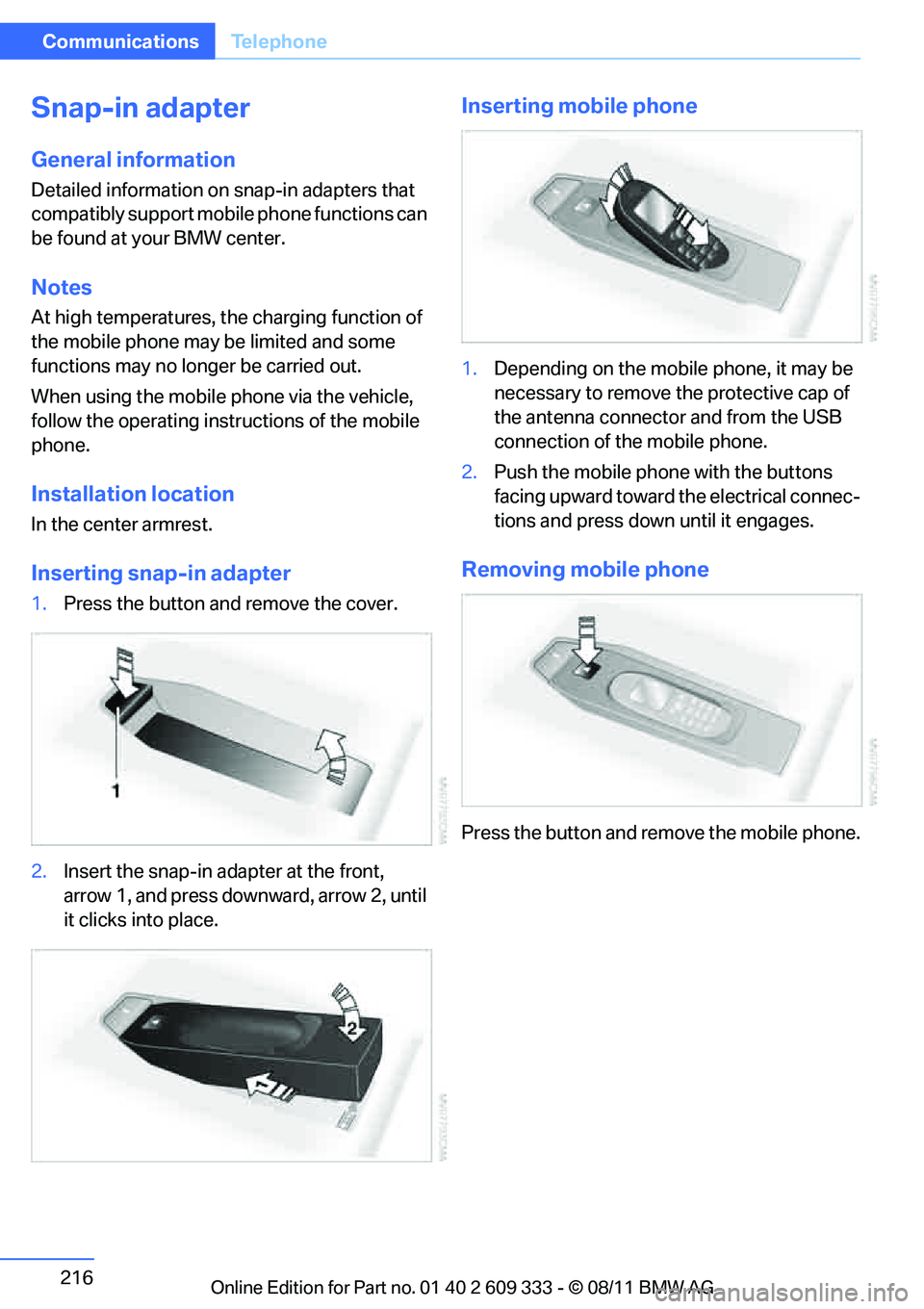
Inserting snap-in adapter
1.Press the button and remove the cover.
2. Insert the snap-in adapter at the front,
arrow 1, and press downward, arrow 2, until
it clicks into place.
Inserting mobile phone
1.Depending on the mobile phone, it may be
necessary to remove th e protective cap of
the antenna connector and from the USB
connection of the mobile phone.
2. Push the mobile phone with the buttons
facing upward toward the electrical connec-
tions and press down until it engages.
Removing mobile phone
Press the button and remove the mobile phone.
Online Edition for Part no. 01 40 2 609 333 - \251 08/11 BMW AG
Page 234 of 314
233
ConnectedDrive
Communications
Using apps
1.
Connect the mobile phone using the snap-
in adapter or the USB audio interface.
2. "ConnectedDrive"
3. Select the desired software application.
Displaying status
You can display informat ion about the currently
available software applications.
1. "ConnectedDrive"
2. "BMW apps"
Plugin
Selected functions of the mobile phone are dis-
played on the Control Display. They can be
operated via iDrive.
1.Connect the mobile phone using the snap-
in adapter.
2. "ConnectedDrive"
3. "PlugIn"
4. "Activate PlugIn"
5. Use the controller to navigate in the dis-
played functions and se lect the desired cat-
egory or track, for example.
Press the button to move one level up or
back within the func tions of the mobile
phone.
Press the button twice to return back to
the main menu.
Notes
> The range of apps that are displayed in the
Control Display depends on the range of
software applications installed on the
mobile phone.
> The data transfer of the software applica-
tions from the mobile phone to the vehicle
may take some time. Some software appli-
cations are dependent on the speed of the
available Internet connection of the mobile
phone. >
Certain versions of the mobile phone used
and the software they use may not permit
apps to be used at the same time as the
Bluetooth hands-free system.
If necessary, restart the software applica-
tion on the mobile phone after completing a
call.
Online Edition for Part no. 01 40 2 609 333 - \251 08/11 BMW AG