remote control BMW 328I COUPE 2012 Service Manual
[x] Cancel search | Manufacturer: BMW, Model Year: 2012, Model line: 328I COUPE, Model: BMW 328I COUPE 2012Pages: 314, PDF Size: 7.72 MB
Page 172 of 314
171
On/off and tone
Entertainment
Adjusting volume
Turn knob
1 next to the CD/DVD player until the
desired volume is obtained.
You can also adjust the volume with buttons on
the steering wheel, refer to page 11.
Setting tone controls
You can alter various tone settings, e.g. treble
and bass or the speed-dependent volume
increase.
The tone settings are set for all audio sources at
once.
The settings are stored for the remote control
currently in use.
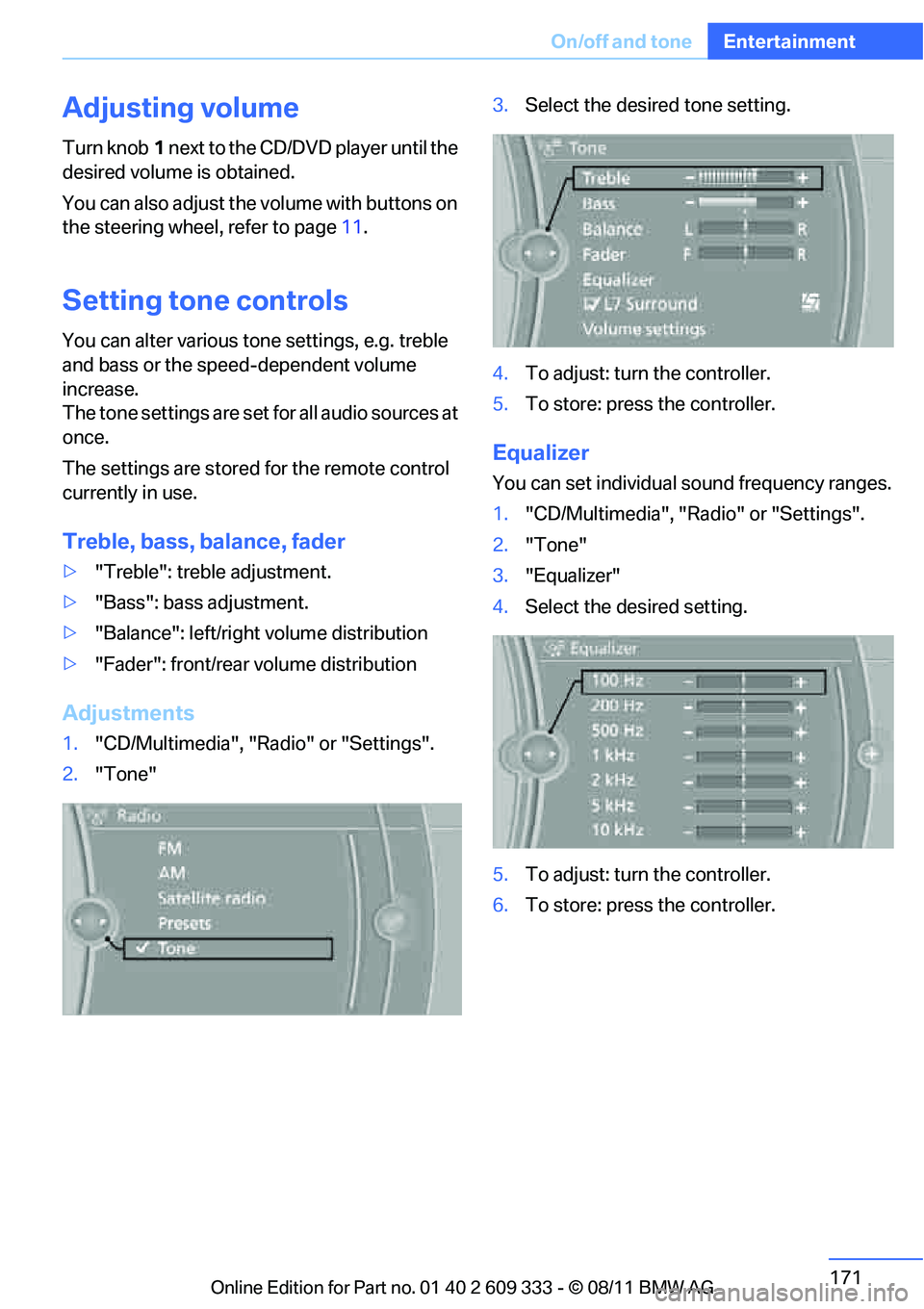
Treble, bass, balance, fader
> "Treble": treble adjustment.
> "Bass": bass adjustment.
> "Balance": left/right volume distribution
> "Fader": front/rear volume distribution
Adjustments
1."CD/Multimedia", "Radio" or "Settings".
2. "Tone" 3.
Select the desired tone setting.
4. To adjust: turn the controller.
5. To store: press the controller.
Equalizer
You can set individual sound frequency ranges.
1."CD/Multimedia", "Radio" or "Settings".
2. "Tone"
3. "Equalizer"
4. Select the desired setting.
5. To adjust: turn the controller.
6. To store: press the controller.
Online Edition for Part no. 01 40 2 609 333 - \251 08/11 BMW AG
Page 174 of 314
173
Radio
Entertainment
Radio
Vehicle equipment
In this chapter, all production, country, and
optional equipment that is offered in the model
range is described. Equipment is also described
that is not available because of, for example,
selected options or coun
try version. This also
applies to safety related functions and systems.
General information
Your radio is designed for reception of the fol-
lowing stations:
> FM and AM
> HD Radio
> Satellite radio
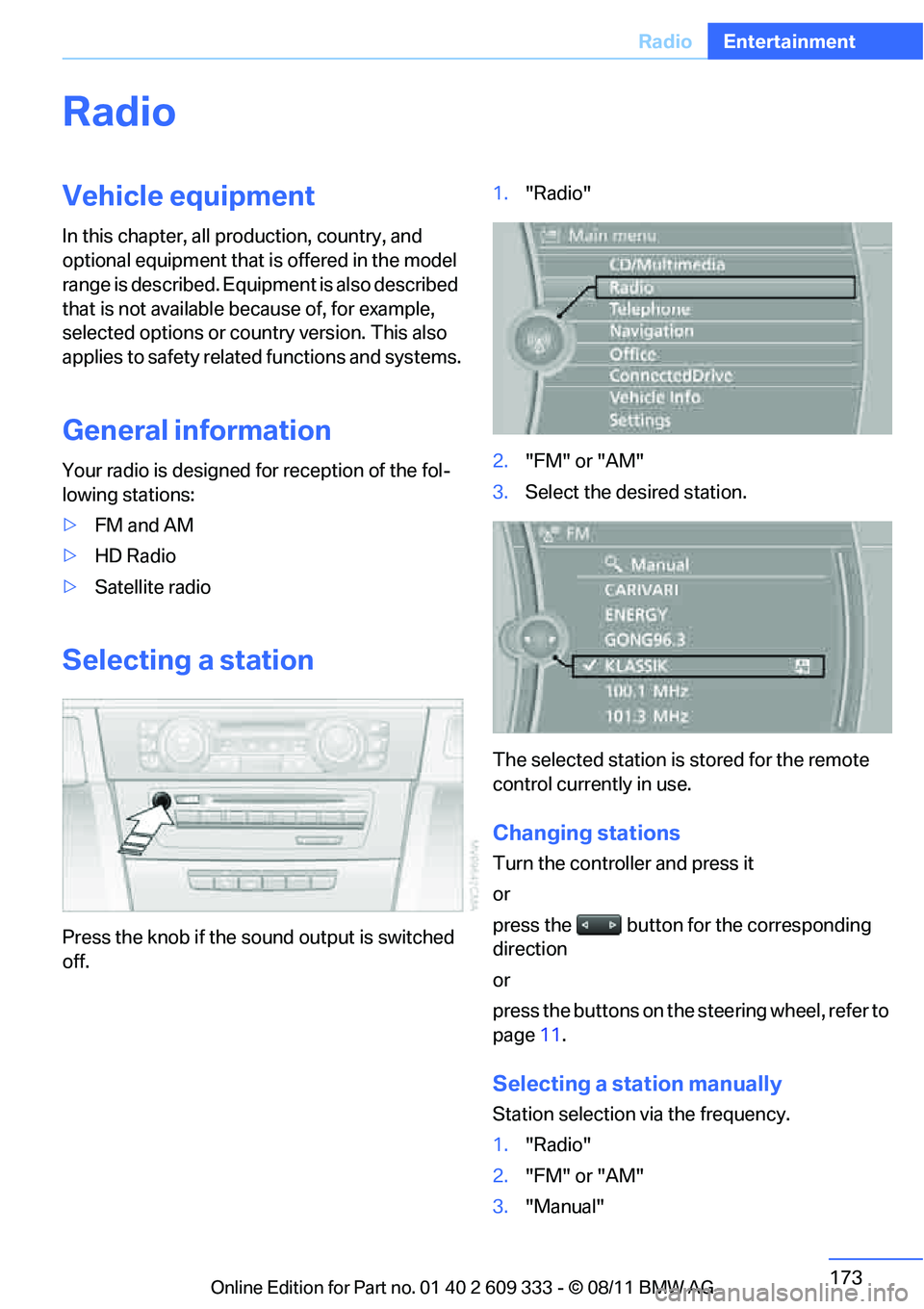
Selecting a station
Press the knob if the sound output is switched
off. 1.
"Radio"
2. "FM" or "AM"
3. Select the desired station.
The selected station is stored for the remote
control currently in use.
Changing stations
Turn the controller and press it
or
press the button for the corresponding
direction
or
press the buttons on the steering wheel, refer to
page 11.
Selecting a station manually
Station selection via the frequency.
1. "Radio"
2. "FM" or "AM"
3. "Manual"
Online Edition for Part no. 01 40 2 609 333 - \251 08/11 BMW AG
Page 175 of 314
174
EntertainmentRadio
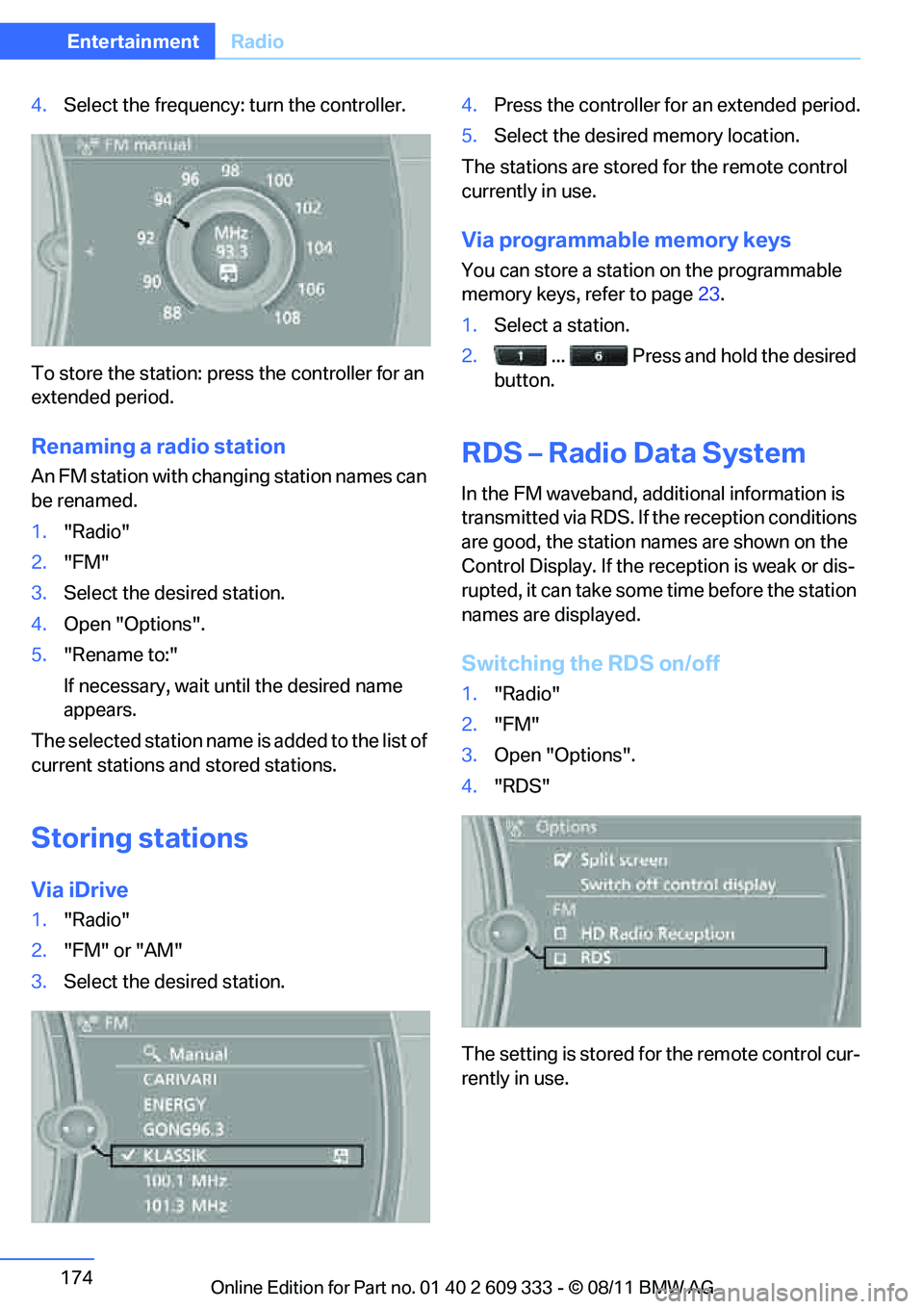
4.Select the frequency: turn the controller.
To store the station: press the controller for an
extended period.
Renaming a radio station
An FM station with changing station names can
be renamed.
1. "Radio"
2. "FM"
3. Select the desired station.
4. Open "Options".
5. "Rename to:"
If necessary, wait un til the desired name
appears.
The selected station name is added to the list of
current stations and stored stations.
Storing stations
Via iDrive
1. "Radio"
2. "FM" or "AM"
3. Select the desired station. 4.
Press the controller for an extended period.
5. Select the desired memory location.
The stations are stored for the remote control
currently in use.
Via programmable memory keys
You can store a station on the programmable
memory keys, refer to page 23.
1. Select a station.
2. ... Press and hold the desired
button.
RDS – Radio Data System
In the FM waveband, addi tional information is
transmitted via RDS. If the reception conditions
are good, the station names are shown on the
Control Display. If the reception is weak or dis-
rupted, it can take some time before the station
names are displayed.
Switching the RDS on/off
1. "Radio"
2. "FM"
3. Open "Options".
4. "RDS"
The setting is stored fo r the remote control cur-
rently in use.
Online Edition for Part no. 01 40 2 609 333 - \251 08/11 BMW AG
Page 176 of 314
175
Radio
Entertainment
HD Radio™ reception
Many radio stations transmit analog and digital
signals.
License conditions
HD Radio™ technology is
manufactured under
U.S. and Foreign Patents licensed from iBiquity
Digital Corp. HD Radio™ and the HD and HD
Radio logos are proprietary trademarks of iBiq-
uity Digital Corp.
Activating/deactivating digital radio
reception
1. "Radio"
2. "FM" or "AM"
3. Open "Options".
4. "HD Radio Reception"
The setting is stored for the remote control cur-
rently in use. This symbol is displa yed when a station is
being received digitally.
When setting a station that has a digital signal, it
may take several second s before the station
plays in HD quality.
In areas in which the station is not continuously
received in digital mode, playback switches
between analog and digital reception. In this
case, switch off digital radio reception.
Displaying additional information
Some stations broadcast additional information
on the current track, such as the name of the
artist.
1. Select the desired station.
2. Open "Options".
3. "Station info"
Selecting a substation
The symbol indicates that a main station also
broadcasts additional substations. The station
name of the main station ends in HD1. The sta-
tion names of the substations end in HD2, HD3,
etc. 1.
Select the desired station.
2. Press the controller.
3. Select the substation.
When reception is poor, the substation is muted
for several seconds.
Presets
It is possible to store up to 40 stations.
Selecting a station
1. "Radio"
2. "Presets"
3. Select the desired station.
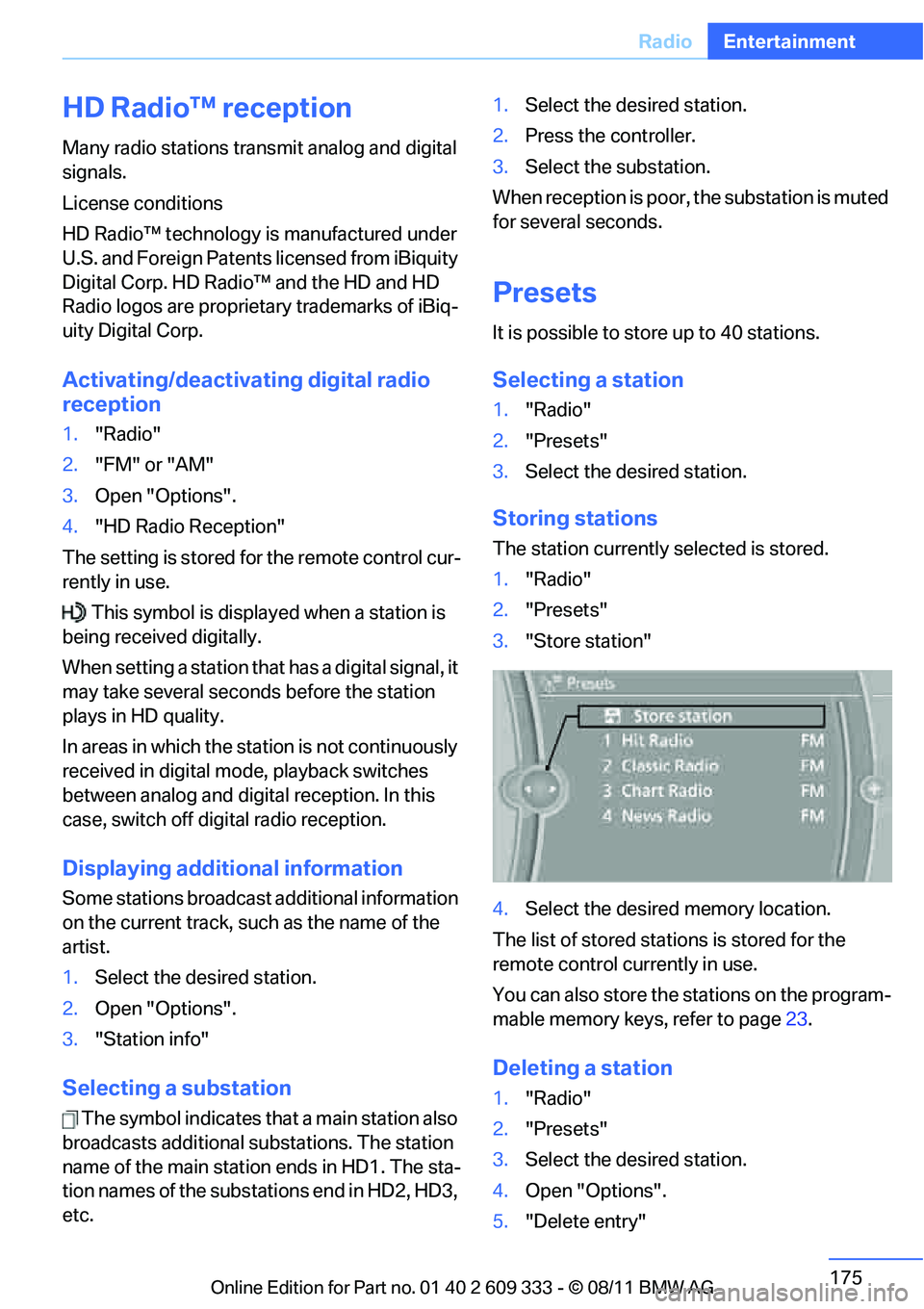
Storing stations
The station currently selected is stored.
1."Radio"
2. "Presets"
3. "Store station"
4. Select the desired memory location.
The list of stored stations is stored for the
remote control currently in use.
You can also store the stations on the program-
mable memory keys, refer to page 23.
Deleting a station
1."Radio"
2. "Presets"
3. Select the desired station.
4. Open "Options".
5. "Delete entry"
Online Edition for Part no. 01 40 2 609 333 - \251 08/11 BMW AG
Page 178 of 314
177
Satellite radio
Entertainment
Deactivating channels
1.
"Radio"
2. "Satellite radio"
3. Open "Options".
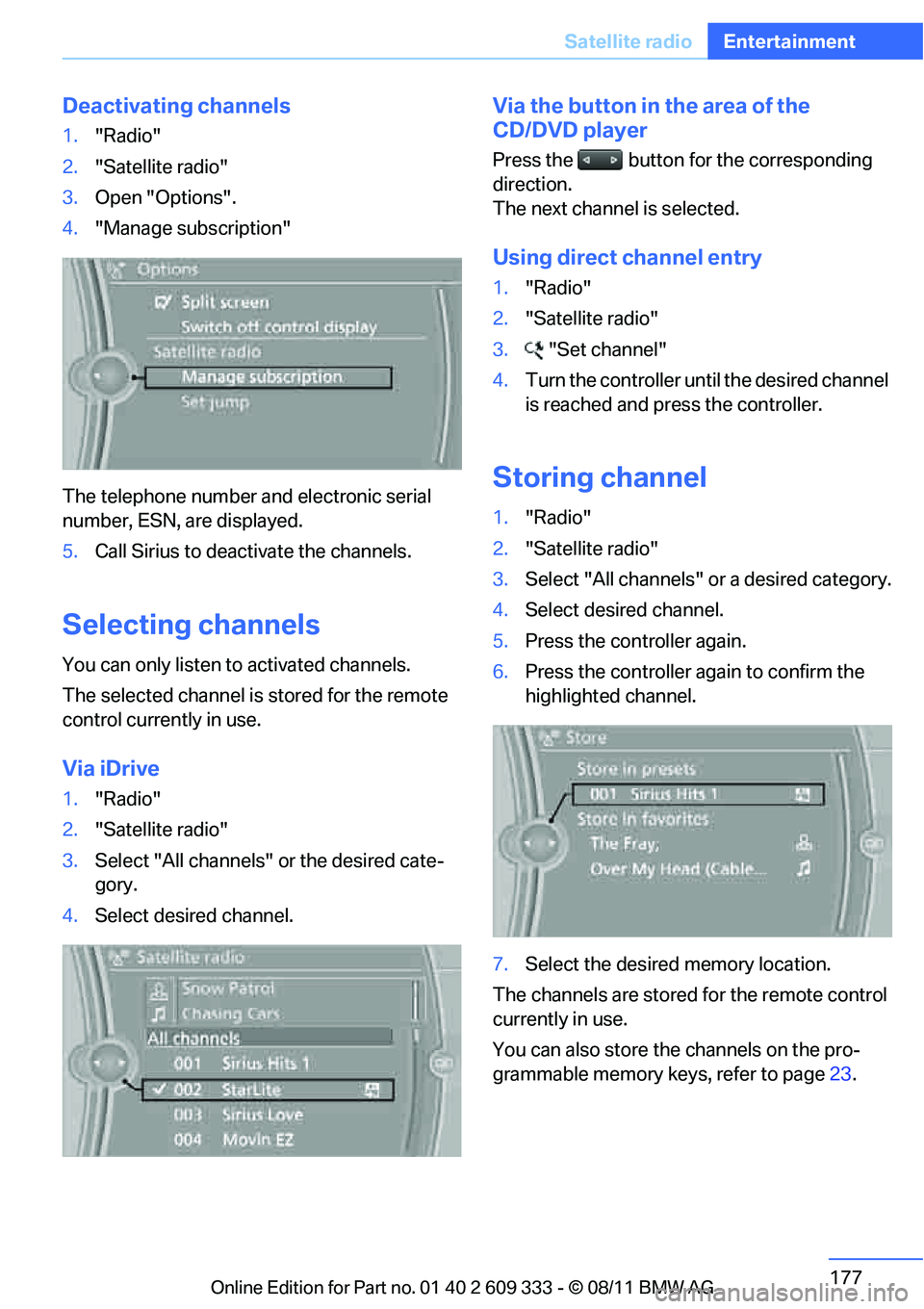
4. "Manage subscription"
The telephone number and electronic serial
number, ESN, are displayed.
5. Call Sirius to deacti vate the channels.
Selecting channels
You can only listen to activated channels.
The selected channel is stored for the remote
control currently in use.
Via iDrive
1. "Radio"
2. "Satellite radio"
3. Select "All channels" or the desired cate-
gory.
4. Select desired channel.
Via the button in the area of the
CD/DVD player
Press the button for the corresponding
direction.
The next channel is selected.
Using direct channel entry
1."Radio"
2. "Satellite radio"
3. "Set channel"
4. Turn the controller until the desired channel
is reached and pr ess the controller.
Storing channel
1."Radio"
2. "Satellite radio"
3. Select "All channels" or a desired category.
4. Select desired channel.
5. Press the controller again.
6. Press the controller again to confirm the
highlighted channel.
7. Select the desired memory location.
The channels are stored for the remote control
currently in use.
You can also store the channels on the pro-
grammable memory ke ys, refer to page23.
Online Edition for Part no. 01 40 2 609 333 - \251 08/11 BMW AG
Page 180 of 314
179
Satellite radio
Entertainment
Deactivating
"Automatic time shift"
Storing favorites
Up to 30 favorites can be
stored in the favorites
list. Possible favorites include artist, track,
game, league, and team.
Storing artist, track, or game
Only current broadcasts can be stored as favor-
ites. The channel informat ion must be available.
1. "Radio"
2. "Satellite radio"
3. Select "All channels" or the desired cate-
gory.
4. Select desired channel.
5. Press the controller again.
6. Select artist, track, or game.
Storing league or team
Leagues or teams can be added to the favorites
from a selection list.
1. "Radio"
2. "Satellite radio"
3. "Manage favorites"
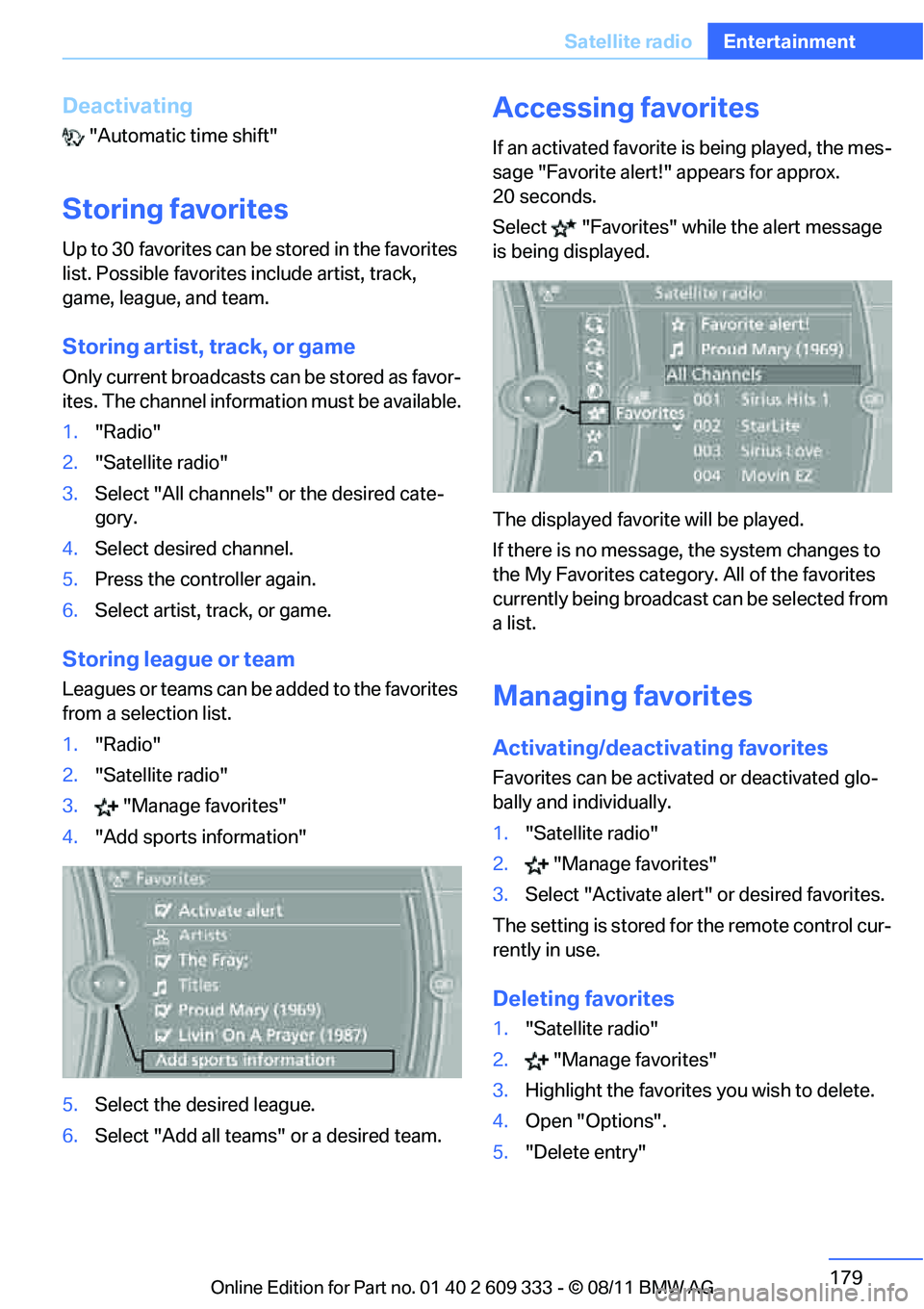
4. "Add sports information"
5. Select the desired league.
6. Select "Add all teams" or a desired team.
Accessing favorites
If an activated favorite is being played, the mes-
sage "Favorite alert!" appears for approx.
20 seconds.
Select "Favorites" wh ile the alert message
is being displayed.
The displayed favorite will be played.
If there is no message, the system changes to
the My Favorites category . All of the favorites
currently being broadcast can be selected from
a list.
Managing favorites
Activating/deactivating favorites
Favorites can be activated or deactivated glo-
bally and individually.
1. "Satellite radio"
2. "Manage favorites"
3. Select "Activate alert" or desired favorites.
The setting is stored for the remote control cur-
rently in use.
Deleting favorites
1. "Satellite radio"
2. "Manage favorites"
3. Highlight the favorites you wish to delete.
4. Open "Options".
5. "Delete entry"
Online Edition for Part no. 01 40 2 609 333 - \251 08/11 BMW AG
Page 181 of 314
180
EntertainmentSatellite radio
Traffic Jump
Traffic and weather information for a selected
region are broadcast at intervals of a few min-
utes.
Selecting region
1."Radio"
2. "Satellite radio"
3. Open "Options".
4. "Set jump"
5. Select the desired region.
The region is stored for the remote control cur-
rently in use.
Activating/deactivating Jump
1. "Radio"
2. "Satellite radio"
3. "Jump to:"
As soon as information about the selected
region becomes available, it is broadcast.
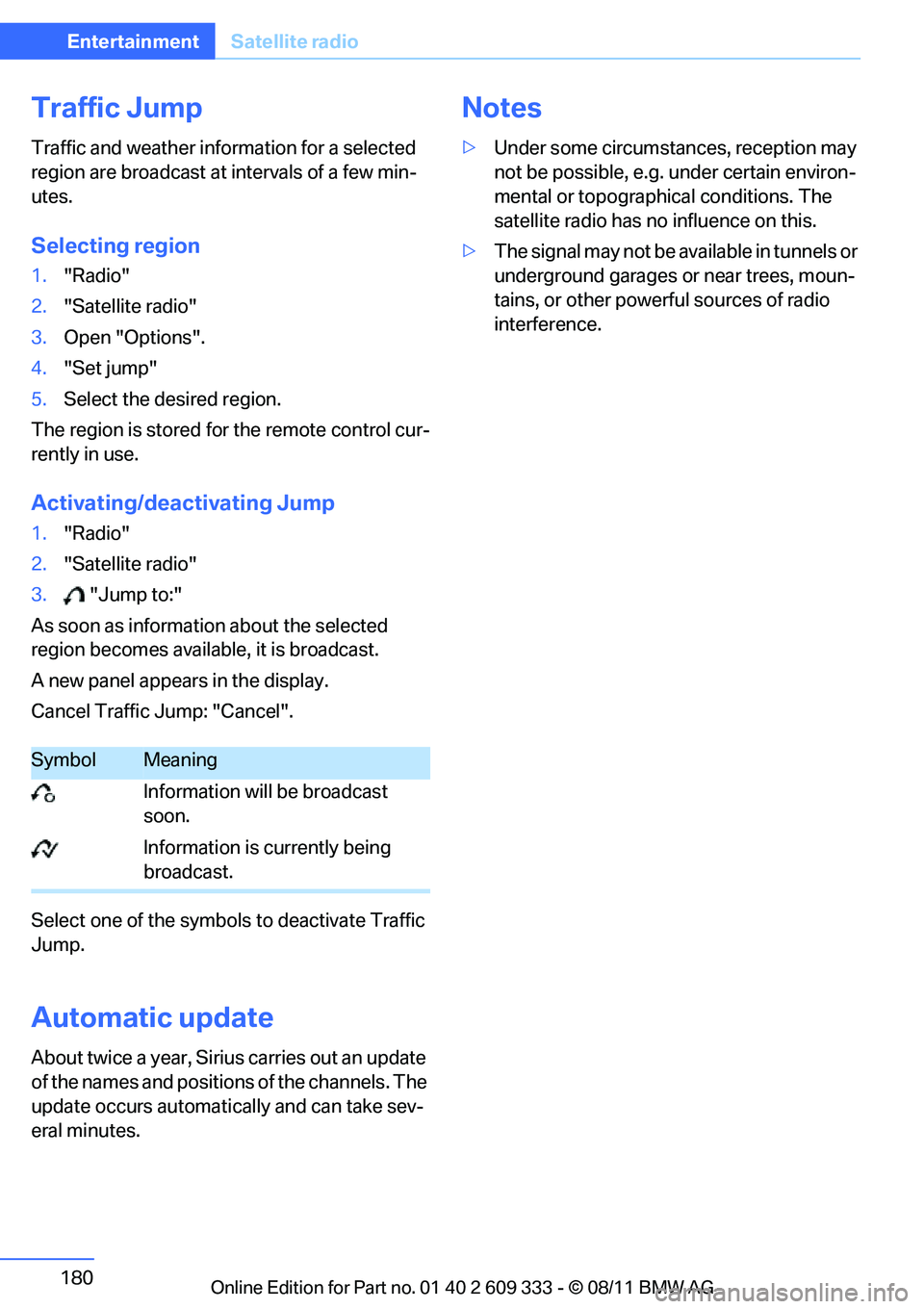
A new panel appears in the display.
Cancel Traffic Jump: "Cancel".
Select one of the symbol s to deactivate Traffic
Jump.
Automatic update
About twice a year, Sirius carries out an update
of the names and positions of the channels. The
update occurs automati cally and can take sev-
eral minutes.
Notes
> Under some circumstan ces, reception may
not be possible, e.g. under certain environ-
mental or topographical conditions. The
satellite radio has no influence on this.
> The signal may not be available in tunnels or
underground garages or near trees, moun-
tains, or other powerful sources of radio
interference.
SymbolMeaning
Information will be broadcast
soon.
Information is currently being
broadcast.
Online Edition for Part no. 01 40 2 609 333 - \251 08/11 BMW AG
Page 210 of 314
209
Te l e p h o n e
Communications
If you have gone through all items in the list and
still cannot activate the de
sired function, please
check the website www.bmw.com/bluetooth
for further notes or contact Customer Relations
or a BMW center.
Operation
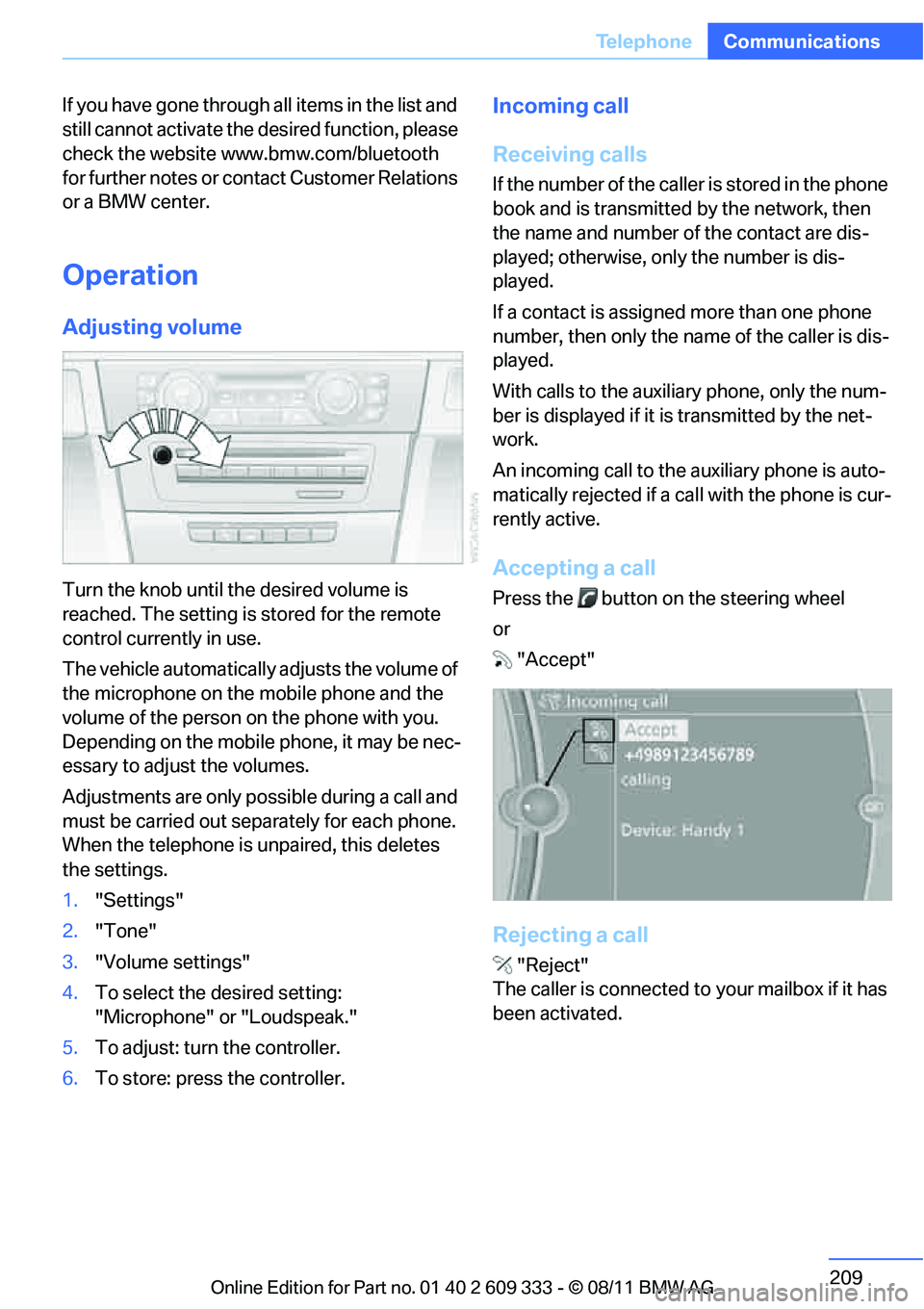
Adjusting volume
Turn the knob until the desired volume is
reached. The setting is stored for the remote
control currently in use.
The vehicle automatically adjusts the volume of
the microphone on the mobile phone and the
volume of the person on the phone with you.
Depending on the mobile phone, it may be nec-
essary to adjust the volumes.
Adjustments are only possible during a call and
must be carried out separately for each phone.
When the telephone is unpaired, this deletes
the settings.
1. "Settings"
2. "Tone"
3. "Volume settings"
4. To select the desired setting:
"Microphone" or "Loudspeak."
5. To adjust: turn the controller.
6. To store: press the controller.
Incoming call
Receiving calls
If the number of the caller is stored in the phone
book and is transmitted by the network, then
the name and number of the contact are dis-
played; otherwise, only the number is dis-
played.
If a contact is assigned more than one phone
number, then only the name of the caller is dis-
played.
With calls to the auxiliary phone, only the num-
ber is displayed if it is transmitted by the net-
work.
An incoming call to the auxiliary phone is auto-
matically rejected if a ca ll with the phone is cur-
rently active.
Accepting a call
Press the button on the steering wheel
or "Accept"
Rejecting a call
"Reject"
The caller is connected to your mailbox if it has
been activated.
Online Edition for Part no. 01 40 2 609 333 - \251 08/11 BMW AG
Page 213 of 314
212
CommunicationsTe l e p h o n e
Keypad dialing
Use keypad dialing to gain access to network
services or to control de vices, e.g. to remotely
access an answering machine. This requires
the DTMF code.
1. "Telephone"
2. Select contact from a list or "Dial number"
3. "Keypad dialing"
4. Enter a DTMF code.
Phone book
Displays
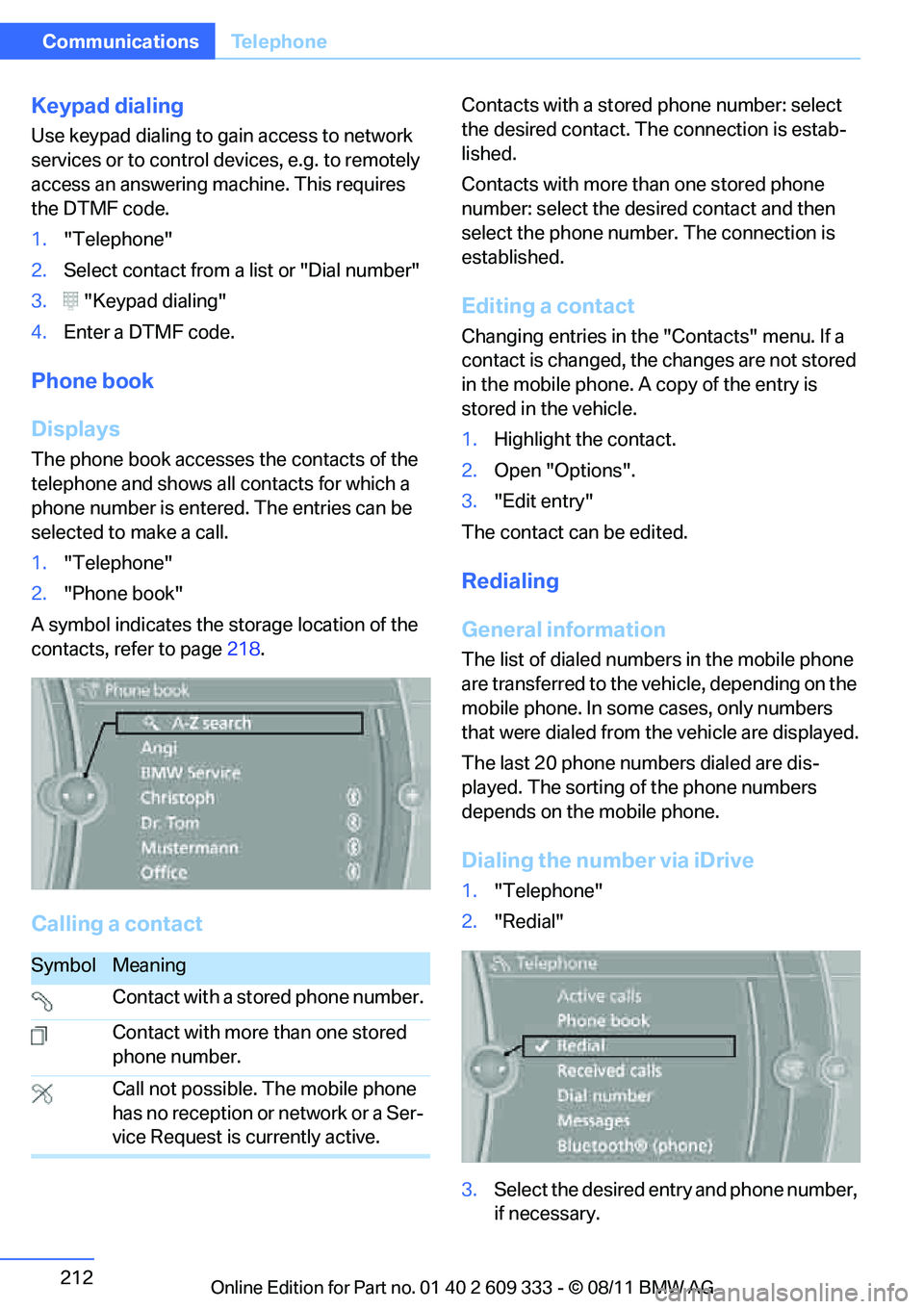
The phone book accesses the contacts of the
telephone and shows all contacts for which a
phone number is entered. The entries can be
selected to make a call.
1. "Telephone"
2. "Phone book"
A symbol indicates the storage location of the
contacts, refer to page 218.
Calling a contact
Contacts with a stored phone number: select
the desired contact. Th e connection is estab-
lished.
Contacts with more than one stored phone
number: select the desired contact and then
select the phone number. The connection is
established.
Editing a contact
Changing entries in the "Contacts" menu. If a
contact is changed, the changes are not stored
in the mobile phone. A copy of the entry is
stored in the vehicle.
1. Highlight the contact.
2. Open "Options".
3. "Edit entry"
The contact can be edited.
Redialing
General information
The list of dialed number s in the mobile phone
are transferred to the vehicle, depending on the
mobile phone. In some cases, only numbers
that were dialed from the vehicle are displayed.
The last 20 phone numbers dialed are dis-
played. The sorting of the phone numbers
depends on the mobile phone.
Dialing the number via iDrive
1. "Telephone"
2. "Redial"
3. Select the desired entry and phone number,
if necessary.
SymbolMeaning
Contact with a stored phone number.
Contact with more than one stored
phone number.
Call not possible. The mobile phone
has no reception or network or a Ser-
vice Request is currently active.
Online Edition for Part no. 01 40 2 609 333 - \251 08/11 BMW AG
Page 216 of 314
215
Te l e p h o n e
Communications
The command can be repeated as often as nec-
essary.
Deleting phone number
All digits entered up to
this point are deleted.
Redialing
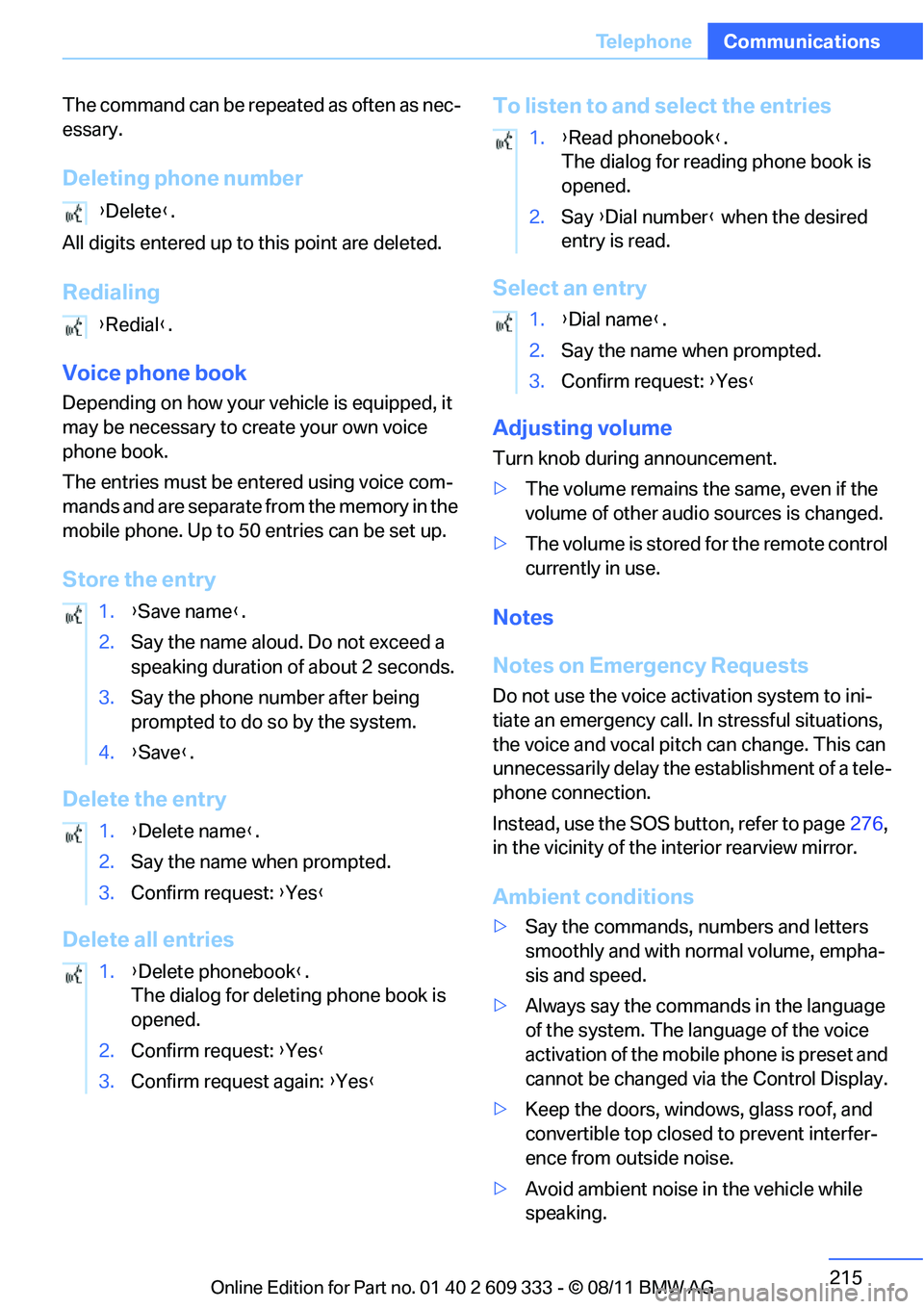
Voice phone book
Depending on how your vehicle is equipped, it
may be necessary to cr eate your own voice
phone book.
The entries must be entered using voice com-
mands and are separate fr om the memory in the
mobile phone. Up to 50 entries can be set up.
Store the entry
Delete the entry
Delete all entries To listen to and select the entries
Select an entry
Adjusting volume
Turn knob during announcement.
>
The volume remains the same, even if the
volume of other audio sources is changed.
> The volume is stored for the remote control
currently in use.
Notes
Notes on Emergency Requests
Do not use the voice activation system to ini-
tiate an emergency call. In stressful situations,
the voice and vocal pitch can change. This can
unnecessarily delay the establishment of a tele-
phone connection.
Instead, use the SOS button, refer to page 276,
in the vicinity of the interior rearview mirror.
Ambient conditions
> Say the commands, numbers and letters
smoothly and with normal volume, empha-
sis and speed.
> Always say the commands in the language
of the system. The language of the voice
activation of the mobile phone is preset and
cannot be changed via the Control Display.
> Keep the doors, windows, glass roof, and
convertible top closed to prevent interfer-
ence from outside noise.
> Avoid ambient noise in the vehicle while
speaking.
{
Delete }.
{ Redial }.
1. {Save name }.
2. Say the name aloud. Do not exceed a
speaking duration of about 2 seconds.
3. Say the phone number after being
prompted to do so by the system.
4. {Save }.
1. {Delete name }.
2. Say the name when prompted.
3. Confirm request: {Yes }
1. {Delete phonebook }.
The dialog for deleting phone book is
opened.
2. Confirm request: {Yes }
3. Confirm request again: {Yes }
1. {Read phonebook }.
The dialog for reading phone book is
opened.
2. Say {Dial number } when the desired
entry is read.
1. {Dial name }.
2. Say the name when prompted.
3. Confirm request: {Yes }
Online Edition for Part no. 01 40 2 609 333 - \251 08/11 BMW AG