tow BMW 328XI COUPE 2007 E92 Owner's Guide
[x] Cancel search | Manufacturer: BMW, Model Year: 2007, Model line: 328XI COUPE, Model: BMW 328XI COUPE 2007 E92Pages: 272, PDF Size: 8.97 MB
Page 138 of 272
Destination entry
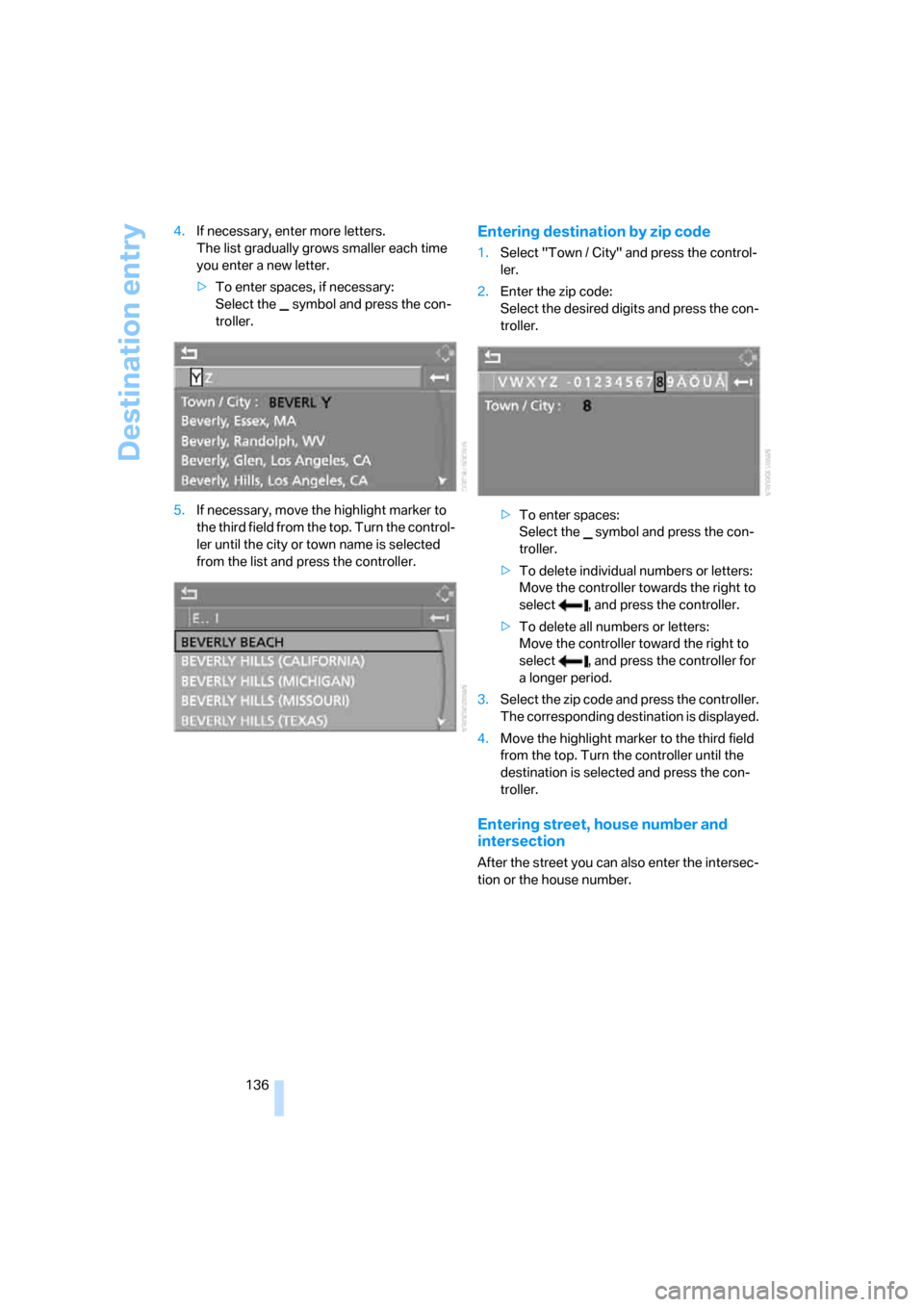
136 4.If necessary, enter more letters.
The list gradually grows smaller each time
you enter a new letter.
>To enter spaces, if necessary:
Select the symbol and press the con-
troller.
5.If necessary, move the highlight marker to
the third field from the top. Turn the control-
ler until the city or town name is selected
from the list and press the controller.
Entering destination by zip code
1.Select "Town / City" and press the control-
ler.
2.Enter the zip code:
Select the desired digits and press the con-
troller.
>To enter spaces:
Select the symbol and press the con-
troller.
>To delete individual numbers or letters:
Move the controller towards the right to
select , and press the controller.
>To delete all numbers or letters:
Move the controller toward the right to
select , and press the controller for
a longer period.
3.Select the zip code and press the controller.
The corresponding destination is displayed.
4.Move the highlight marker to the third field
from the top. Turn the controller until the
destination is selected and press the con-
troller.
Entering street, house number and
intersection
After the street you can also enter the intersec-
tion or the house number.
Page 139 of 272
Navigation
Driving tips
137Reference
At a glance
Controls
Communications
Entertainment
Mobility
Entering street and intersection
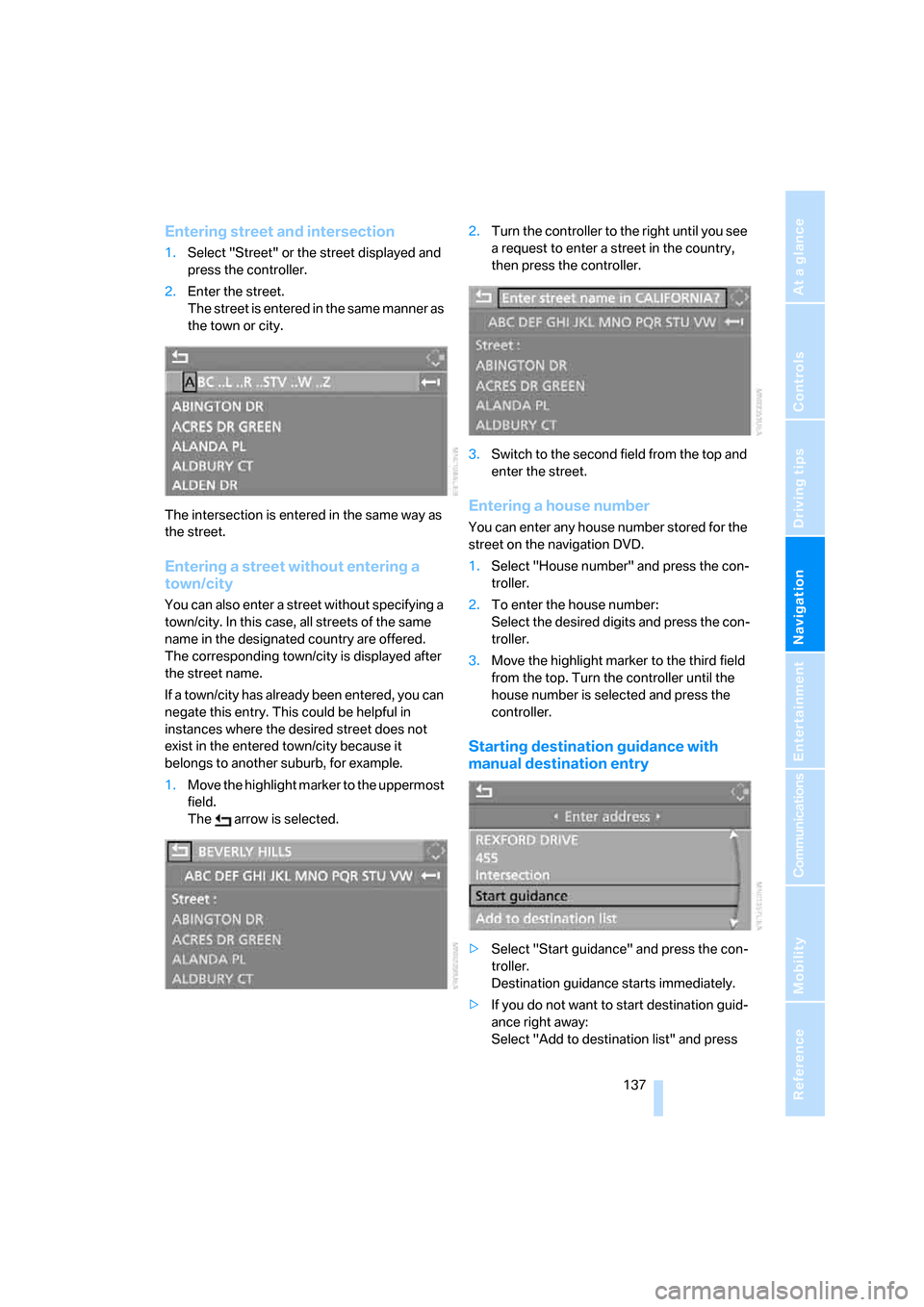
1.Select "Street" or the street displayed and
press the controller.
2.Enter the street.
The street is entered in the same manner as
the town or city.
The intersection is entered in the same way as
the street.
Entering a street without entering a
town/city
You can also enter a street without specifying a
town/city. In this case, all streets of the same
name in the designated country are offered.
The corresponding town/city is displayed after
the street name.
If a town/city has already been entered, you can
negate this entry. This could be helpful in
instances where the desired street does not
exist in the entered town/city because it
belongs to another suburb, for example.
1.Move the highlight marker to the uppermost
field.
The arrow is selected.2.Turn the controller to the right until you see
a request to enter a street in the country,
then press the controller.
3.Switch to the second field from the top and
enter the street.
Entering a house number
You can enter any house number stored for the
street on the navigation DVD.
1.Select "House number" and press the con-
troller.
2.To enter the house number:
Select the desired digits and press the con-
troller.
3.Move the highlight marker to the third field
from the top. Turn the controller until the
house number is selected and press the
controller.
Starting destination guidance with
manual destination entry
>Select "Start guidance" and press the con-
troller.
Destination guidance starts immediately.
>If you do not want to start destination guid-
ance right away:
Select "Add to destination list" and press
Page 140 of 272
Destination entry
138 the controller.
The destination is stored in the destination
list, refer to page141.
Entering a destination by
voice commands*
You can enter a desired destination via the
voice command system. During the destination
input, you can switch between voice entry and
entry via iDrive at any time. To do so, reactivate
the voice command system if necessary.
You can have the possible commands
read aloud via {Options}.<
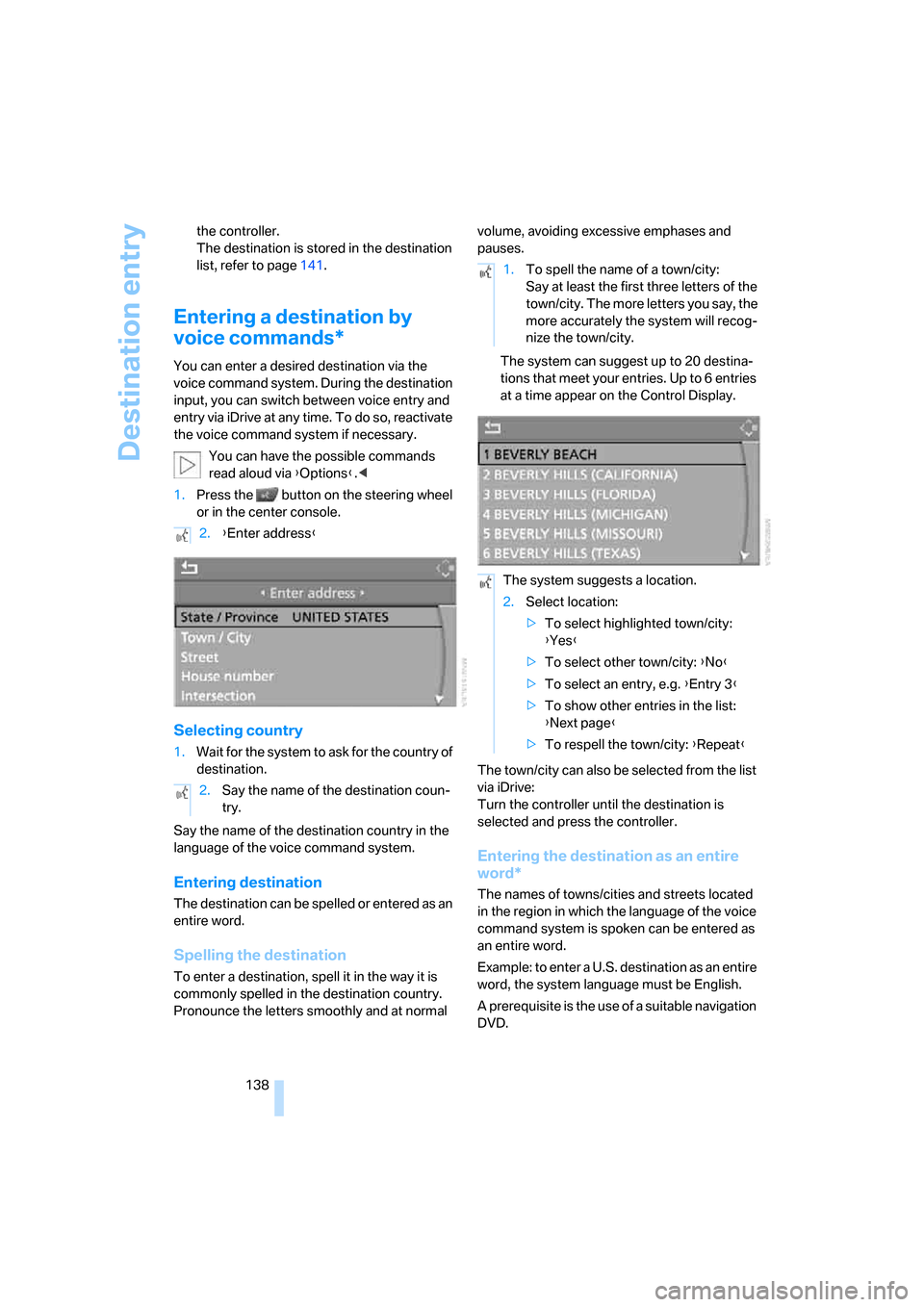
1.Press the button on the steering wheel
or in the center console.
Selecting country
1.Wait for the system to ask for the country of
destination.
Say the name of the destination country in the
language of the voice command system.
Entering destination
The destination can be spelled or entered as an
entire word.
Spelling the destination
To enter a destination, spell it in the way it is
commonly spelled in the destination country.
Pronounce the letters smoothly and at normal volume, avoiding excessive emphases and
pauses.
The system can suggest up to 20 destina-
tions that meet your entries. Up to 6 entries
at a time appear on the Control Display.
The town/city can also be selected from the list
via iDrive:
Turn the controller until the destination is
selected and press the controller.
Entering the destination as an entire
word*
The names of towns/cities and streets located
in the region in which the language of the voice
command system is spoken can be entered as
an entire word.
Example: to enter a U.S. destination as an entire
word, the system language must be English.
A prerequisite is the use of a suitable navigation
DVD. 2.{Enter address}
2.Say the name of the destination coun-
try.
1.To spell the name of a town/city:
Say at least the first three letters of the
town/city. The more letters you say, the
more accurately the system will recog-
nize the town/city.
The system suggests a location.
2.Select location:
>To select highlighted town/city:
{Yes}
>To select other town/city: {No}
>To select an entry, e.g. {Entry 3}
>To show other entries in the list:
{Next page}
>To respell the town/city: {Repeat}
Page 141 of 272
Navigation
Driving tips
139Reference
At a glance
Controls
Communications
Entertainment
Mobility
Speak smoothly and at normal volume, and
avoid excessive emphases and pauses.
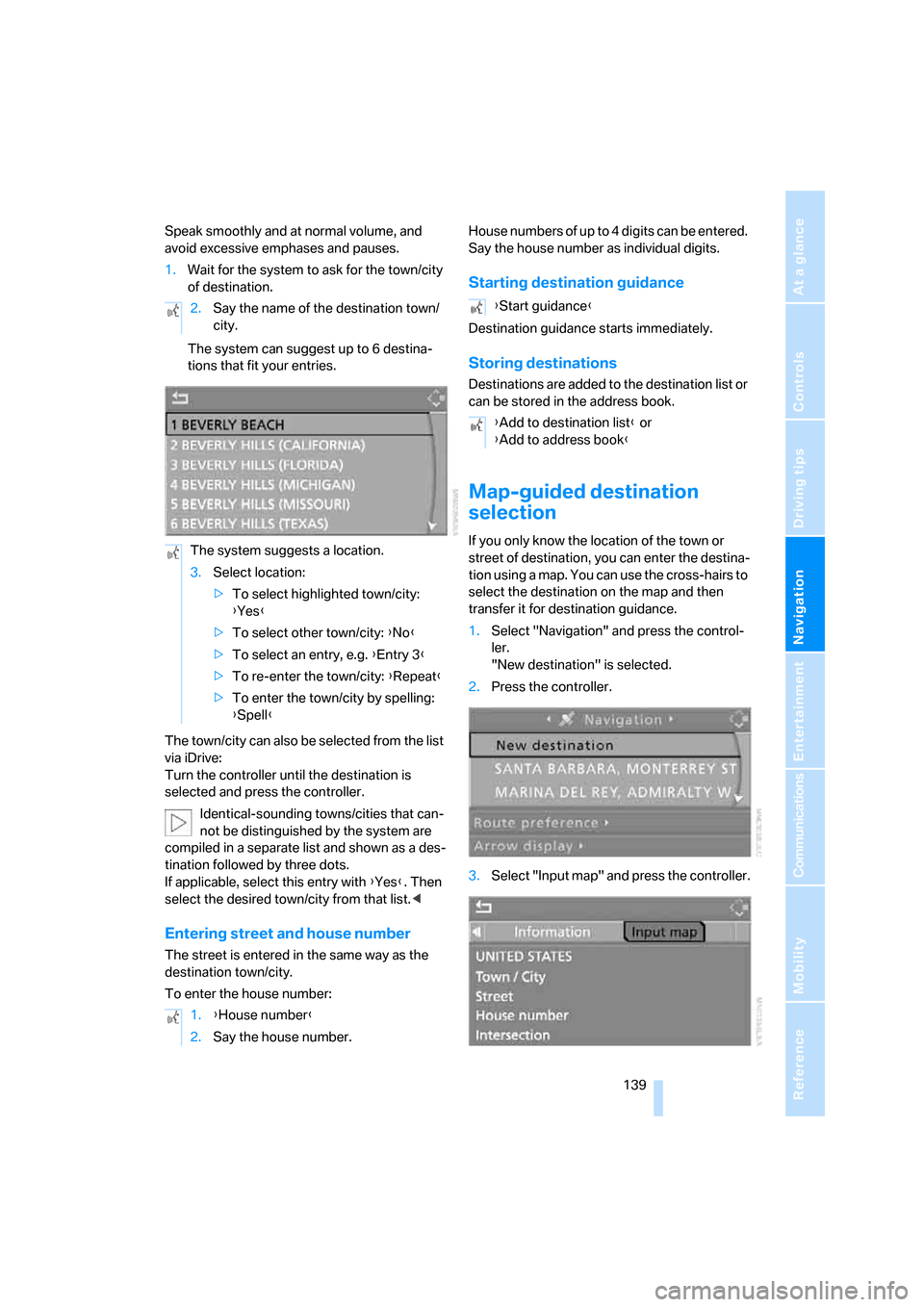
1.Wait for the system to ask for the town/city
of destination.
The system can suggest up to 6 destina-
tions that fit your entries.
The town/city can also be selected from the list
via iDrive:
Turn the controller until the destination is
selected and press the controller.
Identical-sounding towns/cities that can-
not be distinguished by the system are
compiled in a separate list and shown as a des-
tination followed by three dots.
If applicable, select this entry with {Yes}. Then
select the desired town/city from that list.<
Entering street and house number
The street is entered in the same way as the
destination town/city.
To enter the house number:House numbers of up to 4 digits can be entered.
Say the house number as individual digits.
Starting destination guidance
Destination guidance starts immediately.
Storing destinations
Destinations are added to the destination list or
can be stored in the address book.
Map-guided destination
selection
If you only know the location of the town or
street of destination, you can enter the destina-
tion using a map. You can use the cross-hairs to
select the destination on the map and then
transfer it for destination guidance.
1.Select "Navigation" and press the control-
ler.
"New destination" is selected.
2.Press the controller.
3.Select "Input map" and press the controller. 2.Say the name of the destination town/
city.
The system suggests a location.
3.Select location:
>To select highlighted town/city:
{Yes}
>To select other town/city: {No}
>To select an entry, e.g. {Entry 3}
>To re-enter the town/city: {Repeat}
>To enter the town/city by spelling:
{Spell}
1.{House number}
2.Say the house number.
{Start guidance}
{Add to destination list} or
{Add to address book}
Page 144 of 272
Destination entry
142 destination guidance.
If you are planning a longer journey, for exam-
ple, you can store all the destinations you wish
to drive to in the destination list in advance,
refer to Entering a destination manually on
page134.
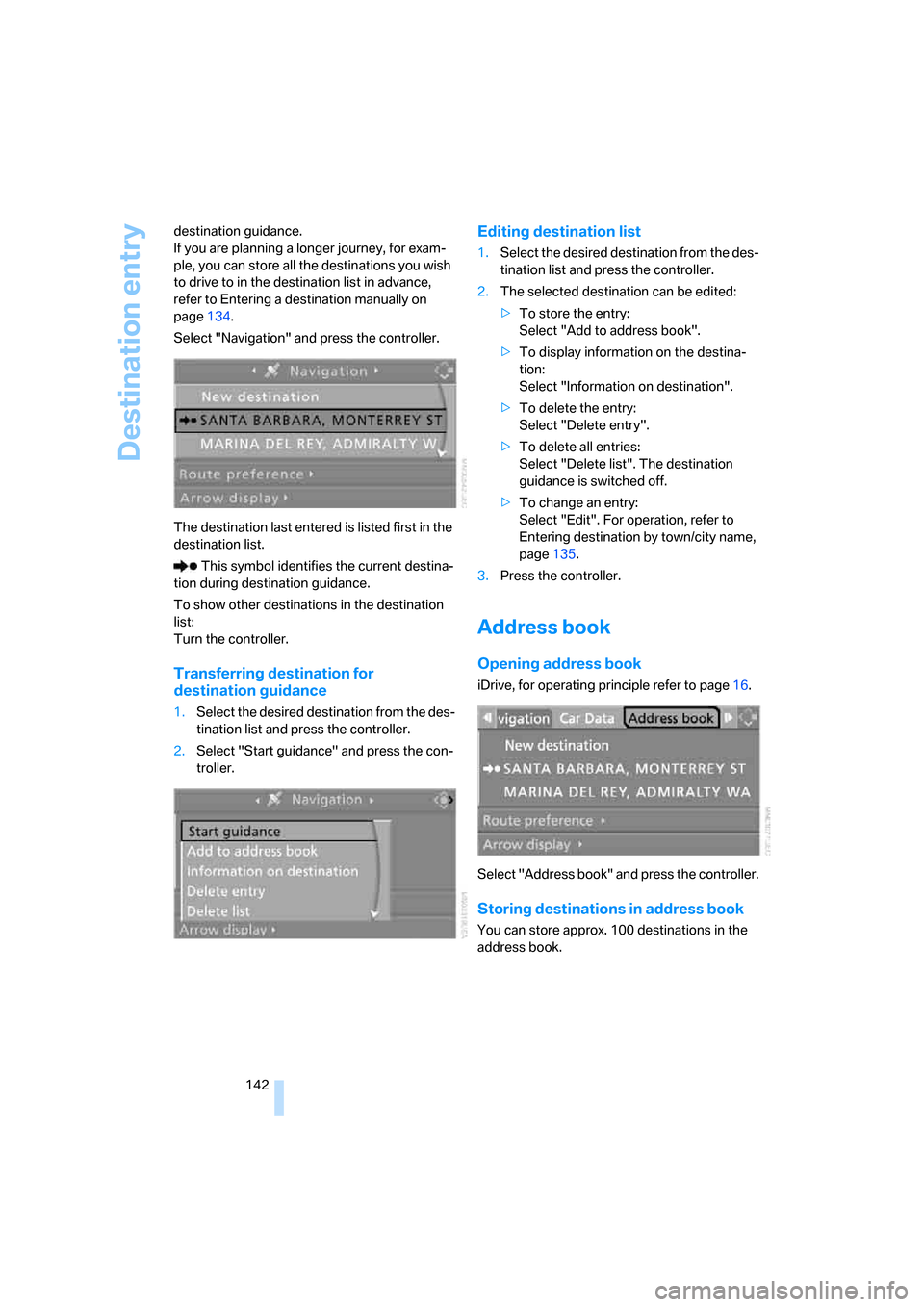
Select "Navigation" and press the controller.
The destination last entered is listed first in the
destination list.
This symbol identifies the current destina-
tion during destination guidance.
To show other destinations in the destination
list:
Turn the controller.
Transferring destination for
destination guidance
1.Select the desired destination from the des-
tination list and press the controller.
2.Select "Start guidance" and press the con-
troller.
Editing destination list
1.Select the desired destination from the des-
tination list and press the controller.
2.The selected destination can be edited:
>To store the entry:
Select "Add to address book".
>To display information on the destina-
tion:
Select "Information on destination".
>To delete the entry:
Select "Delete entry".
>To delete all entries:
Select "Delete list". The destination
guidance is switched off.
>To change an entry:
Select "Edit". For operation, refer to
Entering destination by town/city name,
page135.
3.Press the controller.
Address book
Opening address book
iDrive, for operating principle refer to page16.
Select "Address book" and press the controller.
Storing destinations in address book
You can store approx. 100 destinations in the
address book.
Page 148 of 272
Destination entry
146 1.Select the symbol for the route criterion and
press the controller.
2.Select a route criterion and press the con-
troller.
Word-matching principle
The system's word-matching principle makes it
easier for you to enter the names of towns or
streets. The system runs ongoing checks, com-
paring your destination entries with the data
stored on the navigation DVD as the basis for
instant response. The benefits for you include:
>Names of towns entered may differ from the
official versions if you are using a spelling
that is customary in another country.
Example:
Instead of the German spelling "München"
you can also enter the English spelling
"Munich" or the Italian spelling "Monaco".
>When you are entering the names of towns
and streets the system will complete them
automatically as soon as enough letters are
available to ensure unambiguous identifica-
tion.
>The system offers only those letters for
selection of name entries that are stored on
the navigation DVD. Thus, entry of errone-
ous or unregistered names is impossible.
Page 151 of 272
Navigation
Driving tips
149Reference
At a glance
Controls
Communications
Entertainment
Mobility
destination is displayed in the top or bottom line
of the Control Display.
The arrows change appearance before a
change of direction.
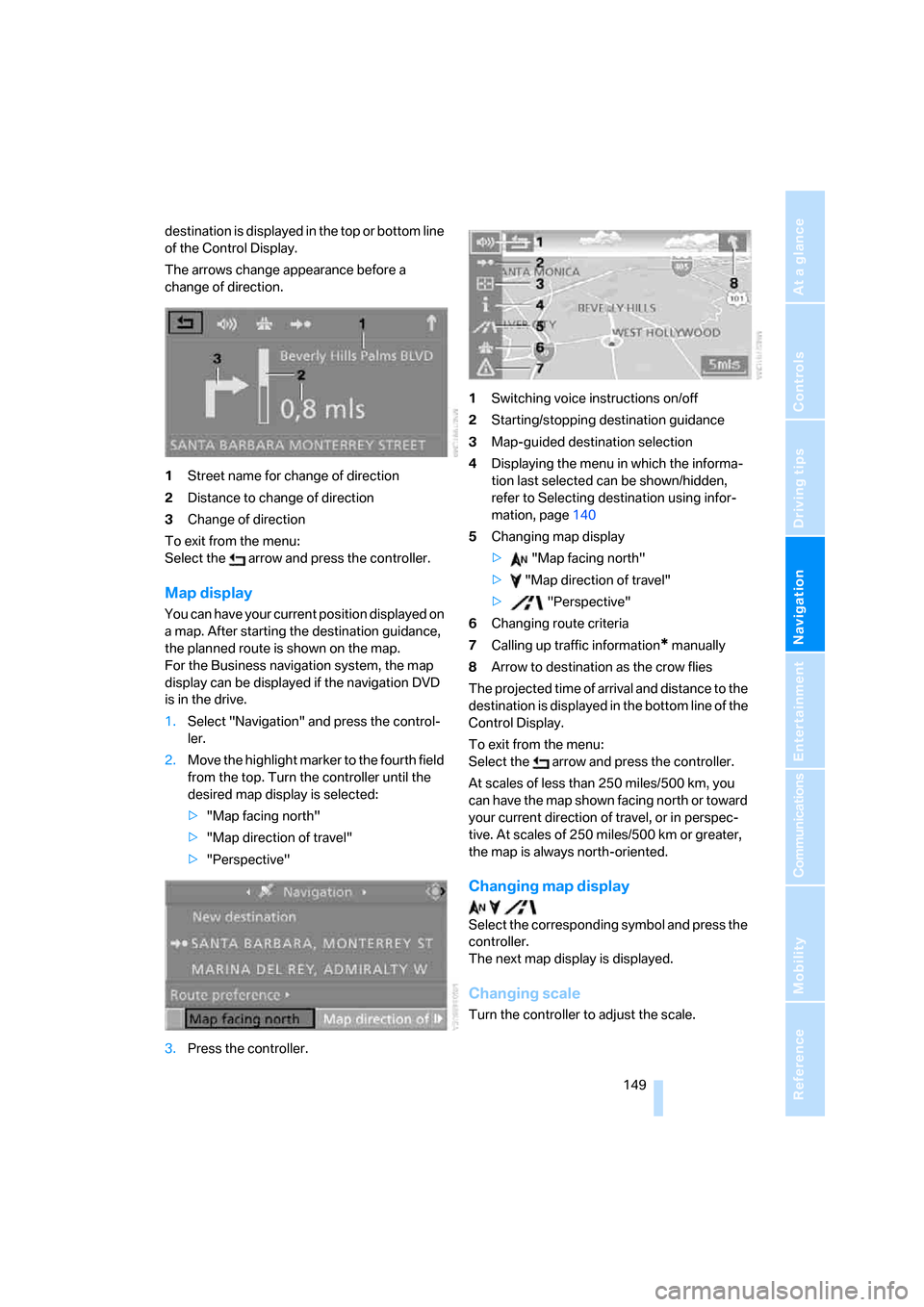
1Street name for change of direction
2Distance to change of direction
3Change of direction
To exit from the menu:
Select the arrow and press the controller.
Map display
You can have your current position displayed on
a map. After starting the destination guidance,
the planned route is shown on the map.
For the Business navigation system, the map
display can be displayed if the navigation DVD
is in the drive.
1.Select "Navigation" and press the control-
ler.
2.Move the highlight marker to the fourth field
from the top. Turn the controller until the
desired map display is selected:
>"Map facing north"
>"Map direction of travel"
>"Perspective"
3.Press the controller.1Switching voice instructions on/off
2Starting/stopping destination guidance
3Map-guided destination selection
4Displaying the menu in which the informa-
tion last selected can be shown/hidden,
refer to Selecting destination using infor-
mation, page140
5Changing map display
> "Map facing north"
> "Map direction of travel"
> "Perspective"
6Changing route criteria
7Calling up traffic information
* manually
8Arrow to destination as the crow flies
The projected time of arrival and distance to the
destination is displayed in the bottom line of the
Control Display.
To exit from the menu:
Select the arrow and press the controller.
At scales of less than 250 miles/500 km, you
can have the map shown facing north or toward
your current direction of travel, or in perspec-
tive. At scales of 250 miles/500 km or greater,
the map is always north-oriented.
Changing map display
Select the corresponding symbol and press the
controller.
The next map display is displayed.
Changing scale
Turn the controller to adjust the scale.
Page 152 of 272
Destination guidance
150
Displaying towns/cities and streets
along the route
You can have the roads and towns along the
route displayed during destination guidance.
The distances remaining to be traveled within
each section of the route are also displayed.
1.Select "Navigation" and press the control-
ler.
2.Move the highlight marker to the third field
from the top. Turn the controller until
"Route list" is selected and press the con-
troller.
To exit from the menu:
Select the arrow and press the controller.
Destination guidance
through voice instructions
Switching voice instructions on/off
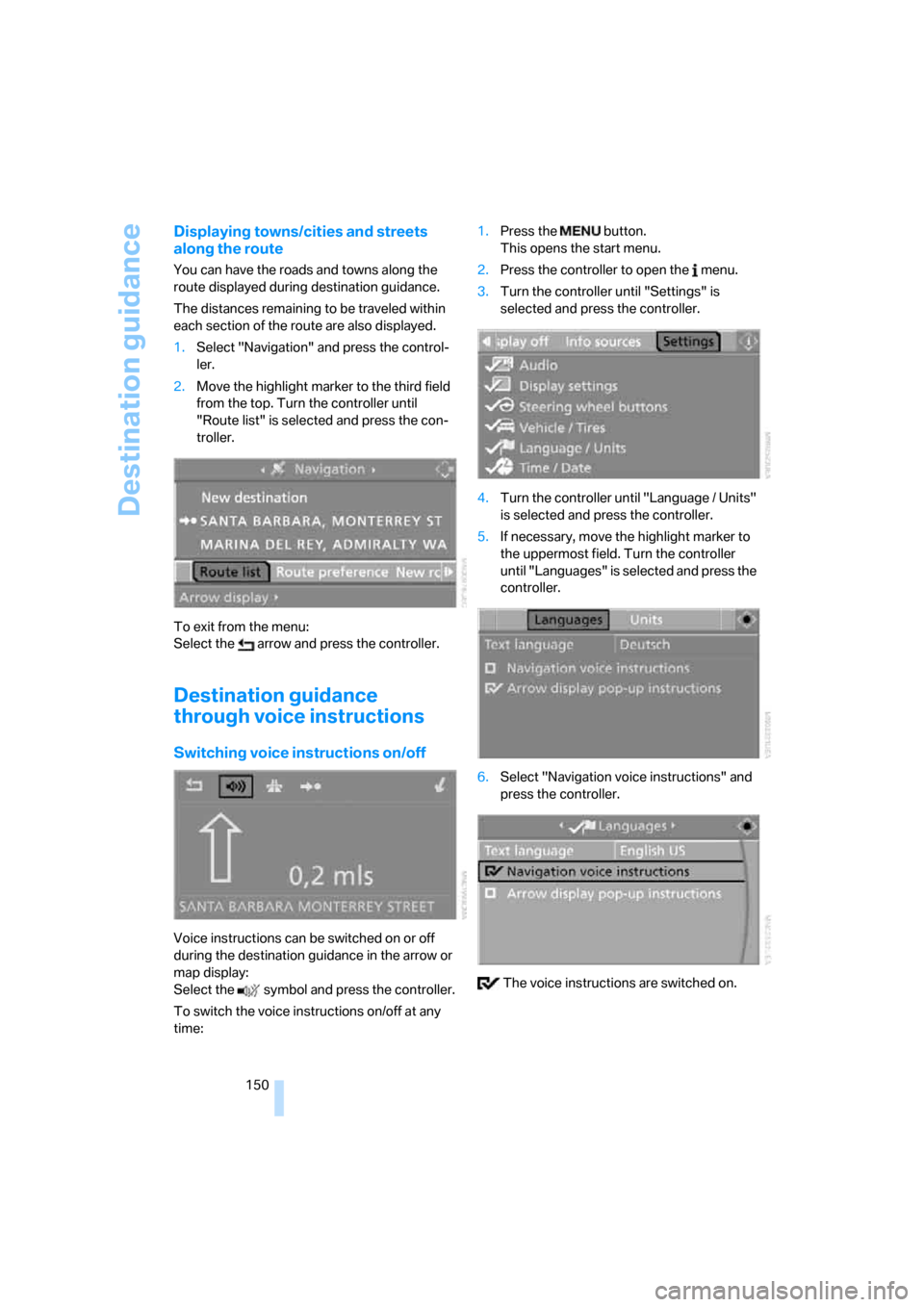
Voice instructions can be switched on or off
during the destination guidance in the arrow or
map display:
Select the symbol and press the controller.
To switch the voice instructions on/off at any
time:1.Press the button.
This opens the start menu.
2.Press the controller to open the menu.
3.Turn the controller until "Settings" is
selected and press the controller.
4.Turn the controller until "Language / Units"
is selected and press the controller.
5.If necessary, move the highlight marker to
the uppermost field. Turn the controller
until "Languages" is selected and press the
controller.
6.Select "Navigation voice instructions" and
press the controller.
The voice instructions are switched on.
Page 157 of 272
Navigation
Driving tips
155Reference
At a glance
Controls
Communications
Entertainment
Mobility
Displaying current position
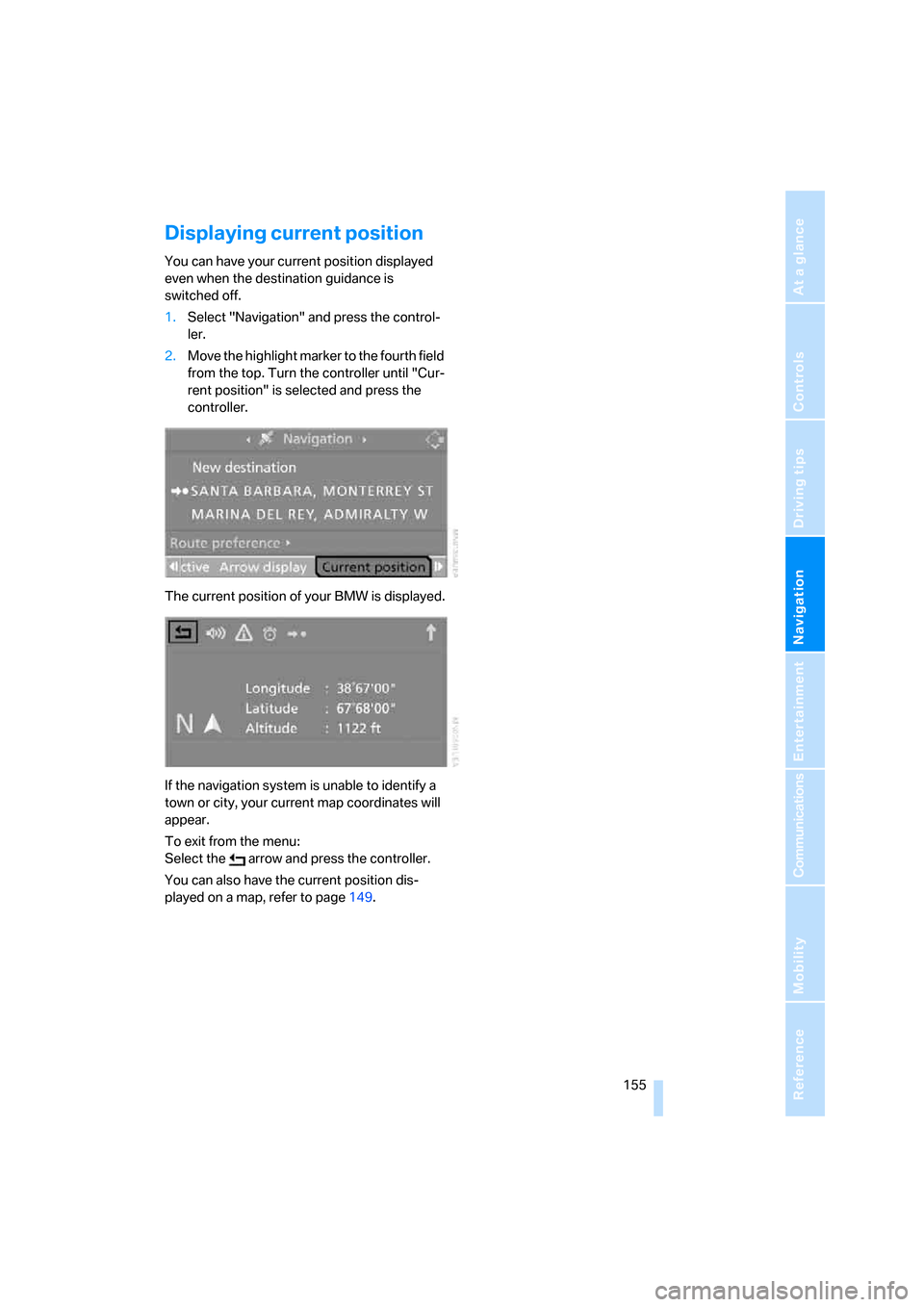
You can have your current position displayed
even when the destination guidance is
switched off.
1.Select "Navigation" and press the control-
ler.
2.Move the highlight marker to the fourth field
from the top. Turn the controller until "Cur-
rent position" is selected and press the
controller.
The current position of your BMW is displayed.
If the navigation system is unable to identify a
town or city, your current map coordinates will
appear.
To exit from the menu:
Select the arrow and press the controller.
You can also have the current position dis-
played on a map, refer to page149.
Page 158 of 272
What to do if …
156
What to do if …
What to do if …
>a navigation DVD is inserted, but an instruc-
tion to insert the DVD appears on the Con-
trol Display?
The navigation DVD may not be the correct
DVD for the navigation system. This infor-
mation is indicated on the DVD label.
>you request the current position of your
vehicle, but do not receive a precise dis-
play?
The system is unable to receive enough
GPS signals at your current position due to
obstructions, your current position is not
yet available on your navigation DVD, or the
system is in the process of calculating your
current position. As a rule, reception is
guaranteed when you are in the open.
>the destination guidance does not accept a
destination?
The data of the destination is not stored on
the navigation DVD that is loaded. Choose a
destination as close as possible to the orig-
inal one.
>the destination guidance does not accept
an address without the street name?
On the navigation DVD, no downtown area
can be determined for the city or town
entered. Enter any street, or a destination
such as the railway station in the selected
town, and then start the destination guid-
ance.
>you want to enter a destination for the des-
tination guidance, but it is not possible to
select the letters for your desired entry?
The data of the destination is not stored on
the navigation DVD that is loaded. In this
case, the system will not offer you any let-
ters to choose from. Choose a destination
as close as possible to the original one.
>the system stops furnishing directions on
which way to turn as you approach intersec-
tions?
You are driving in an area that has not yet
been completely recorded on the naviga-tion DVD. Instead of an arrow indicating a
turn, you will see an arrow which indicates
the general direction of your planned route.
Or you have left the recommended route
and the system requires a few seconds to
calculate a new recommended route.
>the navigation system does not react to
entries?
If the battery was disconnected, it takes
about 10 minutes before the system is once
again operational.