change time BMW 330D 2009 User Guide
[x] Cancel search | Manufacturer: BMW, Model Year: 2009, Model line: 330D, Model: BMW 330D 2009Pages: 268, PDF Size: 11.52 MB
Page 126 of 268
Destination entry
124
Delete letters,
if necessary:
> To delete individual letters:
Turn the controller to select , and
then press the controller.
> To delete all letters:
Turn the controller to select , and
then press the controller for an extended
period.
> To enter spaces:
Select the symbol.
The list gradually grow s smaller each time
you enter a new letter.
2. Move the controller to the right.
3. Select the name of th e town/city from the
list. The three destinations stored last are
displayed.
If there are several towns/cities with the same
name:
1. Change to the list of town/city names.
2. Highlight the town/city: a preview map is
displayed.
3. Select the town/city.
Entering the postal code
1.Select "Town/City/Zip Code" or the dis-
played town/city.
2. Select the symbol.
3. Select the digits.
4. Change to the list of postal codes and
towns/cities.
5. Highlight the postal code. A preview map is
displayed in the assistance window.
6. Select the postal code.
Entering street and intersection
1.Select "Street" or the displayed street.
2. Enter a street and intersection as you would
the town/city.
After the street you can also enter the intersec-
tion or the house number.
If there are several streets with the same name: 1.
Change to the list of street names.
2. Highlight the street: a preview map is dis-
played.
3. Select the street.
Entering a street without a destination
town/city
You can also enter a street without specifying a
town/city. In this case, all streets of the same
name in the designated state/province are
offered. The correspond ing town/city is dis-
played after the street name.
If a town/city has already been entered, you can
negate this entry. This could be helpful in
instances where the desired street does not
exist in the entered town/city because it
belongs to another suburb, for example.
1. "Navigation"
2. "Enter address"
3. Select "Street" or the displayed street.
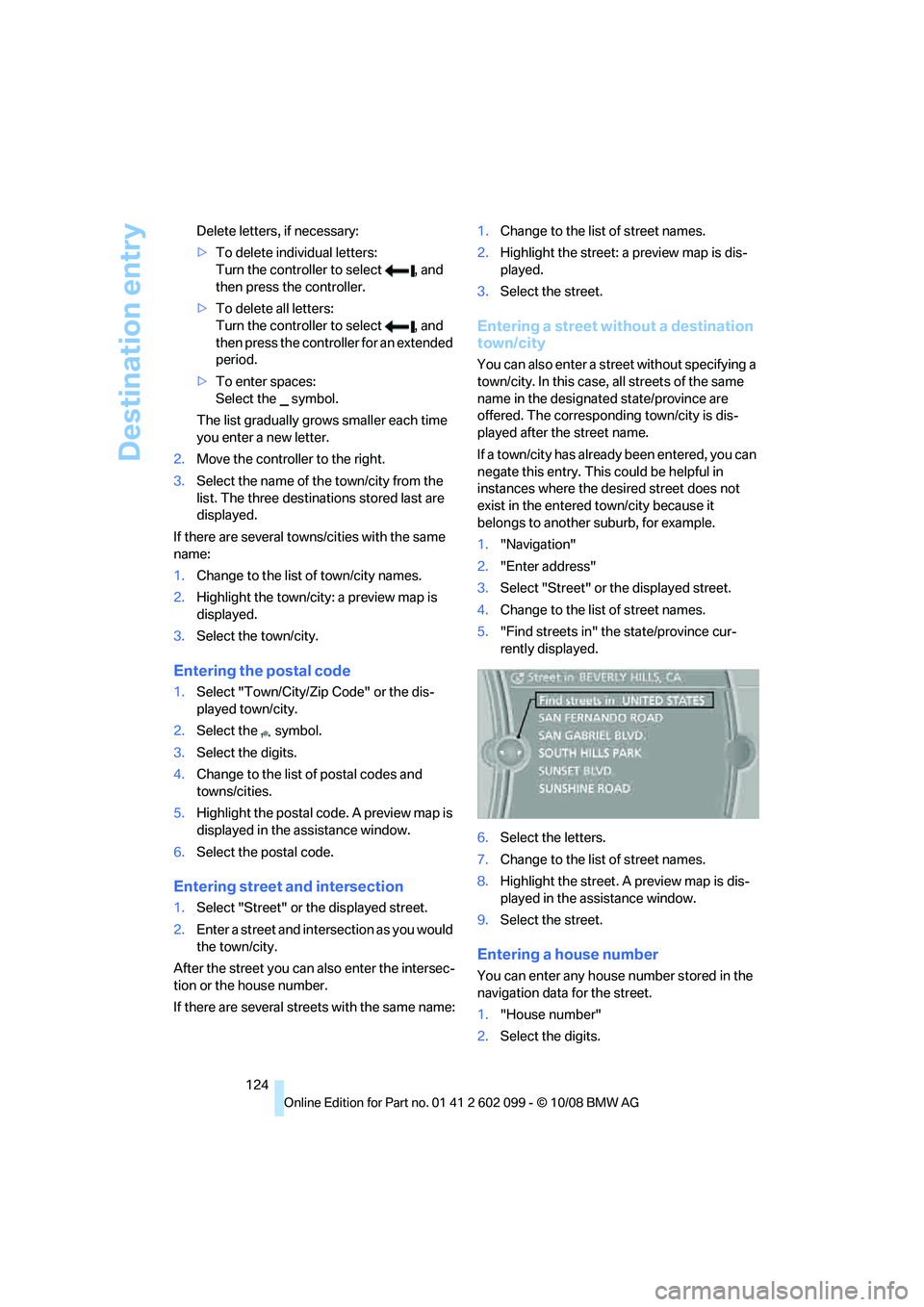
4. Change to the list of street names.
5. "Find streets in" the state/province cur-
rently displayed.
6. Select the letters.
7. Change to the list of street names.
8. Highlight the street. A preview map is dis-
played in the assistance window.
9. Select the street.
Entering a house number
You can enter any house number stored in the
navigation data for the street.
1."House number"
2. Select the digits.
ba8_E9091_cic.book Seite 124 Mittwoch, 29. Oktober 2008 2:59 14
Page 129 of 268
Navigation
Driving tips
127Reference
At a glance
Controls
Communications
Entertainment
Mobility
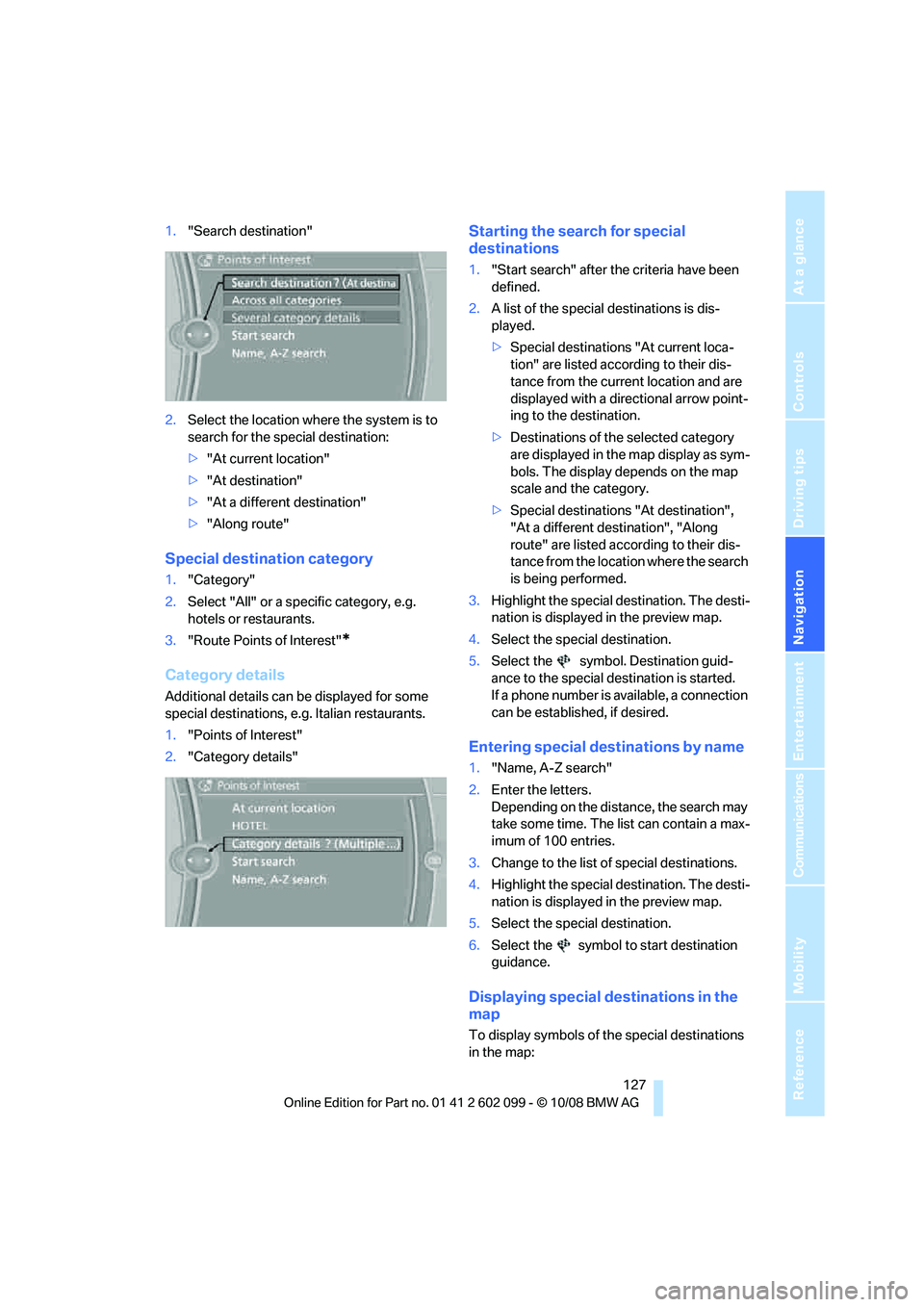
1."Search destination"
2. Select the location where the system is to
search for the special destination:
>"At current location"
> "At destination"
> "At a different destination"
> "Along route"
Special destination category
1. "Category"
2. Select "All" or a spec ific category, e.g.
hotels or restaurants.
3. "Route Points of Interest"
*
Category details
Additional details can be displayed for some
special destinations, e. g. Italian restaurants.
1. "Points of Interest"
2. "Category details"
Starting the search for special
destinations
1."Start search" after the criteria have been
defined.
2. A list of the special destinations is dis-
played.
>Special destinations "At current loca-
tion" are listed according to their dis-
tance from the current location and are
displayed with a directional arrow point-
ing to the destination.
> Destinations of the selected category
are displayed in the map display as sym-
bols. The display depends on the map
scale and the category.
> Special destinations "At destination",
"At a different destination", "Along
route" are listed acco rding to their dis-
tance from the locati on where the search
is being performed.
3. Highlight the special destination. The desti-
nation is displayed in the preview map.
4. Select the special destination.
5. Select the symbol. Destination guid-
ance to the special destination is started.
If a phone number is available, a connection
can be established, if desired.
Entering special destinations by name
1."Name, A-Z search"
2. Enter the letters.
Depending on the distance, the search may
take some time. The list can contain a max-
imum of 100 entries.
3. Change to the list of special destinations.
4. Highlight the special destination. The desti-
nation is displayed in the preview map.
5. Select the special destination.
6. Select the symbol to start destination
guidance.
Displaying special destinations in the
map
To display symbols of the special destinations
in the map:
ba8_E9091_cic.book Seite 127 Mittwoch, 29. Oktober 2008 2:59 14
Page 130 of 268

Destination entry
128
1.
"Navigation"
2. "Map"
3. Open "Options".
4. "Display Points of Interest"
5. Select the settings.
Entering the destination via
the map
If you only know the lo cation of the town or
street, you can enter th e destination using the
map.
Opening the map
1. "Navigation"
2. "Map"
A map section is displa yed on the Control Dis-
play. The map shows the cu rrent position of the
vehicle.
Selecting the destination
1. Select the symbol. The interactive map
is started.
2. Select the destination with the cross-hairs.
>Turn the controller: change the scale.
> Move the controller in one direction:
move the map.
> First move the controller and turn it at
the same time: move the map diagonally
to select a destination in one of the four
regions.
3. Press the controller to display additional
menu items:
>Select the symbol: start destination
guidance.
Specifying the street
If the system cannot recognize a street or town/
city, it displays a street name in the vicinity or
the coordinates of the destination.
Interactive map
In the interactive map, th e scale can be adjusted
and the visible map section can be shifted. In
ba8_E9091_cic.book Seite 128 Mittwoch, 29. Oktober 2008 2:59 14
Page 135 of 268
Navigation
Driving tips
133Reference
At a glance
Controls
Communications
Entertainment
Mobility
Destination guidance
Starting destination
guidance
1."Navigation"
2. "Enter address"
3. Select the destination.
4. "Start guidance"
After the route is calculated, the route is dis-
played in the map on the Control Display.
Terminating destination
guidance
1. "Navigation"
2. "Map"
3. Select the symbol
Continuing destination
guidance
If the destination was not reached at the end of
the last trip, the system asks whether it should
continue destination guidance.
Select "Resume guidance" or "Stop guidance".
Route criteria
General information
You can influence the calculated route by
choosing certain route criteria. You can change
the route criteria as often as you like during des-
tination entry or during destination guidance.
The route is planned acco rding to fixed rules.
The type of road is taken into account, e.g.
whether it is a highway or a winding road. As a
result, the routes recommended by the naviga-
tion system may not alwa ys be the same ones
that you would choose ba sed on personal expe-
rience. The settings are stored for the remote control
currently in use.
Changing route criteria
1.
"Navigation"
2. "Map"
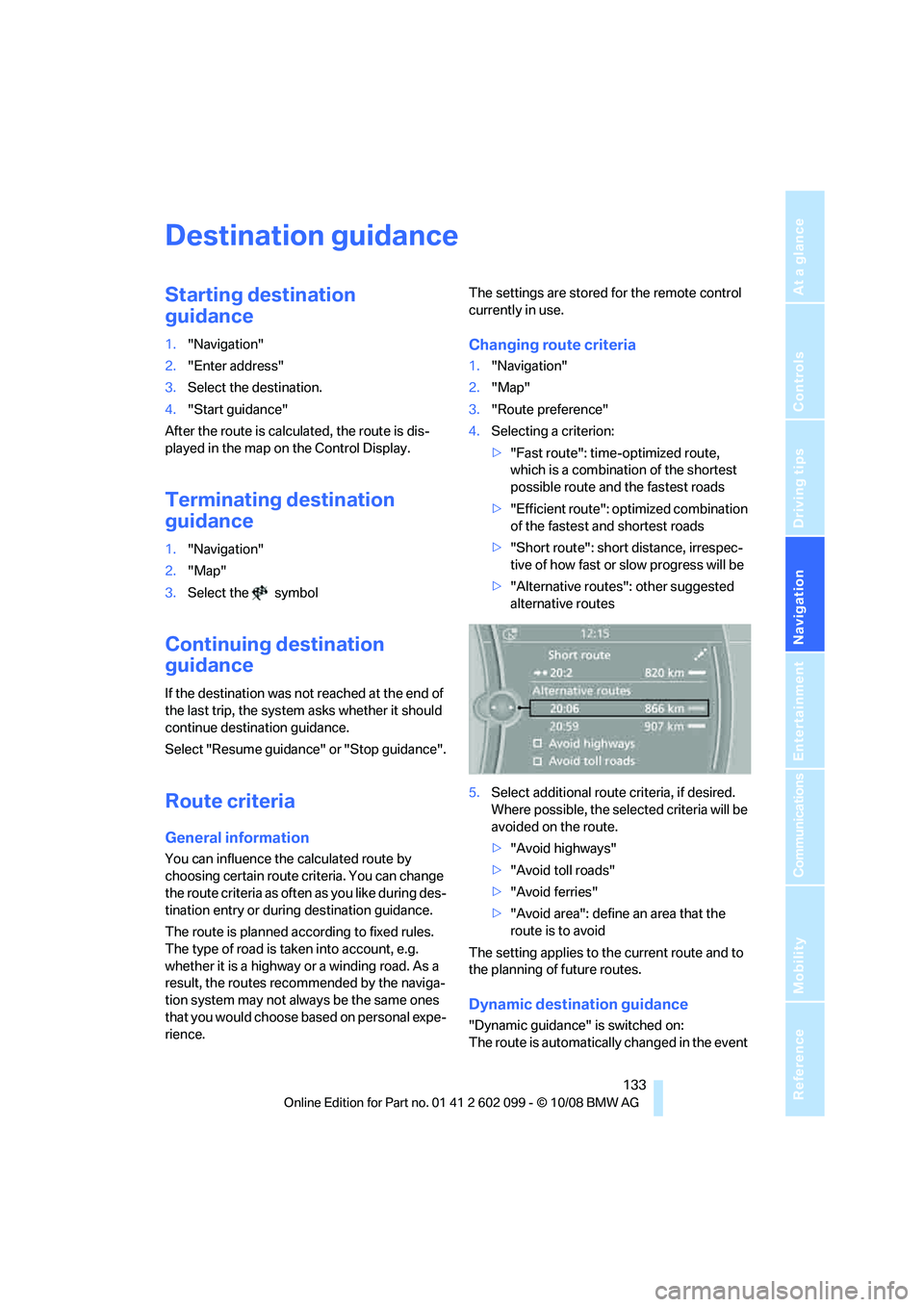
3. "Route preference"
4. Selecting a criterion:
>"Fast route": time-optimized route,
which is a combination of the shortest
possible route and the fastest roads
> "Efficient route": optimized combination
of the fastest and shortest roads
> "Short route": short distance, irrespec-
tive of how fast or slow progress will be
> "Alternative routes ": other suggested
alternative routes
5. Select additional route criteria, if desired.
Where possible, the sele cted criteria will be
avoided on the route.
> "Avoid highways"
> "Avoid toll roads"
> "Avoid ferries"
> "Avoid area": define an area that the
route is to avoid
The setting applies to the current route and to
the planning of future routes.
Dynamic destination guidance
"Dynamic guidance" is switched on:
The route is automatically changed in the event
ba8_E9091_cic.book Seite 133 Mittwoch, 29. Oktober 2008 2:59 14
Page 152 of 268
CD player and CD changer
150
CD player and CD changer
CD/DVD playback
Inserting a CD/DVD
Insert the CD/DVD into the drive with the
printed side up. The CD/D VD is drawn in auto-
matically.
Playback starts automatically if the sound out-
put is on. When playing CDs/DVDs with com-
pressed audio files, it can take the player
approx. 1 minute to read in the data, depending
on the directory structure.
Playable formats
CD/DVD player
> DVD: DVD-ROM, DVD-R, DVD+R, DVD-
RW, DVD+RW, DVD-R DL, DVD+R DL, DVD
audio (video part only), DVD video
> CD: CD-ROM, CD-R, CD-RW, CD-DA,
VCD, SVCD
> Compressed audio files: MP3, WMA, AAC
CD changer
*
> CD: CD-ROM, CD-R, CD-RW, CD-DA
Start playback
Via iDrive
Fill and insert the CD magazine, refer to
page 155.
To start playback if a CD is already located in
the player or changer:
iDrive, for operating pr inciple refer to page16. 1.
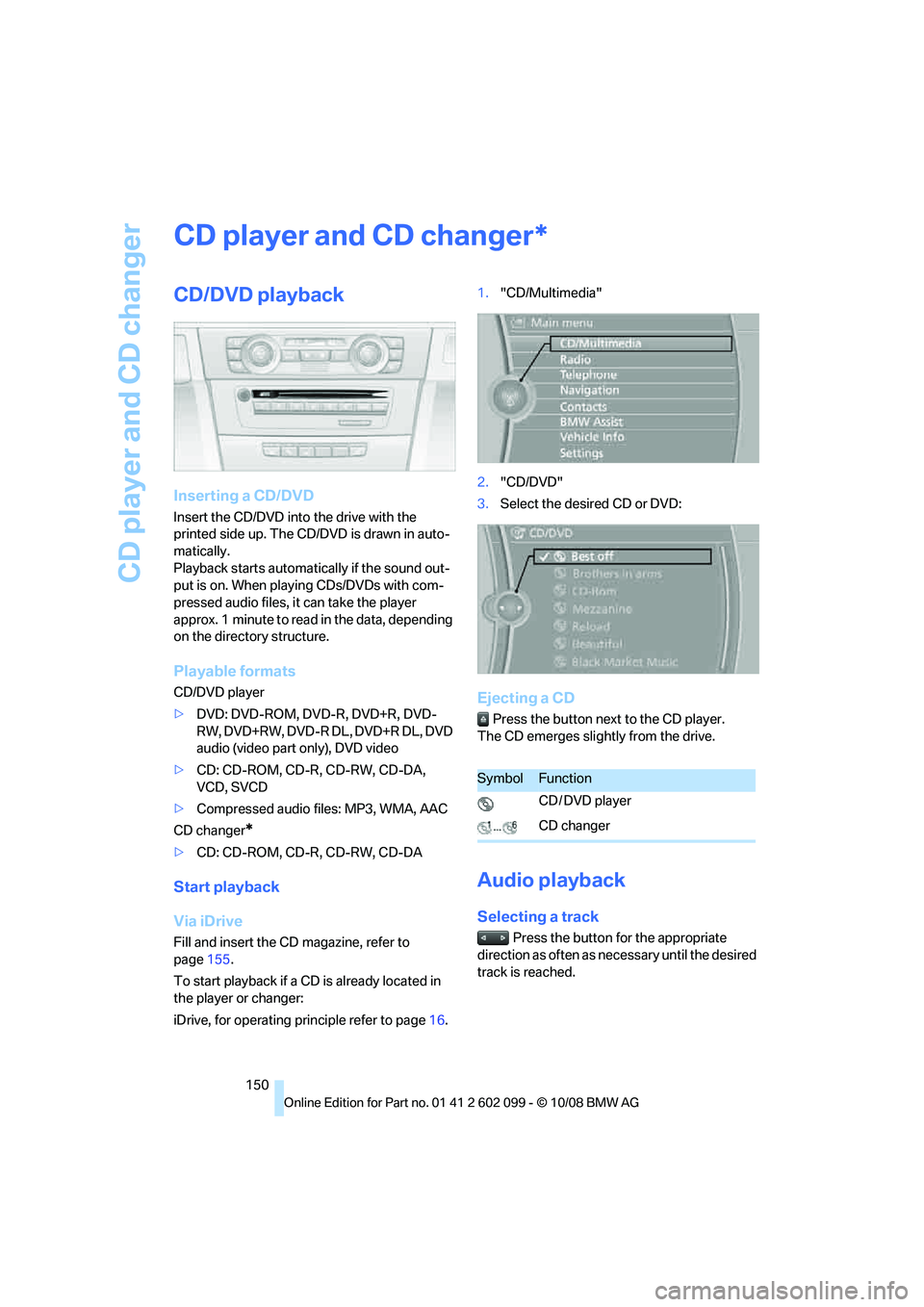
"CD/Multimedia"
2. "CD/DVD"
3. Select the desired CD or DVD:
Ejecting a CD
Press the button next to the CD player.
The CD emerges slightly from the drive.
Audio playback
Selecting a track
Press the button for the appropriate
direction as often as necessary until the desired
track is reached.
*
SymbolFunction
CD / DVD player
CD changer
ba8_E9091_cic.book Seite 150 Mittwoch, 29. Oktober 2008 2:59 14
Page 155 of 268
Navigation
Entertainment
Driving tips
153Reference
At a glance
Controls
Communications
Mobility
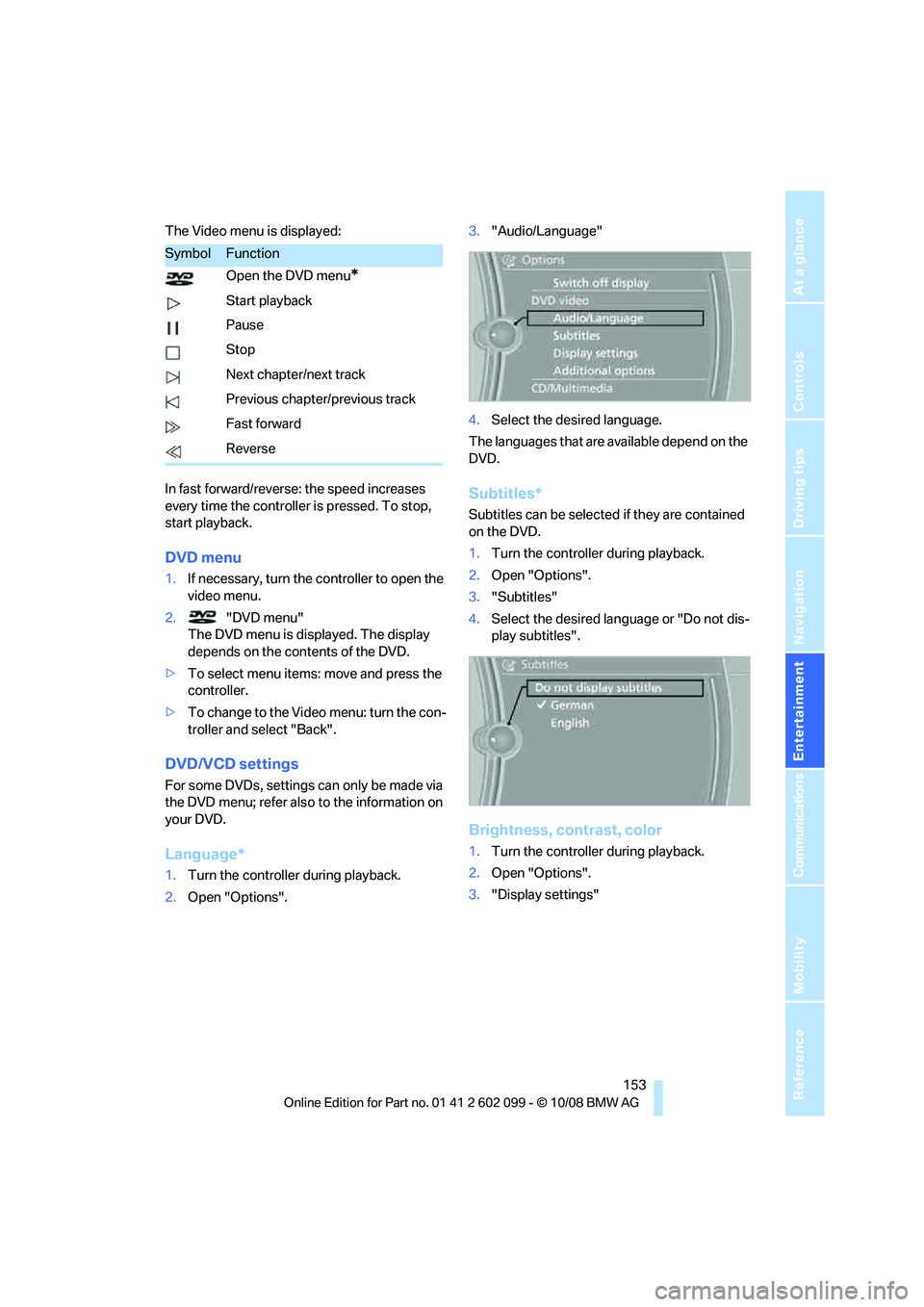
The Video menu is displayed:
In fast forward/reverse: the speed increases
every time the controller is pressed. To stop,
start playback.
DVD menu
1.If necessary, turn the controller to open the
video menu.
2. "DVD menu"
The DVD menu is displayed. The display
depends on the contents of the DVD.
> To select menu items: move and press the
controller.
> To change to the Vide o menu: turn the con-
troller and select "Back".
DVD/VCD settings
For some DVDs, settings can only be made via
the DVD menu; refer also to the information on
your DVD.
Language*
1. Turn the controller during playback.
2. Open "Options". 3.
"Audio/Language"
4. Select the desired language.
The languages that are available depend on the
DVD.
Subtitles*
Subtitles can be selected if they are contained
on the DVD.
1. Turn the controller during playback.
2. Open "Options".
3. "Subtitles"
4. Select the desired language or "Do not dis-
play subtitles".
Brightness, contrast, color
1.Turn the controller during playback.
2. Open "Options".
3. "Display settings"
SymbolFunction
Open the DVD menu
*
Start playback
Pause
Stop
Next chapter/next track
Previous chapter/previous track
Fast forward
Reverse
ba8_E9091_cic.book Seite 153 Mittwoch, 29. Oktober 2008 2:59 14
Page 161 of 268
Navigation
Entertainment
Driving tips
159Reference
At a glance
Controls
Communications
Mobility
Top 50
List of the 50 most frequently played tracks.
1."Top 50"
2. Select the desired track, if necessary.
Albums
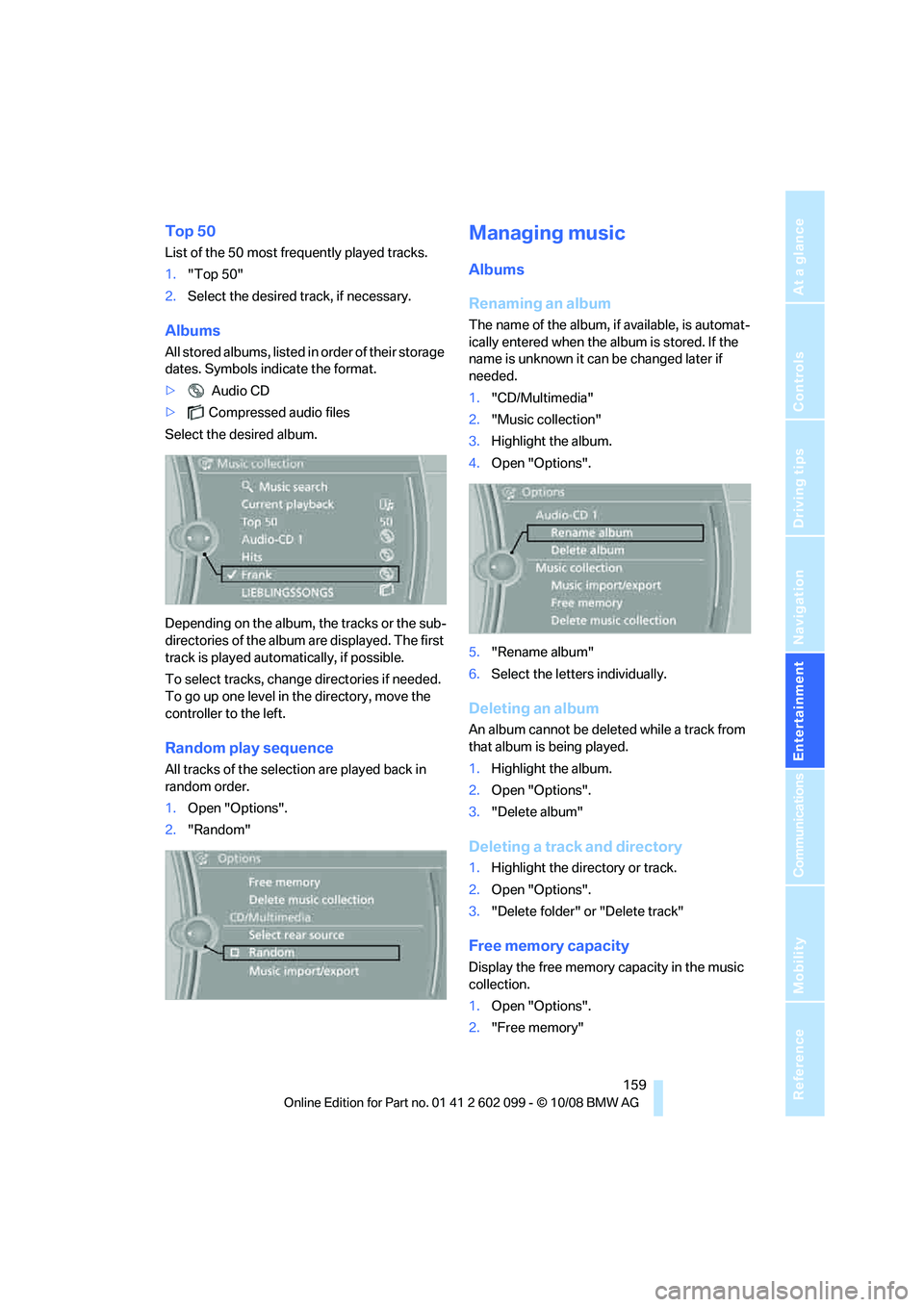
All stored albums, listed in order of their storage
dates. Symbols indicate the format.
> Audio CD
> Compressed audio files
Select the desired album.
Depending on the album, the tracks or the sub-
directories of the album are displayed. The first
track is played automa tically, if possible.
To select tracks, change directories if needed.
To go up one level in the directory, move the
controller to the left.
Random play sequence
All tracks of the select ion are played back in
random order.
1. Open "Options".
2. "Random"
Managing music
Albums
Renaming an album
The name of the album, if available, is automat-
ically entered when the album is stored. If the
name is unknown it ca n be changed later if
needed.
1. "CD/Multimedia"
2. "Music collection"
3. Highlight the album.
4. Open "Options".
5. "Rename album"
6. Select the letters individually.
Deleting an album
An album cannot be dele ted while a track from
that album is being played.
1. Highlight the album.
2. Open "Options".
3. "Delete album"
Deleting a track and directory
1.Highlight the directory or track.
2. Open "Options".
3. "Delete folder" or "Delete track"
Free memory capacity
Display the free memory capacity in the music
collection.
1. Open "Options".
2. "Free memory"
ba8_E9091_cic.book Seite 159 Mittwoch, 29. Oktober 2008 2:59 14
Page 216 of 268
Under the hood
214
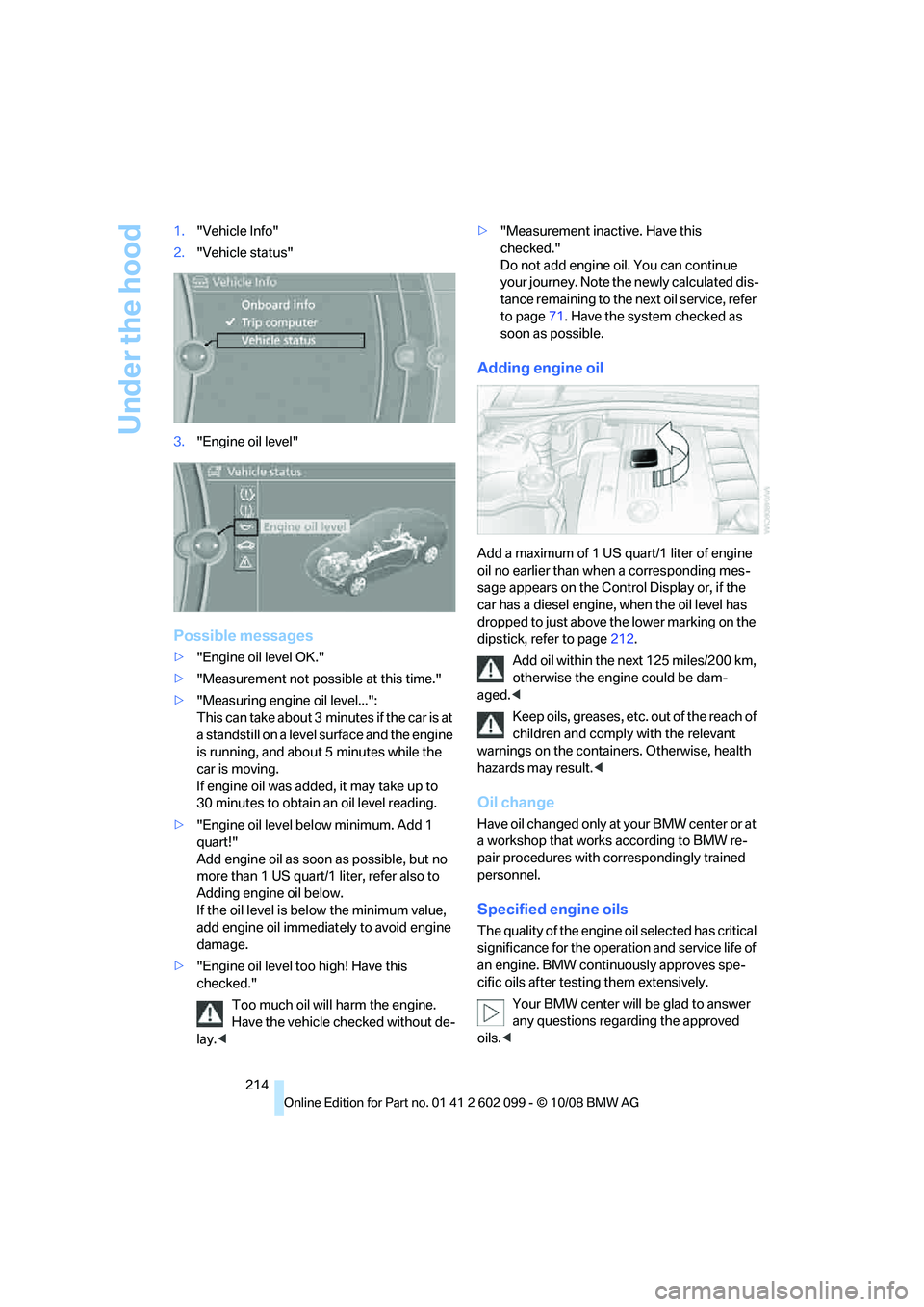
1.
"Vehicle Info"
2. "Vehicle status"
3. "Engine oil level"
Possible messages
>"Engine oil level OK."
> "Measurement not possible at this time."
> "Measuring engine oil level...":
This can take about 3 min utes if the car is at
a standstill on a level surface and the engine
is running, and about 5 minutes while the
car is moving.
If engine oil was added, it may take up to
30 minutes to obtain an oil level reading.
> "Engine oil level below minimum. Add 1
quart!"
Add engine oil as soon as possible, but no
more than 1 US quart/1 liter, refer also to
Adding engine oil below.
If the oil level is below the minimum value,
add engine oil immediately to avoid engine
damage.
> "Engine oil level too high! Have this
checked."
Too much oil will harm the engine.
Have the vehicle checked without de-
lay. < >
"Measurement inactive. Have this
checked."
Do not add engine oil. You can continue
your journey. Note the newly calculated dis-
tance remaining to the ne xt oil service, refer
to page 71. Have the system checked as
soon as possible.
Adding engine oil
Add a maximum of 1 US quart/1 liter of engine
oil no earlier than wh en a corresponding mes-
sage appears on the Control Display or, if the
car has a diesel engine, when the oil level has
dropped to just above the lower marking on the
dipstick, refer to page 212.
Add oil within the next 125 miles/200 km,
otherwise the engine could be dam-
aged.<
Keep oils, greases, etc. out of the reach of
children and comply with the relevant
warnings on the containers. Otherwise, health
hazards may result. <
Oil change
Have oil changed only at your BMW center or at
a workshop that works according to BMW re-
pair procedures with correspondingly trained
personnel.
Specified engine oils
The quality of the engine oil selected has critical
significance for the oper ation and service life of
an engine. BMW continuously approves spe-
cific oils after testing them extensively.
Your BMW center will be glad to answer
any questions regarding the approved
oils. <
ba8_E9091_cic.book Seite 214 Mittwoch, 29. Oktober 2008 2:59 14
Page 225 of 268
Mobility
223Reference
At a glance
Controls
Driving tips
Communications
Navigation
Entertainment
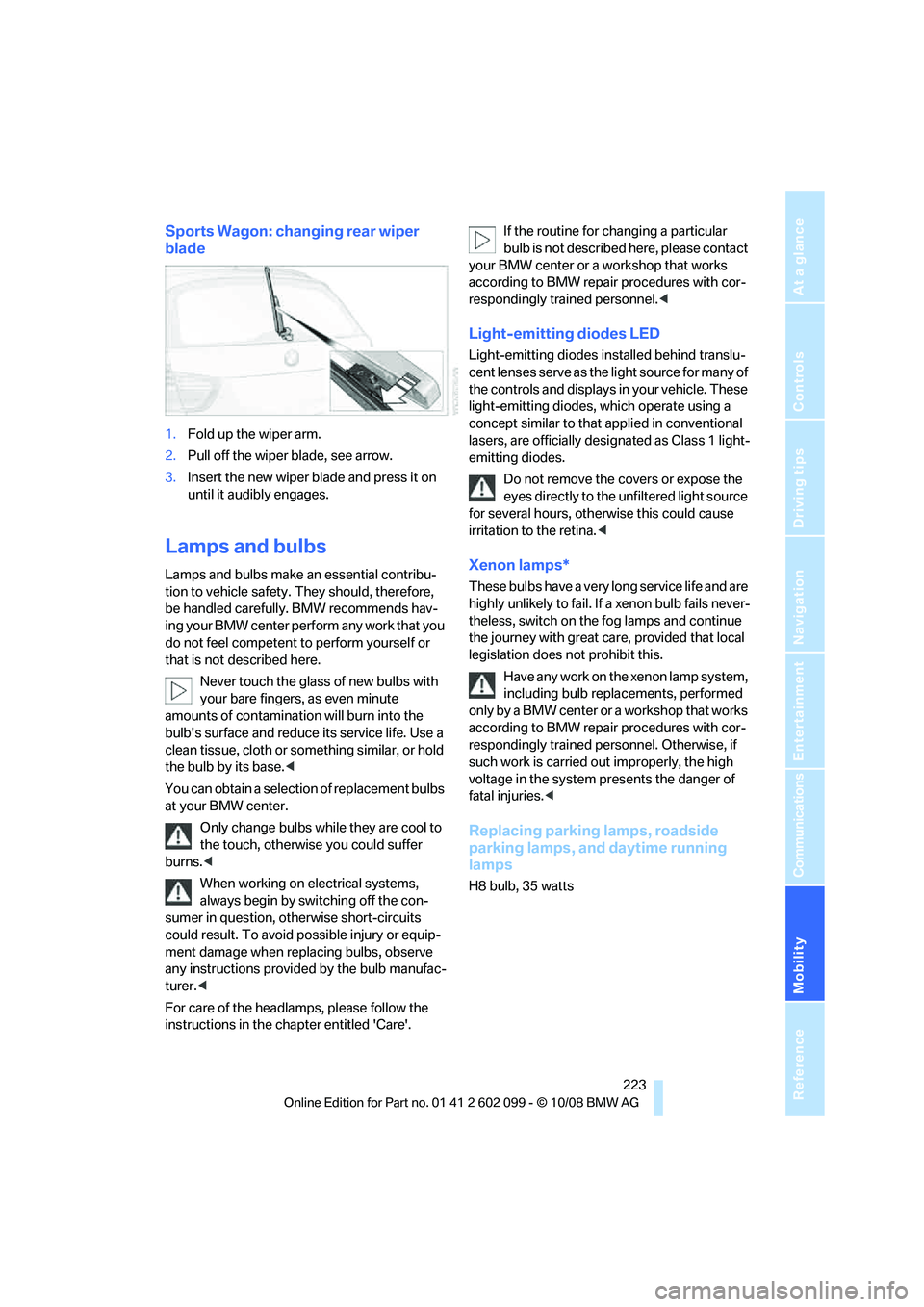
Sports Wagon: changing rear wiper
blade
1.Fold up the wiper arm.
2. Pull off the wiper blade, see arrow.
3. Insert the new wiper blade and press it on
until it audibly engages.
Lamps and bulbs
Lamps and bulbs make an essential contribu-
tion to vehicle safety. They should, therefore,
be handled carefully. BMW recommends hav-
ing your BMW center perf orm any work that you
do not feel competent to perform yourself or
that is not described here.
Never touch the glass of new bulbs with
your bare fingers, as even minute
amounts of contamination will burn into the
bulb's surface and reduce its service life. Use a
clean tissue, cloth or some thing similar, or hold
the bulb by its base. <
You can obtain a selectio n of replacement bulbs
at your BMW center.
Only change bulbs while they are cool to
the touch, otherwise you could suffer
burns. <
When working on electrical systems,
always begin by switching off the con-
sumer in question, otherwise short-circuits
could result. To avoid po ssible injury or equip-
ment damage when replacing bulbs, observe
any instructions provided by the bulb manufac-
turer. <
For care of the headlamps, please follow the
instructions in the chapter entitled 'Care'. If the routine for changing a particular
bulb is not described here, please contact
your BMW center or a workshop that works
according to BMW repair procedures with cor-
respondingly trained personnel. <
Light-emitting diodes LED
Light-emitting diodes installed behind translu-
c e n t l e n s e s s e r v e a s t h e l i g h t s o u r c e f o r m a n y o f
the controls and displays in your vehicle. These
light-emitting diodes, which operate using a
concept similar to that applied in conventional
lasers, are officially desi gnated as Class 1 light-
emitting diodes.
Do not remove the co vers or expose the
eyes directly to the un filtered light source
for several hours, otherwise this could cause
irritation to the retina. <
Xenon lamps*
These bulbs have a very long service life and are
highly unlikely to fail. If a xenon bulb fails never-
theless, switch on the fog lamps and continue
the journey with great ca re, provided that local
legislation does not prohibit this.
Have any work on the xenon lamp system,
including bulb replacements, performed
only by a BMW center or a workshop that works
according to BMW repair procedures with cor-
respondingly trained pers onnel. Otherwise, if
such work is carried out improperly, the high
voltage in the system presents the danger of
fatal injuries. <
Replacing parking lamps, roadside
parking lamps, and daytime running
lamps
H8 bulb, 35 watts
ba8_E9091_cic.book Seite 223 Mittwoch, 29. Oktober 2008 2:59 14
Page 245 of 268

Reference 243
At a glance
Controls
Driving tips
Communications
Navigation
Entertainment
Mobility
Short commands for the voice activation
system
With short commands you can carry out certain
functions directly, rega rdless of which menu item is selected. Here are the important short
commands for the voice activation system.
Useful short commands
CD/Multimedia
CD/DVD drive
*
FunctionCommand
Switching on the radio
{Radio on }
Opening the music collection {Music collection }
Tone control {Tone }
Selecting the settings {Settings }
Opening the computer {Onboard info }
Opening the contacts
*{ Contacts }
Displaying the phone book
*{ Phonebook }
Opening BMW Assist
*{ B M W Assist }
Opening the home address
*{ Home address }
Opening destination entry
*{ Enter address }
Opening destination guidance
*{ Guidance}
FunctionCommand
Playing back a CD {C D on }
Selecting a CD {Select C D }
Selecting a CD and track {C D ... track ... } e.g. CD 3 track 5
Selecting a track {C D track ... } e.g. track 5
Opening the CD and Multimedia menu {C D and multimedia }
CD and DVD {C D and D V D }
CD and DVD changer
*{ C D and D V D }
CD and DVD menu {C D and D V D }
Playing back a DVD {D V D on }
ba8_E9091_cic.book Seite 243 Mittwoch, 29. Oktober 2008 2:59 14