display BMW 330I 2005 Workshop Manual
[x] Cancel search | Manufacturer: BMW, Model Year: 2005, Model line: 330I, Model: BMW 330I 2005Pages: 223, PDF Size: 7.49 MB
Page 96 of 223
Controls
95Reference
At a glance
Driving tips
Communications
Navigation
Entertainment
Mobility
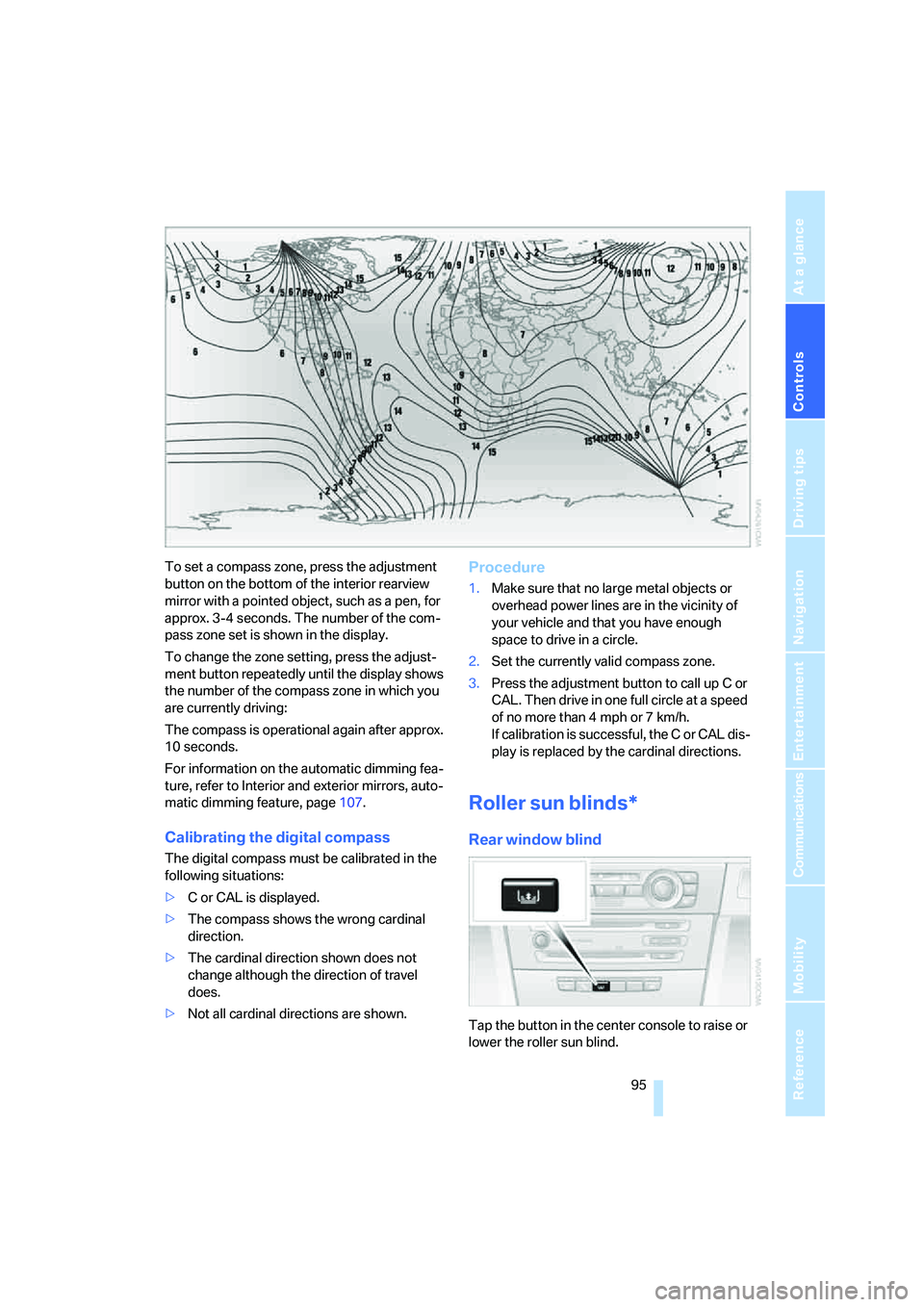
To set a compass zone, press the adjustment
button on the bottom of the interior rearview
mirror with a pointed object, such as a pen, for
approx. 3-4 seconds. The number of the com-
pass zone set is shown in the display.
To change the zone setting, press the adjust-
ment button repeatedly until the display shows
the number of the compass zone in which you
are currently driving:
The compass is operational again after approx.
10 seconds.
For information on the automatic dimming fea-
ture, refer to Interior and exterior mirrors, auto-
matic dimming feature, page107.
Calibrating the digital compass
The digital compass must be calibrated in the
following situations:
>C or CAL is displayed.
>The compass shows the wrong cardinal
direction.
>The cardinal direction shown does not
change although the direction of travel
does.
>Not all cardinal directions are shown.
Procedure
1.Make sure that no large metal objects or
overhead power lines are in the vicinity of
your vehicle and that you have enough
space to drive in a circle.
2.Set the currently valid compass zone.
3.Press the adjustment button to call up C or
CAL. Then drive in one full circle at a speed
of no more than 4 mph or 7 km/h.
If calibration is successful, the C or CAL dis-
play is replaced by the cardinal directions.
Roller sun blinds*
Rear window blind
Tap the button in the center console to raise or
lower the roller sun blind.
Page 115 of 223
Starting the navigation system
114
Starting the navigation system
Your navigation system can use satellites to
ascertain the precise position of your vehicle
and guide you reliably to any destination you
enter.
Navigation DVD
The navigation system requires a special navi-
gation DVD. You can obtain the latest version at
your BMW center.
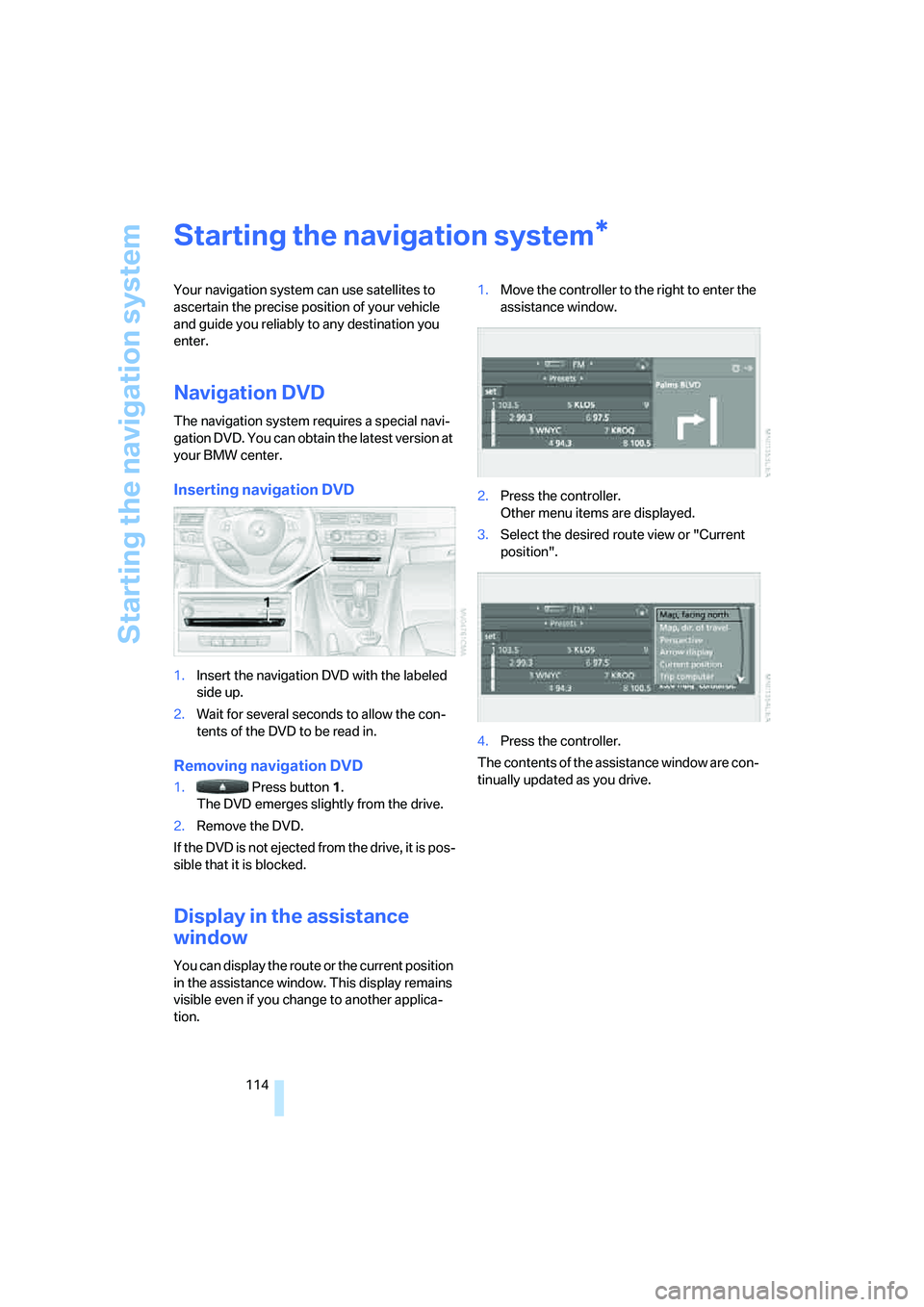
Inserting navigation DVD
1.Insert the navigation DVD with the labeled
side up.
2.Wait for several seconds to allow the con-
tents of the DVD to be read in.
Removing navigation DVD
1. Press button 1.
The DVD emerges slightly from the drive.
2.Remove the DVD.
If the DVD is not ejected from the drive, it is pos-
sible that it is blocked.
Display in the assistance
window
You can display the route or the current position
in the assistance window. This display remains
visible even if you change to another applica-
tion.1.Move the controller to the right to enter the
assistance window.
2.Press the controller.
Other menu items are displayed.
3.Select the desired route view or "Current
position".
4.Press the controller.
The contents of the assistance window are con-
tinually updated as you drive.
*
Page 117 of 223
Destination entry
116 3.Select "Enter address" and press the con-
troller.
The system also supports you with the follow-
ing features:
>If you do not enter a street, the system will
guide you to the downtown area of a town or
city.
>You can skip the entry of country and local-
ity if the current entries should be retained
for your new destination.
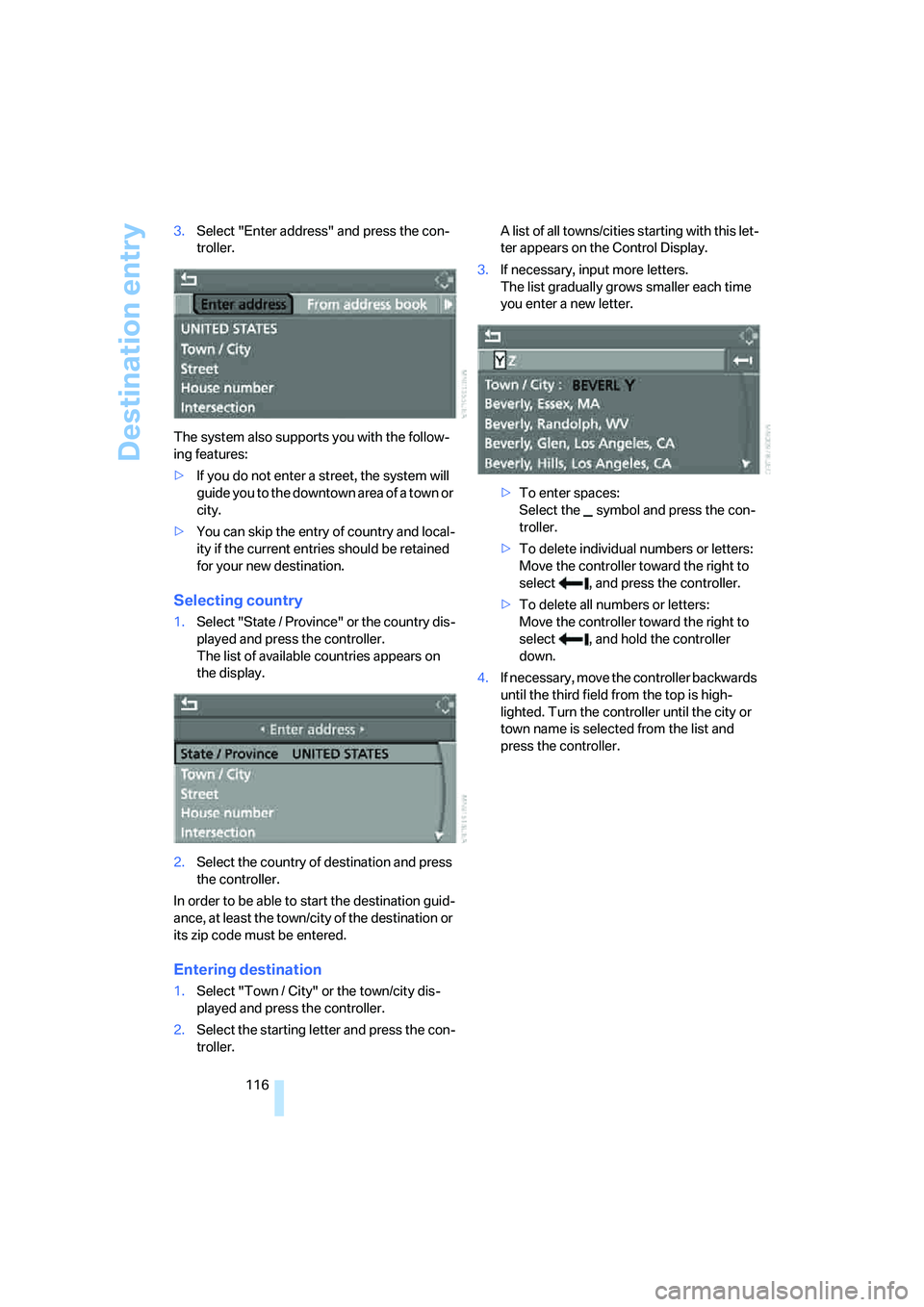
Selecting country
1.Select "State / Province" or the country dis-
played and press the controller.
The list of available countries appears on
the display.
2.Select the country of destination and press
the controller.
In order to be able to start the destination guid-
ance, at least the town/city of the destination or
its zip code must be entered.
Entering destination
1.Select "Town / City" or the town/city dis-
played and press the controller.
2.Select the starting letter and press the con-
troller.A list of all towns/cities starting with this let-
ter appears on the Control Display.
3.If necessary, input more letters.
The list gradually grows smaller each time
you enter a new letter.
>To enter spaces:
Select the symbol and press the con-
troller.
>To delete individual numbers or letters:
Move the controller toward the right to
select , and press the controller.
>To delete all numbers or letters:
Move the controller toward the right to
select , and hold the controller
down.
4.If necessary, move the controller backwards
until the third field from the top is high-
lighted. Turn the controller until the city or
town name is selected from the list and
press the controller.
Page 118 of 223
Navigation
Driving tips
117Reference
At a glance
Controls
Communications
Entertainment
Mobility
Inputting destination by zip code
1.Select "Town / City" and press the control-
ler.
2.Input the zip code:
Select the desired digits and press the con-
troller.
>To enter spaces:
Select the symbol and press the con-
troller.
>To delete individual numbers or letters:
Move the controller toward the right to
select , and press the controller.
>To delete all numbers or letters:
Move the controller toward the right to
select , and hold the controller
down.
3.Select the zip code and press the controller.
The corresponding destination is displayed.
4.If necessary, move the controller backwards
until the third field from the top is high-
lighted. Turn the controller until the desti-
nation is selected and press the controller.
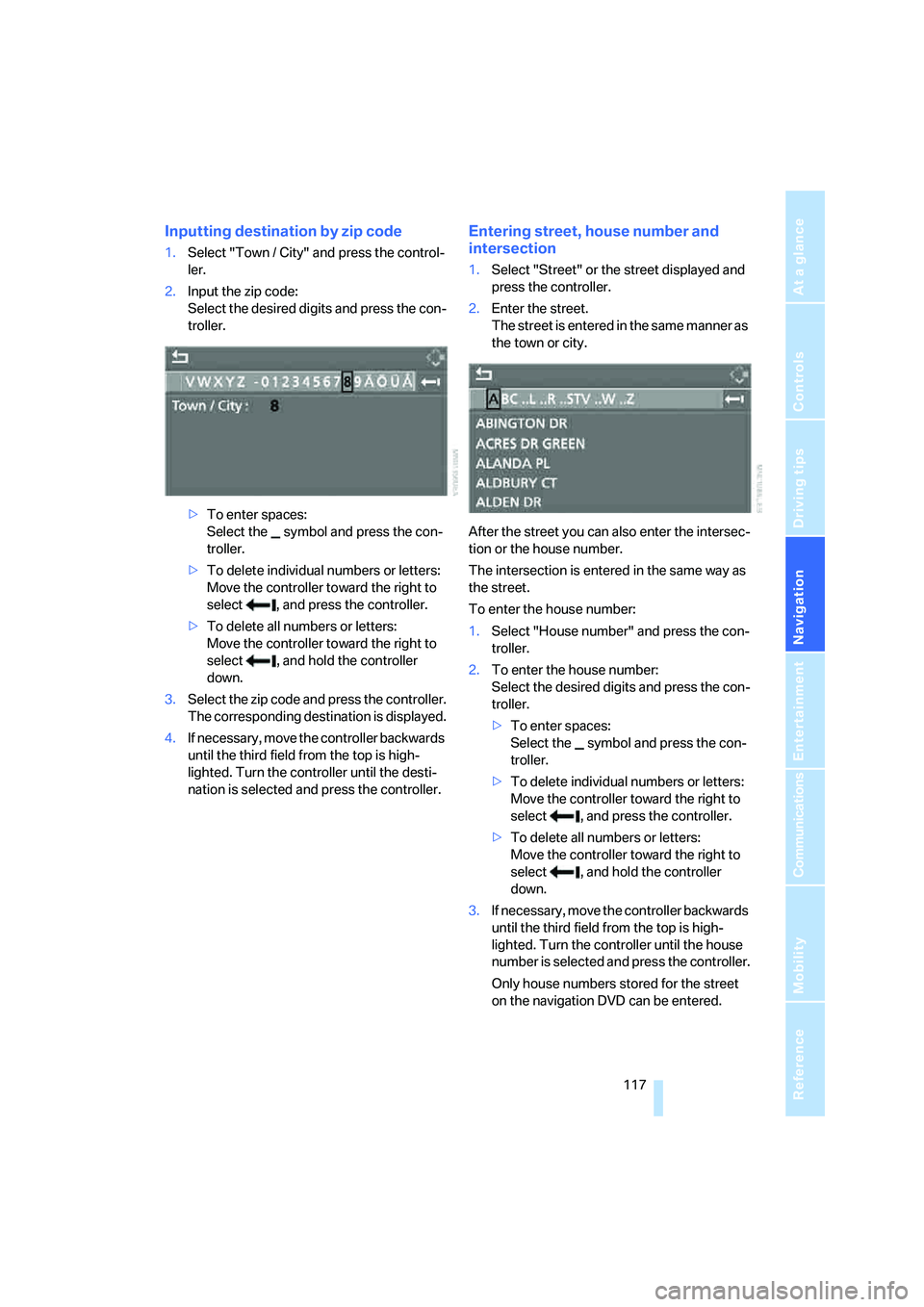
Entering street, house number and
intersection
1.Select "Street" or the street displayed and
press the controller.
2.Enter the street.
The street is entered in the same manner as
the town or city.
After the street you can also enter the intersec-
tion or the house number.
The intersection is entered in the same way as
the street.
To enter the house number:
1.Select "House number" and press the con-
troller.
2.To enter the house number:
Select the desired digits and press the con-
troller.
>To enter spaces:
Select the symbol and press the con-
troller.
>To delete individual numbers or letters:
Move the controller toward the right to
select , and press the controller.
>To delete all numbers or letters:
Move the controller toward the right to
select , and hold the controller
down.
3.If necessary, move the controller backwards
until the third field from the top is high-
lighted. Turn the controller until the house
number is selected and press the controller.
Only house numbers stored for the street
on the navigation DVD can be entered.
Page 119 of 223
Destination entry
118
Starting destination guidance with
manual destination entry
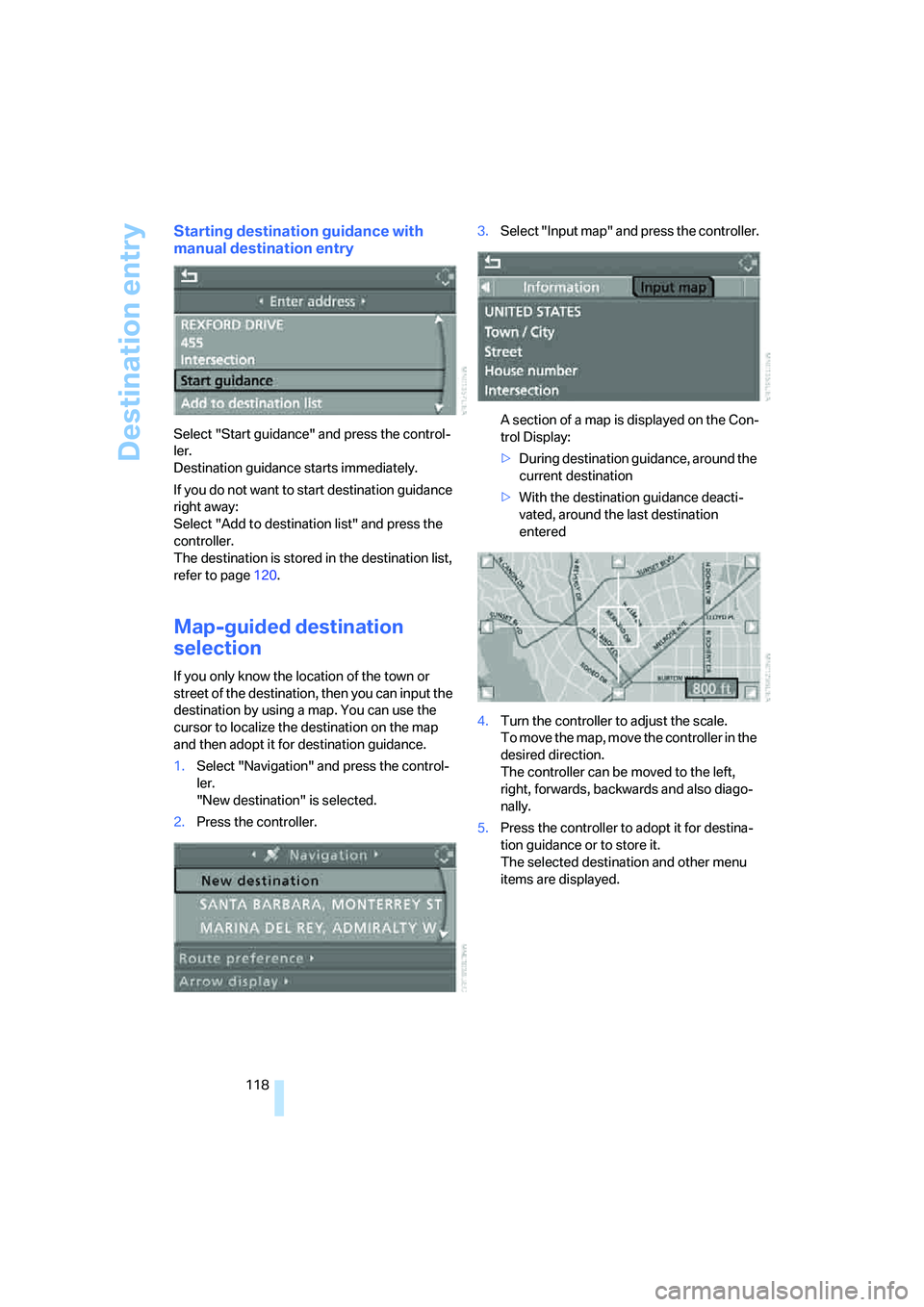
Select "Start guidance" and press the control-
ler.
Destination guidance starts immediately.
If you do not want to start destination guidance
right away:
Select "Add to destination list" and press the
controller.
The destination is stored in the destination list,
refer to page120.
Map-guided destination
selection
If you only know the location of the town or
street of the destination, then you can input the
destination by using a map. You can use the
cursor to localize the destination on the map
and then adopt it for destination guidance.
1.Select "Navigation" and press the control-
ler.
"New destination" is selected.
2.Press the controller.3.Select "Input map" and press the controller.
A section of a map is displayed on the Con-
trol Display:
>During destination guidance, around the
current destination
>With the destination guidance deacti-
vated, around the last destination
entered
4.Turn the controller to adjust the scale.
To move the map, move the controller in the
desired direction.
The controller can be moved to the left,
right, forwards, backwards and also diago-
nally.
5.Press the controller to adopt it for destina-
tion guidance or to store it.
The selected destination and other menu
items are displayed.
Page 120 of 223
Navigation
Driving tips
119Reference
At a glance
Controls
Communications
Entertainment
Mobility
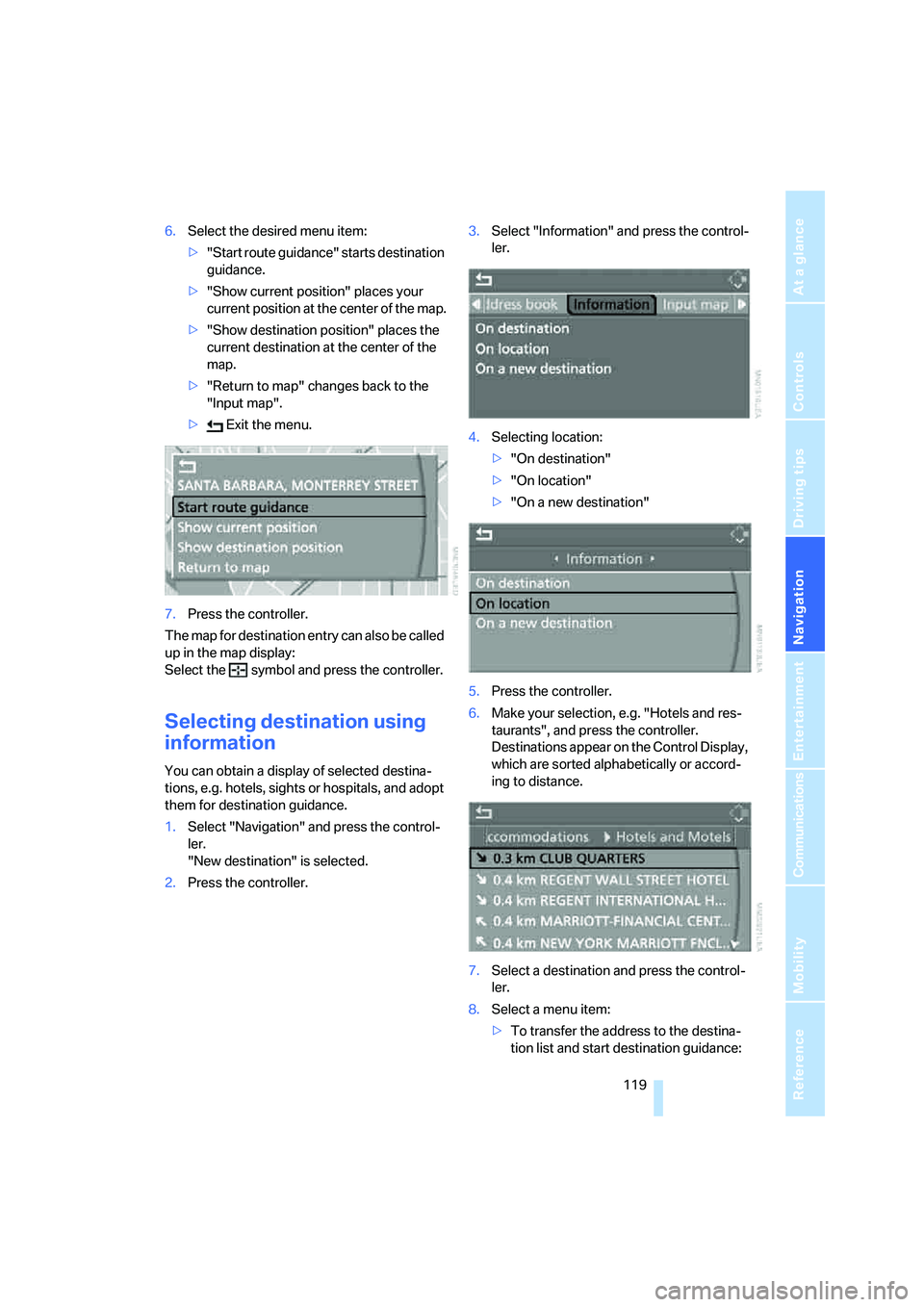
6.Select the desired menu item:
>"Start route guidance" starts destination
guidance.
>"Show current position" places your
current position at the center of the map.
>"Show destination position" places the
current destination at the center of the
map.
>"Return to map" changes back to the
"Input map".
> Exit the menu.
7.Press the controller.
The map for destination entry can also be called
up in the map display:
Select the symbol and press the controller.
Selecting destination using
information
You can obtain a display of selected destina-
tions, e.g. hotels, sights or hospitals, and adopt
them for destination guidance.
1.Select "Navigation" and press the control-
ler.
"New destination" is selected.
2.Press the controller.3.Select "Information" and press the control-
ler.
4.Selecting location:
>"On destination"
>"On location"
>"On a new destination"
5.Press the controller.
6.Make your selection, e.g. "Hotels and res-
taurants", and press the controller.
Destinations appear on the Control Display,
which are sorted alphabetically or accord-
ing to distance.
7.Select a destination and press the control-
ler.
8.Select a menu item:
>To transfer the address to the destina-
tion list and start destination guidance:
Page 121 of 223
Destination entry
120 Select "Select as destination" and press
the controller.
>To establish a telephone connection:
Select "Call" and press the controller.
To exit from the menu:
Select the arrow and press the controller.
Destination list
The last 20 destinations entered into the sys-
tem are shown in the destination list. You can
call up these destinations and adopt them for
destination guidance.
If you are planning a longer journey, for exam-
ple, you can store all the destinations you wish
to drive to in the destination list in advance,
refer to Entering a destination manually on
page115.
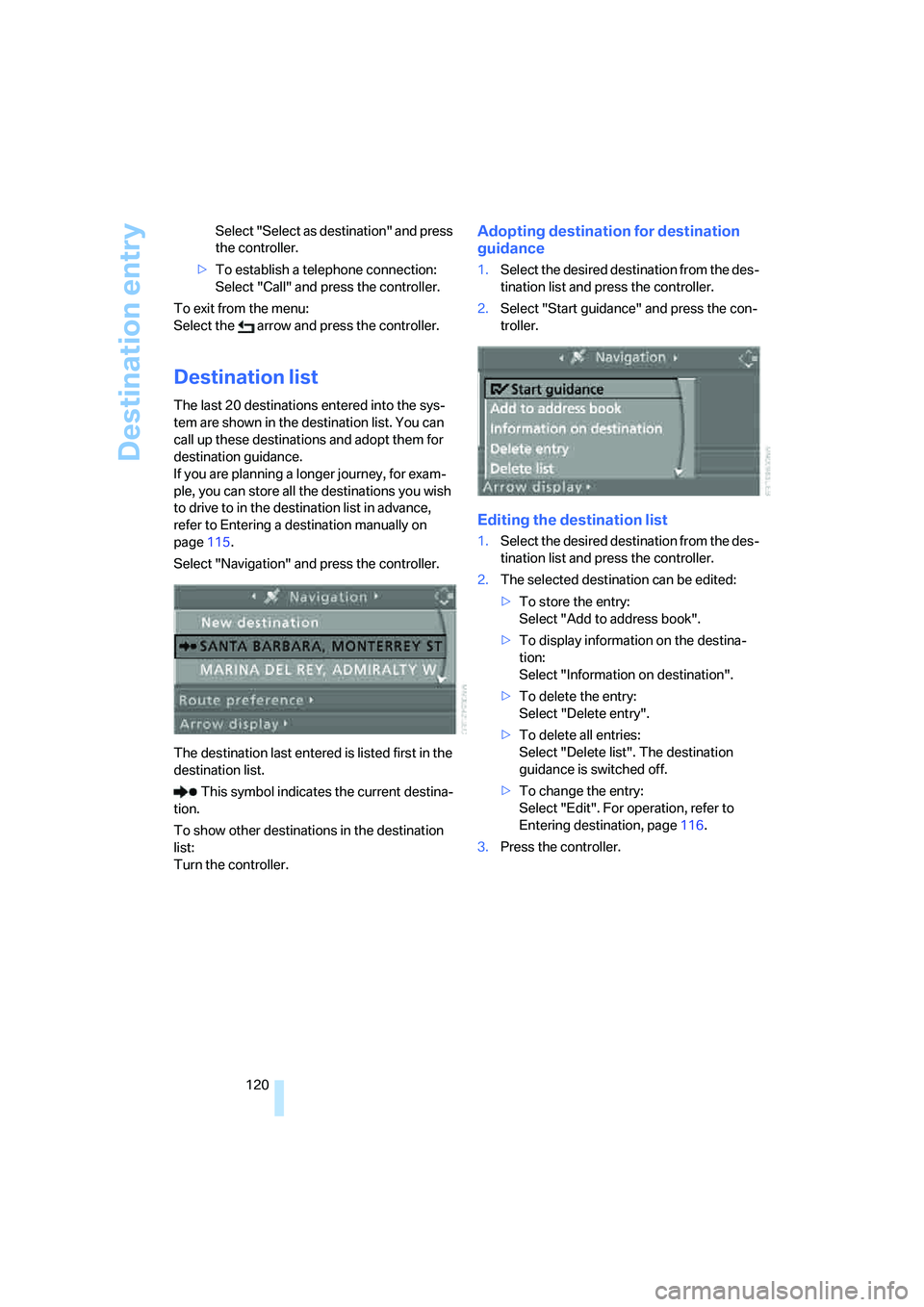
Select "Navigation" and press the controller.
The destination last entered is listed first in the
destination list.
This symbol indicates the current destina-
tion.
To show other destinations in the destination
list:
Turn the controller.
Adopting destination for destination
guidance
1.Select the desired destination from the des-
tination list and press the controller.
2.Select "Start guidance" and press the con-
troller.
Editing the destination list
1.Select the desired destination from the des-
tination list and press the controller.
2.The selected destination can be edited:
>To store the entry:
Select "Add to address book".
>To display information on the destina-
tion:
Select "Information on destination".
>To delete the entry:
Select "Delete entry".
>To delete all entries:
Select "Delete list". The destination
guidance is switched off.
>To change the entry:
Select "Edit". For operation, refer to
Entering destination, page116.
3.Press the controller.
Page 122 of 223
Navigation
Driving tips
121Reference
At a glance
Controls
Communications
Entertainment
Mobility
Address book
Opening address book
iDrive concept, refer to page16.
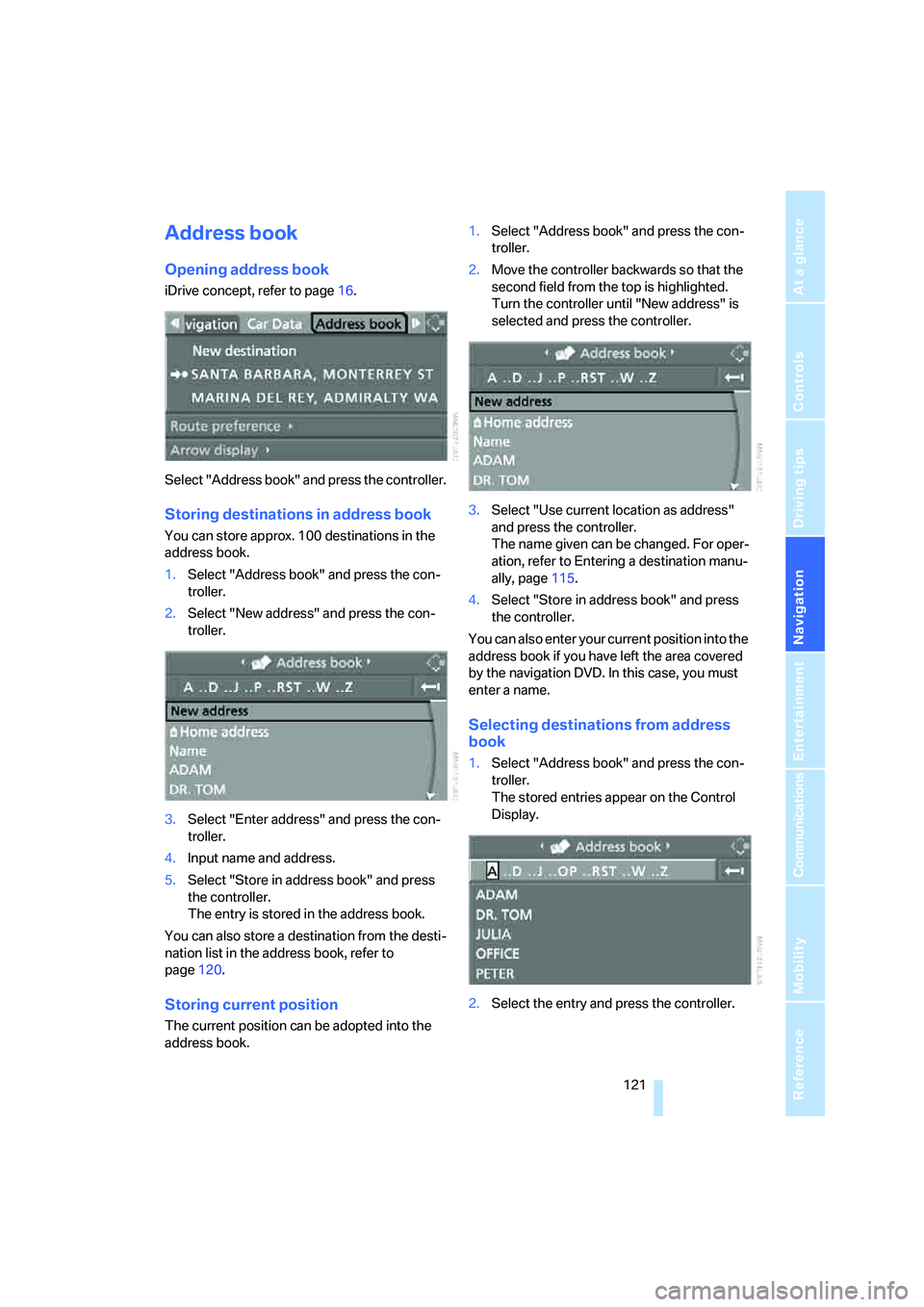
Select "Address book" and press the controller.
Storing destinations in address book
You can store approx. 100 destinations in the
address book.
1.Select "Address book" and press the con-
troller.
2.Select "New address" and press the con-
troller.
3.Select "Enter address" and press the con-
troller.
4.Input name and address.
5.Select "Store in address book" and press
the controller.
The entry is stored in the address book.
You can also store a destination from the desti-
nation list in the address book, refer to
page120.
Storing current position
The current position can be adopted into the
address book.1.Select "Address book" and press the con-
troller.
2.Move the controller backwards so that the
second field from the top is highlighted.
Turn the controller until "New address" is
selected and press the controller.
3.Select "Use current location as address"
and press the controller.
The name given can be changed. For oper-
ation, refer to Entering a destination manu-
ally, page115.
4.Select "Store in address book" and press
the controller.
You can also enter your current position into the
address book if you have left the area covered
by the navigation DVD. In this case, you must
enter a name.
Selecting destinations from address
book
1.Select "Address book" and press the con-
troller.
The stored entries appear on the Control
Display.
2.Select the entry and press the controller.
Page 124 of 223
Navigation
Driving tips
123Reference
At a glance
Controls
Communications
Entertainment
Mobility
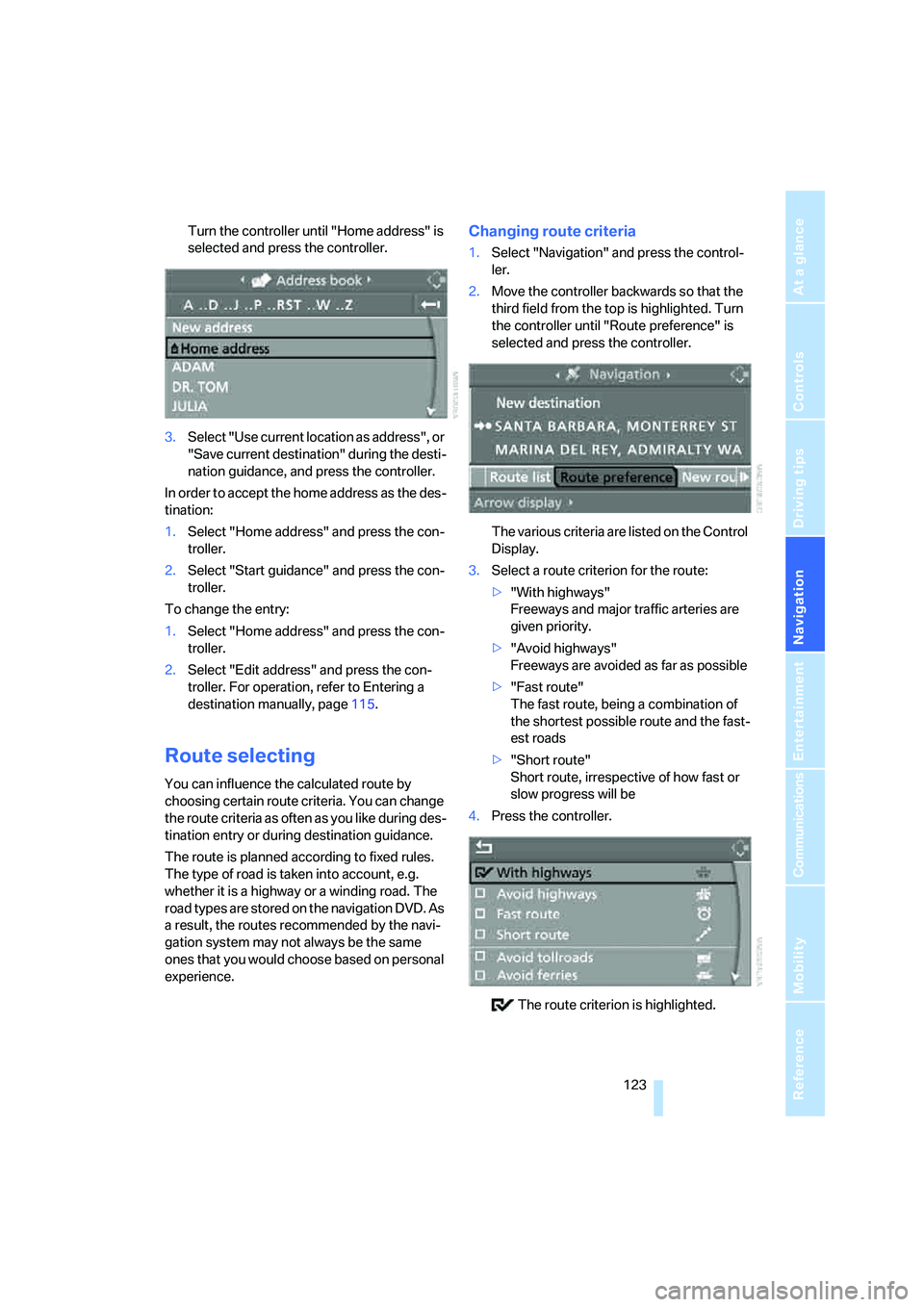
Turn the controller until "Home address" is
selected and press the controller.
3.Select "Use current location as address", or
"Save current destination" during the desti-
nation guidance, and press the controller.
In order to accept the home address as the des-
tination:
1.Select "Home address" and press the con-
troller.
2.Select "Start guidance" and press the con-
troller.
To change the entry:
1.Select "Home address" and press the con-
troller.
2.Select "Edit address" and press the con-
troller. For operation, refer to Entering a
destination manually, page115.
Route selecting
You can influence the calculated route by
choosing certain route criteria. You can change
the route criteria as often as you like during des-
tination entry or during destination guidance.
The route is planned according to fixed rules.
The type of road is taken into account, e.g.
whether it is a highway or a winding road. The
road types are stored on the navigation DVD. As
a result, the routes recommended by the navi-
gation system may not always be the same
ones that you would choose based on personal
experience.
Changing route criteria
1.Select "Navigation" and press the control-
ler.
2.Move the controller backwards so that the
third field from the top is highlighted. Turn
the controller until "Route preference" is
selected and press the controller.
The various criteria are listed on the Control
Display.
3.Select a route criterion for the route:
>"With highways"
Freeways and major traffic arteries are
given priority.
>"Avoid highways"
Freeways are avoided as far as possible
>"Fast route"
The fast route, being a combination of
the shortest possible route and the fast-
est roads
>"Short route"
Short route, irrespective of how fast or
slow progress will be
4.Press the controller.
The route criterion is highlighted.
Page 125 of 223
Destination entry
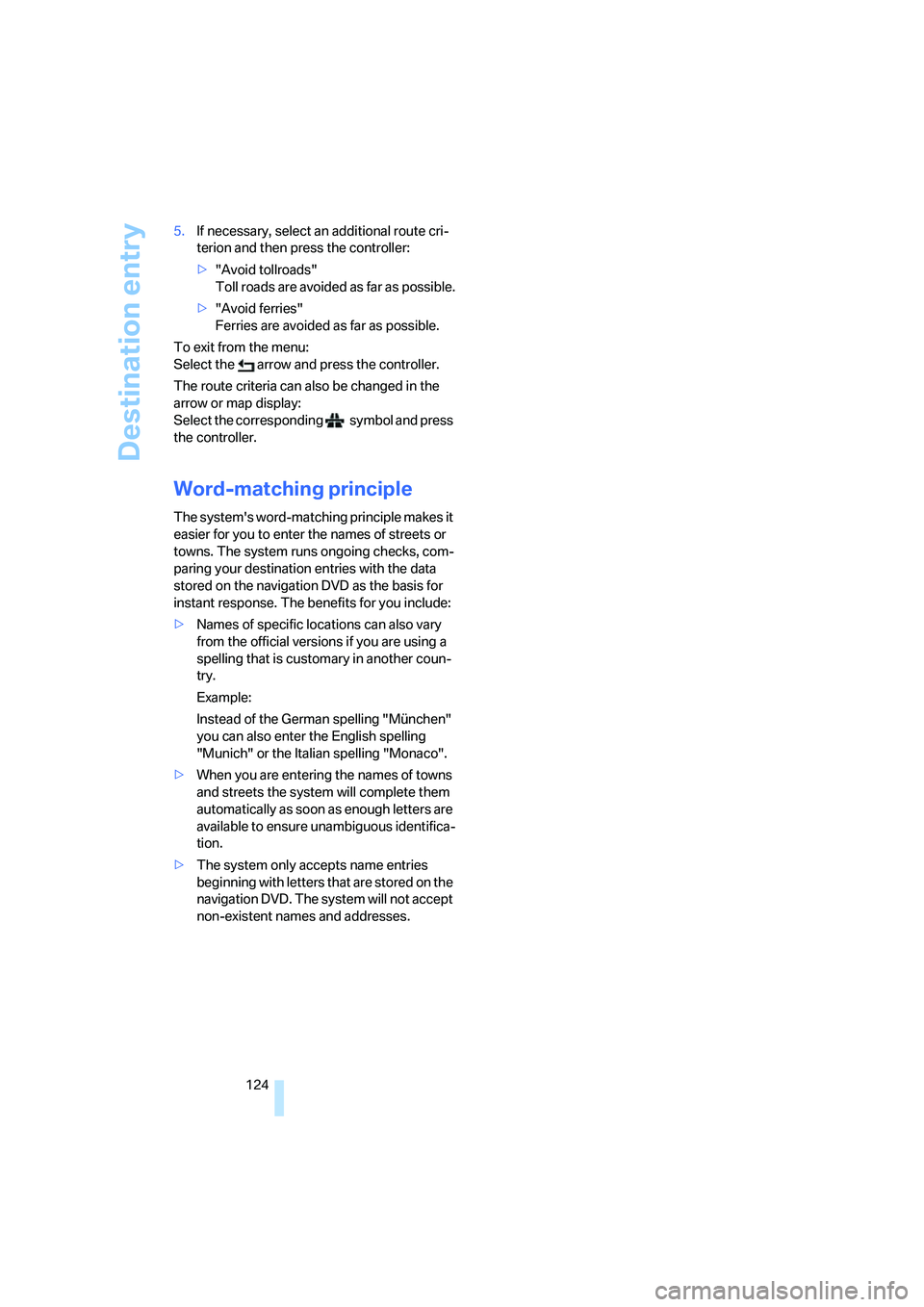
124 5.If necessary, select an additional route cri-
terion and then press the controller:
>"Avoid tollroads"
Toll roads are avoided as far as possible.
>"Avoid ferries"
Ferries are avoided as far as possible.
To exit from the menu:
Select the arrow and press the controller.
The route criteria can also be changed in the
arrow or map display:
Select the corresponding symbol and press
the controller.
Word-matching principle
The system's word-matching principle makes it
easier for you to enter the names of streets or
towns. The system runs ongoing checks, com-
paring your destination entries with the data
stored on the navigation DVD as the basis for
instant response. The benefits for you include:
>Names of specific locations can also vary
from the official versions if you are using a
spelling that is customary in another coun-
try.
Example:
Instead of the German spelling "München"
you can also enter the English spelling
"Munich" or the Italian spelling "Monaco".
>When you are entering the names of towns
and streets the system will complete them
automatically as soon as enough letters are
available to ensure unambiguous identifica-
tion.
>The system only accepts name entries
beginning with letters that are stored on the
navigation DVD. The system will not accept
non-existent names and addresses.