IDrive BMW 330I SEDAN 2005 E90 Owner's Guide
[x] Cancel search | Manufacturer: BMW, Model Year: 2005, Model line: 330I SEDAN, Model: BMW 330I SEDAN 2005 E90Pages: 223, PDF Size: 7.49 MB
Page 87 of 223
Lamps
86
Pathway lighting
If you activate the headlamp flasher after park-
ing the car, with the lights switched off, the low
beams come on and remain on for a certain
time. You can adjust the operating period or
deactivate the function using iDrive.
1.Open the start menu.
2.Press the controller to open the menu.
3.Select "Vehicle settings" and press the
controller.
4.Select "Lighting" and press the controller.
5.Select "Pathway lighting" and press the
controller.
6.Turn the controller to select the corre-
sponding duration.
7.Press the controller to apply the setting.
Daytime driving lamps*
If desired, the light switch can remain in the low-
beam headlamp position or the automatic
headlamp control position.
After you have switched off the ignition, refer to
page49, and opened the driver's door, the out-
side lights switch off automatically.
Always observe all applicable laws governing
the use of daytime driving lamps.
You can switch on the parking lamps when
needed using the standard procedure
described under Parking lamps.
Adaptive Head Light*
The concept
Adaptive Head Light is a variable headlamp
control system that enables better illumination
of the road surface. Depending on the steering
angle and other conditions, the light from the
headlamp follows the course of the road.
Activating Adaptive Head Light
With the ignition on, turn the light switch to the
automatic headlamp control position, refer to
page85.
To avoid dazzling the drivers of oncoming vehi-
cles, Adaptive Head Light is not active when the
car is driven in reverse, and directs the light to
the front passenger's side when the vehicle is at
a standstill.
Malfunction
The LED next to the symbol for automatic head-
lamp control flashes. Adaptive Head Light is
malfunctioning or has failed. Have the system
checked as soon as possible.
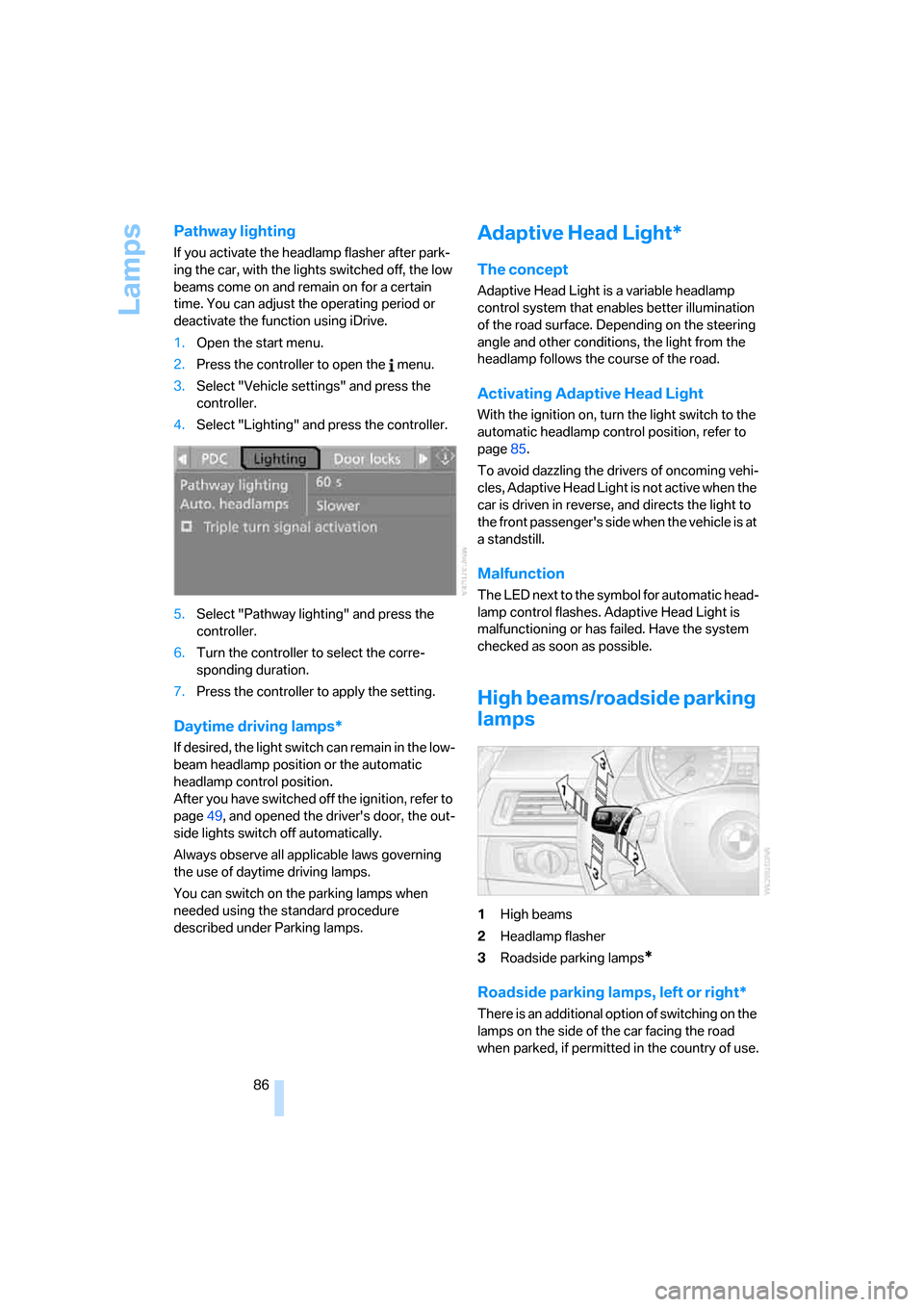
High beams/roadside parking
lamps
1High beams
2Headlamp flasher
3Roadside parking lamps
*
Roadside parking lamps, left or right*
There is an additional option of switching on the
lamps on the side of the car facing the road
when parked, if permitted in the country of use.
Page 91 of 223
Controlling the climate for pleasant driving
90
Automatic climate control
Comfortable interior climate
AUTO program7 offers the ideal air distribution
and air flow rate for practically all conditions,
refer to AUTO program below. All you need to
do is select an interior temperature which is
comfortable for you.
The following sections inform you in detail
about how to adjust the settings.
Most settings are stored for the remote control
currently in use, refer also to Personal Profile
settings on page29.
Adjusting air distribution manually
Direct the flow of air to the win-
dows, to the upper body area or to
the footwell.
You can switch the automatic air
distribution back on by pressing the AUTO but-
ton.
Manual fine adjustments in air
distribution
You can set the rate of incoming airflow for
manual air distribution.
iDrive concept, refer to page16.
1.Press the button.
This opens the start menu.
2.Move the controller to the left to call up "Cli-
mate".
3.Select "Vent settings" and press the con-
troller.
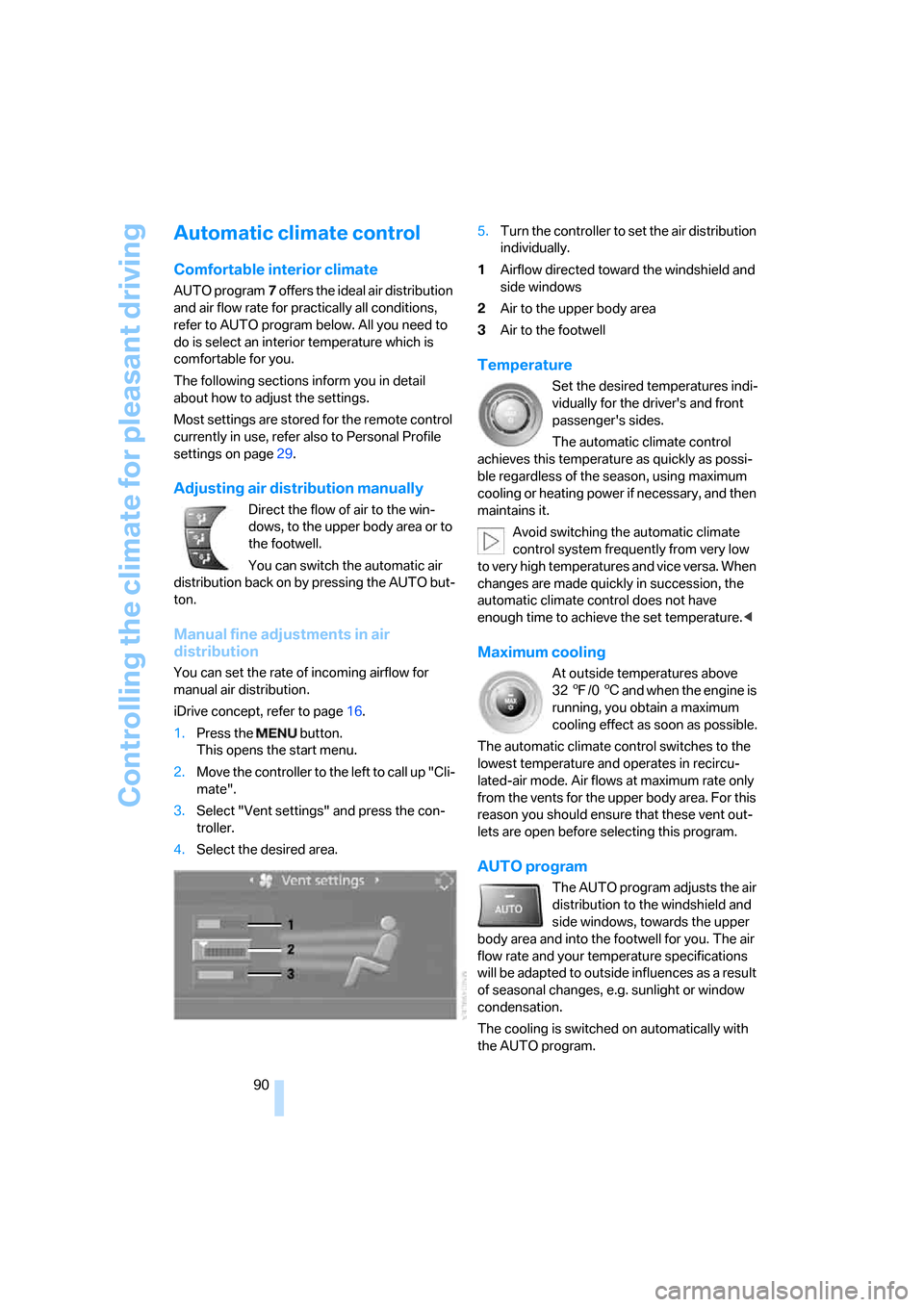
4.Select the desired area.5.Turn the controller to set the air distribution
individually.
1Airflow directed toward the windshield and
side windows
2Air to the upper body area
3Air to the footwell
Temperature
Set the desired temperatures indi-
vidually for the driver's and front
passenger's sides.
The automatic climate control
achieves this temperature as quickly as possi-
ble regardless of the season, using maximum
cooling or heating power if necessary, and then
maintains it.
Avoid switching the automatic climate
control system frequently from very low
to very high temperatures and vice versa. When
changes are made quickly in succession, the
automatic climate control does not have
enough time to achieve the set temperature.<
Maximum cooling
At outside temperatures above
327/06 and when the engine is
running, you obtain a maximum
cooling effect as soon as possible.
The automatic climate control switches to the
lowest temperature and operates in recircu-
lated-air mode. Air flows at maximum rate only
from the vents for the upper body area. For this
reason you should ensure that these vent out-
lets are open before selecting this program.
AUTO program
The AUTO program adjusts the air
distribution to the windshield and
side windows, towards the upper
body area and into the footwell for you. The air
flow rate and your temperature specifications
will be adapted to outside influences as a result
of seasonal changes, e.g. sunlight or window
condensation.
The cooling is switched on automatically with
the AUTO program.
Page 116 of 223
Navigation
Driving tips
115Reference
At a glance
Controls
Communications
Entertainment
Mobility
Destination entry
In entering your destination you can select from
among the following options:
>Entering a destination manually, see below
>Selecting destination using information,
refer to page119
>Selecting destination from a list, refer to
Destination list, page120
>Selecting destination from address book,
refer to page121
>Selecting home address, refer to page122
After selecting your destination you can pro-
ceed to start the destination guidance, refer to
page125.
Operating navigation system
Enter data only when the vehicle is sta-
tionary, and always give priority to the
applicable traffic regulations in the event of any
contradiction between traffic and road condi-
tions and the instructions issued by the naviga-
tion system. If you do not observe this precau-
tion, you may be in violation of the law, and can
endanger vehicle occupants and other road
users.<
iDrive concept, refer to page16.
1.Press the button.
This opens the start menu.
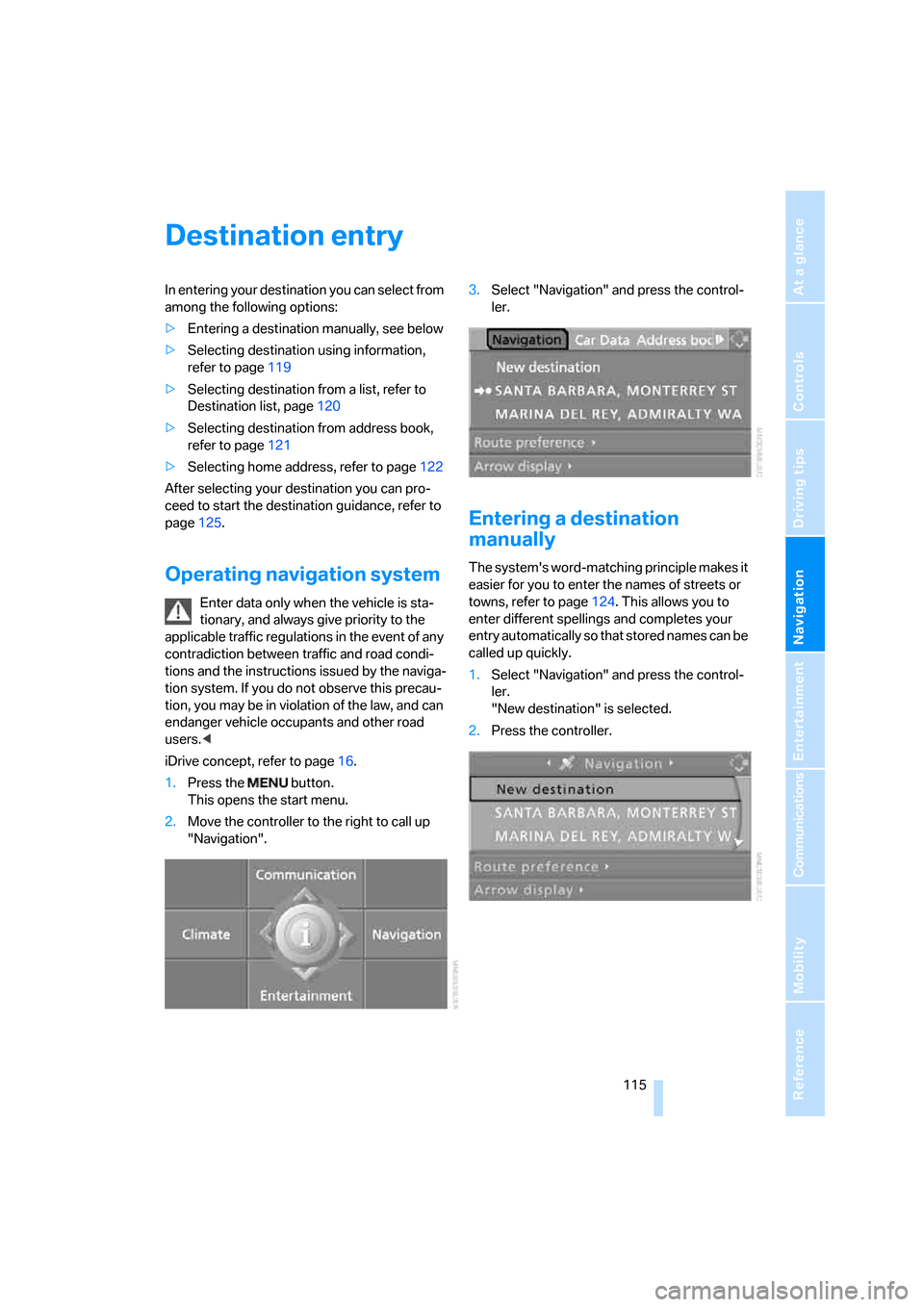
2.Move the controller to the right to call up
"Navigation".3.Select "Navigation" and press the control-
ler.
Entering a destination
manually
The system's word-matching principle makes it
easier for you to enter the names of streets or
towns, refer to page124. This allows you to
enter different spellings and completes your
entry automatically so that stored names can be
called up quickly.
1.Select "Navigation" and press the control-
ler.
"New destination" is selected.
2.Press the controller.
Page 122 of 223
Navigation
Driving tips
121Reference
At a glance
Controls
Communications
Entertainment
Mobility
Address book
Opening address book
iDrive concept, refer to page16.
Select "Address book" and press the controller.
Storing destinations in address book
You can store approx. 100 destinations in the
address book.
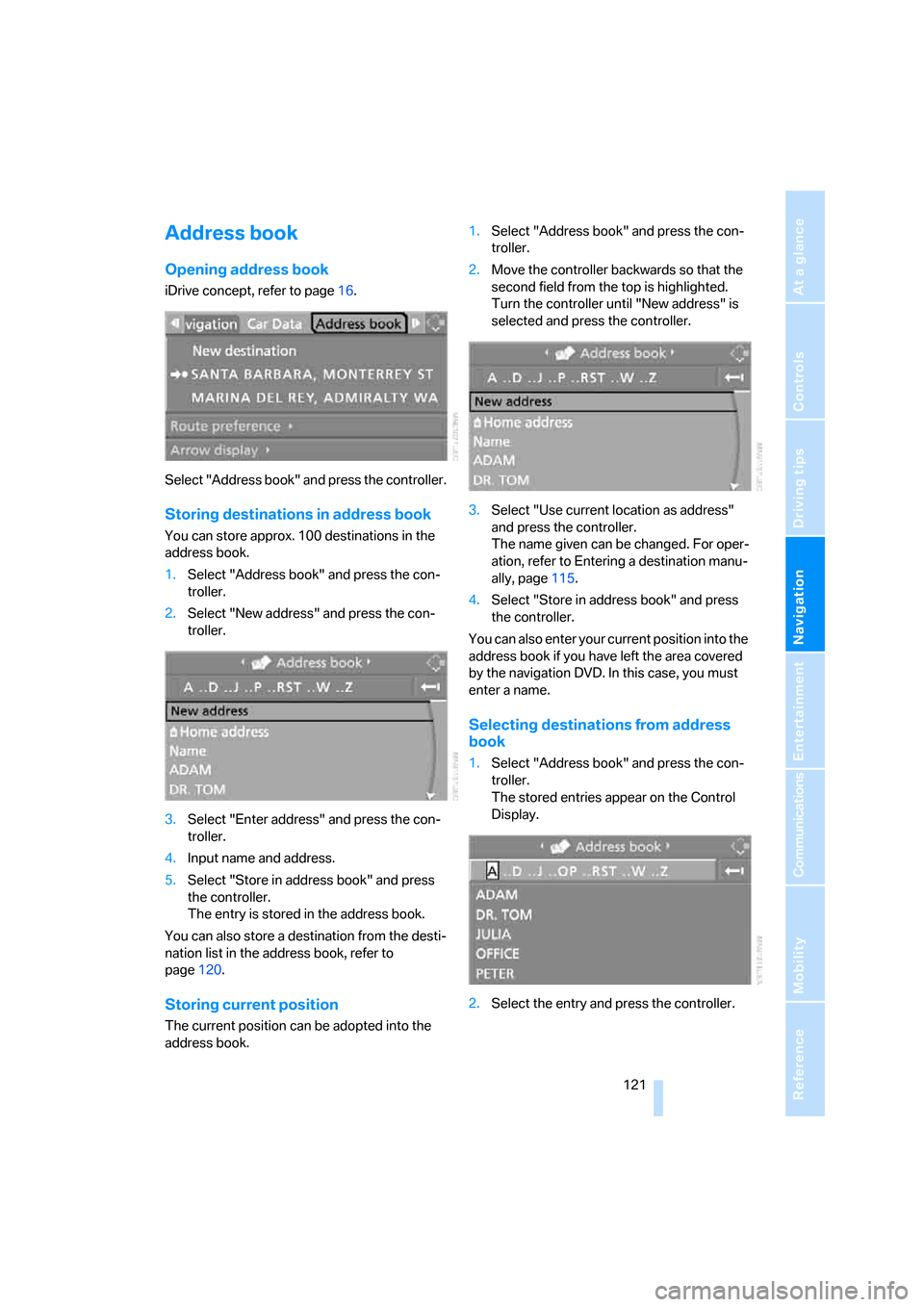
1.Select "Address book" and press the con-
troller.
2.Select "New address" and press the con-
troller.
3.Select "Enter address" and press the con-
troller.
4.Input name and address.
5.Select "Store in address book" and press
the controller.
The entry is stored in the address book.
You can also store a destination from the desti-
nation list in the address book, refer to
page120.
Storing current position
The current position can be adopted into the
address book.1.Select "Address book" and press the con-
troller.
2.Move the controller backwards so that the
second field from the top is highlighted.
Turn the controller until "New address" is
selected and press the controller.
3.Select "Use current location as address"
and press the controller.
The name given can be changed. For oper-
ation, refer to Entering a destination manu-
ally, page115.
4.Select "Store in address book" and press
the controller.
You can also enter your current position into the
address book if you have left the area covered
by the navigation DVD. In this case, you must
enter a name.
Selecting destinations from address
book
1.Select "Address book" and press the con-
troller.
The stored entries appear on the Control
Display.
2.Select the entry and press the controller.
Page 126 of 223
Navigation
Driving tips
125Reference
At a glance
Controls
Communications
Entertainment
Mobility
Destination guidance
Starting destination
guidance
iDrive concept, refer to page16.
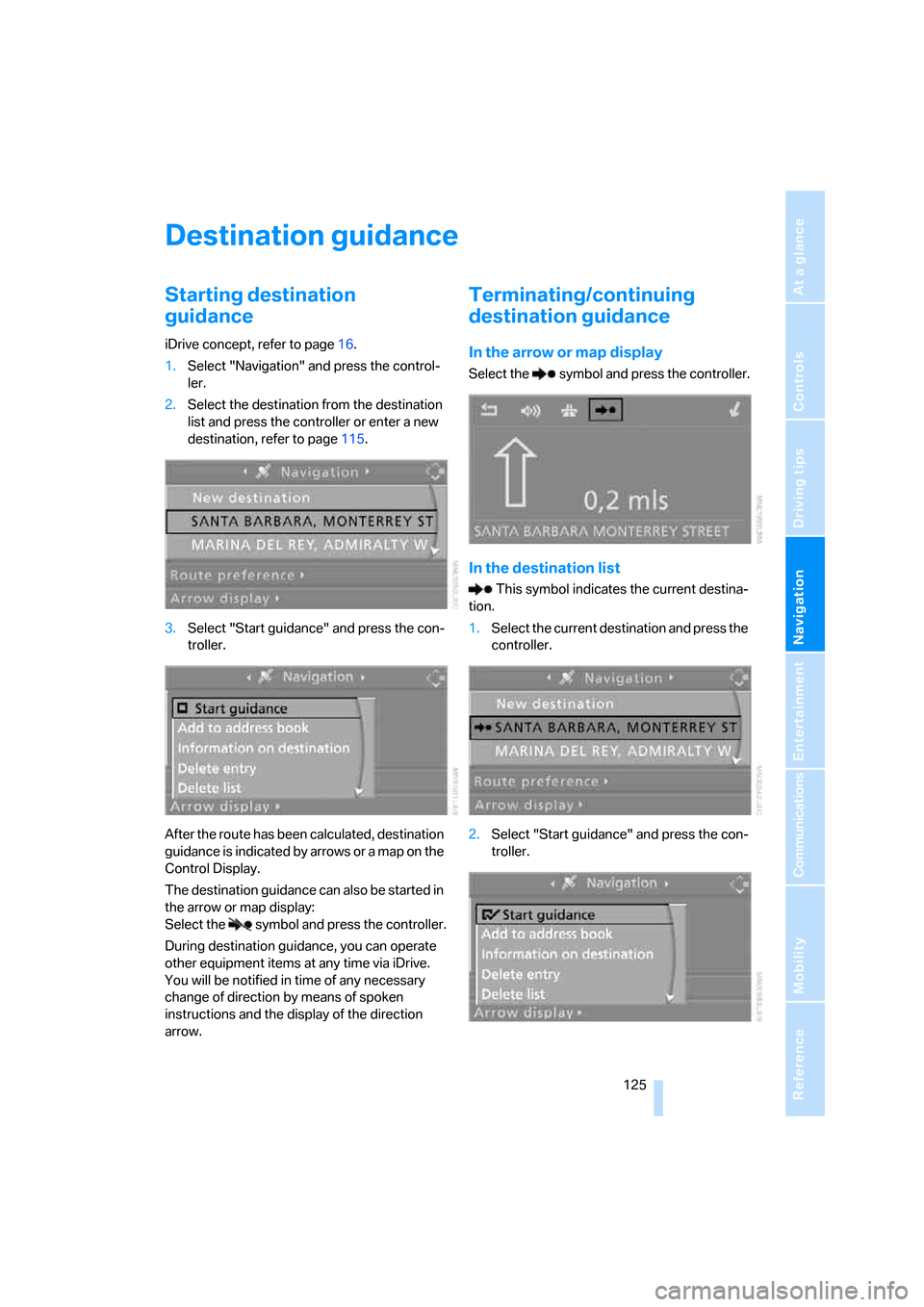
1.Select "Navigation" and press the control-
ler.
2.Select the destination from the destination
list and press the controller or enter a new
destination, refer to page115.
3.Select "Start guidance" and press the con-
troller.
After the route has been calculated, destination
guidance is indicated by arrows or a map on the
Control Display.
The destination guidance can also be started in
the arrow or map display:
Select the symbol and press the controller.
During destination guidance, you can operate
other equipment items at any time via iDrive.
You will be notified in time of any necessary
change of direction by means of spoken
instructions and the display of the direction
arrow.
Terminating/continuing
destination guidance
In the arrow or map display
Select the symbol and press the controller.
In the destination list
This symbol indicates the current destina-
tion.
1.Select the current destination and press the
controller.
2.Select "Start guidance" and press the con-
troller.
Page 135 of 223
On/off and settings
134
On/off and settings
The following audio sources have shared con-
trols and setting options:
>Radio Professional
>CD player
>CD changer
*
Controls
The audio sources can be operated using:
>Buttons near the CD player
>iDrive
>Buttons
on the steering wheel, refer to
page10
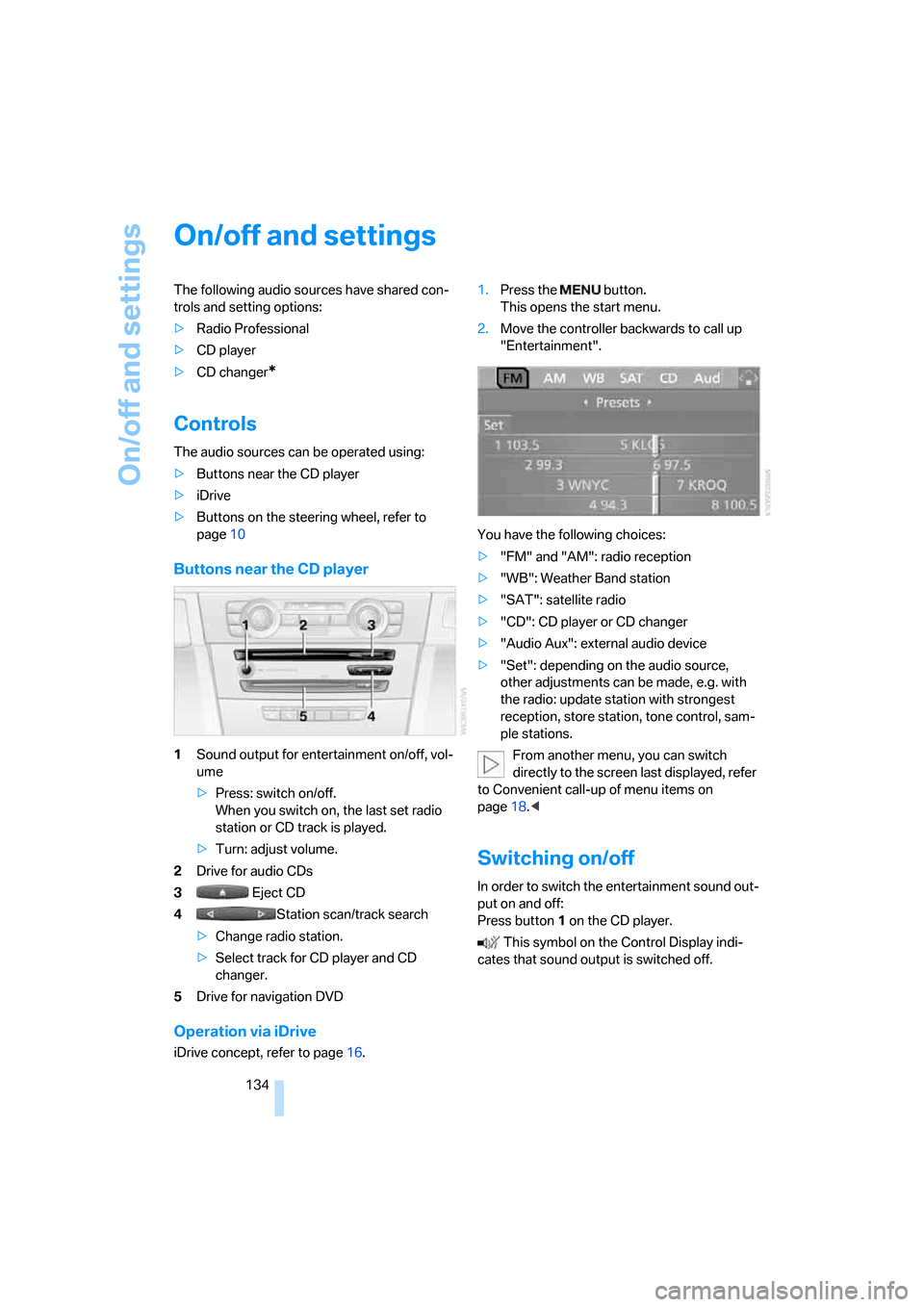
Buttons near the CD player
1Sound output for entertainment on/off, vol-
ume
>Press: switch on/off.
When you switch on, the last set radio
station or CD track is played.
>Turn: adjust volume.
2Drive for audio CDs
3 Eject CD
4Station scan/track search
>Change radio station.
>Select track for CD player and CD
changer.
5Drive for navigation DVD
Operation via iDrive
iDrive concept, refer to page16.1.Press the button.
This opens the start menu.
2.Move the controller backwards to call up
"Entertainment".
You have the following choices:
>"FM" and "AM": radio reception
>"WB": Weather Band station
>"SAT": satellite radio
>"CD": CD player or CD changer
>"Audio Aux": external audio device
>"Set": depending on the audio source,
other adjustments can be made, e.g. with
the radio: update station with strongest
reception, store station, tone control, sam-
ple stations.
From another menu, you can switch
directly to the screen last displayed, refer
to Convenient call-up of menu items on
page18.<
Switching on/off
In order to switch the entertainment sound out-
put on and off:
Press button1 on the CD player.
This symbol on the Control Display indi-
cates that sound output is switched off.
Page 139 of 223
Radio
138
Radio
Your radio provides reception of the FM and AM
wavebands.
Listening to the radio
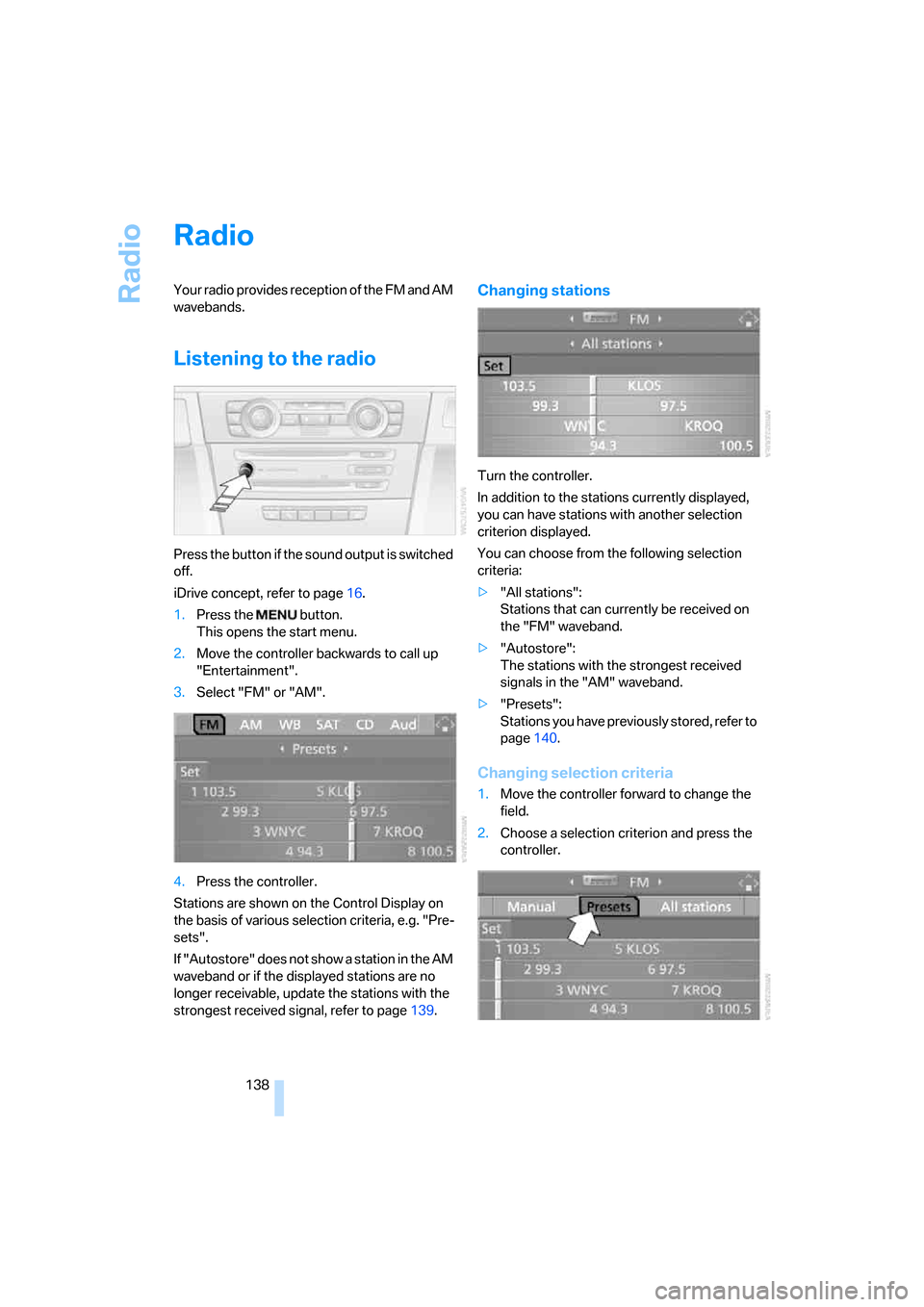
Press the button if the sound output is switched
off.
iDrive concept, refer to page16.
1.Press the button.
This opens the start menu.
2.Move the controller backwards to call up
"Entertainment".
3.Select "FM" or "AM".
4.Press the controller.
Stations are shown on the Control Display on
the basis of various selection criteria, e.g. "Pre-
sets".
If "Autostore" does not show a station in the AM
waveband or if the displayed stations are no
longer receivable, update the stations with the
strongest received signal, refer to page139.
Changing stations
Turn the controller.
In addition to the stations currently displayed,
you can have stations with another selection
criterion displayed.
You can choose from the following selection
criteria:
>"All stations":
Stations that can currently be received on
the "FM" waveband.
>"Autostore":
The stations with the strongest received
signals in the "AM" waveband.
>"Presets":
Stations you have previously stored, refer to
page140.
Changing selection criteria
1.Move the controller forward to change the
field.
2.Choose a selection criterion and press the
controller.
Page 142 of 223
Navigation
Entertainment
Driving tips
141Reference
At a glance
Controls
Communications
Mobility
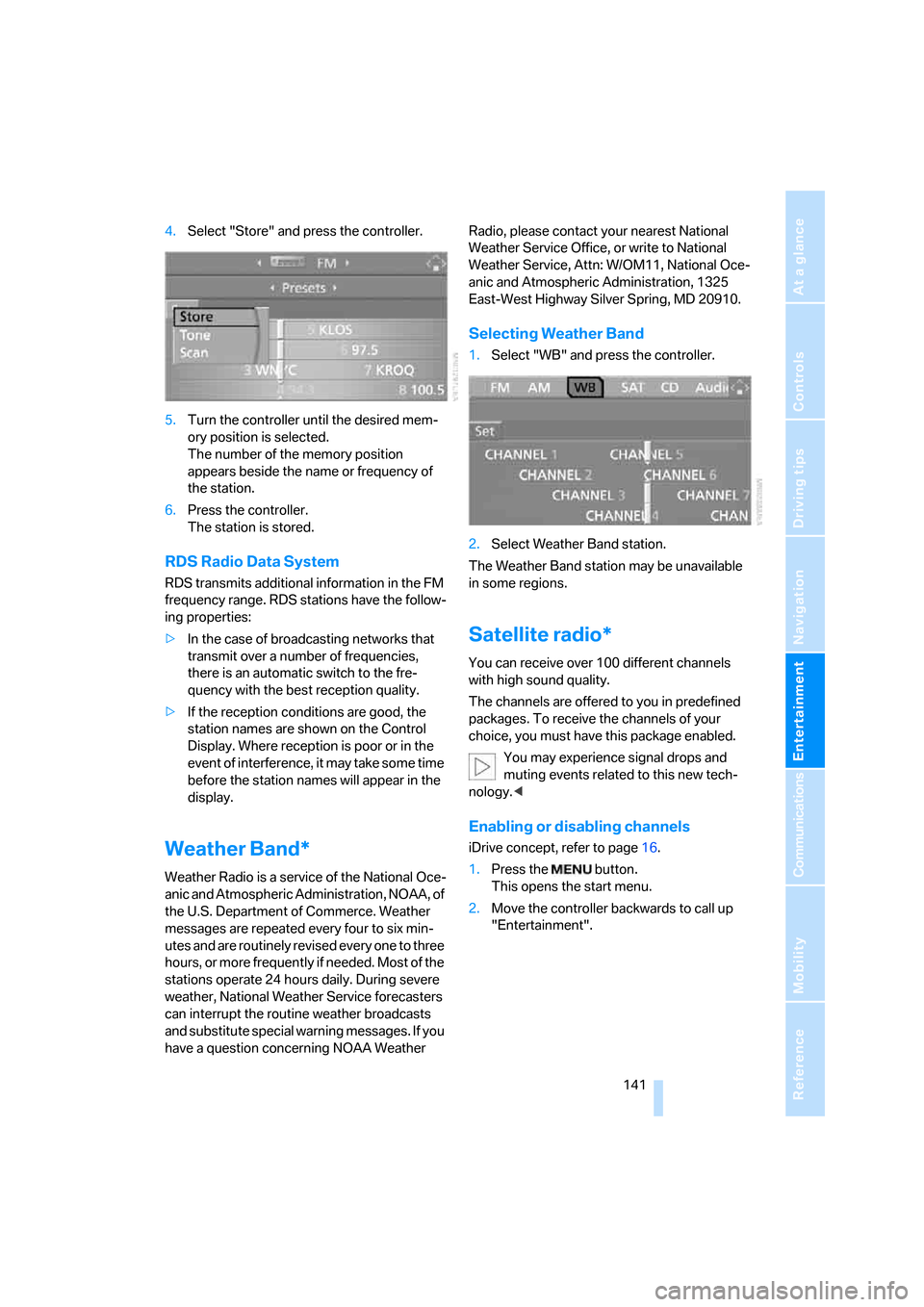
4.Select "Store" and press the controller.
5.Turn the controller until the desired mem-
ory position is selected.
The number of the memory position
appears beside the name or frequency of
the station.
6.Press the controller.
The station is stored.
RDS Radio Data System
RDS transmits additional information in the FM
frequency range. RDS stations have the follow-
ing properties:
>In the case of broadcasting networks that
transmit over a number of frequencies,
there is an automatic switch to the fre-
quency with the best reception quality.
>If the reception conditions are good, the
station names are shown on the Control
Display. Where reception is poor or in the
event of interference, it may take some time
before the station names will appear in the
display.
Weather Band*
Weather Radio is a service of the National Oce-
anic and Atmospheric Administration, NOAA, of
the U.S. Department of Commerce. Weather
messages are repeated every four to six min-
utes and are routinely revised every one to three
hours, or more frequently if needed. Most of the
stations operate 24 hours daily. During severe
weather, National Weather Service forecasters
can interrupt the routine weather broadcasts
and substitute special warning messages. If you
have a question concerning NOAA Weather Radio, please contact your nearest National
Weather Service Office, or write to National
Weather Service, Attn: W/OM11, National Oce-
anic and Atmospheric Administration, 1325
East-West Highway Silver Spring, MD 20910.
Selecting Weather Band
1.Select "WB" and press the controller.
2.Select Weather Band station.
The Weather Band station may be unavailable
in some regions.
Satellite radio*
You can receive over 100 different channels
with high sound quality.
The channels are offered to you in predefined
packages. To receive the channels of your
choice, you must have this package enabled.
You may experience signal drops and
muting events related to this new tech-
nology.<
Enabling or disabling channels
iDrive concept, refer to page16.
1.Press the button.
This opens the start menu.
2.Move the controller backwards to call up
"Entertainment".
Page 146 of 223
Navigation
Entertainment
Driving tips
145Reference
At a glance
Controls
Communications
Mobility
CD player and CD changer
Listening to CDs
Starting the CD player
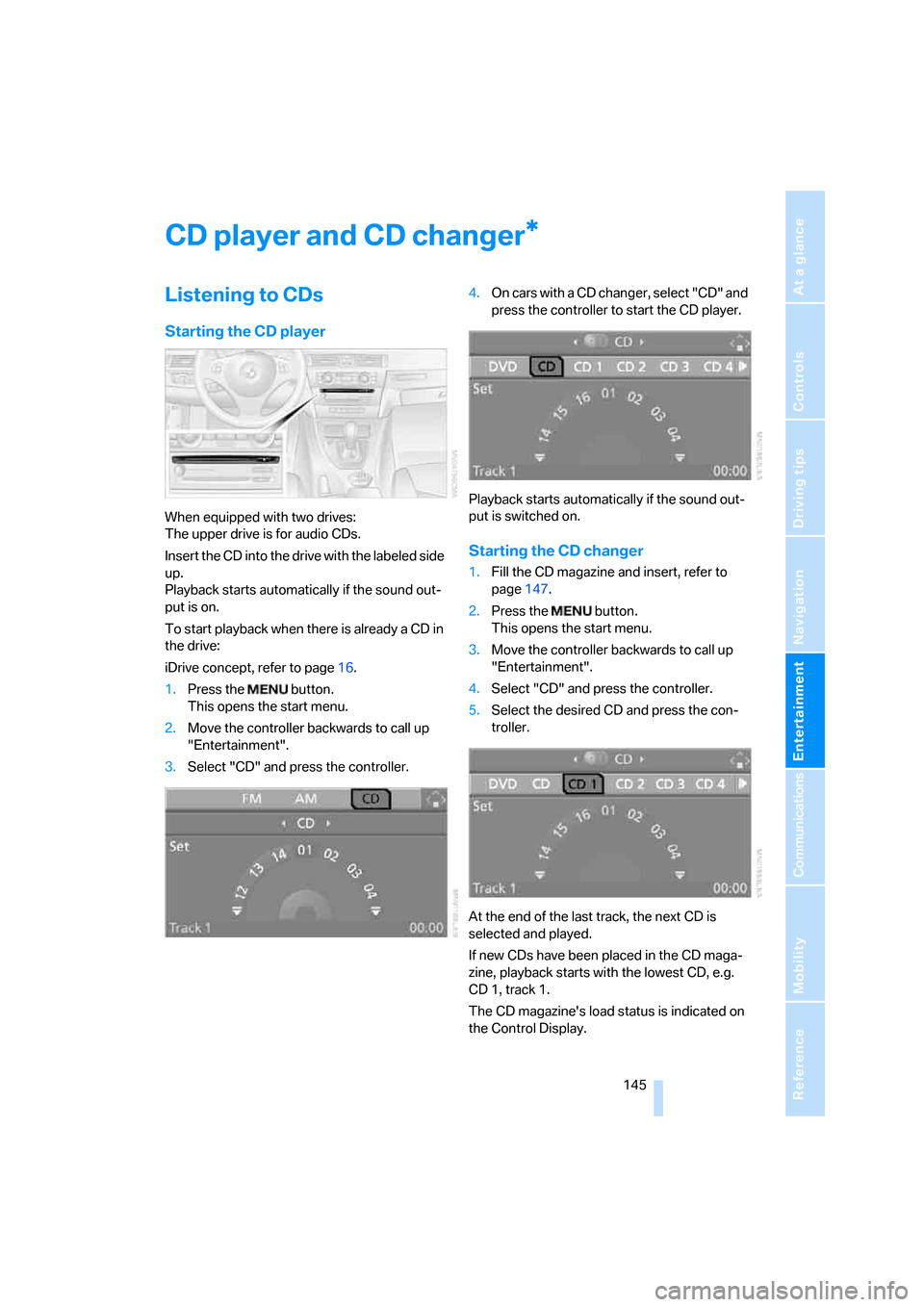
When equipped with two drives:
The upper drive is for audio CDs.
Insert the CD into the drive with the labeled side
up.
Playback starts automatically if the sound out-
put is on.
To start playback when there is already a CD in
the drive:
iDrive concept, refer to page16.
1.Press the button.
This opens the start menu.
2.Move the controller backwards to call up
"Entertainment".
3.Select "CD" and press the controller.4.O n c a r s w i t h a C D c h a n g e r , s e l e c t " C D " a n d
press the controller to start the CD player.
Playback starts automatically if the sound out-
put is switched on.
Starting the CD changer
1.Fill the CD magazine and insert, refer to
page147.
2.Press the button.
This opens the start menu.
3.Move the controller backwards to call up
"Entertainment".
4.Select "CD" and press the controller.
5.Select the desired CD and press the con-
troller.
At the end of the last track, the next CD is
selected and played.
If new CDs have been placed in the CD maga-
zine, playback starts with the lowest CD, e.g.
CD 1, track 1.
The CD magazine's load status is indicated on
the Control Display.
*
Page 147 of 223
CD player and CD changer
146
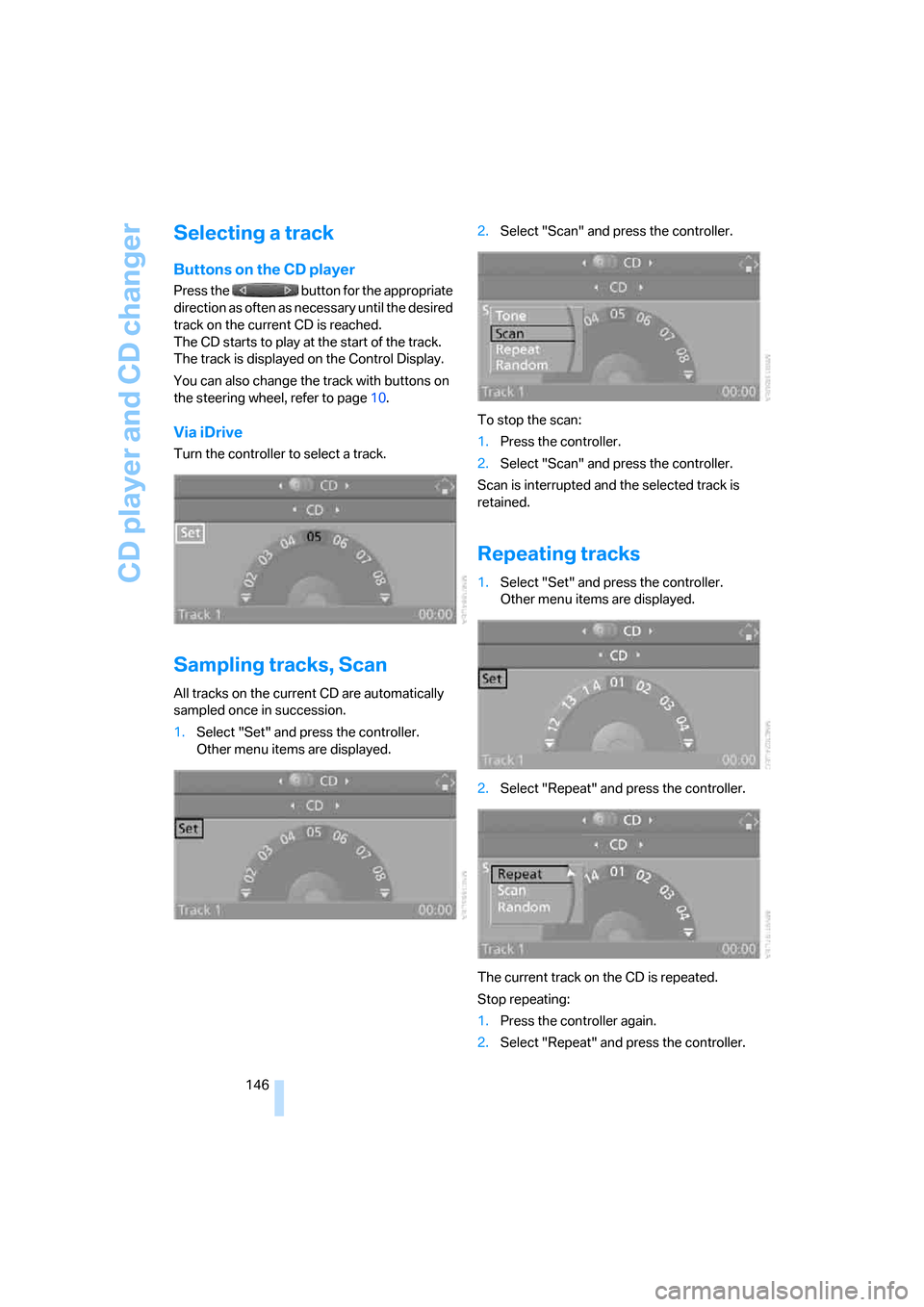
Selecting a track
Buttons on the CD player
Press the button for the appropriate
direction as often as necessary until the desired
track on the current CD is reached.
The CD starts to play at the start of the track.
The track is displayed on the Control Display.
You can also change the track with buttons on
the steering wheel, refer to page10.
Via iDrive
Turn the controller to select a track.
Sampling tracks, Scan
All tracks on the current CD are automatically
sampled once in succession.
1.Select "Set" and press the controller.
Other menu items are displayed.2.Select "Scan" and press the controller.
To stop the scan:
1.Press the controller.
2.Select "Scan" and press the controller.
Scan is interrupted and the selected track is
retained.
Repeating tracks
1.Select "Set" and press the controller.
Other menu items are displayed.
2.Select "Repeat" and press the controller.
The current track on the CD is repeated.
Stop repeating:
1.Press the controller again.
2.Select "Repeat" and press the controller.