fuel BMW 335I 2012 User Guide
[x] Cancel search | Manufacturer: BMW, Model Year: 2012, Model line: 335I, Model: BMW 335I 2012Pages: 325, PDF Size: 12.26 MB
Page 76 of 325
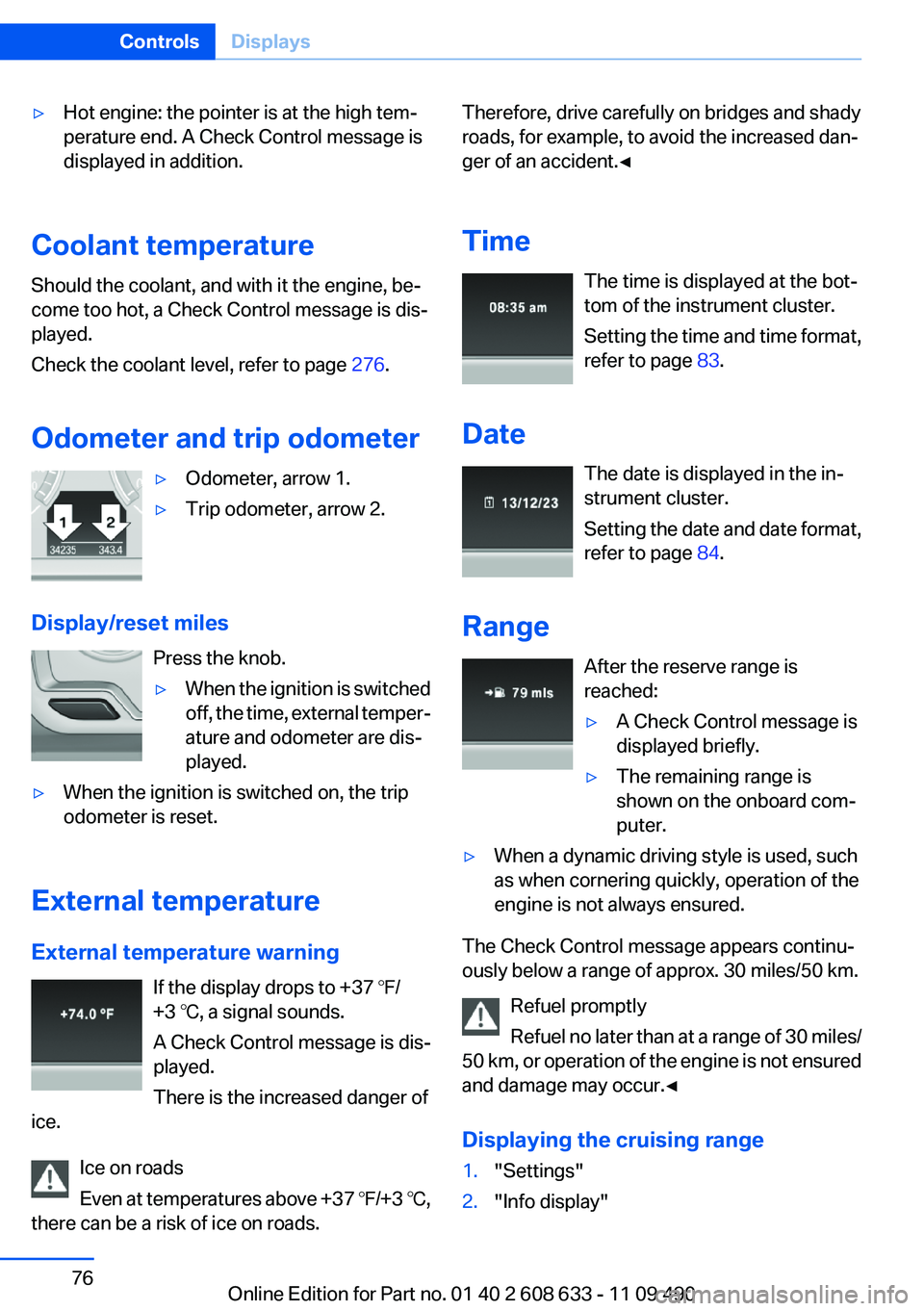
▷Hot engine: the pointer is at the high tem‐
perature end. A Check Control message is
displayed in addition.
Coolant temperature
Should the coolant, and with it the engine, be‐
come too hot, a Check Control message is dis‐
played.
Check the coolant level, refer to page 276.
Odometer and trip odometer
▷Odometer, arrow 1.▷Trip odometer, arrow 2.
Display/reset miles Press the knob.
▷When the ignition is switched
off, the time, external temper‐
ature and odometer are dis‐
played.▷When the ignition is switched on, the trip
odometer is reset.
External temperature
External temperature warning If the display drops to +37 ℉/
+3 ℃, a signal sounds.
A Check Control message is dis‐
played.
There is the increased danger of
ice.
Ice on roads
Even at temperatures above +37 ℉/+3 ℃,
there can be a risk of ice on roads.
Therefore, drive carefully on bridges and shady
roads, for example, to avoid the increased dan‐
ger of an accident.◀
Time The time is displayed at the bot‐
tom of the instrument cluster.
Setting the time and time format,
refer to page 83.
Date The date is displayed in the in‐
strument cluster.
Setting the date and date format,
refer to page 84.
Range After the reserve range is
reached:▷A Check Control message is
displayed briefly.▷The remaining range is
shown on the onboard com‐
puter.▷When a dynamic driving style is used, such
as when cornering quickly, operation of the
engine is not always ensured.
The Check Control message appears continu‐
ously below a range of approx. 30 miles/50 km.
Refuel promptly
Refuel no later than at a range of 30 miles/
50 km, or operation of the engine is not ensured
and damage may occur.◀
Displaying the cruising range
1."Settings"2."Info display"Seite 76ControlsDisplays76
Online Edition for Part no. 01 40 2 608 633 - 11 09 490
Page 77 of 325
3."Additional indicators"
The range is displayed in the instrument cluster.
Current fuel consumption
Instrument cluster Displays the current fuel con‐
sumption. You can check
whether you are currently driving
in an efficient and environmen‐
tally-friendly manner.
Instrument cluster with enhanced
features
Displays the current fuel con‐
sumption. You can check
whether you are currently driving
in an efficient and environmen‐
tally-friendly manner.
Displaying the current fuel
consumption
1."Settings"2."Info display"3."Additional indicators"
The bar display for the current fuel consumption
is displayed in the instrument cluster.
Energy recovery The energy of motion of the ve‐
hicle is converted to electrical en‐
ergy while coasting. The vehicle
battery is partially charged and
fuel consumption can be low‐
ered.
Service requirements
The concept
The driving distance or the time to the next serv‐
ice is displayed briefly after the ignition is
switched on.
The current service requirements can be read
out from the remote control by the service spe‐
cialist.
Display
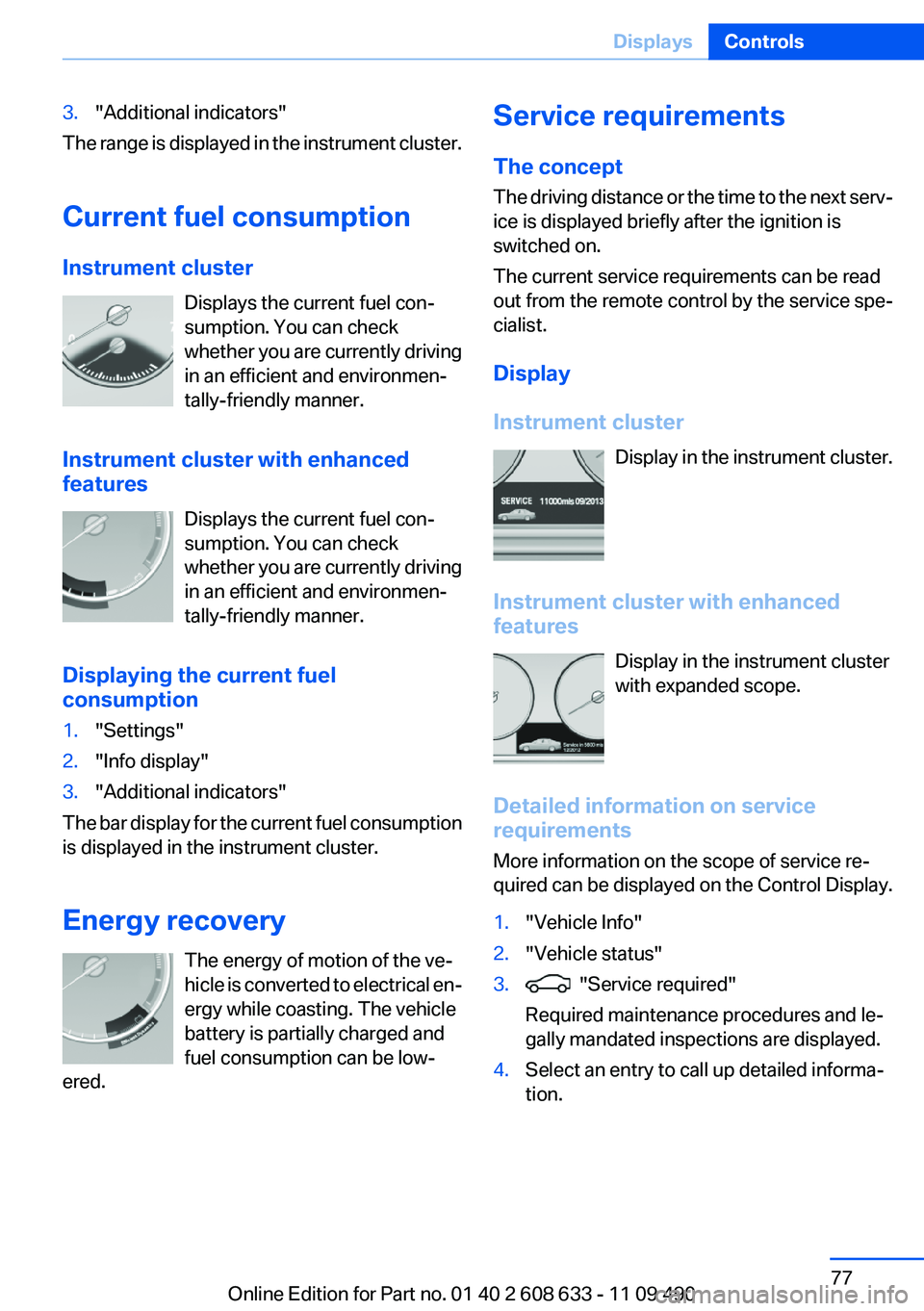
Instrument cluster Display in the instrument cluster.
Instrument cluster with enhanced
features
Display in the instrument cluster
with expanded scope.
Detailed information on service
requirements
More information on the scope of service re‐
quired can be displayed on the Control Display.1."Vehicle Info"2."Vehicle status"3. "Service required"
Required maintenance procedures and le‐
gally mandated inspections are displayed.4.Select an entry to call up detailed informa‐
tion.Seite 77DisplaysControls77
Online Edition for Part no. 01 40 2 608 633 - 11 09 490
Page 78 of 325
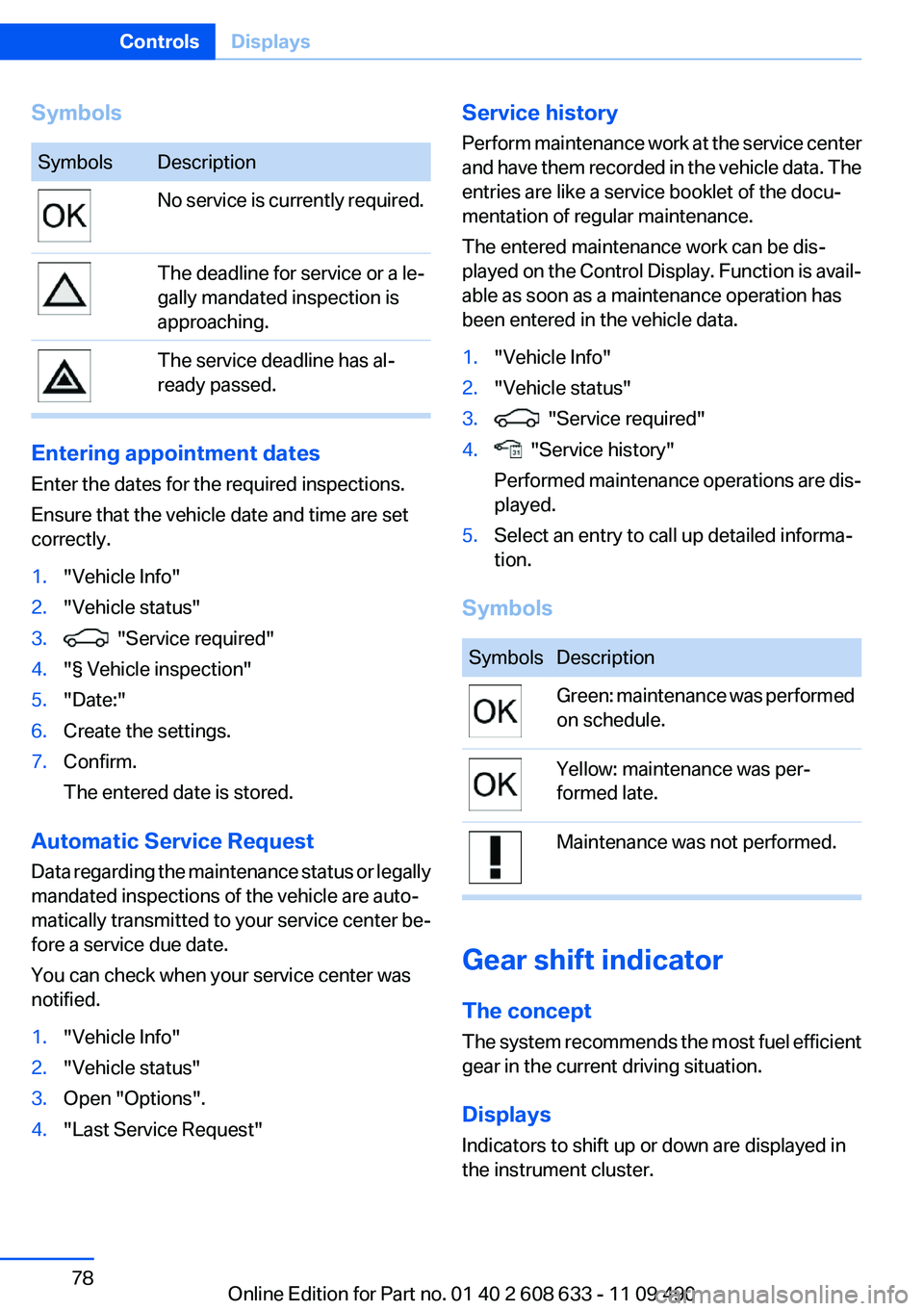
SymbolsSymbolsDescriptionNo service is currently required.The deadline for service or a le‐
gally mandated inspection is
approaching.The service deadline has al‐
ready passed.
Entering appointment dates
Enter the dates for the required inspections.
Ensure that the vehicle date and time are set
correctly.
1."Vehicle Info"2."Vehicle status"3. "Service required"4."§ Vehicle inspection"5."Date:"6.Create the settings.7.Confirm.
The entered date is stored.
Automatic Service Request
Data regarding the maintenance status or legally
mandated inspections of the vehicle are auto‐
matically transmitted to your service center be‐
fore a service due date.
You can check when your service center was
notified.
1."Vehicle Info"2."Vehicle status"3.Open "Options".4."Last Service Request"Service history
Perform maintenance work at the service center
and have them recorded in the vehicle data. The
entries are like a service booklet of the docu‐
mentation of regular maintenance.
The entered maintenance work can be dis‐
played on the Control Display. Function is avail‐
able as soon as a maintenance operation has
been entered in the vehicle data.1."Vehicle Info"2."Vehicle status"3. "Service required"4. "Service history"
Performed maintenance operations are dis‐
played.5.Select an entry to call up detailed informa‐
tion.
Symbols
SymbolsDescriptionGreen: maintenance was performed
on schedule.Yellow: maintenance was per‐
formed late.Maintenance was not performed.
Gear shift indicator
The concept
The system recommends the most fuel efficient
gear in the current driving situation.
Displays
Indicators to shift up or down are displayed in
the instrument cluster.
Seite 78ControlsDisplays78
Online Edition for Part no. 01 40 2 608 633 - 11 09 490
Page 79 of 325
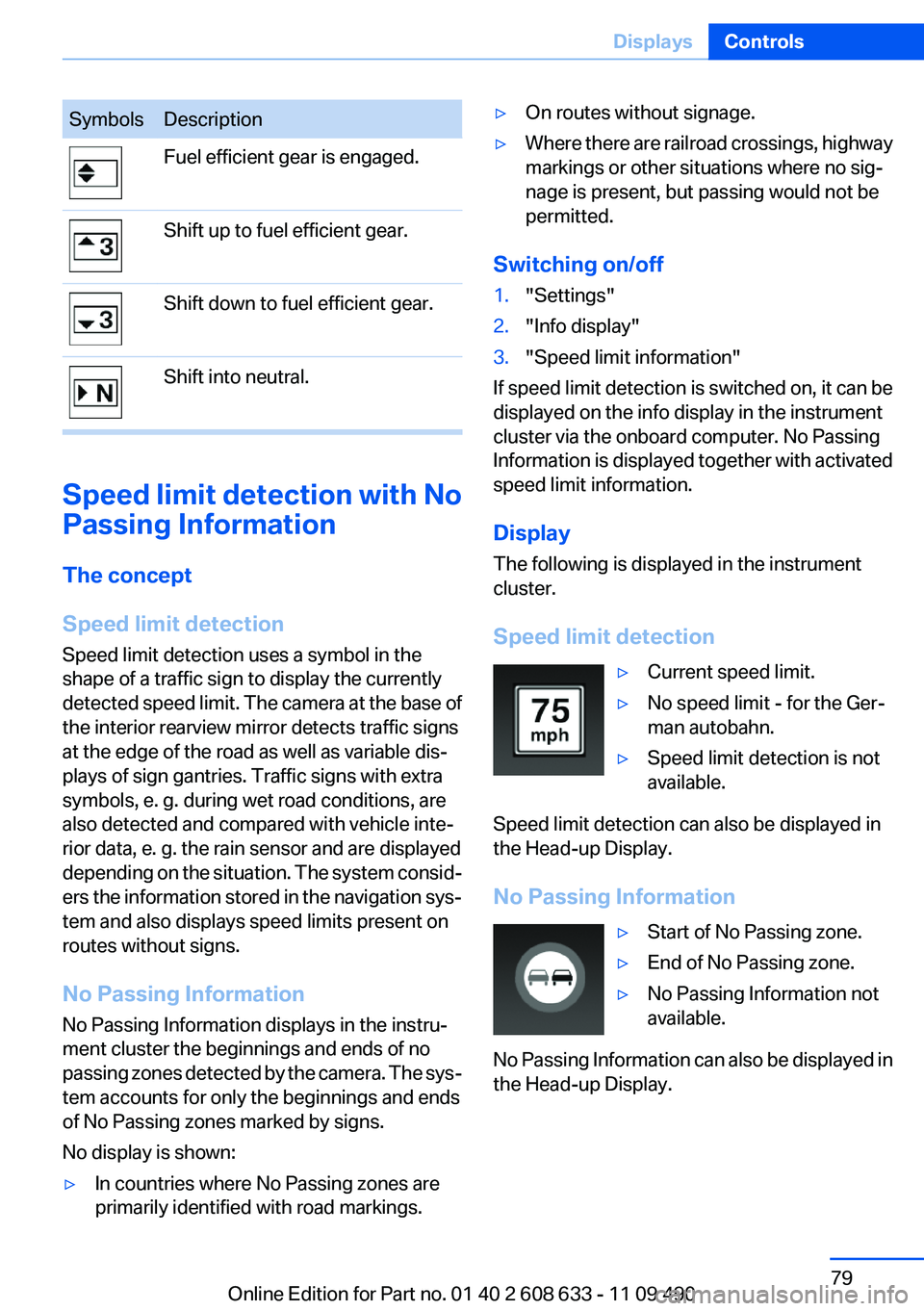
SymbolsDescriptionFuel efficient gear is engaged.Shift up to fuel efficient gear.Shift down to fuel efficient gear.Shift into neutral.
Speed limit detection with No
Passing Information
The concept
Speed limit detection
Speed limit detection uses a symbol in the
shape of a traffic sign to display the currently
detected speed limit. The camera at the base of
the interior rearview mirror detects traffic signs
at the edge of the road as well as variable dis‐
plays of sign gantries. Traffic signs with extra
symbols, e. g. during wet road conditions, are
also detected and compared with vehicle inte‐
rior data, e. g. the rain sensor and are displayed
depending on the situation. The system consid‐
ers the information stored in the navigation sys‐
tem and also displays speed limits present on
routes without signs.
No Passing Information
No Passing Information displays in the instru‐
ment cluster the beginnings and ends of no
passing zones detected by the camera. The sys‐
tem accounts for only the beginnings and ends
of No Passing zones marked by signs.
No display is shown:
▷In countries where No Passing zones are
primarily identified with road markings.▷On routes without signage.▷Where there are railroad crossings, highway
markings or other situations where no sig‐
nage is present, but passing would not be
permitted.
Switching on/off
1."Settings"2."Info display"3."Speed limit information"
If speed limit detection is switched on, it can be
displayed on the info display in the instrument
cluster via the onboard computer. No Passing
Information is displayed together with activated
speed limit information.
Display
The following is displayed in the instrument
cluster.
Speed limit detection
▷Current speed limit.▷No speed limit - for the Ger‐
man autobahn.▷Speed limit detection is not
available.
Speed limit detection can also be displayed in
the Head-up Display.
No Passing Information
▷Start of No Passing zone.▷End of No Passing zone.▷No Passing Information not
available.
No Passing Information can also be displayed in
the Head-up Display.
Seite 79DisplaysControls79
Online Edition for Part no. 01 40 2 608 633 - 11 09 490
Page 81 of 325
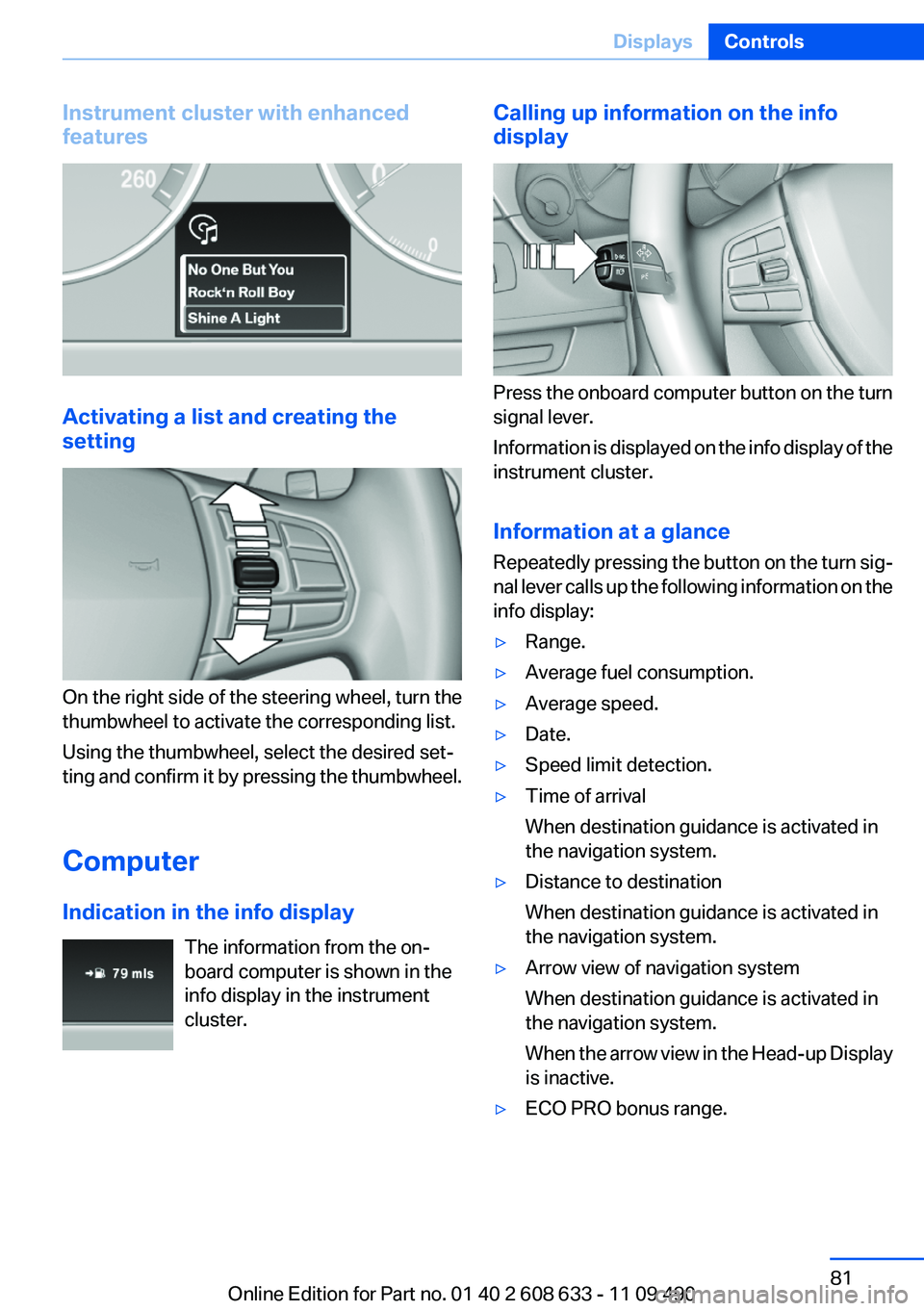
Instrument cluster with enhanced
features
Activating a list and creating the
setting
On the right side of the steering wheel, turn the
thumbwheel to activate the corresponding list.
Using the thumbwheel, select the desired set‐
ting and confirm it by pressing the thumbwheel.
Computer
Indication in the info display The information from the on‐
board computer is shown in the
info display in the instrument
cluster.
Calling up information on the info
display
Press the onboard computer button on the turn
signal lever.
Information is displayed on the info display of the
instrument cluster.
Information at a glance
Repeatedly pressing the button on the turn sig‐
nal lever calls up the following information on the
info display:
▷Range.▷Average fuel consumption.▷Average speed.▷Date.▷Speed limit detection.▷Time of arrival
When destination guidance is activated in
the navigation system.▷Distance to destination
When destination guidance is activated in
the navigation system.▷Arrow view of navigation system
When destination guidance is activated in
the navigation system.
When the arrow view in the Head-up Display
is inactive.▷ECO PRO bonus range.Seite 81DisplaysControls81
Online Edition for Part no. 01 40 2 608 633 - 11 09 490
Page 82 of 325
Adjusting the info display
You can select what information from the on‐
board computer is to be displayed on the info
display of the instrument cluster.1."Settings"2."Info display"3.Select the desired displays.
Information in detail
Range
Displays the estimated cruising range available
with the remaining fuel.
It is calculated based on your driving style over
the last 20 miles/30 km.
If there is only enough fuel left for less than
45 miles/80 km, the color of the display changes.
Average fuel consumption
This is calculated for the period during which the
engine is running.
The average fuel consumption is calculated on
the basis of various distances.
Average speed
Periods in which the vehicle is parked with the
engine manually stopped do not enter into the
calculation of the average speed.
Resetting average values
Press and hold the computer button on the turn
signal lever.
Distance to destination
The distance remaining to the destination is dis‐
played if a destination is entered in the naviga‐
tion system before the trip is started.
The distance to the destination is adopted au‐
tomatically.
Time of arrival
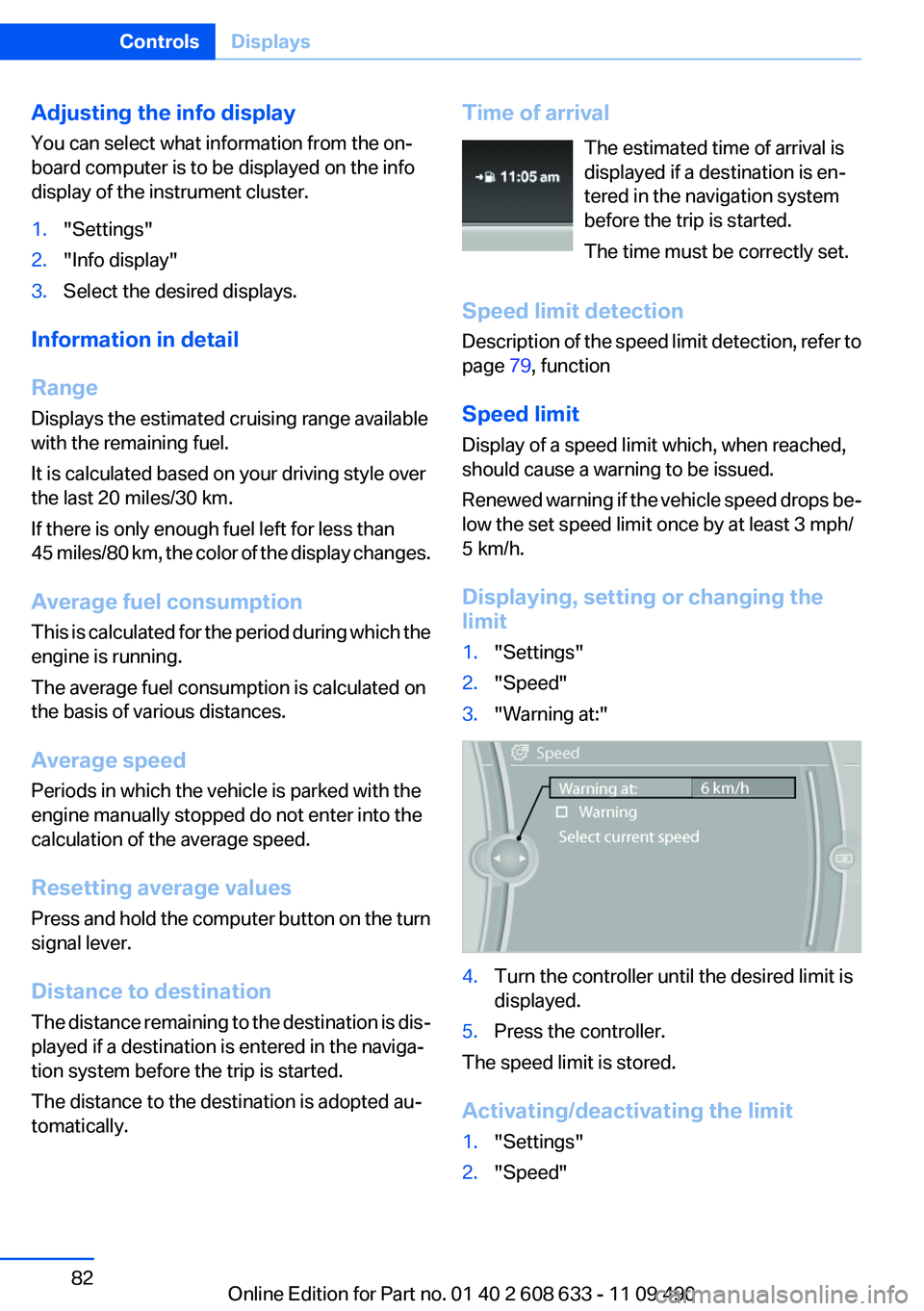
The estimated time of arrival is
displayed if a destination is en‐
tered in the navigation system
before the trip is started.
The time must be correctly set.
Speed limit detection
Description of the speed limit detection, refer to
page 79, function
Speed limit
Display of a speed limit which, when reached,
should cause a warning to be issued.
Renewed warning if the vehicle speed drops be‐
low the set speed limit once by at least 3 mph/
5 km/h.
Displaying, setting or changing the
limit1."Settings"2."Speed"3."Warning at:"4.Turn the controller until the desired limit is
displayed.5.Press the controller.
The speed limit is stored.
Activating/deactivating the limit
1."Settings"2."Speed"Seite 82ControlsDisplays82
Online Edition for Part no. 01 40 2 608 633 - 11 09 490
Page 83 of 325
3."Warning"4.Press the controller.
Applying your current speed as the
limit
1."Settings"2."Speed"3."Select current speed"4.Press the controller.
The current vehicle speed is stored as the
limit.
Trip computer
There are two types of computer.
▷"Onboard info": the values can be reset as
often as necessary.▷" Trip computer": the values provide an over‐
view of the current trip.
Resetting the trip computer
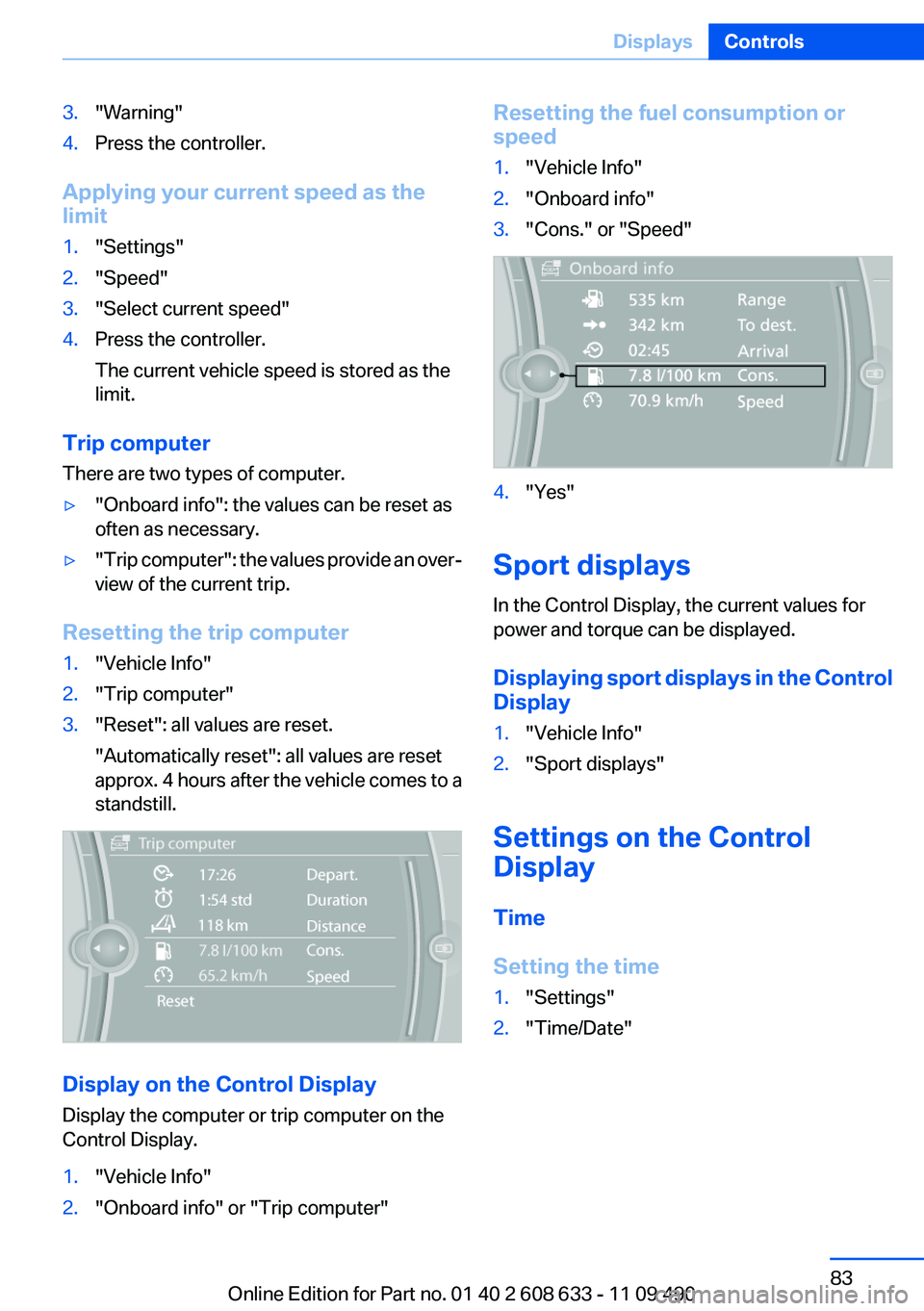
1."Vehicle Info"2."Trip computer"3."Reset": all values are reset.
"Automatically reset": all values are reset
approx. 4 hours after the vehicle comes to a
standstill.
Display on the Control Display
Display the computer or trip computer on the
Control Display.
1."Vehicle Info"2."Onboard info" or "Trip computer"Resetting the fuel consumption or
speed1."Vehicle Info"2."Onboard info"3."Cons." or "Speed"4."Yes"
Sport displays
In the Control Display, the current values for
power and torque can be displayed.
Displaying sport displays in the Control
Display
1."Vehicle Info"2."Sport displays"
Settings on the Control
Display
Time
Setting the time
1."Settings"2."Time/Date"Seite 83DisplaysControls83
Online Edition for Part no. 01 40 2 608 633 - 11 09 490
Page 85 of 325
Units of measure
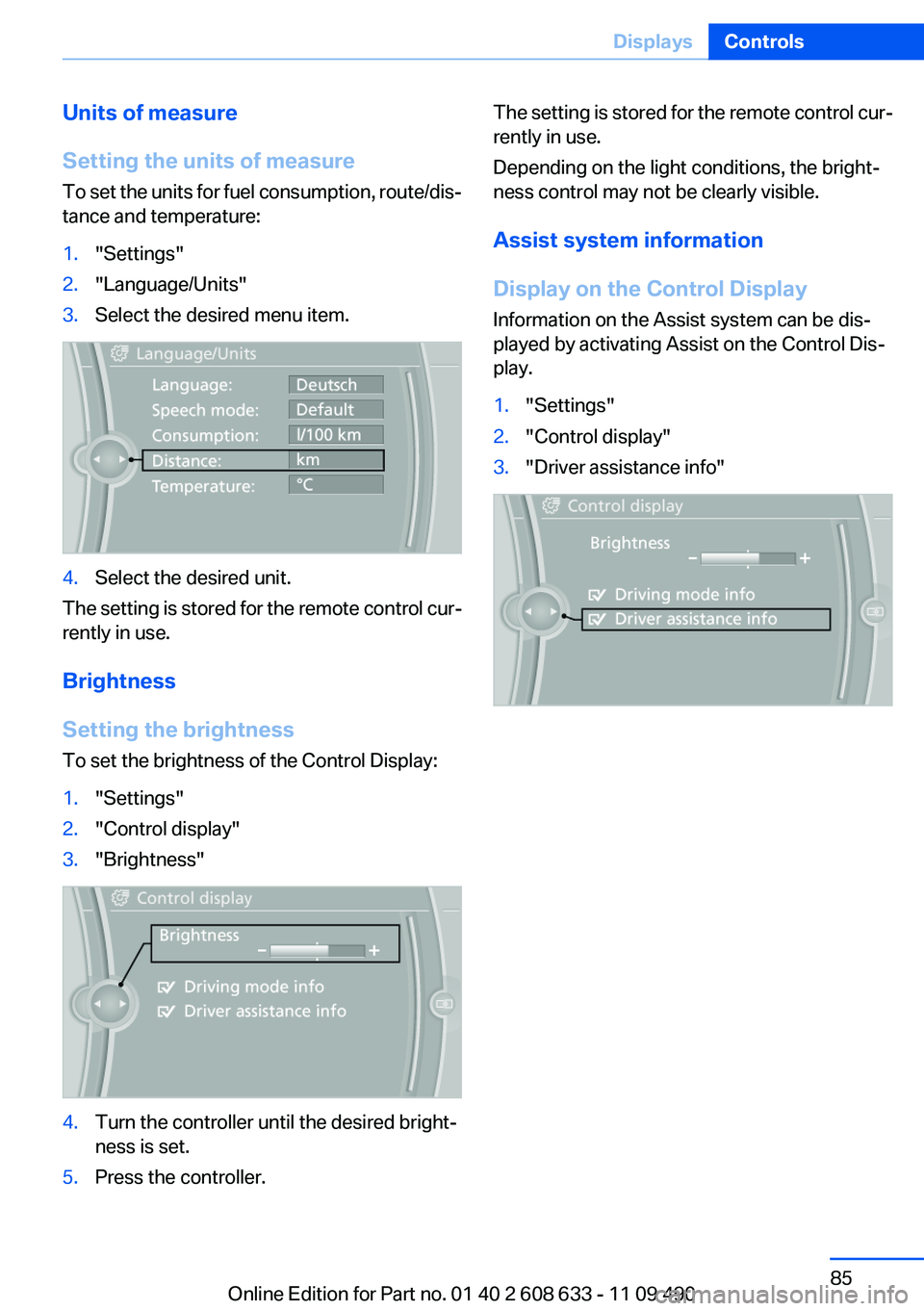
Setting the units of measure
To set the units for fuel consumption, route/dis‐
tance and temperature:1."Settings"2."Language/Units"3.Select the desired menu item.4.Select the desired unit.
The setting is stored for the remote control cur‐
rently in use.
Brightness
Setting the brightness
To set the brightness of the Control Display:
1."Settings"2."Control display"3."Brightness"4.Turn the controller until the desired bright‐
ness is set.5.Press the controller.The setting is stored for the remote control cur‐
rently in use.
Depending on the light conditions, the bright‐
ness control may not be clearly visible.
Assist system information
Display on the Control Display
Information on the Assist system can be dis‐
played by activating Assist on the Control Dis‐
play.1."Settings"2."Control display"3."Driver assistance info"Seite 85DisplaysControls85
Online Edition for Part no. 01 40 2 608 633 - 11 09 490
Page 97 of 325
▷A wheel without TPM electronics is fitted:
have the service center check it if necessary.▷Malfunction: have the system checked by
your service center.▷TPM could not be fully reset. Reset the sys‐
tem again.▷Disturbance by systems or devices with the
same radio frequency: after leaving the area
of the disturbance, the system automatically
becomes active again.
Declaration according to NHTSA/
FMVSS 138 Tire Pressure Monitoring
System
Each tire, including the spare (if provided)
should be checked monthly when cold and in‐
flated to the inflation pressure recommended by
the vehicle manufacturer on the vehicle placard
or tire inflation pressure label. (If your vehicle has
tires of a different size than the size indicated on
the vehicle placard or tire inflation pressure la‐
bel, you should determine the proper tire infla‐
tion pressure for those tires.) As an added safety
feature, your vehicle has been equipped with a
tire pressure monitoring system (TPMS) that il‐
luminates a low tire pressure telltale when one
or more of your tires is significantly under-in‐
flated. Accordingly, when the low tire pressure
telltale illuminates, you should stop and check
your tires as soon as possible, and inflate them
to the proper pressure. Driving on a significantly
under-inflated tire causes the tire to overheat
and can lead to tire failure. Under-inflation also
reduces fuel efficiency and tire tread life, and
may affect the vehicle's handling and stopping
ability. Please note that the TPMS is not a sub‐
stitute for proper tire maintenance, and it is the
driver's responsibility to maintain correct tire
pressure, even if under-inflation has not reached
the level to trigger illumination of the TPMS low
tire pressure telltale. Your vehicle has also been
equipped with a TPMS malfunction indicator to
indicate when the system is not operating prop‐
erly. The TPMS malfunction indicator is com‐
bined with the low tire pressure telltale. When
the system detects a malfunction, the telltale will
flash for approximately one minute and then re‐
main continuously illuminated. This sequence
will continue upon subsequent vehicle start-ups
as long as the malfunction exists. When the mal‐
function indicator is illuminated, the system may
not be able to detect or signal low tire pressure
as intended. TPMS malfunctions may occur for
a variety of reasons, including the installation of
replacement or alternate tires or wheels on the
vehicle that prevent the TPMS from functioning
properly. Always check the TPMS malfunction
telltale after replacing one or more tires or
wheels on your vehicle to ensure that the re‐
placement or alternate tires and wheels allow
the TPMS to continue to function properly.
FTM Flat Tire Monitor
The concept
The system does not measure the actual infla‐
tion pressure in the tires.
It detects a pressure loss in a tire by comparing
the rotational speeds of the individual wheels
while moving.
In the event of a pressure loss, the diameter and
therefore the rotational speed of the corre‐
sponding wheel change. This is detected and
reported as a flat tire.
Functional requirements
The system must have been initialized when the
tire inflation pressure was correct; otherwise,
reliable signaling of a flat tire is not ensured. In‐
itialize the system after each correction of the
tire inflation pressure and after every tire or
wheel change.
System limits Sudden tire damage
Sudden serious tire damage caused by
external influences cannot be indicated in ad‐
vance.◀Seite 97SafetyControls97
Online Edition for Part no. 01 40 2 608 633 - 11 09 490
Page 107 of 325
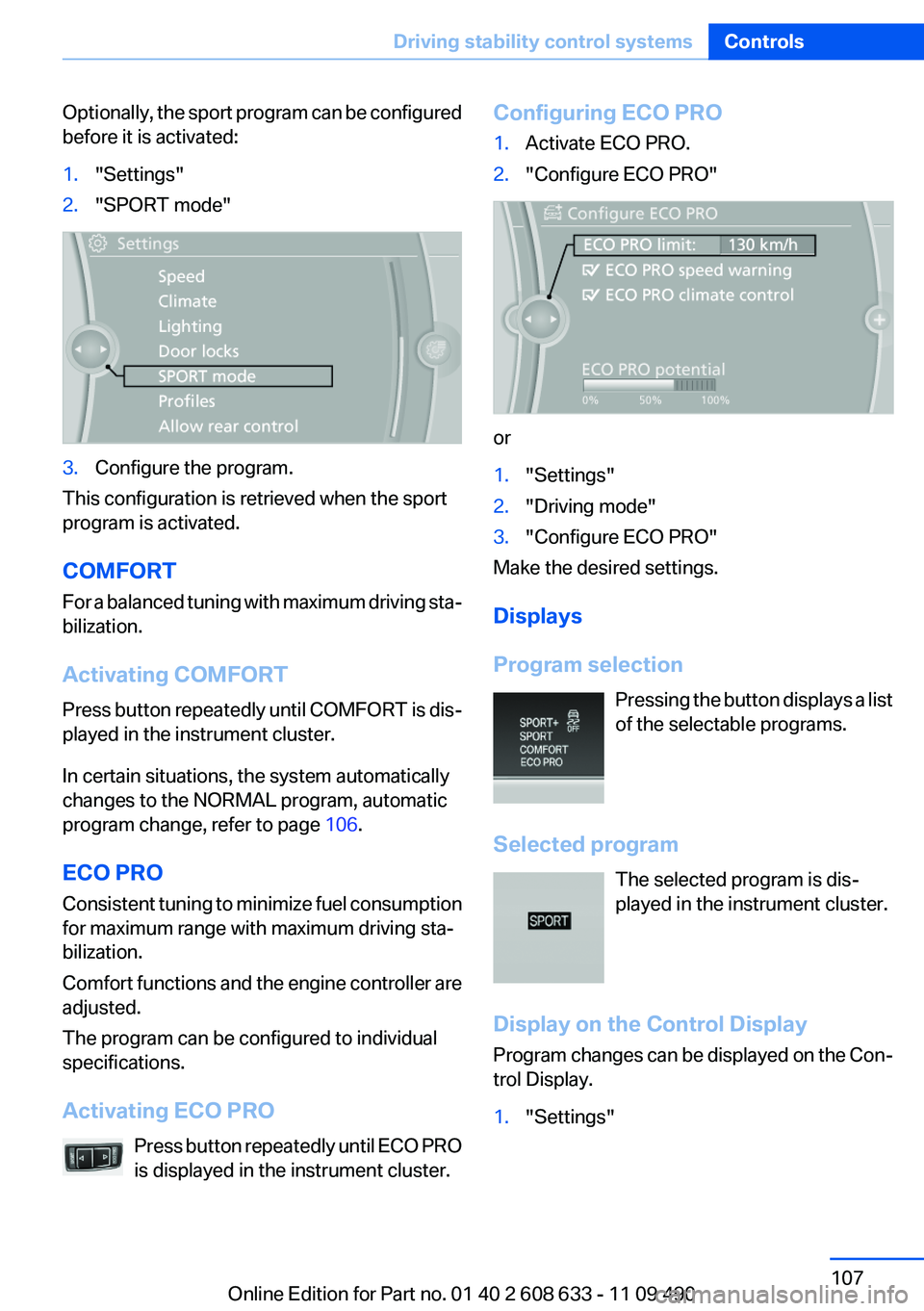
Optionally, the sport program can be configured
before it is activated:1."Settings"2."SPORT mode"3.Configure the program.
This configuration is retrieved when the sport
program is activated.
COMFORT
For a balanced tuning with maximum driving sta‐
bilization.
Activating COMFORT
Press button repeatedly until COMFORT is dis‐
played in the instrument cluster.
In certain situations, the system automatically
changes to the NORMAL program, automatic
program change, refer to page 106.
ECO PRO
Consistent tuning to minimize fuel consumption
for maximum range with maximum driving sta‐
bilization.
Comfort functions and the engine controller are
adjusted.
The program can be configured to individual
specifications.
Activating ECO PRO Press button repeatedly until ECO PRO
is displayed in the instrument cluster.
Configuring ECO PRO1.Activate ECO PRO.2."Configure ECO PRO"
or
1."Settings"2."Driving mode"3."Configure ECO PRO"
Make the desired settings.
Displays
Program selection Pressing the button displays a list
of the selectable programs.
Selected program The selected program is dis‐
played in the instrument cluster.
Display on the Control Display
Program changes can be displayed on the Con‐
trol Display.
1."Settings"Seite 107Driving stability control systemsControls107
Online Edition for Part no. 01 40 2 608 633 - 11 09 490