change time BMW 335I 2012 Owner's Manual
[x] Cancel search | Manufacturer: BMW, Model Year: 2012, Model line: 335I, Model: BMW 335I 2012Pages: 325, PDF Size: 12.26 MB
Page 201 of 325
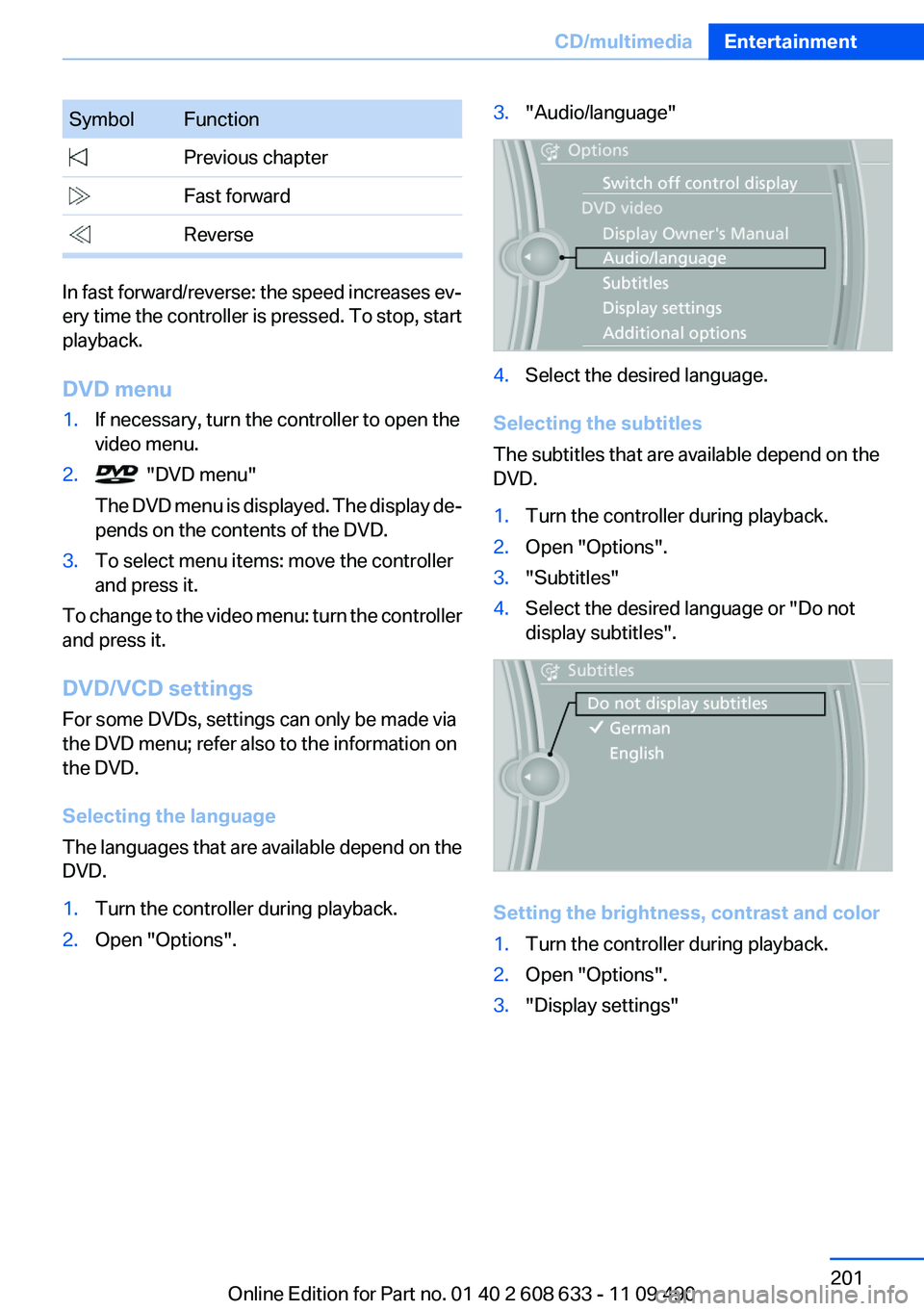
SymbolFunction Previous chapter Fast forward Reverse
In fast forward/reverse: the speed increases ev‐
ery time the controller is pressed. To stop, start
playback.
DVD menu
1.If necessary, turn the controller to open the
video menu.2. "DVD menu"
The DVD menu is displayed. The display de‐
pends on the contents of the DVD.3.To select menu items: move the controller
and press it.
To change to the video menu: turn the controller
and press it.
DVD/VCD settings
For some DVDs, settings can only be made via
the DVD menu; refer also to the information on
the DVD.
Selecting the language
The languages that are available depend on the
DVD.
1.Turn the controller during playback.2.Open "Options".3."Audio/language"4.Select the desired language.
Selecting the subtitles
The subtitles that are available depend on the
DVD.
1.Turn the controller during playback.2.Open "Options".3."Subtitles"4.Select the desired language or "Do not
display subtitles".
Setting the brightness, contrast and color
1.Turn the controller during playback.2.Open "Options".3."Display settings"Seite 201CD/multimediaEntertainment201
Online Edition for Part no. 01 40 2 608 633 - 11 09 490
Page 202 of 325
4."Brightness", "Contrast" or "Color"5.Turn the controller until the desired setting
is reached and press the controller.
Selecting the zoom
Display the video image on the entire screen.
1.Turn the controller during playback.2.Open "Options".3."Additional options"4."Zoom mode"
Selecting a track
DVD video:
1.Turn the controller when the DVD menu is
displayed.2.Open "Options".3."Additional options"4."Select title"5.Select the desired track.
VCD/SVCD:
1. "Select track"2.Select the desired track.Selecting the camera angle
The availability of a different camera angle de‐
pends on the DVD and the current DVD track.1.Turn the controller during playback.2.Open "Options".3."Additional options"4."Viewing angle"5.Select the desired camera angle.
Opening the main menu, back
These functions are not contained on every
DVD. Therefore, they may not be available for
use.
DVD changer
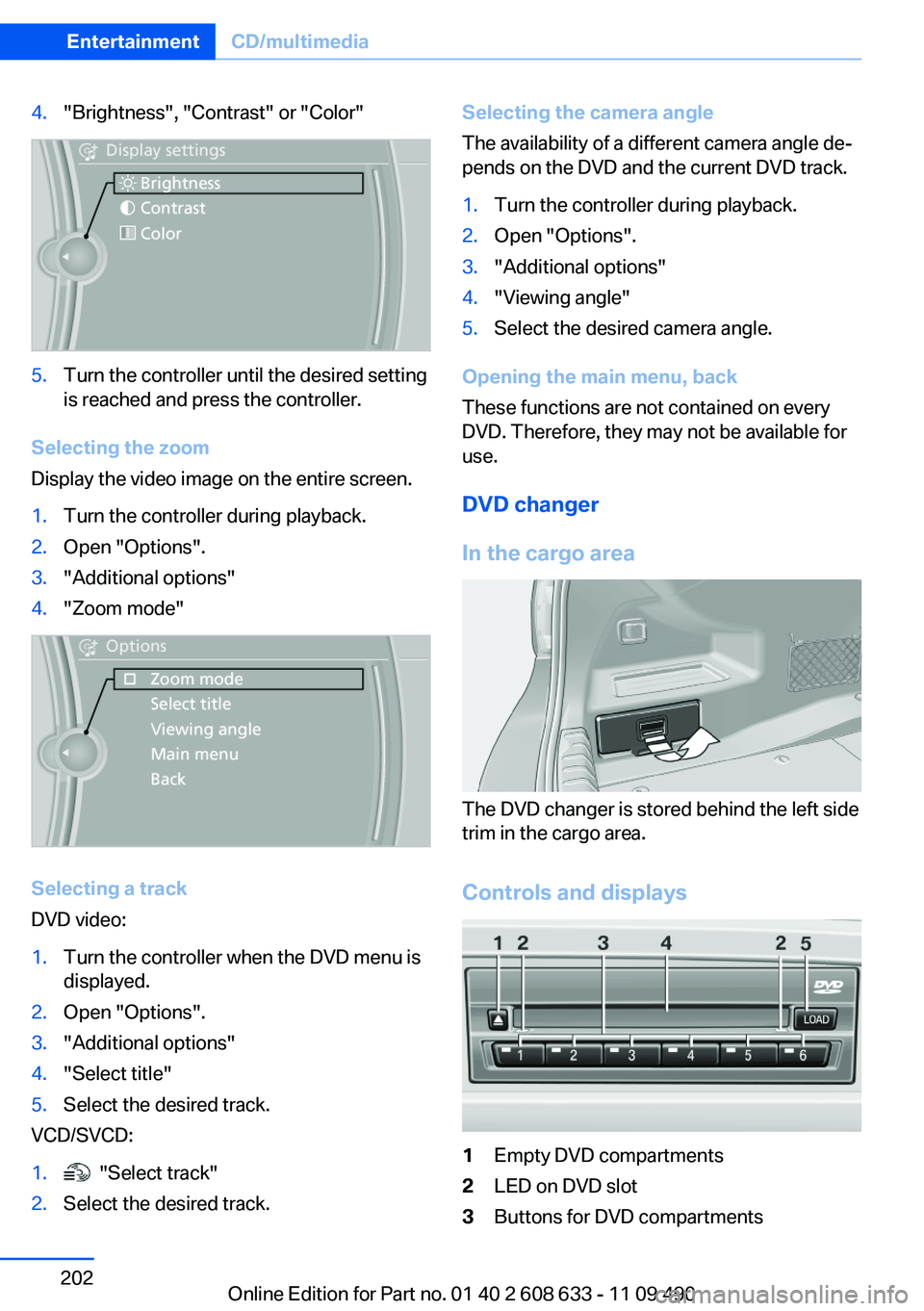
In the cargo area
The DVD changer is stored behind the left side
trim in the cargo area.
Controls and displays
1Empty DVD compartments2LED on DVD slot3Buttons for DVD compartmentsSeite 202EntertainmentCD/multimedia202
Online Edition for Part no. 01 40 2 608 633 - 11 09 490
Page 203 of 325
4DVD slot5Fill DVD compartments
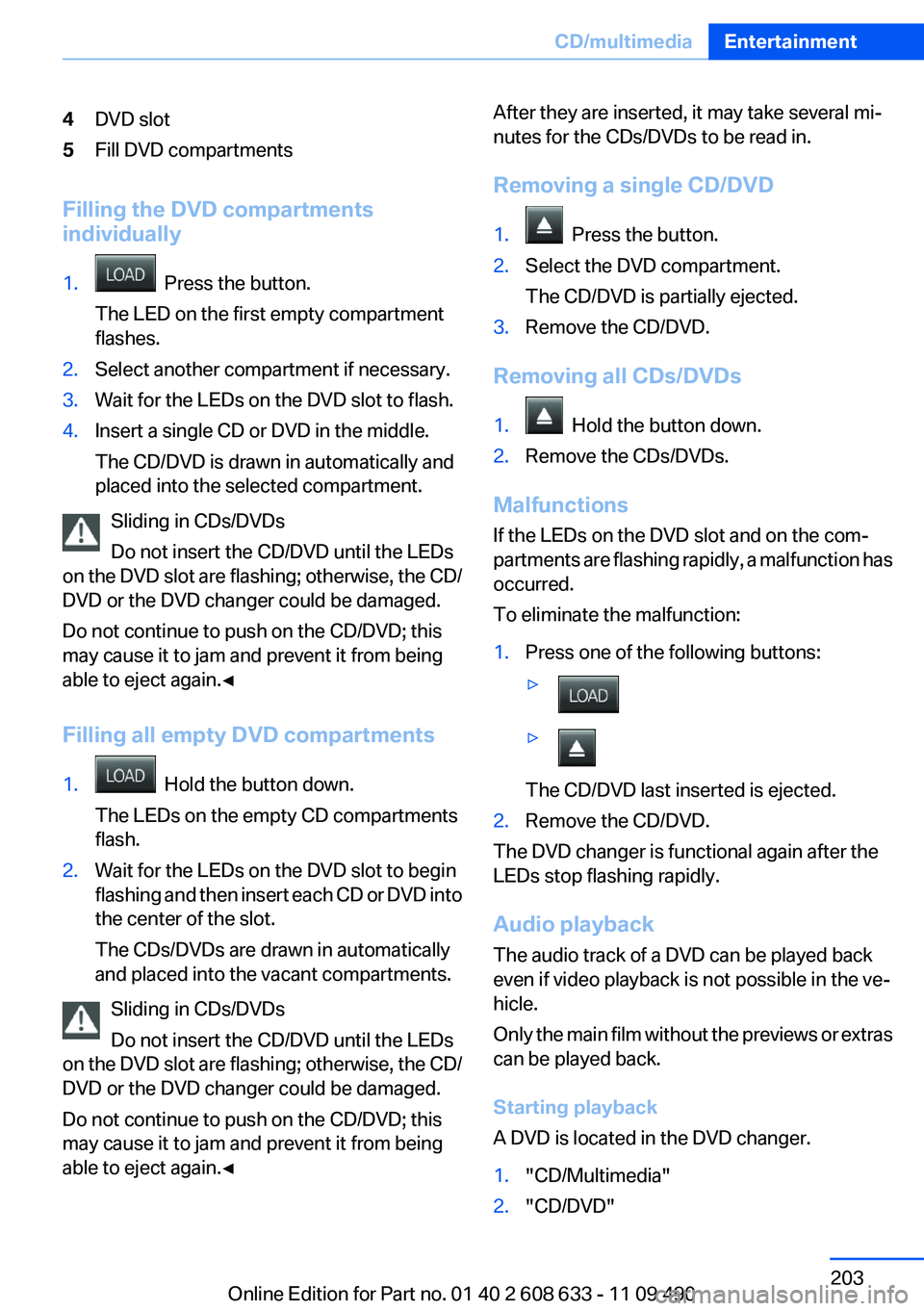
Filling the DVD compartments
individually
1. Press the button.
The LED on the first empty compartment
flashes.2.Select another compartment if necessary.3.Wait for the LEDs on the DVD slot to flash.4.Insert a single CD or DVD in the middle.
The CD/DVD is drawn in automatically and
placed into the selected compartment.
Sliding in CDs/DVDs
Do not insert the CD/DVD until the LEDs
on the DVD slot are flashing; otherwise, the CD/
DVD or the DVD changer could be damaged.
Do not continue to push on the CD/DVD; this
may cause it to jam and prevent it from being
able to eject again.◀
Filling all empty DVD compartments
1. Hold the button down.
The LEDs on the empty CD compartments
flash.2.Wait for the LEDs on the DVD slot to begin
flashing and then insert each CD or DVD into
the center of the slot.
The CDs/DVDs are drawn in automatically
and placed into the vacant compartments.
Sliding in CDs/DVDs
Do not insert the CD/DVD until the LEDs
on the DVD slot are flashing; otherwise, the CD/
DVD or the DVD changer could be damaged.
Do not continue to push on the CD/DVD; this
may cause it to jam and prevent it from being
able to eject again.◀
After they are inserted, it may take several mi‐
nutes for the CDs/DVDs to be read in.
Removing a single CD/DVD1. Press the button.2.Select the DVD compartment.
The CD/DVD is partially ejected.3.Remove the CD/DVD.
Removing all CDs/DVDs
1. Hold the button down.2.Remove the CDs/DVDs.
Malfunctions
If the LEDs on the DVD slot and on the com‐
partments are flashing rapidly, a malfunction has
occurred.
To eliminate the malfunction:
1.Press one of the following buttons:▷▷
The CD/DVD last inserted is ejected.
2.Remove the CD/DVD.
The DVD changer is functional again after the
LEDs stop flashing rapidly.
Audio playback
The audio track of a DVD can be played back
even if video playback is not possible in the ve‐
hicle.
Only the main film without the previews or extras
can be played back.
Starting playback
A DVD is located in the DVD changer.
1."CD/Multimedia"2."CD/DVD"Seite 203CD/multimediaEntertainment203
Online Edition for Part no. 01 40 2 608 633 - 11 09 490
Page 204 of 325
3.Select the desired DVD.
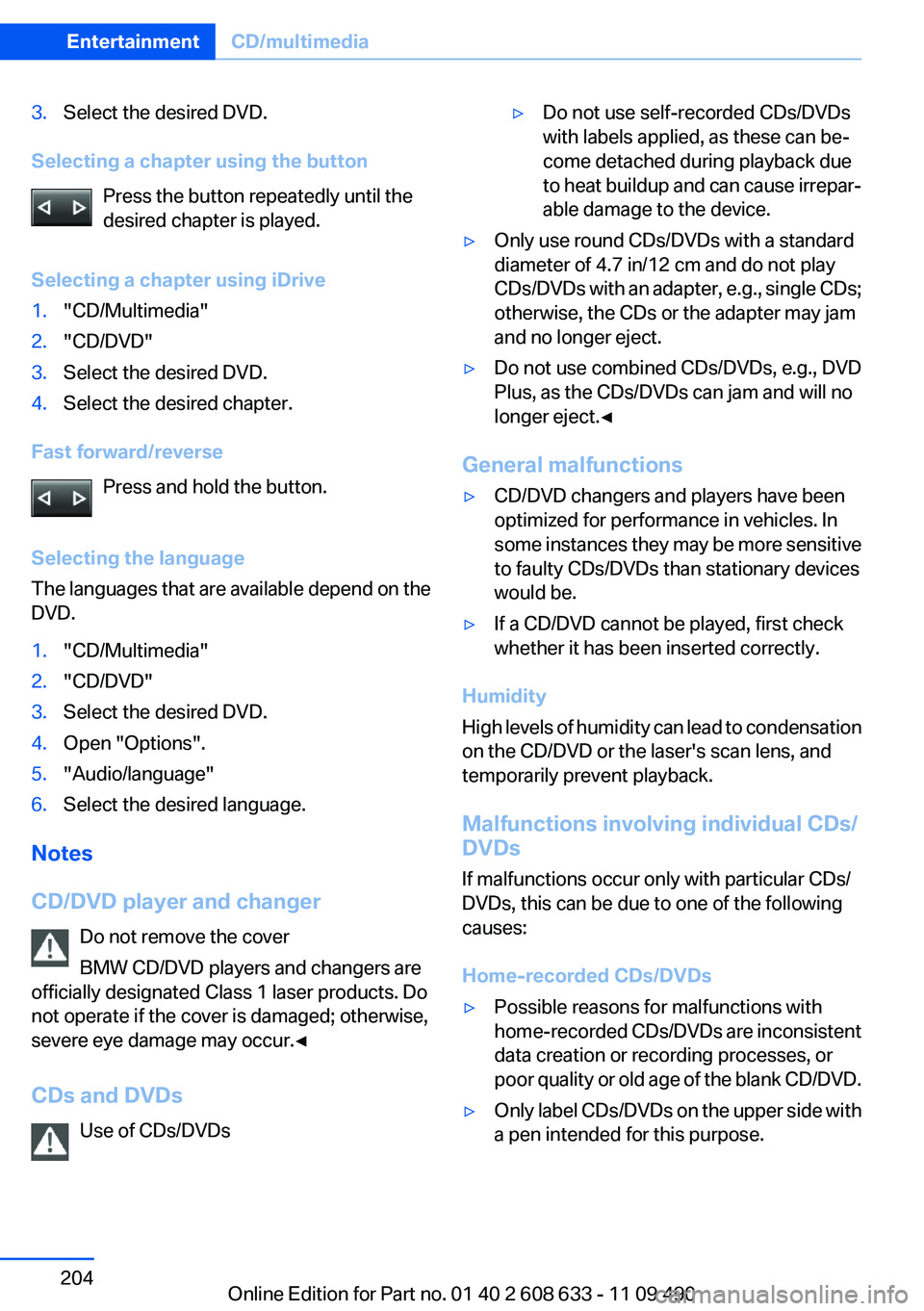
Selecting a chapter using the buttonPress the button repeatedly until the
desired chapter is played.
Selecting a chapter using iDrive
1."CD/Multimedia"2."CD/DVD"3.Select the desired DVD.4.Select the desired chapter.
Fast forward/reverse Press and hold the button.
Selecting the language
The languages that are available depend on the
DVD.
1."CD/Multimedia"2."CD/DVD"3.Select the desired DVD.4.Open "Options".5."Audio/language"6.Select the desired language.
Notes
CD/DVD player and changer Do not remove the cover
BMW CD/DVD players and changers are
officially designated Class 1 laser products. Do
not operate if the cover is damaged; otherwise,
severe eye damage may occur.◀
CDs and DVDs Use of CDs/DVDs
▷Do not use self-recorded CDs/DVDs
with labels applied, as these can be‐
come detached during playback due
to heat buildup and can cause irrepar‐
able damage to the device.▷Only use round CDs/DVDs with a standard
diameter of 4.7 in/12 cm and do not play
CDs/DVDs with an adapter, e.g., single CDs;
otherwise, the CDs or the adapter may jam
and no longer eject.▷Do not use combined CDs/DVDs, e.g., DVD
Plus, as the CDs/DVDs can jam and will no
longer eject.◀
General malfunctions
▷CD/DVD changers and players have been
optimized for performance in vehicles. In
some instances they may be more sensitive
to faulty CDs/DVDs than stationary devices
would be.▷If a CD/DVD cannot be played, first check
whether it has been inserted correctly.
Humidity
High levels of humidity can lead to condensation
on the CD/DVD or the laser's scan lens, and
temporarily prevent playback.
Malfunctions involving individual CDs/
DVDs
If malfunctions occur only with particular CDs/
DVDs, this can be due to one of the following
causes:
Home-recorded CDs/DVDs
▷Possible reasons for malfunctions with
home-recorded CDs/DVDs are inconsistent
data creation or recording processes, or
poor quality or old age of the blank CD/DVD.▷Only label CDs/DVDs on the upper side with
a pen intended for this purpose.Seite 204EntertainmentCD/multimedia204
Online Edition for Part no. 01 40 2 608 633 - 11 09 490
Page 208 of 325
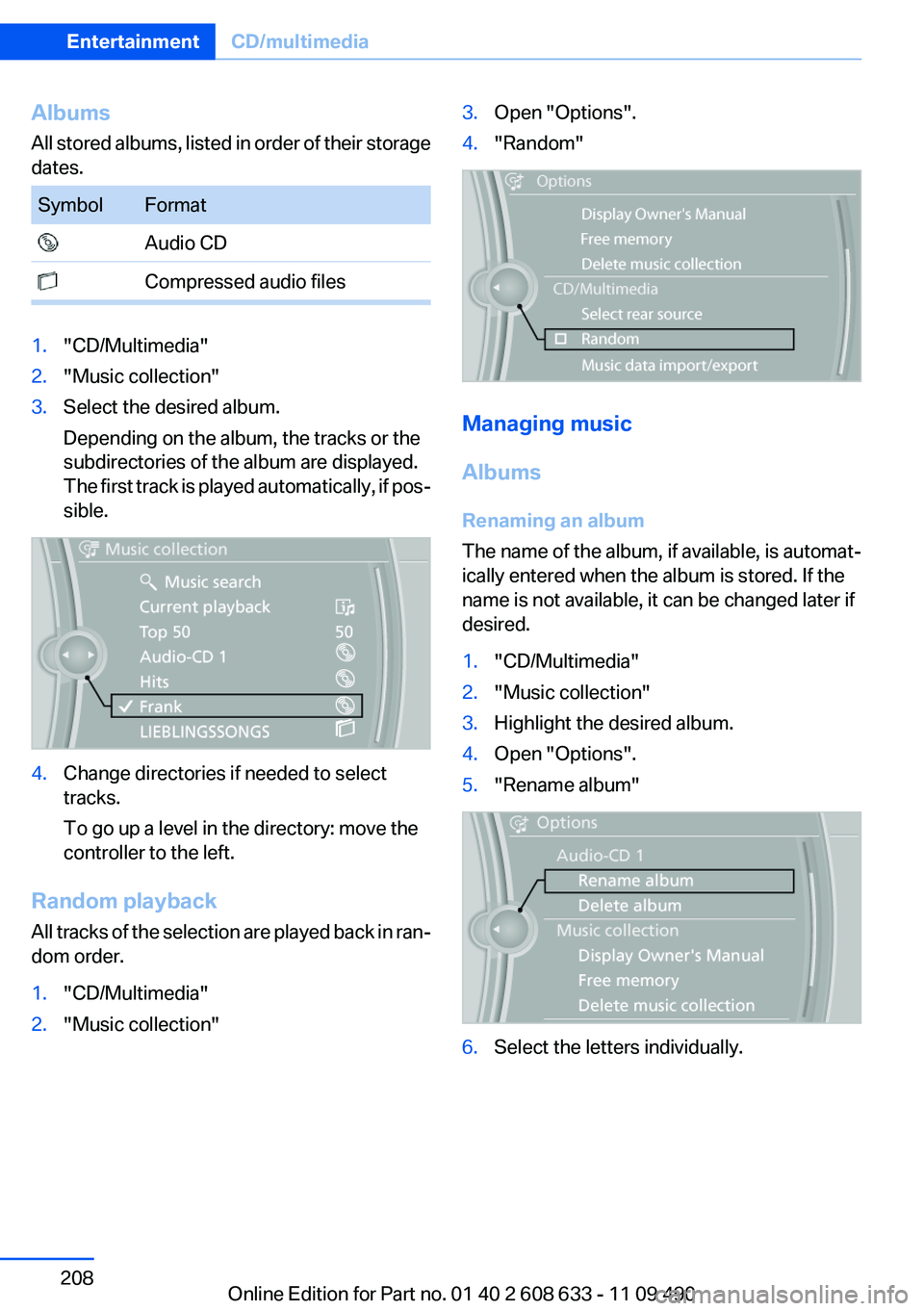
Albums
All stored albums, listed in order of their storage
dates.SymbolFormat Audio CD Compressed audio files1."CD/Multimedia"2."Music collection"3.Select the desired album.
Depending on the album, the tracks or the
subdirectories of the album are displayed.
The first track is played automatically, if pos‐
sible.4.Change directories if needed to select
tracks.
To go up a level in the directory: move the
controller to the left.
Random playback
All tracks of the selection are played back in ran‐
dom order.
1."CD/Multimedia"2."Music collection"3.Open "Options".4."Random"
Managing music
Albums
Renaming an album
The name of the album, if available, is automat‐
ically entered when the album is stored. If the
name is not available, it can be changed later if
desired.
1."CD/Multimedia"2."Music collection"3.Highlight the desired album.4.Open "Options".5."Rename album"6.Select the letters individually.Seite 208EntertainmentCD/multimedia208
Online Edition for Part no. 01 40 2 608 633 - 11 09 490
Page 215 of 325
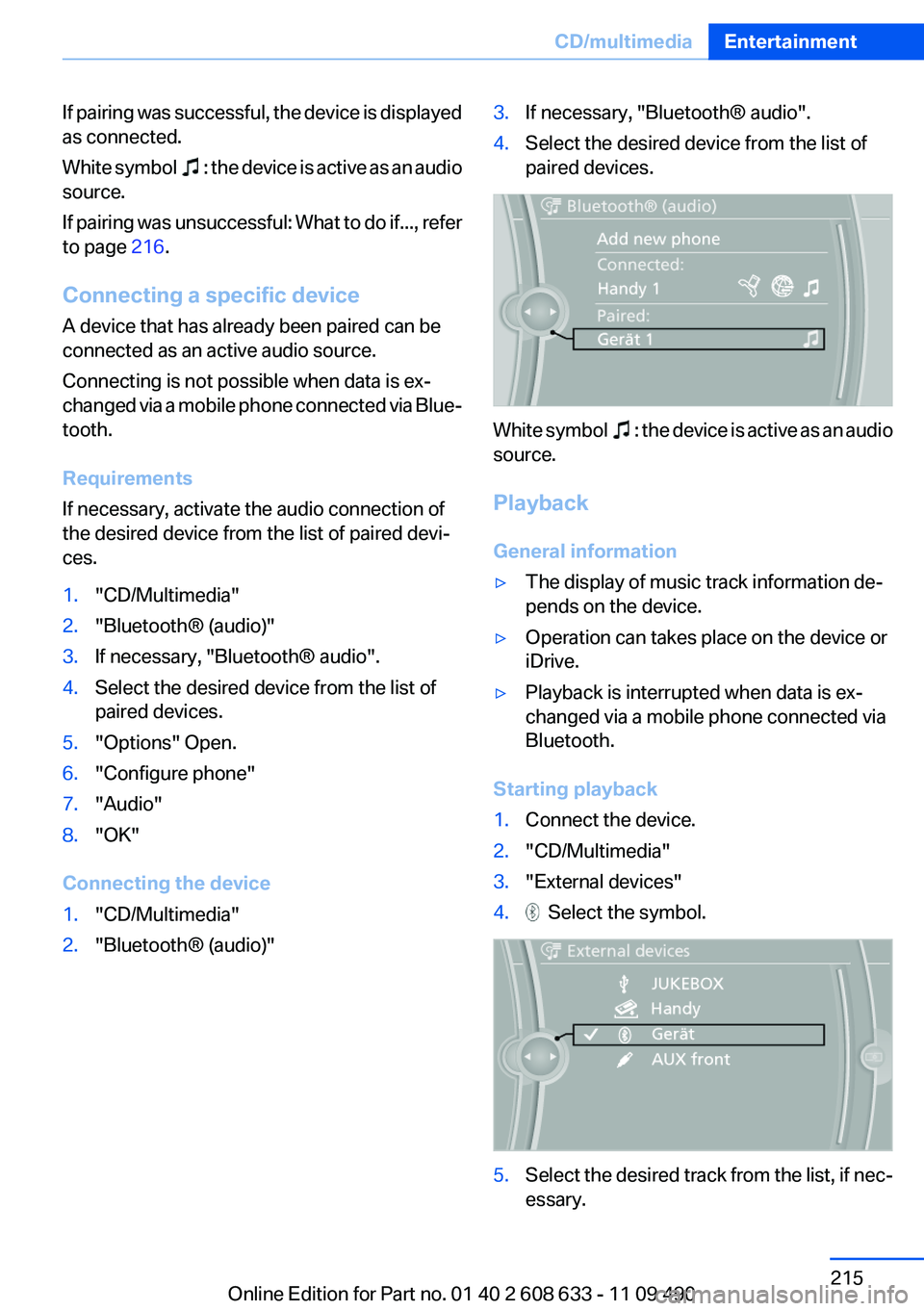
If pairing was successful, the device is displayed
as connected.
White symbol
: the device is active as an audio
source.
If pairing was unsuccessful: What to do if..., refer
to page 216.
Connecting a specific device
A device that has already been paired can be
connected as an active audio source.
Connecting is not possible when data is ex‐
changed via a mobile phone connected via Blue‐
tooth.
Requirements
If necessary, activate the audio connection of
the desired device from the list of paired devi‐
ces.
1."CD/Multimedia"2."Bluetooth® (audio)"3.If necessary, "Bluetooth® audio".4.Select the desired device from the list of
paired devices.5."Options" Open.6."Configure phone"7."Audio"8."OK"
Connecting the device
1."CD/Multimedia"2."Bluetooth® (audio)"3.If necessary, "Bluetooth® audio".4.Select the desired device from the list of
paired devices.
White symbol : the device is active as an audio
source.
Playback
General information
▷The display of music track information de‐
pends on the device.▷Operation can takes place on the device or
iDrive.▷Playback is interrupted when data is ex‐
changed via a mobile phone connected via
Bluetooth.
Starting playback
1.Connect the device.2."CD/Multimedia"3."External devices"4. Select the symbol.5.Select the desired track from the list, if nec‐
essary.Seite 215CD/multimediaEntertainment215
Online Edition for Part no. 01 40 2 608 633 - 11 09 490
Page 280 of 325
Working on the lighting system
When working on the lighting system, you
should always switch off the lights affected to
prevent short circuits.
To avoid possible injury or equipment damage
when replacing bulbs, observe any instructions
provided by the bulb manufacturer.◀
Do not perform work/bulb replacement on
xenon headlamps
Have any work on the xenon lighting system, in‐
cluding bulb replacement, performed only by a
service center. Due to the high voltage present
in the system, there is the danger of fatal injuries
if work is carried out improperly.◀
Do not touch the bulbs
Do not touch the glass of new bulbs with
your bare hands, as even minute amounts of
contamination will burn into the bulb's surface
and reduce its service life.
Use a clean tissue, cloth or something similar, or
hold the bulb by its base.◀
Light-emitting diodes (LEDs)
Light-emitting diodes installed behind a cover
serve as the light source for controls, display el‐
ements and other equipment.
These light-emitting diodes, which are related
to conventional lasers, are officially designated
as Class 1 light-emitting diodes.
Do not remove the covers
Do not remove the covers, and never stare
into the unfiltered light for several hours; other‐
wise, irritation of the retina could result.◀
Headlamp glass
Condensation can form on the inside of the ex‐
ternal lamps in cool or humid weather. When
driving with the light switched on, the conden‐
sation evaporates after a short time. The head‐
lamp glasses do not need to be changed.If the headlamps do not dim despite driving with
the light switched on, increasing humidity forms,
e. g. water droplets in the light, have the service
center check this.
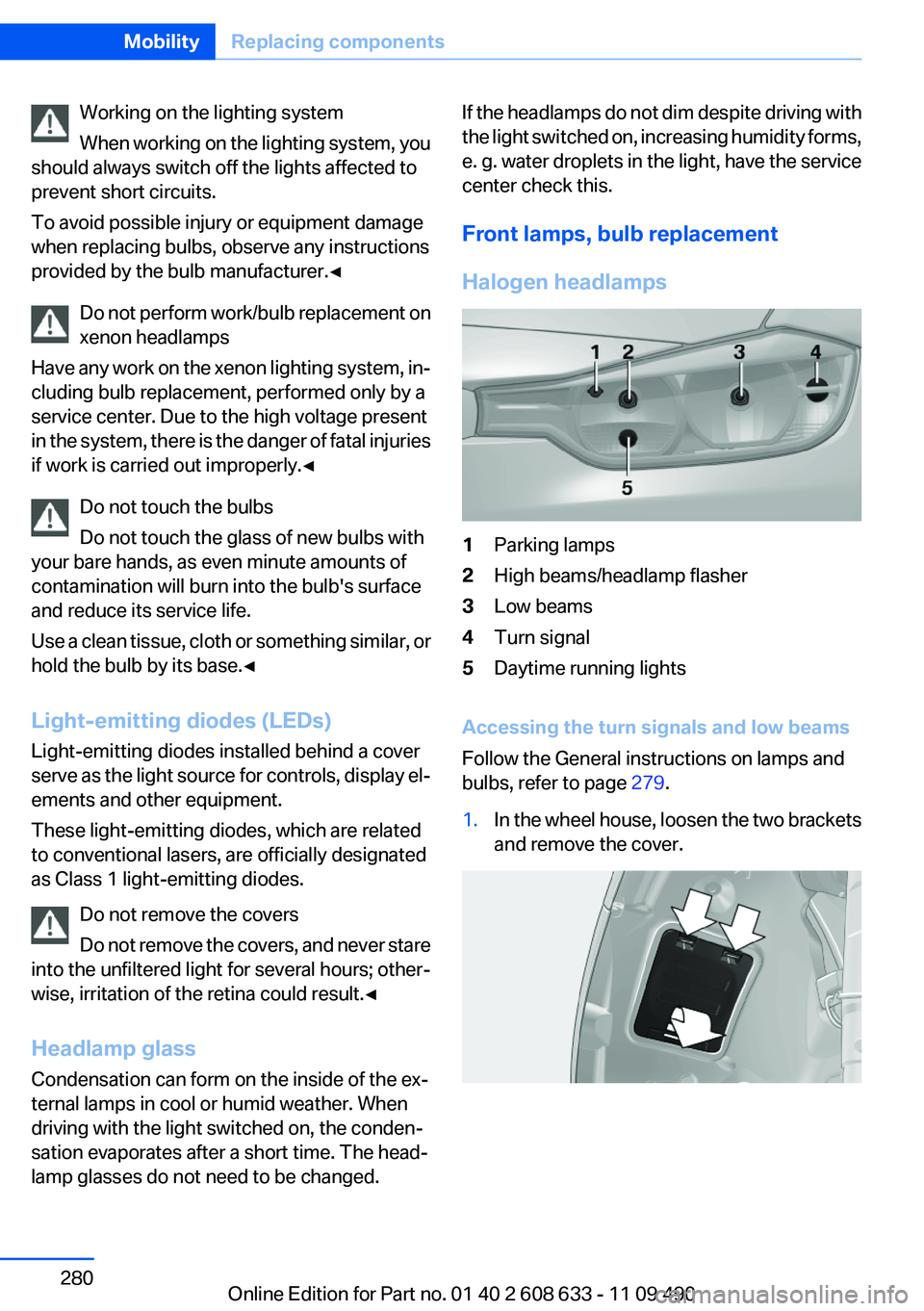
Front lamps, bulb replacement
Halogen headlamps1Parking lamps2High beams/headlamp flasher3Low beams4Turn signal5Daytime running lights
Accessing the turn signals and low beams
Follow the General instructions on lamps and
bulbs, refer to page 279.
1.In the wheel house, loosen the two brackets
and remove the cover.Seite 280MobilityReplacing components280
Online Edition for Part no. 01 40 2 608 633 - 11 09 490
Page 316 of 325
Corrosion on brake discs 158
Cruise control 119
Cruise control, active with Stop & Go 109
Cruising range 76
Cupholder 150
Current fuel consumption 77
Current location, storing 170
Customer Relations 253
D
Damage, tires 269
Damping control, dy‐ namic 105
Data, technical 302
Date 76
Daytime running lights 87
Defrosting, refer to defrosting the windows 135
Defrosting, refer to Windows, defrosting 138
Defrosting the windows 135
Destination distance 82
Destination guidance 176
Destination guidance with in‐ termediate destinations 174
Destination input, naviga‐ tion 168
Digital clock 76
Digital compass 143
Digital radio 191
Dimensions 302
Dimmable exterior mirrors 53
Dimmable interior rearview mirror 53
Direction indicator, refer to Turn signals 64
Displacement, engine 303
Display, ECO PRO 163
Display, electronic, instrument cluster 72
Display in front wind‐ shield 128
Display lighting, refer to Instru‐ ment lighting 89 Displays 70
Displays, cleaning 299
Disposal, coolant 276
Disposal, vehicle battery 288
Distance control, refer to PDC 121
Distance, selecting for ACC 111
Distance to destination 82
Divided screen view, split screen 21
Door lock, refer to Remote control 30
Drive-off assistant 108
Drive-off assistant, refer to DSC 104
Driving Experience Switch 106
Driving instructions, breaking in 156
Driving notes, general 156
Driving stability control sys‐ tems 104
Driving tips 156
DSC Dynamic Stability Con‐ trol 104
DTC Dynamic Traction Con‐ trol 105
DVD/CD 198
DVD/CD notes 204
DVD changer 202
DVD settings 201
DVDs, storing 205
DVD, video 200
Dynamic Damping Con‐ trol 105
Dynamic destination guid‐ ance 183
Dynamic Stability Control DSC 104
Dynamic Traction Control DTC 105
E
ECO PRO 163 EfficientDynamics 164
EfficientDynamics menu, refer to ECO PRO 163
Electronic displays, instru‐ ment cluster 72
Electronic Stability Program ESP, refer to DSC 104
Emergency detection, remote control 31
Emergency release, door lock 37
Emergency release, fuel filler flap 260
Emergency Request 290
Emergency service, refer to Roadside Assistance 291
Emergency start function, en‐ gine start 31
Emergency unlocking, trunk lid 38
Energy Control 77
Energy recovery 77
Engine, automatic start/stop function 61
Engine, automatic switch- off 61
Engine compartment 272
Engine compartment, working in 273
Engine coolant 276
Engine oil 274
Engine oil, adding 274
Engine oil additives 275
Engine oil change 275
Engine oil filler neck 274
Engine oil temperature 75
Engine oil types, alterna‐ tive 275
Engine oil types, ap‐ proved 275
Engine specifications 303
Engine start during malfunc‐ tion 31
Engine start, refer to Starting the engine 60
Engine start, Starting aid 291 Seite 316ReferenceEverything from A to Z316
Online Edition for Part no. 01 40 2 608 633 - 11 09 490
Page 321 of 325
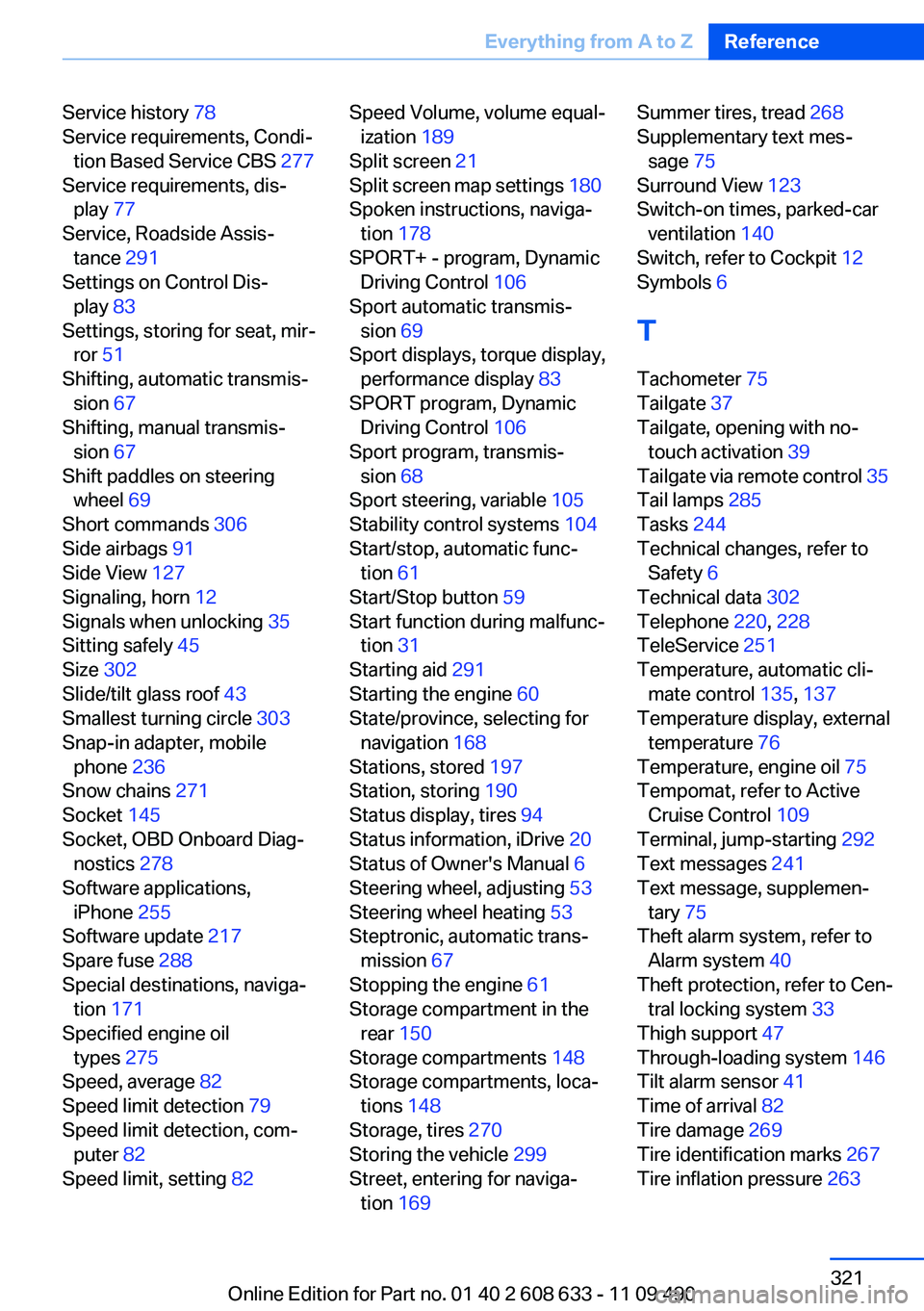
Service history 78
Service requirements, Condi‐ tion Based Service CBS 277
Service requirements, dis‐ play 77
Service, Roadside Assis‐ tance 291
Settings on Control Dis‐ play 83
Settings, storing for seat, mir‐ ror 51
Shifting, automatic transmis‐ sion 67
Shifting, manual transmis‐ sion 67
Shift paddles on steering wheel 69
Short commands 306
Side airbags 91
Side View 127
Signaling, horn 12
Signals when unlocking 35
Sitting safely 45
Size 302
Slide/tilt glass roof 43
Smallest turning circle 303
Snap-in adapter, mobile phone 236
Snow chains 271
Socket 145
Socket, OBD Onboard Diag‐ nostics 278
Software applications, iPhone 255
Software update 217
Spare fuse 288
Special destinations, naviga‐ tion 171
Specified engine oil types 275
Speed, average 82
Speed limit detection 79
Speed limit detection, com‐ puter 82
Speed limit, setting 82 Speed Volume, volume equal‐
ization 189
Split screen 21
Split screen map settings 180
Spoken instructions, naviga‐ tion 178
SPORT+ - program, Dynamic Driving Control 106
Sport automatic transmis‐ sion 69
Sport displays, torque display, performance display 83
SPORT program, Dynamic Driving Control 106
Sport program, transmis‐ sion 68
Sport steering, variable 105
Stability control systems 104
Start/stop, automatic func‐ tion 61
Start/Stop button 59
Start function during malfunc‐ tion 31
Starting aid 291
Starting the engine 60
State/province, selecting for navigation 168
Stations, stored 197
Station, storing 190
Status display, tires 94
Status information, iDrive 20
Status of Owner's Manual 6
Steering wheel, adjusting 53
Steering wheel heating 53
Steptronic, automatic trans‐ mission 67
Stopping the engine 61
Storage compartment in the rear 150
Storage compartments 148
Storage compartments, loca‐ tions 148
Storage, tires 270
Storing the vehicle 299
Street, entering for naviga‐ tion 169 Summer tires, tread 268
Supplementary text mes‐ sage 75
Surround View 123
Switch-on times, parked-car ventilation 140
Switch, refer to Cockpit 12
Symbols 6
T
Tachometer 75
Tailgate 37
Tailgate, opening with no- touch activation 39
Tailgate via remote control 35
Tail lamps 285
Tasks 244
Technical changes, refer to Safety 6
Technical data 302
Telephone 220, 228
TeleService 251
Temperature, automatic cli‐ mate control 135, 137
Temperature display, external temperature 76
Temperature, engine oil 75
Tempomat, refer to Active Cruise Control 109
Terminal, jump-starting 292
Text messages 241
Text message, supplemen‐ tary 75
Theft alarm system, refer to Alarm system 40
Theft protection, refer to Cen‐ tral locking system 33
Thigh support 47
Through-loading system 146
Tilt alarm sensor 41
Time of arrival 82
Tire damage 269
Tire identification marks 267
Tire inflation pressure 263 Seite 321Everything from A to ZReference321
Online Edition for Part no. 01 40 2 608 633 - 11 09 490