check BMW 335I 2012 Service Manual
[x] Cancel search | Manufacturer: BMW, Model Year: 2012, Model line: 335I, Model: BMW 335I 2012Pages: 325, PDF Size: 12.26 MB
Page 232 of 325
notes? Reduce the data volume of the con‐
tact.▷Is the mobile phone connected as an audio
source or additional telephone? The mobile
phone must be connected as a telephone.
The phone connection quality is poor.
▷The strength of the Bluetooth signal on the
mobile phone can be adjusted, depending
on the mobile phone.▷Insert the mobile phone into the snap-in
adapter or place it in the area of the center
console.▷Adjust the volume of the microphone and
loudspeakers separately.
If all points in this list have been checked and the
required function is still not available, contact
the hotline or service center.
Controls
Adjusting the volume
Turn the knob until the desired volume is se‐
lected. The setting is stored for the remote con‐
trol currently in use.
The vehicle automatically adjusts the volume of
the microphone on the telephone and the vol‐
ume of the called party. Depending on the mo‐
bile phone, the volumes may need to be ad‐
justed. The settings can only be created during
a call and must be adjusted separately for each
telephone. The settings are deleted when the
telephone is unpaired.
1."Settings"2."Tone"3."Volume settings"4.Select the desired setting: "Microphone" or
"Loudspeak."5.To adjust: turn the controller.6.To store: press the controller.Incoming call
Receiving calls
If the number of the caller is stored in the phone
book and is transmitted by the network, the
name of the contact is displayed. Otherwise,
only the phone number is displayed.
If more than one phone number is assigned to a
contact, only the name of the contact is dis‐
played.
For calls on the additional telephone, the num‐
ber is only displayed if it is transmitted by the
network.
An incoming call to the additional telephone is
automatically rejected if there is an active call on
the other telephone.
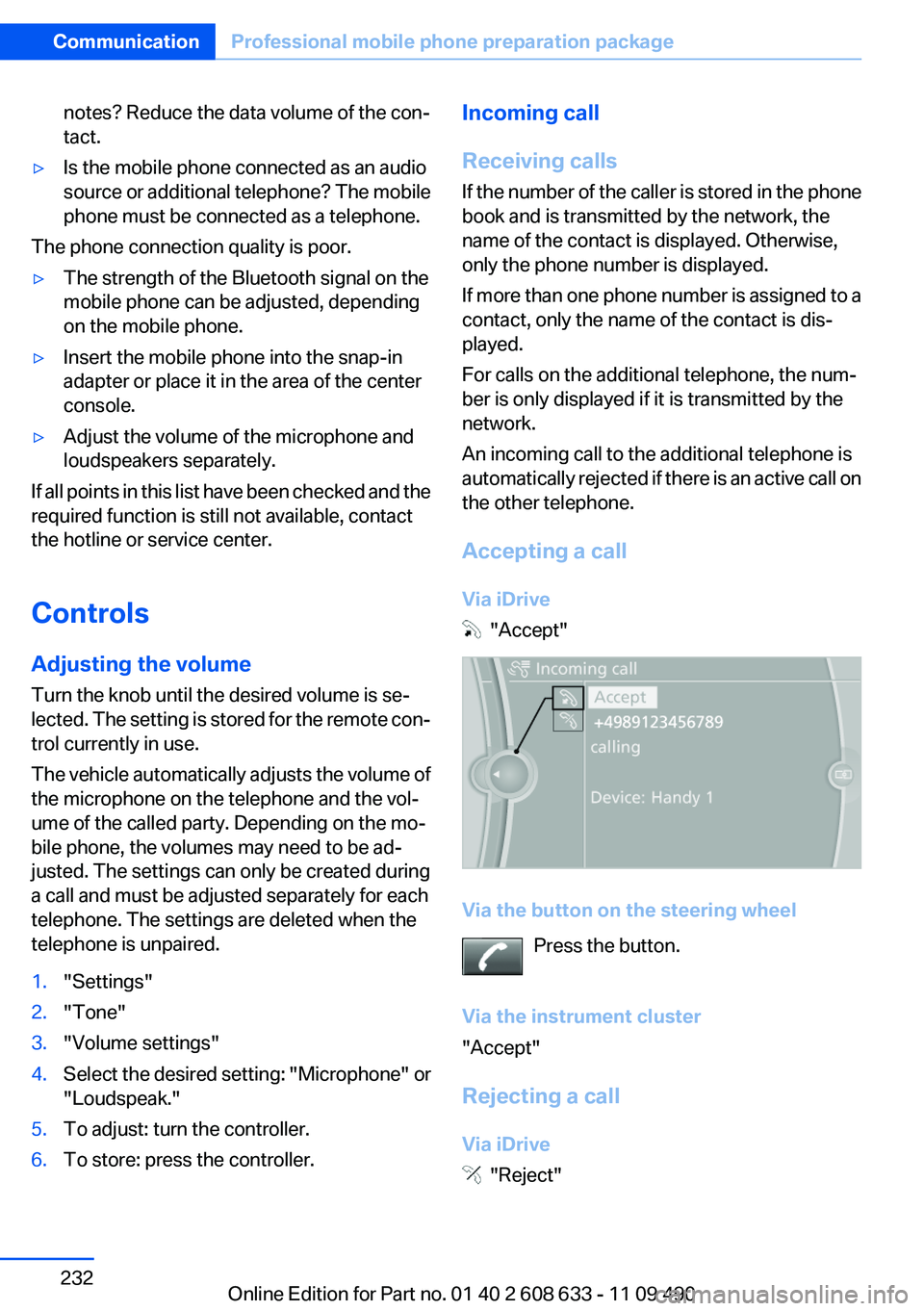
Accepting a call
Via iDrive
"Accept"
Via the button on the steering wheel Press the button.
Via the instrument cluster
"Accept"
Rejecting a call
Via iDrive
"Reject"
Seite 232CommunicationProfessional mobile phone preparation package232
Online Edition for Part no. 01 40 2 608 633 - 11 09 490
Page 239 of 325
Contacts
Note
If equipped with Professional mobile phone
preparation package.
At a glance
Contacts can be created and edited. The con‐
tacts from the mobile phone are displayed as
well if this function is supported by the mobile
phone. The phone numbers can be selected.
Contacts can be created and edited. The con‐
tacts from the mobile phone are displayed as
well if this function is supported by the mobile
phone. Addresses can be adopted as destina‐
tions for navigation and the phone numbers can
be dialed.
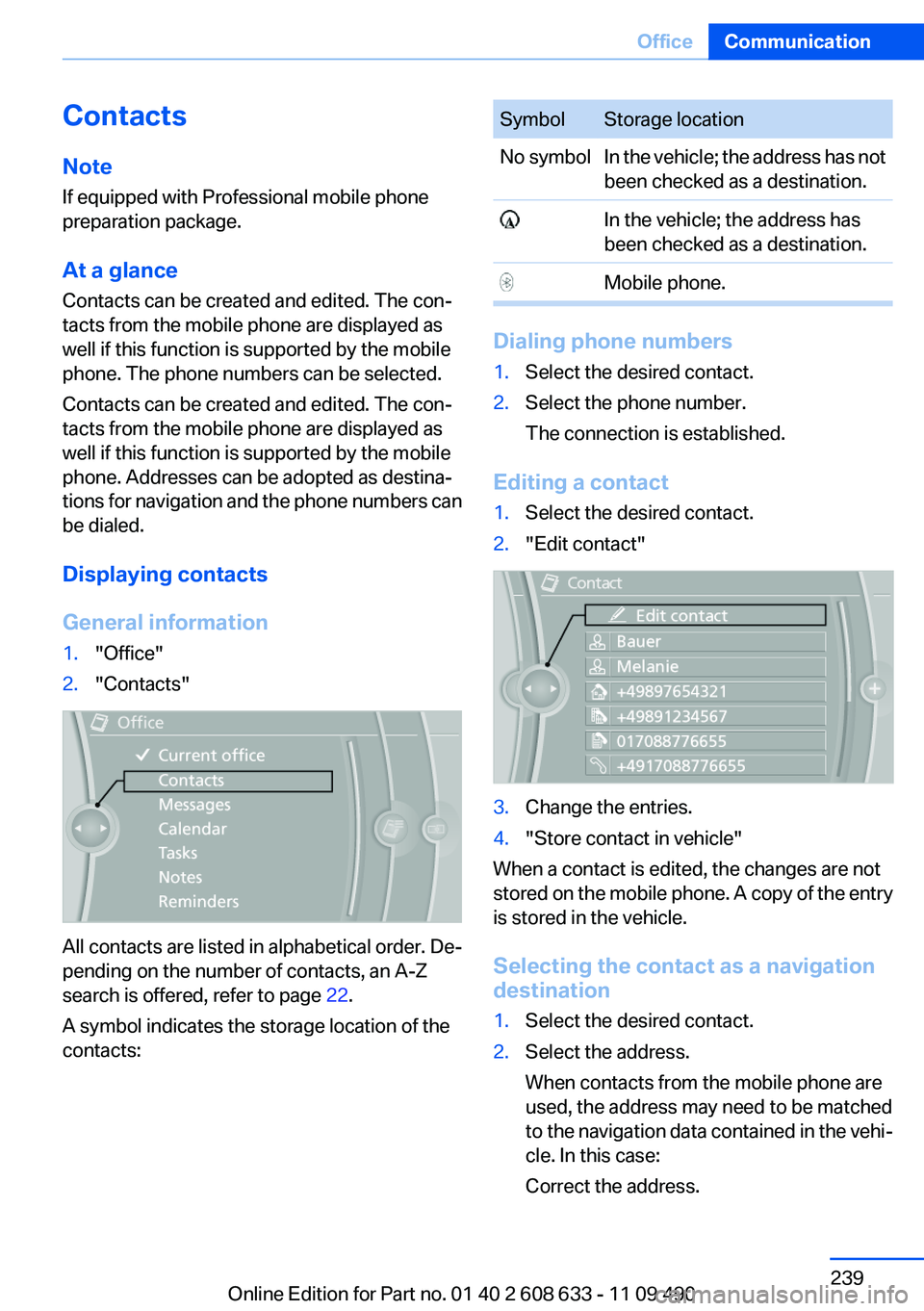
Displaying contacts
General information1."Office"2."Contacts"
All contacts are listed in alphabetical order. De‐
pending on the number of contacts, an A-Z
search is offered, refer to page 22.
A symbol indicates the storage location of the
contacts:
SymbolStorage locationNo symbolIn the vehicle; the address has not
been checked as a destination. In the vehicle; the address has
been checked as a destination. Mobile phone.
Dialing phone numbers
1.Select the desired contact.2.Select the phone number.
The connection is established.
Editing a contact
1.Select the desired contact.2."Edit contact"3.Change the entries.4."Store contact in vehicle"
When a contact is edited, the changes are not
stored on the mobile phone. A copy of the entry
is stored in the vehicle.
Selecting the contact as a navigation
destination
1.Select the desired contact.2.Select the address.
When contacts from the mobile phone are
used, the address may need to be matched
to the navigation data contained in the vehi‐
cle. In this case:
Correct the address.Seite 239OfficeCommunication239
Online Edition for Part no. 01 40 2 608 633 - 11 09 490
Page 240 of 325
3."Start guidance" or "Add as another
destination"
Checking the address as a destination
An address that is to be used for destination
guidance must match the navigation data con‐
tained in the vehicle. The address can be
checked for this purpose.
1.Select the desired contact and highlight the
address.2.Open "Options".3."Check as destination"4.Correct and store the address if necessary.
If the address is corrected and stored, a copy of
it is stored in the vehicle. The address is not
changed on the mobile phone.
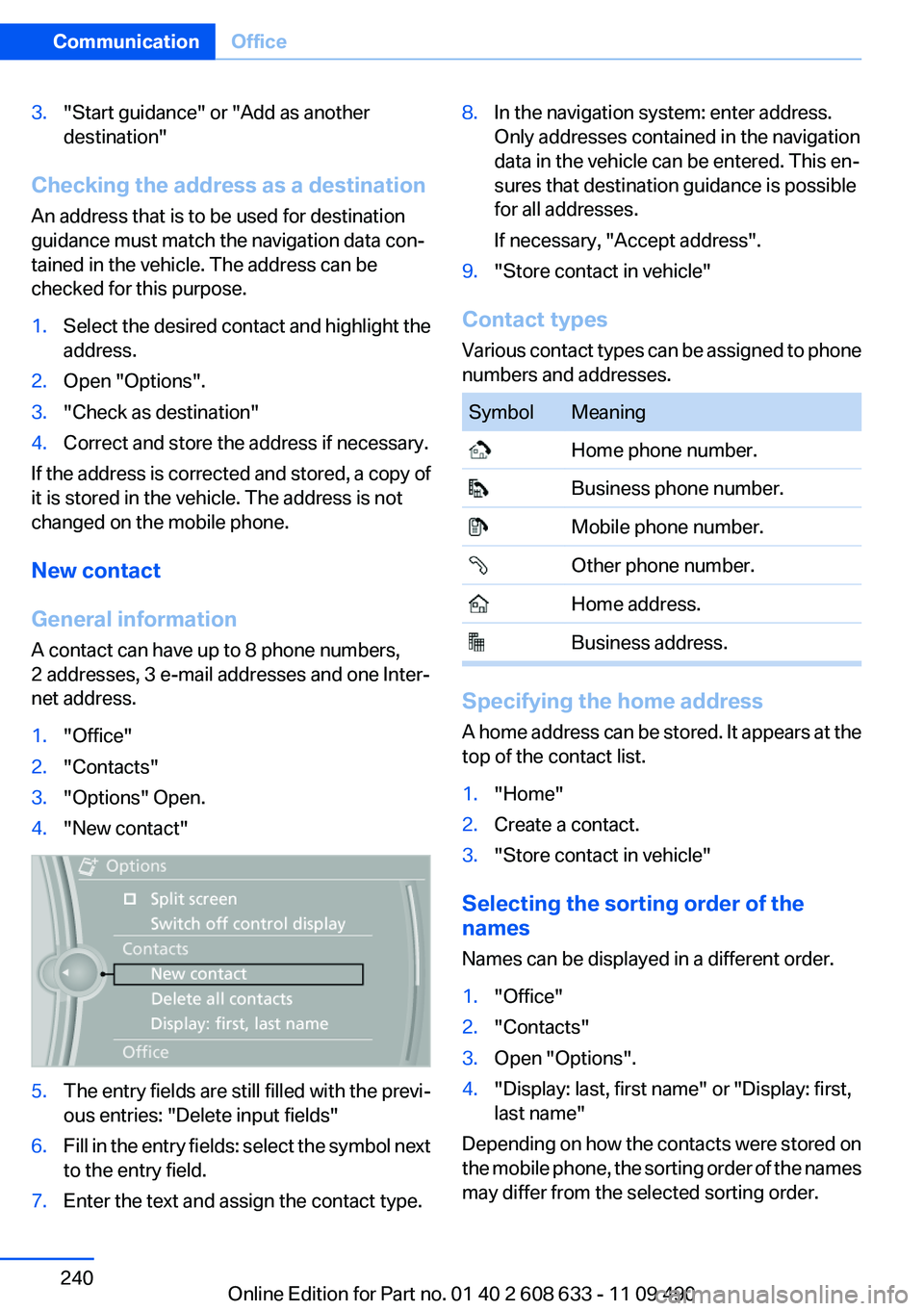
New contact
General information
A contact can have up to 8 phone numbers,
2 addresses, 3 e-mail addresses and one Inter‐
net address.
1."Office"2."Contacts"3."Options" Open.4."New contact"5.The entry fields are still filled with the previ‐
ous entries: "Delete input fields"6.Fill in the entry fields: select the symbol next
to the entry field.7.Enter the text and assign the contact type.8.In the navigation system: enter address.
Only addresses contained in the navigation
data in the vehicle can be entered. This en‐
sures that destination guidance is possible
for all addresses.
If necessary, "Accept address".9."Store contact in vehicle"
Contact types
Various contact types can be assigned to phone
numbers and addresses.
SymbolMeaning Home phone number. Business phone number. Mobile phone number. Other phone number. Home address. Business address.
Specifying the home address
A home address can be stored. It appears at the
top of the contact list.
1."Home"2.Create a contact.3."Store contact in vehicle"
Selecting the sorting order of the
names
Names can be displayed in a different order.
1."Office"2."Contacts"3.Open "Options".4."Display: last, first name" or "Display: first,
last name"
Depending on how the contacts were stored on
the mobile phone, the sorting order of the names
may differ from the selected sorting order.
Seite 240CommunicationOffice240
Online Edition for Part no. 01 40 2 608 633 - 11 09 490
Page 246 of 325
▷ "Back to beginning"
Start reading message again from the be‐
ginning.▷ Select the symbol.
Skip a paragraph.▷ Select the symbol.
Go back one paragraph.▷To end reading, tilt the controller to the left.
What to do if...
Information on suitable mobile phones, refer to
page 228.
Appointments, tasks, notes, text messages, or
e-mails from the mobile phone are not dis‐
played.
▷The mobile phone is not capable of the
missing function or is not connected cor‐
rectly.▷The Office function is deactivated.▷The mobile phone is connected as an addi‐
tional phone.▷Appointments are older than 20 days or are
more than 50 days in the future.▷The tasks have been marked as completed
or have a due date that lies more than
90 days in the future.▷Depending on the number of stored ap‐
pointments, task notes, and messages in
the mobile phone, not all are displayed in the
vehicle.
Not all appointments and tasks from the mobile
phone are displayed at the right time?
▷The time zone, time or date is incorrectly set
on the Control Display and mobile phone.
The e-mail attachment is not displayed.
▷E-mails are transmitted without an attach‐
ment.
Entries are not displayed in full length.
▷Text were already transmitted from the mo‐
bile phone in a shortened form.▷Synchronization between the mobile phone
and vehicle may take several minutes.
The contact pictures are not being displayed?
▷Up to 200 contact pictures can be stored in
the vehicle.
The E-mail is displayed with a delay?
▷Check the e-mail settings on the mobile
phone and adjust if necessary.
If all points in this list have been checked and the
required function is still not available, contact
the hotline or service center.
Seite 246CommunicationOffice246
Online Edition for Part no. 01 40 2 608 633 - 11 09 490
Page 248 of 325
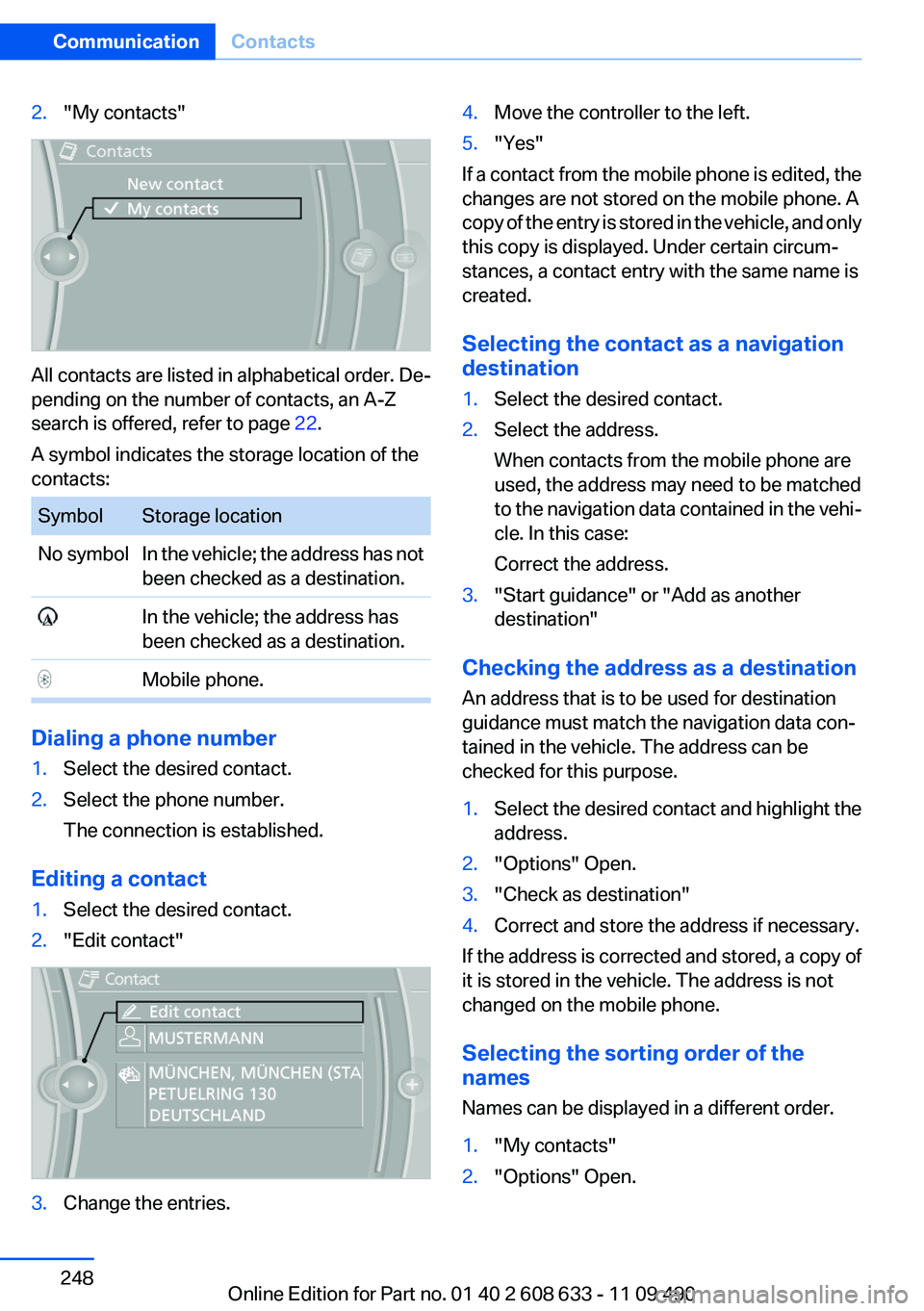
2."My contacts"
All contacts are listed in alphabetical order. De‐
pending on the number of contacts, an A-Z
search is offered, refer to page 22.
A symbol indicates the storage location of the
contacts:
SymbolStorage locationNo symbolIn the vehicle; the address has not
been checked as a destination. In the vehicle; the address has
been checked as a destination. Mobile phone.
Dialing a phone number
1.Select the desired contact.2.Select the phone number.
The connection is established.
Editing a contact
1.Select the desired contact.2."Edit contact"3.Change the entries.4.Move the controller to the left.5."Yes"
If a contact from the mobile phone is edited, the
changes are not stored on the mobile phone. A
copy of the entry is stored in the vehicle, and only
this copy is displayed. Under certain circum‐
stances, a contact entry with the same name is
created.
Selecting the contact as a navigation
destination
1.Select the desired contact.2.Select the address.
When contacts from the mobile phone are
used, the address may need to be matched
to the navigation data contained in the vehi‐
cle. In this case:
Correct the address.3."Start guidance" or "Add as another
destination"
Checking the address as a destination
An address that is to be used for destination
guidance must match the navigation data con‐
tained in the vehicle. The address can be
checked for this purpose.
1.Select the desired contact and highlight the
address.2."Options" Open.3."Check as destination"4.Correct and store the address if necessary.
If the address is corrected and stored, a copy of
it is stored in the vehicle. The address is not
changed on the mobile phone.
Selecting the sorting order of the
names
Names can be displayed in a different order.
1."My contacts"2."Options" Open.Seite 248CommunicationContacts248
Online Edition for Part no. 01 40 2 608 633 - 11 09 490
Page 251 of 325
be made via the BMW Assist Response
Center with Critical Calling if, for example,
the mobile phone is not available or dis‐
charged.
Press the SOS button to contact the BMW
Assist Response Center.
TeleService
General information
TeleService supports communication with your
service center.
▷Data on the vehicle's service requirements
can be sent directly to the service center. In
this way, the service center can plan its work
in advance. This shortens the duration of the
service appointment.▷In the event of a breakdown, data on the ve‐
hicle's condition can be sent directly to
Roadside Assistance.▷The service varies by country.▷Connection costs may ensue.▷Services may be restricted abroad.
Requirements
▷BMW Assist is activated.▷Wireless reception is available.▷The ignition is switched on.
Using TeleService
The TeleServices are typically activated in the
vehicle.
Even if TeleService Customer Service is not ac‐
tive, a voice contact to Roadside Assistance is
still possible.
To continue using or to deactivate the services,
please contact your service partner or the BMW
customer hotline.
Concierge service
General information
The BMW Assist Concierge service offers infor‐
mation on events, gas stations or hotels, and
provides phone numbers and addresses. Hotels
can be booked directly by the BMW Assist Con‐
cierge service. The Concierge service is part of
the optional BMW Convenience Plan.
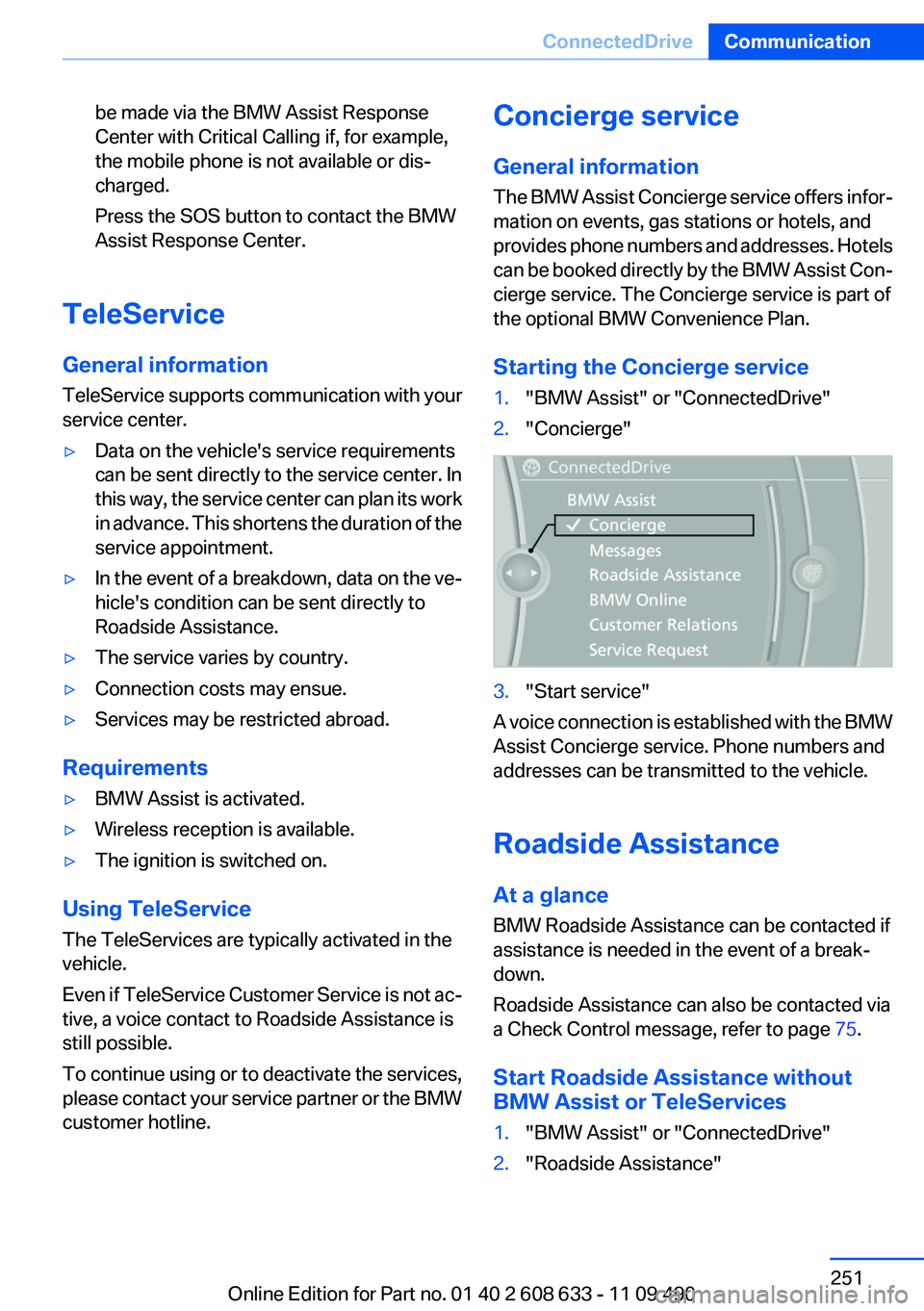
Starting the Concierge service1."BMW Assist" or "ConnectedDrive"2."Concierge"3."Start service"
A voice connection is established with the BMW
Assist Concierge service. Phone numbers and
addresses can be transmitted to the vehicle.
Roadside Assistance
At a glance
BMW Roadside Assistance can be contacted if
assistance is needed in the event of a break‐
down.
Roadside Assistance can also be contacted via
a Check Control message, refer to page 75.
Start Roadside Assistance without
BMW Assist or TeleServices
1."BMW Assist" or "ConnectedDrive"2."Roadside Assistance"Seite 251ConnectedDriveCommunication251
Online Edition for Part no. 01 40 2 608 633 - 11 09 490
Page 253 of 325
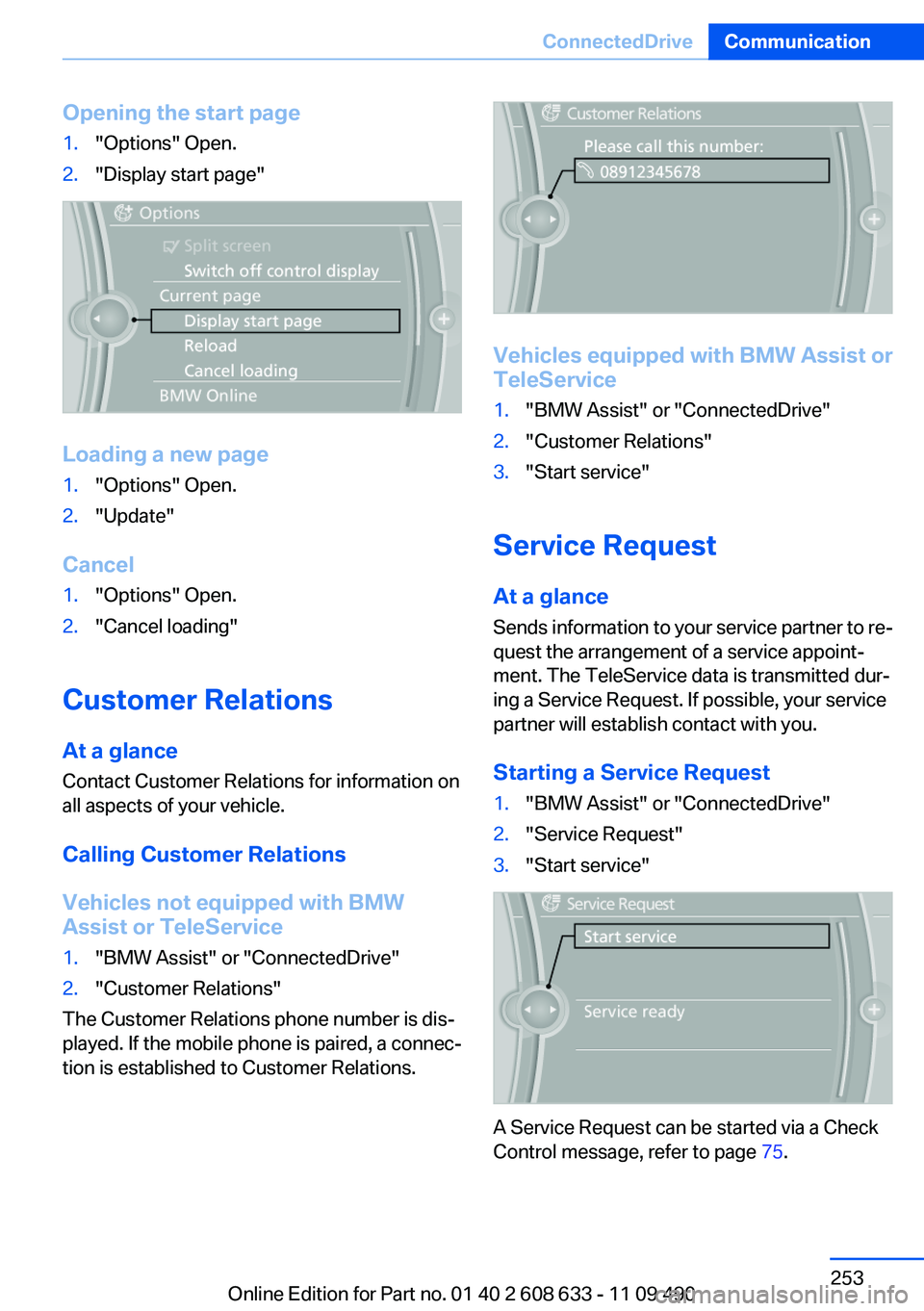
Opening the start page1."Options" Open.2."Display start page"
Loading a new page
1."Options" Open.2."Update"
Cancel
1."Options" Open.2."Cancel loading"
Customer Relations
At a glance
Contact Customer Relations for information on
all aspects of your vehicle.
Calling Customer Relations
Vehicles not equipped with BMW
Assist or TeleService
1."BMW Assist" or "ConnectedDrive"2."Customer Relations"
The Customer Relations phone number is dis‐
played. If the mobile phone is paired, a connec‐
tion is established to Customer Relations.
Vehicles equipped with BMW Assist or
TeleService
1."BMW Assist" or "ConnectedDrive"2."Customer Relations"3."Start service"
Service Request
At a glance
Sends information to your service partner to re‐
quest the arrangement of a service appoint‐
ment. The TeleService data is transmitted dur‐
ing a Service Request. If possible, your service
partner will establish contact with you.
Starting a Service Request
1."BMW Assist" or "ConnectedDrive"2."Service Request"3."Start service"
A Service Request can be started via a Check
Control message, refer to page 75.
Seite 253ConnectedDriveCommunication253
Online Edition for Part no. 01 40 2 608 633 - 11 09 490
Page 254 of 325
Automatic Service Request
The TeleService data necessary for servicing
the vehicle are automatically sent to your service
partner prior to the service deadline. If possible,
the service partner will contact you and a service
appointment can be arranged.
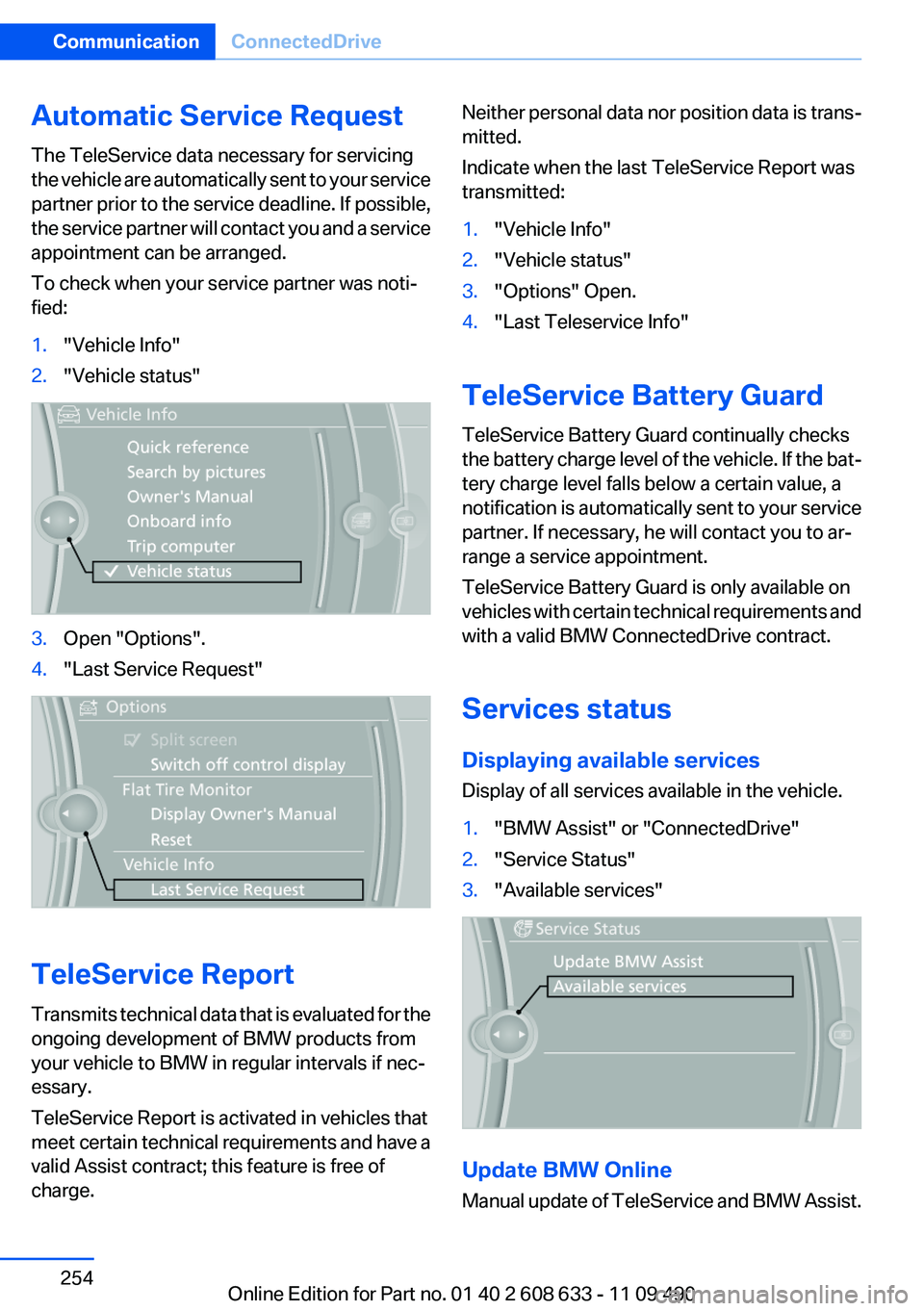
To check when your service partner was noti‐
fied:1."Vehicle Info"2."Vehicle status"3.Open "Options".4."Last Service Request"
TeleService Report
Transmits technical data that is evaluated for the
ongoing development of BMW products from
your vehicle to BMW in regular intervals if nec‐
essary.
TeleService Report is activated in vehicles that
meet certain technical requirements and have a
valid Assist contract; this feature is free of
charge.
Neither personal data nor position data is trans‐
mitted.
Indicate when the last TeleService Report was
transmitted:1."Vehicle Info"2."Vehicle status"3."Options" Open.4."Last Teleservice Info"
TeleService Battery Guard
TeleService Battery Guard continually checks
the battery charge level of the vehicle. If the bat‐
tery charge level falls below a certain value, a
notification is automatically sent to your service
partner. If necessary, he will contact you to ar‐
range a service appointment.
TeleService Battery Guard is only available on
vehicles with certain technical requirements and
with a valid BMW ConnectedDrive contract.
Services status
Displaying available services
Display of all services available in the vehicle.
1."BMW Assist" or "ConnectedDrive"2."Service Status"3."Available services"
Update BMW Online
Manual update of TeleService and BMW Assist.
Seite 254CommunicationConnectedDrive254
Online Edition for Part no. 01 40 2 608 633 - 11 09 490
Page 263 of 325
Wheels and tiresVehicle equipment
All standard, country-specific and optional
equipment that is offered in the model series is
described in this chapter. Therefore, equipment
is also described that is not available in a vehicle,
e. g., because of the selected optional equip‐
ment or country variant. This also applies for
safety-related functions and systems.
Tire inflation pressure
Safety information
The tire characteristics and tire inflation pres‐
sure influence the following:▷The service life of the tires.▷Road safety.▷Driving comfort.
Checking the pressure
Only check the tire inflation pressure when the
tires are cold. This means after driving no more
than 1.25 miles/2 km or when the vehicle has
been parked for at least 2 hours. When the tires
are warm, the tire inflation pressure is higher.
Check the tire inflation pressure regularly
Regularly check the tire inflation pressure
and correct it as needed: at least twice a month
and before a long trip. If you fail to observe this
precaution, you may be driving on tires with in‐
correct tire pressures, a condition that may not
only compromise your vehicle's driving stability,
but also lead to tire damage and the risk of an
accident.◀
After correcting the tire inflation pressure:
▷Reinitialize the Flat Tire Monitor.▷Reinitialize the Tire Pressure Monitor.Pressure specifications
The tire inflation pressure table, refer to
page 264, contains all pressure specifications
for the specified tire sizes at the ambient tem‐
perature. Pressure specifications apply to ap‐
proved tire sizes and recommended tire brands.
This information can be obtained from your
service center.
To identify the correct tire inflation pressure,
please note the following:▷Tire sizes of your vehicle.▷Maximum allowable driving speed.
Tire inflation pressures up to 100 mph/
160 km/h
For speeds of up to 100 mph/160 km/h and for
optimum driving comfort, note the pressure val‐
ues in the tire inflation pressure table, refer to
page 264, and adjust as necessary.
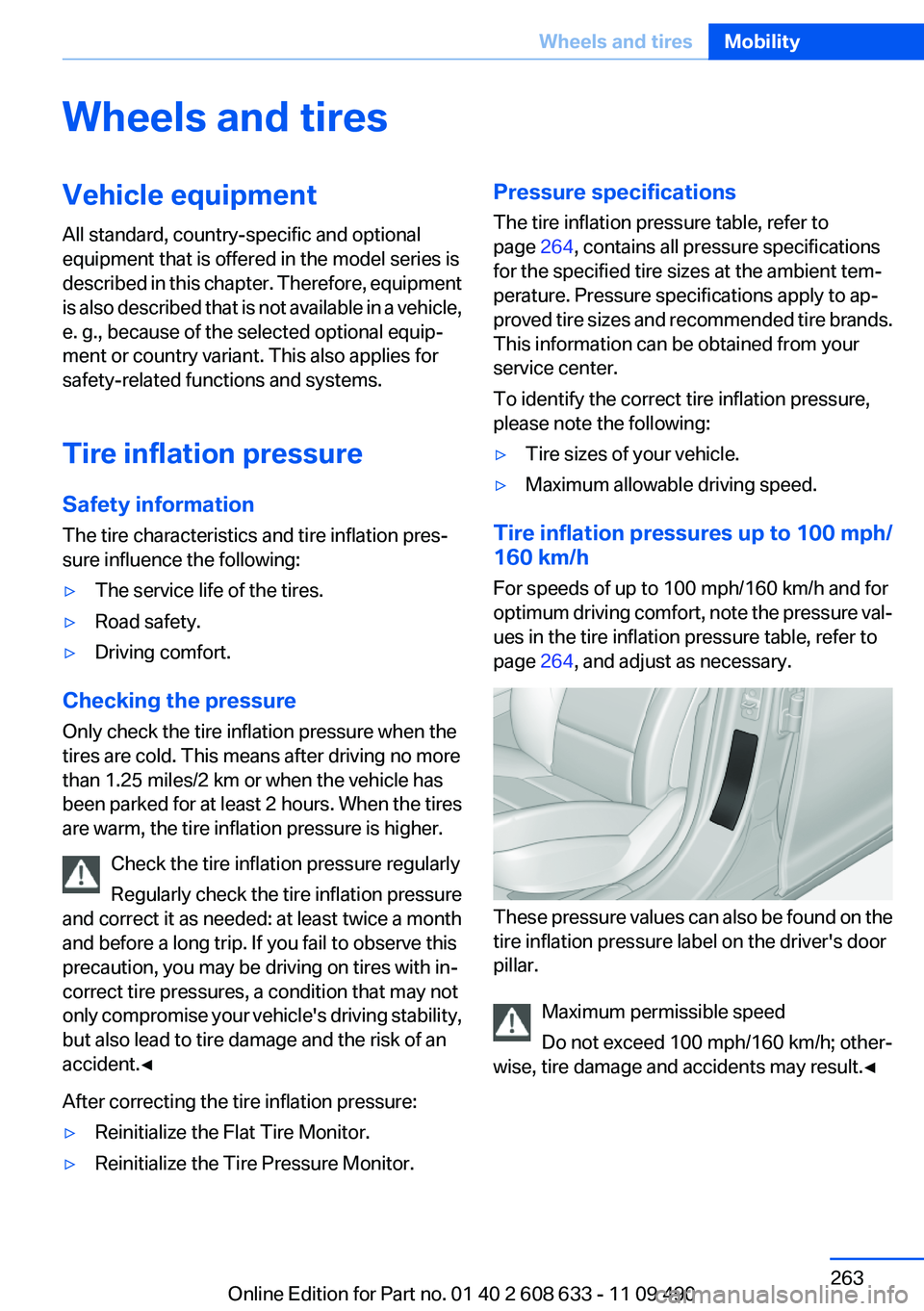
These pressure values can also be found on the
tire inflation pressure label on the driver's door
pillar.
Maximum permissible speed
Do not exceed 100 mph/160 km/h; other‐
wise, tire damage and accidents may result.◀
Seite 263Wheels and tiresMobility263
Online Edition for Part no. 01 40 2 608 633 - 11 09 490
Page 269 of 325
Minimum tread depth
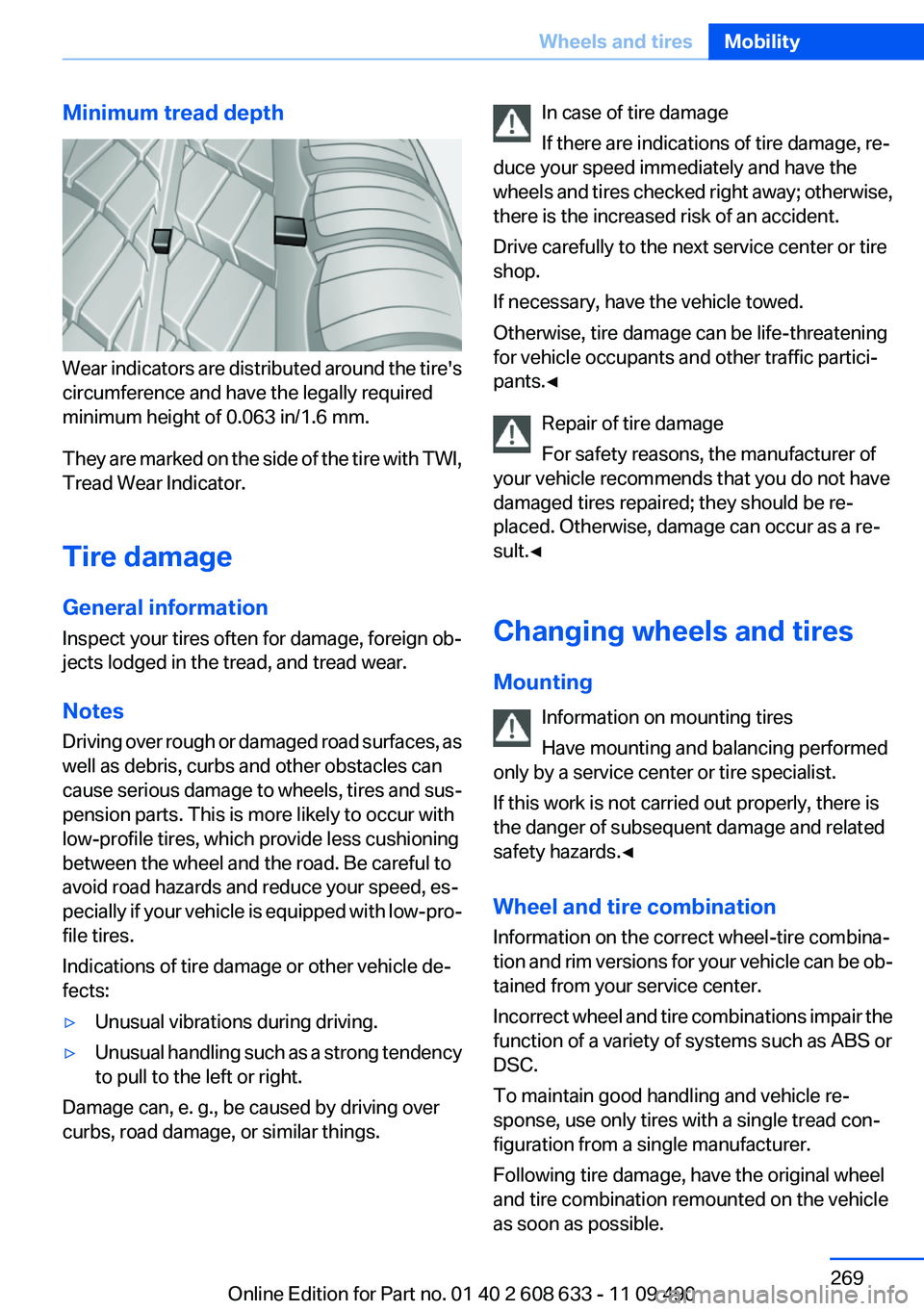
Wear indicators are distributed around the tire's
circumference and have the legally required
minimum height of 0.063 in/1.6 mm.
They are marked on the side of the tire with TWI,
Tread Wear Indicator.
Tire damage
General information
Inspect your tires often for damage, foreign ob‐
jects lodged in the tread, and tread wear.
Notes
Driving over rough or damaged road surfaces, as
well as debris, curbs and other obstacles can
cause serious damage to wheels, tires and sus‐
pension parts. This is more likely to occur with
low-profile tires, which provide less cushioning
between the wheel and the road. Be careful to
avoid road hazards and reduce your speed, es‐
pecially if your vehicle is equipped with low-pro‐
file tires.
Indications of tire damage or other vehicle de‐
fects:
▷Unusual vibrations during driving.▷Unusual handling such as a strong tendency
to pull to the left or right.
Damage can, e. g., be caused by driving over
curbs, road damage, or similar things.
In case of tire damage
If there are indications of tire damage, re‐
duce your speed immediately and have the
wheels and tires checked right away; otherwise,
there is the increased risk of an accident.
Drive carefully to the next service center or tire
shop.
If necessary, have the vehicle towed.
Otherwise, tire damage can be life-threatening
for vehicle occupants and other traffic partici‐
pants.◀
Repair of tire damage
For safety reasons, the manufacturer of
your vehicle recommends that you do not have
damaged tires repaired; they should be re‐
placed. Otherwise, damage can occur as a re‐
sult.◀
Changing wheels and tires
Mounting Information on mounting tires
Have mounting and balancing performed
only by a service center or tire specialist.
If this work is not carried out properly, there is
the danger of subsequent damage and related
safety hazards.◀
Wheel and tire combination
Information on the correct wheel-tire combina‐
tion and rim versions for your vehicle can be ob‐
tained from your service center.
Incorrect wheel and tire combinations impair the
function of a variety of systems such as ABS or
DSC.
To maintain good handling and vehicle re‐
sponse, use only tires with a single tread con‐
figuration from a single manufacturer.
Following tire damage, have the original wheel
and tire combination remounted on the vehicle
as soon as possible.Seite 269Wheels and tiresMobility269
Online Edition for Part no. 01 40 2 608 633 - 11 09 490