phone BMW 335I CONVERTIBLE 2007 E93 User Guide
[x] Cancel search | Manufacturer: BMW, Model Year: 2007, Model line: 335I CONVERTIBLE, Model: BMW 335I CONVERTIBLE 2007 E93Pages: 272, PDF Size: 8.97 MB
Page 56 of 272
Adjustments
54 Do not use force to swing the lever
back up, otherwise the mechanism
will be damaged.<
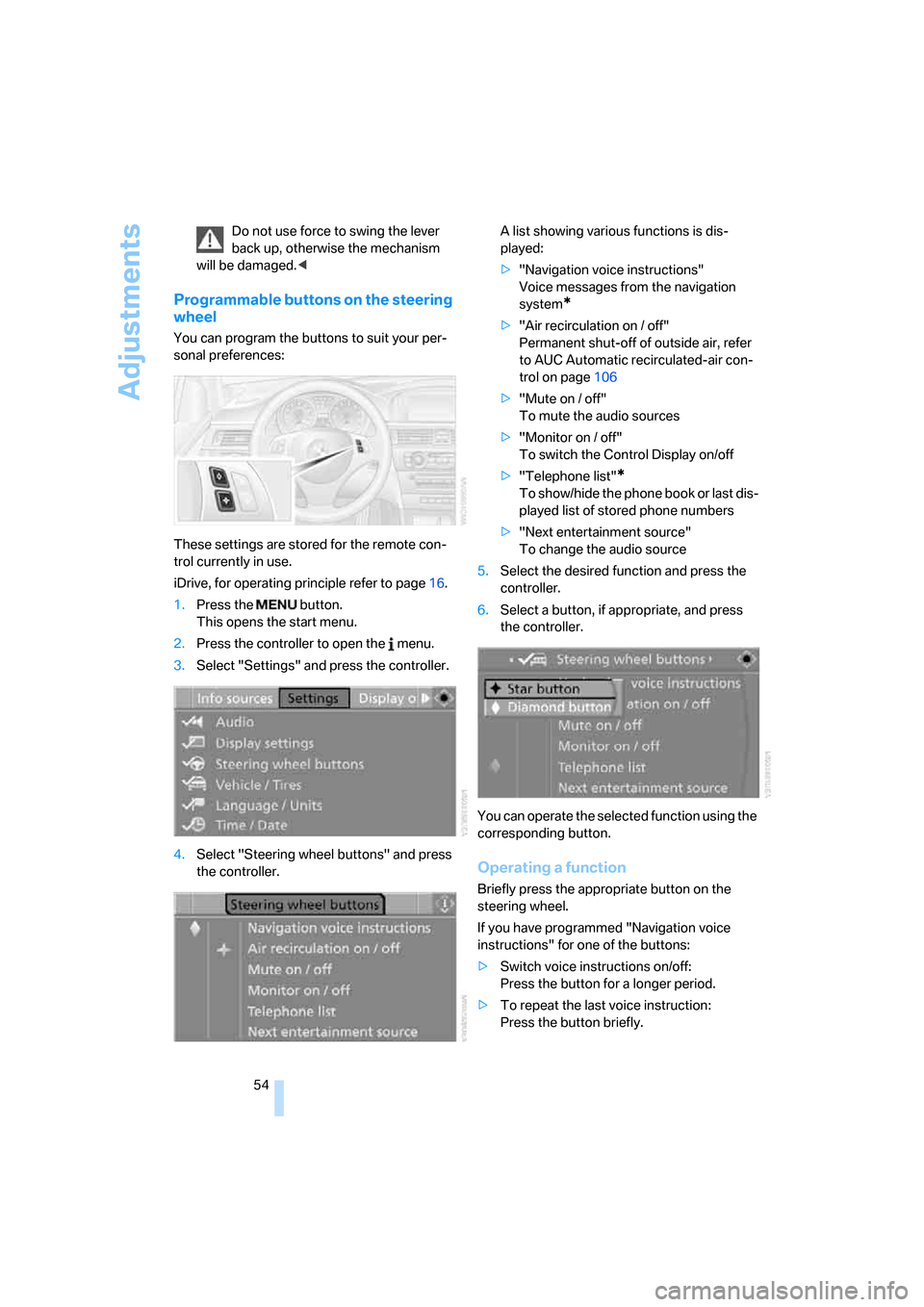
Programmable buttons on the steering
wheel
You can program the buttons to suit your per-
sonal preferences:
These settings are stored for the remote con-
trol currently in use.
iDrive, for operating principle refer to page16.
1.Press the button.
This opens the start menu.
2.Press the controller to open the menu.
3.Select "Settings" and press the controller.
4.Select "Steering wheel buttons" and press
the controller.A list showing various functions is dis-
played:
>"Navigation voice instructions"
Voice messages from the navigation
system
*
>"Air recirculation on / off"
Permanent shut-off of outside air, refer
to AUC Automatic recirculated-air con-
trol on page106
>"Mute on / off"
To mute the audio sources
>"Monitor on / off"
To switch the Control Display on/off
>"Telephone list"
*
To show/hide the phone book or last dis-
played list of stored phone numbers
>"Next entertainment source"
To change the audio source
5.Select the desired function and press the
controller.
6.Select a button, if appropriate, and press
the controller.
You can operate the selected function using the
corresponding button.
Operating a function
Briefly press the appropriate button on the
steering wheel.
If you have programmed "Navigation voice
instructions" for one of the buttons:
>Switch voice instructions on/off:
Press the button for a longer period.
>To repeat the last voice instruction:
Press the button briefly.
Page 116 of 272
Practical interior accessories
114
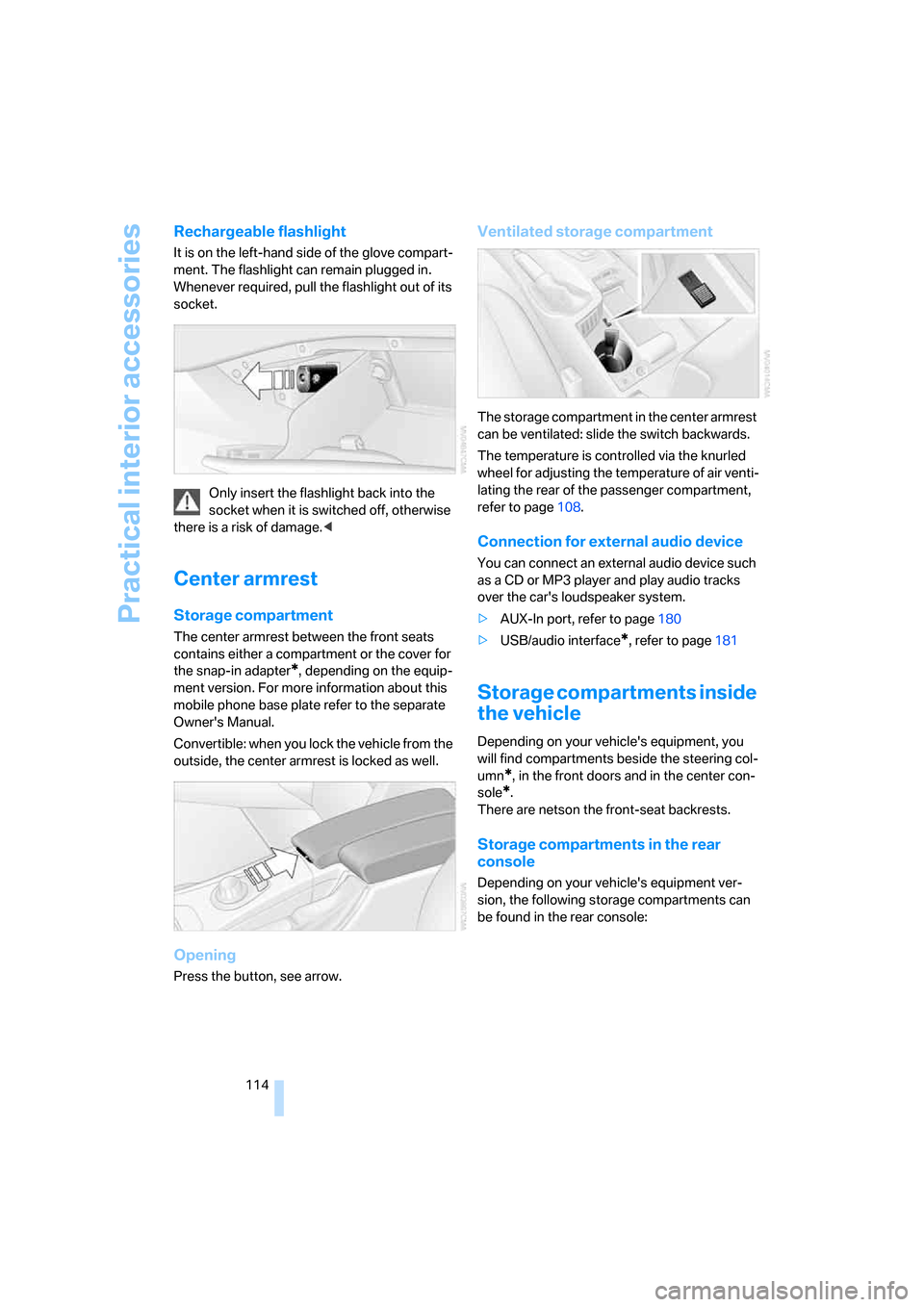
Rechargeable flashlight
It is on the left-hand side of the glove compart-
ment. The flashlight can remain plugged in.
Whenever required, pull the flashlight out of its
socket.
Only insert the flashlight back into the
socket when it is switched off, otherwise
there is a risk of damage.<
Center armrest
Storage compartment
The center armrest between the front seats
contains either a compartment or the cover for
the snap-in adapter
*, depending on the equip-
ment version. For more information about this
mobile phone base plate refer to the separate
Owner's Manual.
Convertible: when you lock the vehicle from the
outside, the center armrest is locked as well.
Opening
Press the button, see arrow.
Ventilated storage compartment
The storage compartment in the center armrest
can be ventilated: slide the switch backwards.
The temperature is controlled via the knurled
wheel for adjusting the temperature of air venti-
lating the rear of the passenger compartment,
refer to page108.
Connection for external audio device
You can connect an external audio device such
as a CD or MP3 player and play audio tracks
over the car's loudspeaker system.
>AUX-In port, refer to page180
>USB/audio interface
*, refer to page181
Storage compartments inside
the vehicle
Depending on your vehicle's equipment, you
will find compartments beside the steering col-
umn
*, in the front doors and in the center con-
sole
*.
There are netson the front-seat backrests.
Storage compartments in the rear
console
Depending on your vehicle's equipment ver-
sion, the following storage compartments can
be found in the rear console:
Page 126 of 272
Things to remember when driving
124
Things to remember when driving
Break-in period
Moving parts need breaking-in time to adjust to
each other. Please follow the instructions below
in order to achieve the optimal service life and
economy of operation for your vehicle.
Engine and differential
Always obey all official speed limits.
Up to 1,200 miles/2,000 km
Drive at varying engine and road speeds, but do
not exceed an engine speed of 4500 rpm or a
road speed of 100 mph/160 km/h.
Avoid full-throttle operation and use of the
transmission's kick-down mode.
After driving 1,200 miles/2,000 km
Engine and vehicle speeds can be gradually
increased.
Tires
Due to technical factors associated with their
manufacture, tires do not achieve their full trac-
tion potential until after an initial break-in
period. Therefore, drive cautiously during the
first 200 miles/300 km.
Brake system
Brakes require an initial break-in period of
approx. 300 miles/500 km to achieve optimized
contact and wear patterns between brake pads
and rotors. Drive cautiously during this break-in
period.
Clutch
The function of the clutch reaches its optimal
level only after a distance driven of approx.
300 miles/500 km. During this break-in period,
engage the clutch gently.
Following part replacement
The same break-in procedures should be
observed if any of the components mentioned
above have to be renewed in the course of the
vehicle's operating life.
General driving notes
Close the luggage compartment lid
Operate the vehicle only when the lug-
gage compartment lid is closed. Other-
wise, exhaust fumes could enter the interior of
the vehicle.<
If special circumstances make it absolutely nec-
essary to drive with the luggage compartment
lid open:
1.Close all windows and the glass roof.
2.Increase the air flow rate of the automatic
climate control considerably, refer to
page106.
Hot exhaust system
In all vehicles, extremely high tempera-
tures are generated in the exhaust sys-
tem. Do not remove the heat shields installed
adjacent to various sections of the exhaust sys-
tem, and never apply undercoating to them.
When driving, standing at idle and while park-
ing, take care to avoid possible contact
between the hot exhaust system and any highly
flammable materials such as hay, leaves, grass,
etc. Such contact could lead to a fire, with the
risk of serious personal injuries and property
damage. Do not touch hot exhaust tail pipes.
Otherwise there is a risk of burns.<
Mobile phone in the vehicle
BMW discourages the use of mobile
communications devices, e.g. mobile
phones, inside the vehicle without a direct con-
nection to an outside antenna. Otherwise, the
vehicle electronics and mobile communications
Page 143 of 272
Navigation
Driving tips
141Reference
At a glance
Controls
Communications
Entertainment
Mobility
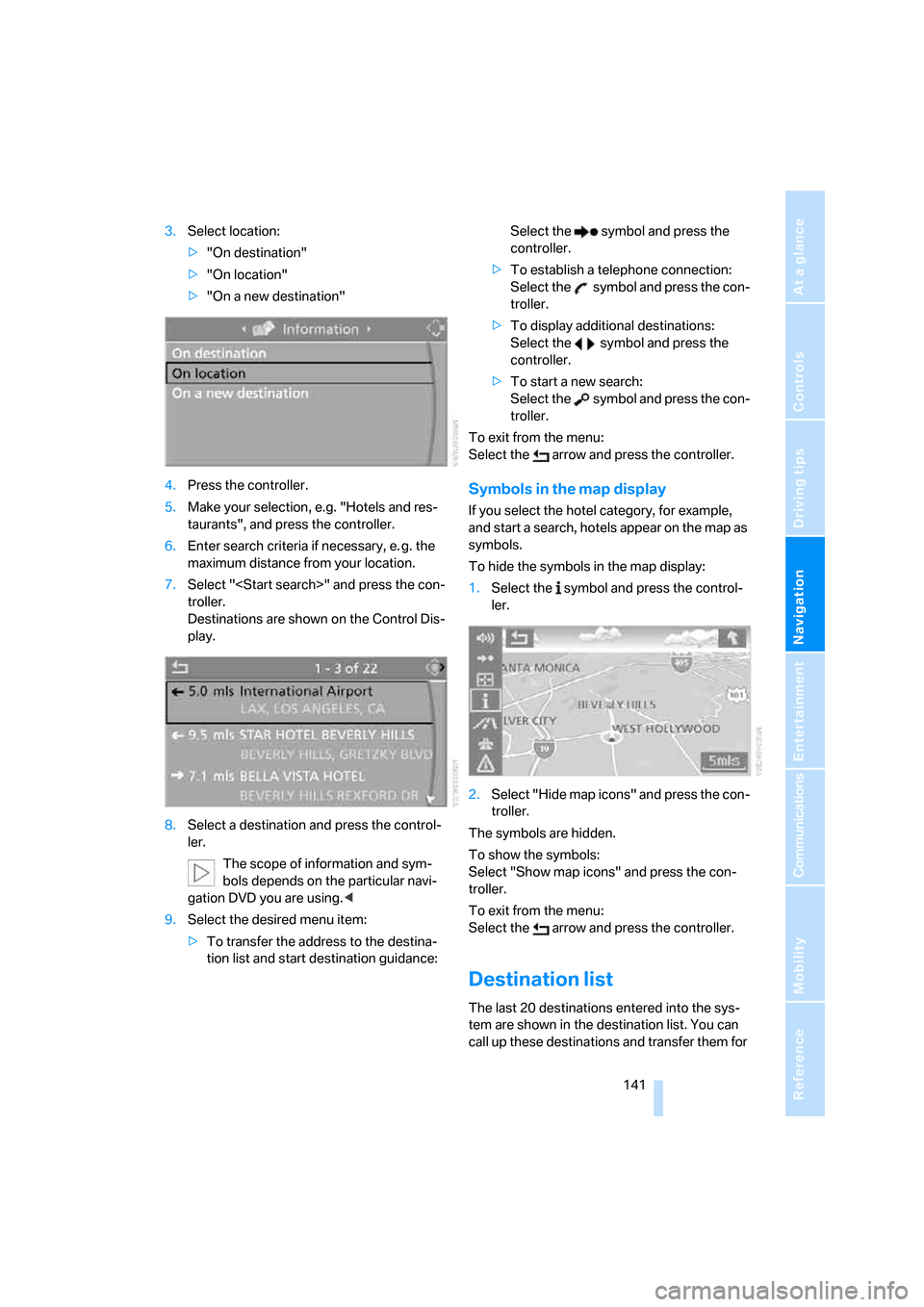
3.Select location:
>"On destination"
>"On location"
>"On a new destination"
4.Press the controller.
5.Make your selection, e.g. "Hotels and res-
taurants", and press the controller.
6.Enter search criteria if necessary, e. g. the
maximum distance from your location.
7.Select "
troller.
Destinations are shown on the Control Dis-
play.
8.Select a destination and press the control-
ler.
The scope of information and sym-
bols depends on the particular navi-
gation DVD you are using.<
9.Select the desired menu item:
>To transfer the address to the destina-
tion list and start destination guidance:Select the symbol and press the
controller.
>To establish a telephone connection:
Select the symbol and press the con-
troller.
>To display additional destinations:
Select the symbol and press the
controller.
>To start a new search:
Select the symbol and press the con-
troller.
To exit from the menu:
Select the arrow and press the controller.
Symbols in the map display
If you select the hotel category, for example,
and start a search, hotels appear on the map as
symbols.
To hide the symbols in the map display:
1.Select the symbol and press the control-
ler.
2.Select "Hide map icons" and press the con-
troller.
The symbols are hidden.
To show the symbols:
Select "Show map icons" and press the con-
troller.
To exit from the menu:
Select the arrow and press the controller.
Destination list
The last 20 destinations entered into the sys-
tem are shown in the destination list. You can
call up these destinations and transfer them for
Page 172 of 272
Satellite radio
170
Satellite radio
You can receive over 100 different channels
with high sound quality.
The channels are offered to you in predefined
packages. To receive the channels of your
choice, you must have the corresponding pack-
ages enabled.
With this new technology, signal losses
can occur from time to time and result in
audio interruptions.<
Enabling or disabling
channels
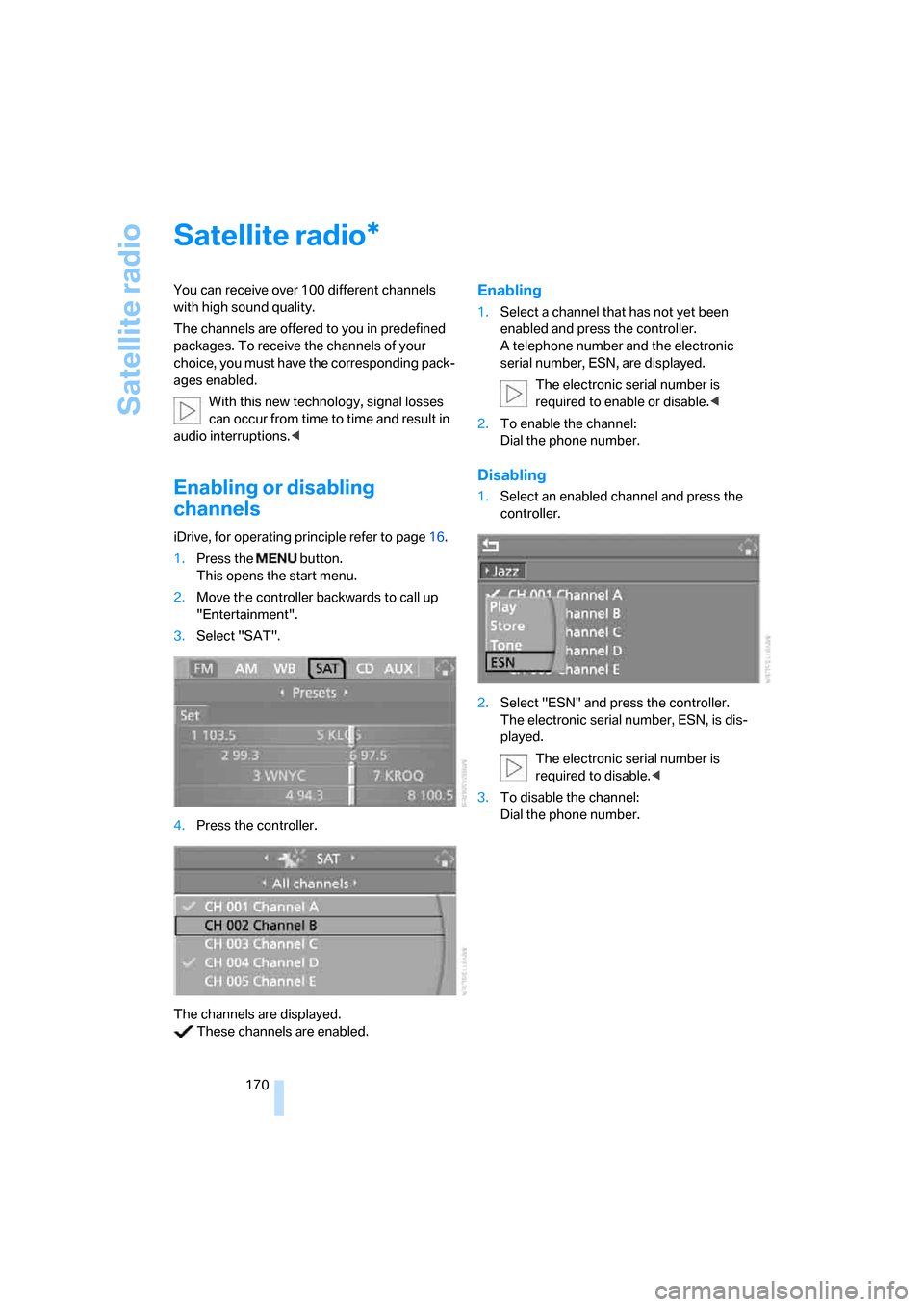
iDrive, for operating principle refer to page16.
1.Press the button.
This opens the start menu.
2.Move the controller backwards to call up
"Entertainment".
3.Select "SAT".
4.Press the controller.
The channels are displayed.
These channels are enabled.
Enabling
1.Select a channel that has not yet been
enabled and press the controller.
A telephone number and the electronic
serial number, ESN, are displayed.
The electronic serial number is
required to enable or disable.<
2.To enable the channel:
Dial the phone number.
Disabling
1.Select an enabled channel and press the
controller.
2.Select "ESN" and press the controller.
The electronic serial number, ESN, is dis-
played.
The electronic serial number is
required to disable.<
3.To disable the channel:
Dial the phone number.
*
Page 187 of 272

Communications
This chapter describes how to use the
telephone, BMW Assist and TeleService.
Communications
Page 188 of 272
Telephoning
186
Telephoning
The concept
Your BMW is equipped with a full mobile phone
preparation package. After pairing a suitable
mobile phone with the vehicle once, you can
operate the mobile phone via iDrive, the buttons
on the steering wheel or via voice commands.
Once a mobile phone has been paired with your
vehicle, it is automatically recognized as soon
as it is inside the vehicle while the engine is run-
ning or the ignition is switched on. You can
store the pairing data for up to four mobile
phones simultaneously. If several mobile
phones are detected at the same time, the
mobile phone last paired can be operated via
the vehicle.
Using the telephone inside
the vehicle
Using the snap-in adapter*
The so-called snap-in adapter, a holder for
mobile phones, allows you to charge the mobile
phone's battery and connect the mobile phone
to your vehicle's outside antenna. This ensures
better network reception and consistent repro-
duction quality. Please contact your
BMW center to find out for which mobile
phones there are snap-in adapters available.
BMW discourages the use of mobile
phones or other mobile communications
devices inside the vehicle without a direct con-
nection to an outside antenna. Otherwise, inter-
ference between vehicle electronics systems
and the mobile communications device cannot
be ruled out. In addition, there is no assurance
that the radiation which results from transmis-
sion will be dissipated from the vehicle inte-
rior.<
For your safety
A car phone makes life more convenient in
many ways, and can even save lives in an emer-gency. While you should consult your mobile
phone's separate Owner's Manual for a detailed
description of safety precautions and informa-
tion, we request that you direct your particular
attention to the following:
Only make entries when the traffic situa-
tion allows you to do so. Do not hold the
mobile phone in your hand while you are driving;
use the hands-free system instead. If you do
not observe this precaution, your being dis-
tracted can endanger vehicle occupants and
other road users.<
Suitable mobile phones
Please ask your BMW center which mobile
phones with Bluetooth interface are supported
by the mobile phone preparation package and/
or which mobile phones are compatible with the
snap-in adapter. By virtue of their particular
software versions, these mobile phones sup-
port the functions described in this Owner's
Manual. Malfunctions may occur with other
mobile phones.
Care instructions
You can find what you need to know about car-
ing for your mobile phone in the separate Caring
for your vehicle brochure and in the mobile
phone Owner's Manual.
Operating options
You can operate the mobile phone* using:
>Buttons on the steering wheel, refer to
page10
>iDrive, refer to page192
>Voice commands, refer to page197
>Programmable memory keys, refer to
page21
*
Page 189 of 272
187
Entertainment
Reference
At a glance
Controls
Driving tips Communications
Navigation
Mobility
Avoid operating a mobile phone recognized by
the vehicle via the mobile phone's keypad, oth-
erwise malfunctions may result.
Making phone calls with the
BMW Assist system*: BMW Assist
calls
You can use the BMW Assist System via the
hands-free unit for BMW Assist calls.
When the status information "BMW Assist" or
"BMW Service" is displayed in "Communica-
tion", only BMW Assist calls are possible.
It may not be possible to establish a telephone
connection using the mobile phone while a con-
nection is being established to BMW Assist or
while a call to BMW Assist is already in
progress. If this happens, you must unpair the
mobile phone and the vehicle if you wish to
place a call with the mobile phone.
Start-up
Pairing the mobile phone with the
vehicle
The following prerequisites must be met:
>Compatible mobile phone: the mobile
phone is supported by the full preparation
package mobile phone. You can obtain
information on the Internet at:
www.bmw.com
>The mobile phone is ready to operate.
>The Bluetooth link is activated in the vehi-
cle, refer to page191, and in the mobile
phone.
>Depending on the mobile phone, some
default settings may be necessary for the
mobile phone: e. g. using the following
menu items:
>Bluetooth switched on
>Connection without confirmation
>Reconnection
>Depending on the mobile phone type, the
power-saving mode setting, for example, may result in a paired mobile phone not
being detected by the vehicle.
>For pairing purposes, define any number as
the Bluetooth passkey, e.g. 1. This Blue-
tooth passkey is no longer required after
pairing has been successful.
>The ignition is switched on.
Pair the mobile phone with the vehicle
only when the car is stationary, to avoid
endangering the car's occupants and other
road users by being distracted.<
Switch on ignition
1.Insert remote control all the way into the
ignition lock.
2.Switch on ignition without operating the
brake or clutch or pressing the start/stop
button.
Preparation via iDrive
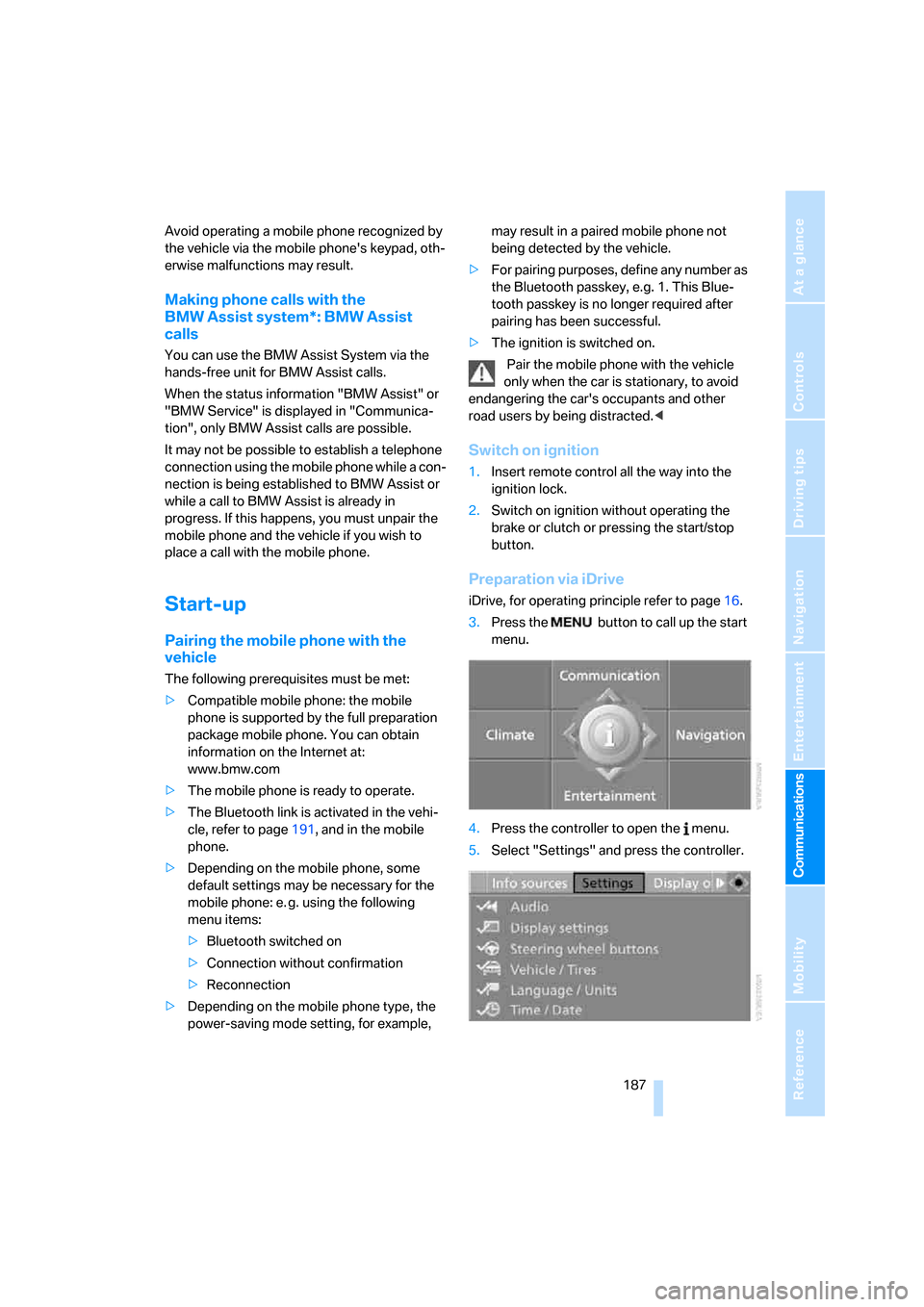
iDrive, for operating principle refer to page16.
3.Press the button to call up the start
menu.
4.Press the controller to open the menu.
5.Select "Settings" and press the controller.
Page 190 of 272
Telephoning
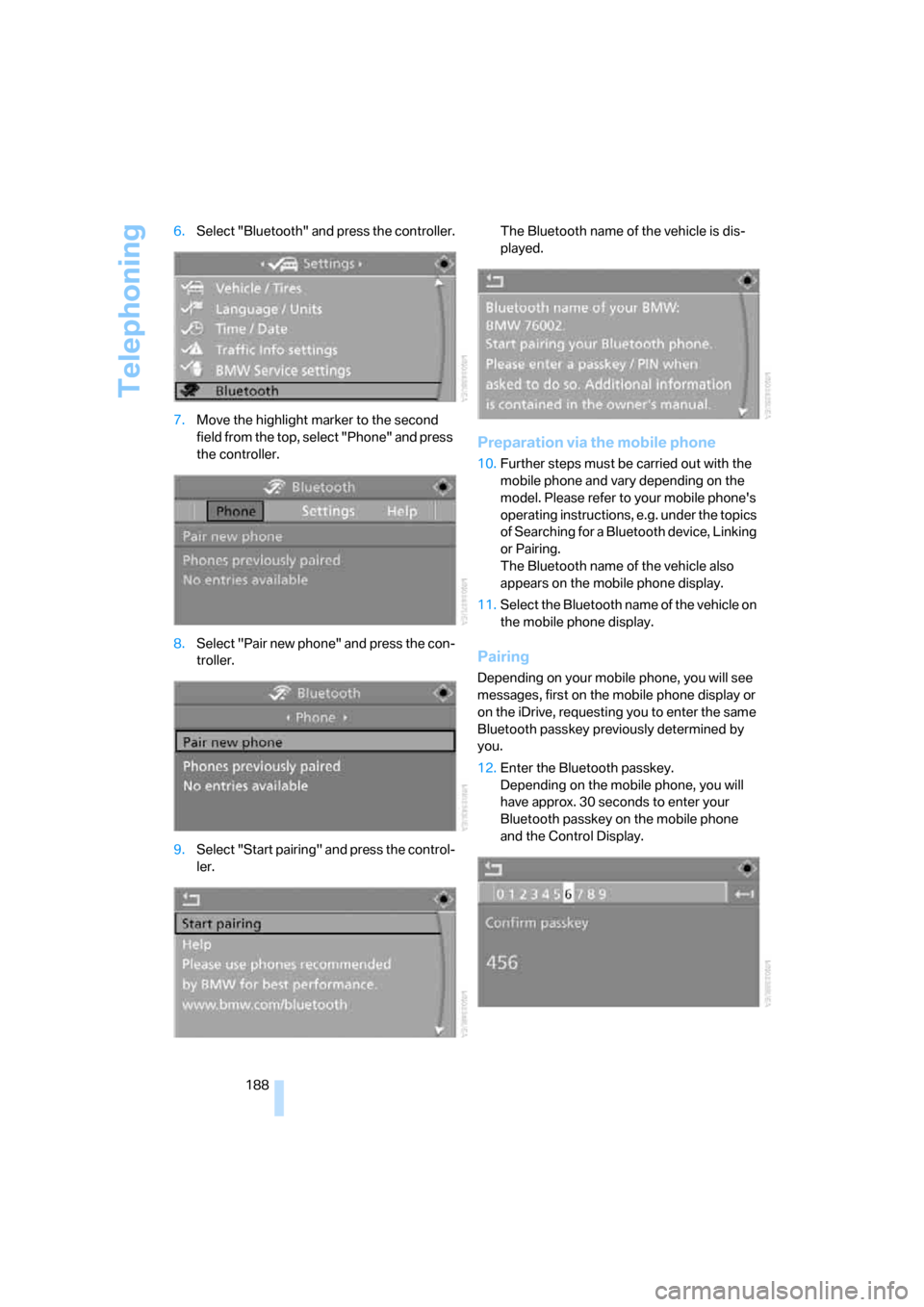
188 6.Select "Bluetooth" and press the controller.
7.Move the highlight marker to the second
field from the top, select "Phone" and press
the controller.
8.Select "Pair new phone" and press the con-
troller.
9.Select "Start pairing" and press the control-
ler.The Bluetooth name of the vehicle is dis-
played.
Preparation via the mobile phone
10.Further steps must be carried out with the
mobile phone and vary depending on the
model. Please refer to your mobile phone's
operating instructions, e.g. under the topics
of Searching for a Bluetooth device, Linking
or Pairing.
The Bluetooth name of the vehicle also
appears on the mobile phone display.
11.Select the Bluetooth name of the vehicle on
the mobile phone display.
Pairing
Depending on your mobile phone, you will see
messages, first on the mobile phone display or
on the iDrive, requesting you to enter the same
Bluetooth passkey previously determined by
you.
12.Enter the Bluetooth passkey.
Depending on the mobile phone, you will
have approx. 30 seconds to enter your
Bluetooth passkey on the mobile phone
and the Control Display.
Page 191 of 272
189
Entertainment
Reference
At a glance
Controls
Driving tips Communications
Navigation
Mobility
13.Move the highlight marker to the third field
from the top, select "Confirm passkey" and
press the controller.
14.Wait several seconds until the "Communi-
cation" menu is displayed.
The next time you use the mobile phone inside
the vehicle, it will be recognized within no more
than 2 minutes as long as the engine is running
or the ignition is switched on.
With some mobile phones it may be nec-
essary to make certain settings for a per-
manent Bluetooth link, e. g. using the authoriza-
tion or secure connection menu item, refer to
your mobile phone's operating instructions.<
As soon as a mobile phone is detected by the
vehicle, the phone book entries stored on the
SIM card or on your mobile phone are transmit-
ted to the vehicle. This data transfer depends
on your mobile phone and can take several min-
utes; please refer to your mobile phone's oper-
ating instructions, if necessary.
If not all phone book entries are displayed:
>Transfer all phone book entries from the
SIM card to the mobile phone, if necessary.
>Phone book entries with special characters
may not be displayed.
Up to four mobile phones can be paired, one
after the other. If a fifth mobile phone is paired,
the pairing data for the mobile phone whose
pairing data was first stored on the vehicle is
deleted.
Checks to perform if pairing is
unsuccessful
>Is the mobile phone supported by the
mobile phone preparation package? You
can obtain information on the Internet at:
www.bmw.com.
>Do the Bluetooth passkeys on the mobile
phone and vehicle match? The same Blue-
tooth passkey must be entered on the
mobile phone's display and via iDrive.
>Did it take you more than 30 seconds to
enter the Bluetooth passkey?>Only a limited number of devices can be
connected with the mobile phone. If neces-
sary, delete connections with other devices.
>Is the mobile phone no longer responding?
Switch the mobile phone off and on or
briefly disconnect the power supply.
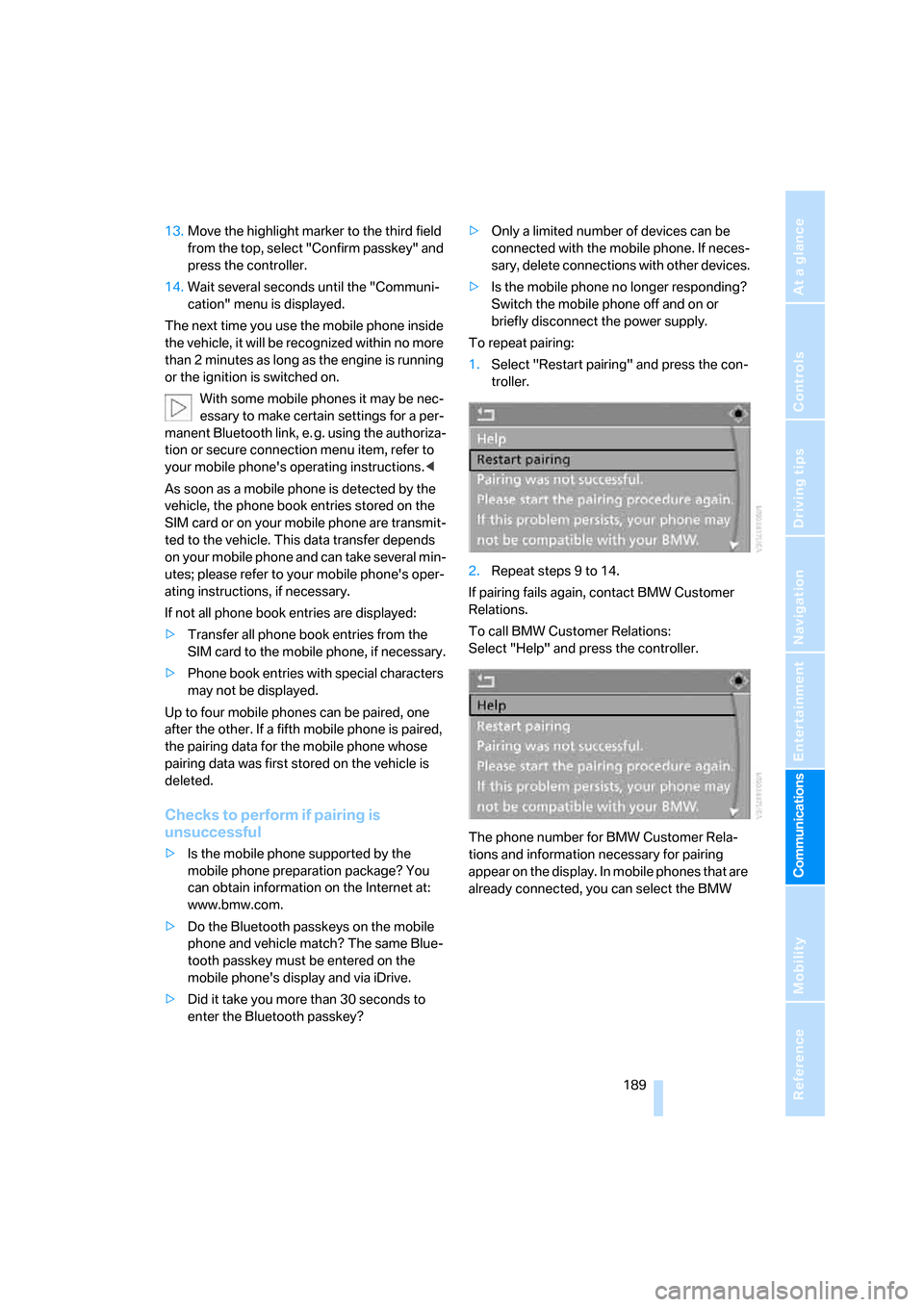
To repeat pairing:
1.Select "Restart pairing" and press the con-
troller.
2.Repeat steps 9 to 14.
If pairing fails again, contact BMW Customer
Relations.
To call BMW Customer Relations:
Select "Help" and press the controller.
The phone number for BMW Customer Rela-
tions and information necessary for pairing
appear on the display. In mobile phones that are
already connected, you can select the BMW