Back BMW 335I CONVERTIBLE 2008 E93 Owner's Guide
[x] Cancel search | Manufacturer: BMW, Model Year: 2008, Model line: 335I CONVERTIBLE, Model: BMW 335I CONVERTIBLE 2008 E93Pages: 272, PDF Size: 8.98 MB
Page 119 of 272
Controls
117Reference
At a glance
Driving tips
Communications
Navigation
Entertainment
Mobility
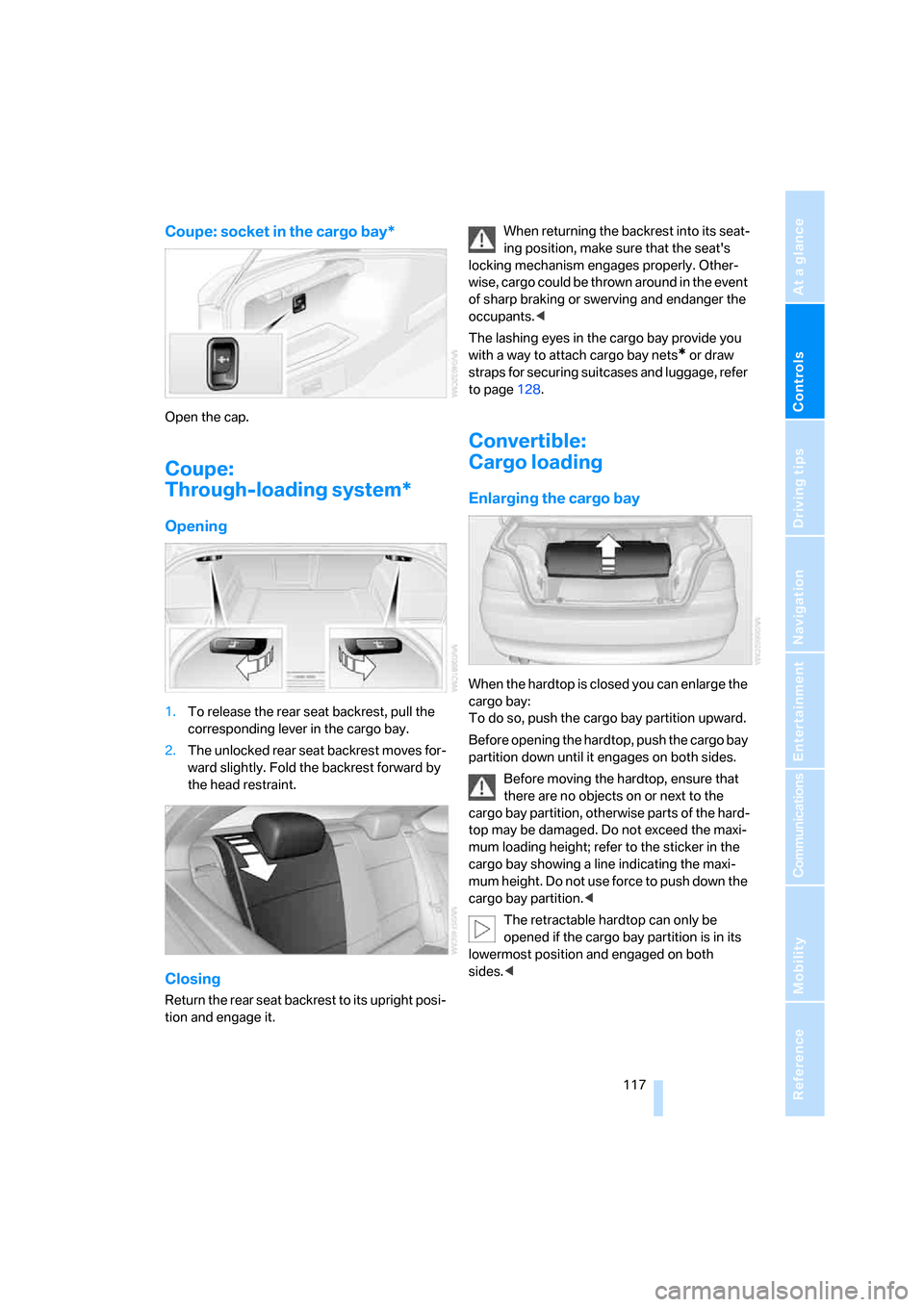
Coupe: socket in the cargo bay*
Open the cap.
Coupe:
Through-loading system*
Opening
1.To release the rear seat backrest, pull the
corresponding lever in the cargo bay.
2.The unlocked rear seat backrest moves for-
ward slightly. Fold the backrest forward by
the head restraint.
Closing
Return the rear seat backrest to its upright posi-
tion and engage it.When returning the backrest into its seat-
ing position, make sure that the seat's
locking mechanism engages properly. Other-
wise, cargo could be thrown around in the event
of sharp braking or swerving and endanger the
occupants.<
The lashing eyes in the cargo bay provide you
with a way to attach cargo bay nets
* or draw
straps for securing suitcases and luggage, refer
to page128.
Convertible:
Cargo loading
Enlarging the cargo bay
When the hardtop is closed you can enlarge the
cargo bay:
To do so, push the cargo bay partition upward.
Before opening the hardtop, push the cargo bay
partition down until it engages on both sides.
Before moving the hardtop, ensure that
there are no objects on or next to the
cargo bay partition, otherwise parts of the hard-
top may be damaged. Do not exceed the maxi-
mum loading height; refer to the sticker in the
cargo bay showing a line indicating the maxi-
mum height. Do not use force to push down the
cargo bay partition.<
The retractable hardtop can only be
opened if the cargo bay partition is in its
lowermost position and engaged on both
sides.<
Page 120 of 272
Practical interior accessories
118
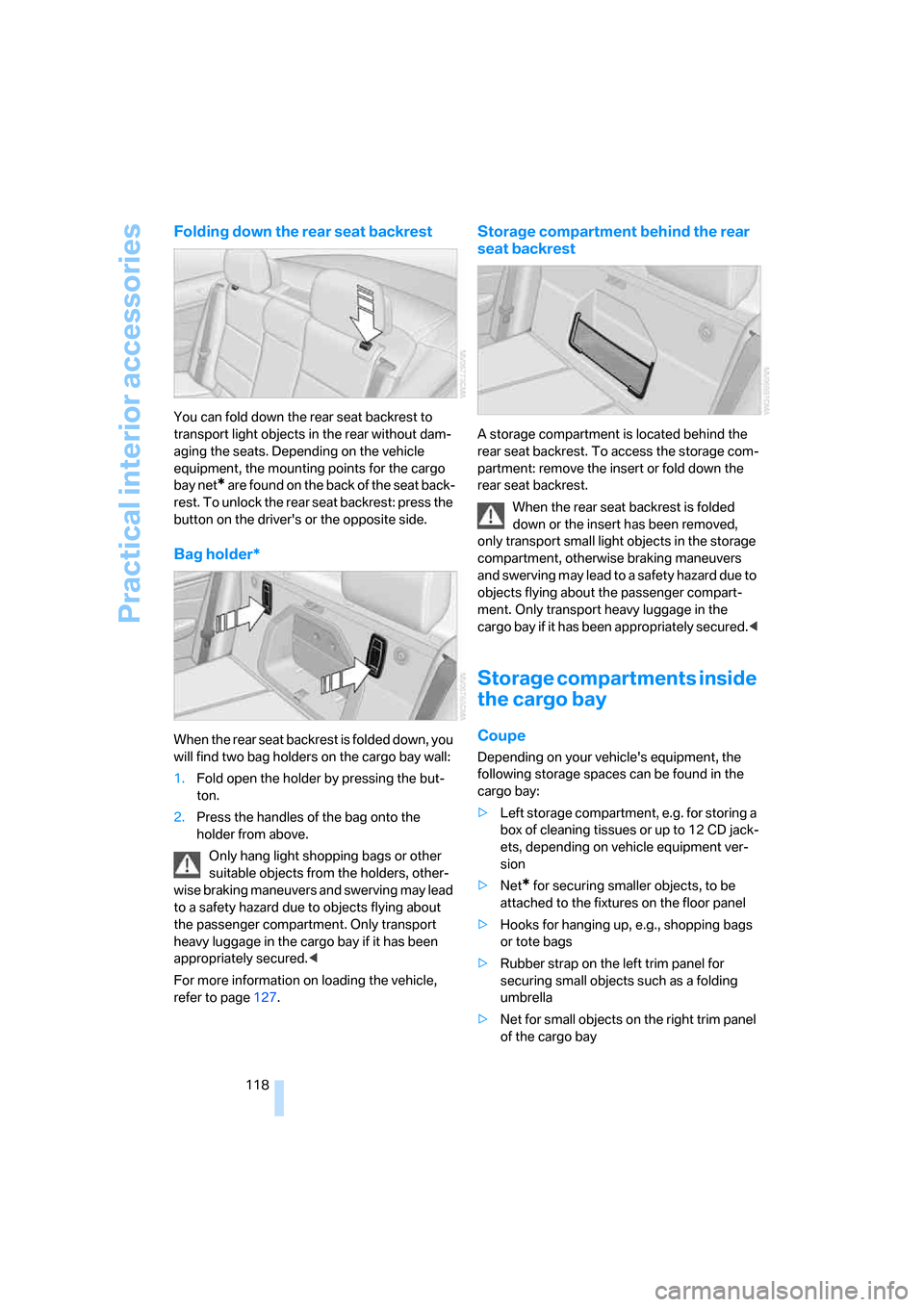
Folding down the rear seat backrest
You can fold down the rear seat backrest to
transport light objects in the rear without dam-
aging the seats. Depending on the vehicle
equipment, the mounting points for the cargo
bay net
* are found on the back of the seat back-
rest. To unlock the rear seat backrest: press the
button on the driver's or the opposite side.
Bag holder*
When the rear seat backrest is folded down, you
will find two bag holders on the cargo bay wall:
1.Fold open the holder by pressing the but-
ton.
2.Press the handles of the bag onto the
holder from above.
Only hang light shopping bags or other
suitable objects from the holders, other-
wise braking maneuvers and swerving may lead
to a safety hazard due to objects flying about
the passenger compartment. Only transport
heavy luggage in the cargo bay if it has been
appropriately secured.<
For more information on loading the vehicle,
refer to page127.
Storage compartment behind the rear
seat backrest
A storage compartment is located behind the
rear seat backrest. To access the storage com-
partment: remove the insert or fold down the
rear seat backrest.
When the rear seat backrest is folded
down or the insert has been removed,
only transport small light objects in the storage
compartment, otherwise braking maneuvers
and swerving may lead to a safety hazard due to
objects flying about the passenger compart-
ment. Only transport heavy luggage in the
cargo bay if it has been appropriately secured.<
Storage compartments inside
the cargo bay
Coupe
Depending on your vehicle's equipment, the
following storage spaces can be found in the
cargo bay:
>Left storage compartment, e.g. for storing a
box of cleaning tissues or up to 12 CD jack-
ets, depending on vehicle equipment ver-
sion
>Net
* for securing smaller objects, to be
attached to the fixtures on the floor panel
>Hooks for hanging up, e.g., shopping bags
or tote bags
>Rubber strap on the left trim panel for
securing small objects such as a folding
umbrella
>Net for small objects on the right trim panel
of the cargo bay
Page 122 of 272
Practical interior accessories
120 Secure the ski bag in the manner
described, otherwise it could endanger
the car's occupants, e.g. in case of heavy brak-
ing or sudden swerving.<
To store the ski bag, perform the steps
described for loading in reverse order.
Removing the ski bag
The ski bag can be completely removed, e.g. for
faster drying or to allow you to use other inserts.
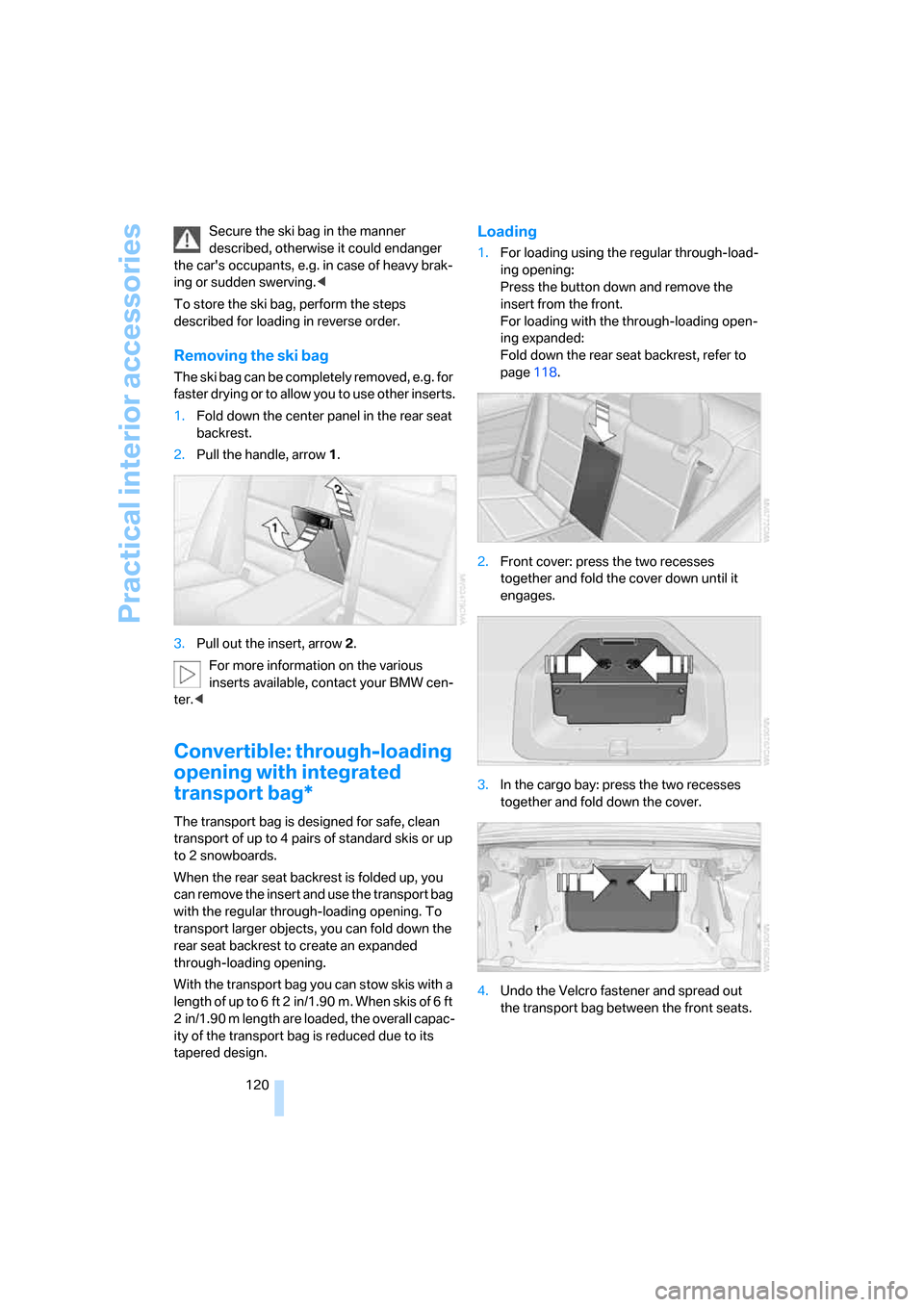
1.Fold down the center panel in the rear seat
backrest.
2.Pull the handle, arrow1.
3.Pull out the insert, arrow 2.
For more information on the various
inserts available, contact your BMW cen-
ter.<
Convertible: through-loading
opening with integrated
transport bag*
The transport bag is designed for safe, clean
transport of up to 4 pairs of standard skis or up
to 2 snowboards.
When the rear seat backrest is folded up, you
can remove the insert and use the transport bag
with the regular through-loading opening. To
transport larger objects, you can fold down the
rear seat backrest to create an expanded
through-loading opening.
With the transport bag you can stow skis with a
length of up to 6 ft 2 in/1.90 m. When skis of 6 ft
2 in/1.90 m length are loaded, the overall capac-
ity of the transport bag is reduced due to its
tapered design.
Loading
1.For loading using the regular through-load-
ing opening:
Press the button down and remove the
insert from the front.
For loading with the through-loading open-
ing expanded:
Fold down the rear seat backrest, refer to
page118.
2.Front cover: press the two recesses
together and fold the cover down until it
engages.
3.In the cargo bay: press the two recesses
together and fold down the cover.
4.Undo the Velcro fastener and spread out
the transport bag between the front seats.
Page 129 of 272
Driving tips
127Reference
At a glance
Controls
Communications
Navigation
Entertainment
Mobility
With convenient access and automatic
transmission
Insert the remote control into the ignition
switch.
The engine can be switched off when the selec-
tor lever is in position N. Refer also to page37.
Cargo loading
To avoid loading the tires beyond their
approved carrying capacity, never over-
load the vehicle. Overloading can lead to over-
heating and increases the rate at which damage
develops inside the tires. This can ultimately
result in a sudden blow-out.<
Make sure that no liquids are spilled or
leak from their containers in the cargo
bay, as this could result in damage to the vehi-
cle.<
Determining loading limit
1.Locate the following statement on your
vehicle's placard
*:
The combined weight of occupants
and cargo should never exceed
XXX kg or YYY lbs. Otherwise, overloading
can result in damage to the vehicle and
unstable driving conditions.<
2.Determine the combined weight of the
driver and passengers that will be riding in
your vehicle.
3.Subtract the combined weight of the driver
and passengers from XXX kilograms or YYY
pounds.
4.The resulting figure equals the available
amount of cargo and luggage load capacity. For example, if the YYY amount equals
1,400 lbs. and there will be five 150-lb. pas-
sengers in your vehicle, the amount of avail-
able cargo and luggage load capacity is
650 lbs:
1,400 lbs. minus 750 lbs. = 650 lbs.
5.Determine the combined weight of luggage
and cargo being loaded on the vehicle. That
weight may not safely exceed the available
cargo and luggage load capacity calculated
in step 4.
6.If your vehicle will be towing a trailer, part of
the load from your trailer will be transferred
to your vehicle. Consult the manual for
transporting a trailer to determine how this
may reduce the available cargo and luggage
load capacity of your vehicle.
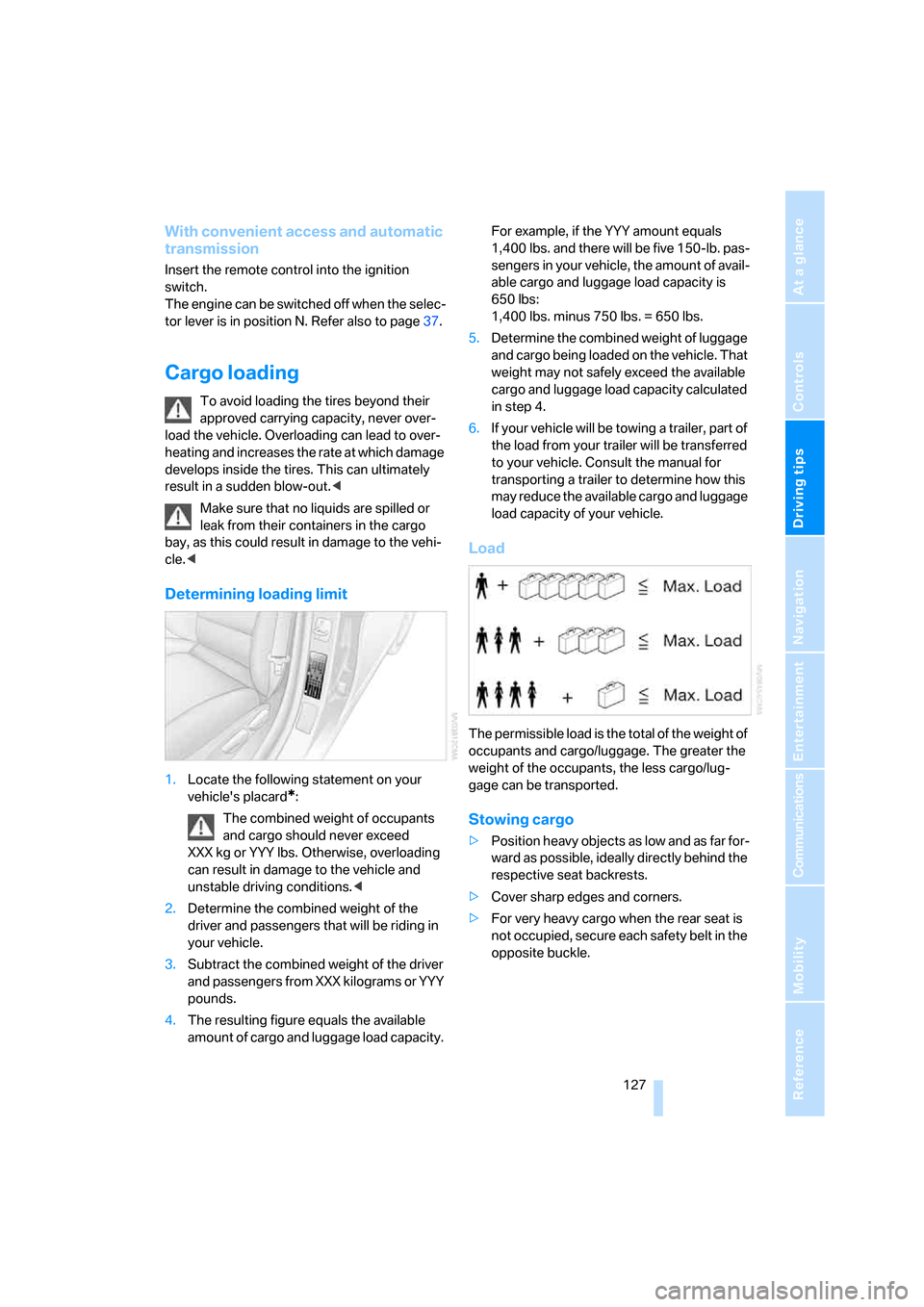
Load
The permissible load is the total of the weight of
occupants and cargo/luggage. The greater the
weight of the occupants, the less cargo/lug-
gage can be transported.
Stowing cargo
>Position heavy objects as low and as far for-
ward as possible, ideally directly behind the
respective seat backrests.
>Cover sharp edges and corners.
>For very heavy cargo when the rear seat is
not occupied, secure each safety belt in the
opposite buckle.
Page 142 of 272
Destination entry
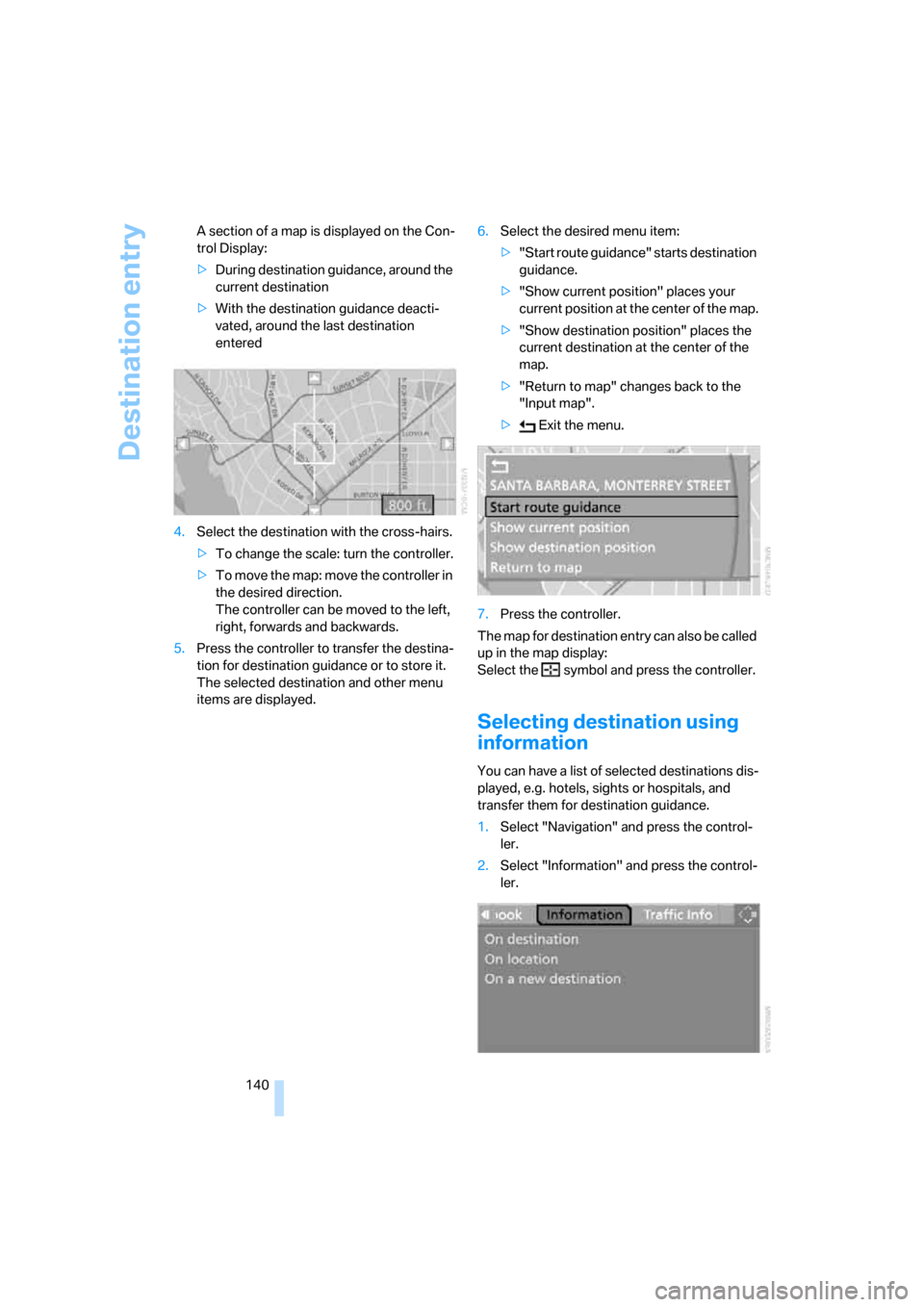
140 A section of a map is displayed on the Con-
trol Display:
>During destination guidance, around the
current destination
>With the destination guidance deacti-
vated, around the last destination
entered
4.Select the destination with the cross-hairs.
>To change the scale: turn the controller.
>To move the map: move the controller in
the desired direction.
The controller can be moved to the left,
right, forwards and backwards.
5.Press the controller to transfer the destina-
tion for destination guidance or to store it.
The selected destination and other menu
items are displayed.6.Select the desired menu item:
>"Start route guidance" starts destination
guidance.
>"Show current position" places your
current position at the center of the map.
>"Show destination position" places the
current destination at the center of the
map.
>"Return to map" changes back to the
"Input map".
> Exit the menu.
7.Press the controller.
The map for destination entry can also be called
up in the map display:
Select the symbol and press the controller.
Selecting destination using
information
You can have a list of selected destinations dis-
played, e.g. hotels, sights or hospitals, and
transfer them for destination guidance.
1.Select "Navigation" and press the control-
ler.
2.Select "Information" and press the control-
ler.
Page 156 of 272
Destination guidance
154
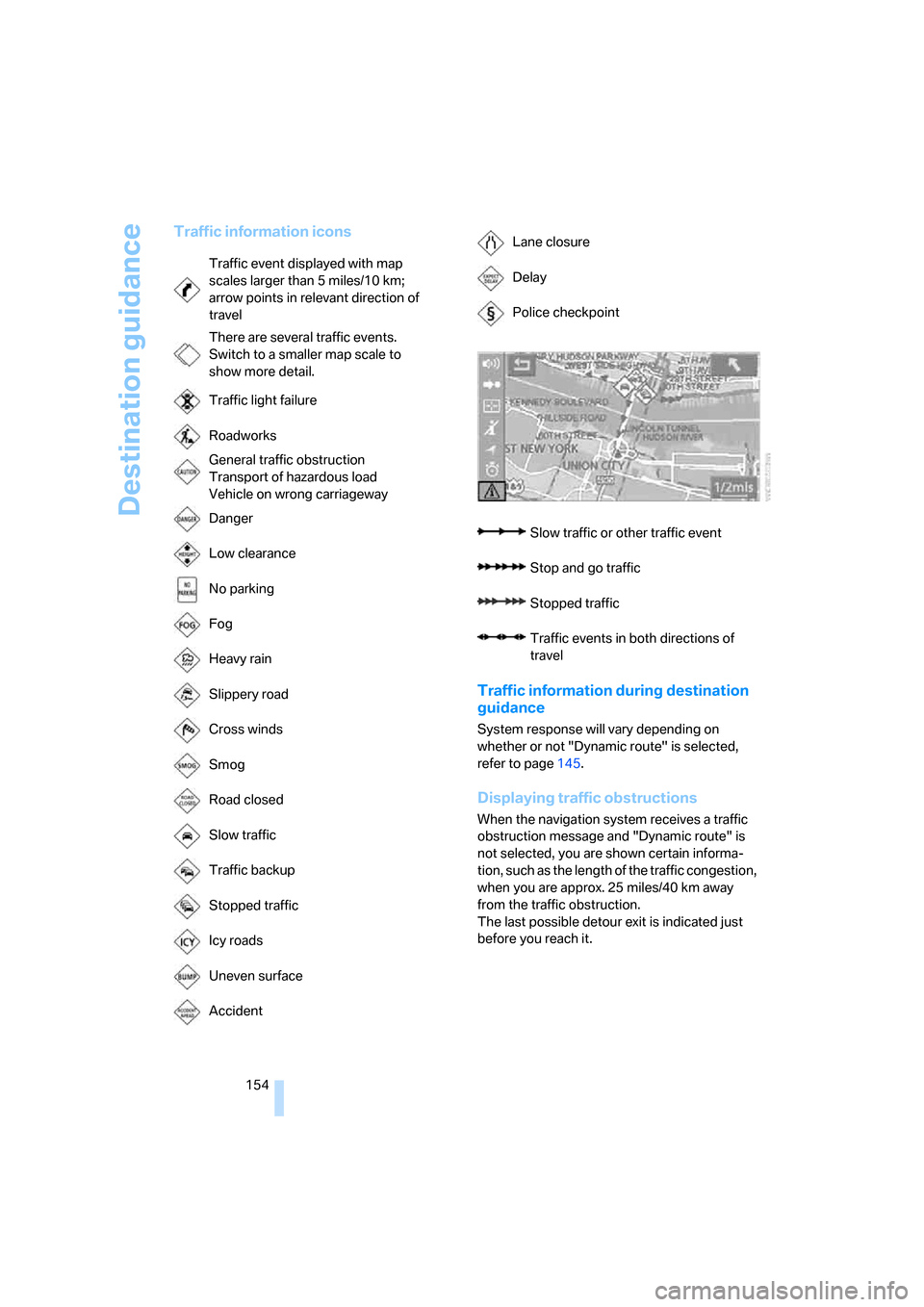
Traffic information icons
Traffic information during destination
guidance
System response will vary depending on
whether or not "Dynamic route" is selected,
refer to page145.
Displaying traffic obstructions
When the navigation system receives a traffic
obstruction message and "Dynamic route" is
not selected, you are shown certain informa-
tion, such as the length of the traffic congestion,
when you are approx. 25 miles/40 km away
from the traffic obstruction.
The last possible detour exit is indicated just
before you reach it. Traffic event displayed with map
scales larger than 5 miles/10 km;
arrow points in relevant direction of
travel
There are several traffic events.
Switch to a smaller map scale to
show more detail.
Traffic light failure
Roadworks
General traffic obstruction
Transport of hazardous load
Vehicle on wrong carriageway
Danger
Low clearance
No parking
Fog
Heavy rain
Slippery road
Cross winds
Smog
Road closed
Slow traffic
Traffic backup
Stopped traffic
Icy roads
Uneven surface
Accident
Lane closure
Delay
Police checkpoint
Slow traffic or other traffic event
Stop and go traffic
Stopped traffic
Traffic events in both directions of
travel
Page 162 of 272
On/off and settings
160
On/off and settings
The following audio sources have shared con-
trols and setting options:
>Radio
>CD player
>CD changer
*
Controls
The audio sources can be operated using:
>Buttons near the CD player
>iDrive
>Buttons
on the steering wheel, refer to
page11
>Programmable memory keys, refer to
page21
Buttons on the CD player
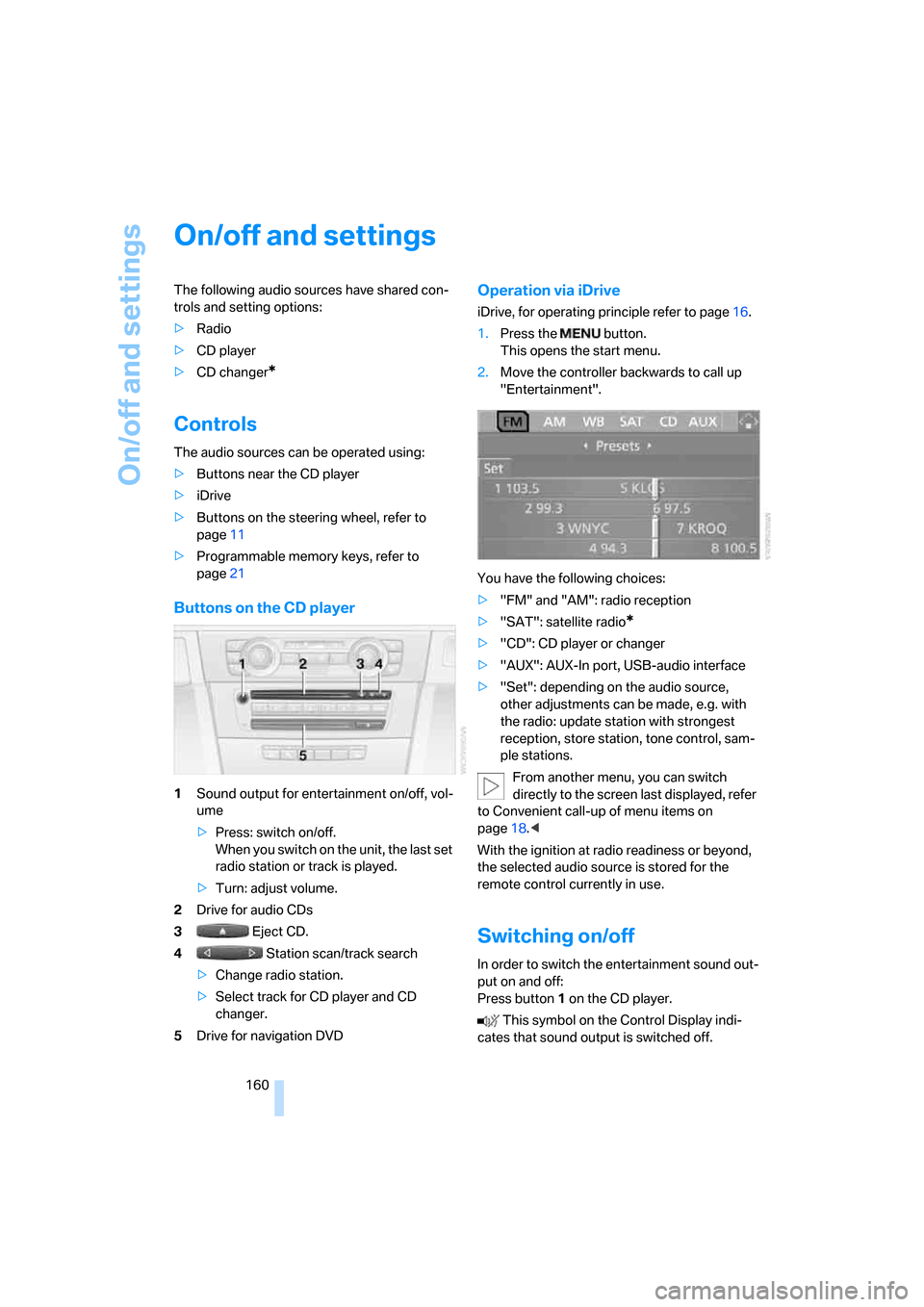
1Sound output for entertainment on/off, vol-
ume
>Press: switch on/off.
When you switch on the unit, the last set
radio station or track is played.
>Turn: adjust volume.
2Drive for audio CDs
3 Eject CD.
4 Station scan/track search
>Change radio station.
>Select track for CD player and CD
changer.
5Drive for navigation DVD
Operation via iDrive
iDrive, for operating principle refer to page16.
1.Press the button.
This opens the start menu.
2.Move the controller backwards to call up
"Entertainment".
You have the following choices:
>"FM" and "AM": radio reception
>"SAT": satellite radio
*
>"CD": CD player or changer
>"AUX": AUX-In port, USB-audio interface
>"Set": depending on the audio source,
other adjustments can be made, e.g. with
the radio: update station with strongest
reception, store station, tone control, sam-
ple stations.
From another menu, you can switch
directly to the screen last displayed, refer
to Convenient call-up of menu items on
page18.<
With the ignition at radio readiness or beyond,
the selected audio source is stored for the
remote control currently in use.
Switching on/off
In order to switch the entertainment sound out-
put on and off:
Press button1 on the CD player.
This symbol on the Control Display indi-
cates that sound output is switched off.
Page 164 of 272
On/off and settings
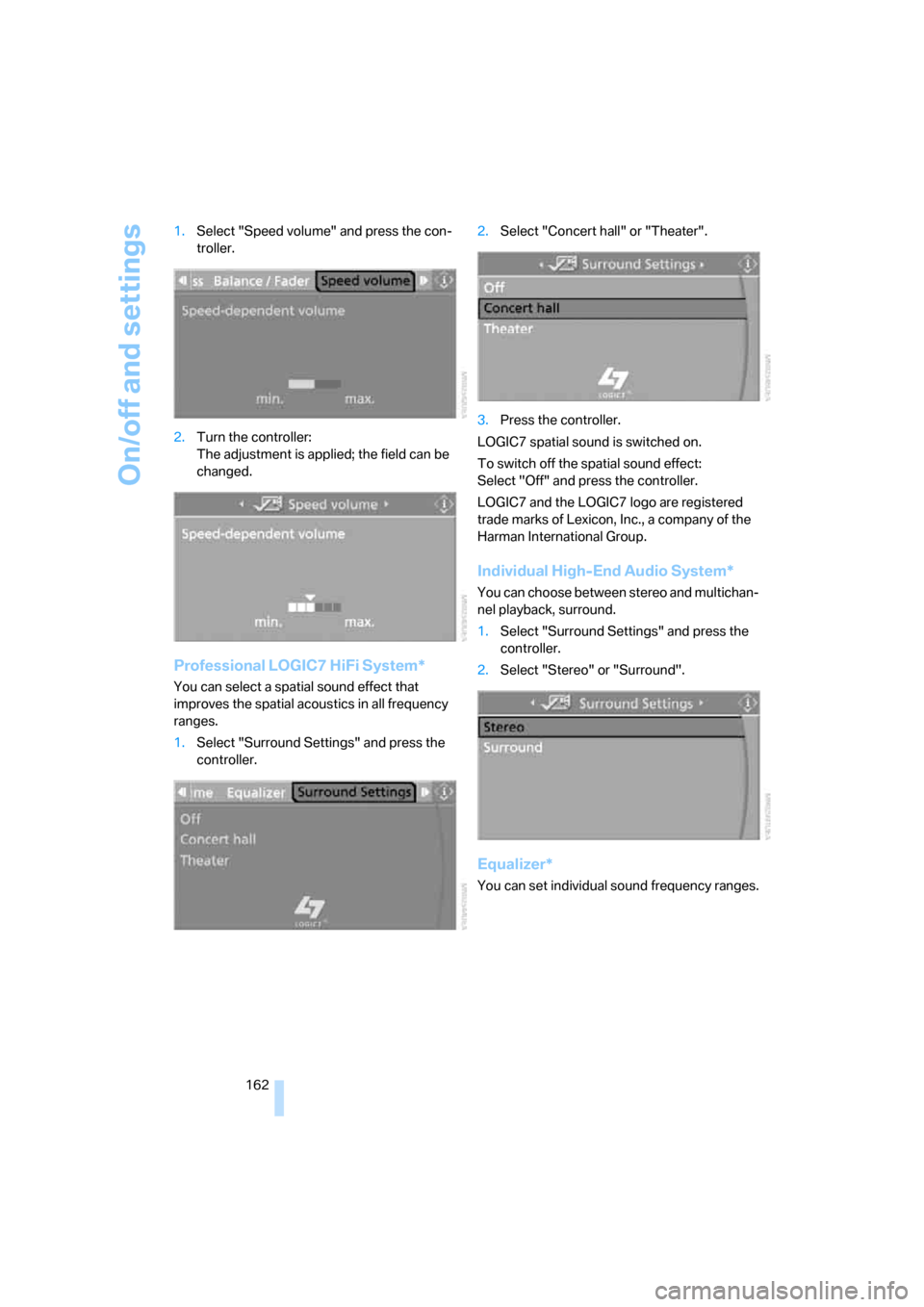
162 1.Select "Speed volume" and press the con-
troller.
2.Turn the controller:
The adjustment is applied; the field can be
changed.
Professional LOGIC7 HiFi System*
You can select a spatial sound effect that
improves the spatial acoustics in all frequency
ranges.
1.Select "Surround Settings" and press the
controller.2.Select "Concert hall" or "Theater".
3.Press the controller.
LOGIC7 spatial sound is switched on.
To switch off the spatial sound effect:
Select "Off" and press the controller.
LOGIC7 and the LOGIC7 logo are registered
trade marks of Lexicon, Inc., a company of the
Harman International Group.
Individual High-End Audio System*
You can choose between stereo and multichan-
nel playback, surround.
1.Select "Surround Settings" and press the
controller.
2.Select "Stereo" or "Surround".
Equalizer*
You can set individual sound frequency ranges.
Page 166 of 272
Radio
164
Radio
Your radio provides reception of the FM and AM
wavebands.
Listening to the radio
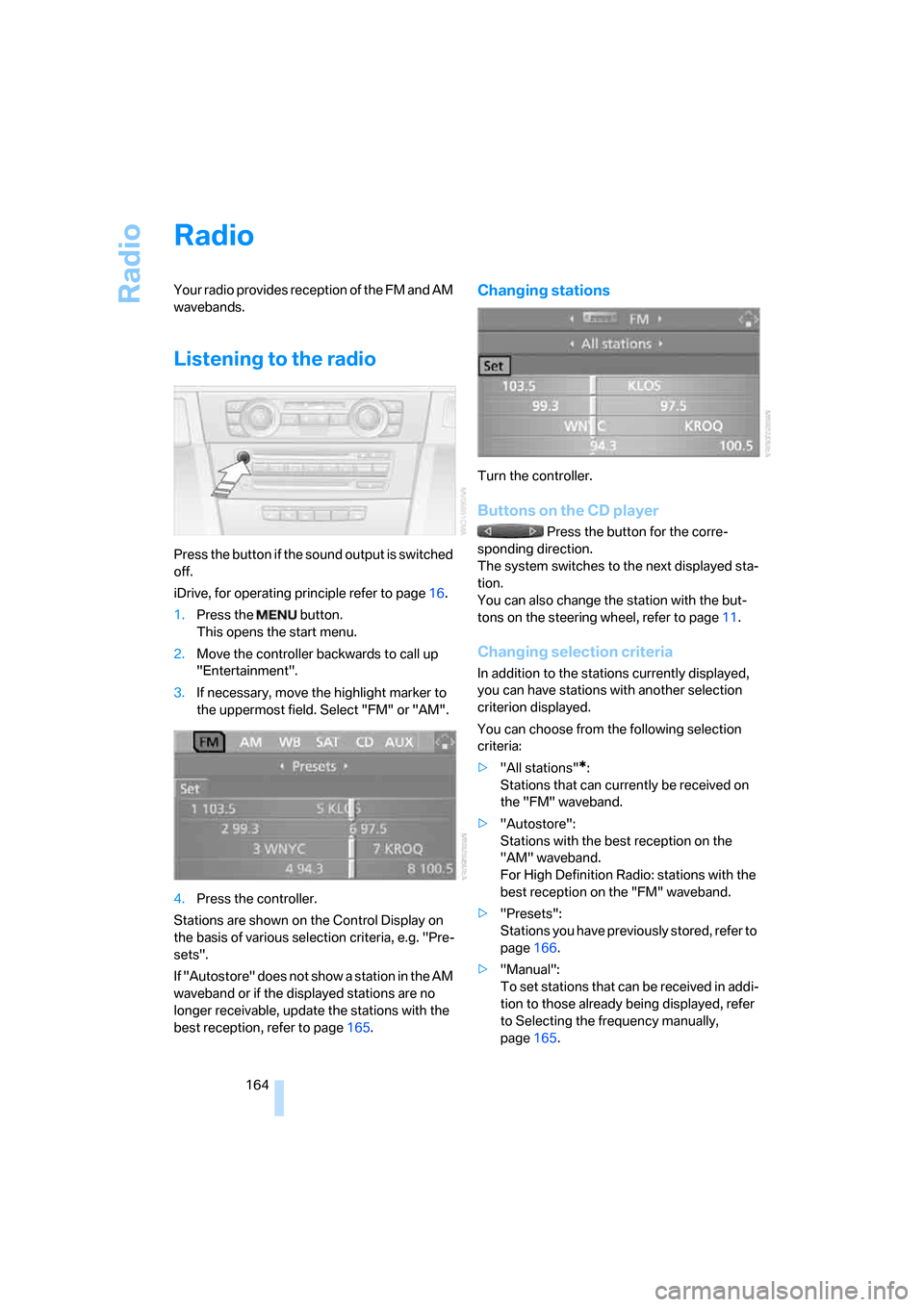
Press the button if the sound output is switched
off.
iDrive, for operating principle refer to page16.
1.Press the button.
This opens the start menu.
2.Move the controller backwards to call up
"Entertainment".
3.If necessary, move the highlight marker to
the uppermost field. Select "FM" or "AM".
4.Press the controller.
Stations are shown on the Control Display on
the basis of various selection criteria, e.g. "Pre-
sets".
If "Autostore" does not show a station in the AM
waveband or if the displayed stations are no
longer receivable, update the stations with the
best reception, refer to page165.
Changing stations
Turn the controller.
Buttons on the CD player
Press the button for the corre-
sponding direction.
The system switches to the next displayed sta-
tion.
You can also change the station with the but-
tons on the steering wheel, refer to page11.
Changing selection criteria
In addition to the stations currently displayed,
you can have stations with another selection
criterion displayed.
You can choose from the following selection
criteria:
>"All stations"
*:
Stations that can currently be received on
the "FM" waveband.
>"Autostore":
Stations with the best reception on the
"AM" waveband.
For High Definition Radio: stations with the
best reception on the "FM" waveband.
>"Presets":
Stations you have previously stored, refer to
page166.
>"Manual":
To set stations that can be received in addi-
tion to those already being displayed, refer
to Selecting the frequency manually,
page165.
Page 172 of 272
Satellite radio
170
Satellite radio
You can receive over 100 different channels
with high sound quality.
The channels are offered to you in predefined
packages. To receive the channels of your
choice, you must have the corresponding pack-
ages enabled.
With this new technology, signal losses
can occur from time to time and result in
audio interruptions.<
Enabling or disabling
channels
iDrive, for operating principle refer to page16.
1.Press the button.
This opens the start menu.
2.Move the controller backwards to call up
"Entertainment".
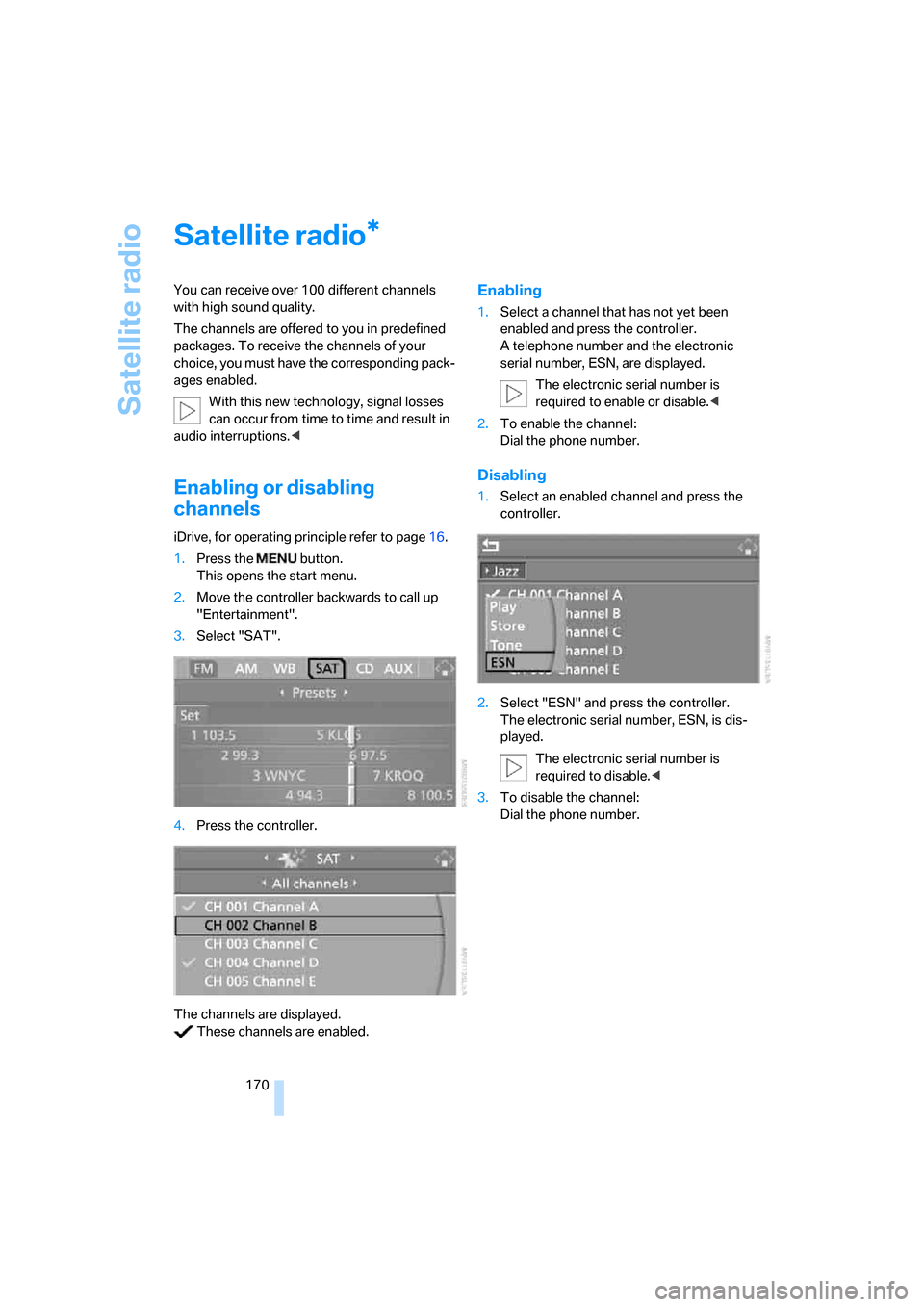
3.Select "SAT".
4.Press the controller.
The channels are displayed.
These channels are enabled.
Enabling
1.Select a channel that has not yet been
enabled and press the controller.
A telephone number and the electronic
serial number, ESN, are displayed.
The electronic serial number is
required to enable or disable.<
2.To enable the channel:
Dial the phone number.
Disabling
1.Select an enabled channel and press the
controller.
2.Select "ESN" and press the controller.
The electronic serial number, ESN, is dis-
played.
The electronic serial number is
required to disable.<
3.To disable the channel:
Dial the phone number.
*