light BMW 335I COUPE 2006 E92 Repair Manual
[x] Cancel search | Manufacturer: BMW, Model Year: 2006, Model line: 335I COUPE, Model: BMW 335I COUPE 2006 E92Pages: 239, PDF Size: 11.87 MB
Page 134 of 239
Destination guidance
132
Destination guidance
Starting destination
guidance
iDrive, for operating principle refer to page16.
1.If necessary, move the highlight marker to
the uppermost field. Turn the controller
until "Navigation" is selected and press the
controller.
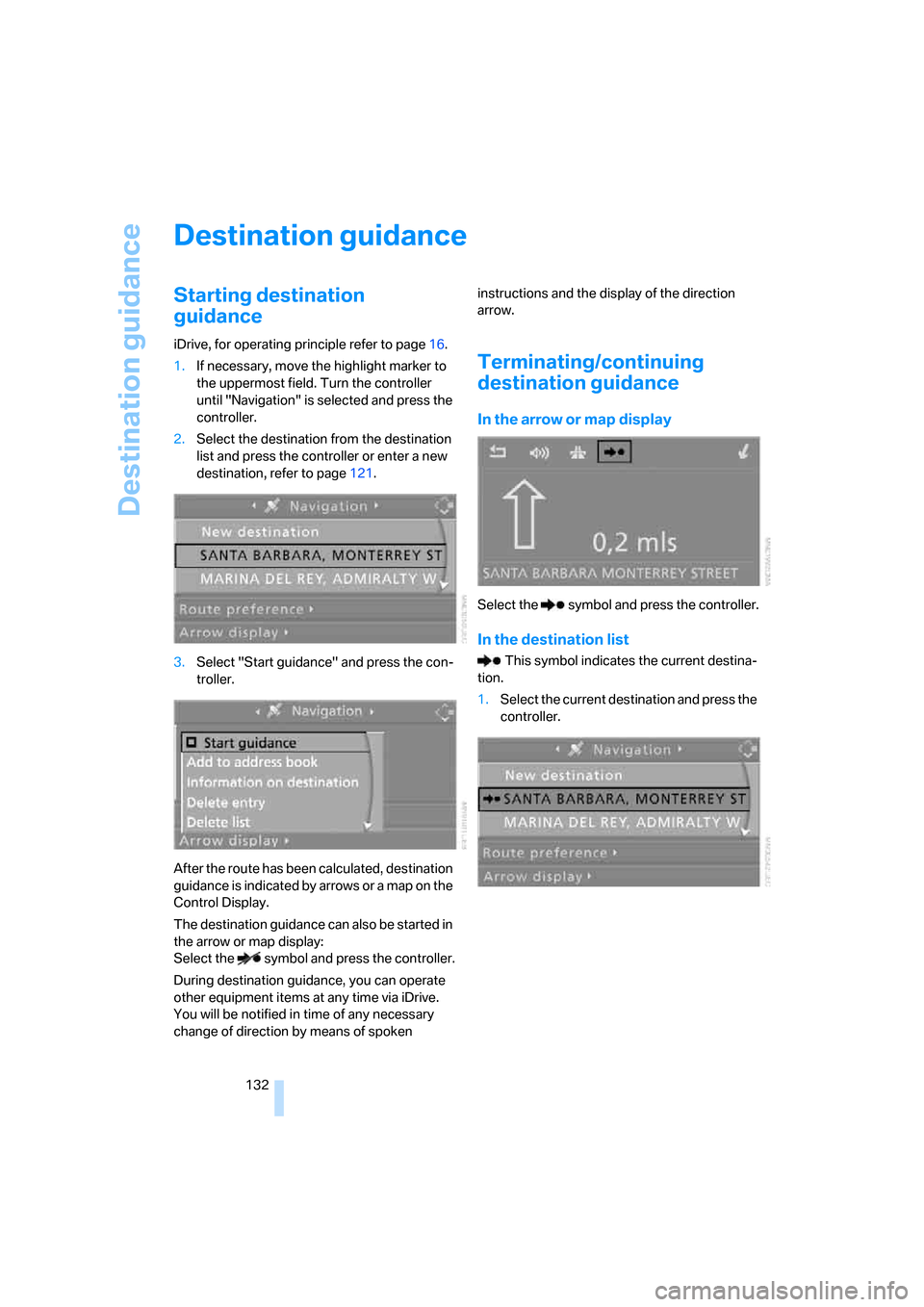
2.Select the destination from the destination
list and press the controller or enter a new
destination, refer to page121.
3.Select "Start guidance" and press the con-
troller.
After the route has been calculated, destination
guidance is indicated by arrows or a map on the
Control Display.
The destination guidance can also be started in
the arrow or map display:
Select the symbol and press the controller.
During destination guidance, you can operate
other equipment items at any time via iDrive.
You will be notified in time of any necessary
change of direction by means of spoken instructions and the display of the direction
arrow.
Terminating/continuing
destination guidance
In the arrow or map display
Select the symbol and press the controller.
In the destination list
This symbol indicates the current destina-
tion.
1.Select the current destination and press the
controller.
ba8_E9293_US.book Seite 132 Freitag, 5. Mai 2006 1:02 13
Page 135 of 239
Navigation
Driving tips
133Reference
At a glance
Controls
Communications
Entertainment
Mobility
2.Select "Start guidance" and press the con-
troller.
If you did not reach your destination before the
end of your last journey, the following question
will appear in the display at the start of the next
journey:
"Continue guidance to destination?".
The destination guidance starts automatically
after a short time.
To start destination guidance immediately:
Select "Yes" and press the controller.
Route display
You have the option of displaying various views
of the route during destination guidance.
From another menu, you can switch
directly to the screen last displayed, refer
to Convenient call-up of menu items,
page18.<
Displaying arrow view
1.Select "Navigation" and press the control-
ler.
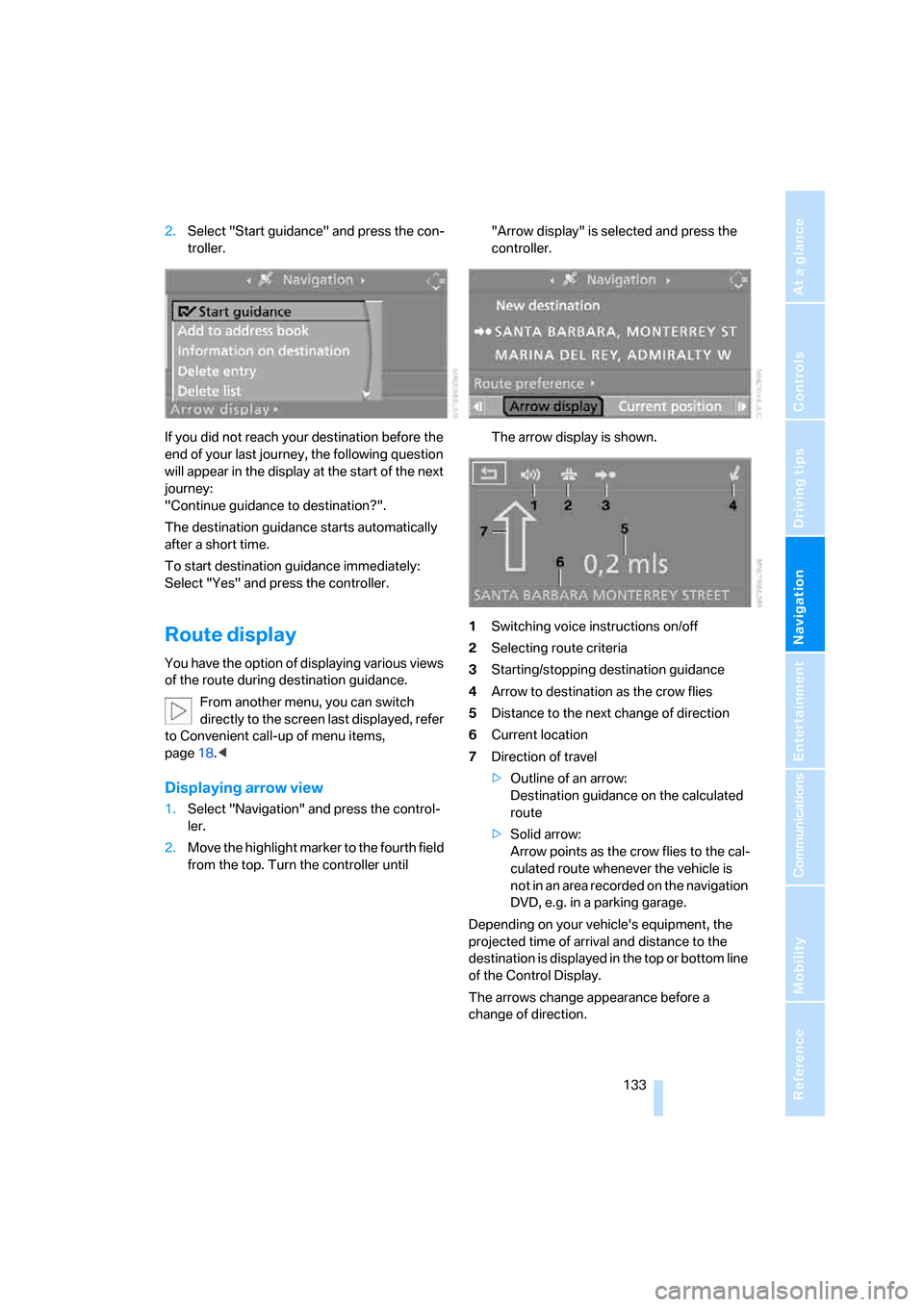
2.Move the highlight marker to the fourth field
from the top. Turn the controller until "Arrow display" is selected and press the
controller.
The arrow display is shown.
1Switching voice instructions on/off
2Selecting route criteria
3Starting/stopping destination guidance
4Arrow to destination as the crow flies
5Distance to the next change of direction
6Current location
7Direction of travel
>Outline of an arrow:
Destination guidance on the calculated
route
>Solid arrow:
Arrow points as the crow flies to the cal-
culated route whenever the vehicle is
not in an area recorded on the navigation
DVD, e.g. in a parking garage.
Depending on your vehicle's equipment, the
projected time of arrival and distance to the
destination is displayed in the top or bottom line
of the Control Display.
The arrows change appearance before a
change of direction.
ba8_E9293_US.book Seite 133 Freitag, 5. Mai 2006 1:02 13
Page 136 of 239
Destination guidance
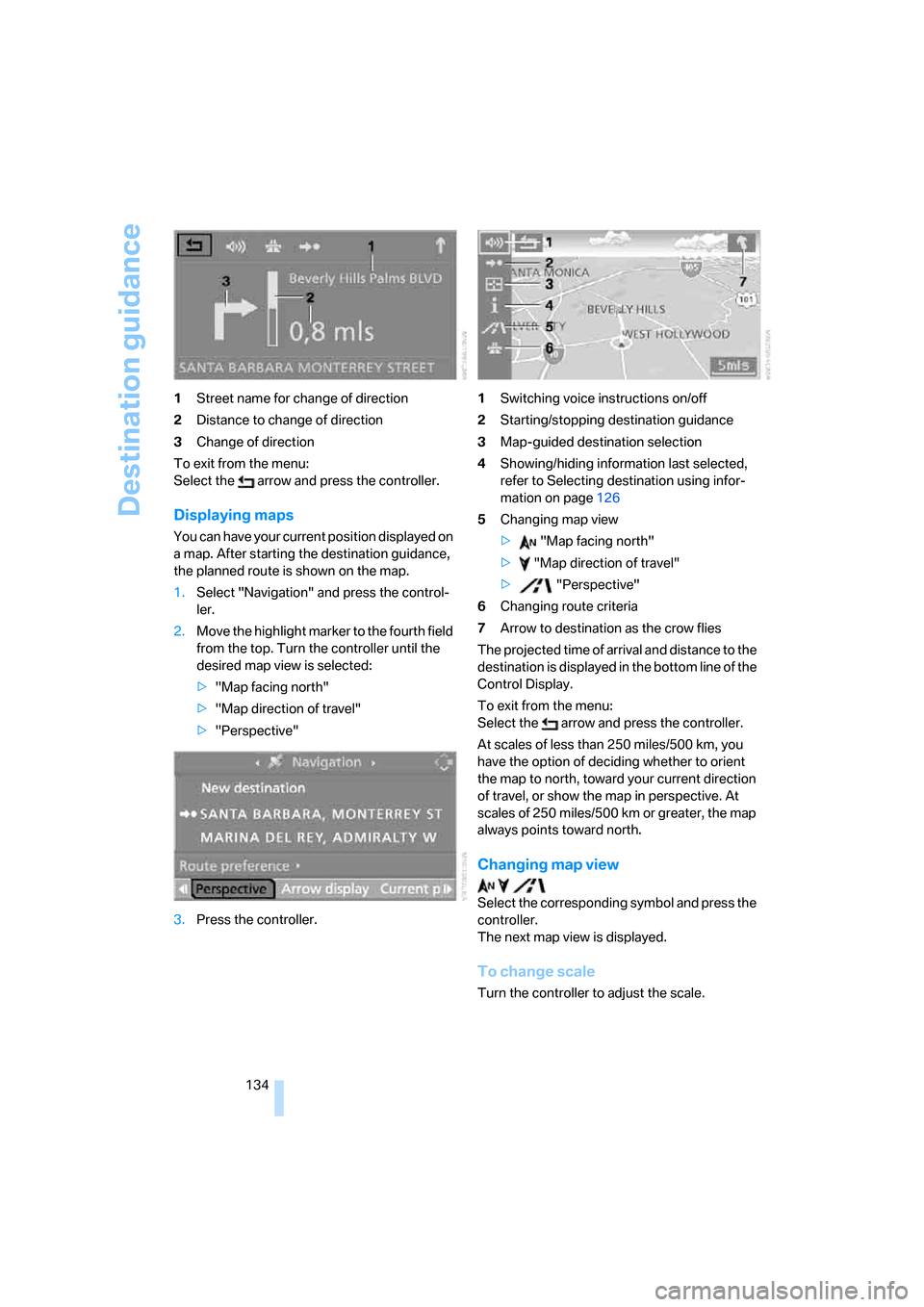
134 1Street name for change of direction
2Distance to change of direction
3Change of direction
To exit from the menu:
Select the arrow and press the controller.
Displaying maps
You can have your current position displayed on
a map. After starting the destination guidance,
the planned route is shown on the map.
1.Select "Navigation" and press the control-
ler.
2.Move the highlight marker to the fourth field
from the top. Turn the controller until the
desired map view is selected:
>"Map facing north"
>"Map direction of travel"
>"Perspective"
3.Press the controller.1Switching voice instructions on/off
2Starting/stopping destination guidance
3Map-guided destination selection
4Showing/hiding information last selected,
refer to Selecting destination using infor-
mation on page126
5Changing map view
> "Map facing north"
> "Map direction of travel"
> "Perspective"
6Changing route criteria
7Arrow to destination as the crow flies
The projected time of arrival and distance to the
destination is displayed in the bottom line of the
Control Display.
To exit from the menu:
Select the arrow and press the controller.
At scales of less than 250 miles/500 km, you
have the option of deciding whether to orient
the map to north, toward your current direction
of travel, or show the map in perspective. At
scales of 250 miles/500 km or greater, the map
always points toward north.
Changing map view
Select the corresponding symbol and press the
controller.
The next map view is displayed.
To change scale
Turn the controller to adjust the scale.
ba8_E9293_US.book Seite 134 Freitag, 5. Mai 2006 1:02 13
Page 137 of 239
Navigation
Driving tips
135Reference
At a glance
Controls
Communications
Entertainment
Mobility
Displaying towns/cities and streets
along the route
You can have the roads and towns along the
route displayed during destination guidance.
The distances remaining to be traveled within
each section of the route are also displayed.
1.Select "Navigation" and press the control-
ler.
2.Move the highlight marker to the third field
from the top. Turn the controller until
"Route list" is selected and press the con-
troller.
To exit from the menu:
Select the arrow and press the controller.
Destination guidance
through voice instructions
Switching voice instructions on/off
Voice instructions can be switched on or off
during the destination guidance in the arrow or
map view:
Select the symbol and press the controller.
To switch the voice instructions on/off at any
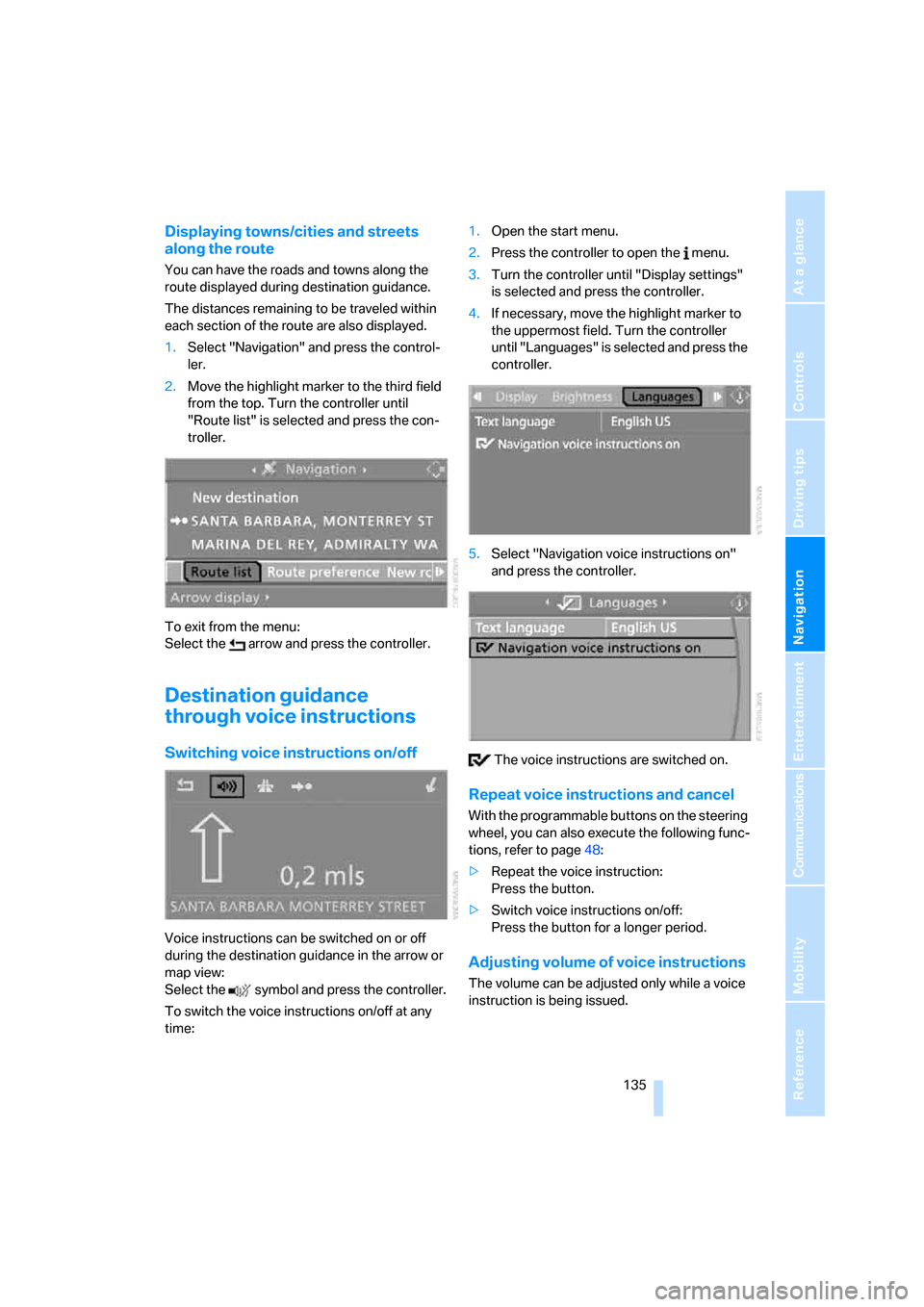
time:1.Open the start menu.
2.Press the controller to open the menu.
3.Turn the controller until "Display settings"
is selected and press the controller.
4.If necessary, move the highlight marker to
the uppermost field. Turn the controller
until "Languages" is selected and press the
controller.
5.Select "Navigation voice instructions on"
and press the controller.
The voice instructions are switched on.
Repeat voice instructions and cancel
With the programmable buttons on the steering
wheel, you can also execute the following func-
tions, refer to page48:
>Repeat the voice instruction:
Press the button.
>Switch voice instructions on/off:
Press the button for a longer period.
Adjusting volume of voice instructions
The volume can be adjusted only while a voice
instruction is being issued.
ba8_E9293_US.book Seite 135 Freitag, 5. Mai 2006 1:02 13
Page 138 of 239
Destination guidance
136 1.Repeat the last voice instruction, if neces-
sary.
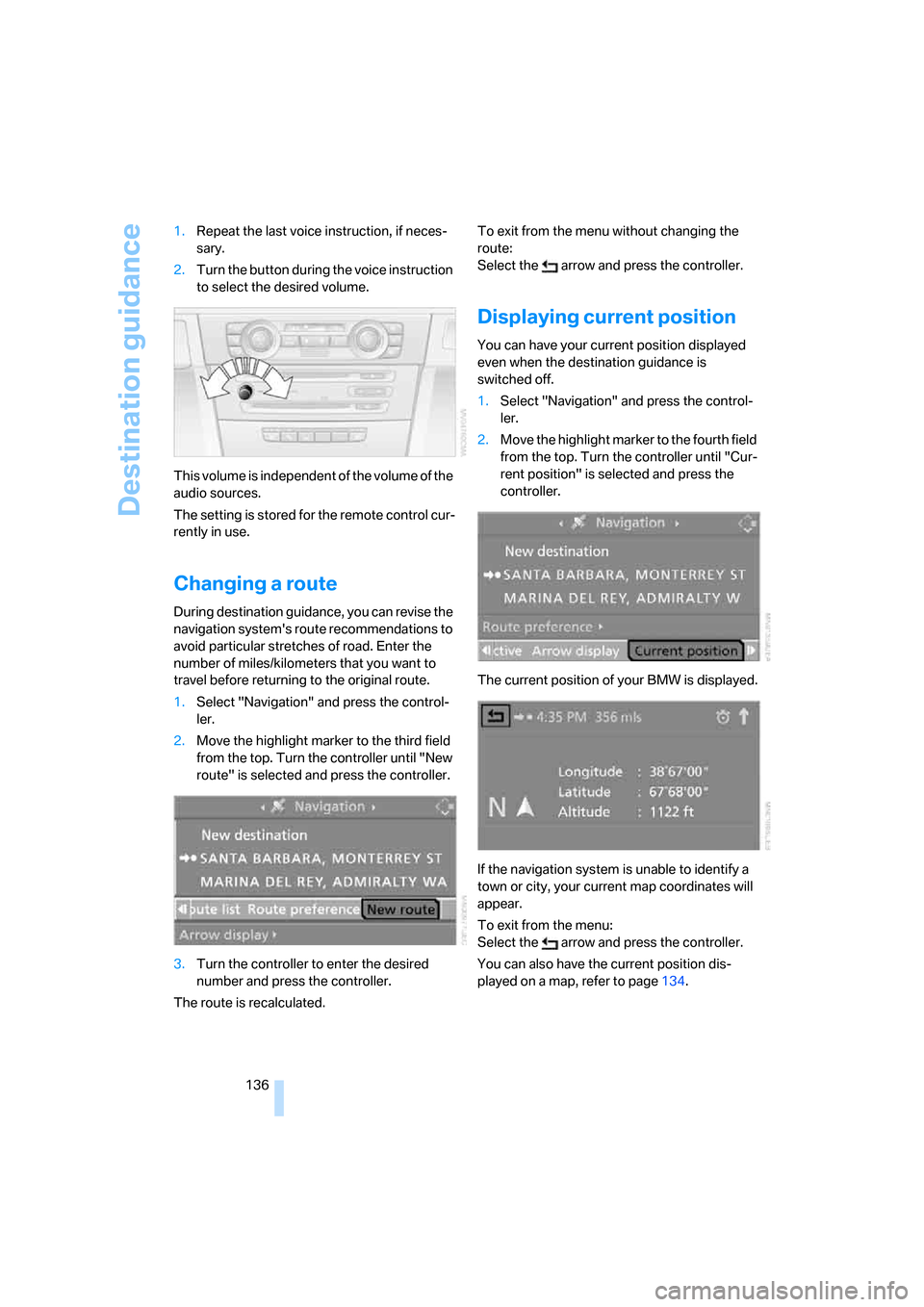
2.Turn the button during the voice instruction
to select the desired volume.
This volume is independent of the volume of the
audio sources.
The setting is stored for the remote control cur-
rently in use.
Changing a route
During destination guidance, you can revise the
navigation system's route recommendations to
avoid particular stretches of road. Enter the
number of miles/kilometers that you want to
travel before returning to the original route.
1.Select "Navigation" and press the control-
ler.
2.Move the highlight marker to the third field
from the top. Turn the controller until "New
route" is selected and press the controller.
3.Turn the controller to enter the desired
number and press the controller.
The route is recalculated.To exit from the menu without changing the
route:
Select the arrow and press the controller.
Displaying current position
You can have your current position displayed
even when the destination guidance is
switched off.
1.Select "Navigation" and press the control-
ler.
2.Move the highlight marker to the fourth field
from the top. Turn the controller until "Cur-
rent position" is selected and press the
controller.
The current position of your BMW is displayed.
If the navigation system is unable to identify a
town or city, your current map coordinates will
appear.
To exit from the menu:
Select the arrow and press the controller.
You can also have the current position dis-
played on a map, refer to page134.
ba8_E9293_US.book Seite 136 Freitag, 5. Mai 2006 1:02 13
Page 146 of 239
Radio
144
Radio
Your radio provides reception of the FM and AM
wavebands:
Listening to the radio
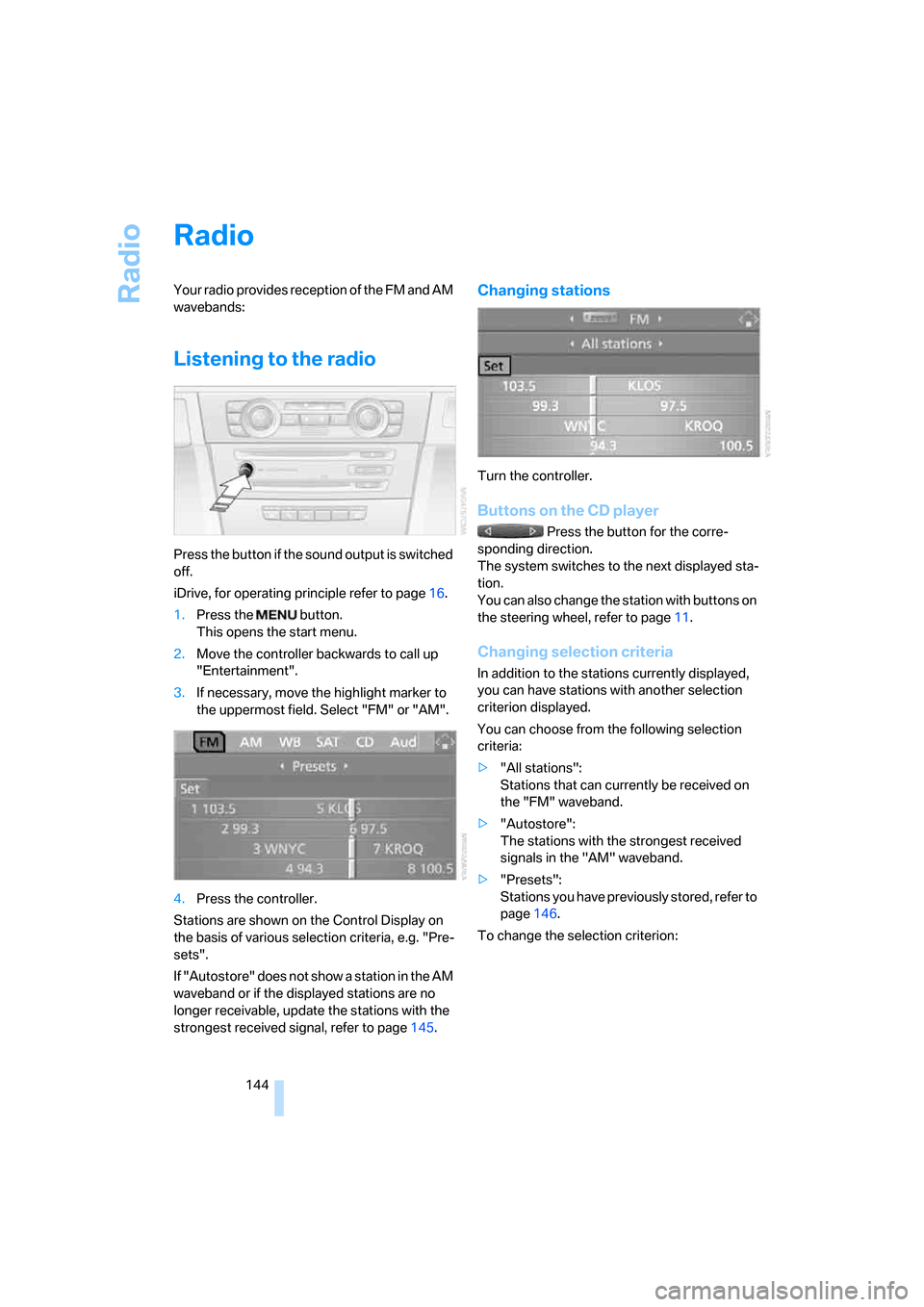
Press the button if the sound output is switched
off.
iDrive, for operating principle refer to page16.
1.Press the button.
This opens the start menu.
2.Move the controller backwards to call up
"Entertainment".
3.If necessary, move the highlight marker to
the uppermost field. Select "FM" or "AM".
4.Press the controller.
Stations are shown on the Control Display on
the basis of various selection criteria, e.g. "Pre-
sets".
If "Autostore" does not show a station in the AM
waveband or if the displayed stations are no
longer receivable, update the stations with the
strongest received signal, refer to page145.
Changing stations
Turn the controller.
Buttons on the CD player
Press the button for the corre-
sponding direction.
The system switches to the next displayed sta-
tion.
You can also change the station with buttons on
the steering wheel, refer to page11.
Changing selection criteria
In addition to the stations currently displayed,
you can have stations with another selection
criterion displayed.
You can choose from the following selection
criteria:
>"All stations":
Stations that can currently be received on
the "FM" waveband.
>"Autostore":
The stations with the strongest received
signals in the "AM" waveband.
>"Presets":
Stations you have previously stored, refer to
page146.
To change the selection criterion:
ba8_E9293_US.book Seite 144 Freitag, 5. Mai 2006 1:02 13
Page 147 of 239
Navigation
Entertainment
Driving tips
145Reference
At a glance
Controls
Communications
Mobility
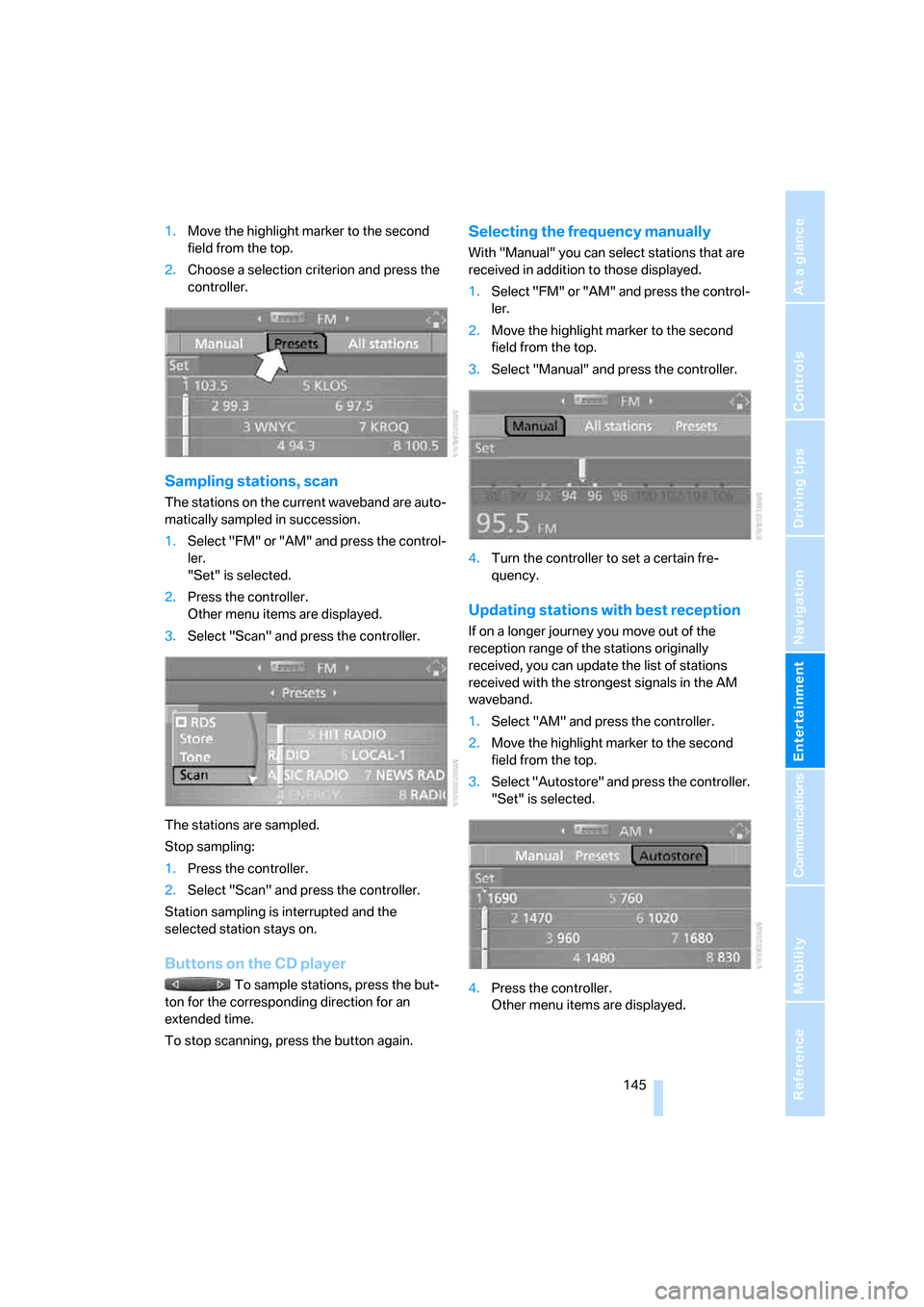
1.Move the highlight marker to the second
field from the top.
2.Choose a selection criterion and press the
controller.
Sampling stations, scan
The stations on the current waveband are auto-
matically sampled in succession.
1.Select "FM" or "AM" and press the control-
ler.
"Set" is selected.
2.Press the controller.
Other menu items are displayed.
3.Select "Scan" and press the controller.
The stations are sampled.
Stop sampling:
1.Press the controller.
2.Select "Scan" and press the controller.
Station sampling is interrupted and the
selected station stays on.
Buttons on the CD player
To sample stations, press the but-
ton for the corresponding direction for an
extended time.
To stop scanning, press the button again.
Selecting the frequency manually
With "Manual" you can select stations that are
received in addition to those displayed.
1.Select "FM" or "AM" and press the control-
ler.
2.Move the highlight marker to the second
field from the top.
3.Select "Manual" and press the controller.
4.Turn the controller to set a certain fre-
quency.
Updating stations with best reception
If on a longer journey you move out of the
reception range of the stations originally
received, you can update the list of stations
received with the strongest signals in the AM
waveband.
1.Select "AM" and press the controller.
2.Move the highlight marker to the second
field from the top.
3.Select "Autostore" and press the controller.
"Set" is selected.
4.Press the controller.
Other menu items are displayed.
ba8_E9293_US.book Seite 145 Freitag, 5. Mai 2006 1:02 13
Page 148 of 239
Radio
146 5.Select "Autostore" and press the controller.
The display of the stations with the strongest
reception is updated. The frequencies of the
stations are displayed.
Storing stations
1.Select "FM" or "AM" and press the control-
ler.
2.Move the highlight marker to the second
field from the top. Turn the controller until
the desired selection criterion is chosen
and press the controller.
3.Select the desired frequency or station.
"Set" is selected.
4.Press the controller.
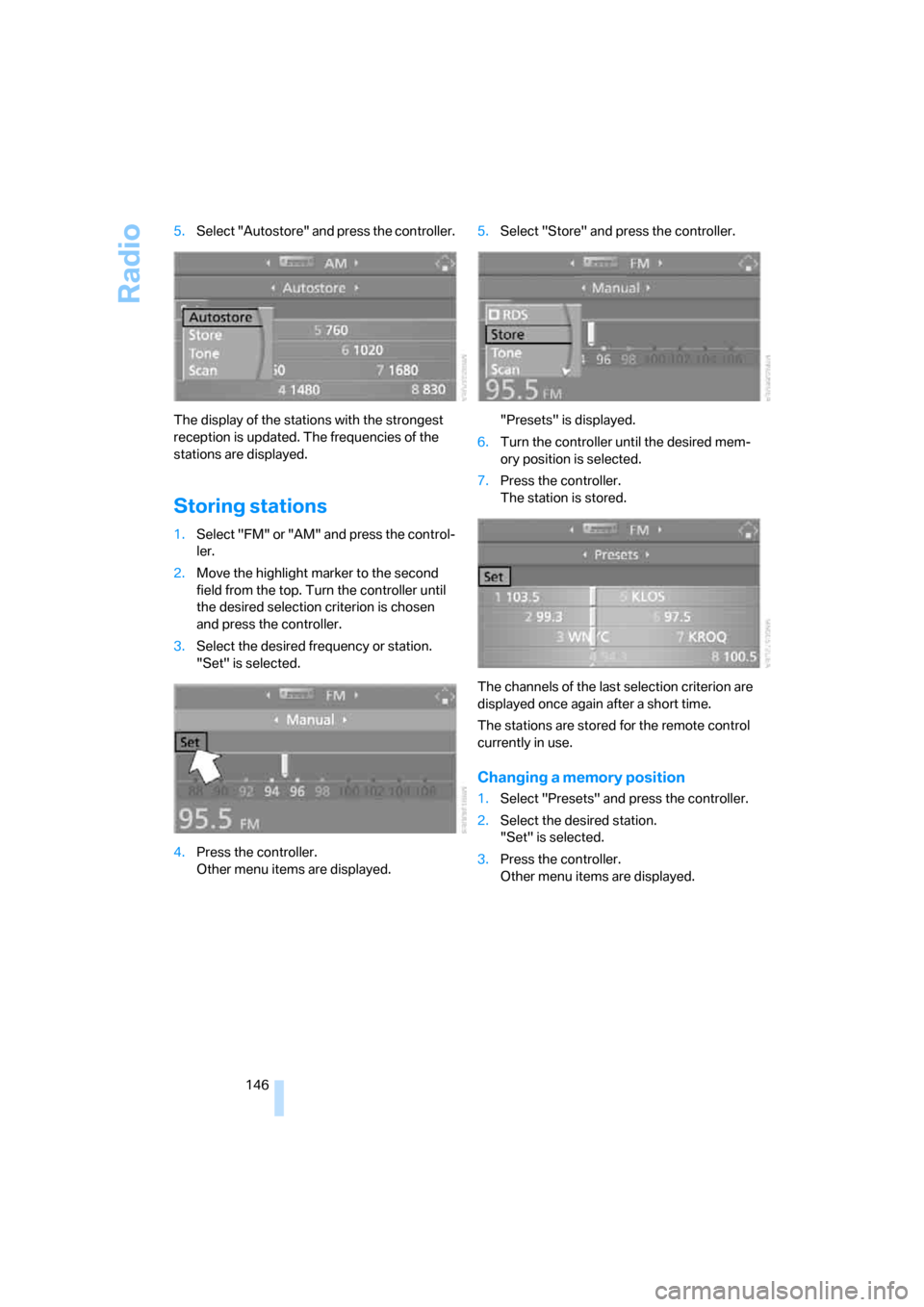
Other menu items are displayed.5.Select "Store" and press the controller.
"Presets" is displayed.
6.Turn the controller until the desired mem-
ory position is selected.
7.Press the controller.
The station is stored.
The channels of the last selection criterion are
displayed once again after a short time.
The stations are stored for the remote control
currently in use.
Changing a memory position
1.Select "Presets" and press the controller.
2.Select the desired station.
"Set" is selected.
3.Press the controller.
Other menu items are displayed.
ba8_E9293_US.book Seite 146 Freitag, 5. Mai 2006 1:02 13
Page 150 of 239
Radio
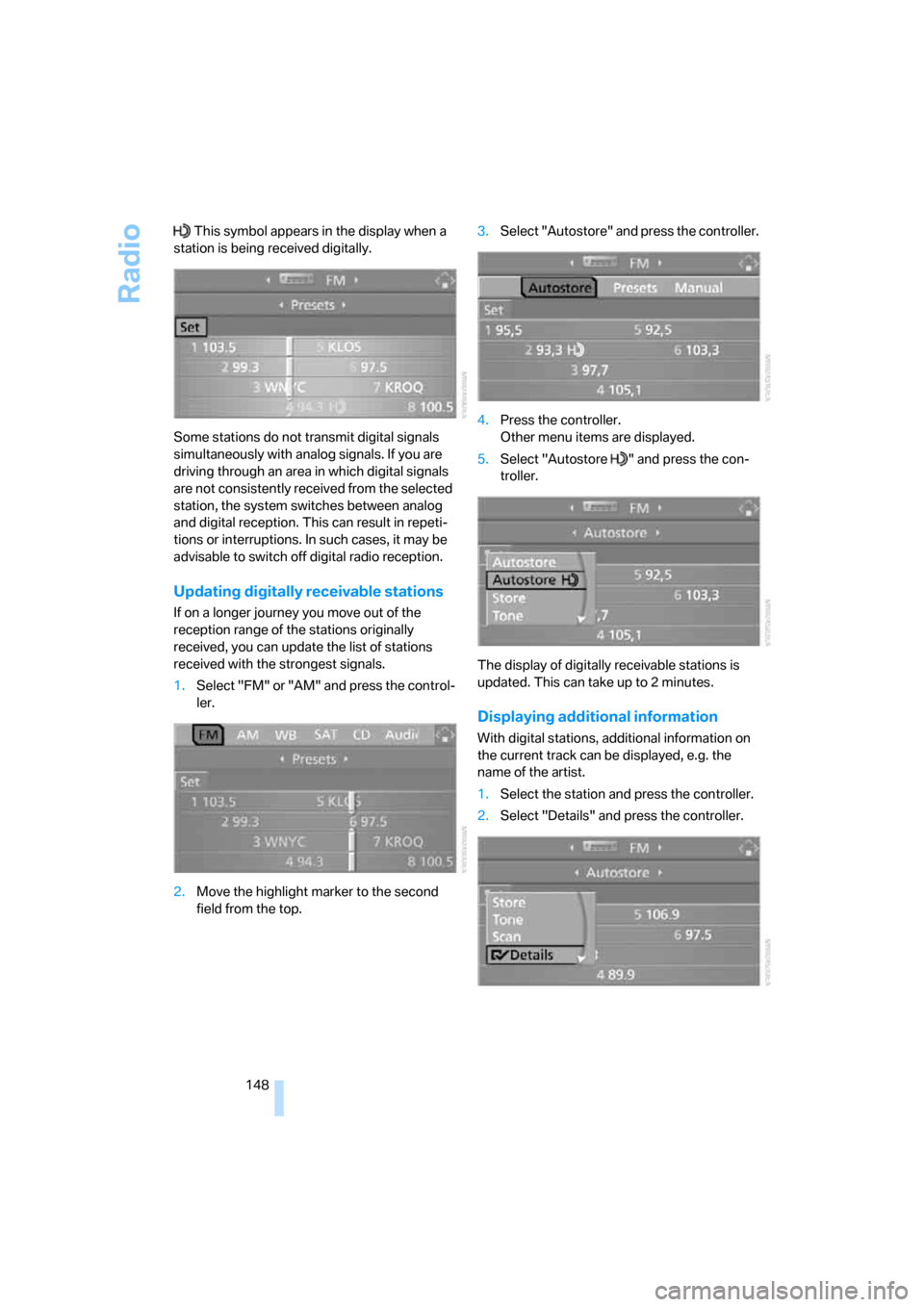
148 This symbol appears in the display when a
station is being received digitally.
Some stations do not transmit digital signals
simultaneously with analog signals. If you are
driving through an area in which digital signals
are not consistently received from the selected
station, the system switches between analog
and digital reception. This can result in repeti-
tions or interruptions. In such cases, it may be
advisable to switch off digital radio reception.
Updating digitally receivable stations
If on a longer journey you move out of the
reception range of the stations originally
received, you can update the list of stations
received with the strongest signals.
1.Select "FM" or "AM" and press the control-
ler.
2.Move the highlight marker to the second
field from the top.3.Select "Autostore" and press the controller.
4.Press the controller.
Other menu items are displayed.
5.Select "Autostore " and press the con-
troller.
The display of digitally receivable stations is
updated. This can take up to 2 minutes.
Displaying additional information
With digital stations, additional information on
the current track can be displayed, e.g. the
name of the artist.
1.Select the station and press the controller.
2.Select "Details" and press the controller.
ba8_E9293_US.book Seite 148 Freitag, 5. Mai 2006 1:02 13
Page 154 of 239
CD player and CD changer
152
CD player and CD changer
Listening to CDs
Compressed audio files*
CDs with compressed audio files, MP3s, can be
played by the CD player and CD changer.
Starting the CD player
The upper drive is for audio CDs.
Insert the CD into the drive with the labeled side
up.
The CD is pulled in automatically. Playback
starts automatically if the sound output is on.
When playing CDs with compressed audio files,
it can take the CD player approx. 1 minute to
read in the data, depending on the directory
structure.
To start playback when there is already a CD in
the drive:
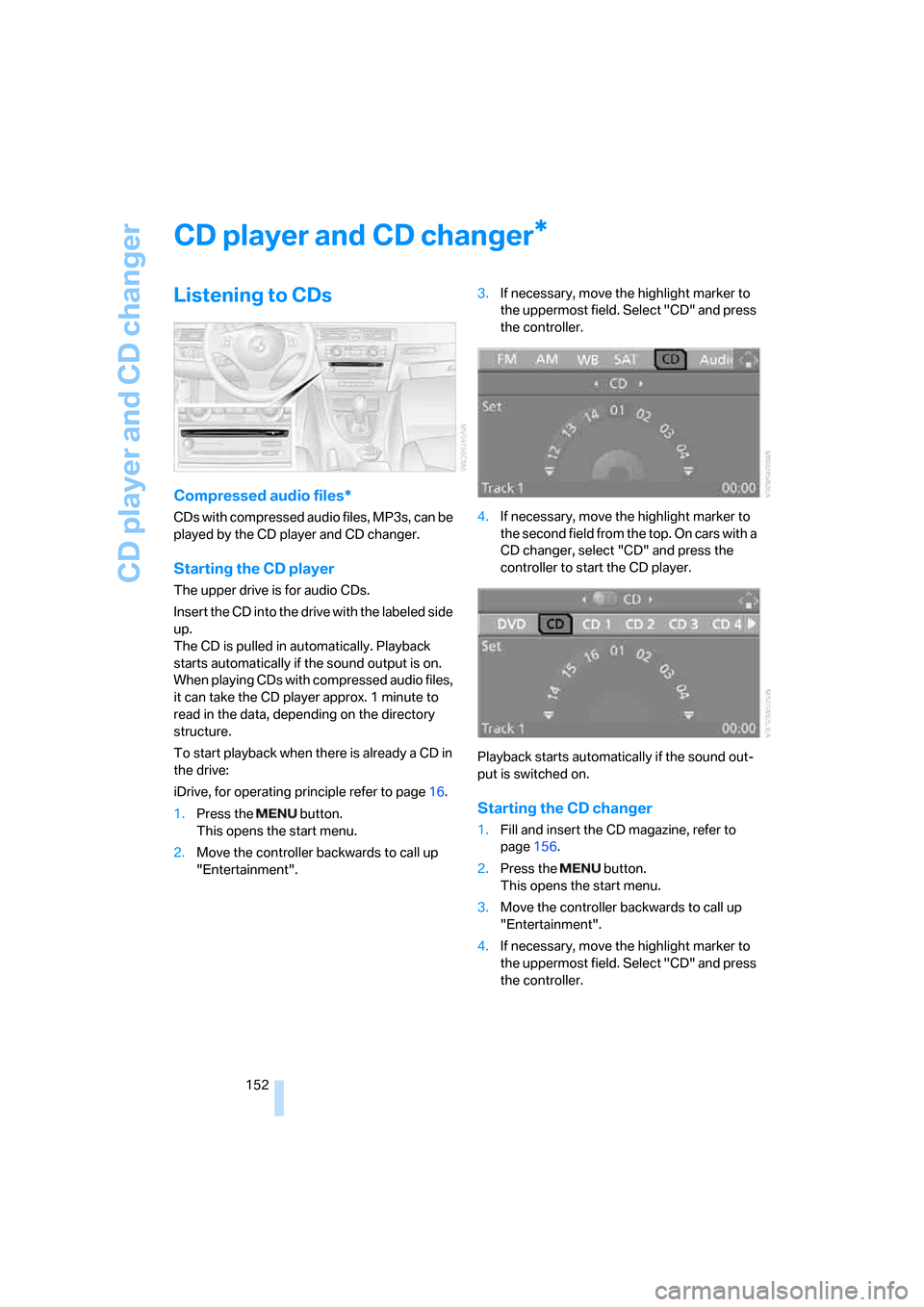
iDrive, for operating principle refer to page16.
1.Press the button.
This opens the start menu.
2.Move the controller backwards to call up
"Entertainment".3.If necessary, move the highlight marker to
the uppermost field. Select "CD" and press
the controller.
4.If necessary, move the highlight marker to
the second field from the top. On cars with a
CD changer, select "CD" and press the
controller to start the CD player.
Playback starts automatically if the sound out-
put is switched on.
Starting the CD changer
1.Fill and insert the CD magazine, refer to
page156.
2.Press the button.
This opens the start menu.
3.Move the controller backwards to call up
"Entertainment".
4.If necessary, move the highlight marker to
the uppermost field. Select "CD" and press
the controller.
*
ba8_E9293_US.book Seite 152 Freitag, 5. Mai 2006 1:02 13