phone BMW 335I XDRIVE COUPE 2013 User Guide
[x] Cancel search | Manufacturer: BMW, Model Year: 2013, Model line: 335I XDRIVE COUPE, Model: BMW 335I XDRIVE COUPE 2013Pages: 308, PDF Size: 5.65 MB
Page 27 of 308
26
At a glanceVoice activation system
For example, if the "Settings" menu is dis-
played, the commands relating to settings are
read aloud.
Performing functions using short
commands
Functions from the main menu can be per-
formed directly by means of short commands,
essentially regardless of which menu item is
selected, e.g. {Vehicle status }.
List of short command of the voice activation
system, refer to page 285.
Help dialog for voice activation system
Accessing help:
Other commands for the help dialog:
>{Help with examples }: information about
the current control options and the most
important commands relating to them are
read aloud.
> {Help with voice activation }: information
about the principle operation of the voice
activation system is read aloud.
Example: playing back a CD
1. If necessary, switch on entertainment audio
output.
2. Press the button on the steering wheel.
Setting the voice dialog
You can set whether the system uses the stan-
dard dialog or a short version.
In the short version of the voice dialog, the
responses from the system are given in abbre-
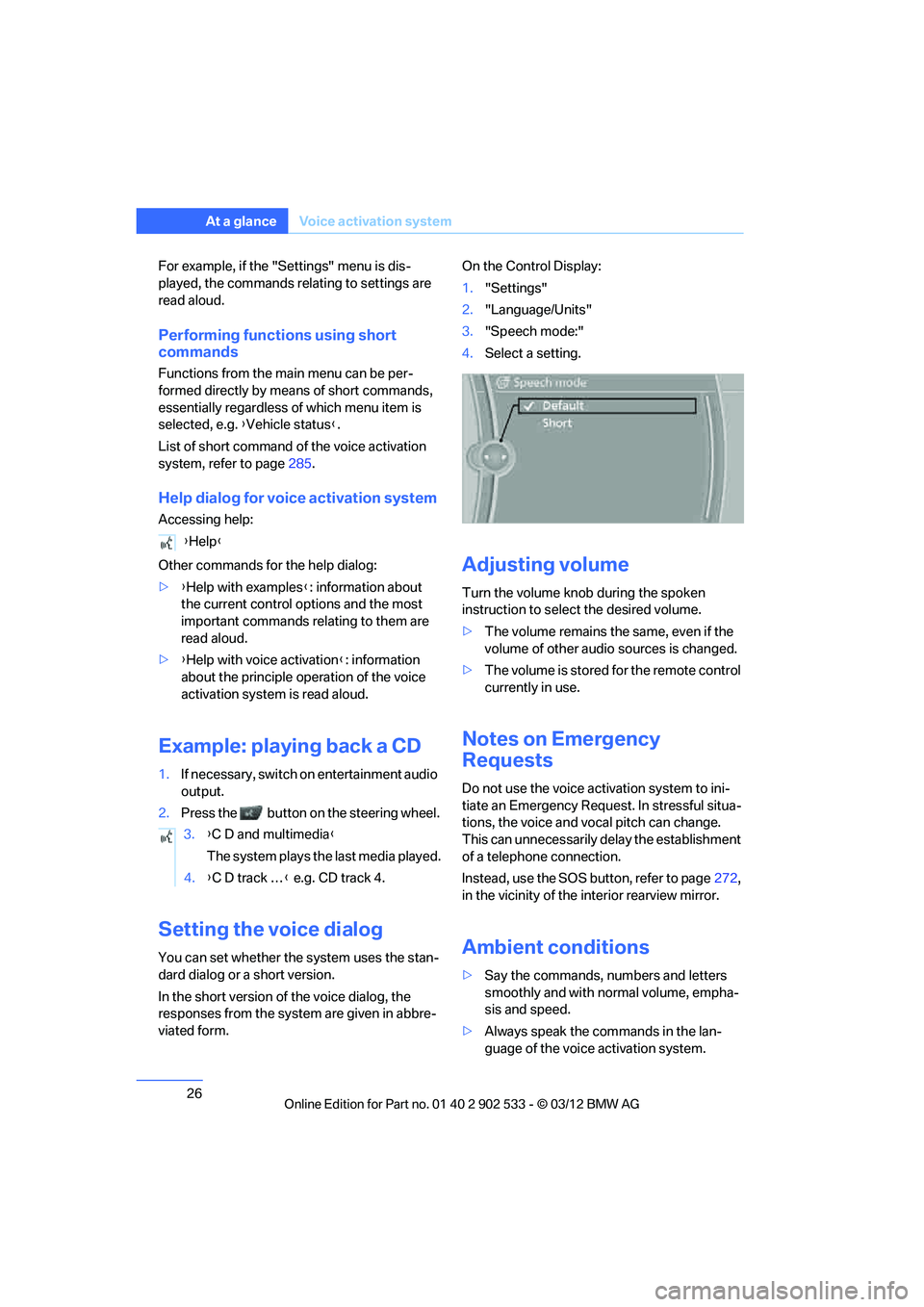
viated form. On the Control Display:
1.
"Settings"
2. "Language/Units"
3. "Speech mode:"
4. Select a setting.
Adjusting volume
Turn the volume knob during the spoken
instruction to select the desired volume.
>The volume remains the same, even if the
volume of other audio sources is changed.
> The volume is stored for the remote control
currently in use.
Notes on Emergency
Requests
Do not use the voice activation system to ini-
tiate an Emergency Request. In stressful situa-
tions, the voice and vocal pitch can change.
This can unnecessarily delay the establishment
of a telephone connection.
Instead, use the SOS button, refer to page 272,
in the vicinity of the interior rearview mirror.
Ambient conditions
> Say the commands, numbers and letters
smoothly and with normal volume, empha-
sis and speed.
> Always speak the commands in the lan-
guage of the voice activation system.
{
Help }
3. {C D and multimedia }
The system plays the last media played.
4. {C D track … } e.g. CD track 4.
00320051004F004C00510048000300280047004C0057004C005200510003
Page 40 of 308
39
Opening and closing
Controls
consumers are switched off before locking the
vehicle.
<
Coupe: Convenient closing
Keep pressing the surface, arrow 2, with your
finger.
Convertible: window and convertible
top operation
With the ignition at radio readiness or beyond,
you can open and close the windows and the
convertible top when a remote control is
located inside the vehicle.
Unlocking the trunk lid separately
Press the button on the outside of the trunk lid.
This corresponds to pressing the button.
If the vehicle detects that a remote con-
trol has been accidentally left inside the
locked vehicle's trunk after the trunk lid is
closed, the lid will reopen. The hazard warning
flashers flash and a signal sounds. <
Switching on radio readiness
Pressing the Start/Stop button switches on
radio readiness.
Do not depress the brake or the clutch; other-
wise, the engine will start immediately.
Starting the engine
The engine can be started or the ignition can be
switched on when a remote control is inside the
vehicle. It is not necessary to insert a remote
control into the ignition lock, refer to page 60.
Switching off the engine in cars with
automatic transmission
The engine can only be switched off when the
selector lever is in position P, refer to page 62.
To switch the engine off when the selector lever
is in position N, the remote control must be in
the ignition lock.
Malfunction
Local radio waves can interfere with the func-
tion of Comfort Access, for example when a
mobile phone is in the immediate vicinity of the
remote control or by when a mobile phone is
being charged in the vehicle.
If this happens, open or close the vehicle via the
buttons on the remote control or using the inte-
grated key. To start the engine afterward, insert
the remote control into the ignition lock.
Warning lamps
The warning lamp in the instrument
cluster lights up when you attempt to
start the engine: the engine cannot
be started. The remote control is not inside the
vehicle or is malfunctioning.
Take the remote control with you inside the
vehicle or have it checked. If necessary, insert
another remote control into the ignition lock.
The warning lamp in the instrument
cluster lights up while the engine is
running: the remote control is no
longer inside the vehicle. After the engine is
switched off, the engine can only be restarted
within approx. 10 seconds.
The indicator lamp in the instrument
cluster lights up and a message
appears on the Control Display:
replace the battery in the remote control.
Replacing the battery
The remote control for Comfort Access con-
tains a battery that will need to be replaced from
time to time.
00320051004F004C00510048000300280047004C0057004C005200510003
Page 105 of 308
104
ControlsTechnology for driving comfort and safety
Malfunction
The warning lamp lights up. A mes-
sage appears on the Control Display.
Servotronic is malfunctioning or has
failed. Steering response will be different. You
can continue your journey, but moderate your
speed and exercise due caution. Have the sys-
tem checked as soon as possible.
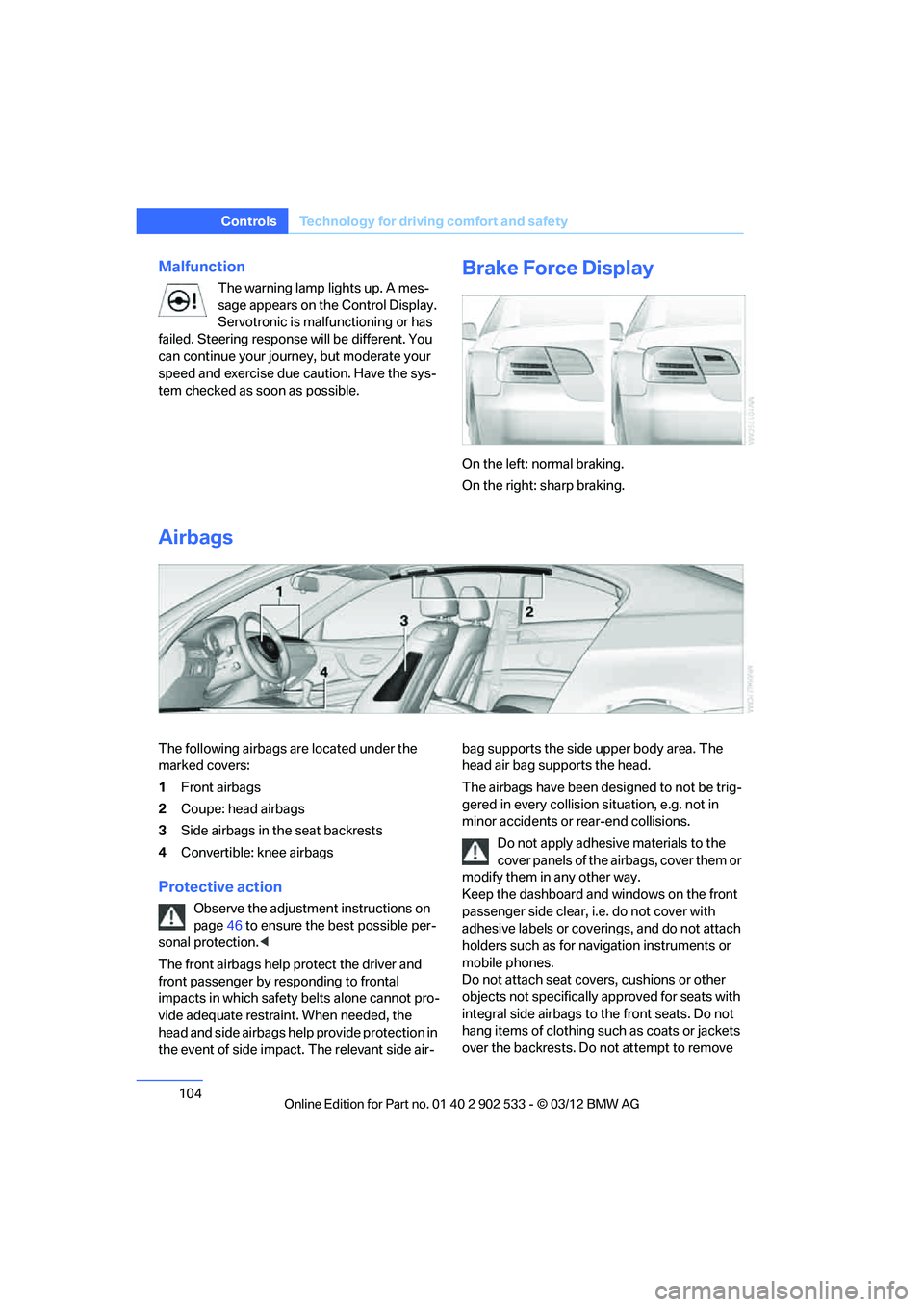
Brake Force Display
On the left: normal braking.
On the right: sharp braking.
Airbags
The following airbags are located under the
marked covers:
1 Front airbags
2 Coupe: head airbags
3 Side airbags in the seat backrests
4 Convertible: knee airbags
Protective action
Observe the adjustment instructions on
page 46 to ensure the best possible per-
sonal protection. <
The front airbags help protect the driver and
front passenger by responding to frontal
impacts in which safety belts alone cannot pro-
vide adequate restraint. When needed, the
head and side airbags help provide protection in
the event of side impact. The relevant side air- bag supports the side upper body area. The
head air bag supports the head.
The airbags have been designed to not be trig-
gered in every collision situation, e.g. not in
minor accidents or rear-end collisions.
Do not apply adhesive materials to the
cover panels of the airbags, cover them or
modify them in any other way.
Keep the dashboard and windows on the front
passenger side clear, i.e. do not cover with
adhesive labels or coverings, and do not attach
holders such as for navigation instruments or
mobile phones.
Do not attach seat covers, cushions or other
objects not specifically approved for seats with
integral side airbags to the front seats. Do not
hang items of clothing such as coats or jackets
over the backrests. Do not attempt to remove
00320051004F004C00510048000300280047004C0057004C005200510003
Page 126 of 308
125
Practical interior accessories
Controls
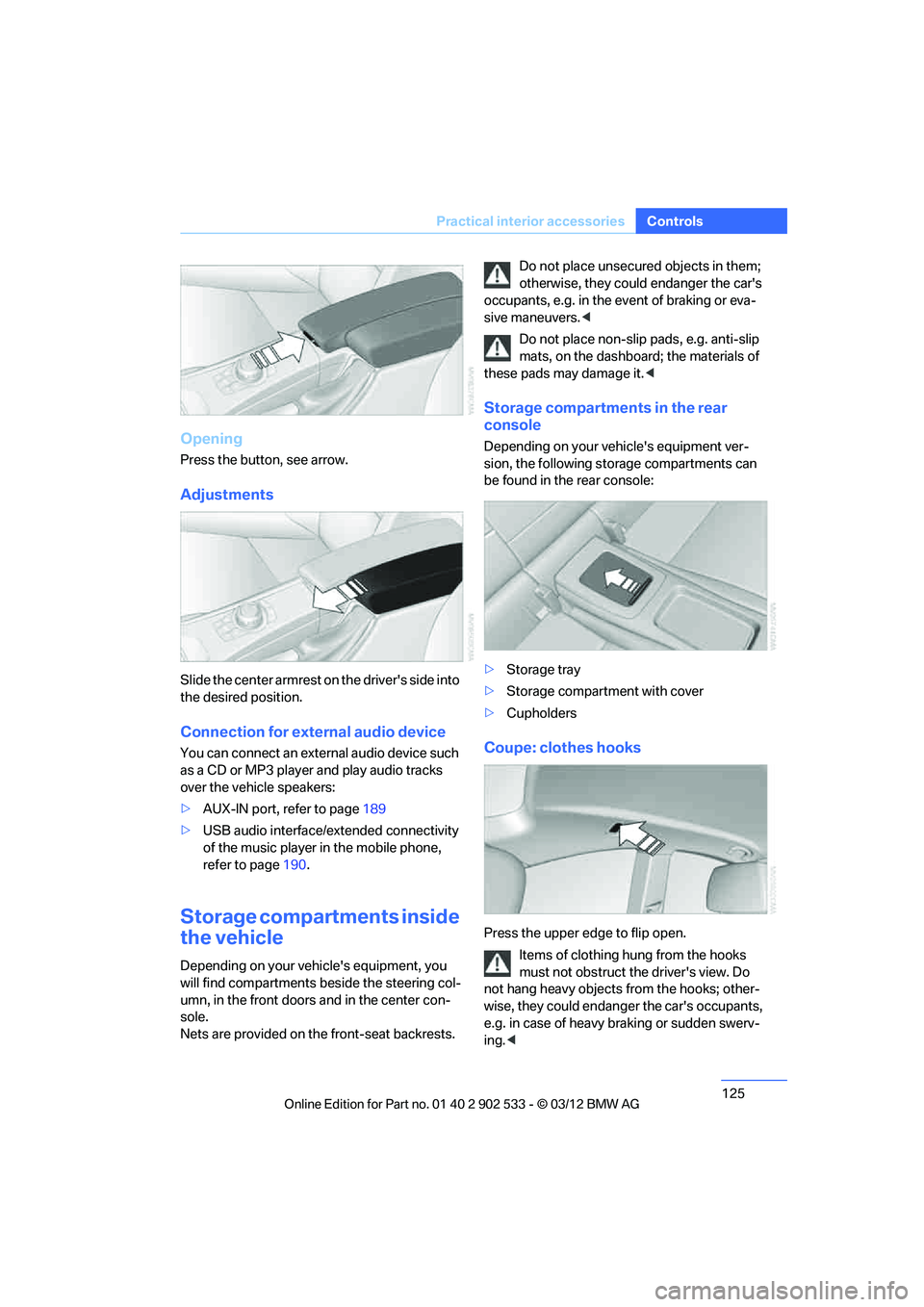
Opening
Press the button, see arrow.
Adjustments
Slide the center armrest on the driver's side into
the desired position.
Connection for external audio device
You can connect an external audio device such
as a CD or MP3 player and play audio tracks
over the vehicle speakers:
>
AUX-IN port, refer to page 189
> USB audio interface/extended connectivity
of the music player in the mobile phone,
refer to page 190.
Storage compartments inside
the vehicle
Depending on your vehicle's equipment, you
will find compartments beside the steering col-
umn, in the front doors and in the center con-
sole.
Nets are provided on the front-seat backrests. Do not place unsecured objects in them;
otherwise, they could endanger the car's
occupants, e.g. in the event of braking or eva-
sive maneuvers. <
Do not place non-slip pads, e.g. anti-slip
mats, on the dashboard; the materials of
these pads may damage it. <
Storage compartments in the rear
console
Depending on your vehicle's equipment ver-
sion, the following storage compartments can
be found in the rear console:
>Storage tray
> Storage compartment with cover
> Cupholders
Coupe: clothes hooks
Press the upper edge to flip open.
Items of clothing hung from the hooks
must not obstruct the driver's view. Do
not hang heavy objects from the hooks; other-
wise, they could endanger the car's occupants,
e.g. in case of heavy braking or sudden swerv-
ing. <
00320051004F004C00510048000300280047004C0057004C005200510003
Page 139 of 308
138
Driving tipsThings to remember when driving
tem. Do not remove the heat shields installed
adjacent to various sections of the exhaust sys-
tem, and never apply undercoating to them.
When driving, standing at idle and while park-
ing, take care to avoid possible contact
between the hot exhaust system and any highly
flammable materials such as hay, leaves, grass,
etc. Such contact could lead to a fire, with the
risk of serious personal injuries and property
damage. Do not touch hot exhaust tail pipes.
Otherwise, there is a risk of burns. <
Mobile phones in the vehicle
It is not advisable to use wireless devices
such as mobile phones inside the vehicle
without a direct connection to an external aerial.
Otherwise, it is not possible to exclude the pos-
sibility of a reciprocal interference occurring
between the vehicle electronics and the wire-
less device. Otherwise, there is no assurance
that the radiation generated by the radio trans-
mission will be conveyed out of the passenger
compartment. <
Hydroplaning
When driving on wet or slushy roads,
reduce road speed. If you do not, a wedge
of water can form between tires and road sur-
face. This situation, known as hydroplaning,
means that the tire can completely lose contact
with the road surface, so that neither the car can
be steered nor the brake be properly applied. <
The risk of hydroplaning increases with declin-
ing tread depth on the tires, refer also to Mini-
mum tread depth on page 252.
Driving through water
Drive through water on the road only if it is
not deeper than 1 ft/30 cm, and then only
at walking speed at the most. Otherwise, the
vehicle's engine, the electrical systems and the
transmission may be damaged.<
Use the parking brake on inclines
On inclines, do not hold the vehicle for a
lengthy period using the clutch; use the
parking brake instead. Otherwise, greater
clutch wear will result. <
For more information about the drive-off assis-
tant, refer to page 98.
Braking safely
Your BMW is equipped with ABS as a standard
feature. Applying the brakes fully is the most
effective way of braking in situations in which
this is necessary. Since the vehicle maintains
steering responsiveness, you can still avoid
possible obstacles with a minimum of steering
effort.
Pulsation of the brake pedal, combined with
sounds from the hydraulic circuits, indicate that
ABS is in its active mode.
Objects in the movement range of the
pedals
Keep floor mats, carpet, and other objects
out of the movement range of the pedals;
otherwise, they may inhibit the function of the
pedals during driving.
Do not place additional floor mats onto an exist-
ing one or onto other objects.
Only use floor mats that have been approved for
the vehicle and can be appropriately fastened.
Make sure that the floor mats are securely fas-
tened again after they have been removed, e.g.
for cleaning. <
Driving in wet conditions
When roads are wet or there is heavy rain,
briefly exert gentle pressure on the brake pedal
every few miles. Monitor traffic conditions to
ensure that this maneuver does not endanger
other road users. The heat generated in this
process helps dry the pads and rotors to ensure
that full braking efficiency will then be available
when you need it.
00320051004F004C00510048000300280047004C0057004C005200510003
Page 149 of 308
148
NavigationDestination entry
All streets of the entered country are
offered. The corresponding town/city is dis-
played after the street name.
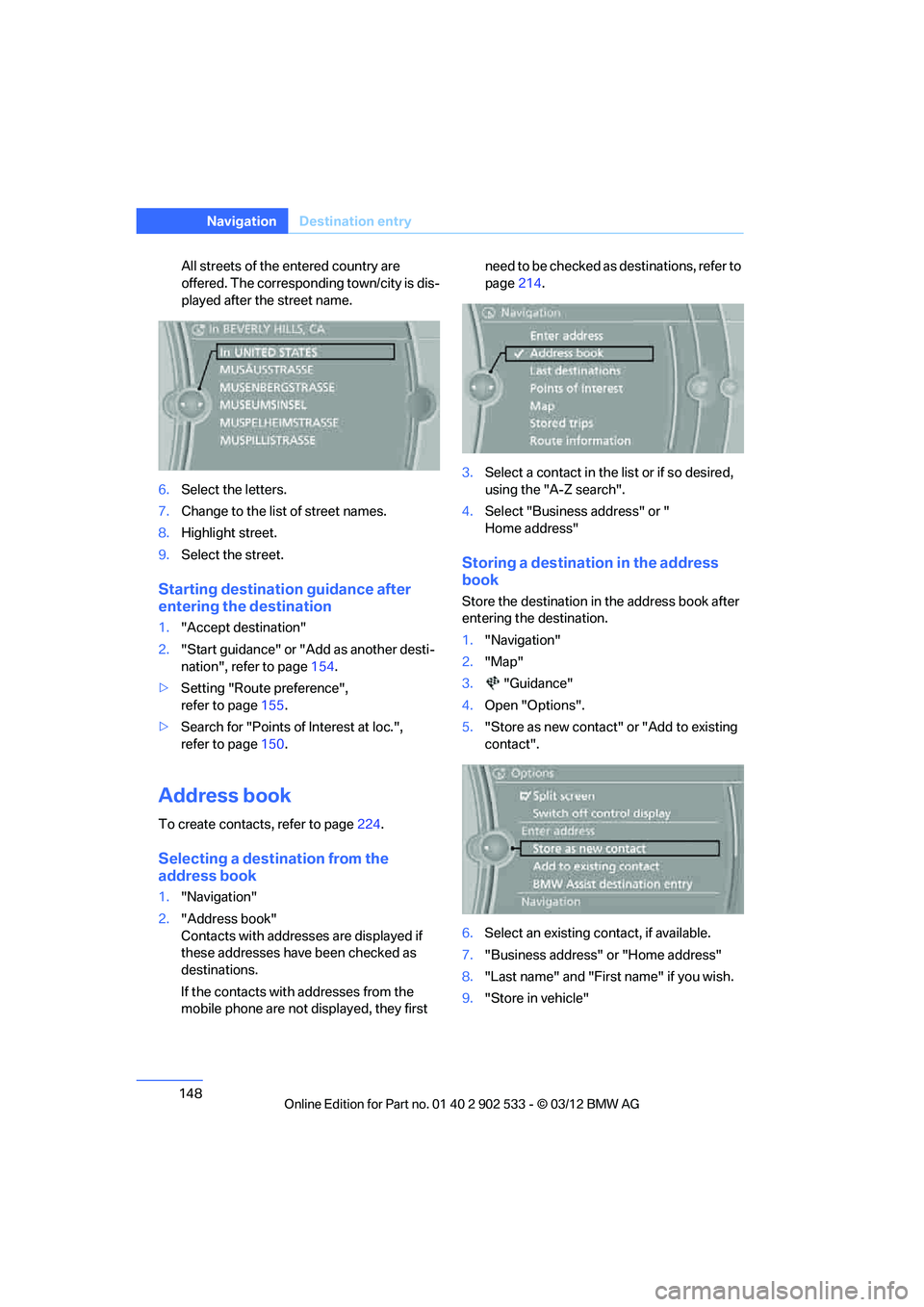
6. Select the letters.
7. Change to the list of street names.
8. Highlight street.
9. Select the street.
Starting destination guidance after
entering the destination
1."Accept destination"
2. "Start guidance" or "Add as another desti-
nation", refer to page 154.
> Setting "Route preference",
refer to page 155.
> Search for "Points of Interest at loc.",
refer to page 150.
Address book
To create contacts, refer to page 224.
Selecting a destination from the
address book
1."Navigation"
2. "Address book"
Contacts with addresses are displayed if
these addresses have been checked as
destinations.
If the contacts with addresses from the
mobile phone are not displayed, they first need to be checked as destinations, refer to
page
214.
3. Select a contact in the list or if so desired,
using the "A-Z search".
4. Select "Business address" or "
Home address"
Storing a destination in the address
book
Store the destination in the address book after
entering the destination.
1."Navigation"
2. "Map"
3. "Guidance"
4. Open "Options".
5. "Store as new contact" or "Add to existing
contact".
6. Select an existing contact, if available.
7. "Business address" or "Home address"
8. "Last name" and "First name" if you wish.
9. "Store in vehicle"
00320051004F004C00510048000300280047004C0057004C005200510003
Page 151 of 308
150
NavigationDestination entry
Deleting the last destinations
1."Navigation"
2. "Last destinations"
3. Highlight the destination.
4. Open "Options".
5. "Delete entry" or " Delete all last destina-
tions".
Special destinations
General information
Even with the most up-to-date navigation data,
information about certain special destinations
may have changed; for ex ample, filling stations
may not be in operation.
Opening the search for special
destinations
1. "Navigation"
2. "Points of Interest"
The search can be narrowed by entering the
location and type of special destination.
Searching online
1. "Google™ Local Search"
2. Select the special destination.
3. Select the symbol.
4. "Start guidance"
Special destination location
As you input the search destination, you can
select from among various options.
>"At current location"
> "At destination"
> "At different location"
> "Along route"
A-Z search
1."A-Z search"
2. "Town/City" 3.
Select or enter town/city.
4. "Category"
5. Select category.
6. "Category details"
For some special destinations, it is possible
to select several category details.
Move the controller toward the left to exit
category details.
7. "Keyword"
8. Enter keyword.
A list of the special destinations is dis-
played.
9. Select the special destination.
Details are displayed.
If several details are stored, then you can
scroll through the pages.
If a phone number is available, a connection
can be established, if desired.
10. Select the symbol.
11. "Start guidance" or "Add as another desti-
nation". Adding destination as another des-
tination, refer to page 154.
"Start search": without entering a search term,
the search is repeated with the last stored
search term.
Category search
1. "Category search"
2. "Town/City"
3. Select or enter town/city.
4. "Category"
5. Select category.
6. "Category details"
For some special destinations, it is possible
to select several category details.
Move the controller toward the left to exit
category details.
7. "Start search"
A list of the special destinations is dis-
played.
00320051004F004C00510048000300280047004C0057004C005200510003
Page 152 of 308
151
Destination entry
Navigation
8.
Select the special destination.
Details are displayed.
If several details are stored, then you can
scroll through the pages.
If a phone number is available, a connection
can be established, if desired.
9. Select the symbol.
10. "Start guidance" or "Add as another desti-
nation". Adding destination as another des-
tination, refer to page 154.
Displaying special destinations
List of special destinations: the special destina-
tions are displayed in order of their distance and
are displayed with a direction arrow pointing
toward the destination.
With the Professional navigation system:
In the split screen, special destinations from the
selected category are displayed as symbols in
the map view. The display depends on the map
scale and the category.
Destination entry via BMW Assist
A connection to the BMW Concierge service is
established, refer to page 225.
1. "Navigation"
2. "Enter address"
3. Open "Options".
4. "BMW Assist dest. entry"
Displaying special destinations in the
map
To display symbols of the special destinations
in the map:
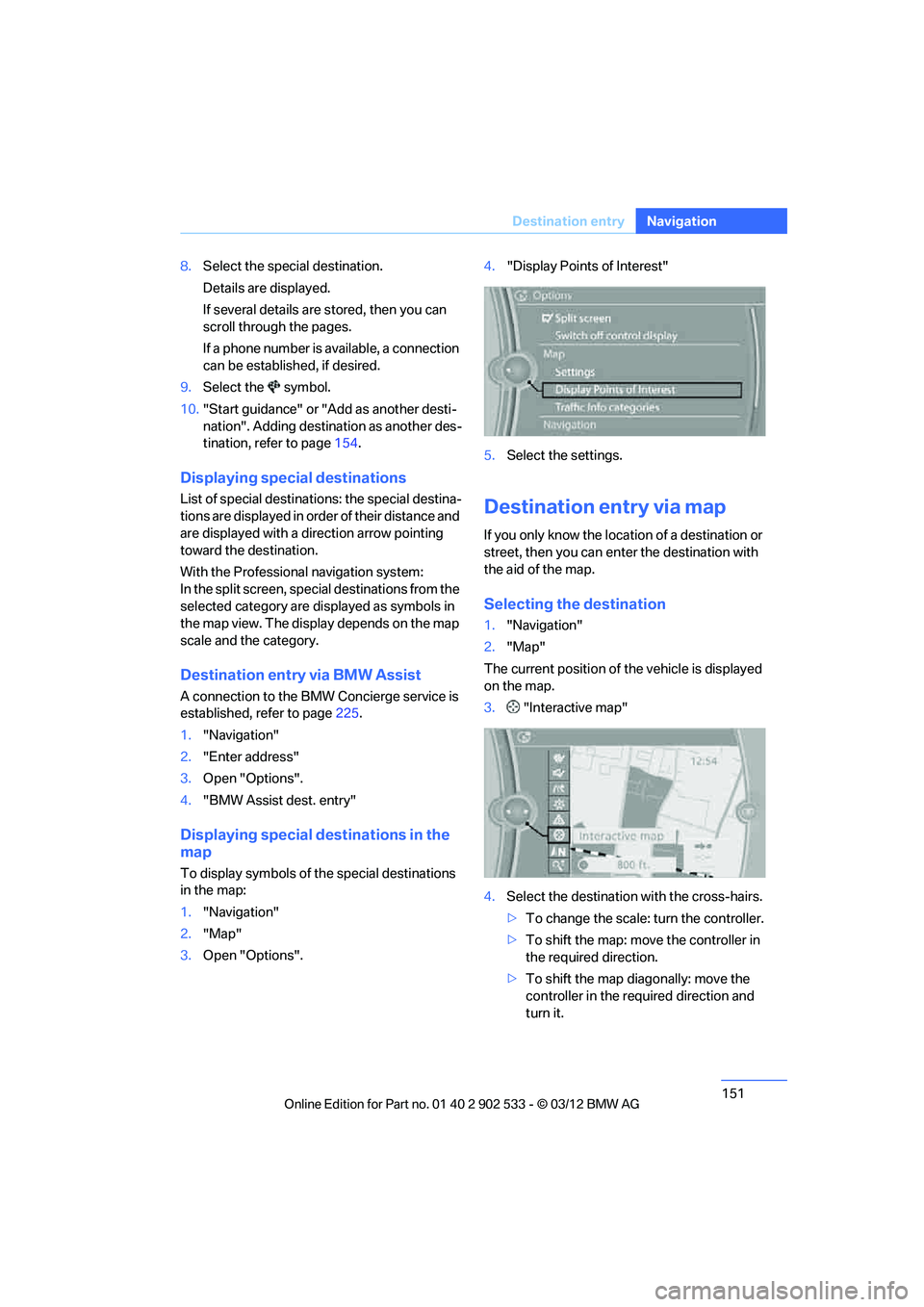
1."Navigation"
2. "Map"
3. Open "Options". 4.
"Display Points of Interest"
5. Select the settings.
Destination entry via map
If you only know the location of a destination or
street, then you can enter the destination with
the aid of the map.
Selecting the destination
1."Navigation"
2. "Map"
The current position of the vehicle is displayed
on the map.
3. "Interactive map"
4. Select the destination with the cross-hairs.
>To change the scale: turn the controller.
> To shift the map: move the controller in
the required direction.
> To shift the map diagonally: move the
controller in the required direction and
turn it.
00320051004F004C00510048000300280047004C0057004C005200510003
Page 159 of 308
158
NavigationDestination guidance
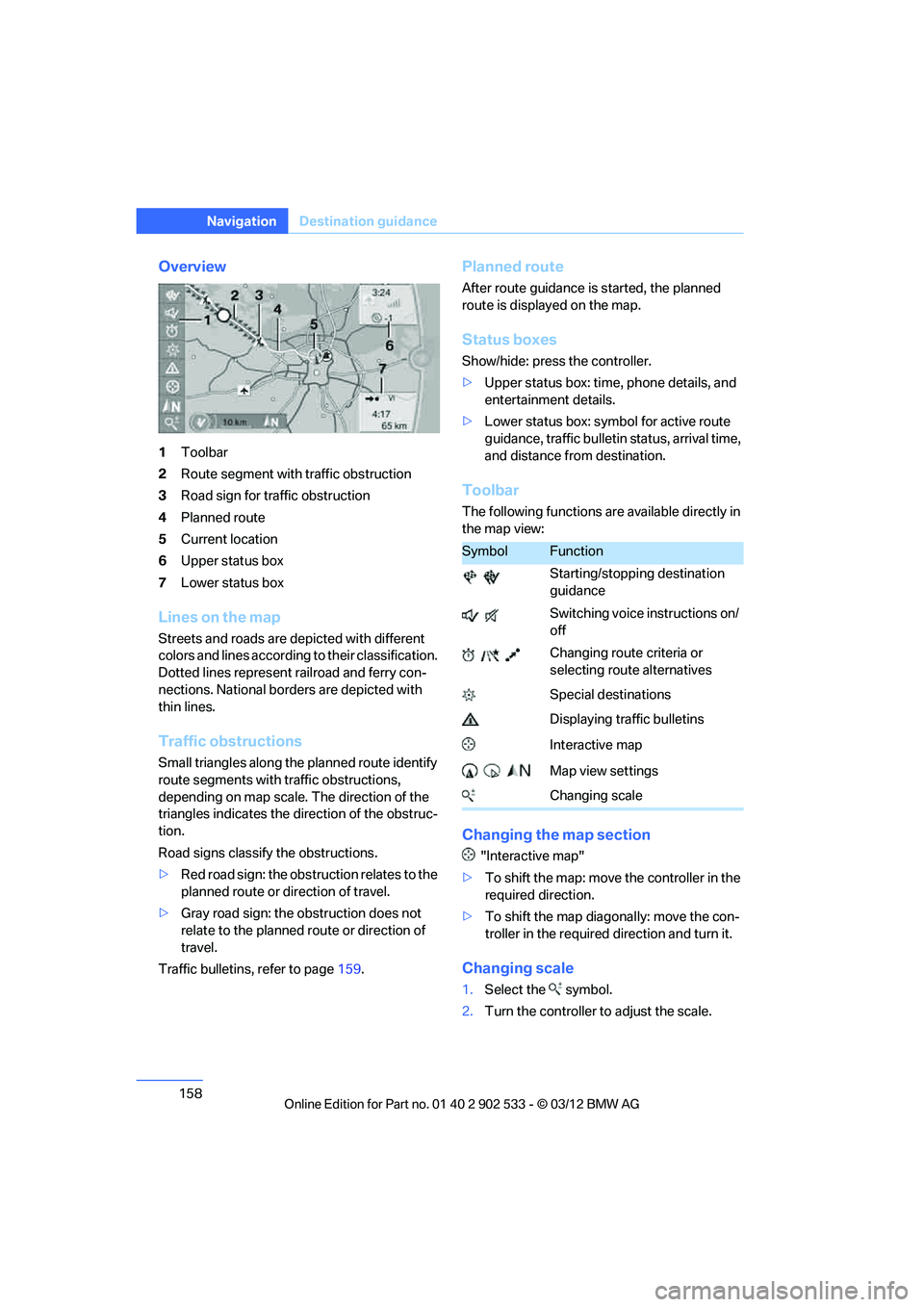
Overview
1Toolbar
2 Route segment with traffic obstruction
3 Road sign for traffic obstruction
4 Planned route
5 Current location
6 Upper status box
7 Lower status box
Lines on the map
Streets and roads are depicted with different
colors and lines according to their classification.
Dotted lines represent railroad and ferry con-
nections. National borders are depicted with
thin lines.
Traffic obstructions
Small triangles along the planned route identify
route segments with traffic obstructions,
depending on map scale. The direction of the
triangles indicates the direction of the obstruc-
tion.
Road signs classify the obstructions.
>Red road sign: the obstruction relates to the
planned route or direction of travel.
> Gray road sign: the obstruction does not
relate to the planned route or direction of
travel.
Traffic bulletins, refer to page 159.
Planned route
After route guidance is started, the planned
route is displayed on the map.
Status boxes
Show/hide: press the controller.
>Upper status box: time, phone details, and
entertainment details.
> Lower status box: symbol for active route
guidance, traffic bulletin status, arrival time,
and distance from destination.
Toolbar
The following functions are available directly in
the map view:
Changing the map section
"Interactive map"
> To shift the map: move the controller in the
required direction.
> To shift the map diagonally: move the con-
troller in the required direction and turn it.
Changing scale
1.Select the symbol.
2. Turn the controller to adjust the scale.
SymbolFunction
Starting/stopping destination
guidance
Switching voice instructions on/
off
Changing route criteria or
selecting route alternatives
Special destinations
Displaying traffic bulletins
Interactive map
Map view settings
Changing scale
00320051004F004C00510048000300280047004C0057004C005200510003
Page 169 of 308
168
EntertainmentOn/off and tone
Multi-channel playback, surround
You can choose between stereo and multi-
channel playback, surround.
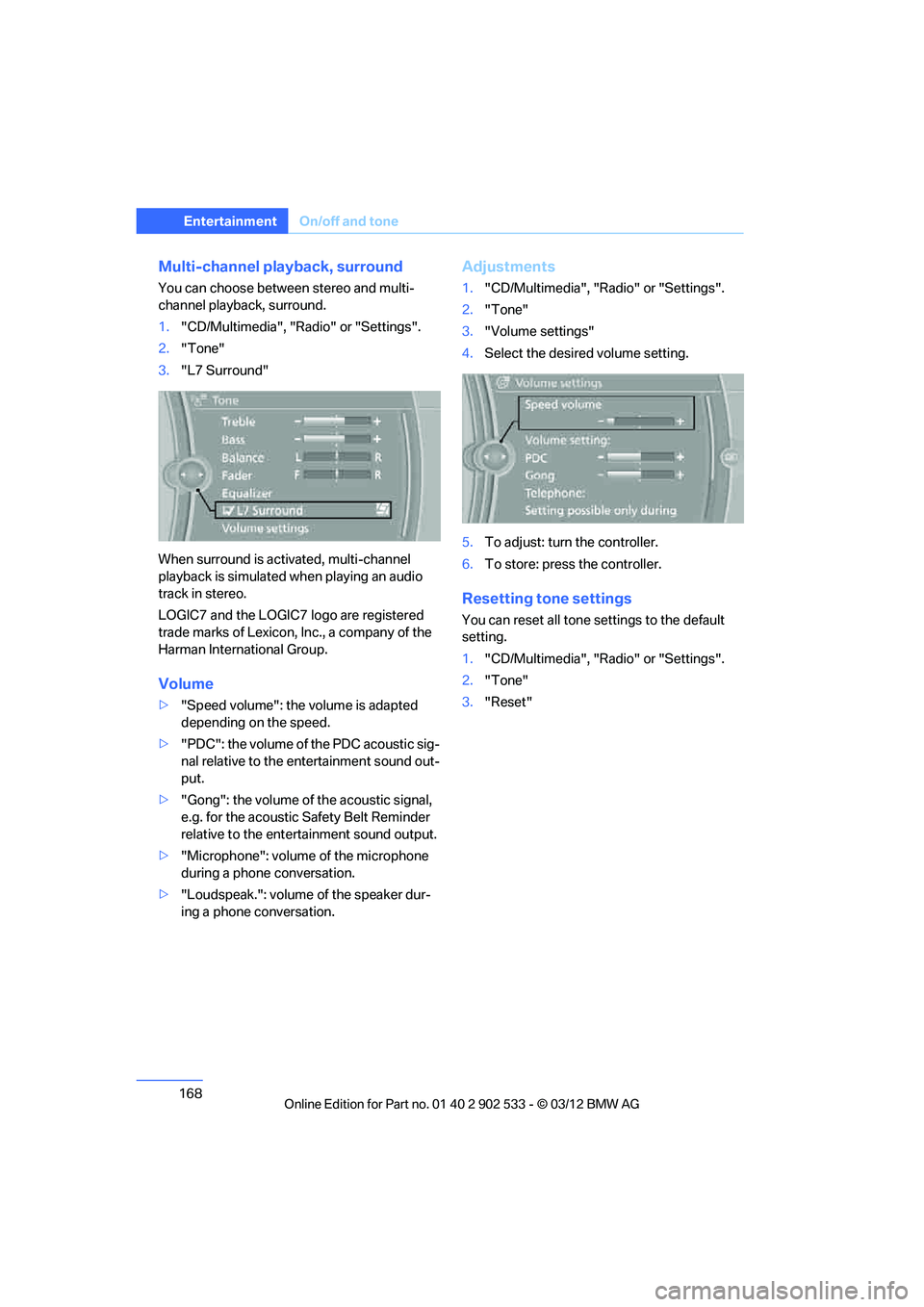
1."CD/Multimedia", "Radio" or "Settings".
2. "Tone"
3. "L7 Surround"
When surround is activated, multi-channel
playback is simulated when playing an audio
track in stereo.
LOGIC7 and the LOGIC7 logo are registered
trade marks of Lexicon, Inc., a company of the
Harman International Group.
Volume
> "Speed volume": the volume is adapted
depending on the speed.
> "PDC": the volume of the PDC acoustic sig-
nal relative to the entertainment sound out-
put.
> "Gong": the volume of the acoustic signal,
e.g. for the acoustic Safety Belt Reminder
relative to the entertainment sound output.
> "Microphone": volume of the microphone
during a phone conversation.
> "Loudspeak.": volume of the speaker dur-
ing a phone conversation.
Adjustments
1."CD/Multimedia", "Radio" or "Settings".
2. "Tone"
3. "Volume settings"
4. Select the desired volume setting.
5. To adjust: turn the controller.
6. To store: press the controller.
Resetting tone settings
You can reset all tone settings to the default
setting.
1."CD/Multimedia", "Radio" or "Settings".
2. "Tone"
3. "Reset"
00320051004F004C00510048000300280047004C0057004C005200510003