navigation BMW 335IS COUPE 2011 E93 Owner's Manual
[x] Cancel search | Manufacturer: BMW, Model Year: 2011, Model line: 335IS COUPE, Model: BMW 335IS COUPE 2011 E93Pages: 278, PDF Size: 8.23 MB
Page 189 of 278
187
Entertainment
Reference
At a glance
Controls
Driving tips Communications
Navigation
Mobility
Activating/deactivating the
Bluetooth link
The use of Bluetooth technology is not
permitted in all countries. Observe all
applicable local regulations. Temporarily deac-
tivate the Bluetooth link between the vehicle
and the mobile phone, if necessary.
If the Bluetooth link is deactivated, you can no
longer operate the mobile phone via the vehicle,
and other devices with a Bluetooth interface
can be used in combination with the mobile
phone, e.g. a laptop.<
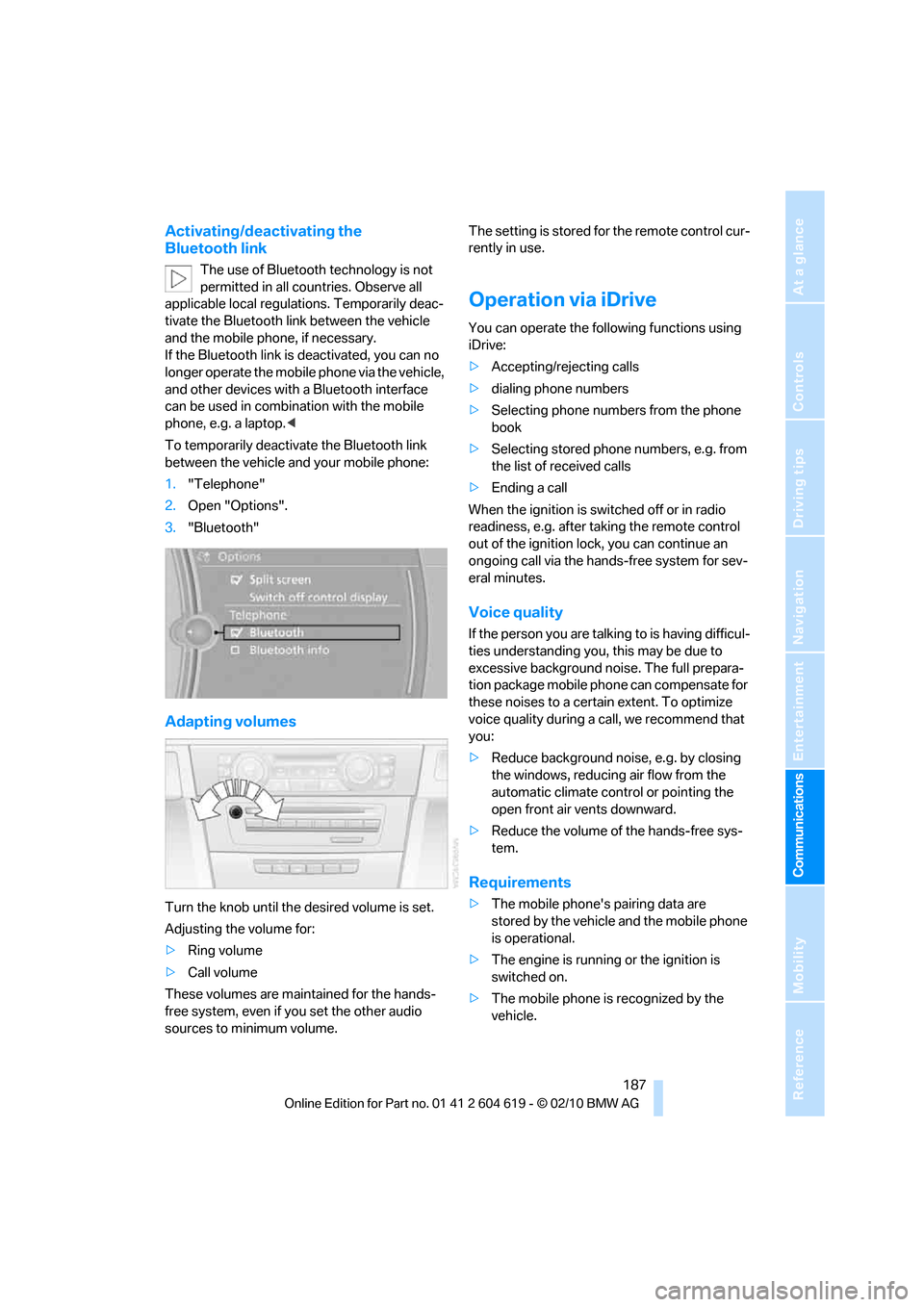
To temporarily deactivate the Bluetooth link
between the vehicle and your mobile phone:
1."Telephone"
2.Open "Options".
3."Bluetooth"
Adapting volumes
Turn the knob until the desired volume is set.
Adjusting the volume for:
>Ring volume
>Call volume
These volumes are maintained for the hands-
free system, even if you set the other audio
sources to minimum volume.The setting is stored for the remote control cur-
rently in use.
Operation via iDrive
You can operate the following functions using
iDrive:
>Accepting/rejecting calls
>dialing phone numbers
>Selecting phone numbers from the phone
book
>Selecting stored phone numbers, e.g. from
the list of received calls
>Ending a call
When the ignition is switched off or in radio
readiness, e.g. after taking the remote control
out of the ignition lock, you can continue an
ongoing call via the hands-free system for sev-
eral minutes.
Voice quality
If the person you are talking to is having difficul-
ties understanding you, this may be due to
excessive background noise. The full prepara-
tion package mobile phone can compensate for
these noises to a certain extent. To optimize
voice quality during a call, we recommend that
you:
>Reduce background noise, e.g. by closing
the windows, reducing air flow from the
automatic climate control or pointing the
open front air vents downward.
>Reduce the volume of the hands-free sys-
tem.
Requirements
>The mobile phone's pairing data are
stored by the vehicle and the mobile phone
is operational.
>The engine is running or the ignition is
switched on.
>The mobile phone is recognized by the
vehicle.
Page 191 of 278
189
Entertainment
Reference
At a glance
Controls
Driving tips Communications
Navigation
Mobility
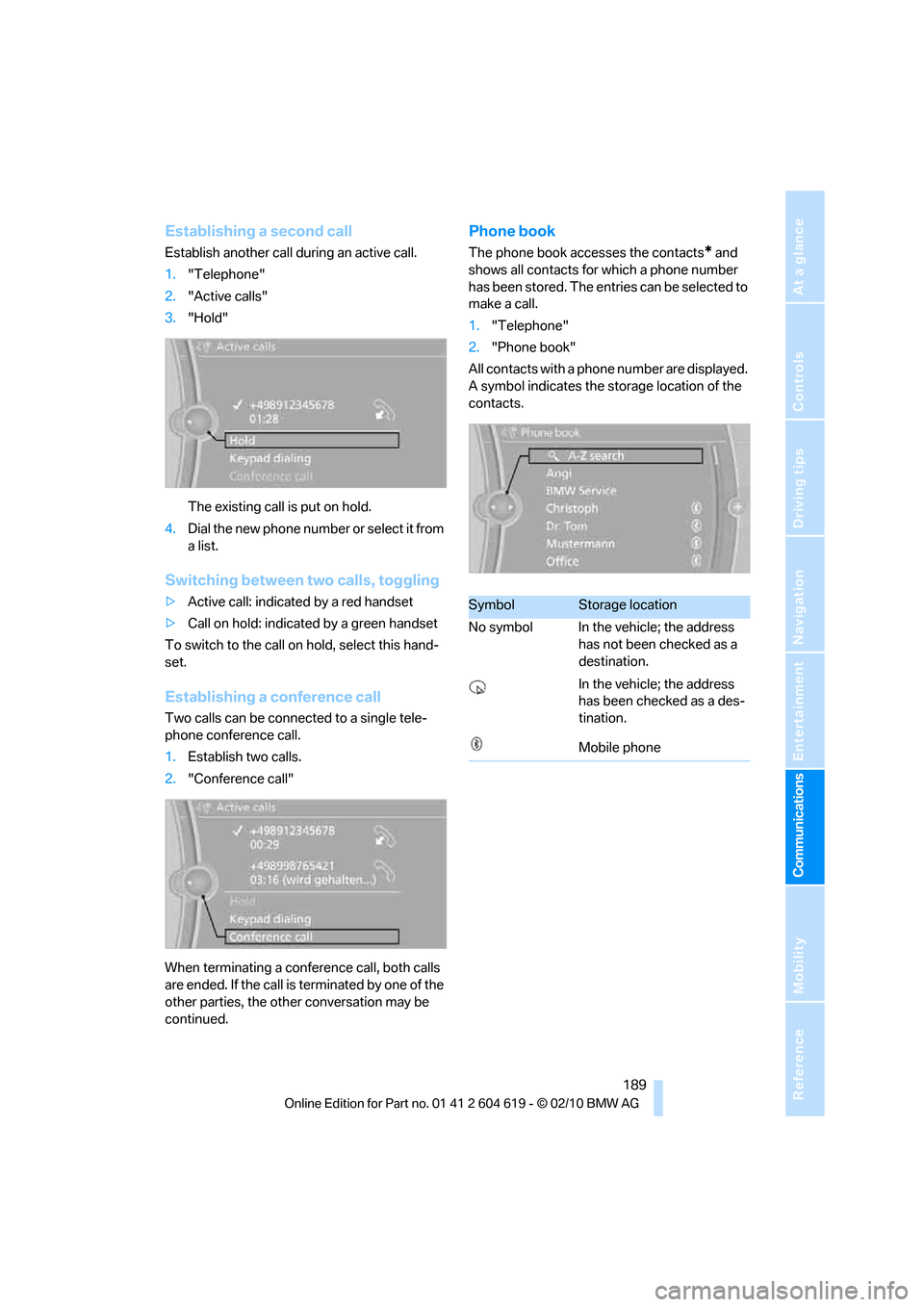
Establishing a second call
Establish another call during an active call.
1."Telephone"
2."Active calls"
3."Hold"
The existing call is put on hold.
4.D ial the new phone number or se lec t it fro m
a list.
Switching between two calls, toggling
>Active call: indicated by a red handset
>Call on hold: indicated by a green handset
To switch to the call on hold, select this hand-
set.
Establishing a conference call
Two calls can be connected to a single tele-
phone conference call.
1.Establish two calls.
2."Conference call"
When terminating a conference call, both calls
are ended. If the call is terminated by one of the
other parties, the other conversation may be
continued.
Phone book
The phone book accesses the contacts* and
shows all contacts for which a phone number
has been stored. The entries can be selected to
make a call.
1."Telephone"
2."Phone book"
All contacts with a phone number are displayed.
A symbol indicates the storage location of the
contacts.
SymbolStorage location
No symbol In the vehicle; the address
has not been checked as a
destination.
In the vehicle; the address
has been checked as a des-
tination.
Mobile phone
Page 193 of 278
191
Entertainment
Reference
At a glance
Controls
Driving tips Communications
Navigation
Mobility
Saving an entry in the contacts
1.Highlight an entry.
2.Open "Options".
3."Store as new contact" or "Add to existing
contact".
4.Select the type of number: "Home", "Busi-
ness", "Mobile" or "Other".
5.Complete the entries if necessary.
6."Store contact"
Messages
Various types of messages can be displayed:
>Messages from My info
>Messages from the BMW Concierge ser-
vice
Displaying messages
1."Telephone"
2."Messages"
3.Select the desired message.
My Info
To start destination guidance:
1.Select the message that contains the
desired destination.
2. "Start guidance" or "Add as another
dest.".
To dial the number in the message:
1.Select the message that contains the
desired number.
2. "Call"
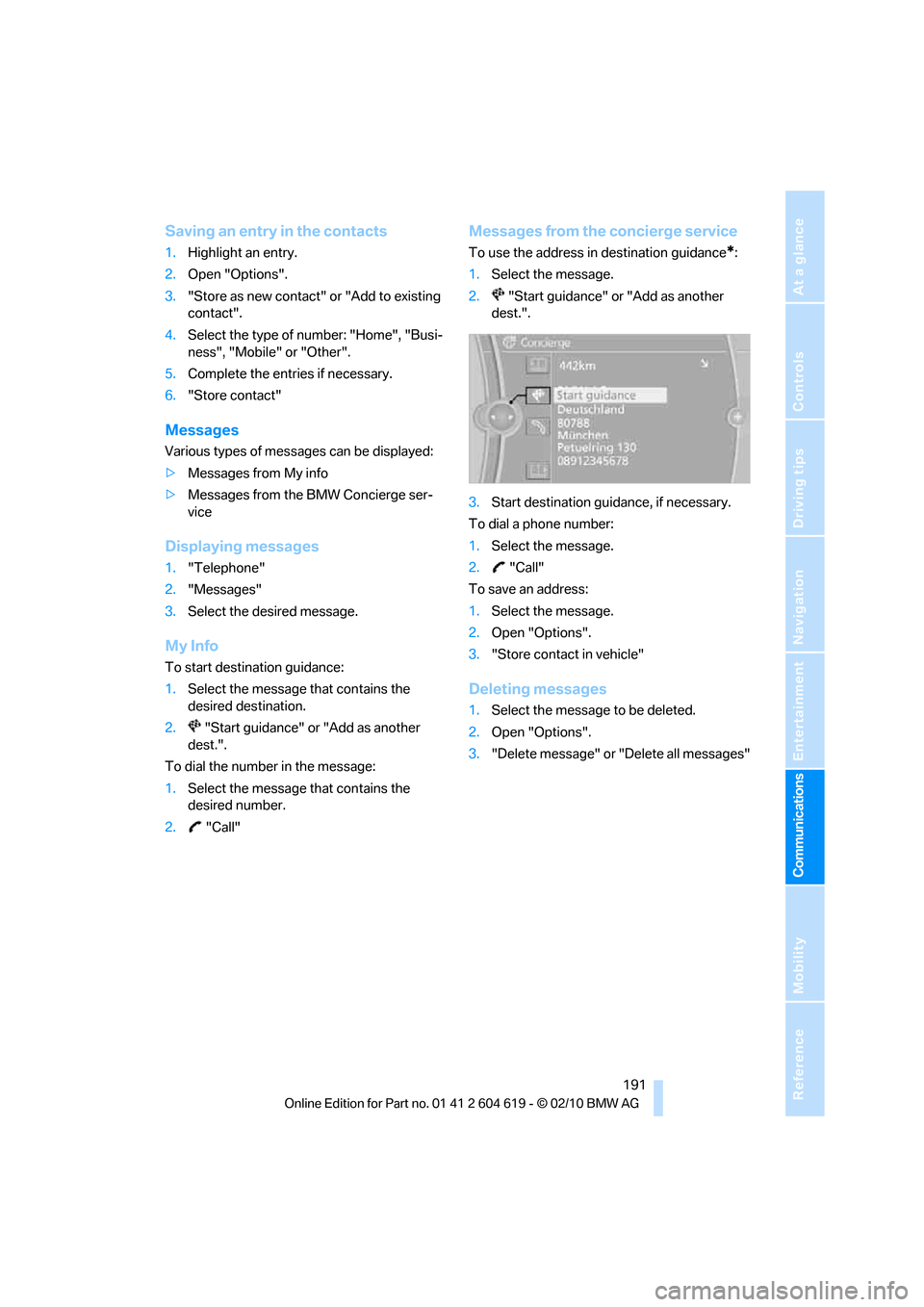
Messages from the concierge service
To use the address in destination guidance*:
1.Select the message.
2. "Start guidance" or "Add as another
dest.".
3.Start destination guidance, if necessary.
To dial a phone number:
1.Select the message.
2. "Call"
To save an address:
1.Select the message.
2.Open "Options".
3."Store contact in vehicle"
Deleting messages
1.Select the message to be deleted.
2.Open "Options".
3."Delete message" or "Delete all messages"
Page 195 of 278
193
Entertainment
Reference
At a glance
Controls
Driving tips Communications
Navigation
Mobility
Example: dialing phone numbers
To start the dialog:
Press the button on the steering wheel.
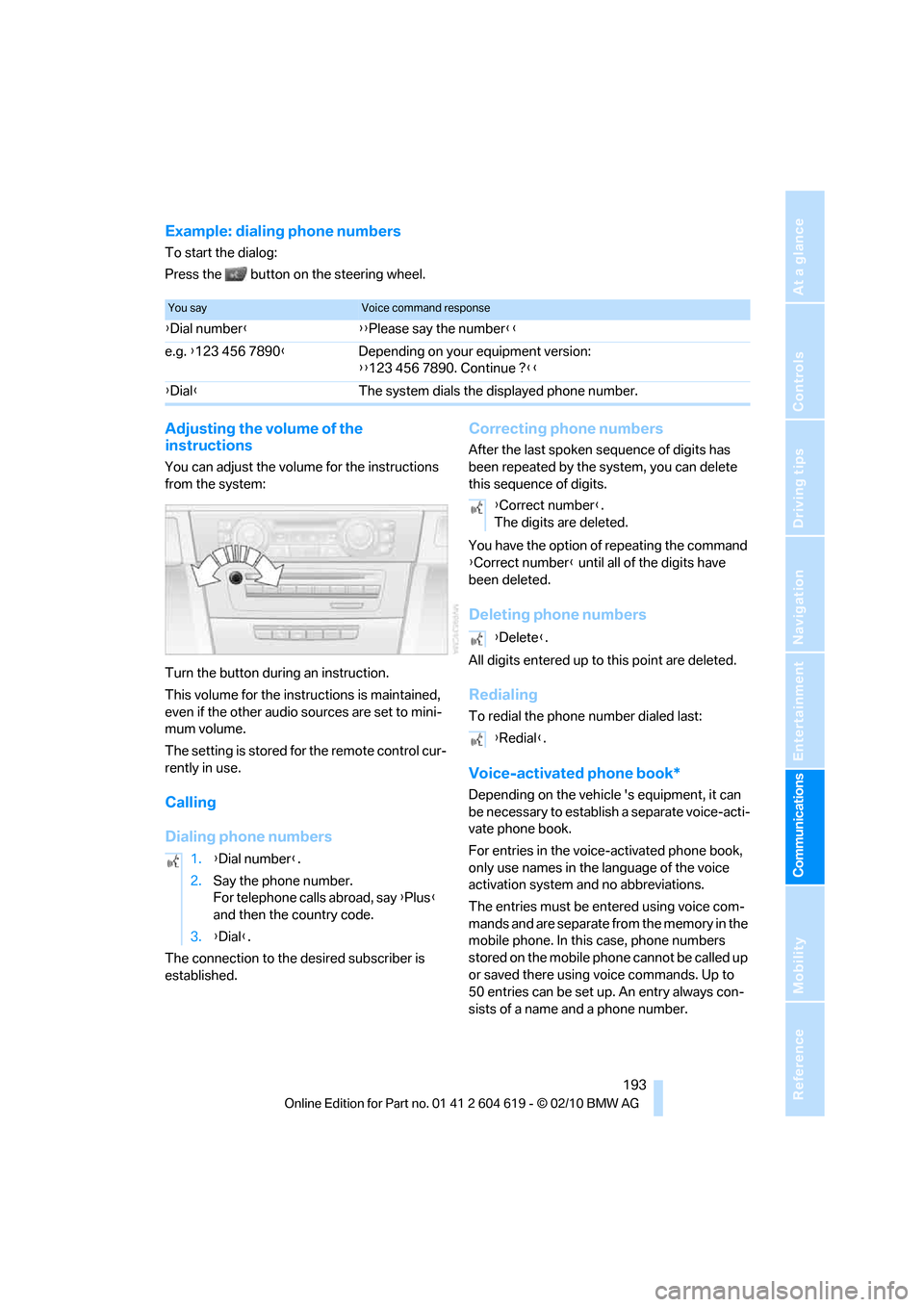
Adjusting the volume of the
instructions
You can adjust the volume for the instructions
from the system:
Turn the button during an instruction.
This volume for the instructions is maintained,
even if the other audio sources are set to mini-
mum volume.
The setting is stored for the remote control cur-
rently in use.
Calling
Dialing phone numbers
The connection to the desired subscriber is
established.
Correcting phone numbers
After the last spoken sequence of digits has
been repeated by the system, you can delete
this sequence of digits.
You have the option of repeating the command
{Correct number} until all of the digits have
been deleted.
Deleting phone numbers
All digits entered up to this point are deleted.
Redialing
To redial the phone number dialed last:
Voice-activated phone book*
Depending on the vehicle 's equipment, it can
be necessary to establish a separate voice-acti-
vate phone book.
For entries in the voice-activated phone book,
only use names in the language of the voice
activation system and no abbreviations.
The entries must be entered using voice com-
mands and are separate from the memory in the
mobile phone. In this case, phone numbers
stored on the mobile phone cannot be called up
or saved there using voice commands. Up to
50 entries can be set up. An entry always con-
sists of a name and a phone number.
You sayVoice command response
{Dial number}{{Please say the number}}
e.g. {123 456 7890}Depending on your equipment version:
{{123 456 7890. Continue ?}}
{Dial}The system dials the displayed phone number.
1.{Dial number}.
2.Say the phone number.
For telephone calls abroad, say {Plus}
and then the country code.
3.{Dial}.
{Correct number}.
The digits are deleted.
{Delete}.
{Redial}.
Page 197 of 278
195
Entertainment
Reference
At a glance
Controls
Driving tips Communications
Navigation
Mobility
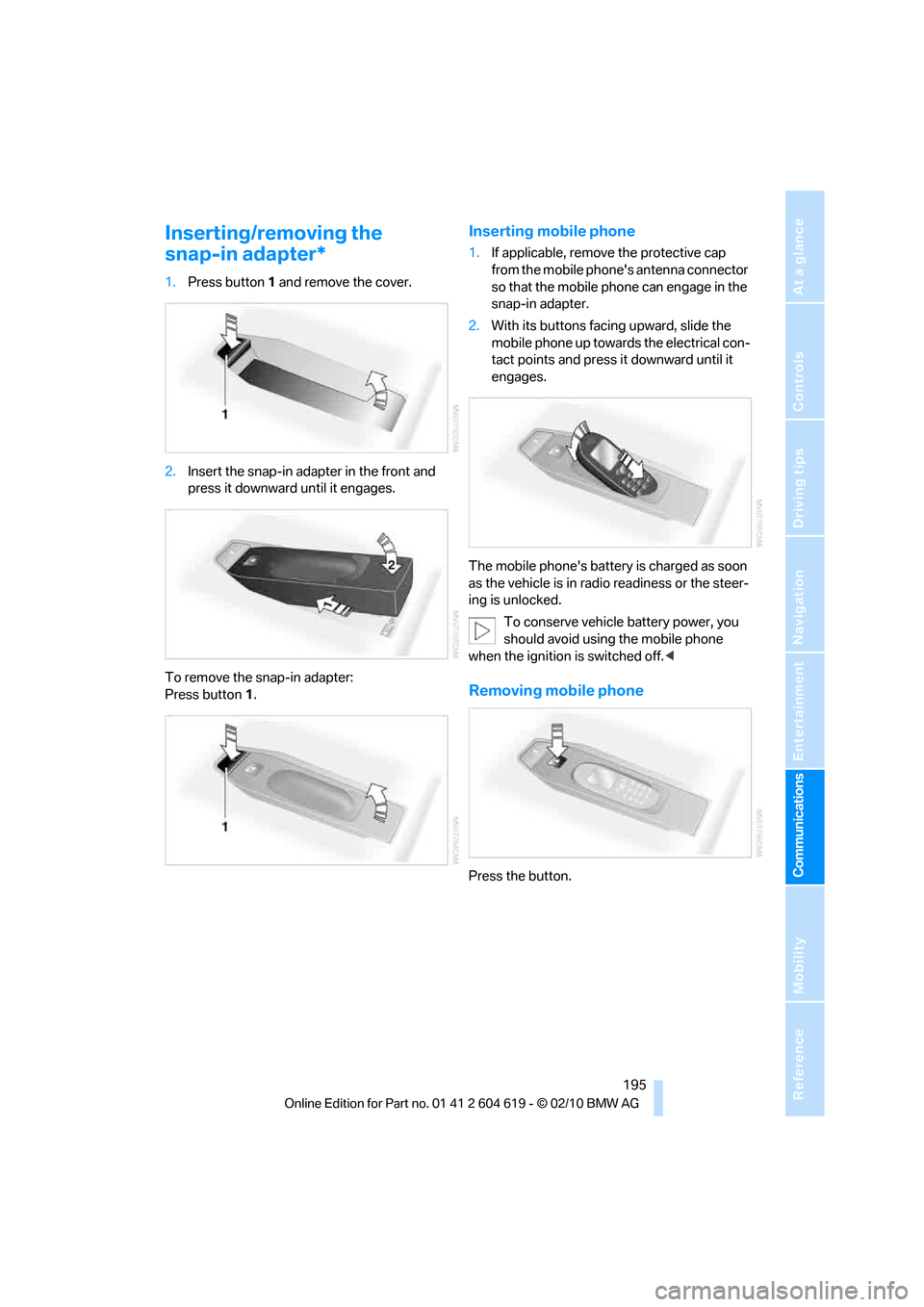
Inserting/removing the
snap-in adapter*
1.Press button1 and remove the cover.
2.Insert the snap-in adapter in the front and
press it downward until it engages.
To remove the snap-in adapter:
Press button 1.
Inserting mobile phone
1.If applicable, remove the protective cap
from the mobile phone's antenna connector
so that the mobile phone can engage in the
snap-in adapter.
2.With its buttons facing upward, slide the
mobile phone up towards the electrical con-
tact points and press it downward until it
engages.
The mobile phone's battery is charged as soon
as the vehicle is in radio readiness or the steer-
ing is unlocked.
To conserve vehicle battery power, you
should avoid using the mobile phone
when the ignition is switched off.<
Removing mobile phone
Press the button.
Page 198 of 278
Contacts
196
Contacts
You can create and edit contacts. The contacts
from the mobile phone
* are displayed as well if
this function is supported by the mobile phone.
The addresses can be used as destinations for
navigation and the phone numbers can be
dialed.
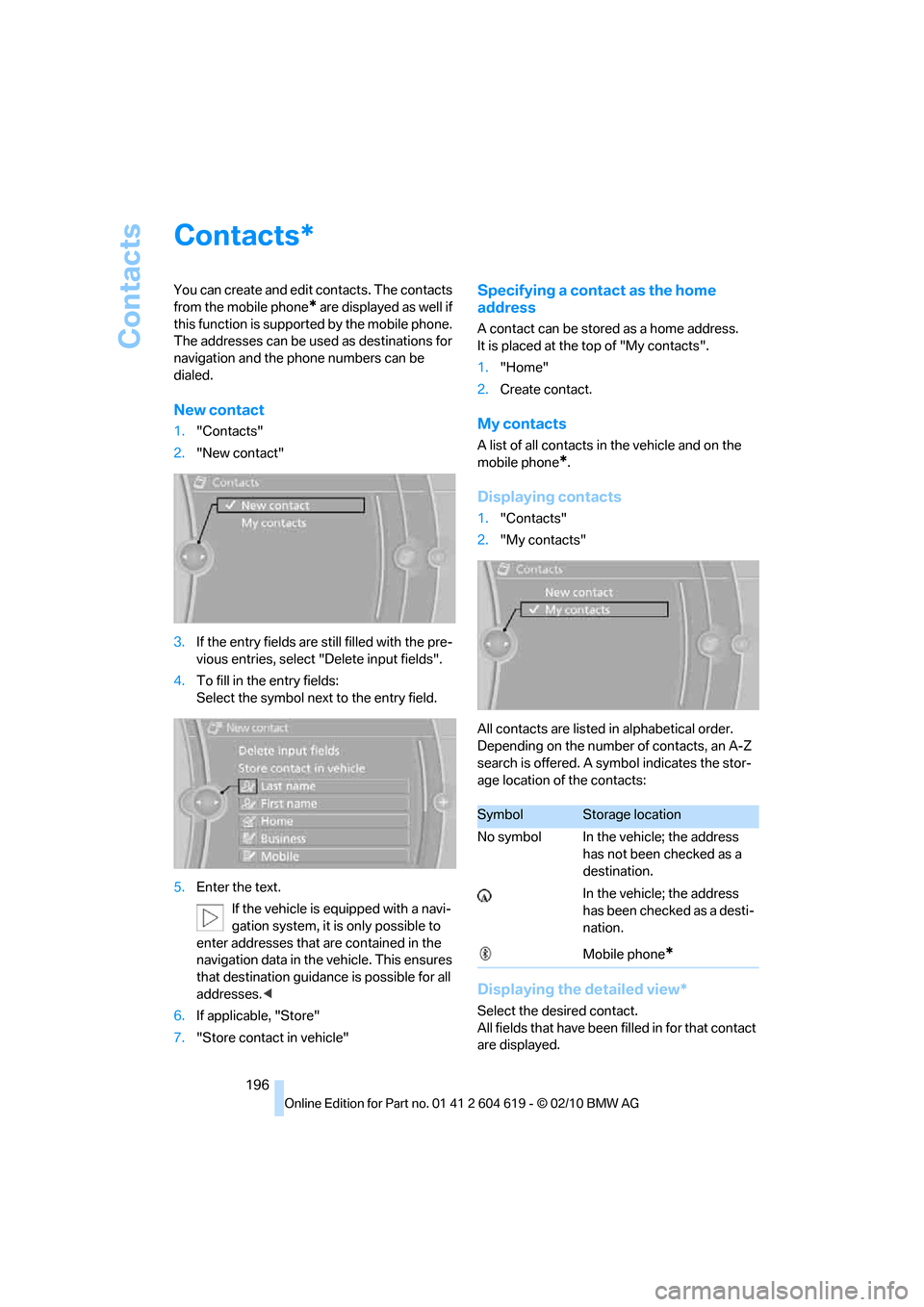
New contact
1."Contacts"
2."New contact"
3.If the entry fields are still filled with the pre-
vious entries, select "Delete input fields".
4.To fill in the entry fields:
Select the symbol next to the entry field.
5.Enter the text.
If the vehicle is equipped with a navi-
gation system, it is only possible to
enter addresses that are contained in the
navigation data in the vehicle. This ensures
that destination guidance is possible for all
addresses.<
6.If applicable, "Store"
7."Store contact in vehicle"
Specifying a contact as the home
address
A contact can be stored as a home address.
It is placed at the top of "My contacts".
1."Home"
2.Create contact.
My contacts
A list of all contacts in the vehicle and on the
mobile phone
*.
Displaying contacts
1."Contacts"
2."My contacts"
All contacts are listed in alphabetical order.
Depending on the number of contacts, an A-Z
search is offered. A symbol indicates the stor-
age location of the contacts:
Displaying the detailed view*
Select the desired contact.
All fields that have been filled in for that contact
are displayed.
*
SymbolStorage location
No symbol In the vehicle; the address
has not been checked as a
destination.
In the vehicle; the address
has been checked as a desti-
nation.
Mobile phone
*
Page 199 of 278
197
Entertainment
Reference
At a glance
Controls
Driving tips Communications
Navigation
Mobility
Selecting name display
Names can be displayed in different sequences.
1."My contacts"
2.Highlight the contact.
3.Open "Options".
4."Display: last, first name" or "Display: first,
last name"
Depending on how the contacts were stored in
your mobile phone, the name display can differ
from the selected display.
Selecting a contact as the navigation
destination
1."My contacts"
2.Select the desired contact.
3.Select the desired address.
Contacts from the mobile phone
* may contain
addresses that do not match the navigation
data contained in the vehicle and thus cannot
be used for destination guidance. In this case:
Manually correct the address.
Checking the address as a destination*
An address that is to be used for destination
guidance must match the navigation data con-
tained in the vehicle. An address that is stored
on the mobile phone can be matched to the
navigation data.
1.Select the desired contact and highlight the
address.
2.Open "Options".
3."Check as destination"
4.Correct and store the address, if necessary.
If the address is corrected and stored, then a
copy is created in the vehicle. The address is
not changed on the mobile phone.
Dialing a phone number*
1."My contacts"
2.Select the desired contact.
3.Select the desired phone number.
The connection is established.
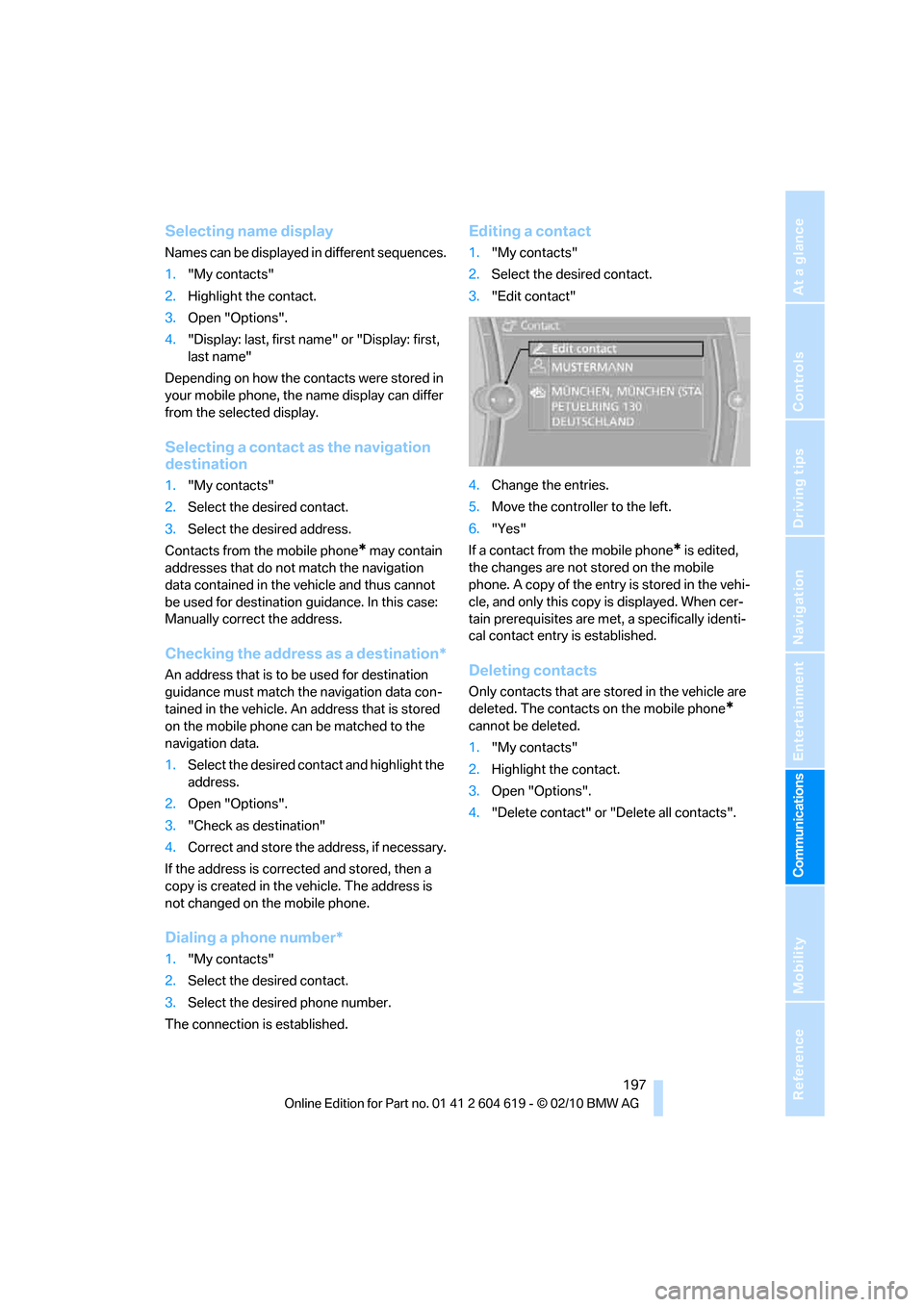
Editing a contact
1."My contacts"
2.Select the desired contact.
3."Edit contact"
4.Change the entries.
5.Move the controller to the left.
6."Yes"
If a contact from the mobile phone
* is edited,
the changes are not stored on the mobile
phone. A copy of the entry is stored in the vehi-
cle, and only this copy is displayed. When cer-
tain prerequisites are met, a specifically identi-
cal contact entry is established.
Deleting contacts
Only contacts that are stored in the vehicle are
deleted. The contacts on the mobile phone
*
cannot be deleted.
1."My contacts"
2.Highlight the contact.
3.Open "Options".
4."Delete contact" or "Delete all contacts".
Page 201 of 278
199
Entertainment
Reference
At a glance
Controls
Driving tips Communications
Navigation
Mobility
TeleService*
TeleService supports communication with your
BMW center.
>Data on the vehicle's service requirements
can be sent directly to the BMW center. In
this way, the BMW center can plan its work
in advance. This shortens the duration of
the service appointment.
>In the event of a breakdown, data on the
vehicle's condition can be sent directly to
Roadside Assistance
*.
>The service varies by country.
>Connection may incur charges.
>Services may be restricted abroad.
Requirements
>BMW Assist is activated.
>Wireless reception is available.
>The engine is running.
Concierge service*
When you call the BMW Assist Concierge ser-
vice, you can obtain information about, for
example, restaurants, emergency pharmacy
services, gas stations or hotels, as well as
receive the corresponding telephone numbers
and addresses.
You can then dial a phone number directly or
use an address for destination guidance
*.
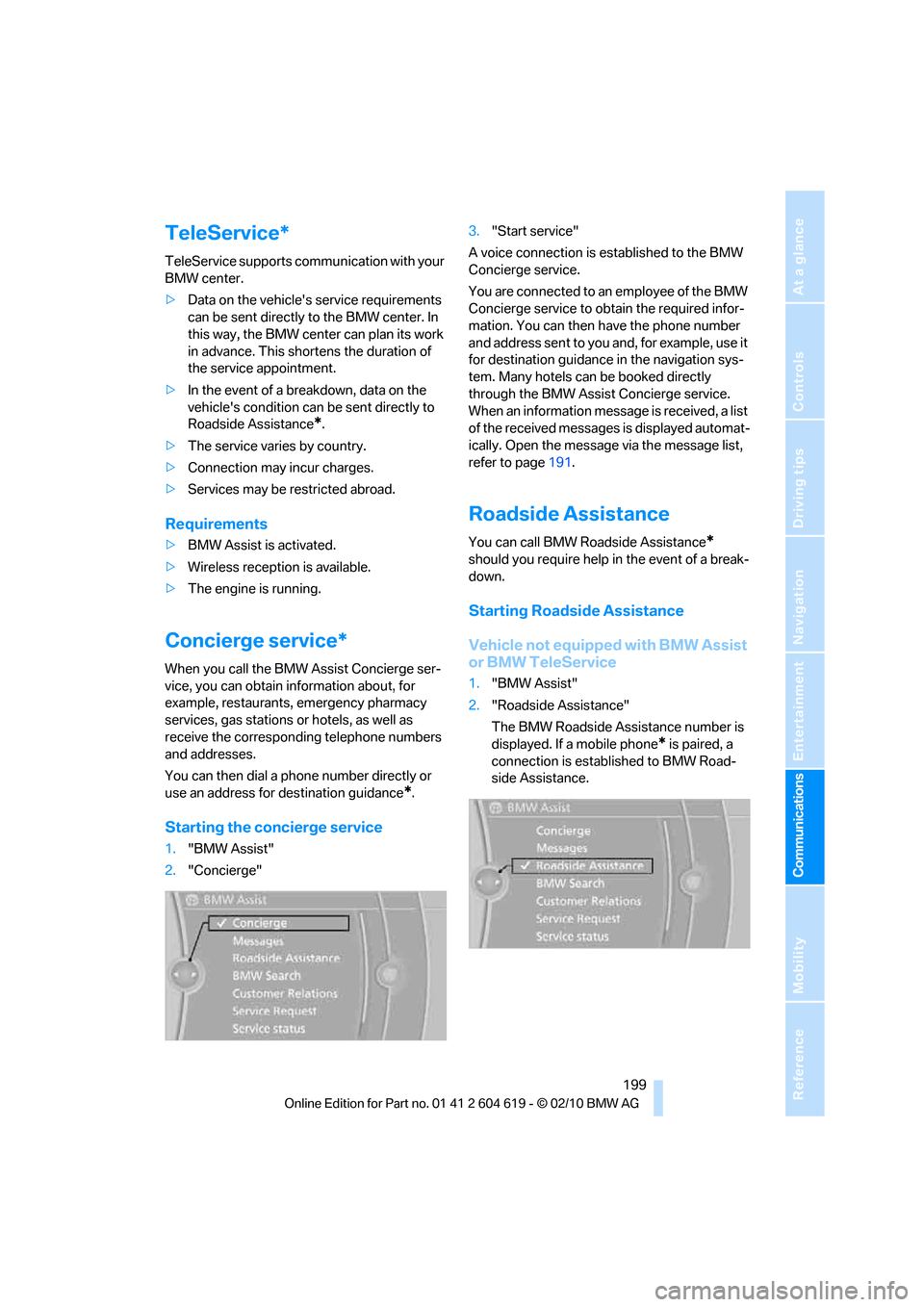
Starting the concierge service
1."BMW Assist"
2."Concierge"3."Start service"
A voice connection is established to the BMW
Concierge service.
You are connected to an employee of the BMW
Concierge service to obtain the required infor-
mation. You can then have the phone number
and address sent to you and, for example, use it
for destination guidance in the navigation sys-
tem. Many hotels can be booked directly
through the BMW Assist Concierge service.
When an information message is received, a list
of the received messages is displayed automat-
ically. Open the message via the message list,
refer to page191.
Roadside Assistance
You can call BMW Roadside Assistance*
should you require help in the event of a break-
down.
Starting Roadside Assistance
Vehicle not equipped with BMW Assist
or BMW TeleService
1."BMW Assist"
2."Roadside Assistance"
The BMW Roadside Assistance number is
displayed. If a mobile phone
* is paired, a
connection is established to BMW Road-
side Assistance.
Page 203 of 278
201
Entertainment
Reference
At a glance
Controls
Driving tips Communications
Navigation
Mobility
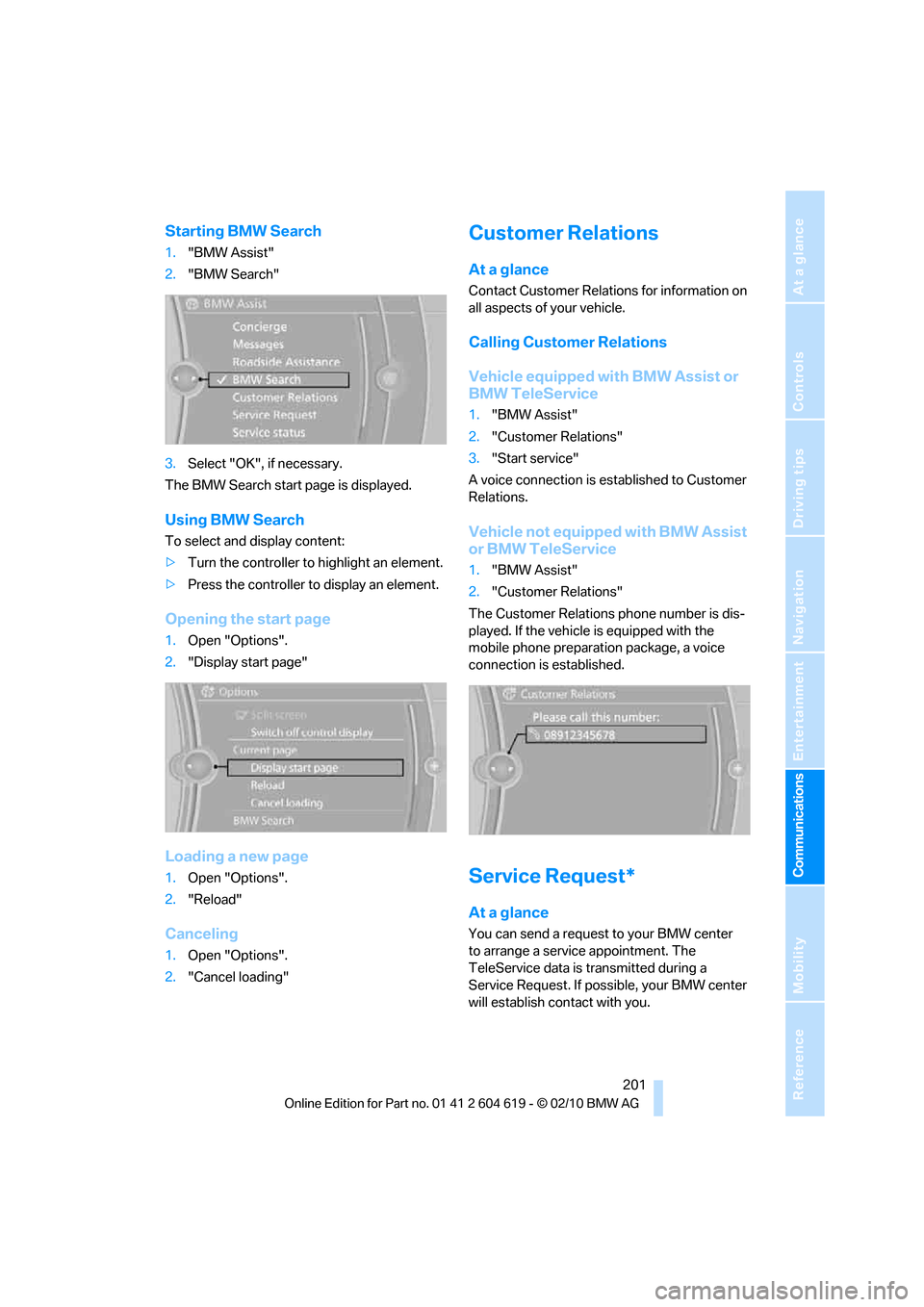
Starting BMW Search
1."BMW Assist"
2."BMW Search"
3.Select "OK", if necessary.
The BMW Search start page is displayed.
Using BMW Search
To select and display content:
>Turn the controller to highlight an element.
>Press the controller to display an element.
Opening the start page
1.Open "Options".
2."Display start page"
Loading a new page
1.Open "Options".
2."Reload"
Canceling
1.Open "Options".
2."Cancel loading"
Customer Relations
At a glance
Contact Customer Relations for information on
all aspects of your vehicle.
Calling Customer Relations
Vehicle equipped with BMW Assist or
BMW TeleService
1."BMW Assist"
2."Customer Relations"
3."Start service"
A voice connection is established to Customer
Relations.
Vehicle not equipped with BMW Assist
or BMW TeleService
1."BMW Assist"
2."Customer Relations"
The Customer Relations phone number is dis-
played. If the vehicle is equipped with the
mobile phone preparation package, a voice
connection is established.
Service Request*
At a glance
You can send a request to your BMW center
to arrange a service appointment. The
TeleService data is transmitted during a
Service Request. If possible, your BMW center
will establish contact with you.
Page 205 of 278

203
Entertainment
Reference
At a glance
Controls
Driving tips Communications
Navigation
Mobility