bluetooth BMW 335IS COUPE 2013 User Guide
[x] Cancel search | Manufacturer: BMW, Model Year: 2013, Model line: 335IS COUPE, Model: BMW 335IS COUPE 2013Pages: 308, PDF Size: 5.65 MB
Page 205 of 308
204
CommunicationsTe l e p h o n e
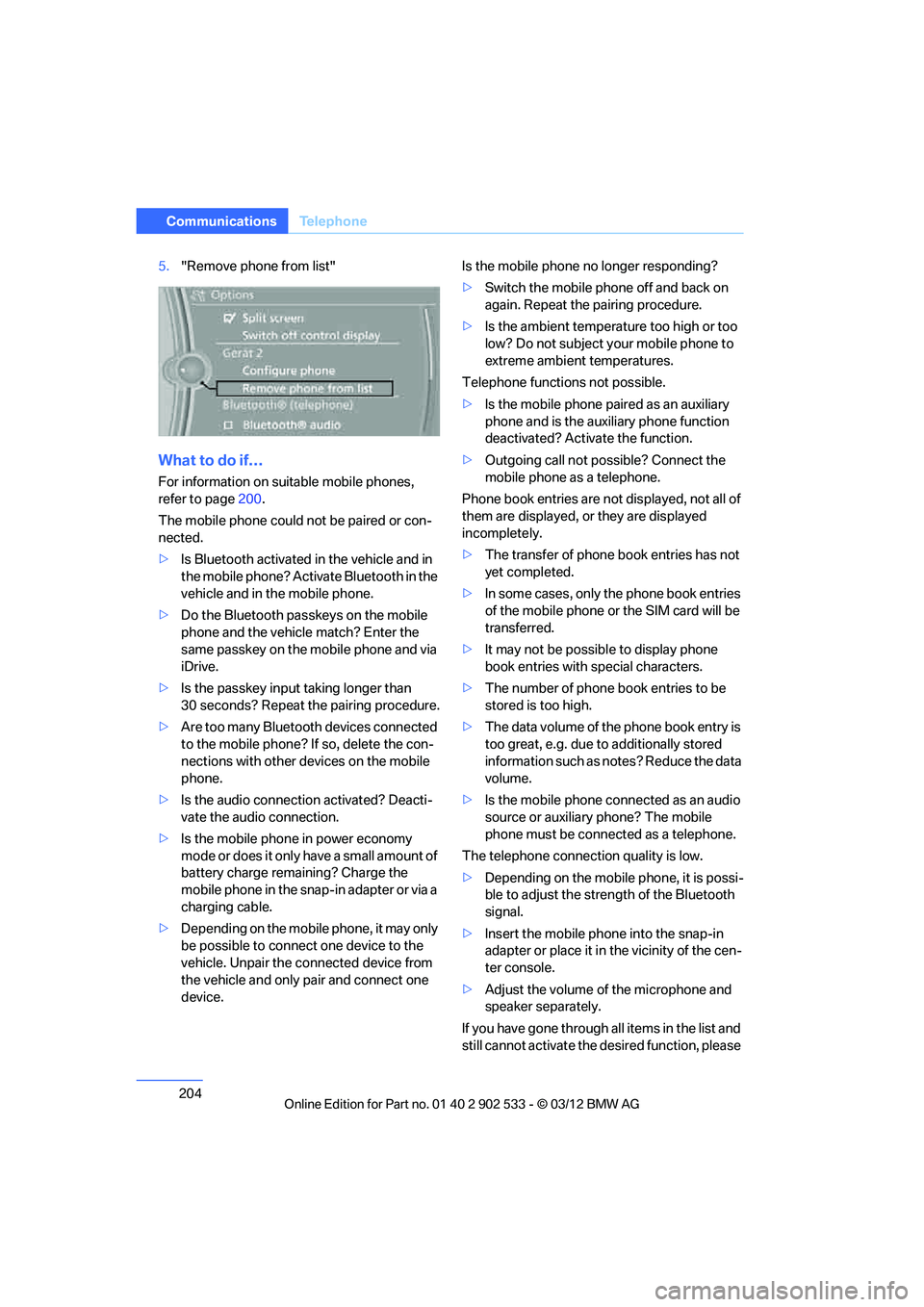
5."Remove phone from list"
What to do if…
For information on suitable mobile phones,
refer to page 200.
The mobile phone could not be paired or con-
nected.
> Is Bluetooth activated in the vehicle and in
the mobile phone? Activate Bluetooth in the
vehicle and in the mobile phone.
> Do the Bluetooth passkeys on the mobile
phone and the vehicle match? Enter the
same passkey on the mobile phone and via
iDrive.
> Is the passkey input taking longer than
30 seconds? Repeat the pairing procedure.
> Are too many Bluetooth devices connected
to the mobile phone? If so, delete the con-
nections with other devices on the mobile
phone.
> Is the audio connection activated? Deacti-
vate the audio connection.
> Is the mobile phone in power economy
mode or does it only have a small amount of
battery charge remaining? Charge the
mobile phone in the snap-in adapter or via a
charging cable.
> Depending on the mobile phone, it may only
be possible to connect one device to the
vehicle. Unpair the connected device from
the vehicle and only pair and connect one
device. Is the mobile phone no longer responding?
>
Switch the mobile phone off and back on
again. Repeat the pairing procedure.
> Is the ambient temperature too high or too
low? Do not subject your mobile phone to
extreme ambient temperatures.
Telephone functions not possible.
> Is the mobile phone paired as an auxiliary
phone and is the auxiliary phone function
deactivated? Activate the function.
> Outgoing call not possible? Connect the
mobile phone as a telephone.
Phone book entries are not displayed, not all of
them are displayed, or they are displayed
incompletely.
> The transfer of phone book entries has not
yet completed.
> In some cases, only the phone book entries
of the mobile phone or the SIM card will be
transferred.
> It may not be possible to display phone
book entries with special characters.
> The number of phone book entries to be
stored is too high.
> The data volume of the phone book entry is
too great, e.g. due to additionally stored
information such as notes? Reduce the data
volume.
> Is the mobile phone connected as an audio
source or auxiliary phone? The mobile
phone must be connected as a telephone.
The telephone connection quality is low.
> Depending on the mobile phone, it is possi-
ble to adjust the strength of the Bluetooth
signal.
> Insert the mobile phone into the snap-in
adapter or place it in the vicinity of the cen-
ter console.
> Adjust the volume of the microphone and
speaker separately.
If you have gone through all items in the list and
still cannot activate the desired function, please
00320051004F004C00510048000300280047004C0057004C005200510003
Page 206 of 308
205
Te l e p h o n e
Communications
check the website www.bmw.com/bluetooth
for further notes or contact Customer Relations
or a BMW center.
Operation
Adjusting volume
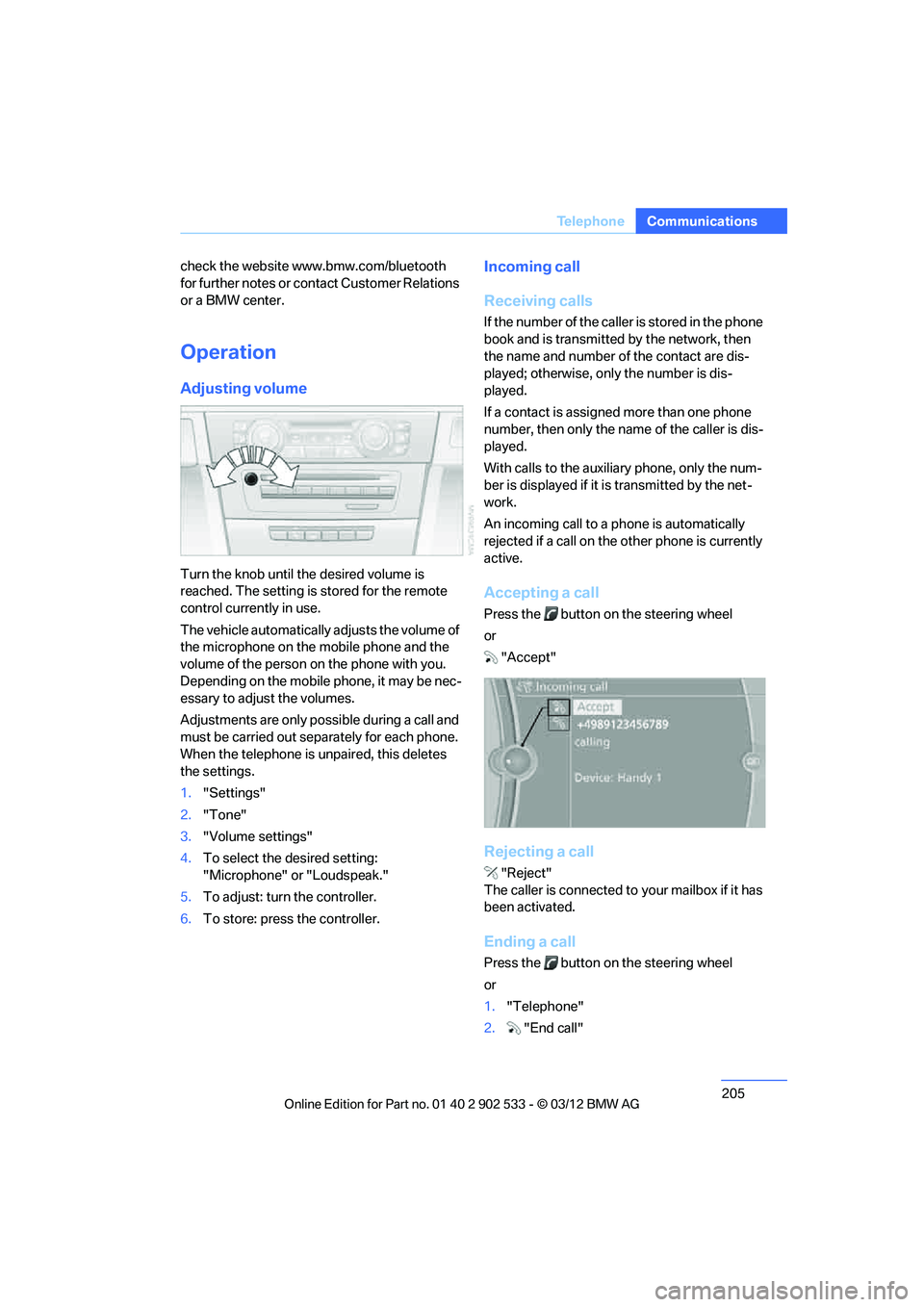
Turn the knob until the desired volume is
reached. The setting is stored for the remote
control currently in use.
The vehicle automatically adjusts the volume of
the microphone on the mobile phone and the
volume of the person on the phone with you.
Depending on the mobile phone, it may be nec-
essary to adjust the volumes.
Adjustments are only possible during a call and
must be carried out sepa
rately for each phone.
When the telephone is unpaired, this deletes
the settings.
1. "Settings"
2. "Tone"
3. "Volume settings"
4. To select the desired setting:
"Microphone" or "Loudspeak."
5. To adjust: turn the controller.
6. To store: press the controller.
Incoming call
Receiving calls
If the number of the caller is stored in the phone
book and is transmitted by the network, then
the name and number of the contact are dis-
played; otherwise, only the number is dis-
played.
If a contact is assigned more than one phone
number, then only the name of the caller is dis-
played.
With calls to the auxiliary phone, only the num-
ber is displayed if it is transmitted by the net-
work.
An incoming call to a phone is automatically
rejected if a call on the other phone is currently
active.
Accepting a call
Press the button on the steering wheel
or
"Accept"
Rejecting a call
"Reject"
The caller is connected to your mailbox if it has
been activated.
Ending a call
Press the button on the steering wheel
or
1. "Telephone"
2. "End call"
00320051004F004C00510048000300280047004C0057004C005200510003
Page 210 of 308
209
Te l e p h o n e
Communications
1.
Highlight the entry.
2. Open "Options".
3. "Delete entry" or "Delete list".
Saving an entry in the contacts
1.Highlight the entry.
2. Open "Options".
3. "Store as new contact" or "Add to existing
contact".
4. Select contact if necessary.
5. Select the type of number: "Home",
"Business", "Mobile" or "Other".
6. Complete the entries if necessary.
7. "Store contact"
Hands-free system
General information
Calls being conducted using the hands-free
system can be continued using the mobile
phone and vice versa.
From the mobile phone to the hands-
free system
Calls that have been initiated from outside the
Bluetooth range of the vehicle can be continued
using the hands-free system if the ignition is
switched on.
Depending on the mobile phone, the call is
automatically switched to hands-free mode.
If the switch does not occur automatically, then
follow the instructions that appear on the dis-
play of the mobile phone, also refer to the
Owner's Manual for the mobile phone.
From hands-free system to mobile
phone
Calls being conducted using the hands-free
system can also be continued using the mobile
phone if so desired, depending on the mobile
phone. At this point, follow the instructions that appear
on the display of the mobile phone, also refer to
the Owner's Manual for the mobile phone.
Operation by voice
With voice activation system:
Operation, refer to page
25.
Without voice activation system:
Depending upon the equipment, the mobile
phone can be voice-operated as described
below.
The list of short commands in the Owner's
Manual does not apply to this type of voice
operation.
The concept
> The mobile phone can be operated without
removing your hand from the steering
wheel.
> In many cases, the entry process is sup-
ported by means of announcements or
questions.
> {...} Verbal instructions to use with the voice
operation system.
Voice commands
Activating voice activation system
1. Press the button on the steering wheel.
2. Say the command.
Finishing voice input
Press the button on the steering wheel
or
Possible commands
Having possible commands read aloud
The system understands default commands
that must be spoken word for word. {
Cancel }.
{ Help }.
00320051004F004C00510048000300280047004C0057004C005200510003
Page 214 of 308
213
Office
Communications
Office
Vehicle equipment
In this chapter, all production, country, and
optional equipment that is offered in the model
range is described. Equipment is also described
that is not available because of, for example,
selected options or country version. This also
applies to safety related functions and systems.
Overview
General information
Contacts, appointments, tasks, notes, text
messages and mobile phone e-mails can be
displayed using the Control Display if the
mobile phone compatibly supports these func-
tions and the required Bluetooth radio stan-
dards.
For information about which mobile phones and
functions support the func
tions of Office, go to
www.bmwusa.com/bluetooth.
A limited number of compatible mobile phones
are available for Office.
Contents are only displayed completely when
the vehicle is stopped.
Only read access to the mobile phone is possi-
ble.
Do not use Office while driving. Make
entries only when traffic and road condi-
tions permit; otherwise, you may endanger
vehicle occupants and other road users by
being distracted. <
Requirements
>A suitable mobile phone is paired with the
vehicle and connected. In some mobile
phones, the data access to the mobile
phone must be confirmed. >
Time zone, time, and date, refer to page 87,
are correctly set on the Control Display and
on the mobile phone in order, for example,
to correctly display appointments.
> Office is activated, refer to page 201.
Updating
Every time that the mobile phone is connected
to the vehicle, data are updated. Appointments,
tasks, notes and reminders can be updated
separately.
1."Office"
2. "Current office", "Calendar", "Tasks",
"Notes" or "Reminders"
3. Open "Options".
4. "Update data"
Data from the mobile phone are again trans-
ferred to the vehicle.
Current office
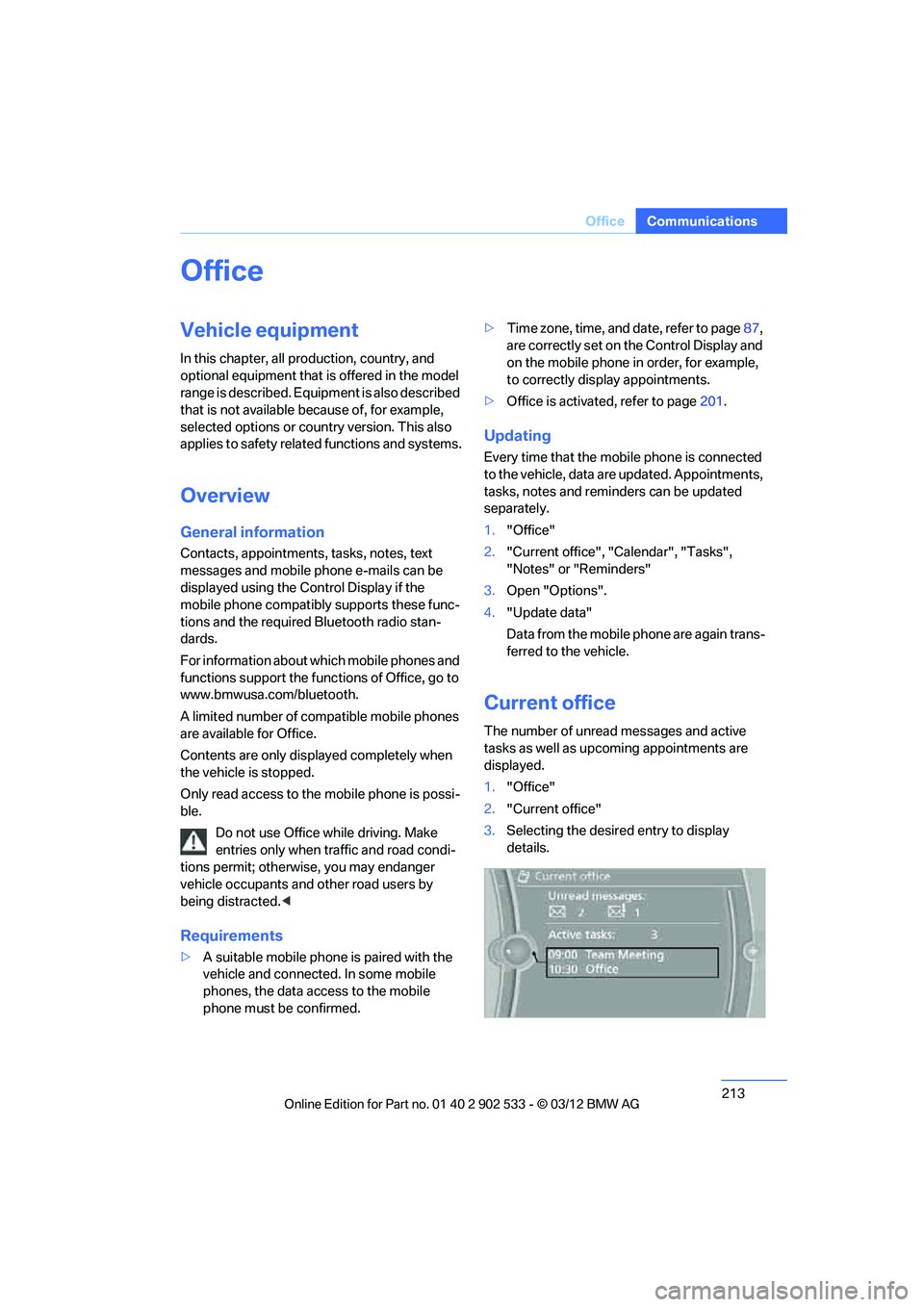
The number of unread messages and active
tasks as well as upcoming appointments are
displayed.
1."Office"
2. "Current office"
3. Selecting the desired entry to display
details.
00320051004F004C00510048000300280047004C0057004C005200510003
Page 216 of 308
215
Office
Communications
If the address is corrected and stored, then a
copy is established in the vehicle. The address
is not changed on the mobile phone.
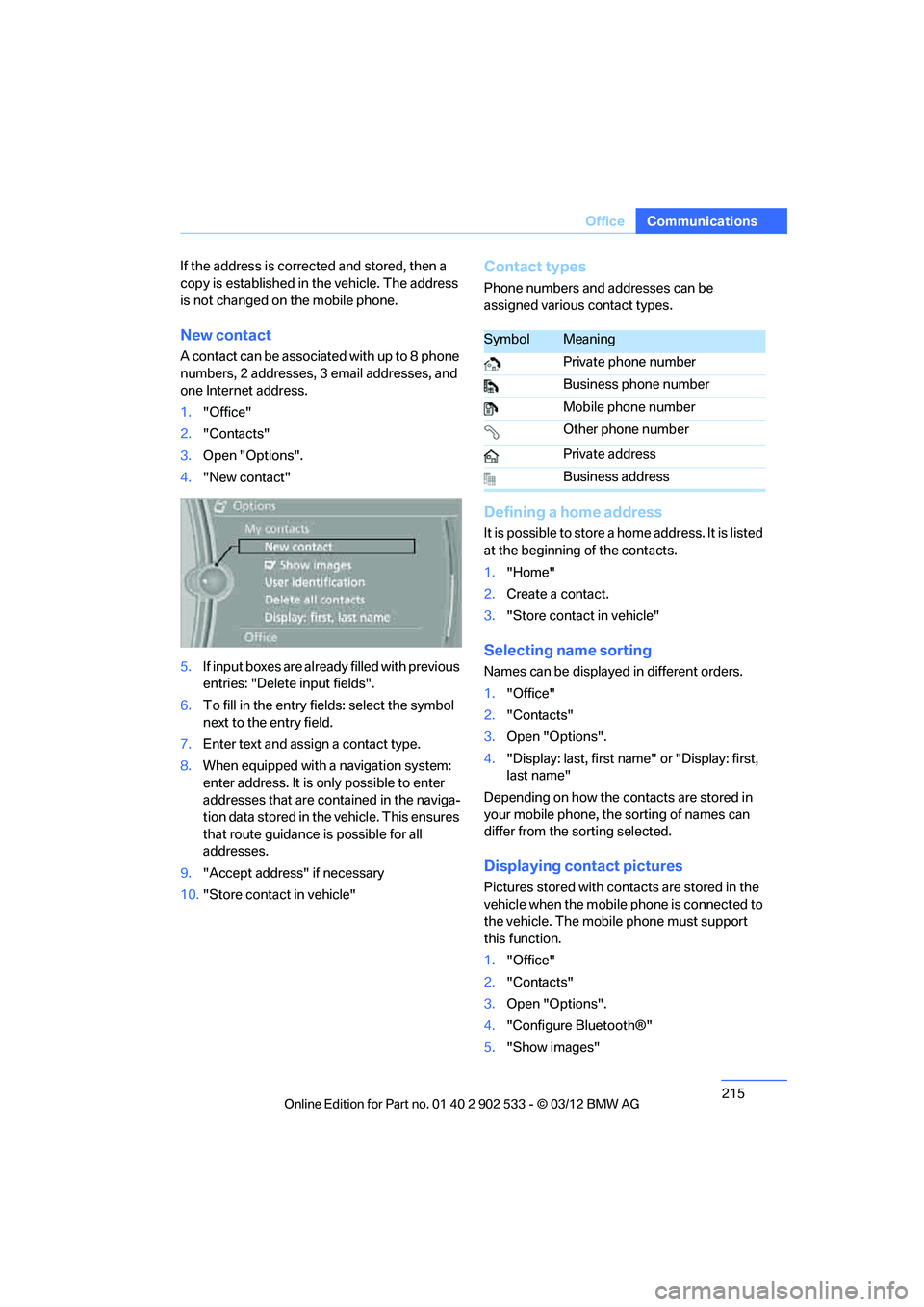
New contact
A contact can be associated with up to 8 phone
numbers, 2 addresses, 3 email addresses, and
one Internet address.
1.
"Office"
2. "Contacts"
3. Open "Options".
4. "New contact"
5. If input boxes are already filled with previous
entries: "Delete input fields".
6. To fill in the entry fields: select the symbol
next to the entry field.
7. Enter text and assign a contact type.
8. When equipped with a navigation system:
enter address. It is only possible to enter
addresses that are contained in the naviga-
tion data stored in the vehicle. This ensures
that route guidance is possible for all
addresses.
9. "Accept address" if necessary
10. "Store contact in vehicle"
Contact types
Phone numbers and addresses can be
assigned various contact types.
Defining a home address
It is possible to store a home address. It is listed
at the beginning of the contacts.
1."Home"
2. Create a contact.
3. "Store contact in vehicle"
Selecting name sorting
Names can be displayed in different orders.
1."Office"
2. "Contacts"
3. Open "Options".
4. "Display: last, first name" or "Display: first,
last name"
Depending on how the contacts are stored in
your mobile phone, the sorting of names can
differ from the sorting selected.
Displaying contact pictures
Pictures stored with contacts are stored in the
vehicle when the mobile phone is connected to
the vehicle. The mobile phone must support
this function.
1. "Office"
2. "Contacts"
3. Open "Options".
4. "Configure Bluetooth®"
5. "Show images"
SymbolMeaning
Private phone number
Business phone number
Mobile phone number
Other phone number
Private address
Business address
00320051004F004C00510048000300280047004C0057004C005200510003
Page 230 of 308
229
ConnectedDrive
Communications
Using apps
1.
Connect the mobile phone using the snap-
in adapter or the USB audio interface.
2. "ConnectedDrive"
3. Select the desired software application.
Displaying status
You can display information about the currently
available software applications.
1."ConnectedDrive"
2. "BMW apps"
Plugin
Selected functions of the mobile phone are dis-
played on the Control Display. They can be
operated via iDrive.
1.Connect the mobile phone using the snap-
in adapter.
2. "ConnectedDrive"
3. "PlugIn"
4. "Activate PlugIn"
5. Use the controller to navigate in the dis-
played functions and select the desired cat-
egory or track, for example.
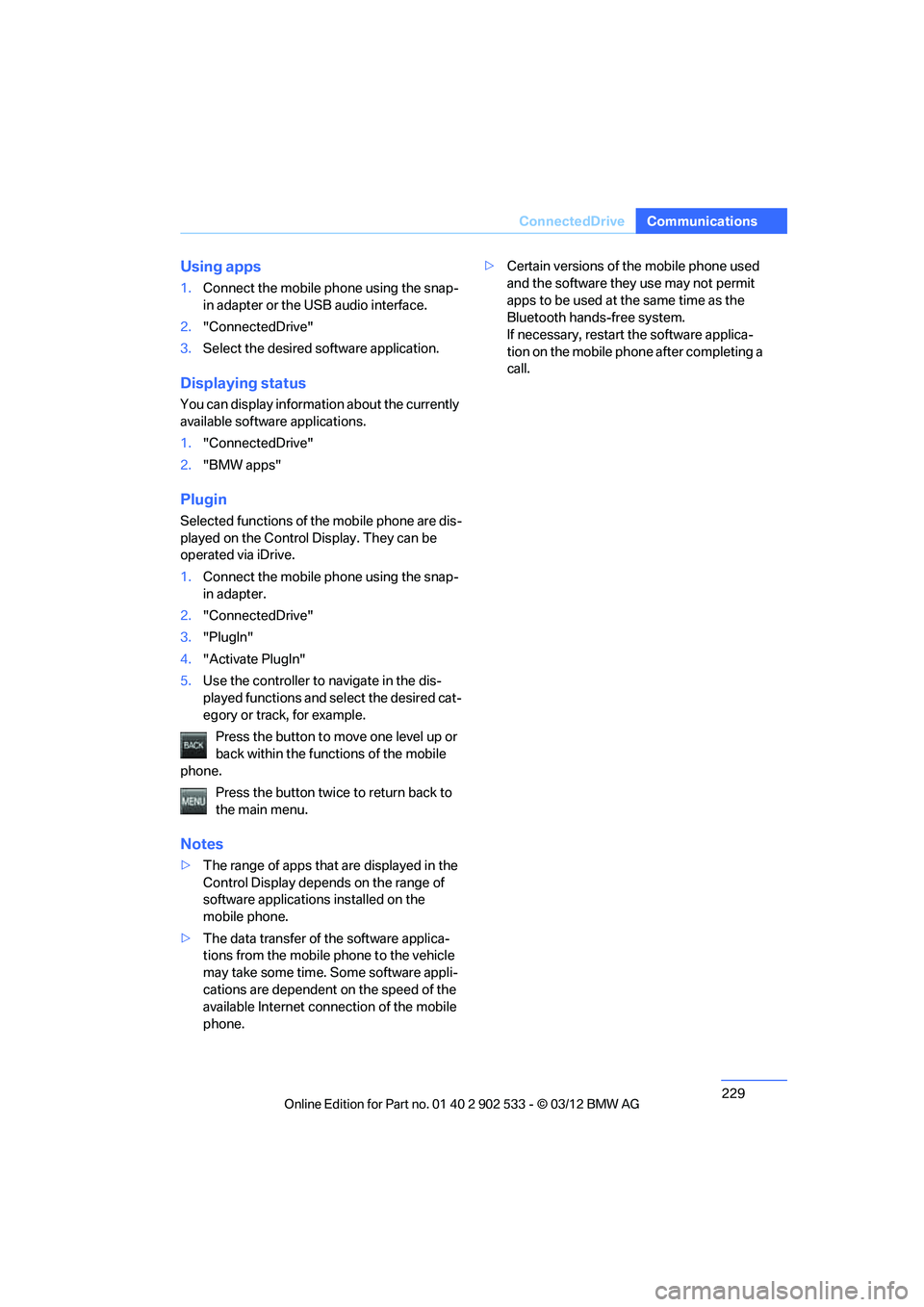
Press the button to move one level up or
back within the functions of the mobile
phone.
Press the button twice to return back to
the main menu.
Notes
>The range of apps that are displayed in the
Control Display depends on the range of
software applications installed on the
mobile phone.
> The data transfer of the software applica-
tions from the mobile phone to the vehicle
may take some time. Some software appli-
cations are dependent on the speed of the
available Internet connection of the mobile
phone. >
Certain versions of the mobile phone used
and the software they use may not permit
apps to be used at the same time as the
Bluetooth hands-free system.
If necessary, restart the software applica-
tion on the mobile phone after completing a
call.
00320051004F004C00510048000300280047004C0057004C005200510003
Page 287 of 308
286
Referen ceShort commands for the voice activation system
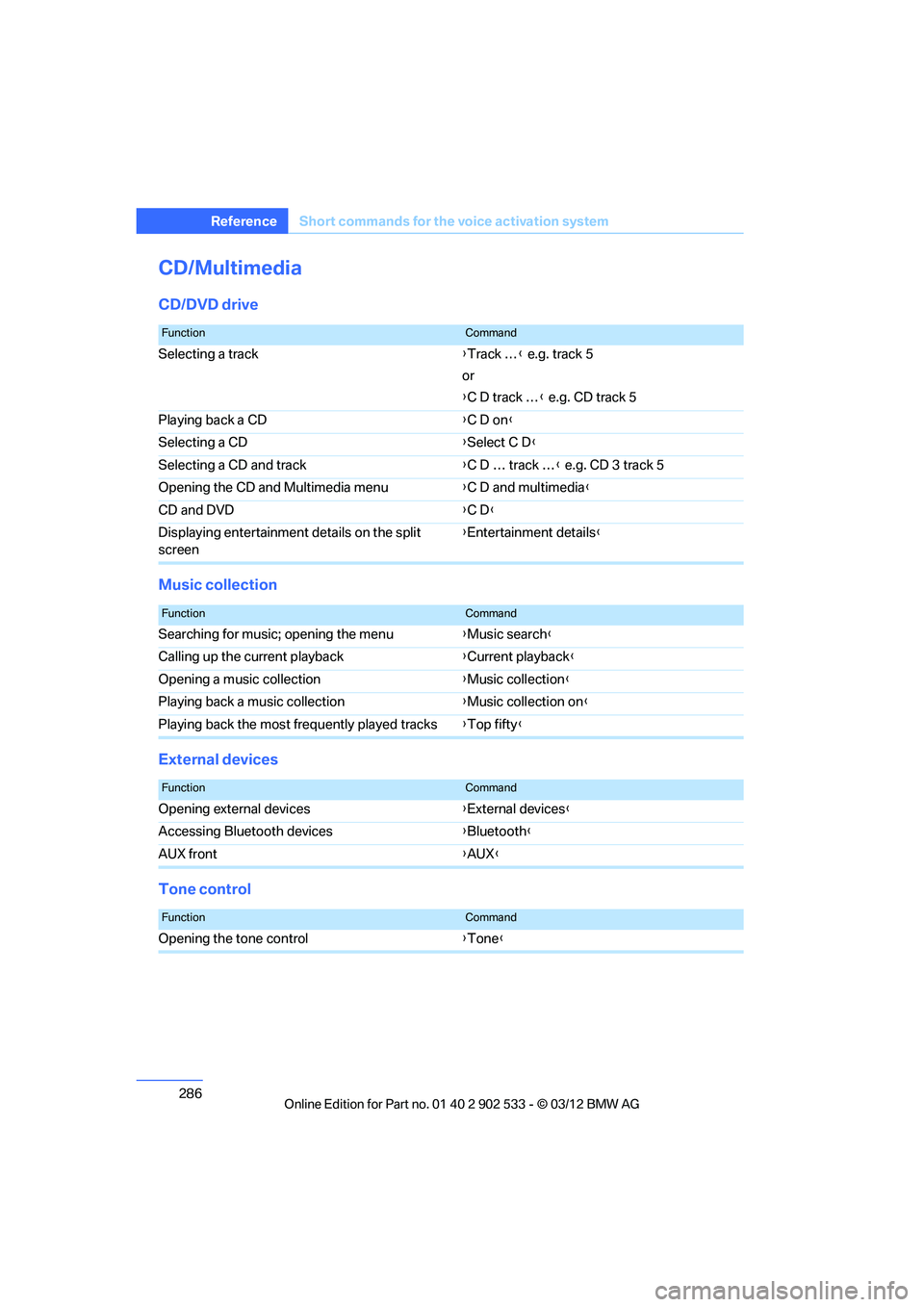
CD/Multimedia
CD/DVD drive
Music collection
External devices
Tone control
FunctionCommand
Selecting a track {Track … } e.g. track 5
or
{ C D track … } e.g. CD track 5
Playing back a CD {C D on}
Selecting a CD {Select C D }
Selecting a CD and track {C D … track … } e.g. CD 3 track 5
Opening the CD and Multimedia menu {C D and multimedia }
CD and DVD {C D }
Displaying entertainment details on the split
screen {
Entertainment details }
FunctionCommand
Searching for music; opening the menu {Music search}
Calling up the current playback {Current playback }
Opening a music collection {Music collection}
Playing back a music collection {Music collection on }
Playing back the most frequently played tracks {Top fifty }
FunctionCommand
Opening external devices {External devices }
Accessing Bluetooth devices {Bluetooth}
AUX front {AUX }
FunctionCommand
Opening the tone control {Tone }
00320051004F004C00510048000300280047004C0057004C005200510003
Page 289 of 308
288
Referen ceShort commands for the voice activation system
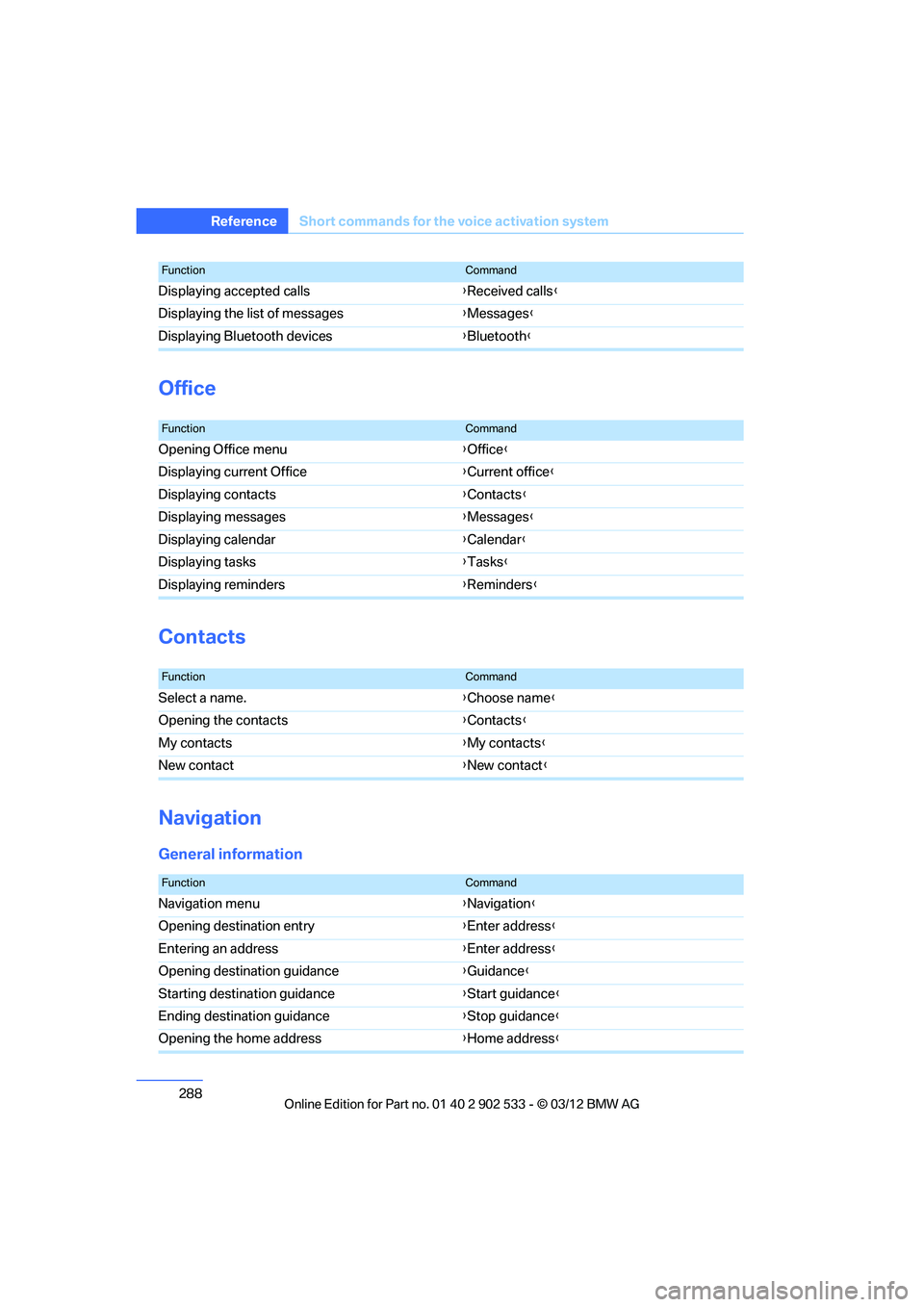
Office
Contacts
Navigation
General information
Displaying accepted calls {Received calls }
Displaying the list of messages {Messages }
Displaying Bluetooth devices {Bluetooth}
FunctionCommand
FunctionCommand
Opening Office menu {Office }
Displaying current Office {Current office }
Displaying contacts {Contacts }
Displaying messages {Messages }
Displaying calendar {Calendar }
Displaying tasks {Tasks }
Displaying reminders {Reminders }
FunctionCommand
Select a name. {Choose name }
Opening the contacts {Contacts }
My contacts {My contacts }
New contact {New contact }
FunctionCommand
Navigation menu {Navigation }
Opening destination entry {Enter address }
Entering an address {Enter address }
Opening destination guidance {Guidance }
Starting destination guidance {Start guidance }
Ending destination guidance {Stop guidance }
Opening the home address {Home address }
00320051004F004C00510048000300280047004C0057004C005200510003
Page 294 of 308
293
Everything from A to Z
Reference
AUX-IN
– port
125
Available services 228
Average fuel consumption 82
– setting the units 85
Average speed 82
Avoid highways in
navigation 155
Avoiding unintentional alarms 38
Axle loads, refer to Weights 283
B
Backrest contour, refer to
Lumbar support 48
Backrests, refer to Seat adjustment 47
Backrest width adjustment 48
Back seats
– refer to Rear seats 50
Bag holder 129
Band-aids, refer to First aid pouch 273
Bar, refer to Towing methods 276
Base plate for telephone or
mobile phone
– refer to Snap-in adapter 211
– refer to Snap-in adapter in
the center armrest storage
compartment 124
Battery 270
– charging 270
– disposal 40,271
– jump-starting 274
– remote control 30
– replacing 270
– temporary power failure 270
Battery renewal
– remote control 40
– remote control for vehicle 39
Being towed 275
Belt hand-over 53
– pinch protection system 53
Belts, refer to Safety belts 52Belt tensioner, refer to Safety
belts 52
Beverage holders, refer to Cupholders 126
Black ice, refer to Outside temperature warning 80
Blinds, refer to Roller
sunblinds 124
Blower, refer to Air volume 116
Bluetooth, activating/ deactivating 201
BMW
– car shampoo 265
BMW Assist 224
– updating 228
BMW Homepage 4
BMW Info 218
BMW Maintenance
System 260
BMW Online 226
BMW webpage 4
Bottle holders, refer to Cupholders 126
Brake Assist, refer to Dynamic
Brake Control DBC 95
Brake fluid, refer to Service requirements 85
Brake Force Display 104
Brake lamps
– B ra
ke Force Display 104
Brake pads 136
– breaking in 136
Brake pedal, refer to Braking
safely 138
Brake rotors 139
– brakes 136
– breaking in 136
Brakes
– ABS 95
– BMW Maintenance System 260
– Brake Force Display 104
– breaking in 136
– parking brake 62
– service requirements 85Brakes, refer to Braking
safely 138
Brake system 136
– BMW Maintenance
System 260
– breaking in 136
– disc brakes 139
Breakdown services, refer to Roadside Assistance 273
Breaking in the clutch 136
Breaking in the differential, refer to Engine and
differential 136
Break-in period 136
Brightness of the Control Display 92
Bulb changing, refer to Lamps and bulbs 266
Button for starting the engine,
refer to Start/Stop button 60
Buttons on the steering wheel 11
C
Calendar 219
– displaying appointment 219
– selecting calendar day 219
California Proposition 65 warning 6
Call
– accepting 205
– ending 205
– muting the microphone 207
– rejecting 205
Calling, refer to Phone numbers, dialing 206
Calling, refer to Telephone owner's manual
Calls
– with multiple parties 206
Can holders, refer to Cupholders 126
Capacities 284
Capacity of the trunk 283
Car battery, refer to Vehicle
battery 270
00320051004F004C00510048000300280047004C0057004C005200510003