display BMW 335IS COUPE 2013 Repair Manual
[x] Cancel search | Manufacturer: BMW, Model Year: 2013, Model line: 335IS COUPE, Model: BMW 335IS COUPE 2013Pages: 308, PDF Size: 5.65 MB
Page 123 of 308
122
ControlsPractical interior accessories
by means of the hand-held transmitter was
interrupted, hold down the button on the
inside mirror and then press and release the
button on the hand-held transmitter several
times, holding it down for 2 seconds each
time.
Operation
To prevent possible damage or injury,
before programming or using the inte-
grated universal remote control to operate a
device, always inspect the immediate area to
make certain that no people, animals or objects
are within the pivoting or travel range of the
device being operated.
Also follow the safety instructions supplied with
the hand-held transmitter.
door, if the engine is running or the ignition is
switched on. To do so, within the reception
range of the device, press the button of the
device until the function is triggered. The LED
on the inside mirror remains lit during transmis-
sion of the radio signal.Deleting stored functions
Simultaneously hold down the right and left
buttons on the inside mirror for approx. 20 sec-
onds until the LED on the inside mirror flashes
rapidly. All stored functions are deleted. The
functions cannot be deleted individually.
Digital compass
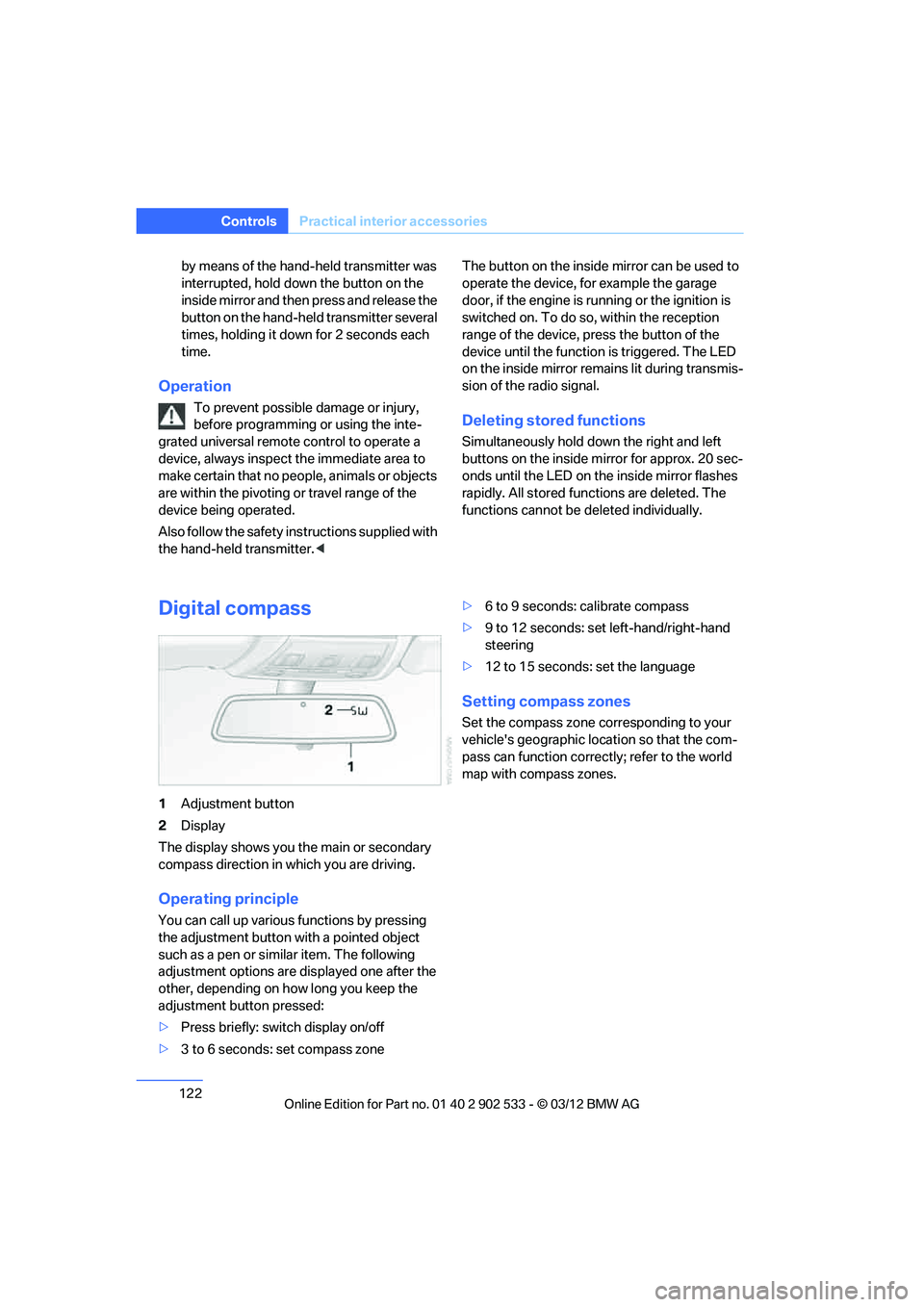
1
Adjustment button
2 Display
The display shows you the main or secondary
compass direction in which you are driving.
Operating principle
You can call up various functions by pressing
the adjustment button with a pointed object
such as a pen or similar item. The following
adjustment options are displayed one after the
other, depending on how long you keep the
adjustment button pressed:
> Press briefly: switch display on/off
> 3 to 6 seconds: set compass zone >
6 to 9 seconds: calibrate compass
> 9 to 12 seconds: set left-hand/right-hand
steering
> 12 to 15 seconds: set the language
Setting compass zones
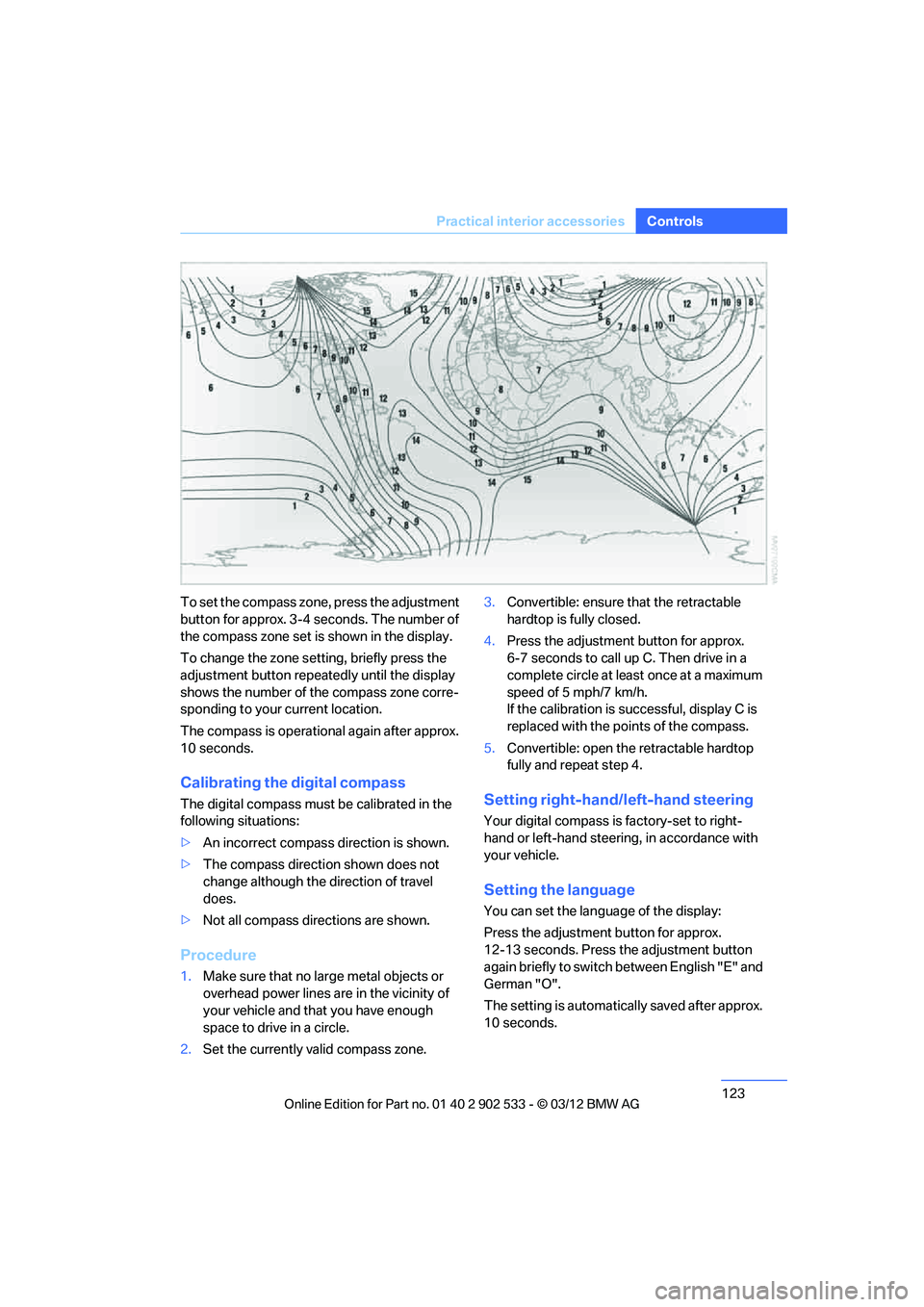
Set the compass zone corresponding to your
vehicle's geographic location so that the com-
pass can function correctly; refer to the world
map with compass zones.
00320051004F004C00510048000300280047004C0057004C005200510003
Page 124 of 308
123
Practical interior accessories
Controls
To set the compass zone, press the adjustment
button for approx. 3-4 seconds. The number of
the compass zone set is shown in the display.
To change the zone setting, briefly press the
adjustment button repeatedly until the display
shows the number of the compass zone corre-
sponding to your current location.
The compass is operational again after approx.
10 seconds.
Calibrating the digital compass
The digital compass must be calibrated in the
following situations:
>
An incorrect compass direction is shown.
> The compass direction shown does not
change although the direction of travel
does.
> Not all compass directions are shown.
Procedure
1.Make sure that no large metal objects or
overhead power lines are in the vicinity of
your vehicle and that you have enough
space to drive in a circle.
2. Set the currently valid compass zone. 3.
Convertible: ensure that the retractable
hardtop is fully closed.
4. Press the adjustment button for approx.
6-7 seconds to call up C. Then drive in a
complete circle at least once at a maximum
speed of 5 mph/7 km/h.
If the calibration is successful, display C is
replaced with the points of the compass.
5. Convertible: open the retractable hardtop
fully and repeat step 4.
Setting right-hand/left-hand steering
Your digital compass is factory-set to right-
hand or left-hand steering, in accordance with
your vehicle.
Setting the language
You can set the language of the display:
Press the adjustment button for approx.
12-13 seconds. Press the adjustment button
again briefly to switch between English "E" and
German "O".
The setting is automatically saved after approx.
10 seconds.
00320051004F004C00510048000300280047004C0057004C005200510003
Page 147 of 308
146
NavigationDestination entry
Destination entry
Vehicle equipment
In this chapter, all production, country, and
optional equipment that is offered in the model
range is described. Equipment is also described
that is not available because of, for example,
selected options or country version. This also
applies to safety related functions and systems.
General information
In entering your destination you can select from
the following options:
>Entering a destination manually, see below
> Selecting destination from address book,
refer to page 148
> Last destinations, refer to page 149
> Special destinations, refer to page 150
> Entering a destination on the map, refer to
page 151
> Selecting home address, refer to page 149
> Destination entry via voice, refer to
page 152
> Destination entry via BMW Assist, refer to
page 151
You can also store a navigation destination on
the programmable memory keys, refer to
page 23.
Entering a destination
manually
To make it easier to enter town/city names and
street names, the system assists you with auto-
matic name completion and entry comparison,
refer to page 155. This makes it possible to
enter different spellings and completes your
entry automatically so that stored town/city
names and street names can be accessed
quickly.
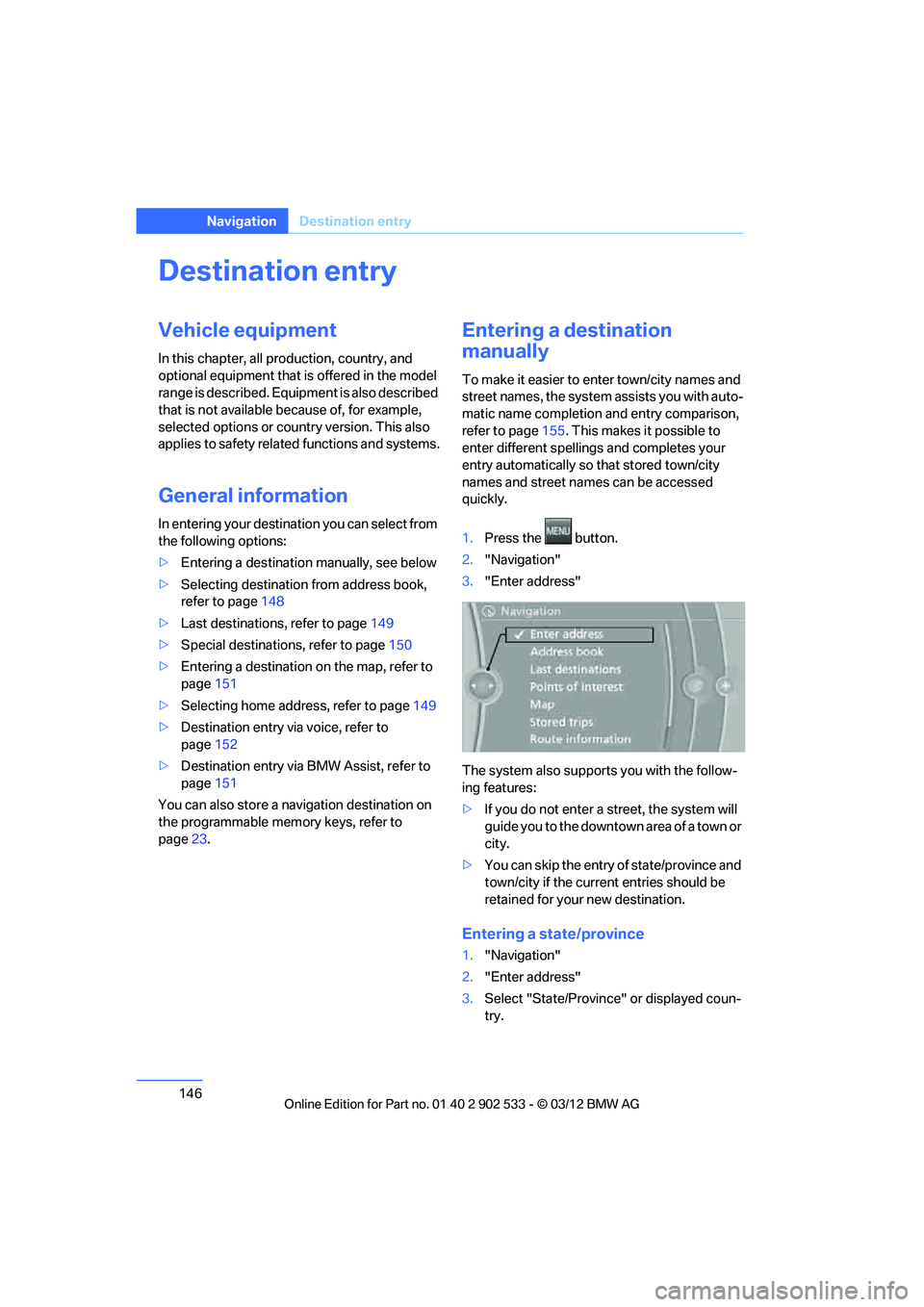
1. Press the button.
2. "Navigation"
3. "Enter address"
The system also supports you with the follow-
ing features:
> If you do not enter a street, the system will
guide you to the downtown area of a town or
city.
> You can skip the entry of state/province and
town/city if the current entries should be
retained for your new destination.
Entering a state/province
1."Navigation"
2. "Enter address"
3. Select "State/Province" or displayed coun-
try.
00320051004F004C00510048000300280047004C0057004C005200510003
Page 148 of 308
147
Destination entry
Navigation
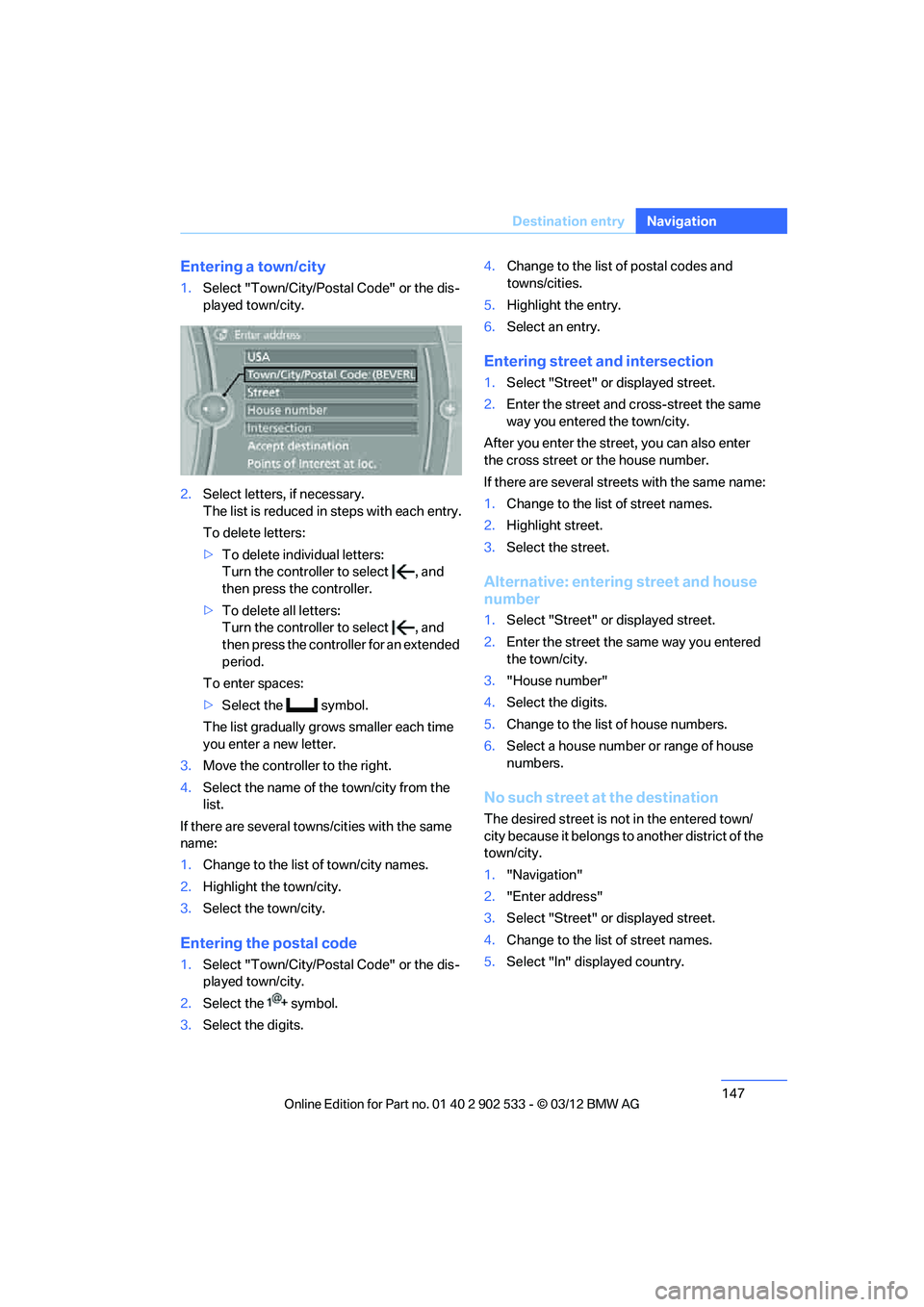
Entering a town/city
1.
Select "Town/City/Postal Code" or the dis-
played town/city.
2. Select letters, if necessary.
The list is reduced in steps with each entry.
To delete letters:
>To delete individual letters:
Turn the controller to select , and
then press the controller.
> To delete all letters:
Turn the controller to select , and
then press the controller for an extended
period.
To enter spaces:
> Select the symbol.
The list gradually grows smaller each time
you enter a new letter.
3. Move the controller to the right.
4. Select the name of the town/city from the
list.
If there are several towns/cities with the same
name:
1. Change to the list of town/city names.
2. Highlight the town/city.
3. Select the town/city.
Entering the postal code
1.Select "Town/City/Postal Code" or the dis-
played town/city.
2. Select the symbol.
3. Select the digits. 4.
Change to the list of postal codes and
towns/cities.
5. Highlight the entry.
6. Select an entry.
Entering street and intersection
1.Select "Street" or displayed street.
2. Enter the street and cross-street the same
way you entered the town/city.
After you enter the street, you can also enter
the cross street or the house number.
If there are several streets with the same name:
1. Change to the list of street names.
2. Highlight street.
3. Select the street.
Alternative: entering street and house
number
1.Select "Street" or displayed street.
2. Enter the street the same way you entered
the town/city.
3. "House number"
4. Select the digits.
5. Change to the list of house numbers.
6. Select a house number or range of house
numbers.
No such street at the destination
The desired street is not in the entered town/
city because it belongs to another district of the
town/city.
1."Navigation"
2. "Enter address"
3. Select "Street" or displayed street.
4. Change to the list of street names.
5. Select "In" displayed country.
00320051004F004C00510048000300280047004C0057004C005200510003
Page 149 of 308
148
NavigationDestination entry
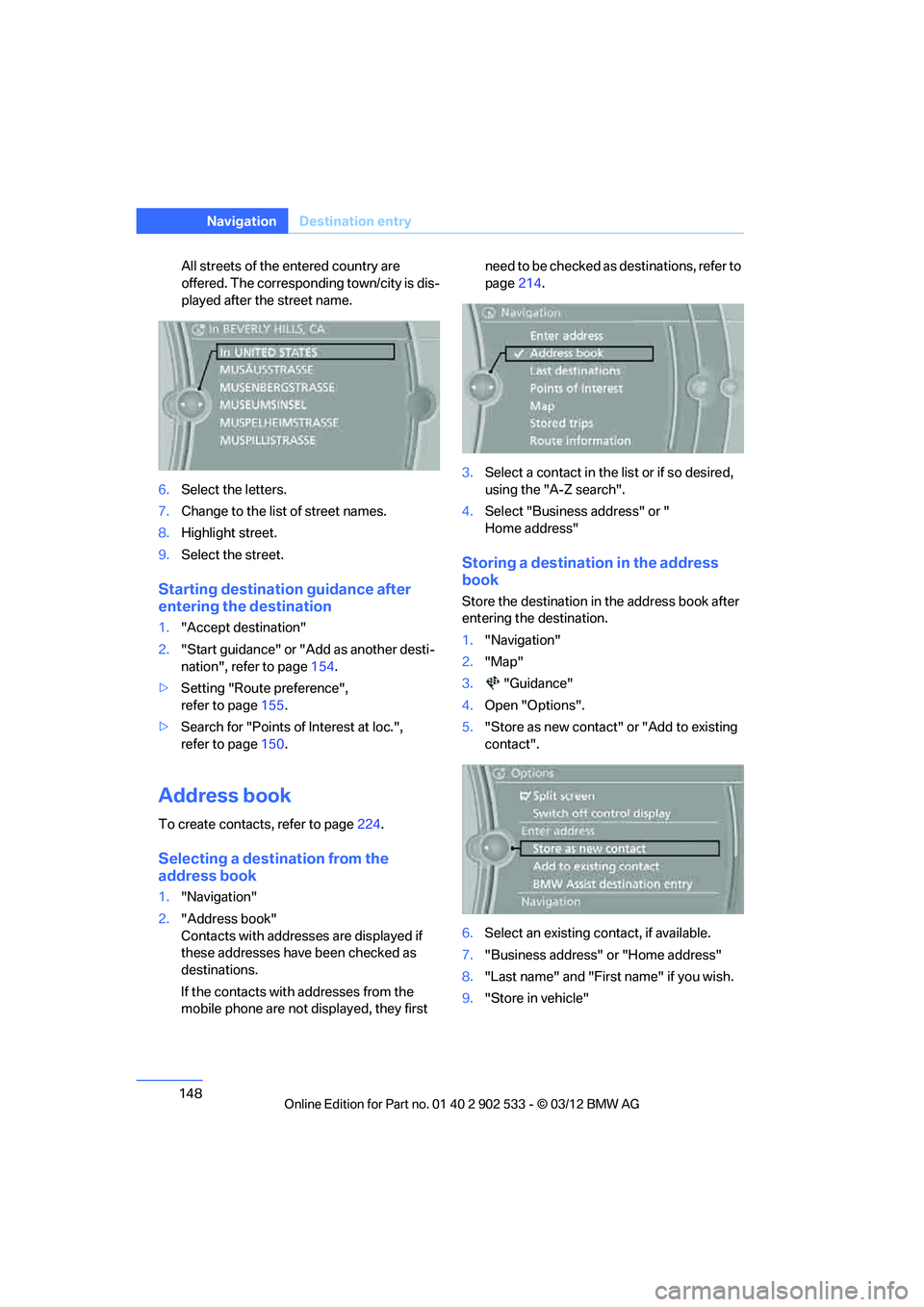
All streets of the entered country are
offered. The corresponding town/city is dis-
played after the street name.
6. Select the letters.
7. Change to the list of street names.
8. Highlight street.
9. Select the street.
Starting destination guidance after
entering the destination
1."Accept destination"
2. "Start guidance" or "Add as another desti-
nation", refer to page 154.
> Setting "Route preference",
refer to page 155.
> Search for "Points of Interest at loc.",
refer to page 150.
Address book
To create contacts, refer to page 224.
Selecting a destination from the
address book
1."Navigation"
2. "Address book"
Contacts with addresses are displayed if
these addresses have been checked as
destinations.
If the contacts with addresses from the
mobile phone are not displayed, they first need to be checked as destinations, refer to
page
214.
3. Select a contact in the list or if so desired,
using the "A-Z search".
4. Select "Business address" or "
Home address"
Storing a destination in the address
book
Store the destination in the address book after
entering the destination.
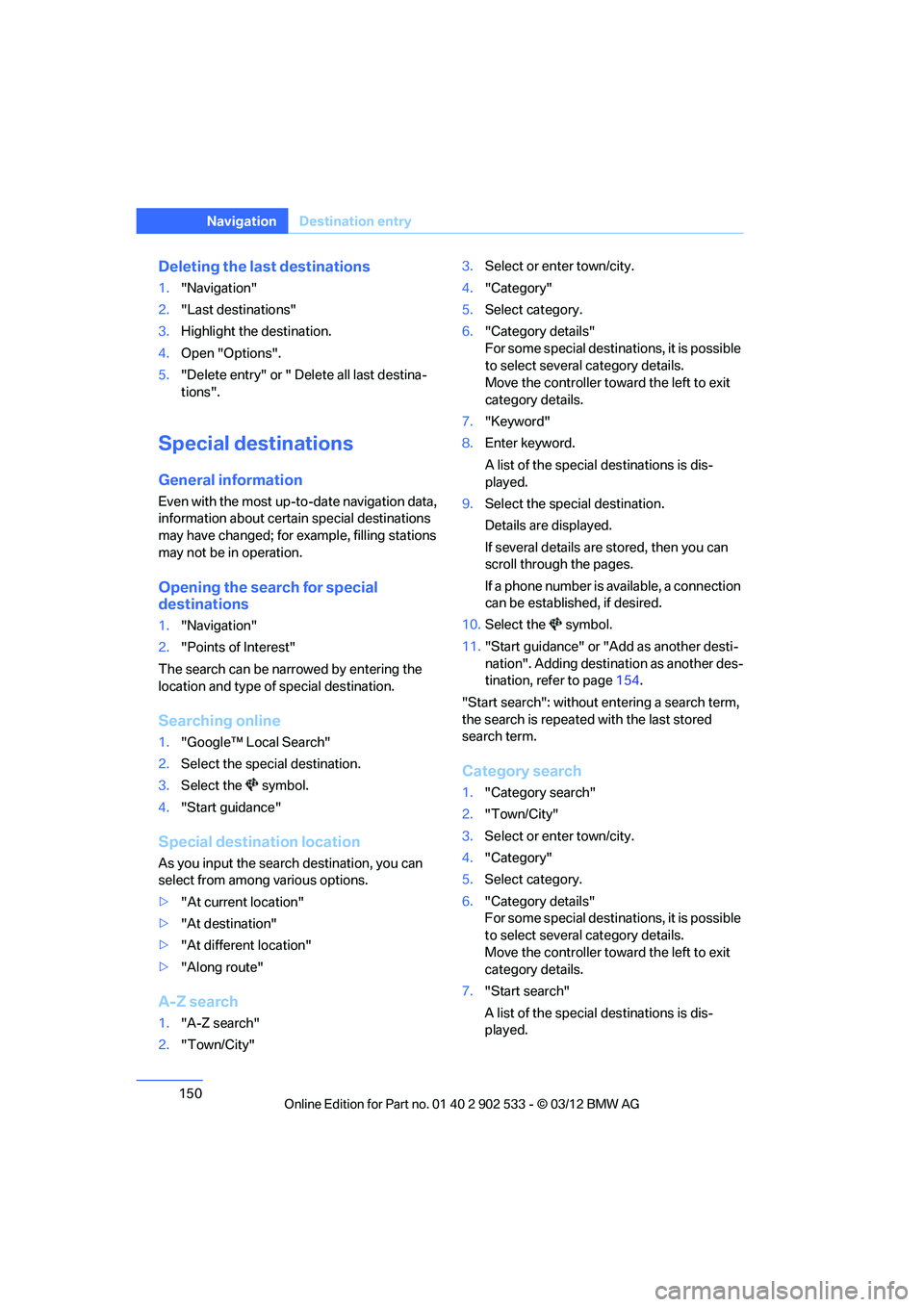
1."Navigation"
2. "Map"
3. "Guidance"
4. Open "Options".
5. "Store as new contact" or "Add to existing
contact".
6. Select an existing contact, if available.
7. "Business address" or "Home address"
8. "Last name" and "First name" if you wish.
9. "Store in vehicle"
00320051004F004C00510048000300280047004C0057004C005200510003
Page 151 of 308
150
NavigationDestination entry
Deleting the last destinations
1."Navigation"
2. "Last destinations"
3. Highlight the destination.
4. Open "Options".
5. "Delete entry" or " Delete all last destina-
tions".
Special destinations
General information
Even with the most up-to-date navigation data,
information about certain special destinations
may have changed; for ex ample, filling stations
may not be in operation.
Opening the search for special
destinations
1. "Navigation"
2. "Points of Interest"
The search can be narrowed by entering the
location and type of special destination.
Searching online
1. "Google™ Local Search"
2. Select the special destination.
3. Select the symbol.
4. "Start guidance"
Special destination location
As you input the search destination, you can
select from among various options.
>"At current location"
> "At destination"
> "At different location"
> "Along route"
A-Z search
1."A-Z search"
2. "Town/City" 3.
Select or enter town/city.
4. "Category"
5. Select category.
6. "Category details"
For some special destinations, it is possible
to select several category details.
Move the controller toward the left to exit
category details.
7. "Keyword"
8. Enter keyword.
A list of the special destinations is dis-
played.
9. Select the special destination.
Details are displayed.
If several details are stored, then you can
scroll through the pages.
If a phone number is available, a connection
can be established, if desired.
10. Select the symbol.
11. "Start guidance" or "Add as another desti-
nation". Adding destination as another des-
tination, refer to page 154.
"Start search": without entering a search term,
the search is repeated with the last stored
search term.
Category search
1. "Category search"
2. "Town/City"
3. Select or enter town/city.
4. "Category"
5. Select category.
6. "Category details"
For some special destinations, it is possible
to select several category details.
Move the controller toward the left to exit
category details.
7. "Start search"
A list of the special destinations is dis-
played.
00320051004F004C00510048000300280047004C0057004C005200510003
Page 152 of 308
151
Destination entry
Navigation
8.
Select the special destination.
Details are displayed.
If several details are stored, then you can
scroll through the pages.
If a phone number is available, a connection
can be established, if desired.
9. Select the symbol.
10. "Start guidance" or "Add as another desti-
nation". Adding destination as another des-
tination, refer to page 154.
Displaying special destinations
List of special destinations: the special destina-
tions are displayed in order of their distance and
are displayed with a direction arrow pointing
toward the destination.
With the Professional navigation system:
In the split screen, special destinations from the
selected category are displayed as symbols in
the map view. The display depends on the map
scale and the category.
Destination entry via BMW Assist
A connection to the BMW Concierge service is
established, refer to page 225.
1. "Navigation"
2. "Enter address"
3. Open "Options".
4. "BMW Assist dest. entry"
Displaying special destinations in the
map
To display symbols of the special destinations
in the map:
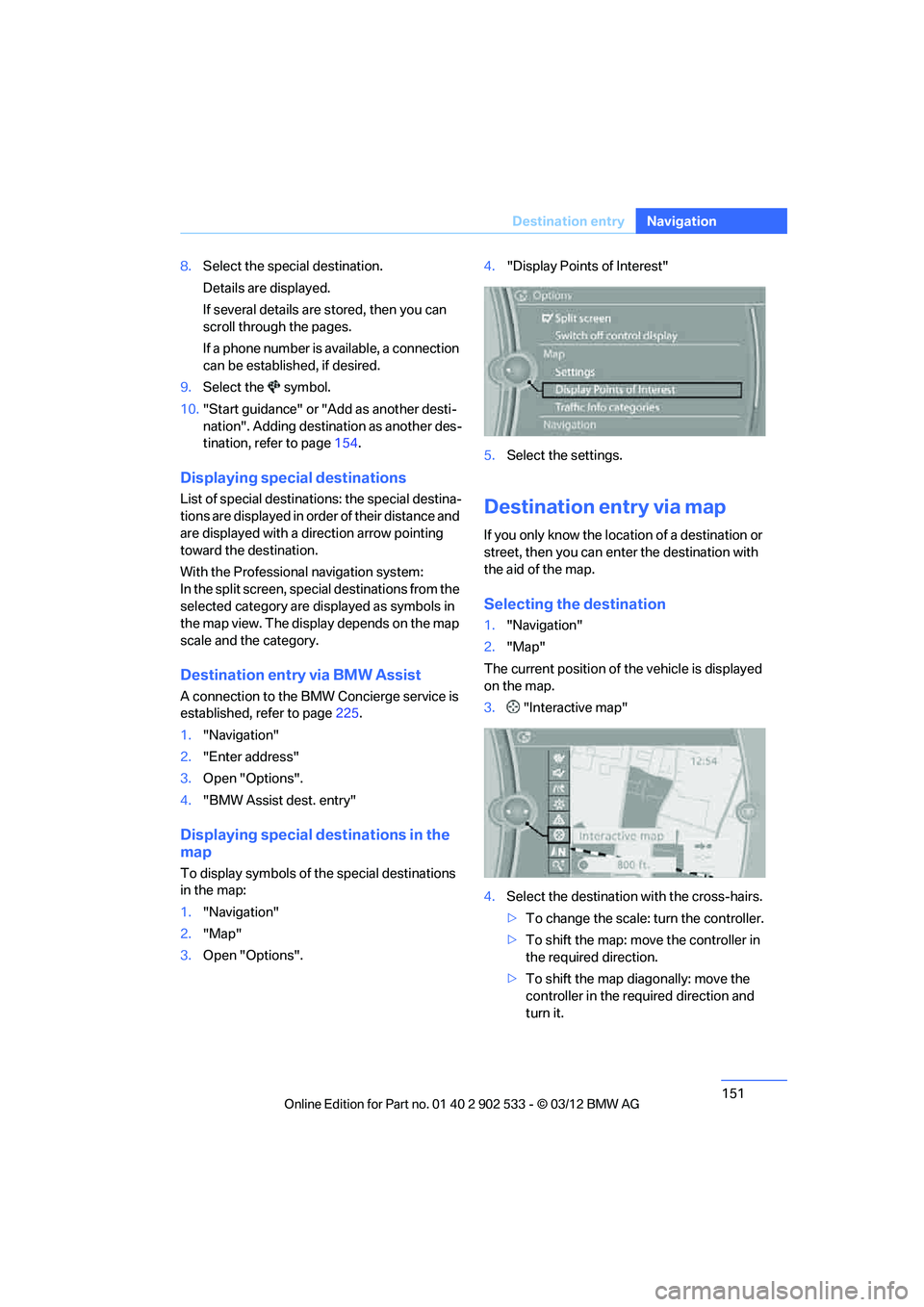
1."Navigation"
2. "Map"
3. Open "Options". 4.
"Display Points of Interest"
5. Select the settings.
Destination entry via map
If you only know the location of a destination or
street, then you can enter the destination with
the aid of the map.
Selecting the destination
1."Navigation"
2. "Map"
The current position of the vehicle is displayed
on the map.
3. "Interactive map"
4. Select the destination with the cross-hairs.
>To change the scale: turn the controller.
> To shift the map: move the controller in
the required direction.
> To shift the map diagonally: move the
controller in the required direction and
turn it.
00320051004F004C00510048000300280047004C0057004C005200510003
Page 153 of 308
152
NavigationDestination entry
5.Press the controller to display additional
menu items.
>Select the symbol: "Start guidance"
or "Add as another destination".
> "Find points of interest": the search for
special destinations is started.
Specifying the street
If the system cannot recognize a street, it dis-
plays one of the following pieces of information:
> A street name in the vicinity.
> The district.
> The coordinates of the destination.
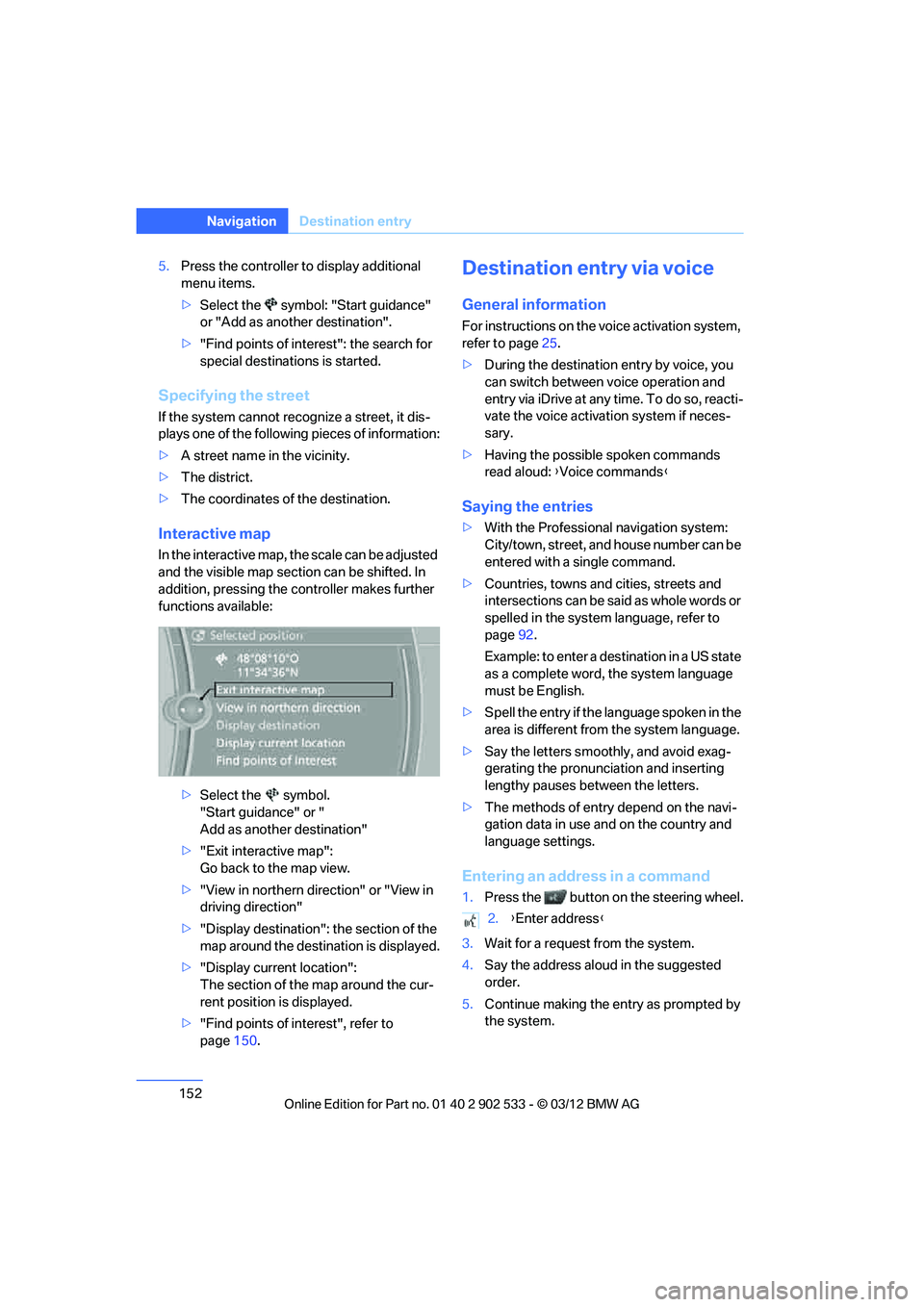
Interactive map
In the interactive map, the scale can be adjusted
and the visible map section can be shifted. In
addition, pressing the controller makes further
functions available:
>Select the symbol.
"Start guidance" or "
Add as another destination"
> "Exit interactive map":
Go back to the map view.
> "View in northern direction" or "View in
driving direction"
> "Display destination": the section of the
map around the destination is displayed.
> "Display current location":
The section of the map around the cur-
rent position is displayed.
> "Find points of interest", refer to
page 150.
Destination entry via voice
General information
For instructions on the voice activation system,
refer to page 25.
> During the destination entry by voice, you
can switch between voice operation and
entry via iDrive at any time. To do so, reacti-
vate the voice activation system if neces-
sary.
> Having the possible spoken commands
read aloud: {Voice commands }
Saying the entries
>With the Professional navigation system:
City/town, street, and house number can be
entered with a single command.
> Countries, towns and cities, streets and
intersections can be said as whole words or
spelled in the system language, refer to
page 92.
Example: to enter a destination in a US state
as a complete word, the system language
must be English.
> Spell the entry if the language spoken in the
area is different from the system language.
> Say the letters smoothly, and avoid exag-
gerating the pronunciation and inserting
lengthy pauses between the letters.
> The methods of entry depend on the navi-
gation data in use and on the country and
language settings.
Entering an address in a command
1.Press the button on the steering wheel.
3. Wait for a request from the system.
4. Say the address aloud in the suggested
order.
5. Continue making the entry as prompted by
the system.
2.{Enter address }
00320051004F004C00510048000300280047004C0057004C005200510003
Page 154 of 308
153
Destination entry
Navigation
If necessary, individually name the separate
components of the address, e.g. the town/city.
Entering a town/city
The town/city name can be spoken as a com-
plete word or spelled.
With the destination entry menu displayed:
1.
Press the button on the steering wheel.
3. Wait for the system to prompt you for the
town/city.
4. Say the name of the town/city or say at least
the first three letters.
Depending on the entry, up to 20 towns/cit-
ies may be suggested.
6. Continue making the entry as prompted by
the system.
If there are several towns/cities with the same
name:
Towns/cities that sound the same are compiled
in a separate list and are displayed as one town/
city followed by three dots.
1. Select an entry:
2. Select the desired town/city.
The town/city can also be selected from the list
via iDrive: turn the controller until the town/city
is selected and press the controller.
Entering a street or intersection
The street or intersection is entered in the same
manner as the town/city.
Entering a house number
Depending on the data in the navigation sys-
tem, house numbers up to the number 2,000
can be entered:
Starting destination guidance
Destination guidance starts immediately.
Planning a trip with
intermediate destinations
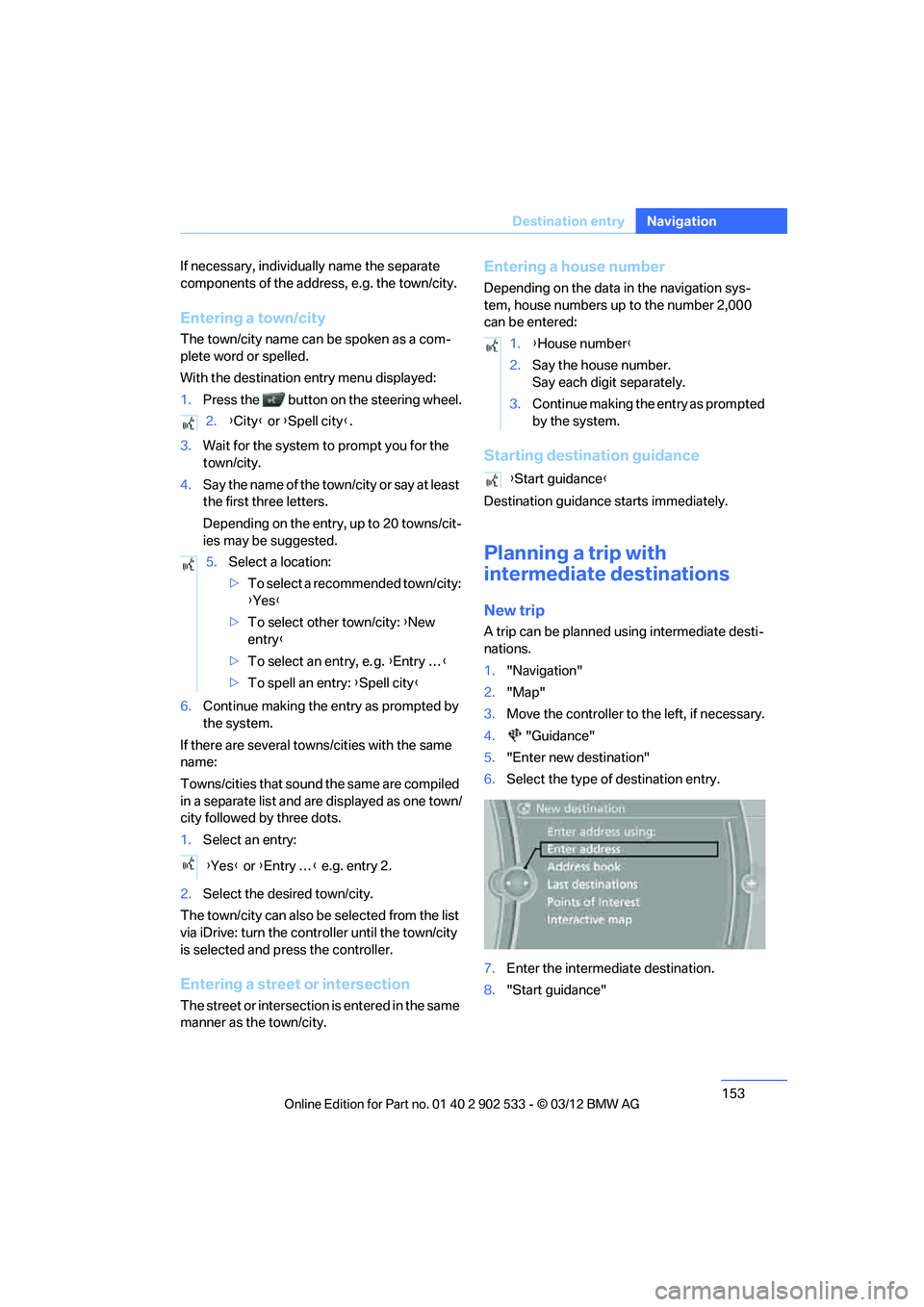
New trip
A trip can be planned using intermediate desti-
nations.
1. "Navigation"
2. "Map"
3. Move the controller to the left, if necessary.
4. "Guidance"
5. "Enter new destination"
6. Select the type of destination entry.
7. Enter the intermediate destination.
8. "Start guidance"
2.
{City } or { Spell city }.
5. Select a location:
>To select a recommended town/city:
{Yes }
> To select other town/city: {New
entry }
> To select an entry, e. g. {Entry … }
> To spell an entry: {Spell city }
{ Yes } or {Entry … } e.g. entry 2.
1. {House number }
2. Say the house number.
Say each digit separately.
3. Continue making the entry as prompted
by the system.
{ Start guidance }
00320051004F004C00510048000300280047004C0057004C005200510003
Page 155 of 308
154
NavigationDestination entry
Entering intermediate destinations
A maximum of 30 intermediate destinations can
be entered for one trip.
1."Enter new destination"
2. Select the type of destination entry.
3. Enter the intermediate destination.
4. "Add as another destination"
The intermediate destination is inserted
into the destination list and highlighted.
5. Turn the controller until the intermediate
destination is at the desired place in the list.
6. Press the controller.
Starting the trip
After entering all intermediate destinations,
highlight the first destination and say "Start
guidance"
For example if the second destination is high-
lighted at the start of route guidance, then the
first destination is skipped over.
The symbol indicates the active intermedi-
ate destination.
Storing a trip
Up to 30 trips can be stored in the trip list.
Delete existing trips as necessary to permit you
to store new trips.
1.Open "Options".
2. "Store trip"
3. Enter a name.
4. "OK"
The trip is stored in the trip list under the
entered name.
Selecting a stored trip
1. "Navigation"
2. "Stored trips"
3. Select the desired trip.
4. "Start guidance"
Trips, changing
Changing the trip direction
Intermediate destinations are displayed in
reverse order in the list.
1."Map"
2. "Guidance"
3. Open "Options".
4. "Reverse order of trip dest."
Options for intermediate destinations
1."Map"
2. "Guidance"
3. "Display all trip destinations"
4. Select an intermediate destination.
>"Edit destination"
> "Reposition dest. in the trip": move the
intermediate destination within the list.
> "Delete dest. in the trip"
> "Go to next dest. in the trip"
Some options are not possible for some trips.
Deleting a stored trip
1. "Navigation"
2. "Stored trips"
3. Select the desired trip.
4. Open "Options".
5. "Delete all trips" or "Delete trip".
Selecting last trip
1."Navigation"
2. "Stored trips"
3. "Last trip"
4. "Start guidance"
00320051004F004C00510048000300280047004C0057004C005200510003