transfer BMW 335XI 2007 Owners Manual
[x] Cancel search | Manufacturer: BMW, Model Year: 2007, Model line: 335XI, Model: BMW 335XI 2007Pages: 268, PDF Size: 8.8 MB
Page 126 of 268
Things to remember when driving
124
When the vehicle is parked
Condensation forms while the automatic cli-
mate control is in operation, and then exits
under the vehicle. Traces of condensed water
under the vehicle are therefore normal.
Before driving into a car wash
For general information about taking care of
your BMW, refer to the Caring for your vehicle
brochure.
Sports Wagon: rear window wiper
Driving through an automatic car wash can
result in damage to the rear window wiper. If
necessary, ask the operator of the car wash
about protective measures you should take.
With convenient access and automatic
transmission
Insert the remote control into the ignition
switch.
The engine can be switched off when the selec-
tor lever is in position N. Refer also to page38.
Cargo loading
To avoid loading the tires beyond their
approved carrying capacity, never over-
load the vehicle. Overloading can lead to over-
heating and increases the rate at which damage
develops inside the tires. The ultimate result
can assume the form of a sudden blow-out.<
Determining loading limit
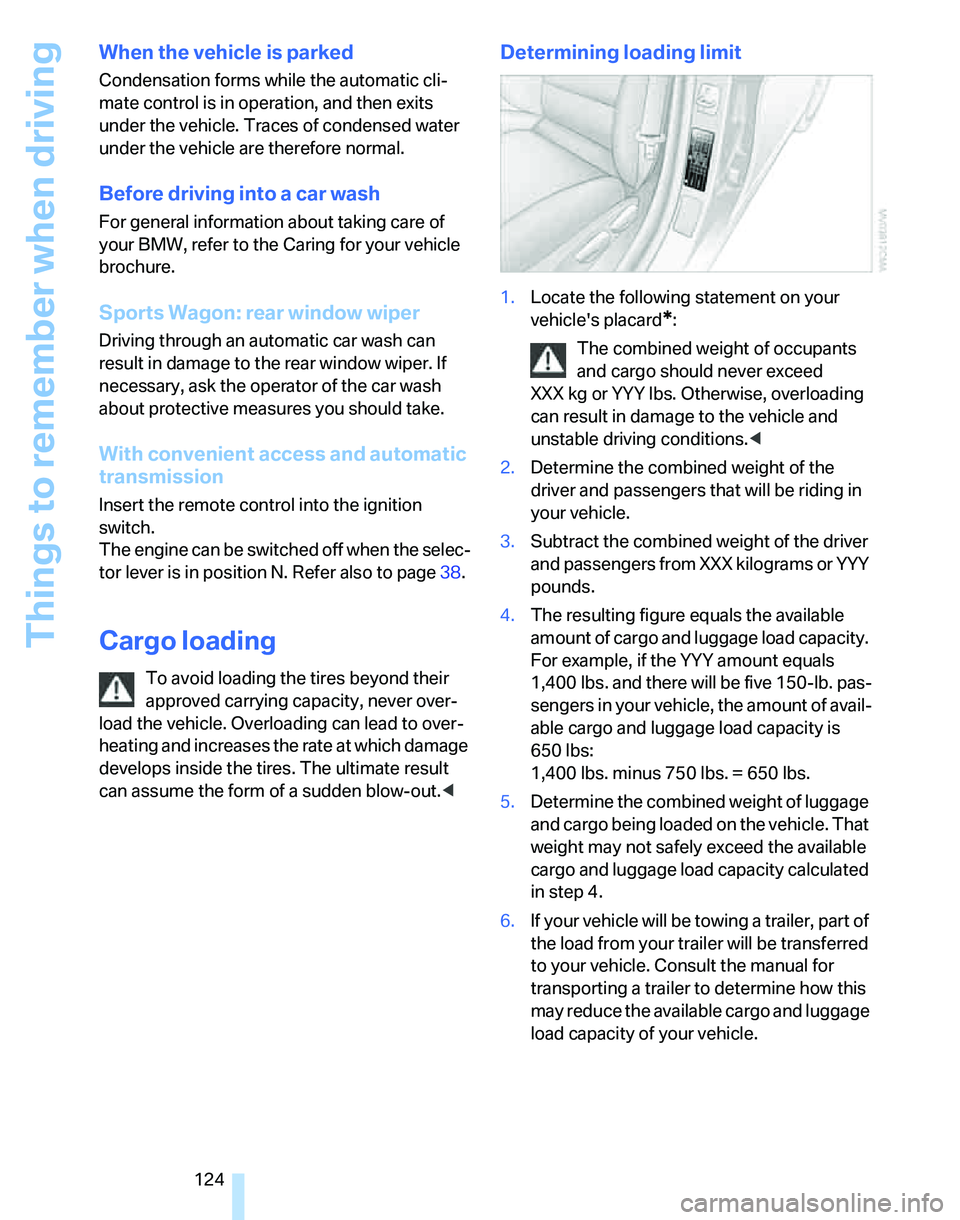
1.Locate the following statement on your
vehicle's placard
*:
The combined weight of occupants
and cargo should never exceed
XXX kg or YYY lbs. Otherwise, overloading
can result in damage to the vehicle and
unstable driving conditions.<
2.Determine the combined weight of the
driver and passengers that will be riding in
your vehicle.
3.Subtract the combined weight of the driver
and passengers from XXX kilograms or YYY
pounds.
4.The resulting figure equals the available
amount of cargo and luggage load capacity.
For example, if the YYY amount equals
1,400 lbs. and there will be five 150-lb. pas-
sengers in your vehicle, the amount of avail-
able cargo and luggage load capacity is
650 lbs:
1,400 lbs. minus 750 lbs. = 650 lbs.
5.Determine the combined weight of luggage
and cargo being loaded on the vehicle. That
weight may not safely exceed the available
cargo and luggage load capacity calculated
in step 4.
6.If your vehicle will be towing a trailer, part of
the load from your trailer will be transferred
to your vehicle. Consult the manual for
transporting a trailer to determine how this
may reduce the available cargo and luggage
load capacity of your vehicle.
Page 138 of 268
Destination entry
136 Identical-sounding towns/cities that can-
not be distinguished by the system are
compiled in a separate list and shown as a des-
tination followed by three dots.
If applicable, select this entry with {Yes}. Then
select the desired town/city from that list.<
Entering street and house number
The street is entered in the same way as the
destination town/city.
To enter the house number:
House numbers of up to 4 digits can be entered.
Say the house number as individual digits.
Starting destination guidance
Destination guidance starts immediately.
Storing destinations
Destinations are added to the destination list or
can be stored in the address book.
Map-guided destination
selection
If you only know the location of the town or
street of the destination, then you can enter the
destination by using a map. You can use the
cross-hairs to select the destination on the map
and then transfer it for destination guidance.1.Select "Navigation" and press the control-
ler.
"New destination" is selected.
2.Press the controller.
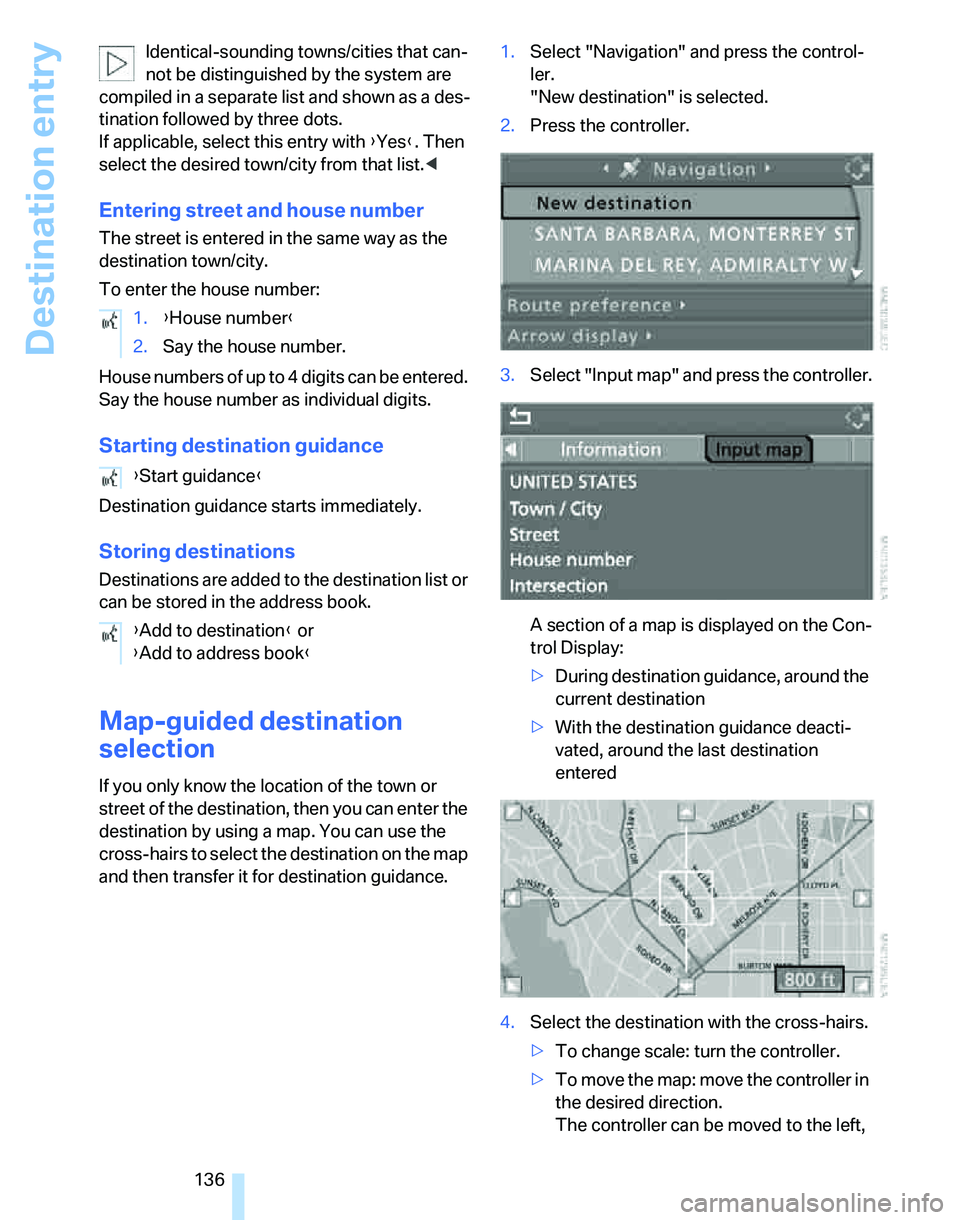
3.Select "Input map" and press the controller.
A section of a map is displayed on the Con-
trol Display:
>During destination guidance, around the
current destination
>With the destination guidance deacti-
vated, around the last destination
entered
4.Select the destination with the cross-hairs.
>To change scale: turn the controller.
>To move the map: move the controller in
the desired direction.
The controller can be moved to the left, 1.{House number}
2.Say the house number.
{Start guidance}
{Add to destination} or
{Add to address book}
Page 139 of 268
Navigation
Driving tips
137Reference
At a glance
Controls
Communications
Entertainment
Mobility
right, forwards, backwards and also
diagonally.
5.Press the controller to transfer the destina-
tion for destination guidance or to store it.
The selected destination and other menu
items are displayed.
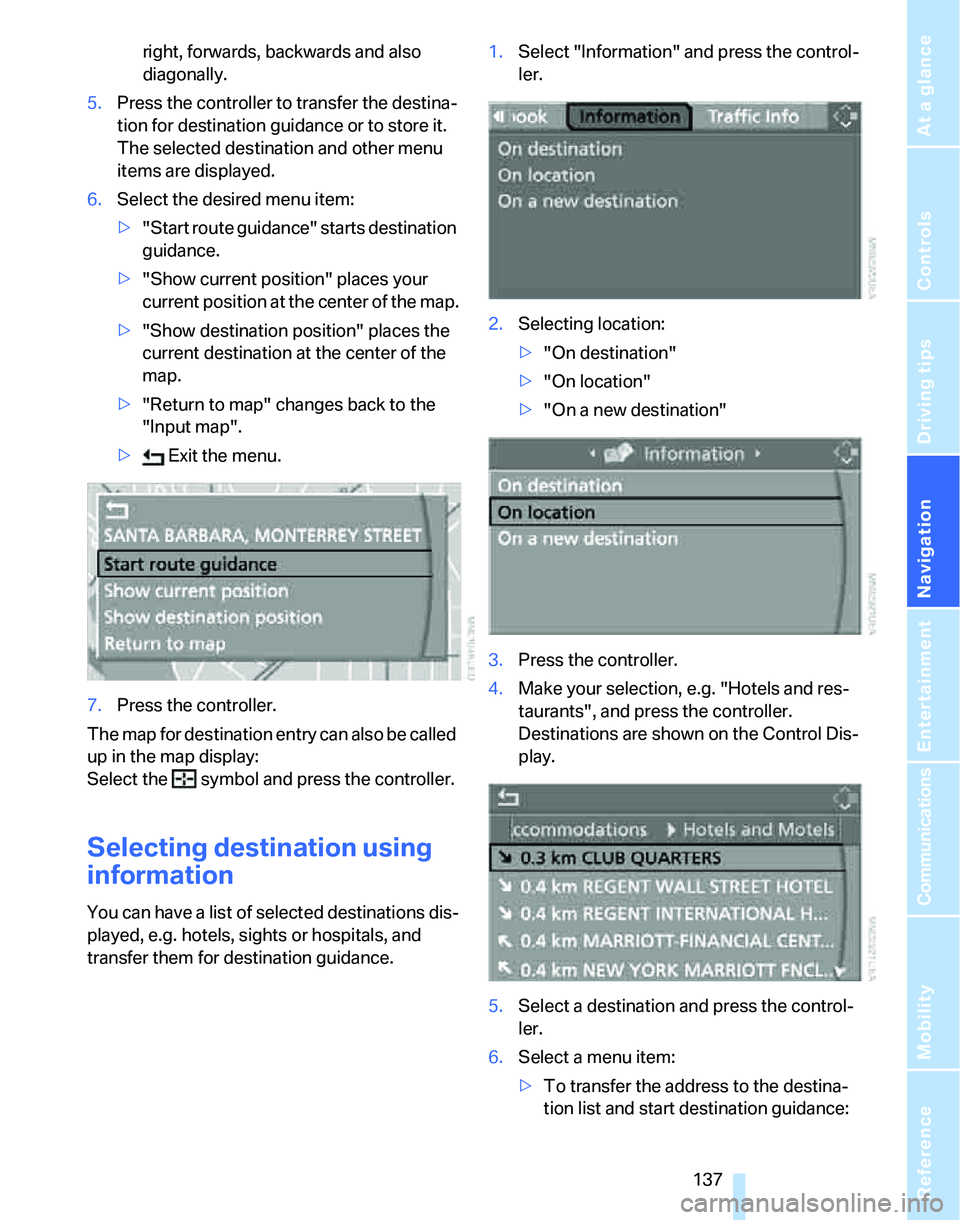
6.Select the desired menu item:
>"Start route guidance" starts destination
guidance.
>"Show current position" places your
current position at the center of the map.
>"Show destination position" places the
current destination at the center of the
map.
>"Return to map" changes back to the
"Input map".
> Exit the menu.
7.Press the controller.
The map for destination entry can also be called
up in the map display:
Select the symbol and press the controller.
Selecting destination using
information
You can have a list of selected destinations dis-
played, e.g. hotels, sights or hospitals, and
transfer them for destination guidance.1.Select "Information" and press the control-
ler.
2.Selecting location:
>"On destination"
>"On location"
>"On a new destination"
3.Press the controller.
4.Make your selection, e.g. "Hotels and res-
taurants", and press the controller.
Destinations are shown on the Control Dis-
play.
5.Select a destination and press the control-
ler.
6.Select a menu item:
>To transfer the address to the destina-
tion list and start destination guidance:
Page 140 of 268
Destination entry
138 Select "Select as destination" and press
the controller.
>To establish a telephone connection:
Select "Call" and press the controller.
To exit from the menu:
Select the arrow and press the controller.
Destination list
The last 20 destinations entered into the sys-
tem are shown in the destination list. You can
call up these destinations and transfer them for
destination guidance.
If you are planning a longer journey, for exam-
ple, you can store all the destinations you wish
to drive to in the destination list in advance,
refer to Entering a destination manually on
page131.
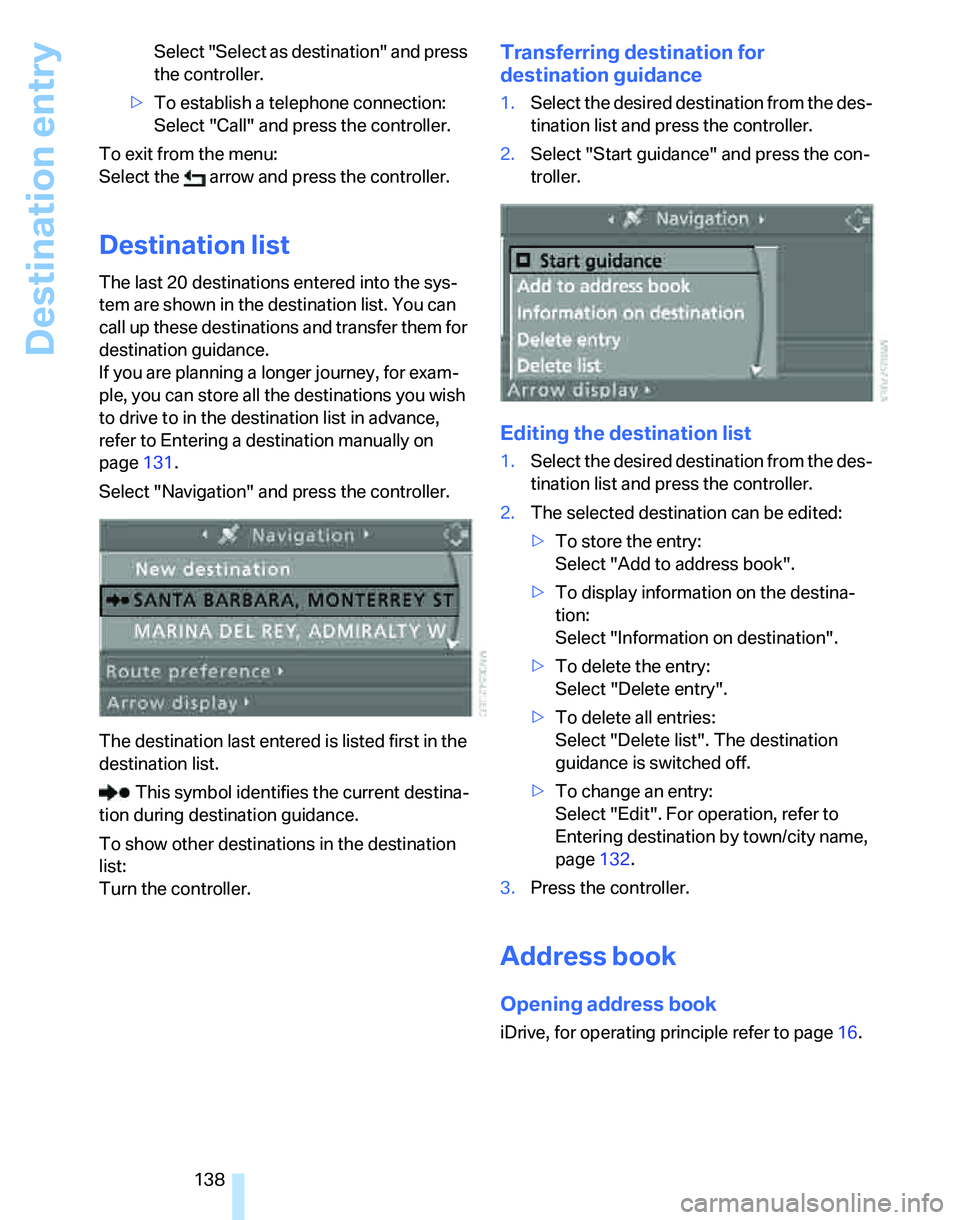
Select "Navigation" and press the controller.
The destination last entered is listed first in the
destination list.
This symbol identifies the current destina-
tion during destination guidance.
To show other destinations in the destination
list:
Turn the controller.
Transferring destination for
destination guidance
1.Select the desired destination from the des-
tination list and press the controller.
2.Select "Start guidance" and press the con-
troller.
Editing the destination list
1.Select the desired destination from the des-
tination list and press the controller.
2.The selected destination can be edited:
>To store the entry:
Select "Add to address book".
>To display information on the destina-
tion:
Select "Information on destination".
>To delete the entry:
Select "Delete entry".
>To delete all entries:
Select "Delete list". The destination
guidance is switched off.
>To change an entry:
Select "Edit". For operation, refer to
Entering destination by town/city name,
page132.
3.Press the controller.
Address book
Opening address book
iDrive, for operating principle refer to page16.
Page 141 of 268
Navigation
Driving tips
139Reference
At a glance
Controls
Communications
Entertainment
Mobility
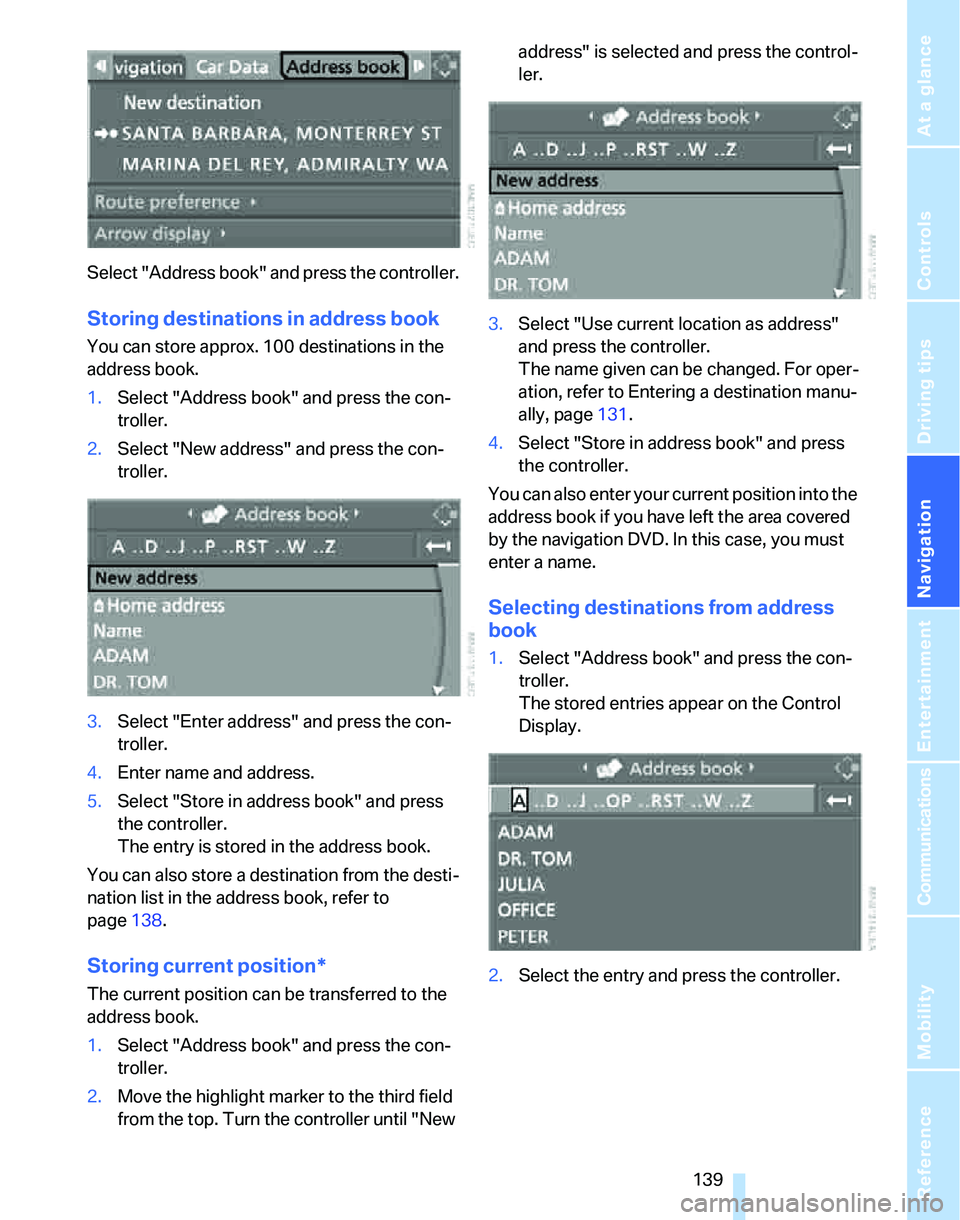
Select "Address book" and press the controller.
Storing destinations in address book
You can store approx. 100 destinations in the
address book.
1.Select "Address book" and press the con-
troller.
2.Select "New address" and press the con-
troller.
3.Select "Enter address" and press the con-
troller.
4.Enter name and address.
5.Select "Store in address book" and press
the controller.
The entry is stored in the address book.
You can also store a destination from the desti-
nation list in the address book, refer to
page138.
Storing current position*
The current position can be transferred to the
address book.
1.Select "Address book" and press the con-
troller.
2.Move the highlight marker to the third field
from the top. Turn the controller until "New address" is selected and press the control-
ler.
3.Select "Use current location as address"
and press the controller.
The name given can be changed. For oper-
ation, refer to Entering a destination manu-
ally, page131.
4.Select "Store in address book" and press
the controller.
You can also enter your current position into the
address book if you have left the area covered
by the navigation DVD. In this case, you must
enter a name.
Selecting destinations from address
book
1.Select "Address book" and press the con-
troller.
The stored entries appear on the Control
Display.
2.Select the entry and press the controller.
Page 180 of 268
Telephoning
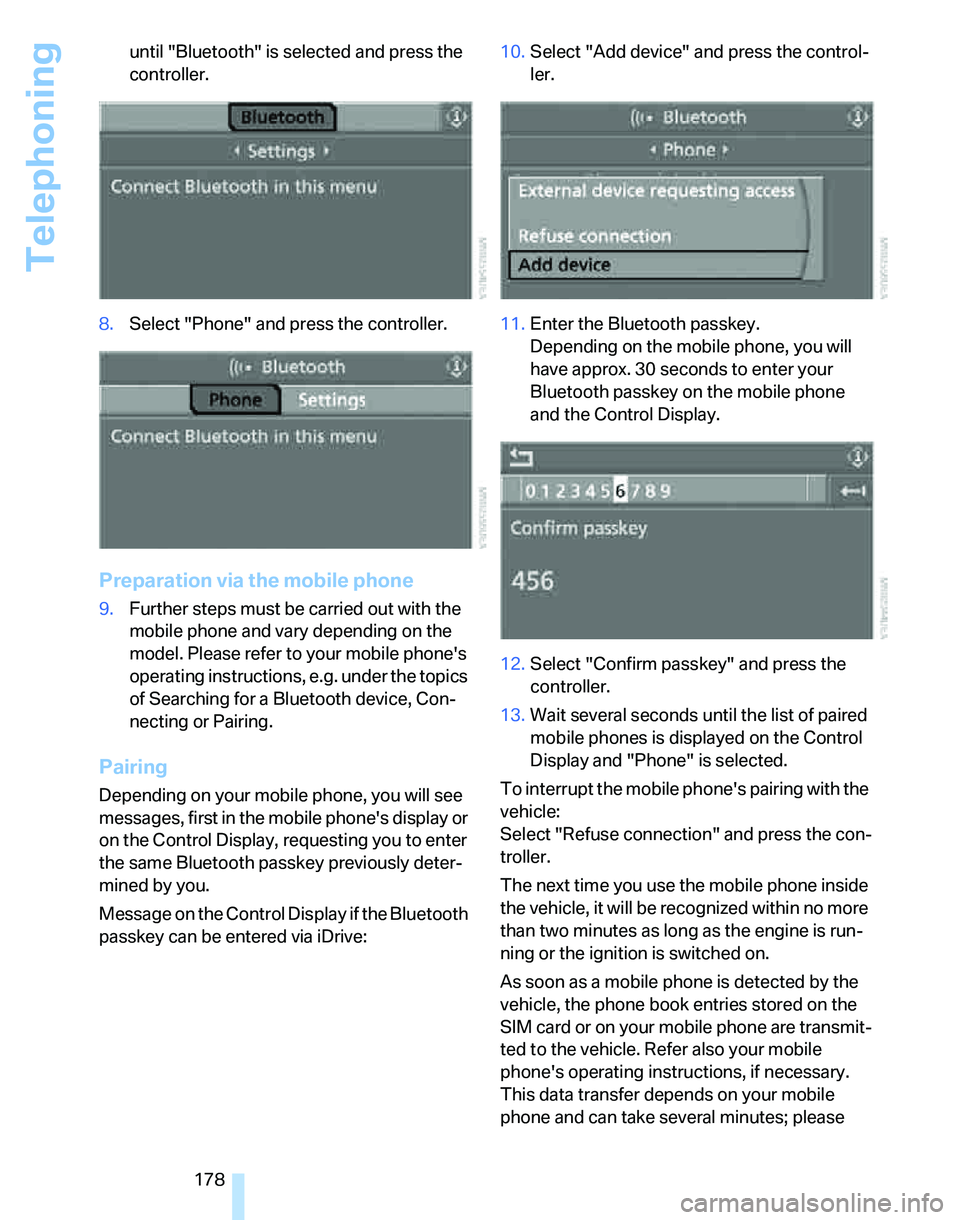
178 until "Bluetooth" is selected and press the
controller.
8.Select "Phone" and press the controller.
Preparation via the mobile phone
9.Further steps must be carried out with the
mobile phone and vary depending on the
model. Please refer to your mobile phone's
operating instructions, e.g. under the topics
of Searching for a Bluetooth device, Con-
necting or Pairing.
Pairing
Depending on your mobile phone, you will see
messages, first in the mobile phone's display or
on the Control Display, requesting you to enter
the same Bluetooth passkey previously deter-
mined by you.
Message on the Control Display if the Bluetooth
passkey can be entered via iDrive:10.Select "Add device" and press the control-
ler.
11.Enter the Bluetooth passkey.
Depending on the mobile phone, you will
have approx. 30 seconds to enter your
Bluetooth passkey on the mobile phone
and the Control Display.
12.Select "Confirm passkey" and press the
controller.
13.Wait several seconds until the list of paired
mobile phones is displayed on the Control
Display and "Phone" is selected.
To interrupt the mobile phone's pairing with the
vehicle:
Select "Refuse connection" and press the con-
troller.
The next time you use the mobile phone inside
the vehicle, it will be recognized within no more
than two minutes as long as the engine is run-
ning or the ignition is switched on.
As soon as a mobile phone is detected by the
vehicle, the phone book entries stored on the
SIM card or on your mobile phone are transmit-
ted to the vehicle. Refer also your mobile
phone's operating instructions, if necessary.
This data transfer depends on your mobile
phone and can take several minutes; please
Page 193 of 268
191
Entertainment
Reference
At a glance
Controls
Driving tips Communications
Navigation
Mobility
Characteristics of the offered services
The following characteristics apply to the ser-
vices:
>The services offered are country-specific.
>Voice contact is established or data are
transferred, depending on the equipment
and the country. In some countries, it is
possible to do both.
>The data transmitted can be vehicle data,
for example, your current position, or the
Condition Based Service CBS data.
Using services
Contacting the BMW Assist Response
Center
You can establish contact with the BMW Assist
Response Center via the SOS button.
1.Briefly press the cover flap to open.
The arrangement of the switches and indi-
cator lamps varies slightly among vehicle
equipment versions.
2.Press the button for at least 2 seconds.
The BMW Assist Response Center will connect
you with BMW Roadside Assistance.
Roadside Assistance
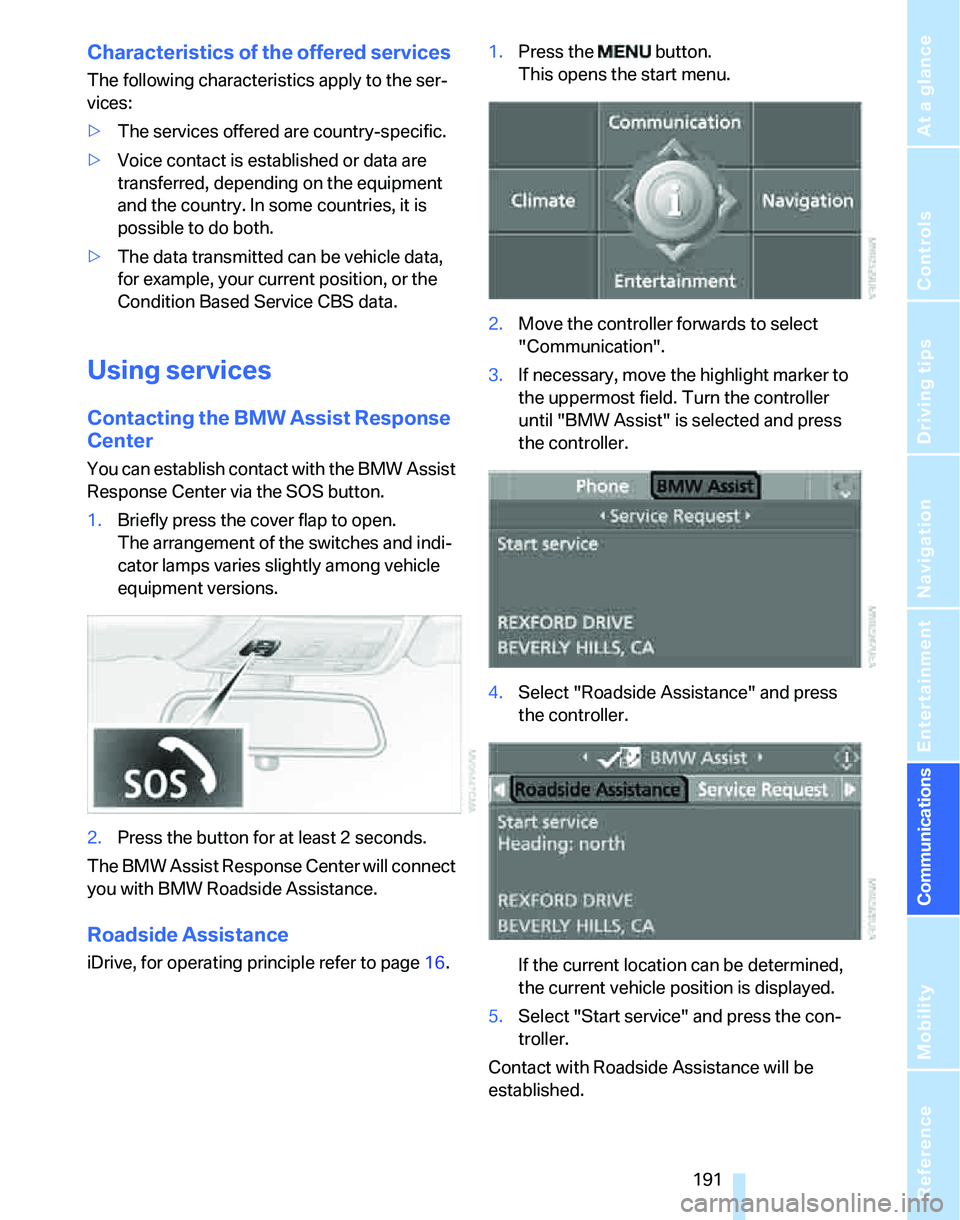
iDrive, for operating principle refer to page16.1.Press the button.
This opens the start menu.
2.Move the controller forwards to select
"Communication".
3.If necessary, move the highlight marker to
the uppermost field. Turn the controller
until "BMW Assist" is selected and press
the controller.
4.Select "Roadside Assistance" and press
the controller.
If the current location can be determined,
the current vehicle position is displayed.
5.Select "Start service" and press the con-
troller.
Contact with Roadside Assistance will be
established.
Page 196 of 268
BMW Assist
194
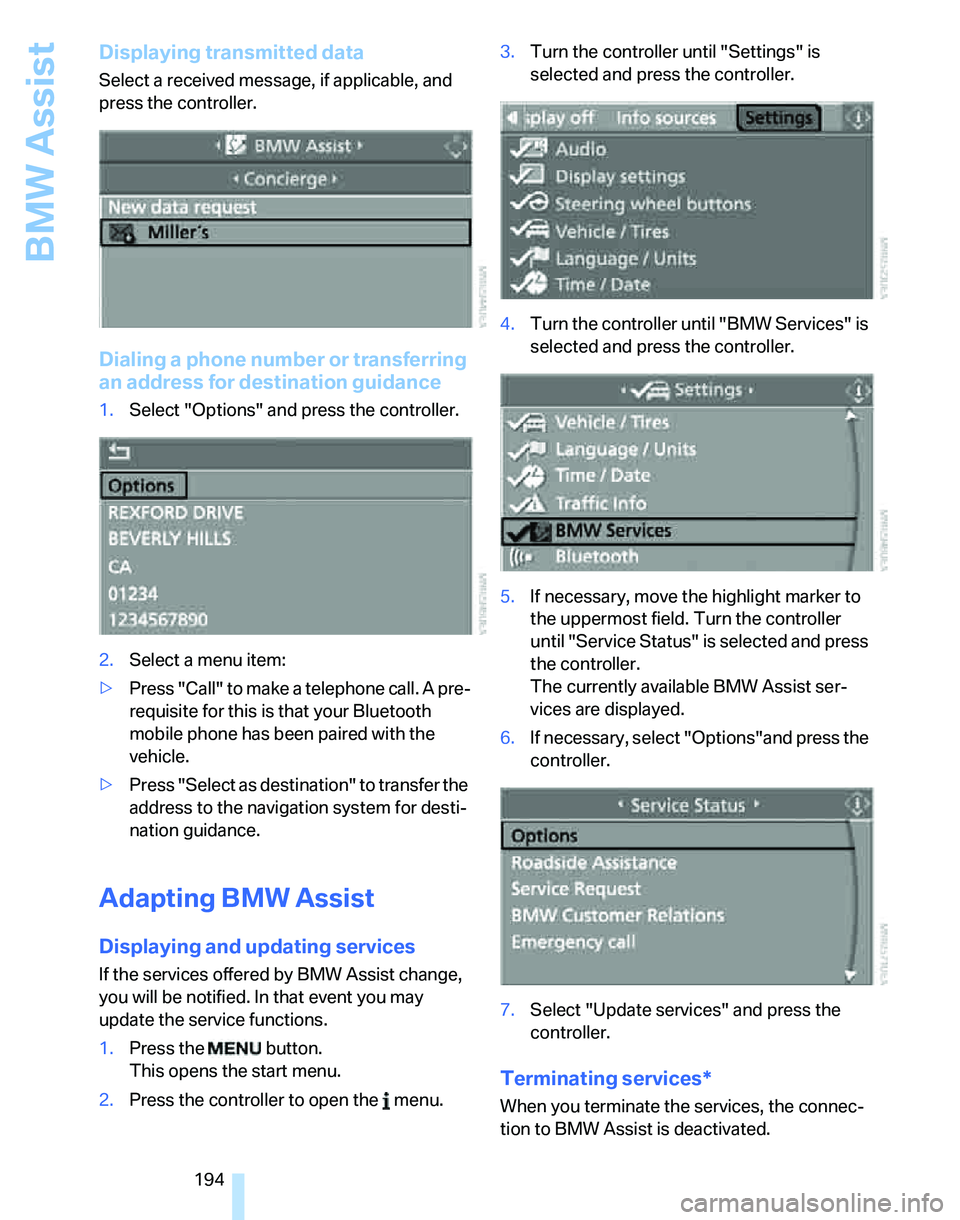
Displaying transmitted data
Select a received message, if applicable, and
press the controller.
Dialing a phone number or transferring
an address for destination guidance
1.Select "Options" and press the controller.
2.Select a menu item:
>Press "Call" to make a telephone call. A pre-
requisite for this is that your Bluetooth
mobile phone has been paired with the
vehicle.
>Press "Select as destination" to transfer the
address to the navigation system for desti-
nation guidance.
Adapting BMW Assist
Displaying and updating services
If the services offered by BMW Assist change,
you will be notified. In that event you may
update the service functions.
1.Press the button.
This opens the start menu.
2.Press the controller to open the menu.3.Turn the controller until "Settings" is
selected and press the controller.
4.Turn the controller until "BMW Services" is
selected and press the controller.
5.If necessary, move the highlight marker to
the uppermost field. Turn the controller
until "Service Status" is selected and press
the controller.
The currently available BMW Assist ser-
vices are displayed.
6.If necessary, select "Options"and press the
controller.
7.Select "Update services" and press the
controller.
Terminating services*
When you terminate the services, the connec-
tion to BMW Assist is deactivated.
Page 235 of 268
Mobility
233Reference
At a glance
Controls
Driving tips
Communications
Navigation
Entertainment
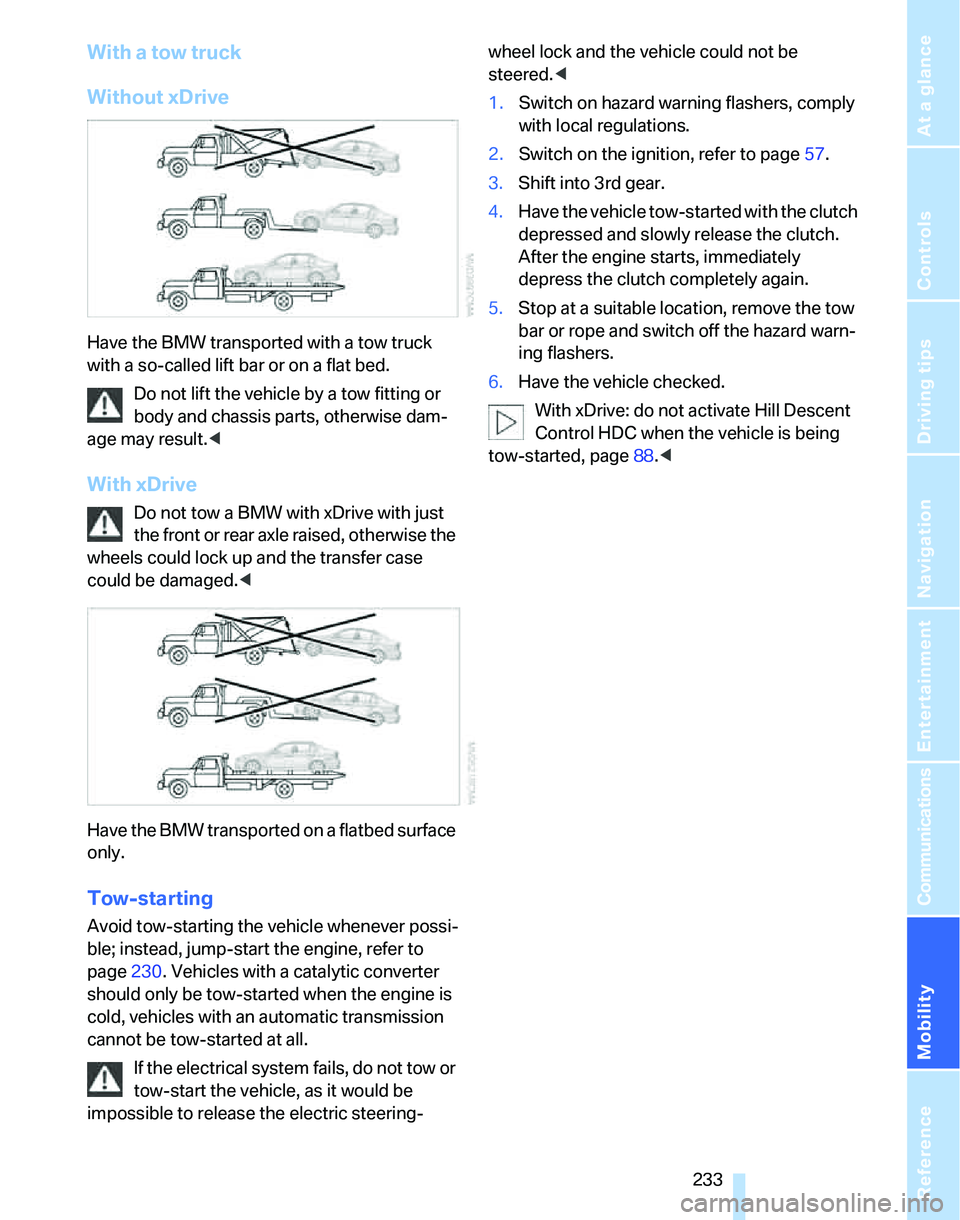
With a tow truck
Without xDrive
Have the BMW transported with a tow truck
with a so-called lift bar or on a flat bed.
Do not lift the vehicle by a tow fitting or
body and chassis parts, otherwise dam-
age may result.<
With xDrive
Do not tow a BMW with xDrive with just
the front or rear axle raised, otherwise the
wheels could lock up and the transfer case
could be damaged.<
Have the BMW transported on a flatbed surface
only.
Tow-starting
Avoid tow-starting the vehicle whenever possi-
ble; instead, jump-start the engine, refer to
page230. Vehicles with a catalytic converter
should only be tow-started when the engine is
cold, vehicles with an automatic transmission
cannot be tow-started at all.
If the electrical system fails, do not tow or
tow-start the vehicle, as it would be
impossible to release the electric steering-wheel lock and the vehicle could not be
steered.<
1.Switch on hazard warning flashers, comply
with local regulations.
2.Switch on the ignition, refer to page57.
3.Shift into 3rd gear.
4.Have the vehicle tow-started with the clutch
depressed and slowly release the clutch.
After the engine starts, immediately
depress the clutch completely again.
5.Stop at a suitable location, remove the tow
bar or rope and switch off the hazard warn-
ing flashers.
6.Have the vehicle checked.
With xDrive: do not activate Hill Descent
Control HDC when the vehicle is being
tow-started, page88.<