change wheel BMW 335XI 2008 User Guide
[x] Cancel search | Manufacturer: BMW, Model Year: 2008, Model line: 335XI, Model: BMW 335XI 2008Pages: 274, PDF Size: 8.88 MB
Page 106 of 274
Climate
104
Ventilation in the rear
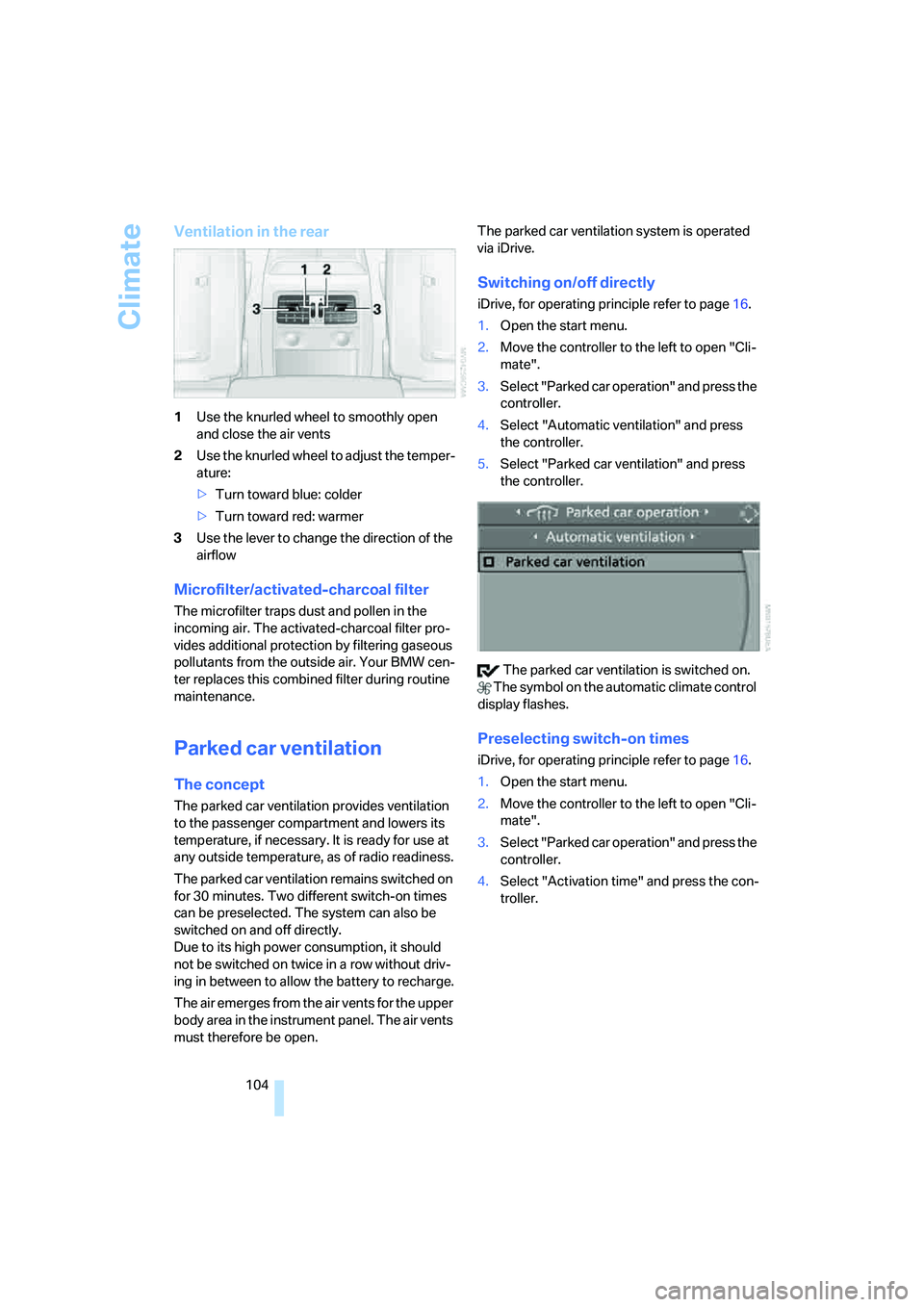
1Use the knurled wheel to smoothly open
and close the air vents
2Use the knurled wheel to adjust the temper-
ature:
>Turn toward blue: colder
>Turn toward red: warmer
3Use the lever to change the direction of the
airflow
Microfilter/activated-charcoal filter
The microfilter traps dust and pollen in the
incoming air. The activated-charcoal filter pro-
vides additional protection by filtering gaseous
pollutants from the outside air. Your BMW cen-
ter replaces this combined filter during routine
maintenance.
Parked car ventilation
The concept
The parked car ventilation provides ventilation
to the passenger compartment and lowers its
temperature, if necessary. It is ready for use at
any outside temperature, as of radio readiness.
The parked car ventilation remains switched on
for 30 minutes. Two different switch-on times
can be preselected. The system can also be
switched on and off directly.
Due to its high power consumption, it should
not be switched on twice in a row without driv-
ing in between to allow the battery to recharge.
The air emerges from the air vents for the upper
body area in the instrument panel. The air vents
must therefore be open.The parked car ventilation system is operated
via iDrive.
Switching on/off directly
iDrive, for operating principle refer to page16.
1.Open the start menu.
2.Move the controller to the left to open "Cli-
mate".
3.Select "Parked car operation" and press the
controller.
4.Select "Automatic ventilation" and press
the controller.
5.Select "Parked car ventilation" and press
the controller.
The parked car ventilation is switched on.
The symbol on the automatic climate control
display flashes.
Preselecting switch-on times
iDrive, for operating principle refer to page16.
1.Open the start menu.
2.Move the controller to the left to open "Cli-
mate".
3.Select "Parked car operation" and press the
controller.
4.Select "Activation time" and press the con-
troller.
Page 158 of 274
On/off and settings
156
On/off and settings
The following audio sources have shared con-
trols and setting options:
>Radio
>CD player
>CD changer
*
Controls
The audio sources can be operated using:
>Buttons near the CD player
>iDrive
>Buttons
on the steering wheel, refer to
page11
>Programmable memory keys, refer to
page21
Buttons on the CD player
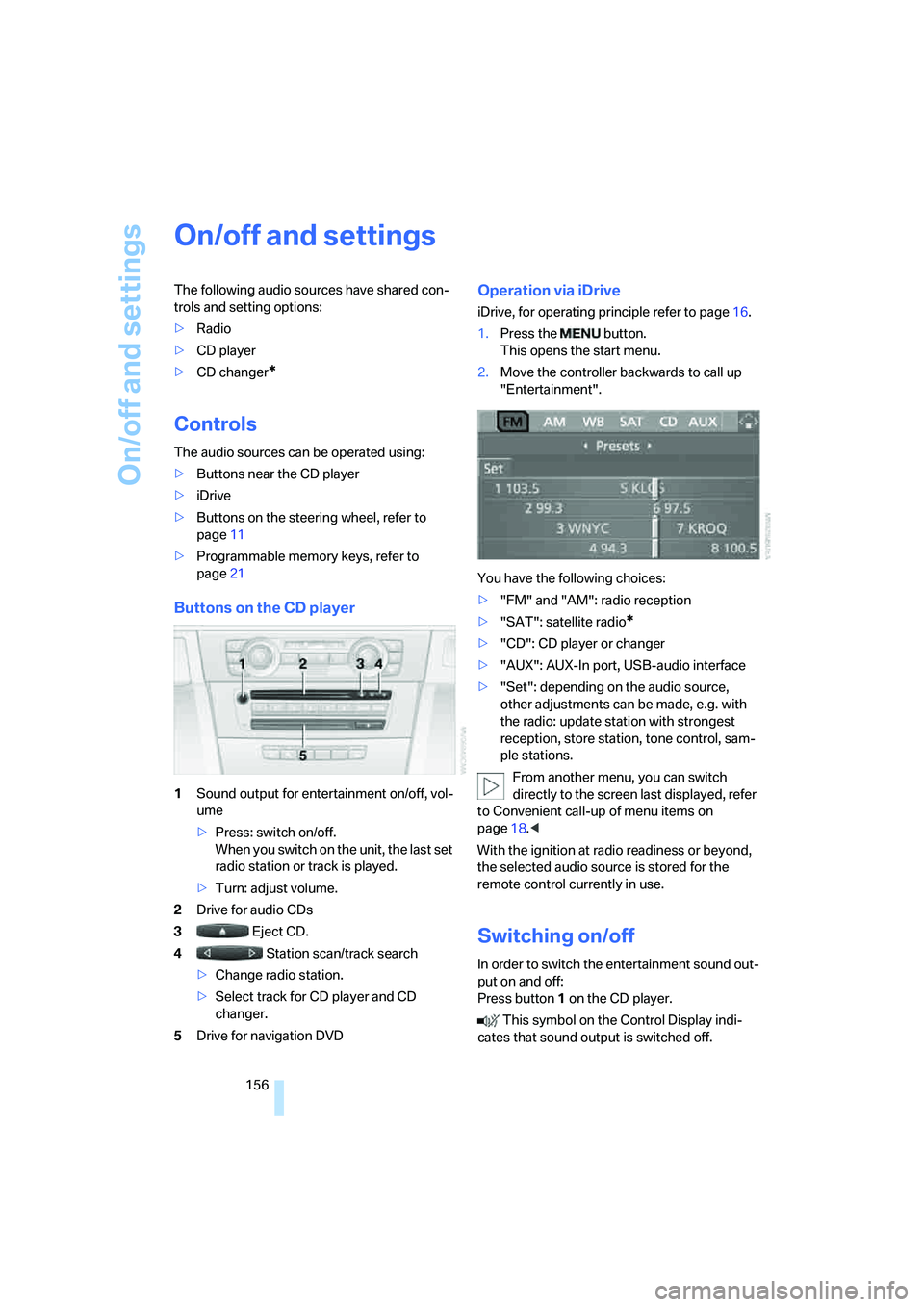
1Sound output for entertainment on/off, vol-
ume
>Press: switch on/off.
When you switch on the unit, the last set
radio station or track is played.
>Turn: adjust volume.
2Drive for audio CDs
3 Eject CD.
4 Station scan/track search
>Change radio station.
>Select track for CD player and CD
changer.
5Drive for navigation DVD
Operation via iDrive
iDrive, for operating principle refer to page16.
1.Press the button.
This opens the start menu.
2.Move the controller backwards to call up
"Entertainment".
You have the following choices:
>"FM" and "AM": radio reception
>"SAT": satellite radio
*
>"CD": CD player or changer
>"AUX": AUX-In port, USB-audio interface
>"Set": depending on the audio source,
other adjustments can be made, e.g. with
the radio: update station with strongest
reception, store station, tone control, sam-
ple stations.
From another menu, you can switch
directly to the screen last displayed, refer
to Convenient call-up of menu items on
page18.<
With the ignition at radio readiness or beyond,
the selected audio source is stored for the
remote control currently in use.
Switching on/off
In order to switch the entertainment sound out-
put on and off:
Press button1 on the CD player.
This symbol on the Control Display indi-
cates that sound output is switched off.
Page 162 of 274
Radio
160
Radio
Your radio provides reception of the FM and AM
wavebands.
Listening to the radio
Press the button if the sound output is switched
off.
iDrive, for operating principle refer to page16.
1.Press the button.
This opens the start menu.
2.Move the controller backwards to call up
"Entertainment".
3.If necessary, move the highlight marker to
the uppermost field. Select "FM" or "AM".
4.Press the controller.
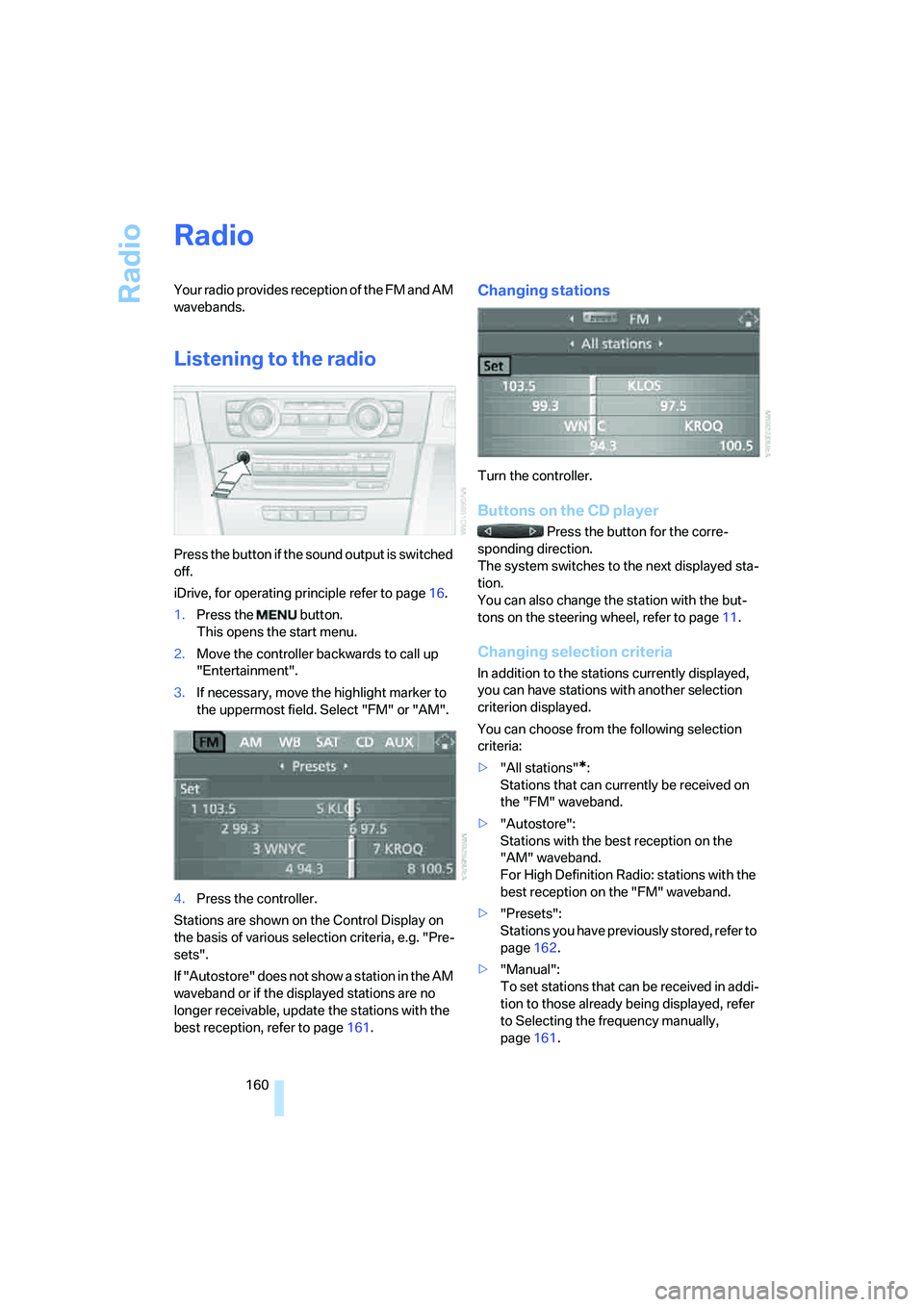
Stations are shown on the Control Display on
the basis of various selection criteria, e.g. "Pre-
sets".
If "Autostore" does not show a station in the AM
waveband or if the displayed stations are no
longer receivable, update the stations with the
best reception, refer to page161.
Changing stations
Turn the controller.
Buttons on the CD player
Press the button for the corre-
sponding direction.
The system switches to the next displayed sta-
tion.
You can also change the station with the but-
tons on the steering wheel, refer to page11.
Changing selection criteria
In addition to the stations currently displayed,
you can have stations with another selection
criterion displayed.
You can choose from the following selection
criteria:
>"All stations"
*:
Stations that can currently be received on
the "FM" waveband.
>"Autostore":
Stations with the best reception on the
"AM" waveband.
For High Definition Radio: stations with the
best reception on the "FM" waveband.
>"Presets":
Stations you have previously stored, refer to
page162.
>"Manual":
To set stations that can be received in addi-
tion to those already being displayed, refer
to Selecting the frequency manually,
page161.
Page 166 of 274
Radio
164 Some stations do not transmit the digital and
analog signals simultaneously. If you are in an
area in which digital reception of the selected
station is not possible continuously, reception
will alternate between analog and digital. This
can cause repetitions or interruptions. In this
case it may be preferable to switch off digital
reception.
Selecting the programs of a digital
station*
Some stations broadcast several programs on a
single frequency. To select one of these pro-
grams:
1.Select "FM" or "AM" and press the control-
ler.
2.Select "Manual" and press the controller.
3.Select a station that can be received digi-
tally.
This symbol is displayed when a station
is received digitally.
4. Change to the next program of
the digital station using the buttons on the
radio or steering wheel.
You can store a station, refer to page162.
Updating digitally receivable stations
If on a longer journey you move out of the
reception range of the stations originally
received, you can update the list of stations
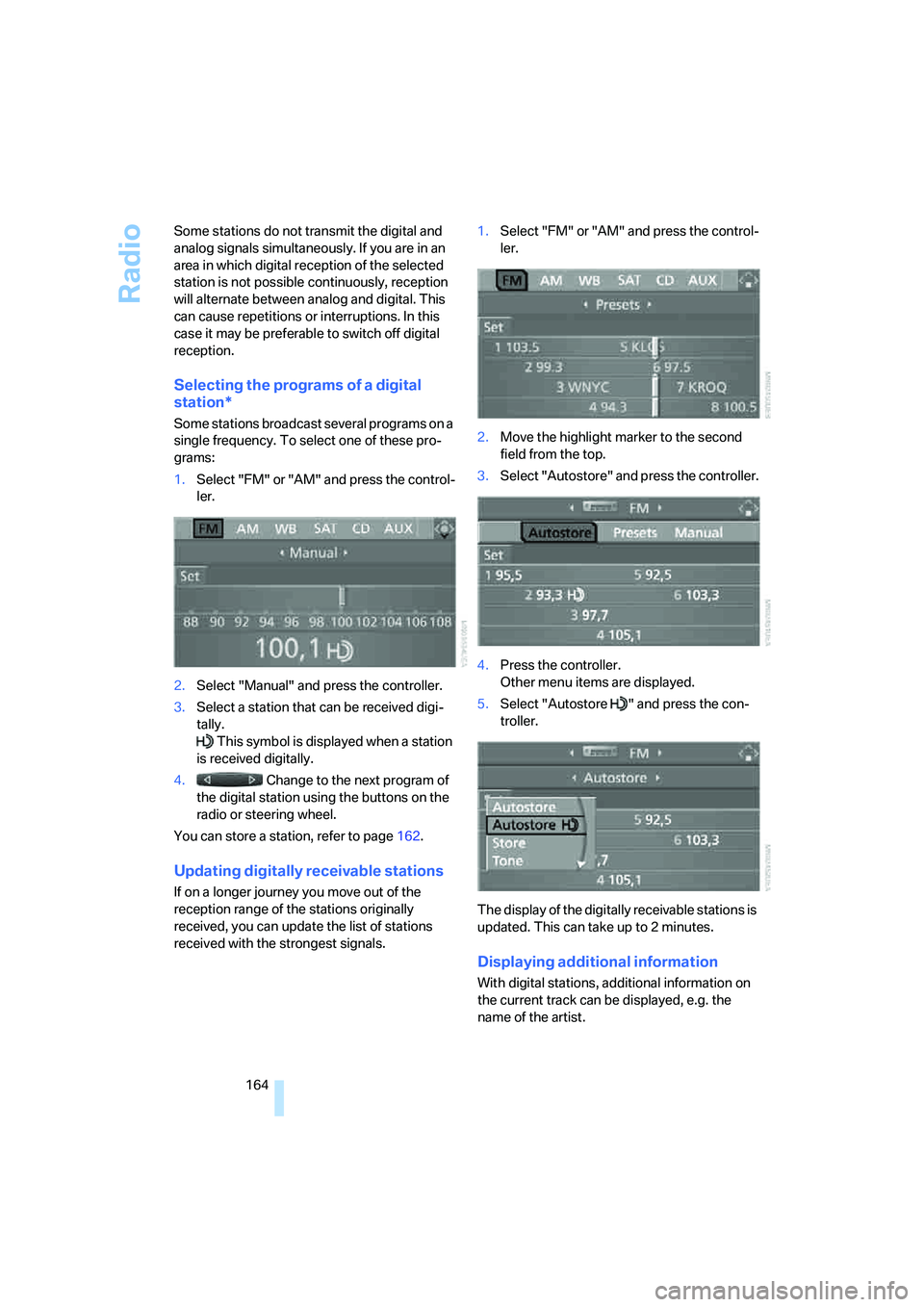
received with the strongest signals.1.Select "FM" or "AM" and press the control-
ler.
2.Move the highlight marker to the second
field from the top.
3.Select "Autostore" and press the controller.
4.Press the controller.
Other menu items are displayed.
5.Select "Autostore " and press the con-
troller.
The display of the digitally receivable stations is
updated. This can take up to 2 minutes.
Displaying additional information
With digital stations, additional information on
the current track can be displayed, e.g. the
name of the artist.
Page 172 of 274
CD player and CD changer
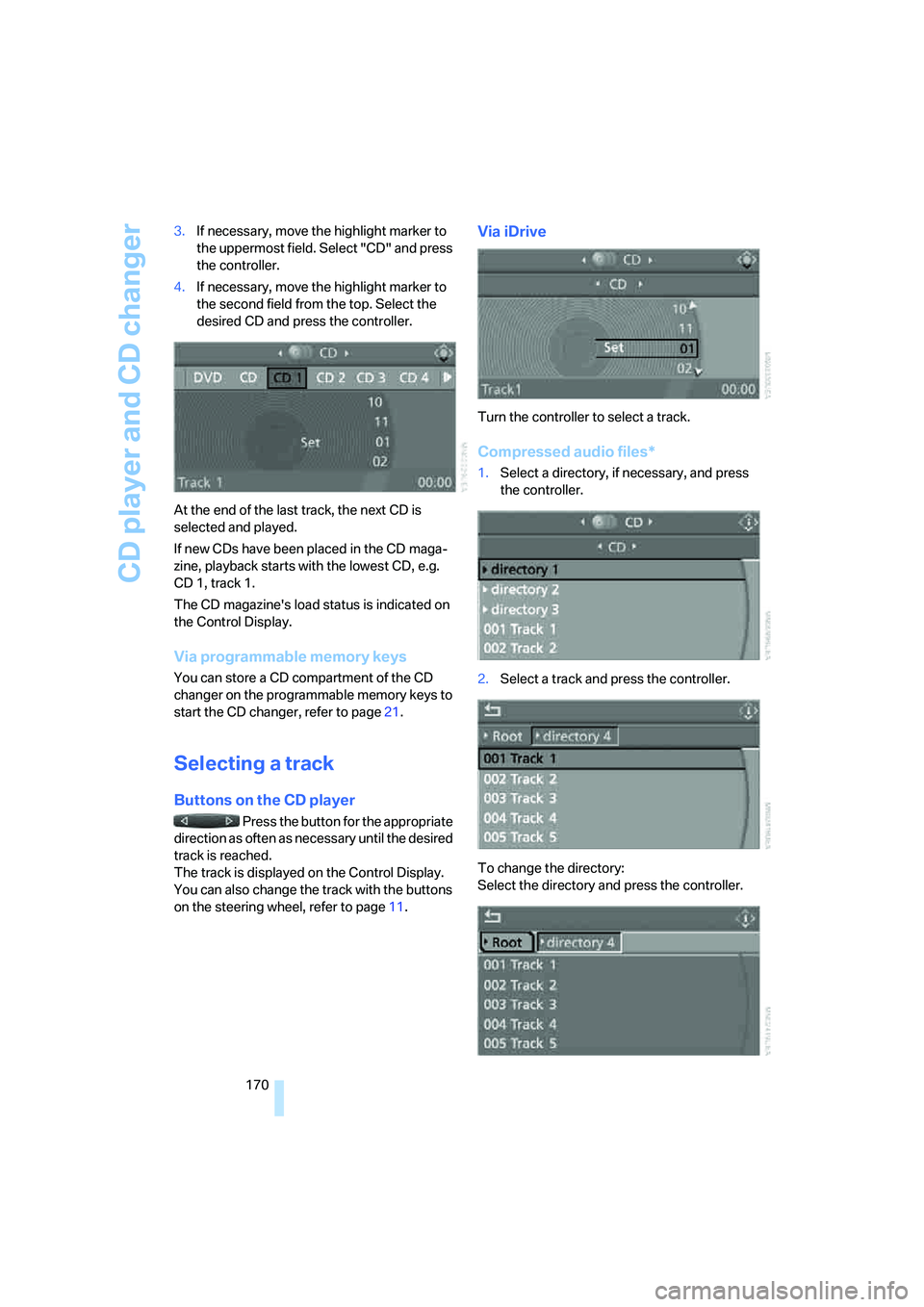
170 3.If necessary, move the highlight marker to
the uppermost field. Select "CD" and press
the controller.
4.If necessary, move the highlight marker to
the second field from the top. Select the
desired CD and press the controller.
At the end of the last track, the next CD is
selected and played.
If new CDs have been placed in the CD maga-
zine, playback starts with the lowest CD, e.g.
CD 1, track 1.
The CD magazine's load status is indicated on
the Control Display.
Via programmable memory keys
You can store a CD compartment of the CD
changer on the programmable memory keys to
start the CD changer, refer to page21.
Selecting a track
Buttons on the CD player
Press the button for the appropriate
direction as often as necessary until the desired
track is reached.
The track is displayed on the Control Display.
You can also change the track with the buttons
on the steering wheel, refer to page11.
Via iDrive
Turn the controller to select a track.
Compressed audio files*
1.Select a directory, if necessary, and press
the controller.
2.Select a track and press the controller.
To change the directory:
Select the directory and press the controller.
Page 195 of 274
193
Entertainment
Reference
At a glance
Controls
Driving tips Communications
Navigation
Mobility
and/or your mobile phone's operating
instructions.
>Press the button above the storage
compartment. The changeover can take
several seconds.
From hands-free system to mobile
phone
If you are making a call via the hands-free sys-
tem, it may be possible to continue the call via
the mobile phone, depending on your mobile
phone model. Refer to the display on your
mobile phone and/or your mobile phone's oper-
ating instructions.
Alternatively, you can deactivate the Bluetooth
link.
Depending on the type of mobile phone you are
using, it may occur that calls are switched from
the hands-free system to the mobile phone if
reception of the wireless network is poor.
Operation by voice
commands*
The concept
You can operate your mobile phone without
having to take a hand off the steering wheel.
During your entries, you will be guided in many
cases by announcements or questions.
The same prerequisites apply as for operation
via iDrive, refer to page187.
Symbols in the Owner's Manual
Saying commands
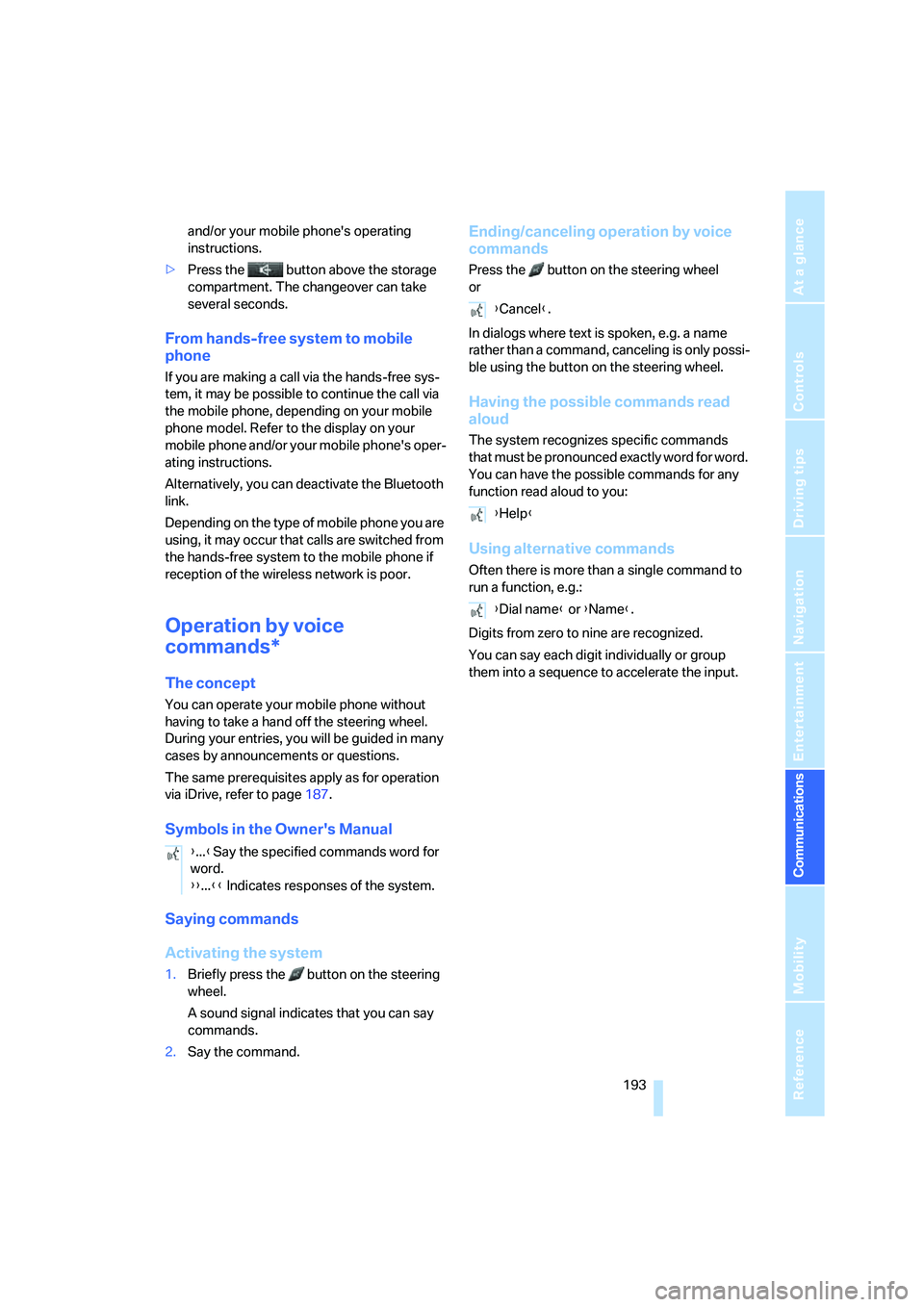
Activating the system
1.Briefly press the button on the steering
wheel.
A sound signal indicates that you can say
commands.
2.Say the command.
Ending/canceling operation by voice
commands
Press the button on the steering wheel
or
In dialogs where text is spoken, e.g. a name
rather than a command, canceling is only possi-
ble using the button on the steering wheel.
Having the possible commands read
aloud
The system recognizes specific commands
t h a t m u s t b e p r o n o u n c e d e x a c t l y w o r d f o r w o r d .
You can have the possible commands for any
function read aloud to you:
Using alternative commands
Often there is more than a single command to
run a function, e.g.:
Digits from zero to nine are recognized.
You can say each digit individually or group
them into a sequence to accelerate the input.
{...}Say the specified commands word for
word.
{{...}} Indicates responses of the system.
{Cancel}.
{Help}
{Dial name} or {Name}.
Page 235 of 274
Mobility
233Reference
At a glance
Controls
Driving tips
Communications
Navigation
Entertainment
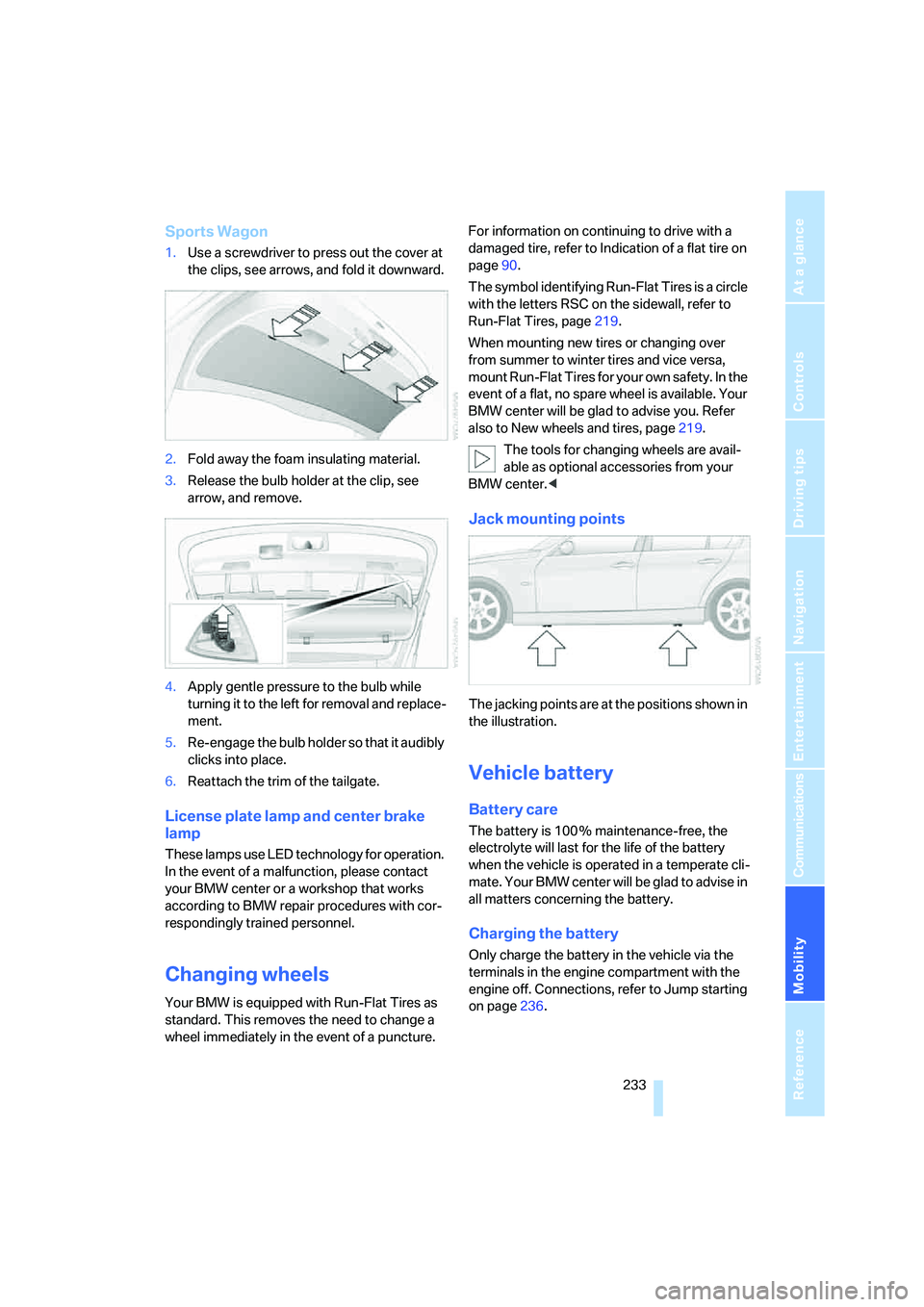
Sports Wagon
1.Use a screwdriver to press out the cover at
the clips, see arrows, and fold it downward.
2.Fold away the foam insulating material.
3.Release the bulb holder at the clip, see
arrow, and remove.
4.Apply gentle pressure to the bulb while
turning it to the left for removal and replace-
ment.
5.Re-engage the bulb holder so that it audibly
clicks into place.
6.Reattach the trim of the tailgate.
License plate lamp and center brake
lamp
These lamps use LED technology for operation.
In the event of a malfunction, please contact
your BMW center or a workshop that works
according to BMW repair procedures with cor-
respondingly trained personnel.
Changing wheels
Your BMW is equipped with Run-Flat Tires as
standard. This removes the need to change a
wheel immediately in the event of a puncture.For information on continuing to drive with a
damaged tire, refer to Indication of a flat tire on
page90.
The symbol identifying Run-Flat Tires is a circle
with the letters RSC on the sidewall, refer to
Run-Flat Tires, page219.
When mounting new tires or changing over
from summer to winter tires and vice versa,
mount Run-Flat Tires for your own safety. In the
event of a flat, no spare wheel is available. Your
BMW center will be glad to advise you. Refer
also to New wheels and tires, page219.
The tools for changing wheels are avail-
able as optional accessories from your
BMW center.<
Jack mounting points
The jacking points are at the positions shown in
the illustration.
Vehicle battery
Battery care
The battery is 100 % maintenance-free, the
electrolyte will last for the life of the battery
when the vehicle is operated in a temperate cli-
mate. Your BMW center will be glad to advise in
all matters concerning the battery.
Charging the battery
Only charge the battery in the vehicle via the
terminals in the engine compartment with the
engine off. Connections, refer to Jump starting
on page236.
Page 256 of 274
Everything from A - Z
254 Brake system120
– BMW Maintenance
System226
– breaking in120
– disc brakes122
Breakdown services, refer to
Roadside Assistance235
Breaking in the clutch120
Breaking in the differential,
refer to Engine and
differential120
Break-in period120
Brightness of the Control
Display84
"Brightness" on the Control
Display84
Bulb changing, refer to Lamps
and bulbs229
Button for starting the engine,
refer to Start/stop button56
Buttons on the steering
wheel11
C
California Proposition 65
warning6
"Call"190,201
Call
– accepting188
– displaying accepted190
– ending189
– missed190
– starting189
Calling
– from phone book189
– from Top 8 list190
– redialing190
Can holders, refer to Cup
holders111
Capacities246
Capacity of the cargo bay245
Car battery, refer to Vehicle
battery233
Car care, refer to Caring for
your vehicle brochure
Car-care products, refer to
Caring for your vehicle
brochure"Car Data"73
Care, refer to Caring for your
vehicle brochure
Cargo, securing124
Cargo bay114
– capacity245
– convenient access37
– folding up the floor
panel116
– lamp, refer to Interior
lamps99
– opening from inside33
– opening from outside33
– partition net114
– roll-up cover114
Cargo bay lid, refer to
Luggage compartment lid/
tailgate33
Cargo bay net, refer to
Partition net114
Cargo loading
– securing cargo124
– stowing cargo123
– vehicle123
Caring for artificial leather,
refer to Caring for your
vehicle brochure
Caring for leather, refer to
Caring for your vehicle
brochure
Caring for plastic, refer to
Caring for your vehicle
brochure
Caring for the carpet, refer to
Caring for your vehicle
brochure
Caring for the vehicle finish,
refer to Caring for your
vehicle brochure
Car jack
– jacking points233
Car key, refer to Integrated
key/remote control28
Car phone182
– installation location, refer to
Center armrest110
– refer to Mobile phone182
– refer to separate Owner's
ManualCar radio, refer to Radio160
Car wash122
– also refer to Caring for your
vehicle brochure
– with convenient access37
Catalytic converter, refer to
Hot exhaust system121
"Categories" for satellite
radio167
CBS Condition Based
Service226
"CD"156,169
CD changer169
– compressed audio files169
– controls156
– fast forward/reverse173
– installation location173
– playing a track171
– random order172
– repeating a track172
– selecting a CD169
– selecting a track170
– switching on/off156
– tone control157
– volume157
CD player169
– compressed audio files169
– controls156
– fast forward/reverse173
– playing a track171
– random order172
– repeating a track172
– selecting a track170
– switching on/off156
– tone control157
– volume157
Center armrest110
Center brake lamp
– replacing bulb233
Center console, refer to
Around the center
console14
"Central locking"30
Central locking
– from inside32
– from outside29
Central locking system29
– convenient access36
– hotel function34
Page 257 of 274
Reference 255
At a glance
Controls
Driving tips
Communications
Navigation
Entertainment
Mobility
Changes, technical, refer to
For your own safety5
Changing bulbs, refer to
Lamps and bulbs229
Changing the language on the
Control Display84
Changing the measurement
units on the Control
Display76
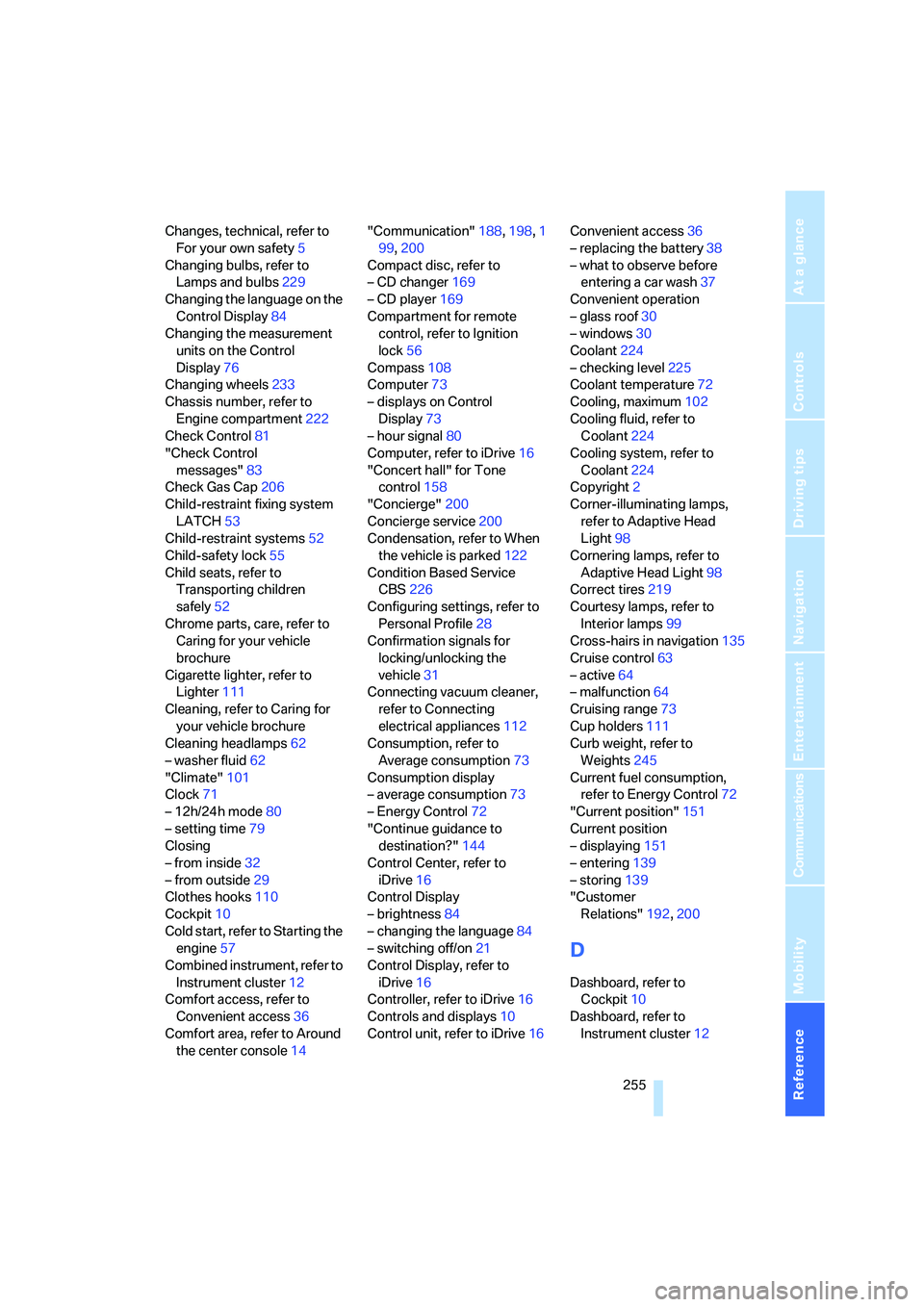
Changing wheels233
Chassis number, refer to
Engine compartment222
Check Control81
"Check Control
messages"83
Check Gas Cap206
Child-restraint fixing system
LATCH53
Child-restraint systems52
Child-safety lock55
Child seats, refer to
Transporting children
safely52
Chrome parts, care, refer to
Caring for your vehicle
brochure
Cigarette lighter, refer to
Lighter111
Cleaning, refer to Caring for
your vehicle brochure
Cleaning headlamps62
– washer fluid62
"Climate"101
Clock71
– 12h/24h mode80
– setting time79
Closing
– from inside32
– from outside29
Clothes hooks110
Cockpit10
Cold start, refer to Starting the
engine57
Combined instrument, refer to
Instrument cluster12
Comfort access, refer to
Convenient access36
Comfort area, refer to Around
the center console14"Communication"188,198,1
99,200
Compact disc, refer to
– CD changer169
– CD player169
Compartment for remote
control, refer to Ignition
lock56
Compass108
Computer73
– displays on Control
Display73
– hour signal80
Computer, refer to iDrive16
"Concert hall" for Tone
control158
"Concierge"200
Concierge service200
Condensation, refer to When
the vehicle is parked122
Condition Based Service
CBS226
Configuring settings, refer to
Personal Profile28
Confirmation signals for
locking/unlocking the
vehicle31
Connecting vacuum cleaner,
refer to Connecting
electrical appliances112
Consumption, refer to
Average consumption73
Consumption display
– average consumption73
– Energy Control72
"Continue guidance to
destination?"144
Control Center, refer to
iDrive16
Control Display
– brightness84
– changing the language84
– switching off/on21
Control Display, refer to
iDrive16
Controller, refer to iDrive16
Controls and displays10
Control unit, refer to iDrive16Convenient access36
– replacing the battery38
– what to observe before
entering a car wash37
Convenient operation
– glass roof30
– windows30
Coolant224
– checking level225
Coolant temperature72
Cooling, maximum102
Cooling fluid, refer to
Coolant224
Cooling system, refer to
Coolant224
Copyright2
Corner-illuminating lamps,
refer to Adaptive Head
Light98
Cornering lamps, refer to
Adaptive Head Light98
Correct tires219
Courtesy lamps, refer to
Interior lamps99
Cross-hairs in navigation135
Cruise control63
– active64
– malfunction64
Cruising range73
Cup holders111
Curb weight, refer to
Weights245
Current fuel consumption,
refer to Energy Control72
"Current position"151
Current position
– displaying151
– entering139
– storing139
"Customer
Relations"192,200
D
Dashboard, refer to
Cockpit10
Dashboard, refer to
Instrument cluster12
Page 259 of 274
Reference 257
At a glance
Controls
Driving tips
Communications
Navigation
Entertainment
Mobility
DSC Dynamic Stability
Control86
DTC Dynamic Traction
Control87
– indicator/warning lamp87
DVD for navigation128
Dynamic Brake Control
DBC86
"Dynamic route" in
navigation141
Dynamic Stability Control
DSC
– indicator/warning lamp87
Dynamic Traction Control
DTC
– indicator/warning lamp87
E
EBV Electronic brake-force
distribution86
Eject button, refer to Buttons
on the CD player156
Electrical malfunction
– door lock31
– driver's door31
– fuel filler door206
– glass roof40
– luggage compartment lid/
tailgate33
– panorama glass roof42
Electric seat adjustment44
Electric steering wheel lock
– with convenient access37
Electronic oil level check222
Emergency actuation,
automatic transmission,
refer to Overriding selector
lever lock60
Emergency operation
– fuel filler door, manual
release206
Emergency operation, refer to
Closing manually
– glass roof40
– panorama glass roof42
Emergency operation, refer to
Manual operation
– door lock31Emergency release
– luggage compartment lid
from inside34
Emergency Request235
Emergency services, refer to
Roadside Assistance235
"Enabled services"202
"Enable services"203
"End call"189
Energy, saving
– saving fuel120
Energy-conscious driving,
refer to Energy Control72
Energy Control72
Engine
– breaking in120
– data242
– overheated, refer to Coolant
temperature72
– speed242
– starting57
– starting, convenient
access36
– switching off57
Engine compartment222
Engine coolant, refer to
Coolant224
Engine oil
– adding224
– BMW Maintenance
System226
– capacity246
– checking level222
– intervals between changes,
refer to Service
requirements76
"Engine oil level"223
Engine output, refer to Engine
data242
Engine speed, refer to Engine
data242
Engine starting, refer to
Starting the engine57
"Enter address"131
Entering a destination131
Entering a destination
country131
Entering a house number or
intersection133Entering an intersection132
Entering a street132
"Entertainment"156
Entry lamps, refer to Interior
lamps99
Environmentally friendly
driving, refer to Energy
Control72
"Equalizer", refer to Tone
control159
Equalizer, refer to Tone
control158
Error messages, refer to
Check Control81
"ESN"166
ESP Electronic Stability
Program, refer to DSC
Dynamic Stability
Control86
Event data recorders227
Exhaust system, refer to Hot
exhaust system121
Expanding the cargo bay114
Exterior mirrors49
– adjusting49
– automatic dimming
feature50
– automatic heating49
– folding in and out49
External audio device110
External audio device, refer to
AUX-In port175
Eyes
– for tow-starting and towing
away238
– for tying down loads124
F
Fader, tone control157
Failure messages, refer to
Check Control81
Failure of an electrical
consumer234
False alarm
– avoiding unintentional
alarm36
– switching off an alarm36