stop start BMW 335XI 2008 User Guide
[x] Cancel search | Manufacturer: BMW, Model Year: 2008, Model line: 335XI, Model: BMW 335XI 2008Pages: 274, PDF Size: 8.88 MB
Page 101 of 274
Controls
99Reference
At a glance
Driving tips
Communications
Navigation
Entertainment
Mobility
Instrument lighting
You can adjust the brightness of the instrument
lighting only when the parking lamps or the low
beams are switched on.
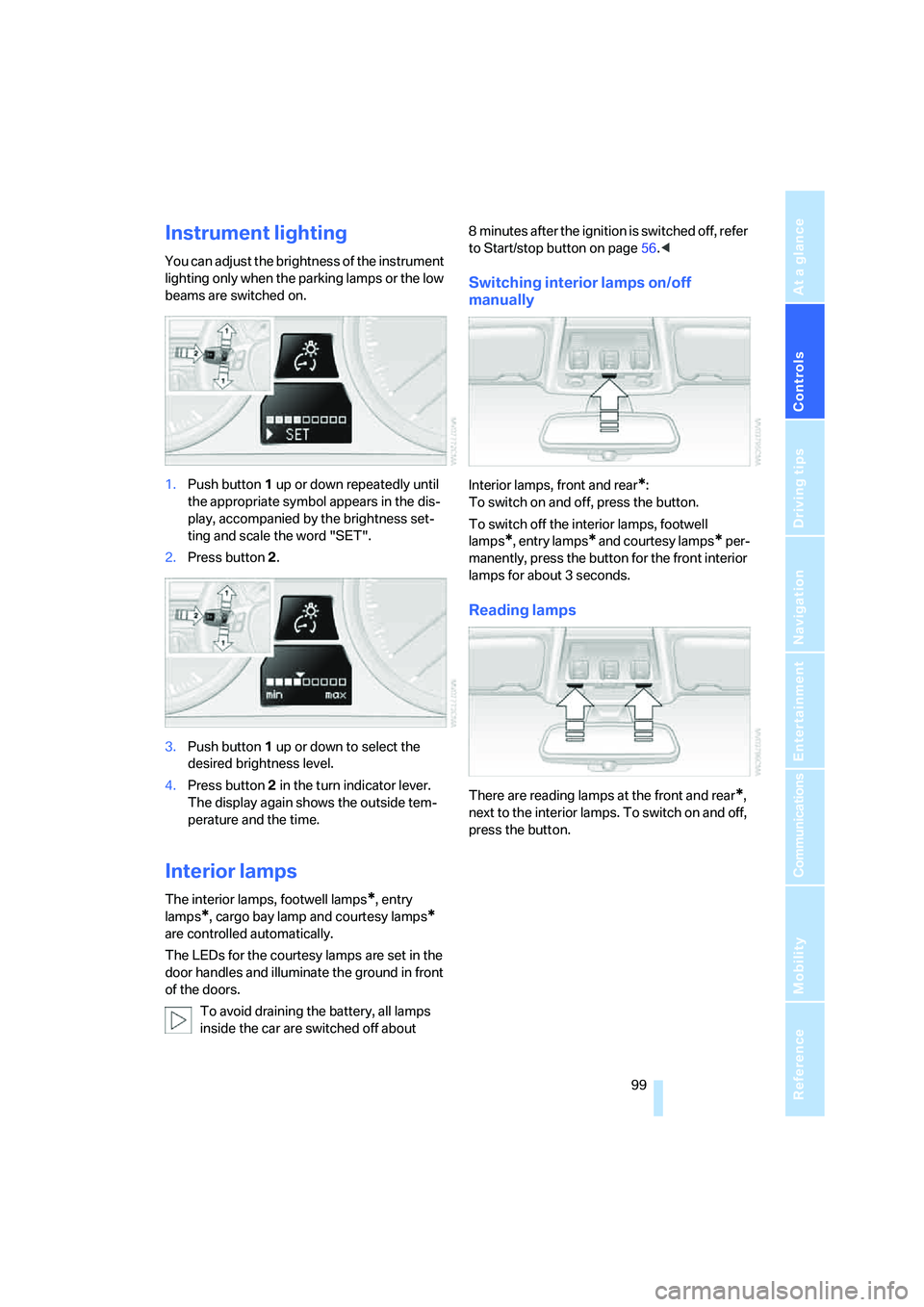
1.Push button 1 up or down repeatedly until
the appropriate symbol appears in the dis-
play, accompanied by the brightness set-
ting and scale the word "SET".
2.Press button 2.
3.Push button 1 up or down to select the
desired brightness level.
4.Press button 2 in the turn indicator lever.
The display again shows the outside tem-
perature and the time.
Interior lamps
The interior lamps, footwell lamps*, entry
lamps
*, cargo bay lamp and courtesy lamps*
are controlled automatically.
The LEDs for the courtesy lamps
are set in the
door handles and illuminate the ground in front
of the doors.
To avoid draining the battery, all lamps
inside the car are switched off about 8 minutes after the ignition is switched off, refer
to Start/stop button on page56.<
Switching interior lamps on/off
manually
Interior lamps, front and rear*:
To switch on and off, press the button.
To switch off the interior lamps, footwell
lamps
*, entry lamps* and courtesy lamps* per-
manently, press the button for the front interior
lamps for about 3 seconds.
Reading lamps
There are reading lamps at the front and rear*,
next to the interior lamps. To switch on and off,
press the button.
Page 105 of 274
Controls
103Reference
At a glance
Driving tips
Communications
Navigation
Entertainment
Mobility
it off while also increasing the air flow rate as
required.
The recirculated-air mode should not be used
over an extended period of time, otherwise the
air quality inside the car will deteriorate contin-
uously.<
Via the button* on the steering wheel
You can switch quickly between the recircu-
lated-air mode and the previous mode using an
individually programmable button
on the steer-
ing wheel, refer to page11.
Residual heat
The heat stored in the engine is
used to heat the passenger com-
partment, e.g. while stopped at a
school to pick up a child.
The function can be switched on when the fol-
lowing conditions are met:
>Up to 15 minutes after the engine has been
switched off
>While the engine is at operating tempera-
ture
>As long as battery voltage is sufficient
>At an outside temperature below 777/
256
The LED is lit when the function is on.
As of radio readiness, you can set the interior
temperature, the air flow rate and the air distri-
bution.
Defrosting windows and removing
condensation
Quickly removes ice and conden-
sation from the windshield and
front side windows.
Switch on the cooling function as well.
Switching cooling function on/off
The cooling function cools and
dehumidifies the incoming air
before reheating it as required,
according to the temperature setting. This
function is only available while the engine is
running.The cooling function helps prevent condensa-
tion on the windows or removes it quickly.
Depending on the weather, the windshield may
fog over briefly when the engine is started.
The cooling function is automatically switched
on along with the AUTO program.
Rear window defroster
The defroster is switched off auto-
matically after a certain time.
Depending on your vehicle's
equipment, the upper wires serve as an antenna
and are not part of the rear window defroster.
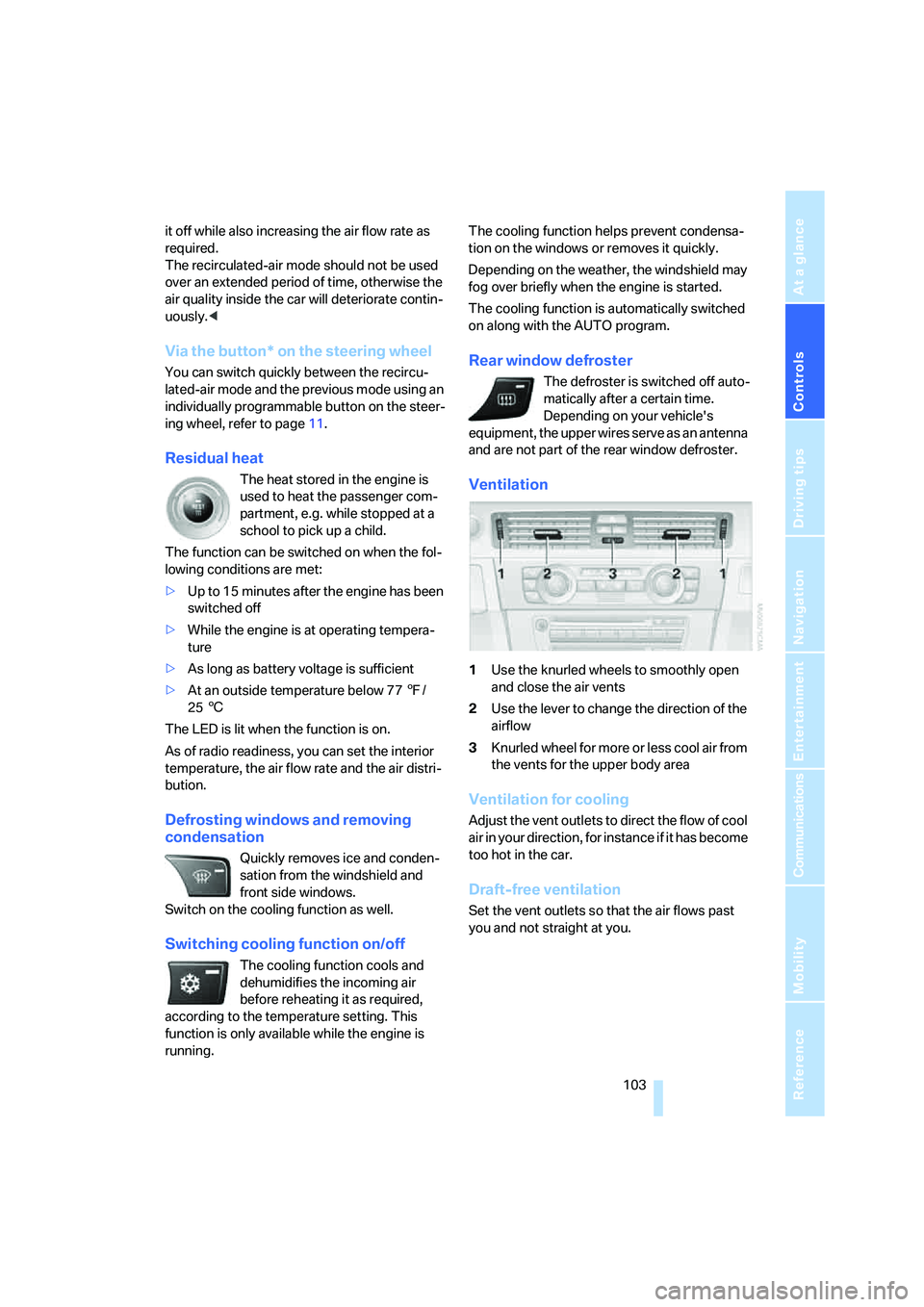
Ventilation
1Use the knurled wheels to smoothly open
and close the air vents
2Use the lever to change the direction of the
airflow
3Knurled wheel for more or less cool air from
the vents for the upper body area
Ventilation for cooling
Adjust the vent outlets to direct the flow of cool
air in your direction, for instance if it has become
too hot in the car.
Draft-free ventilation
Set the vent outlets so that the air flows past
you and not straight at you.
Page 146 of 274
Destination guidance
144 2.Select "Stop guidance" and press the con-
troller.
If you did not reach the destination before the
end of the last journey, the following question
will appear in the display at the start of the next
journey:
"Continue guidance to destination?".
The destination guidance starts automatically
after a short time.
To start destination guidance immediately:
Select "Yes" and press the controller.
Route display
You can have the route during destination guid-
ance displayed in various ways.
From another menu, you can switch
directly to the screen last displayed, refer
to Convenient call-up of menu items on
page18.<
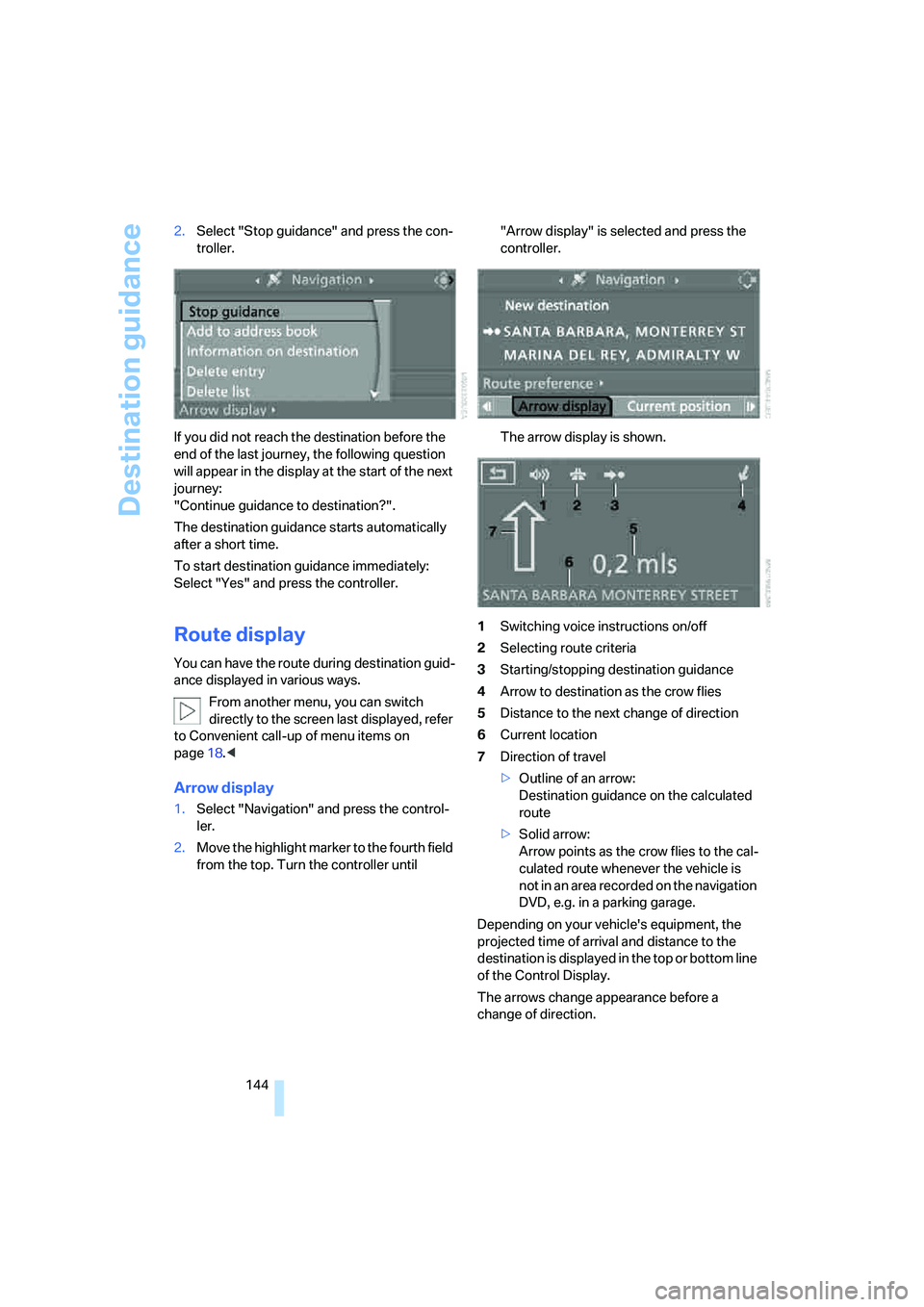
Arrow display
1.Select "Navigation" and press the control-
ler.
2.Move the highlight marker to the fourth field
from the top. Turn the controller until "Arrow display" is selected and press the
controller.
The arrow display is shown.
1Switching voice instructions on/off
2Selecting route criteria
3Starting/stopping destination guidance
4Arrow to destination as the crow flies
5Distance to the next change of direction
6Current location
7Direction of travel
>Outline of an arrow:
Destination guidance on the calculated
route
>Solid arrow:
Arrow points as the crow flies to the cal-
culated route whenever the vehicle is
not in an area recorded on the navigation
DVD, e.g. in a parking garage.
Depending on your vehicle's equipment, the
projected time of arrival and distance to the
destination is displayed in the top or bottom line
of the Control Display.
The arrows change appearance before a
change of direction.
Page 147 of 274
Navigation
Driving tips
145Reference
At a glance
Controls
Communications
Entertainment
Mobility
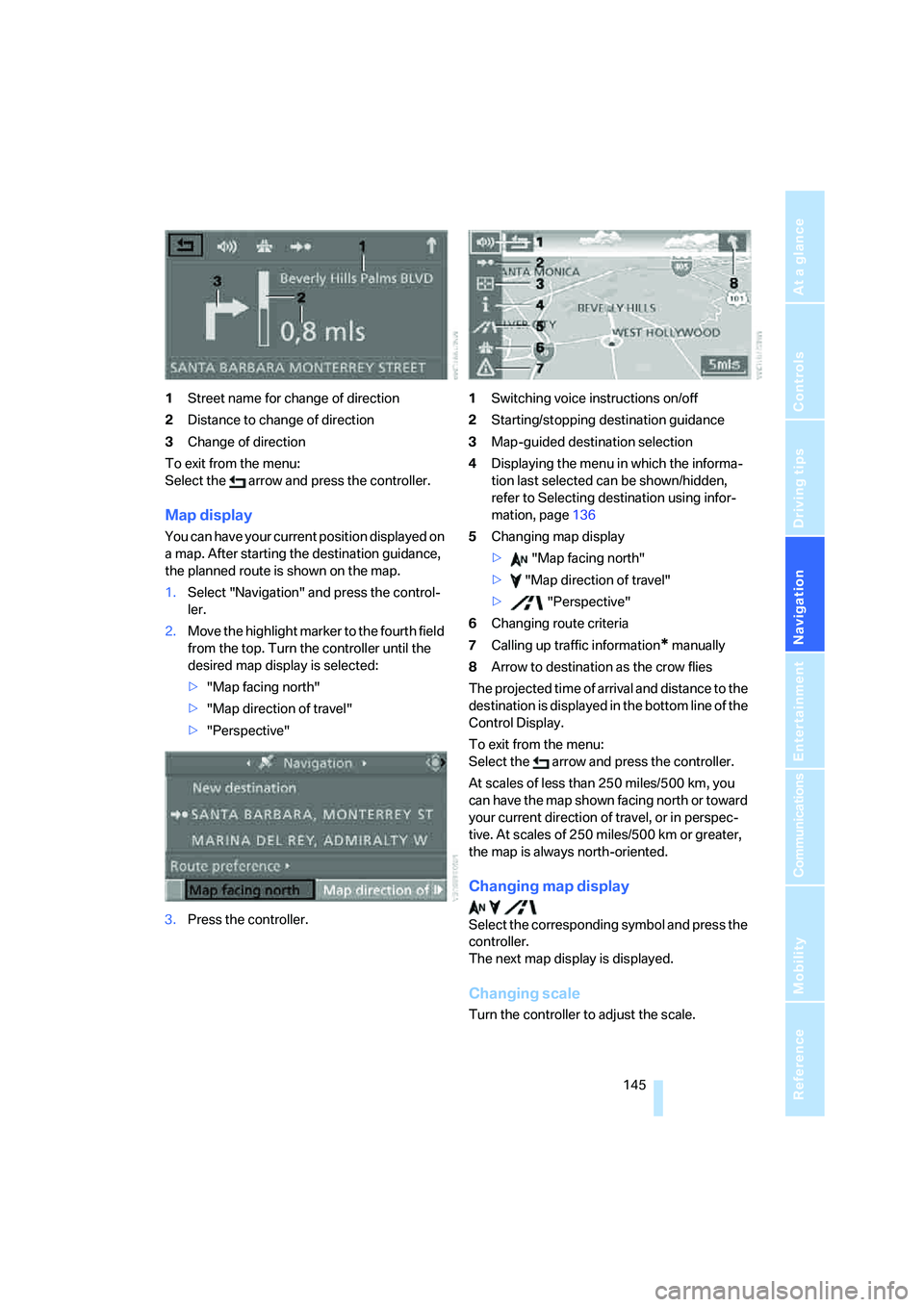
1Street name for change of direction
2Distance to change of direction
3Change of direction
To exit from the menu:
Select the arrow and press the controller.
Map display
You can have your current position displayed on
a map. After starting the destination guidance,
the planned route is shown on the map.
1.Select "Navigation" and press the control-
ler.
2.Move the highlight marker to the fourth field
from the top. Turn the controller until the
desired map display is selected:
>"Map facing north"
>"Map direction of travel"
>"Perspective"
3.Press the controller.1Switching voice instructions on/off
2Starting/stopping destination guidance
3Map-guided destination selection
4Displaying the menu in which the informa-
tion last selected can be shown/hidden,
refer to Selecting destination using infor-
mation, page136
5Changing map display
> "Map facing north"
> "Map direction of travel"
> "Perspective"
6Changing route criteria
7Calling up traffic information
* manually
8Arrow to destination as the crow flies
The projected time of arrival and distance to the
destination is displayed in the bottom line of the
Control Display.
To exit from the menu:
Select the arrow and press the controller.
At scales of less than 250 miles/500 km, you
can have the map shown facing north or toward
your current direction of travel, or in perspec-
tive. At scales of 250 miles/500 km or greater,
the map is always north-oriented.
Changing map display
Select the corresponding symbol and press the
controller.
The next map display is displayed.
Changing scale
Turn the controller to adjust the scale.
Page 154 of 274
What to do if …
152
What to do if …
What to do if …
>a navigation DVD is inserted, but an instruc-
tion to insert the DVD appears on the Con-
trol Display?
The navigation DVD may not be the correct
DVD for the navigation system. This infor-
mation is indicated on the DVD label.
>you request the current position of your
vehicle, but do not receive a precise dis-
play?
The system is unable to receive enough
GPS signals at your current position due to
obstructions, your current position is not
yet available on your navigation DVD, or the
system is in the process of calculating your
current position. As a rule, reception is
guaranteed when you are in the open.
>the destination guidance does not accept a
destination?
The data of the destination is not stored on
the navigation DVD that is loaded. Choose a
destination as close as possible to the orig-
inal one.
>the destination guidance does not accept
an address without the street name?
On the navigation DVD, no downtown area
can be determined for the city or town
entered. Enter any street, or a destination
such as the railway station in the selected
town, and then start the destination guid-
ance.
>you want to enter a destination for the des-
tination guidance, but it is not possible to
select the letters for your desired entry?
The data of the destination is not stored on
the navigation DVD that is loaded. In this
case, the system will not offer you any let-
ters to choose from. Choose a destination
as close as possible to the original one.
>the system stops furnishing directions on
which way to turn as you approach intersec-
tions?
You are driving in an area that has not yet
been completely recorded on the naviga-tion DVD. Instead of an arrow indicating a
turn, you will see an arrow which indicates
the general direction of your planned route.
Or you have left the recommended route
and the system requires a few seconds to
calculate a new recommended route.
>the navigation system does not react to
entries?
If the battery was disconnected, it takes
about 10 minutes before the system is once
again operational.
Page 185 of 274
183
Entertainment
Reference
At a glance
Controls
Driving tips Communications
Navigation
Mobility
When the status information "BMW Assist" or
"BMW Service" is displayed in "Communica-
tion", only BMW Assist calls are possible.
It may not be possible to establish a telephone
connection using the mobile phone while a con-
nection is being established to BMW Assist or
while a call to BMW Assist is already in
progress. If this happens, you must unpair the
mobile phone and the vehicle if you wish to
place a call with the mobile phone.
Start-up
Pairing the mobile phone with the
vehicle
The following prerequisites must be met:
>Compatible mobile phone: the mobile
phone is supported by the full preparation
package mobile phone. You can obtain
information on the Internet at:
www.bmw.com
>The mobile phone is ready to operate.
>The Bluetooth link is activated in the vehi-
cle, refer to page187, and in the mobile
phone.
>Depending on the mobile phone, some
default settings may be necessary for the
mobile phone: e. g. using the following
menu items:
>Bluetooth switched on
>Connection without confirmation
>Reconnection
>Depending on the mobile phone type, the
power-saving mode setting, for example,
may result in a paired mobile phone not
being detected by the vehicle.
>For pairing purposes, define any number as
the Bluetooth passkey, e.g. 1. This Blue-
tooth passkey is no longer required after
pairing has been successful.
>The ignition is switched on.
Pair the mobile phone with the vehicle
only when the car is stationary, to avoid endangering the car's occupants and other
road users by being distracted.<
Switch on ignition
1.Insert remote control all the way into the
ignition lock.
2.Switch on ignition without operating the
brake or clutch or pressing the start/stop
button.
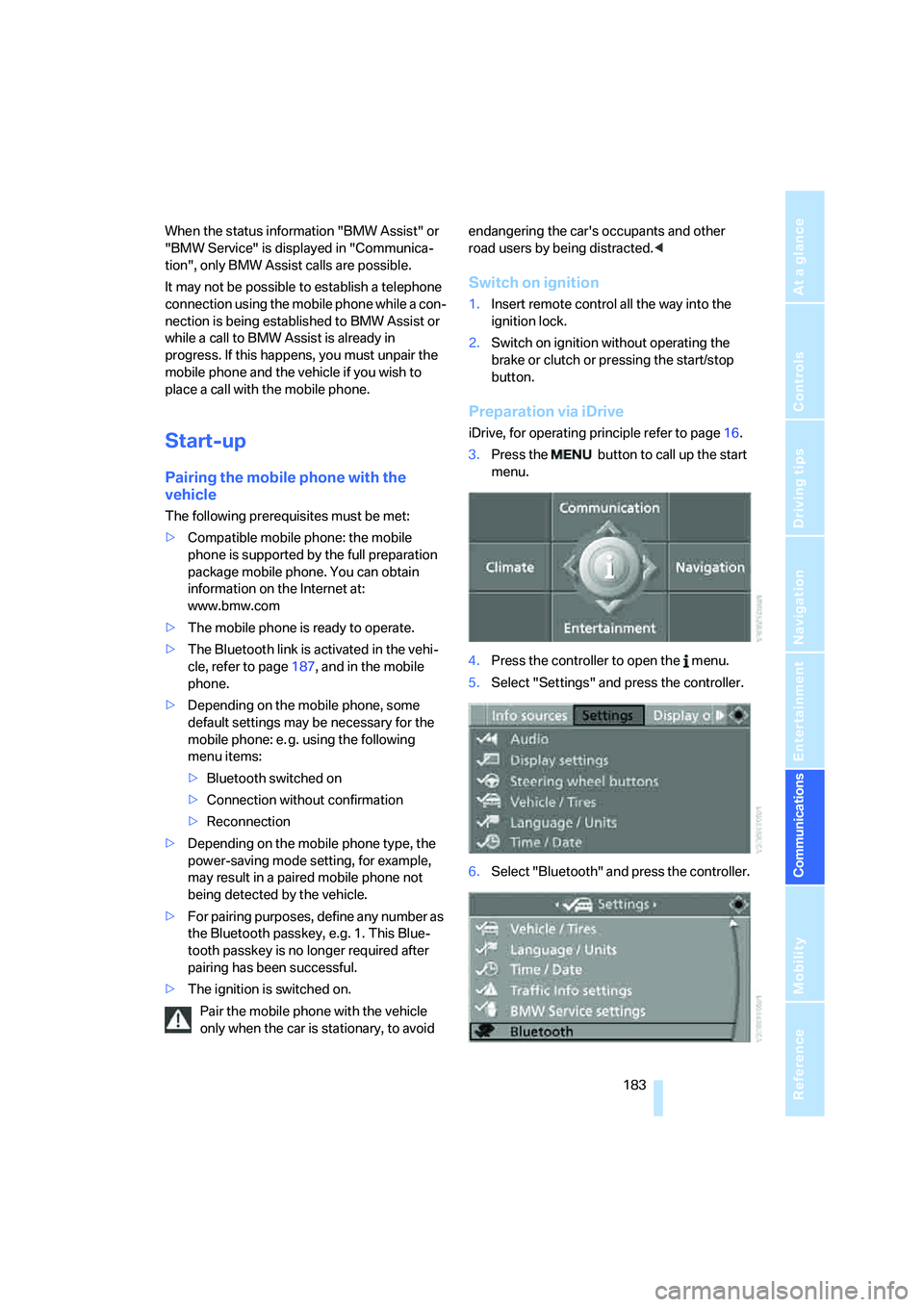
Preparation via iDrive
iDrive, for operating principle refer to page16.
3.Press the button to call up the start
menu.
4.Press the controller to open the menu.
5.Select "Settings" and press the controller.
6.Select "Bluetooth" and press the controller.
Page 241 of 274
Mobility
239Reference
At a glance
Controls
Driving tips
Communications
Navigation
Entertainment
With a tow rope
When starting off in the towing vehicle, make
sure that the tow rope is taut.
To avoid jerking and the associated
stresses on vehicle components when
towing, always use nylon ropes or nylon straps.
Attach the tow rope to the tow fittings only, as
attaching it to other parts of the vehicle could
result in damage.<
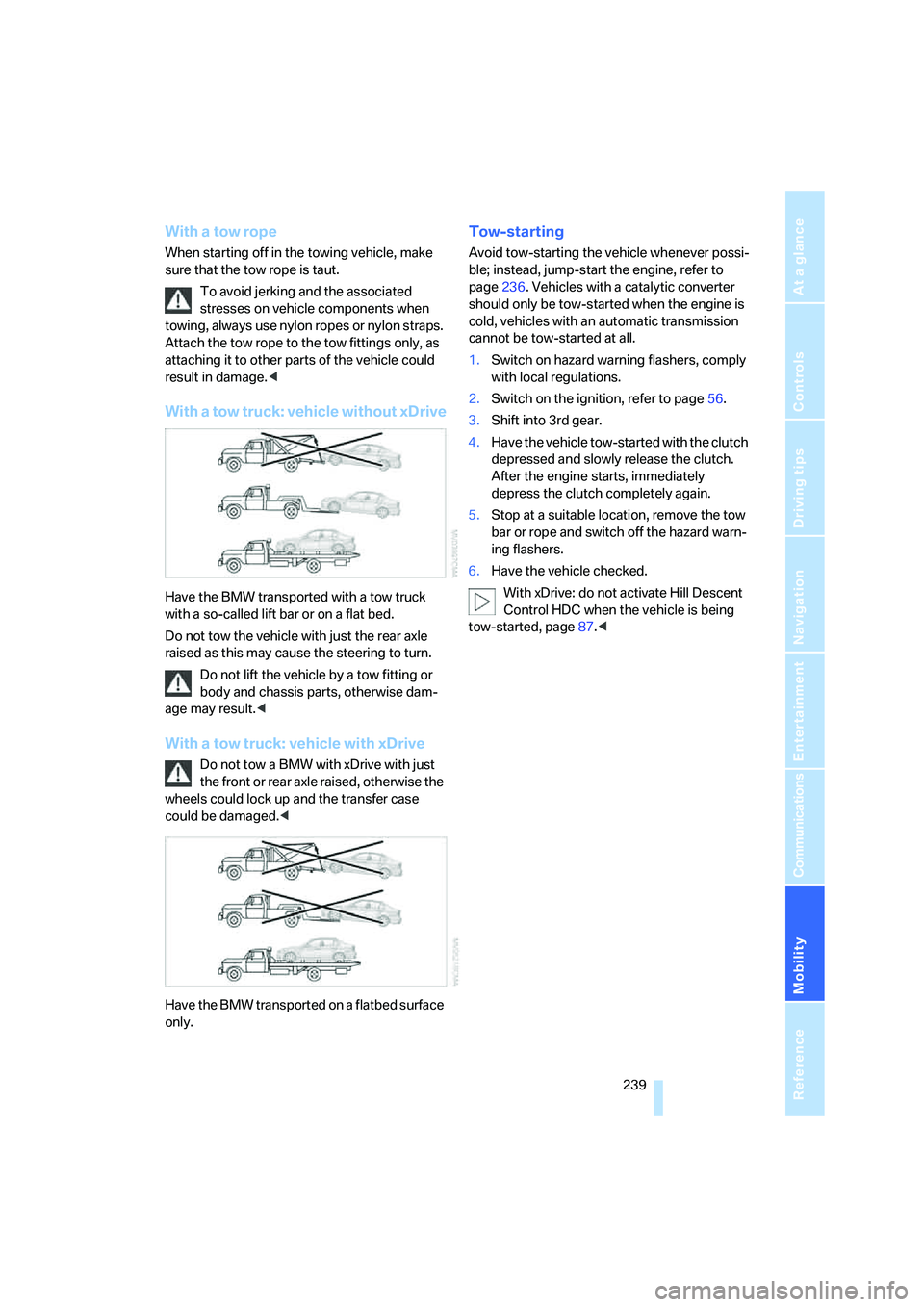
With a tow truck: vehicle without xDrive
Have the BMW transported with a tow truck
with a so-called lift bar or on a flat bed.
Do not tow the vehicle with just the rear axle
raised as this may cause the steering to turn.
Do not lift the vehicle by a tow fitting or
body and chassis parts, otherwise dam-
age may result.<
With a tow truck: vehicle with xDrive
Do not tow a BMW with xDrive with just
the front or rear axle raised, otherwise the
wheels could lock up and the transfer case
could be damaged.<
Have the BMW transported on a flatbed surface
only.
Tow-starting
Avoid tow-starting the vehicle whenever possi-
ble; instead, jump-start the engine, refer to
page236. Vehicles with a catalytic converter
should only be tow-started when the engine is
cold, vehicles with an automatic transmission
cannot be tow-started at all.
1.Switch on hazard warning flashers, comply
with local regulations.
2.Switch on the ignition, refer to page56.
3.Shift into 3rd gear.
4.Have the vehicle tow-started with the clutch
depressed and slowly release the clutch.
After the engine starts, immediately
depress the clutch completely again.
5.Stop at a suitable location, remove the tow
bar or rope and switch off the hazard warn-
ing flashers.
6.Have the vehicle checked.
With xDrive: do not activate Hill Descent
Control HDC when the vehicle is being
tow-started, page87.<
Page 250 of 274
Short commands for the voice command system
248
Navigation
Onboard info
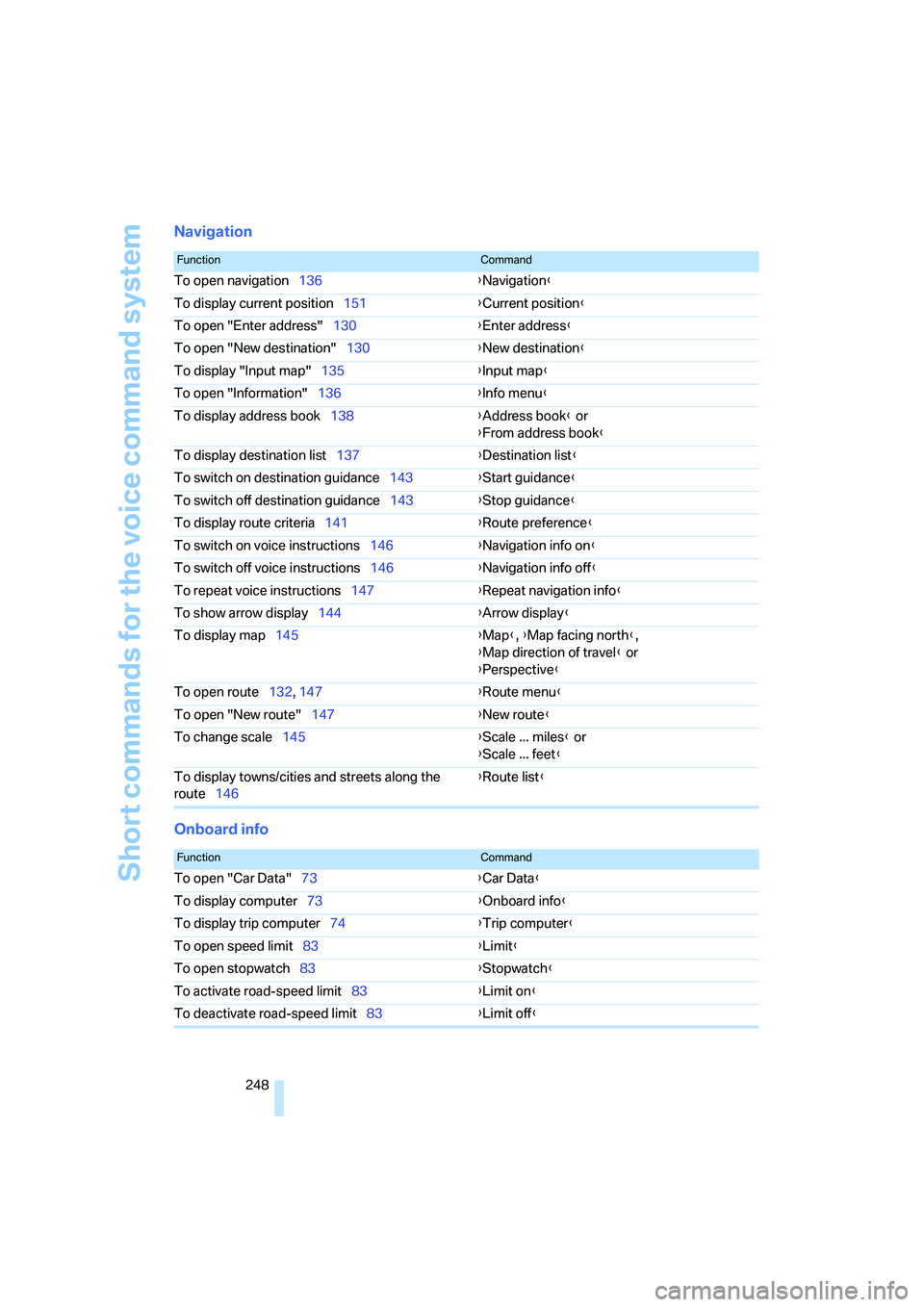
FunctionCommand
To open navigation136{Navigation}
To display current position151{Current position}
To open "Enter address"130{Enter address}
To open "New destination"130{New destination}
To display "Input map"135{Input map}
To open "Information"136{Info menu}
To display address book138{Address book} or
{From address book}
To display destination list137{Destination list}
To switch on destination guidance143{Start guidance}
To switch off destination guidance143{Stop guidance}
To display route criteria141{Route preference}
To switch on voice instructions146{Navigation info on}
To switch off voice instructions146{Navigation info off}
To repeat voice instructions147{Repeat navigation info}
To show arrow display144{Arrow display}
To display map145{Map}, {Map facing north},
{Map direction of travel} or
{Perspective}
To open route132, 147
{Route menu}
To open "New route"147{New route}
To change scale145{Scale ... miles} or
{Scale ... feet}
To display towns/cities and streets along the
route146{Route list}
FunctionCommand
To open "Car Data"73{Car Data}
To display computer73{Onboard info}
To display trip computer74{Trip computer}
To open speed limit83{Limit}
To open stopwatch83{Stopwatch}
To activate road-speed limit83{Limit on}
To deactivate road-speed limit83{Limit off}
Page 256 of 274
Everything from A - Z
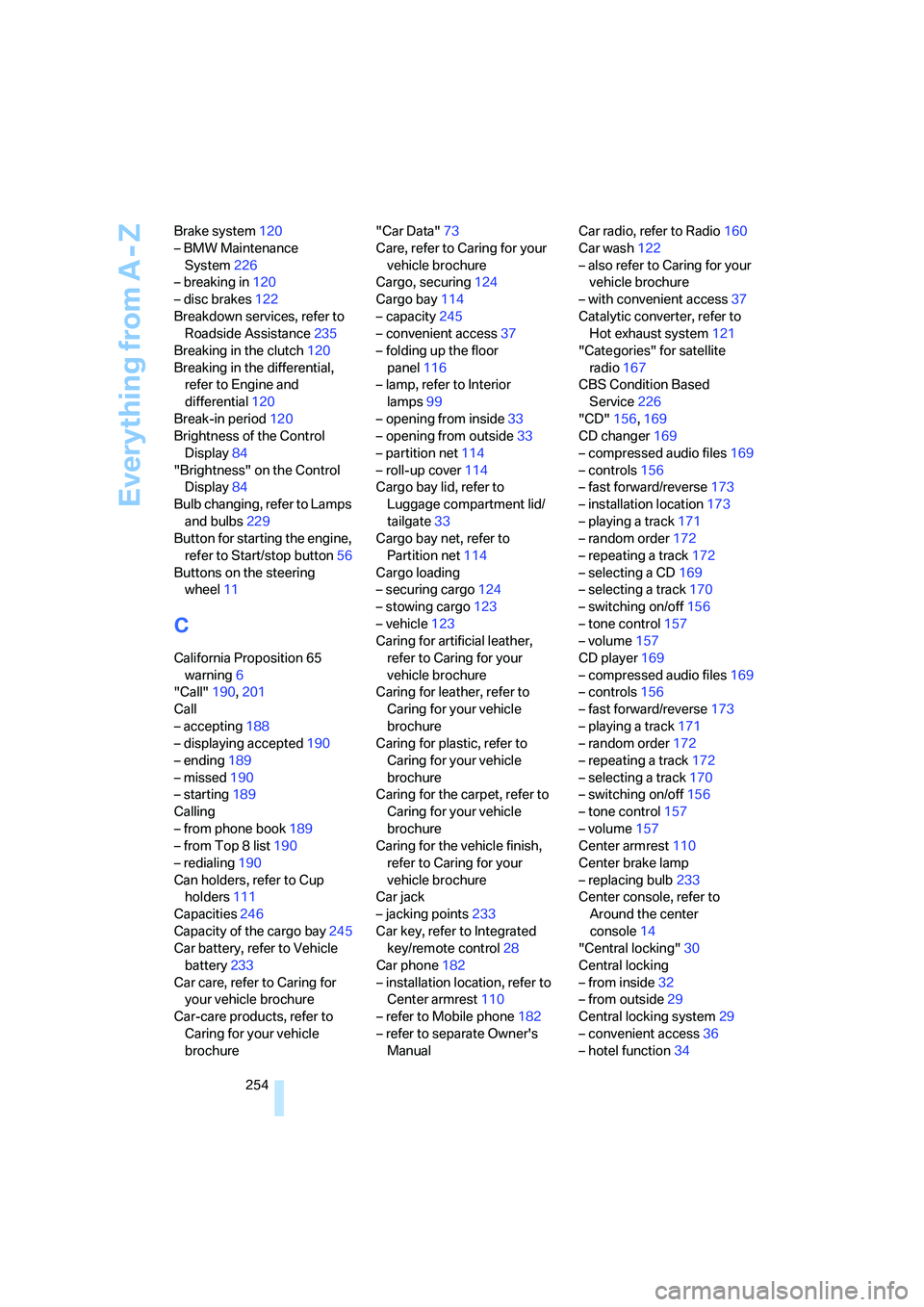
254 Brake system120
– BMW Maintenance
System226
– breaking in120
– disc brakes122
Breakdown services, refer to
Roadside Assistance235
Breaking in the clutch120
Breaking in the differential,
refer to Engine and
differential120
Break-in period120
Brightness of the Control
Display84
"Brightness" on the Control
Display84
Bulb changing, refer to Lamps
and bulbs229
Button for starting the engine,
refer to Start/stop button56
Buttons on the steering
wheel11
C
California Proposition 65
warning6
"Call"190,201
Call
– accepting188
– displaying accepted190
– ending189
– missed190
– starting189
Calling
– from phone book189
– from Top 8 list190
– redialing190
Can holders, refer to Cup
holders111
Capacities246
Capacity of the cargo bay245
Car battery, refer to Vehicle
battery233
Car care, refer to Caring for
your vehicle brochure
Car-care products, refer to
Caring for your vehicle
brochure"Car Data"73
Care, refer to Caring for your
vehicle brochure
Cargo, securing124
Cargo bay114
– capacity245
– convenient access37
– folding up the floor
panel116
– lamp, refer to Interior
lamps99
– opening from inside33
– opening from outside33
– partition net114
– roll-up cover114
Cargo bay lid, refer to
Luggage compartment lid/
tailgate33
Cargo bay net, refer to
Partition net114
Cargo loading
– securing cargo124
– stowing cargo123
– vehicle123
Caring for artificial leather,
refer to Caring for your
vehicle brochure
Caring for leather, refer to
Caring for your vehicle
brochure
Caring for plastic, refer to
Caring for your vehicle
brochure
Caring for the carpet, refer to
Caring for your vehicle
brochure
Caring for the vehicle finish,
refer to Caring for your
vehicle brochure
Car jack
– jacking points233
Car key, refer to Integrated
key/remote control28
Car phone182
– installation location, refer to
Center armrest110
– refer to Mobile phone182
– refer to separate Owner's
ManualCar radio, refer to Radio160
Car wash122
– also refer to Caring for your
vehicle brochure
– with convenient access37
Catalytic converter, refer to
Hot exhaust system121
"Categories" for satellite
radio167
CBS Condition Based
Service226
"CD"156,169
CD changer169
– compressed audio files169
– controls156
– fast forward/reverse173
– installation location173
– playing a track171
– random order172
– repeating a track172
– selecting a CD169
– selecting a track170
– switching on/off156
– tone control157
– volume157
CD player169
– compressed audio files169
– controls156
– fast forward/reverse173
– playing a track171
– random order172
– repeating a track172
– selecting a track170
– switching on/off156
– tone control157
– volume157
Center armrest110
Center brake lamp
– replacing bulb233
Center console, refer to
Around the center
console14
"Central locking"30
Central locking
– from inside32
– from outside29
Central locking system29
– convenient access36
– hotel function34
Page 266 of 274
Everything from A - Z
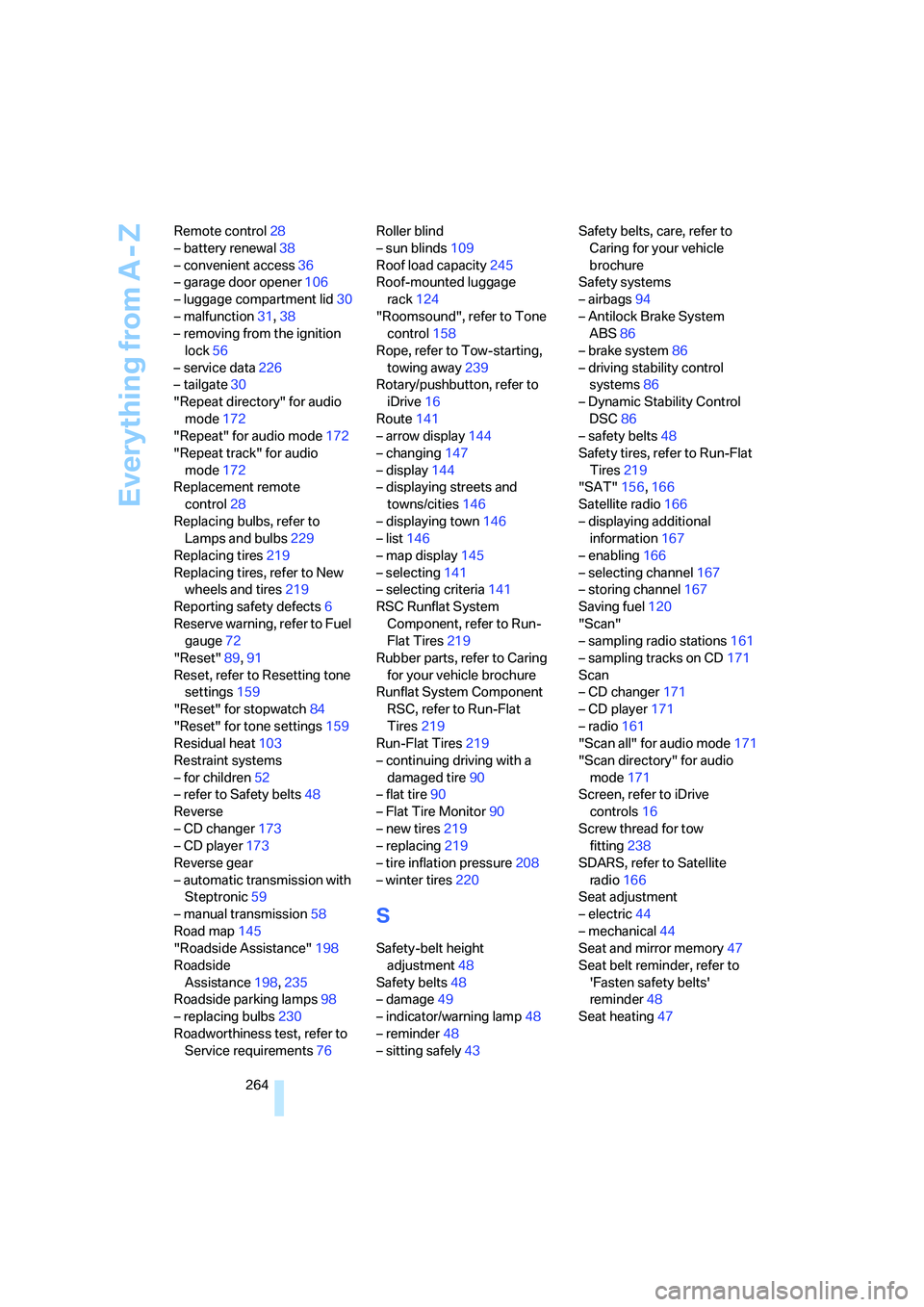
264 Remote control28
– battery renewal38
– convenient access36
– garage door opener106
– luggage compartment lid30
– malfunction31,38
– removing from the ignition
lock56
– service data226
– tailgate30
"Repeat directory" for audio
mode172
"Repeat" for audio mode172
"Repeat track" for audio
mode172
Replacement remote
control28
Replacing bulbs, refer to
Lamps and bulbs229
Replacing tires219
Replacing tires, refer to New
wheels and tires219
Reporting safety defects6
Reserve warning, refer to Fuel
gauge72
"Reset"89,91
Reset, refer to Resetting tone
settings159
"Reset" for stopwatch84
"Reset" for tone settings159
Residual heat103
Restraint systems
– for children52
– refer to Safety belts48
Reverse
– CD changer173
– CD player173
Reverse gear
– automatic transmission with
Steptronic59
– manual transmission58
Road map145
"Roadside Assistance"198
Roadside
Assistance198,235
Roadside parking lamps98
– replacing bulbs230
Roadworthiness test, refer to
Service requirements76Roller blind
– sun blinds109
Roof load capacity245
Roof-mounted luggage
rack124
"Roomsound", refer to Tone
control158
Rope, refer to Tow-starting,
towing away
239
Rotary/pushbutton, refer to
iDrive16
Route141
– arrow display144
– changing147
– display144
– displaying streets and
towns/cities146
– displaying town146
– list146
– map display145
– selecting141
– selecting criteria141
RSC Runflat System
Component, refer to Run-
Flat Tires219
Rubber parts, refer to Caring
for your vehicle brochure
Runflat System Component
RSC, refer to Run-Flat
Tires219
Run-Flat Tires219
– continuing driving with a
damaged tire90
– flat tire90
– Flat Tire Monitor90
– new tires219
– replacing219
– tire inflation pressure208
– winter tires220
S
Safety-belt height
adjustment48
Safety belts48
– damage49
– indicator/warning lamp48
– reminder48
– sitting safely43Safety belts, care, refer to
Caring for your vehicle
brochure
Safety systems
– airbags94
– Antilock Brake System
ABS86
– brake system86
– driving stability control
systems86
– Dynamic Stability Control
DSC86
– safety belts48
Safety tires, refer to Run-Flat
Tires219
"SAT"156,166
Satellite radio166
– displaying additional
information167
– enabling166
– selecting channel167
– storing channel167
Saving fuel120
"Scan"
– sampling radio stations161
– sampling tracks on CD171
Scan
– CD changer171
– CD player171
– radio161
"Scan all" for audio mode171
"Scan directory" for audio
mode171
Screen, refer to iDrive
controls16
Screw thread for tow
fitting238
SDARS, refer to Satellite
radio166
Seat adjustment
– electric44
– mechanical44
Seat and mirror memory47
Seat belt reminder, refer to
'Fasten safety belts'
reminder48
Seat heating47