language BMW 5 SERIES ACTIVE HYBRID 2015 Owners Manual
[x] Cancel search | Manufacturer: BMW, Model Year: 2015, Model line: 5 SERIES ACTIVE HYBRID, Model: BMW 5 SERIES ACTIVE HYBRID 2015Pages: 257, PDF Size: 5.26 MB
Page 5 of 257
Addendum
ADDENDUM TO OWNER'S MANUAL
We wanted to provide you with some updates
and clarifications with respect to the printed
BMW Owner's Manual. These updates and
clarifications will supersede the materials con-
tained in that document.
1. Where the terms “service center,” “the ser-
vice center,” “your service center,” “service
specialist,” or “service” are used in the
Owner's Manual, we wanted to clarify that
the terms refer to a BMW dealer's service
center or another service center or repair
shop that employs trained personnel that
can perform maintenance and repair work
on your vehicle in accordance with BMW
specifications.
2. Where the text of the Owner's Manual con-
tains an affirmative instruction to contact a
“service center” or “your service center,”
we wanted to clarify that BMW recom-
mends that, if you are faced with one of the
situations addressed by that text, you con-
tact or seek the assistance of a BMW
dealer's service center or another service
center or repair shop that employs trained
personnel that can perform maintenance
and repair work on your vehicle in accor-
dance with BMW specifications.
While BMW of North America LLC, at no
cost to you, will pay for repairs required by
the limited warranties provided with respect
to your vehicle and for maintenance under
the Maintenance Program during the appli-
cable warranty and maintenance coverage
periods, you are free to elect, both during
those periods and thereafter, to have main-
tenance and repair work provided by other
service centers or repair shops.
3. Where the Owner's Manual makes refer-
ence to parts and accessories having been
approved by BMW, those references are
intended to reflect that those parts and
accessories are recommended by BMW of
North America LLC. You may elect to use
other parts and accessories, but, if you do,
we recommend that you make sure that any
such parts and/or accessories are appropri-
ate for use on your vehicle.
4. At page 7, under the warranty section's dis-
cussion of homologation, where it states
that you “cannot lodge warranty claims for
your vehicle there,” the text should read
that you “may not be able to lodge warranty
claims for your vehicle there.”
5. At page 7, under the “Parts and Accesso-
ries” section, in the sixth sentence, the
word “cannot” should read “does not.”
6. At page 62, in the “Check and replace
safety belts” section, the text beginning,
“This should only be done by your service
center …” should be disregarded and the
following text should be read in lieu thereof:
“BMW recommends having this work per-
formed by a service center as it is important
that this safety feature functions properly.”
7. At page 63, under the heading: “Active
head restraint,” the paragraph beginning,
“Only attach accessories …” should be dis-
regarded and the following text should be
read in lieu thereof: “BMW recommends
that you attach accessories approved by
BMW to the seat or head restraint.”
8. At page 103, under the heading: “Special
windshield,” the paragraph beginning,
“Therefore, have the special windshield …”
should be disregarded and the following
text should be read in lieu thereof: “BMW
recommends that you have the special
windshield replaced by the service center.”
9. At page 185 under the heading: “Objects
within the range of movement of the ped-
als” and at page 236 under the heading:
“Carpets and floor mats,” the paragraph
that begins: “Only use floor mats …” should
be disregarded and the following language
should be read in lieu thereof: “The manu-
facturer of your vehicle recommends that
you use floor mats that have been identified
Online Edition for Part no. 01 40 2 954 366 - II/15
Page 25 of 257
Function is deactivated.
Touchpad Some iDrive functions can be operated using
the touchpad on the controller:
Selecting functions1."Settings"2."Touchpad"3.Select the desired function.▷"Speller": enter letters and numbers.▷"Interactive map": viewing the interac‐
tive map.▷"Browser": enter Internet addresses.▷"Audio feedback": pronounces entered
letters and numbers.
Entering letters and numbers
Entering letters requires some practice at the
beginning. When entering, pay attention to the
following:
▷For the input of upper/lower case letters
and numbers, it may be necessary to reel
via the controller to the corresponding In‐
put mode, refer to page 24, e.g. when the
spelling of upper and lower case letters is
identical.▷Enter characters as they are displayed on
the Control Display.▷Always enter associated characters, such
as accents or periods so that the letter can
be clearly recognized. Possible input de‐
pends on the set language. Where neces‐
sary, enter special characters via the con‐
troller.▷To delete a character, slide to the left on
the touchpad.▷To enter a blank space, slide to the right in
the center of the touchpad.▷To enter a hyphen, slide to the right in the
upper area of the touchpad.▷To enter an underscore, swipe to the right
in the lower area of the touchpad.
Using interactive map and Internet
Via touch-pad move the interactive map in the
navigation system and Internet sites.
FunctionControlsMove interactive map or
Internet sites.Swipe into re‐
spective direc‐
tion.Enlarge/shrink interactive
map or Internet sites.Drag in or out on
the touchpad with
fingers.Display the menu or open
a link in the Internet.Tap once.
Changing settings
You may change control display settings via
touchpad. Swipe left or right accordingly.
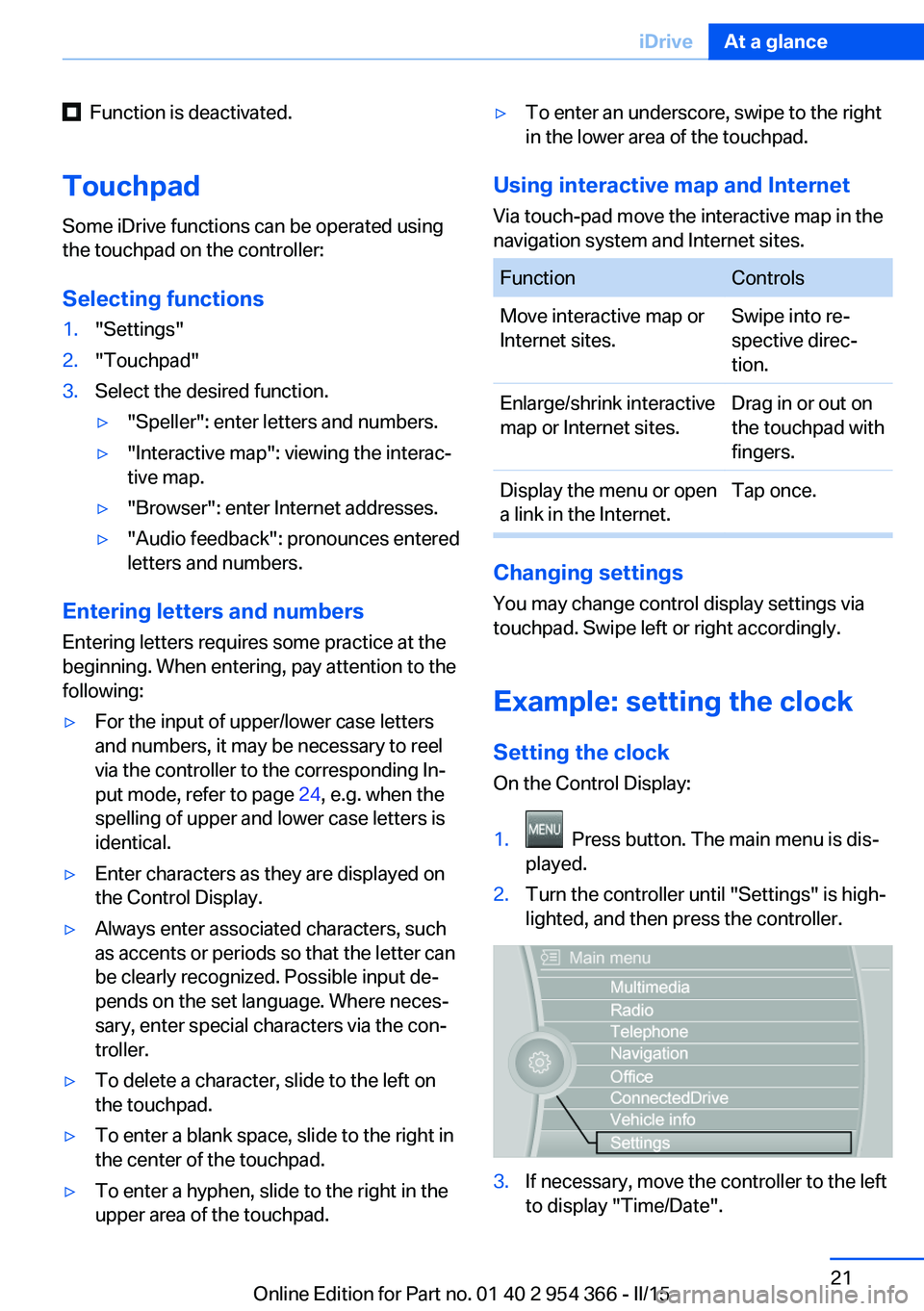
Example: setting the clock Setting the clock
On the Control Display:
1. Press button. The main menu is dis‐
played.2.Turn the controller until "Settings" is high‐
lighted, and then press the controller.3.If necessary, move the controller to the left
to display "Time/Date".Seite 21iDriveAt a glance21
Online Edition for Part no. 01 40 2 954 366 - II/15
Page 29 of 257
▷Target search: names of locations may be
entered in languages available through
Control Display.Seite 25iDriveAt a glance25
Online Edition for Part no. 01 40 2 954 366 - II/15
Page 30 of 257
Voice activation systemVehicle features and options
This chapter describes all standard, country-
specific and optional features offered with the
series. It also describes features that are not
necessarily available in your car, e. g., due to
the selected options or country versions. This
also applies to safety-related functions and
systems. The respectively applicable country
provisions must be observed when using the
respective features and systems.
The concept▷Most functions displayed on the Control
Display can be operated by voice com‐
mands via the voice activation system. The
system supports you with announcements
during input.▷Functions that can only be used when the
vehicle is stationary cannot be used via the
voice activation system.▷The system uses a special microphone on
the driver's side.▷›...‹ Verbal instructions in the Owner's
Manual to use with the voice activation
system.
Requirements
Via the Control Display, set a language that is
also supported by the voice activation system
so that the spoken commands can be identi‐
fied.
Set the language, refer to page 101.
Using voice activation
Activating the voice activation system1. Press button on the steering
wheel.2.Wait for the signal.3.Say the command.
A command that is recognized by the voice
activation system is announced and dis‐
played in the instrument cluster.
This symbol in the instrument cluster indi‐
cates that the voice activation system is active.
If no other commands are available, use func‐
tion via iDrive.
Terminating the voice activation
system
Briefly press the button on the steer‐
ing wheel or ›Cancel‹.
Possible commands Most menu items on the Control Display can
be voiced as commands.
The available commands depend on the menu
that is currently displayed on the Control Dis‐
play.
There are short commands for many functions.
You may select lists such as phone lists via
voice activation. Read these lists out loud ex‐
actly as they show in the respective list.
Having possible commands read aloud You can have available commands read out
loud for you: ›Voice commands‹
E. g. if the "Settings" menu is displayed, the
commands for the settings are read out loud.
Seite 26At a glanceVoice activation system26
Online Edition for Part no. 01 40 2 954 366 - II/15
Page 31 of 257
Executing functions using short
commands
Execute functions on the main menu via short
commands. It almost doesn't matter which
menu item is selected, e.g., ›Vehicle status‹.
List of short commands for the voice activation
system, see Navigation, Entertainment, Com‐
munication Owner's Manual.
Help dialog for the voice activation
system
Calling up help dialog: ›Help‹
Additional commands for the help dialog:▷›Help with examples‹: announces informa‐
tion about the current operating options
and the most important commands for
them.▷›Help with voice activation‹: information
about the principle of operation for the
voice activation system is announced.
One example: open the tone
settings
Via the main menu The commands of the menu items are spoken
just as they are selected via the controller.
1.Turn on the Entertainment sound output if
needed.2. Press button on the steering
wheel.3.›Radio‹4.›Tone‹
Via short command
The desired tone settings can also be started
via a short command.
1.Turn on the Entertainment sound output if
needed.2. Press button on the steering
wheel.3.›Tone‹
Setting the voice dialog
Set system to standard dialog or use a short
version.
The short version of the voice dialog plays
back short messages in abbreviated form.
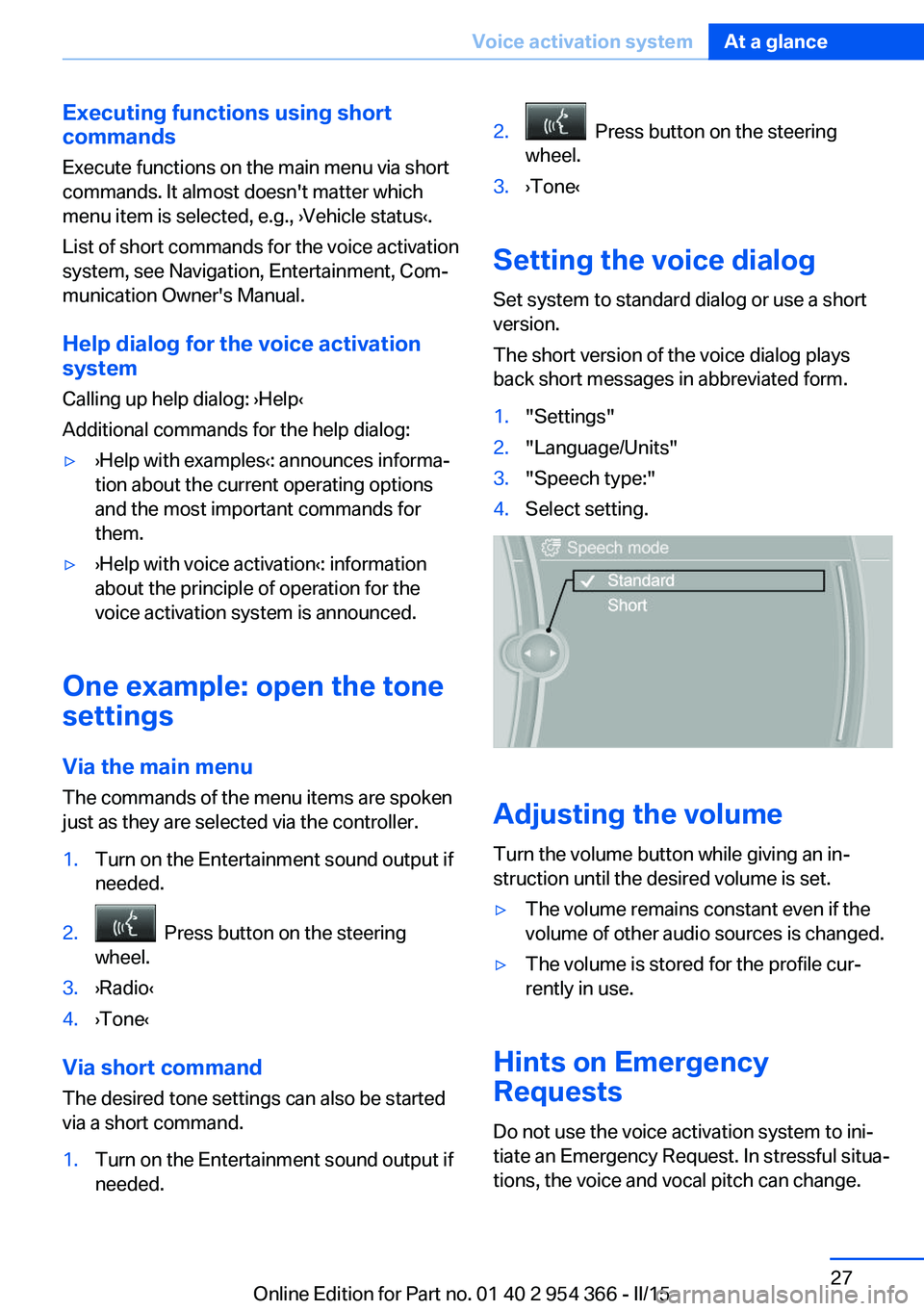
1."Settings"2."Language/Units"3."Speech type:"4.Select setting.
Adjusting the volume
Turn the volume button while giving an in‐
struction until the desired volume is set.
▷The volume remains constant even if the
volume of other audio sources is changed.▷The volume is stored for the profile cur‐
rently in use.
Hints on Emergency
Requests
Do not use the voice activation system to ini‐
tiate an Emergency Request. In stressful situa‐
tions, the voice and vocal pitch can change.
Seite 27Voice activation systemAt a glance27
Online Edition for Part no. 01 40 2 954 366 - II/15
Page 32 of 257
This can unnecessarily delay the establish‐
ment of a phone connection.
Instead, use the SOS button, refer to
page 227, close to the interior mirror.
Environmental conditions▷Say the commands, numbers, and letters
smoothly and with normal volume, empha‐
sis, and speed.▷Always say commands in the language of
the voice activation system.▷Keep the doors, windows, and glass sun‐
roof closed to prevent noise interference.▷Avoid making other noise in the vehicle
while speaking.Seite 28At a glanceVoice activation system28
Online Edition for Part no. 01 40 2 954 366 - II/15
Page 105 of 257
Settings on the Control
Display
Time
Setting the time zone1."Settings"2."Time/Date"3."Time zone:"4.Select the desired time zone.
The time zone is stored.
Setting the time
1."Settings"2."Time/Date"3."Time:"4.Turn the controller until the desired hours
are displayed.5.Press the controller.6.Turn the controller until the desired mi‐
nutes are displayed.7.Press the controller.
The time is stored.
Setting the time format
1."Settings"2."Time/Date"3."Format:"4.Select the desired format.
The time format is stored.
Automatic time setting Depending on your vehicle's optional features,
the time, date and, if needed, the time zone are
updated automatically.
1."Settings"2."Time/Date"3."Auto time set"Date
Setting the date1."Settings"2."Time/Date"3."Date:"4.Turn the controller until the desired day is
displayed.5.Press the controller.6.Make the necessary settings for the month
and year.
The date is stored.
Setting the date format
1."Settings"2."Time/Date"3."Format:"4.Select the desired format.
The date format is stored.
Language
Setting the language
To set the language on the Control Display:
1."Settings"2."Language/Units"3."Language:"4.Select the desired language.
Settings are stored for the profile currently in
use.
Setting the voice dialog
Voice dialog for the voice activation system,
refer to page 27.
Seite 101DisplaysControls101
Online Edition for Part no. 01 40 2 954 366 - II/15
Page 106 of 257
Units of measure
Setting the units of measure
To set the units for fuel consumption, route/
distance and temperature:1."Settings"2."Language/Units"3.Select the desired menu item.4.Select the desired unit.
Settings are stored for the profile currently in
use.
Brightness
Setting the brightness
To set the brightness of the Control Display:
1."Settings"2."Control display"3."Brightness"4.Turn the controller until the desired bright‐
ness is set.5.Press the controller.
Settings are stored for the profile currently in
use.
Depending on the light conditions, the bright‐
ness settings may not be clearly visible.
Head-up Display
The concept
This system projects important information
into the driver's field of vision, e.g., the speed.
The driver can get information without averting
his or her eyes from the road.
Display visibility The visibility of the displays in the Head-up
Display is influenced by the following factors:
▷Certain sitting positions.▷Objects on the cover of the Head-up Dis‐
play.▷Sunglasses with certain polarization filters.▷Wet roads.▷Unfavorable light conditions.
If the image is distorted, check the basic set‐
tings.
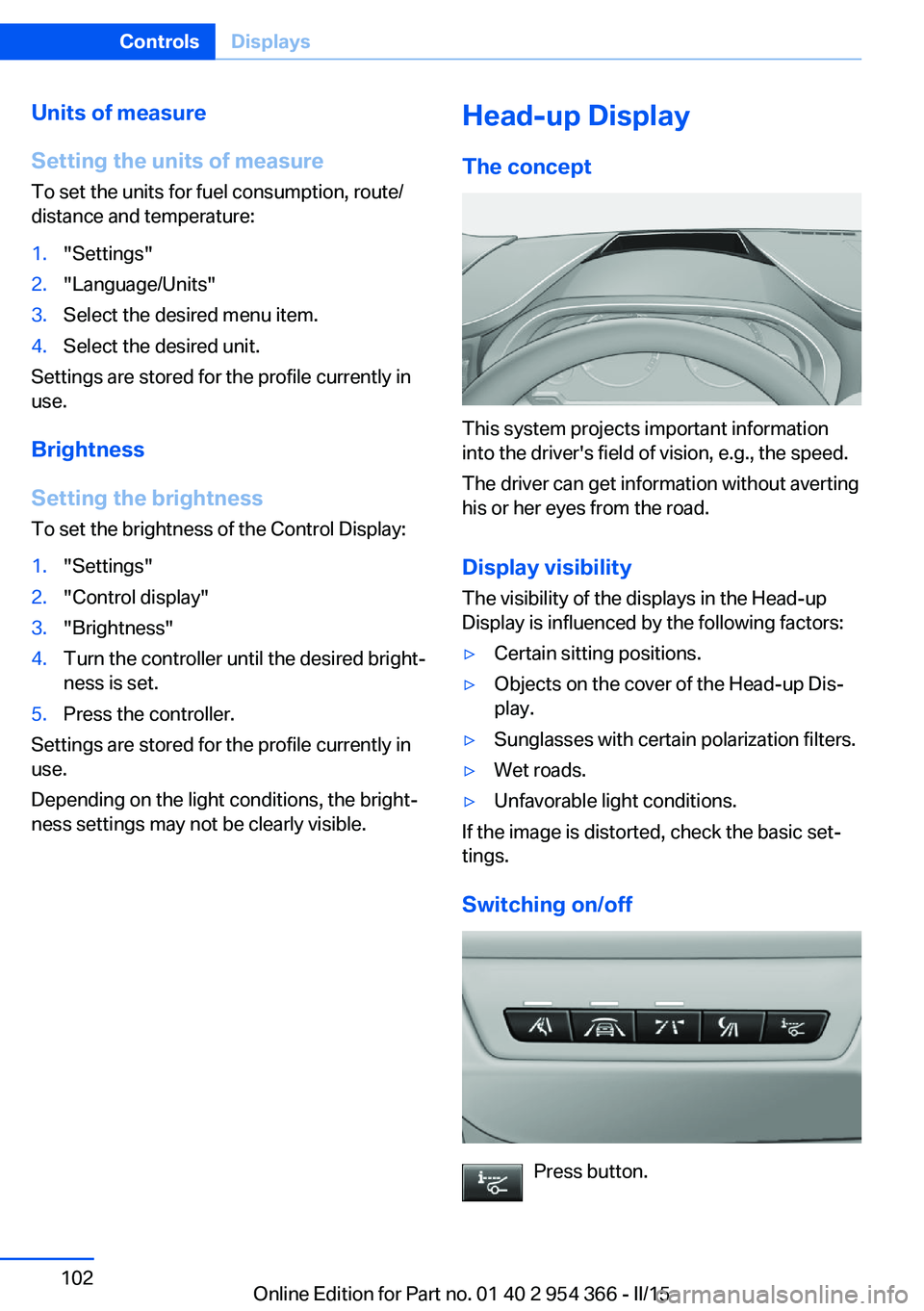
Switching on/off
Press button.
Seite 102ControlsDisplays102
Online Edition for Part no. 01 40 2 954 366 - II/15
Page 251 of 257
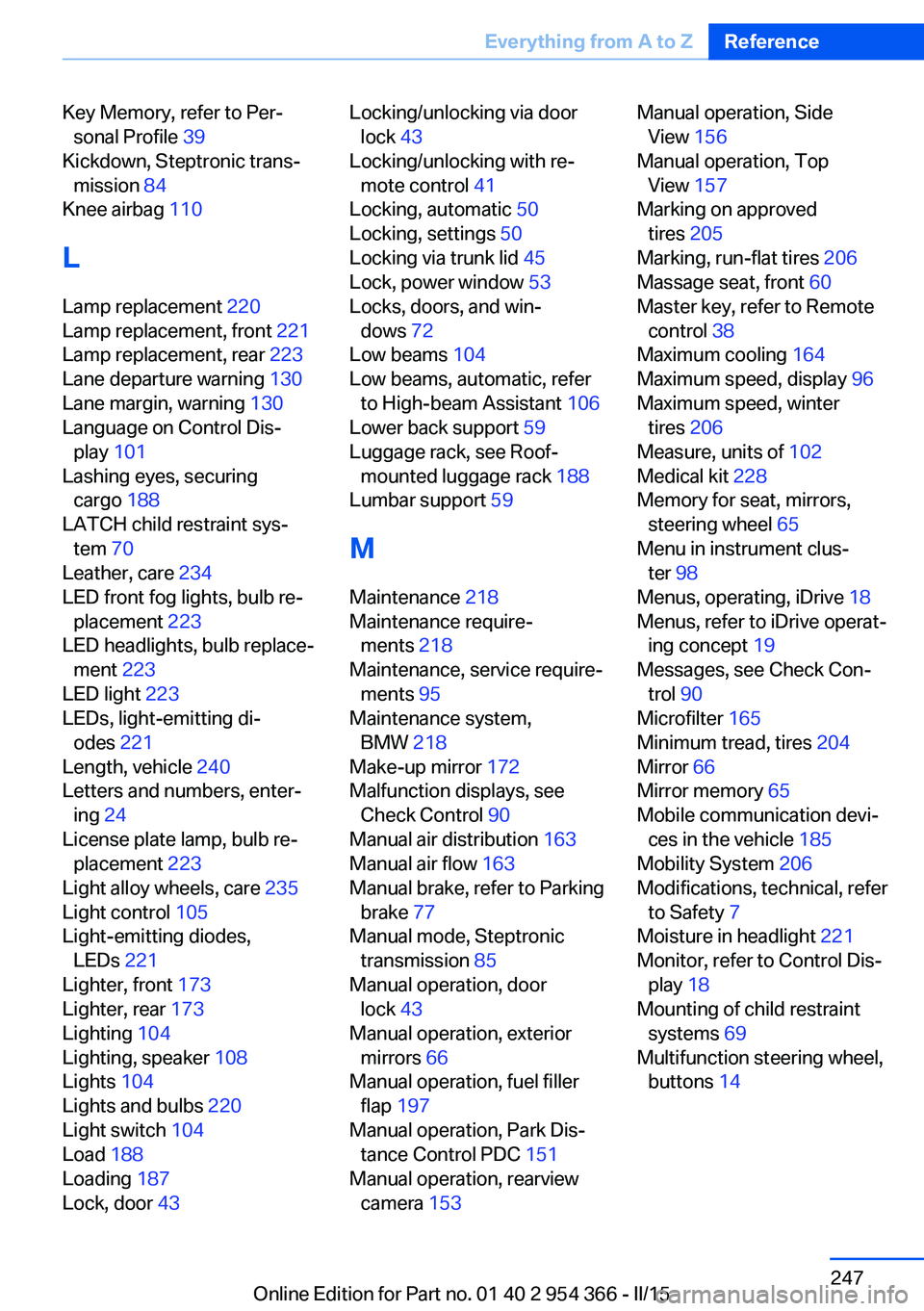
Key Memory, refer to Per‐sonal Profile 39
Kickdown, Steptronic trans‐ mission 84
Knee airbag 110
L
Lamp replacement 220
Lamp replacement, front 221
Lamp replacement, rear 223
Lane departure warning 130
Lane margin, warning 130
Language on Control Dis‐ play 101
Lashing eyes, securing cargo 188
LATCH child restraint sys‐ tem 70
Leather, care 234
LED front fog lights, bulb re‐ placement 223
LED headlights, bulb replace‐ ment 223
LED light 223
LEDs, light-emitting di‐ odes 221
Length, vehicle 240
Letters and numbers, enter‐ ing 24
License plate lamp, bulb re‐ placement 223
Light alloy wheels, care 235
Light control 105
Light-emitting diodes, LEDs 221
Lighter, front 173
Lighter, rear 173
Lighting 104
Lighting, speaker 108
Lights 104
Lights and bulbs 220
Light switch 104
Load 188
Loading 187
Lock, door 43 Locking/unlocking via door
lock 43
Locking/unlocking with re‐ mote control 41
Locking, automatic 50
Locking, settings 50
Locking via trunk lid 45
Lock, power window 53
Locks, doors, and win‐ dows 72
Low beams 104
Low beams, automatic, refer to High-beam Assistant 106
Lower back support 59
Luggage rack, see Roof- mounted luggage rack 188
Lumbar support 59
M
Maintenance 218
Maintenance require‐ ments 218
Maintenance, service require‐ ments 95
Maintenance system, BMW 218
Make-up mirror 172
Malfunction displays, see Check Control 90
Manual air distribution 163
Manual air flow 163
Manual brake, refer to Parking brake 77
Manual mode, Steptronic transmission 85
Manual operation, door lock 43
Manual operation, exterior mirrors 66
Manual operation, fuel filler flap 197
Manual operation, Park Dis‐ tance Control PDC 151
Manual operation, rearview camera 153 Manual operation, Side
View 156
Manual operation, Top View 157
Marking on approved tires 205
Marking, run-flat tires 206
Massage seat, front 60
Master key, refer to Remote control 38
Maximum cooling 164
Maximum speed, display 96
Maximum speed, winter tires 206
Measure, units of 102
Medical kit 228
Memory for seat, mirrors, steering wheel 65
Menu in instrument clus‐ ter 98
Menus, operating, iDrive 18
Menus, refer to iDrive operat‐ ing concept 19
Messages, see Check Con‐ trol 90
Microfilter 165
Minimum tread, tires 204
Mirror 66
Mirror memory 65
Mobile communication devi‐ ces in the vehicle 185
Mobility System 206
Modifications, technical, refer to Safety 7
Moisture in headlight 221
Monitor, refer to Control Dis‐ play 18
Mounting of child restraint systems 69
Multifunction steering wheel, buttons 14 Seite 247Everything from A to ZReference247
Online Edition for Part no. 01 40 2 954 366 - II/15