buttons BMW 525I 2004 User Guide
[x] Cancel search | Manufacturer: BMW, Model Year: 2004, Model line: 525I, Model: BMW 525I 2004Pages: 220, PDF Size: 7.12 MB
Page 91 of 220
Controls
89Reference
At a glance
Driving tips
Communications
Navigation
Entertainment
Mobility
Fog lamps
Always observe all applicable laws govern-
ing the use of fog lamps.
To disconnect, briefly press the button
again.
The parking lamps or low beams
must be switched on for the fog
lamps to operate. The green indica-
tor lamp in the instrument cluster lights up
whenever the fog lamps are on.
The fog lamps are switched off whenever
the high beams are switched on.
If the automatic headlamp control is
activated, the low beams will come on
automatically when you switch on the fog
lamps.<
Interior lamps
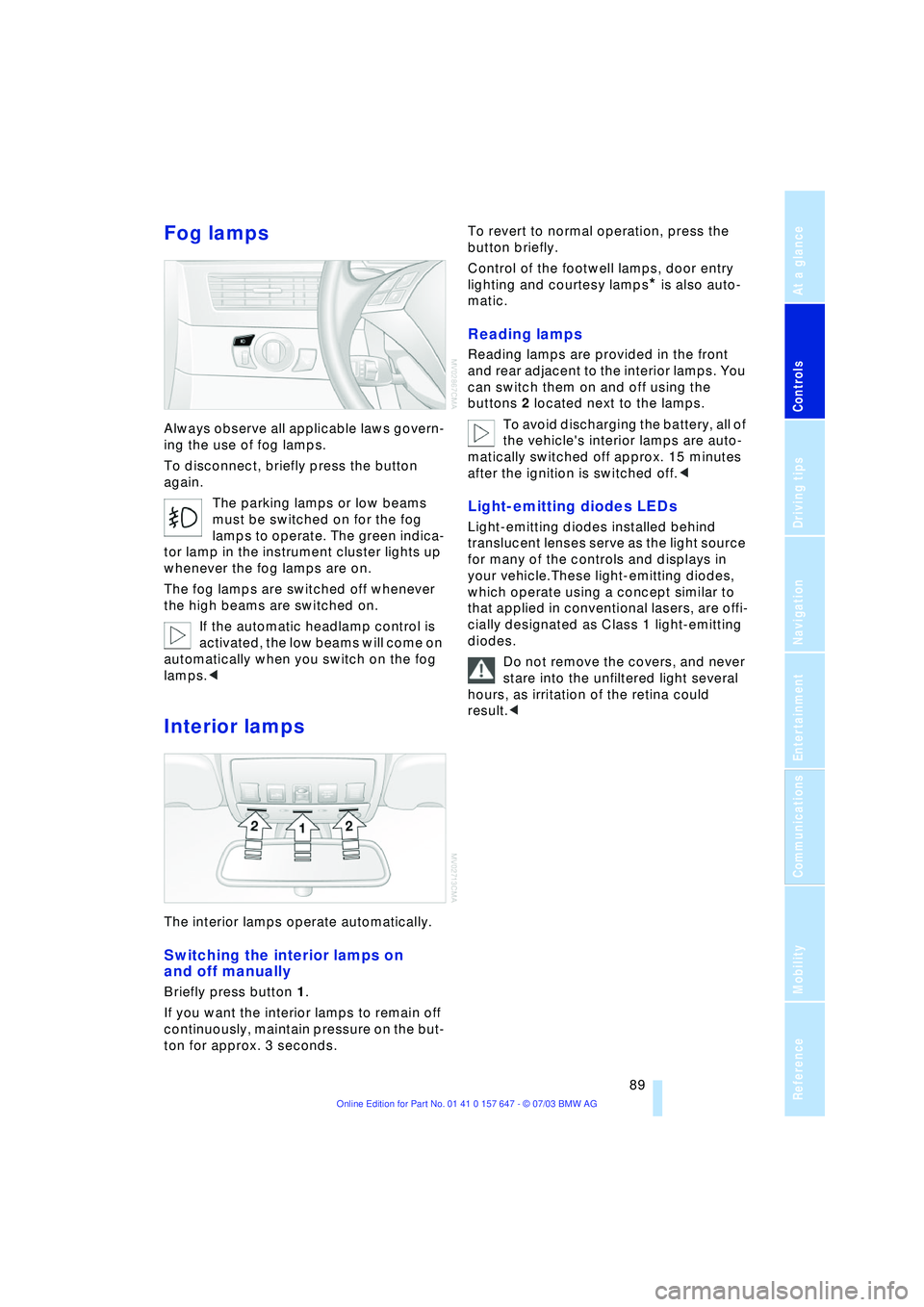
The interior lamps operate automatically.
Switching the interior lamps on
and off manually
Briefly press button 1.
If you want the interior lamps to remain off
continuously, maintain pressure on the but-
ton for approx. 3 seconds. To revert to normal operation, press the
button briefly.
Control of the footwell lamps, door entry
lighting and courtesy lamps
* is also auto-
matic.
Reading lamps
Reading lamps are provided in the front
and rear adjacent to the interior lamps. You
can switch them on and off using the
buttons 2 located next to the lamps.
To avoid discharging the battery, all of
the vehicle's interior lamps are auto-
matically switched off approx. 15 minutes
after the ignition is switched off.<
Light-emitting diodes LEDs
Light-emitting diodes installed behind
translucent lenses serve as the light source
for many of the controls and displays in
your vehicle.These light-emitting diodes,
which operate using a concept similar to
that applied in conventional lasers, are offi-
cially designated as Class 1 light-emitting
diodes.
Do not remove the covers, and never
stare into the unfiltered light several
hours, as irritation of the retina could
result.<
Page 94 of 220
A congenial climate
92 rarily suspending the supply of outside air.
The system then recirculates the air cur-
rently within the vehicle. AUC executes this
function automatically.
Press the button repeatedly to run through
the following control sequence:
>Indicator lamps off: outside air flows in
>Right indicator lamp on, AUC mode: the
system detects pollutants in the outside
air and responds by blocking the supply
of outside air when required. The sys-
tem then recirculates the air currently
within the vehicle.
Depending upon air quality require-
ments, in the automatic mode the sys-
tem alternates between its outside-air
and recirculated-air modes
>Left indicator lamp on, recirculated-air
mode: the supply of outside air is per-
manently blocked. The system then
recirculates the air currently within the
vehicle.
If condensation starts to form on the
inside window surfaces during opera-
tion in the recirculated-air mode, you
should switch it off while also increasing
the air volume as required.
The recirculated-air mode should not be
used over a sustained longer period of
time, as the air quality inside the vehicle
deteriorates continuously.<
Residual heat mode
The system uses the warmth
stored in the engine to heat the
interior when the ignition is off,
for instance, while the vehicle is
stopped at a school to pick up a
child.
You can adjust the automatic climate con-
trol settings in ignition key position 1.
Provided that the engine has warmed
to its normal operating temperature
and the battery is charged, you can use this
function for up to 15 minutes after switch-
ing off the ignition. The LED within the but-
ton lights up to confirm compliance with
these conditions.<
Switching automatic climate control
off
The air volume, the heater and
the cooling function are all
switched off. You can restart
the automatic climate control
by pressing any of its buttons
except the REST button.
Settings using the Control Center
You can make the settings for each specific
key.
Control Center, for principle details, refer to
page 16:
1.Turn the ignition key to position 2
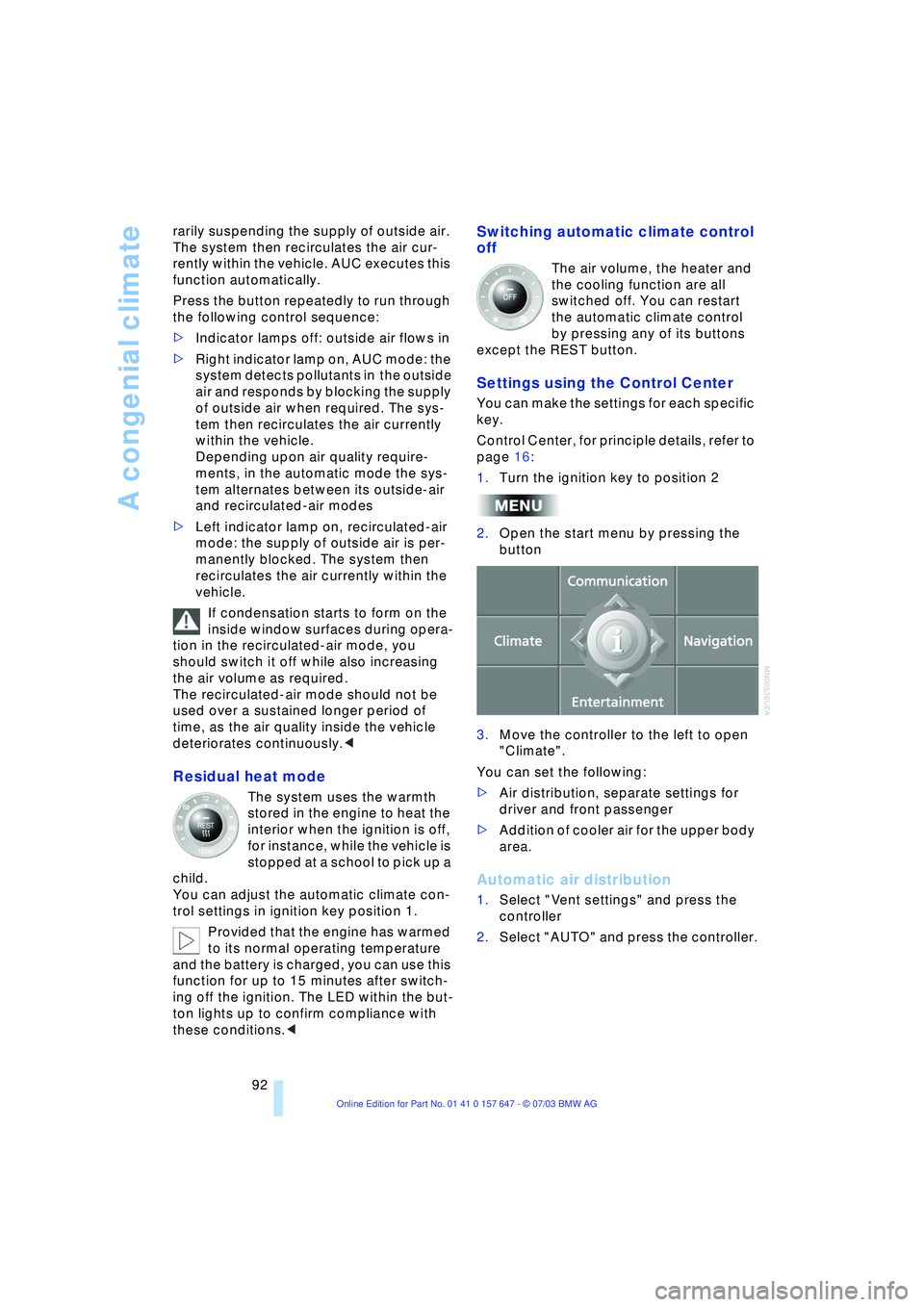
2.Open the start menu by pressing the
button
3.Move the controller to the left to open
"Climate".
You can set the following:
>Air distribution, separate settings for
driver and front passenger
>Addition of cooler air for the upper body
area.
Automatic air distribution
1.Select "Vent settings" and press the
controller
2.Select "AUTO" and press the controller.
Page 98 of 220
Practical interior accessories
96
Practical interior accessories
Integrated universal remote
control*
The concept
The integrated universal remote control
replaces up to three different hand-held
transmitters for various remote-controlled
equipment such as door openers and
house alarm systems. The integrated uni-
versal remote control registers and stores
signals from the original hand-held trans-
mitters.
The signal of an original hand-held trans-
mitter can be programmed on one of the
three memory buttons 1. Following that,
each of the devices can be actuated with
the appropriately programmed memory
button 1. The indicator lamp 2 flashes to
confirm transmission of the signal.
If the vehicle is sold, the memory of the but-
tons 1 should be cleared, refer to page 97.
To prevent possible damage or injury,
before programming or using the inte-
grated universal remote control, always
inspect the immediate area to make certain
that no people, animals or objects are
within the travel range of the device. Also,
comply with the safety precautions of the
original hand-held transmitter.<
Checking the compatibility
If you see this symbol on the pack-
aging or in the manual supplied with
the original hand-held transmitter, it
is safe to assume that it is compatible with
the integrated universal remote control.
If you have additional questions,
please consult your BMW center or
call 1-800-355-3515.
You can also visit these websites:
www.bmwusa.com or
www.homelink.com.
HomeLink is a registered trademark owned
by Johnson Controls, Inc.<
Programming
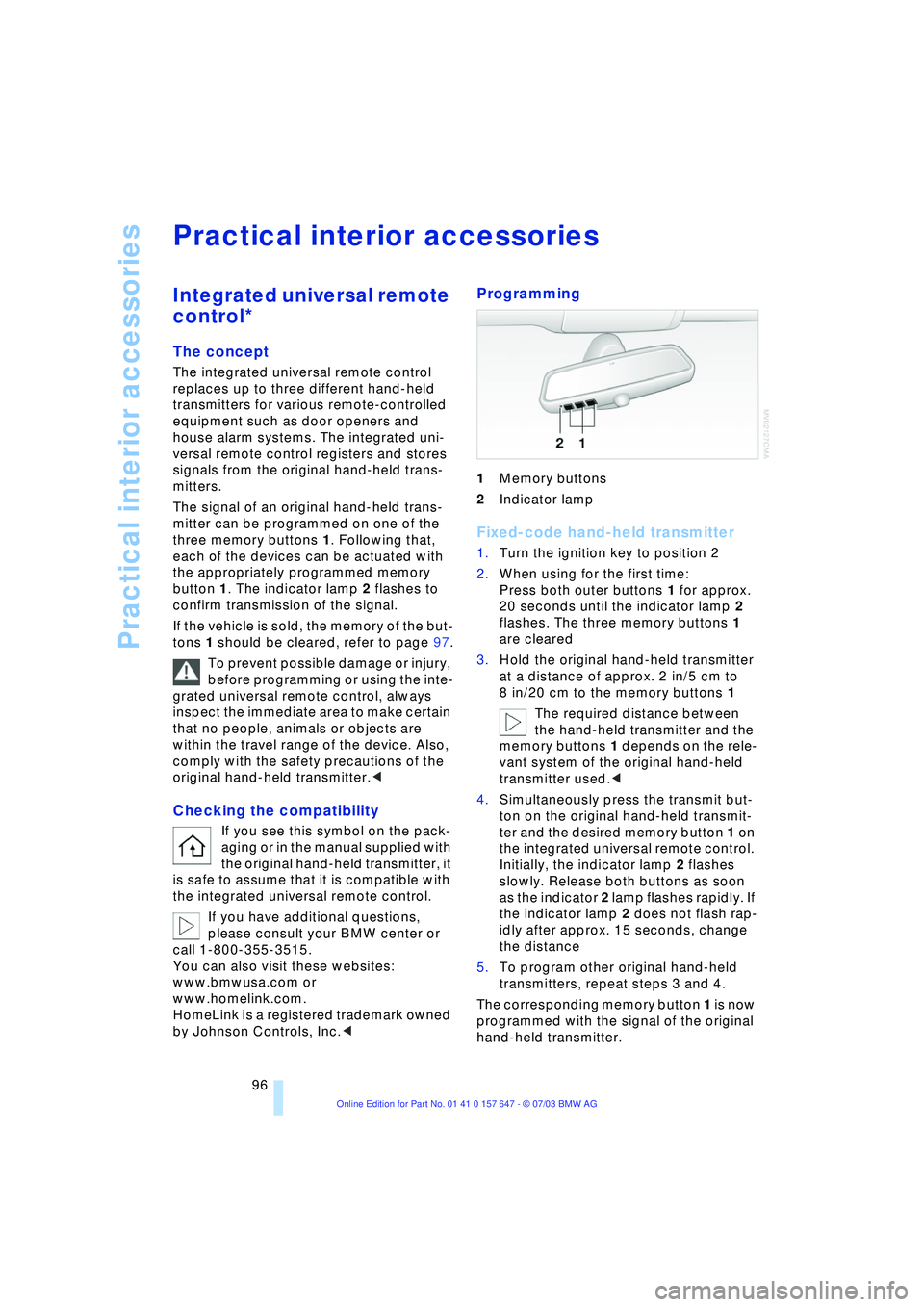
1Memory buttons
2Indicator lamp
Fixed-code hand-held transmitter
1.Turn the ignition key to position 2
2.When using for the first time:
Press both outer buttons 1 for approx.
20 seconds until the indicator lamp 2
flashes. The three memory buttons 1
are cleared
3.Hold the original hand-held transmitter
at a distance of approx. 2 in/5 cm to
8 in/20 cm to the memory buttons 1
The required distance between
the hand-held transmitter and the
memory buttons 1 depends on the rele-
vant system of the original hand-held
transmitter used.<
4.Simultaneously press the transmit but-
ton on the original hand-held transmit-
ter and the desired memory button 1 on
the integrated universal remote control.
Initially, the indicator lamp 2 flashes
slowly. Release both buttons as soon
as the indicator 2 lamp flashes rapidly. If
the indicator lamp 2 does not flash rap-
idly after approx. 15 seconds, change
the distance
5.To program other original hand-held
transmitters, repeat steps 3 and 4.
The corresponding memory button 1 is now
programmed with the signal of the original
hand-held transmitter.
Page 99 of 220
Controls
97Reference
At a glance
Driving tips
Communications
Navigation
Entertainment
Mobility
The equipment can be used as of ignition
key position 2.
If the device cannot be used even
after repeated programming, check
whether the original hand-held transmitter
is equipped with an alternating-code sys-
tem. Here, either read the instructions for
the original hand-held transmitter or hold
down the programmed memory button 1 of
the integrated universal remote control. If
the indicator lamp 2 on the integrated uni-
versal remote control flashes rapidly for a
short time then lights up for approx. 2 sec-
onds, this indicates that the original hand-
held transmitter uses an alternating-code
system. In the case of an alternating-code
system, program the memory buttons 1 as
described at Alternating-code hand-held
transmitters.<
Alternating-code hand-held
transmitters
To program the integrated universal remote
control, consult the operating instructions
for the equipment to be set. You will find
information there on the possibilities for
synchronization.
When programming hand-held transmitters
that employ an alternating code, please
observe the following supplementary
instructions:
Programming will be easier with the
aid of a second person.<
1.Park your vehicle within the range of the
remote-controlled device
2.Program the integrated universal
remote control as described above at
Fixed-code hand-held transmitters
3.Locate the button at the receiver of the
equipment to be set, e.g. on the drive
4.Press the button on the receiver of the
device you want to set up. After step 4,
you have approx. 30 seconds for step 5
5.Press the programmed memory
button 1 of the integrated universal
remote control three times. The corresponding memory button 1 is now
programmed with the signal of the original
hand-held transmitter.
If you have any additional questions,
please contact your BMW center.<
Clearing the memory buttons
Press both outer buttons 1 of the inte-
grated universal remote control for approx.
20 seconds until the indicator lamp 2
flashes. All memory buttons will be cleared.
The memory of individual memory
buttons 1 cannot be cleared.
Roller sun blinds*
Roller sun blind for rear window
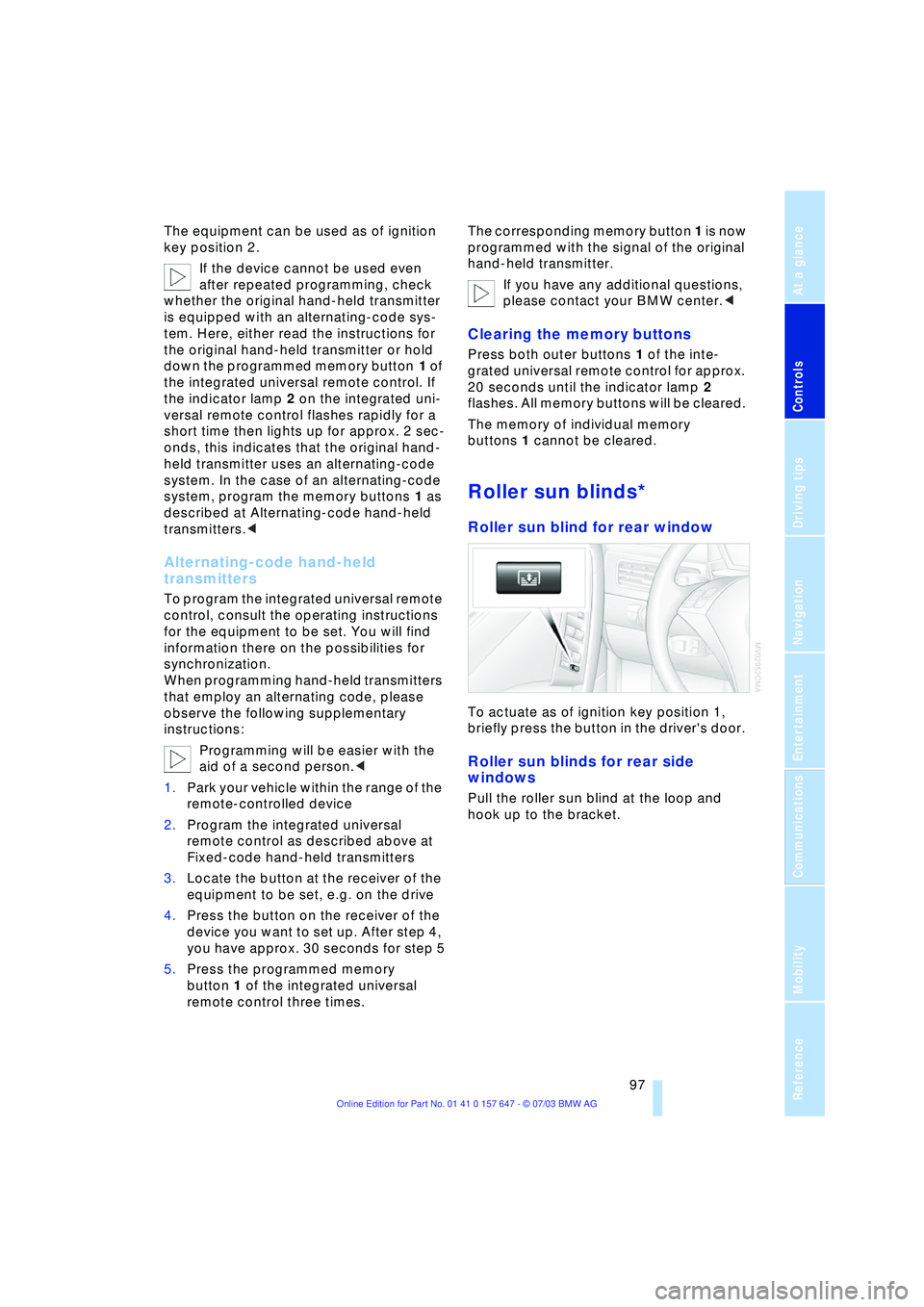
To actuate as of ignition key position 1,
briefly press the button in the driver's door.
Roller sun blinds for rear side
windows
Pull the roller sun blind at the loop and
hook up to the bracket.
Page 132 of 220
On/off, tone
130
On/off, tone
Depending on the equipment options you
have chosen, the following audio sources
are available:
>Radio Business
>CD player
>CD changer.
The following section summarizes the com-
mon controls and setting options for the
audio sources. Thereafter, the individual
audio sources are described in detail.
Controls
The audio sources can be operated using:
>The center console
>The Control Center
>Buttons on the steering wheel, refer to
page 11.
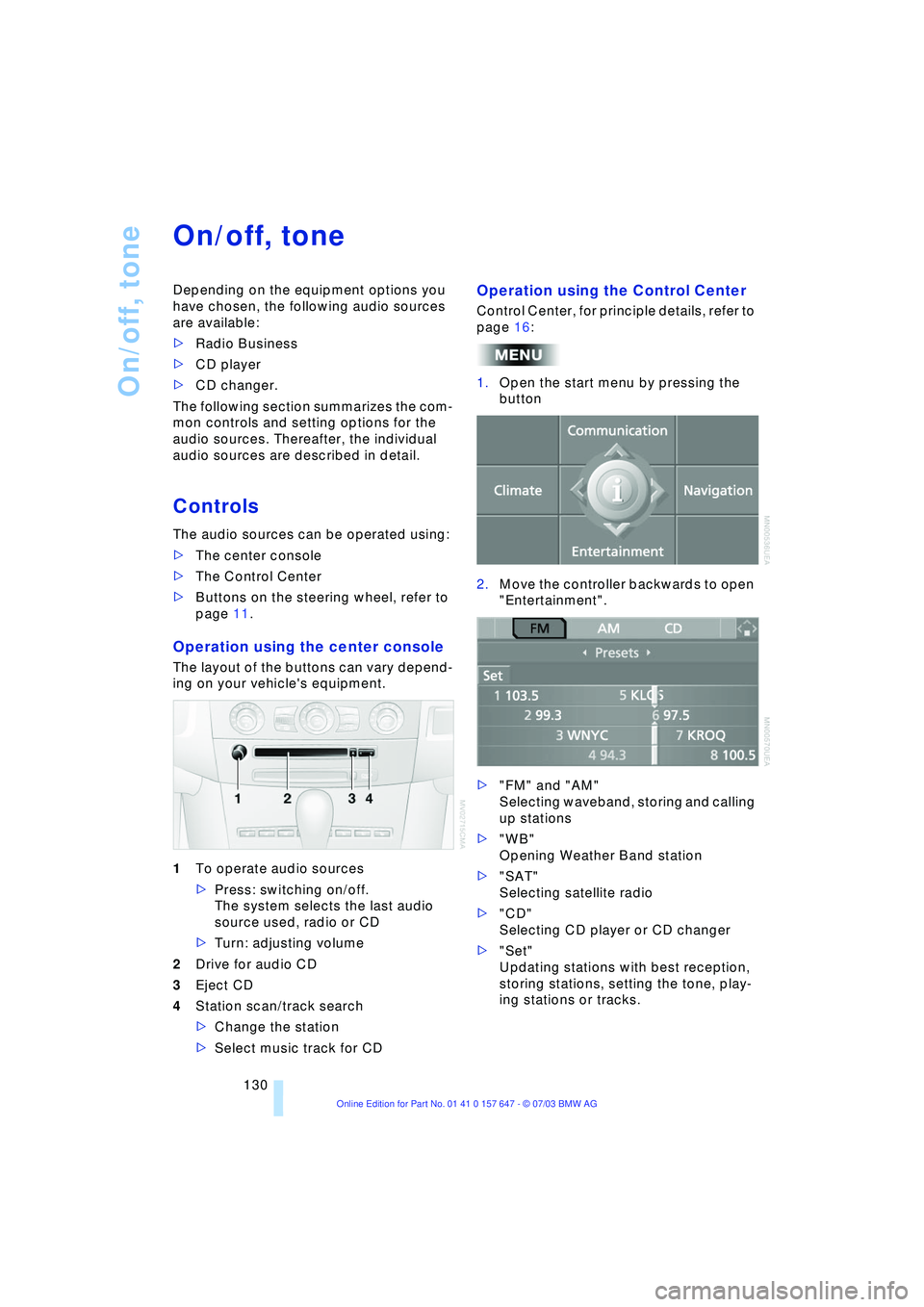
Operation using the center console
The layout of the buttons can vary depend-
ing on your vehicle's equipment.
1To operate audio sources
>Press: switching on/off.
The system selects the last audio
source used, radio or CD
>Turn: adjusting volume
2Drive for audio CD
3Eject CD
4Station scan/track search
>Change the station
>Select music track for CD
Operation using the Control Center
Control Center, for principle details, refer to
page 16:
1.Open the start menu by pressing the
button
2.Move the controller backwards to open
"Entertainment".
>"FM" and "AM"
Selecting waveband, storing and calling
up stations
>"WB"
Opening Weather Band station
>"SAT"
Selecting satellite radio
>"CD"
Selecting CD player or CD changer
>"Set"
Updating stations with best reception,
storing stations, setting the tone, play-
ing stations or tracks.
Page 137 of 220
Navigation
Entertainment
Driving tips
135Reference
At a glance
Controls
Communications
Mobility
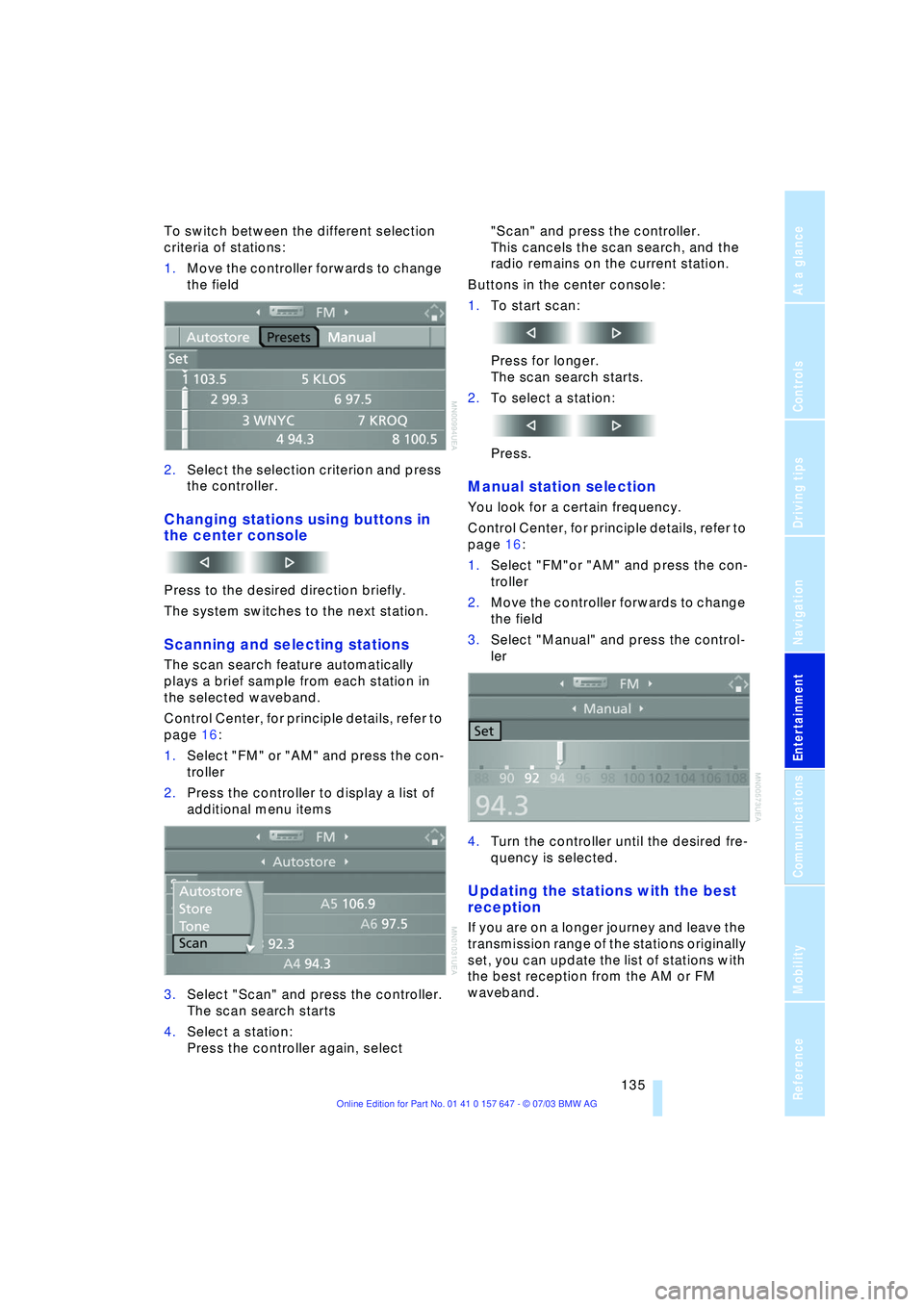
To switch between the different selection
criteria of stations:
1.Move the controller forwards to change
the field
2.Select the selection criterion and press
the controller.
Changing stations using buttons in
the center console
Press to the desired direction briefly.
The system switches to the next station.
Scanning and selecting stations
The scan search feature automatically
plays a brief sample from each station in
the selected waveband.
Control Center, for principle details, refer to
page 16:
1.Select "FM" or "AM" and press the con-
troller
2.Press the controller to display a list of
additional menu items
3.Select "Scan" and press the controller.
The scan search starts
4.Select a station:
Press the controller again, select "Scan" and press the controller.
This cancels the scan search, and the
radio remains on the current station.
Buttons in the center console:
1.To start scan:
Press for longer.
The scan search starts.
2.To select a station:
Press.
Manual station selection
You look for a certain frequency.
Control Center, for principle details, refer to
page 16:
1.Select "FM"or "AM" and press the con-
troller
2.Move the controller forwards to change
the field
3.Select "Manual" and press the control-
ler
4.Turn the controller until the desired fre-
quency is selected.
Updating the stations with the best
reception
If you are on a longer journey and leave the
transmission range of the stations originally
set, you can update the list of stations with
the best reception from the AM or FM
waveband.
Page 138 of 220
Radio
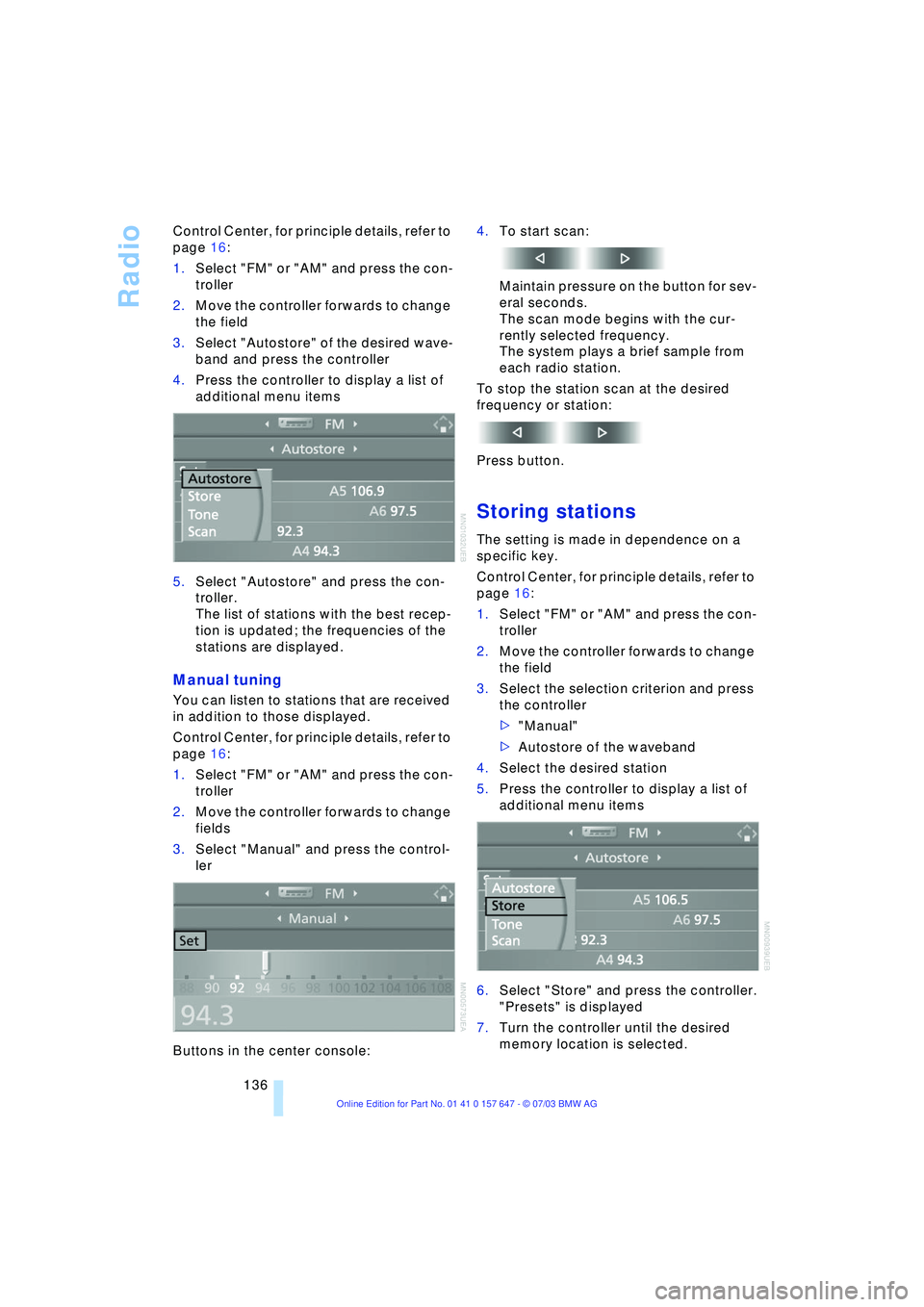
136 Control Center, for principle details, refer to
page 16:
1.Select "FM" or "AM" and press the con-
troller
2.Move the controller forwards to change
the field
3.Select "Autostore" of the desired wave-
band and press the controller
4.Press the controller to display a list of
additional menu items
5.Select "Autostore" and press the con-
troller.
The list of stations with the best recep-
tion is updated; the frequencies of the
stations are displayed.
Manual tuning
You can listen to stations that are received
in addition to those displayed.
Control Center, for principle details, refer to
page 16:
1.Select "FM" or "AM" and press the con-
troller
2.Move the controller forwards to change
fields
3.Select "Manual" and press the control-
ler
Buttons in the center console:4.To start scan:
Maintain pressure on the button for sev-
eral seconds.
The scan mode begins with the cur-
rently selected frequency.
The system plays a brief sample from
each radio station.
To stop the station scan at the desired
frequency or station:
Press button.
Storing stations
The setting is made in dependence on a
specific key.
Control Center, for principle details, refer to
page 16:
1.Select "FM" or "AM" and press the con-
troller
2.Move the controller forwards to change
the field
3.Select the selection criterion and press
the controller
>"Manual"
>Autostore of the waveband
4.Select the desired station
5.Press the controller to display a list of
additional menu items
6.Select "Store" and press the controller.
"Presets" is displayed
7.Turn the controller until the desired
memory location is selected.
Page 142 of 220
Radio
140
Changing channel using buttons in
the center console
Press to the desired direction briefly.
The system switches to the next channel.
Notes
When there is a signal blockage or the
transmission is suspended momentarily for
more than 4 seconds, a message appears
on the Control Display.
Service may be interrupted or
unavailable for specific reasons such
as environmental or topographic condi-
tions and others that Satellite Radio cannot
directly control.
Signal may not be available under tunnels,
in parking garages, next to tall buildings,
nearby trees with dense foliage, nearby
mountains or other possible strong sources
of radio interference.
Service should resume normally after the
source of signal unavailability has been
cleared.<
Page 143 of 220
Navigation
Entertainment
Driving tips
141Reference
At a glance
Controls
Communications
Mobility
CD Compact Disc
Listening to CDs
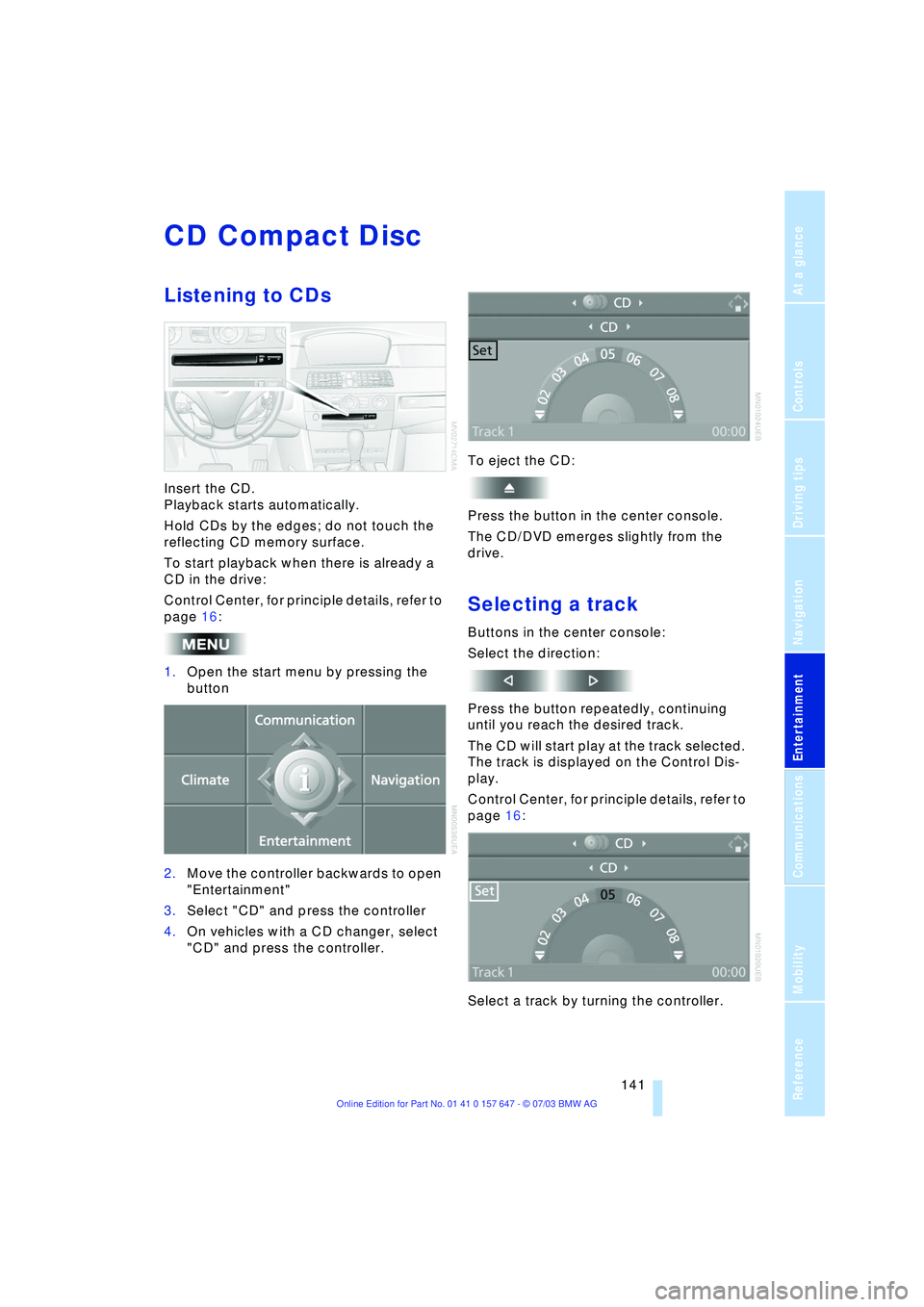
Insert the CD.
Playback starts automatically.
Hold CDs by the edges; do not touch the
reflecting CD memory surface.
To start playback when there is already a
CD in the drive:
Control Center, for principle details, refer to
page 16:
1.Open the start menu by pressing the
button
2.Move the controller backwards to open
"Entertainment"
3.Select "CD" and press the controller
4.On vehicles with a CD changer, select
"CD" and press the controller.To eject the CD:
Press the button in the center console.
The CD/DVD emerges slightly from the
drive.
Selecting a track
Buttons in the center console:
Select the direction:
Press the button repeatedly, continuing
until you reach the desired track.
The CD will start play at the track selected.
The track is displayed on the Control Dis-
play.
Control Center, for principle details, refer to
page 16:
Select a track by turning the controller.
Page 144 of 220
CD Compact Disc
142
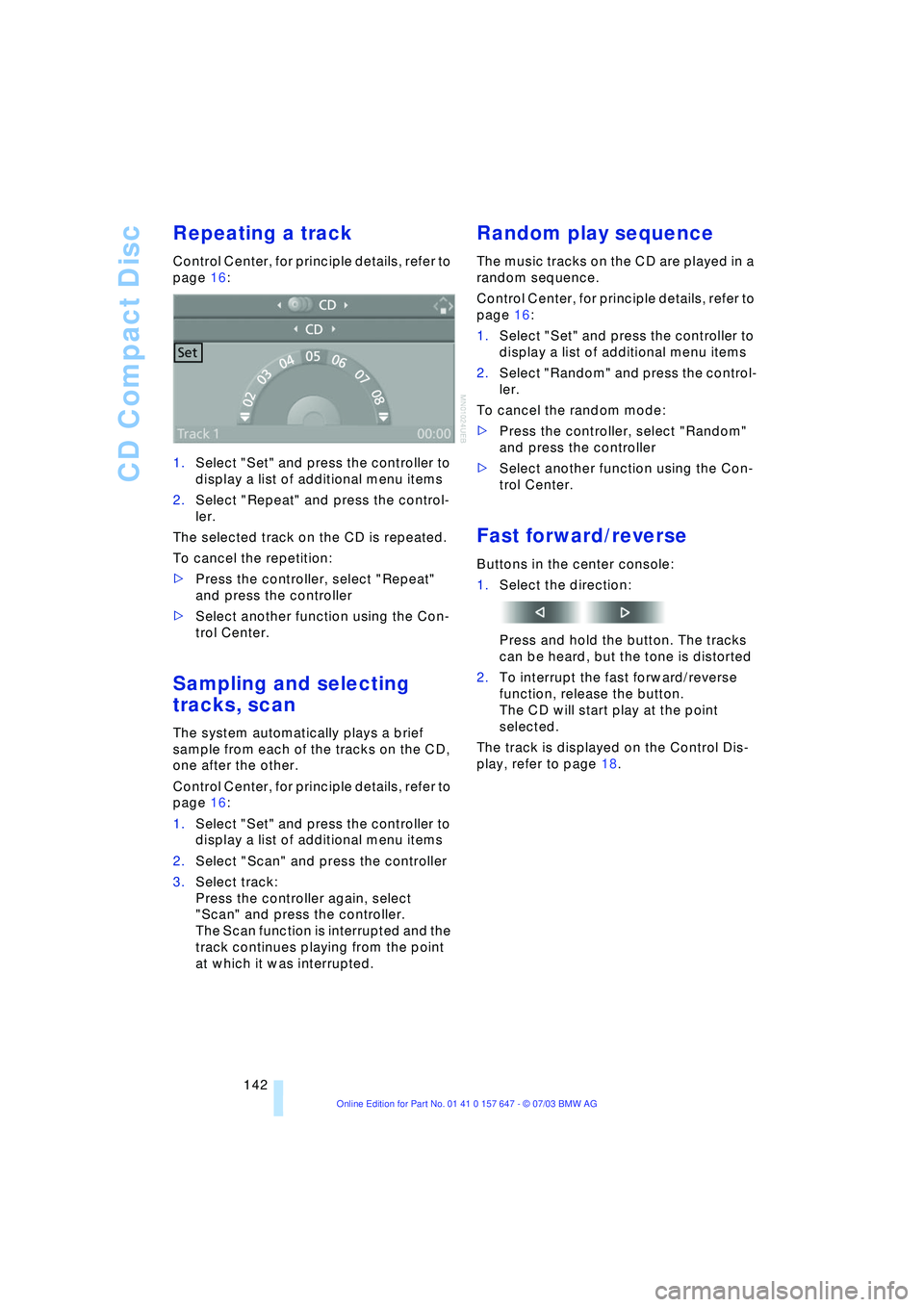
Repeating a track
Control Center, for principle details, refer to
page 16:
1.Select "Set" and press the controller to
display a list of additional menu items
2.Select "Repeat" and press the control-
ler.
The selected track on the CD is repeated.
To cancel the repetition:
>Press the controller, select "Repeat"
and press the controller
>Select another function using the Con-
trol Center.
Sampling and selecting
tracks, scan
The system automatically plays a brief
sample from each of the tracks on the CD,
one after the other.
Control Center, for principle details, refer to
page 16:
1.Select "Set" and press the controller to
display a list of additional menu items
2.Select "Scan" and press the controller
3.Select track:
Press the controller again, select
"Scan" and press the controller.
The Scan function is interrupted and the
track continues playing from the point
at which it was interrupted.
Random play sequence
The music tracks on the CD are played in a
random sequence.
Control Center, for principle details, refer to
page 16:
1.Select "Set" and press the controller to
display a list of additional menu items
2.Select "Random" and press the control-
ler.
To cancel the random mode:
>Press the controller, select "Random"
and press the controller
>Select another function using the Con-
trol Center.
Fast forward/reverse
Buttons in the center console:
1.Select the direction:
Press and hold the button. The tracks
can be heard, but the tone is distorted
2.To interrupt the fast forward/reverse
function, release the button.
The CD will start play at the point
selected.
The track is displayed on the Control Dis-
play, refer to page 18.