center console BMW 525I 2004 User Guide
[x] Cancel search | Manufacturer: BMW, Model Year: 2004, Model line: 525I, Model: BMW 525I 2004Pages: 220, PDF Size: 7.12 MB
Page 138 of 220
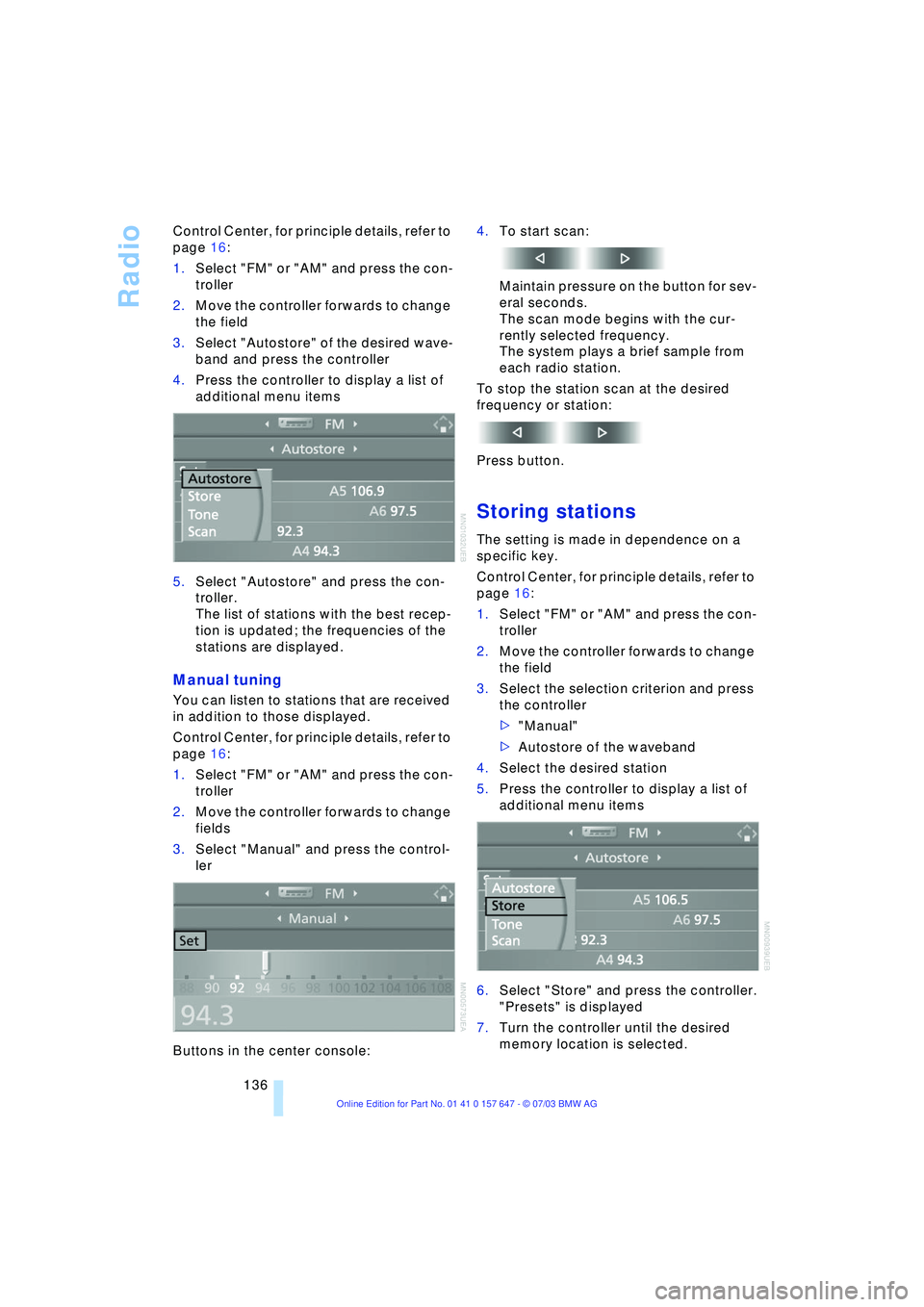
Radio
136 Control Center, for principle details, refer to
page 16:
1.Select "FM" or "AM" and press the con-
troller
2.Move the controller forwards to change
the field
3.Select "Autostore" of the desired wave-
band and press the controller
4.Press the controller to display a list of
additional menu items
5.Select "Autostore" and press the con-
troller.
The list of stations with the best recep-
tion is updated; the frequencies of the
stations are displayed.
Manual tuning
You can listen to stations that are received
in addition to those displayed.
Control Center, for principle details, refer to
page 16:
1.Select "FM" or "AM" and press the con-
troller
2.Move the controller forwards to change
fields
3.Select "Manual" and press the control-
ler
Buttons in the center console:4.To start scan:
Maintain pressure on the button for sev-
eral seconds.
The scan mode begins with the cur-
rently selected frequency.
The system plays a brief sample from
each radio station.
To stop the station scan at the desired
frequency or station:
Press button.
Storing stations
The setting is made in dependence on a
specific key.
Control Center, for principle details, refer to
page 16:
1.Select "FM" or "AM" and press the con-
troller
2.Move the controller forwards to change
the field
3.Select the selection criterion and press
the controller
>"Manual"
>Autostore of the waveband
4.Select the desired station
5.Press the controller to display a list of
additional menu items
6.Select "Store" and press the controller.
"Presets" is displayed
7.Turn the controller until the desired
memory location is selected.
Page 142 of 220
Radio
140
Changing channel using buttons in
the center console
Press to the desired direction briefly.
The system switches to the next channel.
Notes
When there is a signal blockage or the
transmission is suspended momentarily for
more than 4 seconds, a message appears
on the Control Display.
Service may be interrupted or
unavailable for specific reasons such
as environmental or topographic condi-
tions and others that Satellite Radio cannot
directly control.
Signal may not be available under tunnels,
in parking garages, next to tall buildings,
nearby trees with dense foliage, nearby
mountains or other possible strong sources
of radio interference.
Service should resume normally after the
source of signal unavailability has been
cleared.<
Page 143 of 220
Navigation
Entertainment
Driving tips
141Reference
At a glance
Controls
Communications
Mobility
CD Compact Disc
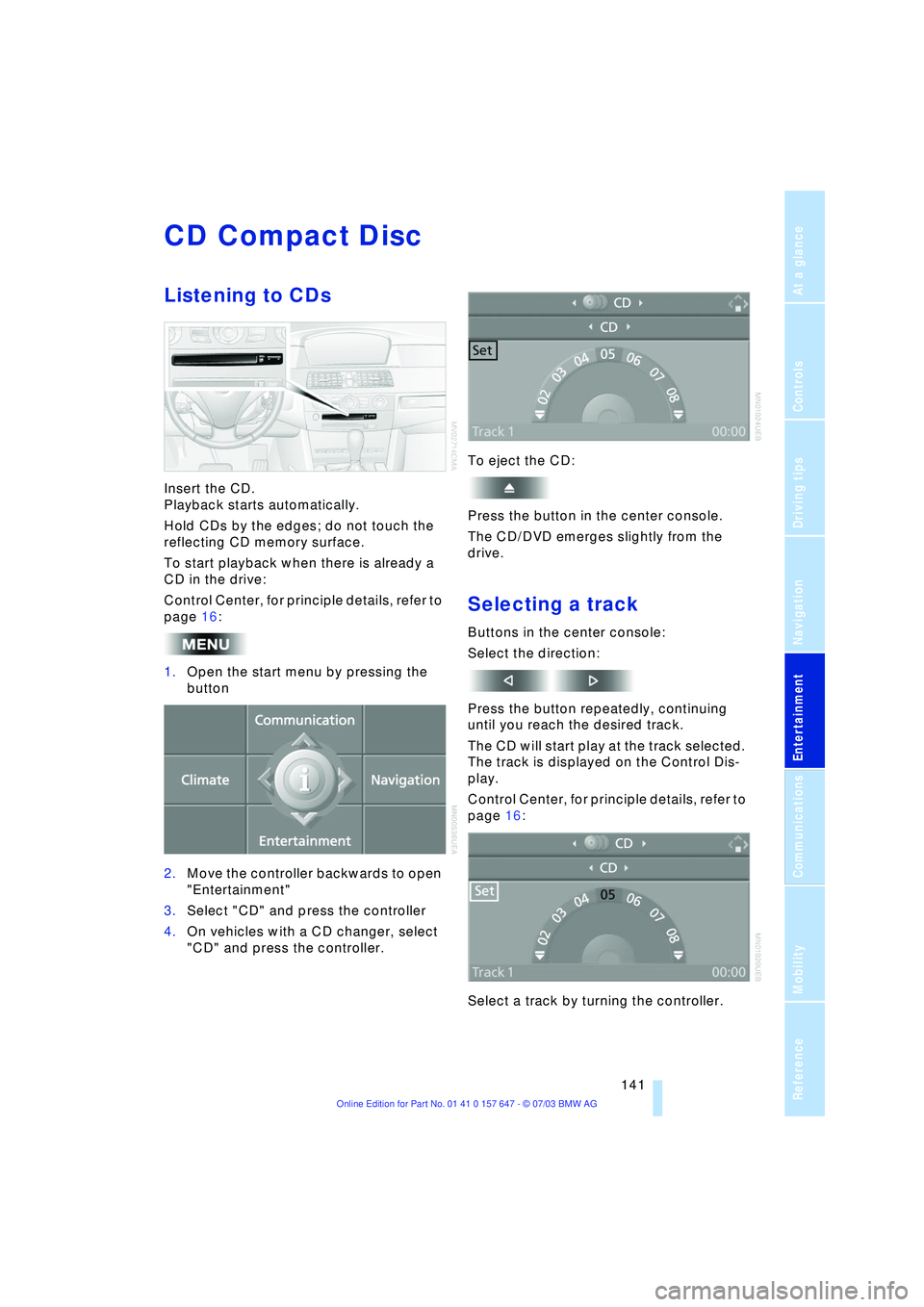
Listening to CDs
Insert the CD.
Playback starts automatically.
Hold CDs by the edges; do not touch the
reflecting CD memory surface.
To start playback when there is already a
CD in the drive:
Control Center, for principle details, refer to
page 16:
1.Open the start menu by pressing the
button
2.Move the controller backwards to open
"Entertainment"
3.Select "CD" and press the controller
4.On vehicles with a CD changer, select
"CD" and press the controller.To eject the CD:
Press the button in the center console.
The CD/DVD emerges slightly from the
drive.
Selecting a track
Buttons in the center console:
Select the direction:
Press the button repeatedly, continuing
until you reach the desired track.
The CD will start play at the track selected.
The track is displayed on the Control Dis-
play.
Control Center, for principle details, refer to
page 16:
Select a track by turning the controller.
Page 144 of 220
CD Compact Disc
142
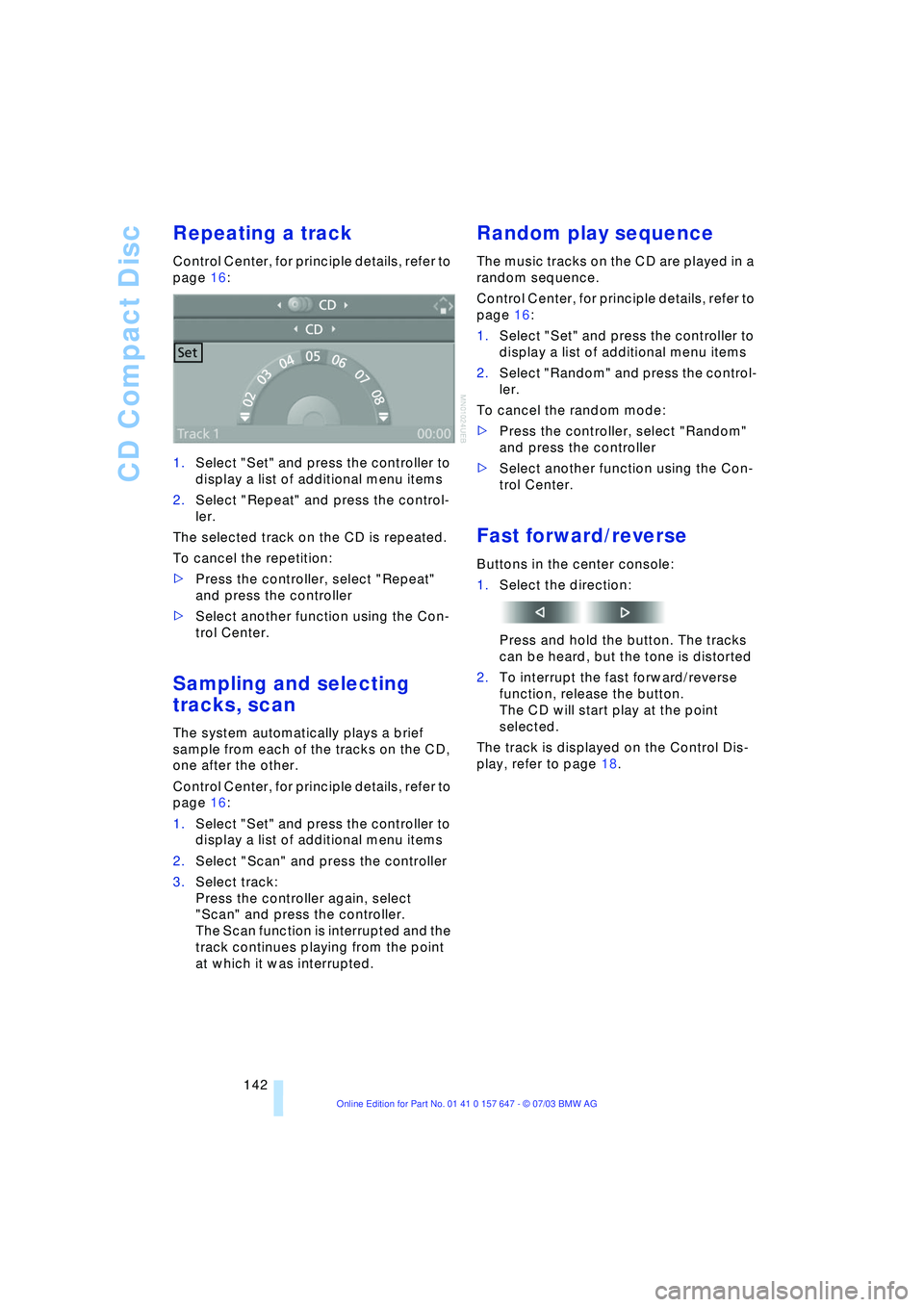
Repeating a track
Control Center, for principle details, refer to
page 16:
1.Select "Set" and press the controller to
display a list of additional menu items
2.Select "Repeat" and press the control-
ler.
The selected track on the CD is repeated.
To cancel the repetition:
>Press the controller, select "Repeat"
and press the controller
>Select another function using the Con-
trol Center.
Sampling and selecting
tracks, scan
The system automatically plays a brief
sample from each of the tracks on the CD,
one after the other.
Control Center, for principle details, refer to
page 16:
1.Select "Set" and press the controller to
display a list of additional menu items
2.Select "Scan" and press the controller
3.Select track:
Press the controller again, select
"Scan" and press the controller.
The Scan function is interrupted and the
track continues playing from the point
at which it was interrupted.
Random play sequence
The music tracks on the CD are played in a
random sequence.
Control Center, for principle details, refer to
page 16:
1.Select "Set" and press the controller to
display a list of additional menu items
2.Select "Random" and press the control-
ler.
To cancel the random mode:
>Press the controller, select "Random"
and press the controller
>Select another function using the Con-
trol Center.
Fast forward/reverse
Buttons in the center console:
1.Select the direction:
Press and hold the button. The tracks
can be heard, but the tone is distorted
2.To interrupt the fast forward/reverse
function, release the button.
The CD will start play at the point
selected.
The track is displayed on the Control Dis-
play, refer to page 18.
Page 147 of 220
Navigation
Entertainment
Driving tips
145Reference
At a glance
Controls
Communications
Mobility
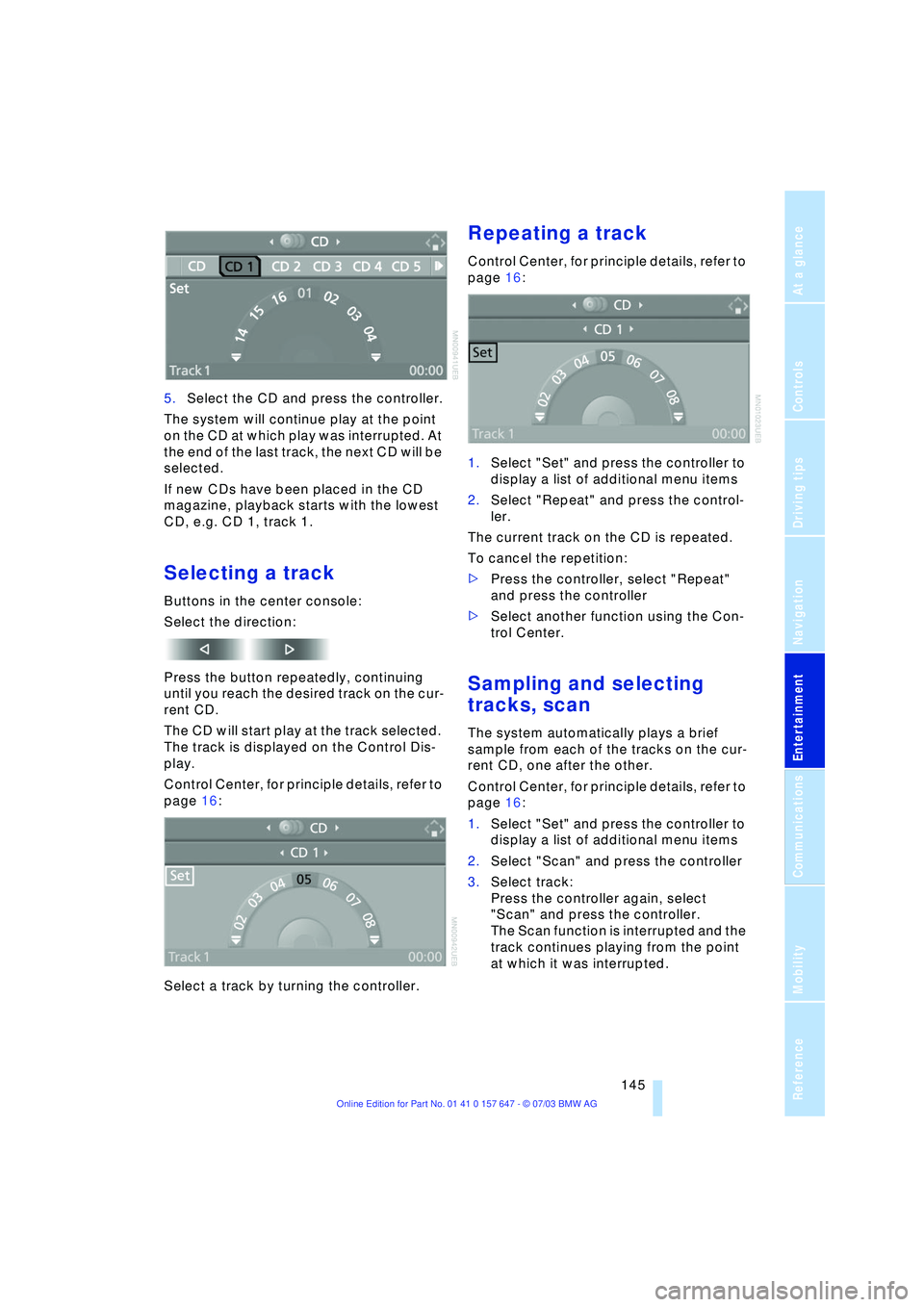
5.Select the CD and press the controller.
The system will continue play at the point
on the CD at which play was interrupted. At
the end of the last track, the next CD will be
selected.
If new CDs have been placed in the CD
magazine, playback starts with the lowest
CD, e.g. CD 1, track 1.
Selecting a track
Buttons in the center console:
Select the direction:
Press the button repeatedly, continuing
until you reach the desired track on the cur-
rent CD.
The CD will start play at the track selected.
The track is displayed on the Control Dis-
play.
Control Center, for principle details, refer to
page 16:
Select a track by turning the controller.
Repeating a track
Control Center, for principle details, refer to
page 16:
1.Select "Set" and press the controller to
display a list of additional menu items
2.Select "Repeat" and press the control-
ler.
The current track on the CD is repeated.
To cancel the repetition:
>Press the controller, select "Repeat"
and press the controller
>Select another function using the Con-
trol Center.
Sampling and selecting
tracks, scan
The system automatically plays a brief
sample from each of the tracks on the cur-
rent CD, one after the other.
Control Center, for principle details, refer to
page 16:
1.Select "Set" and press the controller to
display a list of additional menu items
2.Select "Scan" and press the controller
3.Select track:
Press the controller again, select
"Scan" and press the controller.
The Scan function is interrupted and the
track continues playing from the point
at which it was interrupted.
Page 148 of 220
CD changer
146
Random play sequence
In this mode, the music tracks on the cur-
rent CD are played in a random sequence.
Control Center, for principle details, refer to
page 16:
1.Select "Set" and press the controller to
display a list of additional menu items
2.Select "Random" and press the control-
ler.
To cancel the random mode:
>Press the controller, select "Random"
and press the controller
>Select another function using the Con-
trol Center.
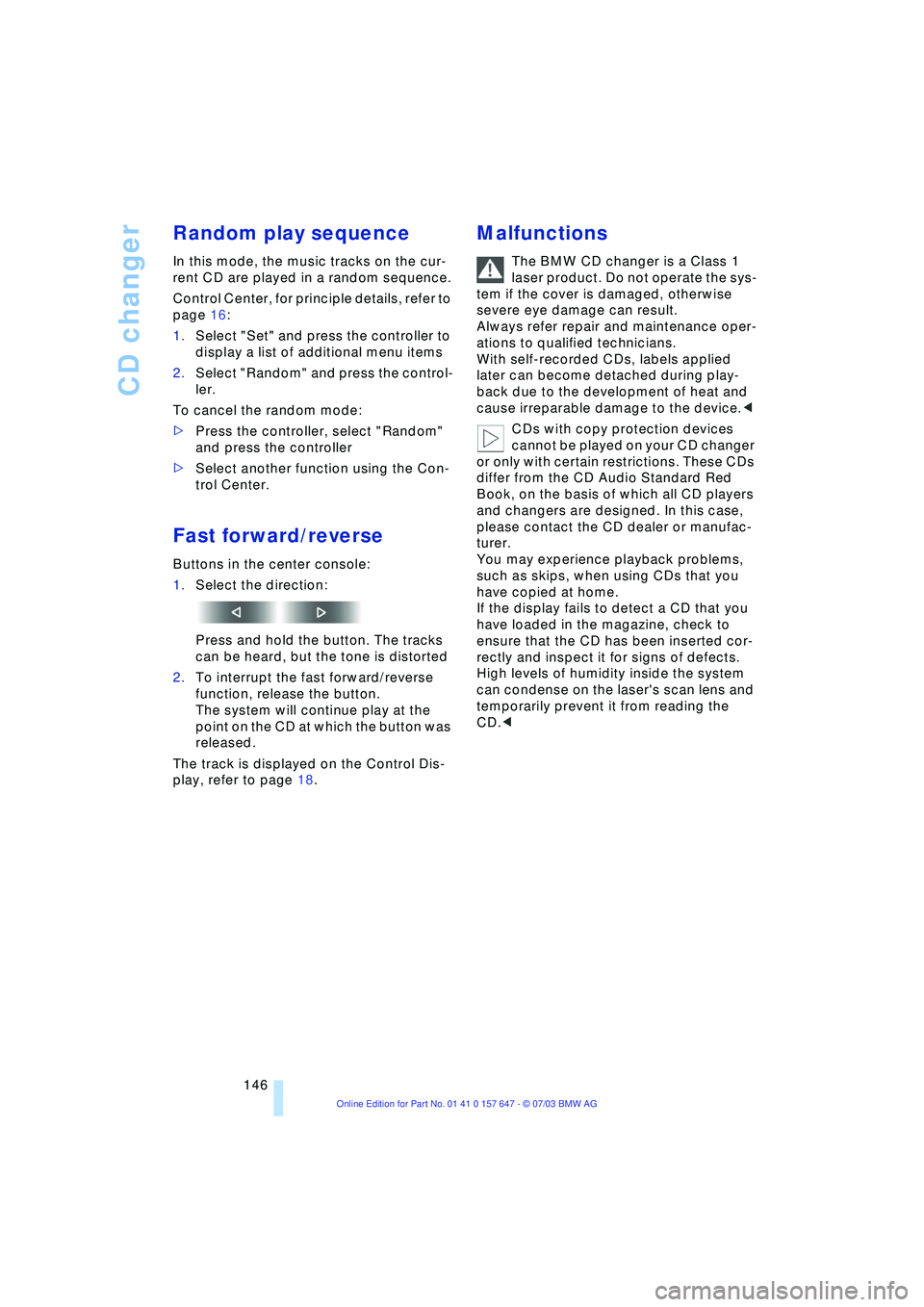
Fast forward/reverse
Buttons in the center console:
1.Select the direction:
Press and hold the button. The tracks
can be heard, but the tone is distorted
2.To interrupt the fast forward/reverse
function, release the button.
The system will continue play at the
point on the CD at which the button was
released.
The track is displayed on the Control Dis-
play, refer to page 18.
Malfunctions
The BMW CD changer is a Class 1
laser product. Do not operate the sys-
tem if the cover is damaged, otherwise
severe eye damage can result.
Always refer repair and maintenance oper-
ations to qualified technicians.
With self-recorded CDs, labels applied
later can become detached during play-
back due to the development of heat and
cause irreparable damage to the device.<
CDs with copy protection devices
cannot be played on your CD changer
or only with certain restrictions. These CDs
differ from the CD Audio Standard Red
Book, on the basis of which all CD players
and changers are designed. In this case,
please contact the CD dealer or manufac-
turer.
You may experience playback problems,
such as skips, when using CDs that you
have copied at home.
If the display fails to detect a CD that you
have loaded in the magazine, check to
ensure that the CD has been inserted cor-
rectly and inspect it for signs of defects.
High levels of humidity inside the system
can condense on the laser's scan lens and
temporarily prevent it from reading the
CD.<
Page 206 of 220
Everything from A to Z
204 Cargo, securing 109
Cargo area
Ð locking separately 31
Caring for artificial leather,
refer to Caring for your
vehicle brochure
Caring for leather, refer to
Caring for your vehicle
brochure
Caring for light-alloy
wheels, refer to Caring for
your vehicle brochure
Caring for plastic, refer to
Caring for your vehicle
brochure
Caring for the carpet, refer
to Caring for your vehicle
brochure
Caring for the vehicle finish,
refer to Caring for your
vehicle brochure
Car jack
Ð jacking points 188
Car keys, refer to Central
keys with remote
control 26
Car phone 151
Ð installation location, refer
to Center armrest 98
Ð refer to Portable
phone 150
Ð refer to separate Owner's
Manual
Car radio, refer to
Radio 134
Car wash 106
Ð refer also to Caring for
your vehicle brochure
Catalytic converter, refer to
High temperatures 106
"Categories" 138
CBC Cornering Brake
Control 78
CBS Condition Based
Service 181
"CD" 130CD changer 144
Ð adjusting the tone 131
Ð controls 130
Ð fast forward/reverse 146
Ð installation location 144
Ð listening to a CD 144
Ð playing a track 145
Ð random order 146
Ð repeating a track 145
Ð selecting track 145
Ð switching on/off 130
Ð volume 131
CD for navigation 114
CD player 141
Ð adjusting the tone 131
Ð controls 130
Ð fast forward/reverse 142
Ð playing a track 142
Ð random order 142
Ð repeating a track 142
Ð selecting tracks 141
Ð switching on/off 130
Ð volume 131
Center armrest 98
Center console, refer to
Comfort area 14
Central keys with remote
control 26
"Central locking" 38
Central locking system 27
Ð from inside vehicle 30
Ð from outside vehicle 27
Changes, technical, refer to
Parts and accessories 6
Changing a wheel 187
Changing selector-lever
positions 55
Changing the direction
display for navigation 124
Changing the language on
the Control Display 74
Changing the
measurement units on the
Control Display 74
Changing wheels 174
CHECK button 69
Check Control 68
"Check Control
messages" 69
Check Gas Cap 168Checking the air pressure,
refer to Tire inflation
pressure 170
Child's seat 45
Child-restraint fixing
LATCH 47
Child restraints 45
Child-restraint system 45
Child-safety lock 48
Chock 187
Chrome parts, care, refer to
Caring for your vehicle
brochure
Cigarette lighter 100
Circulation of air, refer to
Recirculated-air mode 91
"City" for destination
entry 117
Cleaning, refer to Caring for
your vehicle brochure
Cleaning headlamps
Ð washer fluid 57
Cleaning windshield 57
"Climate" 41
Clock 65
Ð 12/24 hour mode 74
Ð setting the time and
date 74
Closing
Ð from inside 30
Ð from outside 27
Cockpit 10
Comfort area 14
Comfort seat 37
"Communication" 152
"Communication
interface" 161
Compact Disc
Ð refer to CD changer 144
Ð refer to CD player 141
Compact wheel
Ð inflation pressure 171
Ð wheel change 187
Compression ratio, refer to
Engine data 198
Computer 70
Ð clock, 12/24 hour
mode 74
Ð displays on the Control
Display 70