key BMW 525I 2004 Owner's Manual
[x] Cancel search | Manufacturer: BMW, Model Year: 2004, Model line: 525I, Model: BMW 525I 2004Pages: 220, PDF Size: 7.12 MB
Page 67 of 220
Controls
65Reference
At a glance
Driving tips
Communications
Navigation
Entertainment
Mobility
Everything under control
Odometer, outside
temperature display, clock
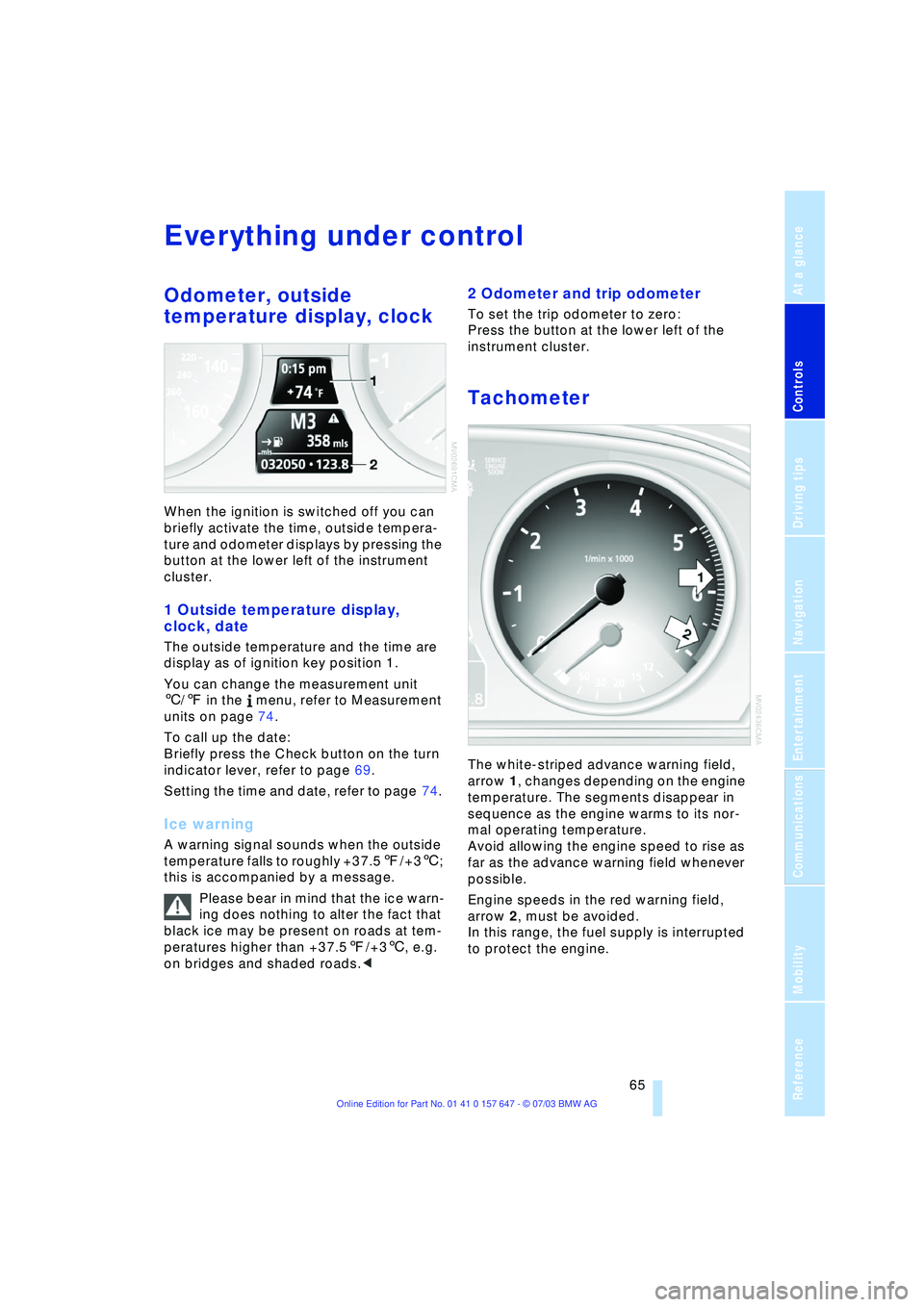
When the ignition is switched off you can
briefly activate the time, outside tempera-
ture and odometer displays by pressing the
button at the lower left of the instrument
cluster.
1 Outside temperature display,
clock, date
The outside temperature and the time are
display as of ignition key position 1.
You can change the measurement unit
6/7 in the menu, refer to Measurement
units on page 74.
To call up the date:
Briefly press the Check button on the turn
indicator lever, refer to page 69.
Setting the time and date, refer to page 74.
Ice warning
A warning signal sounds when the outside
temperature falls to roughly +37.57/+36;
this is accompanied by a message.
Please bear in mind that the ice warn-
ing does nothing to alter the fact that
black ice may be present on roads at tem-
peratures higher than +37.57/+36, e.g.
on bridges and shaded roads.<
2 Odometer and trip odometer
To set the trip odometer to zero:
Press the button at the lower left of the
instrument cluster.
Tachometer
The white-striped advance warning field,
arrow 1, changes depending on the engine
temperature. The segments disappear in
sequence as the engine warms to its nor-
mal operating temperature.
Avoid allowing the engine speed to rise as
far as the advance warning field whenever
possible.
Engine speeds in the red warning field,
arrow 2, must be avoided.
In this range, the fuel supply is interrupted
to protect the engine.
Page 68 of 220
Everything under control
66
Energy Control/Current fuel
consumption
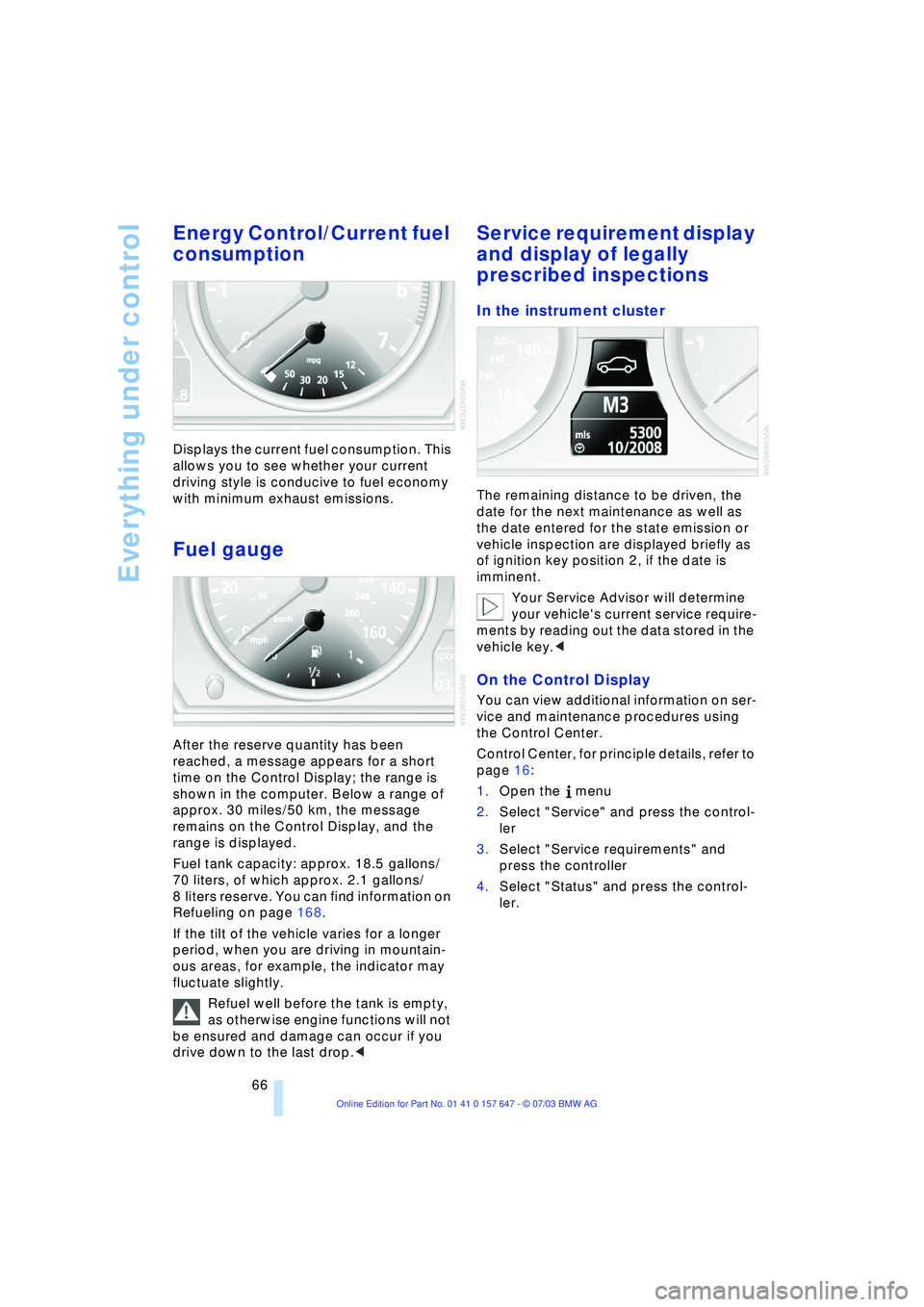
Displays the current fuel consumption. This
allows you to see whether your current
driving style is conducive to fuel economy
with minimum exhaust emissions.
Fuel gauge
After the reserve quantity has been
reached, a message appears for a short
time on the Control Display; the range is
shown in the computer. Below a range of
approx. 30 miles/50 km, the message
remains on the Control Display, and the
range is displayed.
Fuel tank capacity: approx. 18.5 gallons/
70 liters, of which approx. 2.1 gallons/
8 liters reserve. You can find information on
Refueling on page 168.
If the tilt of the vehicle varies for a longer
period, when you are driving in mountain-
ous areas, for example, the indicator may
fluctuate slightly.
Refuel well before the tank is empty,
as otherwise engine functions will not
be ensured and damage can occur if you
drive down to the last drop.<
Service requirement display
and display of legally
prescribed inspections
In the instrument cluster
The remaining distance to be driven, the
date for the next maintenance as well as
the date entered for the state emission or
vehicle inspection are displayed briefly as
of ignition key position 2, if the date is
imminent.
Your Service Advisor will determine
your vehicle's current service require-
ments by reading out the data stored in the
vehicle key.<
On the Control Display
You can view additional information on ser-
vice and maintenance procedures using
the Control Center.
Control Center, for principle details, refer to
page 16:
1.Open the menu
2.Select "Service" and press the control-
ler
3.Select "Service requirements" and
press the controller
4.Select "Status" and press the control-
ler.
Page 72 of 220
Everything under control
70
Computer
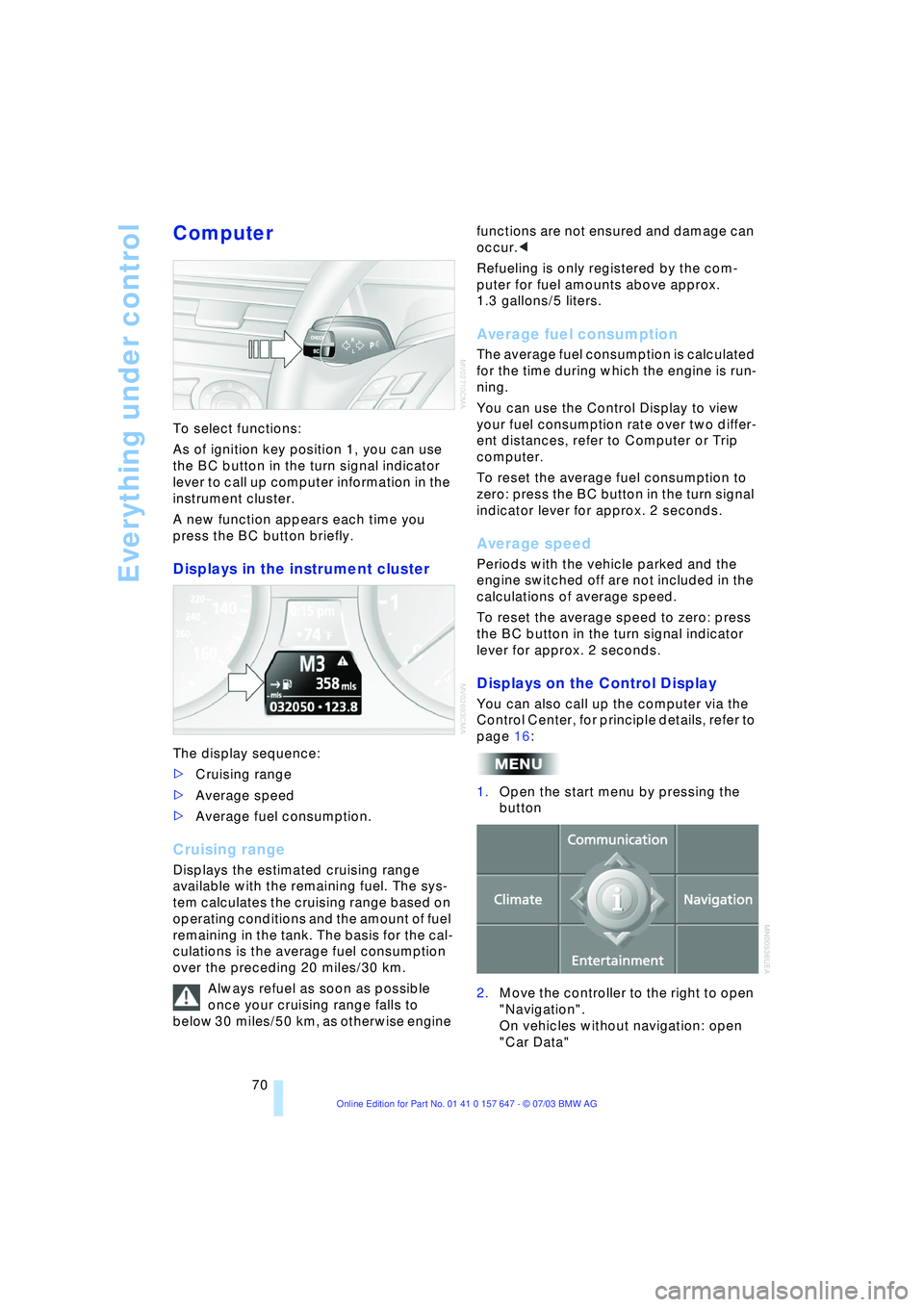
To select functions:
As of ignition key position 1, you can use
the BC button in the turn signal indicator
lever to call up computer information in the
instrument cluster.
A new function appears each time you
press the BC button briefly.
Displays in the instrument cluster
The display sequence:
>Cruising range
>Average speed
>Average fuel consumption.
Cruising range
Displays the estimated cruising range
available with the remaining fuel. The sys-
tem calculates the cruising range based on
operating conditions and the amount of fuel
remaining in the tank. The basis for the cal-
culations is the average fuel consumption
over the preceding 20 miles/30 km.
Always refuel as soon as possible
once your cruising range falls to
below 30 miles/50 km, as otherwise engine functions are not ensured and damage can
occur.<
Refueling is only registered by the com-
puter for fuel amounts above approx.
1.3 gallons/5 liters.
Average fuel consumption
The average fuel consumption is calculated
for the time during which the engine is run-
ning.
You can use the Control Display to view
your fuel consumption rate over two differ-
ent distances, refer to Computer or Trip
computer.
To reset the average fuel consumption to
zero: press the BC button in the turn signal
indicator lever for approx. 2 seconds.
Average speed
Periods with the vehicle parked and the
engine switched off are not included in the
calculations of average speed.
To reset the average speed to zero: press
the BC button in the turn signal indicator
lever for approx. 2 seconds.
Displays on the Control Display
You can also call up the computer via the
Control Center, for principle details, refer to
page 16:
1.Open the start menu by pressing the
button
2.Move the controller to the right to open
"Navigation".
On vehicles without navigation: open
"Car Data"
Page 75 of 220
Controls
73Reference
At a glance
Driving tips
Communications
Navigation
Entertainment
Mobility
3.Select "Limit" and press the controller
4.Select "Select current speed" and
press the controller. The system adopts
your current speed as the limit.
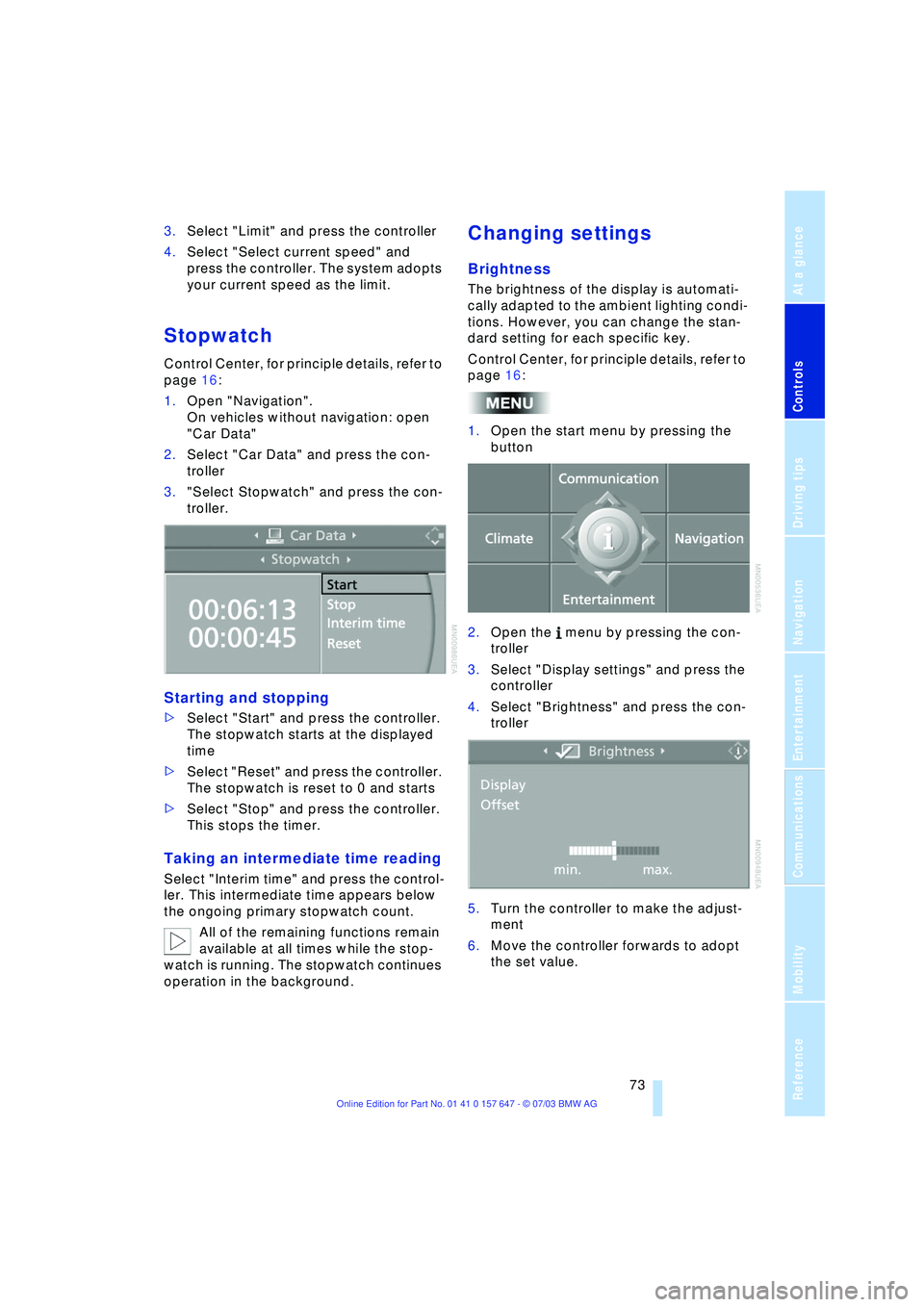
Stopwatch
Control Center, for principle details, refer to
page 16:
1.Open "Navigation".
On vehicles without navigation: open
"Car Data"
2.Select "Car Data" and press the con-
troller
3."Select Stopwatch" and press the con-
troller.
Starting and stopping
>Select "Start" and press the controller.
The stopwatch starts at the displayed
time
>Select "Reset" and press the controller.
The stopwatch is reset to 0 and starts
>Select "Stop" and press the controller.
This stops the timer.
Taking an intermediate time reading
Select "Interim time" and press the control-
ler. This intermediate time appears below
the ongoing primary stopwatch count.
All of the remaining functions remain
available at all times while the stop-
watch is running. The stopwatch continues
operation in the background.
Changing settings
Brightness
The brightness of the display is automati-
cally adapted to the ambient lighting condi-
tions. However, you can change the stan-
dard setting for each specific key.
Control Center, for principle details, refer to
page 16:
1.Open the start menu by pressing the
button
2.Open the menu by pressing the con-
troller
3.Select "Display settings" and press the
controller
4.Select "Brightness" and press the con-
troller
5.Turn the controller to make the adjust-
ment
6.Move the controller forwards to adopt
the set value.
Page 76 of 220
Everything under control
74
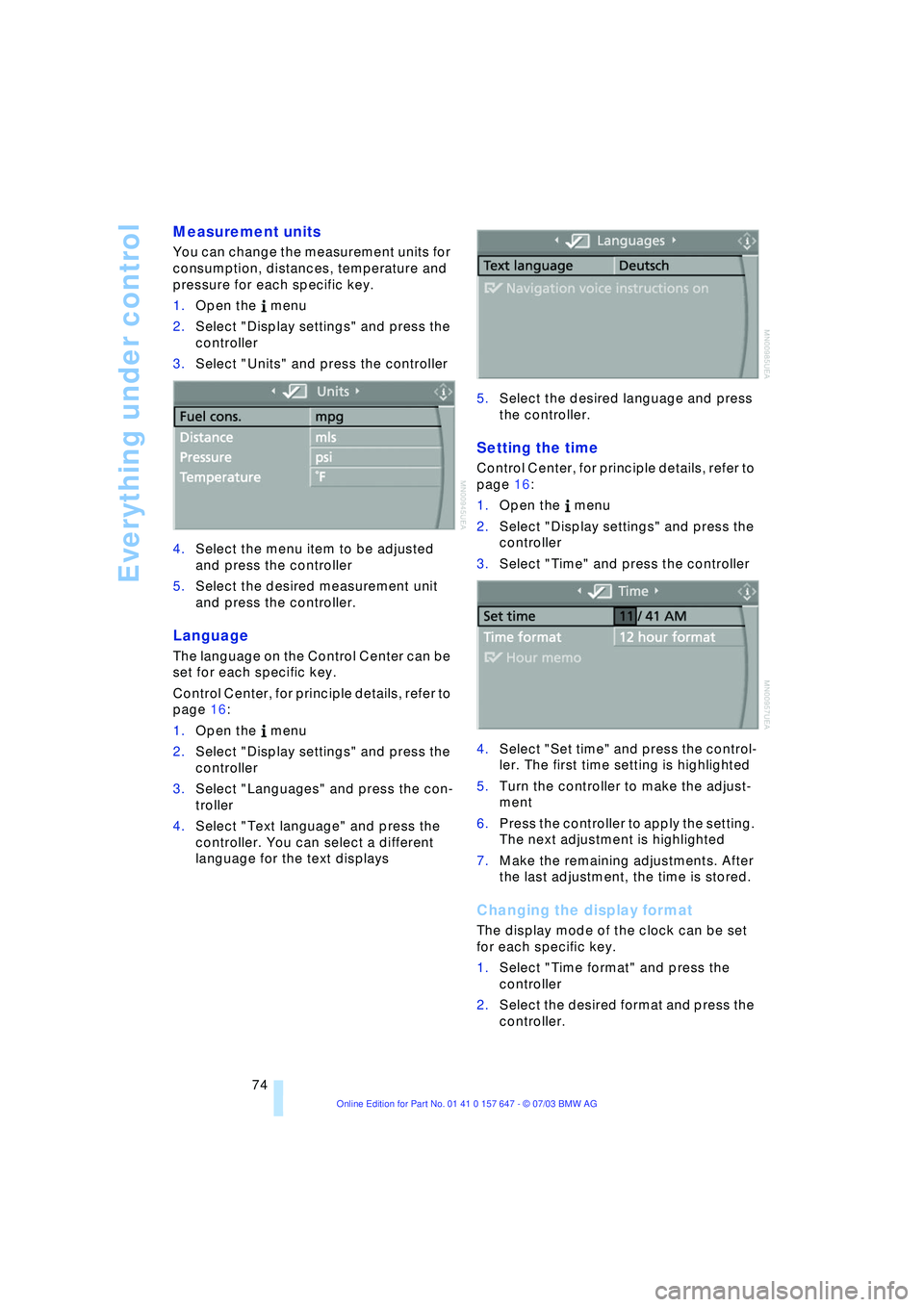
Measurement units
You can change the measurement units for
consumption, distances, temperature and
pressure for each specific key.
1.Open the menu
2.Select "Display settings" and press the
controller
3.Select "Units" and press the controller
4.Select the menu item to be adjusted
and press the controller
5.Select the desired measurement unit
and press the controller.
Language
The language on the Control Center can be
set for each specific key.
Control Center, for principle details, refer to
page 16:
1.Open the menu
2.Select "Display settings" and press the
controller
3.Select "Languages" and press the con-
troller
4.Select "Text language" and press the
controller. You can select a different
language for the text displays5.Select the desired language and press
the controller.
Setting the time
Control Center, for principle details, refer to
page 16:
1.Open the menu
2.Select "Display settings" and press the
controller
3.Select "Time" and press the controller
4.Select "Set time" and press the control-
ler. The first time setting is highlighted
5.Turn the controller to make the adjust-
ment
6.Press the controller to apply the setting.
The next adjustment is highlighted
7.Make the remaining adjustments. After
the last adjustment, the time is stored.
Changing the display format
The display mode of the clock can be set
for each specific key.
1.Select "Time format" and press the
controller
2.Select the desired format and press the
controller.
Page 77 of 220
Controls
75Reference
At a glance
Driving tips
Communications
Navigation
Entertainment
Mobility
Switching on the reminder function*
Select "Hour memo" and press the control-
ler.
is displayed with the reminder function
switched on.
You will hear three tones just before each
full hour.
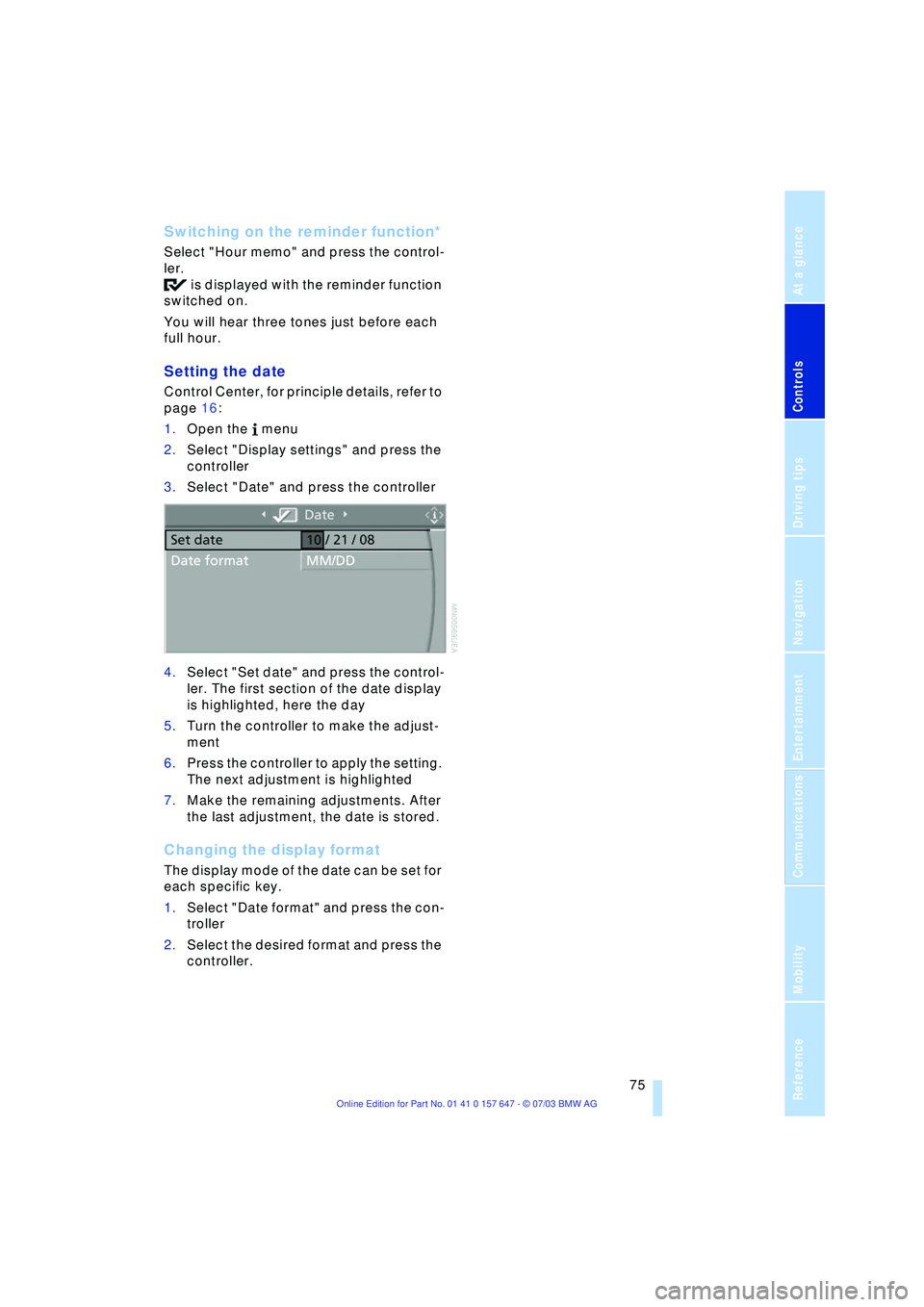
Setting the date
Control Center, for principle details, refer to
page 16:
1.Open the menu
2.Select "Display settings" and press the
controller
3.Select "Date" and press the controller
4.Select "Set date" and press the control-
ler. The first section of the date display
is highlighted, here the day
5.Turn the controller to make the adjust-
ment
6.Press the controller to apply the setting.
The next adjustment is highlighted
7.Make the remaining adjustments. After
the last adjustment, the date is stored.
Changing the display format
The display mode of the date can be set for
each specific key.
1.Select "Date format" and press the con-
troller
2.Select the desired format and press the
controller.
Page 78 of 220
Technology for comfort, convenience and safety
76
Technology for comfort, convenience
and safety
PDC Park Distance Control*
The concept
The PDC assists you when you are parking.
Signal tones indicate the current distance
to an object behind or in front of your vehi-
cle. Four ultrasonic sensors in both the
bumpers monitor the distance to the near-
est object. The sensors at the front and at
the two rear corners have a range of
approx. 1.64 ft/50 cm; the rear middle sen-
sors have approx. 5 ft/1.50 m.
PDC is a parking aid that can indicate
objects when they are approached
slowly, as is usually the case when parking.
Avoid approaching an object at high speed,
as otherwise the physical circumstances
would mean that the system warning was
too late.<
Automatic function
In ignition key position 2, the system auto-
matically assumes operational status after
a few seconds each time you engage
reverse gear or selector-lever position R.
Wait this short period before revers-
ing.<
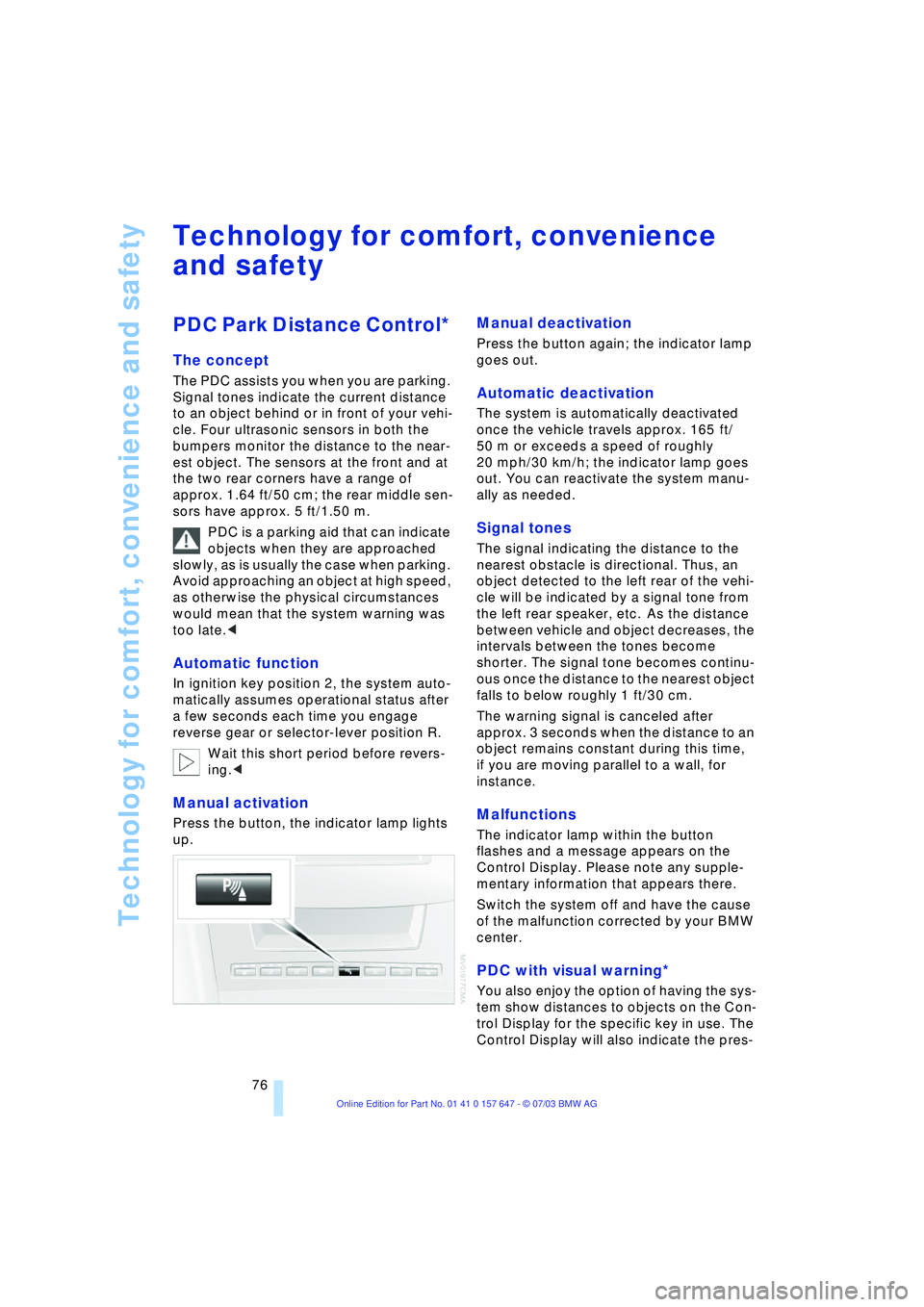
Manual activation
Press the button, the indicator lamp lights
up.
Manual deactivation
Press the button again; the indicator lamp
goes out.
Automatic deactivation
The system is automatically deactivated
once the vehicle travels approx. 165 ft/
50 m or exceeds a speed of roughly
20 mph/30 km/h; the indicator lamp goes
out. You can reactivate the system manu-
ally as needed.
Signal tones
The signal indicating the distance to the
nearest obstacle is directional. Thus, an
object detected to the left rear of the vehi-
cle will be indicated by a signal tone from
the left rear speaker, etc. As the distance
between vehicle and object decreases, the
intervals between the tones become
shorter. The signal tone becomes continu-
ous once the distance to the nearest object
falls to below roughly 1 ft/30 cm.
The warning signal is canceled after
approx. 3 seconds when the distance to an
object remains constant during this time,
if you are moving parallel to a wall, for
instance.
Malfunctions
The indicator lamp within the button
flashes and a message appears on the
Control Display. Please note any supple-
mentary information that appears there.
Switch the system off and have the cause
of the malfunction corrected by your BMW
center.
PDC with visual warning*
You also enjoy the option of having the sys-
tem show distances to objects on the Con-
trol Display for the specific key in use. The
Control Display will also indicate the pres-
Page 86 of 220
Technology for comfort, convenience and safety
84 >When a child is seated in the child-
restraint system or with an empty seat,
the front and side airbags are automat-
ically deactivated on the passenger's
side
>When an adult is traveling in the front
seat, the front and side airbags remain
active on the passenger side.
Although not desired, it can occur in
the case of heavier children that the
front passenger airbags remain active or in
the case of very light adults or young per-
sons that the front passenger airbags are
deactivated.
The state of the front passenger airbags is
shown with the telltale lamp, refer to Indi-
cator lamps in the following. In this case
transport the corresponding persons on
the rear seat.
Except when persons to be transported, do
not increase the load on the front passen-
ger seat with additional items. Do not fit
seat covers, seat cushion padding, ball
mats or other items to the front passenger
seat unless they are specifically recom-
mended by BMW. Do not place any items
under the seat. Otherwise, the function of
the seat occupation detection could be
impaired.<
Indicator lamps
Operational readiness of airbag
system
The airbag indicator lamp in the instrument
cluster indicates the operational readiness
of the entire airbag system and the safety
belt tensioners as of ignition key position 1.
The indicator lamp goes out after a few
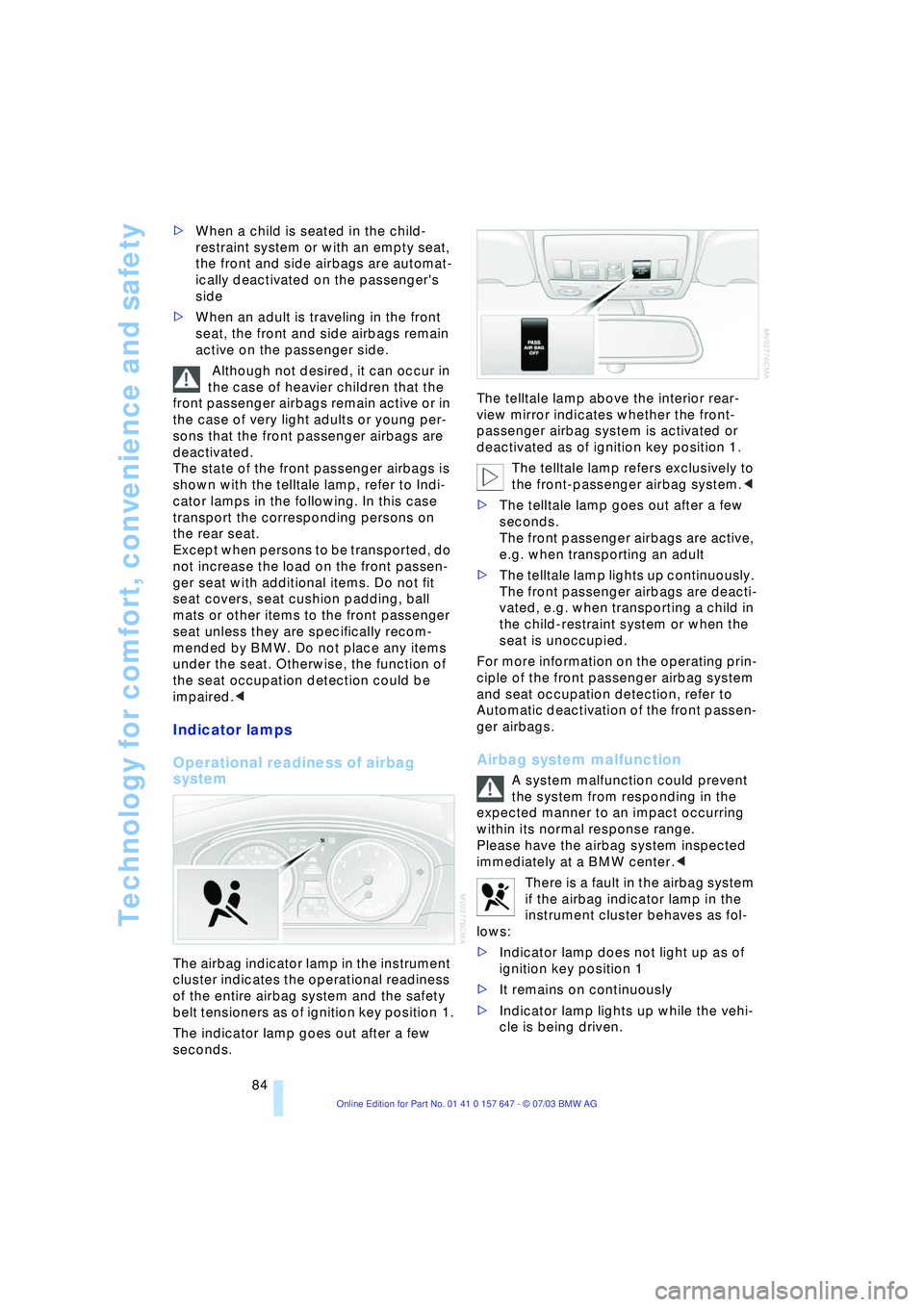
seconds.The telltale lamp above the interior rear-
view mirror indicates whether the front-
passenger airbag system is activated or
deactivated as of ignition key position 1.
The telltale lamp refers exclusively to
the front-passenger airbag system.<
>The telltale lamp goes out after a few
seconds.
The front passenger airbags are active,
e.g. when transporting an adult
>The telltale lamp lights up continuously.
The front passenger airbags are deacti-
vated, e.g. when transporting a child in
the child-restraint system or when the
seat is unoccupied.
For more information on the operating prin-
ciple of the front passenger airbag system
and seat occupation detection, refer to
Automatic deactivation of the front passen-
ger airbags.
Airbag system malfunction
A system malfunction could prevent
the system from responding in the
expected manner to an impact occurring
within its normal response range.
Please have the airbag system inspected
immediately at a BMW center.<
There is a fault in the airbag system
if the airbag indicator lamp in the
instrument cluster behaves as fol-
lows:
>Indicator lamp does not light up as of
ignition key position 1
>It remains on continuously
>Indicator lamp lights up while the vehi-
cle is being driven.
Page 87 of 220
Controls
85Reference
At a glance
Driving tips
Communications
Navigation
Entertainment
Mobility
Head-Up Display*
The concept
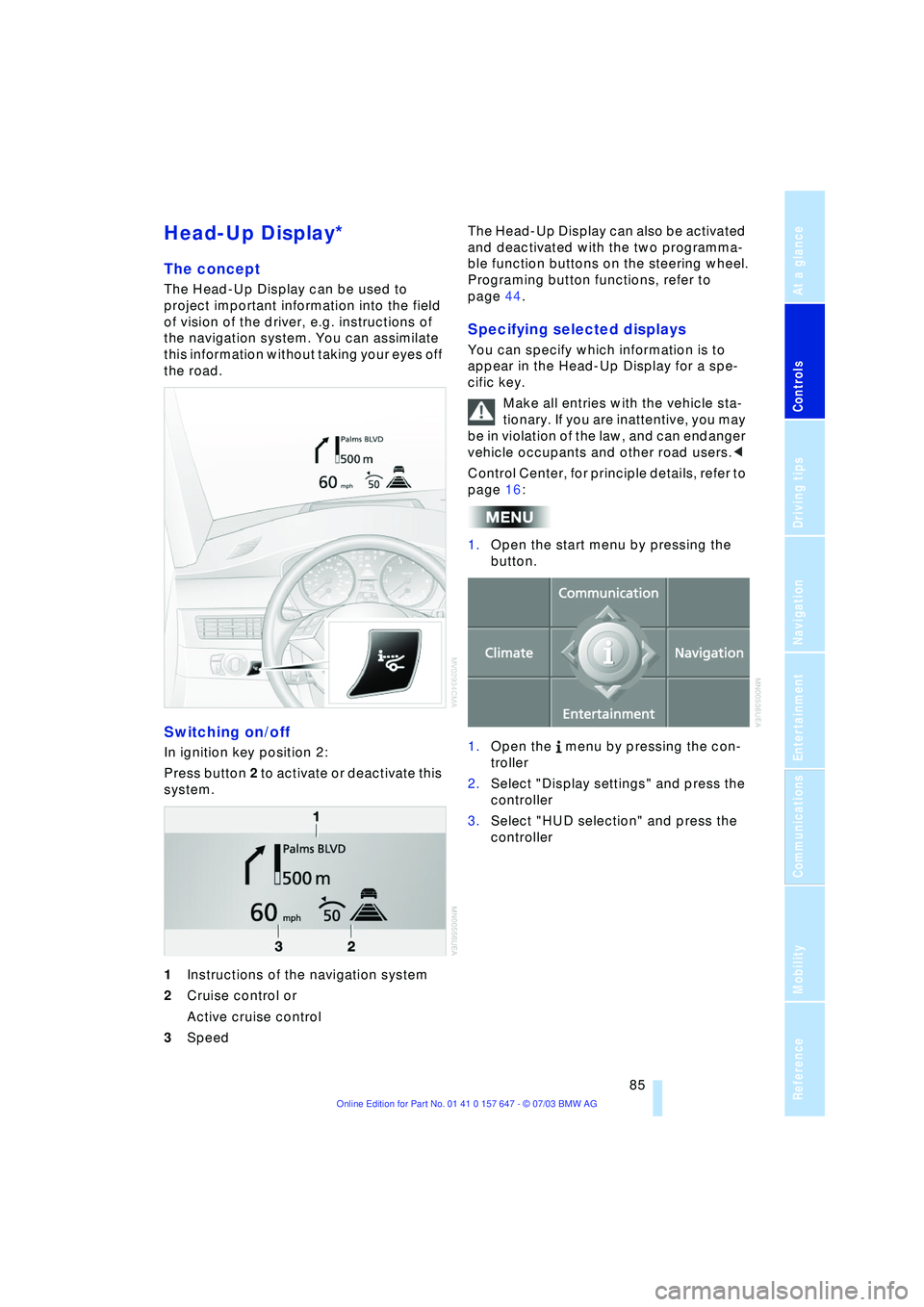
The Head-Up Display can be used to
project important information into the field
of vision of the driver, e.g. instructions of
the navigation system. You can assimilate
this information without taking your eyes off
the road.
Switching on/off
In ignition key position 2:
Press button 2 to activate or deactivate this
system.
1Instructions of the navigation system
2Cruise control or
Active cruise control
3Speed The Head-Up Display can also be activated
and deactivated with the two programma-
ble function buttons on the steering wheel.
Programing button functions, refer to
page 44.
Specifying selected displays
You can specify which information is to
appear in the Head-Up Display for a spe-
cific key.
Make all entries with the vehicle sta-
tionary. If you are inattentive, you may
be in violation of the law, and can endanger
vehicle occupants and other road users.<
Control Center, for principle details, refer to
page 16:
1.Open the start menu by pressing the
button.
1.Open the menu by pressing the con-
troller
2.Select "Display settings" and press the
controller
3.Select "HUD selection" and press the
controller
Page 88 of 220
Technology for comfort, convenience and safety
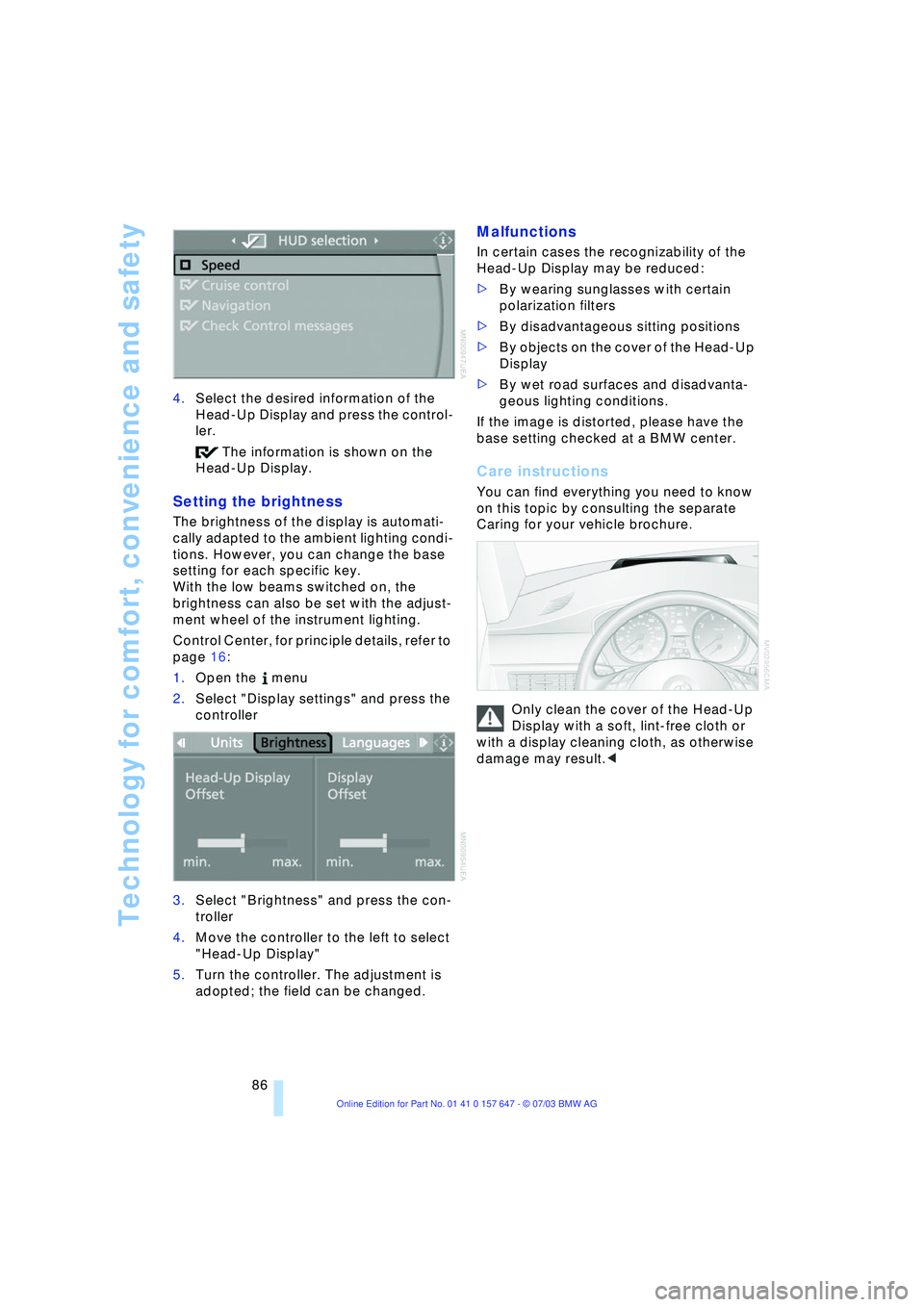
86 4.Select the desired information of the
Head-Up Display and press the control-
ler.
The information is shown on the
Head-Up Display.
Setting the brightness
The brightness of the display is automati-
cally adapted to the ambient lighting condi-
tions. However, you can change the base
setting for each specific key.
With the low beams switched on, the
brightness can also be set with the adjust-
ment wheel of the instrument lighting.
Control Center, for principle details, refer to
page 16:
1.Open the menu
2.Select "Display settings" and press the
controller
3.Select "Brightness" and press the con-
troller
4.Move the controller to the left to select
"Head-Up Display"
5.Turn the controller. The adjustment is
adopted; the field can be changed.
Malfunctions
In certain cases the recognizability of the
Head-Up Display may be reduced:
>By wearing sunglasses with certain
polarization filters
>By disadvantageous sitting positions
>By objects on the cover of the Head-Up
Display
>By wet road surfaces and disadvanta-
geous lighting conditions.
If the image is distorted, please have the
base setting checked at a BMW center.
Care instructions
You can find everything you need to know
on this topic by consulting the separate
Caring for your vehicle brochure.
Only clean the cover of the Head-Up
Display with a soft, lint-free cloth or
with a display cleaning cloth, as otherwise
damage may result.<