tow BMW 525I 2005 User Guide
[x] Cancel search | Manufacturer: BMW, Model Year: 2005, Model line: 525I, Model: BMW 525I 2005Pages: 221, PDF Size: 8.19 MB
Page 94 of 221
Controls
93Reference
At a glance
Driving tips
Communication
Navigation
Entertainment
Mobility
3Air to footwell
In order to select the passenger region:
Move controller toward the right.
Pressing the AUTO button cancels the air
distribution settings on the Control Dis-
play and vice versa.<
Adjusting temperature in upper body
region
1.Select "Vent settings" and press the con-
troller.
2.Select the field by moving the controller and
turning the controller to adjust the temper-
ature.
Setting intensity of AUTO program
To meet your individual needs, you can weaken
or strengthen the intensity of the automatic cli-
mate control.
1.Select "Automatic programs" and press the
controller.
2.Select the desired intensity and press the
controller.
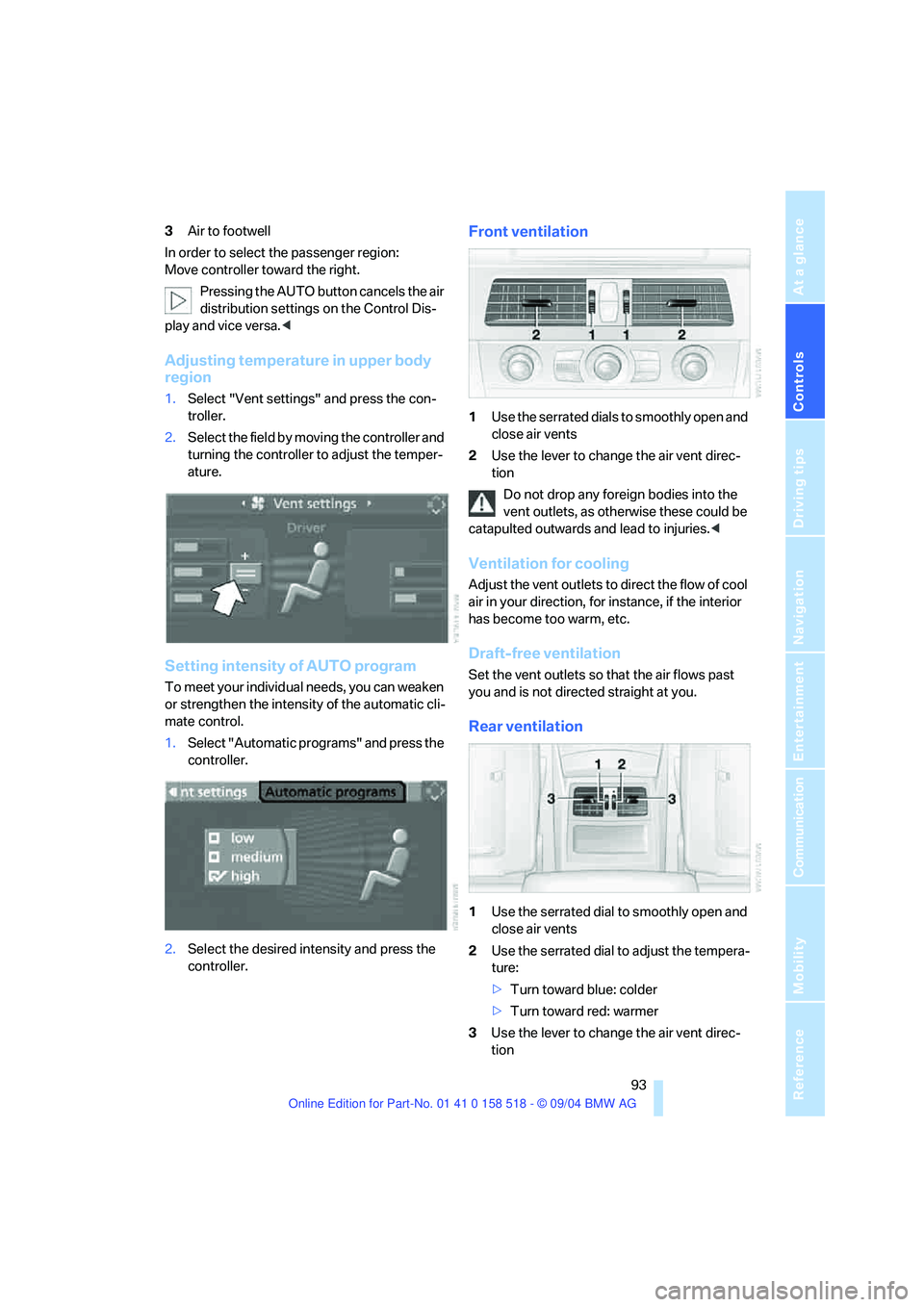
Front ventilation
1Use the serrated dials to smoothly open and
close air vents
2Use the lever to change the air vent direc-
tion
Do not drop any foreign bodies into the
vent outlets, as otherwise these could be
catapulted outwards and lead to injuries.<
Ventilation for cooling
Adjust the vent outlets to direct the flow of cool
air in your direction, for instance, if the interior
has become too warm, etc.
Draft-free ventilation
Set the vent outlets so that the air flows past
you and is not directed straight at you.
Rear ventilation
1Use the serrated dial to smoothly open and
close air vents
2Use the serrated dial to adjust the tempera-
ture:
>Turn toward blue: colder
>Turn toward red: warmer
3Use the lever to change the air vent direc-
tion
Page 100 of 221
Controls
99Reference
At a glance
Driving tips
Communication
Navigation
Entertainment
Mobility
Storage compartments
Storage compartment on center
console between front seats
Open by pressing the cover back.
Other compartments
There are other compartments in the doors as
well as in the front and rear center console.
Storage nets are located on the backrests of the
front seats.
Clothes hooks
When suspending clothing from the
hooks ensure that it will not obstruct the
driver's vision. Do not hang heavy objects on
the hooks. If you do so, they could cause per-
sonal injury to occupants during braking or eva-
sive maneuvers.<
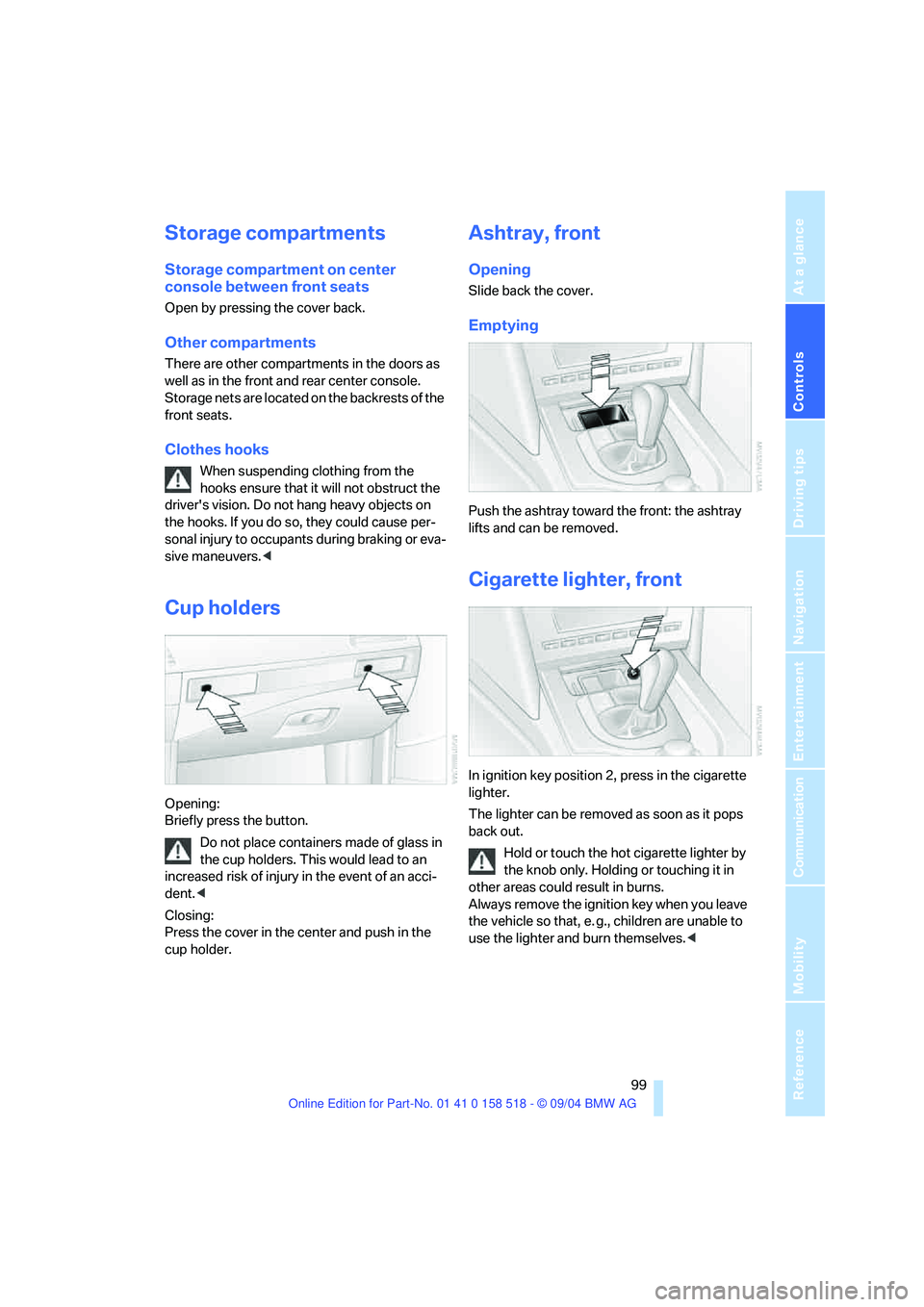
Cup holders
Opening:
Briefly press the button.
Do not place containers made of glass in
the cup holders. This would lead to an
increased risk of injury in the event of an acci-
dent.<
Closing:
Press the cover in the center and push in the
cup holder.
Ashtray, front
Opening
Slide back the cover.
Emptying
Push the ashtray toward the front: the ashtray
lifts and can be removed.
Cigarette lighter, front
In ignition key position 2, press in the cigarette
lighter.
The lighter can be removed as soon as it pops
back out.
Hold or touch the hot cigarette lighter by
the knob only. Holding or touching it in
other areas could result in burns.
Always remove the ignition key when you leave
the vehicle so that, e. g., children are unable to
use the lighter and burn themselves.<
Page 101 of 221
Practical interior accessories
100
Sockets
With the ignition key in position 2, the cigarette
lighter socket can be used as a power outlet for
hand flashlights, car vacuum cleaners, etc., with
power ratings of up to approx. 200 W at 12 V.
Avoid damaging the socket due to inserting
plugs of different shapes or sizes. The same is
true for all power outlets in the vehicle.
Ashtray, rear
Emptying
Press the entire cover down. The ashtray rises
and can be removed.
Cigarette lighter, rear
Refer to Cigarette lighter, front.
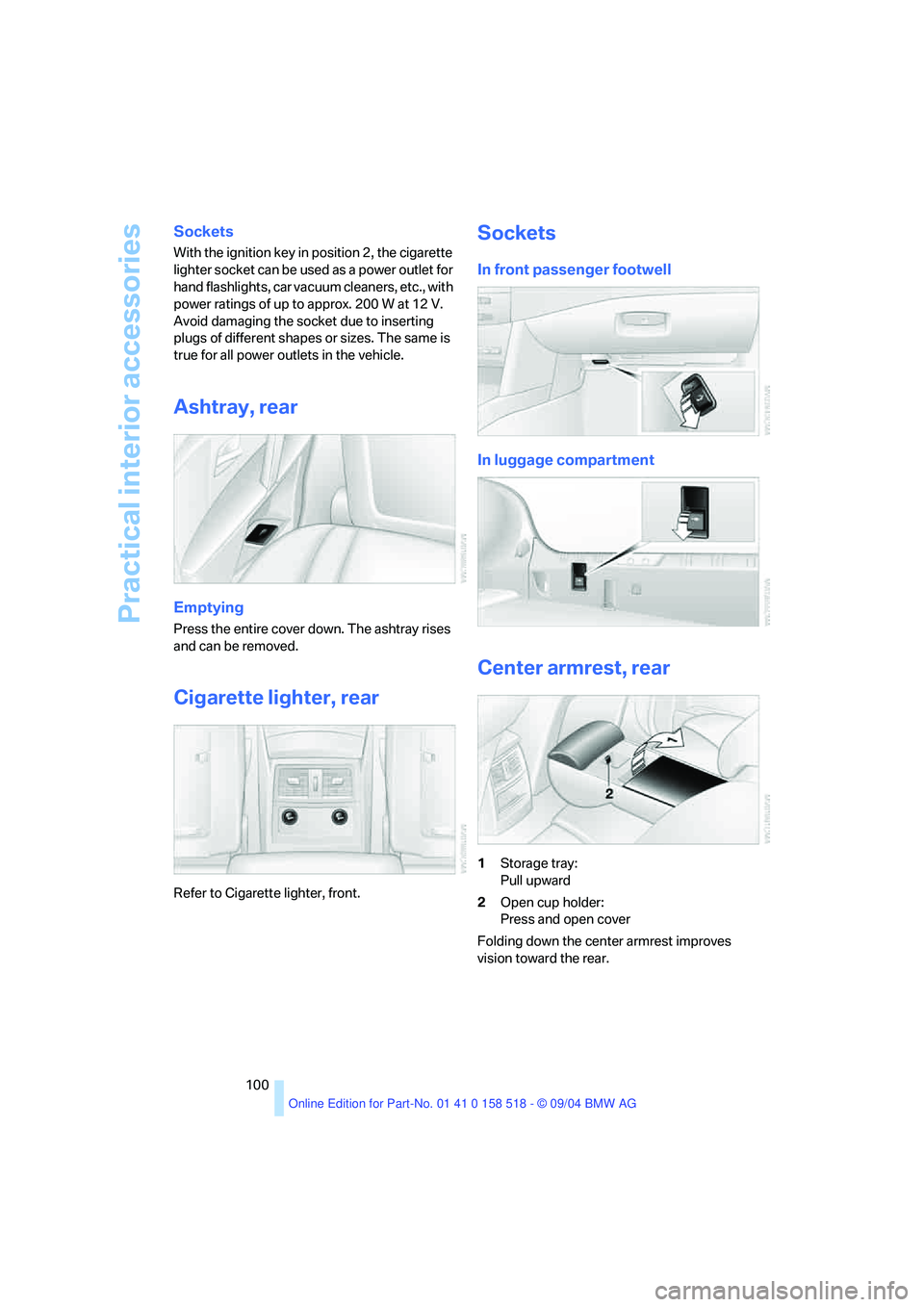
Sockets
In front passenger footwell
In luggage compartment
Center armrest, rear
1Storage tray:
Pull upward
2Open cup holder:
Press and open cover
Folding down the center armrest improves
vision toward the rear.
Page 102 of 221
Controls
101Reference
At a glance
Driving tips
Communication
Navigation
Entertainment
Mobility
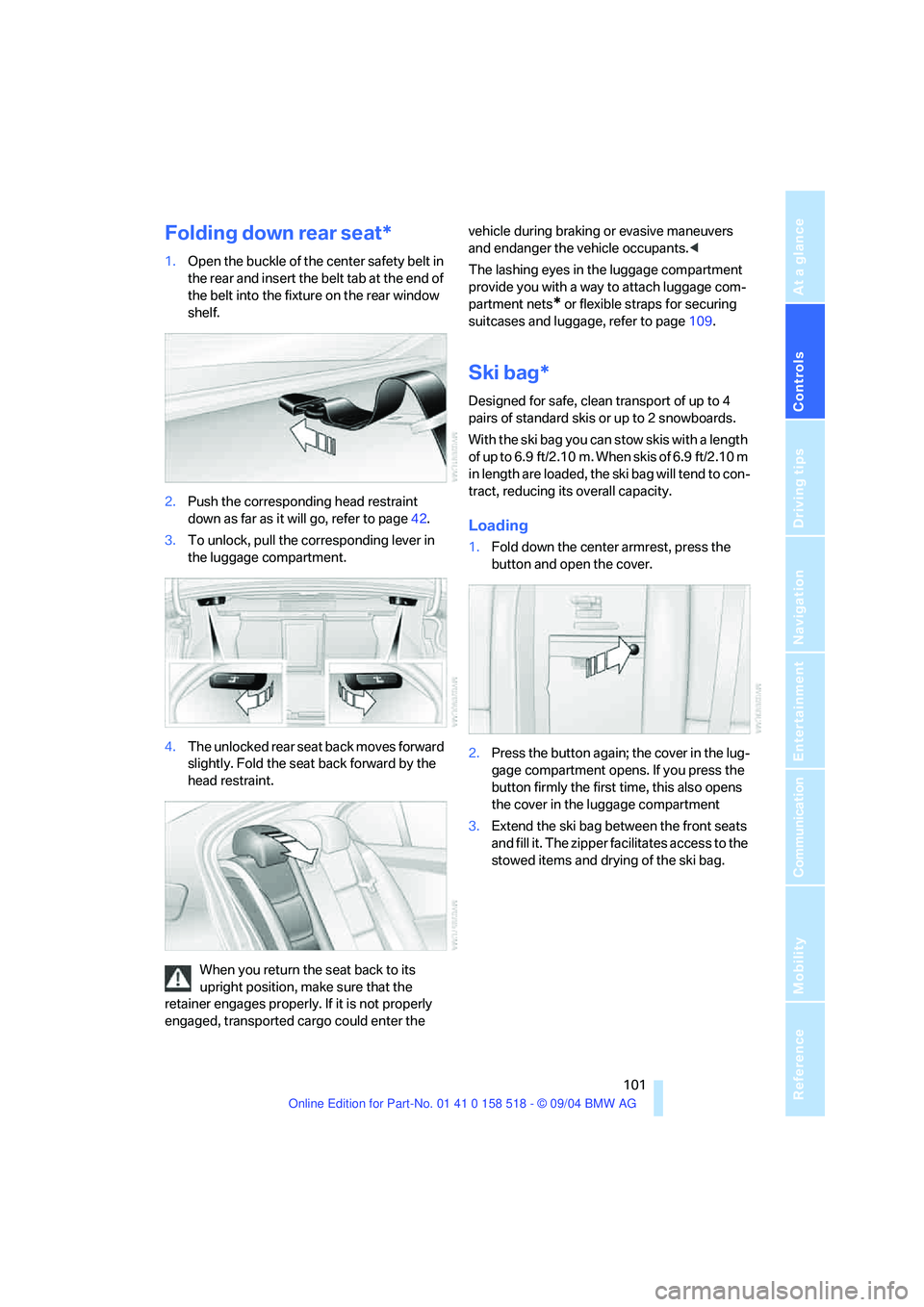
Folding down rear seat*
1.Open the buckle of the center safety belt in
the rear and insert the belt tab at the end of
the belt into the fixture on the rear window
shelf.
2.Push the corresponding head restraint
down as far as it will go, refer to page42.
3.To unlock, pull the corresponding lever in
the luggage compartment.
4.The unlocked rear seat back moves forward
slightly. Fold the seat back forward by the
head restraint.
When you return the seat back to its
upright position, make sure that the
retainer engages properly. If it is not properly
engaged, transported cargo could enter the vehicle during braking or evasive maneuvers
and endanger the vehicle occupants.<
The lashing eyes in the luggage compartment
provide you with a way to attach luggage com-
partment nets
* or flexible straps for securing
suitcases and luggage, refer to page109.
Ski bag*
Designed for safe, clean transport of up to 4
pairs of standard skis or up to 2 snowboards.
With the ski bag you can stow skis with a length
of up to 6.9 ft/2.10 m. When skis of 6.9 ft/2.10 m
in length are loaded, the ski bag will tend to con-
tract, reducing its overall capacity.
Loading
1.Fold down the center armrest, press the
button and open the cover.
2.Press the button again; the cover in the lug-
gage compartment opens. If you press the
button firmly the first time, this also opens
the cover in the luggage compartment
3.Extend the ski bag between the front seats
and fill it. The zipper facilitates access to the
stowed items and drying of the ski bag.
Page 110 of 221
Driving tips
109Reference
At a glance
Controls
Communication
Navigation
Entertainment
Mobility
5.Determine the combined weight of luggage
and cargo being loaded on the vehicle. That
weight may not safely exceed the available
cargo and luggage load capacity calculated
in step 4.
6.If your vehicle will be towing a trailer, part of
the load from your trailer will be transferred
to your vehicle. Consult the manual for
transporting a trailer to determine how this
may reduce the available cargo and luggage
load capacity of your vehicle.
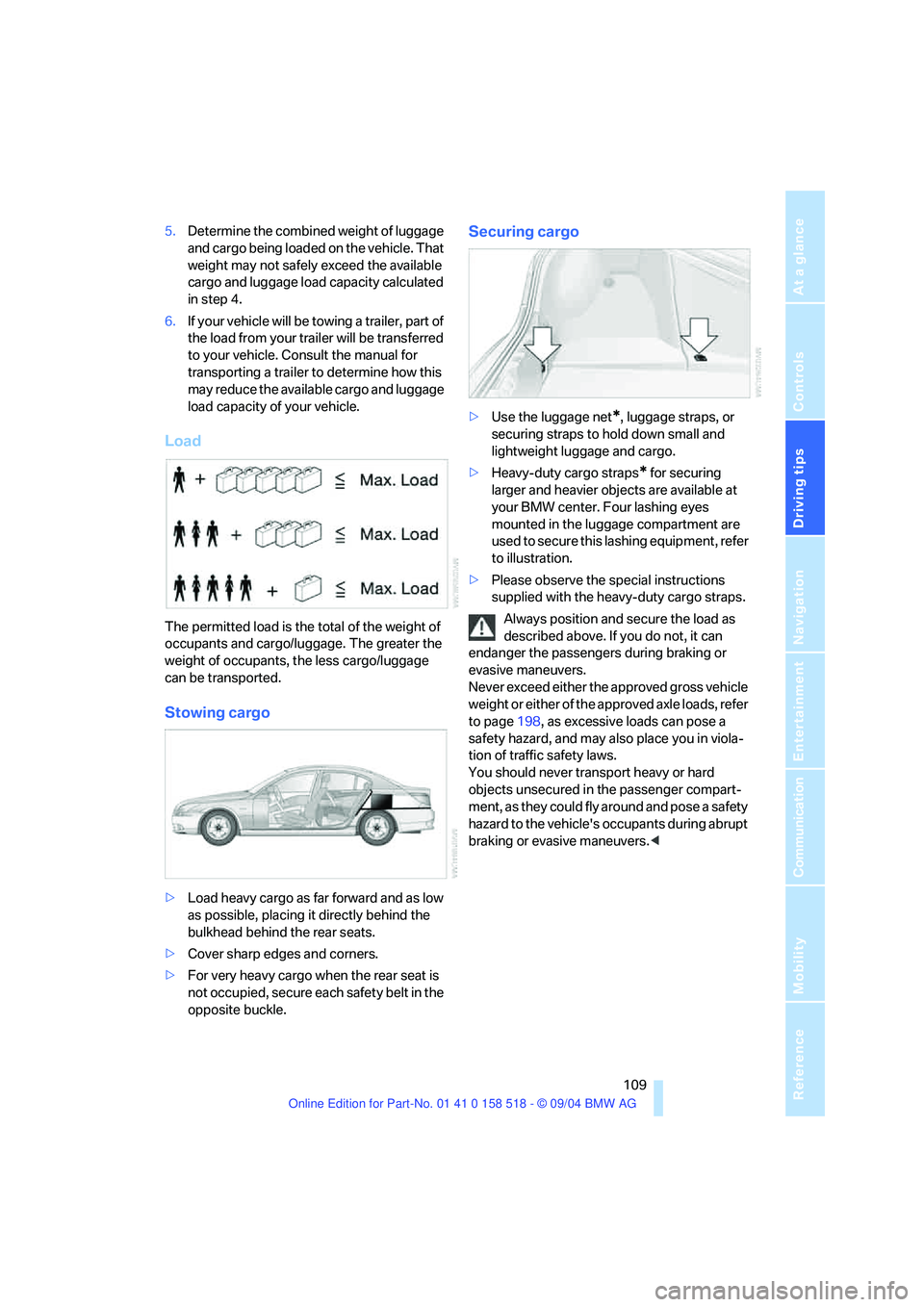
Load
The permitted load is the total of the weight of
occupants and cargo/luggage. The greater the
weight of occupants, the less cargo/luggage
can be transported.
Stowing cargo
>Load heavy cargo as far forward and as low
as possible, placing it directly behind the
bulkhead behind the rear seats.
>Cover sharp edges and corners.
>For very heavy cargo when the rear seat is
not occupied, secure each safety belt in the
opposite buckle.
Securing cargo
>Use the luggage net*, luggage straps, or
securing straps to hold down small and
lightweight luggage and cargo.
>Heavy-duty cargo straps
* for securing
larger and heavier objects are available at
your BMW center. Four lashing eyes
mounted in the luggage compartment are
used to secure this lashing equipment, refer
to illustration.
>Please observe the special instructions
supplied with the heavy-duty cargo straps.
Always position and secure the load as
described above. If you do not, it can
endanger the passengers during braking or
evasive maneuvers.
Never exceed either the approved gross vehicle
weight or either of the approved axle loads, refer
to page198, as excessive loads can pose a
safety hazard, and may also place you in viola-
tion of traffic safety laws.
You should never transport heavy or hard
objects unsecured in the passenger compart-
ment, as they could fly around and pose a safety
hazard to the vehicle's occupants during abrupt
braking or evasive maneuvers.<
Page 116 of 221
Navigation
Driving tips
115Reference
At a glance
Controls
Communication
Entertainment
Mobility
Destination entry
In entering your destination you can select from
among the following options:
>Entering a destination manually, see below
>Selecting destination via information, refer
to page118
>Selecting from among recent destinations,
refer to Destination list, page119
>Selecting destination from address book,
refer to page120.
>Selecting home address, refer to page122
After selecting your destination you can pro-
ceed to start the destination guidance, refer to
page124.
Operating navigation system
Enter data only when the vehicle is sta-
tionary, and always give priority to the
applicable traffic regulations in the event of any
contradiction between traffic and road condi-
tions and the instructions issued by the naviga-
tion system. If you do not observe this precau-
tion, you may be in violation of the law, and can
endanger vehicle occupants and other road
users.<
Control Center, for principle details, refer to
page16.
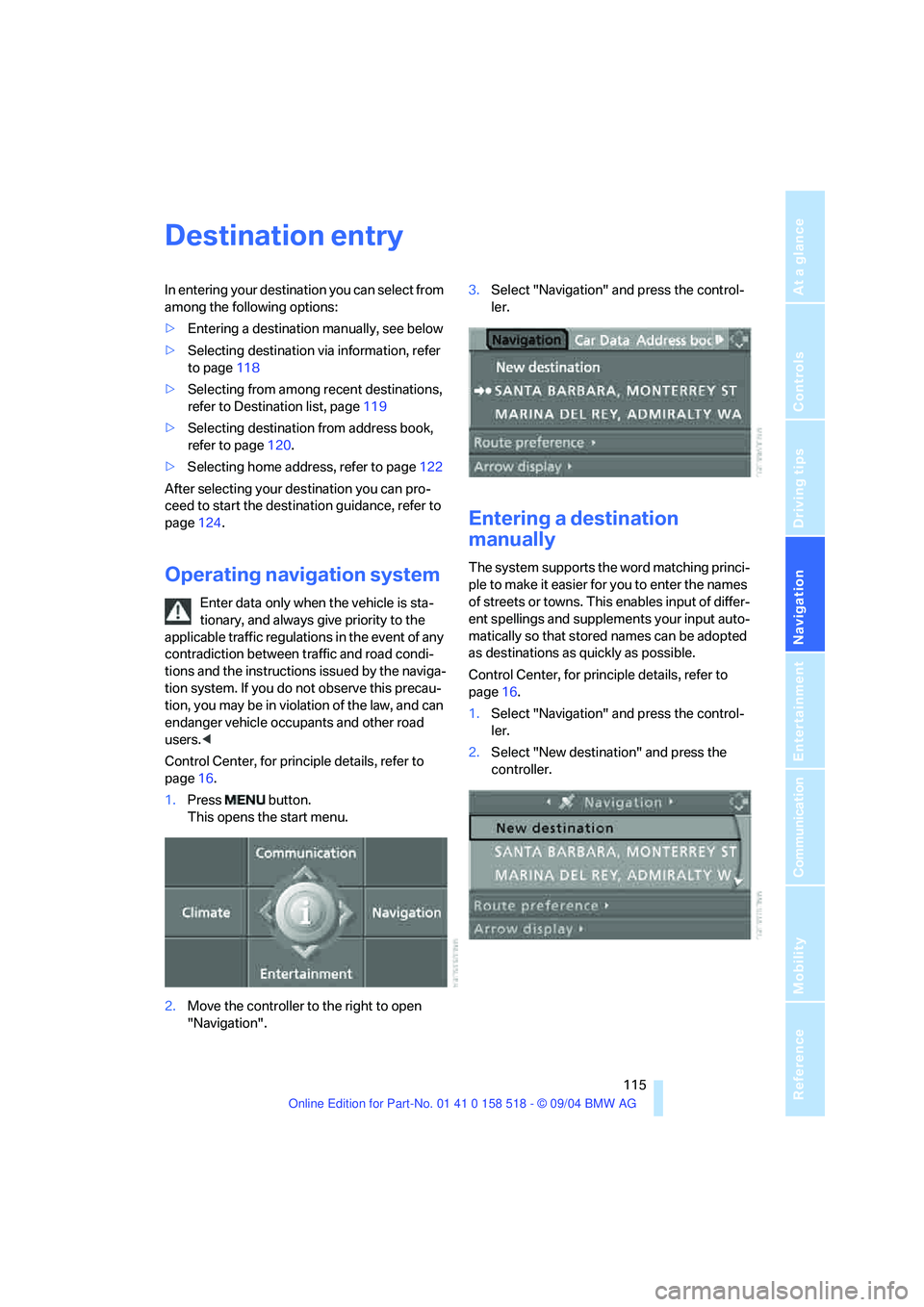
1.Press button.
This opens the start menu.
2.Move the controller to the right to open
"Navigation".3.Select "Navigation" and press the control-
ler.
Entering a destination
manually
The system supports the word matching princi-
ple to make it easier for you to enter the names
of streets or towns. This enables input of differ-
ent spellings and supplements your input auto-
matically so that stored names can be adopted
as destinations as quickly as possible.
Control Center, for principle details, refer to
page16.
1.Select "Navigation" and press the control-
ler.
2.Select "New destination" and press the
controller.
Page 117 of 221
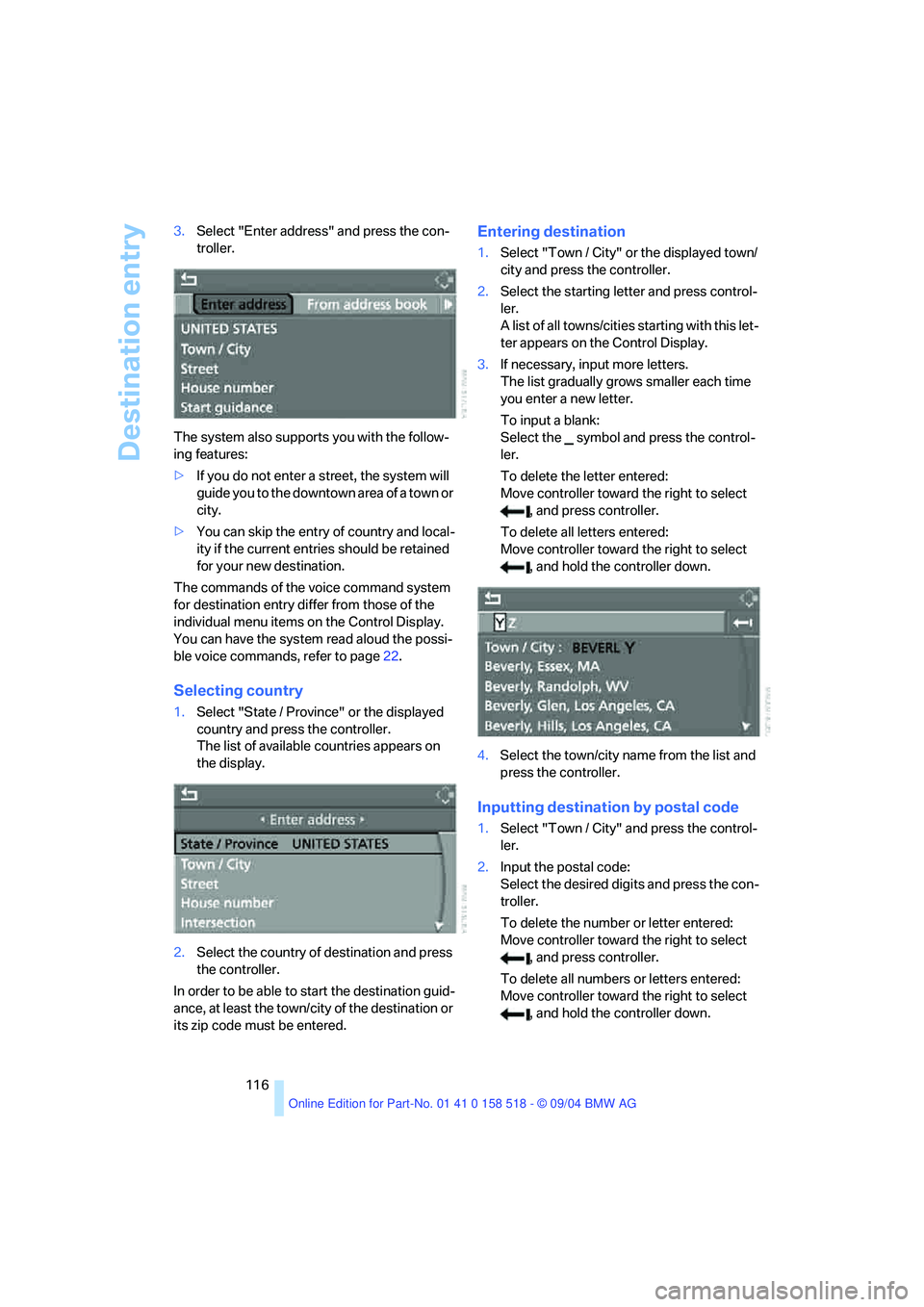
Destination entry
116 3.Select "Enter address" and press the con-
troller.
The system also supports you with the follow-
ing features:
>If you do not enter a street, the system will
guide you to the downtown area of a town or
city.
>You can skip the entry of country and local-
ity if the current entries should be retained
for your new destination.
The commands of the voice command system
for destination entry differ from those of the
individual menu items on the Control Display.
You can have the system read aloud the possi-
ble voice commands, refer to page22.
Selecting country
1.Select "State / Province" or the displayed
country and press the controller.
The list of available countries appears on
the display.
2.Select the country of destination and press
the controller.
In order to be able to start the destination guid-
ance, at least the town/city of the destination or
its zip code must be entered.
Entering destination
1.Select "Town / City" or the displayed town/
city and press the controller.
2.Select the starting letter and press control-
ler.
A list of all towns/cities starting with this let-
ter appears on the Control Display.
3.If necessary, input more letters.
The list gradually grows smaller each time
you enter a new letter.
To input a blank:
Select the symbol and press the control-
ler.
To delete the letter entered:
Move controller toward the right to select
, and press controller.
To delete all letters entered:
Move controller toward the right to select
, and hold the controller down.
4.Select the town/city name from the list and
press the controller.
Inputting destination by postal code
1.Select "Town / City" and press the control-
ler.
2.Input the postal code:
Select the desired digits and press the con-
troller.
To delete the number or letter entered:
Move controller toward the right to select
, and press controller.
To delete all numbers or letters entered:
Move controller toward the right to select
, and hold the controller down.
Page 118 of 221
Navigation
Driving tips
117Reference
At a glance
Controls
Communication
Entertainment
Mobility
3.Select the postal code and press the con-
troller.
The corresponding destination is displayed.
4.Select the destination and press the con-
troller.
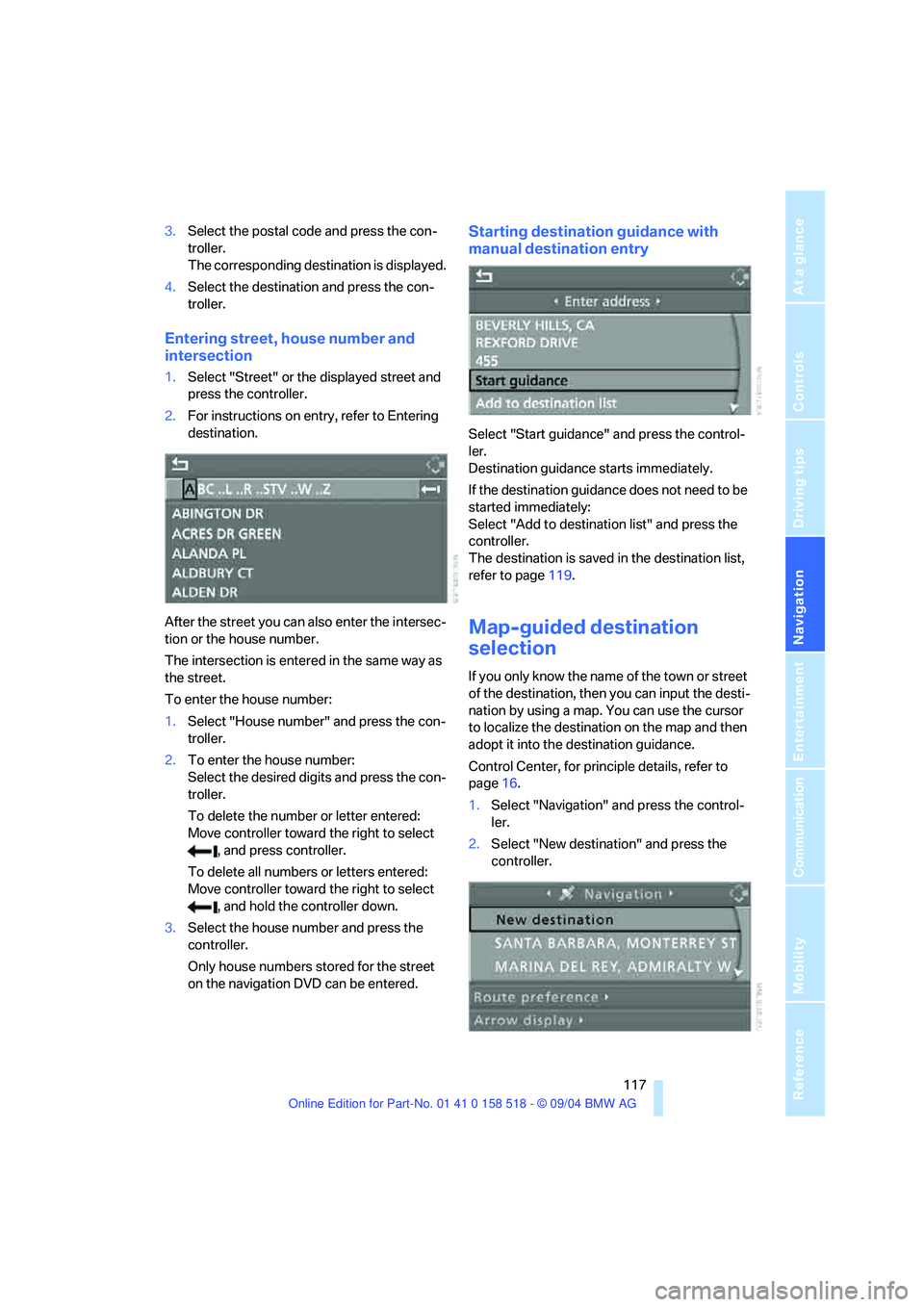
Entering street, house number and
intersection
1.Select "Street" or the displayed street and
press the controller.
2.For instructions on entry, refer to Entering
destination.
After the street you can also enter the intersec-
tion or the house number.
The intersection is entered in the same way as
the street.
To enter the house number:
1.Select "House number" and press the con-
troller.
2.To enter the house number:
Select the desired digits and press the con-
troller.
To delete the number or letter entered:
Move controller toward the right to select
, and press controller.
To delete all numbers or letters entered:
Move controller toward the right to select
, and hold the controller down.
3.Select the house number and press the
controller.
Only house numbers stored for the street
on the navigation DVD can be entered.
Starting destination guidance with
manual destination entry
Select "Start guidance" and press the control-
ler.
Destination guidance starts immediately.
If the destination guidance does not need to be
started immediately:
Select "Add to destination list" and press the
controller.
The destination is saved in the destination list,
refer to page119.
Map-guided destination
selection
If you only know the name of the town or street
of the destination, then you can input the desti-
nation by using a map. You can use the cursor
to localize the destination on the map and then
adopt it into the destination guidance.
Control Center, for principle details, refer to
page16.
1.Select "Navigation" and press the control-
ler.
2.Select "New destination" and press the
controller.
Page 124 of 221
Navigation
Driving tips
123Reference
At a glance
Controls
Communication
Entertainment
Mobility
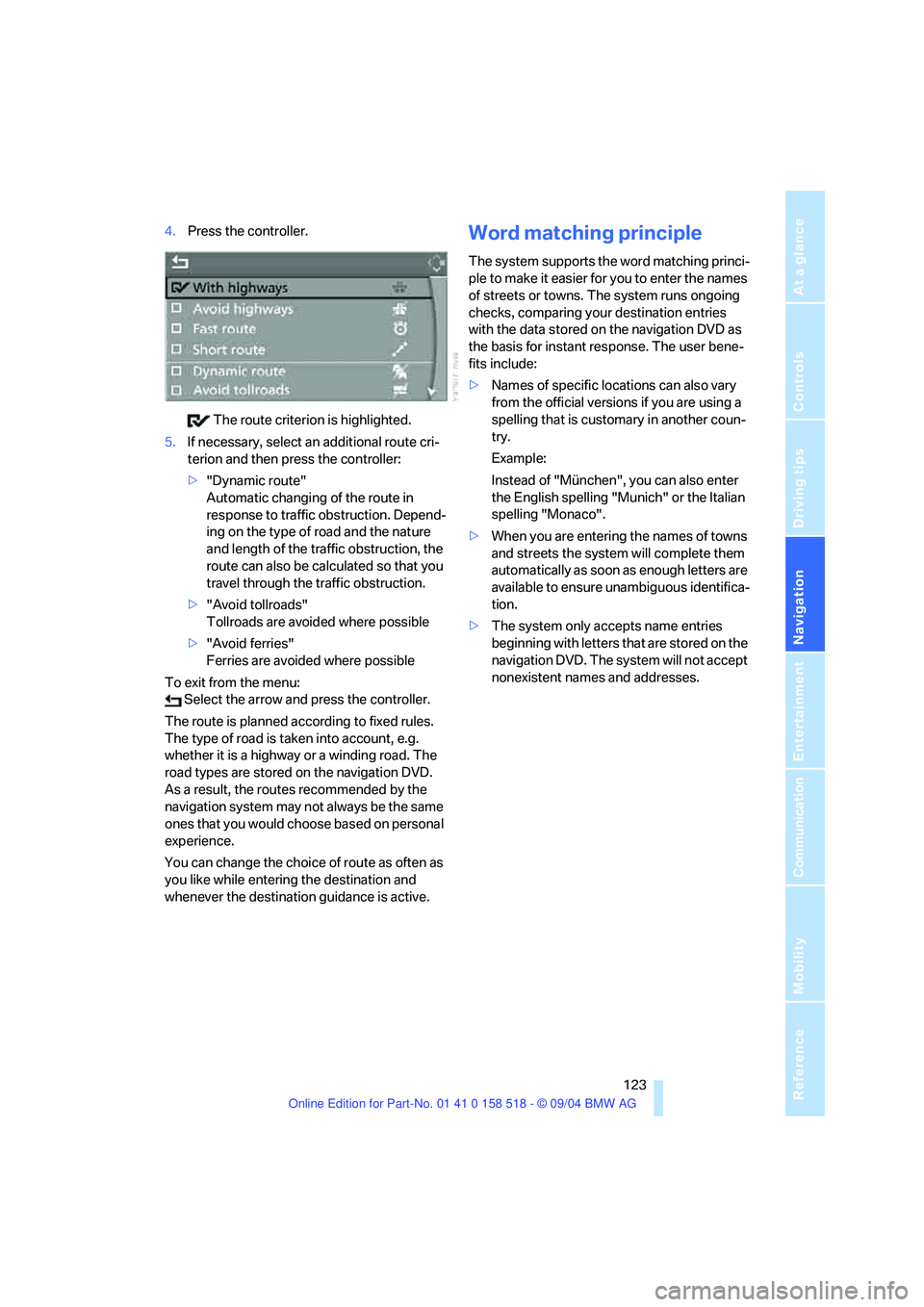
4.Press the controller.
The route criterion is highlighted.
5.If necessary, select an additional route cri-
terion and then press the controller:
>"Dynamic route"
Automatic changing of the route in
response to traffic obstruction. Depend-
ing on the type of road and the nature
and length of the traffic obstruction, the
route can also be calculated so that you
travel through the traffic obstruction.
>"Avoid tollroads"
Tollroads are avoided where possible
>"Avoid ferries"
Ferries are avoided where possible
To exit from the menu:
Select the arrow and press the controller.
The route is planned according to fixed rules.
The type of road is taken into account, e.g.
whether it is a highway or a winding road. The
road types are stored on the navigation DVD.
As a result, the routes recommended by the
navigation system may not always be the same
ones that you would choose based on personal
experience.
You can change the choice of route as often as
you like while entering the destination and
whenever the destination guidance is active.Word matching principle
The system supports the word matching princi-
ple to make it easier for you to enter the names
of streets or towns. The system runs ongoing
checks, comparing your destination entries
with the data stored on the navigation DVD as
the basis for instant response. The user bene-
fits include:
>Names of specific locations can also vary
from the official versions if you are using a
spelling that is customary in another coun-
try.
Example:
Instead of "München", you can also enter
the English spelling "Munich" or the Italian
spelling "Monaco".
>When you are entering the names of towns
and streets the system will complete them
automatically as soon as enough letters are
available to ensure unambiguous identifica-
tion.
>The system only accepts name entries
beginning with letters that are stored on the
navigation DVD. The system will not accept
nonexistent names and addresses.
Page 126 of 221
Navigation
Driving tips
125Reference
At a glance
Controls
Communication
Entertainment
Mobility
Terminating/continuing
destination guidance
Control Center, for principle details, refer to
page16.
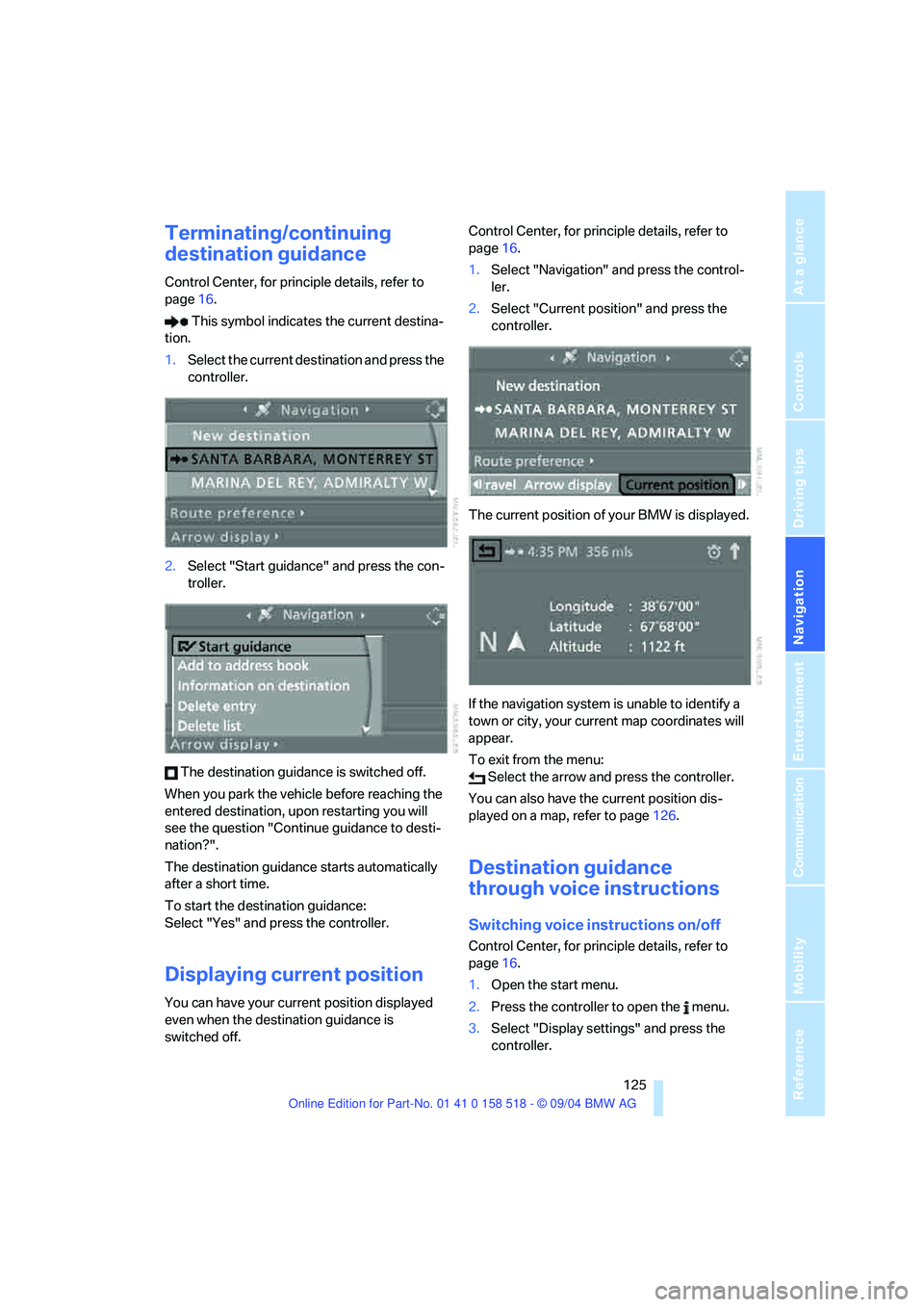
This symbol indicates the current destina-
tion.
1.Select the current destination and press the
controller.
2.Select "Start guidance" and press the con-
troller.
The destination guidance is switched off.
When you park the vehicle before reaching the
entered destination, upon restarting you will
see the question "Continue guidance to desti-
nation?".
The destination guidance starts automatically
after a short time.
To start the destination guidance:
Select "Yes" and press the controller.
Displaying current position
You can have your current position displayed
even when the destination guidance is
switched off.Control Center, for principle details, refer to
page16.
1.Select "Navigation" and press the control-
ler.
2.Select "Current position" and press the
controller.
The current position of your BMW is displayed.
If the navigation system is unable to identify a
town or city, your current map coordinates will
appear.
To exit from the menu:
Select the arrow and press the controller.
You can also have the current position dis-
played on a map, refer to page126.
Destination guidance
through voice instructions
Switching voice instructions on/off
Control Center, for principle details, refer to
page16.
1.Open the start menu.
2.Press the controller to open the menu.
3.Select "Display settings" and press the
controller.