instrument cluster BMW 525I 2006 User Guide
[x] Cancel search | Manufacturer: BMW, Model Year: 2006, Model line: 525I, Model: BMW 525I 2006Pages: 248, PDF Size: 8.58 MB
Page 69 of 248
Driving
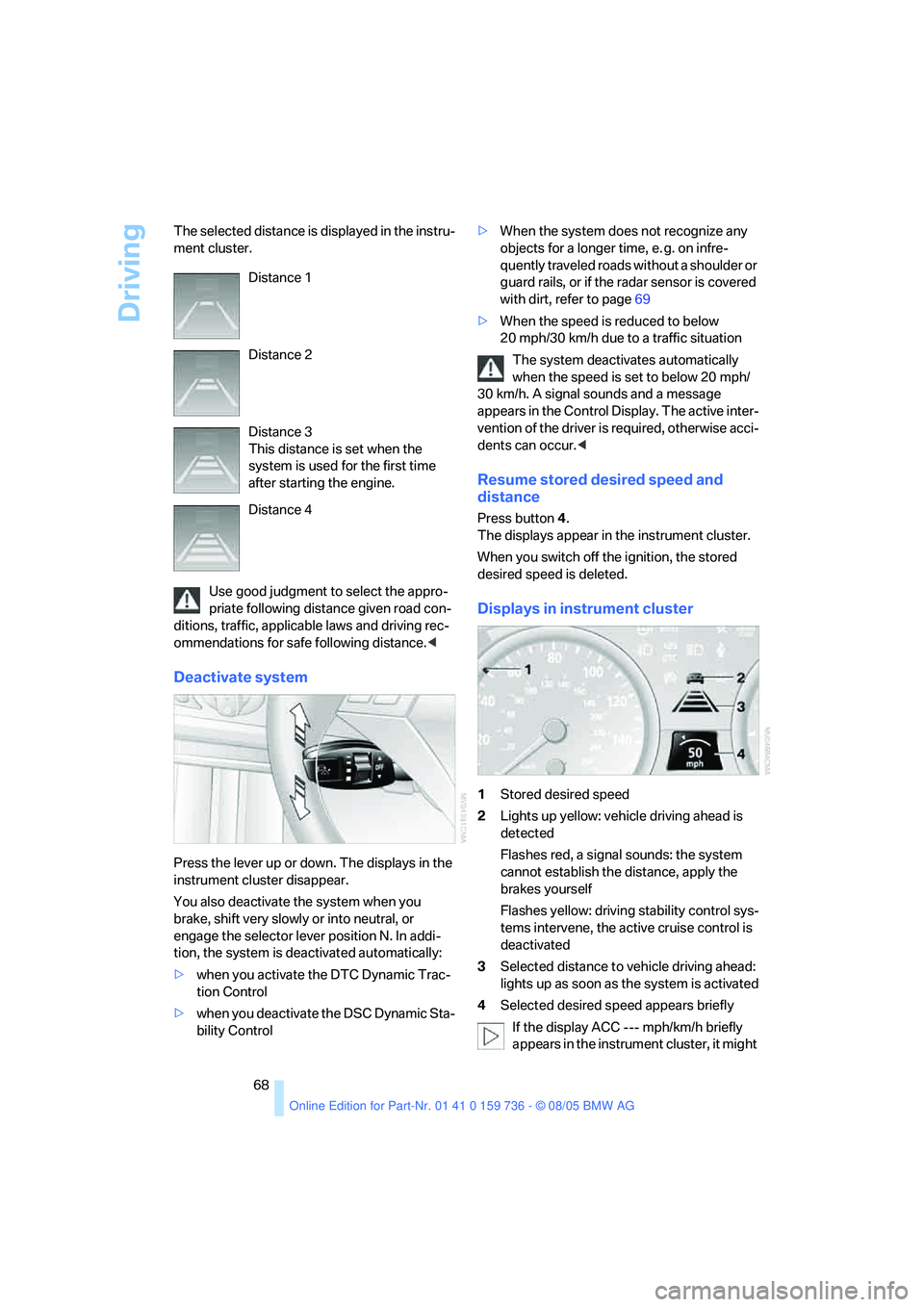
68 The selected distance is displayed in the instru-
ment cluster.
Use good judgment to select the appro-
priate following distance given road con-
ditions, traffic, applicable laws and driving rec-
ommendations for safe following distance.<
Deactivate system
Press the lever up or down. The displays in the
instrument cluster disappear.
You also deactivate the system when you
brake, shift very slowly or into neutral, or
engage the selector lever position N. In addi-
tion, the system is deactivated automatically:
>when you activate the DTC Dynamic Trac-
tion Control
>when you deactivate the DSC Dynamic Sta-
bility Control>When the system does not recognize any
objects for a longer time, e. g. on infre-
quently traveled roads without a shoulder or
guard rails, or if the radar sensor is covered
with dirt, refer to page69
>When the speed is reduced to below
20 mph/30 km/h due to a traffic situation
The system deactivates automatically
when the speed is set to below 20 mph/
30 km/h. A signal sounds and a message
appears in the Control Display. The active inter-
vention of the driver is required, otherwise acci-
dents can occur.<
Resume stored desired speed and
distance
Press button 4.
The displays appear in the instrument cluster.
When you switch off the ignition, the stored
desired speed is deleted.
Displays in instrument cluster
1Stored desired speed
2Lights up yellow: vehicle driving ahead is
detected
Flashes red, a signal sounds: the system
cannot establish the distance, apply the
brakes yourself
Flashes yellow: driving stability control sys-
tems intervene, the active cruise control is
deactivated
3Selected distance to vehicle driving ahead:
lights up as soon as the system is activated
4Selected desired speed appears briefly
If the display ACC --- mph/km/h briefly
appears in the instrument cluster, it might Distance 1
Distance 2
Distance 3
This distance is set when the
system is used for the first time
after starting the engine.
Distance 4
Page 74 of 248
Controls
73Reference
At a glance
Driving tips
Communications
Navigation
Entertainment
Mobility
Energy Control
Displays the current fuel consumption. This
allows you to see whether your current driving
style is conducive to fuel economy with mini-
mum exhaust emissions.
Fuel gauge
Fuel tank capacity: approx. 18.5 gallons/
70 liters. You will find information on refueling
on page186.
If the tilt of the vehicle varies for a longer period,
when you are driving in mountainous areas, for
example, the indicator may fluctuate slightly.
Reserve
After the reserve quantity has been reached, a
message appears for a short time on the Con-
trol Display; the remaining range is shown in the
onboard computer. Below a range of approx.
30 miles/50 km, the message remains on the
Control Display.
Refuel as soon as possible once your
cruising range falls below 30 miles/
50 km, otherwise engine functions are not
ensured and damage can occur.<
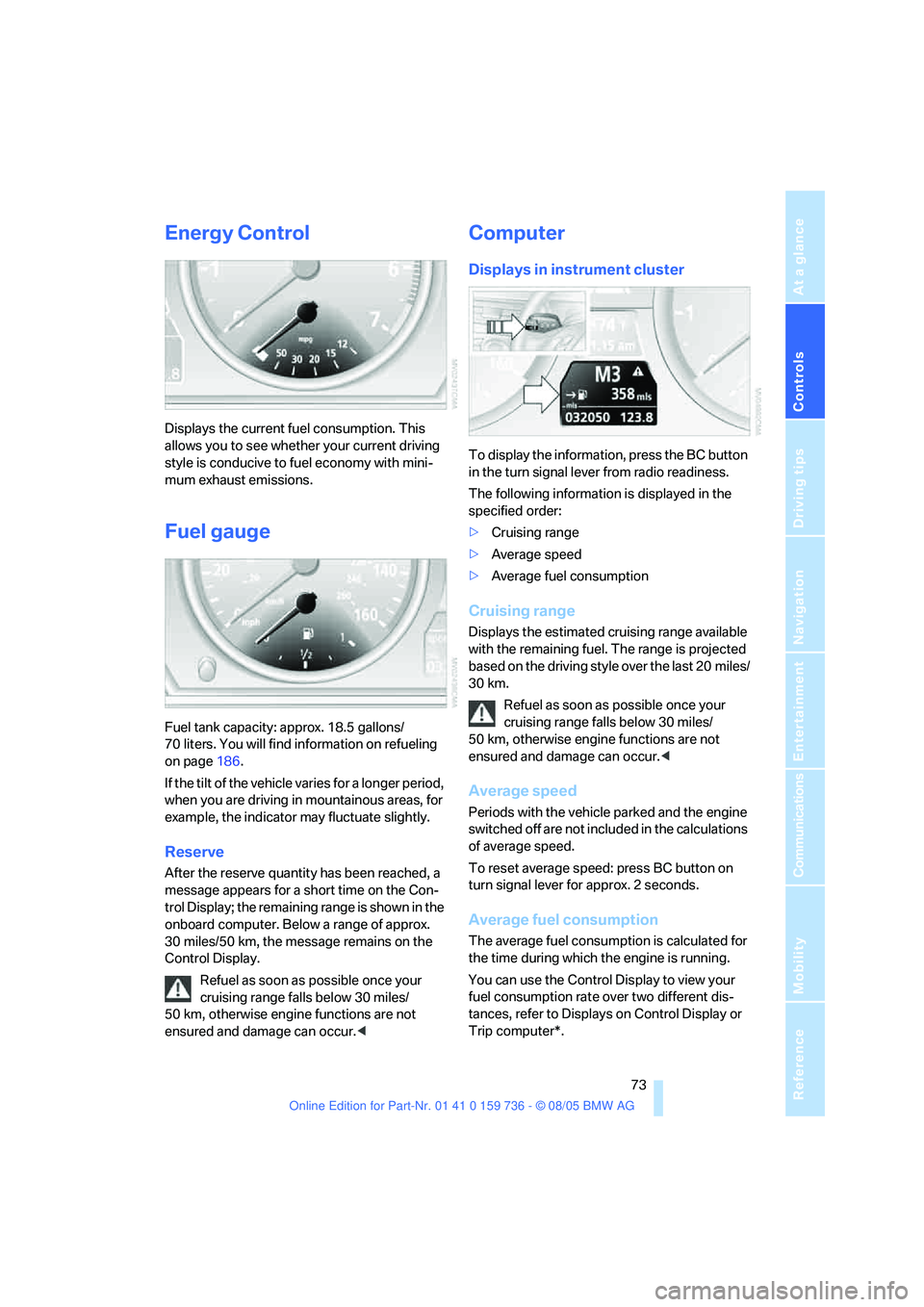
Computer
Displays in instrument cluster
To display the information, press the BC button
in the turn signal lever from radio readiness.
The following information is displayed in the
specified order:
>Cruising range
>Average speed
>Average fuel consumption
Cruising range
Displays the estimated cruising range available
with the remaining fuel. The range is projected
based on the driving style over the last 20 miles/
30 km.
Refuel as soon as possible once your
cruising range falls below 30 miles/
50 km, otherwise engine functions are not
ensured and damage can occur.<
Average speed
Periods with the vehicle parked and the engine
switched off are not included in the calculations
of average speed.
To reset average speed: press BC button on
turn signal lever for approx. 2 seconds.
Average fuel consumption
The average fuel consumption is calculated for
the time during which the engine is running.
You can use the Control Display to view your
fuel consumption rate over two different dis-
tances, refer to Displays on Control Display or
Trip computer*.
Page 78 of 248
Controls
77Reference
At a glance
Driving tips
Communications
Navigation
Entertainment
Mobility
9.Press the controller to apply the setting.
The year is highlighted.
10.Turn the controller to make the adjustment.
11.Press the controller to apply the setting.
The date entry is stored.
To exit the menu:
Select the arrow and press the controller.
Check Control
The concept
The Check Control monitors functions in the
vehicle and issues a message if there is a mal-
function in the monitored systems. This kind of
Check Control message consists of indicator
and warning lamps in the instrument cluster,
and if necessary an acoustic signal and text
messages at the bottom of the Control Display.
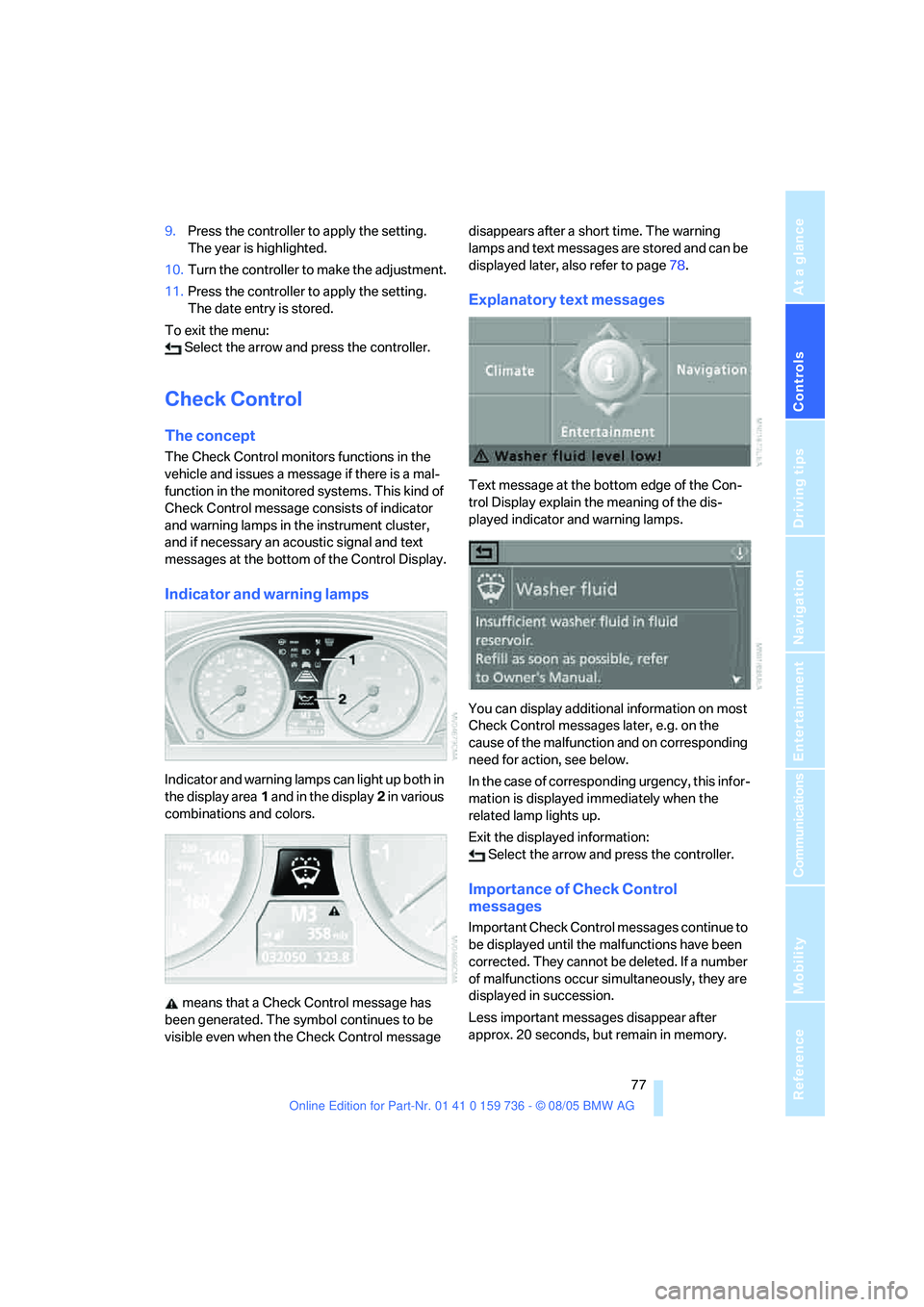
Indicator and warning lamps
Indicator and warning lamps can light up both in
the display area1 and in the display2 in various
combinations and colors.
means that a Check Control message has
been generated. The symbol continues to be
visible even when the Check Control message disappears after a short time. The warning
lamps and text messages are stored and can be
displayed later, also refer to page78.
Explanatory text messages
Text message at the bottom edge of the Con-
trol Display explain the meaning of the dis-
played indicator and warning lamps.
You can display additional information on most
Check Control messages later, e.g. on the
cause of the malfunction and on corresponding
need for action, see below.
In the case of corresponding urgency, this infor-
mation is displayed immediately when the
related lamp lights up.
Exit the displayed information:
Select the arrow and press the controller.
Importance of Check Control
messages
Important Check Control messages continue to
be displayed until the malfunctions have been
corrected. They cannot be deleted. If a number
of malfunctions occur simultaneously, they are
displayed in succession.
Less important messages disappear after
approx. 20 seconds, but remain in memory.
Page 86 of 248
Controls
85Reference
At a glance
Driving tips
Communications
Navigation
Entertainment
Mobility
The laws of physics cannot be repealed,
even with DSC. An appropriate driving
style always remains the responsibility of the
driver. Therefore, do not reduce the additional
safety margin again by taking risks.<
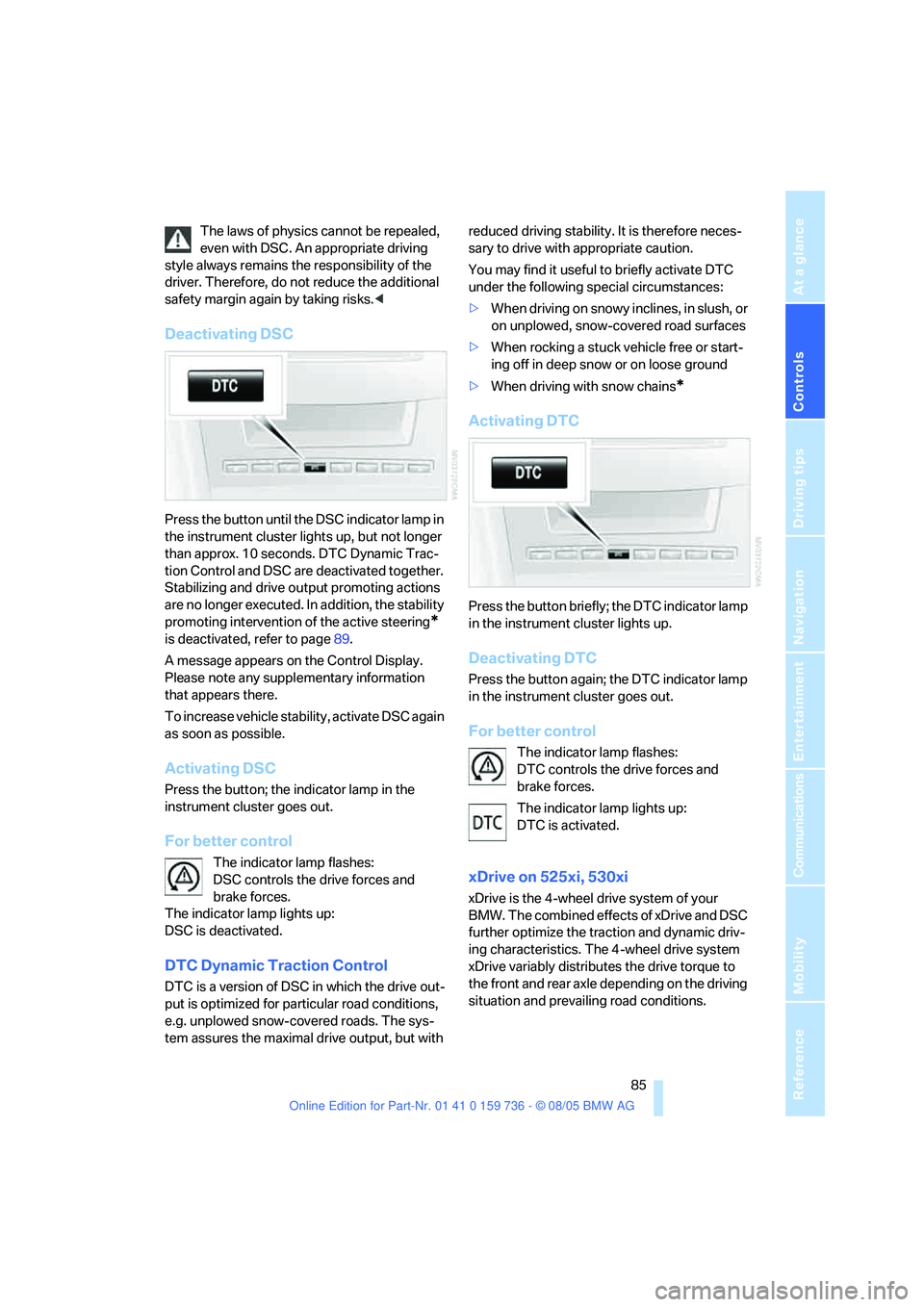
Deactivating DSC
Press the button until the DSC indicator lamp in
the instrument cluster lights up, but not longer
than approx. 10 seconds. DTC Dynamic Trac-
tion Control and DSC are deactivated together.
Stabilizing and drive output promoting actions
are no longer executed. In addition, the stability
promoting intervention of the active steering
*
is deactivated, refer to page89.
A message appears on the Control Display.
Please note any supplementary information
that appears there.
To increase vehicle stability, activate DSC again
as soon as possible.
Activating DSC
Press the button; the indicator lamp in the
instrument cluster goes out.
For better control
The indicator lamp flashes:
DSC controls the drive forces and
brake forces.
The indicator lamp lights up:
DSC is deactivated.
DTC Dynamic Traction Control
DTC is a version of DSC in which the drive out-
put is optimized for particular road conditions,
e.g. unplowed snow-covered roads. The sys-
tem assures the maximal drive output, but with reduced driving stability. It is therefore neces-
sary to drive with appropriate caution.
You may find it useful to briefly activate DTC
under the following special circumstances:
>When driving on snowy inclines, in slush, or
on unplowed, snow-covered road surfaces
>When rocking a stuck vehicle free or start-
ing off in deep snow or on loose ground
>When driving with snow chains
*
Activating DTC
Press the button briefly; the DTC indicator lamp
in the instrument cluster lights up.
Deactivating DTC
Press the button again; the DTC indicator lamp
in the instrument cluster goes out.
For better control
The indicator lamp flashes:
DTC controls the drive forces and
brake forces.
The indicator lamp lights up:
DTC is activated.
xDrive on 525xi, 530xi
xDrive is the 4-wheel drive system of your
BMW. The combined effects of xDrive and DSC
further optimize the traction and dynamic driv-
ing characteristics. The 4-wheel drive system
xDrive variably distributes the drive torque to
the front and rear axle depending on the driving
situation and prevailing road conditions.
Page 87 of 248
Technology for comfort, convenience and safety
86
HDC Hill Descent Control on 525xi,
530xi
The concept
HDC is a system for driving downhill in steep
terrain. This system reduces vehicle speed on
steep downhill gradients, thus allowing you to
maintain even better control of your BMW
under these conditions. The vehicle moves at
approximately twice walking speed without
active intervention from the driver.
HDC is available for activation at vehicle speeds
below approx. 22 mph/35 km/h. When driving
down steep hills with a speed below approx.
22 mph/35 km/h, the vehicle reduces speed
automatically down to approximately double
walking speed, approx. 7 mph/12 km/h, and
then maintains this speed at a constant.
You can use the accelerator or brakes to vary
this automatically controlled speed within a
range extending from approx. 3 mph/5 km/h to
15 mph/25 km/h.
You can specify a target speed within the same
range by using the lever of the cruise control.
Activating HDC
You can activate HDC:
>with the programmable buttons on the
steering wheel, refer to page51
>or via iDrive
iDrive, for principle details, refer to page16.
1.Open the start menu.
2.Press the controller to open the menu.
3.Select "Vehicle settings" and press the
controller.
4.Select "HDC" and press the controller.5.Select "HDC on" and press the controller.
The HDC display in the instrument cluster
appears.
If the vehicle is automatically braked, a message
appears on the Control Display for approx.
20 seconds.
Deactivating HDC
When you use the programmable buttons on
the steering wheel or via iDrive, the HDC display
goes out.
Over approx. 37 mph/60 km/h HDC is immedi-
ately deactivated, and after approx. 10 seconds
when the ignition is switched off.
Using HDC
Manual transmission:
Use HDC in low gears and reverse gear.
Automatic transmission:
You can use HDC in every drive position.
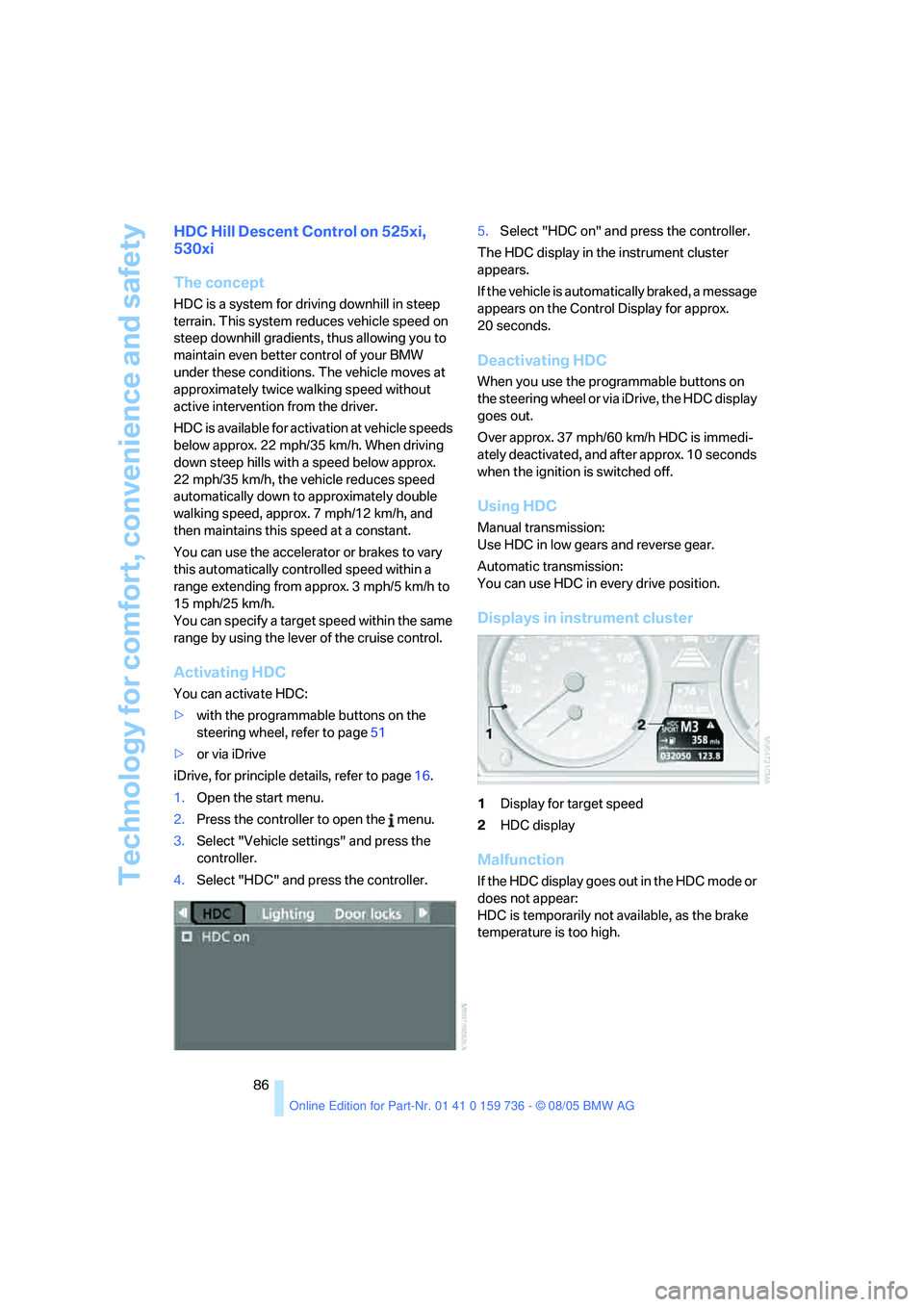
Displays in instrument cluster
1Display for target speed
2HDC display
Malfunction
If the HDC display goes out in the HDC mode or
does not appear:
HDC is temporarily not available, as the brake
temperature is too high.
Page 97 of 248
Lamps
96
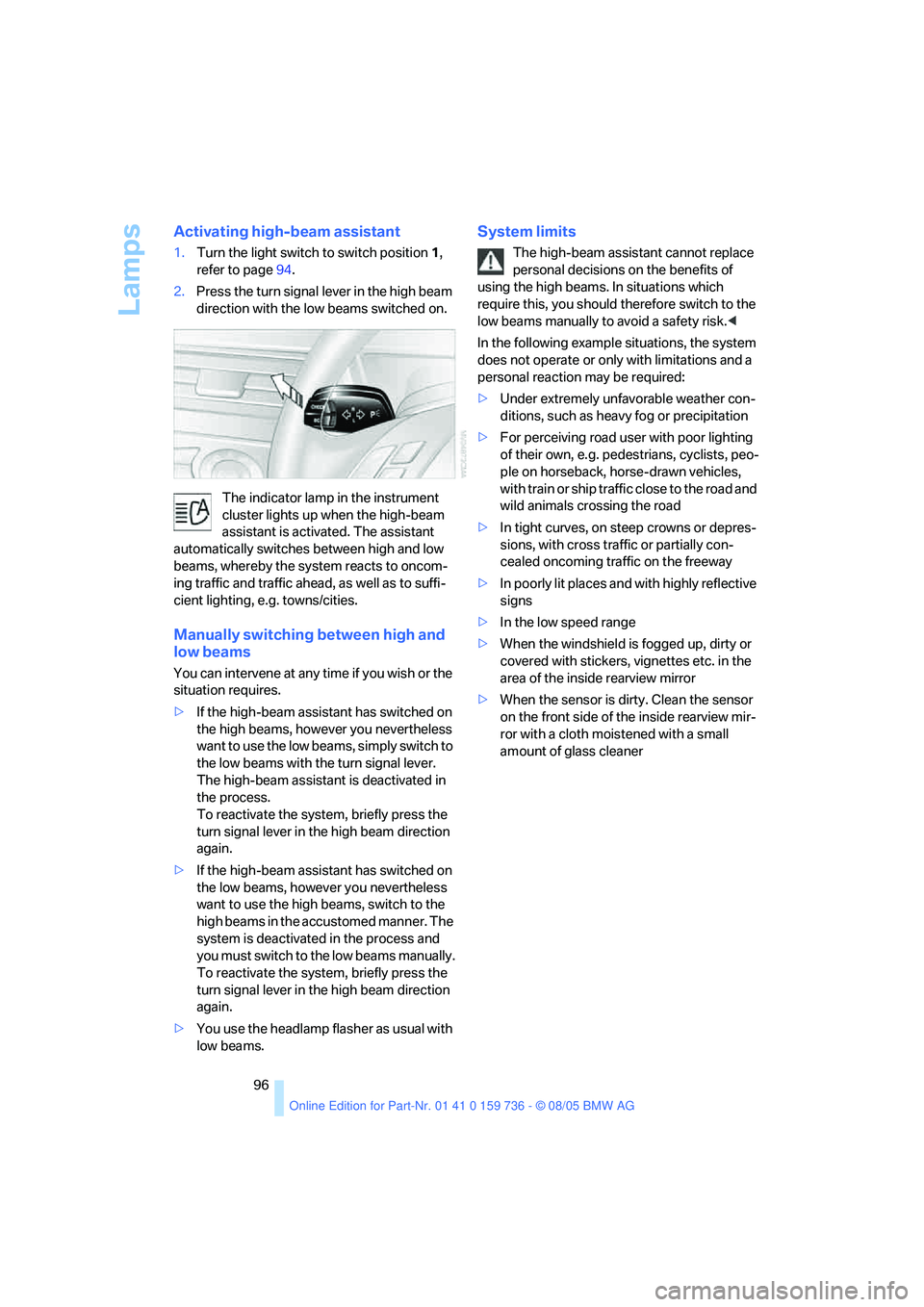
Activating high-beam assistant
1.Turn the light switch to switch position1,
refer to page94.
2.Press the turn signal lever in the high beam
direction with the low beams switched on.
The indicator lamp in the instrument
cluster lights up when the high-beam
assistant is activated. The assistant
automatically switches between high and low
beams, whereby the system reacts to oncom-
ing traffic and traffic ahead, as well as to suffi-
cient lighting, e.g. towns/cities.
Manually switching between high and
low beams
You can intervene at any time if you wish or the
situation requires.
>If the high-beam assistant has switched on
the high beams, however you nevertheless
want to use the low beams, simply switch to
the low beams with the turn signal lever.
The high-beam assistant is deactivated in
the process.
To reactivate the system, briefly press the
turn signal lever in the high beam direction
again.
>If the high-beam assistant has switched on
the low beams, however you nevertheless
want to use the high beams, switch to the
high beams in the accustomed manner. The
system is deactivated in the process and
you must switch to the low beams manually.
To reactivate the system, briefly press the
turn signal lever in the high beam direction
again.
>You use the headlamp flasher as usual with
low beams.
System limits
The high-beam assistant cannot replace
personal decisions on the benefits of
using the high beams. In situations which
require this, you should therefore switch to the
low beams manually to avoid a safety risk.<
In the following example situations, the system
does not operate or only with limitations and a
personal reaction may be required:
>Under extremely unfavorable weather con-
ditions, such as heavy fog or precipitation
>For perceiving road user with poor lighting
of their own, e.g. pedestrians, cyclists, peo-
ple on horseback, horse-drawn vehicles,
with train or ship traffic close to the road and
wild animals crossing the road
>In tight curves, on steep crowns or depres-
sions, with cross traffic or partially con-
cealed oncoming traffic on the freeway
>In poorly lit places and with highly reflective
signs
>In the low speed range
>When the windshield is fogged up, dirty or
covered with stickers, vignettes etc. in the
area of the inside rearview mirror
>When the sensor is dirty. Clean the sensor
on the front side of the inside rearview mir-
ror with a cloth moistened with a small
amount of glass cleaner
Page 98 of 248
Controls
97Reference
At a glance
Driving tips
Communications
Navigation
Entertainment
Mobility
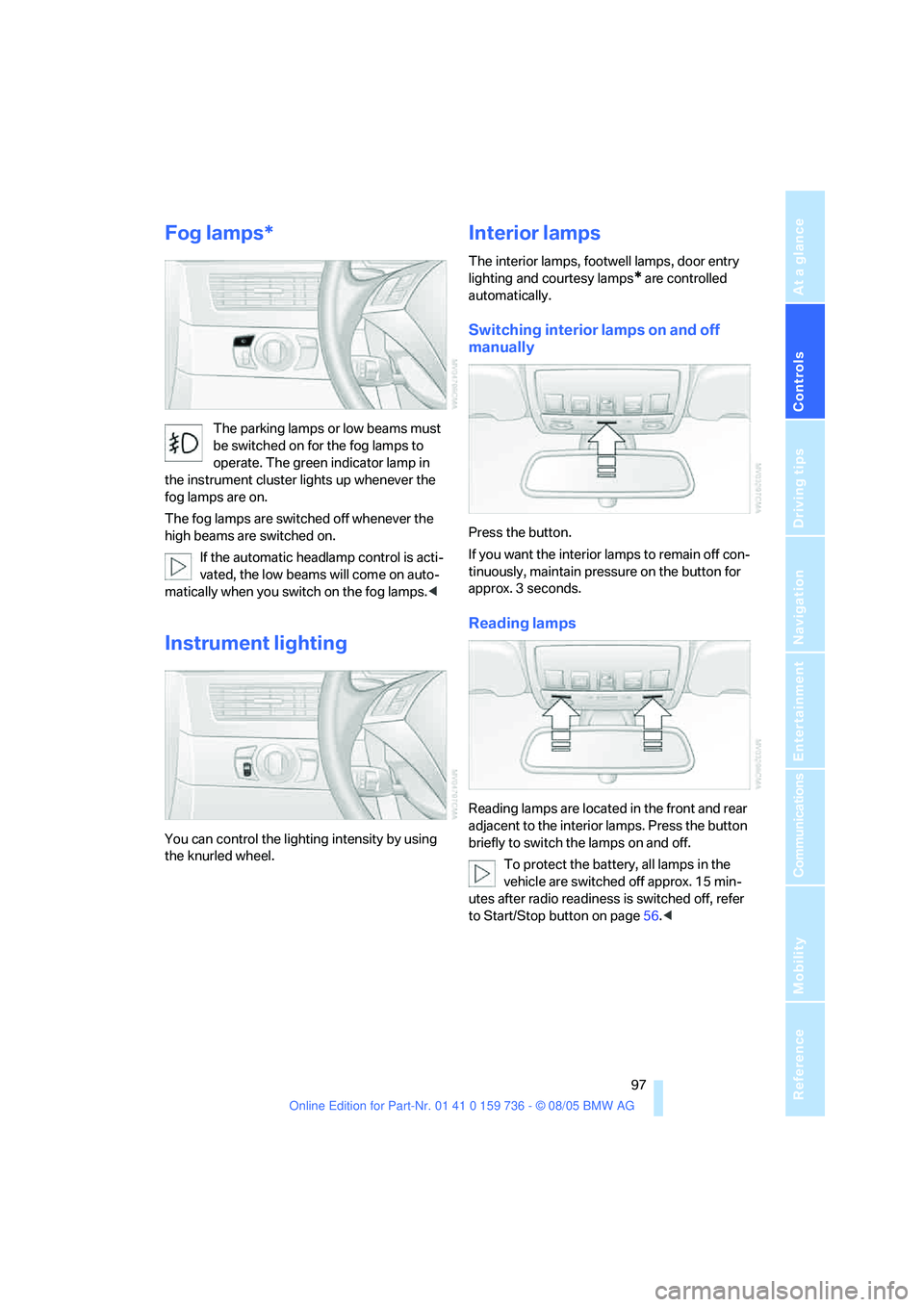
Fog lamps*
The parking lamps or low beams must
be switched on for the fog lamps to
operate. The green indicator lamp in
the instrument cluster lights up whenever the
fog lamps are on.
The fog lamps are switched off whenever the
high beams are switched on.
If the automatic headlamp control is acti-
vated, the low beams will come on auto-
matically when you switch on the fog lamps.<
Instrument lighting
You can control the lighting intensity by using
the knurled wheel.
Interior lamps
The interior lamps, footwell lamps, door entry
lighting
and courtesy lamps* are controlled
automatically.
Switching interior lamps on and off
manually
Press the button.
If you want the interior lamps to remain off con-
tinuously, maintain pressure on the button for
approx. 3 seconds.
Reading lamps
Reading lamps are located in the front and rear
adjacent to the interior lamps. Press the button
briefly to switch the lamps on and off.
To protect the battery, all lamps in the
vehicle are switched off approx. 15 min-
utes after radio readiness is switched off, refer
to Start/Stop button on page56.<
Page 232 of 248
Reference 231
At a glance
Controls
Driving tips
Communications
Navigation
Entertainment
Mobility
Cornering Brake Control
CBC84
Country of destination for
navigation126
Courtesy lamps97
Cradle for telephone or mobile
phone106
Cruise control64,65
– active cruise control65
Cruising range73
Cup holders107
Curb weight, refer to
Weights221
Current fuel consumption73
"Current position"140
Current position
– displaying140
– entering133
– storing133
"Customer
Relations"181,183
Cylinders, refer to Engine
data218
D
Dashboard, refer to
Cockpit10
Data218
– capacities222
– dimensions219
– engine218
– technical data218
– weights221
"Date"81
Date72
– display format81
– retrieval72
– setting81
"Date format"81
Daytime driving lamps94
DBC Dynamic Brake
Control84
"Deactivated"46
Deactivating selector lever
interlock62
Decommissioning the vehicle,
refer to Caring for your
vehicle brochureDefect
– fuel filler door186
– glass sunroof41
– luggage compartment lid34
– tailgate35
Defrosting windows100
Defrosting windows and
removing condensation100
Defrost position, refer to
Defrosting windows100
"Delete address book" for
navigation134
"Delete all numbers" on the
mobile phone173
"Delete data" for
navigation134
"Delete" for mobile
phone173
Destination address
– deleting133
– entering125,128
Destination for navigation
– destination list131
– entry125
– selecting from address
book133
– selecting using
information130
– storing132
Destination guidance136
– bypassing route
sections140
– canceling voice
instructions51
– changing specified
route134
– displaying routes
137
– distance and arrival136
– interrupting136
– starting136
– terminating/continuing136
– voice instructions139
– volume of voice
instructions140
Destination list for
navigation131
Destinations recently driven
to131"Details" in audio mode159
"Dial" for mobile phone171
"Dial number"171
"Diamond button"51
Diamond button51
Digital clock72
Digital radio, refer to High
Definition Radio152
Dimensions219
Directional indicators, refer to
Turn signals62
Direction announcements,
refer to Voice
instructions139
Direction instructions, refer to
Voice instructions139
Directory for navigation, refer
to Address book132
Displacement, refer to Engine
data218
"Display"81
Display, refer to iDrive16
Display lighting, refer to
Instrument lighting97
"Display off"21
Displays, refer to Instrument
cluster12
"Display settings"80
Displays on the windshield,
refer to Head-Up Display92
Disposal
– battery of remote control
with comfort access39
– vehicle battery209
Distance, refer to
Computer74
Distance cruise control, refer
to Active cruise control65
"Distance to dest."74
Distance to destination, refer
to Computer74
Distance warning, refer to
PDC Park Distance
Control83
Divided rear seat back, refer to
Through-loading
system109
Door entry lighting97
Page 236 of 248
Reference 235
At a glance
Controls
Driving tips
Communications
Navigation
Entertainment
Mobility
Indicator/warning lamps
– active steering89
– airbags91
– brake fluid199
– brake pads200
– DSC13,85
– DTC13,85
– Flat Tire Monitor88
– fog lamps13
– safety belt warning47
Indicator and warning
lamps13
Individual air distribution100
Individually programmable
buttons on steering
wheel51
Individual settings, refer to
Personal Profile29
Inflation pressure, refer to Tire
inflation pressure188
Inflation pressure monitoring,
refer to Flat Tire Monitor87
Information
– on another location130
– on country130
– on current position130
– on destination location130
"Information" for
navigation131
"Information on
destination"132
"Initializing..."88
Initializing
– Flat Tire Monitor88
– radio, refer to Storing
stations150
– refer to Power failure209
– refer to Setting time and
date80
– seat, mirror and steering
wheel memory45
"Input map"130
Installation location
– CD changer161
– mobile phone106
– navigation drive124
Instructions for navigation
system, refer to Voice
instructions139Instrument cluster12
Instrument illumination, refer
to Instrument lighting97
Instrument lighting97
Instrument panel, refer to
Cockpit10
Instrument panel, refer to
Instrument cluster12
Integrated key28
Integrated universal remote
control
104
Interesting destination for
navigation130
"Interim time"80
Interior lamps97
– switching on with remote
control31
Interior motion sensor37
– switching off37
Interior rearview mirror50
– automatic dimming
feature117
Interlock on automatic
transmission61
Intermittent mode of the
wipers63
J
Jacking points208
Joystick, refer to iDrive16
Jumpering, refer to Jump
starting212
Jump starting212
K
Keyless-Go, refer to Comfort
access37
Keyless opening and closing,
refer to Comfort access37
Key Memory, refer to Personal
Profile29
"Keypad"174
Keys28
– key-related settings, refer to
Personal Profile29Kick-down
– automatic transmission with
Steptronic61
– SMG Sequential Manual
Gearbox60
Knock control187
L
Lamps, refer to Parking lamps/
low beams94
Lamps and bulbs203
"Languages"82
"Languages" for
navigation139
Lashing eyes, refer to
Securing cargo120
Last destinations, refer to
Destination list131
"Last seat pos."46
LATCH child-restraint fixing
system54
Length, refer to
Dimensions219
License plate lamp, replacing
bulbs206
Light-emitting diodes
LEDs206
Lighter108
Lighter socket108
"Lighting"63,94
Lighting
– instruments97
– of the vehicle, refer to
Lamps94
– refer to High-beam
assistant95
Light switch94
"Limit"79
Loading
– securing cargo120
– stowing cargo119
– vehicle118
"Lock after driving off"33
Lock buttons in the doors,
refer to Locking33